

Setting up after-hours messages
นอกเวลาทำการ (After hours) lets you have the bot reply to customers who message while your shop is closed. For example, it can say the shop is closed and an admin will reply tomorrow at 09:00, announce a long New Year holiday, or tell a customer who has waited a long time during business hours without an admin reply that an admin will reply soon.
The shop owner and every admin can set up after-hours messages. One account can be in one after-hours set, and each set has its own schedule. New shops get a นอกเวลาทำการหลัก (Main after hours) set that is turned off; you can turn that one on or edit it, or create a new set for pages that open at different times. Parts every topic shares, such as status, testing and history, are explained in Using the auto-reply bot.
Creating an after-hours set
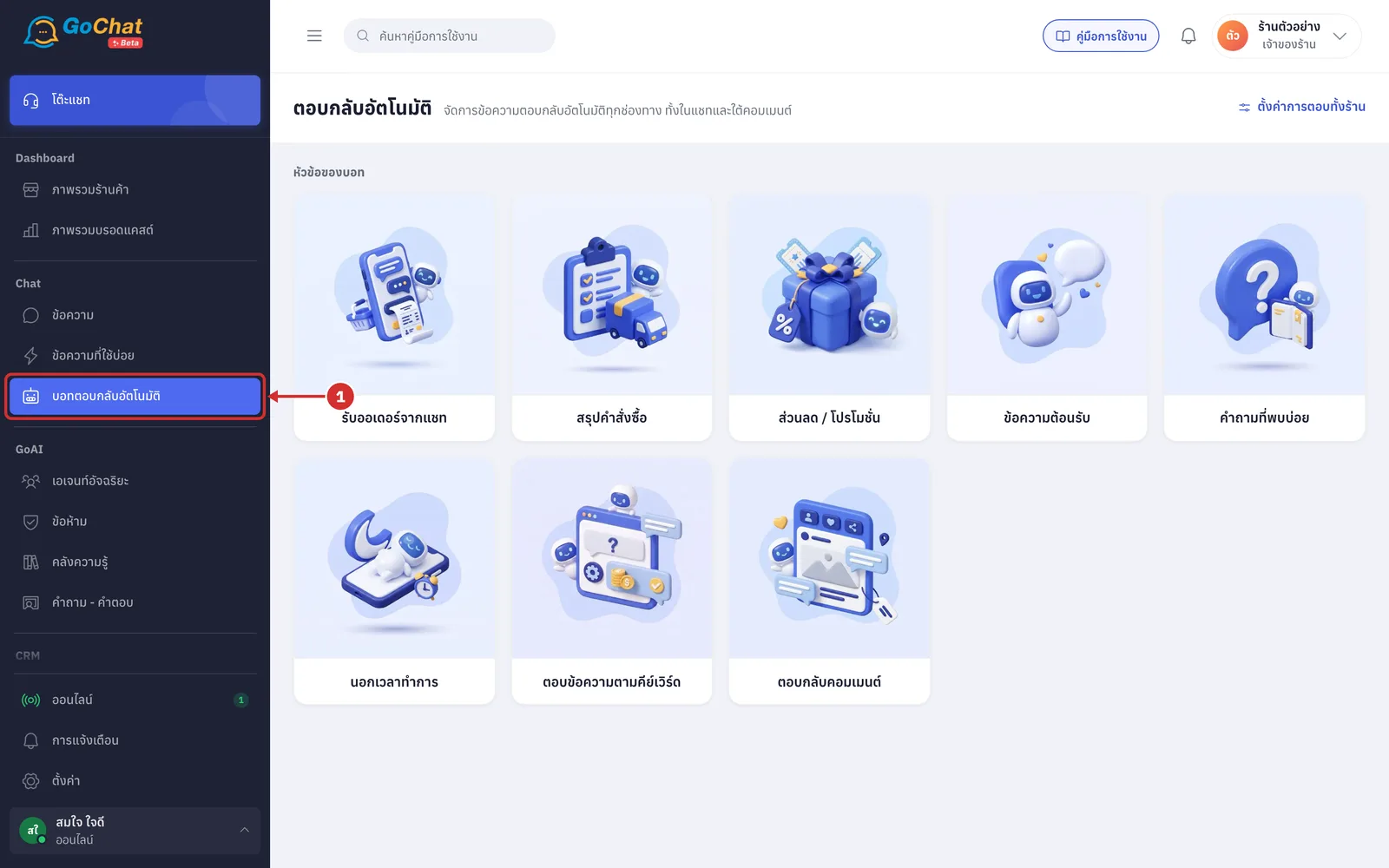
Go to the บอทตอบกลับอัตโนมัติ (Auto-reply bot) menu under Chat in the left menu bar
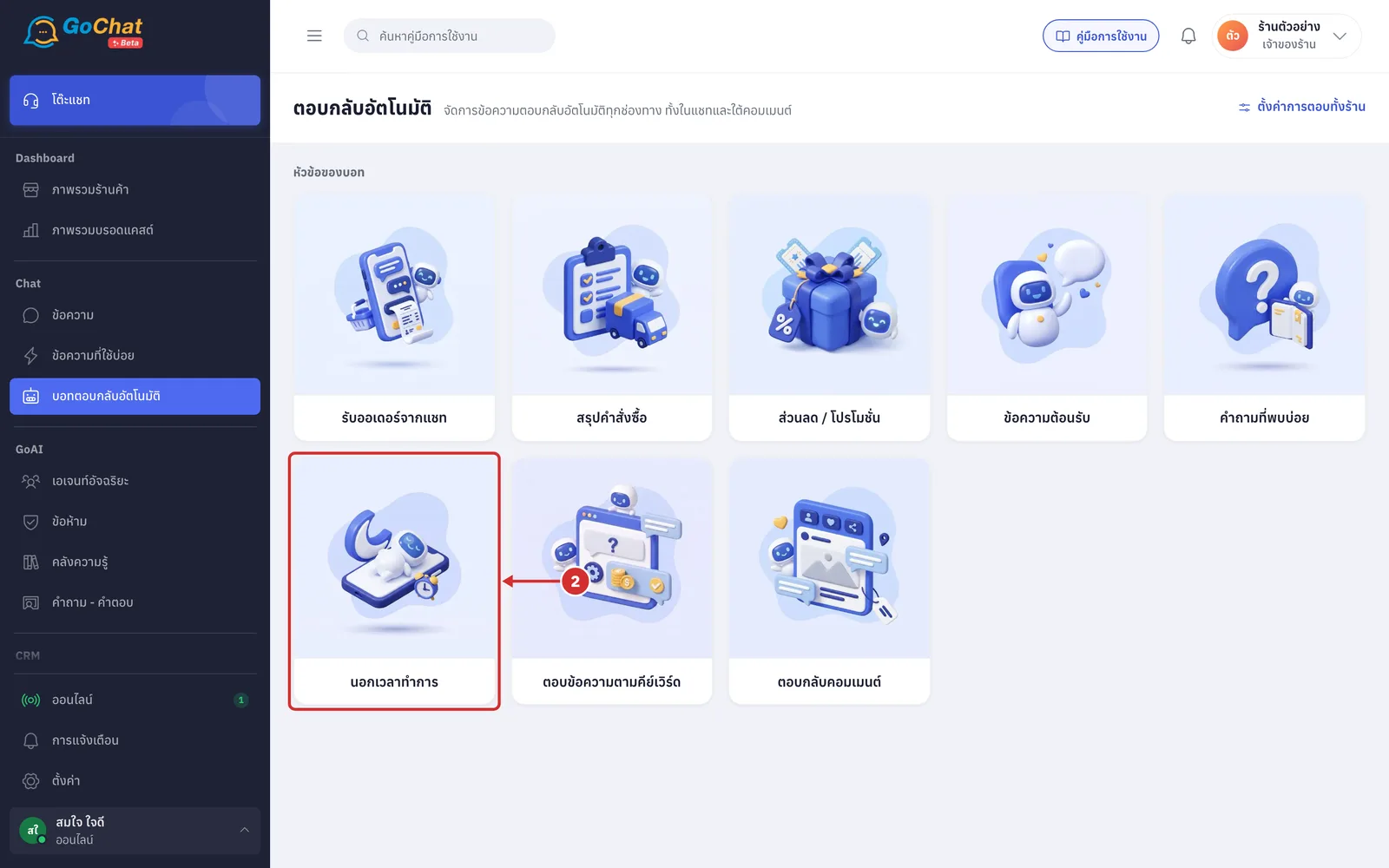
Click the นอกเวลาทำการ (After hours) card
Click สร้างชุดนอกเวลาทำการ (Create after-hours set) (to edit an existing set, click its name in the list instead). Each set's row in the list shows these after-hours details
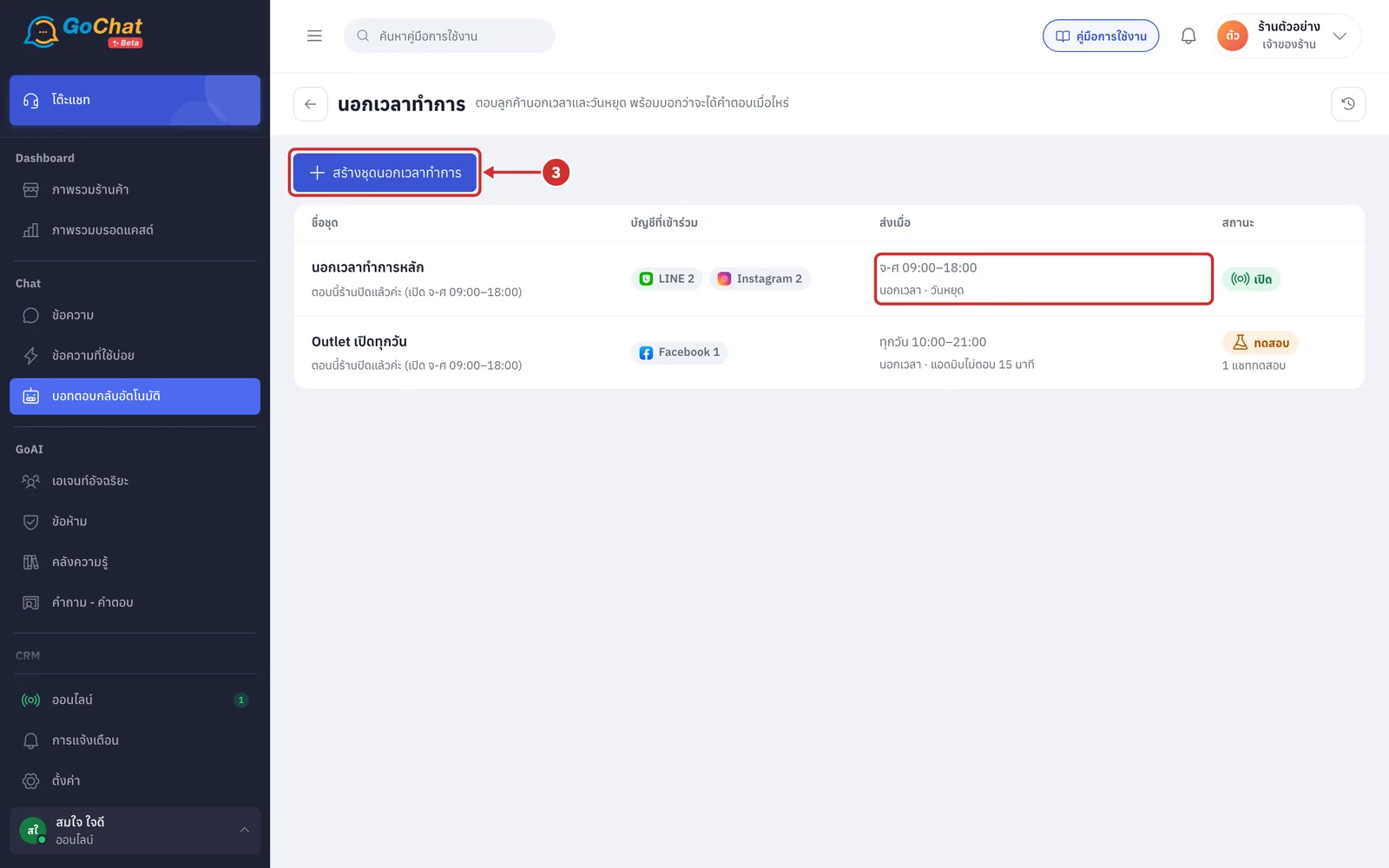
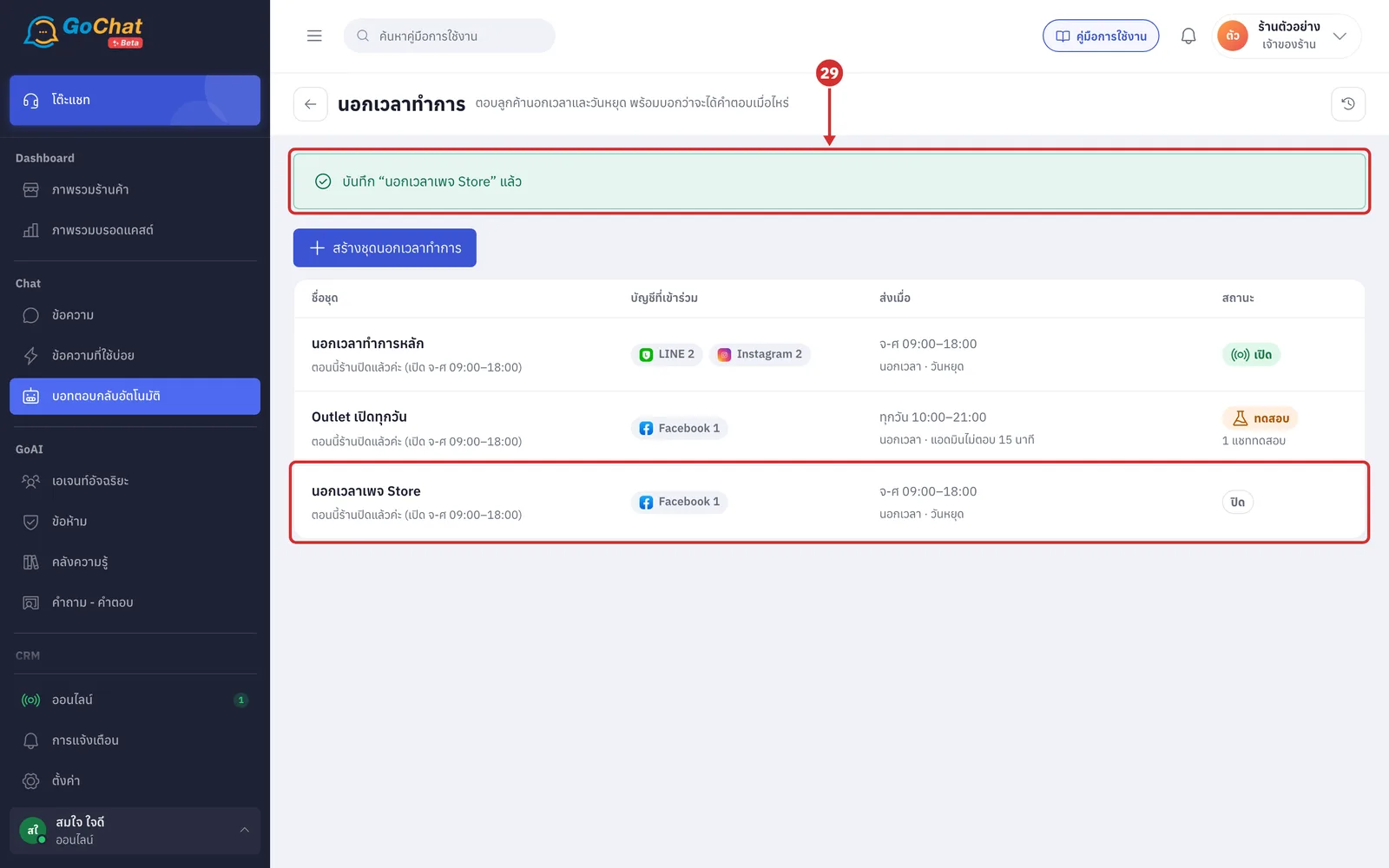
Grey line under the set name: the first line of the after-hours message, with variables filled in with sample values, such as business hours shown as จ-ศ 09:00–18:00 (Mon–Fri 09:00–18:00)
ส่งเมื่อ (Sends when) column: a summary of the set's conditions
First line: the schedule in short form, such as จ-ศ 09:00–18:00 (Mon–Fri 09:00–18:00) or ทุกวัน 10:00–21:00 (Every day 10:00–21:00) (shown when after hours is ticked)
Second line: the chosen conditions, such as นอกเวลา · วันหยุด (After hours · Holiday) or นอกเวลา · แอดมินไม่ตอบ 15 นาที (After hours · No admin reply 15 minutes)
In ชื่อชุด (Set name), enter a name for the set, such as นอกเวลาเพจ Store
This field is required, up to 60 characters
Your team sees the set name in the list; customers do not
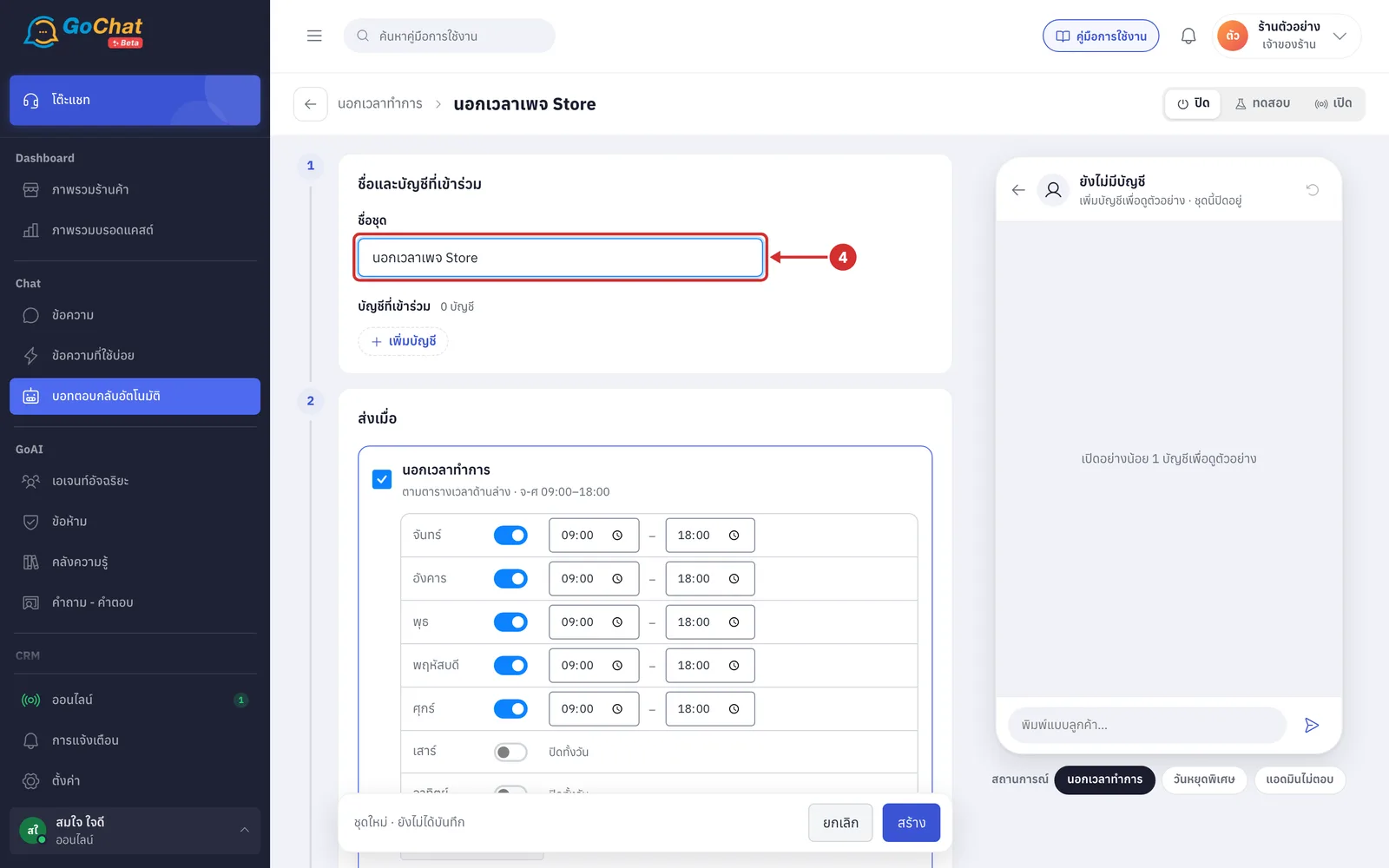
Click เพิ่มบัญชี (Add account) and tick the pages or accounts that will use this set
Accounts already in another after-hours set show a lock and อยู่ใน (In) the set's name
Those accounts cannot be chosen; remove them from that set first
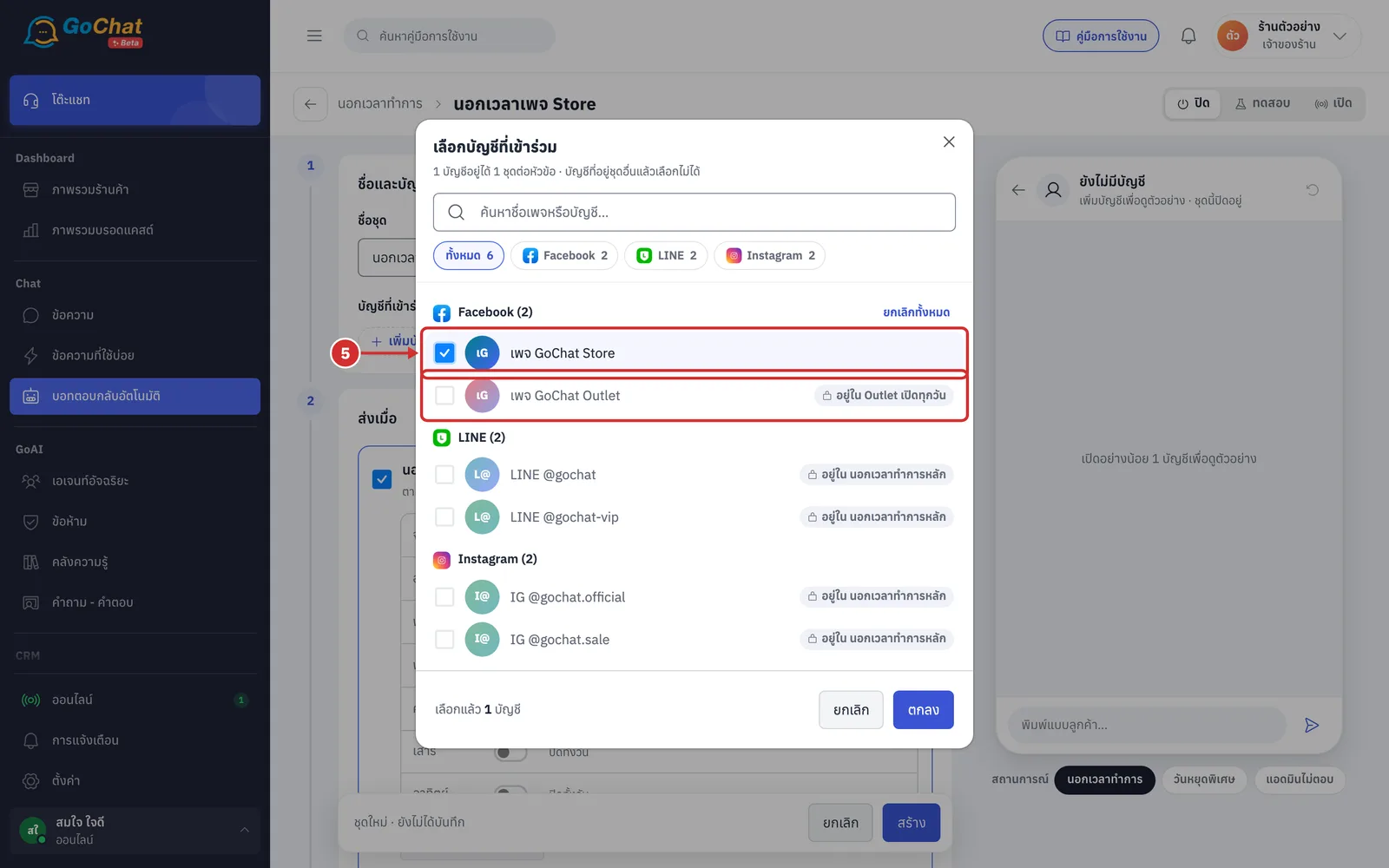
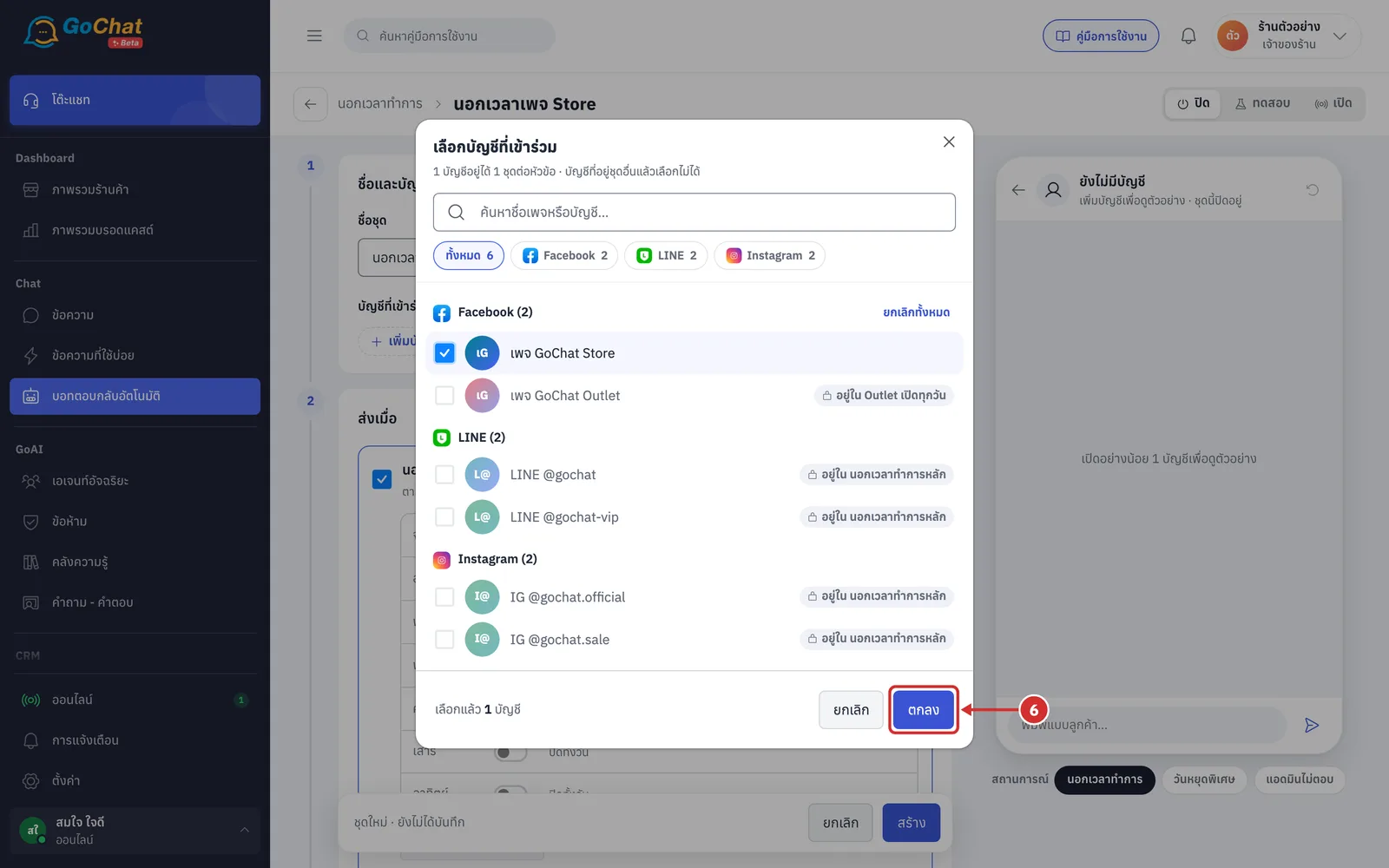
Click ตกลง (OK). The chosen accounts appear under บัญชีที่เข้าร่วม (Accounts)
Choosing when the bot sends
The ส่งเมื่อ (Sends when) step has 3 condition cards: นอกเวลาทำการ (After hours), วันหยุดพิเศษ (Special holidays) and แอดมินไม่ตอบ (No admin reply). Tick a card's header to choose it. You can choose more than one, but at least one is needed; if you untick them all you see ต้องเลือกอย่างน้อย 1 เงื่อนไข (Choose at least 1 condition). New sets have นอกเวลาทำการ (After hours) ticked.
Tick the นอกเวลาทำการ (After hours) card to send a message when a customer messages outside this set's schedule
Under the card name is the schedule in short form, such as ตามตารางเวลาด้านล่าง · จ-ศ 09:00–18:00 (Per the schedule below · Mon–Fri 09:00–18:00)
New sets take the schedule from your shop's ตั้งค่า › เวลาทำการ (Settings › Business hours)
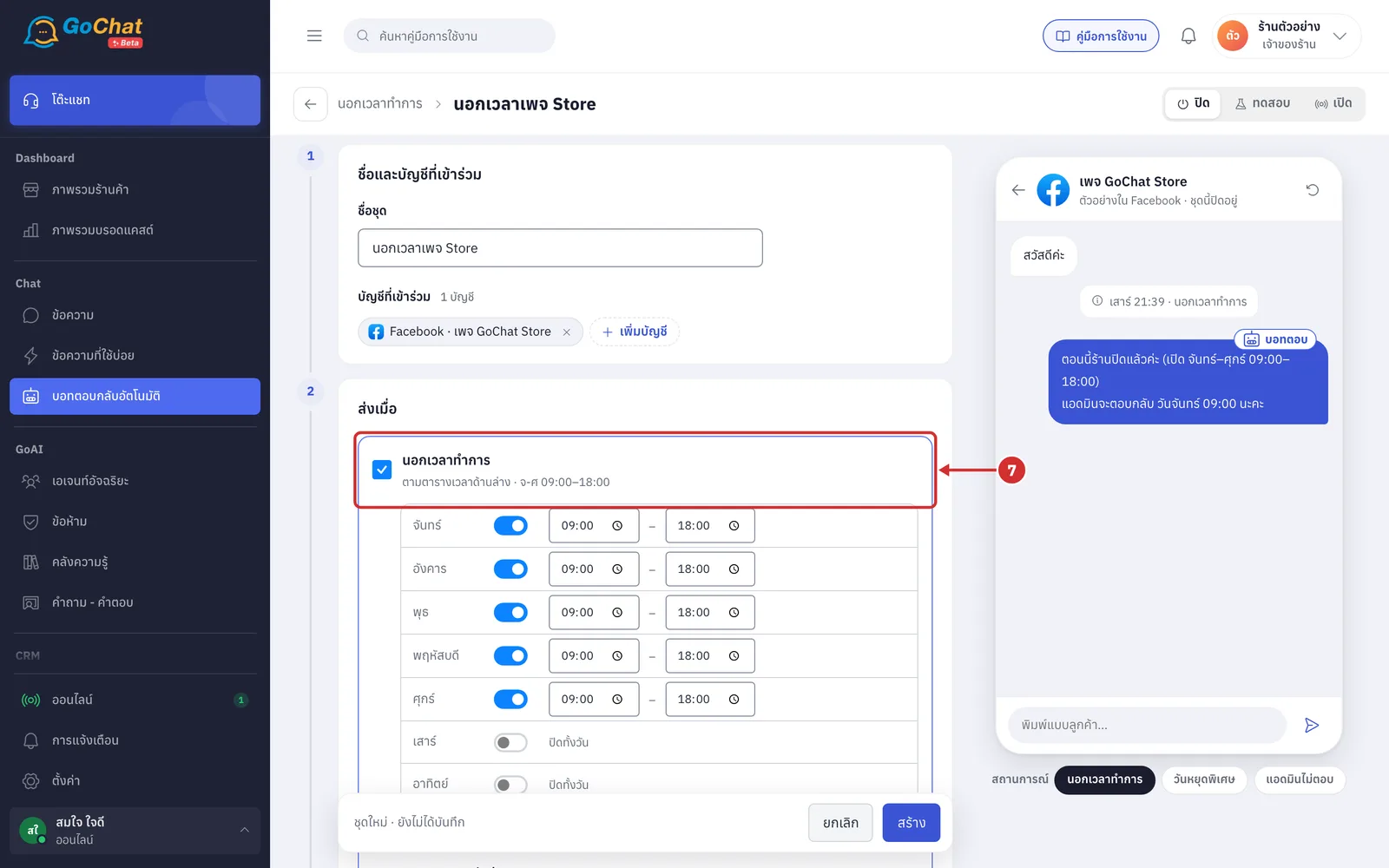
In the schedule, turn on the switch for each day the shop opens, then enter the opening and closing times, such as opening on Saturday
Days with the switch off show ปิดทั้งวัน (Closed all day)
At least 1 day must be open, and the opening time must be before the closing time
Times follow your shop's time zone
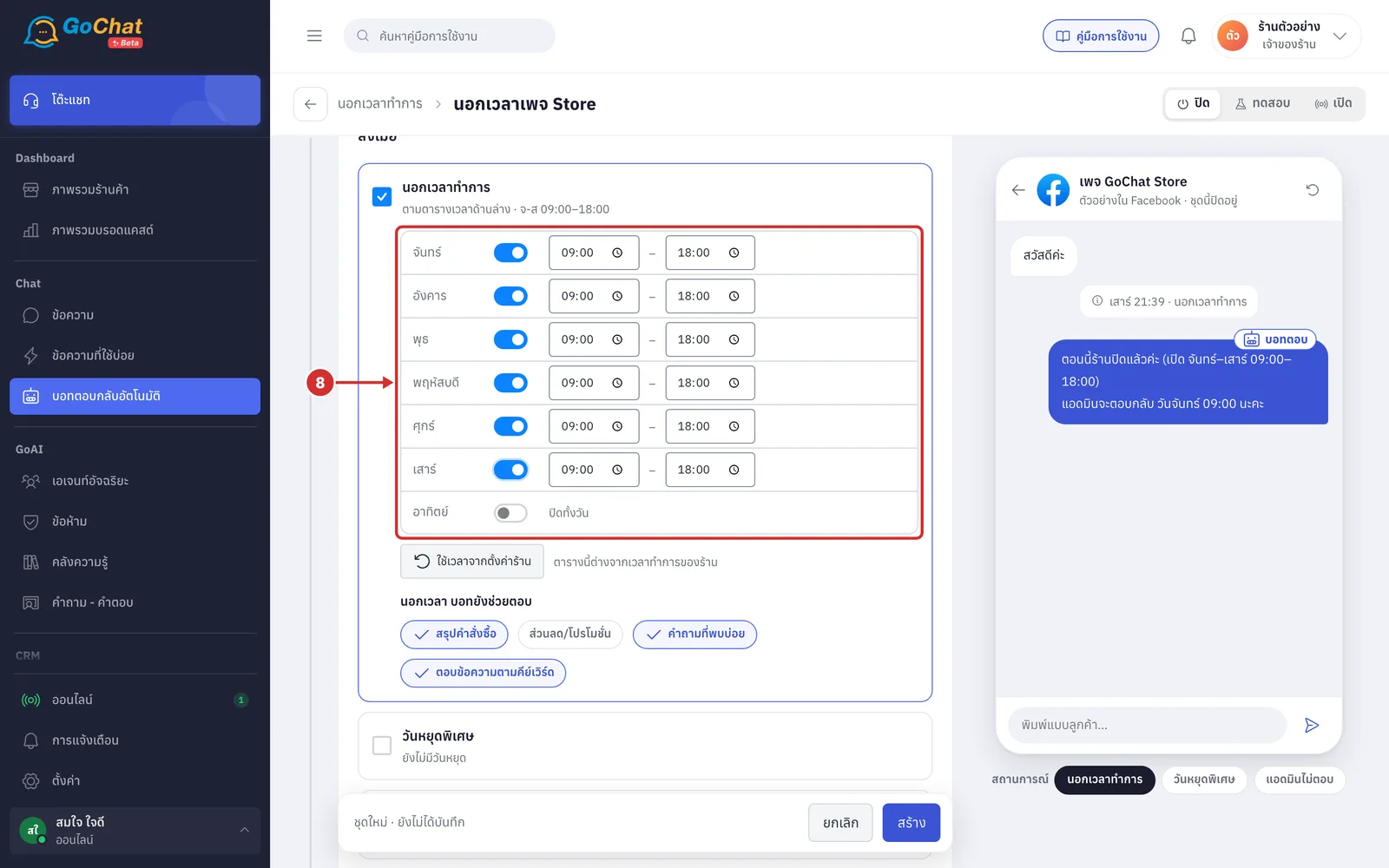
Click ใช้เวลาจากตั้งค่าร้าน (Use shop settings hours) to copy your shop's business hours into this schedule. The text next to the button shows
ตรงกับเวลาทำการของร้านแล้ว (Already matches the shop's business hours): the schedule is the same as the shop's, so the button cannot be clicked
ตารางนี้ต่างจากเวลาทำการของร้าน (This schedule differs from the shop's business hours): click the button to use the shop's hours
ร้านยังไม่ได้ตั้งเวลาทำการ · ตั้งที่ ตั้งค่า › เวลาทำการ (The shop has no business hours yet · Set them in Settings › Business hours): click the link to set your shop's hours first
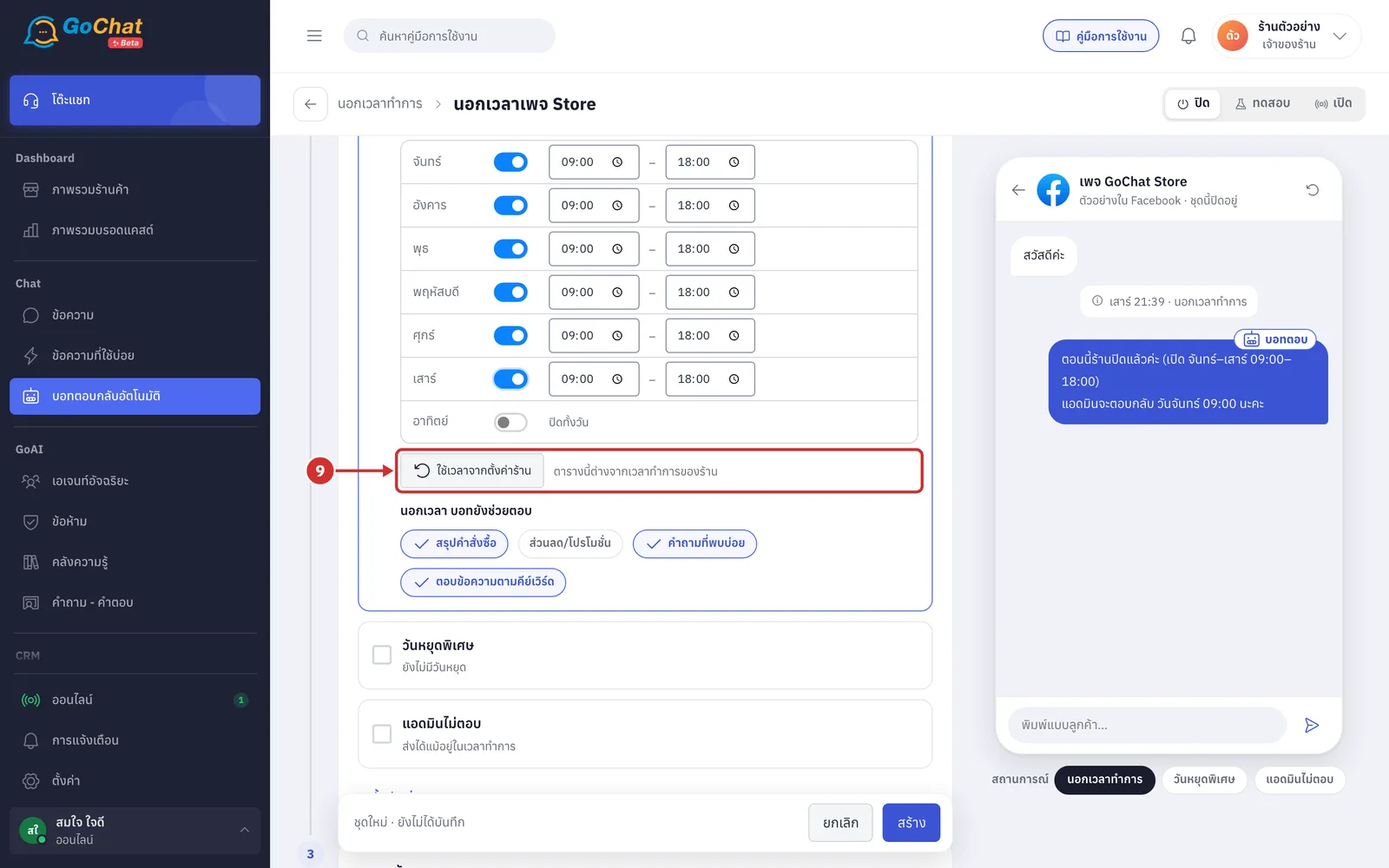
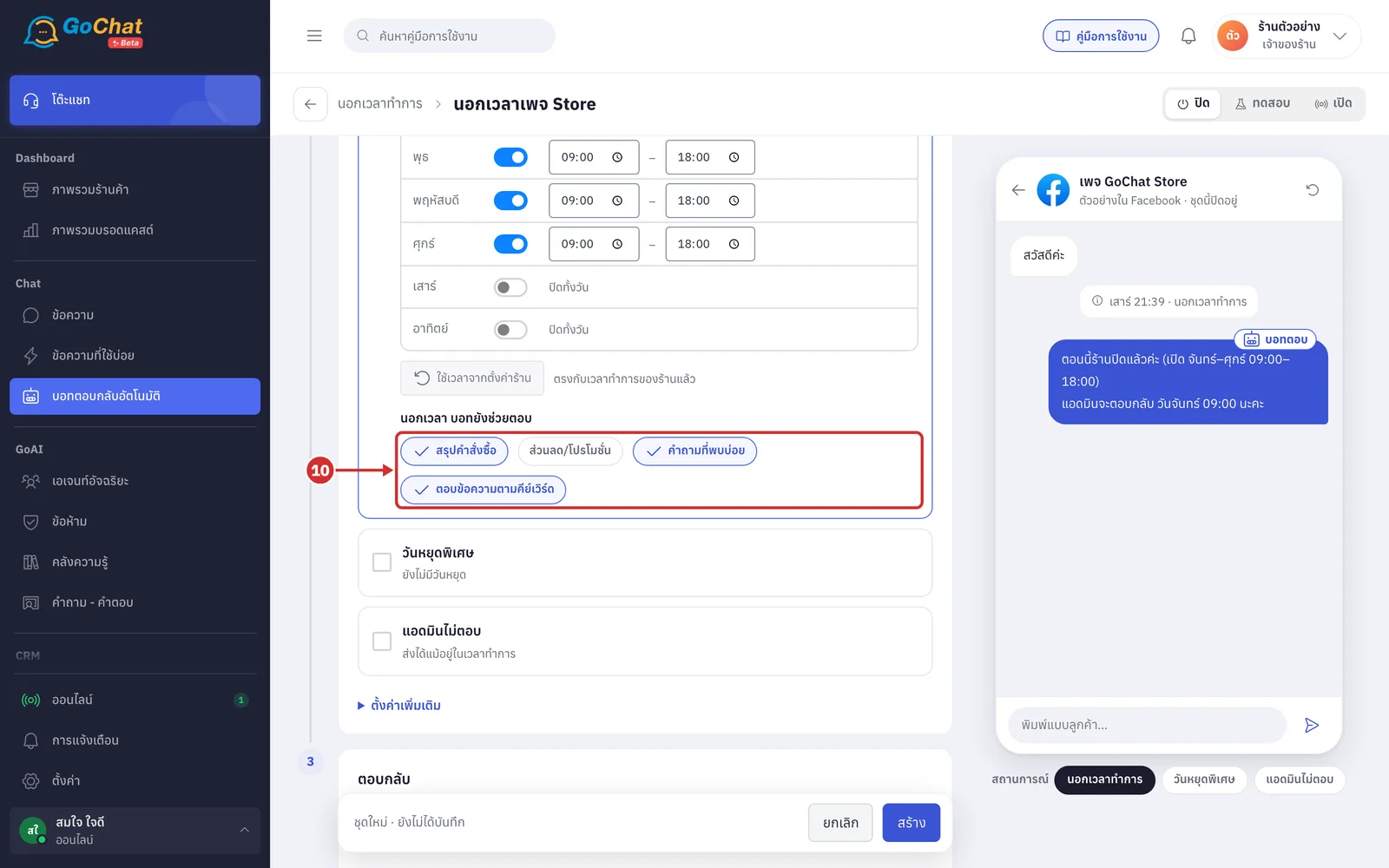
Under นอกเวลา บอทยังช่วยตอบ (After hours, the bot still answers), click the topics the bot can still answer while the shop is closed
Chosen topics show a tick. The topics are สรุปคำสั่งซื้อ (Order summary), ส่วนลด/โปรโมชั่น (Discounts/Promotions), คำถามที่พบบ่อย (FAQ) and ตอบข้อความตามคีย์เวิร์ด (Keyword replies)
Chosen: the bot still answers that topic while the shop is closed; for the first message in a closed period, the customer gets the after-hours message before the answer
Not chosen: the bot does not answer that topic while the shop is closed, including numbers customers type from a menu
New sets have every topic chosen except ส่วนลด/โปรโมชั่น (Discounts/Promotions)
These options appear in the after-hours card, but they apply both after hours and on special holidays, and have no effect during business hours
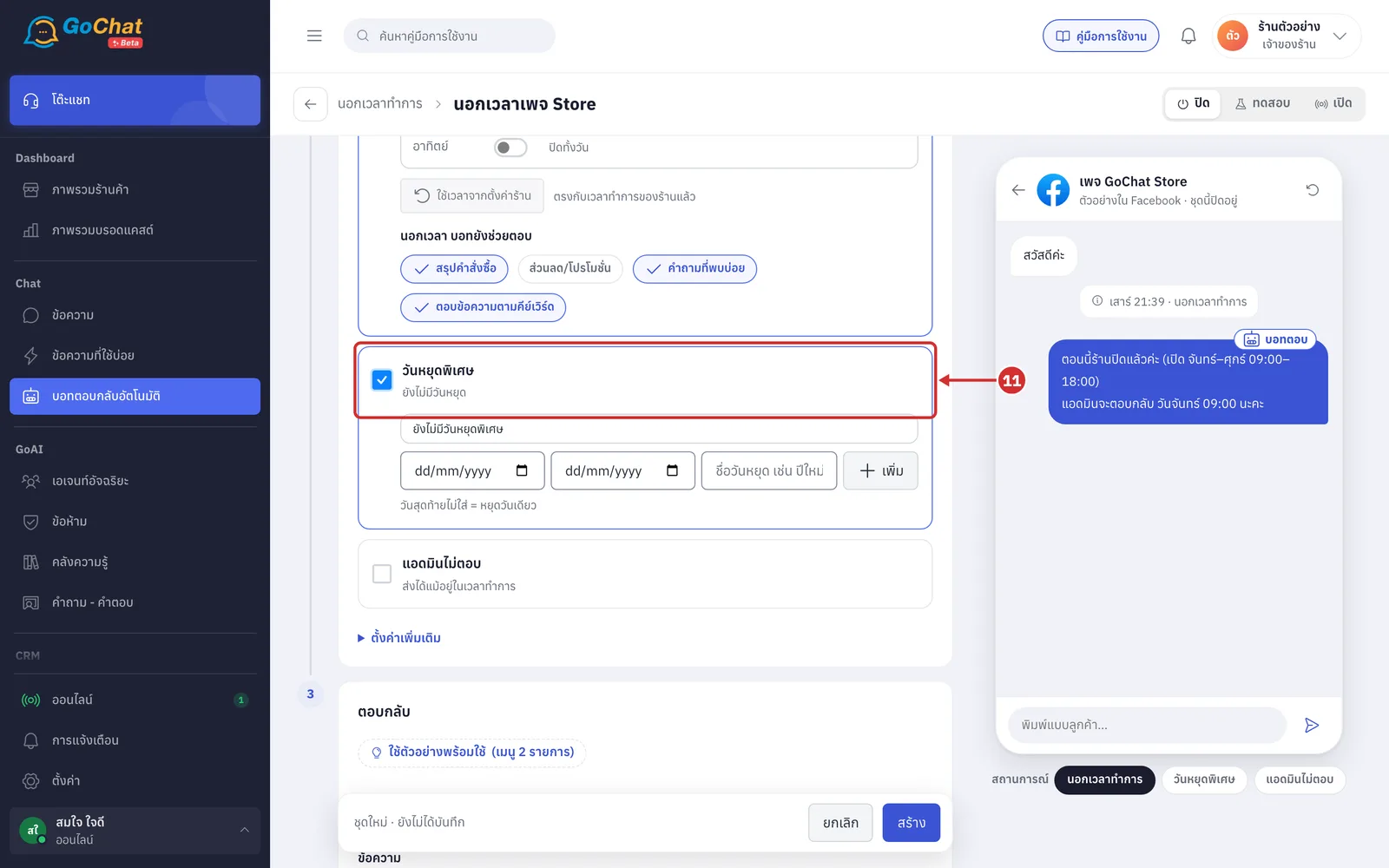
Tick the วันหยุดพิเศษ (Special holidays) card to send the holiday message on the dates you set, even if they fall within the schedule's business hours
Under the card name is the number of holiday entries, such as 1 วันหยุด (1 holiday) or ยังไม่มีวันหยุด (No holidays yet). A holiday of several days in a row counts as 1 entry
Once ticked, you must add at least 1 holiday, otherwise the set cannot be saved
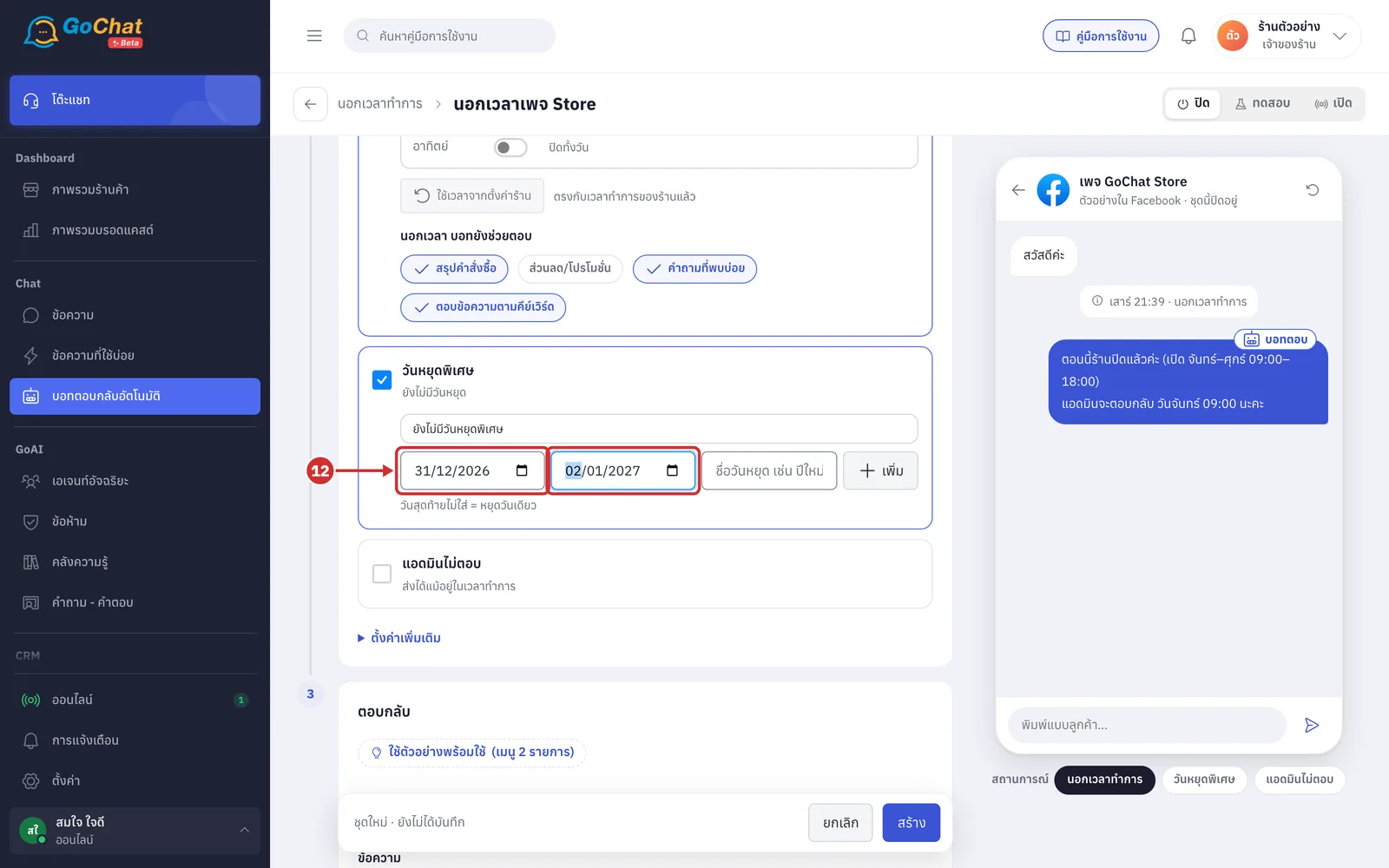
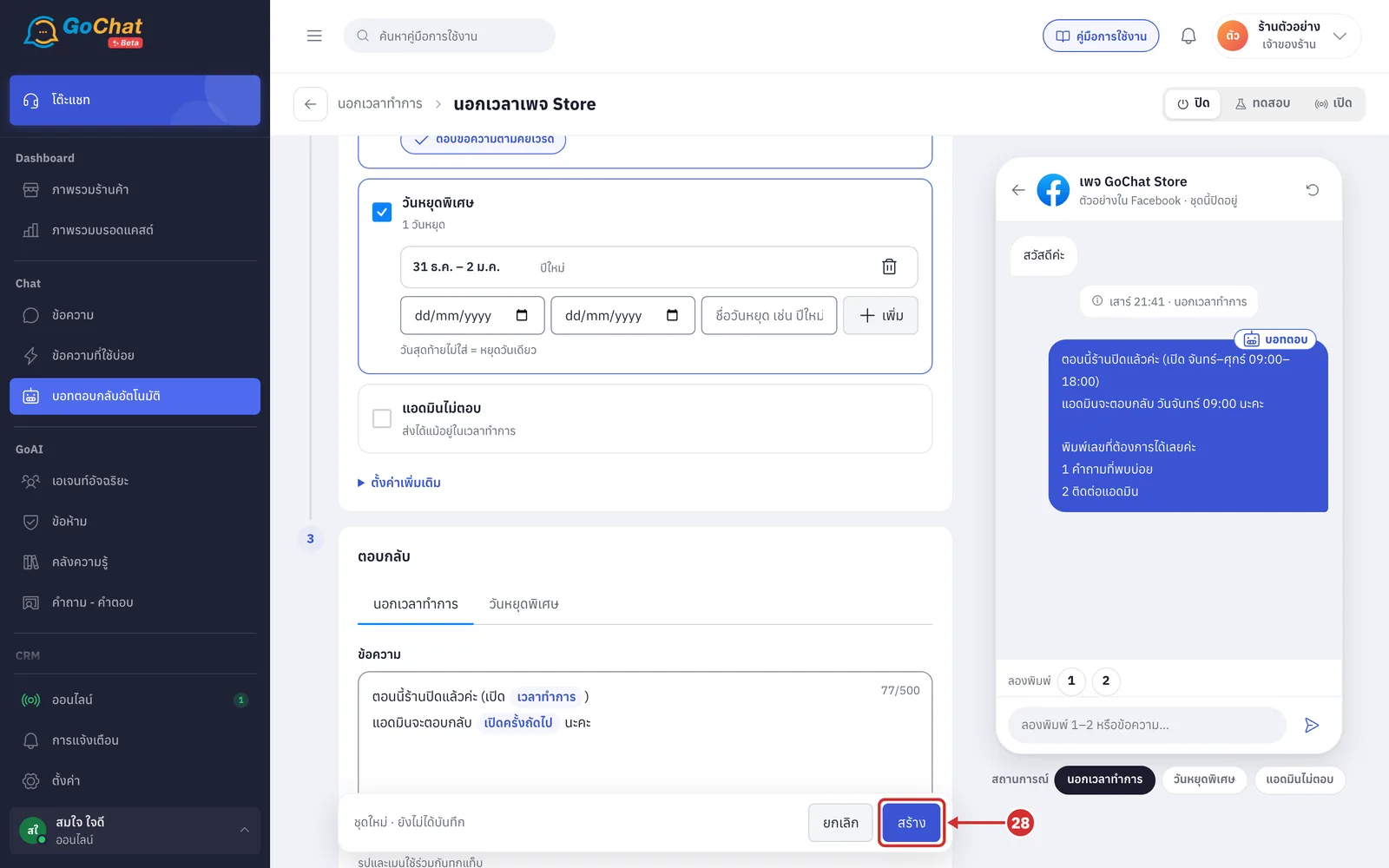
Choose the first day of the holiday, and the last day if it lasts several days, such as 31 Dec to 2 Jan
If you leave the last day empty, it counts as a one-day holiday
The last day cannot be before the first day
In ชื่อวันหยุด (Holiday name), type a name, such as ปีใหม่ (New Year)
This name replaces the ชื่อวันหยุด (Holiday name) variable in the holiday message
It can be up to 60 characters. If you leave it empty, the name วันหยุดพิเศษ (Special holiday) is used
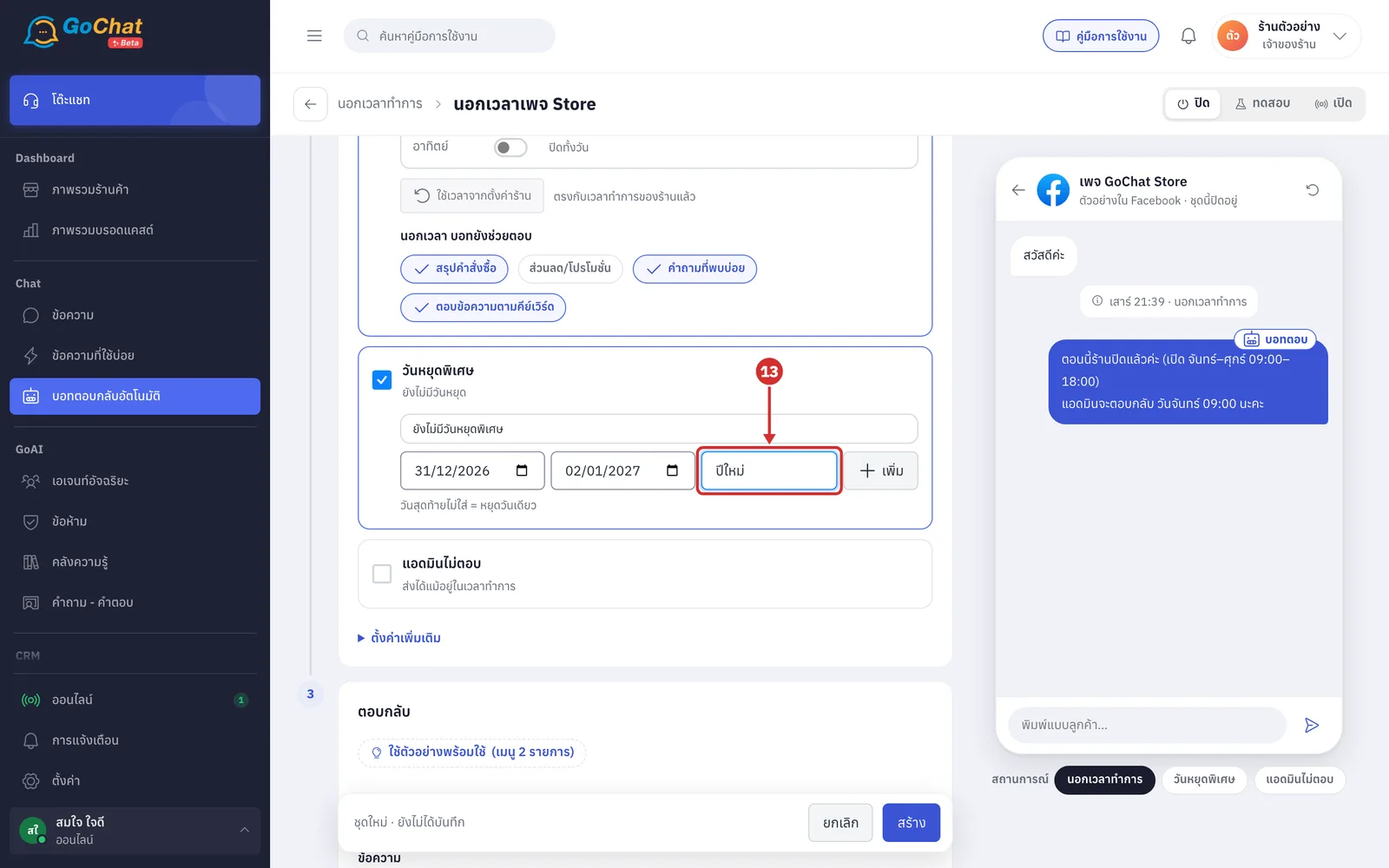
Click เพิ่ม (Add). The holiday appears in the list with its dates, such as 31 ธ.ค. – 2 ม.ค. (31 Dec – 2 Jan)
If you have not chosen the first day, you see ใส่วันที่ก่อน (Enter a date first)
The list is sorted by date and includes both the first and last day, by your shop's calendar
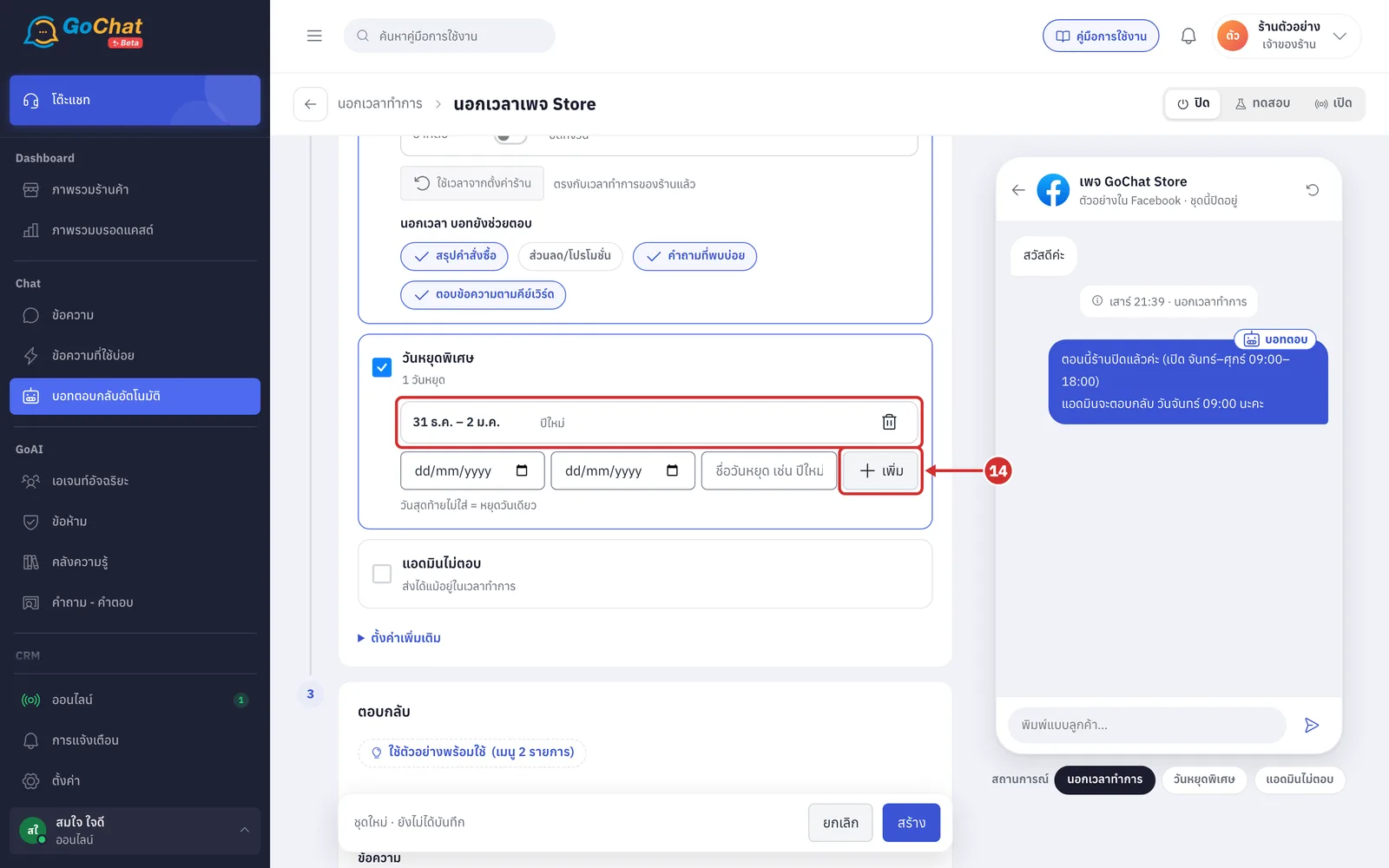
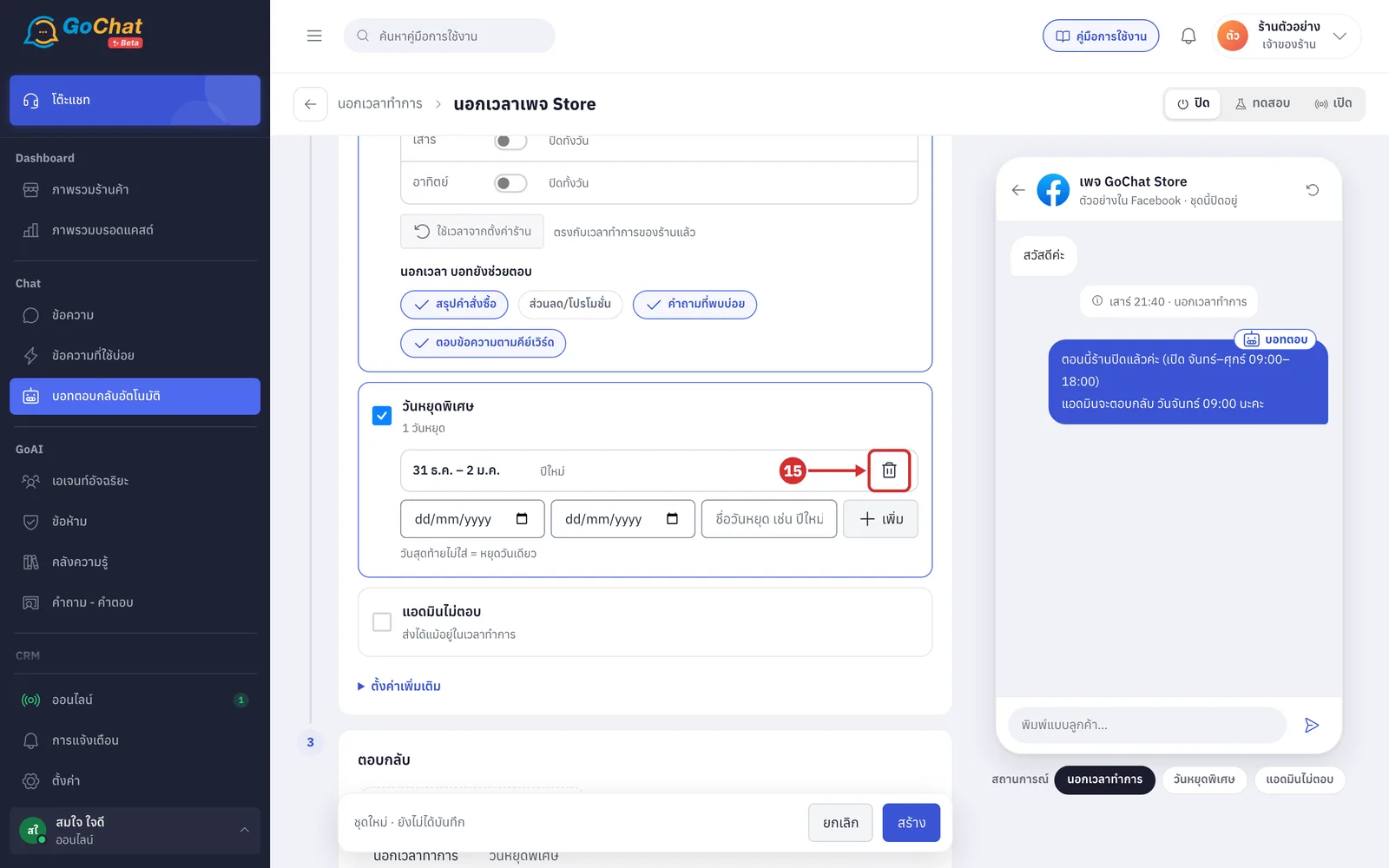
Click the trash button at the end of a row to remove that holiday from the list (it takes effect when you save the set)
Tick the แอดมินไม่ตอบ (No admin reply) card to send a message when a customer waits a long time without an admin reply
Under the card name is ส่งได้แม้อยู่ในเวลาทำการ (Can send even during business hours)
The bot only sends it when no other topic answers that message and the shop is not closed under this set, because while the shop is closed the customer already gets the after-hours message
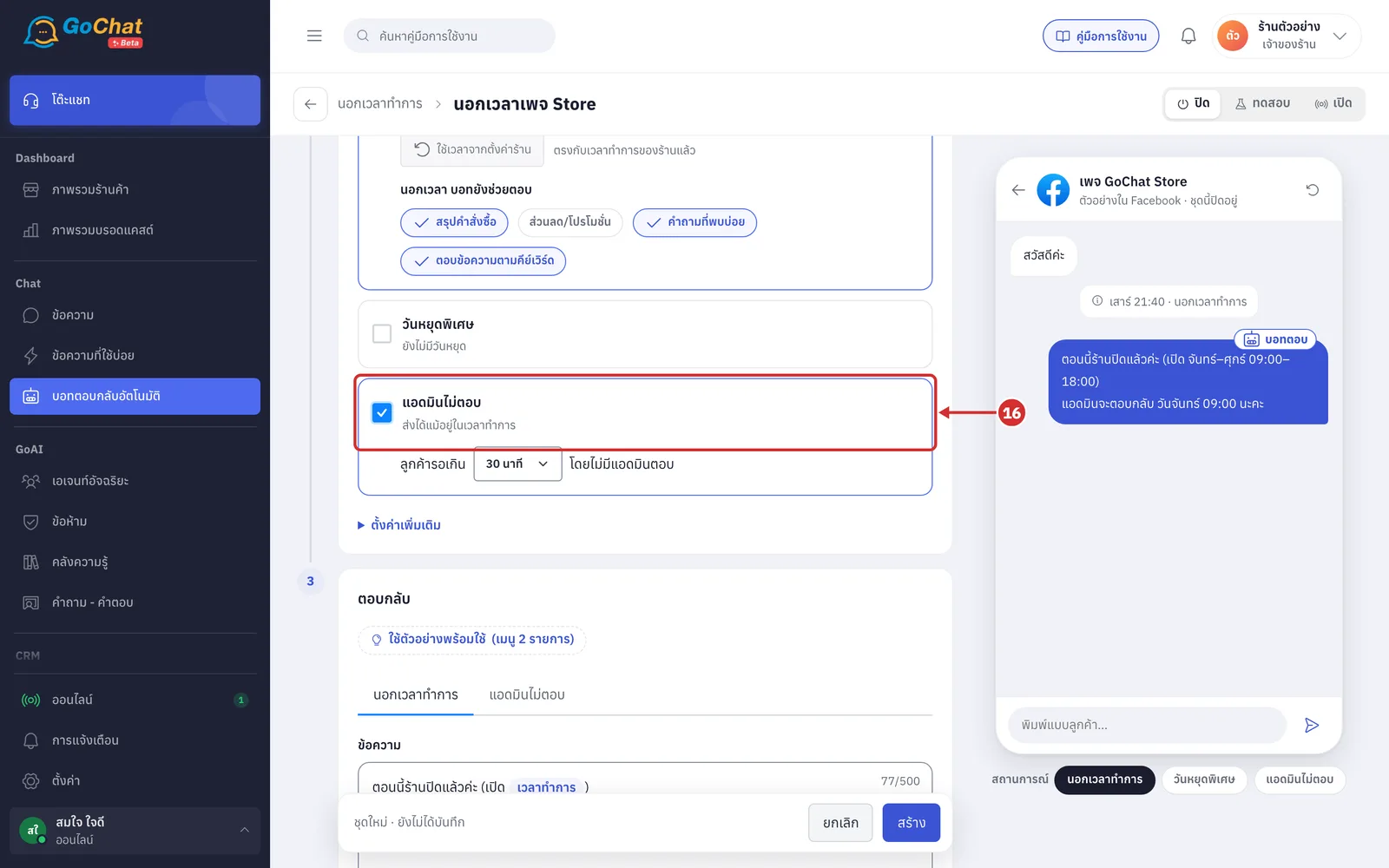
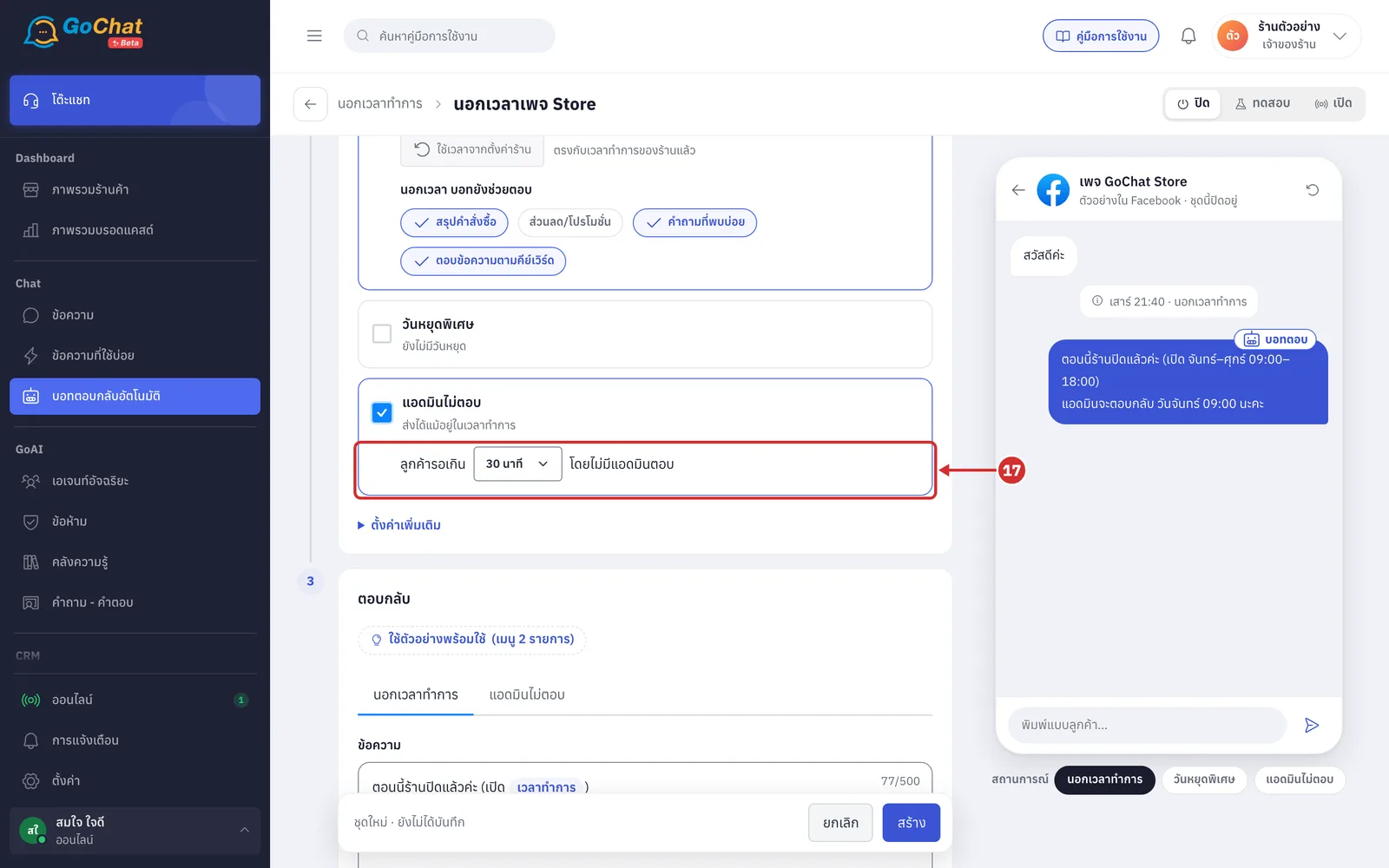
In ลูกค้ารอเกิน … โดยไม่มีแอดมินตอบ (Customer waits more than … without an admin reply), choose the waiting time
The options are 15 นาที (15 minutes), 30 นาที (30 minutes) and 1 ชั่วโมง (1 hour); the default is 30 minutes
The bot counts from the customer's latest message. If an admin replies before then, the bot does not send it
Once sent, the bot does not send this message in that chat again until an admin replies
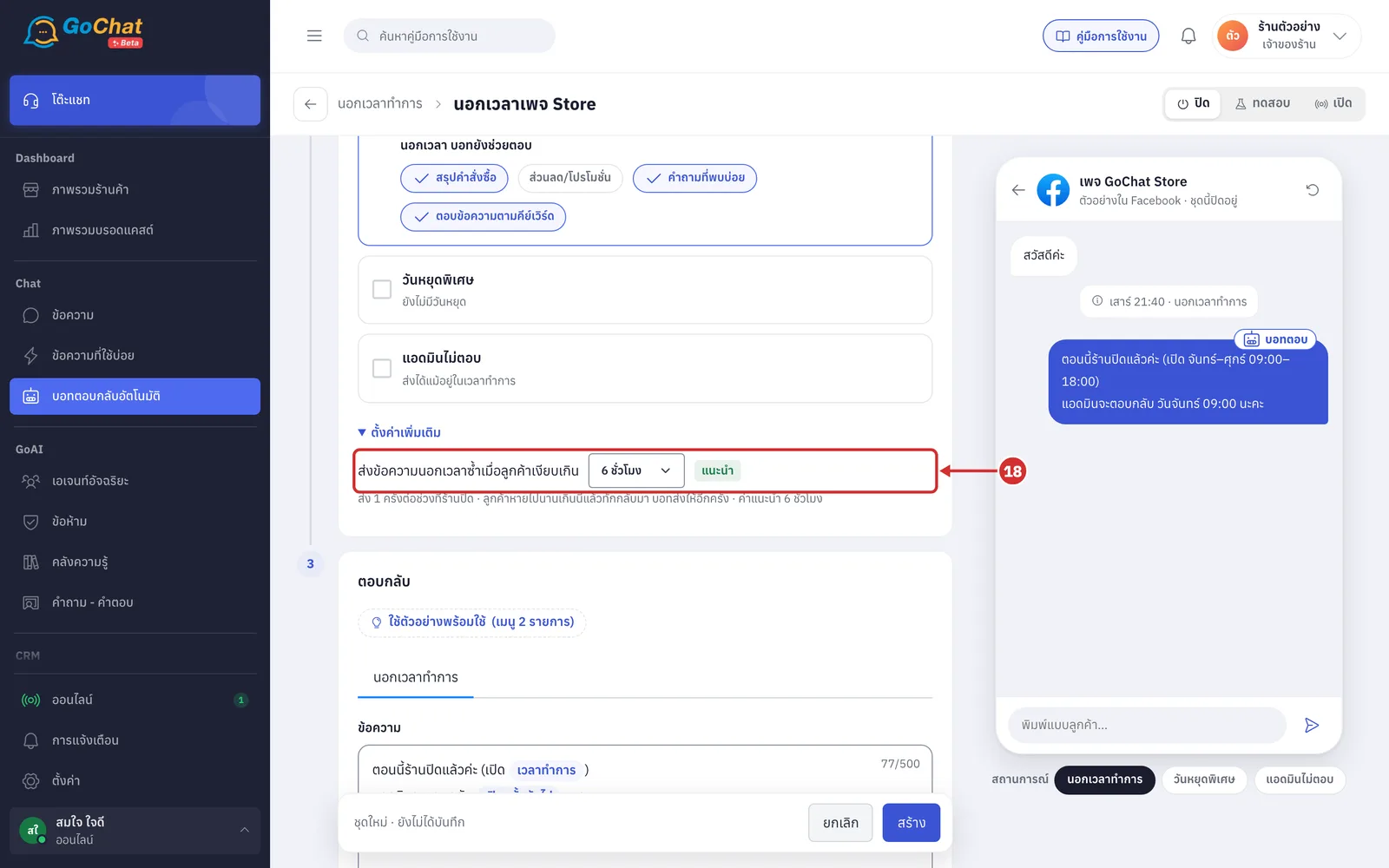
Click ตั้งค่าเพิ่มเติม (More settings), then choose in ส่งข้อความนอกเวลาซ้ำเมื่อลูกค้าเงียบเกิน (Resend the after-hours message when the customer has been quiet for more than)
The bot sends the after-hours message once per closed period. If the customer is away longer than this and messages again in the same closed period, the bot sends it again
The options are ไม่ส่งซ้ำ (Don't resend), 3 ชั่วโมง (3 hours), 6 ชั่วโมง (6 hours) and 12 ชั่วโมง (12 hours); 6 hours is recommended and shows the แนะนำ (Recommended) badge
This section appears when นอกเวลาทำการ (After hours) or วันหยุดพิเศษ (Special holidays) is ticked
Setting the reply
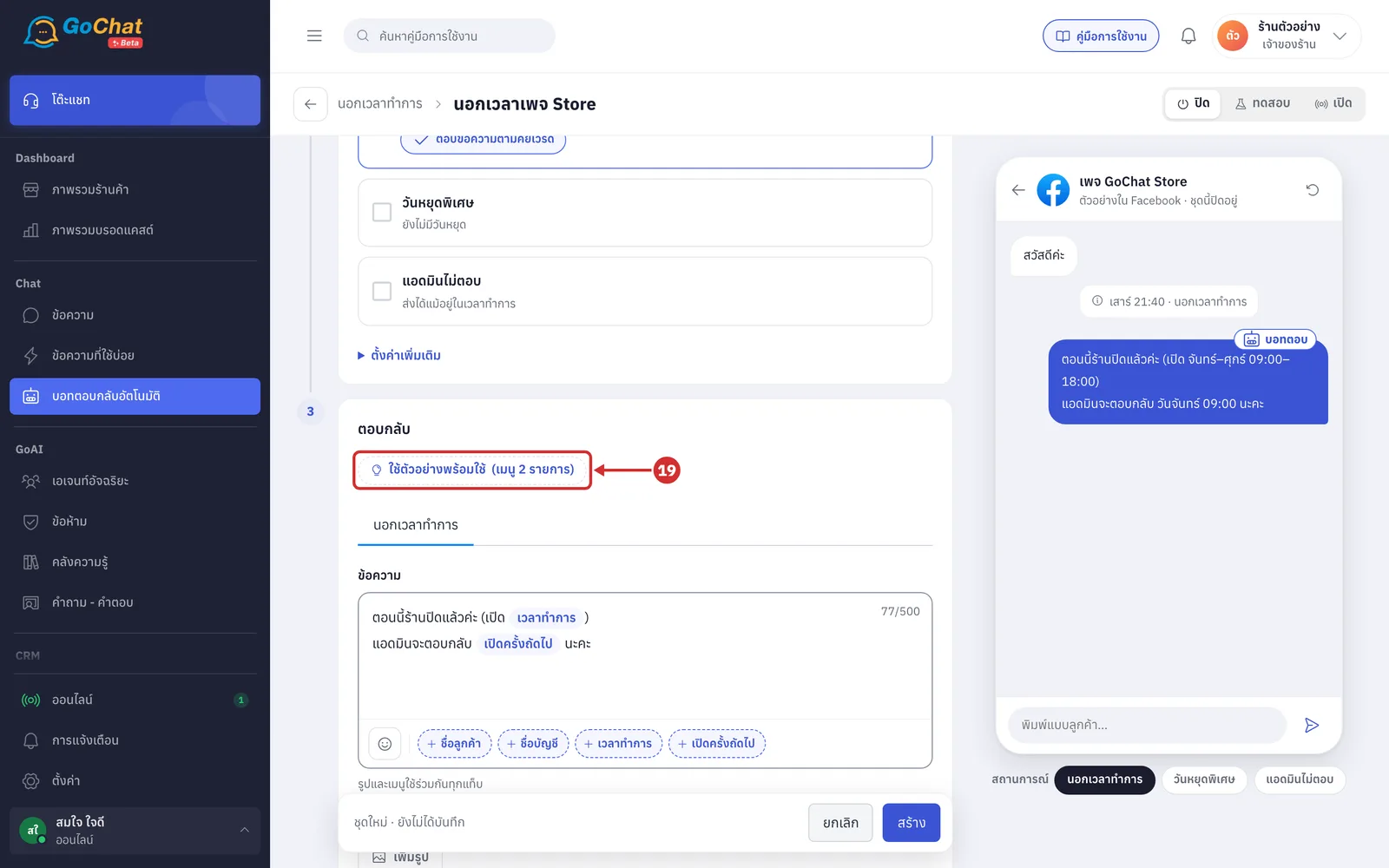
In the ตอบกลับ (Reply) step, click ใช้ตัวอย่างพร้อมใช้(เมนู 2 รายการ) (Use ready-made example (2-item menu)) to fill in a 2-item menu
The items are คำถามที่พบบ่อย (FAQ) and ติดต่อแอดมิน (Contact admin)
It also chooses คำถามที่พบบ่อย (FAQ) in นอกเวลา บอทยังช่วยตอบ (After hours, the bot still answers), so customers who type that menu number get an answer
The messages do not change, because new sets already have default messages for every condition
The button only appears on new sets where the messages and menu have not been changed, and it only fills the form without saving
If the set has no name yet, it is named นอกเวลาทำการ (ตัวอย่าง) (After hours (sample))
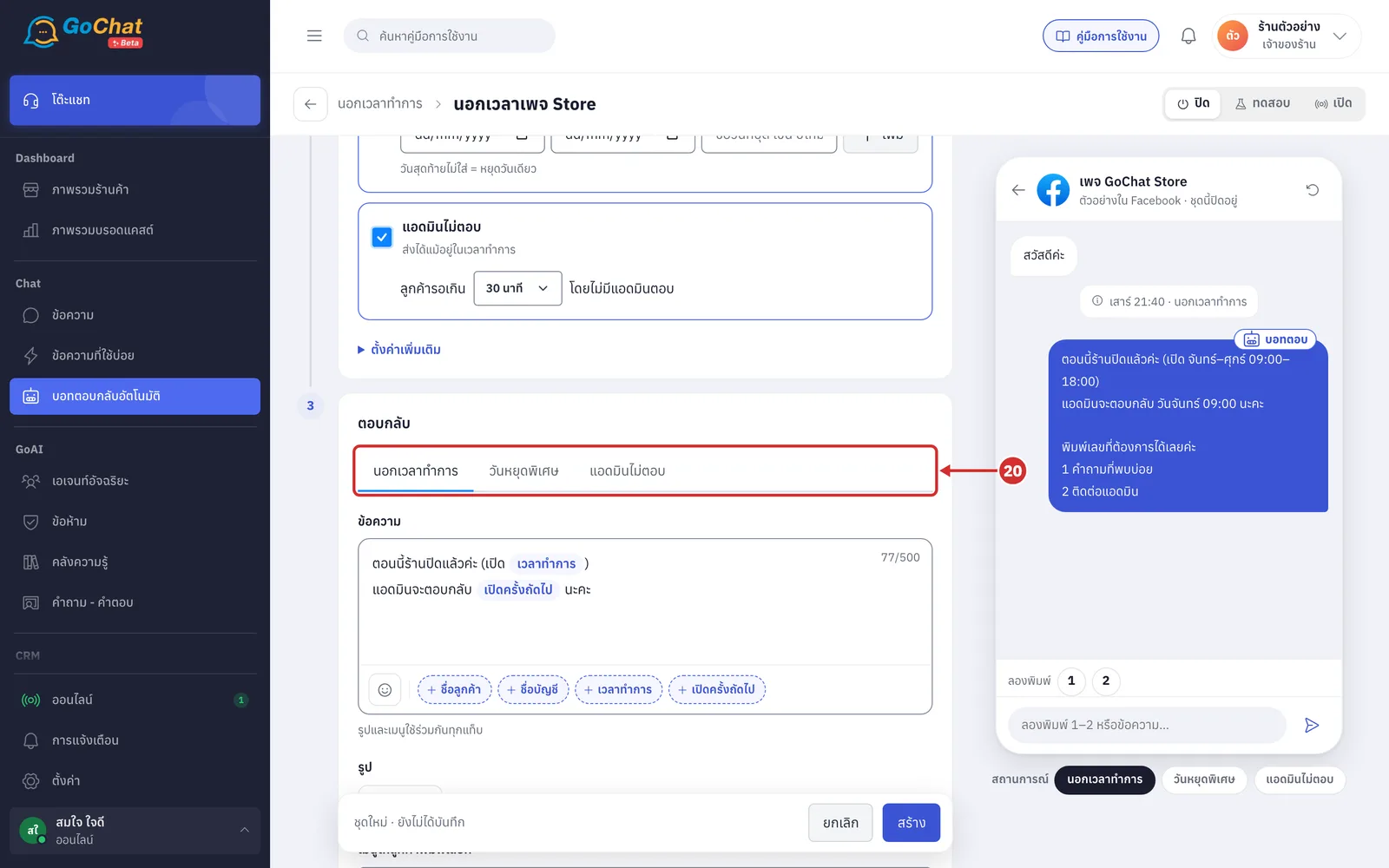
Click a condition's tab to edit that condition's message. Only conditions ticked in the ส่งเมื่อ (Sends when) step have a tab
Each condition has its own message, which is required even if there is an image
A tab with an error shows a red warning icon
When you click a tab, the chat preview on the right switches to the same scenario
On the นอกเวลาทำการ (After hours) tab, edit the message the bot sends when a customer messages after hours. You can use these variables
ชื่อลูกค้า (Customer name) and ชื่อบัญชี (Account name) — the same as in other topics
เวลาทำการ (Business hours) — this set's schedule; messages to customers use full day names, such as จันทร์–ศุกร์ 09:00–18:00 (Monday–Friday 09:00–18:00)
เปิดครั้งถัดไป (Next opening) — the day and time the shop next opens, such as วันนี้ 09:00 (today 09:00), พรุ่งนี้ 09:00 (tomorrow 09:00) or วันจันทร์ 09:00 (Monday 09:00) (more than 6 days away also shows the date)
More details
The default message is ตอนนี้ร้านปิดแล้วค่ะ (เปิด {เวลาทำการ}) (We are closed now (open {Business hours})) followed by แอดมินจะตอบกลับ {เปิดครั้งถัดไป} นะคะ (An admin will reply {Next opening})
เปิดครั้งถัดไป (Next opening) skips special holidays. If no opening is found within 62 days, it says เร็วที่สุด (as soon as possible)
The message can be up to 500 characters
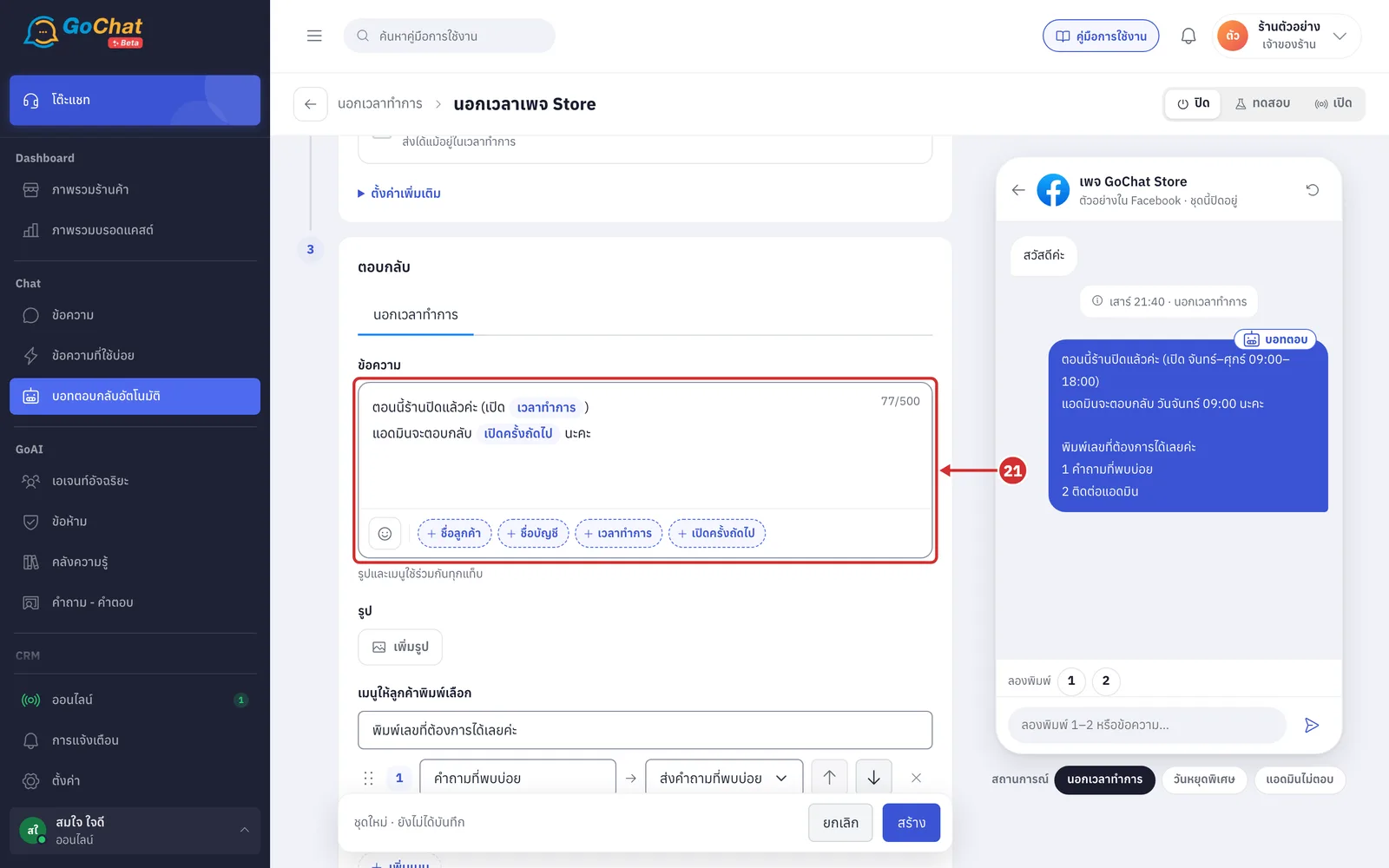
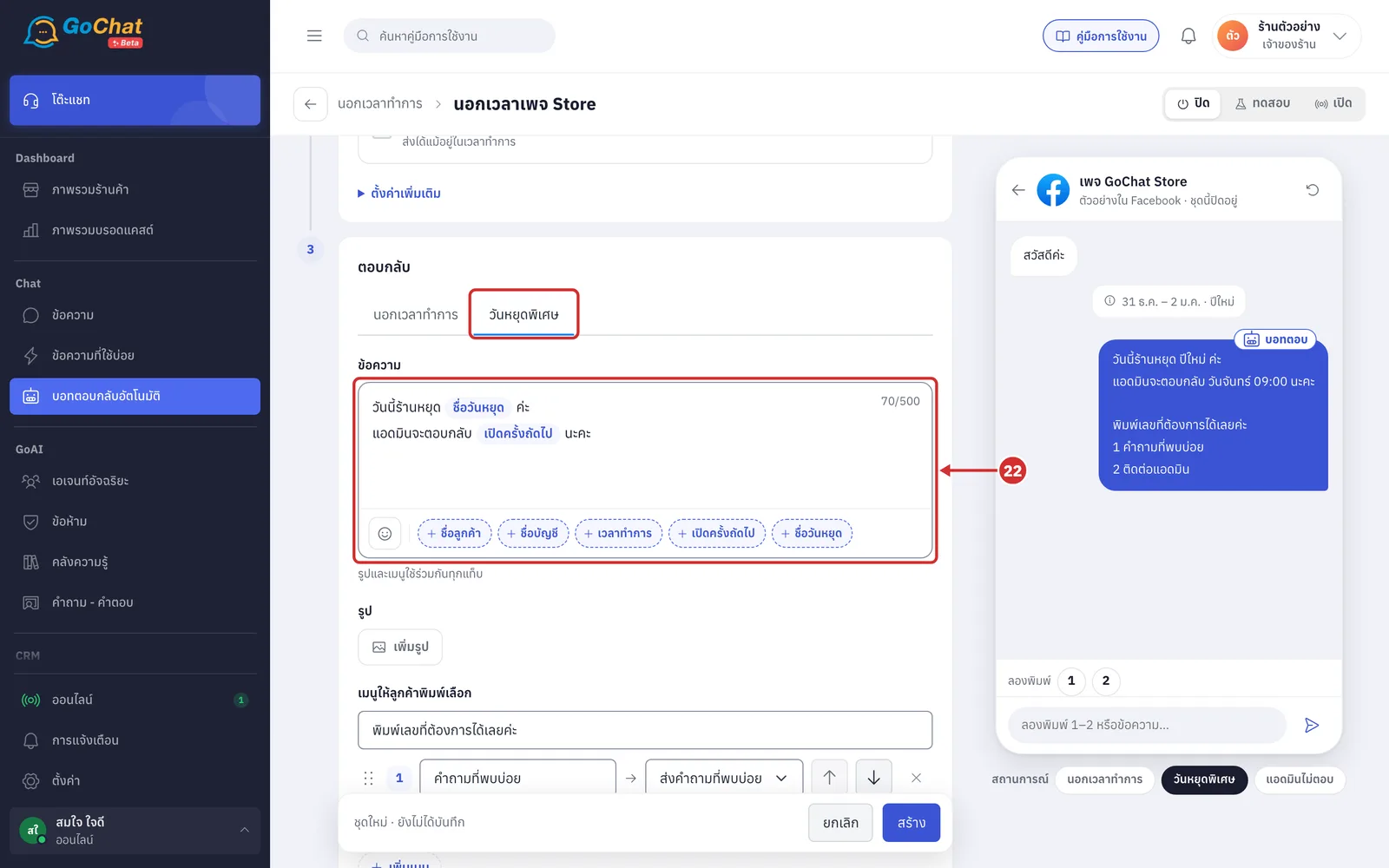
On the วันหยุดพิเศษ (Special holidays) tab, edit the message the bot sends on special holidays
It has the same variables as the after-hours tab plus ชื่อวันหยุด (Holiday name), the name you set in step 13
The default message is วันนี้ร้านหยุด {ชื่อวันหยุด} ค่ะ (We are closed today for {Holiday name}) followed by แอดมินจะตอบกลับ {เปิดครั้งถัดไป} นะคะ (An admin will reply {Next opening})
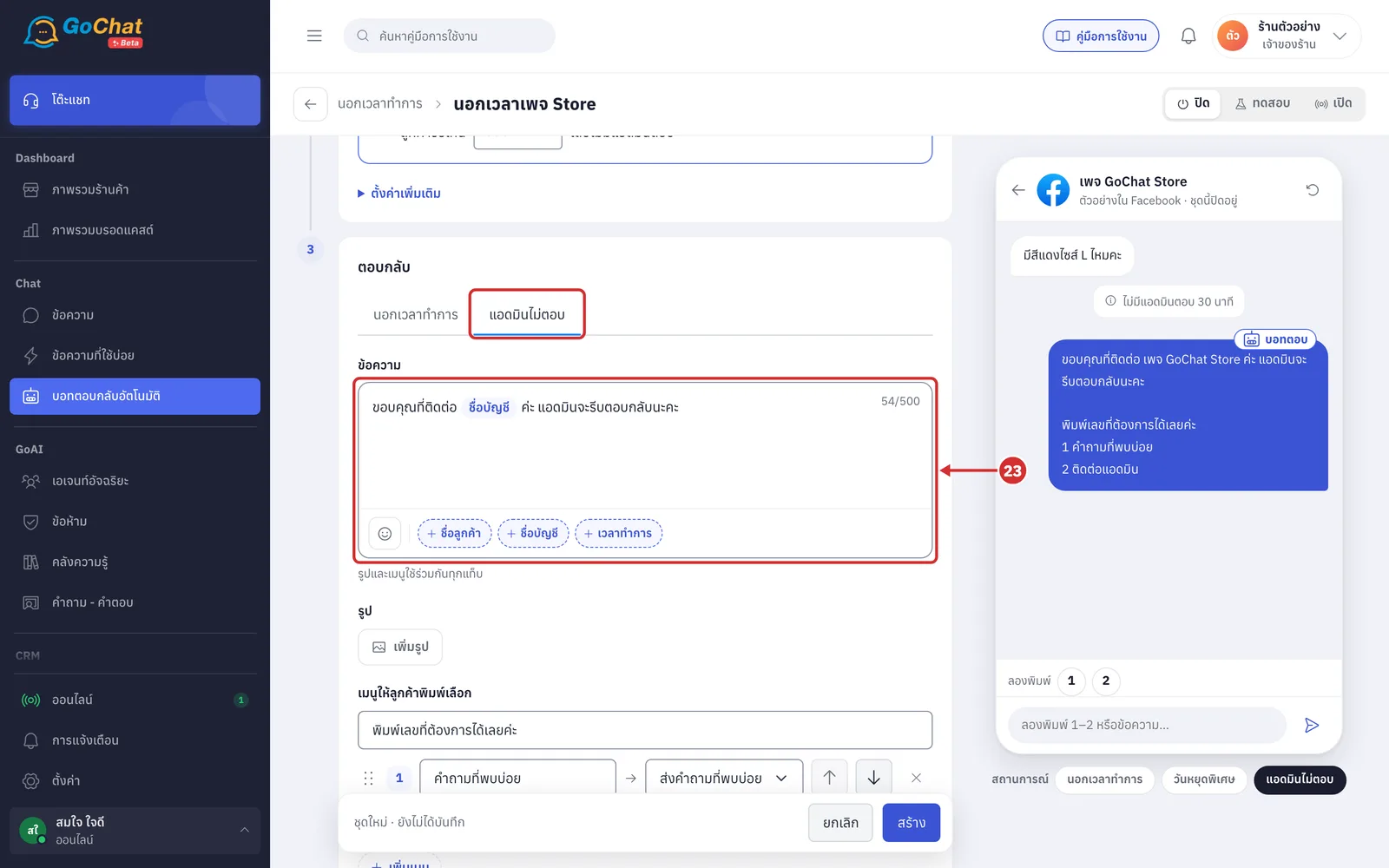
On the แอดมินไม่ตอบ (No admin reply) tab, edit the message the bot sends when a customer waits longer than the time you set
You can use the ชื่อลูกค้า (Customer name), ชื่อบัญชี (Account name) and เวลาทำการ (Business hours) variables
The default message ends with แอดมินจะรีบตอบกลับนะคะ (an admin will reply soon) and includes the ชื่อบัญชี (Account name) variable
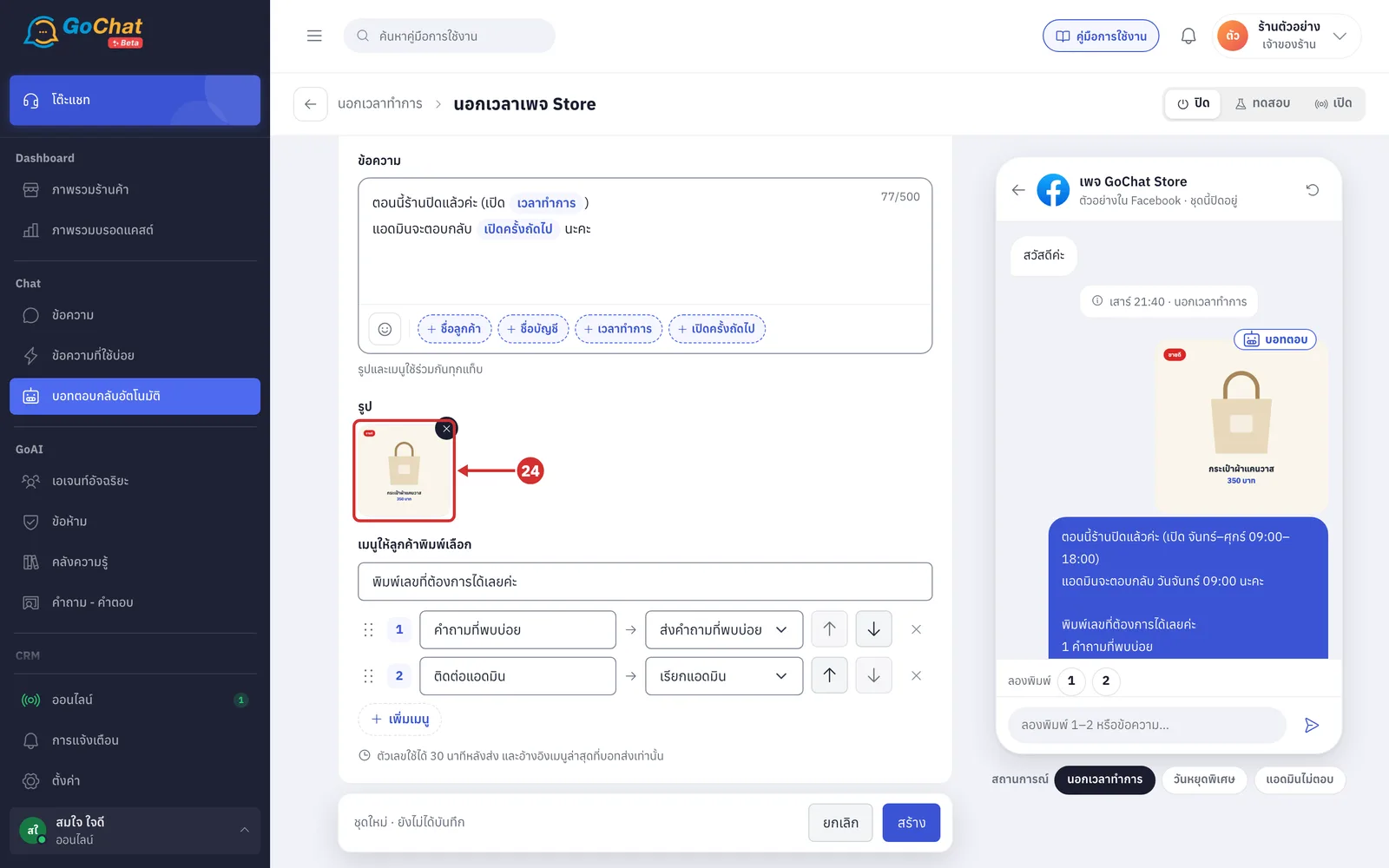
Under รูป (Image), click เพิ่มรูป (Add image) and choose 1 image from your computer
The image and menu are shared by every tab, so they go out with every condition's message
The bot sends the image before the text
The image goes into your shop's image library as soon as you choose it, but is linked to the set when you save
To remove the image, click × on it
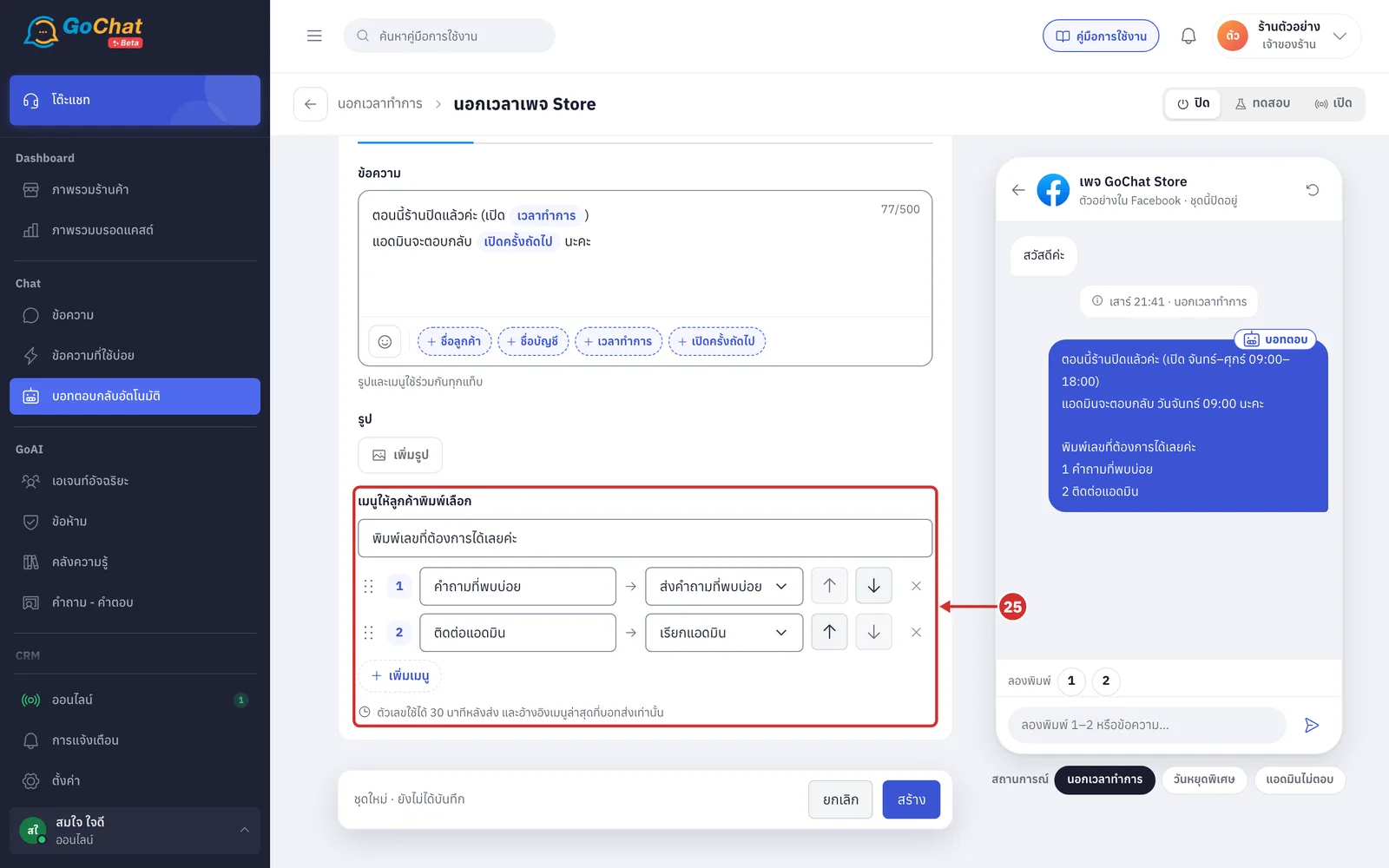
Under เมนูให้ลูกค้าพิมพ์เลือก (Menu customers choose by number), set the menu the bot sends after the message so customers can type a number to choose
You can add up to 5 items
Each item can ส่งโปรโมชั่น (Send promotions), ส่งที่อยู่ร้าน (Send shop address), ส่งคำถามที่พบบ่อย (Send FAQ) or เรียกแอดมิน (Call an admin)
How to set the lead line, item names, order and what each item does is explained in Setting up welcome messages
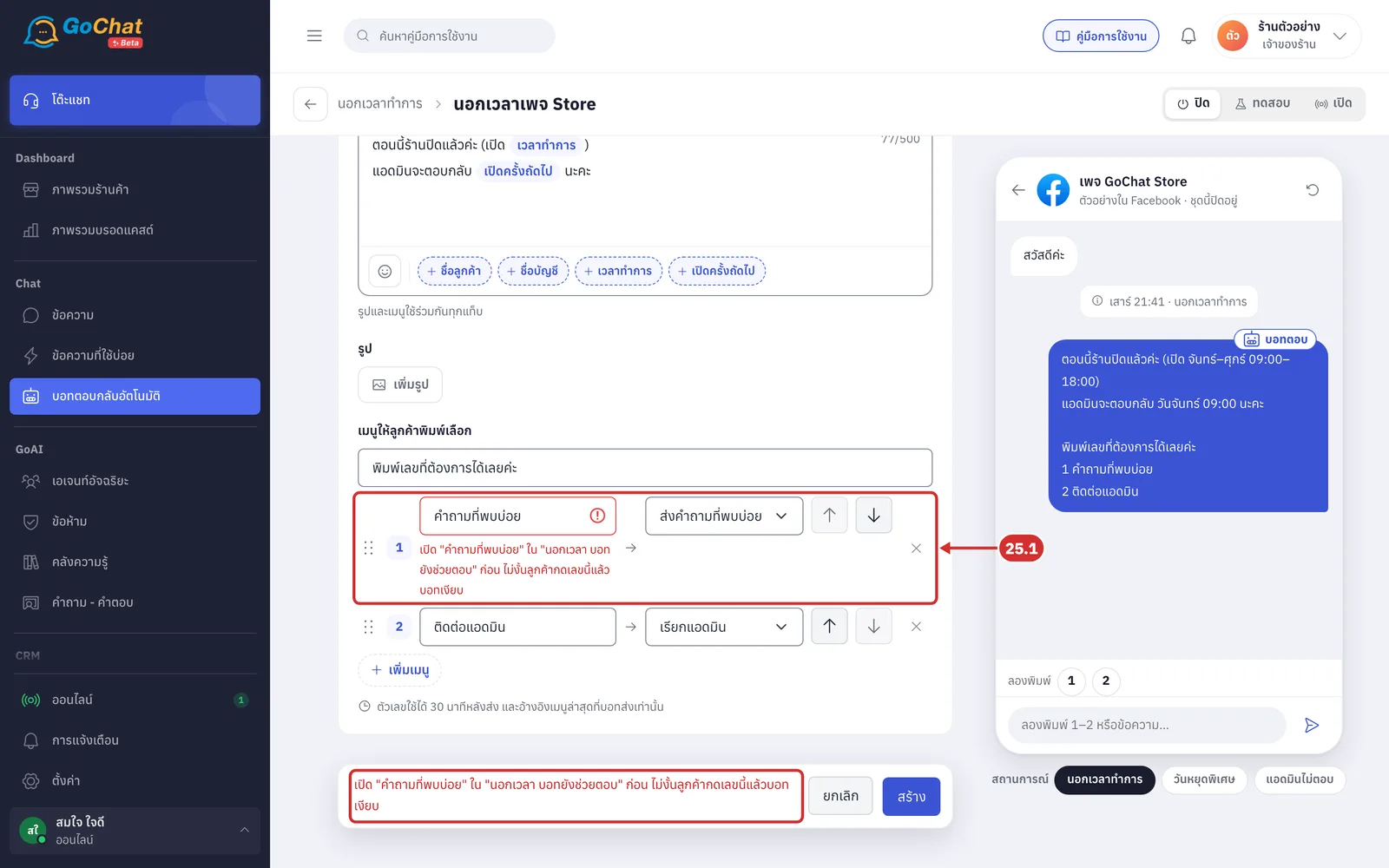
25.1 If a menu item is ส่งคำถามที่พบบ่อย (Send FAQ) or ส่งโปรโมชั่น (Send promotions) but that topic is not chosen in นอกเวลา บอทยังช่วยตอบ (After hours, the bot still answers), clicking สร้าง (Create) does not save and shows a message such as เปิด "คำถามที่พบบ่อย" ใน "นอกเวลา บอทยังช่วยตอบ" ก่อน ไม่งั้นลูกค้ากดเลขนี้แล้วบอทเงียบ (Turn on "FAQ" in "After hours, the bot still answers" first, or the bot stays silent when customers type this number) under that item. Go back and choose that topic in step 10
Trying it in the chat preview
The chat preview on the right uses the set's first account and includes answers from that account's other topics that are on, such as FAQs, so you see the menu and นอกเวลา บอทยังช่วยตอบ (After hours, the bot still answers) work as they really do.
Under สถานการณ์ (Scenario), you can try 3 options. A label in the middle, between the customer's message and the reply, shows the simulated time
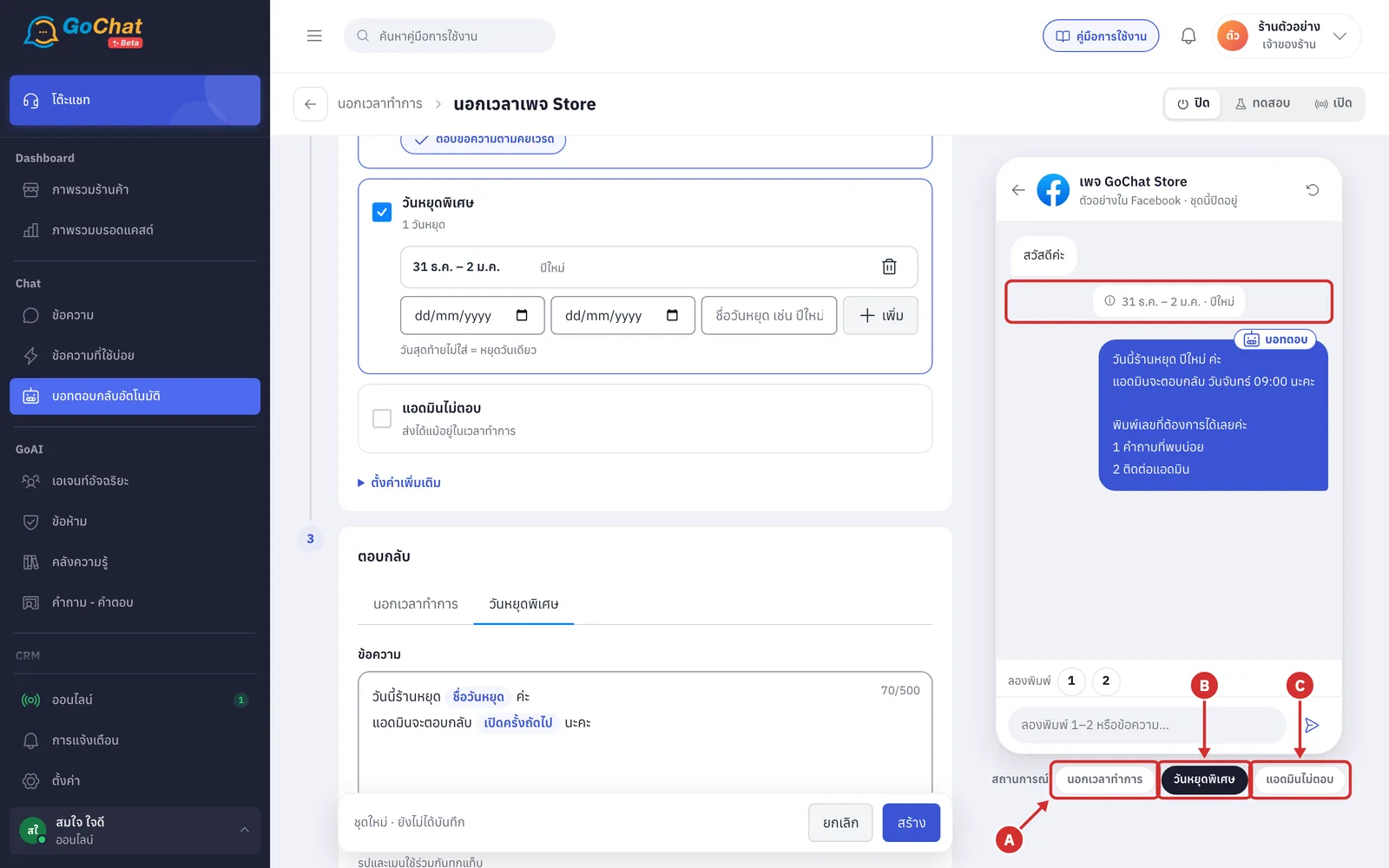
A นอกเวลาทำการ (After hours) — the sample customer types สวัสดีค่ะ (Hello) in the next closed period from now. The label shows the day and time, such as ศุกร์ 20:30 · นอกเวลาทำการ (Friday 20:30 · After hours)
B วันหยุดพิเศษ (Special holidays) — uses the first holiday in the list. The label shows its dates and name, such as 31 ธ.ค. – 2 ม.ค. · ปีใหม่ (31 Dec – 2 Jan · New Year)
C แอดมินไม่ตอบ (No admin reply) — the sample customer types มีสีแดงไซส์ L ไหมคะ (Do you have red in size L?) during business hours. The label shows the waiting time you chose, such as ไม่มีแอดมินตอบ 30 นาที (No admin reply for 30 minutes)
Click a number in the ลองพิมพ์ (Try typing) row, such as 1, to see the reply when a customer chooses a menu item. For example, the FAQ item returns that account's question list
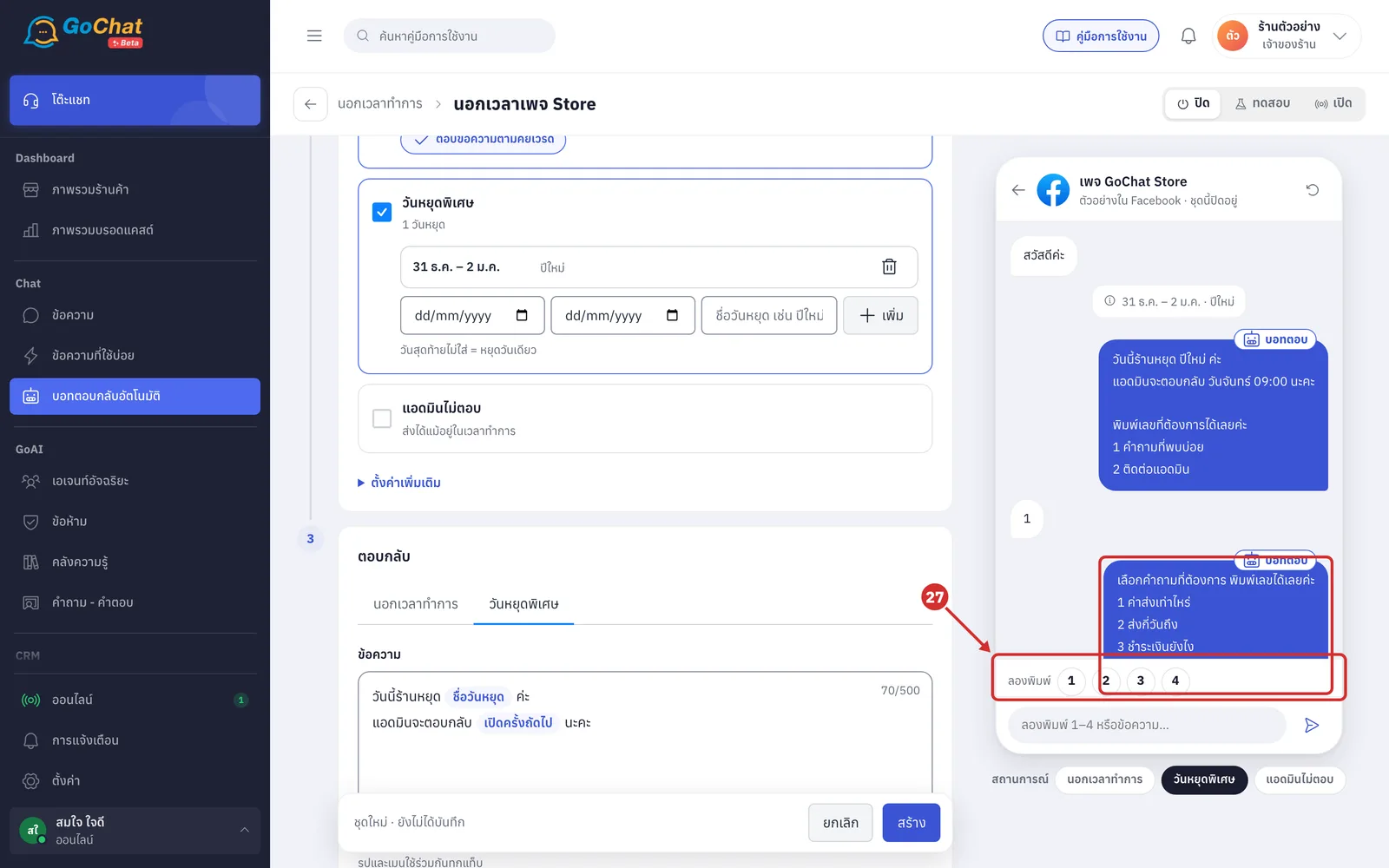
Good to know: You can try the วันหยุดพิเศษ (Special holidays) and แอดมินไม่ตอบ (No admin reply) scenarios even if those conditions are not ticked, but the real bot only sends ticked conditions. The chat preview also does not show the welcome message a new customer would get before the after-hours message.
Saving
Choose a status at the top right, then click สร้าง (Create)
New sets are ปิด (Off)
ทดสอบ (Test) — try it with your team's chats
เปิด (On) — go live
The statuses are explained in Using the auto-reply bot
The app goes back to the list, shows บันทึก “นอกเวลาเพจ Store” แล้ว (Saved “นอกเวลาเพจ Store”) and the new set appears in the list
How after-hours messages work
The shop counts as closed when today is a special holiday, or the current time is outside the set's schedule, in your shop's time zone. Only ticked conditions count
If it is both a special holiday and after hours, the bot sends the holiday message
The bot sends the after-hours message once per closed period in each chat; customers who keep chatting do not get it again
The bot sends it again in the same closed period when both the customer's previous message and the latest after-hours message are older than ส่งข้อความนอกเวลาซ้ำเมื่อลูกค้าเงียบเกิน (Resend the after-hours message when the customer has been quiet for more than). Once the shop opens and closes again, counting starts over
The after-hours message can go out together with another topic's answer, after the welcome message and before the answer
The แอดมินไม่ตอบ (No admin reply) message is only sent when no other topic answers that message and the shop is not closed. It counts from the customer's latest message, and is not sent if an admin replies first
If an admin or another app replied in that chat within หยุดบอทหลังแอดมินตอบเอง (Pause the bot after an admin replies) in ตั้งค่าการตอบทั้งร้าน (Shop-wide reply settings), the bot does not send the after-hours message
About after-hours sets
The เวลาทำการ (Business hours) variable in Setting up welcome messages, and the opening hours added to the ส่งที่อยู่ร้าน (Send shop address) menu item, come from that account's after-hours set that is on
If a set does not have นอกเวลาทำการ (After hours) ticked, the เวลาทำการ (Business hours) variable is removed and เปิดครั้งถัดไป (Next opening) becomes เร็วที่สุด (as soon as possible)
Hours on settings pages use short day names, such as จ-ศ (Mon–Fri), while messages to customers use full day names, such as จันทร์–ศุกร์ (Monday–Friday)
Changing your shop's ตั้งค่า › เวลาทำการ (Settings › Business hours) does not change the schedule of sets already saved. To match them, click ใช้เวลาจากตั้งค่าร้าน (Use shop settings hours) in that set and save
After-hours messages the bot has sent are shown in Viewing auto-reply chat history