

Setting up FAQs
คำถามที่พบบ่อย (FAQ) lets you set answers in advance for questions customers often ask, such as shipping cost, delivery time, payment or returns. When a customer types the question, the bot answers right away. Customers can also type a menu word, such as คำถาม (Question), to get the list of questions and then type a number to choose one.
The shop owner and every admin can set up FAQs. One set can have up to 10 questions, and one account can be in one FAQ set, so you can make separate sets for pages or accounts that sell different products. Parts every topic shares, such as status, testing and history, are explained in Using the auto-reply bot.
Creating a question set
Go to the บอทตอบกลับอัตโนมัติ (Auto-reply bot) menu under Chat in the left menu bar
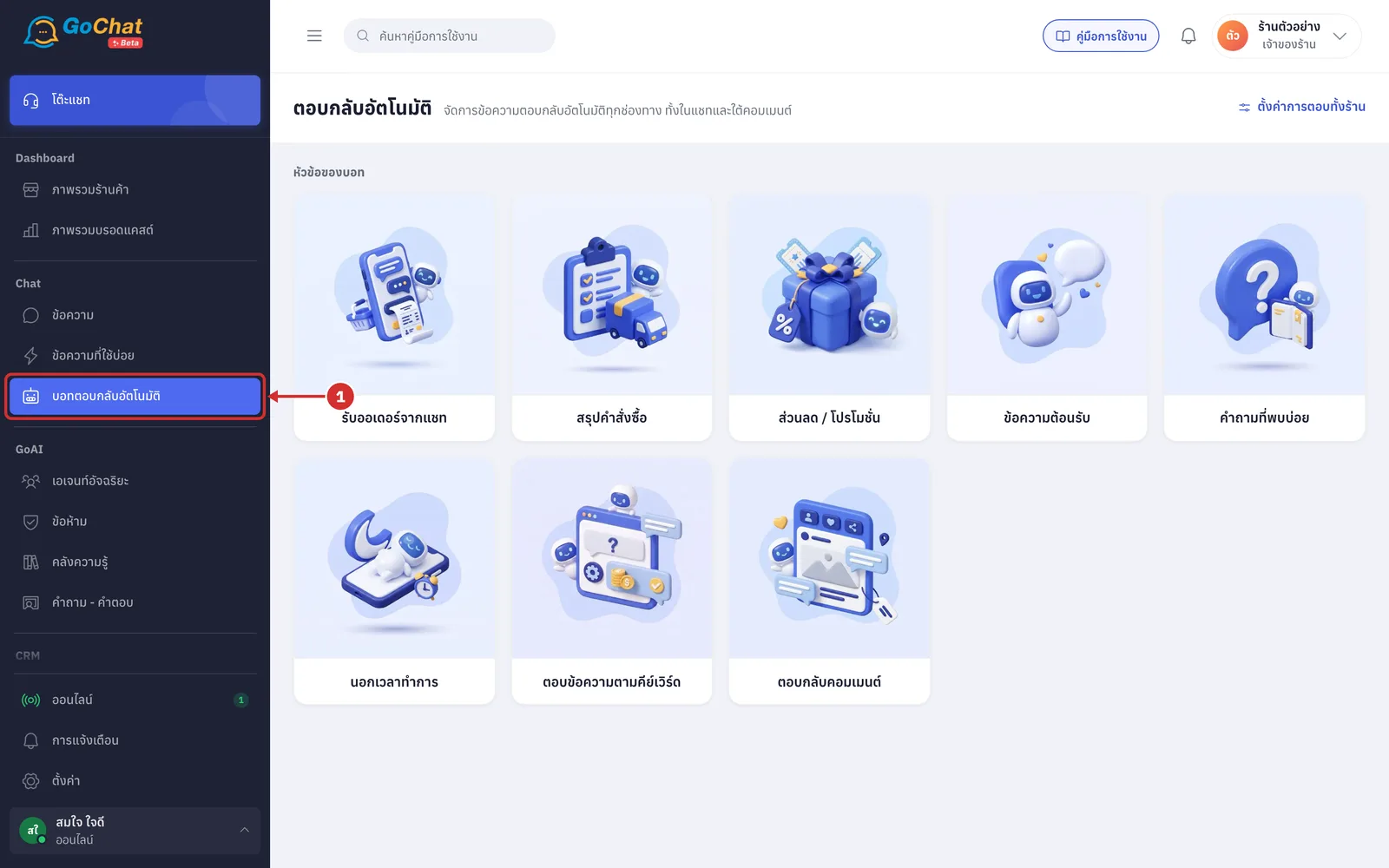
Click the คำถามที่พบบ่อย (FAQ) card (if your shop has no question set yet, the app opens a new set right away)
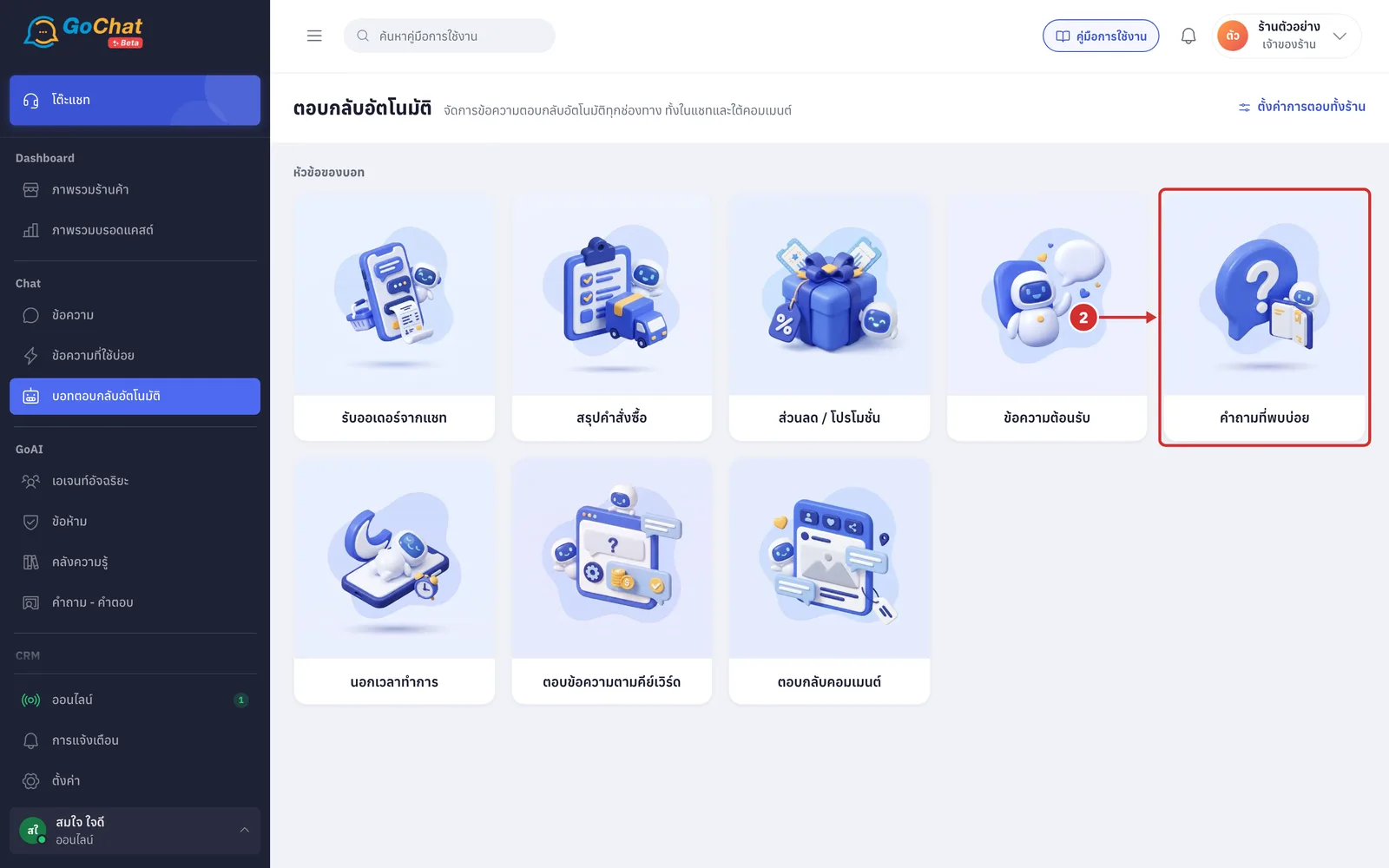
Click สร้างชุดคำถาม (Create question set) (to edit an existing set, click its name in the list instead). Each set's row in the list shows these FAQ details
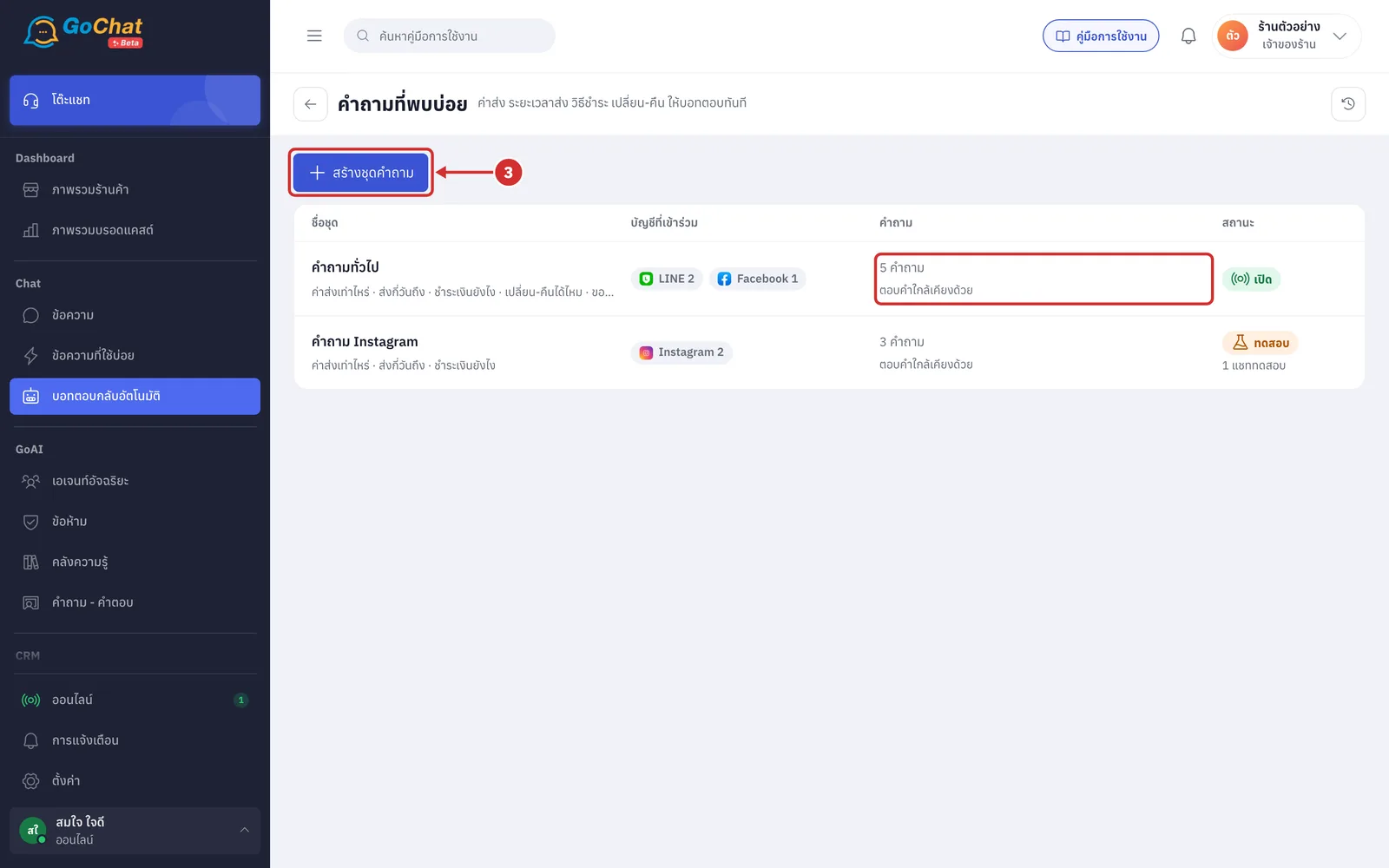
Grey line under the set name: the names of every question in the set
คำถาม (Questions) column: the number of questions in the set, with a second line
ตอบคำใกล้เคียงด้วย (Also answers similar wording): sets with ตอบคำถามที่คล้ายกัน (Answer similar questions) turned on
ตอบเฉพาะคำที่ตั้งไว้ (Answers only the words set): sets with that switch turned off
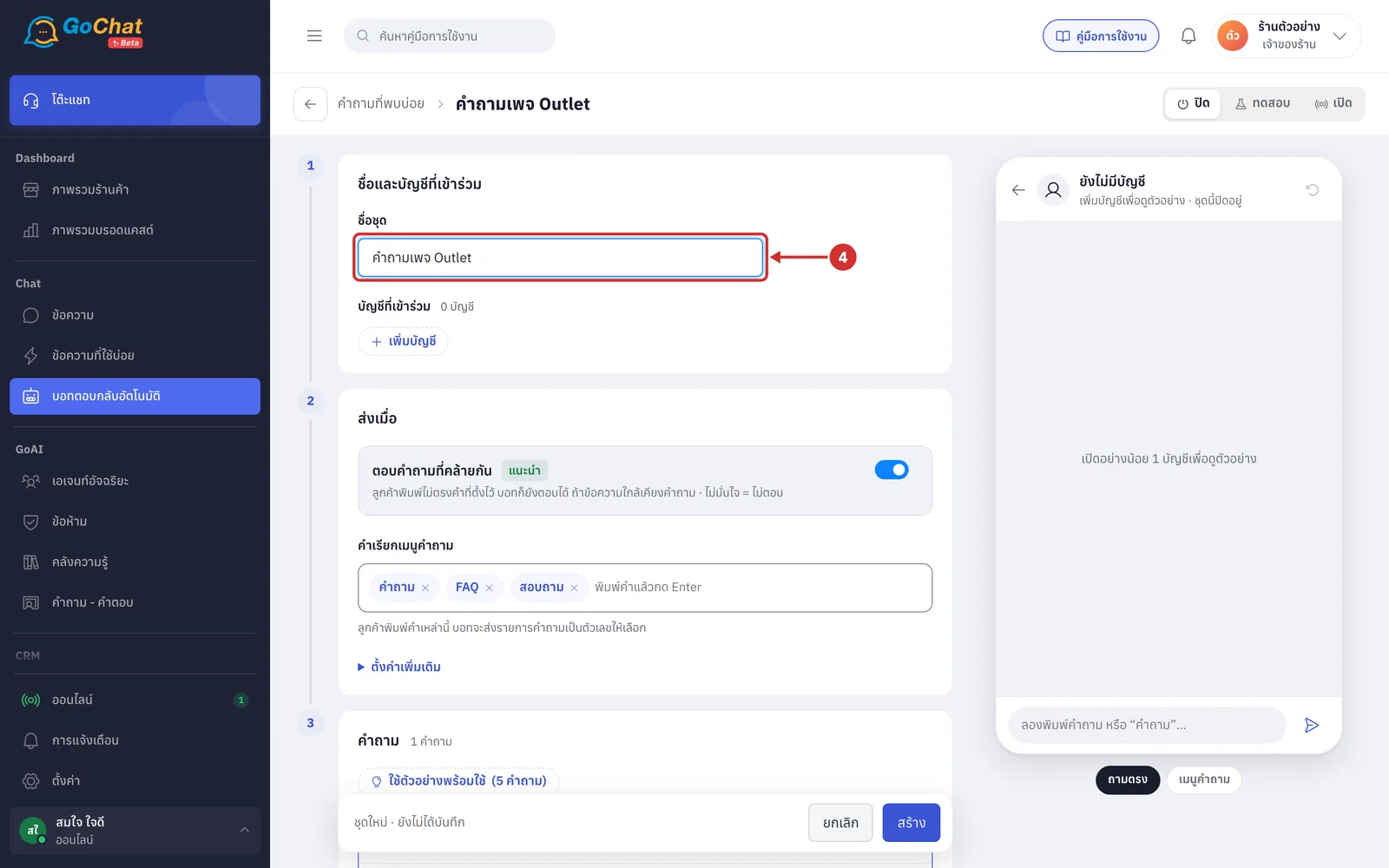
In ชื่อชุด (Set name), enter a name for the set, such as คำถามเพจ Outlet
This field is required, up to 60 characters
Your team sees the set name in the list; customers do not
Click เพิ่มบัญชี (Add account) and tick the pages or accounts that will use this question set
Accounts already in another question set show a lock and อยู่ใน (In) the set's name
Those accounts cannot be chosen; remove them from that set first
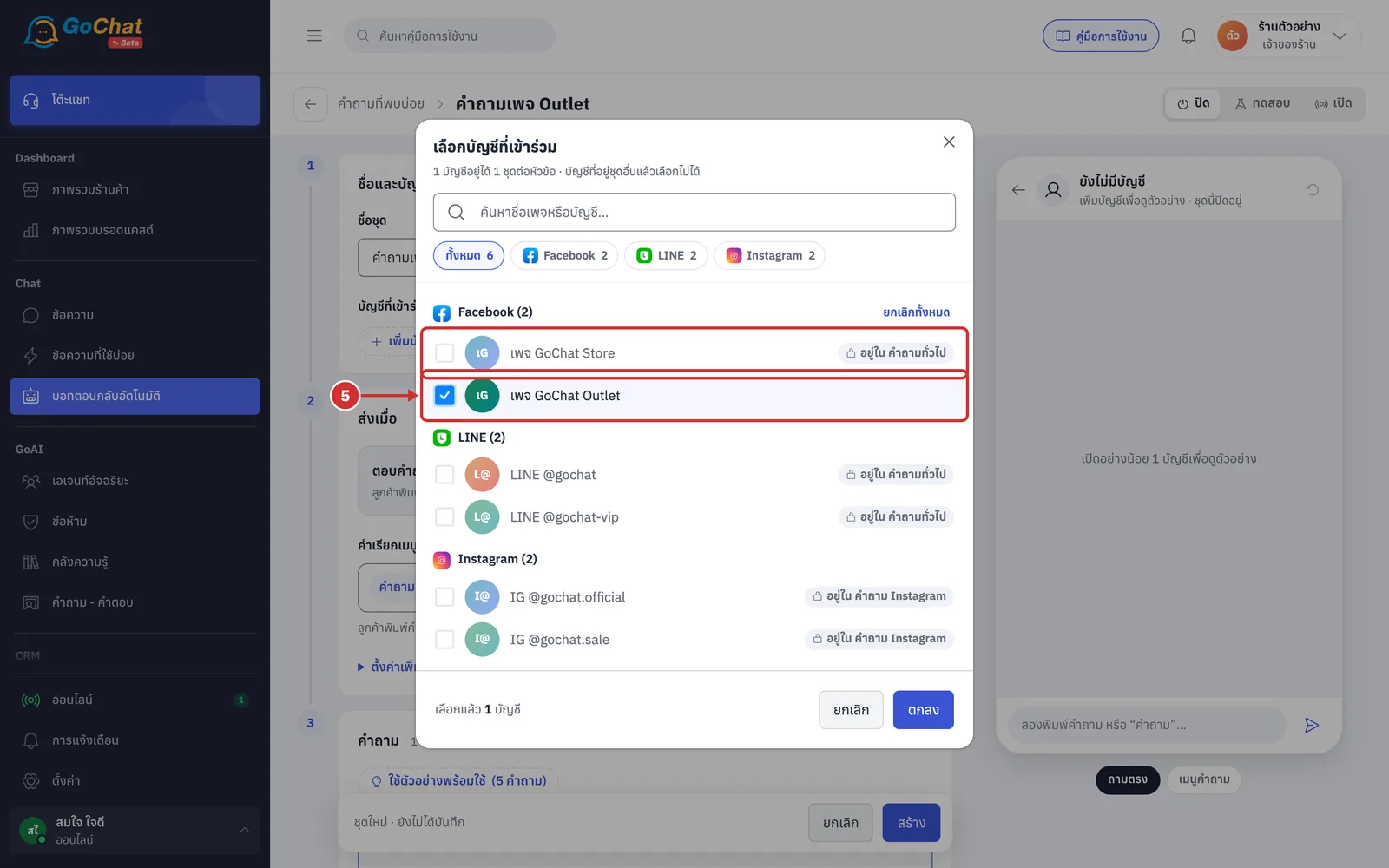
Click ตกลง (OK). The chosen accounts appear under บัญชีที่เข้าร่วม (Accounts)
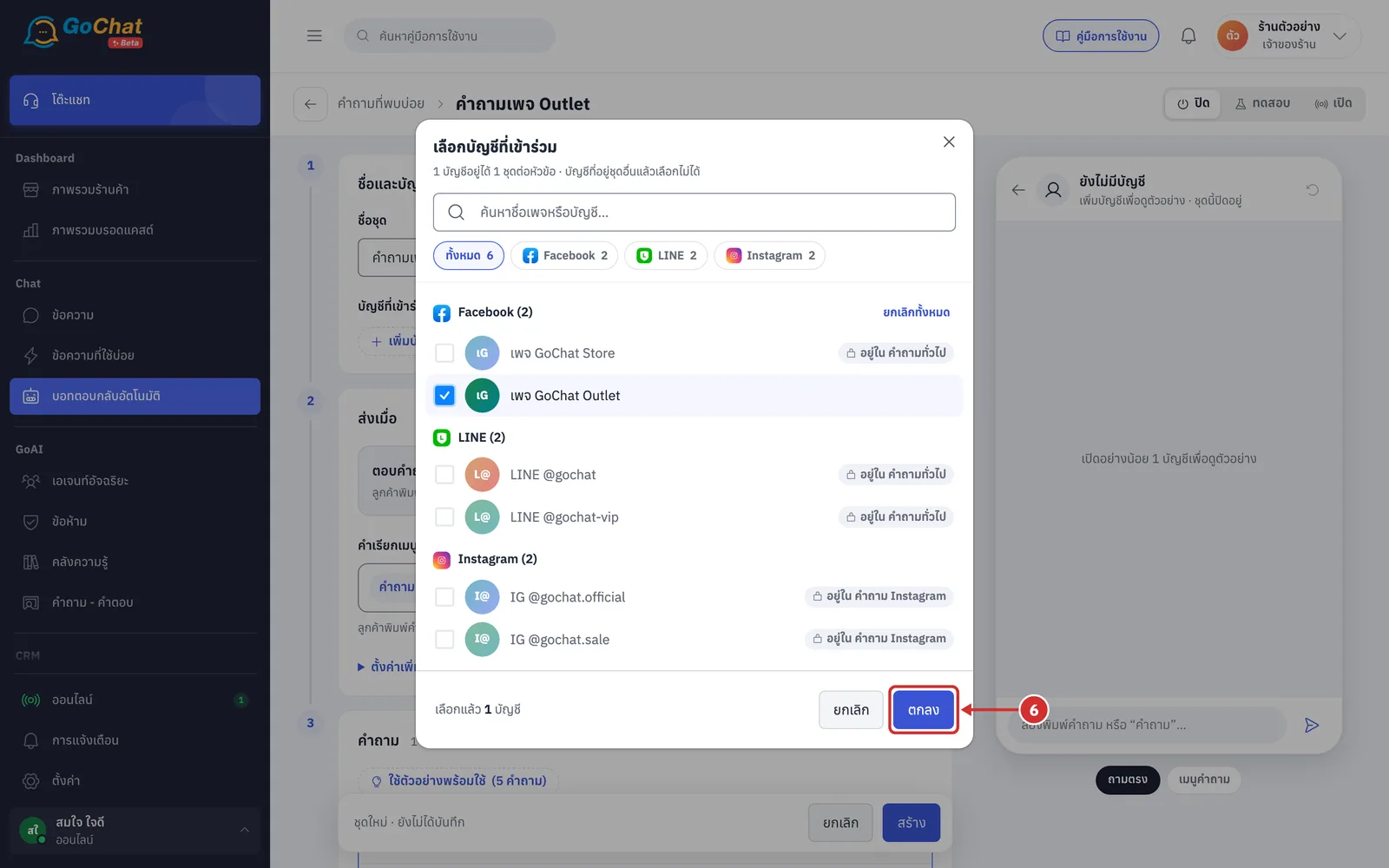
Setting when the bot answers
The ส่งเมื่อ (Sends when) step sets how the bot recognises a customer's question, and which words customers use to ask for the question list.
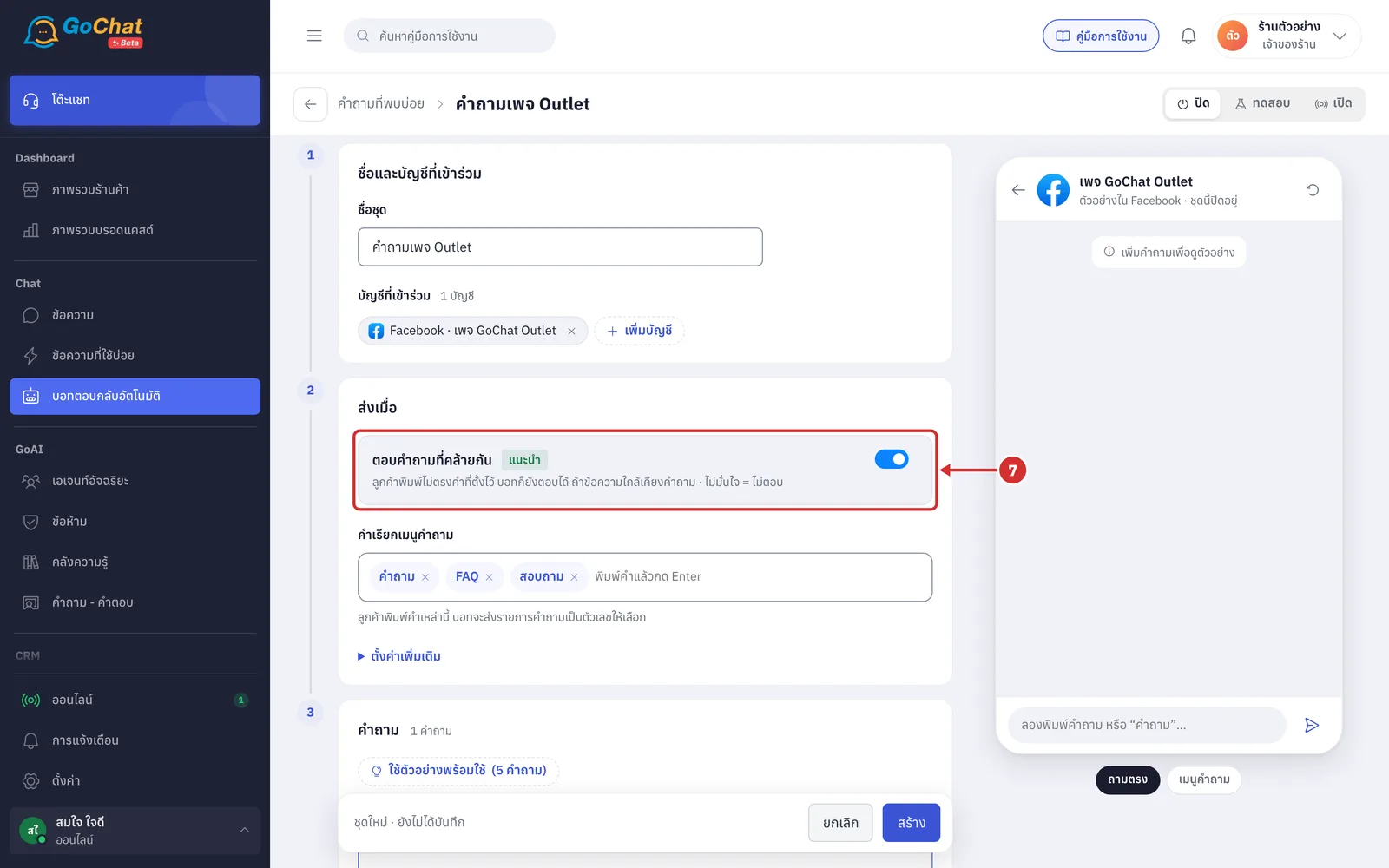
Turn on the ตอบคำถามที่คล้ายกัน (Answer similar questions) switch so the bot can answer even when customers do not type the exact words you set
On: if the customer's message has none of the words of any question, the bot compares its characters with the questions and words you set, and answers the closest one. For example, with the question จัดส่งกี่วัน (How many days to deliver), a customer typing จัดส่งภายในกี่วันคะ (Within how many days do you deliver?) still gets an answer
Off: the bot only answers messages that contain a question or a word you set
The bot compares characters and does not understand meaning, so it cannot catch words that mean the same thing but are written differently
If the bot is not confident which question it is, it does not answer (see How FAQs work)
New sets have this switch on, with the แนะนำ (Recommended) badge
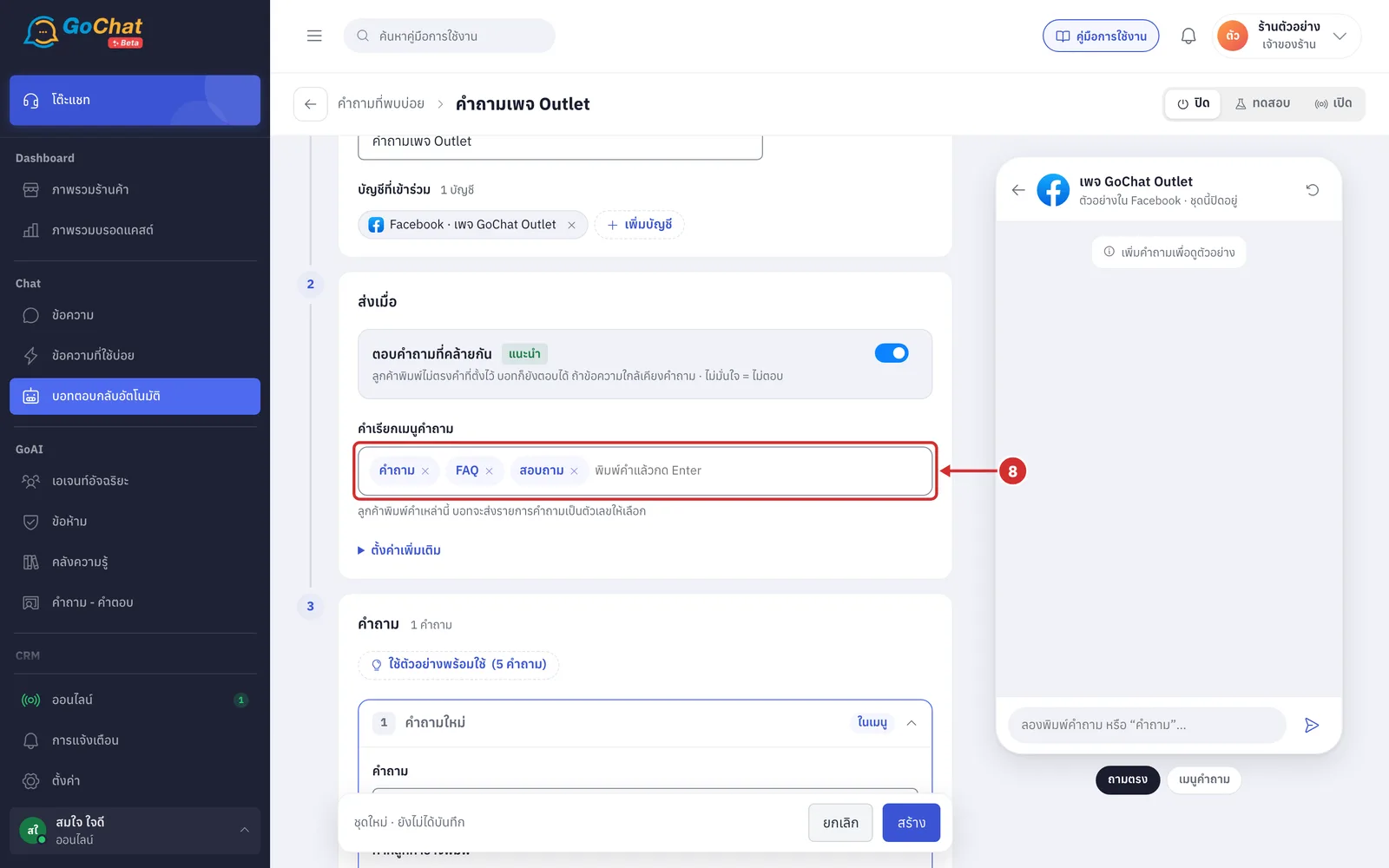
In คำเรียกเมนูคำถาม (Question menu words), type a word and press Enter to add a word customers use to ask for the question list
When a customer types this word, the bot sends the questions as a numbered list for the customer to choose by number. The list only has questions with อยู่ในเมนูคำถาม (In question menu) turned on
The customer must type the word as the whole message. For example, with the word คำถาม (Question), a customer typing คำถามค่ะ (Question, please) or มีคำถามค่ะ (I have a question) does not get the list
Upper or lower case and spaces at either end do not matter, so faq matches FAQ
There are 3 default words: คำถาม (Question), FAQ and สอบถาม (Ask)
Click × on a word to remove it
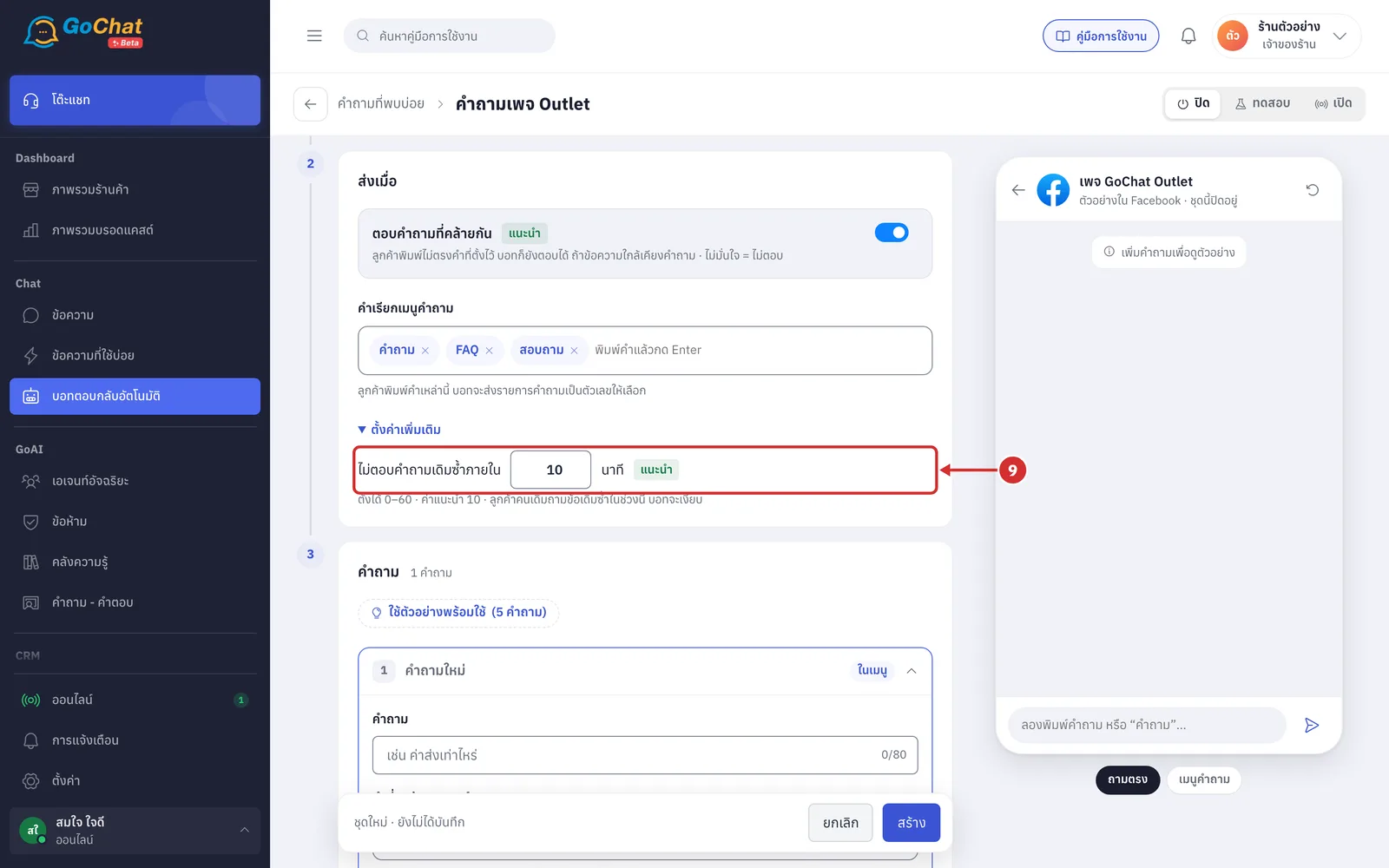
Click ตั้งค่าเพิ่มเติม (More settings), then enter the minutes in ไม่ตอบคำถามเดิมซ้ำภายใน (Don't answer the same question again within)
If the customer asks the same question again in the same chat within this time, the bot stays silent
You can set 0–60 minutes; 10 is recommended and shows the แนะนำ (Recommended) badge
If you set 0, the bot answers every time and you see the warning ตั้งเป็น 0 = ตอบทุกครั้ง ลูกค้าอาจได้รับข้อความซ้ำ (0 = answer every time; customers may get repeated messages)
Setting the questions
The คำถาม (Questions) step shows the number of questions in the set at the top, and shows each question as a card. New sets start with 1 empty question.
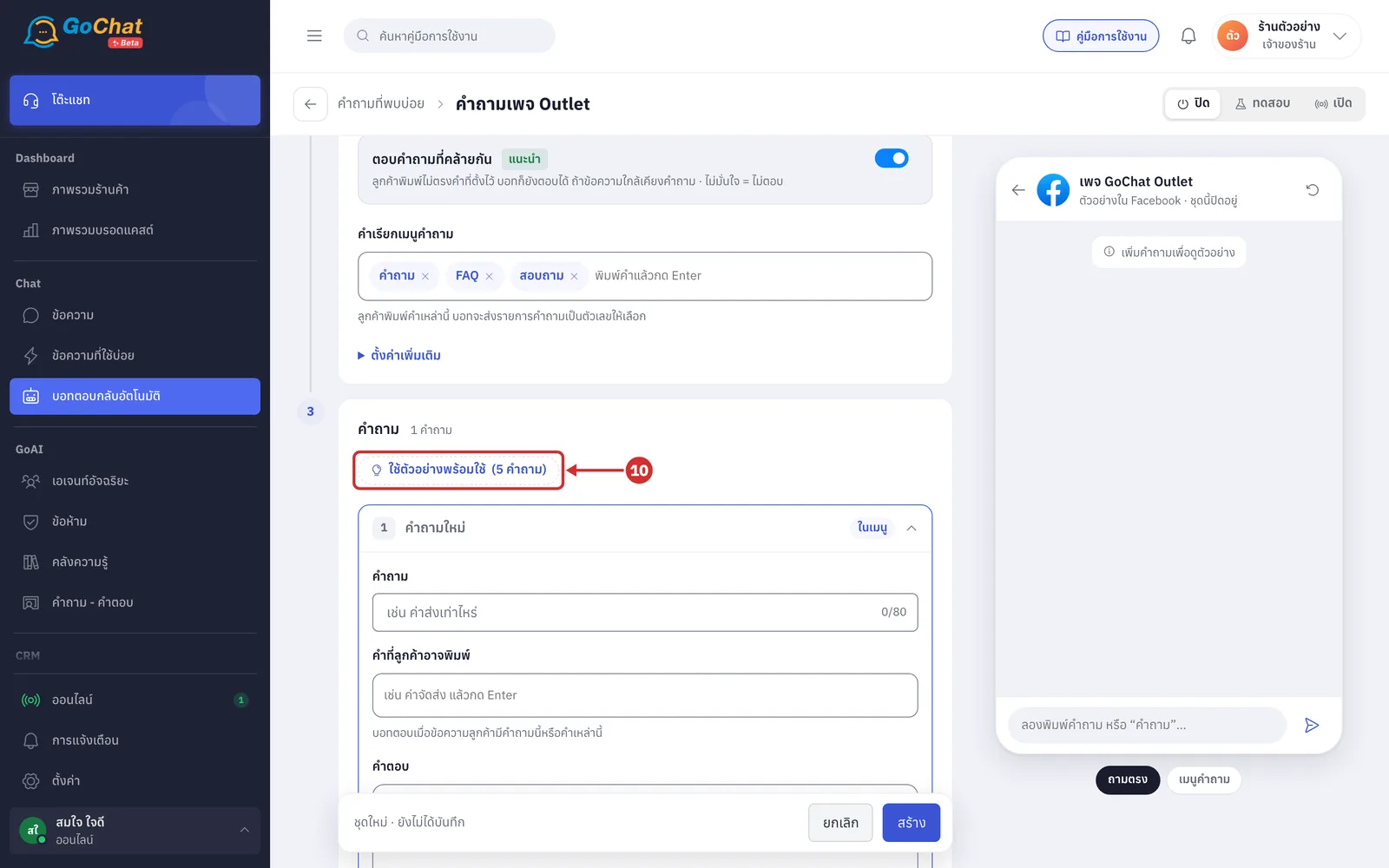
Click ใช้ตัวอย่างพร้อมใช้(5 คำถาม) (Use ready-made example (5 questions)) to fill in 5 sample questions, then edit them
The sample questions are ค่าส่งเท่าไหร่ (How much is shipping), ส่งกี่วันถึง (How many days to arrive), ชำระเงินยังไง (How do I pay), เปลี่ยน-คืนได้ไหม (Can I exchange or return) and ของแท้ไหม (Is it genuine), with words customers may type and answers
Every question is in the question menu except เปลี่ยน-คืนได้ไหม (Can I exchange or return)
The sample answers use made-up values, such as 50 baht shipping, so change them to match your shop before going live
The button only appears on new sets where no question or answer has been typed
It only fills the form and does not save
If the set has no name yet, it is named คำถามทั่วไป (ตัวอย่าง) (General questions (sample))
Click a question card's header to open or close it; one card opens at a time. The header shows
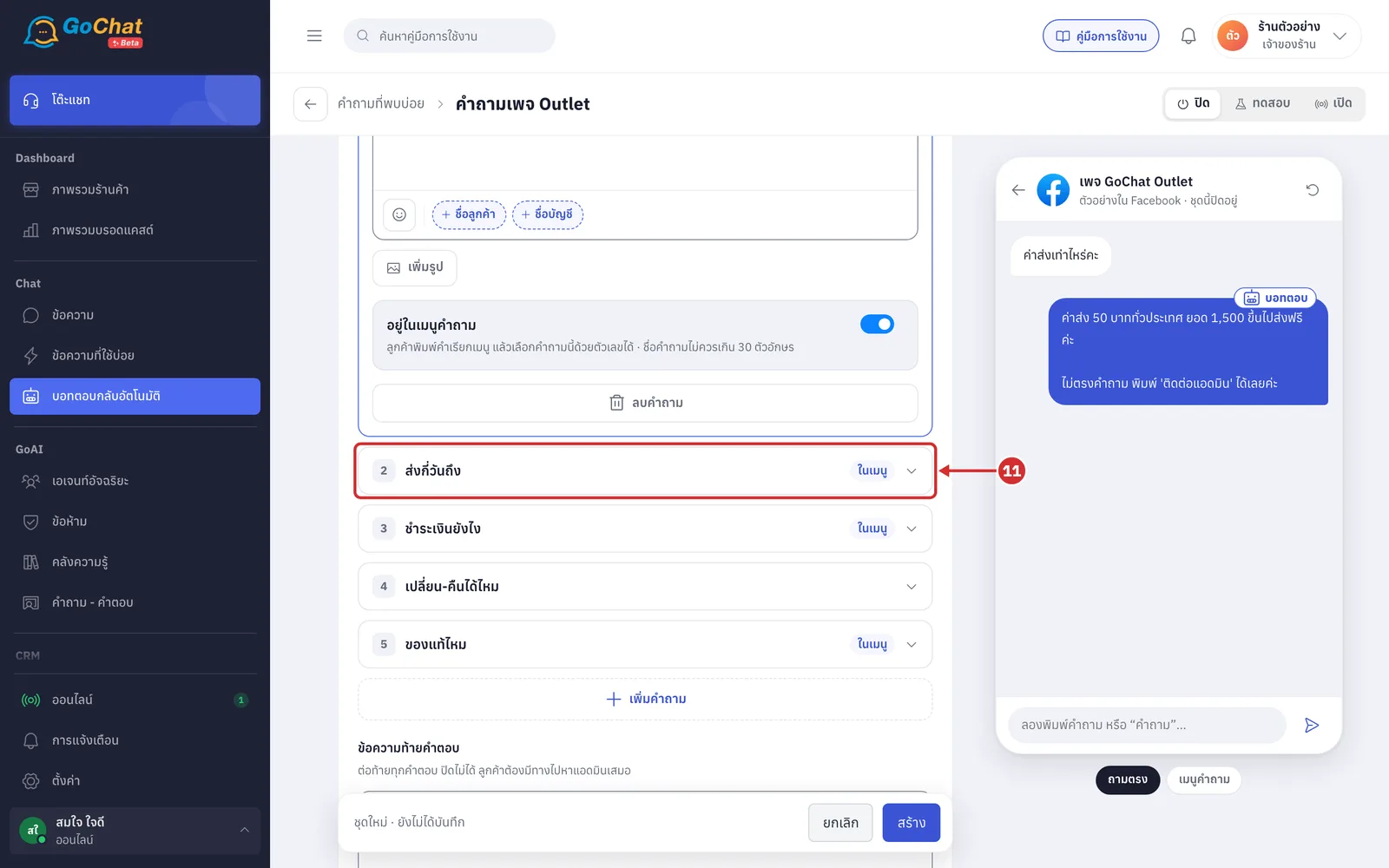
The question number and name. A question with nothing typed yet shows คำถามใหม่ (New question)
The ในเมนู (In menu) badge when the question is in the question menu
A red warning icon when a field in the card needs fixing
The ย้ายจากระบบเดิม (Moved from the old system) badge on questions the app moved over from your shop's old auto-reply settings
In คำถาม (Question), type the question, such as ค่าส่งเท่าไหร่ (How much is shipping)
This field is required, up to 80 characters (the counter is at the end of the field)
The bot answers this question when the customer's message contains it
The question name also shows in the question menu, so keep it to 30 characters or fewer
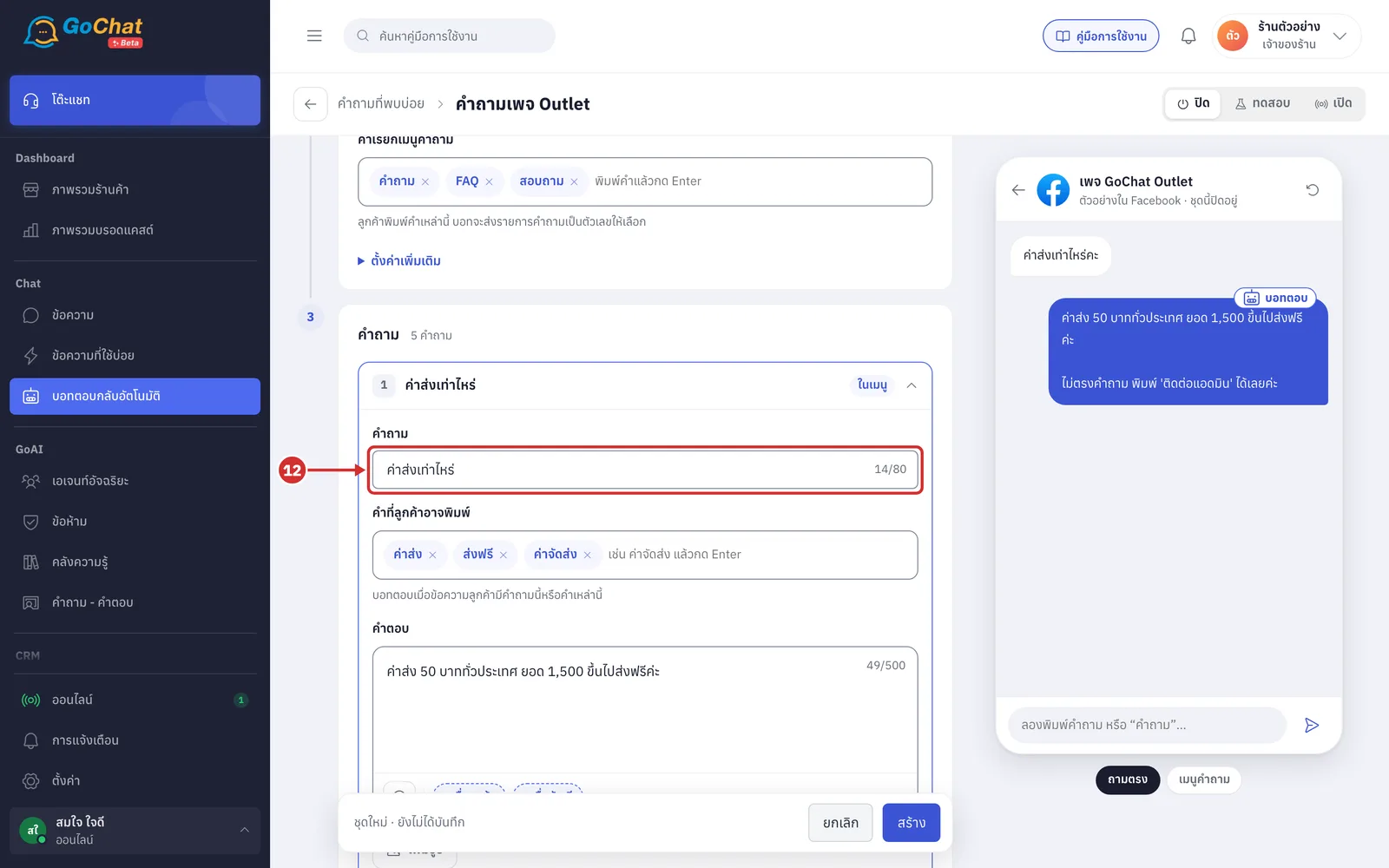
In คำที่ลูกค้าอาจพิมพ์ (Words customers may type), type a word and press Enter, such as ค่าจัดส่ง (delivery fee)
The bot answers this question when the customer's message contains the question or any of these words; it does not have to be the whole message. For example, the word ค่าส่ง (shipping) matches ค่าส่งไปเชียงใหม่เท่าไหร่คะ (How much is shipping to Chiang Mai?)
You can add several words, and click × on a word to remove it
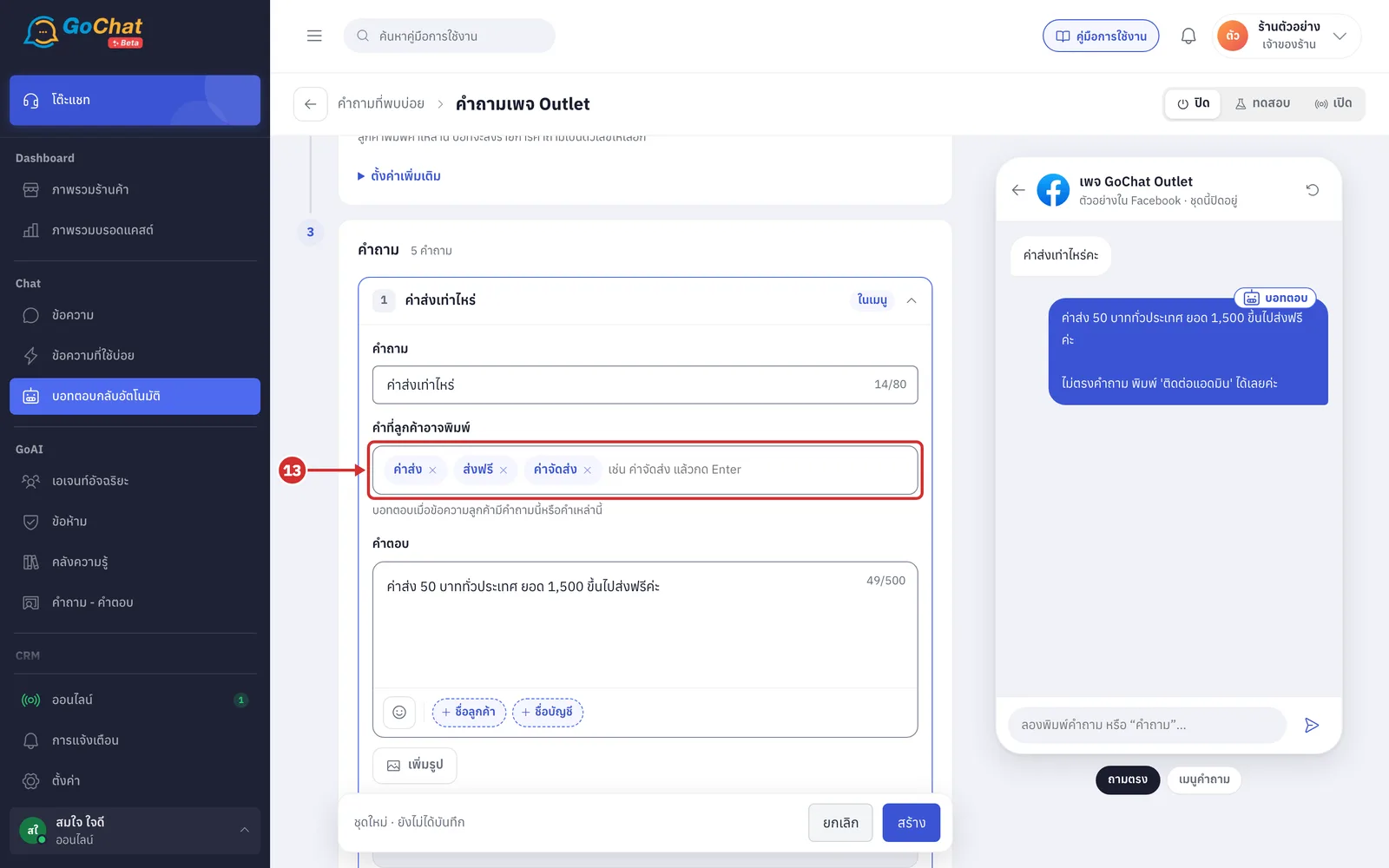
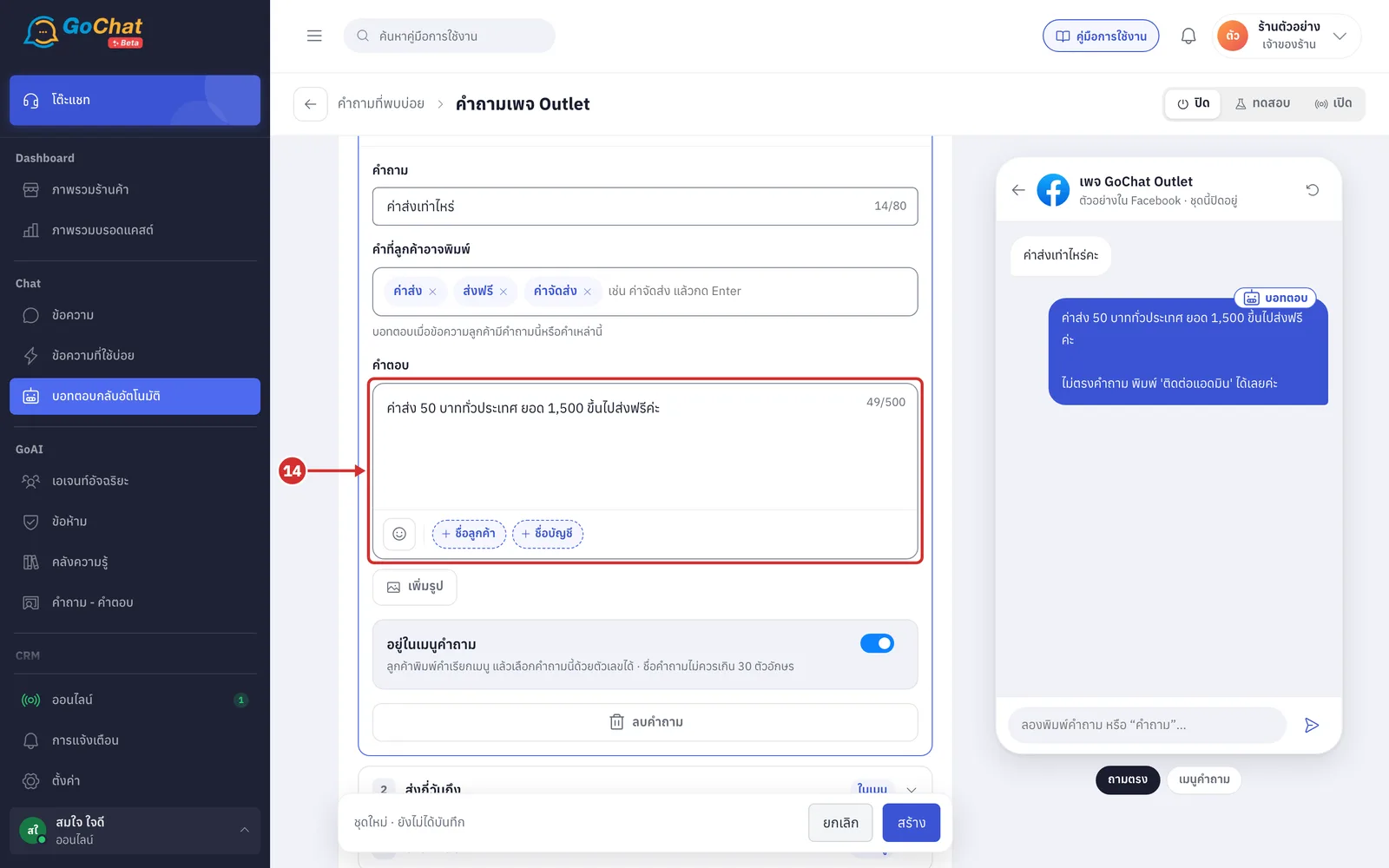
In คำตอบ (Answer), type what the bot will reply. You can use the ชื่อลูกค้า (Customer name) and ชื่อบัญชี (Account name) variables
An answer or an image is required
The answer can be up to 500 characters
The bot always adds the ข้อความท้ายคำตอบ (Message after answers) to the end of the answer (step 19)
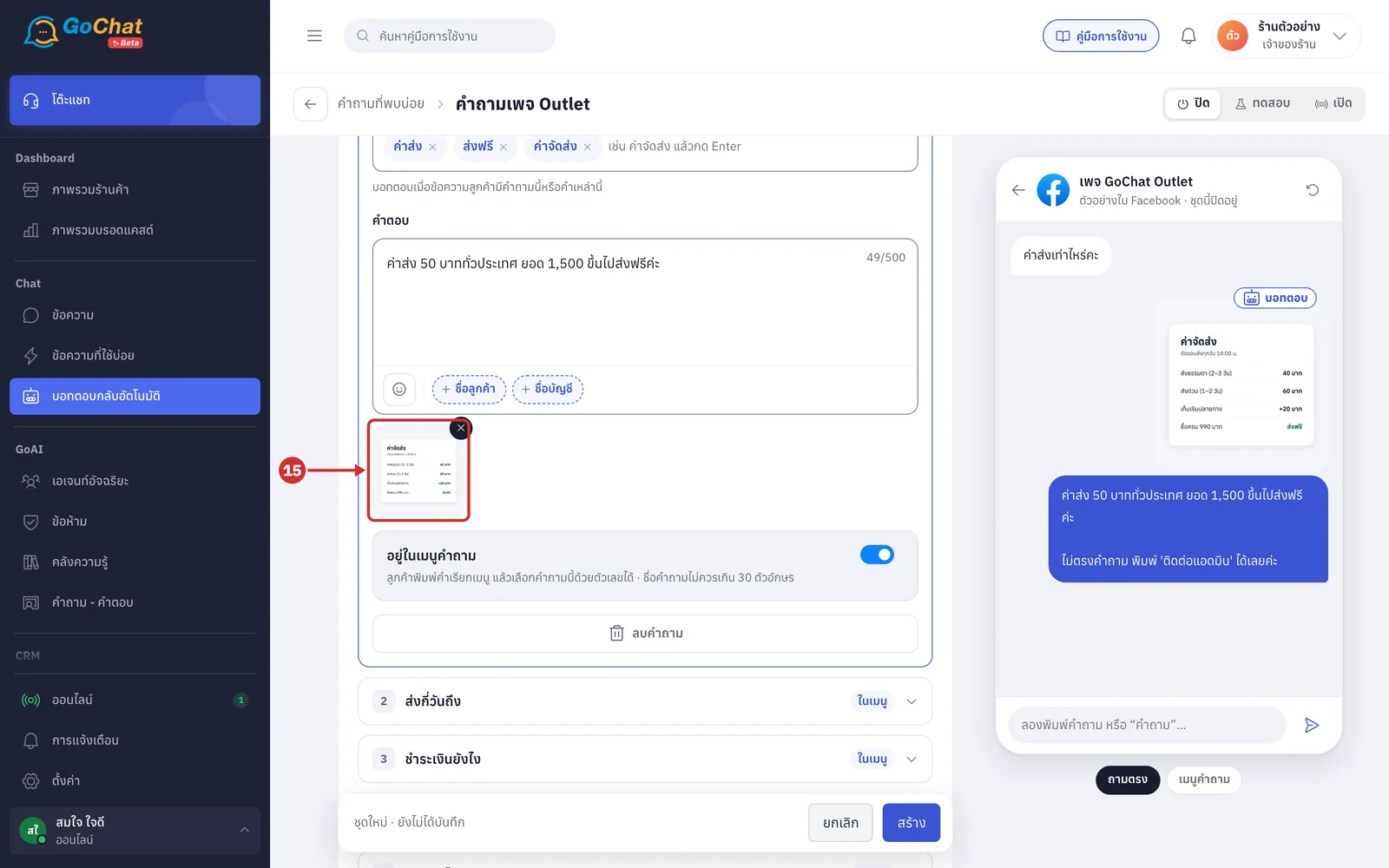
Click เพิ่มรูป (Add image) under the answer and choose 1 image from your computer, such as a shipping rate table
Each question can have 1 image
The bot sends the image before the text
The image goes into your shop's image library as soon as you choose it, but is linked to the question when you save
To remove the image, click × on it
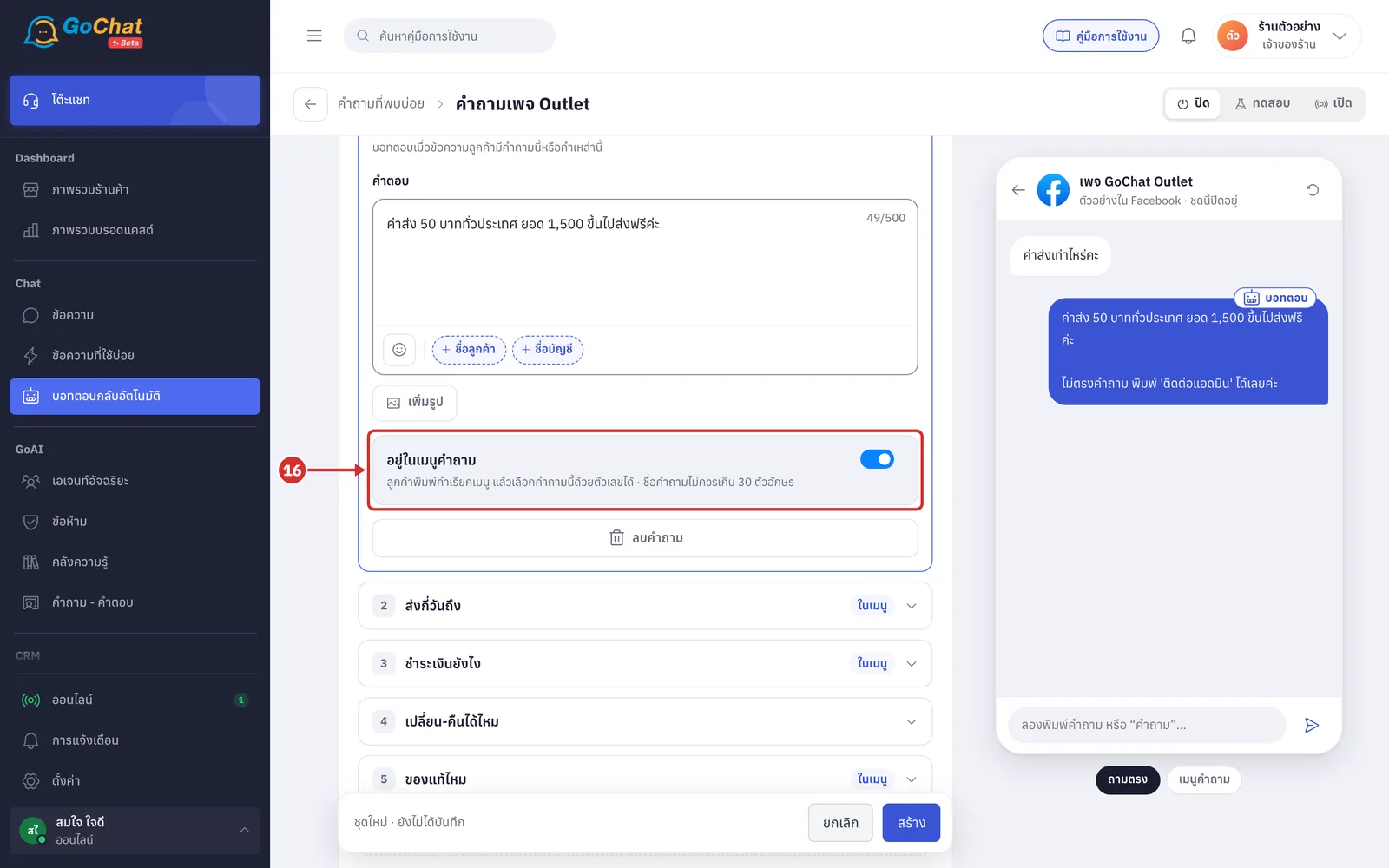
Turn on the อยู่ในเมนูคำถาม (In question menu) switch to put this question in the list the bot sends when a customer types a menu word
On: the customer types a menu word, then types a number to choose this question
Off: the question is not in the list, but the bot still answers when the customer's message contains the question or a word you set
Click ลบคำถาม (Delete question) to remove that question from the set
A set needs at least 1 question, so the button cannot be clicked on the last one
The deletion takes effect when you save the set
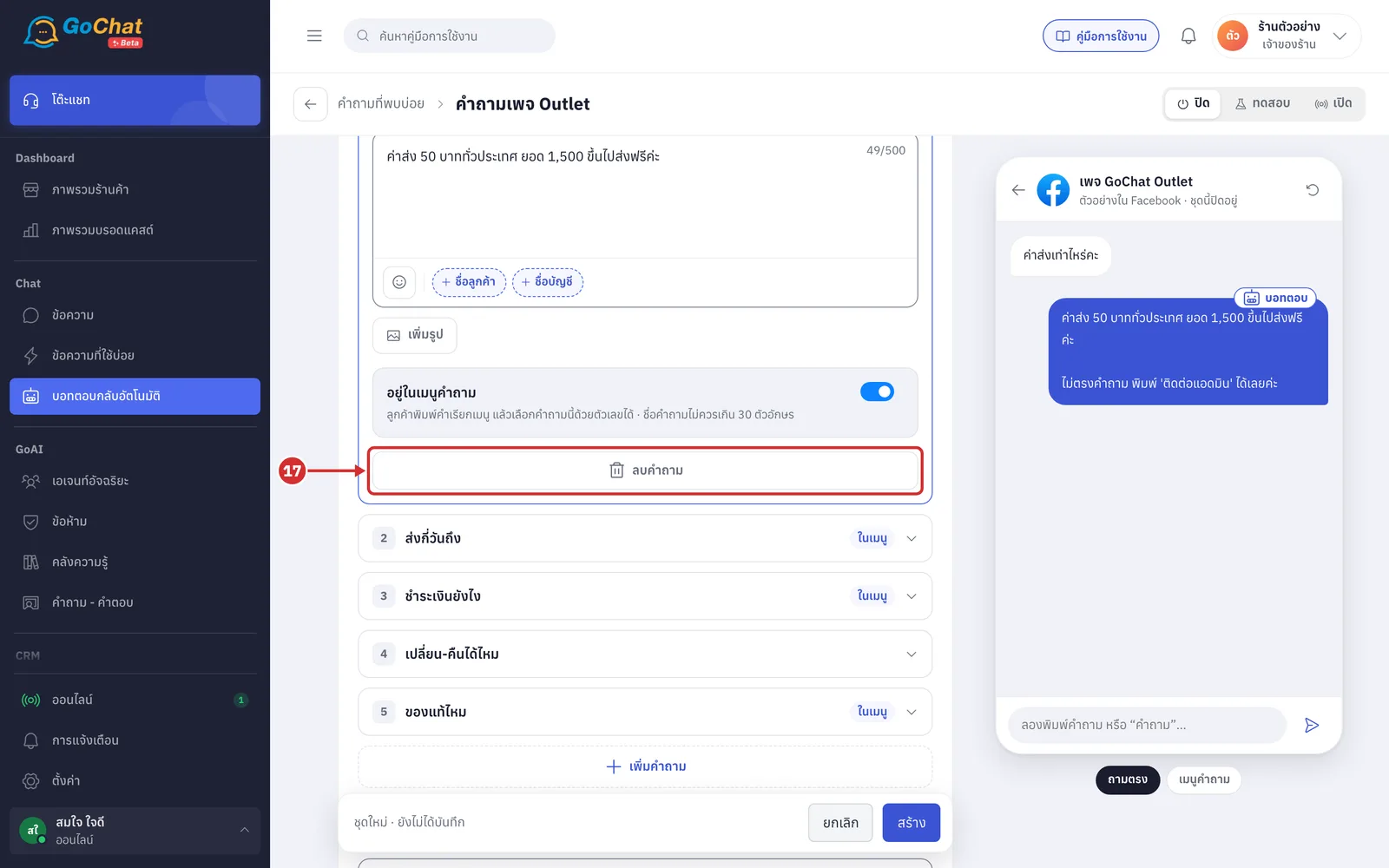
Click เพิ่มคำถาม (Add question) to add a new question. The new card opens so you can type straight away
A set can have up to 10 questions. The button disappears when the set is full
New questions are not in the question menu yet. To add one, turn on อยู่ในเมนูคำถาม (In question menu) (step 16)
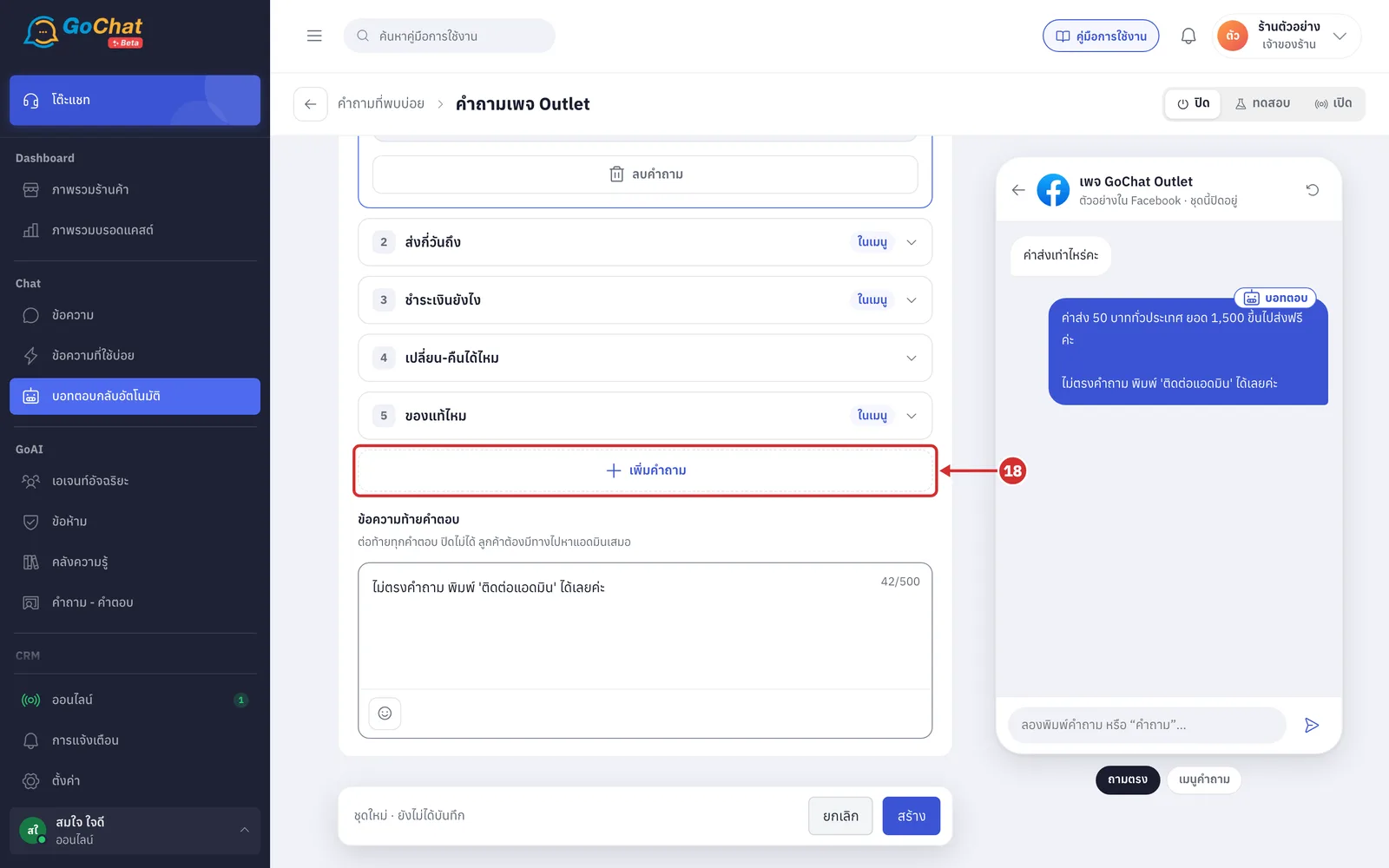
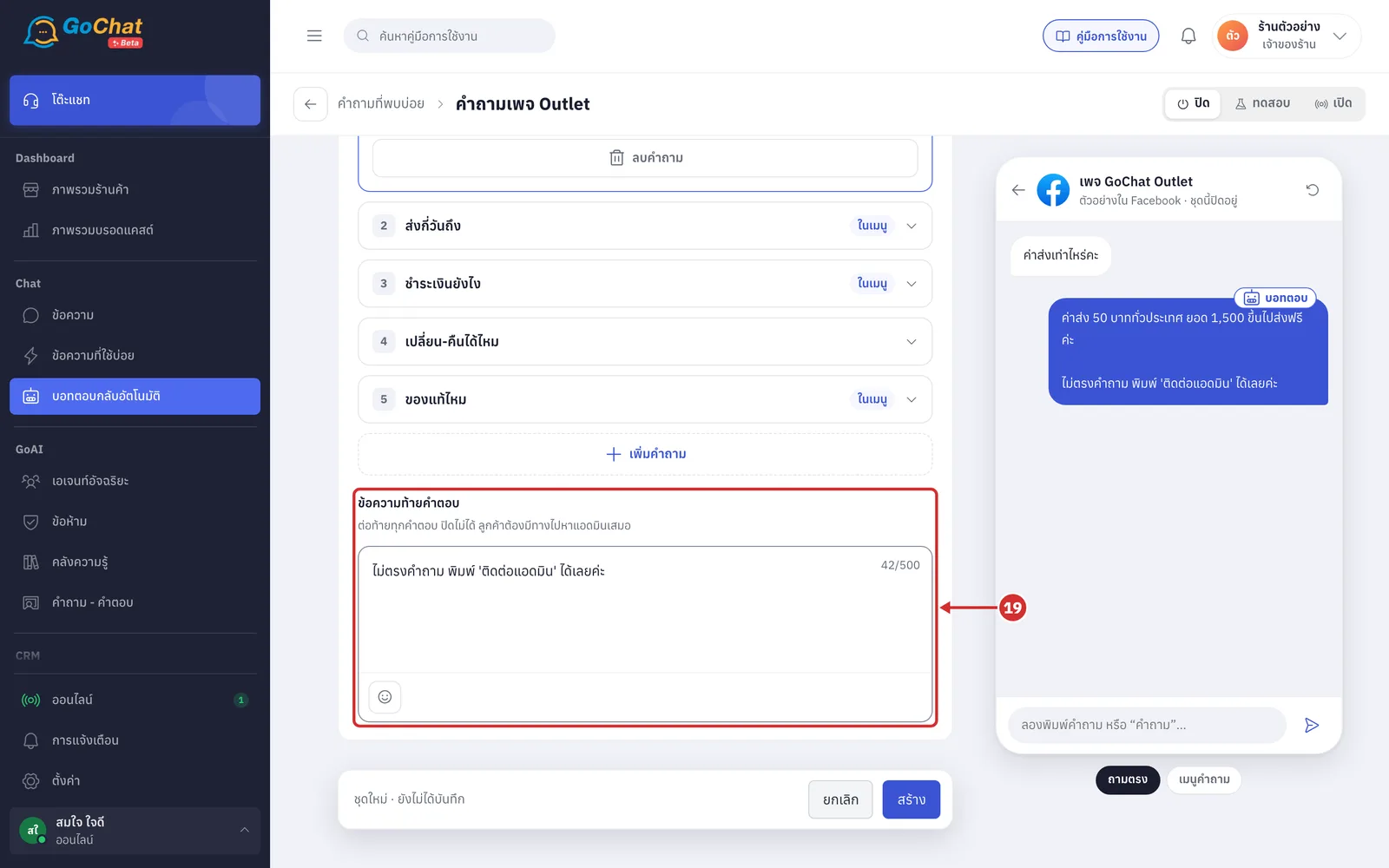
Under ข้อความท้ายคำตอบ (Message after answers), edit the text the bot adds after every answer
It cannot be turned off and is required, so customers always have a way to reach an admin
The default is ไม่ตรงคำถาม พิมพ์ 'ติดต่อแอดมิน' ได้เลยค่ะ (Not your question? Type 'ติดต่อแอดมิน' (contact admin))
The word ติดต่อแอดมิน (contact admin) is one of the default words in ลูกค้าขอคุยกับแอดมิน (Customer asks for an admin) under ตั้งค่าการตอบทั้งร้าน (Shop-wide reply settings). If your shop changes those words, update this text to match
The text can be up to 500 characters and has no variables
Trying it in the chat preview
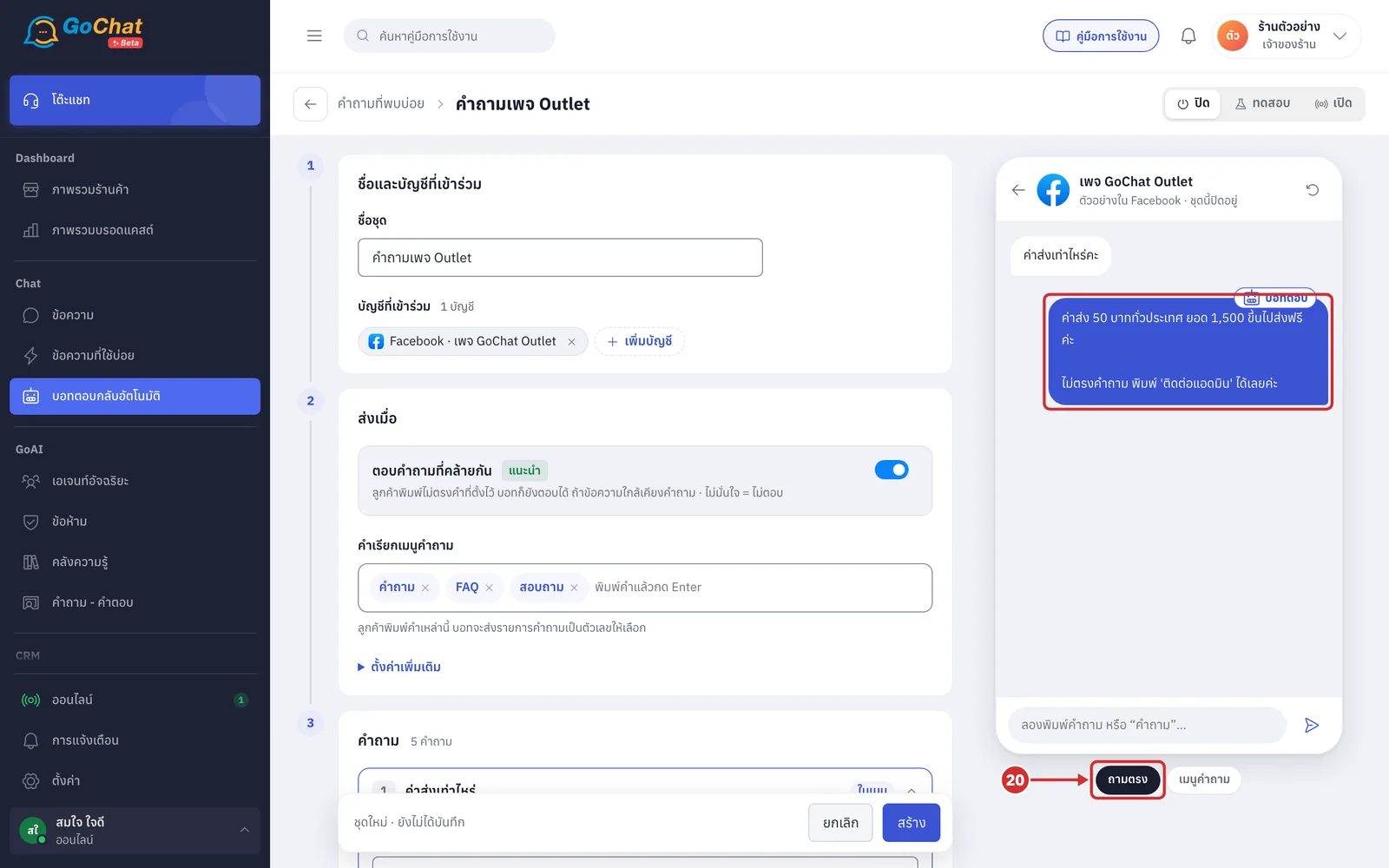
The chat preview on the right uses the set's first account and answers with the form's values, even before you save. Under it are 2 scenario buttons: ถามตรง (Ask directly) and เมนูคำถาม (Question menu).
Click ถามตรง (Ask directly) to see the answer when a customer types the question
The sample customer types the first question's name followed by “คะ”, such as ค่าส่งเท่าไหร่คะ (How much is shipping?)
The bot replies with that question's answer, followed by the message after answers
ถามตรง (Ask directly) is the scenario chosen when the page opens
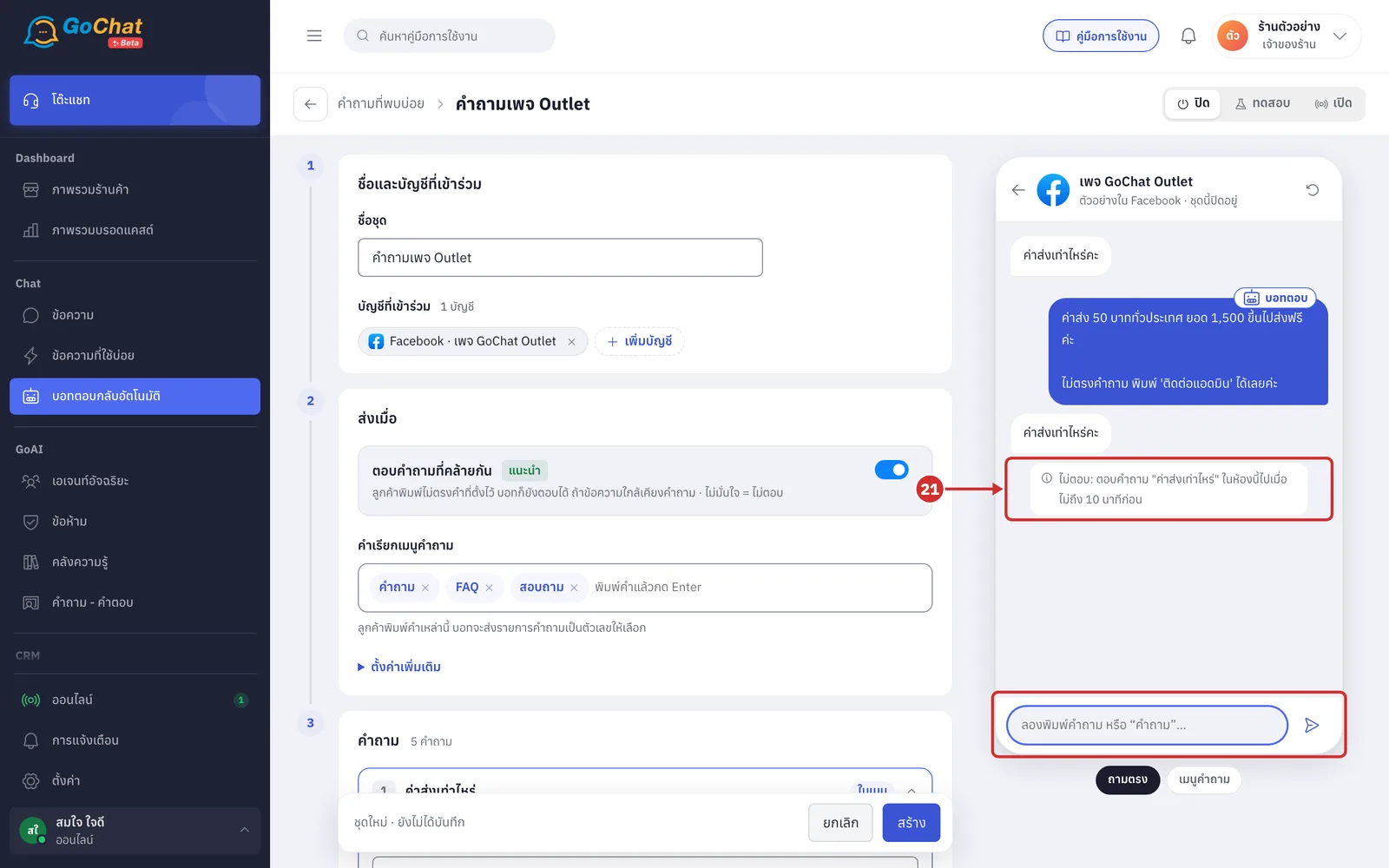
Type the same question again in the box at the bottom of the chat preview and press Enter to see the repeat protection
The bot does not answer and shows the reason, such as ไม่ตอบ: ตอบคำถาม "ค่าส่งเท่าไหร่" ในห้องนี้ไปเมื่อไม่ถึง 10 นาทีก่อน (No reply: answered "ค่าส่งเท่าไหร่" in this chat less than 10 minutes ago)
In the chat preview, each message is 1 minute after the previous one
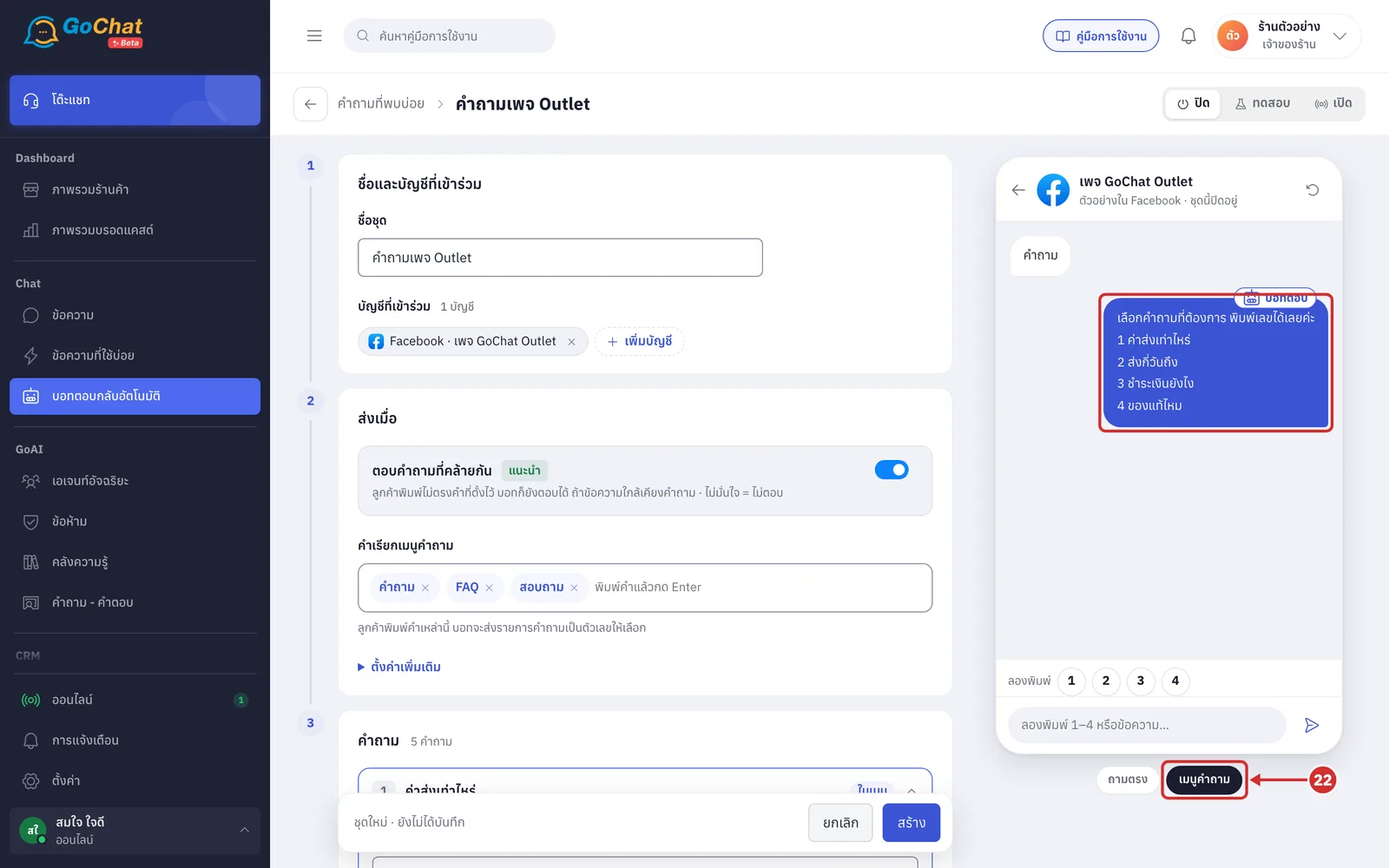
Click เมนูคำถาม (Question menu) to see the question list customers get
The sample customer types the first menu word, such as คำถาม (Question)
The bot replies เลือกคำถามที่ต้องการ พิมพ์เลขได้เลยค่ะ (Choose a question, just type its number) followed by the questions in the menu, numbered
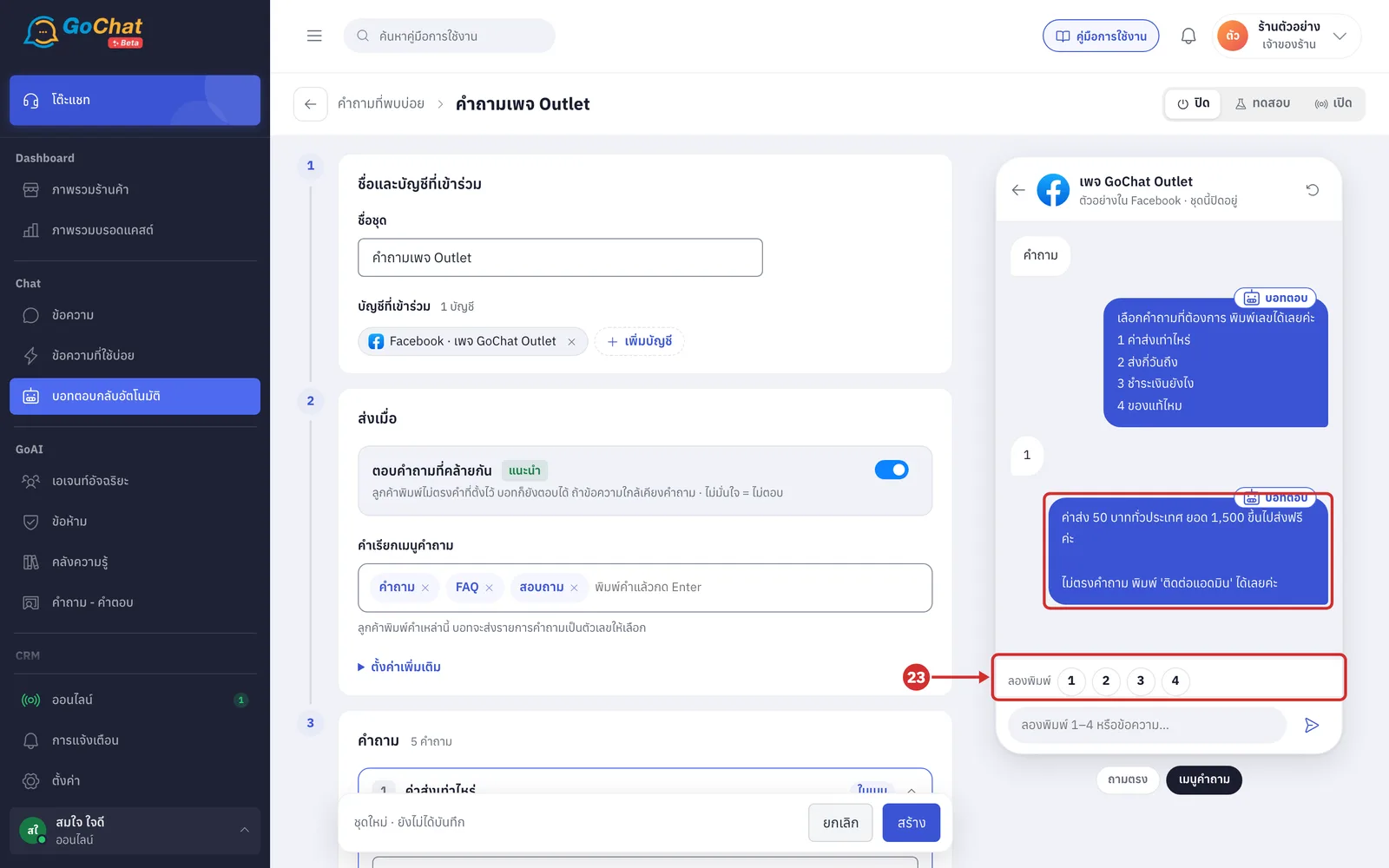
Click a number in the ลองพิมพ์ (Try typing) row, such as 1, to see the answer when a customer types a number to choose a question
Good to know: The FAQ chat preview includes the account's promotions and keyword replies that are on, but does not show the welcome message or the after-hours message that real customers may get before the answer.
Saving
Choose a status at the top right, then click สร้าง (Create)
New sets are ปิด (Off)
ทดสอบ (Test) — try it with your team's chats
เปิด (On) — go live
If a field is not valid, nothing is saved and the first question card that needs fixing opens for you
The statuses are explained in Using the auto-reply bot
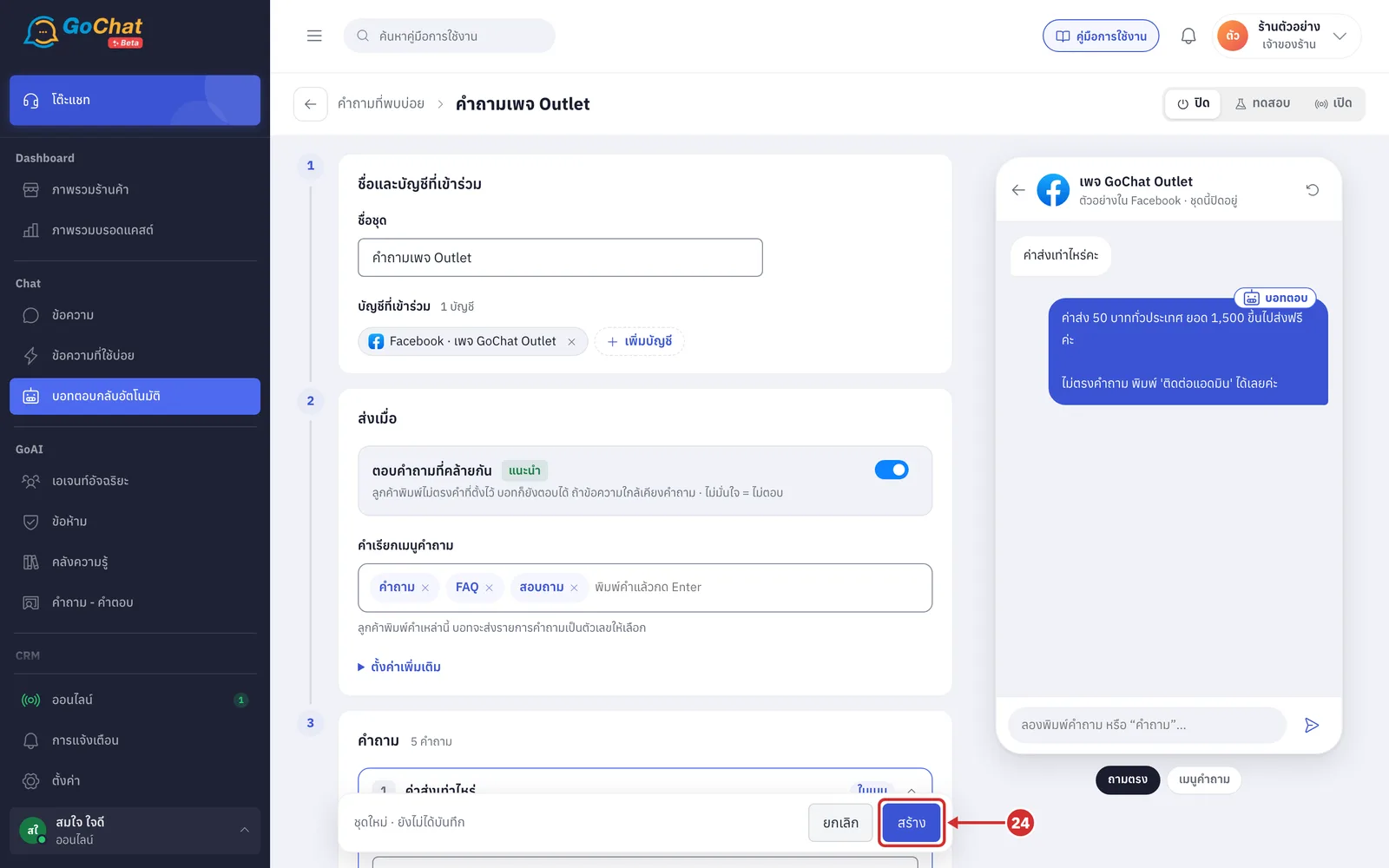
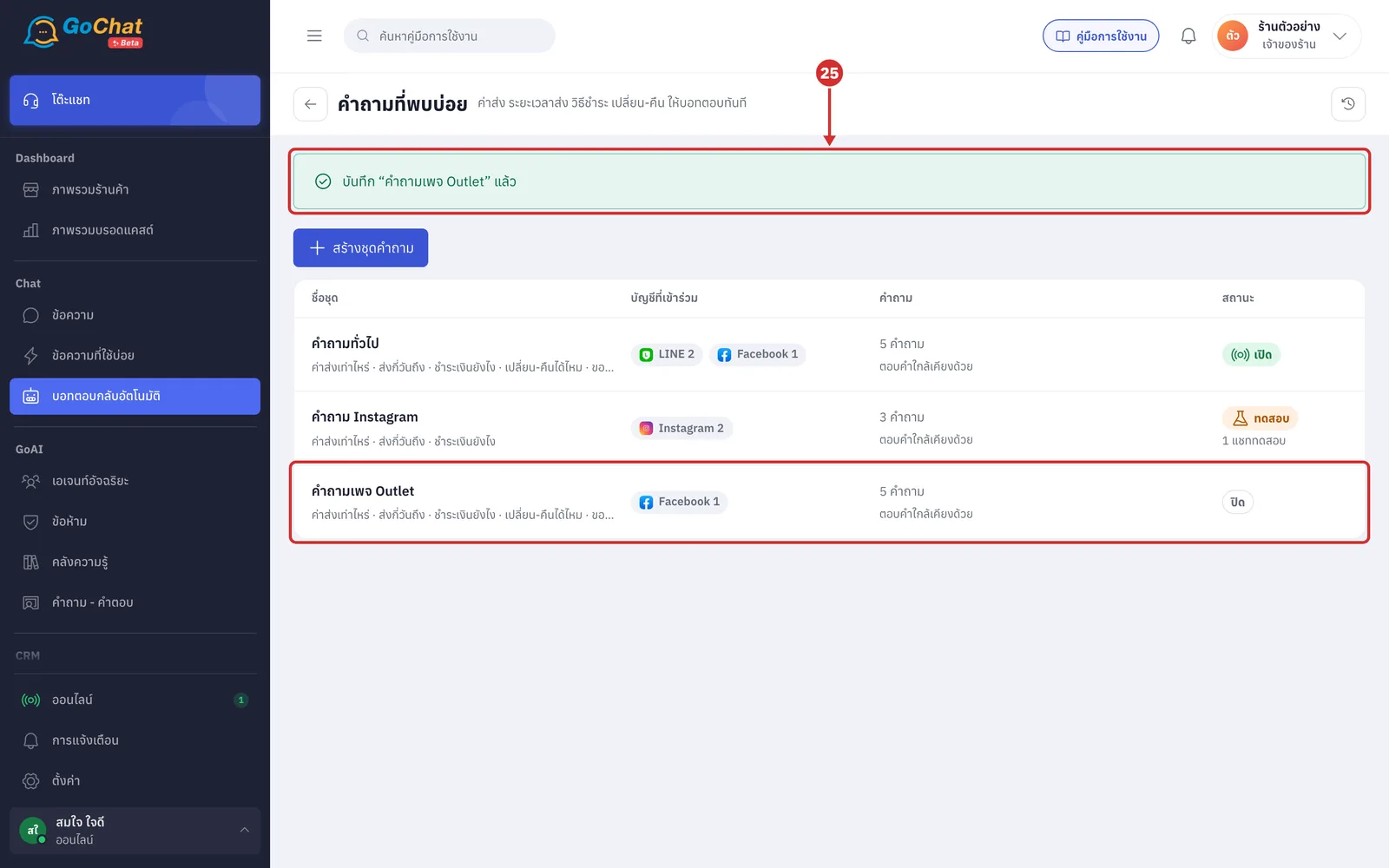
The app goes back to the list, shows บันทึก “คำถามเพจ Outlet” แล้ว (Saved “คำถามเพจ Outlet”) and the new set appears in the list
How FAQs work
The bot answers when the customer's message contains the คำถาม (Question) or one of the คำที่ลูกค้าอาจพิมพ์ (Words customers may type) of any question
Before comparing, the bot adjusts the text like this
Spaces are ignored, and so is upper or lower case
A letter typed several times in a row counts once, so ค่าส่งงง matches ค่าส่ง (shipping)
Thai digits count the same as Arabic digits
Words made only of English letters or digits must appear as a separate word in the message, so cod does not match codex
If several questions match, the bot answers only the one with the longest matching word
If no question matches a word and ตอบคำถามที่คล้ายกัน (Answer similar questions) is on, the bot answers when the message is at least 50% similar to a question and at least 10% more similar than the second-best one; otherwise it does not answer. The reason in the บอทตอบ (Bot replied) badge shows the similarity percentage
คำเรียกเมนูคำถาม (Question menu words) must be the whole message, while questions and words customers may type only need to be in the message
One message gets an answer from one topic only. If the message also matches สรุปคำสั่งซื้อ (Order summary) or ส่วนลด / โปรโมชั่น (Discounts / Promotions), the bot answers that topic instead of the FAQ
The bot does not answer the same question again in the same chat within ไม่ตอบคำถามเดิมซ้ำภายใน (Don't answer the same question again within). Sets in test status use ส่งซ้ำได้ทุก (Can resend every) instead
Customers can type a number or a question name from the list within เมนูตัวเลขหมดอายุ (Number menu expires) under ตั้งค่าการตอบทั้งร้าน (Shop-wide reply settings). If they type a number that is not in the list, the bot replies ไม่มีเลขนี้ค่ะ (There is no such number) and sends the list again once
While your shop is closed under an after-hours set, the bot answers FAQs only if that set has คำถามที่พบบ่อย (FAQ) chosen in นอกเวลา บอทยังช่วยตอบ (After hours, the bot still answers) (see Setting up after-hours messages)
Customers messaging for the first time get the welcome message before the answer, if that account has a welcome set that is on
About FAQ sets
One account can be in one FAQ set. To move an account to a new set, remove it from the old set first
The ส่งคำถามที่พบบ่อย (Send FAQ) menu item in Setting up welcome messages and in after-hours messages sends the question list from that account's FAQ set
Answers the bot has sent are shown in Viewing auto-reply chat history