

Reading text from images
The อ่านข้อความ (Read text) button lets you read the name, phone number and address from an image in a chat without retyping them, for example when a customer sends a photo of a handwritten address or a screenshot of their address. The system splits the details into rows that you can copy, or use to create an order right away.
This feature is available free of charge from now until 31 December 2026. During this period, every user can use it in every shop and every channel, with no GoAI service charge and no deduction from the shop's AI credit.
Creating an order from the read result is only available to shops connected to the GoSaaS order management system.
Note: Free use is a condition set by the company for the period above. The company reserves the right to change the service period, conditions or usage details as appropriate, without prior notice.
Reading text from an image
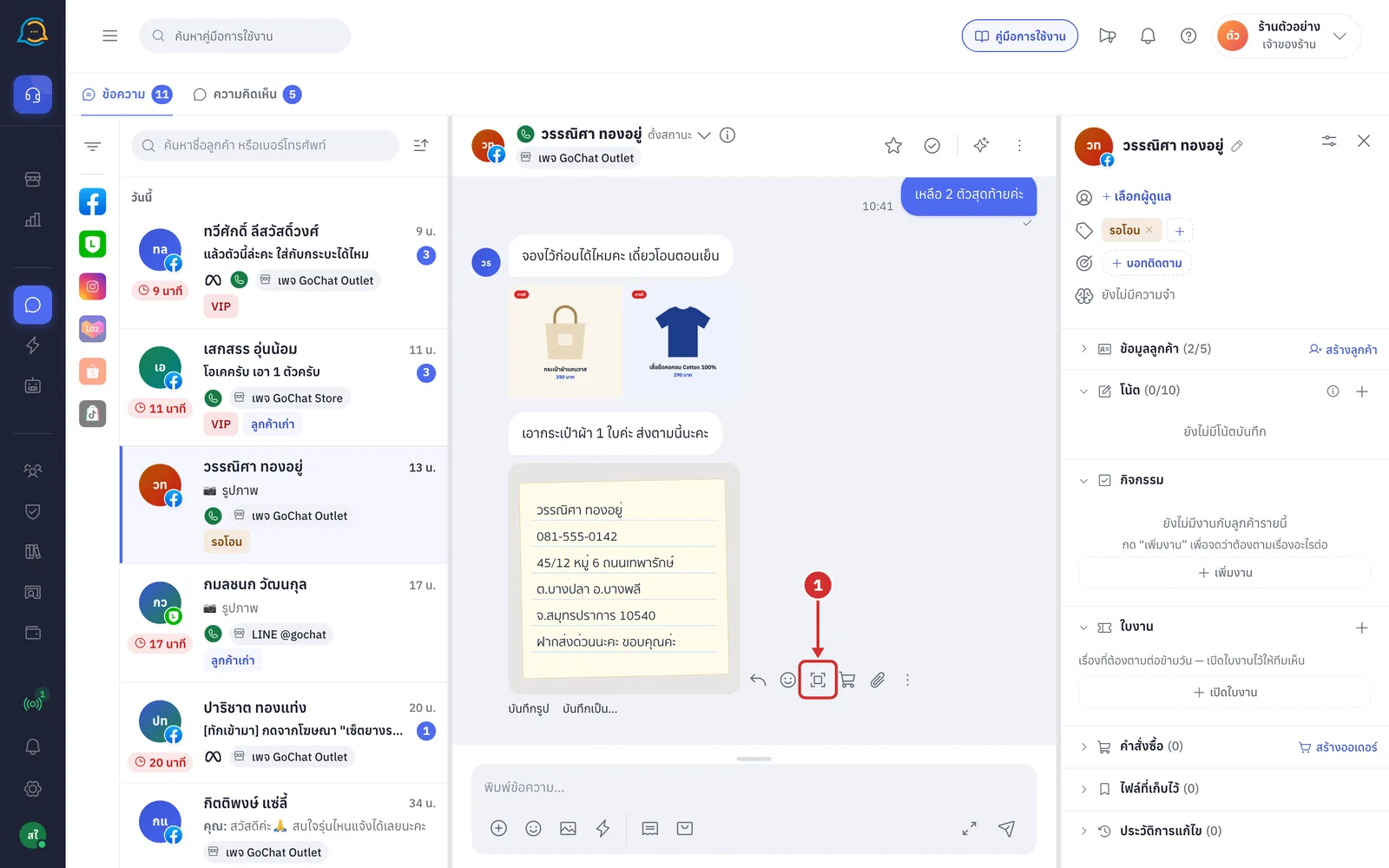
In a chat, hover over the image bubble you want, then click the อ่านข้อความ (Read text — the scan frame) icon in the button bar next to the bubble
The button appears on image bubbles sent by the customer and by the shop, in 1:1 chats. Group chats do not have it
It only appears on images the system has kept a copy of, and not on bubbles that are hidden or that the customer has deleted
The first time you hover over an image bubble with this button, the system shows a short guide to the button once
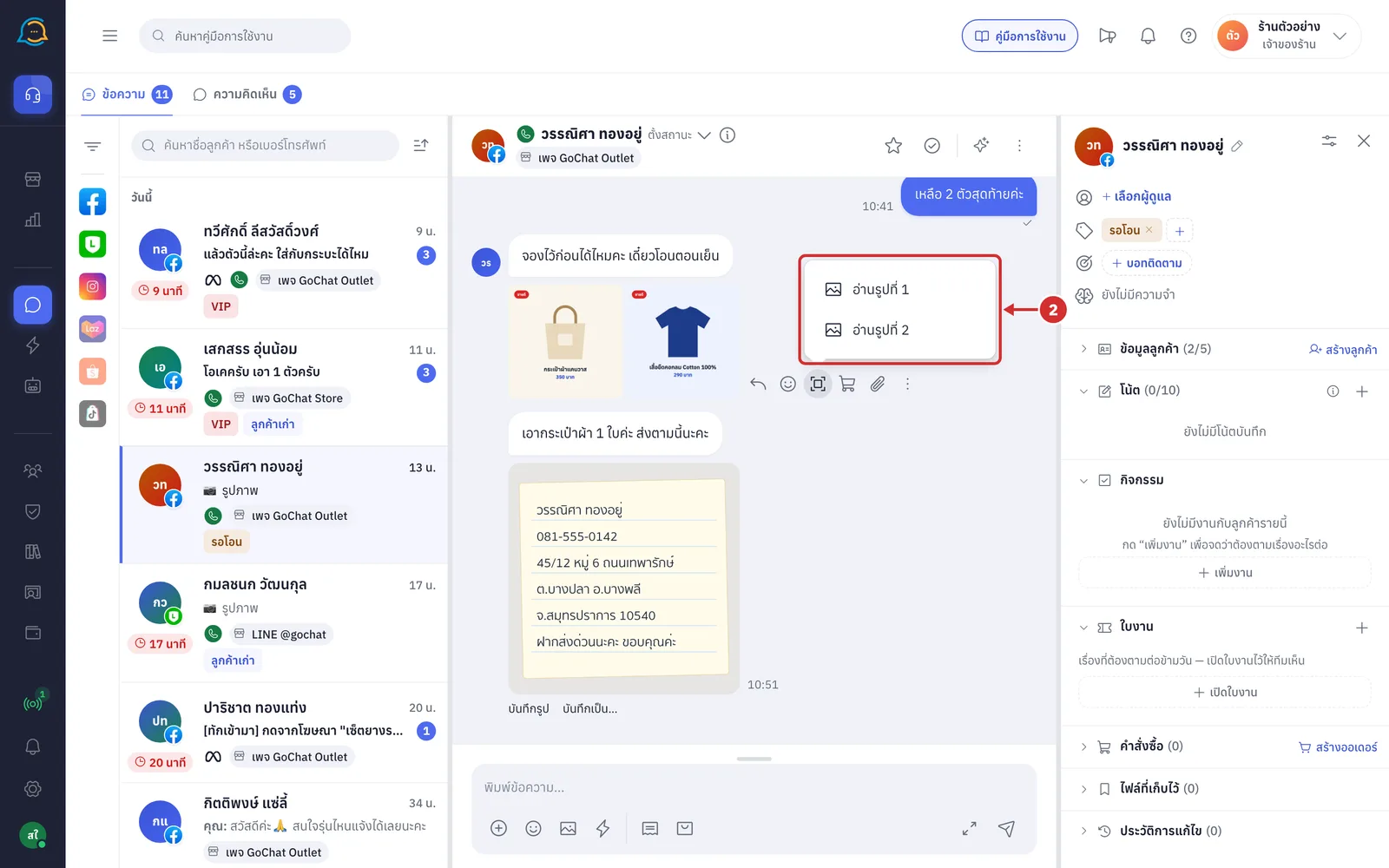
For a bubble with several images, clicking อ่านข้อความ (Read text) shows a list to choose from. Click อ่านรูปที่ … (Read image …) for the image you want (counted in order from the first readable image in the bubble)
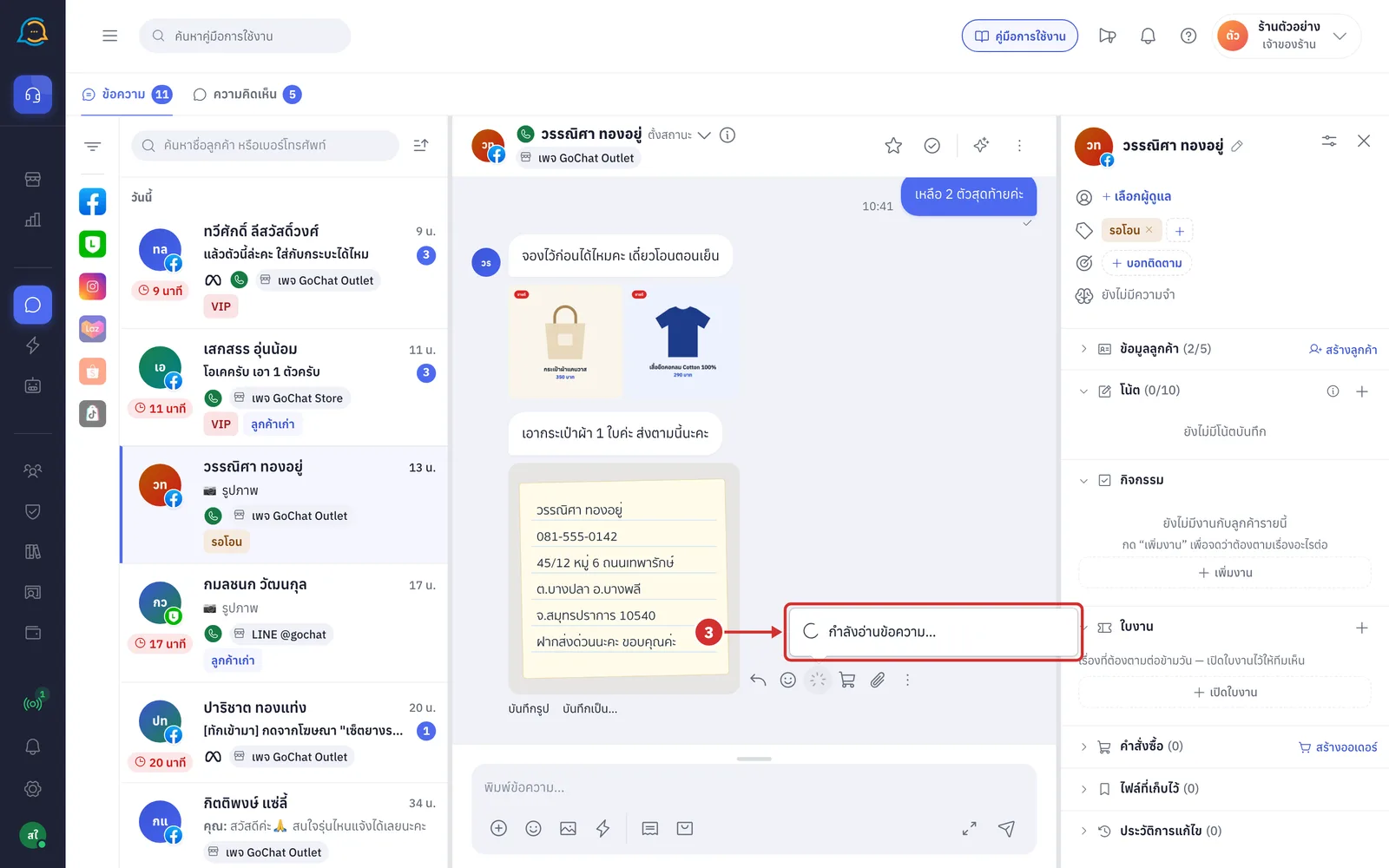
While reading, the icon spins and a window next to the button shows กำลังอ่านข้อความ… (Reading text…). Wait until it finishes
The icon cannot be clicked again while reading
If you read another image in the same chat meanwhile, the system shows กำลังอ่านรูปอื่นของห้องนี้อยู่ (Already reading another image in this chat). Wait for the first one to finish, then click ลองใหม่ (Try again)
Reading the result
When reading is done, the window shows the details in rows:
ชื่อ (Name): the recipient's name
เบอร์ (Phone): the recipient's phone number, usually shown as digits only
ที่อยู่ (Address): house number, village, soi, road or building
ตำบล (Subdistrict) · อำเภอ (District) · จังหวัด (Province) · รหัสไปรษณีย์ (Postcode): one value per row
อื่น ๆ (Other): any other text in the image that is not a name, phone number or address, such as a note to the shop
Rows that could not be read are not shown. For an image with text but no address, only the อื่น ๆ (Other) row is shown
Click × at the top right, click outside the window or press Esc to close it. For a bubble with one image, clicking the อ่านข้อความ (Read text) icon again also closes it without reading the image again
If you close the window before reading finishes, the result is not shown and you need to read the image again
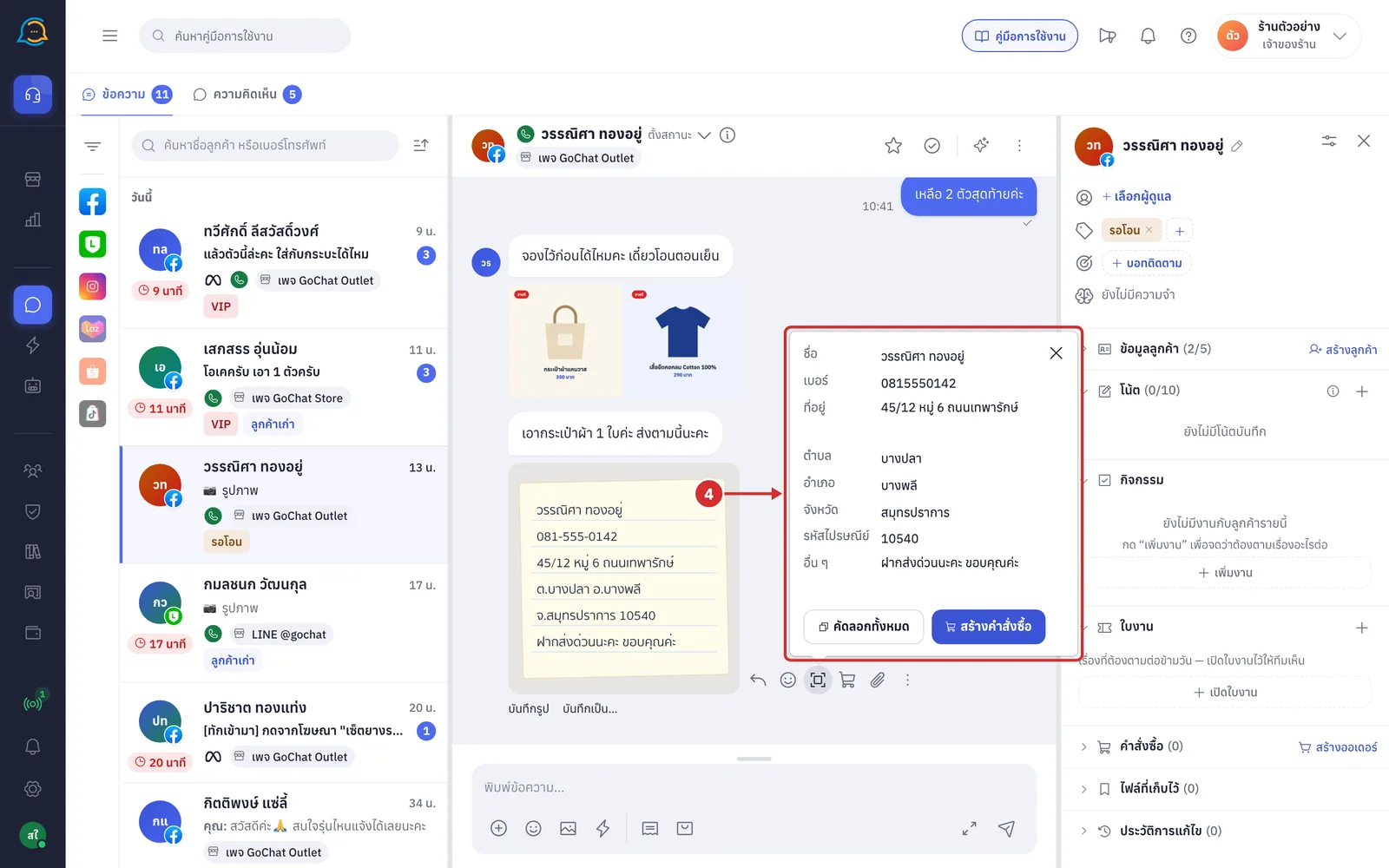
Good to know: The system reads what it sees in the image and can make mistakes, especially with handwriting or blurry images. Always check against the image before using the result.
Copying the details
Hover over the row you want and a copy icon appears after the value. Click it to copy just that row. The icon briefly turns into a check mark to show it has been copied
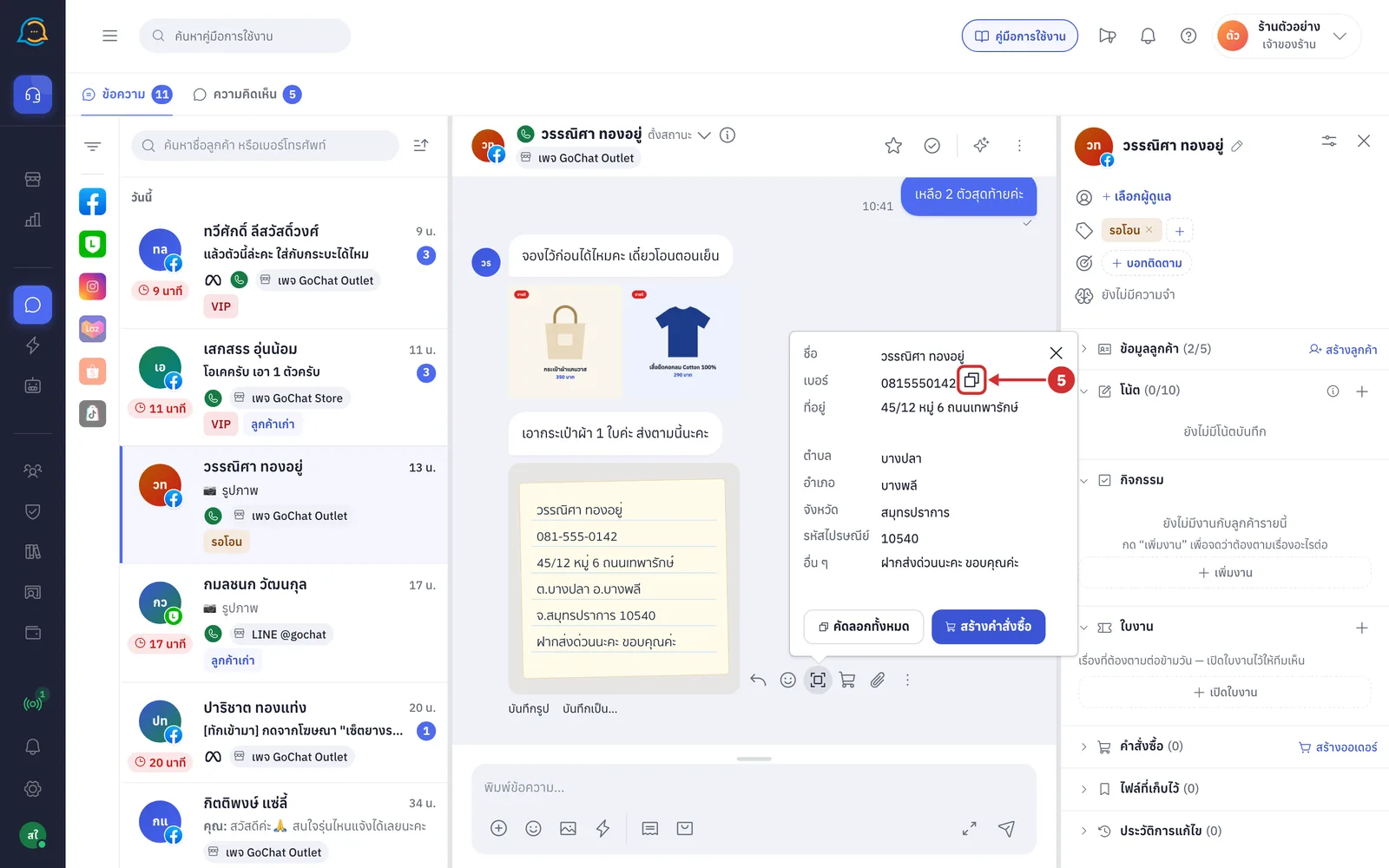
Click คัดลอกทั้งหมด (Copy all) to copy every row at once. The button briefly changes to คัดลอกแล้ว (Copied)
The copied text follows the order of the rows in the window, one value per line, without the row names
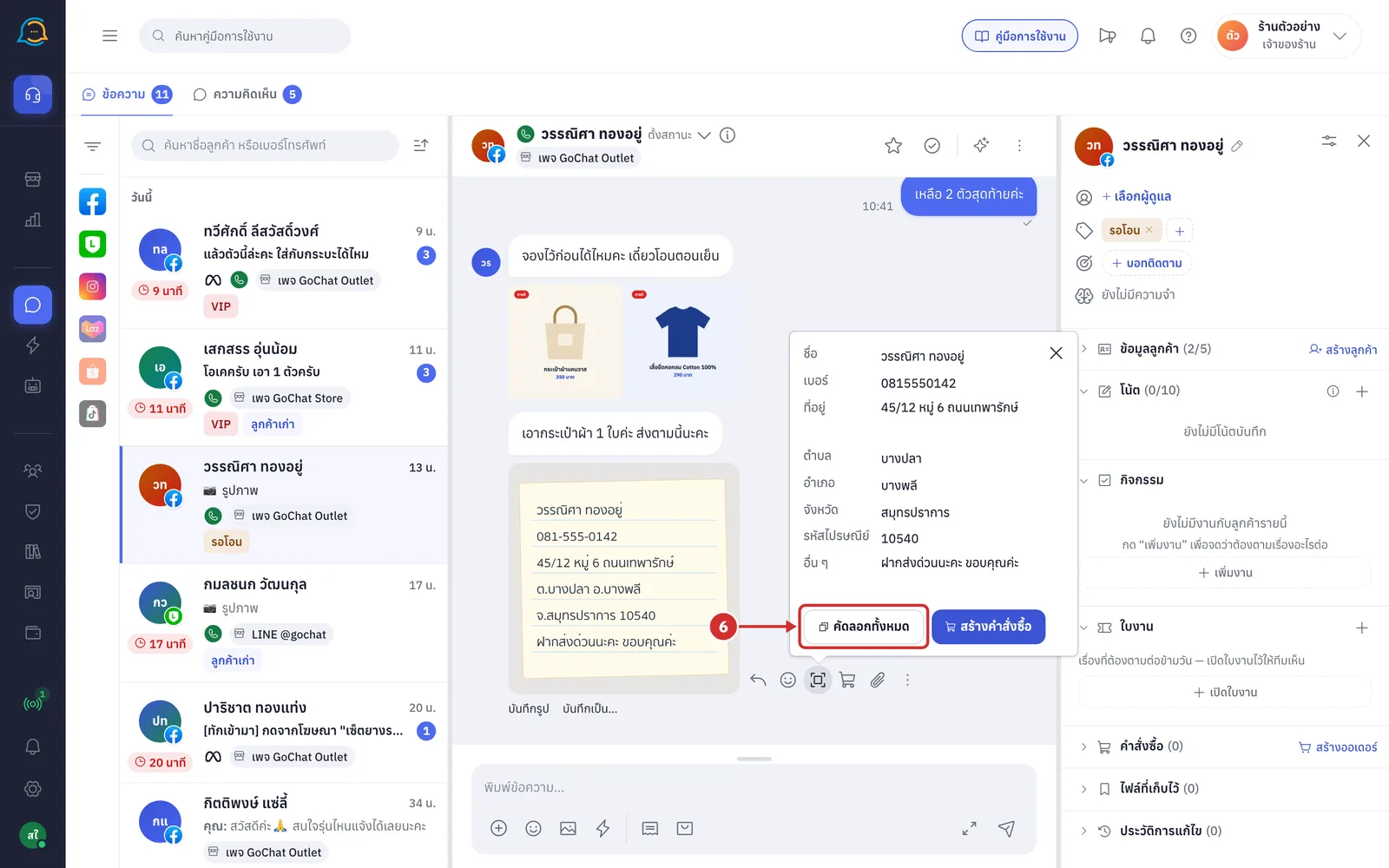
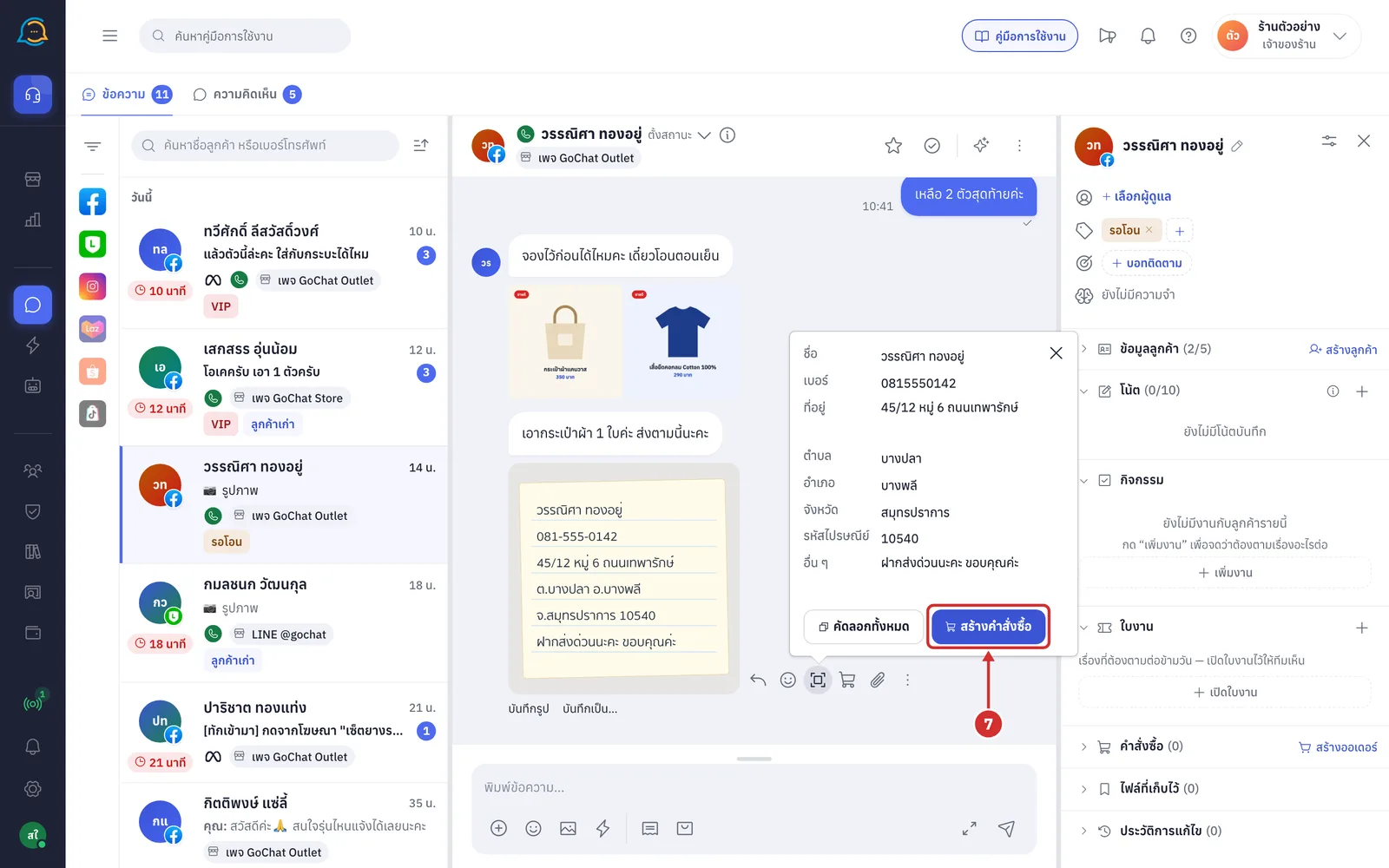
Creating an order from the result
The สร้างคำสั่งซื้อ (Create order) button only appears for shops connected to the GoSaaS order management system, in Facebook · Instagram · LINE chats, and only for images where an address was found. Otherwise the window only has คัดลอกทั้งหมด (Copy all).
Click สร้างคำสั่งซื้อ (Create order)
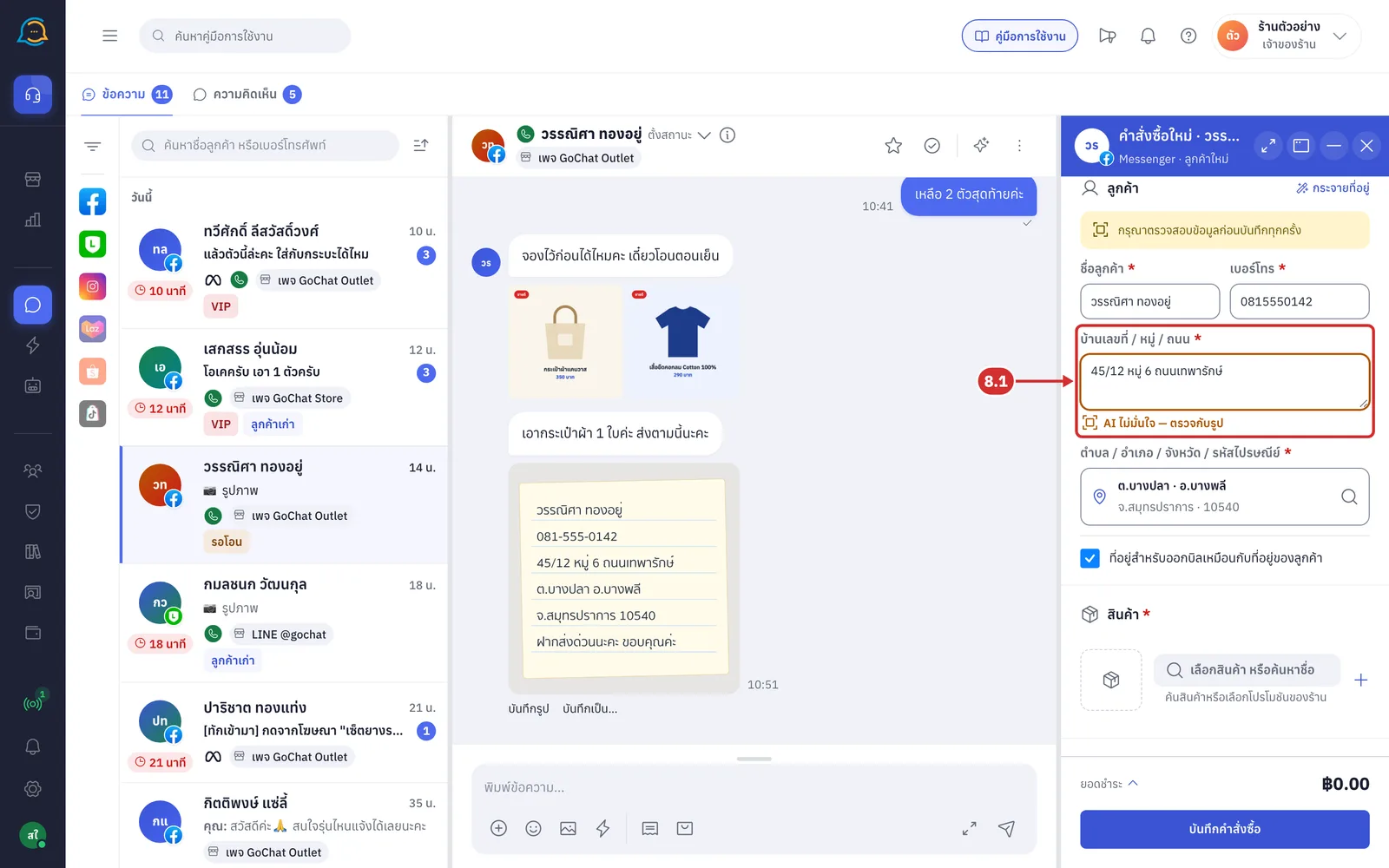
The system opens the คำสั่งซื้อใหม่ (New order) form in the right panel and fills the name, phone number and address into the ลูกค้า (Customer) card. A yellow bar at the top of the card reads กรุณาตรวจสอบข้อมูลก่อนบันทึกทุกครั้ง (Please check the details before saving every time)
The values read replace the name, phone number and address already in the form, even if it had details
The system never saves the order by itself. Choose the products, shipping and payment method, then click บันทึกคำสั่งซื้อ (Save order) as described in Keying in orders in a chat
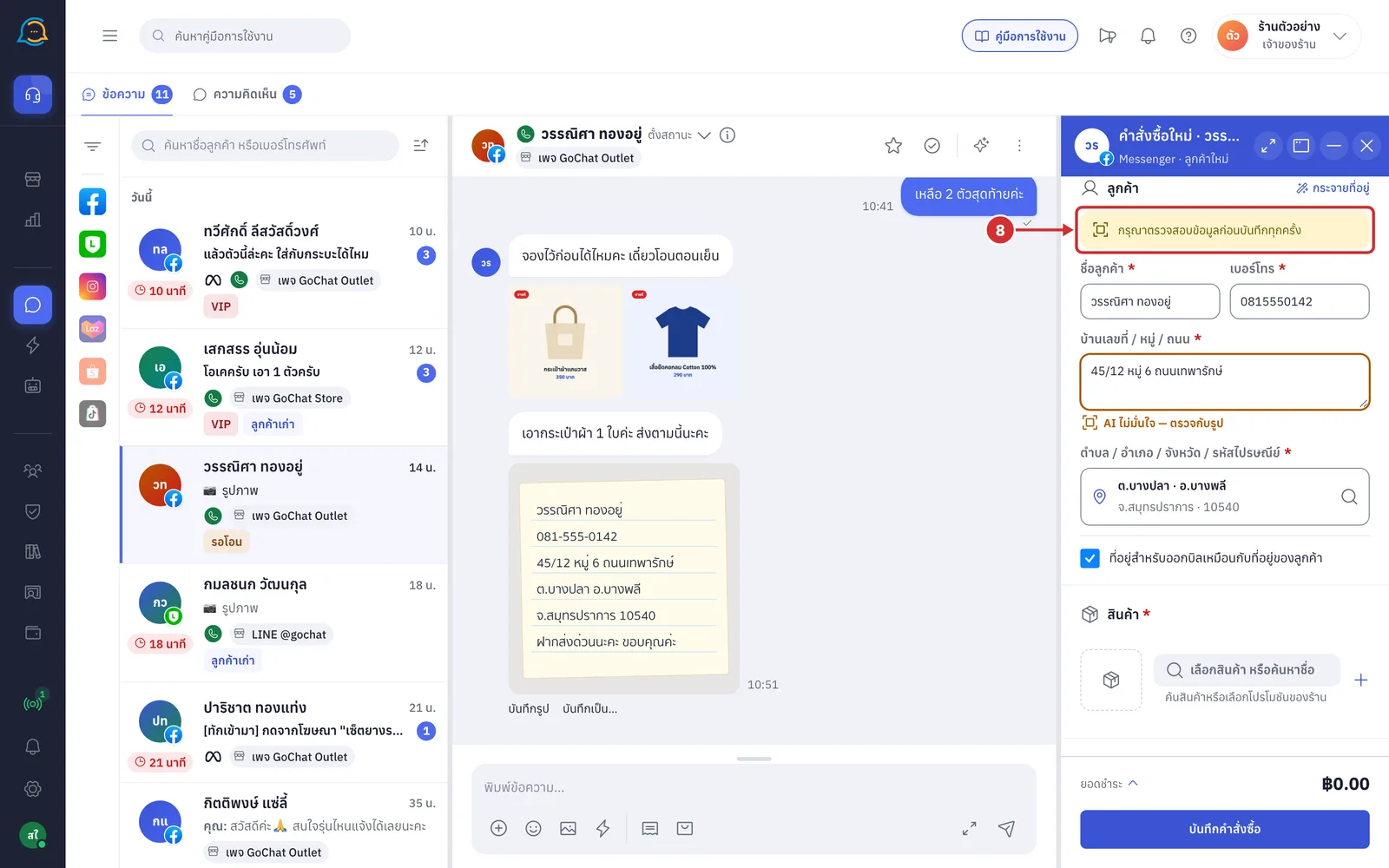
8.1 Fields the system is unsure about have a yellow frame and a hint below. Check them against the image and correct them. If the subdistrict, district, province or postcode is not in the list of areas, the area field also has a yellow frame; click it to choose the correct area. The yellow frame disappears once you click or edit that field. The name field never has a yellow frame, so always check the name against the image.
When an image cannot be read
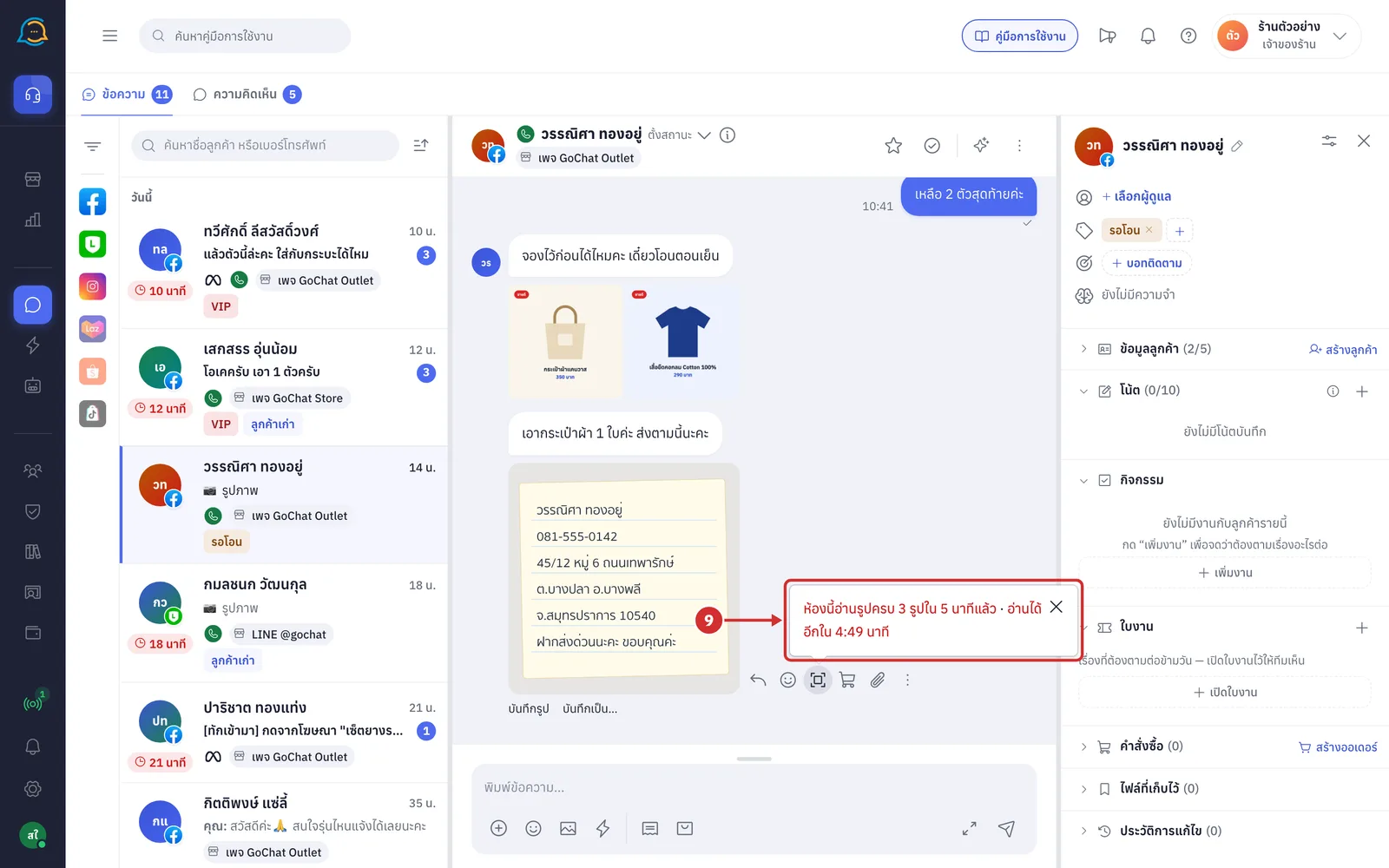
Each chat can read up to 3 images in 5 minutes. When the limit is reached, the system shows ห้องนี้อ่านรูปครบ 3 รูปใน 5 นาทีแล้ว (This chat has read 3 images in 5 minutes) with a countdown อ่านได้อีกใน m:ss นาที (Can read again in m:ss minutes). When the time is up, it becomes a ลองใหม่ (Try again) link
Every read counts, including images where no text was found and reads where the window was closed before it finished
Other chats can still read images as usual
The window may also show one of these messages instead of a result:
ไม่พบข้อความในรูปนี้ (No text found in this image): the image has no text the system can read
อ่านรูปไม่สำเร็จ (Could not read the image): click ลองใหม่ (Try again) after the message to read it again
รูปนี้ยังอ่านไม่ได้ รอรูปโหลดเสร็จหรือพิมพ์ที่อยู่เอง (This image cannot be read yet — wait for it to finish loading or type the address yourself): the system cannot open the image yet. Click ลองใหม่ (Try again) once it has loaded, or type the details yourself
เชื่อมต่อไม่ได้ (Could not connect): check your internet connection, then click ลองใหม่ (Try again)