

Viewing auto-reply comment history
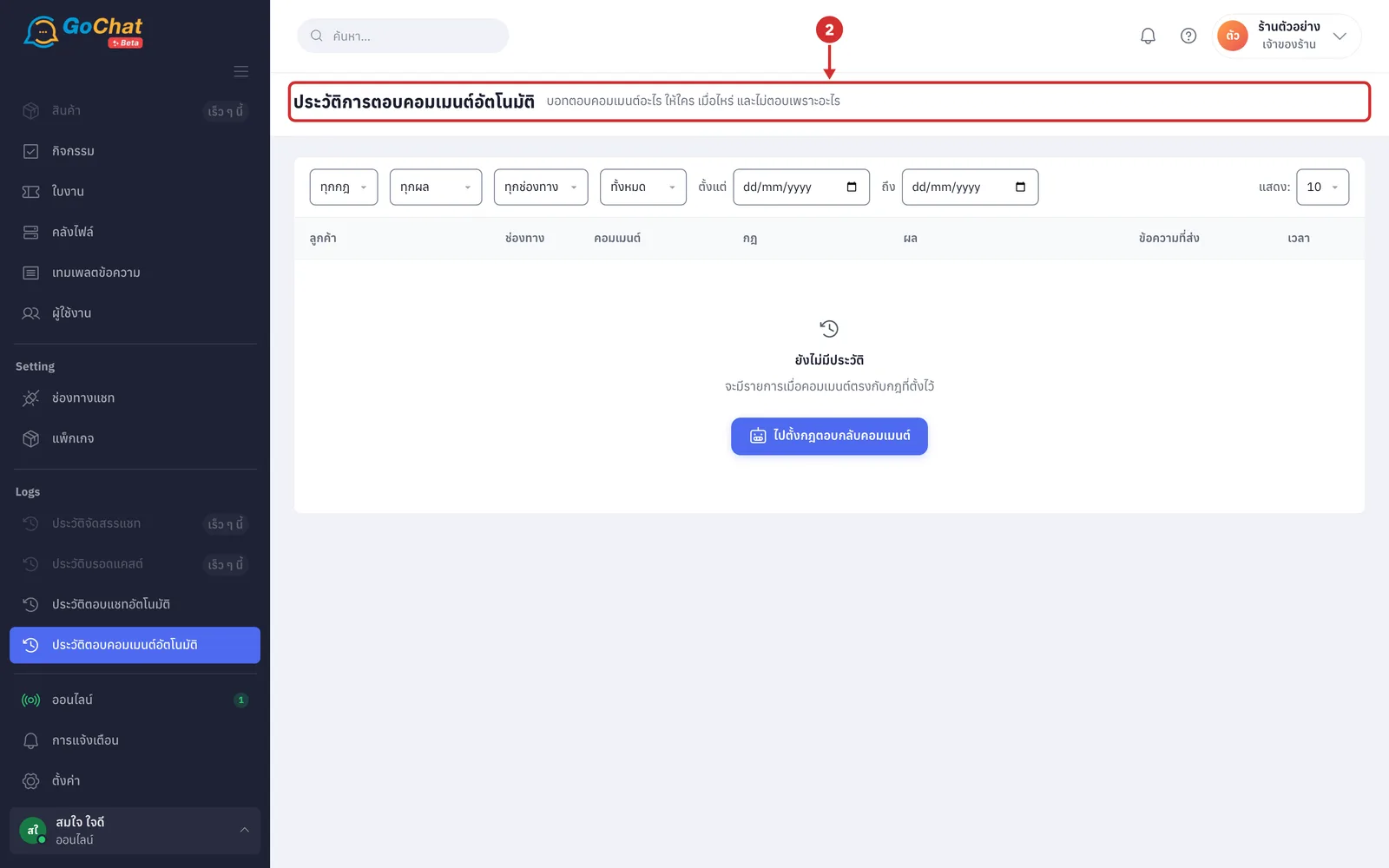
The ประวัติการตอบคอมเมนต์อัตโนมัติ (Auto-reply comment history) page lets you look back at what the bot replied to comments, to whom, under which post, by which rule, when, and why it did not reply, for your Facebook pages and Instagram accounts. It covers both replies under comments and chat messages the bot sent to customers. History is kept for 90 days. Users of every role can open it, and the page is view-only; there is nothing to edit.
Opening the auto-reply comment history
In the Logs group, select ประวัติตอบคอมเมนต์อัตโนมัติ (Auto-reply comment history) in the left menu bar
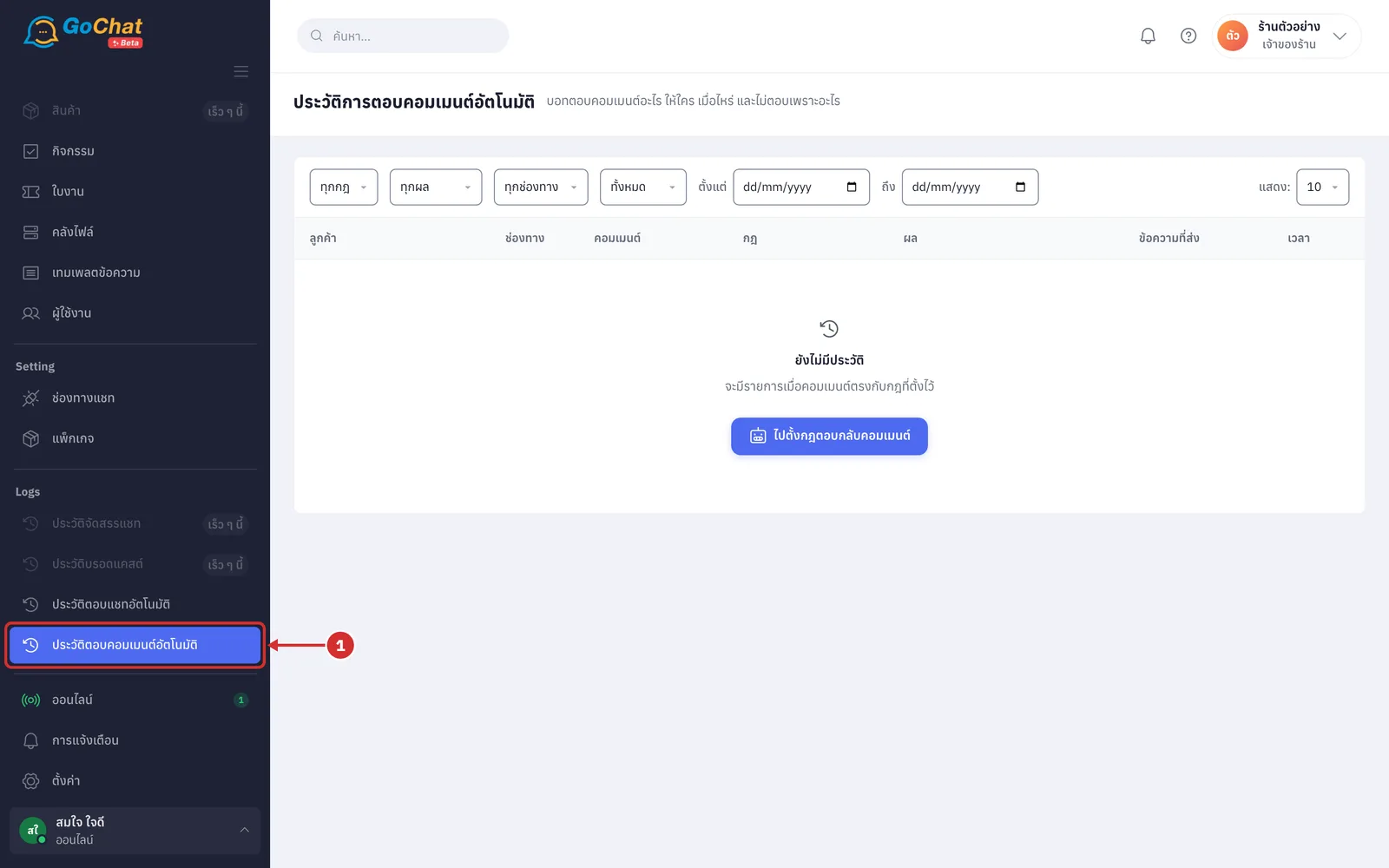
The system shows the ประวัติการตอบคอมเมนต์อัตโนมัติ (Auto-reply comment history) page with the newest entries at the top
Filtering the history
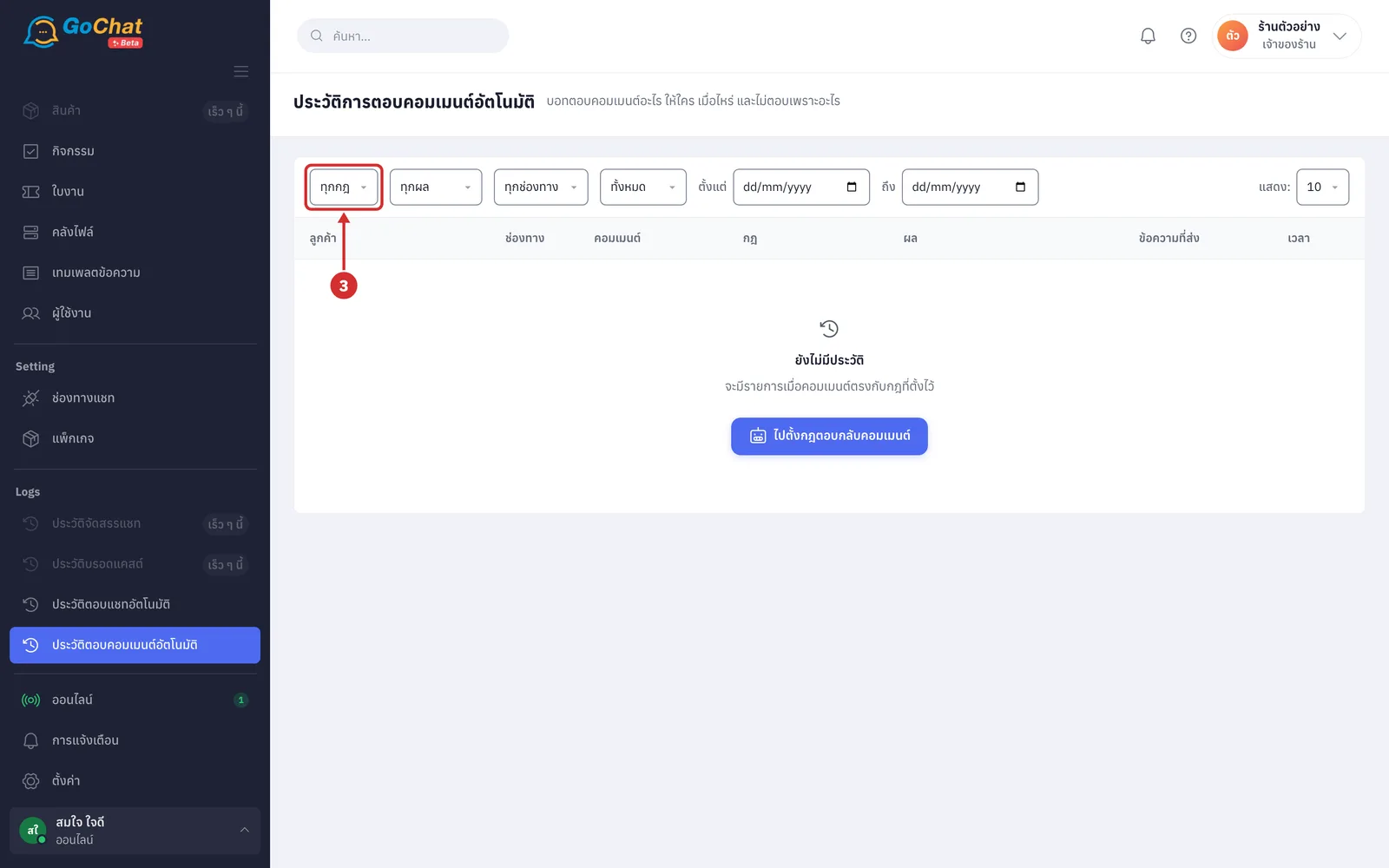
Filters apply as soon as you choose them; there is no search button. You can combine several filters, and the system shows only the entries that match all of them.
In the ทุกกฎ (All rules) box, choose the comment reply rule to view (your shop's rules sorted by name; deleted rules are not listed, but their entries still show when ทุกกฎ (All rules) is chosen)
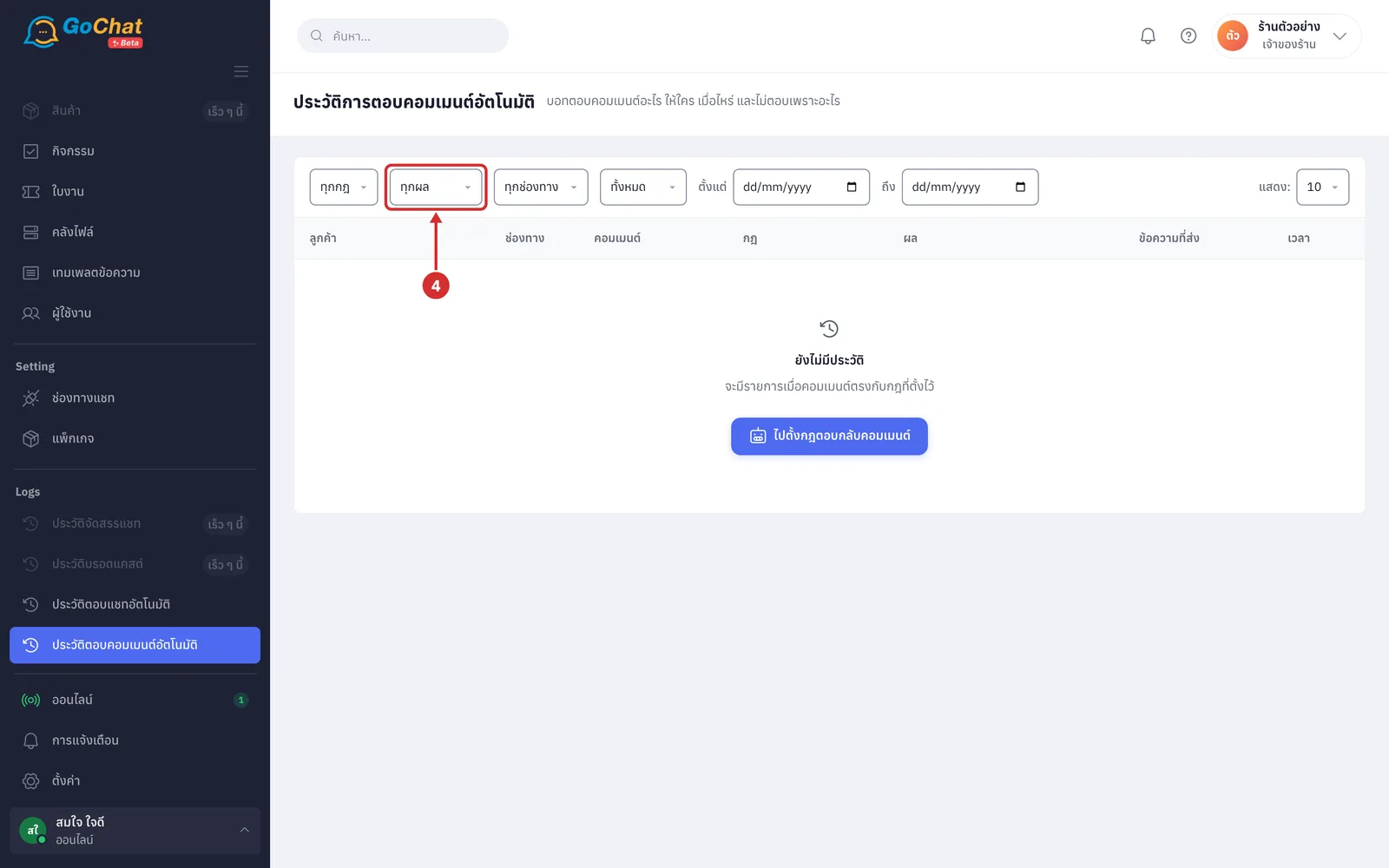
In the ทุกผล (All results) box, choose ตอบแล้ว (Replied), รอส่ง (Waiting to send), ไม่ตอบ (Not replied) or ส่งไม่สำเร็จ (Failed) to view only entries with that result (each result is explained in step 17)
In the ทุกช่องทาง (All channels) box, choose Facebook or Instagram (only the channels your shop has connected are listed)
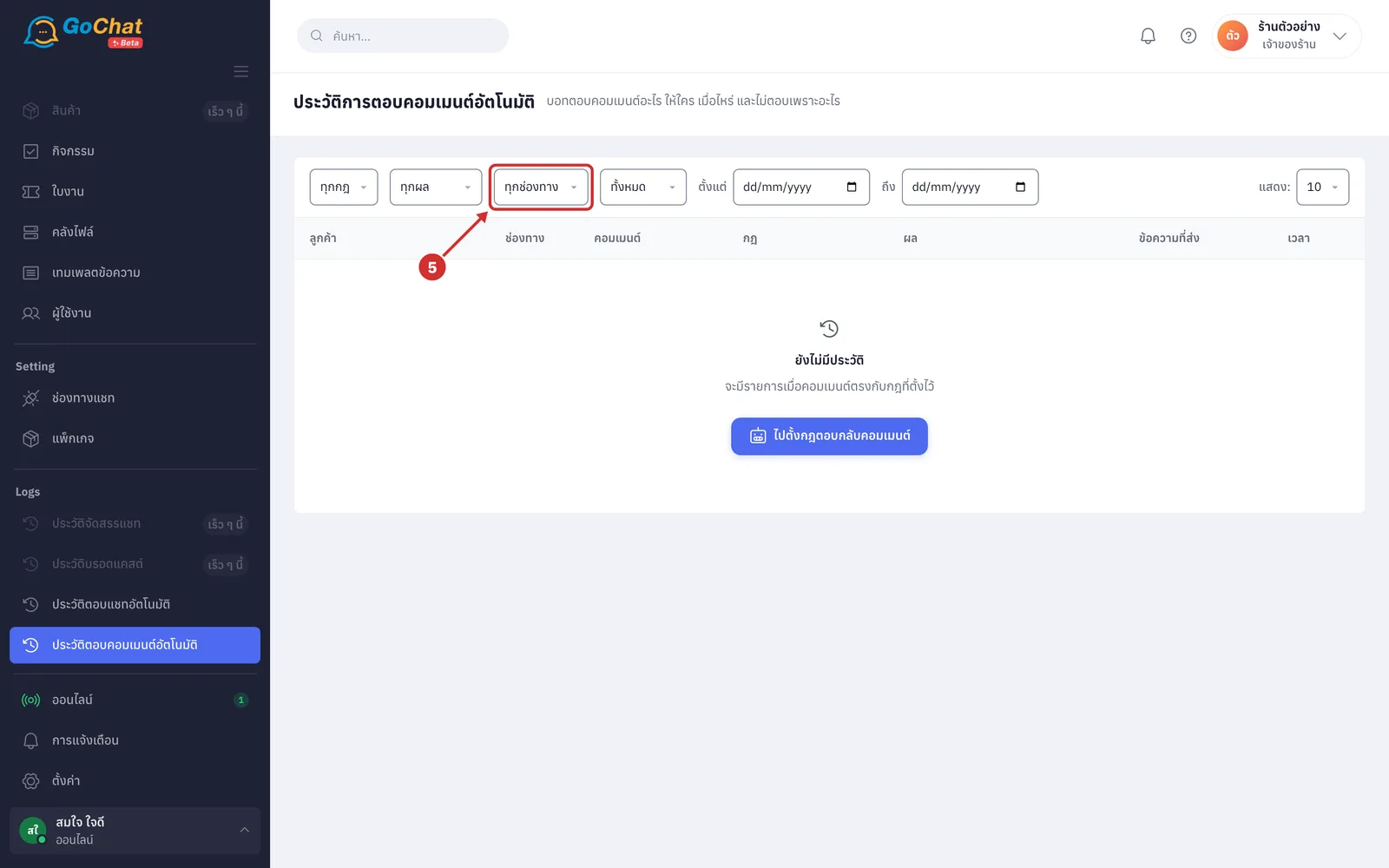
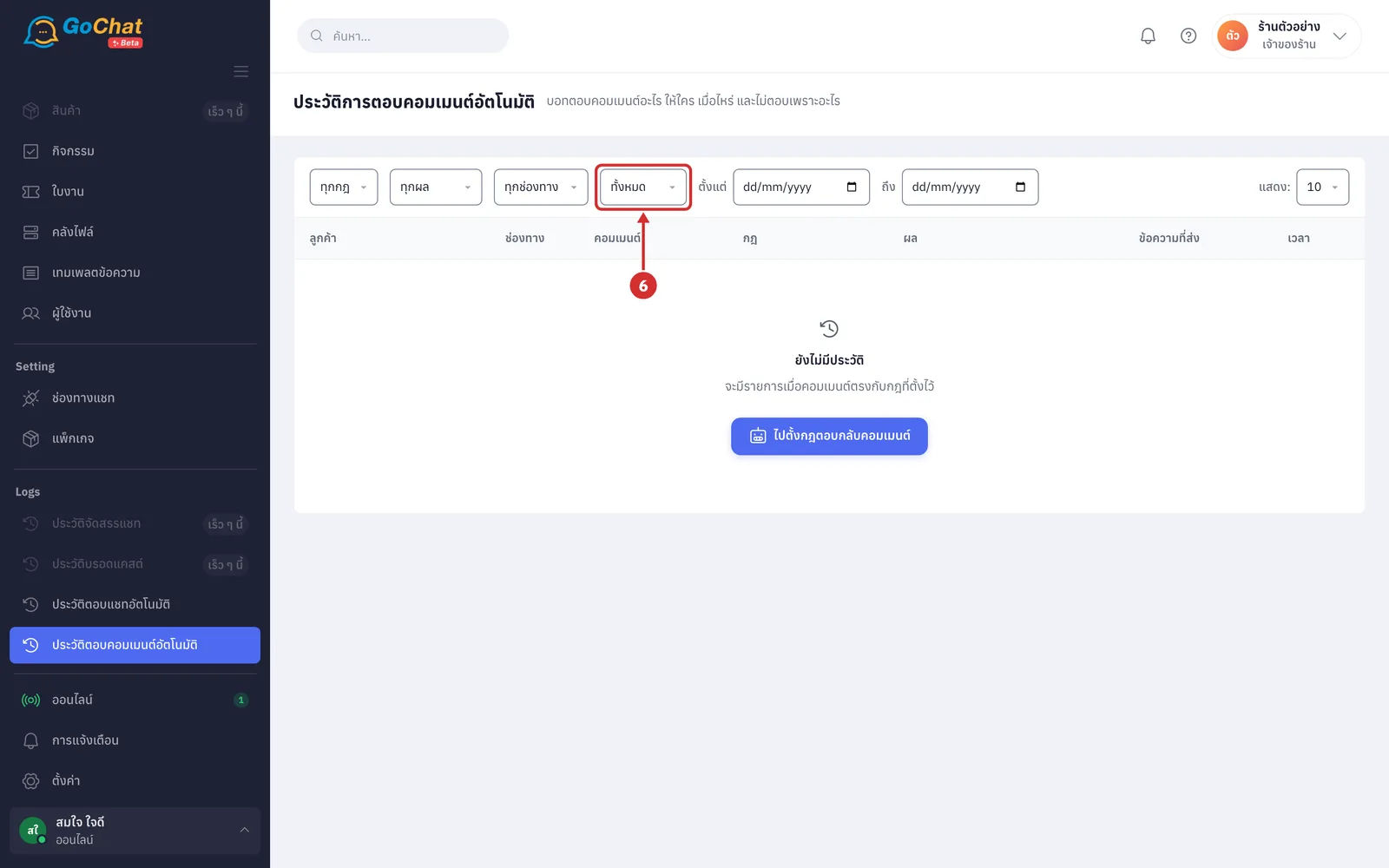
In the usage status box (the default is ทั้งหมด (All)), choose เปิดใช้งาน (On) to view only replies to real customers, or ปิดใช้งาน (Off) to view only replies in test mode (entries with the ทดสอบ (Test) label come from rules still in testing, which only reply to the people chosen for testing; rules that are turned off do not reply, so they have no entries)
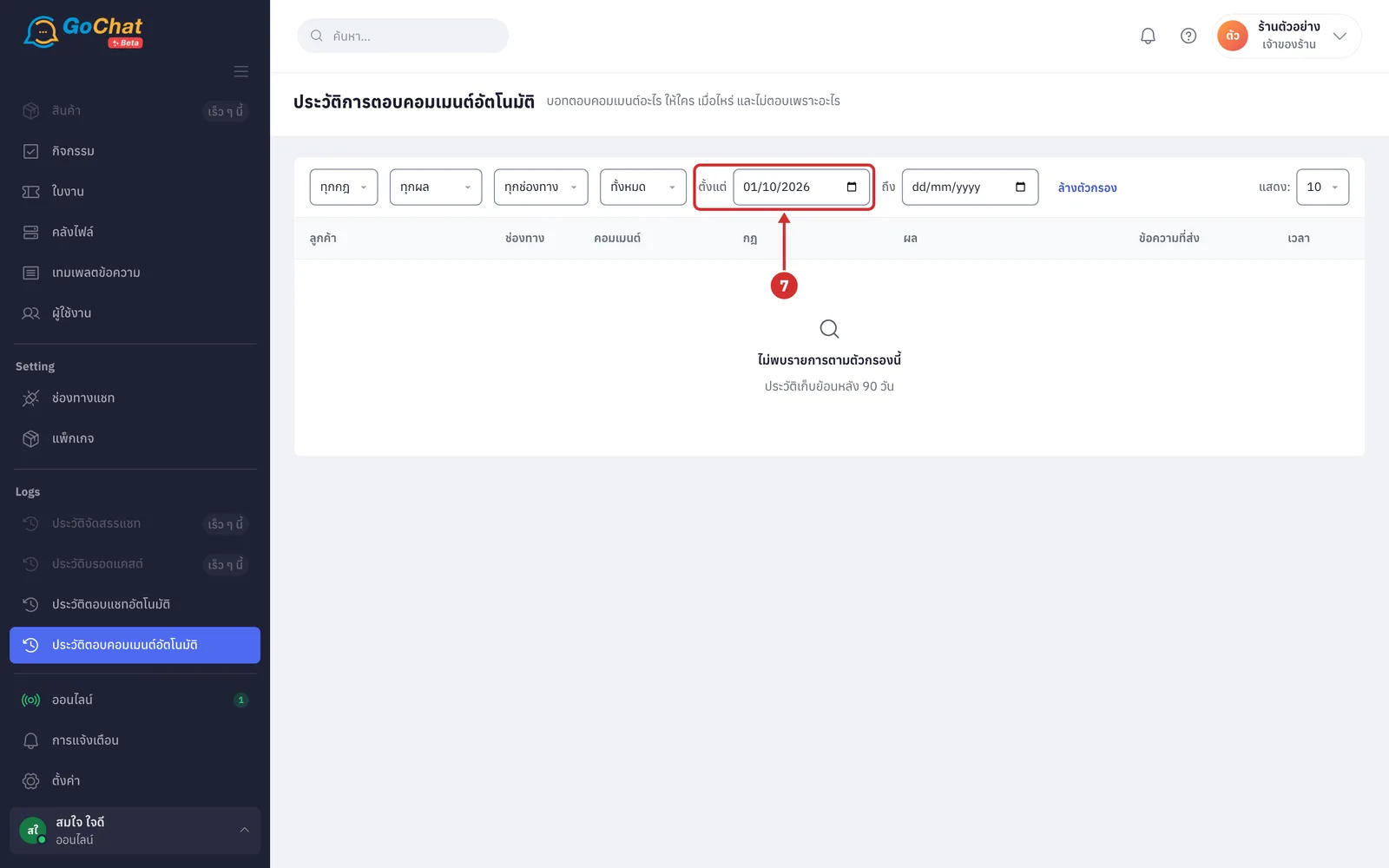
In the ตั้งแต่ (From) box, choose the first day of the range (you can leave it empty)
In the ถึง (To) box, choose the last day of the range (the whole of that day is included; you cannot choose a day before the ตั้งแต่ (From) date; you can leave it empty; days follow your shop's time zone)
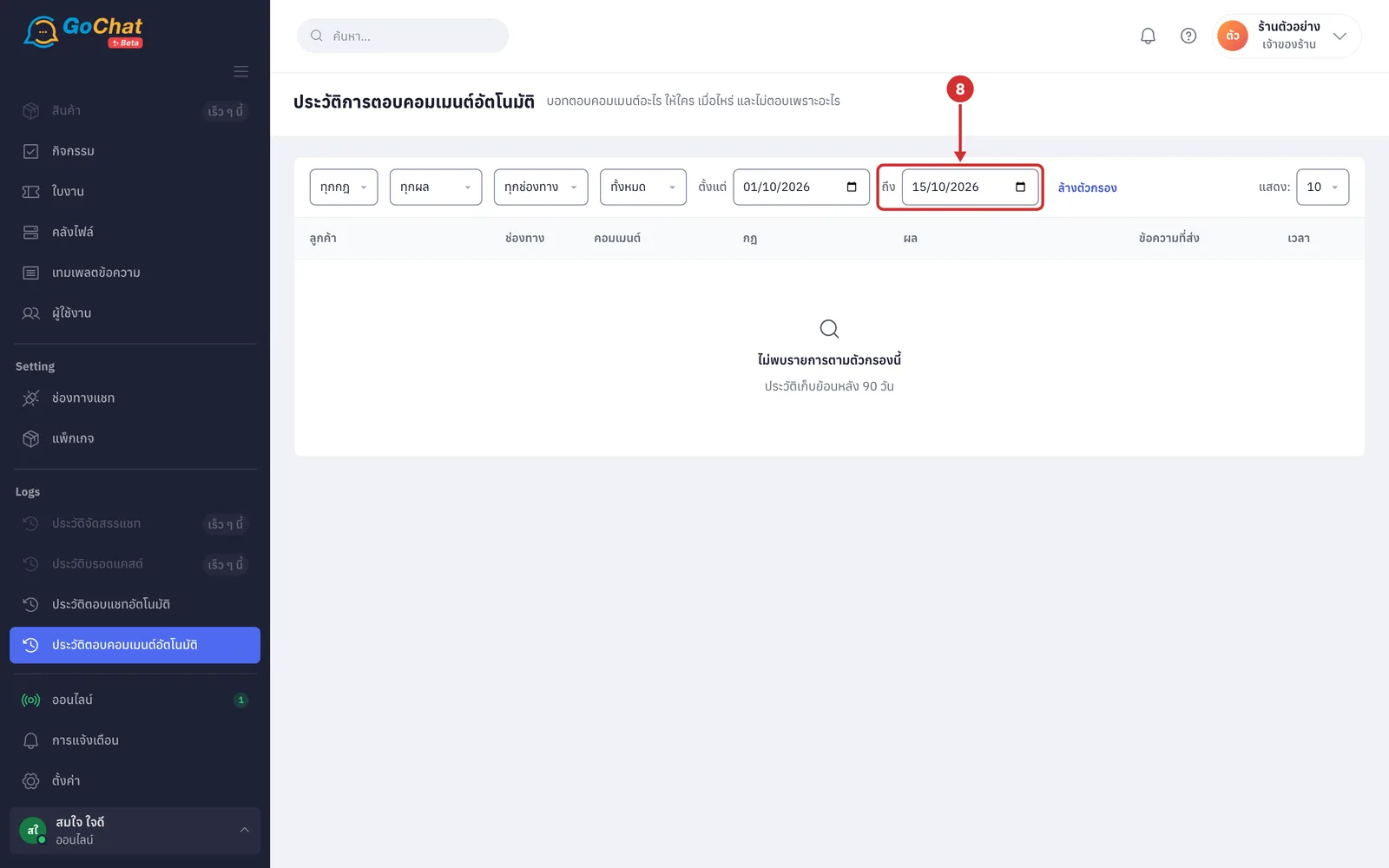
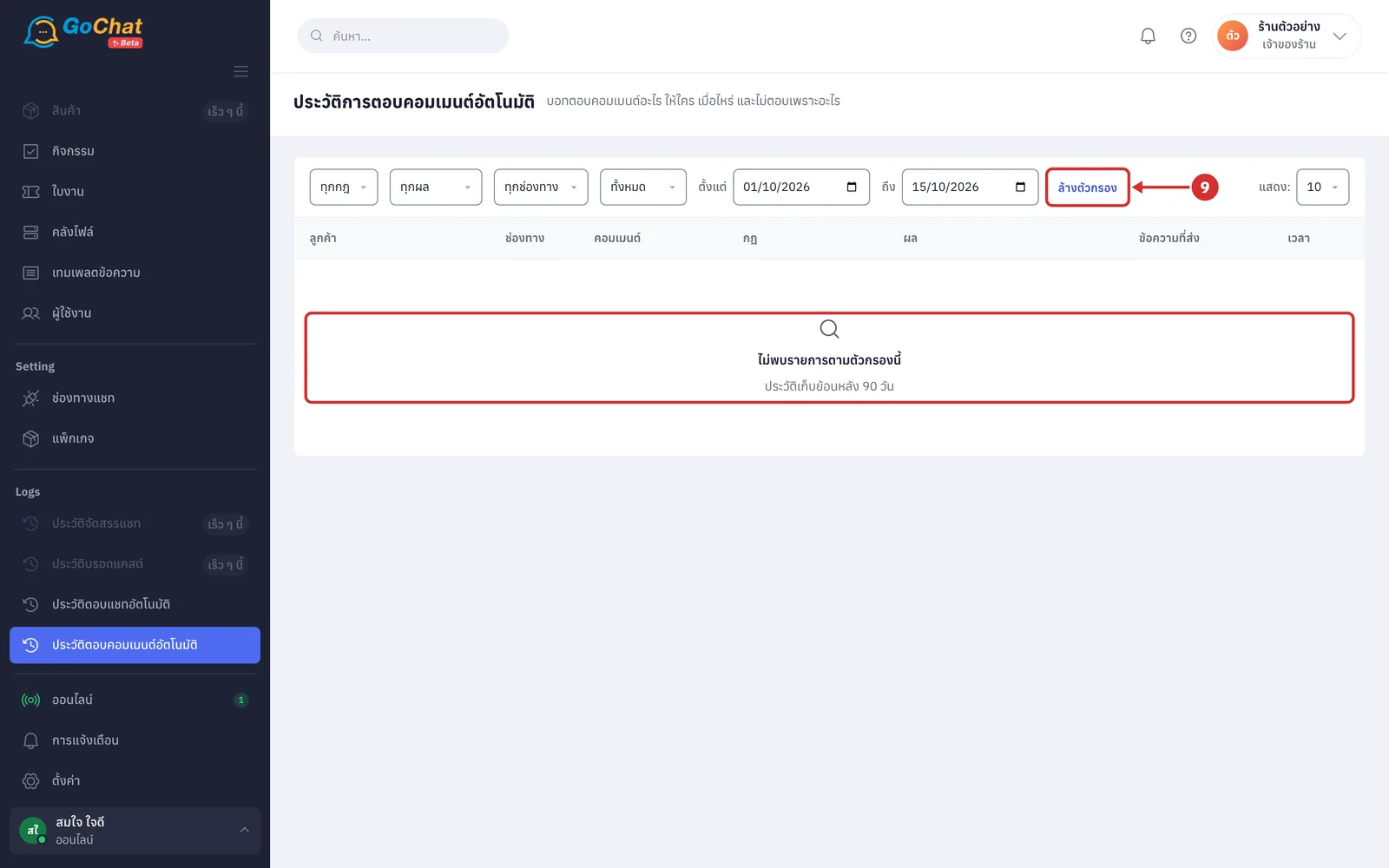
Click ล้างตัวกรอง (Clear filters) to clear every filter and see all entries again (this button appears once at least one filter is chosen; when nothing matches the filters, the table shows ไม่พบรายการตามตัวกรองนี้ (No entries match these filters) and ประวัติเก็บย้อนหลัง 90 วัน (History is kept for 90 days))
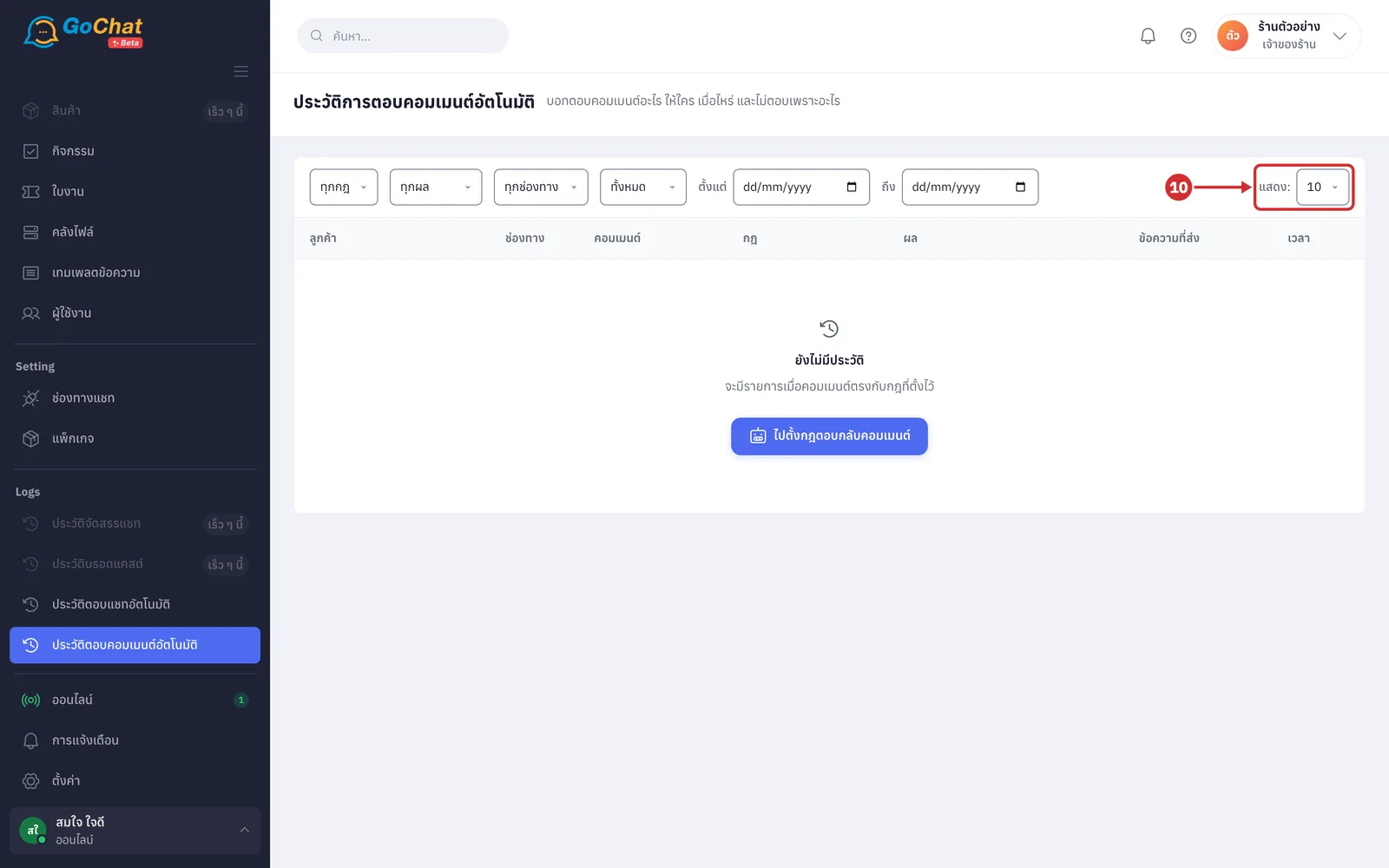
In the แสดง: (Show:) box, choose 10, 25 or 50 entries per page (the default is 10)
Opening a rule's history from the comment view
In a comment thread, click บอทตอบ (Bot replied) under the bot's reply; the system opens the ทำไมบอทตอบ (Why the bot replied) box showing the กฎ (Rule), the เงื่อนไข (Condition) that made the bot reply, the โหมด (Mode) (ใช้จริง (Live) or ทดสอบ (Test)) and the เวลา (Time)
Click ดูประวัติของกฎนี้ (See this rule's history); the system opens the ประวัติการตอบคอมเมนต์อัตโนมัติ (Auto-reply comment history) page with that rule already chosen in the rule box (you can change or clear the filters as in steps 3–9)
Reading the history table
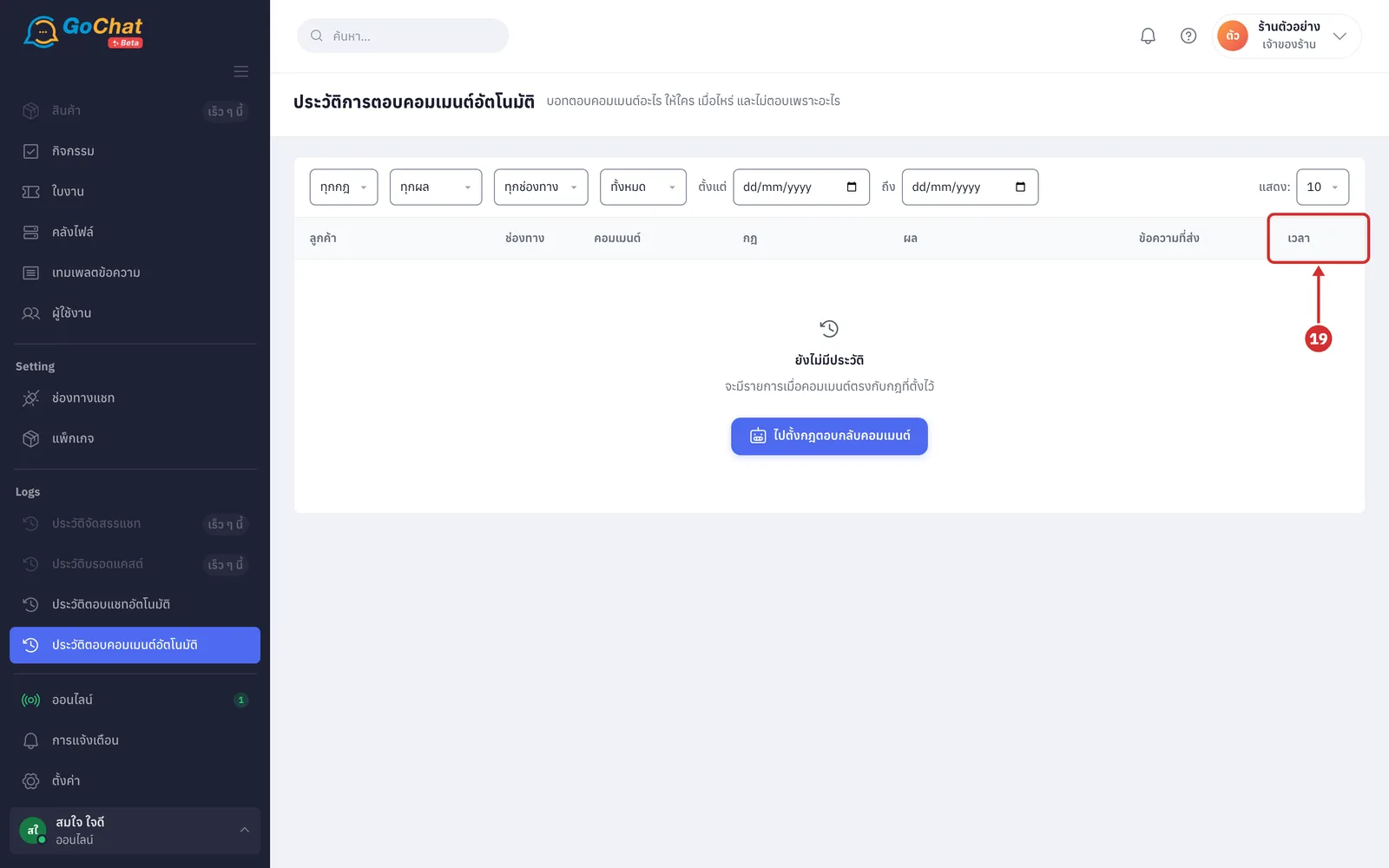
Each row is one customer comment the bot decided whether to reply to. The table has 7 columns:
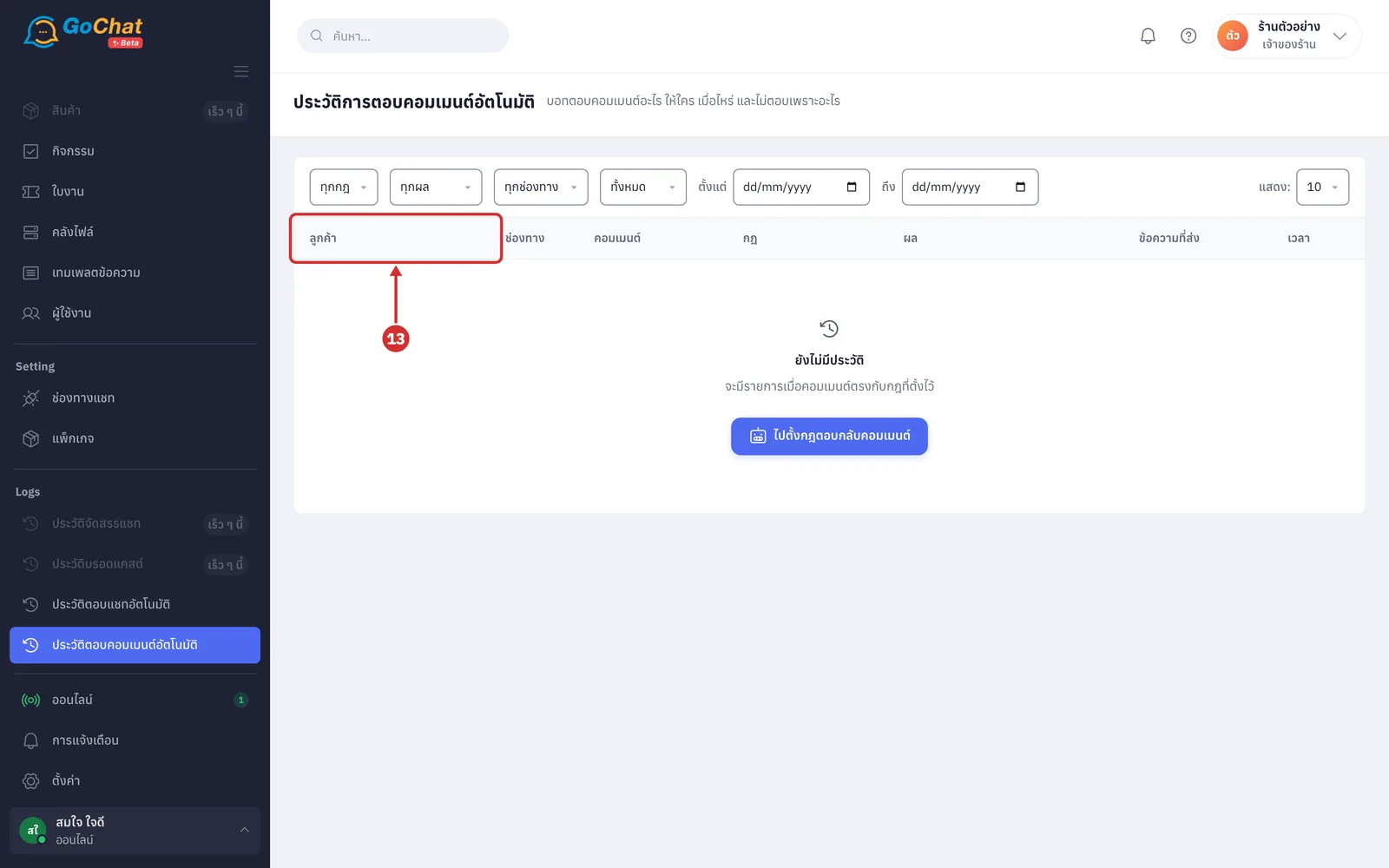
The ลูกค้า (Customer) column shows the customer's picture and name, with the page or account they commented on under the name. Click the customer's name to open that customer's comment thread (customers without a name show as ลูกค้าไม่ระบุชื่อ (Unnamed customer); without a picture, the initials of the name are shown)
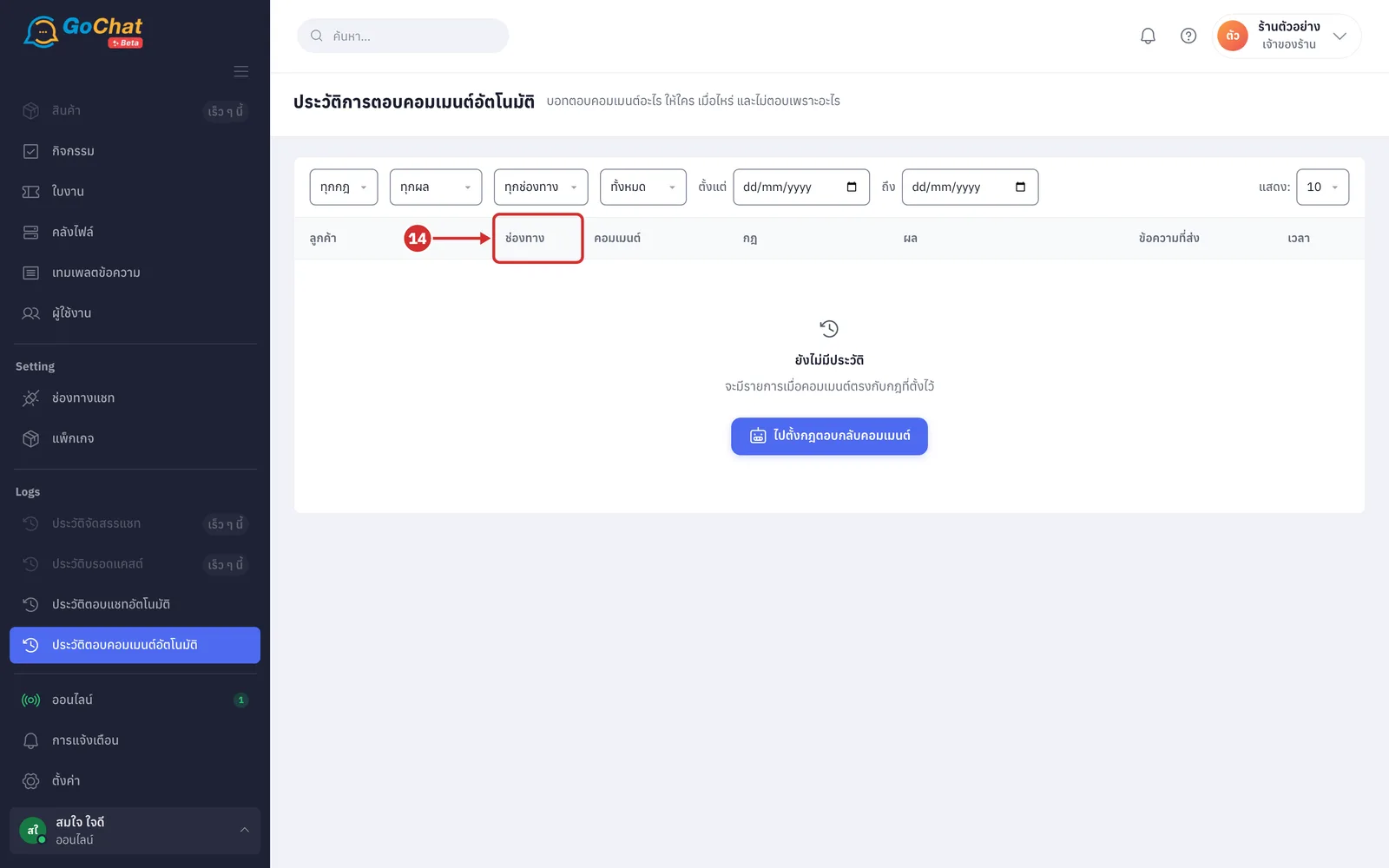
The ช่องทาง (Channel) column shows the Facebook or Instagram logo
The คอมเมนต์ (Comment) column shows what the customer commented and ใต้โพสต์ “…” (Under post “…”), the opening text of the post they commented on (for comments longer than 120 characters, click ดูคอมเมนต์ทั้งหมด (See full comment) to read it all; comments already removed from the system show คอมเมนต์ถูกลบแล้ว (Comment deleted))
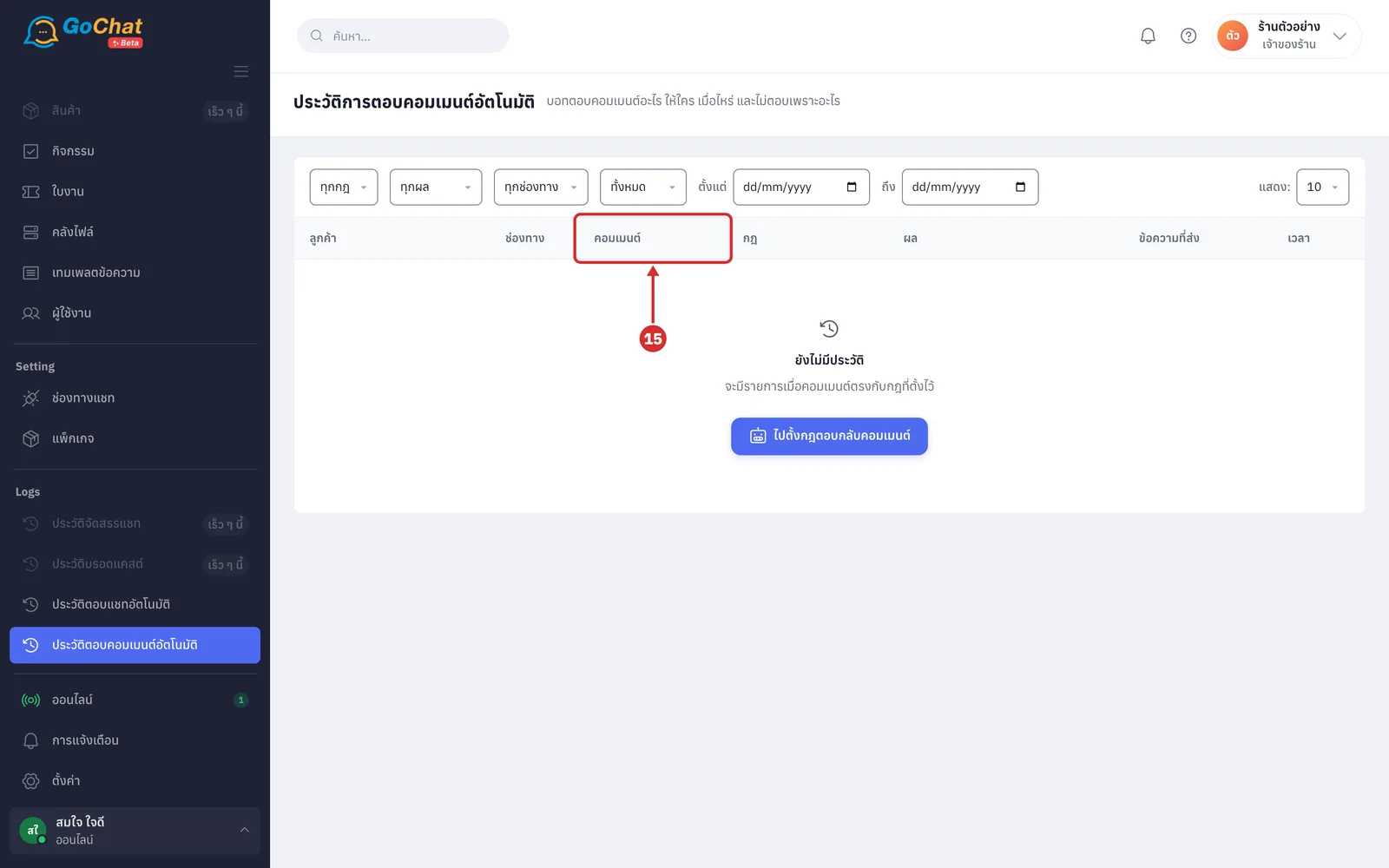
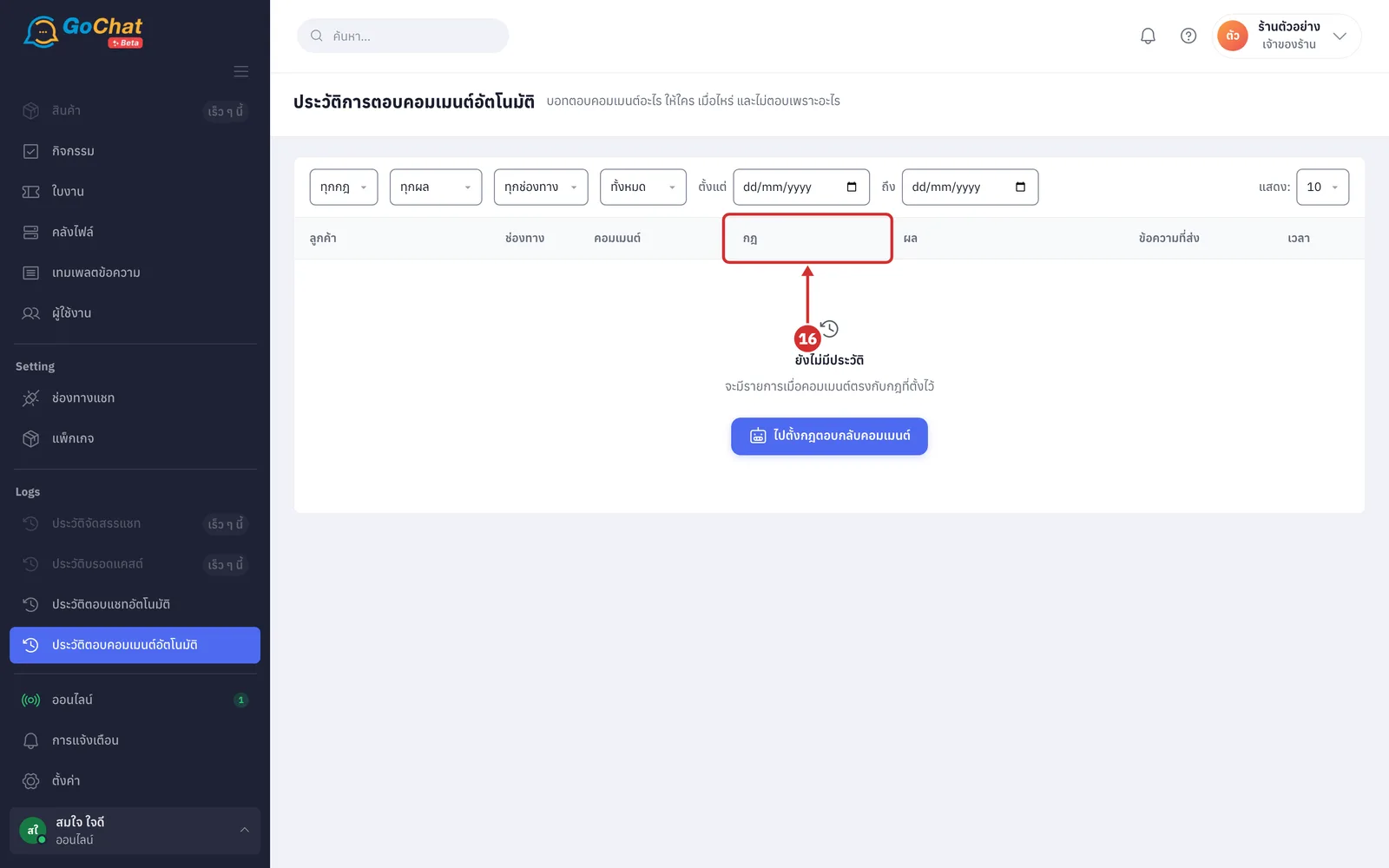
The กฎ (Rule) column shows the name of the rule that caught this comment (deleted rules show their name at the time the bot replied; entries from rules still in testing have the ทดสอบ (Test) label; no rule name shows -)
The ผล (Result) column shows one of 4 result labels, with a reason line under the label
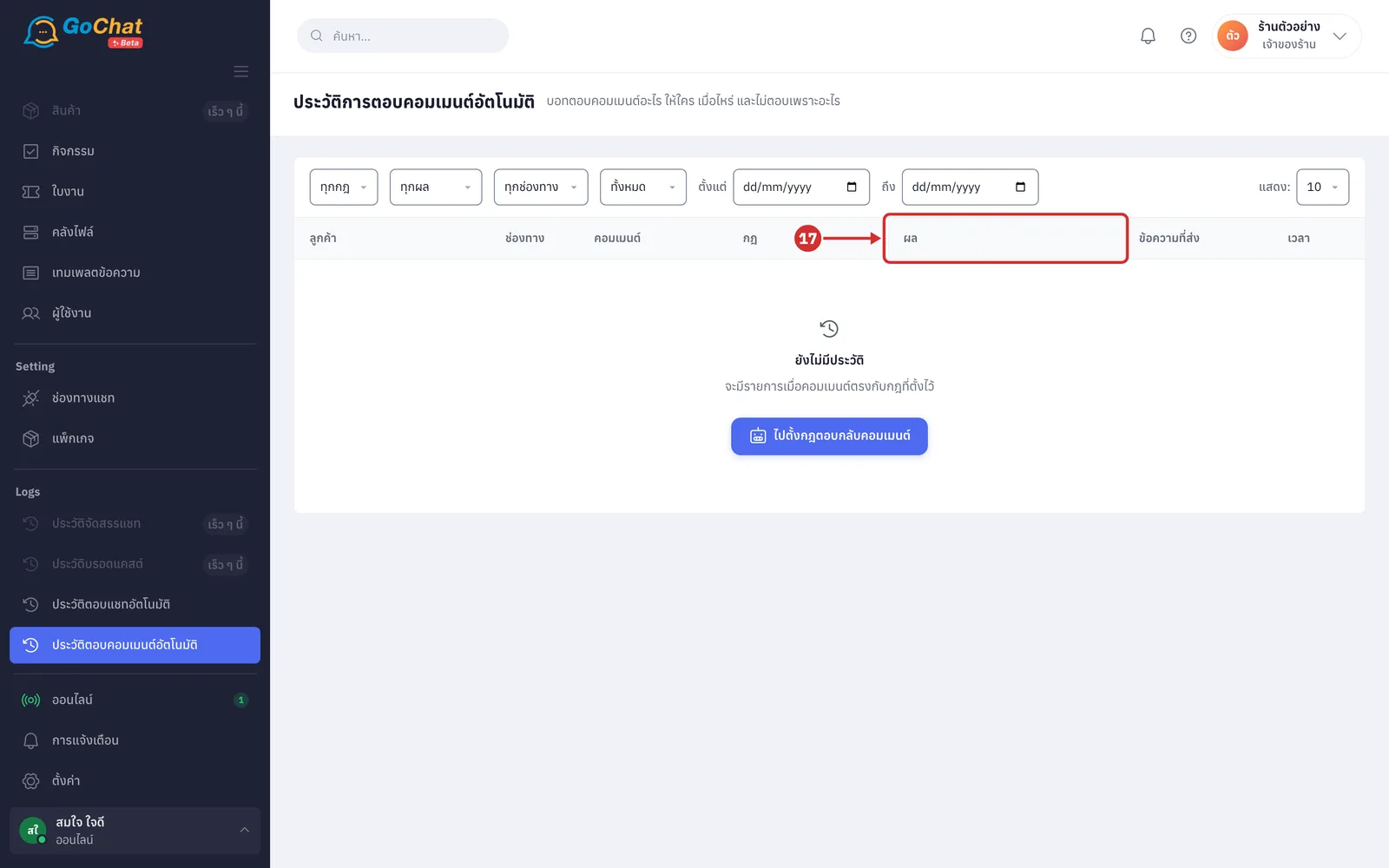
ตอบแล้ว (Replied): the bot has sent its reply to the customer; the line underneath says which rule matched and why, such as เข้ากฎ "…" เพราะคำว่า "…" (Matched rule "…" because of the word "…") or, for all-comments rules, เข้ากฎ "…" เพราะกฎนี้รับคอมเมนต์ทุกใบ (Matched rule "…" because this rule takes every comment) (test rules end with · โหมดทดสอบ (· test mode)); if the chat message could not be sent because of the daily limit, it ends with · ไม่ทักแชท: … (· no chat message: …); if the chat message went out but the reply under the comment failed, it still counts as replied, because the customer received a message)
รอส่ง (Waiting to send): the bot has decided to reply and is waiting for the send time, or is sending (if it shows โควตาทักแชทชั่วโมงนี้เต็ม เลื่อนไปชั่วโมงถัดไป (This hour's chat message quota is full, moved to the next hour), the bot sends it on its own in the next hour)
ไม่ตอบ (Not replied): the bot did not send a reply; the line underneath gives the reason (each reason is explained in step 20)
ส่งไม่สำเร็จ (Failed): the bot sent but the channel did not accept it; the line underneath gives the reason (see step 21)
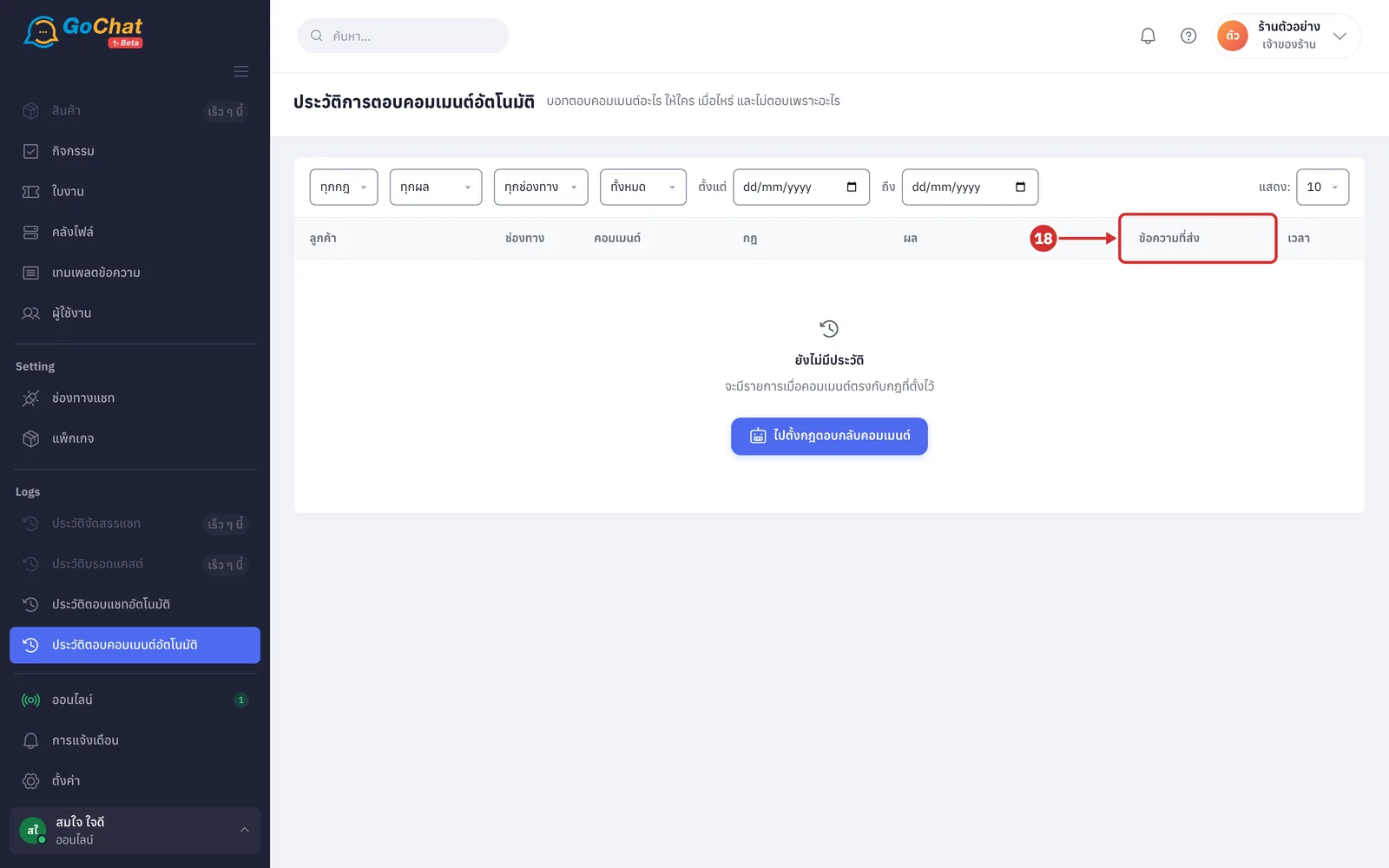
The ข้อความที่ส่ง (Message sent) column shows what the bot replied, in two possible ways: ตอบใต้คอมเมนต์ (Reply under comment) and ทักแชท (Chat message) (the labels appear when a row has both). Click a message to go to it, where the system highlights it (a reply under the comment opens the comment thread; a chat message opens the chat, showing กำลังเปิดห้องแชท… (Opening chat…) while it searches, and if the message cannot be found in the chat, it opens the customer's comment thread instead; only messages that were actually sent can be clicked; for messages longer than 120 characters, click ดูข้อความทั้งหมด (See all messages) to read them all; no message shows -)
The เวลา (Time) column shows how long ago the entry happened, such as เมื่อกี้ (just now), 18 น. (18 min), 3 ชม. (3 hr) or 2 วัน (2 days); entries older than 7 days show the date. Point at the time to see the full date and time (in your shop's time zone)
Reading why the bot did not reply or failed
Read the line under the ไม่ตอบ (Not replied) label:
ไม่เข้าเกณฑ์ตอบ: เข้าเกณฑ์ซ่อน (…) — บอทไม่ตอบ (Not eligible: meets the hide criteria (…) — the bot does not reply): the comment meets what your shop set under ซ่อนคอมเมนต์ (Hide comments), such as มีลิงก์ (has a link), มีคำ “…” (has the word “…”) or มีภาพไม่มีข้อความ (has an image without text), so the bot does not reply under a comment that should be hidden
ไม่เข้าเกณฑ์ตอบ: เข้าเกณฑ์ส่งต่อแอดมิน (มีคำ “…”) — บอทไม่ตอบ รอคนตอบ (Not eligible: meets the hand-off criteria (has the word “…”) — the bot does not reply, waiting for a person): the comment has a word your shop set under ส่งต่อแอดมิน (Hand off to admin), so the bot leaves it for an admin (the hide and hand-off checks come before every rule, including test rules)
กันตอบซ้ำ: ตอบคนนี้ในโพสต์นี้ไปแล้ว (Duplicate prevented: already replied to this person on this post) or กันตอบซ้ำ: ตอบคนนี้ไปแล้วภายใน N วัน (Duplicate prevented: already replied to this person within N days): only appears in older history, because the bot now answers every comment that matches a rule, even from the same customer on the same post (history is kept for 90 days)
กฎนี้ยังไม่ได้ตั้งข้อความที่จะส่ง (This rule has no message to send yet): the comment matched the rule, but the rule has no message yet
ไม่ทักแชท: ลูกค้าคนนี้ได้ข้อความทักแชทจากคอมเมนต์ครบ N ข้อความวันนี้แล้ว (ตั้งค่าการตอบทั้งร้าน) (No chat message: this customer already got N chat messages from comments today (shop-wide reply settings)): the rule only sends a chat message, and this customer already reached the daily limit of chat messages from comments (the default is 3 messages)
แอดมินตอบเองแล้ว (An admin already replied): an admin replied to the comment while the bot was waiting for the send time, so the bot cancelled its reply
คอมเมนต์ถูกซ่อนระหว่างรอส่ง (Comment hidden while waiting to send) or คอมเมนต์ถูกลบระหว่างรอส่ง (Comment deleted while waiting to send): the comment was hidden (by an admin, the system or on Facebook) or deleted by the shop before the send time
กฎถูกปิดระหว่างรอส่ง (Rule turned off while waiting to send), กฎถูกลบระหว่างรอส่ง (Rule deleted while waiting to send) or คนนี้ถูกเอาออกจากรายชื่อทดสอบระหว่างรอส่ง (This person was removed from the test list while waiting to send): the rule changed while the bot was waiting for the send time
ร้านหมดอายุการใช้งาน ส่งข้อความไม่ได้ — ติดต่อสั่งซื้อเพื่อใช้งานต่อ (Your shop has expired and cannot send messages — contact us to continue) or แพ็กเกจของร้านไม่มีตอบกลับอัตโนมัติ — อัปเกรดแพ็กเกจเพื่อใช้งาน (Your package does not include auto-reply — upgrade to use it): your shop's package did not allow the bot to send at that time
Read the line under the ส่งไม่สำเร็จ (Failed) label:
ทักแชทไม่สำเร็จ: … (Chat message failed: …) or ตอบใต้คอมเมนต์ไม่สำเร็จ: … (Reply under comment failed: …): Facebook or Instagram did not accept the message, followed by the channel's reason
คอมเมนต์ใบนี้ยังไม่มีรหัสจาก Meta (This comment has no ID from Meta yet): the system has not received the comment's ID from Meta, so it cannot reply
ช่องทางปฏิเสธข้อความ (The channel rejected the message): the channel did not accept the message and gave no reason
Changing pages
See the number of entries at the bottom of the table, such as แสดง 1–10 จาก 50+ รายการ · ย้อนหลัง 90 วัน (Showing 1–10 of 50+ entries · last 90 days), then click a page number or the left and right arrow buttons to change pages (the system loads 50 entries at a time; a + and a … after the page numbers mean there are older entries, click the right arrow on the last page to load more; if loading fails, the bottom of the table shows โหลดหน้าถัดไปไม่สำเร็จ — ลองใหม่อีกครั้ง (Could not load the next page — please try again) and you stay on the same page)
When there is no history or it fails to load
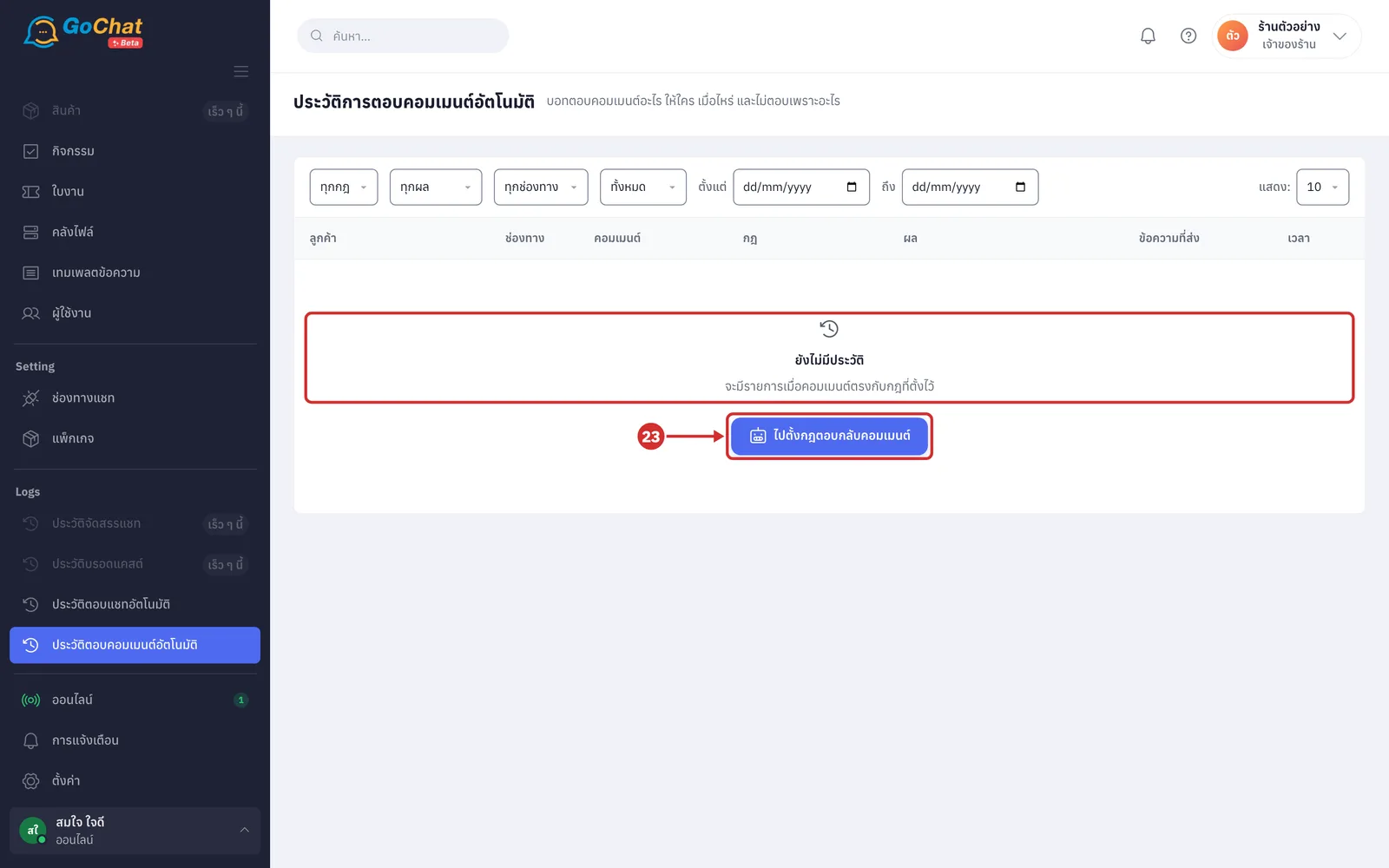
If there is no history yet, the table shows ยังไม่มีประวัติ (No history yet) and จะมีรายการเมื่อคอมเมนต์ตรงกับกฎที่ตั้งไว้ (Entries appear when a comment matches one of your rules). Click ไปตั้งกฎตอบกลับคอมเมนต์ (Go to comment reply rules) to set up rules
If the history fails to load, the table shows โหลดประวัติไม่สำเร็จ (Could not load history) and ตรวจการเชื่อมต่อแล้วลองใหม่อีกครั้ง (Check your connection and try again). Click ลองใหม่ (Try again) to load it again (while loading, it shows กำลังโหลดประวัติ… (Loading history…))
Note: This page does not show comments that no rule caught, such as comments without any of the rule's words, comments under posts no rule has chosen, or accounts with no rule turned on. If a customer commented and you do not see an entry here, check that the rule is turned on, has that post chosen, and has a word that matches the comment. History older than 90 days is deleted from the system, and chat reply history is in Viewing auto-reply chat history.