

Shop overview
The ภาพรวมร้านค้า (Shop overview) page brings what your shop needs to handle into one page: conversations waiting for a reply, your shop's numbers for the last 7 days, connected channels and your team. Everyone in the shop can open it; sales from conversations, the button to the channels page and the button to the users page are shown to the เจ้าของร้าน (Shop owner) only.
Opening the shop overview
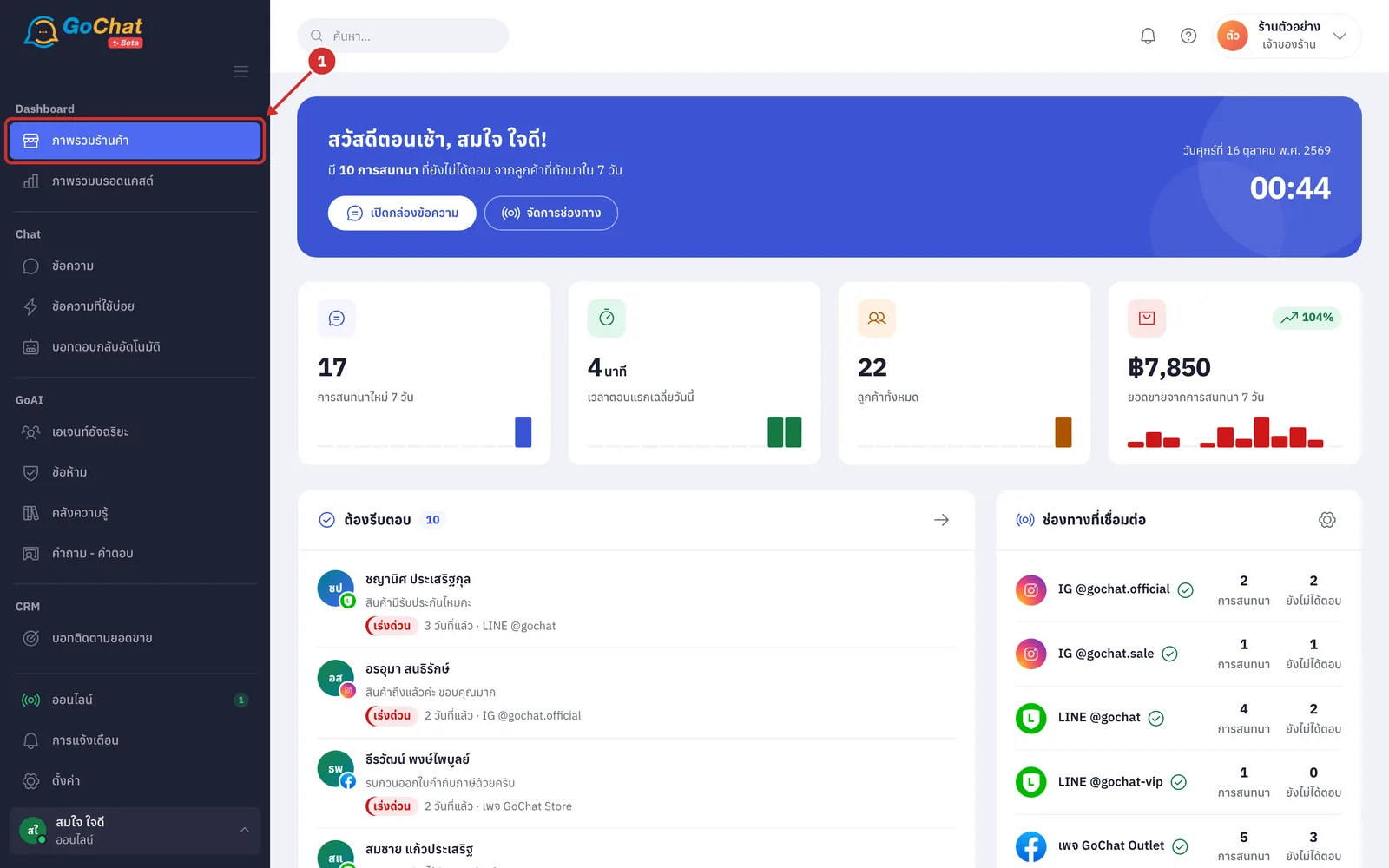
Under Dashboard, choose ภาพรวมร้านค้า (Shop overview) in the left menu bar (clicking the logo at the top left also brings you here)
Reading the welcome bar
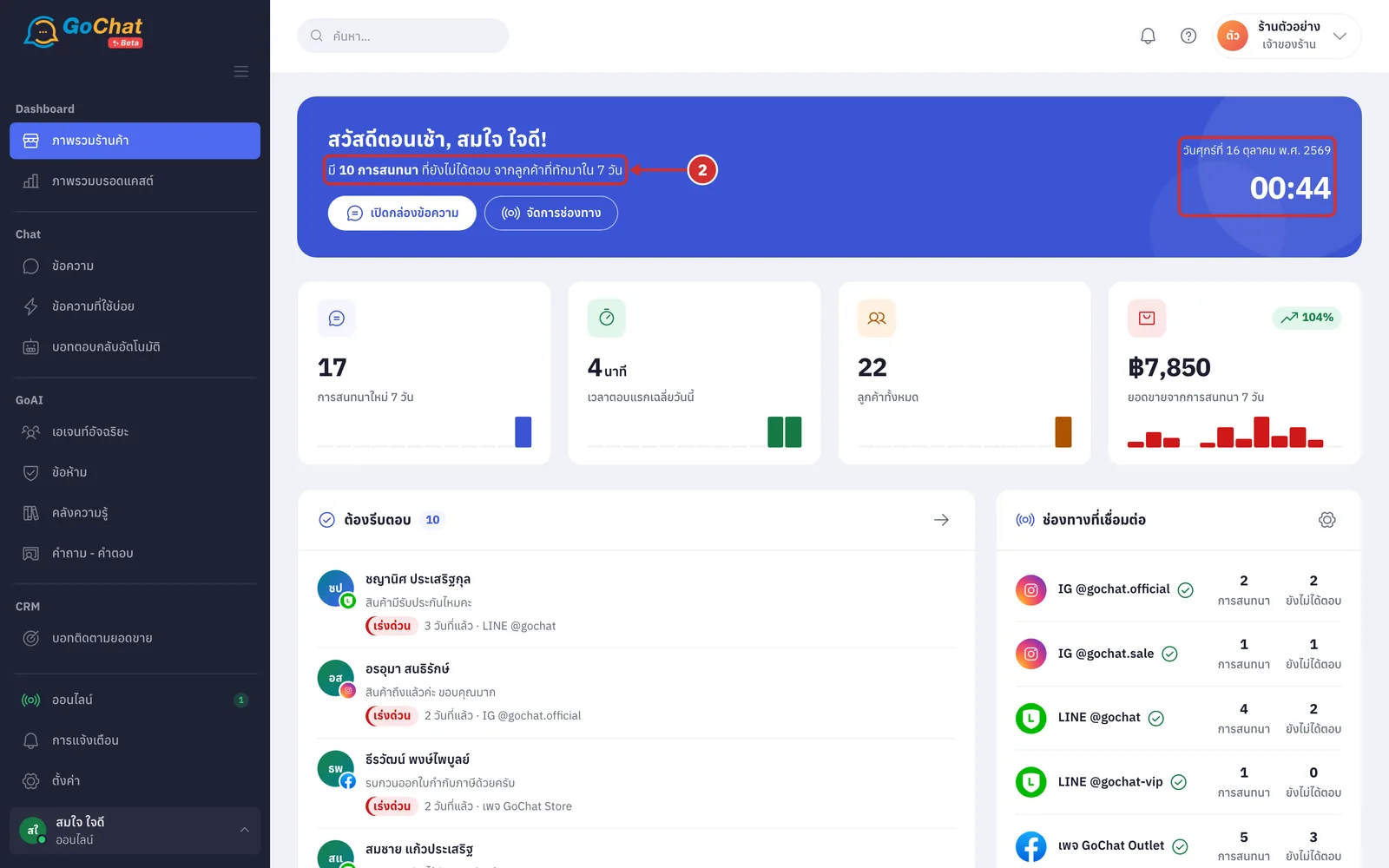
In the bar at the top, see how many conversations are waiting for a reply (only customers who messaged in the last 7 days are counted; when everything is answered it shows ตอบครบทุกการสนทนาแล้ว (All conversations answered); the greeting follows your shop's time of day, and the right side of the bar shows the date and time when you opened the page, in your shop's time zone)
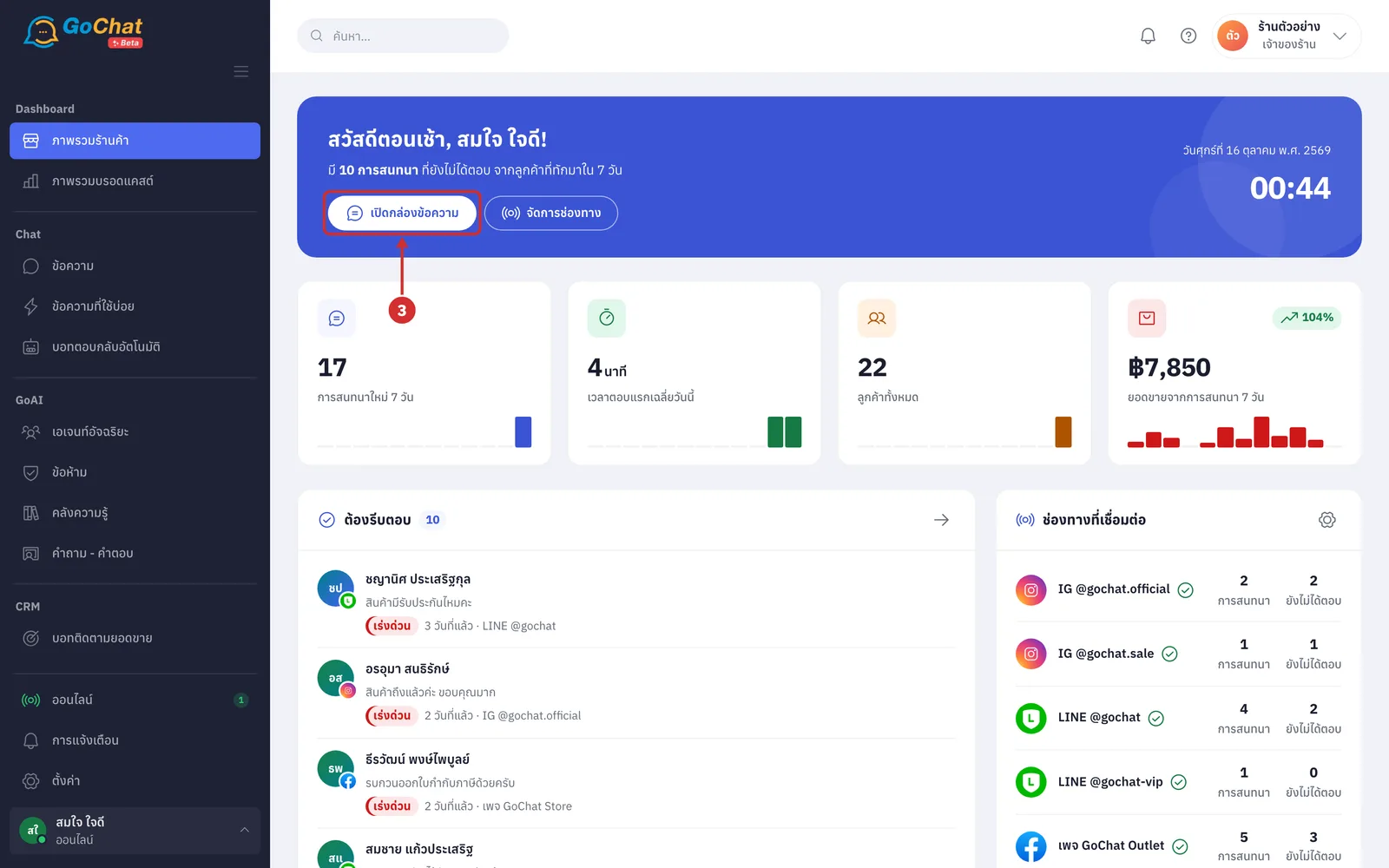
Click เปิดกล่องข้อความ (Open inbox) to reply to customers on the ข้อความ (Messages) page
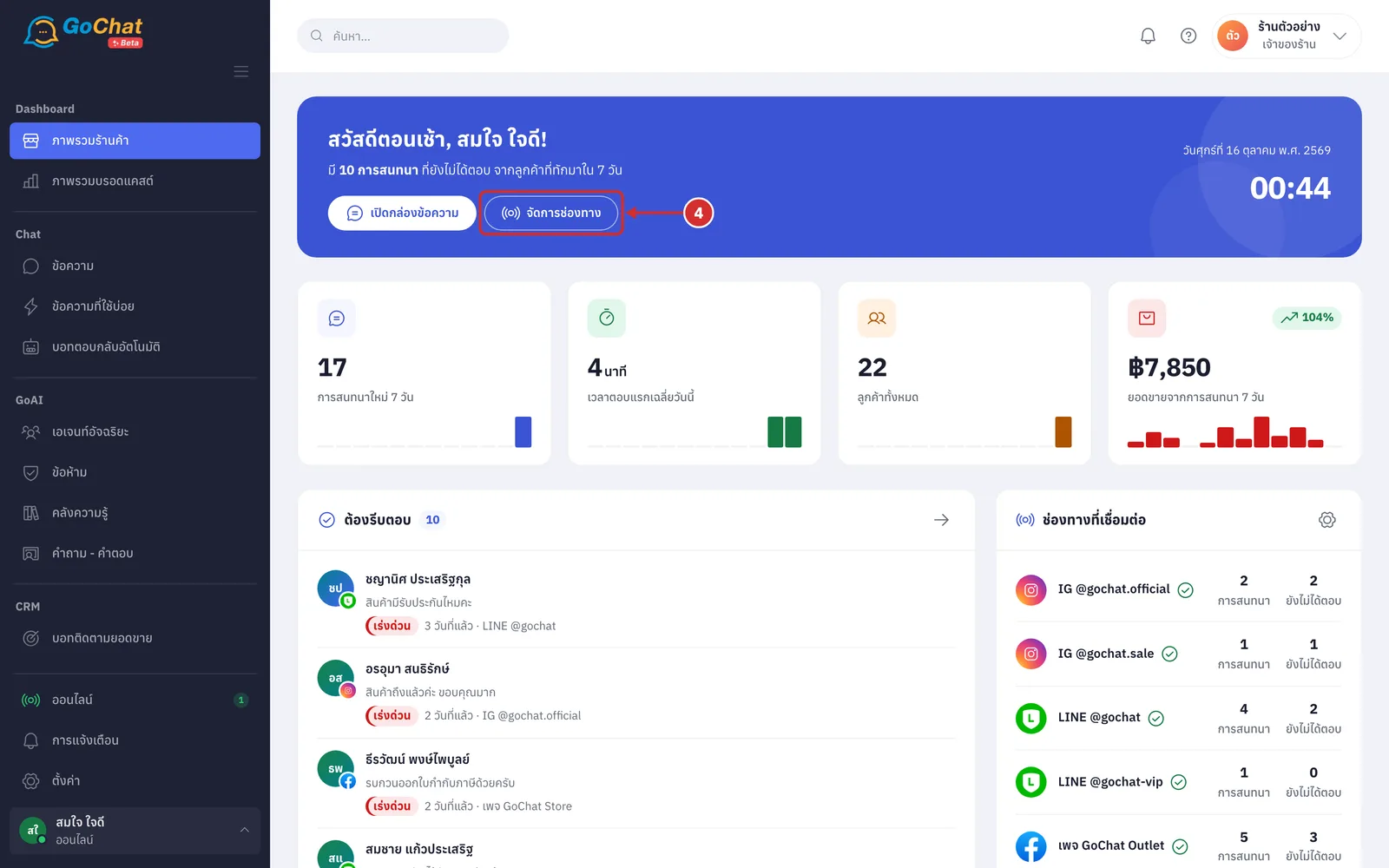
Click จัดการช่องทาง (Manage channels) to go to the ช่องทางแชท (Chat channels) page, where you connect channels or check their status (only the เจ้าของร้าน (Shop owner) sees this button; see Managing chat channels for how to use that page)
Reading your shop's numbers
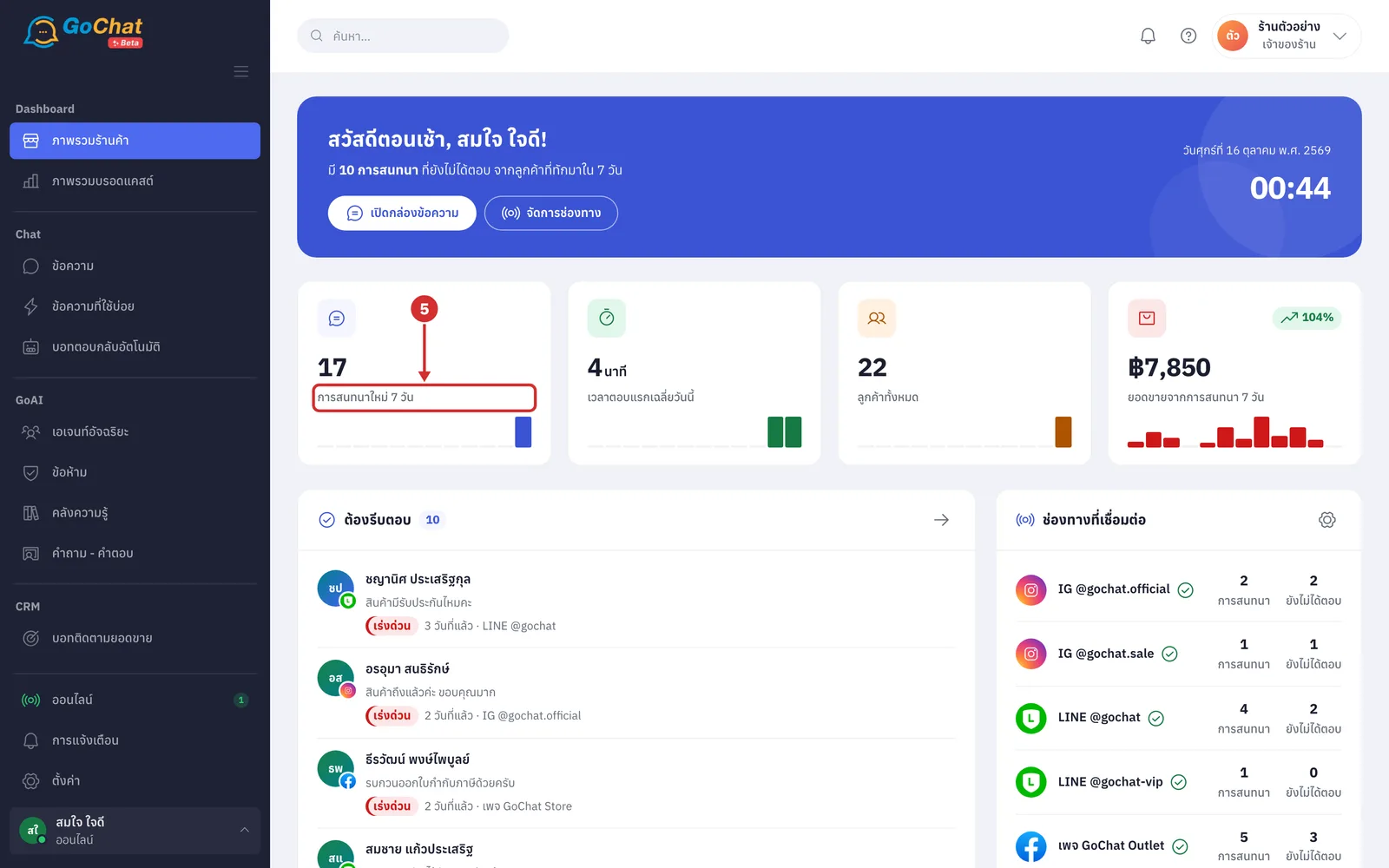
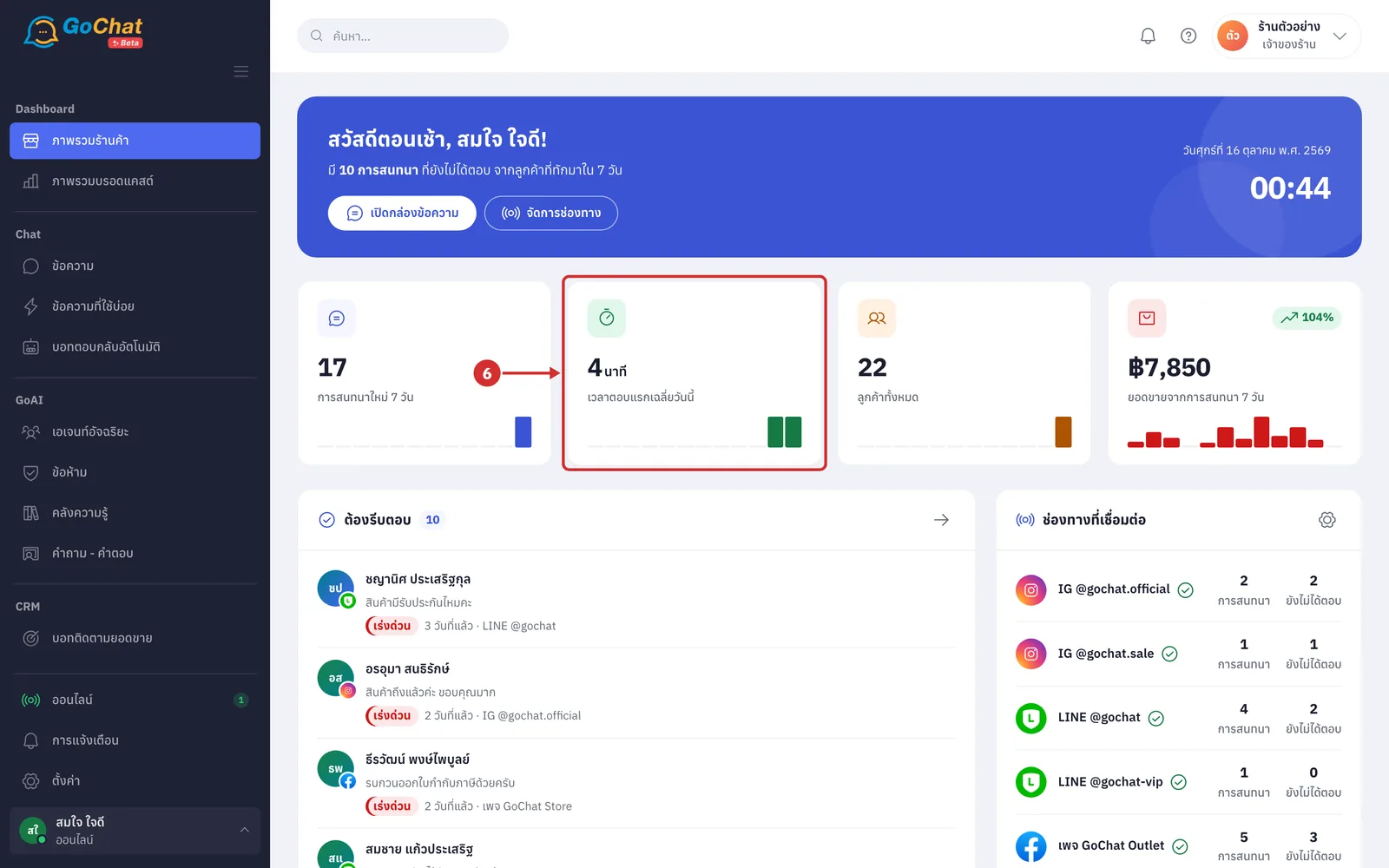
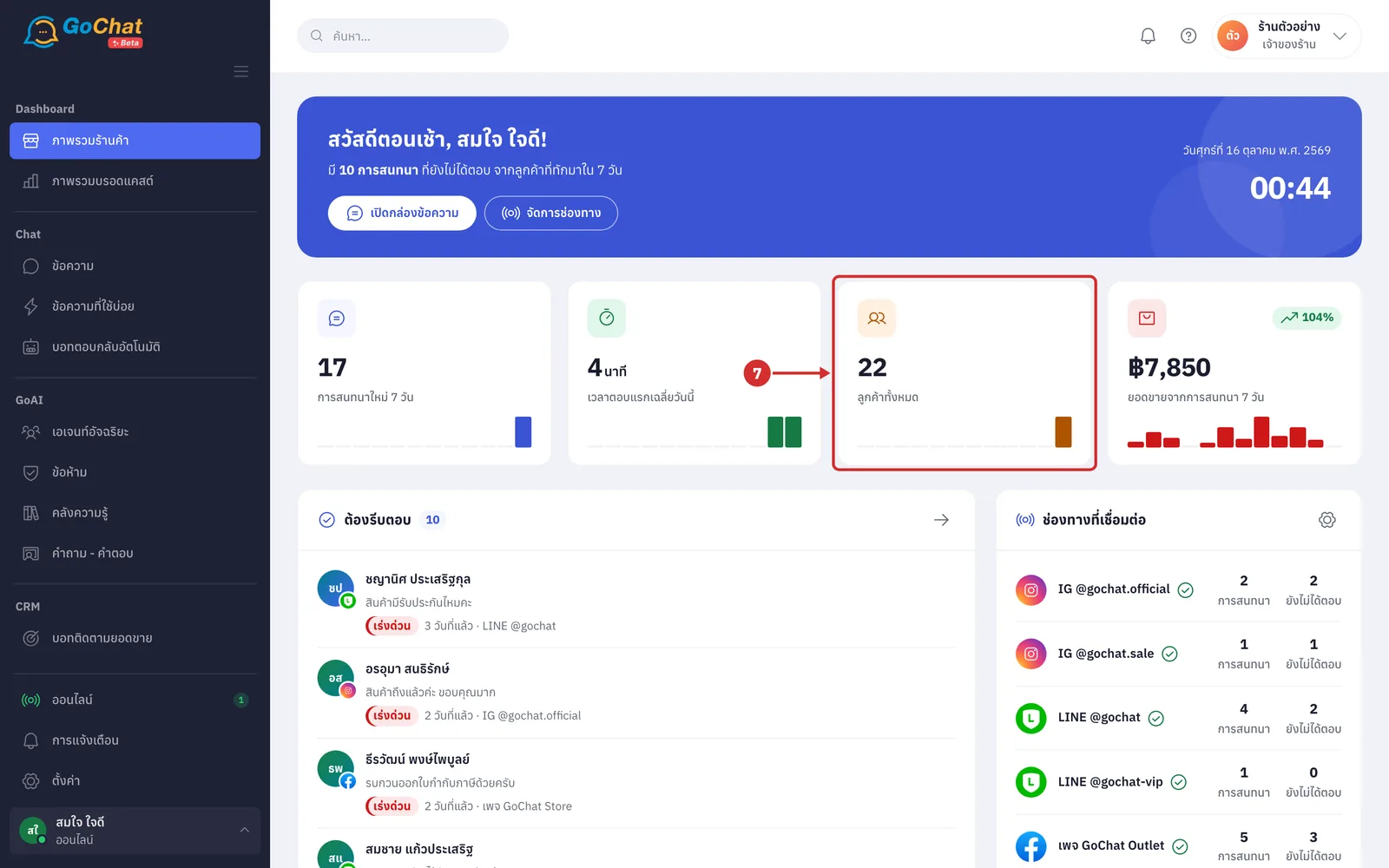
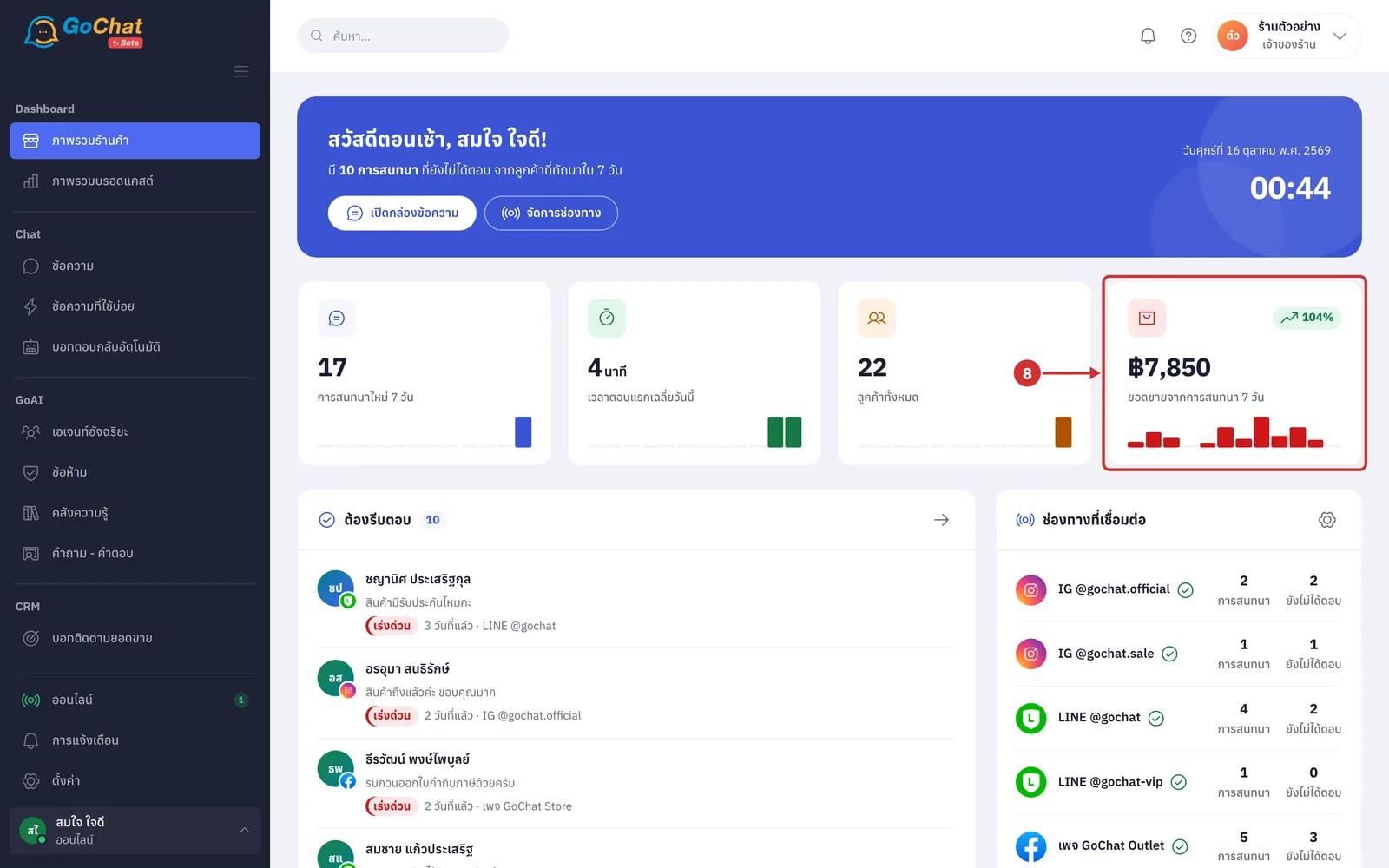
Every number card has bars under the number showing daily values for the last 12 days (days with no data are a thin line; if none of the 12 days has data, no bars are shown) and a percentage label at the top right comparing the last 7 days with the 7 days before. The arrow shows whether it went up or down; a green label means better and a red label means worse. When there is no earlier data, or nothing changed, the label is hidden.
On the การสนทนาใหม่ 7 วัน (New conversations, 7 days) card, see how many conversations started in the last 7 days, not counting LINE group chats and spam (the bars are new conversations per day)
On the เวลาตอบแรกเฉลี่ยวันนี้ (Average first reply time today) card, see how fast your team replied today, in minutes (measured from a customer's message to the next reply in the same chat, not counting auto-reply bot messages; the bars are the average reply time per day; on this card a green label means replies got faster; if nobody has replied today it shows ยังไม่มีข้อมูลวันนี้ (No data today yet))
On the ลูกค้าทั้งหมด (All customers) card, see the total number of customers from every channel (the bars are new customers per day, and the percentage compares new customers in the last 7 days with the 7 days before)
On the ยอดขายจากการสนทนา 7 วัน (Sales from conversations, 7 days) card, see the total of orders created from chats in the last 7 days (the bars are sales per day; only the เจ้าของร้าน (Shop owner) sees this card, other roles see three number cards)
Checking channels and your team
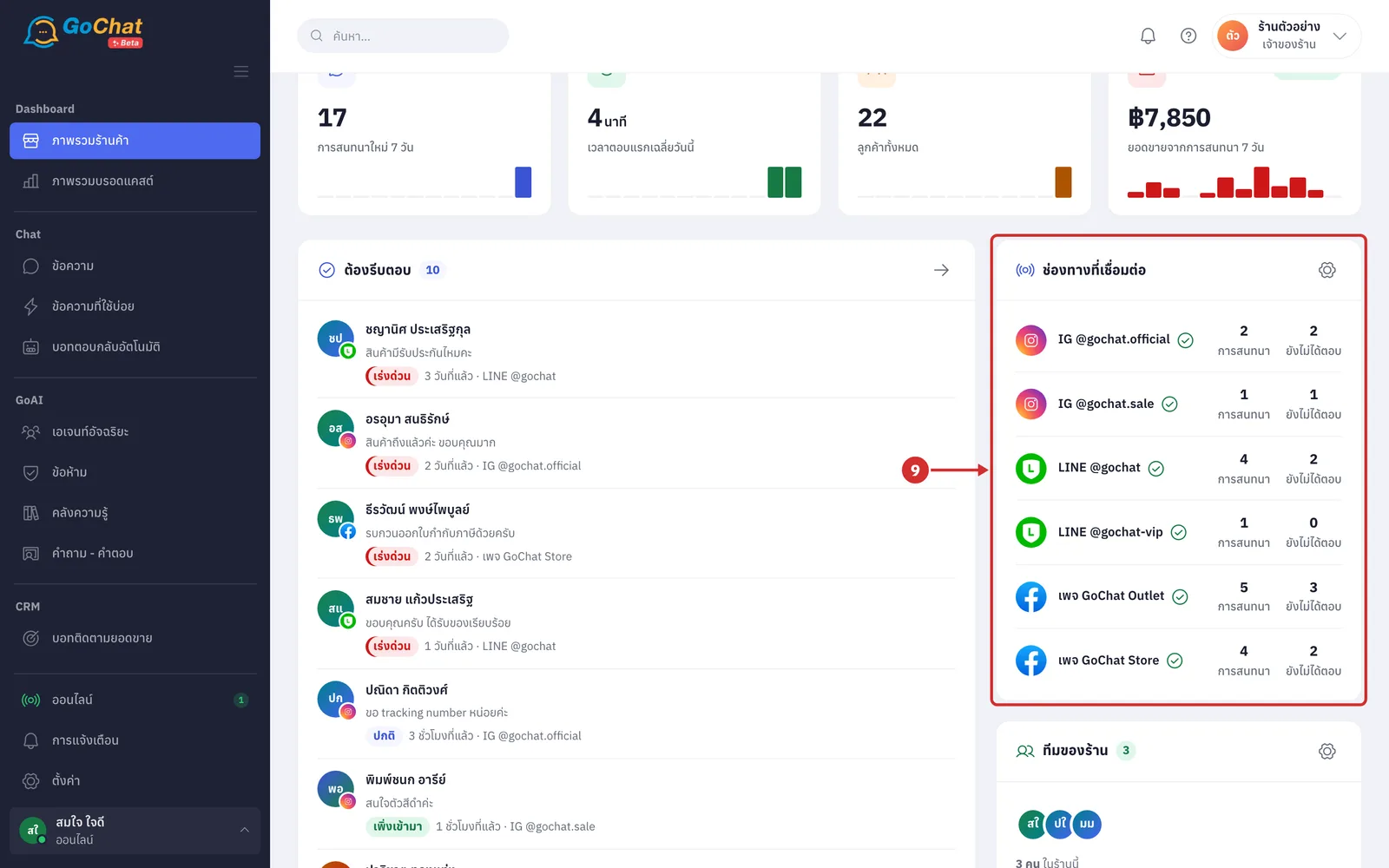
On the ช่องทางที่เชื่อมต่อ (Connected channels) card, see your channels with the number of การสนทนา (Conversations) in total and ยังไม่ได้ตอบ (Unanswered) in the last 7 days for each (up to 6 channels; the icon after a name shows the status, green is connected, yellow is expiring soon, red is disconnected; point at the icon to see เชื่อมต่อแล้ว (Connected), ใกล้หมดอายุ (Expiring soon) or ต้องเชื่อมใหม่ (Needs reconnecting))
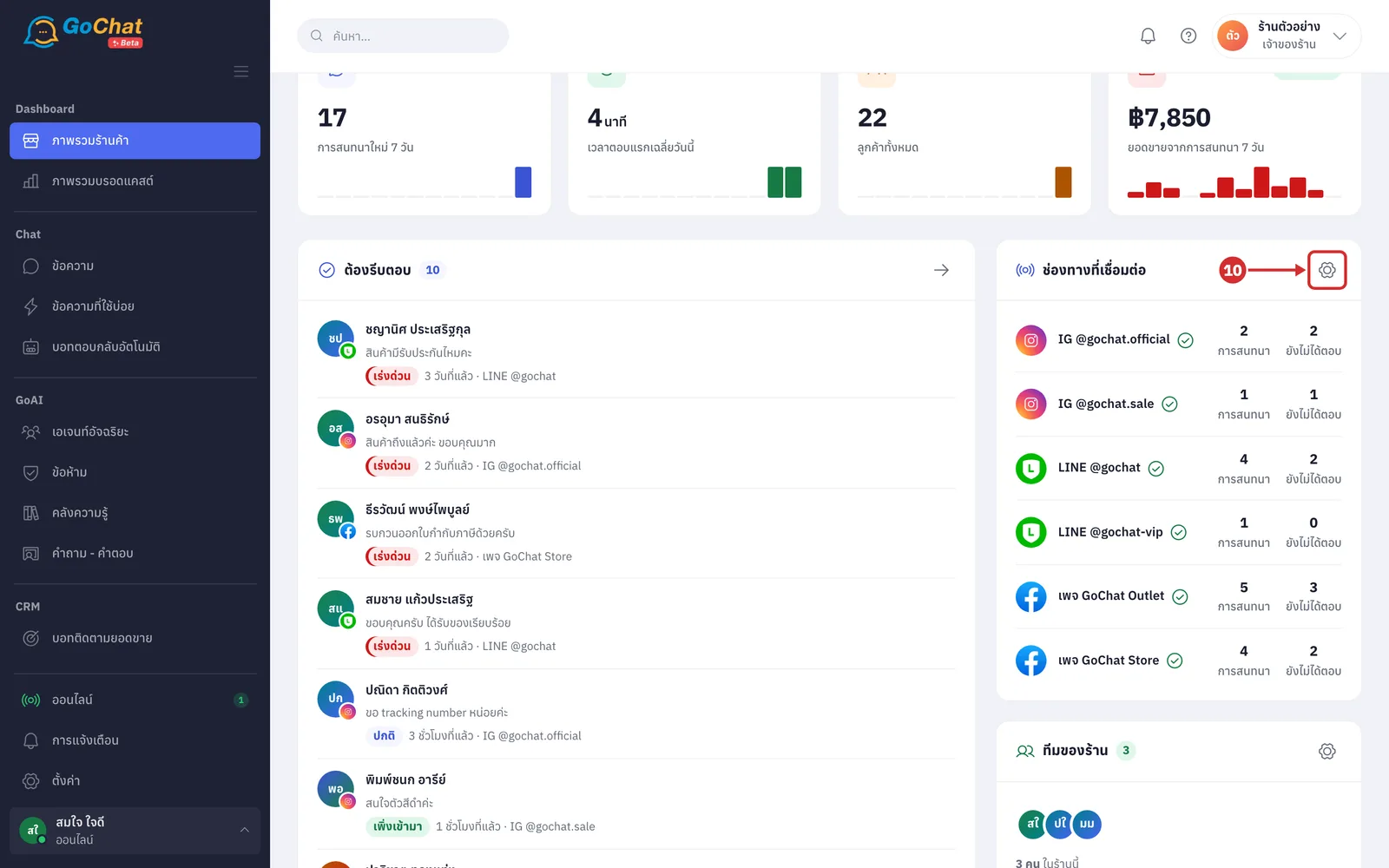
Click the gear icon at the top right of the ช่องทางที่เชื่อมต่อ (Connected channels) card to go to the ช่องทางแชท (Chat channels) page (only the เจ้าของร้าน (Shop owner) sees this icon)
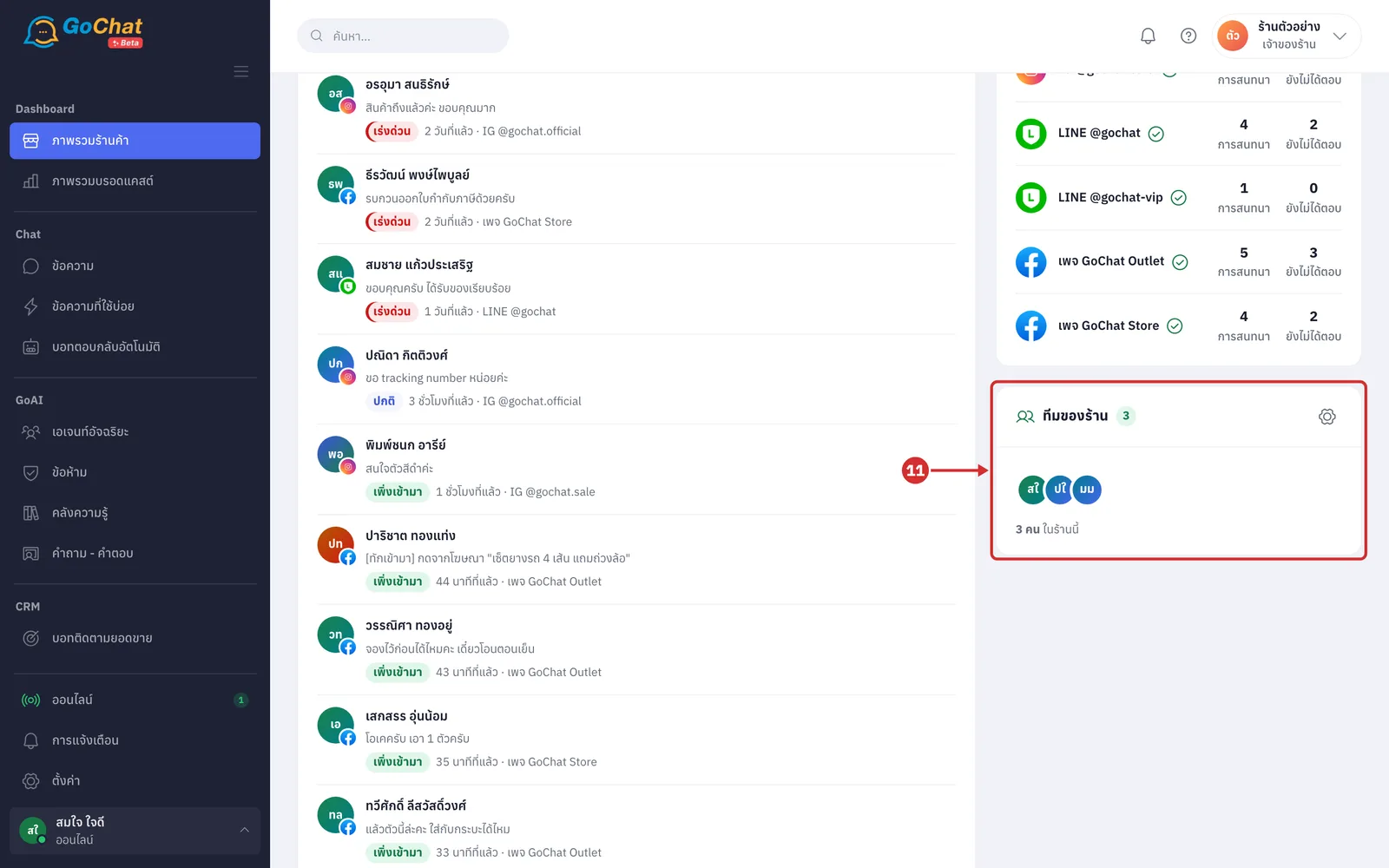
On the ทีมของร้าน (Shop team) card, see how many people are in your shop (up to 5 pictures are shown, the rest appear as +number; point at a picture to see the person's name, role and the conversations they handle; the line under the pictures shows how many people are in the shop, and once conversations have someone assigned it adds ดูแลอยู่ N การสนทนา (Handling N conversations))
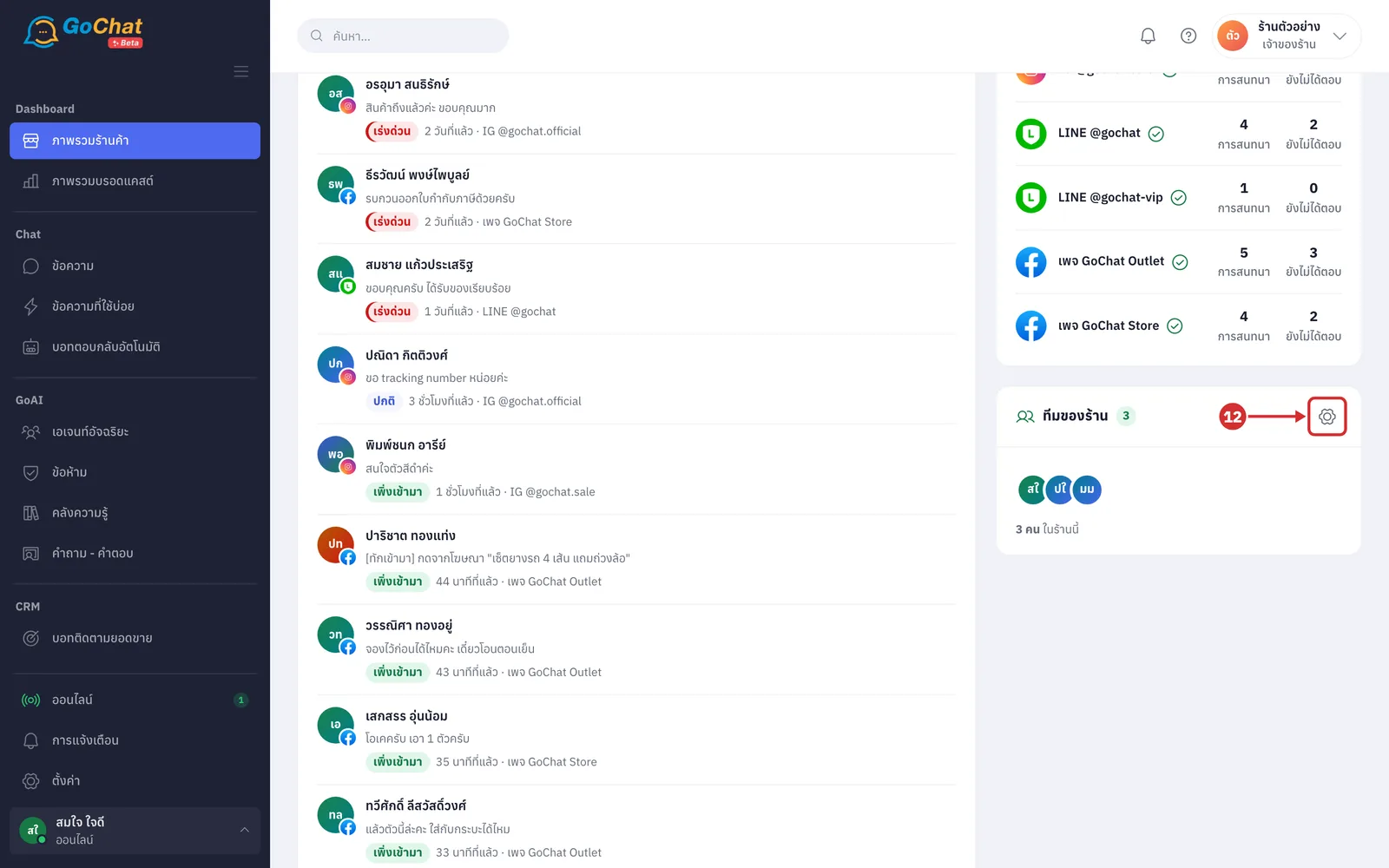
Click the gear icon at the top right of the ทีมของร้าน (Shop team) card to go to the ผู้ใช้งาน (Users) page, where you invite or manage members (only the เจ้าของร้าน (Shop owner) sees this icon)
Checking recent conversations and insights
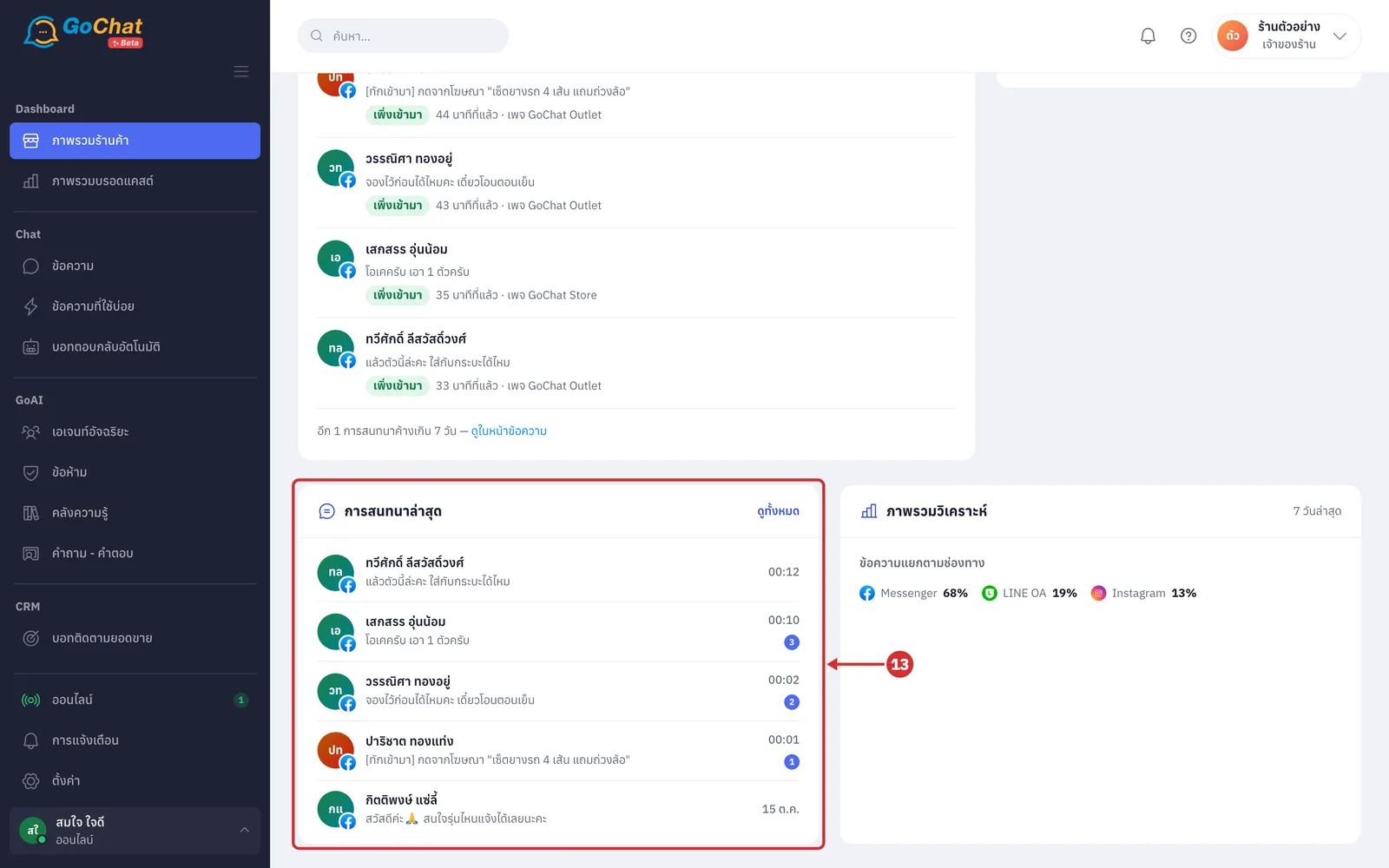
On the การสนทนาล่าสุด (Recent conversations) card, see the 5 chats with the latest messages, with each chat's last message, its time (today's messages show the time, earlier ones show the date) and a blue number circle for unread messages; click a chat to open it
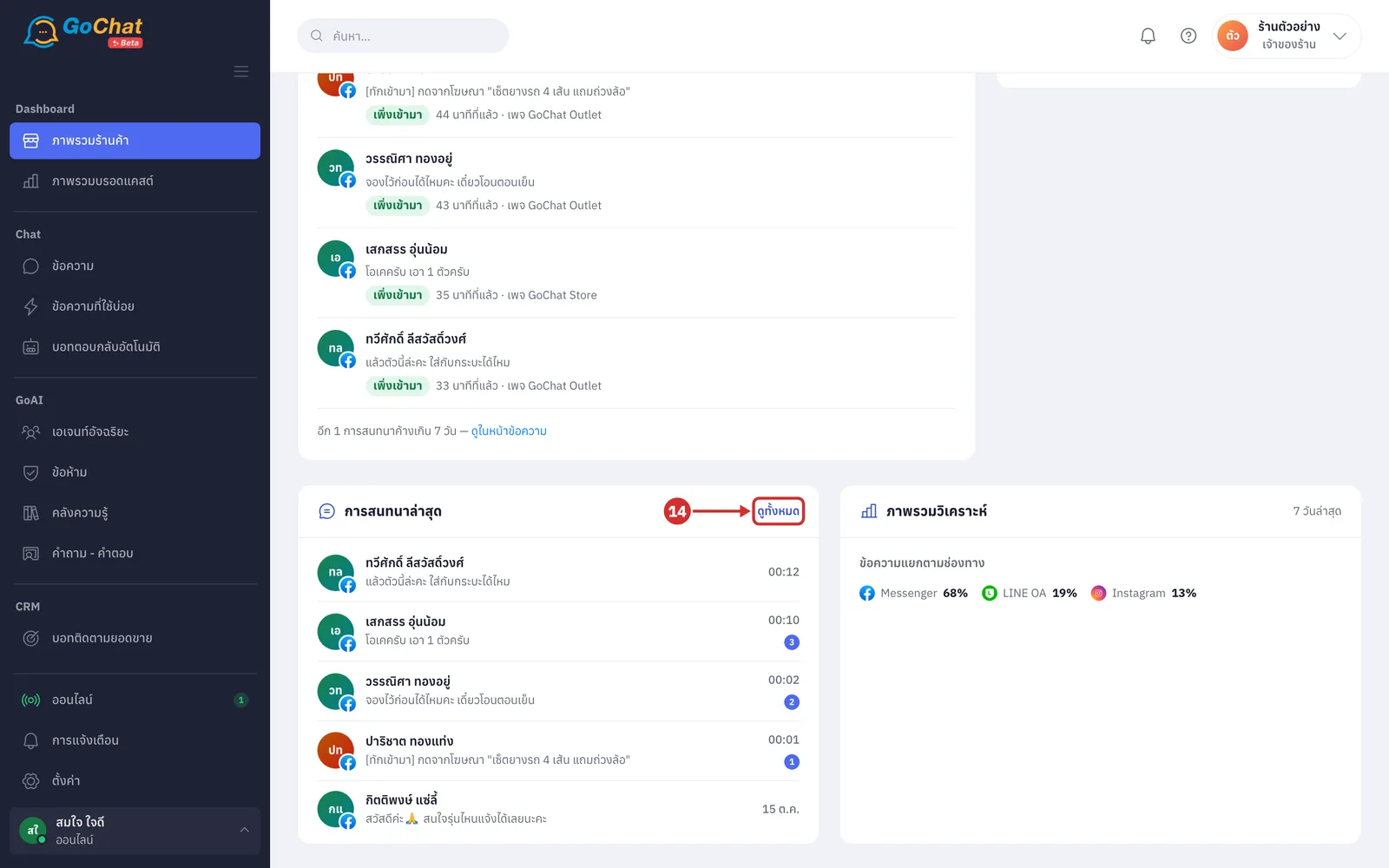
Click ดูทั้งหมด (See all) at the top right of the card to go to the ข้อความ (Messages) page, which has every chat of your shop
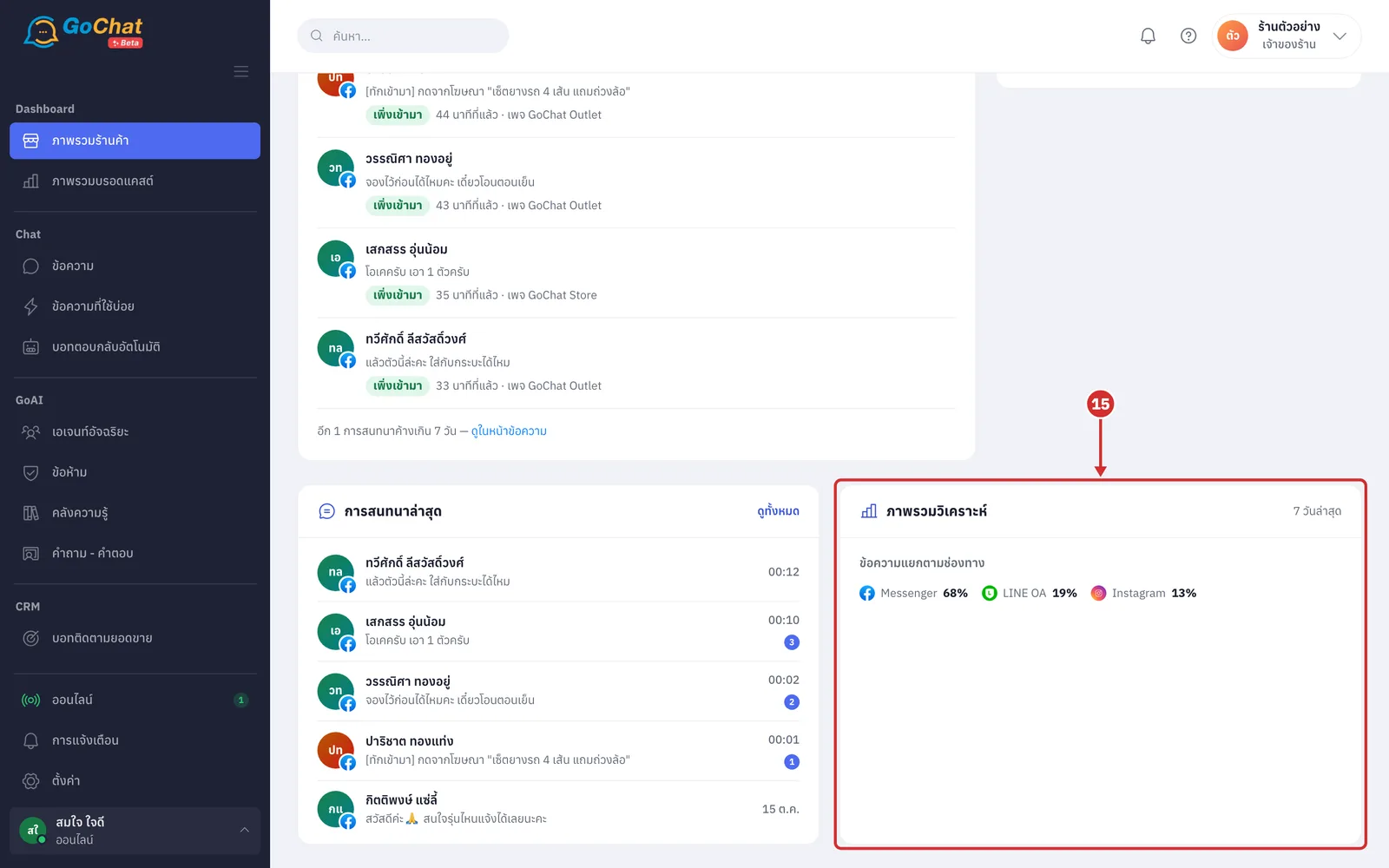
On the ภาพรวมวิเคราะห์ (Insights) card, see ข้อความแยกตามช่องทาง (Messages by channel), the share of incoming and outgoing messages for each channel in the 7 วันล่าสุด (Last 7 days) (if there were no messages in the last 7 days it shows 7 วันที่ผ่านมายังไม่มีข้อความเข้าออกเลย (No messages in the last 7 days))
Replying to waiting customers
On the ต้องรีบตอบ (Needs a reply) card, see customers who messaged in the last 7 days and have not been answered, longest wait first, up to 10 (the number next to the card title is the total still unanswered; replies from bots or AI count as answered; LINE group chats are not counted; when everything is answered it shows ไม่มีการสนทนาที่ยังไม่ได้ตอบ (No unanswered conversations))
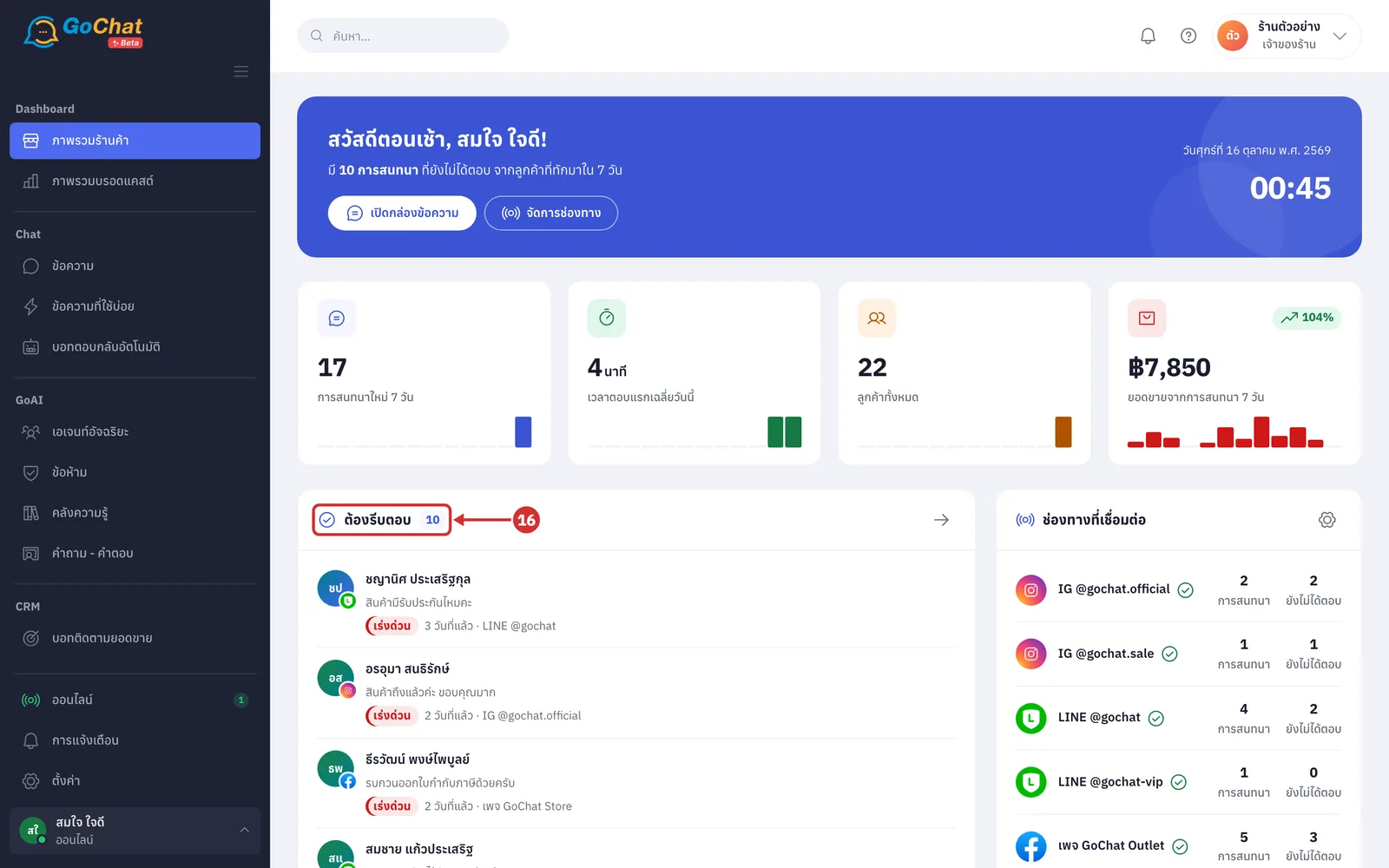
In each item, see the customer's picture with the channel logo, their name, their last message (a picture or file shows its type, such as รูปภาพ (Image) or สติกเกอร์ (Sticker)) and a bottom line with the urgency label, how long the customer has waited and the page or account they messaged (เร่งด่วน (Urgent) waiting 21 hours or more, close to the 24 hours Facebook and Instagram give shops to reply; ปกติ (Normal) waiting 3 hours or more; เพิ่งเข้ามา (Just arrived) waiting under 3 hours; labels and times update every 30 seconds while the page stays open)
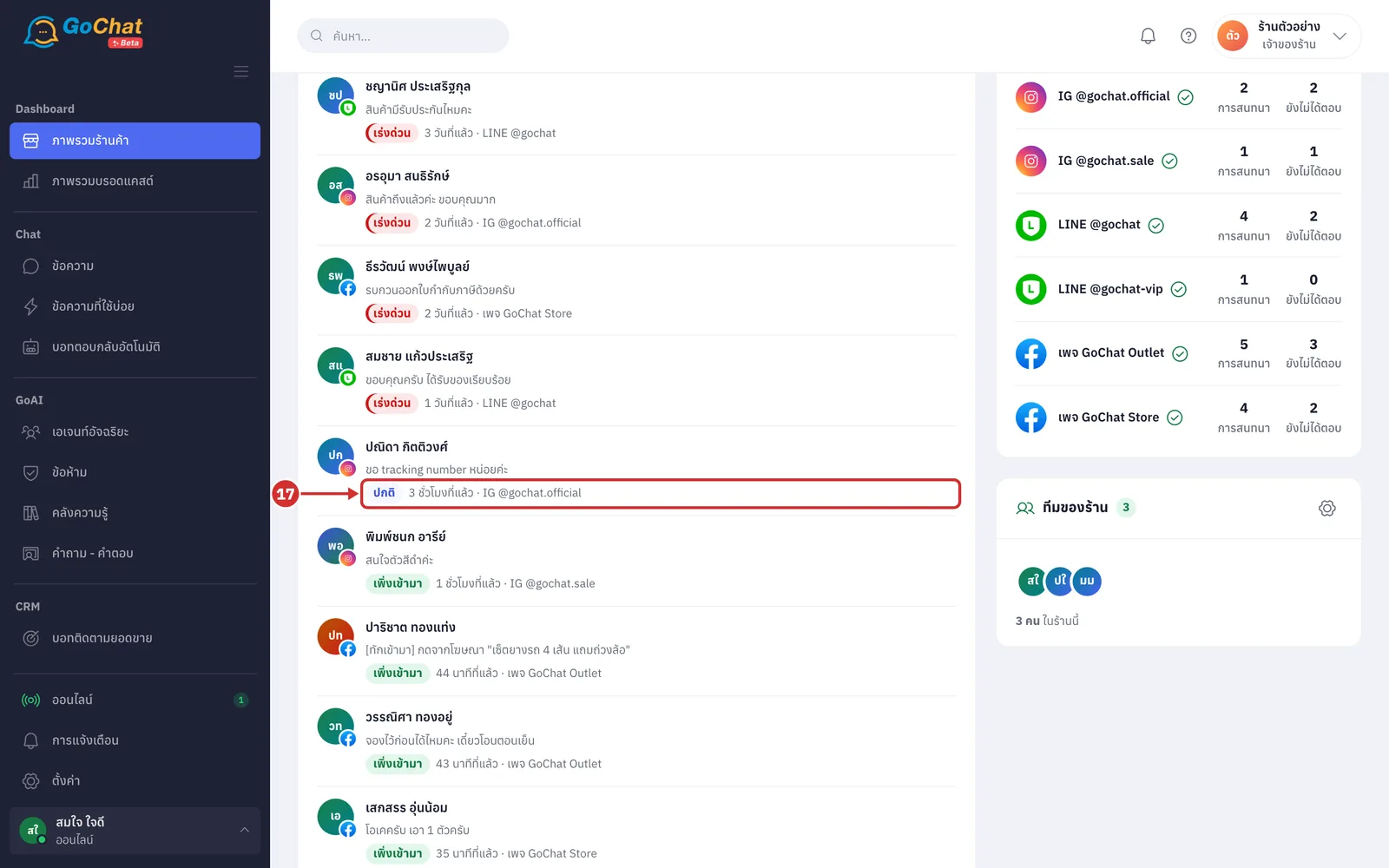
Click the arrow at the top right of the ต้องรีบตอบ (Needs a reply) card to go to the ข้อความ (Messages) page
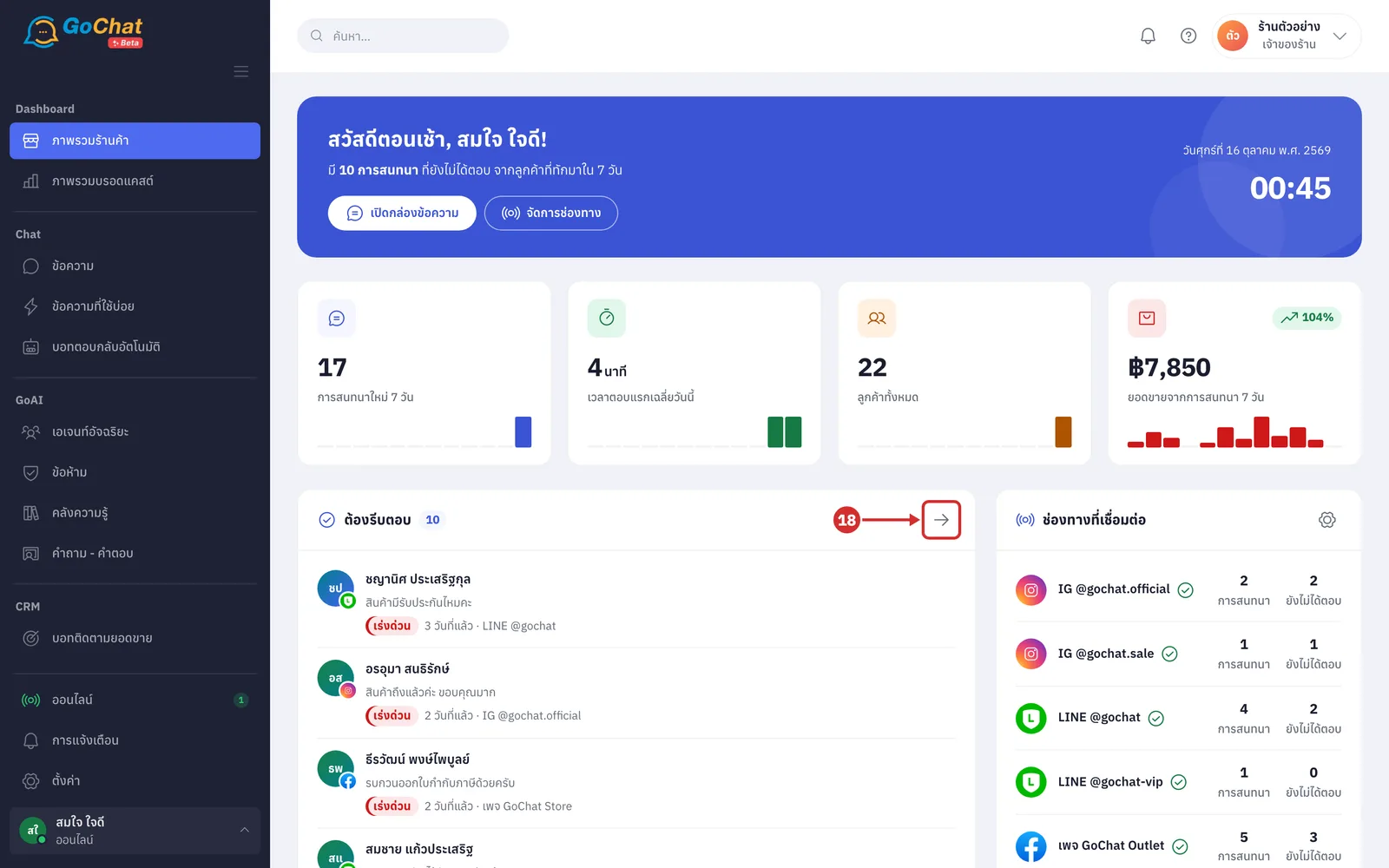
If customers who messaged more than 7 days ago are still unanswered, the end of the card shows อีก N การสนทนาค้างเกิน 7 วัน (N more conversations waiting over 7 days); click ดูในหน้าข้อความ (See on the Messages page) to reply to them (these chats are left out of the list so they do not push new customers off the screen; when more than 10 customers are unanswered, the end of the list also shows แสดง 10 จาก N การสนทนา (Showing 10 of N conversations) with a ดูทั้งหมดในหน้าข้อความ (See all on the Messages page) link)
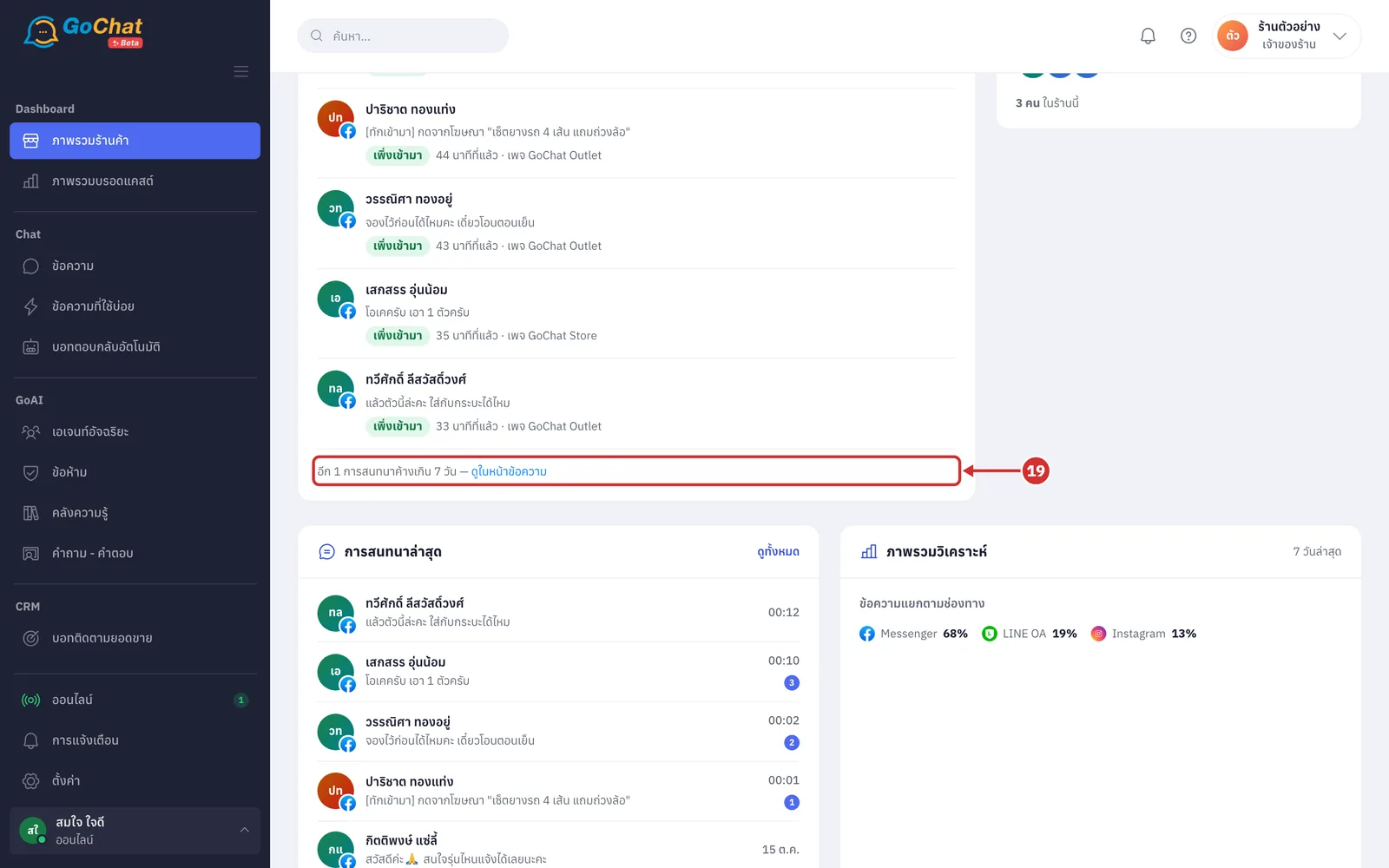
Click the customer you want to reply to
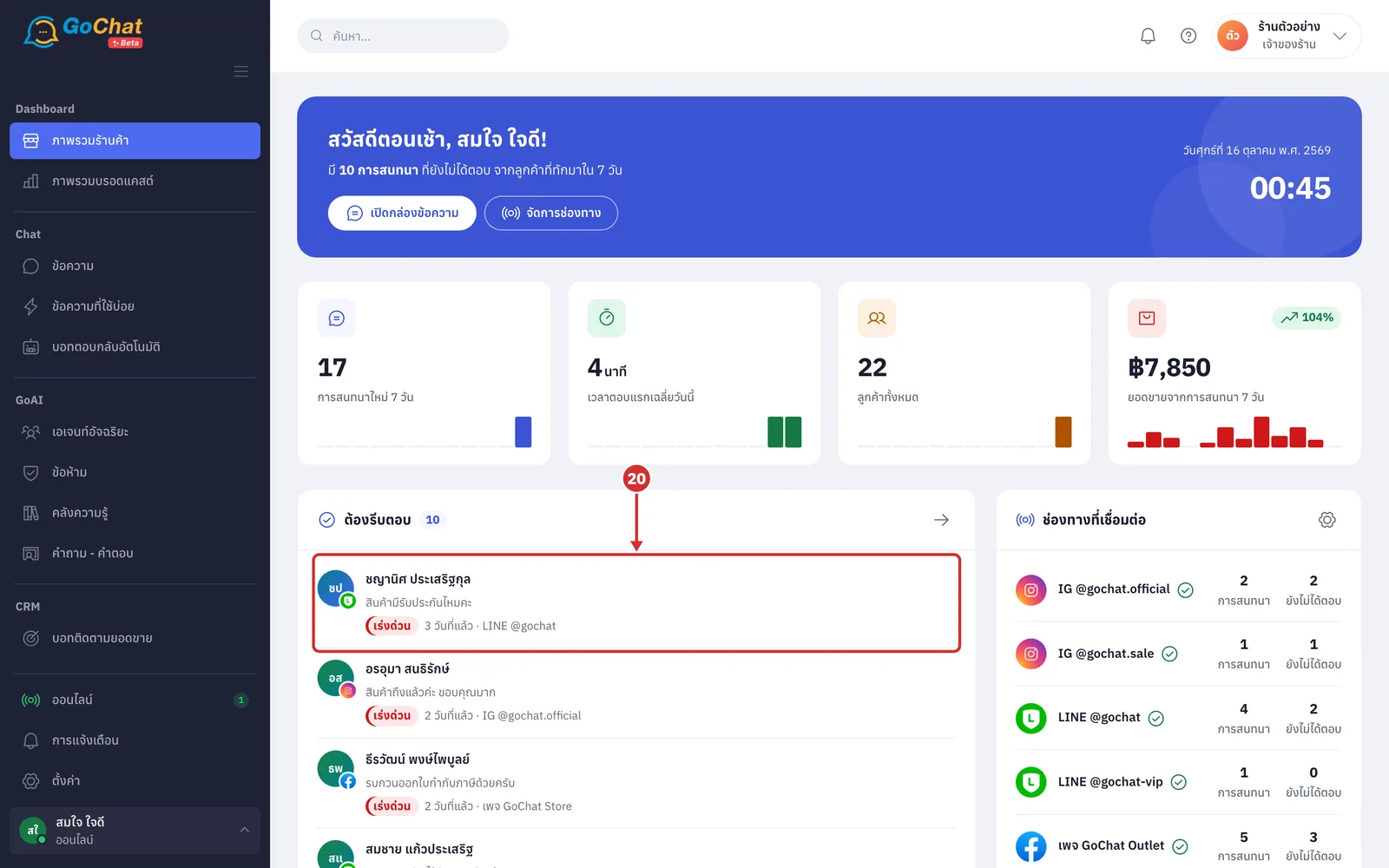
The system opens that customer's chat on the ข้อความ (Messages) page, ready for you to type a reply (see Replying to customer chats for how to reply)
Note: All numbers count days in your shop's time zone (set in ตั้งค่า (Settings) > ข้อมูลร้าน (Shop info)). If your shop has not connected a channel yet, a bar at the top shows ยังไม่ได้เชื่อมช่องทาง — ตัวเลขจะขึ้นเองเมื่อมีลูกค้าทักเข้ามา (No channel connected yet — numbers appear once customers message you) with a เชื่อมช่องทาง (Connect a channel) button.