

Replying to comments on posts
The ความคิดเห็น (Comments) tab on the ข้อความ (Messages) page lets you reply to comments under the posts of the Facebook pages and Instagram accounts your shop connected, all in one place, while seeing the post itself and everyone's comments under it. For example, you can answer a customer asking about colours and sizes under a product post, send details to the commenter's private chat, or hide a comment you do not want others to see.
The shop owner and every admin in the shop can reply, message privately, hide, delete and block. Every hide, delete and block done in GoChat shows the name of the person who did it under the comment, for everyone in the shop to see. Filtering the list on this tab is covered in Searching and filtering chats, and setting up a bot that replies to comments is covered in Setting up comment replies.
Opening the Comments tab
Go to the ข้อความ (Messages) menu in the left menu bar
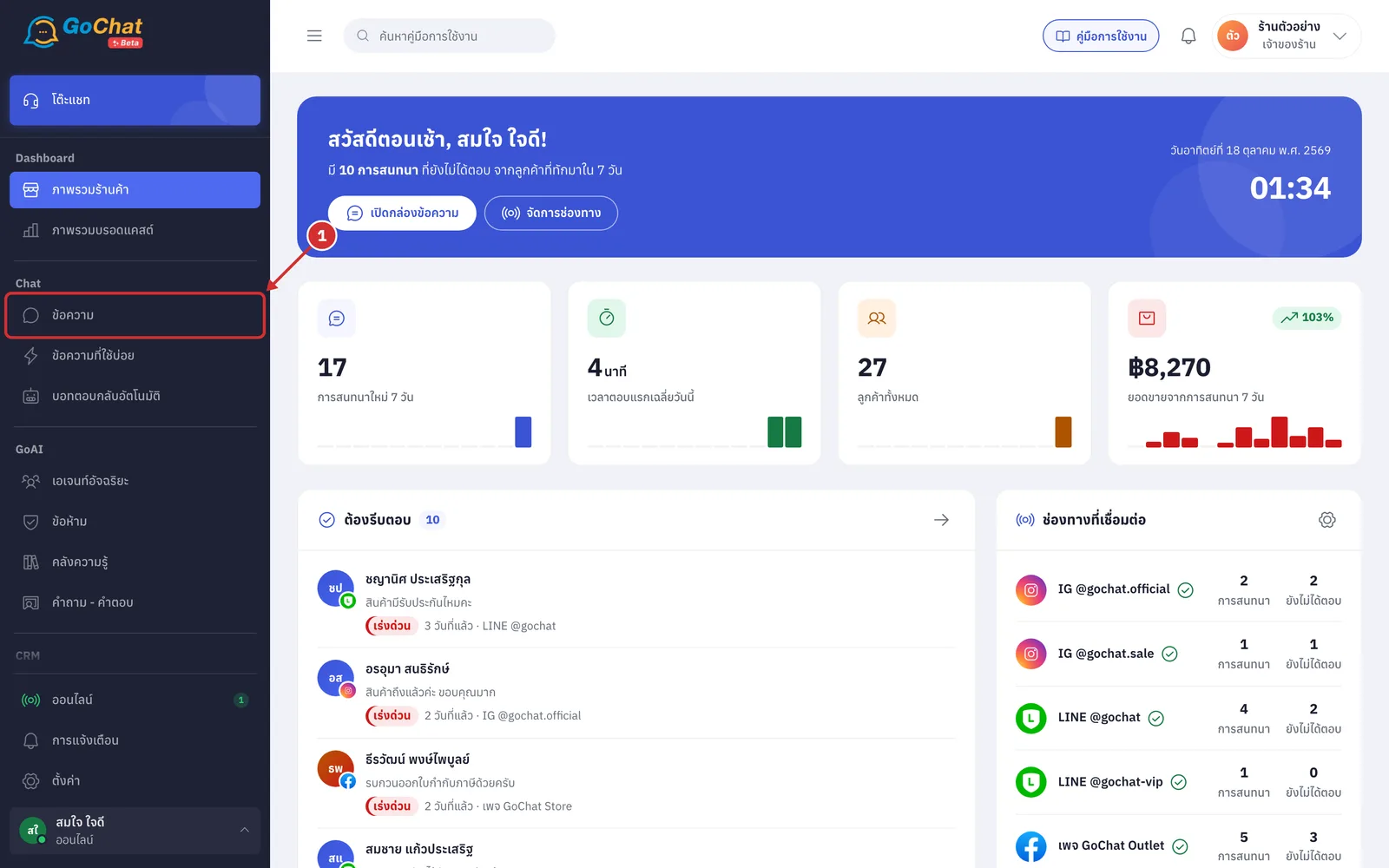
Click the ความคิดเห็น (Comments) tab at the top of the list. The list shows comments under your Facebook and Instagram posts
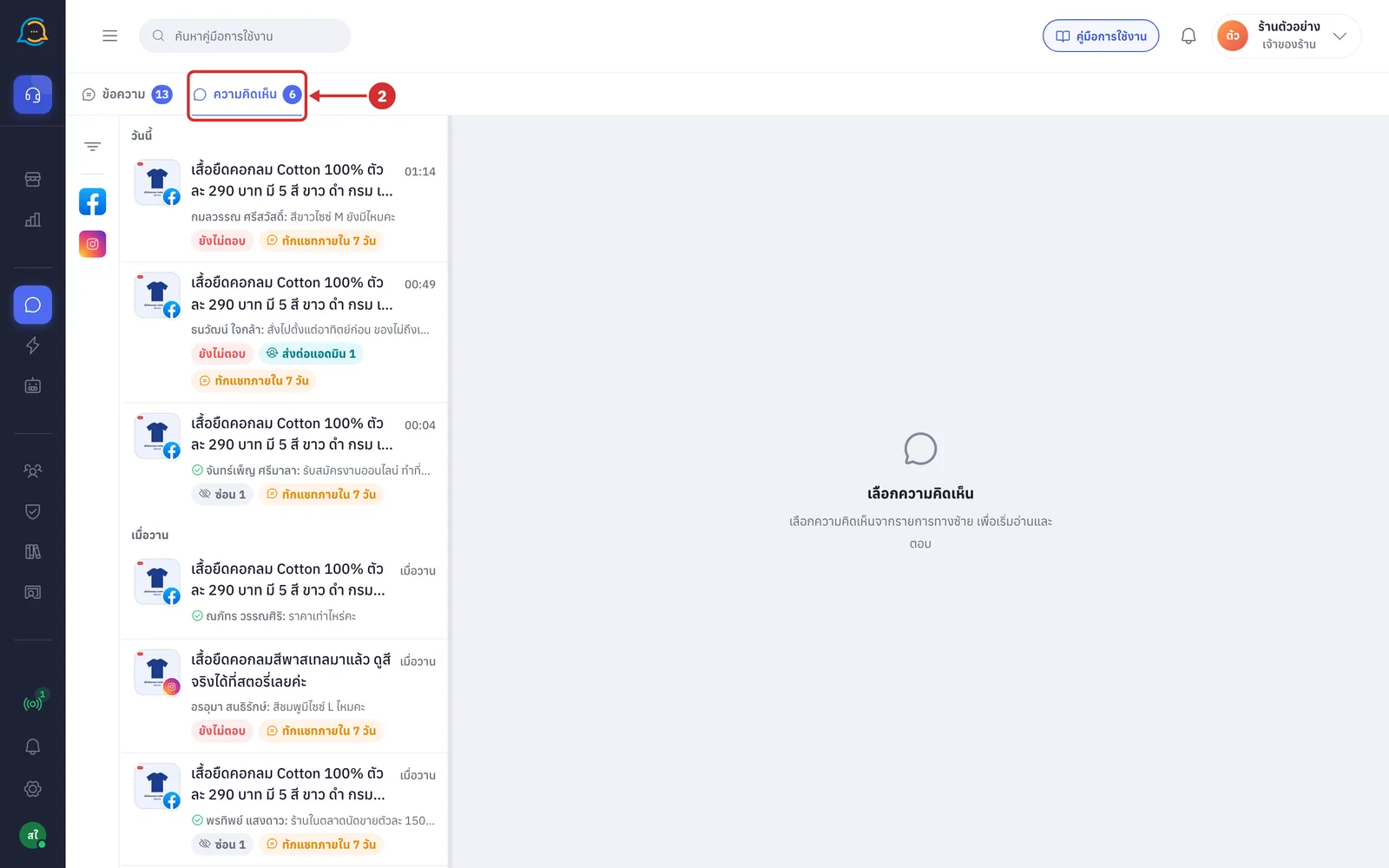
The number on the tab is the number of rows not answered yet; above 99 it shows 99+
The number goes down when you reply; just opening a row does not lower it
Reading the comment list
The list on the left shows one row per customer per post, sorted by the latest activity, and grouped by day: วันนี้ (Today), เมื่อวาน (Yesterday), สัปดาห์นี้ (This week) and ก่อนหน้านี้ (Earlier).
Each row shows the following
Post picture: the picture of the post the customer commented on. The corner shows the Facebook or Instagram logo, and you can point at the picture to see the page or account name
Post text and time: the top line is the post text; the time on the right is the latest activity
A post without text shows โพสต์ของเพจ (Page post)
A post without a picture shows an icon instead, and a video post has a play button on the picture
Name: message is the commenter's name and that customer's latest comment. It keeps showing the customer's words even after the shop has replied
Green tick before the name: this row has nothing waiting for a reply, for example the shop replied, or the comment was hidden or deleted. Comments the system hid because the shop chose to hide ทุกคอมเมนต์ (All comments) in the จัดการคอมเมนต์ (Manage comments) tab still count as waiting until someone replies
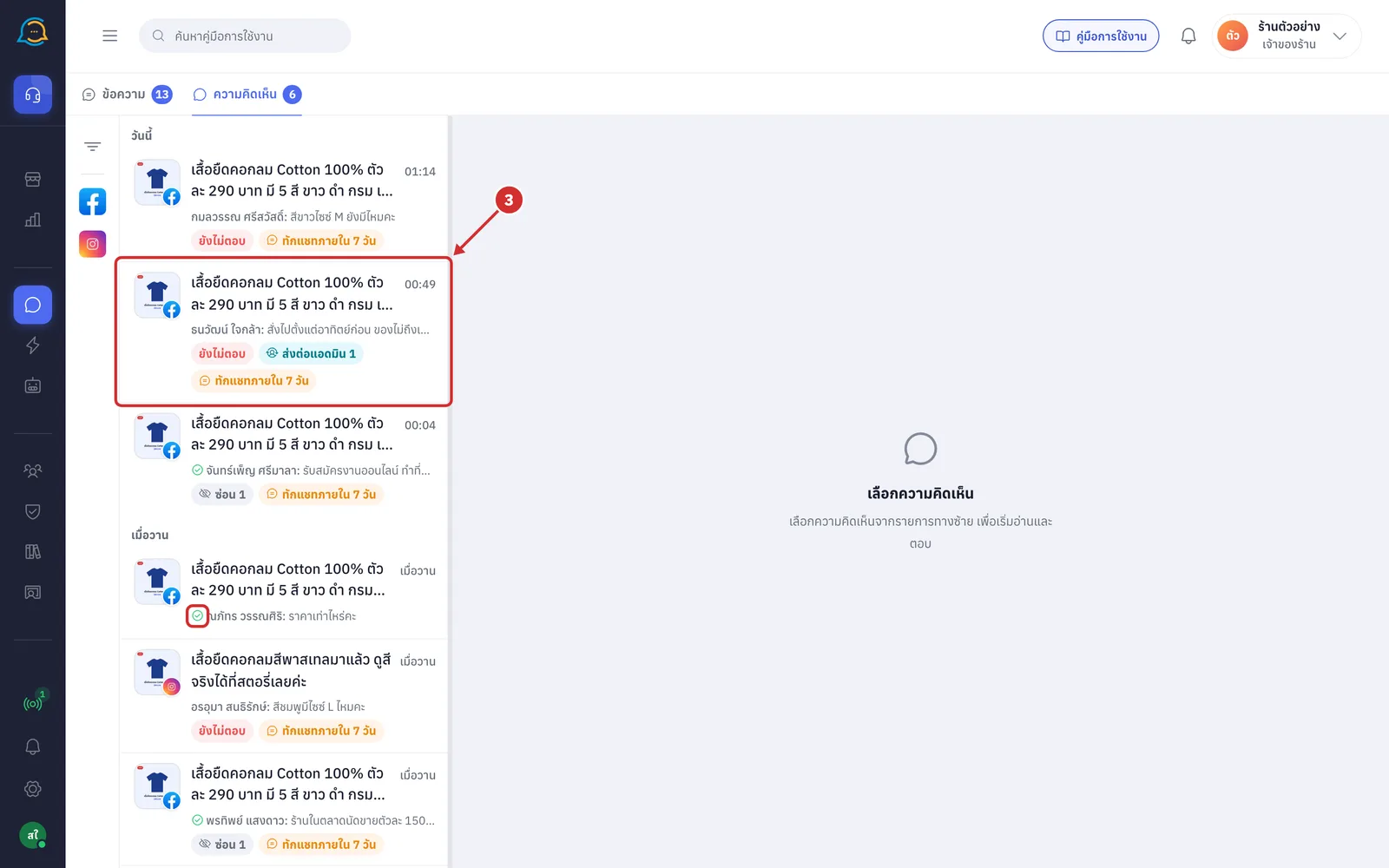
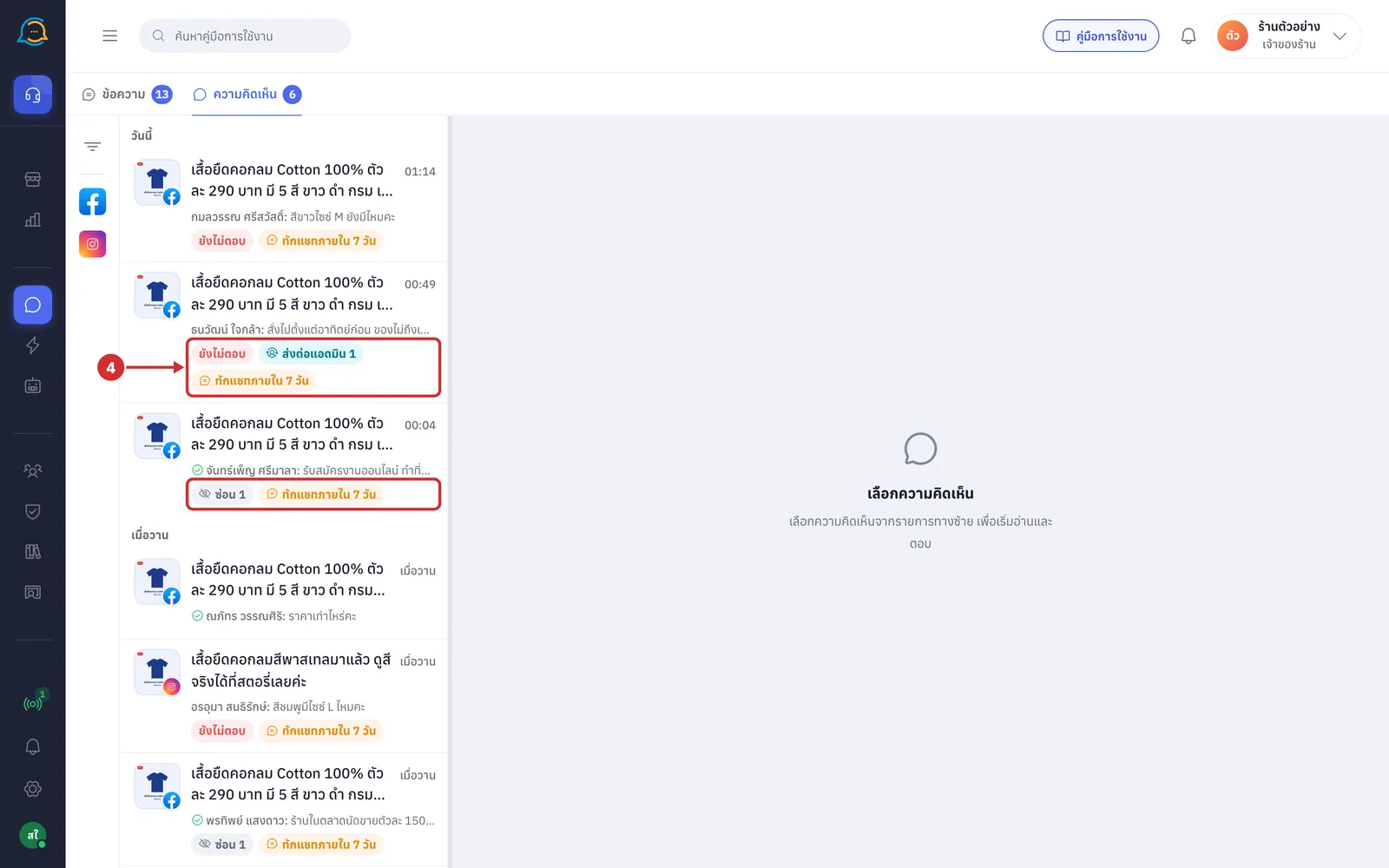
The labels under the message show the row's status
ยังไม่ตอบ (Not answered): the customer commented after the shop's last reply, or the shop has never replied
ส่งต่อแอดมิน N (Forwarded to admin N): the bot forwarded N comments for an admin to answer
ซ่อน N (Hidden N): N comments are hidden
ทักแชทภายใน N วัน (Message within N days): time left to message the commenter privately. The label disappears once you message them, or after 7 days
Good to know: The Comments tab has no search box or sort button; use the filter panel instead, which has 3 sections: ช่องทาง / เพจ (Channels / Pages), สถานะของความคิดเห็น (Comment status) and บอทจัดการ (Handled by bot). See Searching and filtering chats
Opening a comment
Click the row you want. The screen splits into 2 parts
Middle: the post
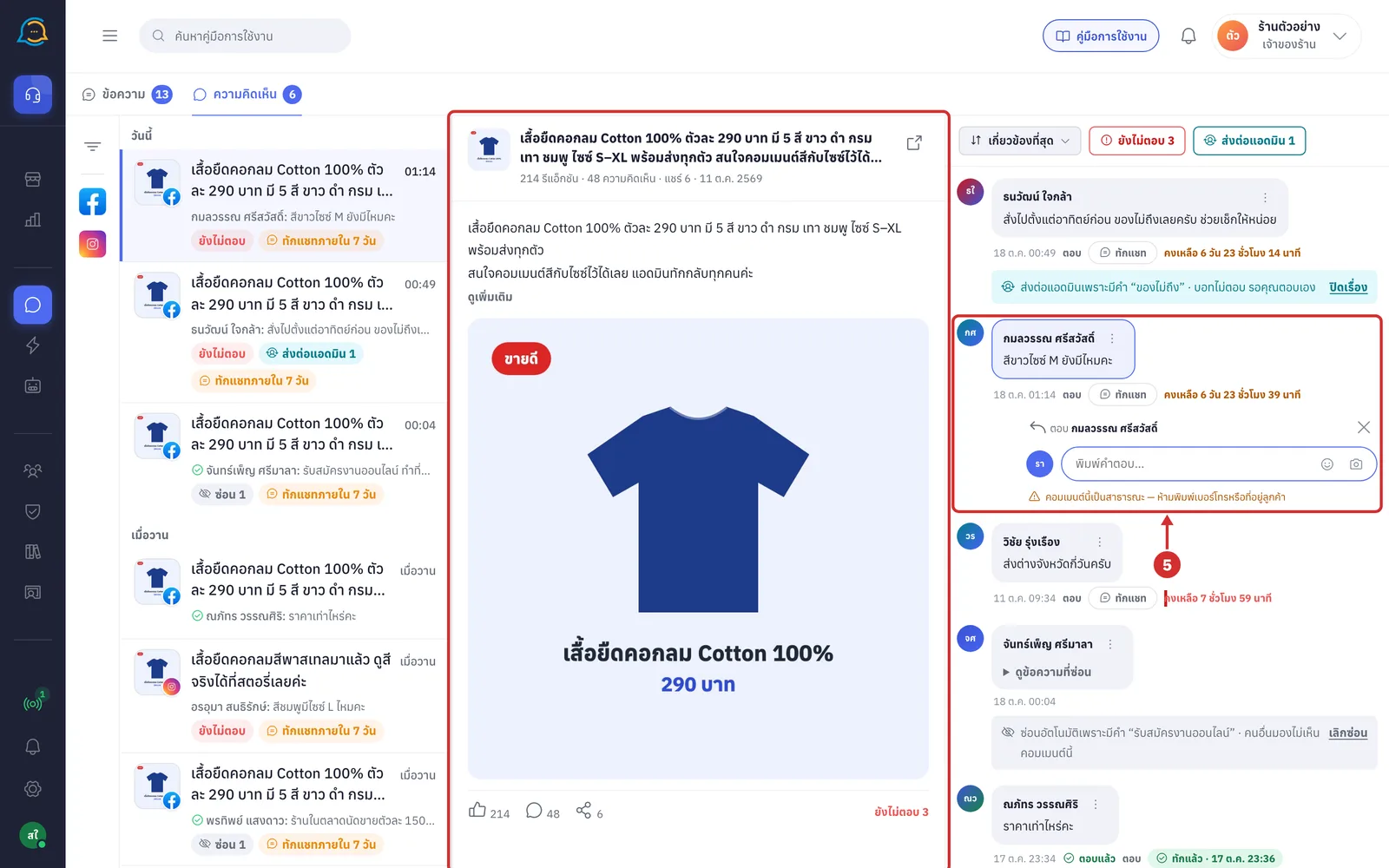
Right: everyone's comments under that post. The comment of the row you clicked is highlighted
More details
The reply box opens right away under that customer's latest comment, except for hidden comments and comments on Instagram (comments the system hid because the shop chose to hide ทุกคอมเมนต์ (All comments) still open the reply box)
The column shows up to 200 comments per post
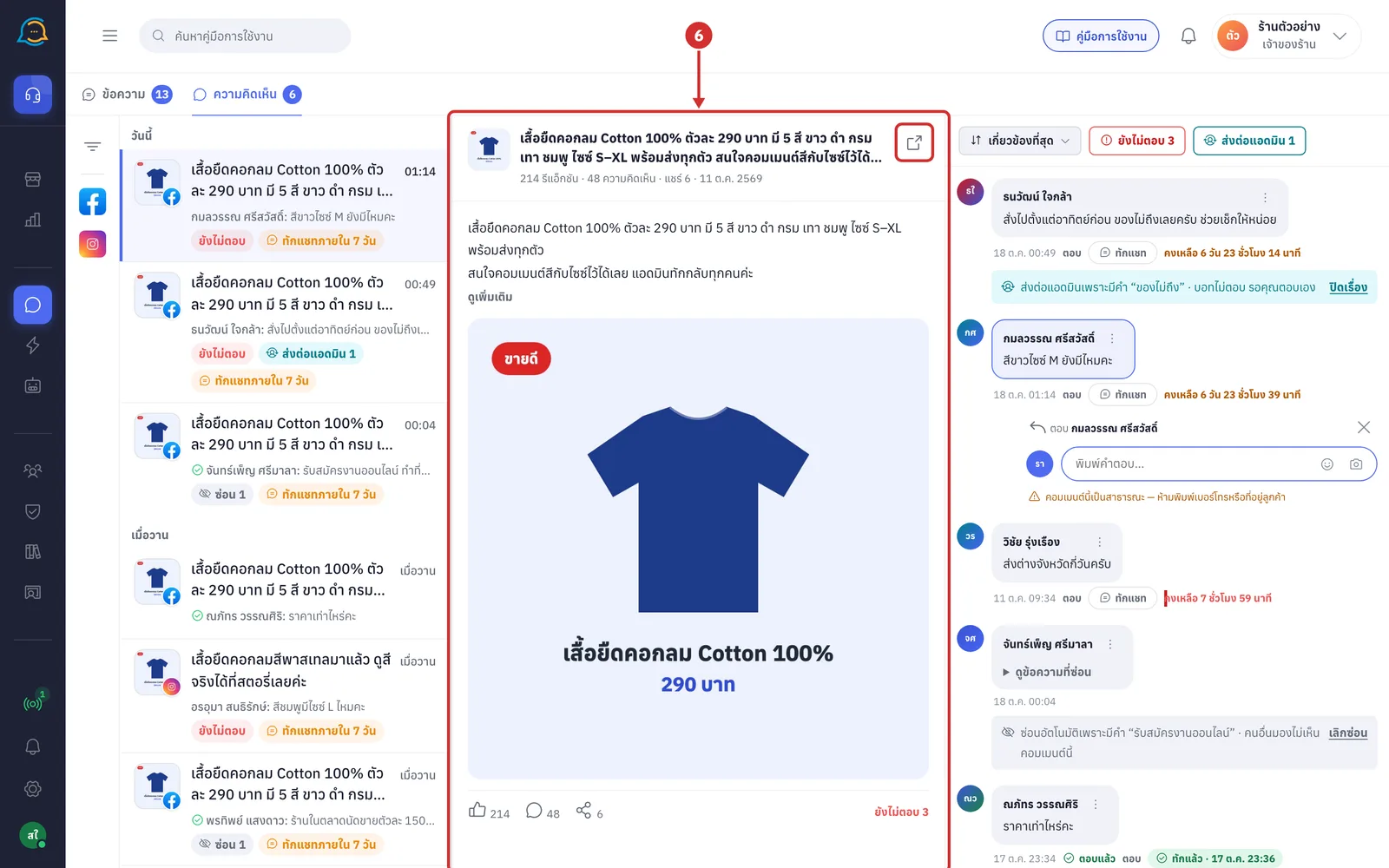
The post part shows the post details
Post header: thumbnail, post text, the number of รีแอ็กชัน (reactions), ความคิดเห็น (comments), แชร์ (shares) and the post date
Arrow button at the top right: opens the post on Facebook or Instagram in a new tab
Long post text: click ดูเพิ่มเติม (See more) to read it all, and ย่อลง (Show less) to fold it back
Post picture or video: for a video post, click the play button to watch it on this page
Bottom bar: reactions, comments and shares, plus ยังไม่ตอบ N (Not answered N), the number of comments under this post not answered yet
When the post details cannot be loaded
ยังไม่มีข้อมูลโพสต์ (No post details yet): the comment arrived before the system started keeping post details; open it on Facebook
รูปของโพสต์หมดอายุแล้ว — เปิดดูบน Facebook (The post picture has expired — open it on Facebook)
โพสต์นี้เป็นวิดีโอ แต่ดึงลิงก์มาเล่นที่นี่ไม่ได้ — เปิดดูบน Facebook (This post is a video, but it cannot be played here — open it on Facebook)
โพสต์นี้ไม่มีข้อความหรือรูปที่ดึงมาได้ — เปิดดูบน Facebook (This post has no text or picture that could be loaded — open it on Facebook)
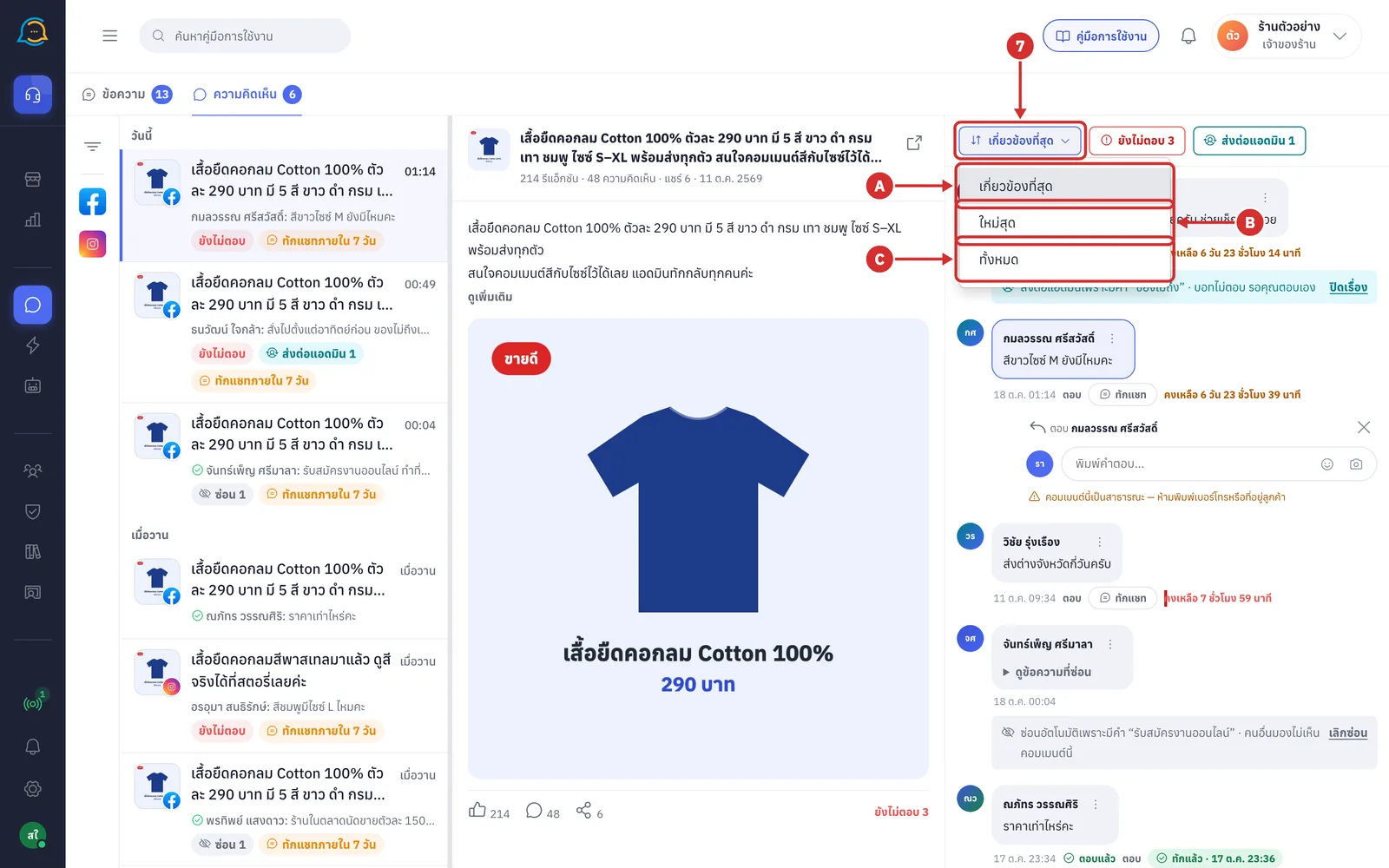
Click the sort button at the top of the comment column to choose the order. There are 3 options
A เกี่ยวข้องที่สุด (Most relevant) is the default. Comments that need someone come first, in this order: forwarded to admin, not answered, hidden by the system, answered by the bot, and the rest; within each group, newest first
B ใหม่สุด (Newest) sorts from newest to oldest
C ทั้งหมด (All) sorts from oldest to newest, in the order the comments were made
Good to know: Replies always stay under the comment they answer, in time order, whatever sort option you choose
Click a quick filter button next to the sort button to show only the comments that need action
ยังไม่ตอบ N (Not answered N): shows only comments not answered yet
ส่งต่อแอดมิน N (Forwarded to admin N): shows only comments the bot forwarded to an admin
More details
A button appears only when its group has at least 1 comment
The number counts the comments shown in the column; when the column shows the full 200, a + is added
This filter applies to the comment column only, not to the list on the left
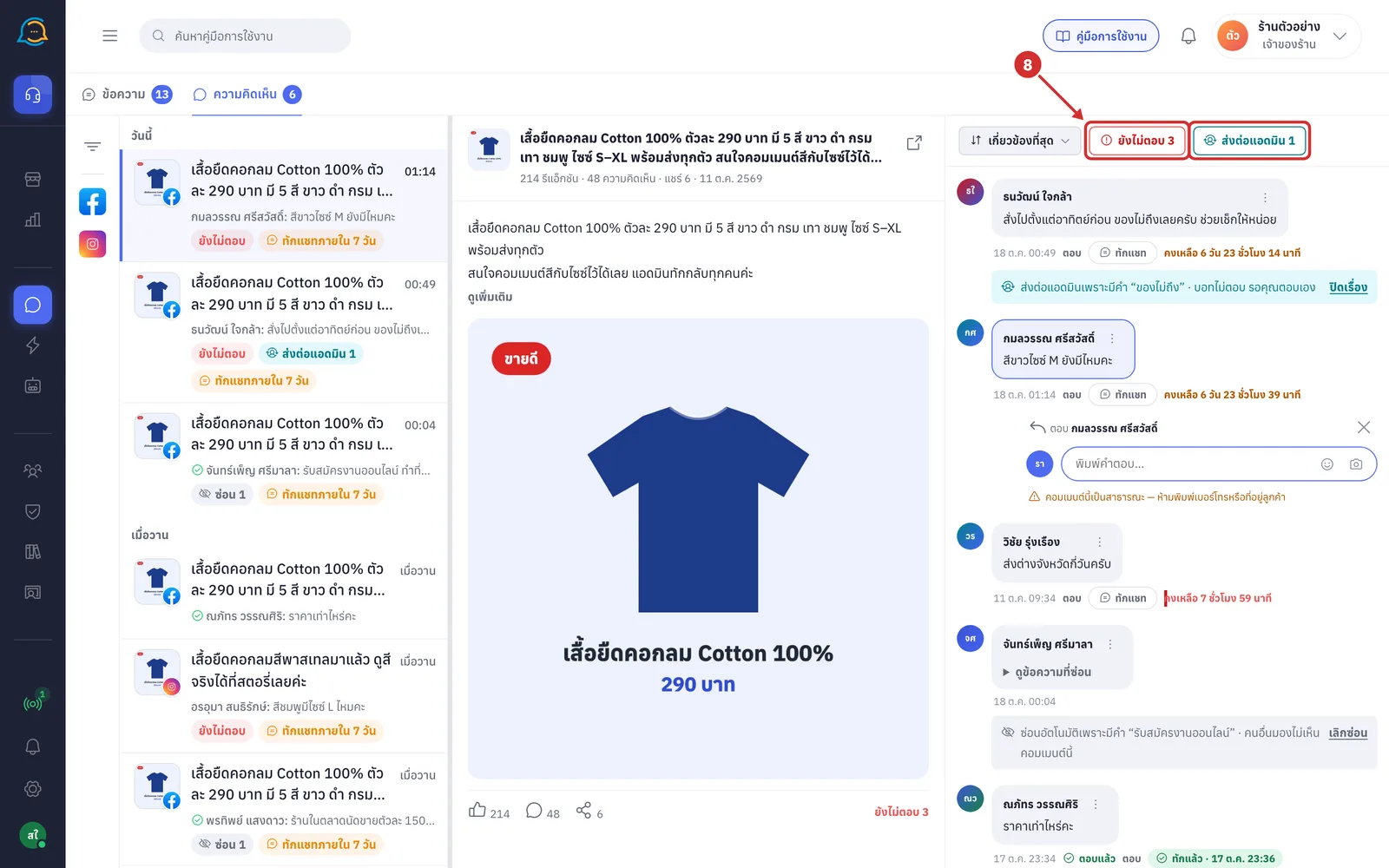
8.1 When you click a quick filter, the button gets a coloured background and the column shows only the comments in that group, together with the replies under them. Click the same button again to show everything. If nothing matches, you see ไม่มีความคิดเห็นที่ตรงตัวกรอง (No comments match the filter)
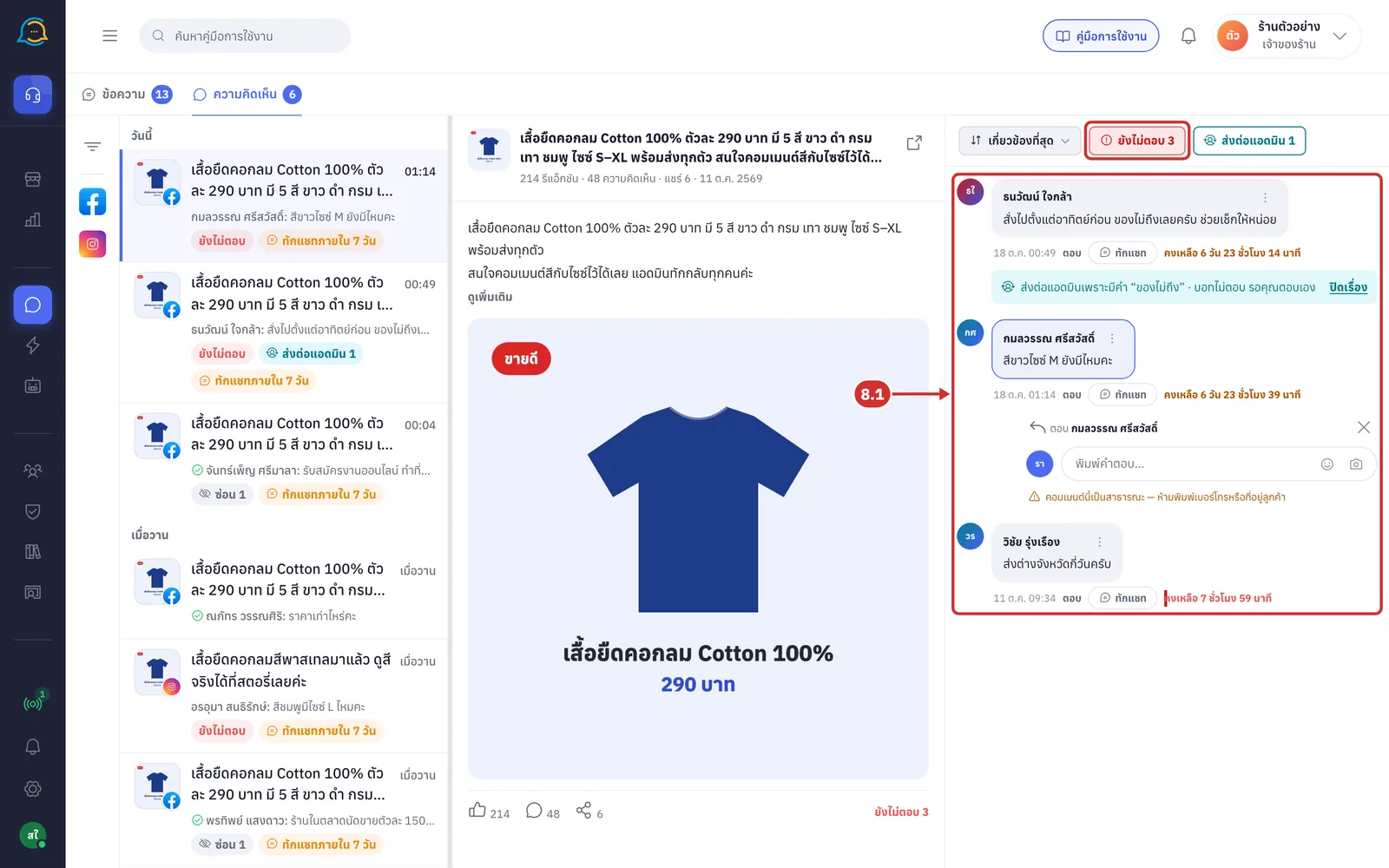
Each comment in the right column shows the following
Name and message: the commenter's name with the text, picture or sticker they sent
Date and time: when the customer commented on Facebook or Instagram
ตอบแล้ว (Answered): the shop replied under this comment or messaged them privately
Shop reply: indented under the comment it answers, with the shop name and the ผู้ดูแลเพจ (Page admin) label, so it is not mistaken for another customer
Private messages are not shown in this column; they are in that customer's chat
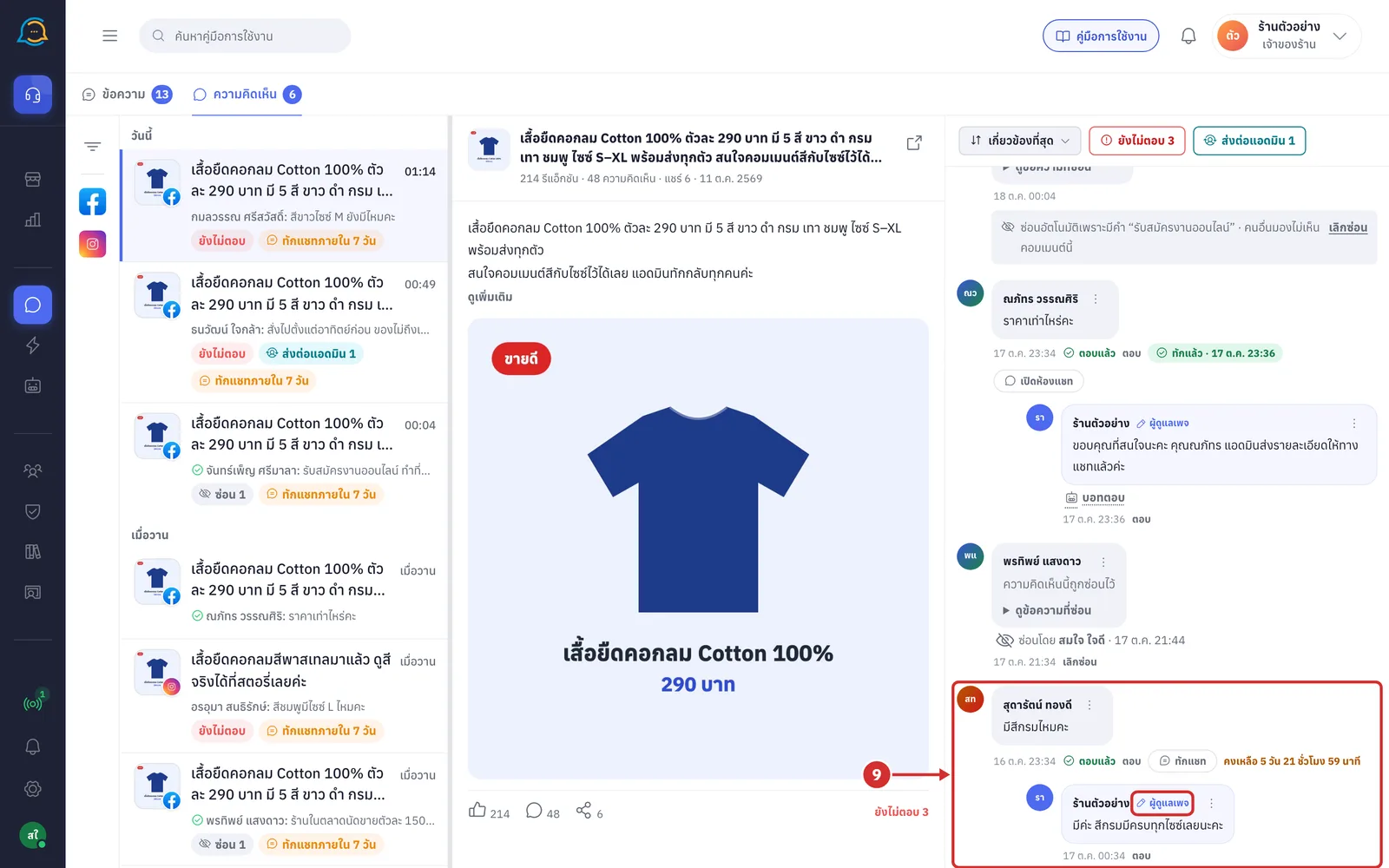
Replying under a comment
A reply under a comment is public: everyone who sees the post sees the reply too. The shop can reply as many times as needed, and replies appear in the name of the page.
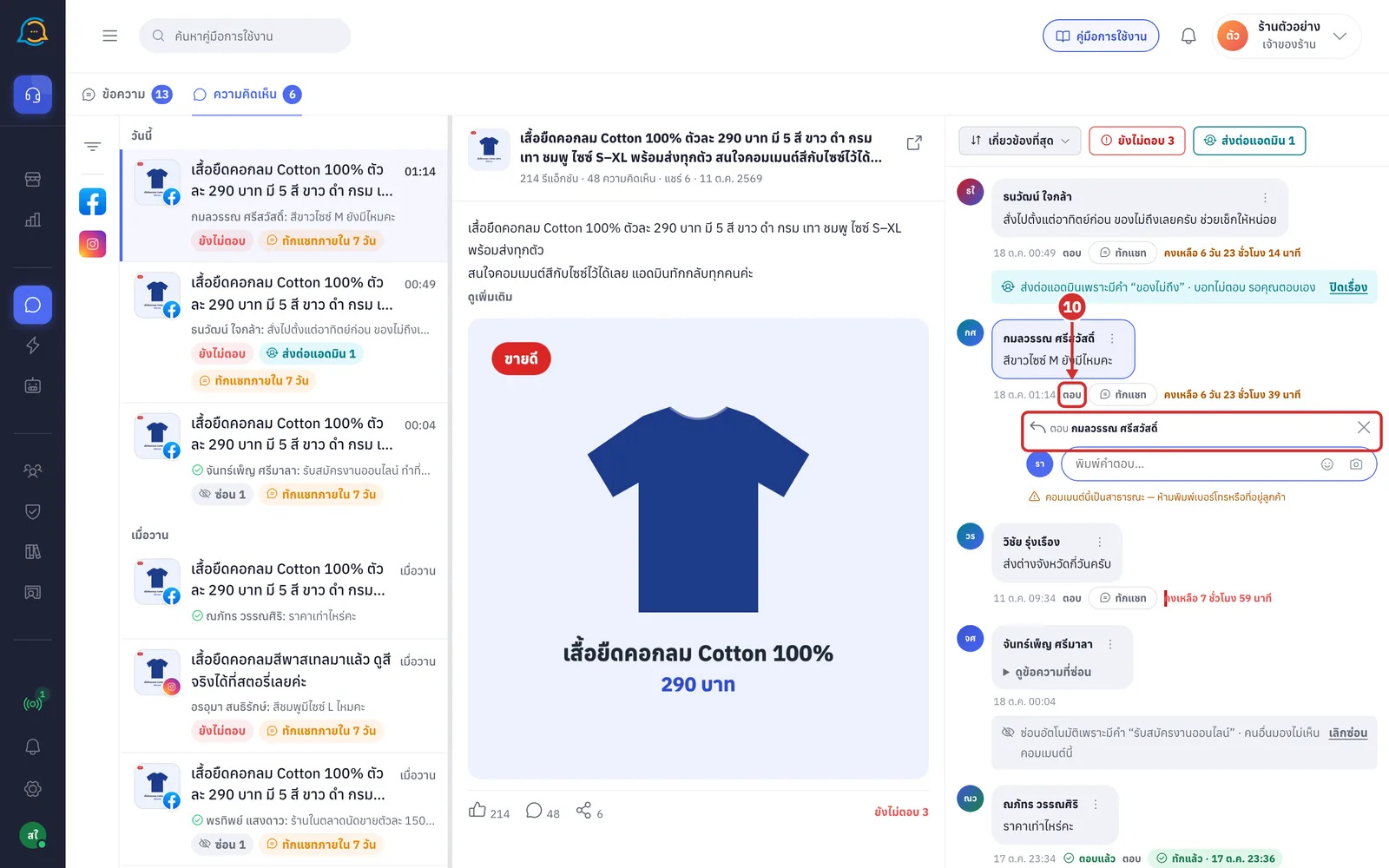
Click ตอบ (Reply) under the comment you want. A ตอบ (Reply to) box with the commenter's name appears under that comment
When you open a row from the list on the left, the reply box is already open
Only one reply box is open at a time; clicking ตอบ (Reply) on another comment moves the box there
To close the box, click the same ตอบ (Reply) again, or the X at the right of the box
Type your reply in พิมพ์คำตอบ... (Type a reply...)
The picture before the box is the shop's logo or initials; point at it to see whose name the reply is sent under
Under the box is the warning คอมเมนต์นี้เป็นสาธารณะ — ห้ามพิมพ์เบอร์โทรหรือที่อยู่ลูกค้า (This comment is public — do not type customer phone numbers or addresses). Send personal details by private message
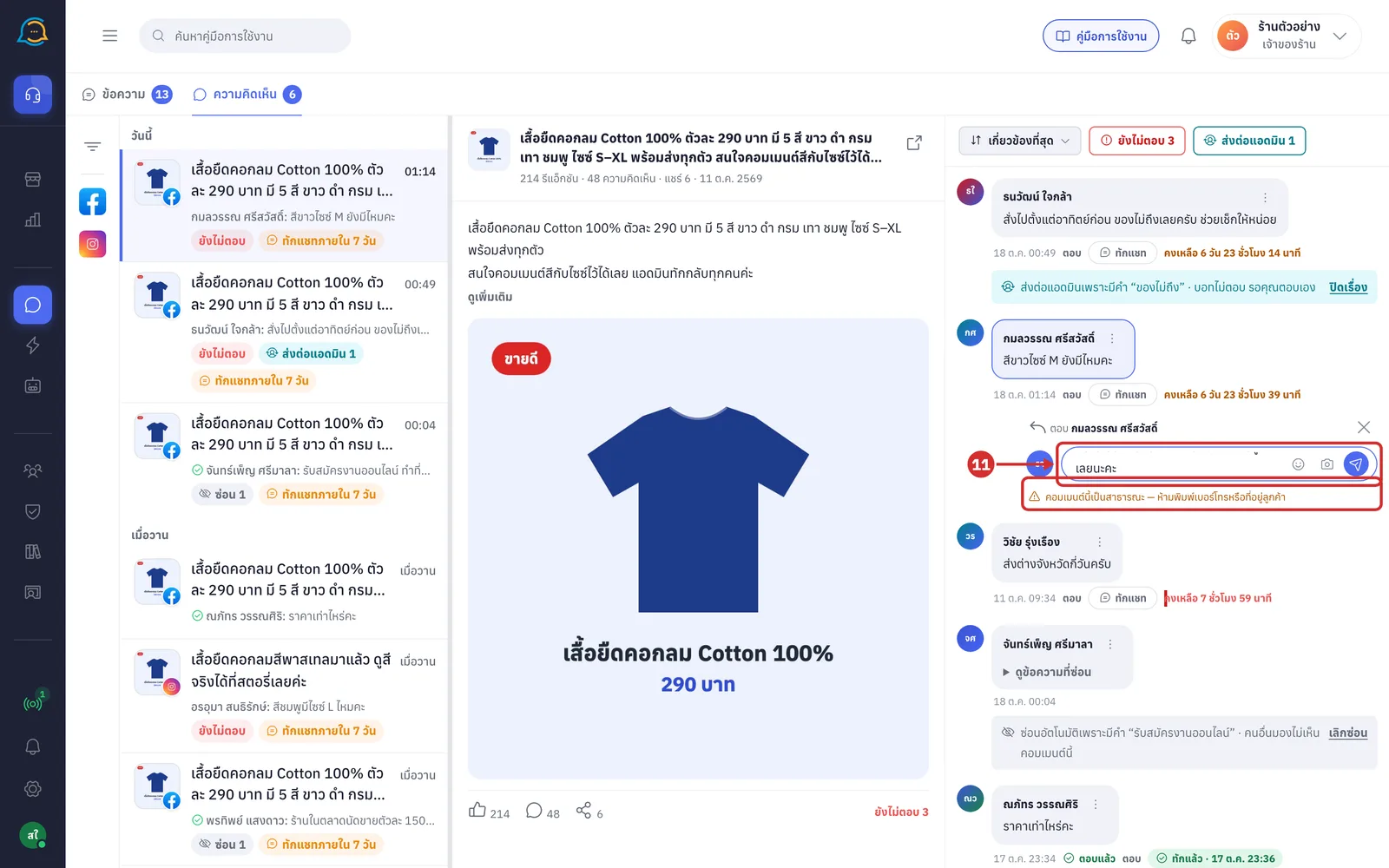
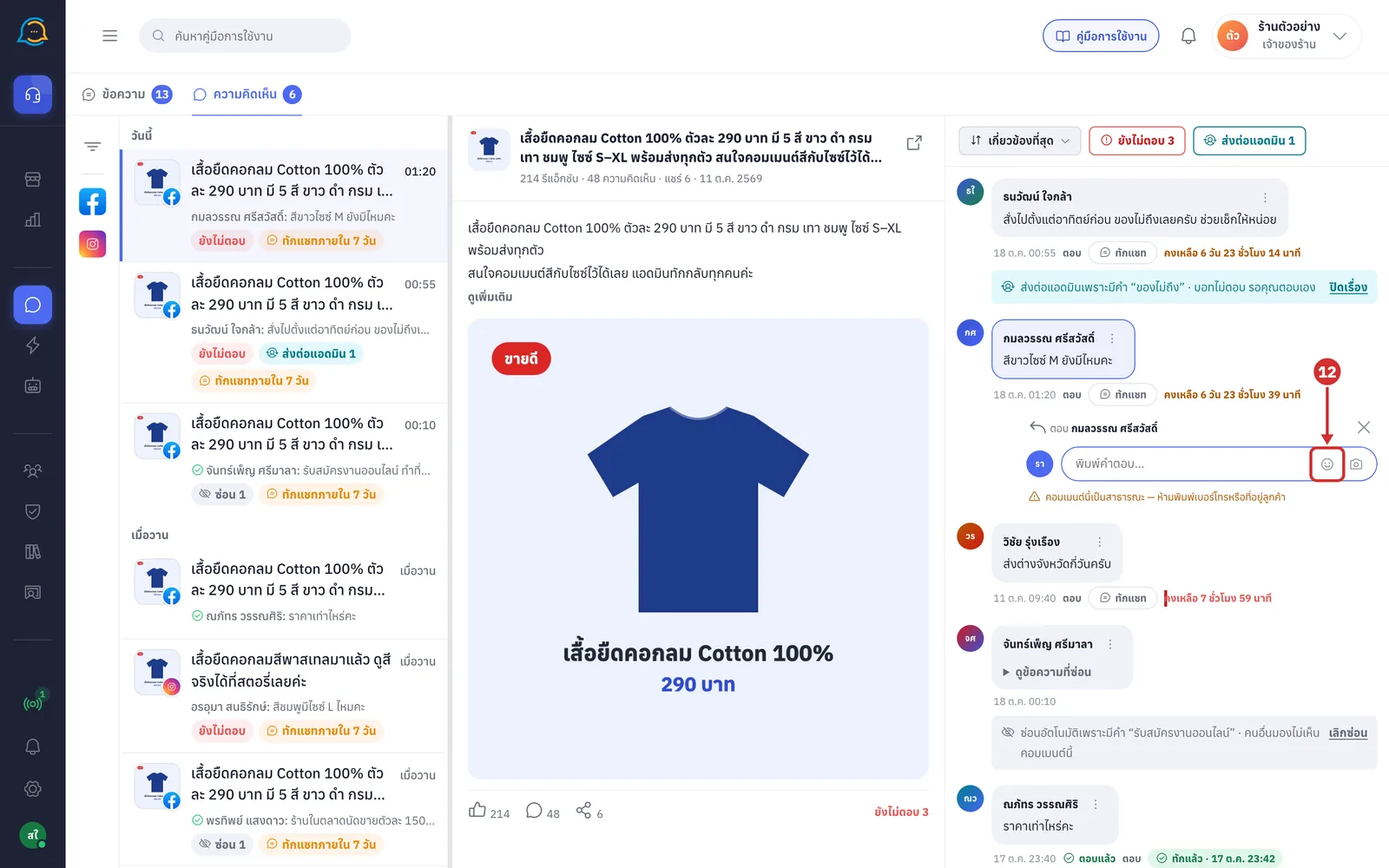
Click the smiley icon in the box to pick an emoji; it is inserted at the cursor
The สติกเกอร์ (Stickers) tab cannot be clicked, because replies under comments cannot include stickers
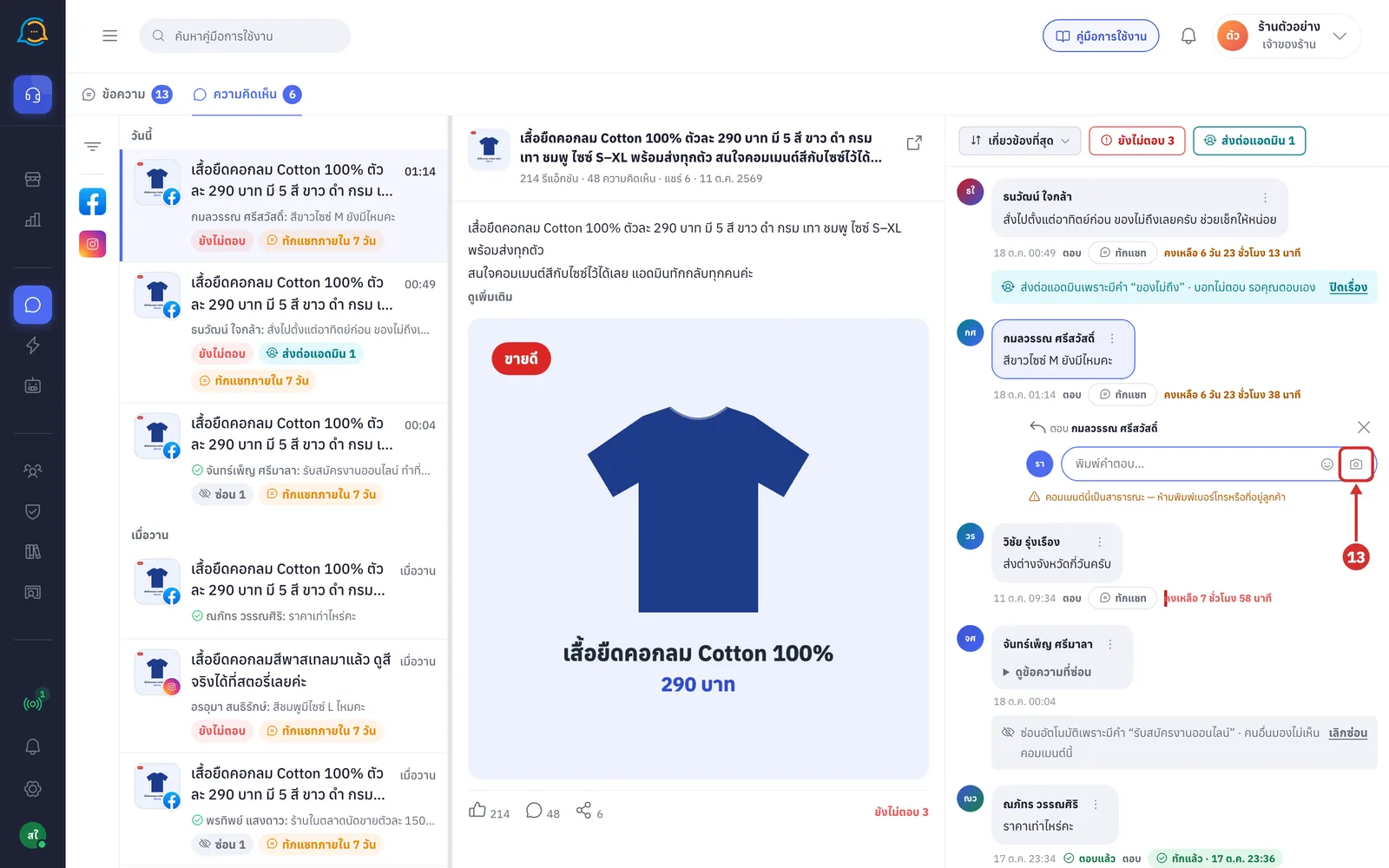
Click the camera icon to attach a picture from your computer
1 picture per reply; JPG, PNG, GIF and WEBP files only, up to 8 MB
A preview shows under the box; click the X on it to remove it
Everyone who sees the post sees this picture
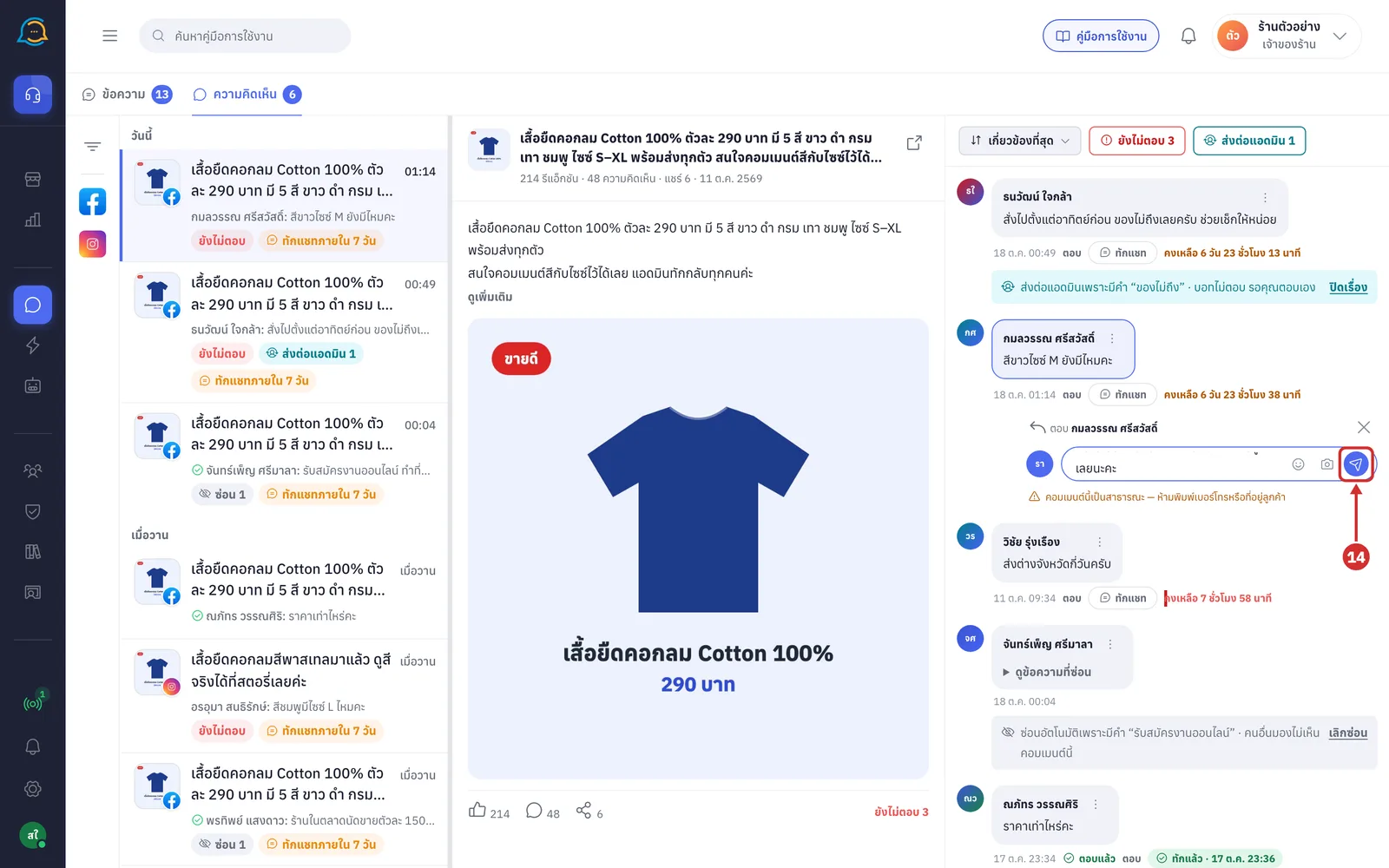
Click the send button at the end of the box (it appears once you have typed text or attached a picture)
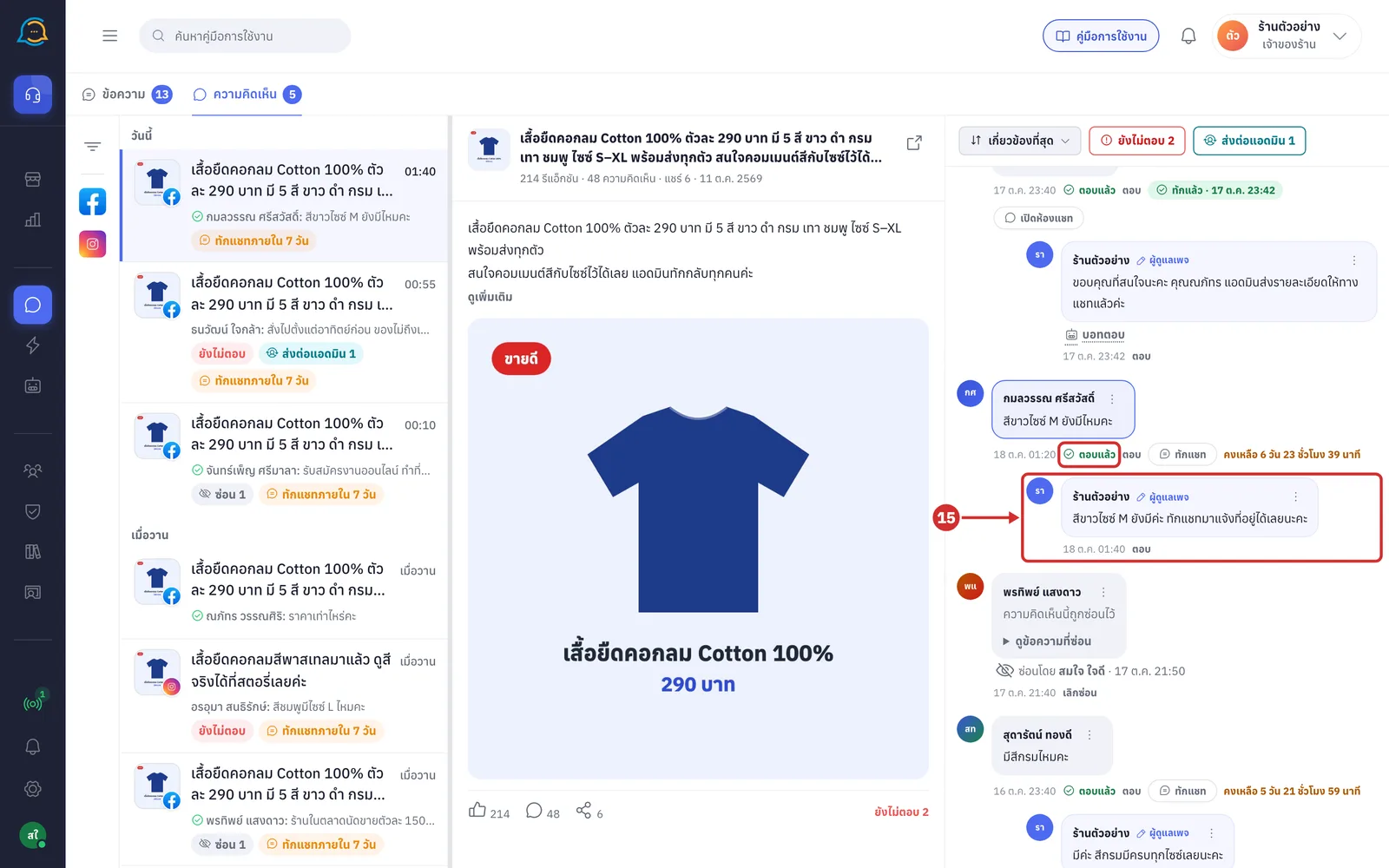
The shop's reply appears under the comment with the ผู้ดูแลเพจ (Page admin) label, and the customer's comment shows ตอบแล้ว (Answered)
If sending fails, your text stays in the box and a red message under it explains why, for example the channel has disconnected
If Facebook is slow, you see Facebook ตอบกลับช้าเกินรอ — คำตอบอาจส่งถึงแล้ว โปรดเช็กบนโพสต์ก่อนส่งซ้ำ (Facebook took too long — the reply may already be posted; check the post before sending again)
Replying to a comment the bot forwarded closes that forwarded case automatically
Messaging a commenter privately
Messaging privately sends a message to the commenter's private chat, which only they see. It suits prices, addresses or order details. Meta allows it only once per comment, within 7 days of when the customer commented.
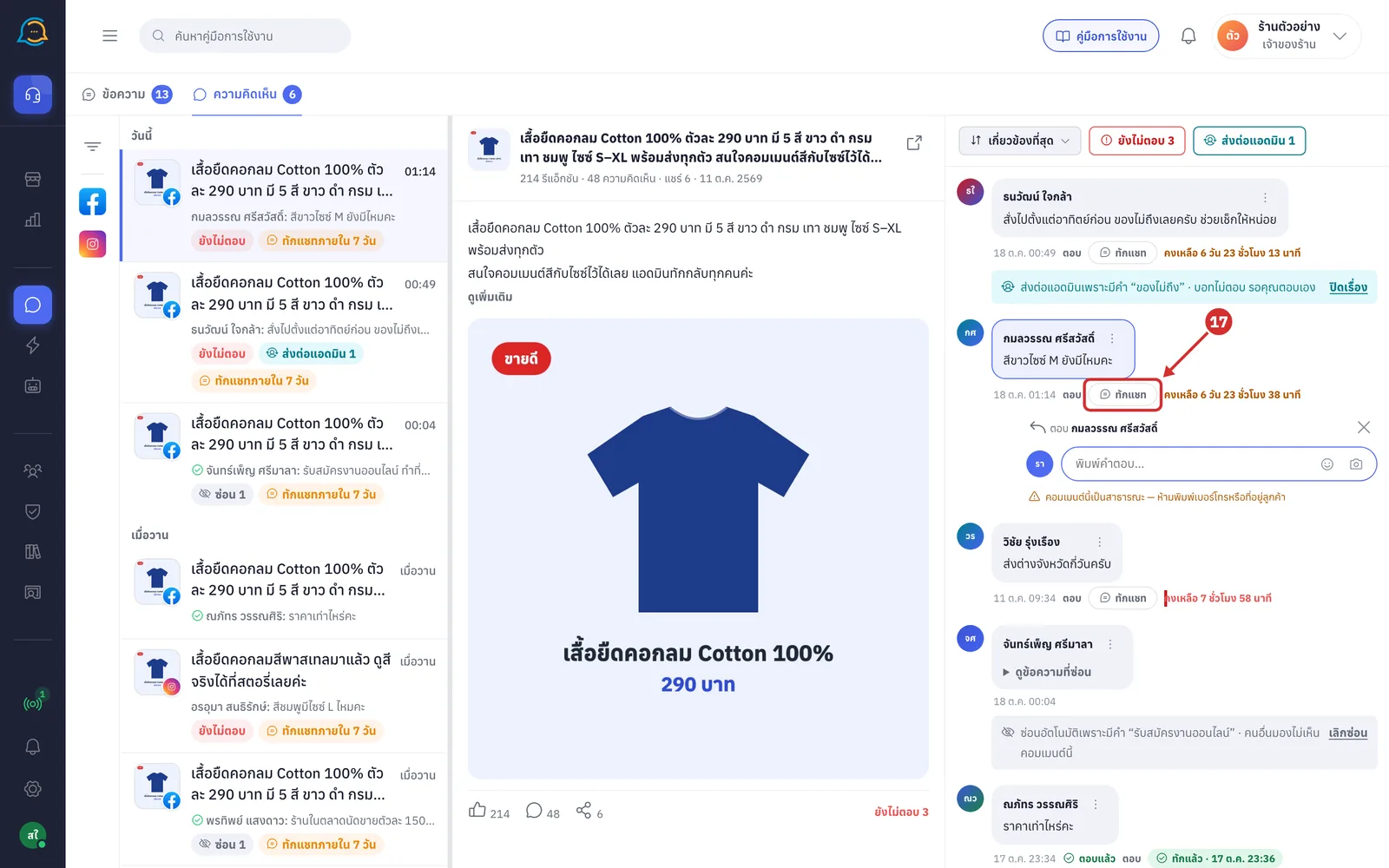
Check the time left next to the ทักแชท (Message) button, shown as คงเหลือ (Left) followed by days, hours and minutes
When less than 24 hours are left, the text turns red
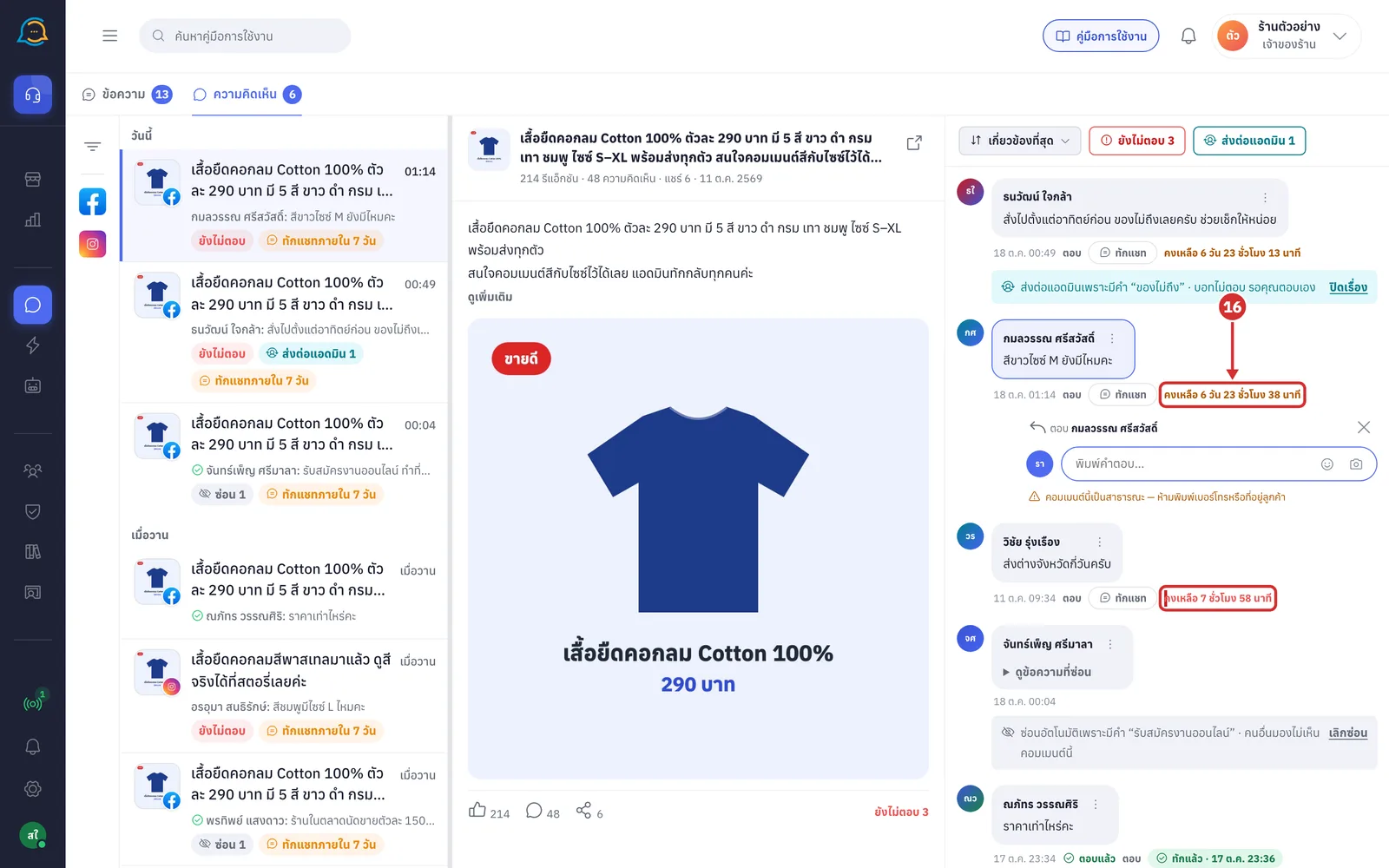
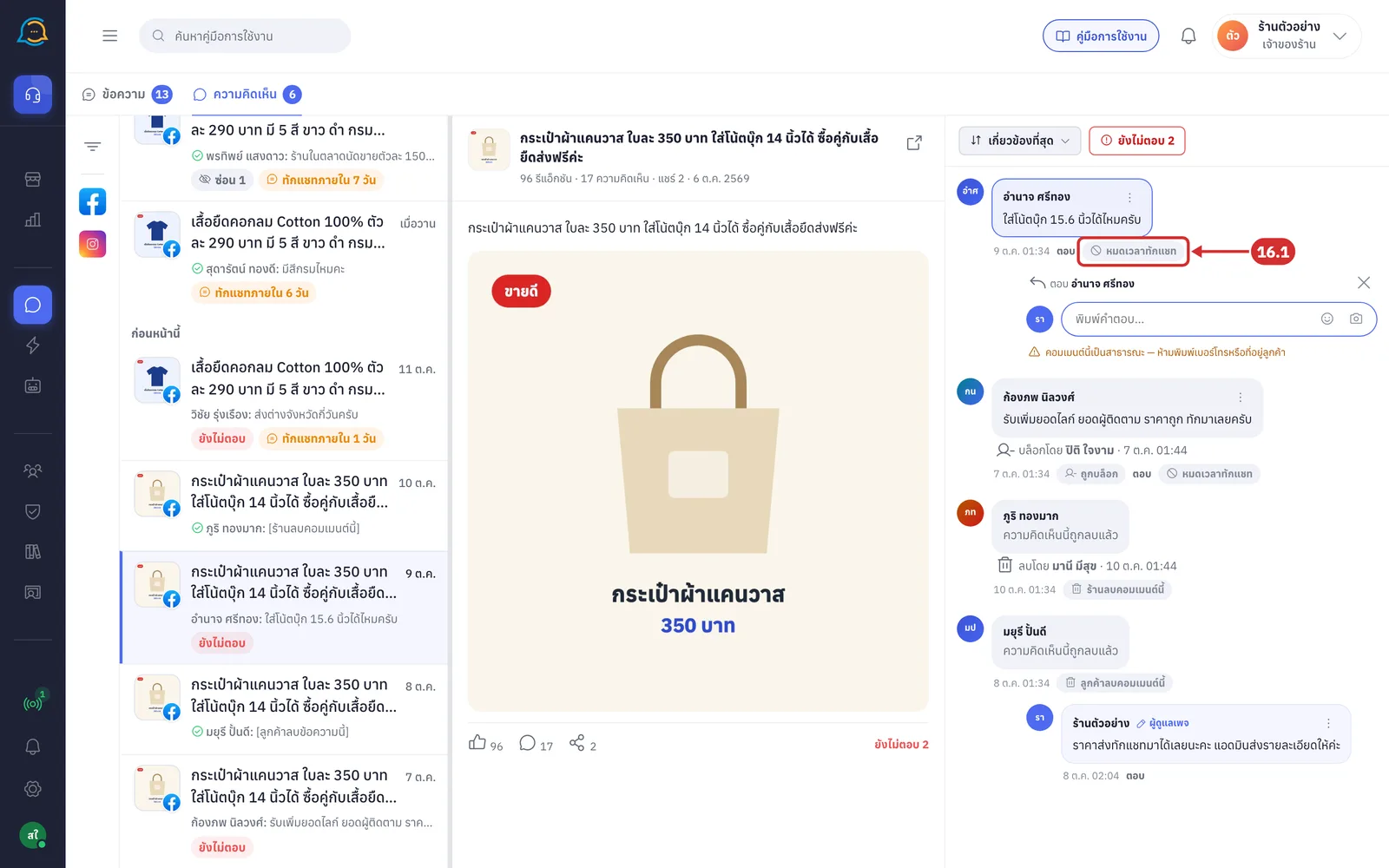
16.1 After 7 days, the ทักแชท (Message) button turns into a หมดเวลาทักแชท (Messaging time is over) label and cannot be clicked. You can still click ตอบ (Reply) under the comment as usual
Click ทักแชท (Message) under the comment you want
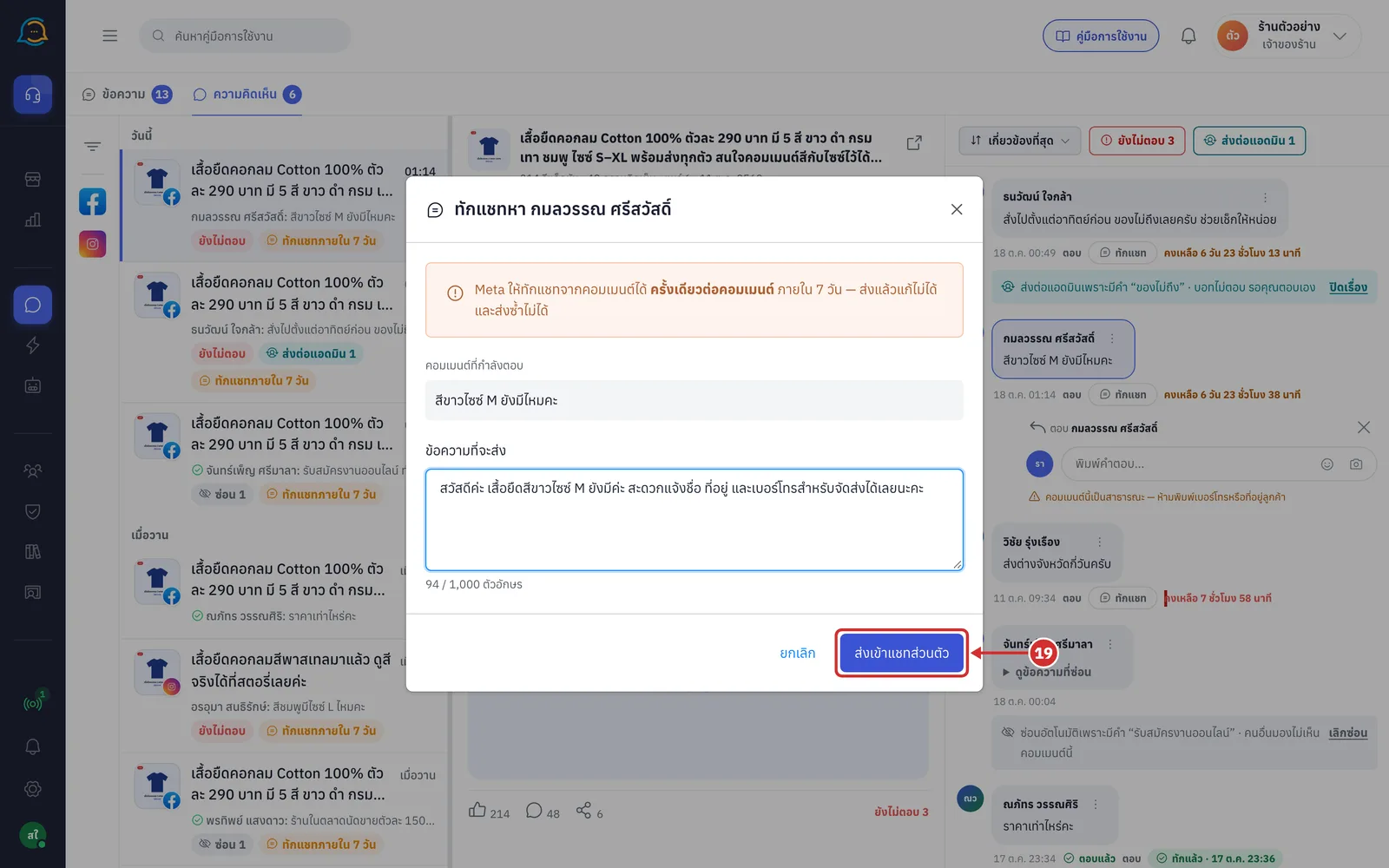
In the ทักแชทหา (Message) window with the commenter's name, type your message in ข้อความที่จะส่ง (Message to send)
The yellow box at the top warns that you can message only once per comment within 7 days, and a sent message cannot be edited or sent again
Under the warning, คอมเมนต์ที่กำลังตอบ (Comment you are answering) shows the comment so you can check it is the right person
Up to 1,000 characters; when you go over, the counter under the box turns red and you cannot send. Text only; pictures cannot be attached
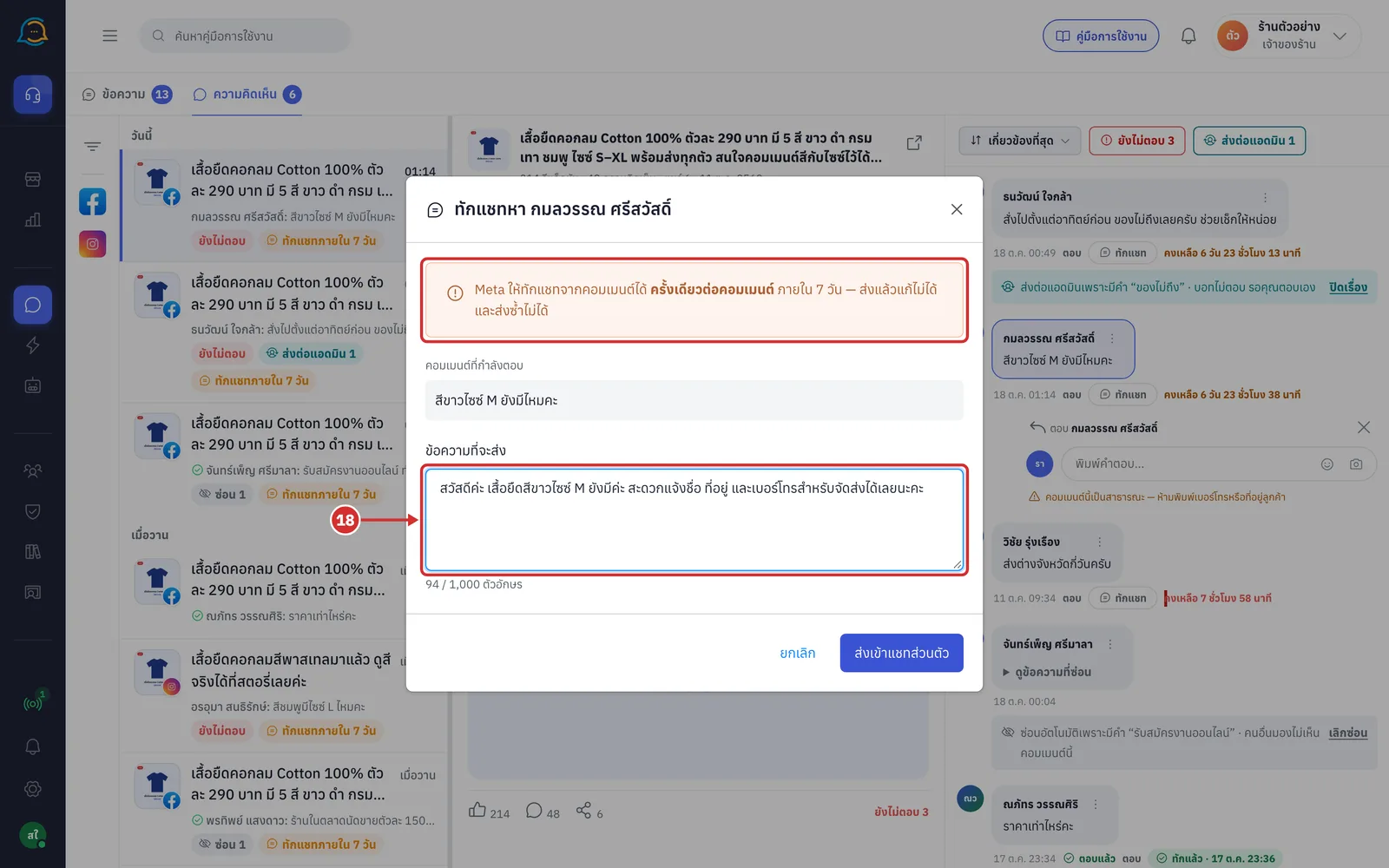
Click ส่งเข้าแชทส่วนตัว (Send to private chat) to send
If you do not want to send, click ยกเลิก (Cancel) or X; the window closes without sending
While sending, the button shows กำลังส่ง… (Sending…)
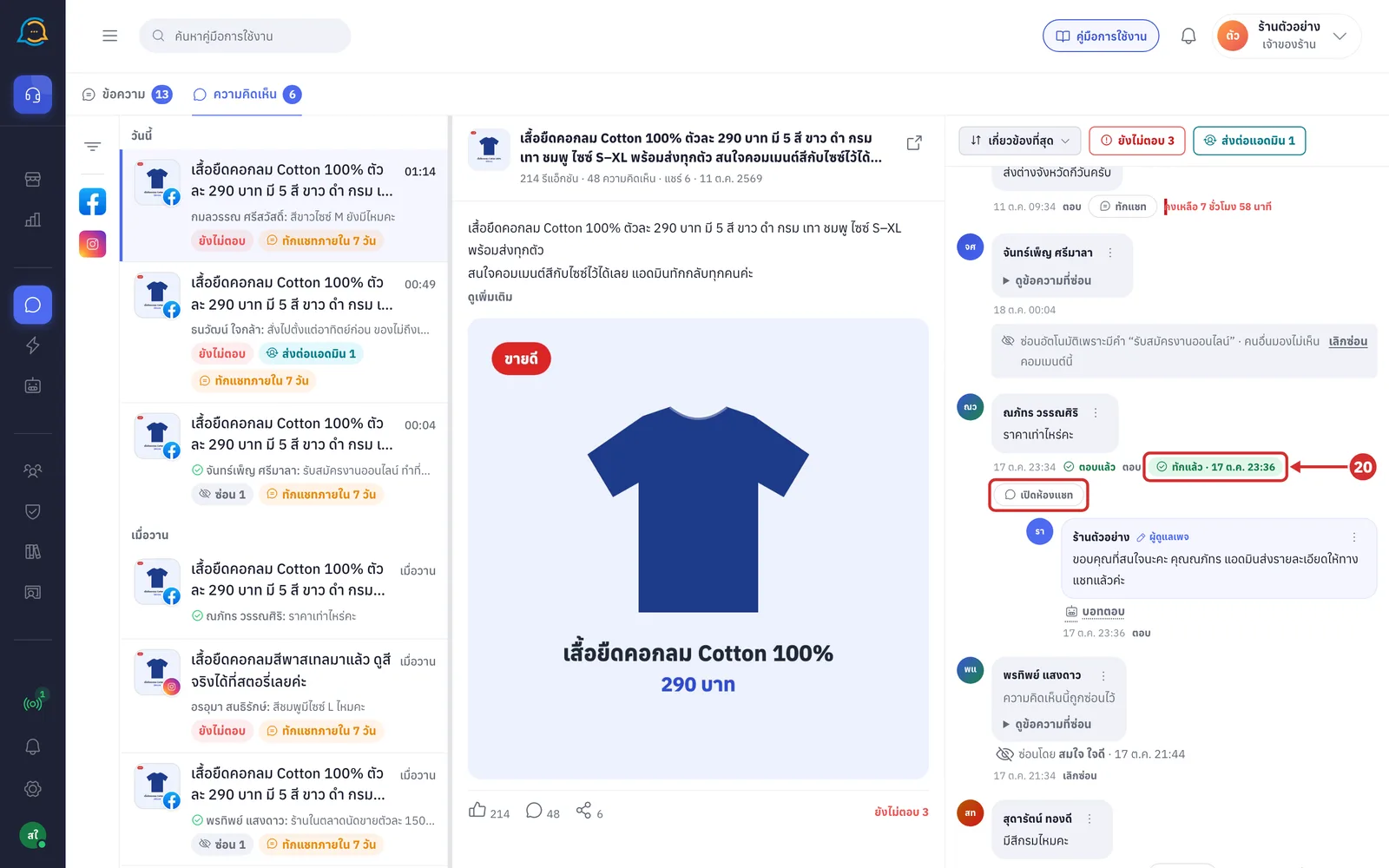
A ทักแล้ว (Messaged) label with the date and time replaces the ทักแชท (Message) button
The message is in that customer's chat on the ข้อความ (Messages) tab; click เปิดห้องแชท (Open chat) to go there. This button shows when the customer has a chat with the same page
If the comment was already messaged, you see ส่งข้อความส่วนตัวให้คอมเมนต์นี้ไปแล้ว — Meta ให้ส่งได้ครั้งเดียวต่อคอมเมนต์ (A private message was already sent for this comment — Meta allows only one per comment)
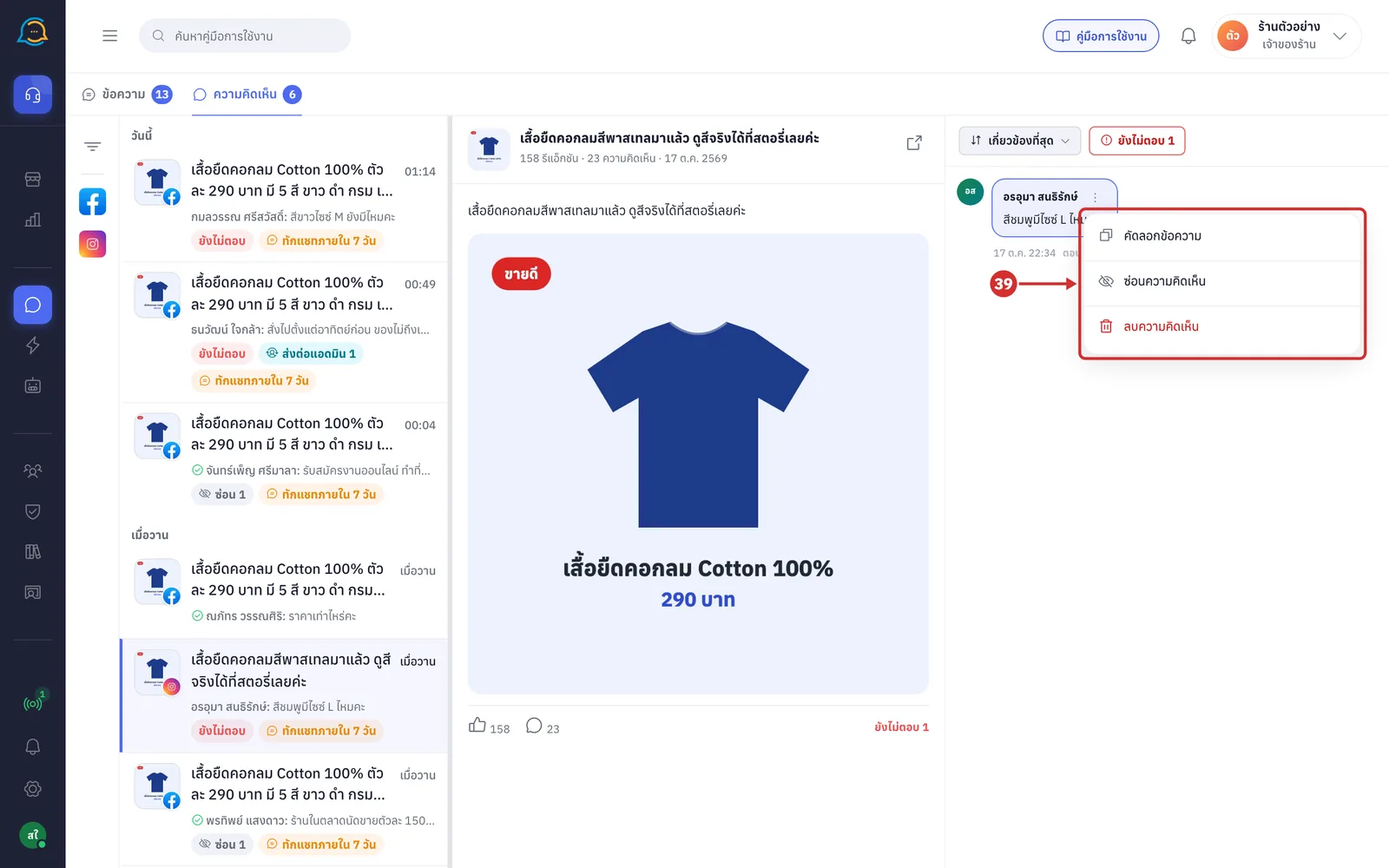
Opening the comment menu
The comment menu is ordered from options that change nothing to the one that cannot be undone. After you choose an option, the menu closes right away and the result shows on the comment.
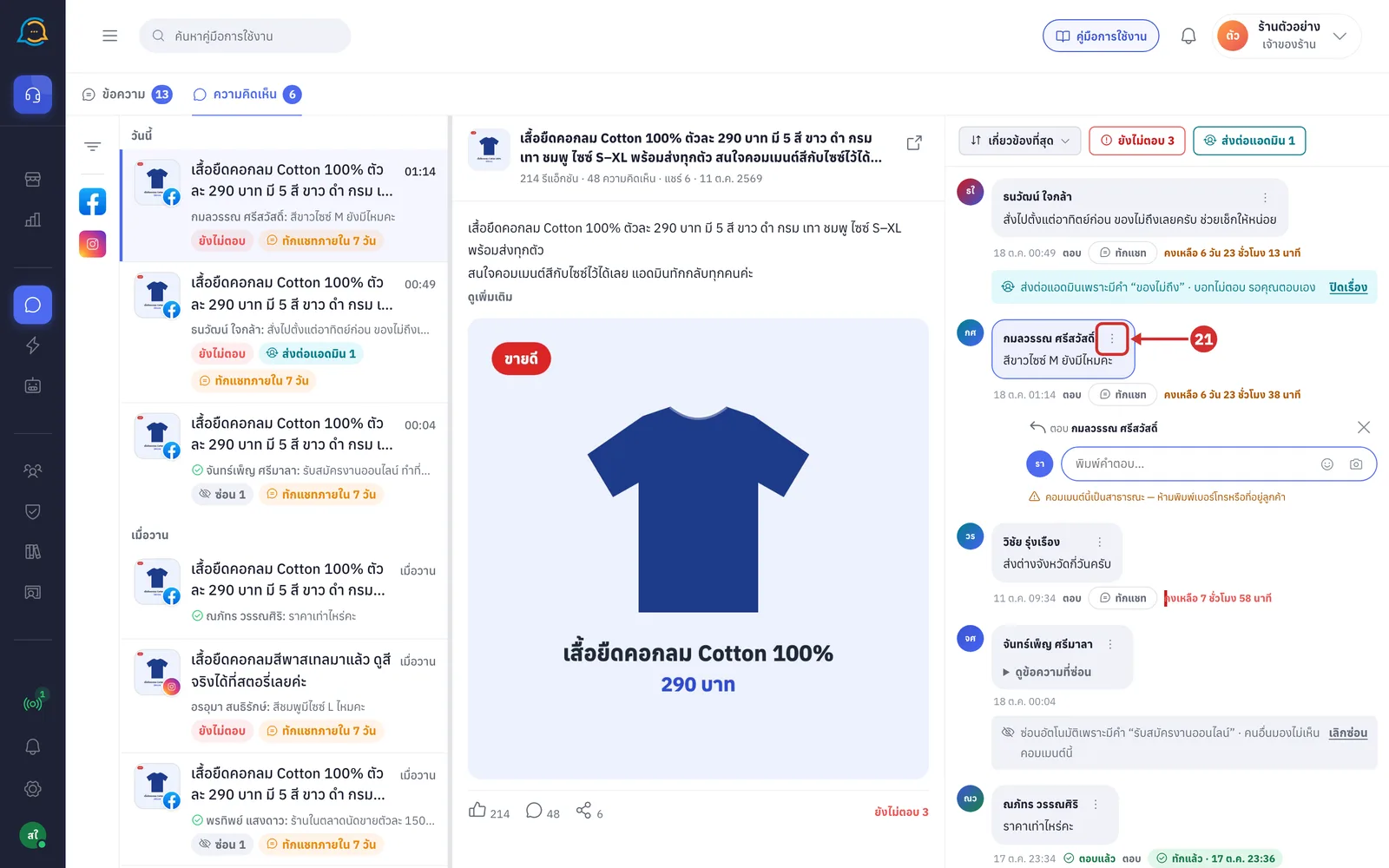
Click the three-dot button to the right of the commenter's name, or right-click the comment
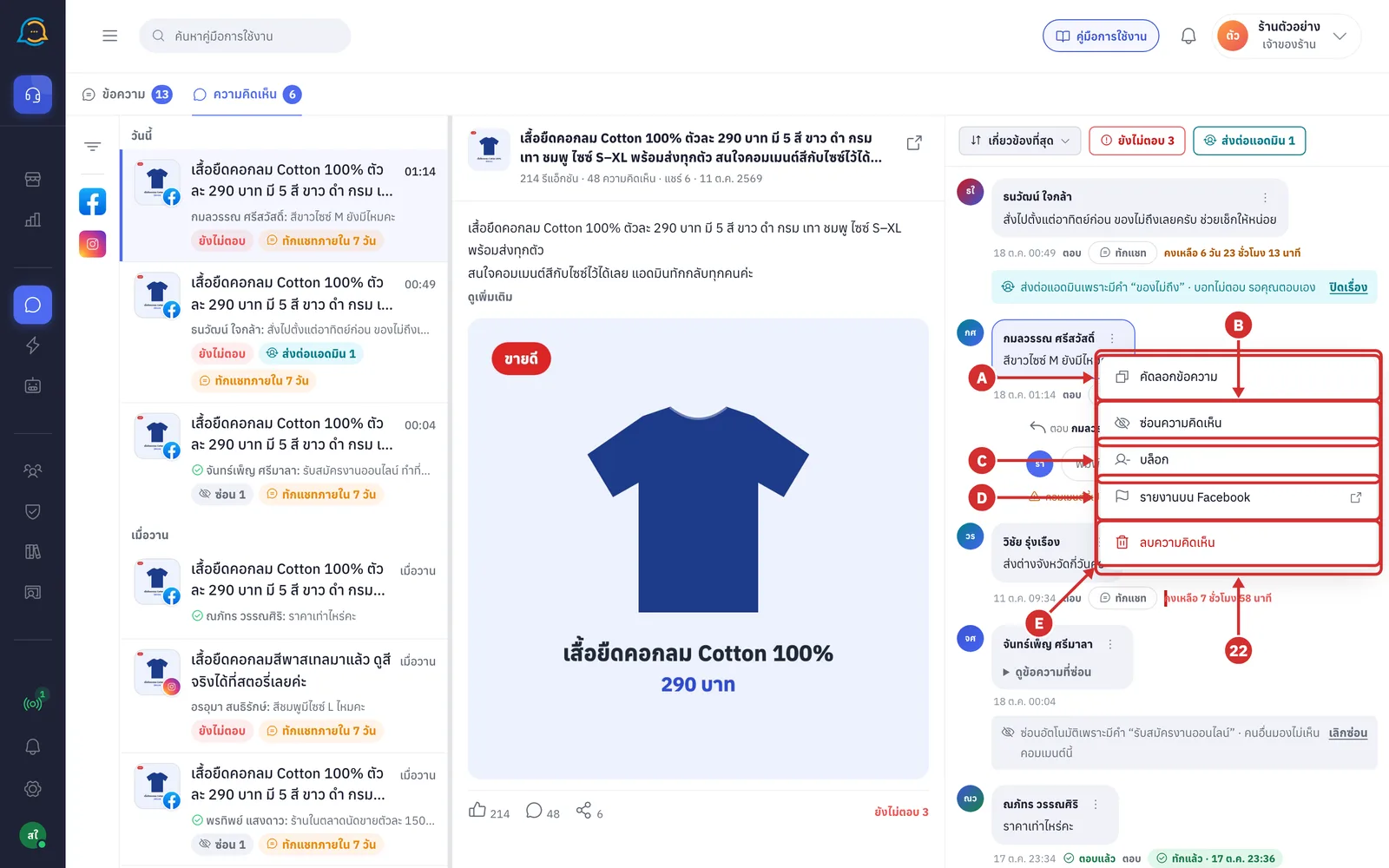
The menu has the following options
A คัดลอกข้อความ (Copy text) copies the comment text and shows คัดลอกข้อความแล้ว (Text copied). A picture-only comment cannot be copied and shows คอมเมนต์นี้ไม่มีข้อความให้คัดลอก (This comment has no text to copy)
B ซ่อนความคิดเห็น (Hide comment) hides it from others. If it is already hidden, this option reads เลิกซ่อน (Unhide)
C บล็อก (Block) blocks the commenter from the page. If they are already blocked, this option reads ปลดบล็อก (Unblock)
D รายงานบน Facebook (Report on Facebook) opens the comment on Facebook in a new tab so you can report it from Facebook's own menu, since the system cannot report on your behalf
E ลบความคิดเห็น (Delete comment) deletes the comment permanently; it is at the bottom and shown in red
More details
Options that cannot be used are greyed out with the reason under them, for example คอมเมนต์นี้ยังไม่มีรหัสจาก Meta (This comment has no Meta ID yet)
Your shop's own replies only have คัดลอกข้อความ (Copy text), and deleted comments have no three-dot button
If your browser blocks the new tab of รายงานบน Facebook (Report on Facebook), you are asked to allow pop-ups for this site and try again
Hiding a comment
Choose ซ่อนความคิดเห็น (Hide comment). The การซ่อนทำงานอย่างไร (How hiding works) window explains 3 things
The commenter and their friends can still see the comment
Other people viewing the post can no longer see it
You can unhide it at any time from the comment's menu
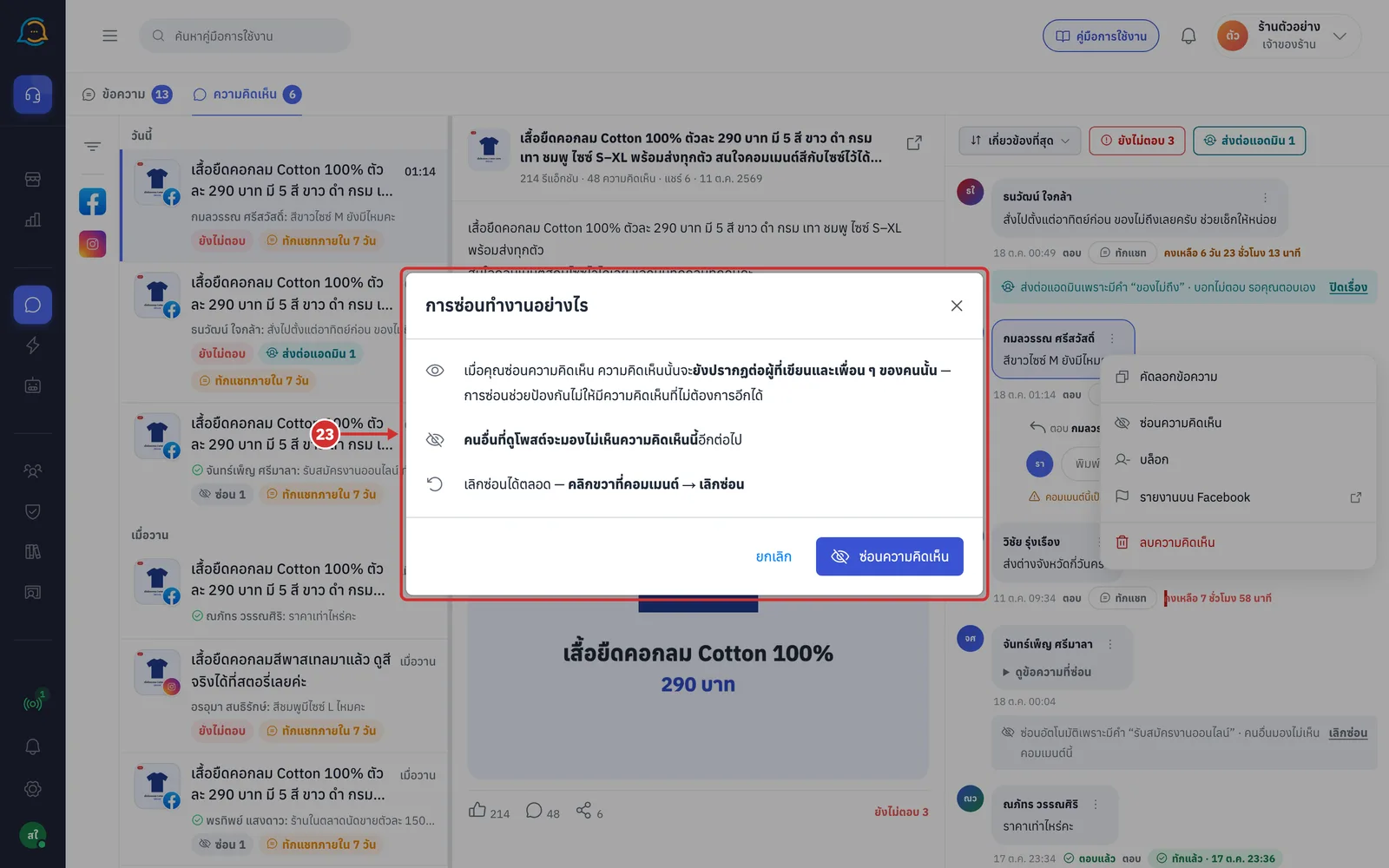
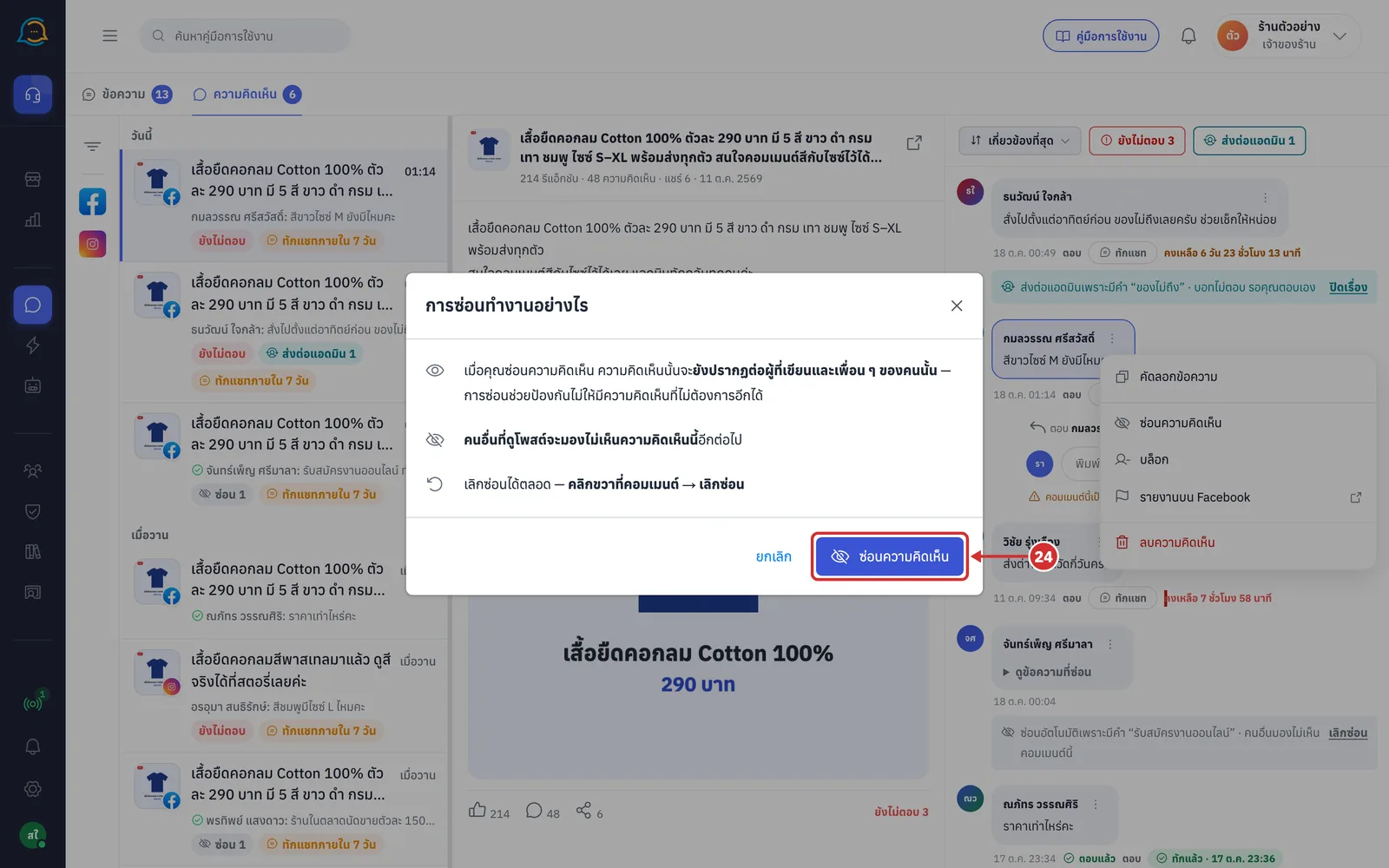
Click ซ่อนความคิดเห็น (Hide comment) to confirm
If you do not want to hide it, click ยกเลิก (Cancel); nothing is sent to Facebook
While waiting, the comment shows กำลังซ่อนบน Facebook… (Hiding on Facebook…), and if Facebook is slow, Facebook ตอบช้า ยังรออยู่… (Facebook is slow, still waiting…) or กำลังตรวจกับ Facebook อีกครั้ง… (Checking with Facebook again…)
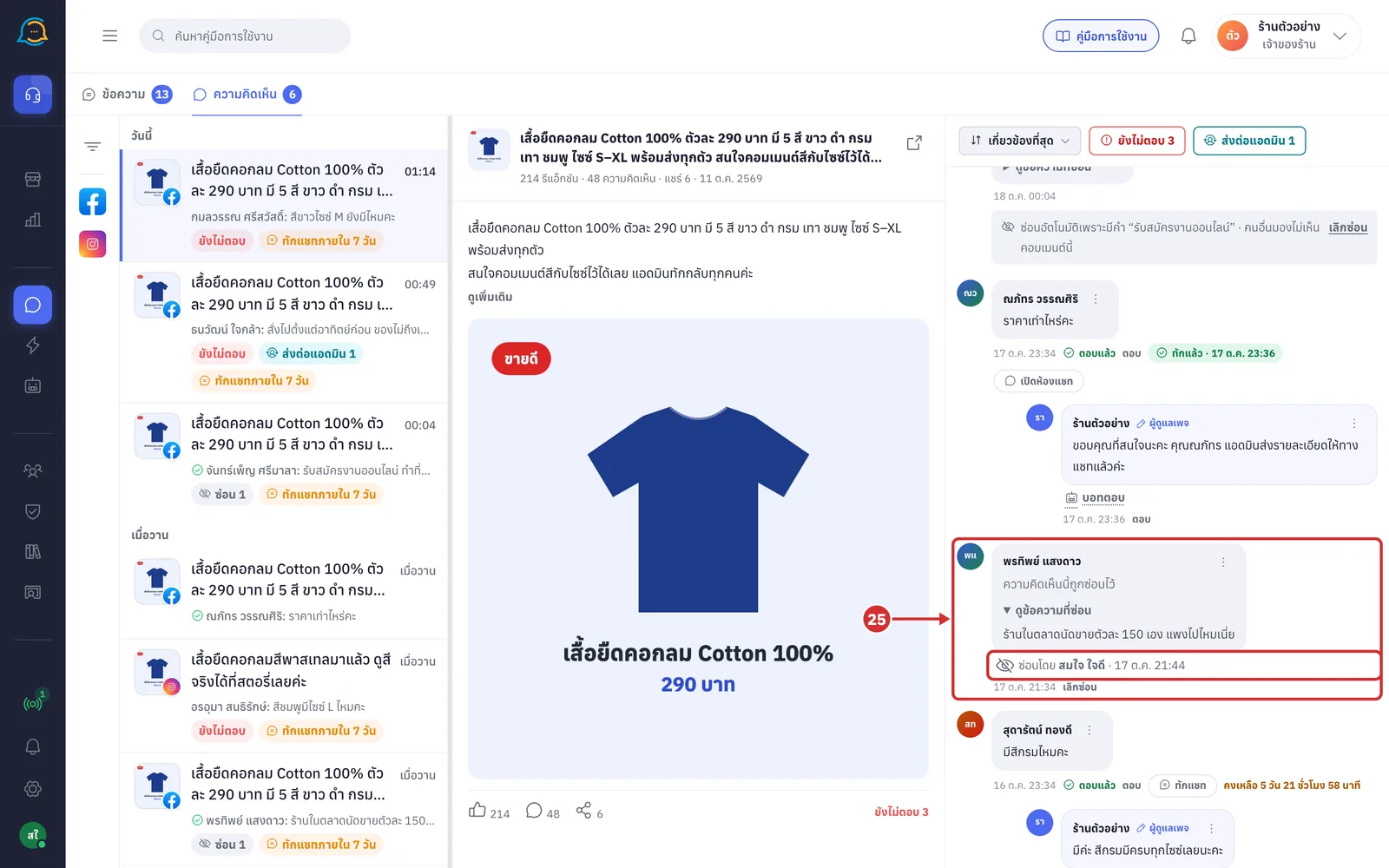
The comment shows ความคิดเห็นนี้ถูกซ่อนไว้ (This comment is hidden) instead of its text, with a ซ่อนโดย (Hidden by) line followed by the person's name and the time
Click ดูข้อความที่ซ่อน (See hidden text) to read the original text in GoChat. This does not unhide it; other customers still cannot see it
A hidden comment does not count as waiting for a reply, so it has no ตอบ (Reply) or ทักแชท (Message) button, and its row in the list gets a ซ่อน N (Hidden N) label
The exception is comments the system hid because the shop chose to hide ทุกคอมเมนต์ (All comments) in the จัดการคอมเมนต์ (Manage comments) tab of Setting up comment replies. They show the ซ่อนอัตโนมัติเพราะซ่อนทุกคอมเมนต์ (Hidden automatically because all comments are hidden) bar and the ซ่อน N (Hidden N) label like other hidden comments, but still count as waiting for a reply and keep the ตอบ (Reply) and ทักแชท (Message) buttons
If Facebook does not answer, you are told the result is not known yet and it will update by itself when Facebook reports back; if it fails, you see ซ่อนไม่สำเร็จ (Could not hide) with the reason
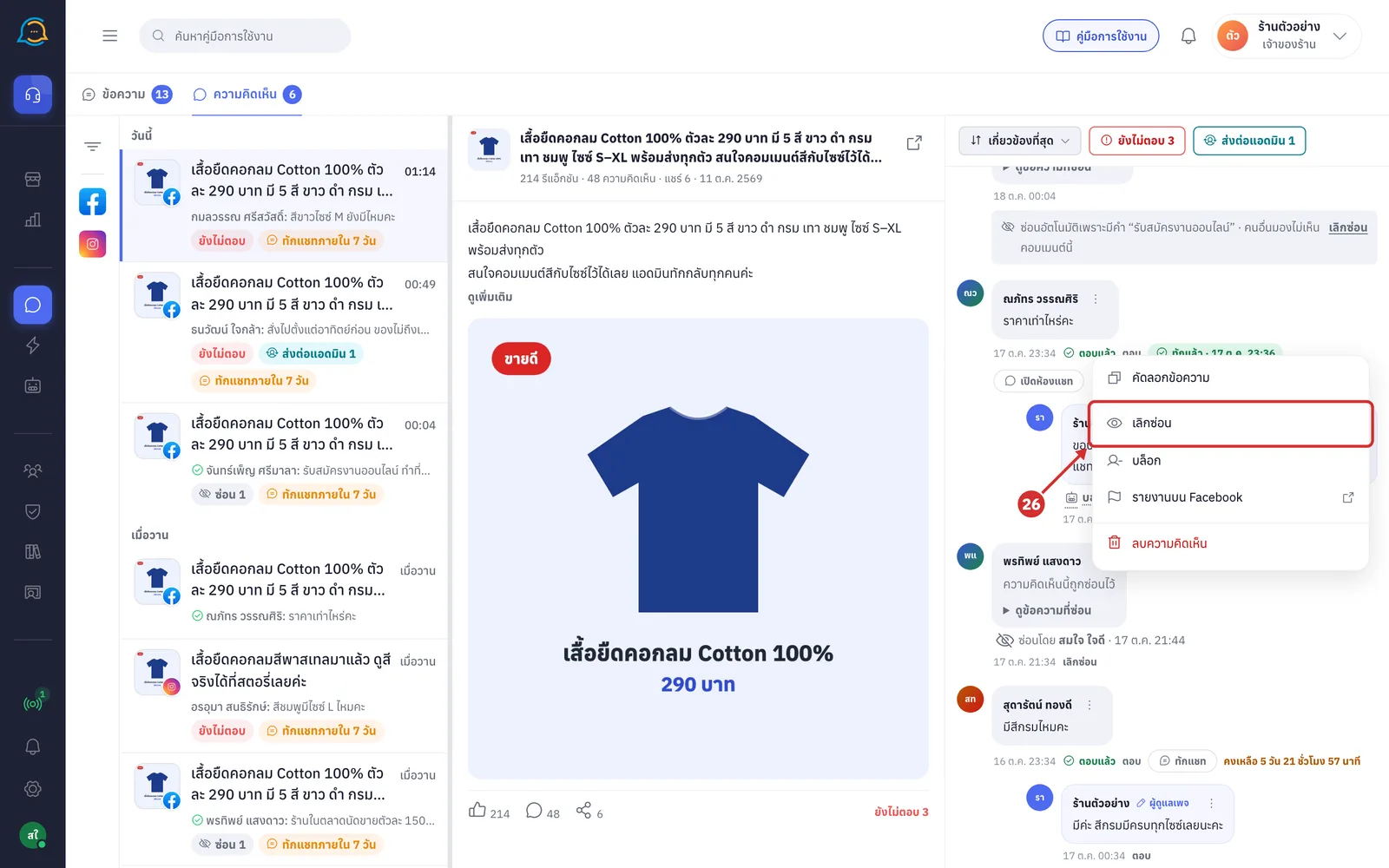
To unhide, click เลิกซ่อน (Unhide) under the comment, or the three-dot button, to open the menu, then choose เลิกซ่อน (Unhide)
It unhides right away with no confirmation; while waiting it shows กำลังเลิกซ่อนบน Facebook… (Unhiding on Facebook…)
When it is done, the original text shows again and the ซ่อนโดย (Hidden by) line disappears
Deleting a comment
Choose ลบความคิดเห็น (Delete comment). The ลบคอมเมนต์นี้ (Delete this comment) window appears
The warning says a deleted comment กู้คืนไม่ได้ (cannot be restored), neither in GoChat nor on Facebook, and the customer who wrote it will no longer see it
Under the warning, คอมเมนต์ที่จะลบ (Comment to delete) shows the comment so you can check before confirming
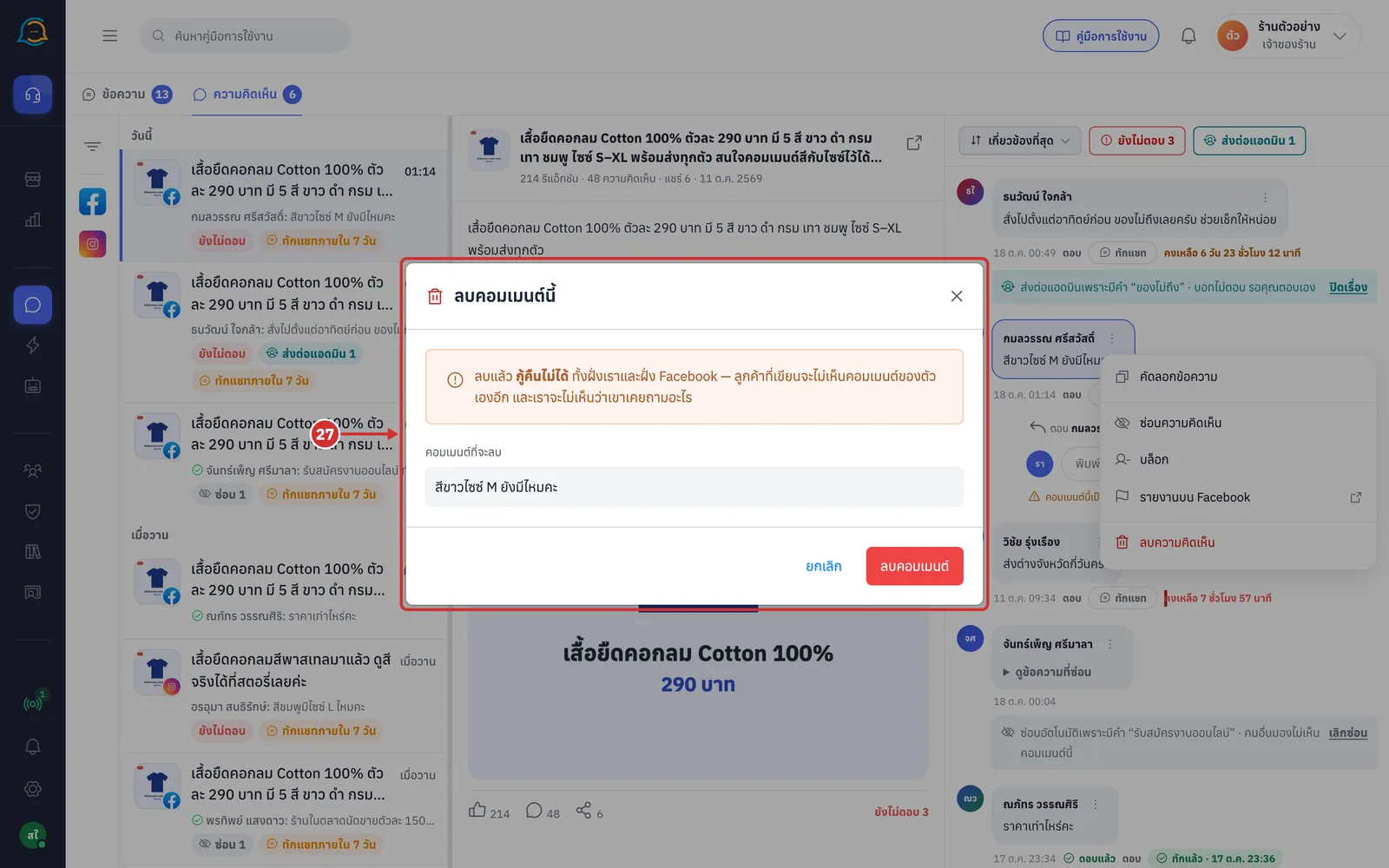
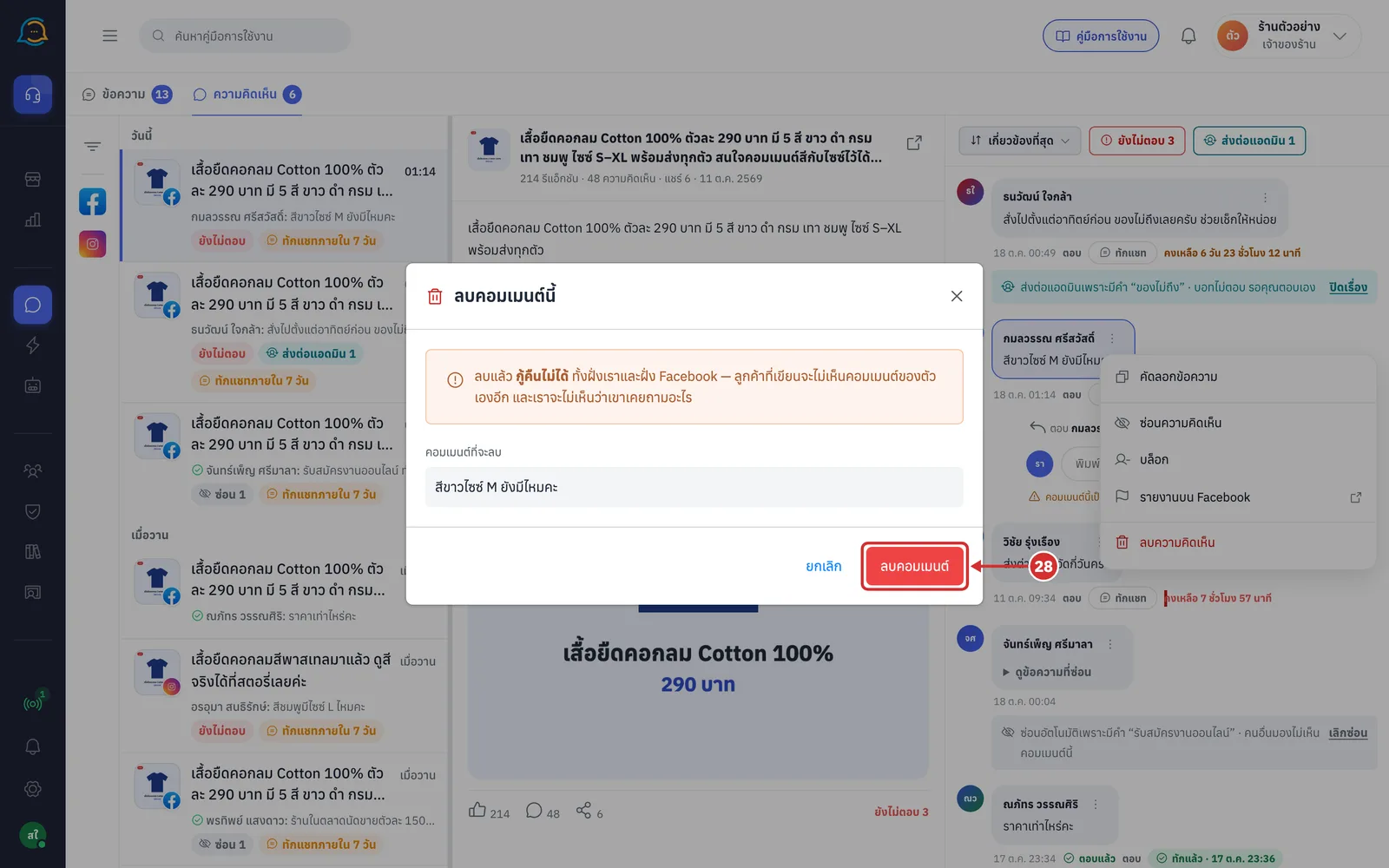
Click ลบคอมเมนต์ (Delete comment) to confirm. If you do not want to delete it, click ยกเลิก (Cancel)
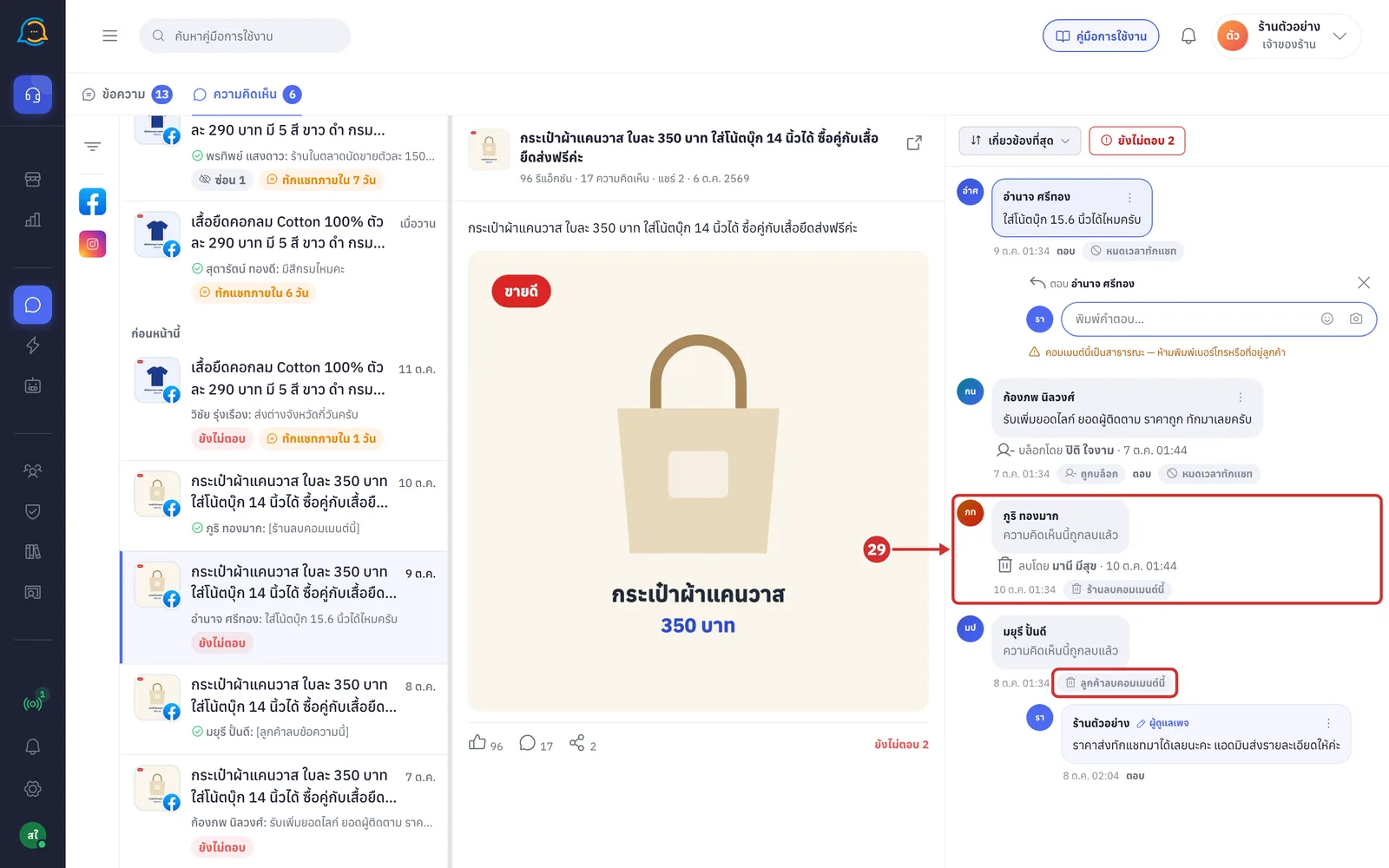
The comment shows ความคิดเห็นนี้ถูกลบแล้ว (This comment was deleted) instead of its text, with a ร้านลบคอมเมนต์นี้ (Deleted by the shop) label and a ลบโดย (Deleted by) line followed by the person's name and the time
A deleted comment has no buttons, and its row in the list shows [ร้านลบคอมเมนต์นี้] ([Deleted by the shop])
If the customer deleted the comment themselves, the label reads ลูกค้าลบคอมเมนต์นี้ (Deleted by the customer), and the shop's replies under it stay
Blocking a commenter
Blocking applies to the person across the whole page, not just one comment, and is available on Facebook only.
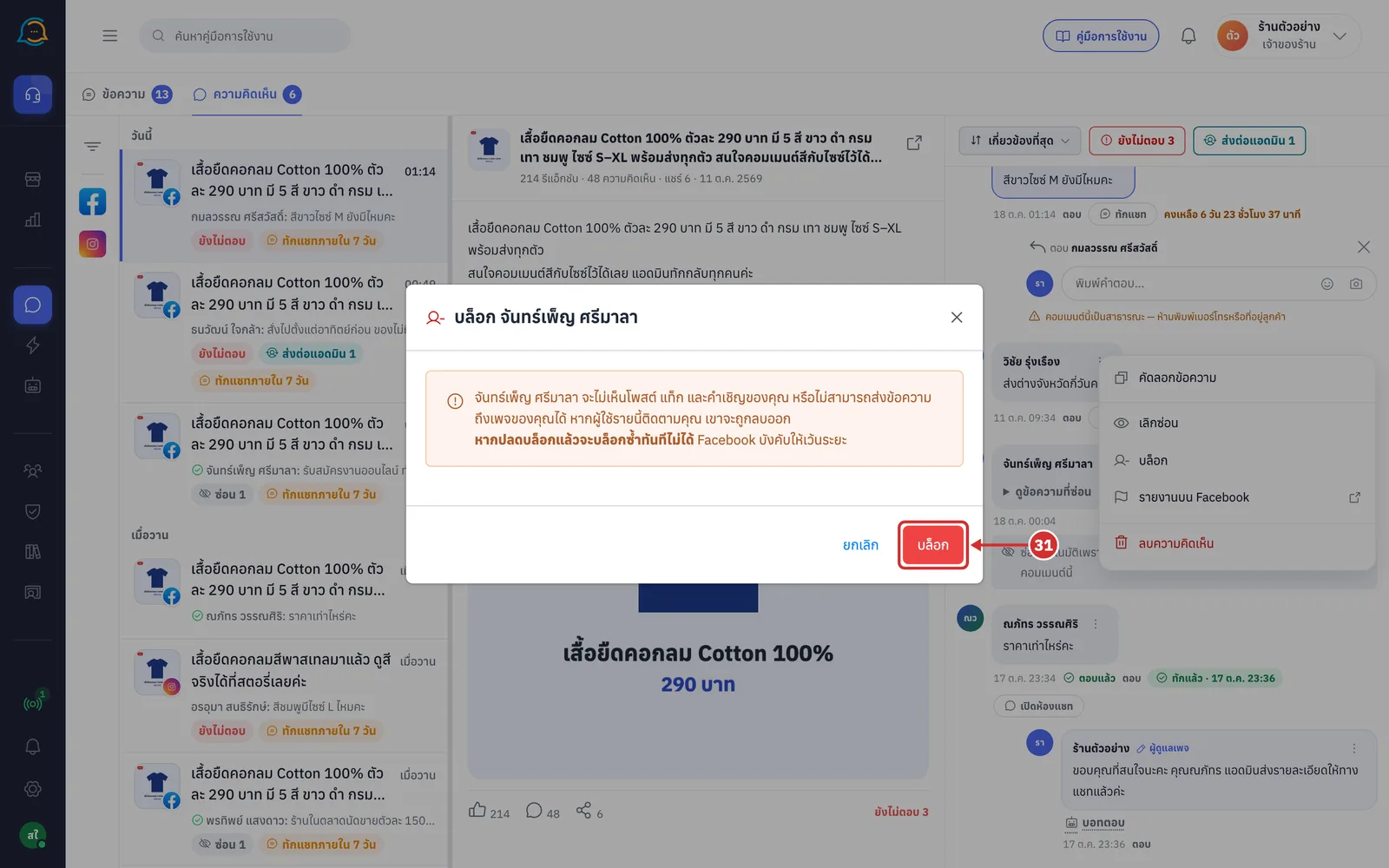
Choose บล็อก (Block). The บล็อก (Block) window with the commenter's name appears
The warning says this person will not see the page's posts, tags and invitations, cannot message the page, and is removed if they follow it
หากปลดบล็อกแล้วจะบล็อกซ้ำทันทีไม่ได้ (After unblocking you cannot block again right away), because Facebook requires a gap
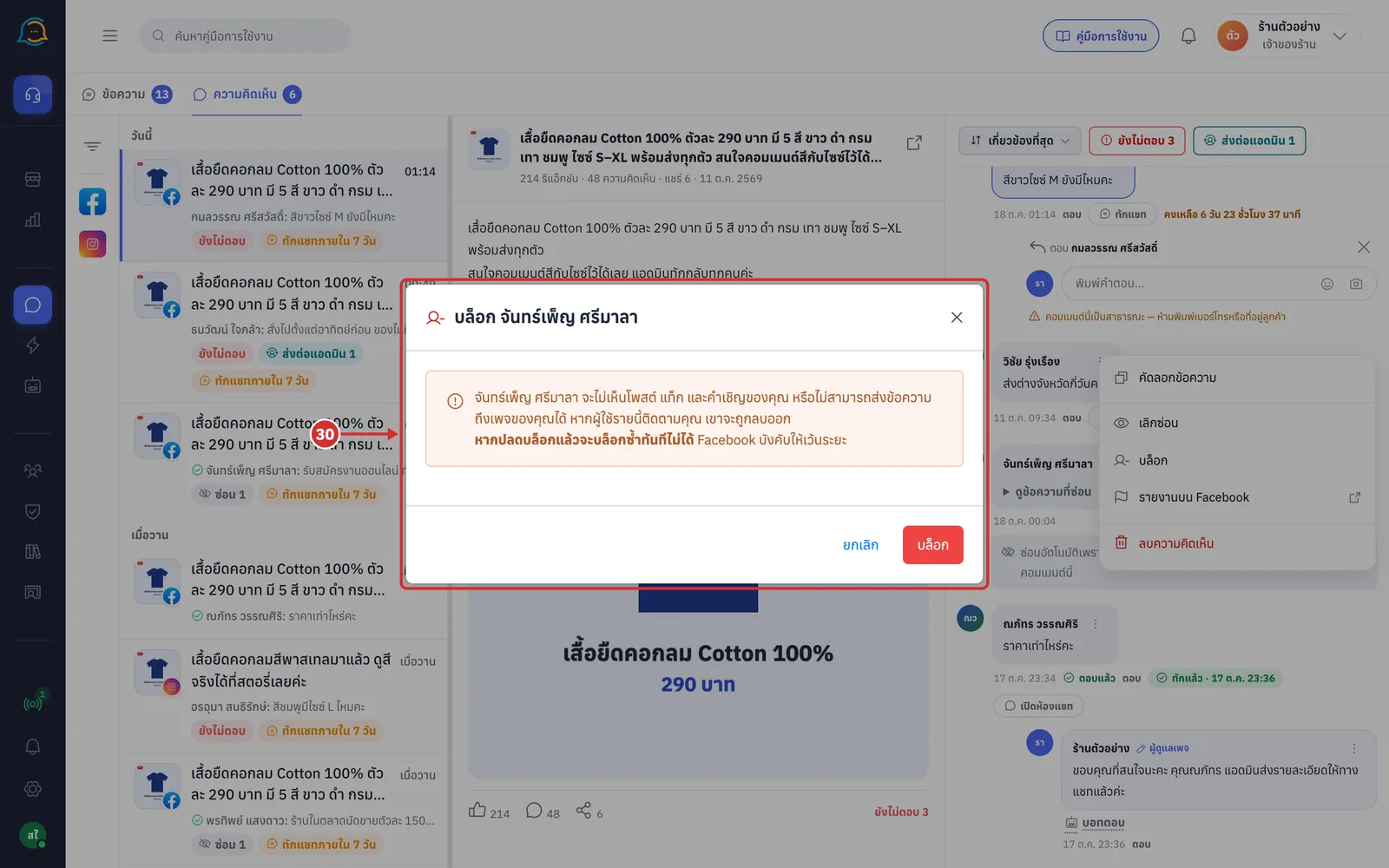
Click บล็อก (Block) to confirm. If you do not want to block, click ยกเลิก (Cancel)
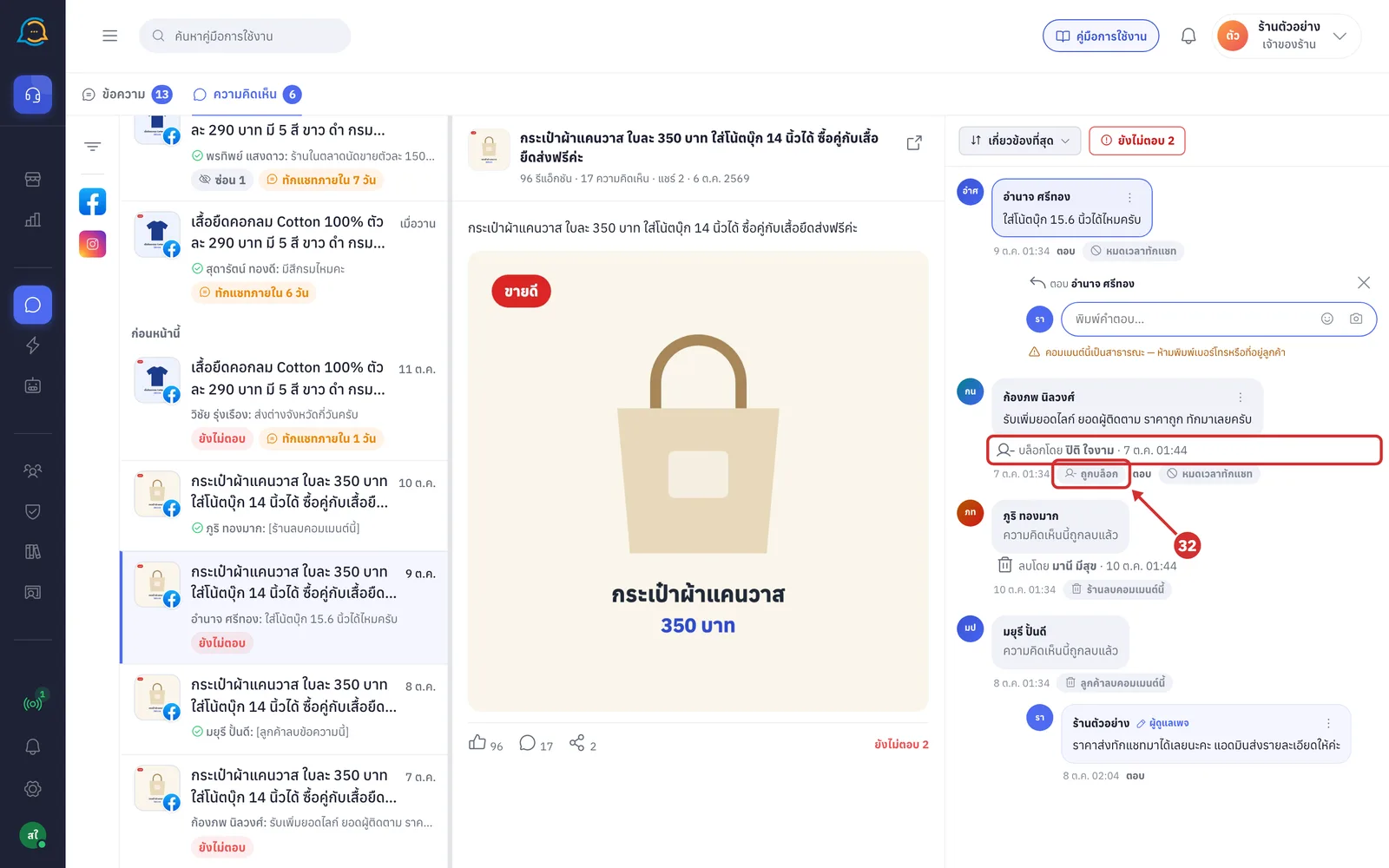
A ถูกบล็อก (Blocked) label shows on every comment by this person on the page, with a บล็อกโดย (Blocked by) line followed by the person's name and the time
A blocked person can no longer comment under this page's posts, but the shop can still reply to or message their earlier comments
If blocking fails, you are told why, for example they were unblocked recently, the page has reached its block limit, or actions were too frequent
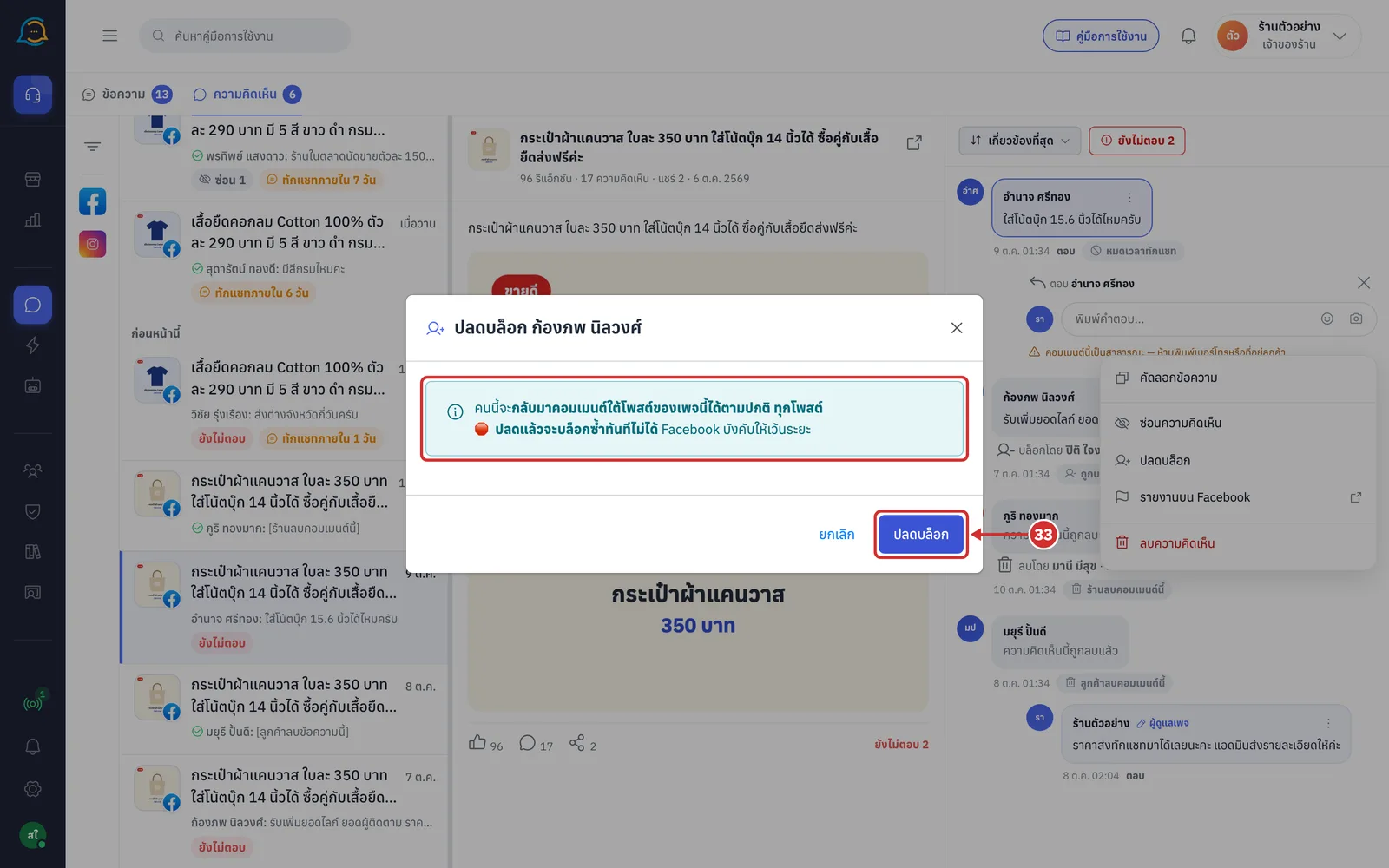
To unblock, open the menu of one of that person's comments, choose ปลดบล็อก (Unblock), then click ปลดบล็อก (Unblock) in the confirmation window
The person can comment under all of the page's posts again
After unblocking you cannot block again right away, because Facebook requires a gap
When it is done, the ถูกบล็อก (Blocked) label and the บล็อกโดย (Blocked by) line disappear
Seeing what the bot did
When your shop has a comment reply bot, comments show what the bot did. Setting up the bot is covered in Setting up comment replies, and the bot's history is in Viewing auto-reply comment history.
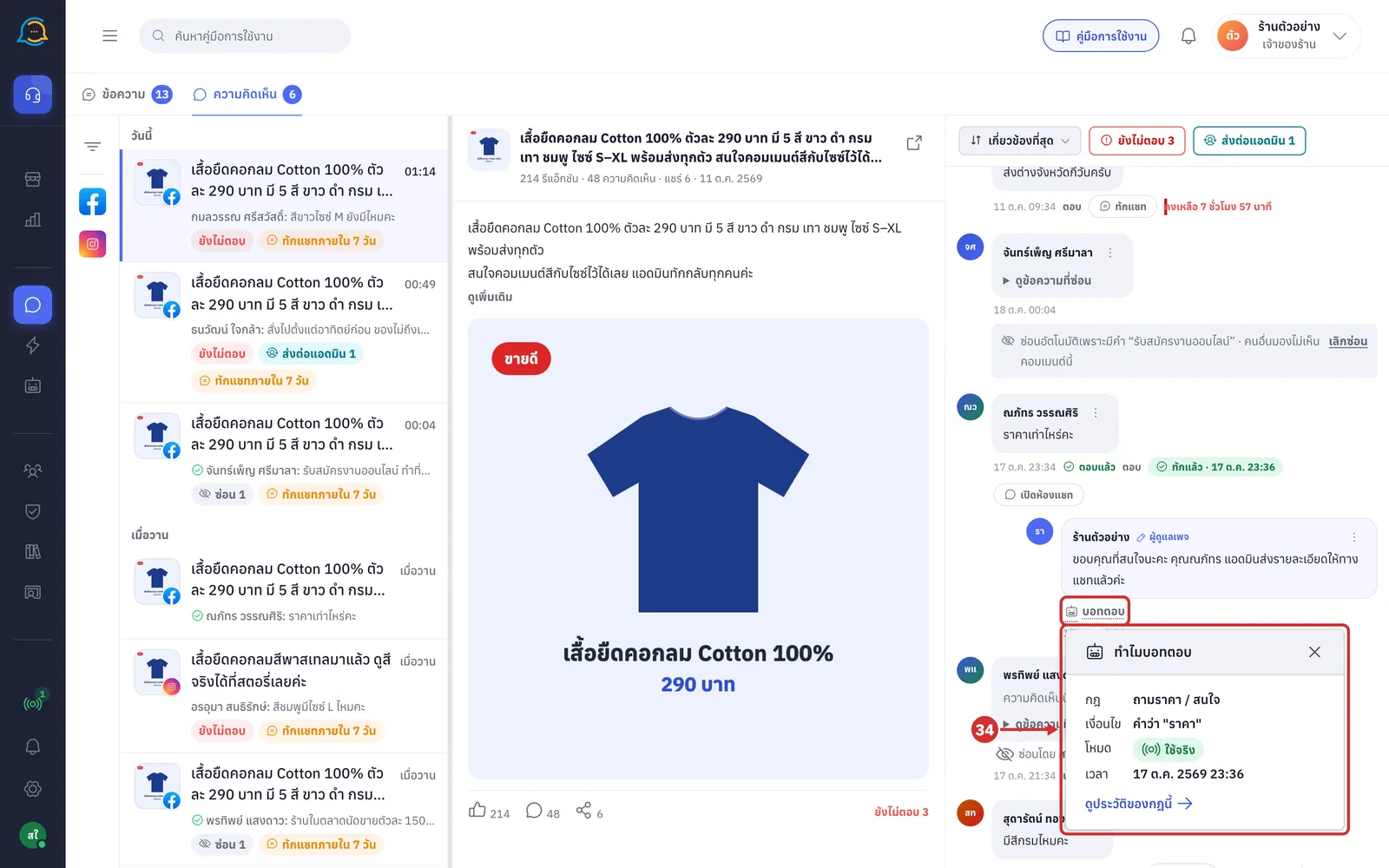
Replies sent by the bot have บอทตอบ (Bot replied) under them. Click it to open the ทำไมบอทตอบ (Why the bot replied) window, which shows
กฎ (Rule): the rule the bot used
เงื่อนไข (Condition): why the rule fired, such as the word found in the comment
โหมด (Mode): ใช้จริง (Live) or ทดสอบ (Test)
เวลา (Time): when the bot replied
ดูประวัติของกฎนี้ (See this rule's history): goes to that rule's reply history
Replies from a rule in test mode have a ทดสอบ (Test) label after บอทตอบ (Bot replied)
If the bot only messaged privately without replying under the comment, บอทตอบ (Bot replied) appears under the customer's comment instead
Comments the bot forwarded to an admin have a blue ส่งต่อแอดมินเพราะ… (Forwarded to admin because…) bar followed by the reason, saying the bot did not reply and is waiting for an admin to answer
The reason comes from the words the shop set for forwarding to an admin
Replying under the comment or messaging privately closes the case automatically
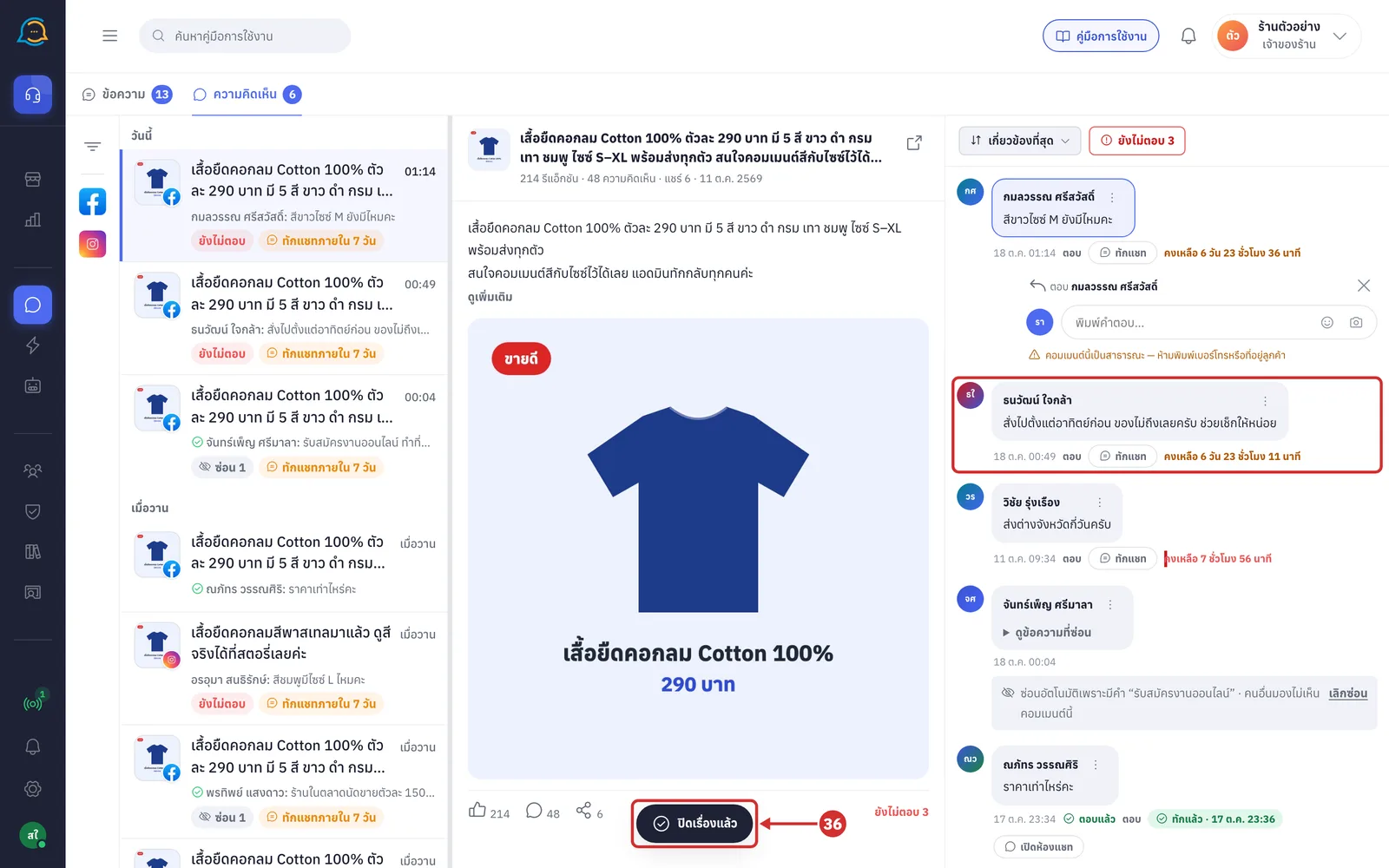
If you have handled it without replying, click ปิดเรื่อง (Close case) at the end of the bar
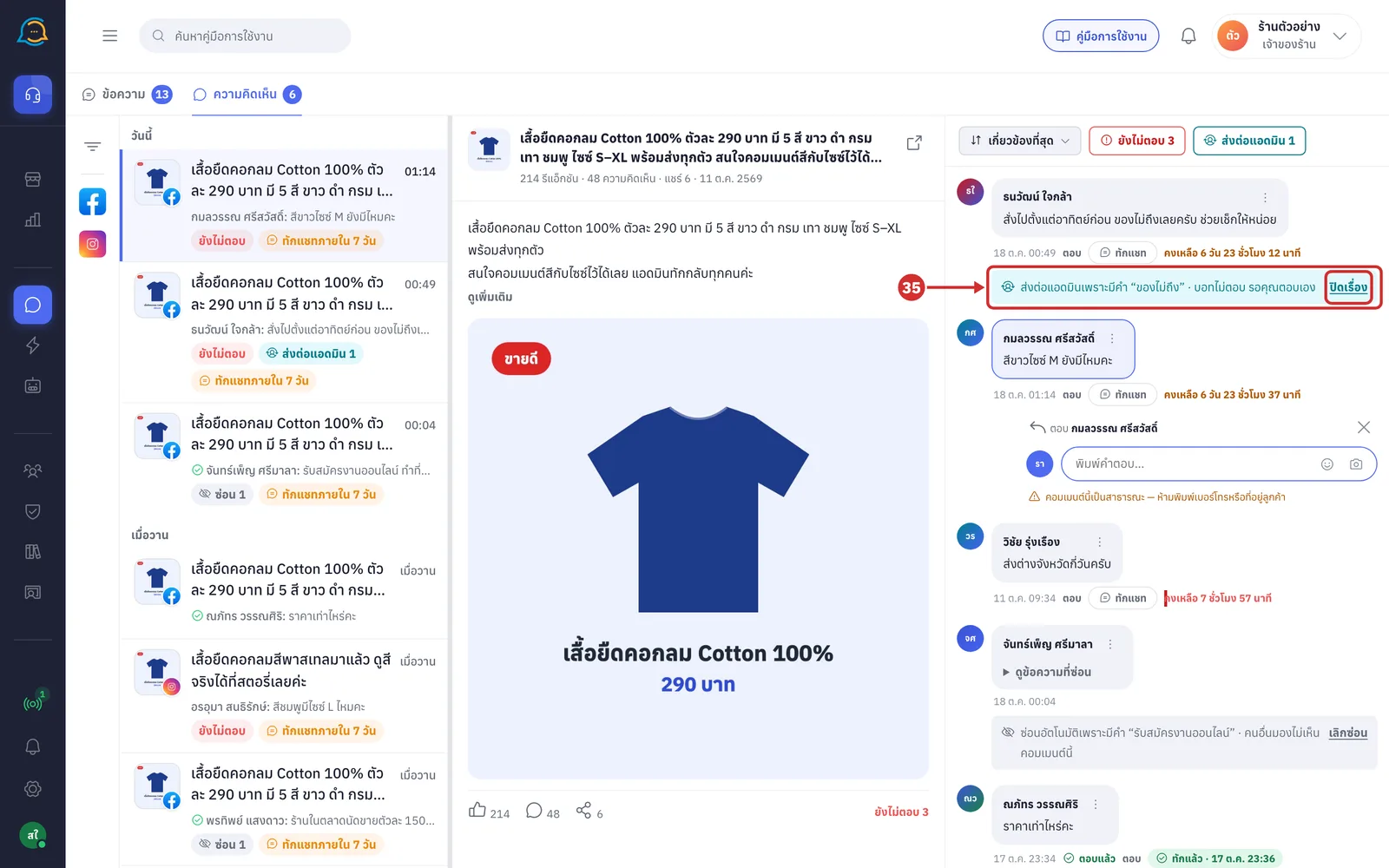
When you click ปิดเรื่อง (Close case), the bar disappears right away and you see ปิดเรื่องแล้ว (Case closed)
If someone else closed it first, you see เรื่องนี้ถูกปิดไปแล้ว (This case was already closed)
The ส่งต่อแอดมิน N (Forwarded to admin N) label in the list goes down, but the comment still counts as ยังไม่ตอบ (Not answered) until the shop replies
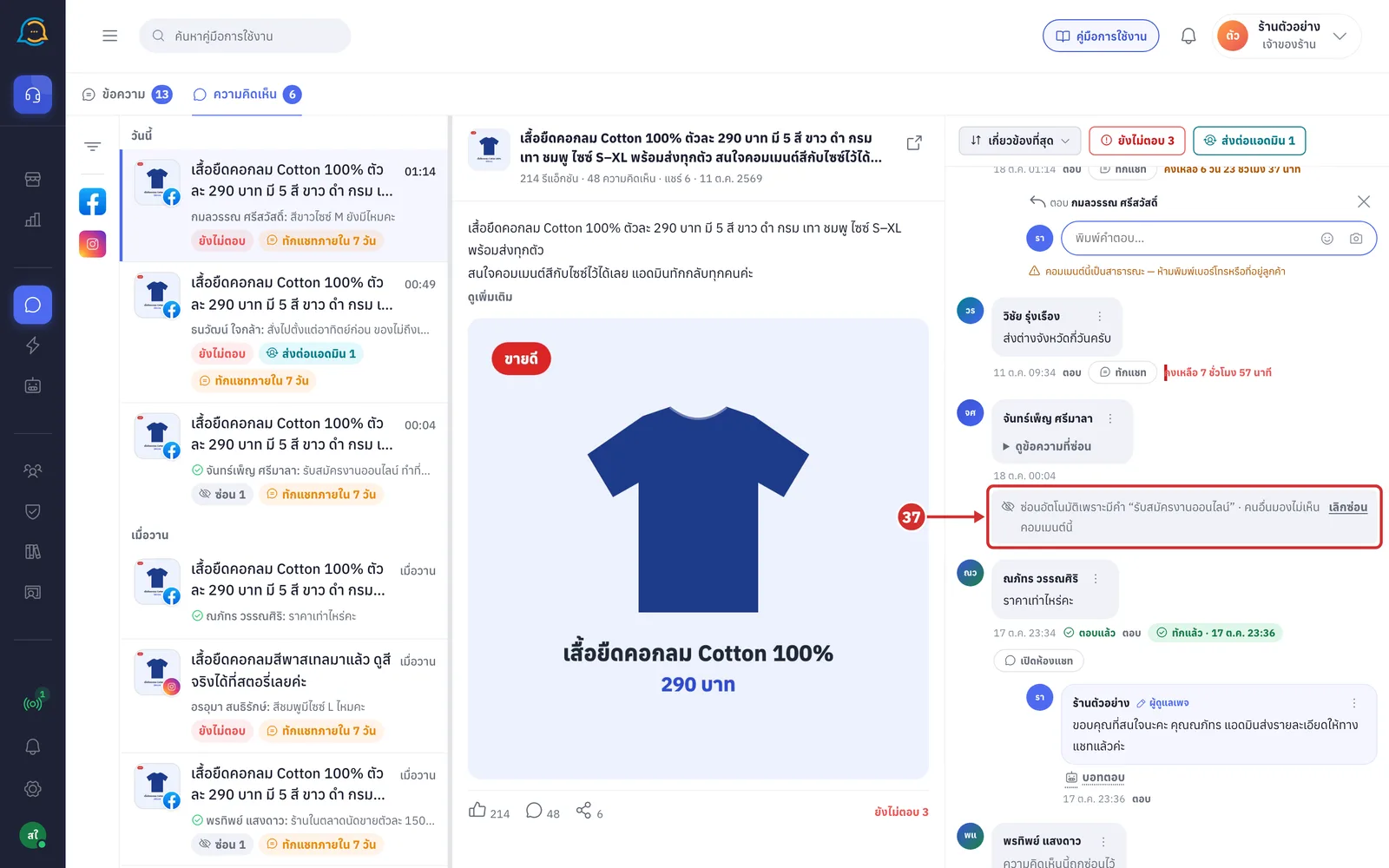
Comments hidden by the system have a ซ่อนอัตโนมัติเพราะ… (Hidden automatically because…) bar followed by the reason, and คนอื่นมองไม่เห็นคอมเมนต์นี้ (Others cannot see this comment)
The reason comes from the words, links or pictures without text that the shop set to hide in comment moderation
Click ดูข้อความที่ซ่อน (See hidden text) to read the original. If the system hid it by mistake, click เลิกซ่อน (Unhide) at the end of the bar, then choose เลิกซ่อน (Unhide) in the menu
How Instagram comments differ
Comments on Instagram cannot be replied to under the comment yet, so the ตอบ (Reply) button cannot be clicked and the reply box does not open by itself
Use ทักแชท (Message) to send a private message instead, with the same once-per-comment, 7-day rule as Facebook
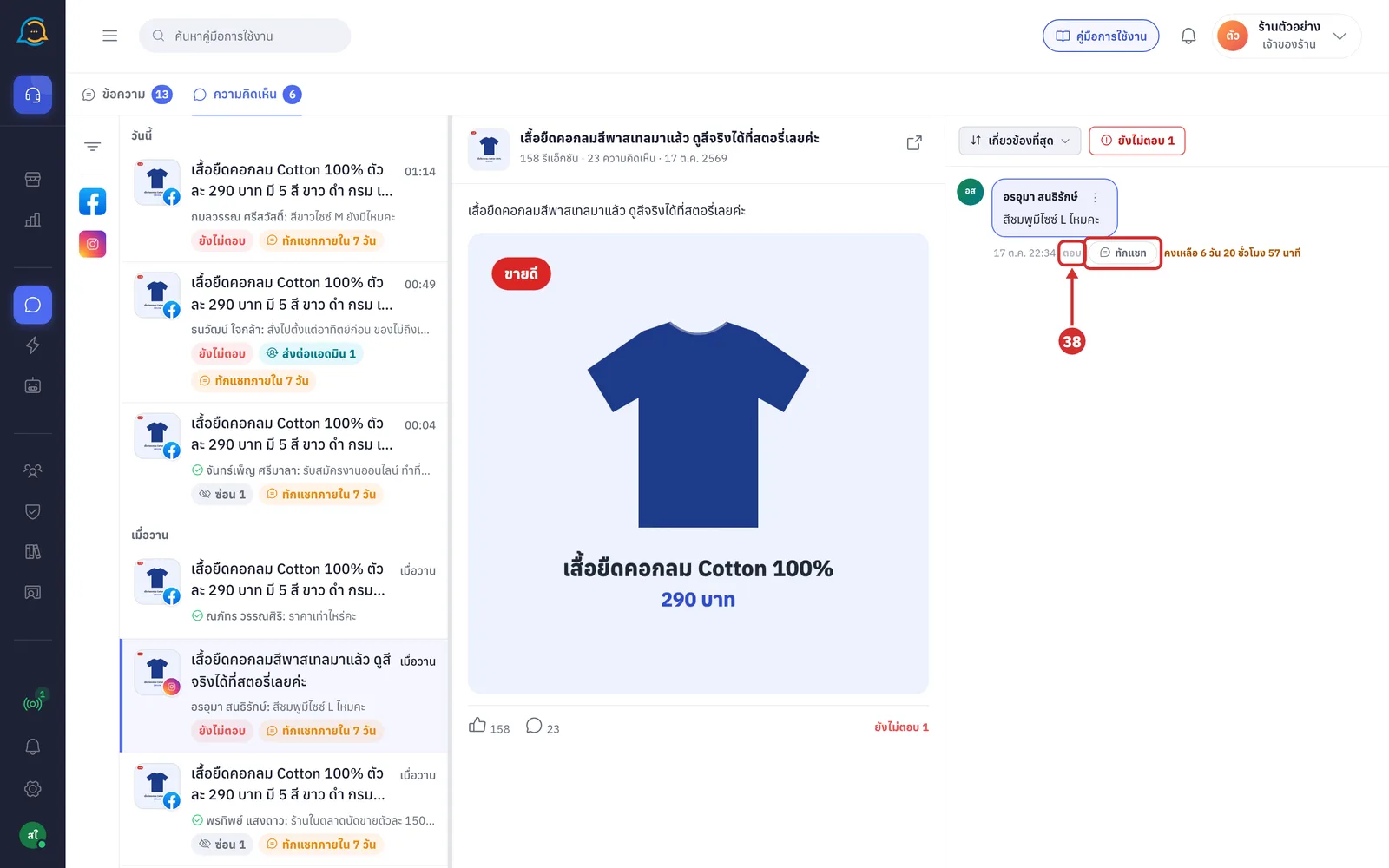
The menu of an Instagram comment only has คัดลอกข้อความ (Copy text), ซ่อนความคิดเห็น (Hide comment) and ลบความคิดเห็น (Delete comment), because Instagram does not let outside systems block people and gives no link to a comment to open for reporting
If the Instagram account does not have permission to manage comments yet, hide and delete are greyed out with one of these reasons
แอปเรายังไม่ได้รับสิทธิ์ instagram_manage_comments จาก Meta — ขอผ่านเมื่อไหร่ใช้ได้ทันที (Our app has not been granted instagram_manage_comments by Meta yet — it works as soon as it is approved)
บัญชีนี้เชื่อมไว้ก่อนที่แอปจะได้สิทธิ์ — กดเชื่อมช่องทางใหม่อีกครั้งแล้วใช้ได้ (This account was connected before the app got the permission — reconnect the channel and it will work)
Hiding or unhiding directly in the Instagram app does not show in GoChat
About the Comments tab
Empty states: if your shop has no comments yet, the list shows ยังไม่มีความคิดเห็นในร้านนี้ (No comments in this shop yet) and the middle shows ยังไม่มีความคิดเห็น (No comments yet)
When someone comments under a connected page's post, it appears on the left automatically
Before you pick a row, the middle shows เลือกความคิดเห็น (Choose a comment)
If a filter leaves nothing, you see ไม่มีแชทตรงกับตัวกรอง (No chats match the filter) with a ล้างตัวกรอง (Clear filters) button
Loading: while a comment opens, grey placeholders of the post and comments show first, and while the list is being filtered you see กำลังกรองข้อมูล กรุณารอสักครู่ (Filtering, please wait)
Something went wrong: if the page fails, you see เกิดข้อผิดพลาด (Something went wrong) with a รหัสอ้างอิง (Reference code); click ลองใหม่ (Try again) or กลับหน้าแรก (Back to home), and if it keeps happening, report it to the team with that code
Permissions: every role in the shop sees every comment and can do everything in this article; nothing is locked by role
Connection lost: a bar shows กำลังเชื่อมต่อใหม่… ความคิดเห็นใหม่อาจยังไม่ขึ้น (Reconnecting… new comments may not show yet); if it cannot reconnect, a bar appears with a โหลดหน้าใหม่ (Reload page) button
Channel disconnected: you cannot reply or message; you are asked to reconnect on the ช่องทาง (Channels) page
Comments without a Meta ID yet: cannot be replied to, hidden or deleted until they get one
Shortcut from the bot page: the ไปที่กล่องคอมเมนต์ (Go to the comment inbox) link on the bot's comment moderation tab opens this tab with the ส่งต่อแอดมิน (Forwarded to admin) filter on