

Managing tickets
The ใบงาน (Tickets) page tracks customer issues that must be followed through to the end, such as refunds, missing goods or claims, even after the chat has gone quiet or been closed. Each ticket has a status, urgency, owner, type and a due time the system works out from the urgency. Everyone in your shop can open and edit tickets equally. Customers do not see tickets or internal notes. (You can also open tickets from a chat in the ใบงาน (Tickets) section of the customer panel · see Using the customer panel)
Opening the Tickets page and reading the overview
Under Management, choose ใบงาน (Tickets) in the left menu bar. The page opens in ตาราง (Table) view showing every ใบงานที่ยังไม่จบ (Open ticket)
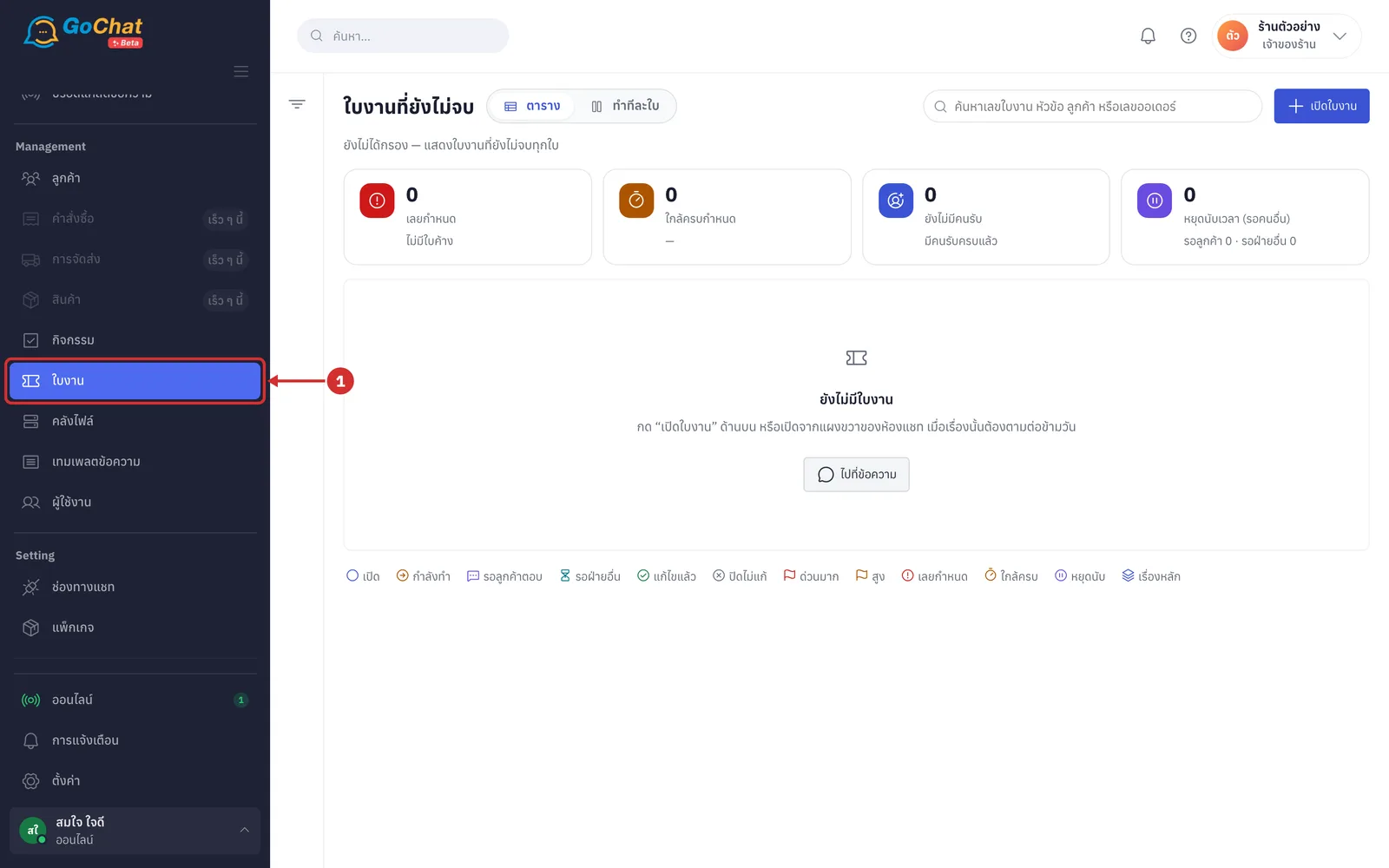
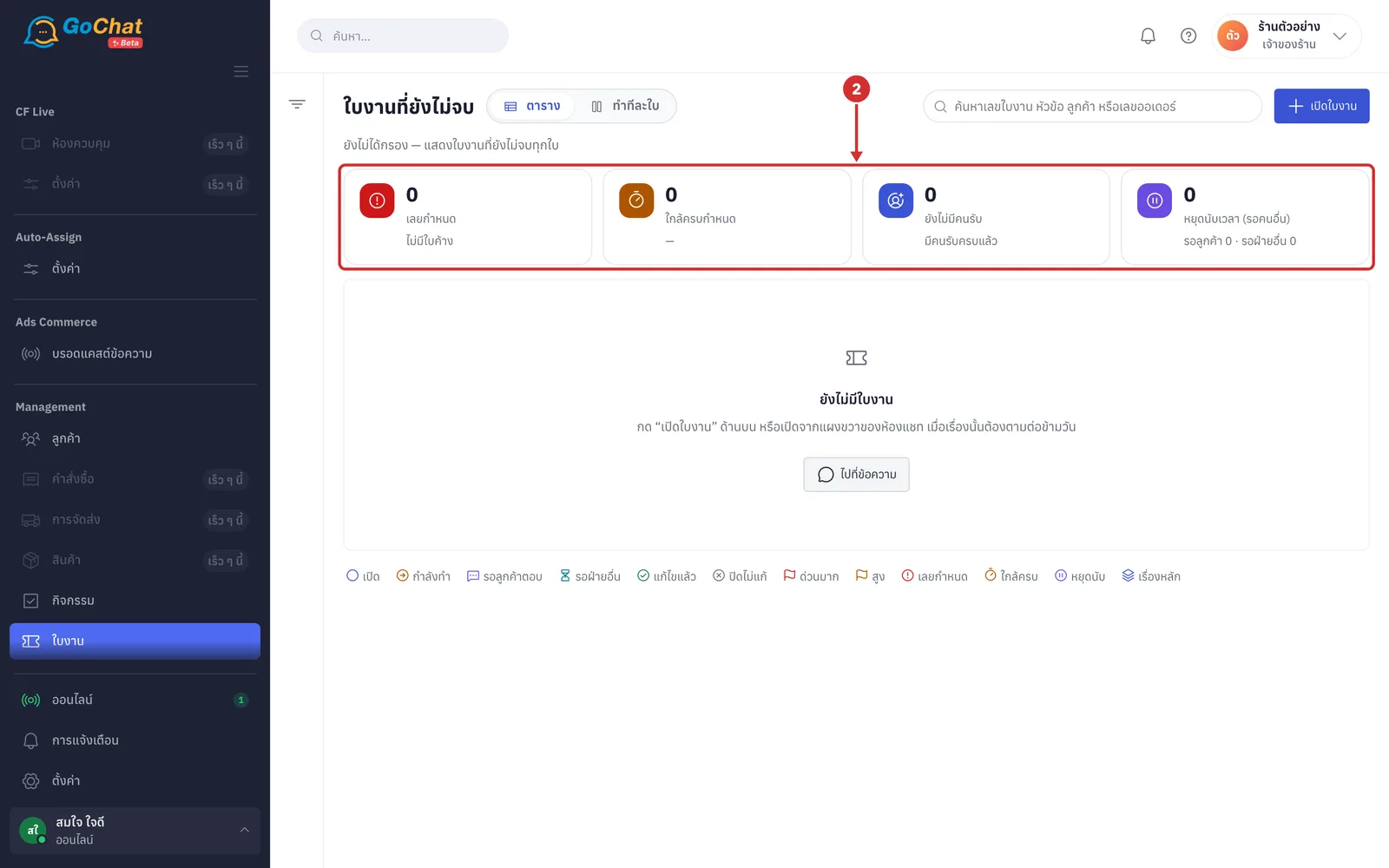
Look at the 4 summary cards. The numbers count tickets across the whole shop, regardless of filters. Click a card to filter the table to that group, and click it again to remove the filter
เลยกำหนด (Overdue) — open tickets past their due time; the line below says how long the oldest one has been overdue (none shows ไม่มีใบค้าง (Nothing overdue))
ใกล้ครบกำหนด (Due soon) — tickets with less than 25% of their time left; the line below says when the next one is due
ยังไม่มีคนรับ (Unassigned) — tickets with no owner; the line below says how long the oldest has waited (none shows มีคนรับครบแล้ว (All assigned))
หยุดนับเวลา (รอคนอื่น) (Clock paused (waiting on others)) — tickets set to รอลูกค้าตอบ (Waiting for customer) or รอฝ่ายอื่น (Waiting on another team); the line below splits รอลูกค้า (Waiting for customer) and รอฝ่ายอื่น (Waiting on another team)
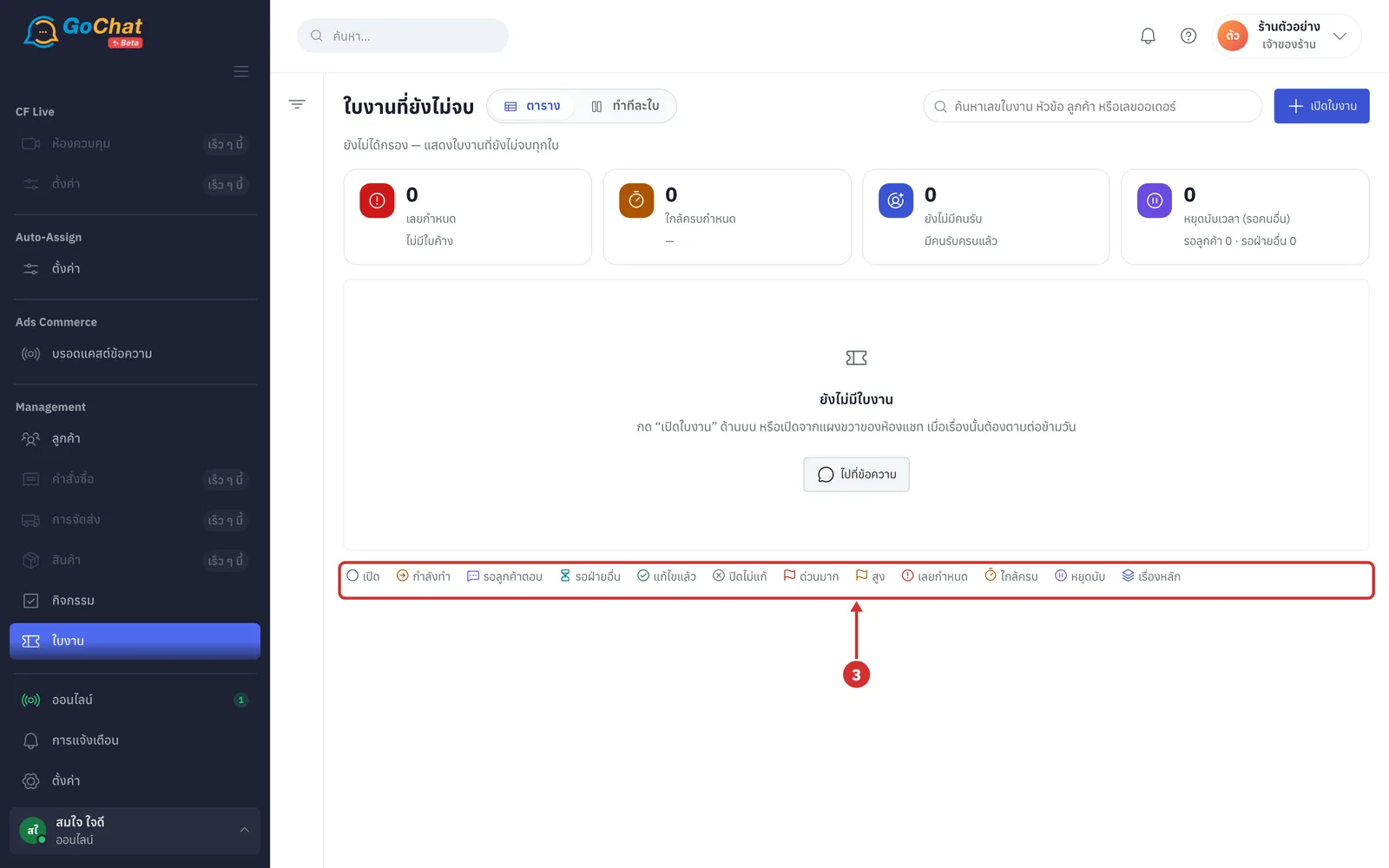
Read the icon key under the table: the 6 status icons (เปิด (Open), กำลังทำ (In progress), รอลูกค้าตอบ (Waiting for customer), รอฝ่ายอื่น (Waiting on another team), แก้ไขแล้ว (Resolved), ปิดไม่แก้ (Closed without fix)), urgency flags (ด่วนมาก (Very urgent), สูง (High)), clock icons (เลยกำหนด (Overdue), ใกล้ครบ (Due soon), หยุดนับ (Paused)) and เรื่องหลัก (Main issue)
Opening a ticket
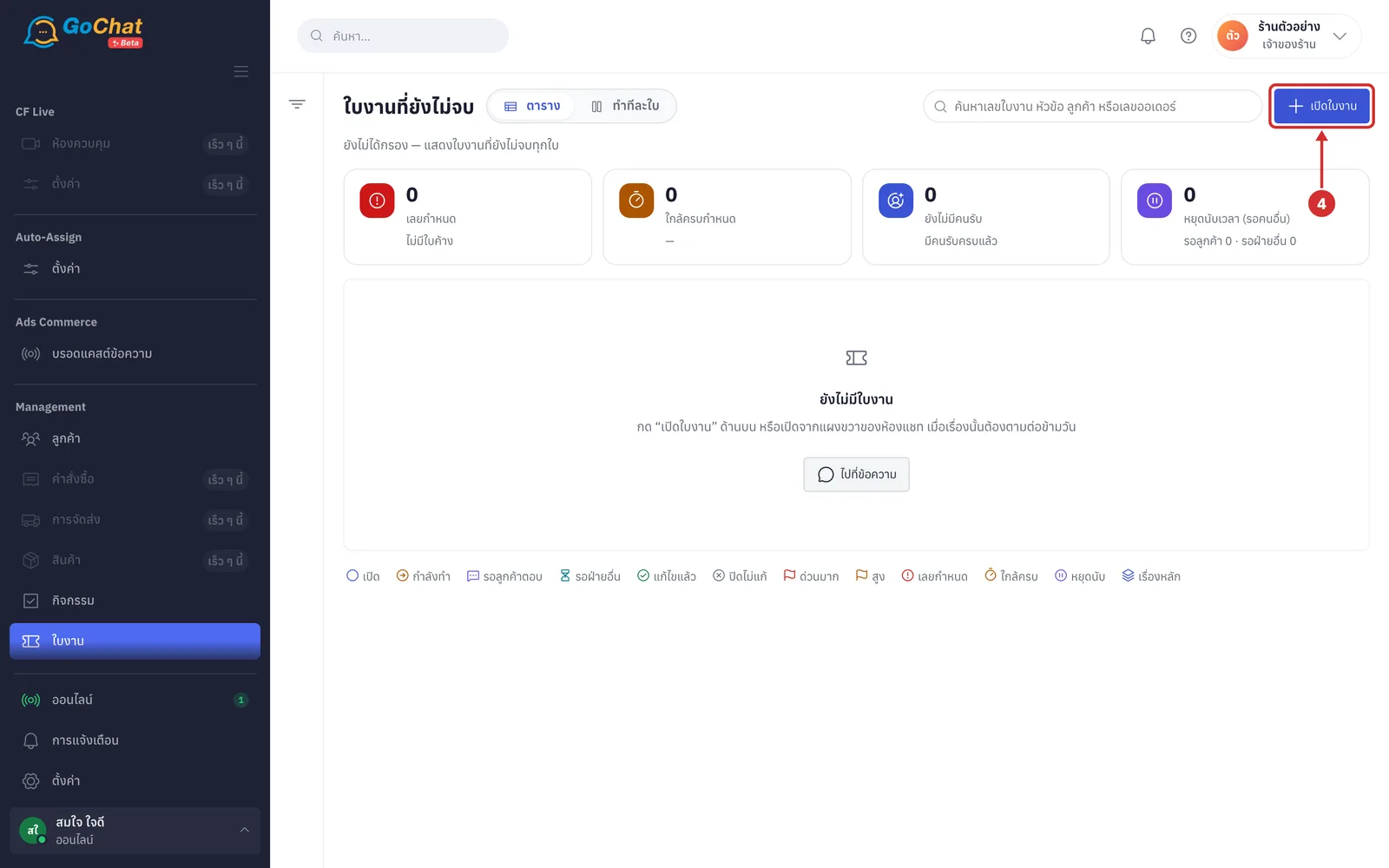
Click เปิดใบงาน (Open ticket) at the top right. The เปิดใบงาน (Open ticket) window opens
In หัวข้อ (Subject), type a short title so the team knows what it is about (required, up to 200 characters · left empty, it shows ใส่หัวข้อก่อน — สั้น ๆ พอให้ทีมรู้ว่าเรื่องอะไร (Enter a subject first — short enough for the team to know what it is))
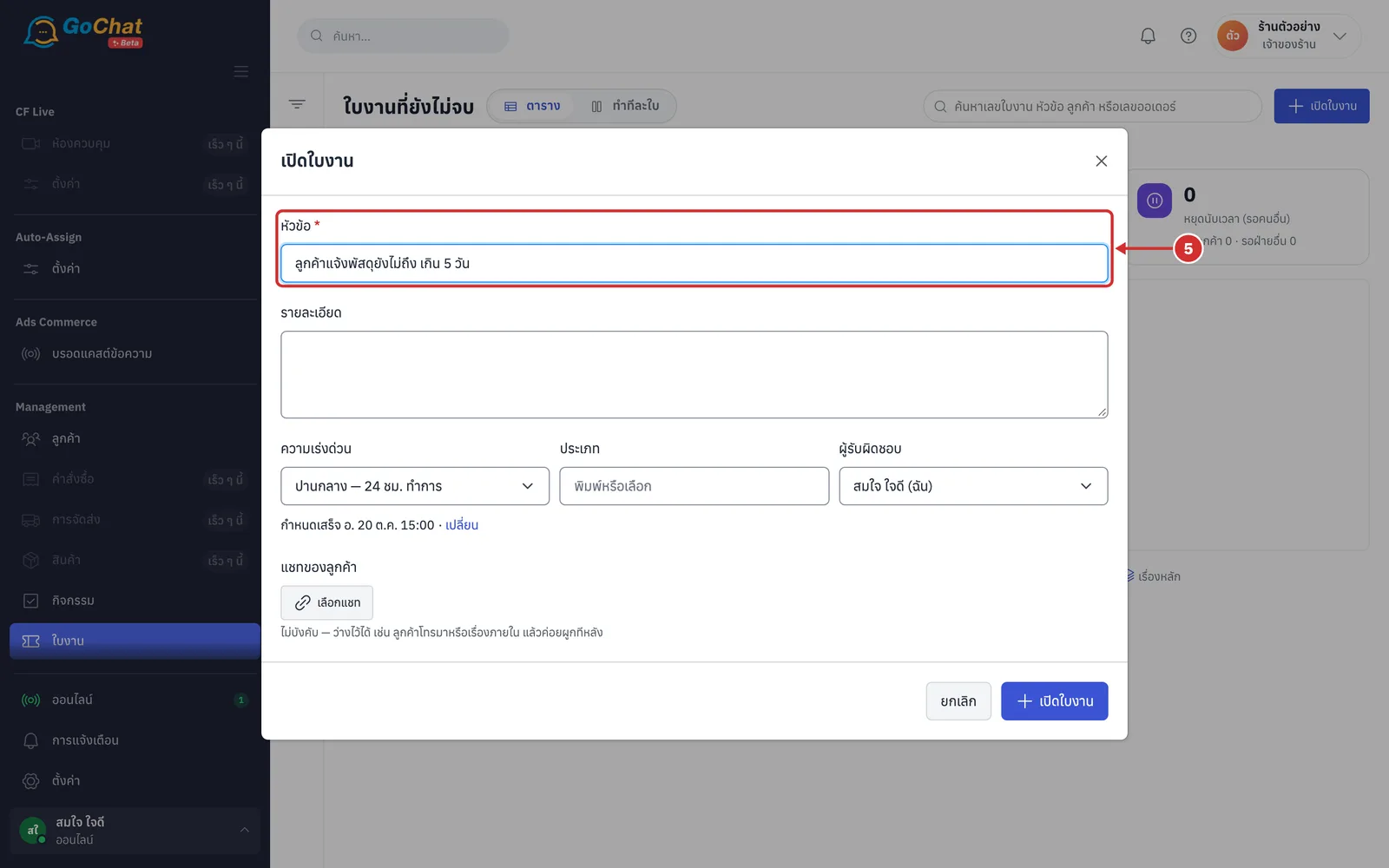
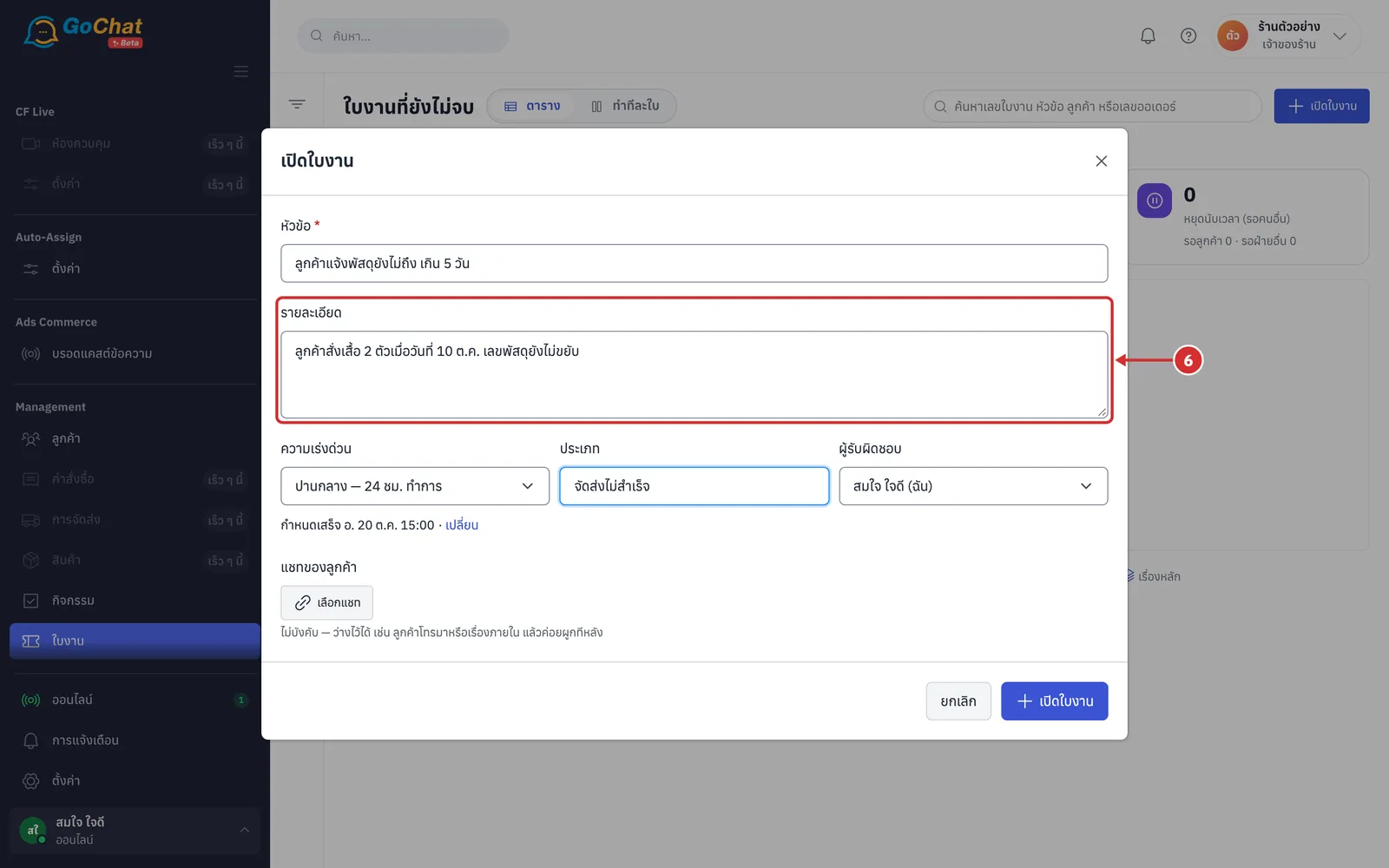
In รายละเอียด (Details), add what the customer reported (optional, up to 5,000 characters)
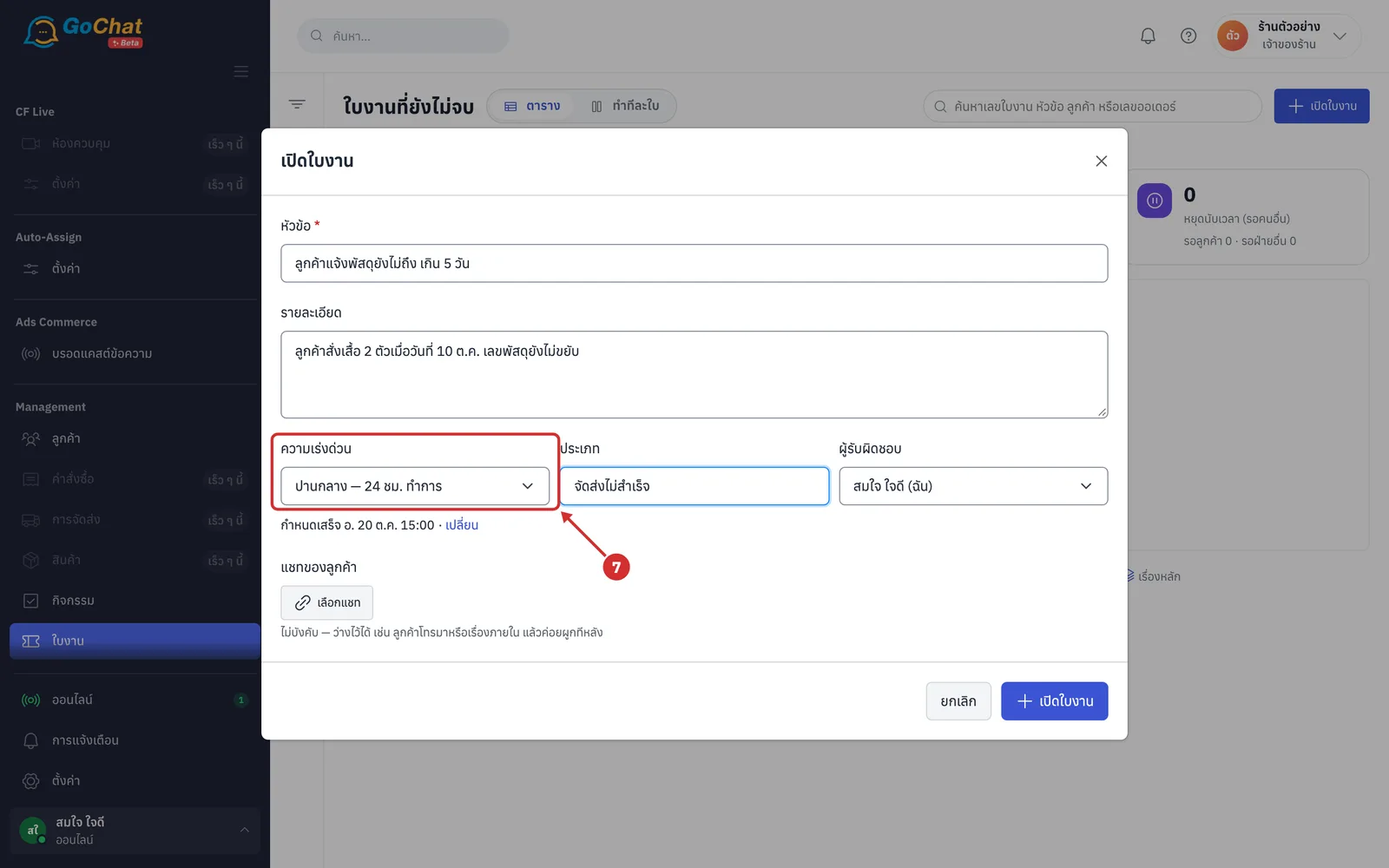
In ความเร่งด่วน (Urgency), choose ด่วนมาก (Very urgent) (4 hours), สูง (High) (12 hours), ปานกลาง (Medium) (24 hours · the default) or ต่ำ (Low) (72 hours). The system uses it to work out the due time (shops that count business hours only see ชม. ทำการ (business hours) in the options)
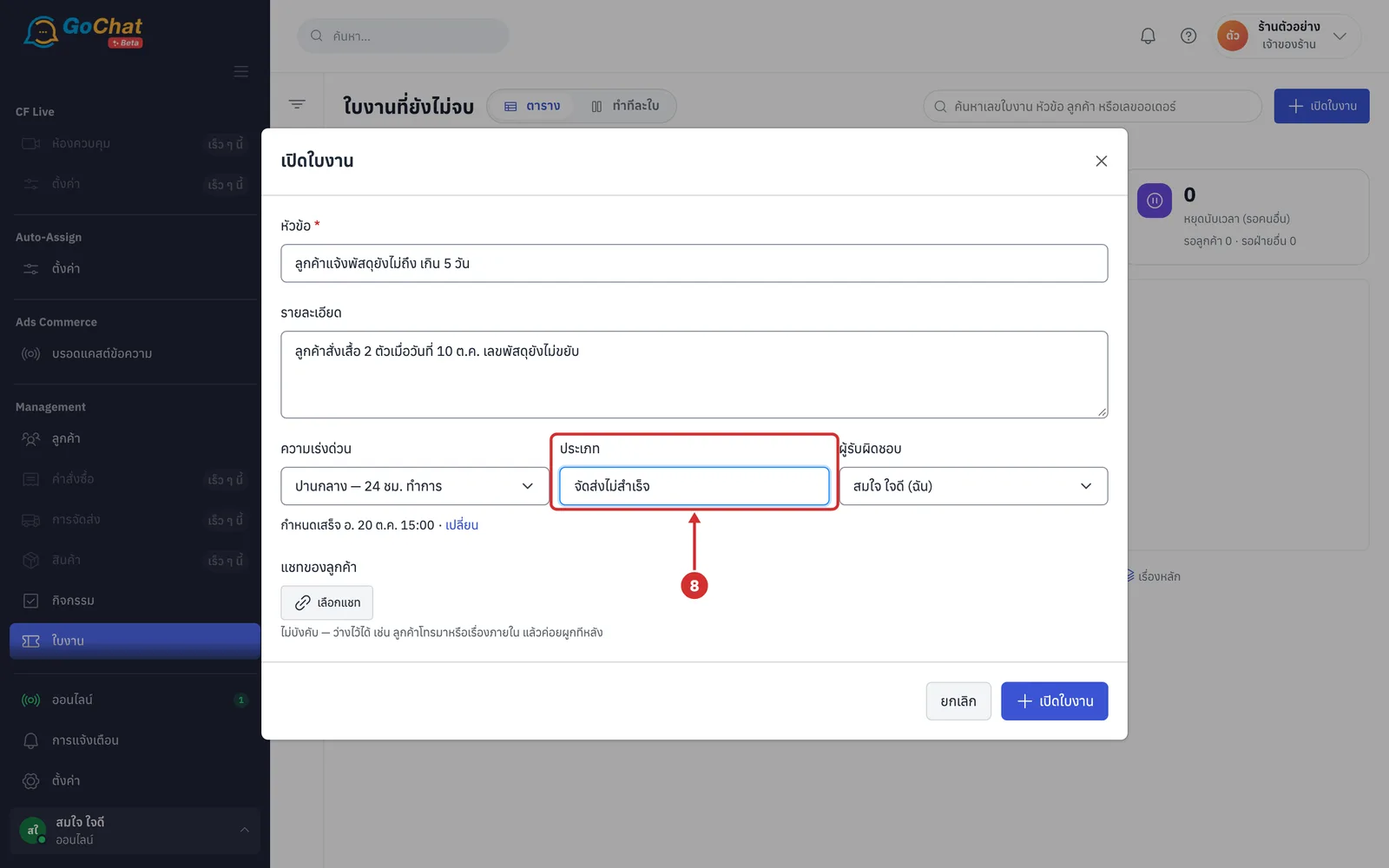
In ประเภท (Type), type the kind of issue or pick from the list that appears, such as refund, return, claim or failed delivery (optional, up to 60 characters · you can type your shop's own new types)
In ผู้รับผิดชอบ (Owner), choose who in your shop will look after this ticket (you by default · you can choose ยังไม่มีคนรับ (Unassigned))
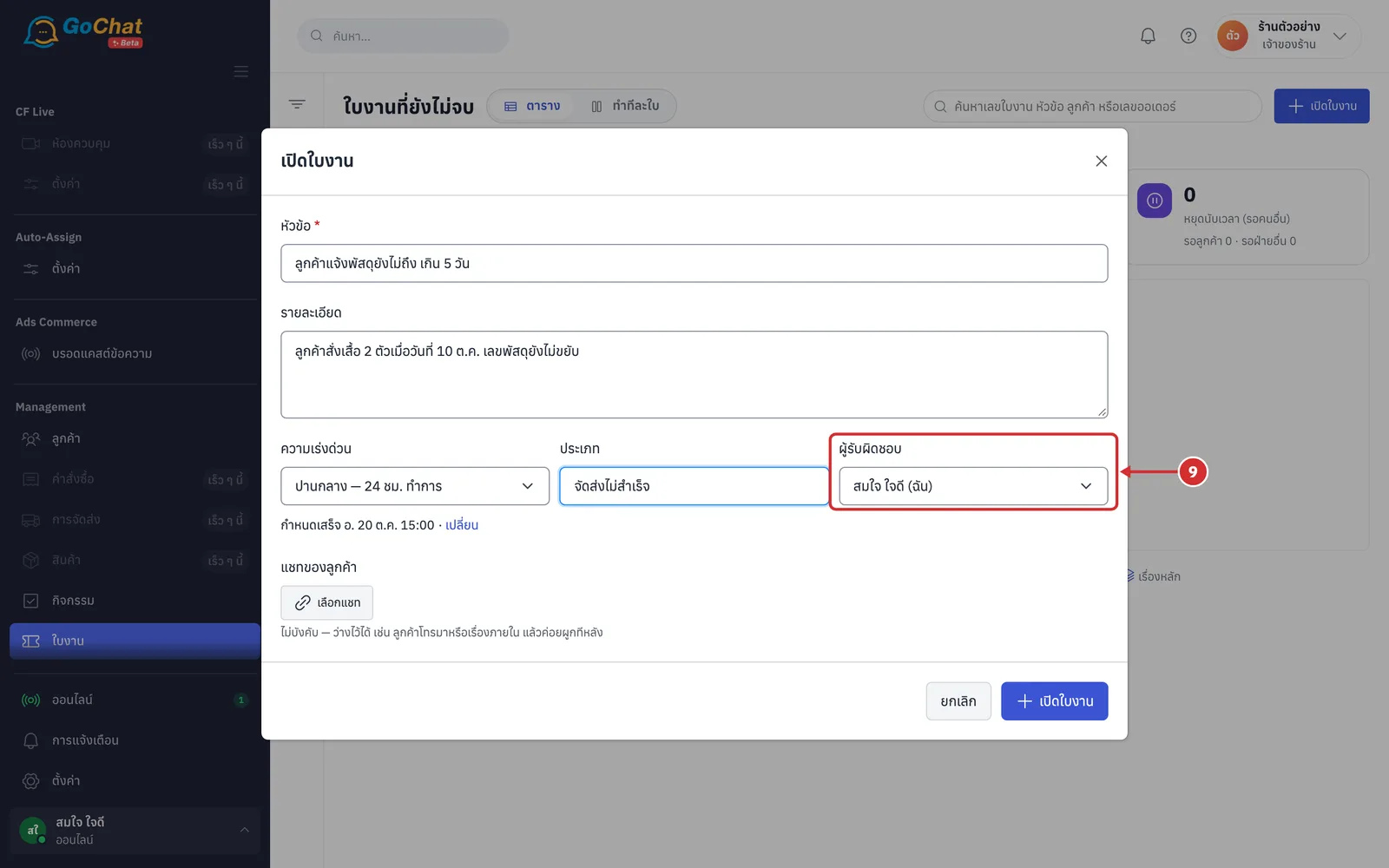
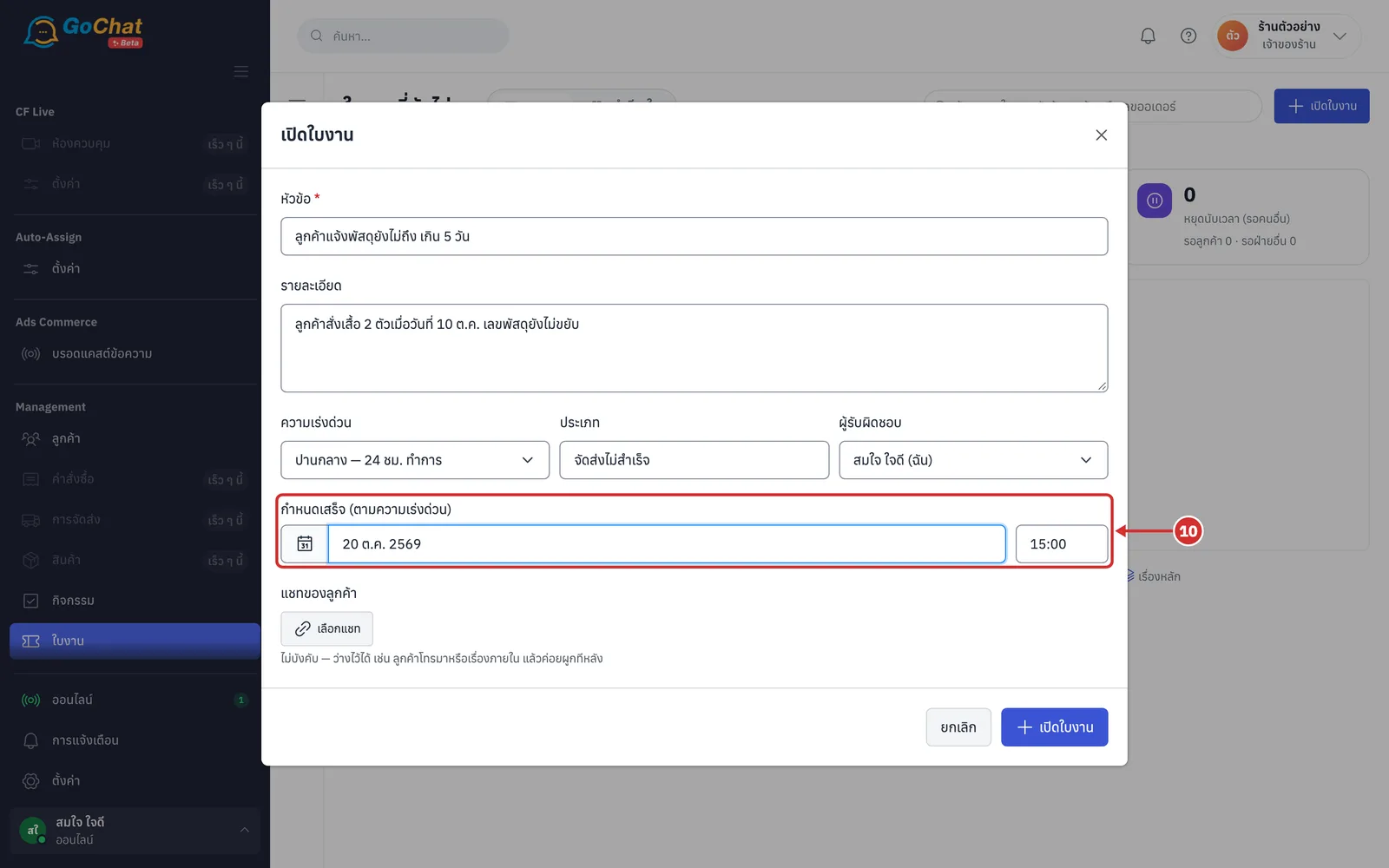
Check the กำหนดเสร็จ (Due) line the system works out from the urgency. To set your own date, click เปลี่ยน (Change), pick a date from the calendar and type a time (leave the time empty = closing time · the label changes from ตามความเร่งด่วน (By urgency) to กำหนดเอง (Custom) · click ใช้ตามความเร่งด่วน (Use urgency) to go back to the calculated time)
Under แชทของลูกค้า (Customer chat), click เลือกแชท (Choose chat) if the issue came from a chat, then search by customer name, phone number or chat name (optional · you can leave it empty, for example when the customer phoned or it is an internal matter, and link it later · before you type, it shows ห้องที่มีความเคลื่อนไหวล่าสุด (Most recently active chats))
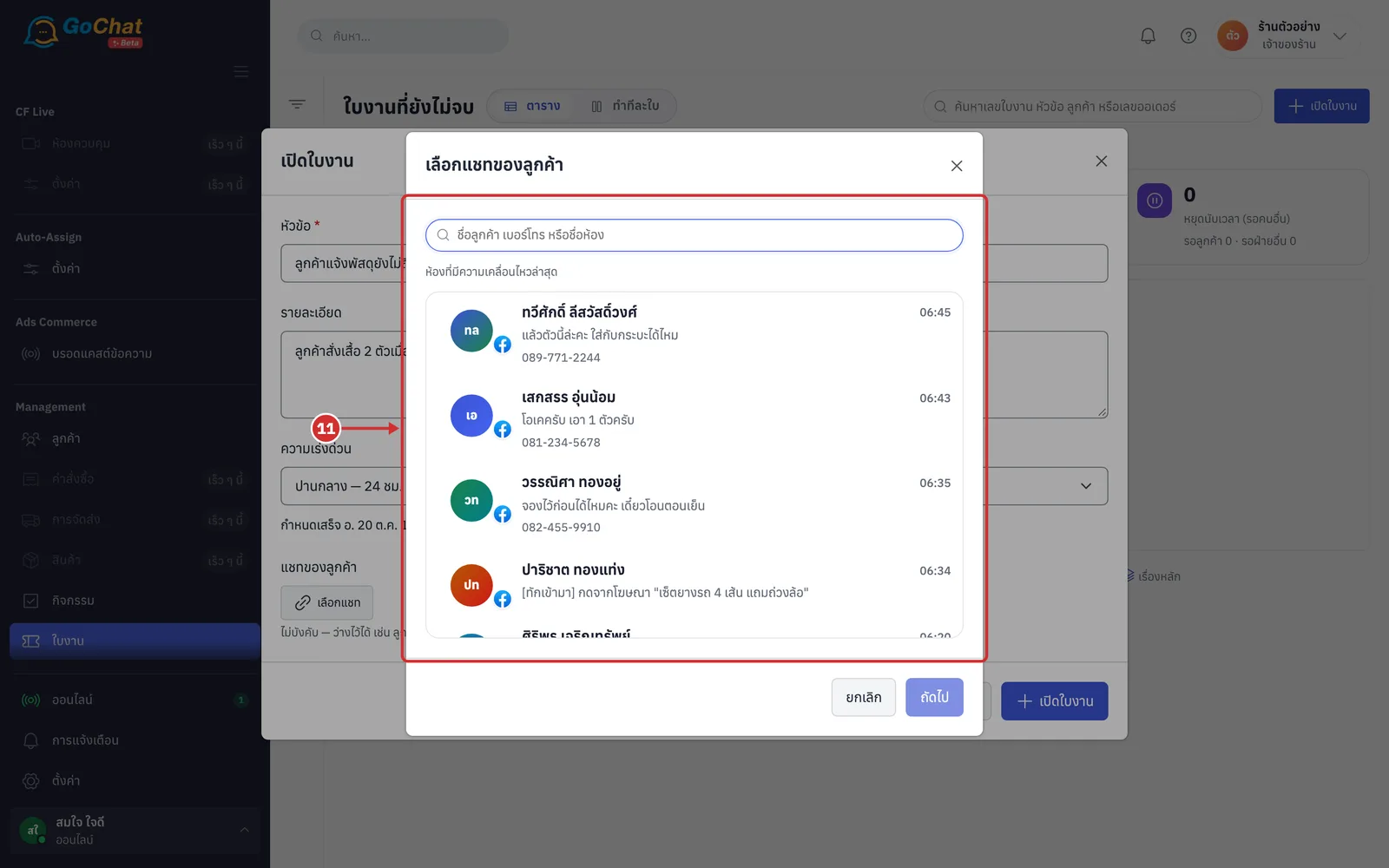
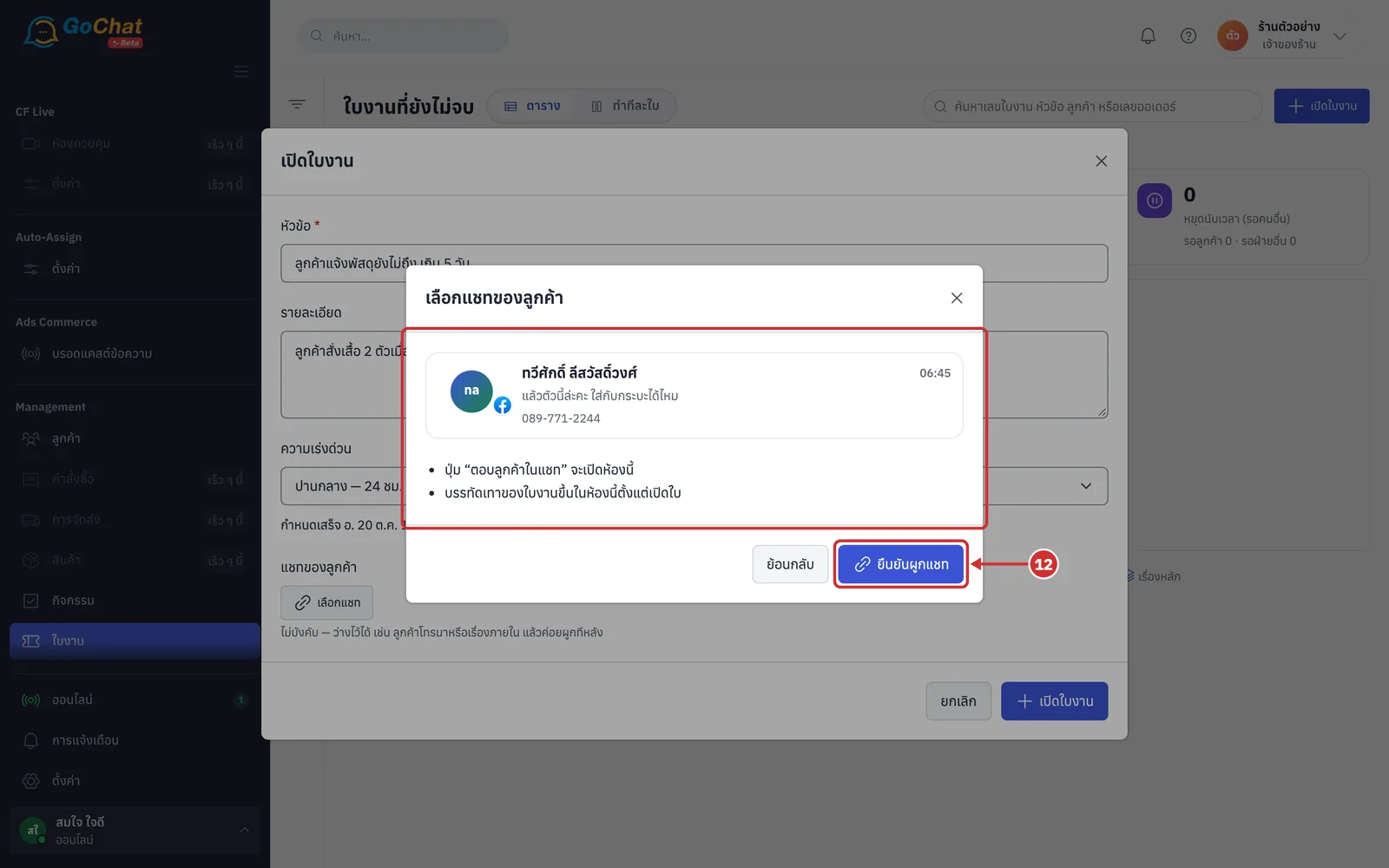
Click the chat you want, then click ถัดไป (Next). Check what will happen (the ตอบลูกค้าในแชท (Reply in chat) button will open this chat, and the ticket's grey lines appear in this chat from when it is opened), then click ยืนยันผูกแชท (Confirm link) (click ย้อนกลับ (Back) to choose again)
The chosen chat appears under แชทของลูกค้า (Customer chat). Click เอาออก (Remove) if you want to change it
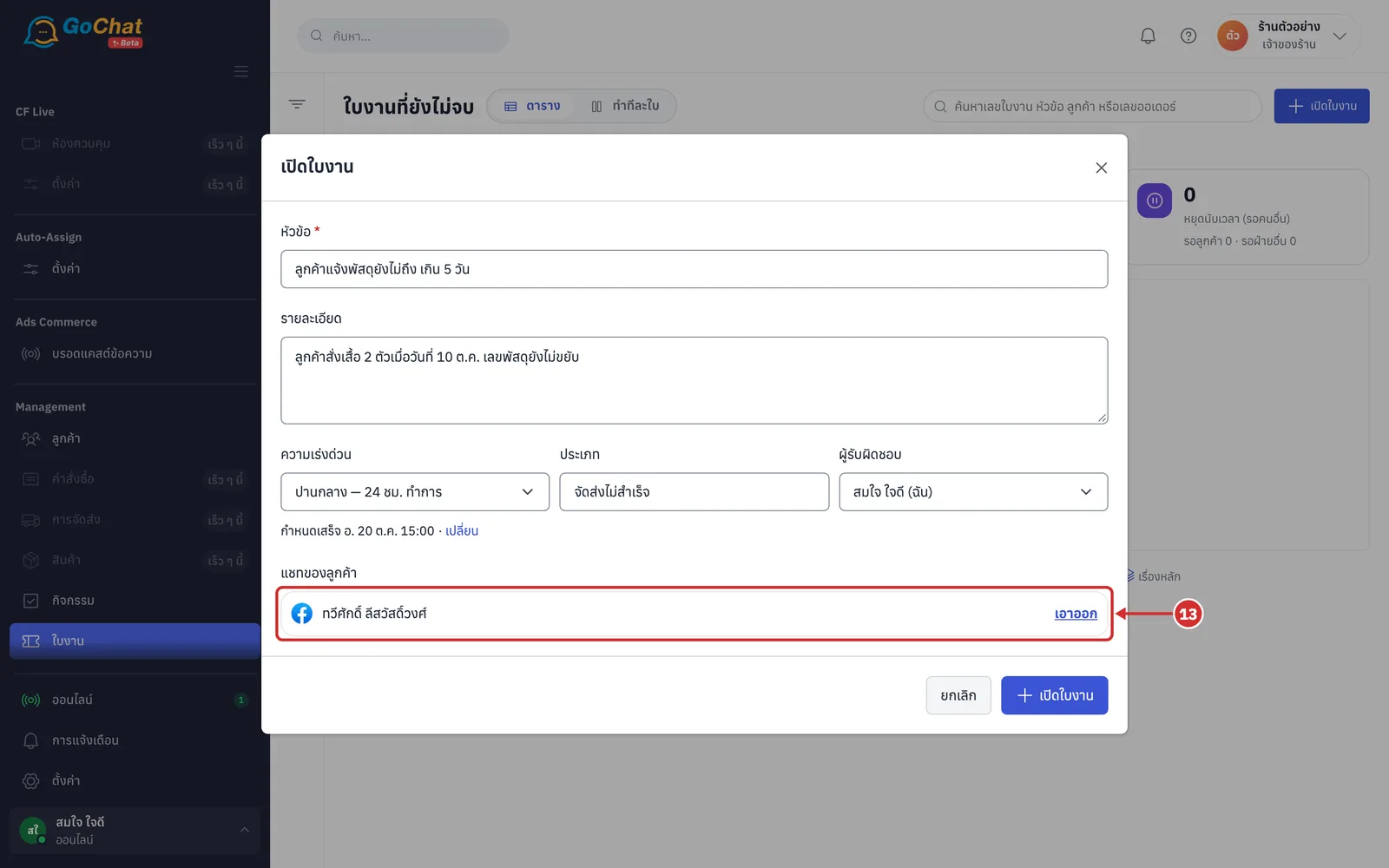
Click เปิดใบงาน (Open ticket) (click ยกเลิก (Cancel) to close without saving)
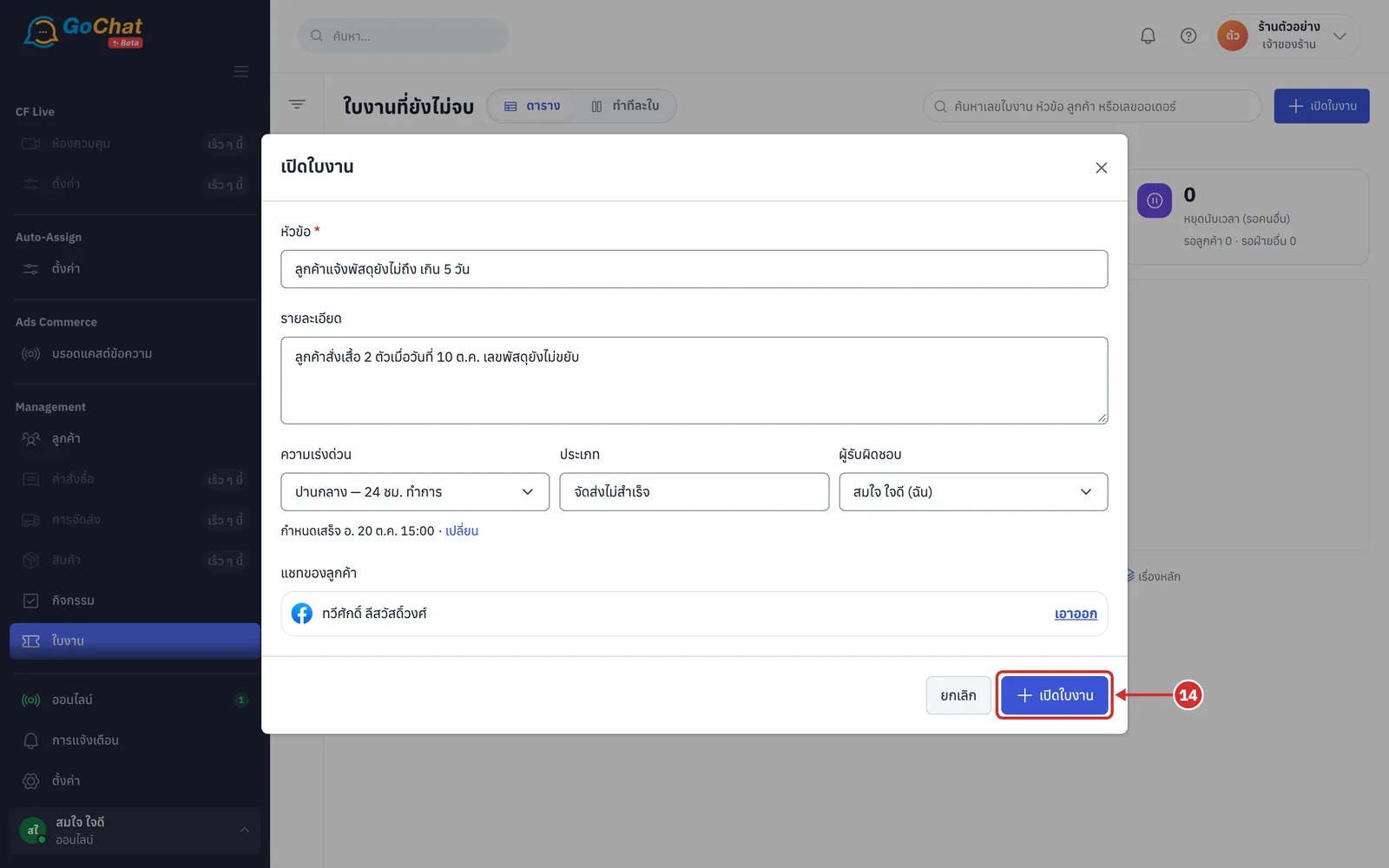
The system gives the ticket a number, such as TK-0001, and opens it in ทำทีละใบ (One at a time) view so you can carry on working
Searching and filtering tickets
Every filter takes effect as soon as you tick it. Within one section it means "or"; across sections it means "and". The page link keeps your filters, so you can send it to someone on your team to open the same view.
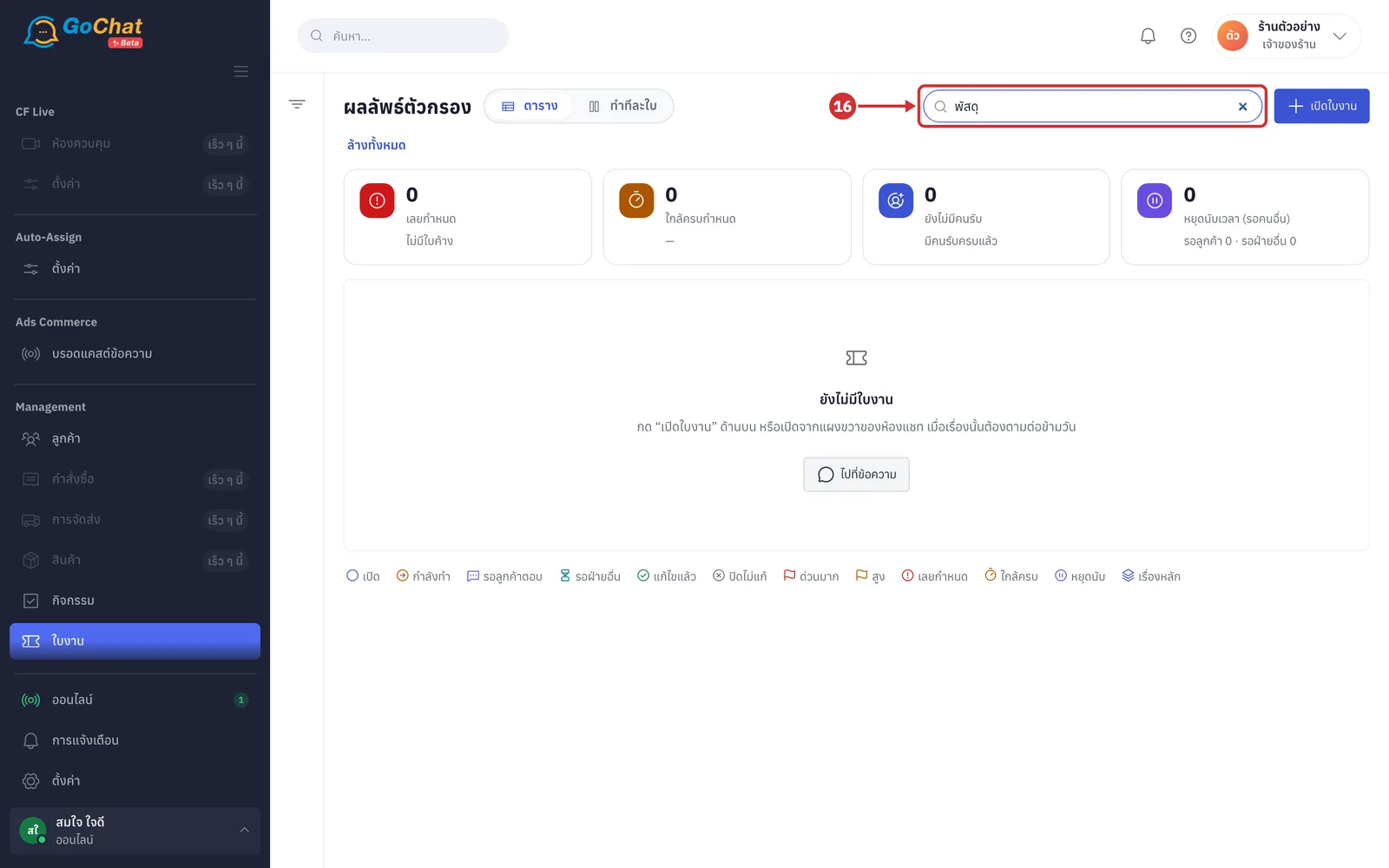
In the search box at the top of the table, type a ticket number, subject, customer name or order number, up to 60 characters. It searches when you stop typing (no match shows ไม่พบใบงานที่ตรงกับ “search” (No tickets match “search”) with a ล้างตัวกรอง (Clear filters) button)
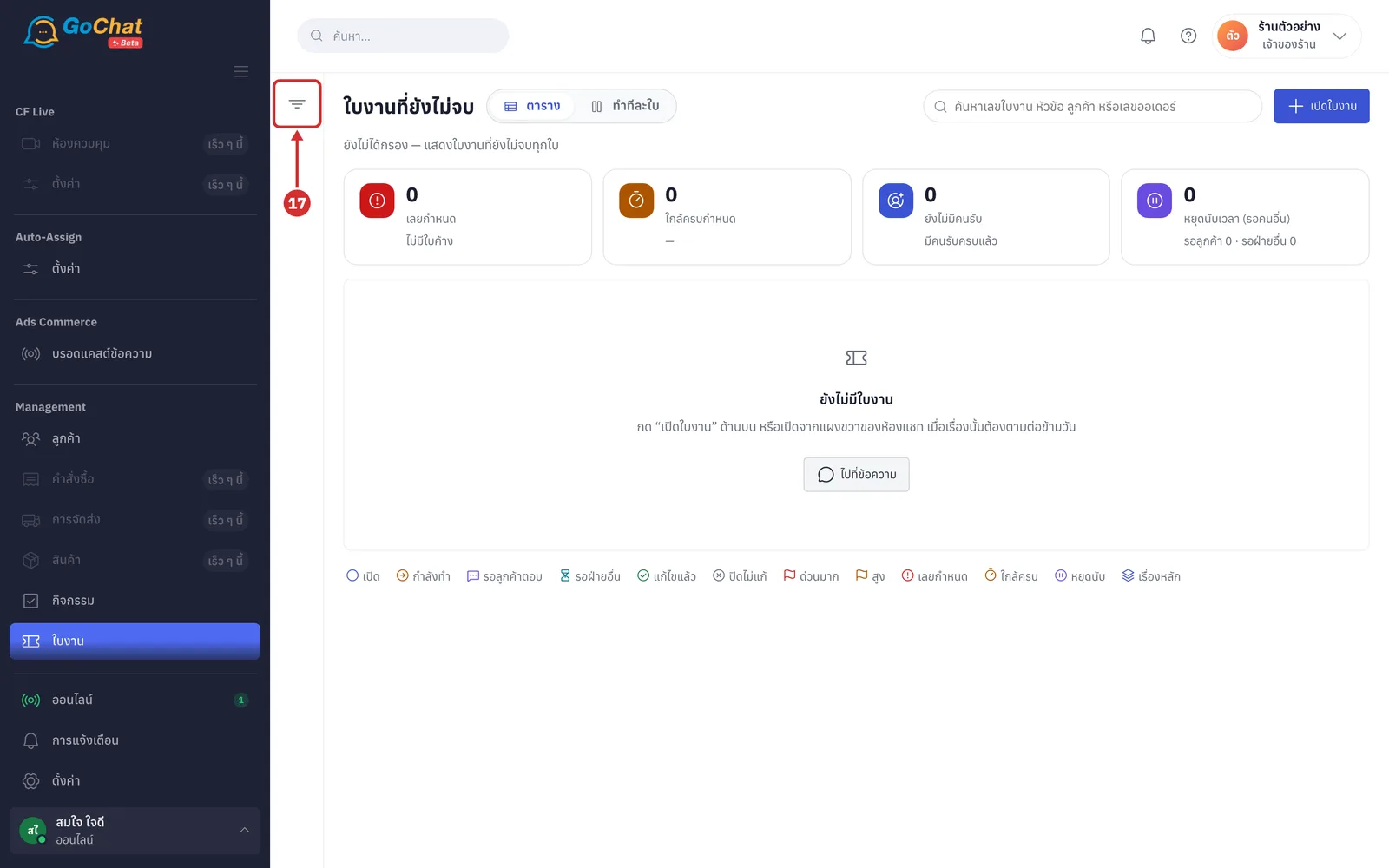
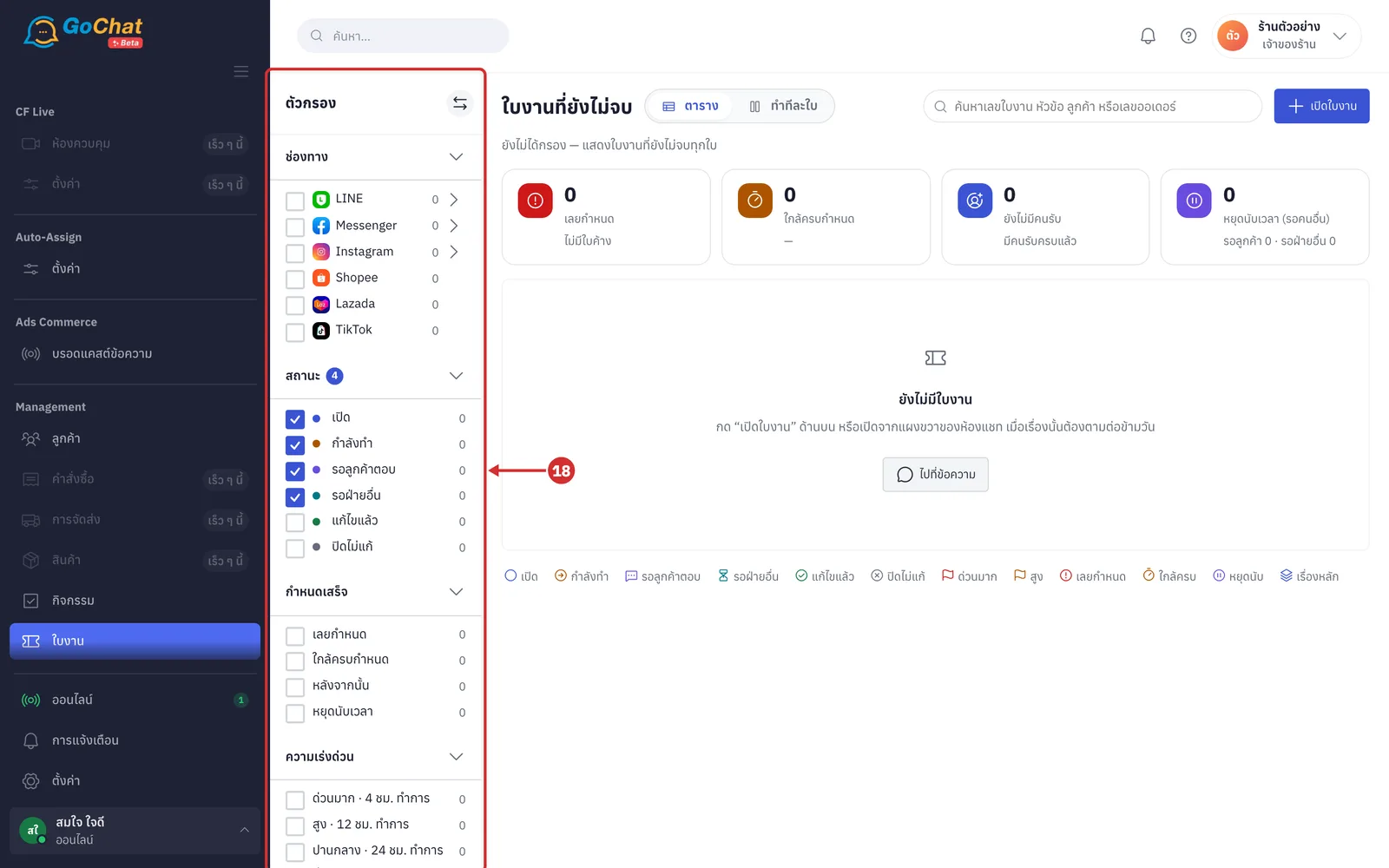
Click the funnel button to the left of the list (กางแผงตัวกรอง (Open filter panel)) to open the ตัวกรอง (Filters) panel (click the two-way arrow button on the panel header to fold it away)
In the ตัวกรอง (Filters) panel, tick the values you want. The number next to each value is how many tickets it has, and the number on a section heading is how many values are selected (sections can be folded or opened · click ล้างทั้งหมด (Clear all) on the panel header to go back to the defaults)
ช่องทาง (Channel) — tick a whole channel, or click the arrow at the end of a channel to pick only some pages or accounts
สถานะ (Status) — by default the 4 open statuses are ticked (เปิด (Open), กำลังทำ (In progress), รอลูกค้าตอบ (Waiting for customer), รอฝ่ายอื่น (Waiting on another team)); tick แก้ไขแล้ว (Resolved) or ปิดไม่แก้ (Closed without fix) to see finished tickets
กำหนดเสร็จ (Due) — เลยกำหนด (Overdue), ใกล้ครบกำหนด (Due soon), หลังจากนั้น (Later) or หยุดนับเวลา (Paused)
ความเร่งด่วน (Urgency) — ด่วนมาก · 4 ชม. (Very urgent · 4 h), สูง · 12 ชม. (High · 12 h), ปานกลาง · 24 ชม. (Medium · 24 h), ต่ำ · 72 ชม. (Low · 72 h)
ผู้รับผิดชอบ (Owner) — ของฉัน (Mine), ยังไม่มีคนรับ (Unassigned) or a person in your shop · ประเภท (Type) — the types your shop uses
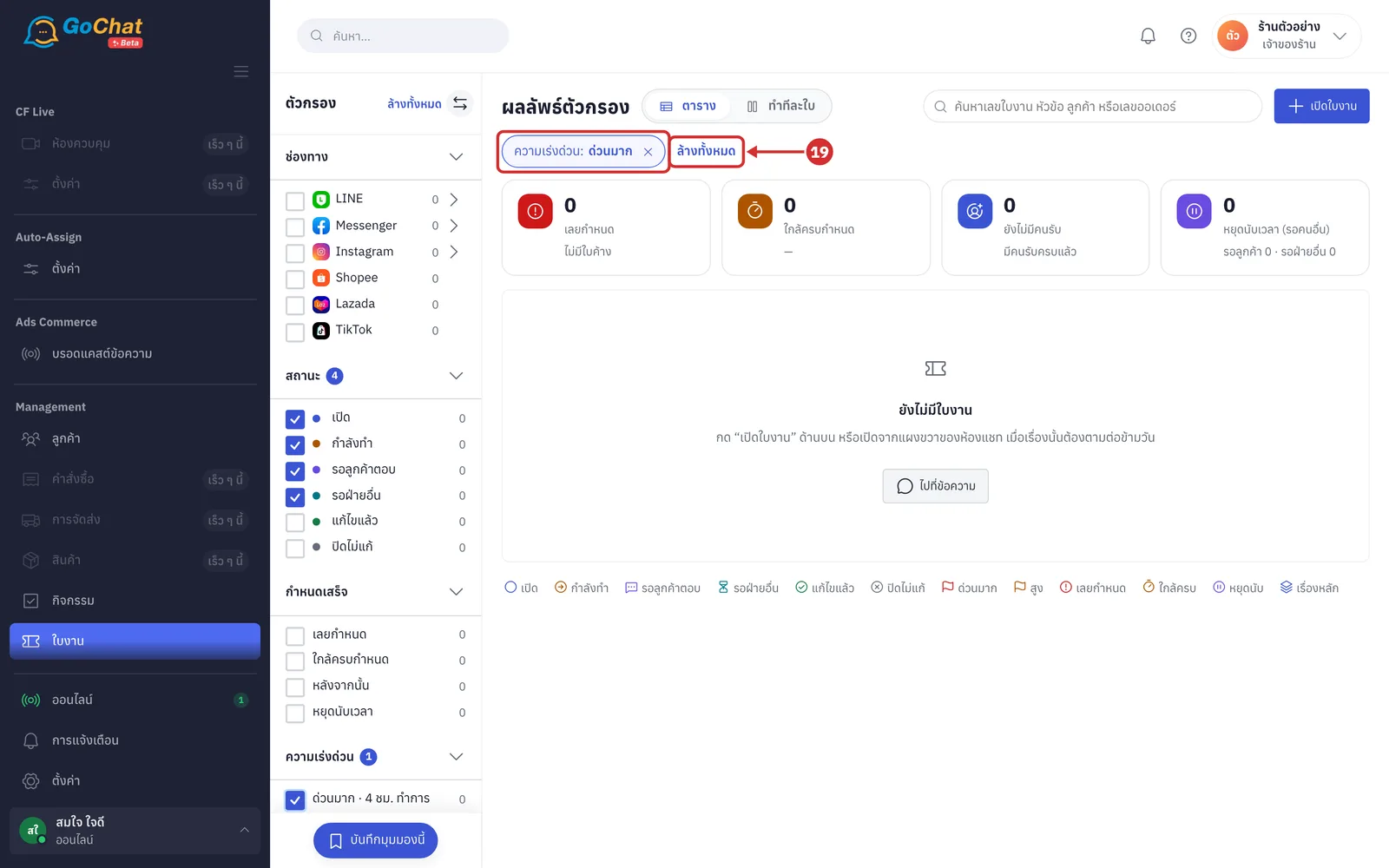
Selected filters appear as chips above the summary cards, such as ความเร่งด่วน: ด่วนมาก (Urgency: Very urgent), and the heading changes to ผลลัพธ์ตัวกรอง (Filter results). Click × on a chip to remove that filter, or click ล้างทั้งหมด (Clear all) to clear every filter including the search
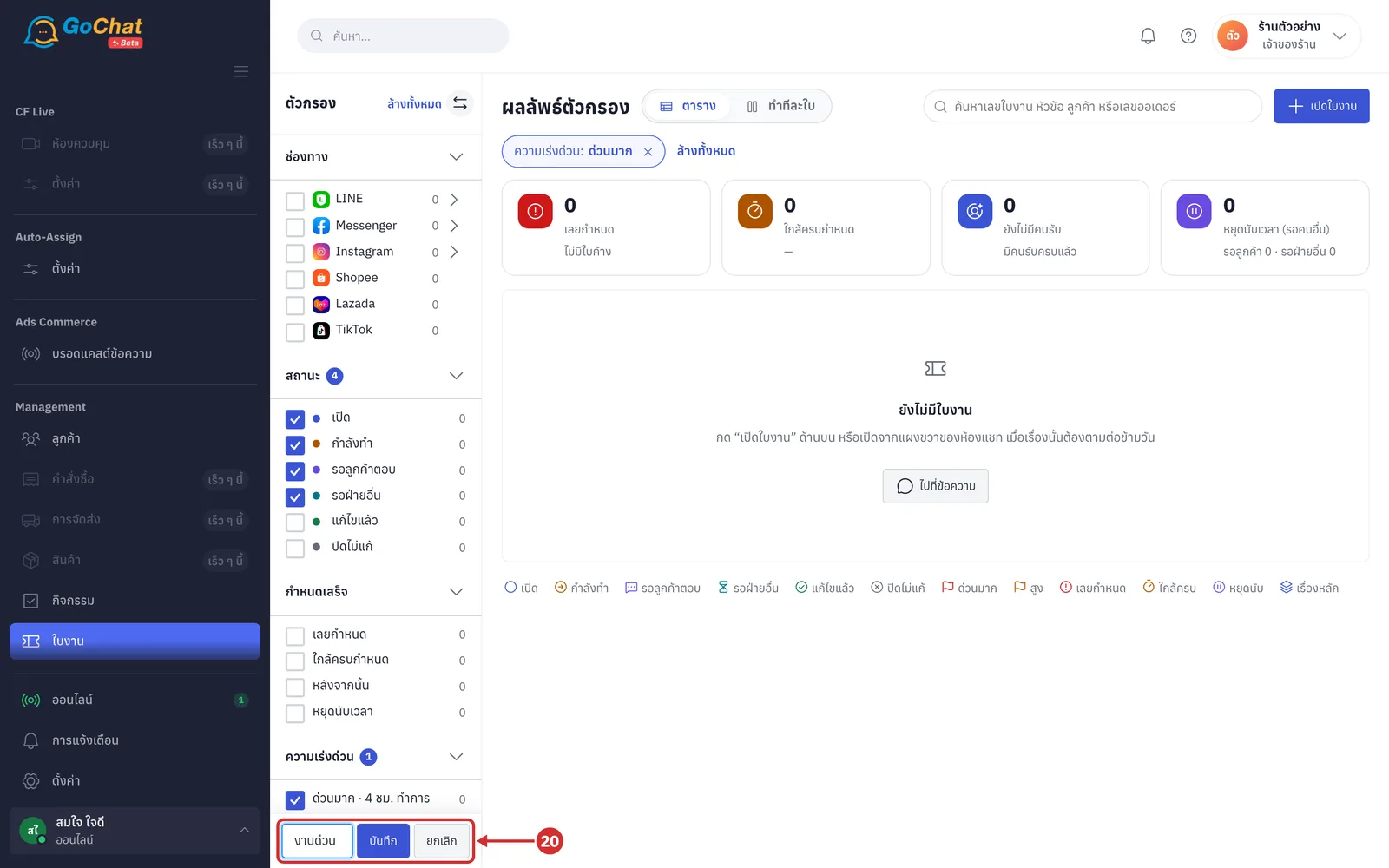
If you use a set of filters often, click บันทึกมุมมองนี้ (Save this view) at the bottom of the filter panel, type a name for the view, up to 40 characters, then click บันทึก (Save) (click ยกเลิก (Cancel) to leave · views are yours only; others in your shop cannot see them)
Saved views appear under มุมมองที่บันทึกไว้ (Saved views) at the top of the panel. Click a view's name to apply its filters. Click ⋯ after the name and choose ตั้งเป็นค่าเริ่มต้น (Set as default) (marked with a star · used every time you open the Tickets page), เลิกใช้เป็นค่าเริ่มต้น (Stop using as default) or ลบมุมมองนี้ (Delete this view) (only the saved filters are deleted; no tickets are deleted)
Reading the ticket table
Read the rows in the table; each row is one ticket. Click a row to open that ticket in ทำทีละใบ (One at a time) view
The first 4 icon columns: status · urgency flag · the chat's channel logo (tickets not linked to a chat show a broken-link icon) · due clock
เลขใบงาน (Ticket number), หัวข้อ (Subject), ลูกค้า (Customer) (tickets not linked to a chat show ยังไม่ผูกแชท (No chat linked)), ออเดอร์ (Order) (the linked order number; click to open it in a new tab), ผู้รับผิดชอบ (Owner) (or ยังไม่มีคนรับ (Unassigned)) and ประเภท (Type)
ครบกำหนด (Due), such as อีก 5 ชม. (in 5 h), เลย 2 วัน (2 days over), หยุดนับ (Paused), or the status name for finished tickets
In เรียงตาม (Sort by), choose นาฬิกา SLA (SLA clock), เปิดล่าสุด (Newest), ความเร่งด่วน (Urgency) or เลขใบงาน (Ticket number), then click the arrow button next to it to reverse the order (sorted by นาฬิกา SLA (SLA clock), the table is split under เลยกำหนด (Overdue), กำลังนับเวลา (Clock running), หยุดนับเวลา (รอคนอื่น) (Clock paused (waiting on others)) and จบแล้ว (Finished) · the table shows 50 tickets per page; beyond that, arrows let you change page with a count such as 1–50 จาก 120 (1–50 of 120))
Tickets in the same main issue are grouped under a main issue row (numbered PB-001) showing กระทบ N ลูกค้า (Affects N customers) and จบแล้ว x/y (Finished x/y). Click the arrow at the start of the row to open or fold its tickets, and click the row to open the main issue page (a red warning circle on the row = some tickets are overdue)
Updating many tickets at once
Tick the box at the start of the rows you want (the box in the table header = เลือกทั้งหน้า (Select whole page) · ticking a main issue row = all its tickets on this page). The bar above changes to เลือก N ใบ (N selected) with commands (click ยกเลิก (Cancel) to deselect · changing filters, page or sort clears your selection)
มอบหมาย (Assign) — choose someone in your shop or ไม่มีคนรับ (No owner)
เปลี่ยนสถานะ (Change status) and ความเร่งด่วน (Urgency) — choose a new value for every selected ticket
ปิดเคส (Close case) — sets every selected ticket to แก้ไขแล้ว (Resolved)
The system shows a message such as มอบหมายให้ มานี มีสุข 3 ใบแล้ว (Assigned 3 tickets to Manee Meesuk) (tickets that could not be changed are counted as ไม่สำเร็จ N ใบ (N failed))
If several tickets are the same problem affecting many customers, such as delayed delivery across a region, tick them and click รวมเป็นเรื่องเดียวกัน (Group into one issue). In the window, choose ใส่เข้าเรื่องที่มีอยู่ (Add to an existing issue), or choose สร้างเรื่องหลักใหม่ (Create a new main issue) and fill in หัวข้อเรื่องหลัก (Main issue subject) (required, up to 200 characters) and สาเหตุ / รายละเอียด (ไม่บังคับ) (Cause / details (optional)), then click รวม N ใบ (Group N tickets). The system shows รวม N ใบเข้า PB-… แล้ว (Grouped N tickets into PB-…) (each ticket keeps its own status · on the main issue page you can click ส่งข้อความหาลูกค้า N คนที่ยังไม่จบ (Message the N customers not finished), เพิ่มใบงานเข้าเรื่องนี้ (Add tickets to this issue) or เปลี่ยนสถานะทุกใบ (Change status of every ticket))
Working on one ticket at a time
Click ทำทีละใบ (One at a time) on the switch next to the page title (click ตาราง (Table) to go back). The page splits into the ticket list on the left, the selected ticket in the middle and a details panel on the right (with nothing selected it shows เลือกใบงานทางซ้ายเพื่อดูรายละเอียด (Choose a ticket on the left to see details))
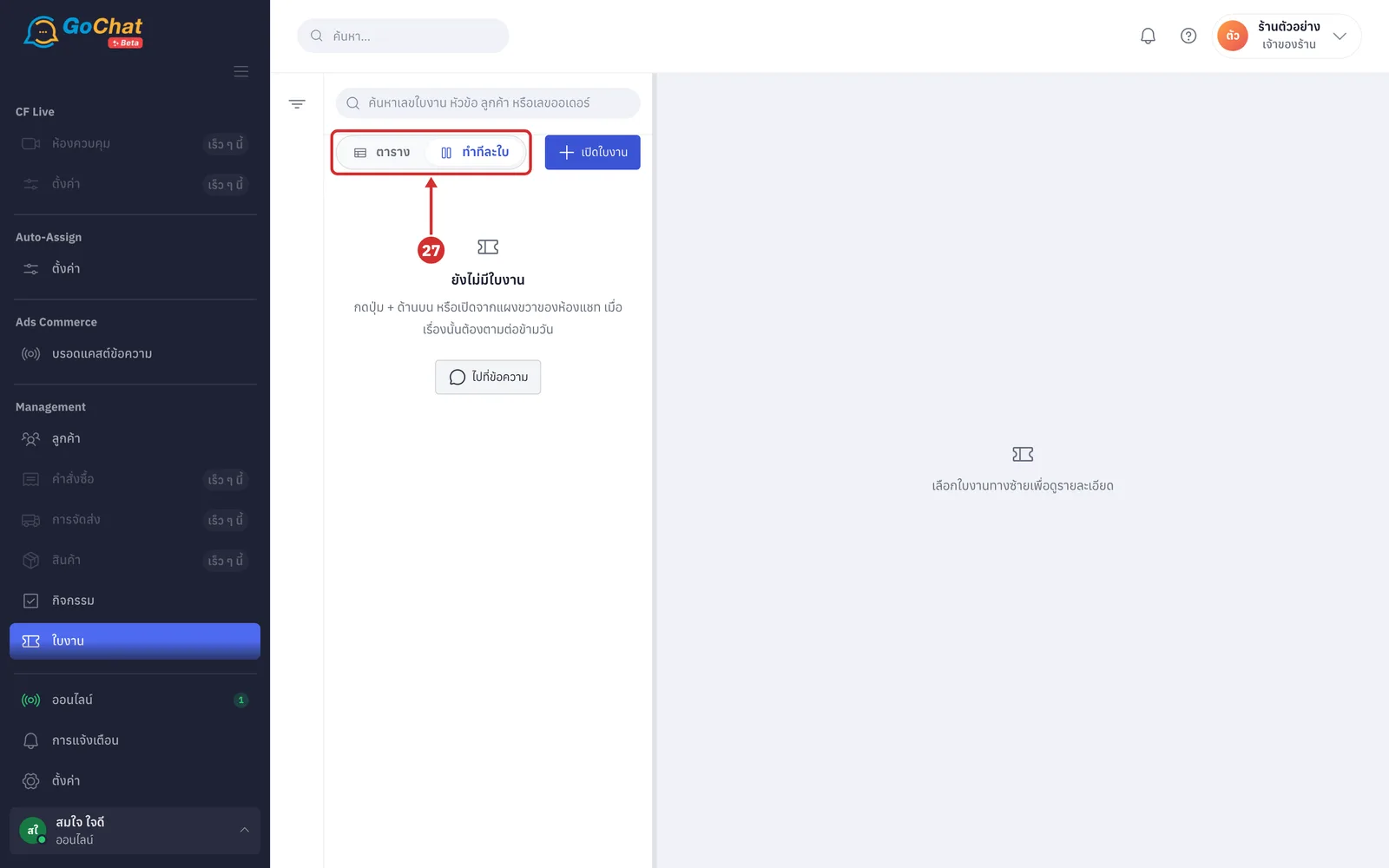
Read the list on the left. Tickets are grouped into เลยกำหนด (Overdue), ใกล้ครบกำหนด (Due soon), หลังจากนั้น (Later), หยุดนับเวลา (รอคนอื่น) (Clock paused (waiting on others)) and จบแล้ว (Finished). Each row shows the customer, subject, ticket number, status, urgency, due time and owner. Click a row to open that ticket
At the top of the selected ticket, click ตอบลูกค้าในแชท (Reply in chat) to go to the customer's chat (tickets without a chat show ผูกแชทก่อนตอบ (Link a chat before replying)), click ปิดเคส (Close case) when the issue is fixed (finished tickets show เปิดใหม่ (Reopen)), click the link icon (คัดลอกลิงก์ใบงาน (Copy ticket link)) to send the link to your team, or click the far-right button (แผงรายละเอียดใบงาน (Ticket details panel)) to show or hide the right panel
Click a status button to change the ticket's status. The line under the bar explains the selected status
เปิด (Open) — nobody has started · กำลังทำ (In progress) — someone is working on it (the clock runs for both)
รอลูกค้าตอบ (Waiting for customer) — waiting for the customer to send details or reply · รอฝ่ายอื่น (Waiting on another team) — waiting for the warehouse, courier or accounts (the clock pauses and continues when the status changes)
แก้ไขแล้ว (Resolved) — case closed, the customer has an answer · ปิดไม่แก้ (Closed without fix) — closed without fixing, such as a duplicate or the customer cancelled (finished tickets must be reopened with เปิดใหม่ (Reopen) before changing to another status)
In โน้ตภายใน (Internal note), type progress for your team, up to 2,000 characters, then click เพิ่มโน้ต (Add note) (or ⌘/Ctrl + Enter · click โน้ตสำเร็จรูป (Note templates) to insert common text such as "called the courier, waiting for a reply tomorrow" · only your team sees it, not the customer). Notes and every change to the ticket, such as status, assignment or due time changes, appear in order on the timeline in the middle
In the right panel, the due card shows the time left, such as เหลือ 5 ชม. (5 h left) or เลยกำหนด 2 ชม. (2 h overdue), with the due date and time. Click เปลี่ยนกำหนด (Change due) to choose your own date and time, then click บันทึก (Save) (for a custom due time, click ใช้ตามความเร่งด่วน (Use urgency) to go back to the calculated time · for a paused ticket, the card shows how much time will be left when the clock restarts)
Below the card, change ผู้รับผิดชอบ (Owner) and ความเร่งด่วน (Urgency) from the drop-downs (saved immediately · changing the urgency recalculates the due time automatically), and see ประเภท (Type) and เปิดเมื่อ (Opened) (when and by whom the ticket was opened)
Other sections in the right panel; click a heading to fold or open it
ออเดอร์ (Order) — click ผูกออเดอร์ (Link order) to choose from the customer's orders or search the whole shop by phone number (once linked, click ⋯ to เปลี่ยนออเดอร์ (Change order) or ถอดออเดอร์ออก (Remove order) · the order in GoSaaS is not deleted)
เรื่องหลัก (Main issue) — click ผูกกับเรื่องหลัก (Link to main issue) to put this ticket in an existing issue, or สร้างเรื่องหลักใหม่ (Create a new main issue) (once linked, click เอาออกจากเรื่องนี้ (Remove from this issue))
การสนทนา (Conversation) — the chat linked to the ticket with the customer's latest message (click ⋯ to เปลี่ยนแชท (Change chat) or ถอดแชทออก (Unlink chat) · tickets without a chat have ผูกแชท (Link chat))
ใบงานอื่นของลูกค้านี้ (Other tickets for this customer) — number, status and subject; click the number to open that ticket
Note: The system notifies the owner when a ticket is nearly due, and the owner and leads when it is overdue (tickets without an owner notify everyone in the shop), and records each alert on the ticket's timeline · shops that count business hours only do not count the time the shop is closed · ทำทีละใบ (One at a time) view lists up to 200 tickets; see the rest in ตาราง (Table) view