

Notification settings
The การแจ้งเตือน (Notifications) page sets the alert sound for new customer messages, which pages make a sound, and turns on device notifications that pop up even when GoChat is not open. Users in every role can set their own settings without affecting anyone else in the shop. Every setting is saved as soon as you change it; there is no Save button.
Setting the new-message sound
Go to the การแจ้งเตือน (Notifications) menu in the left menu bar
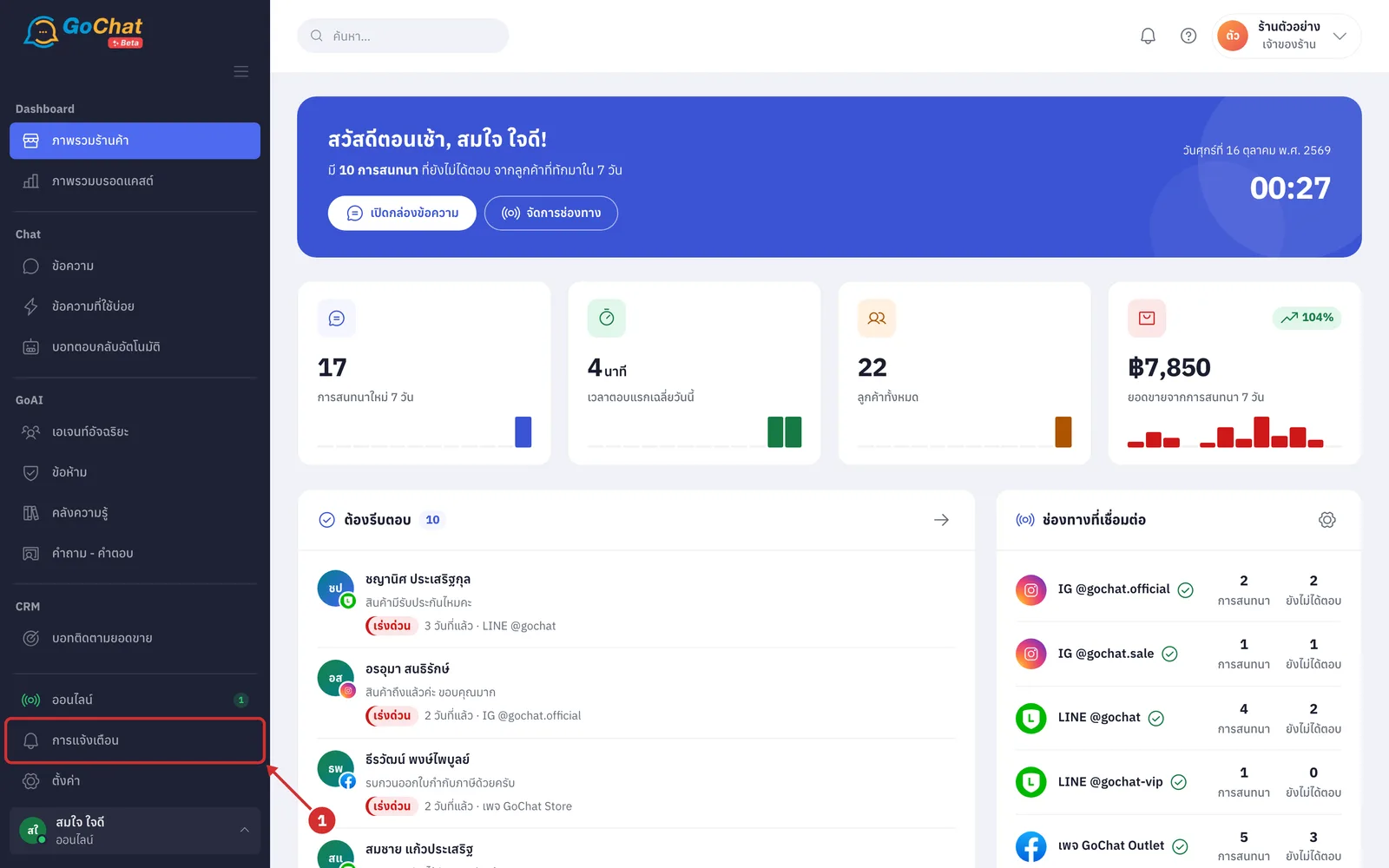
On the เสียงข้อความเข้า (New-message sound) card, turn the switch on to play a sound when a customer sends a new message (on: the sound plays while the chat page is open · off: this device makes no new-message sound · this switch is set per device and is the same setting as the bell button at the top right, so you can also turn the sound on or off with the bell)
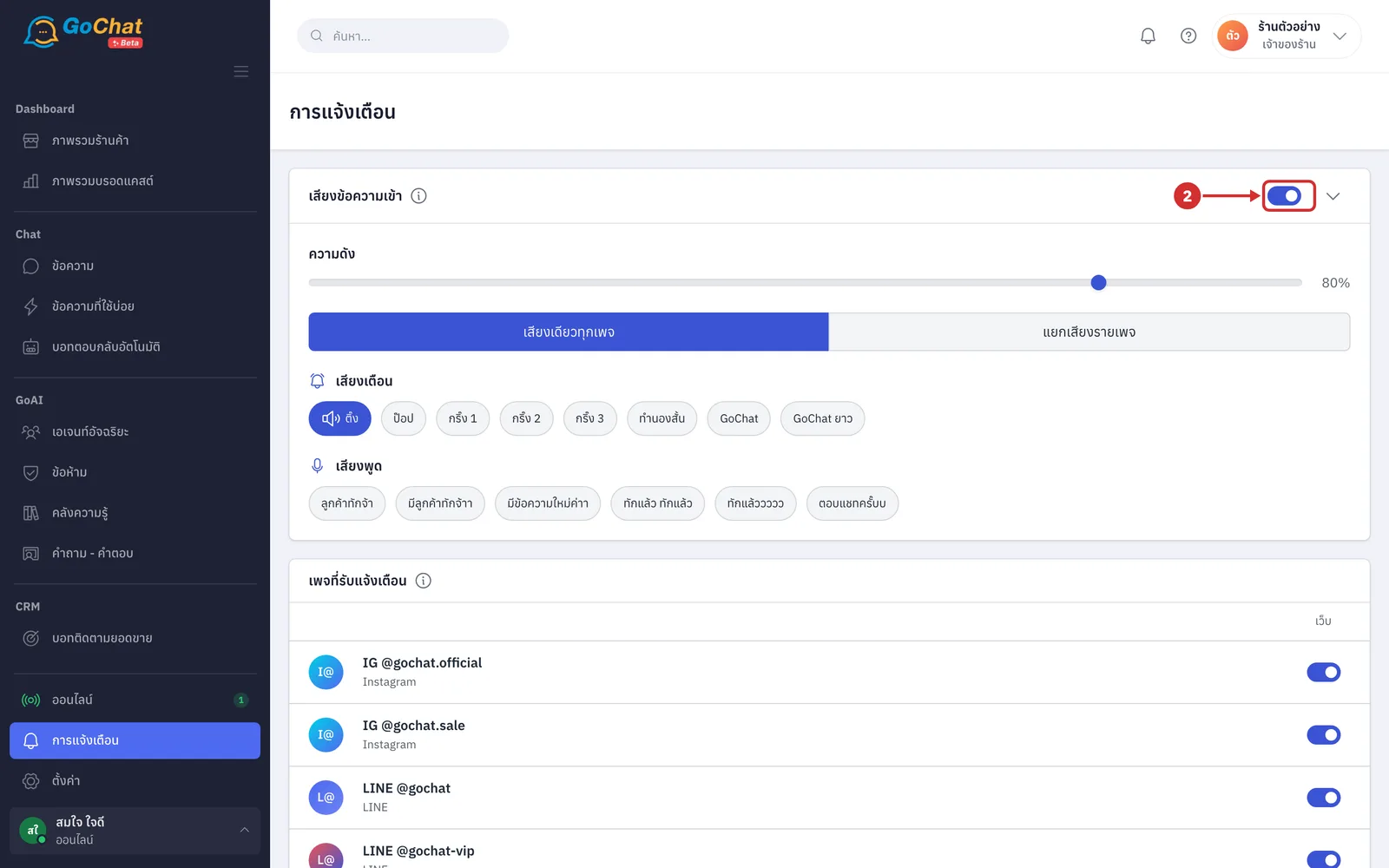
Drag the ความดัง (Volume) slider, from 0 to 100%. When you release it, you hear the sound at the new level right away (volume is set per device; the default is 80%)
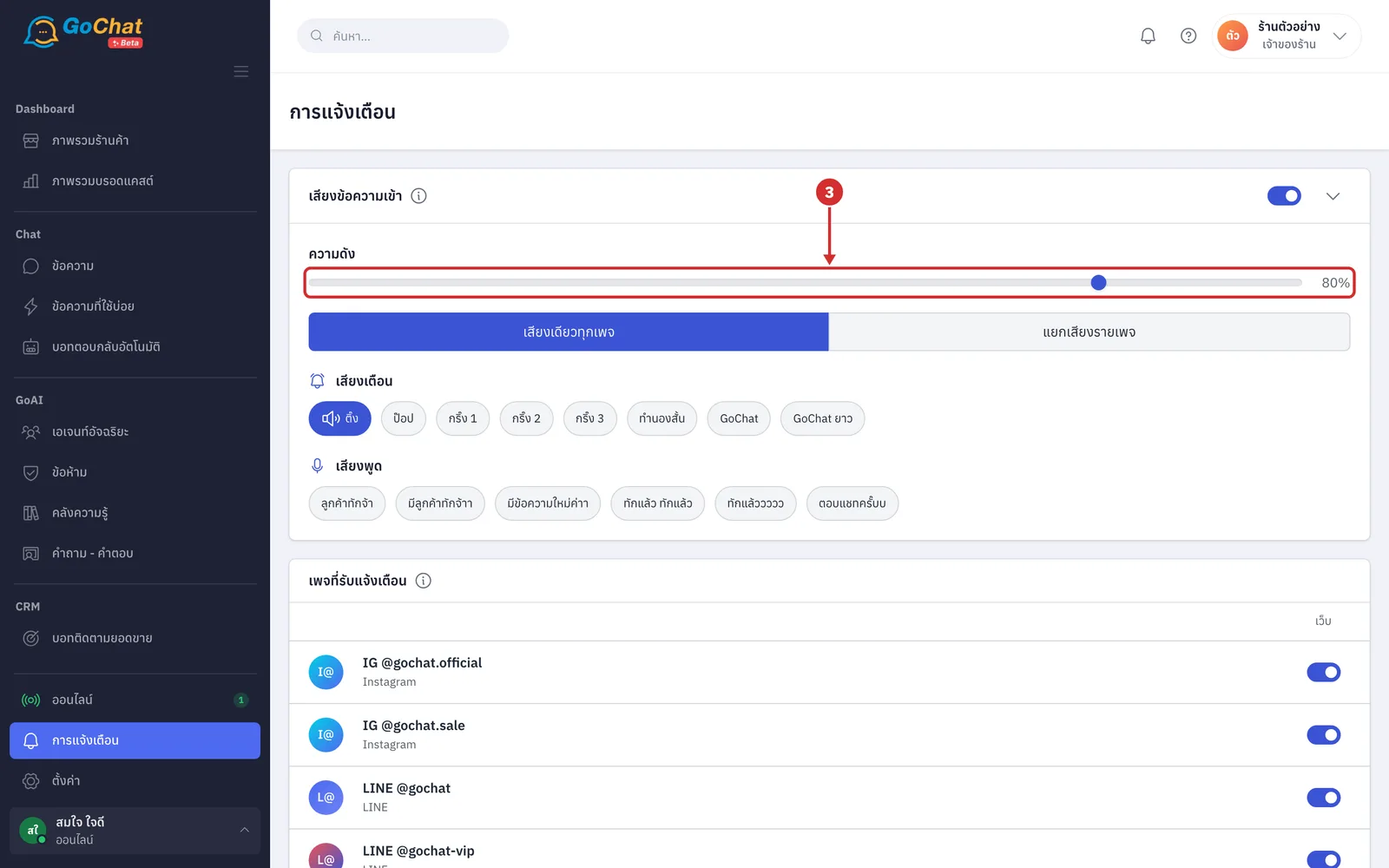
Choose เสียงเดียวทุกเพจ (One sound for all pages) so every page uses the same sound, or แยกเสียงรายเพจ (A sound per page) so each page has its own sound and you can tell which page a message came from (see Setting a sound per page below)
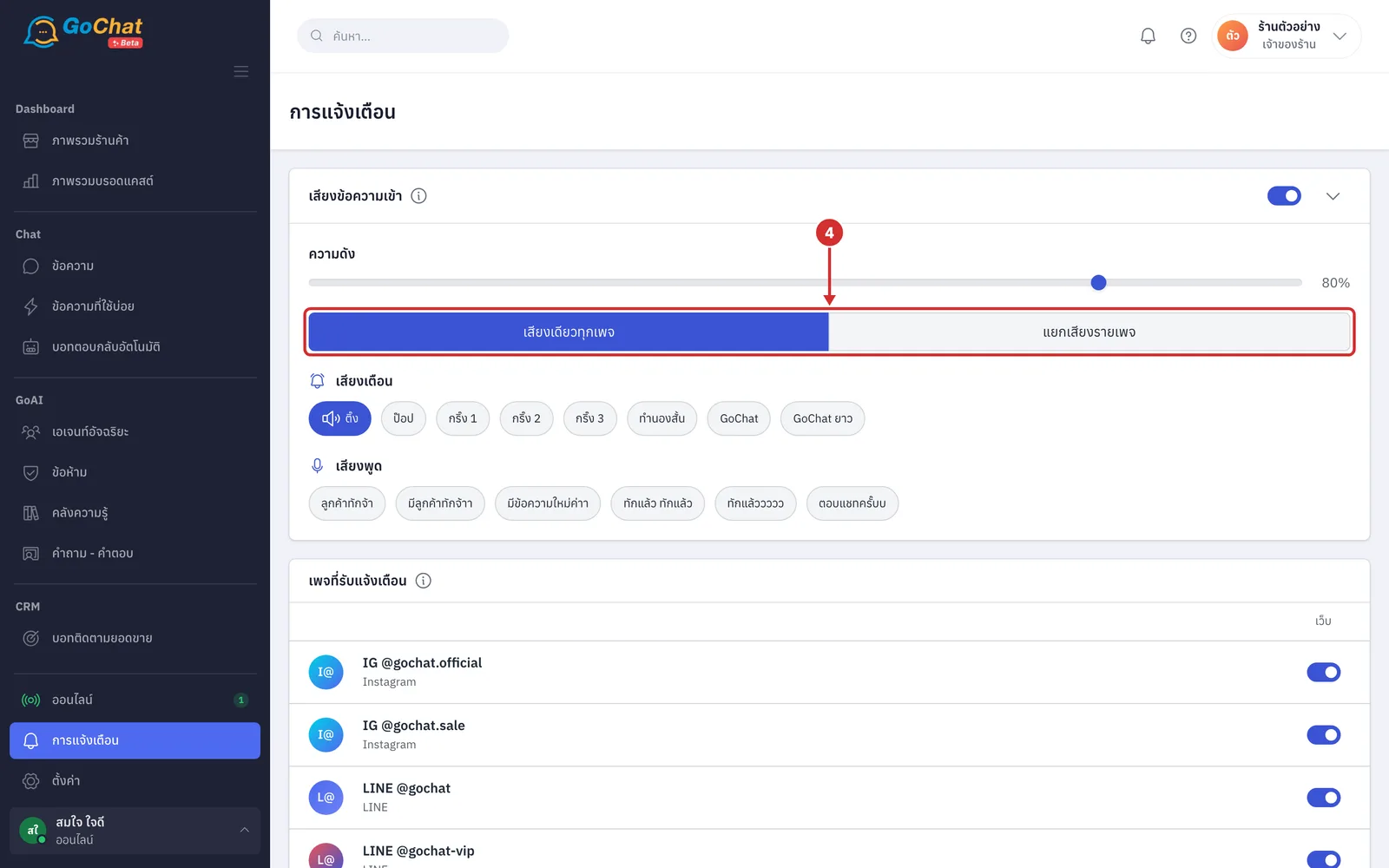
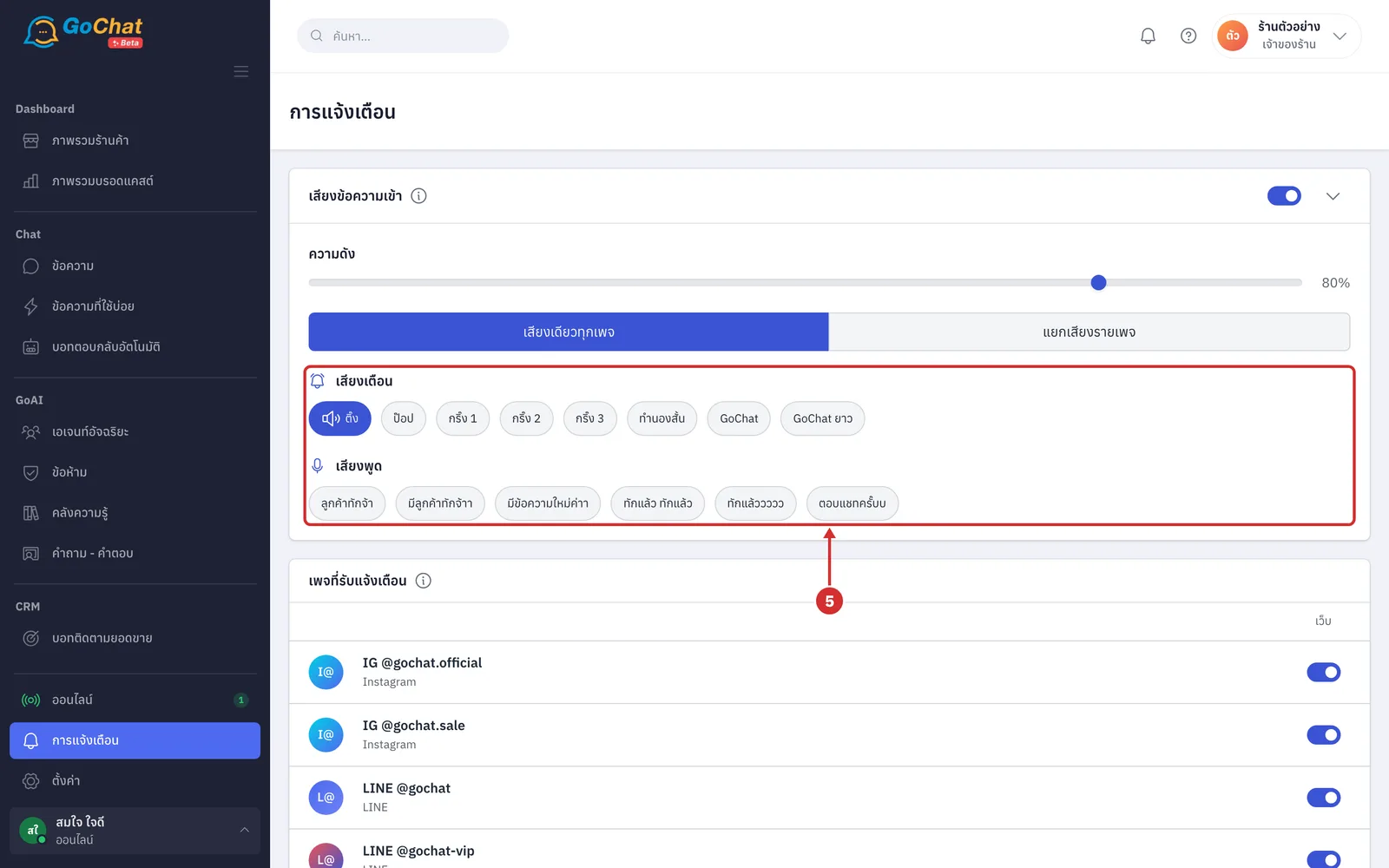
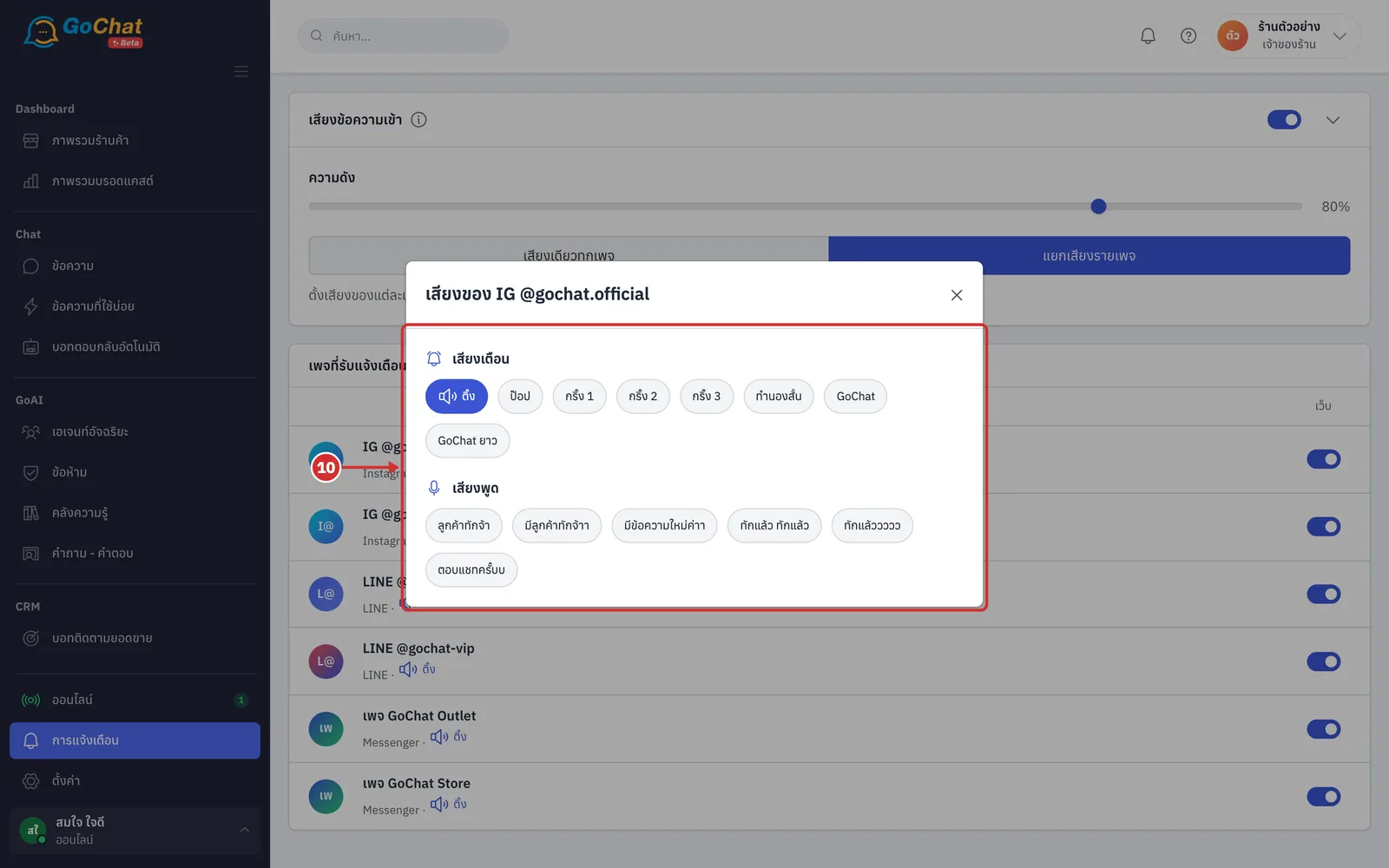
Tap a sound in the เสียงเตือน (Alert sounds) group (ติ๊ง · ป๊อป · กริ๊ง 1 · กริ๊ง 2 · กริ๊ง 3 · ทำนองสั้น · GoChat · GoChat ยาว) or the เสียงพูด (Voice) group (ลูกค้าทักจ้า · มีลูกค้าทักจ้าา · มีข้อความใหม่ค่าา · ทักแล้ว ทักแล้ว · ทักแล้ววววว · ตอบแชทครั๊บบ). You hear it right away, even when the sound is off (the selected sound has a speaker icon; the default is ติ๊ง (Ting) · the sound you choose is your own setting and applies on every device you sign in to)
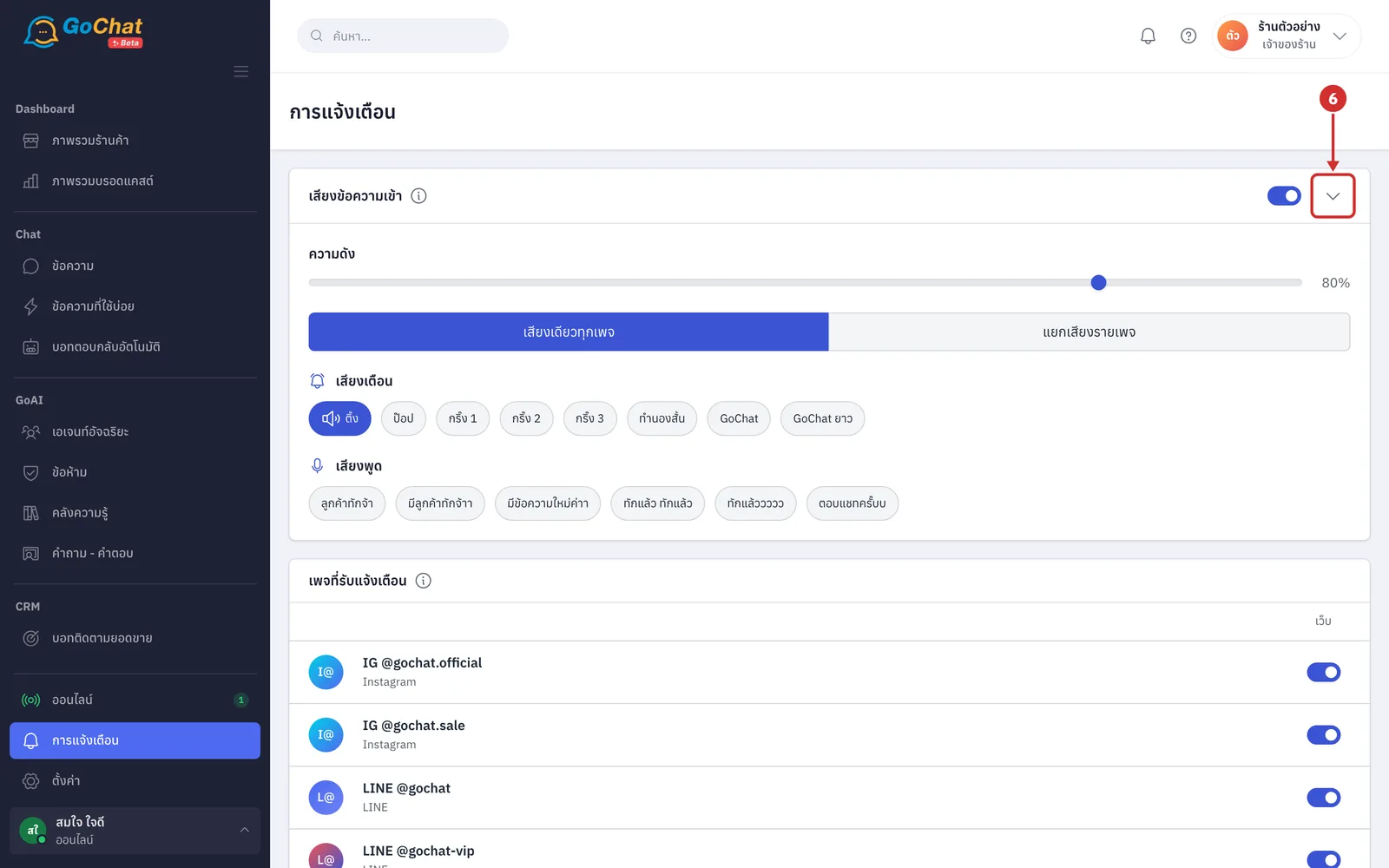
Click the arrow at the right of the card to fold it when you are done (when folded and the sound is on, the card header shows the sound and volume you set, such as ติ๊ง · 80% · click the arrow again to unfold · this device remembers whether it is folded)
Choosing which pages notify you
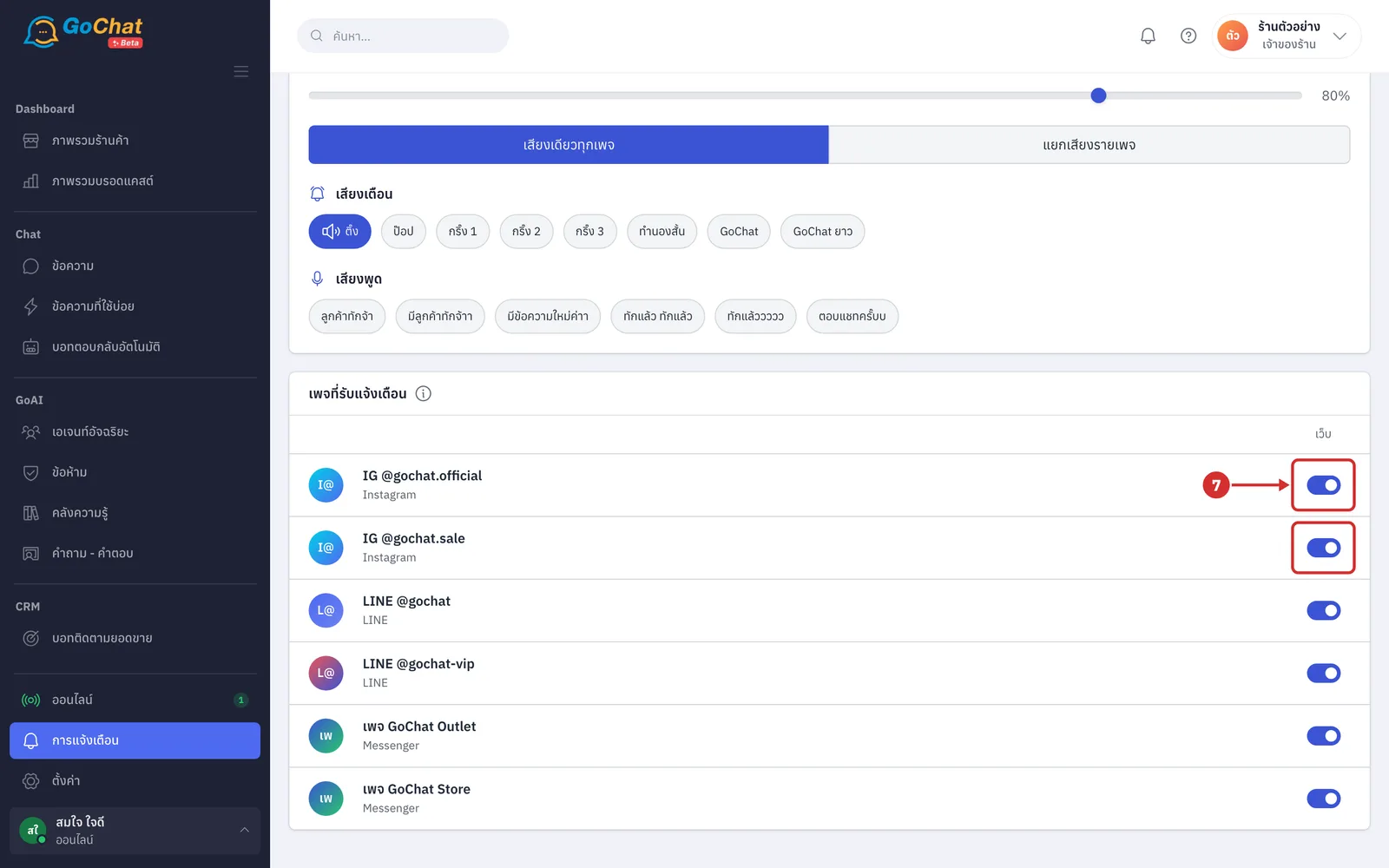
On the เพจที่รับแจ้งเตือน (Pages that notify you) card, which lists every page of the shop with its channel (Instagram · LINE · Messenger), turn each page's switch in the เว็บ (Web) column on or off (on: a sound plays when that page gets a message · off: that page makes no sound on the web, useful if you only look after some pages · all pages are on by default · this is your own setting and applies on every device you sign in to)
Setting a sound per page
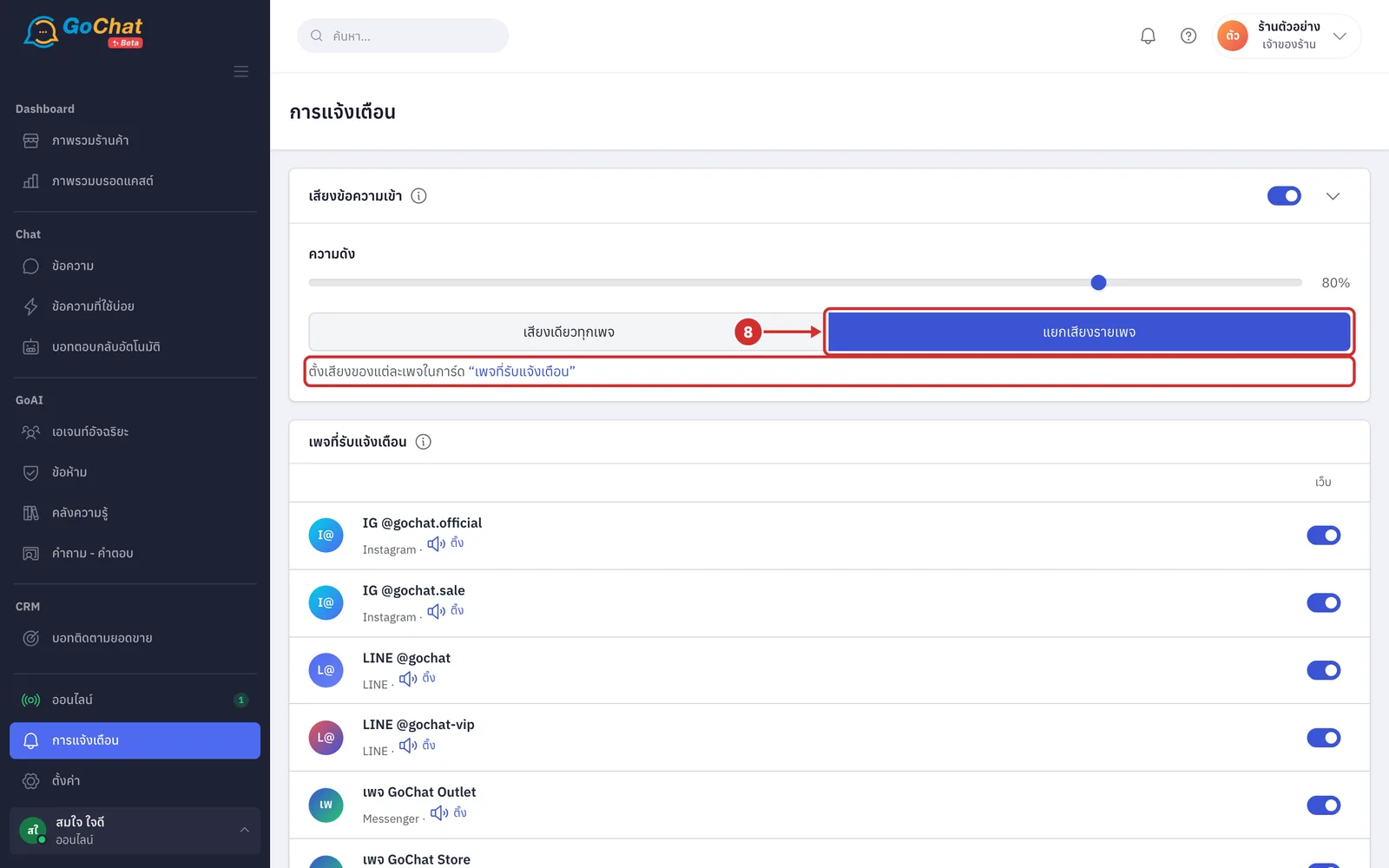
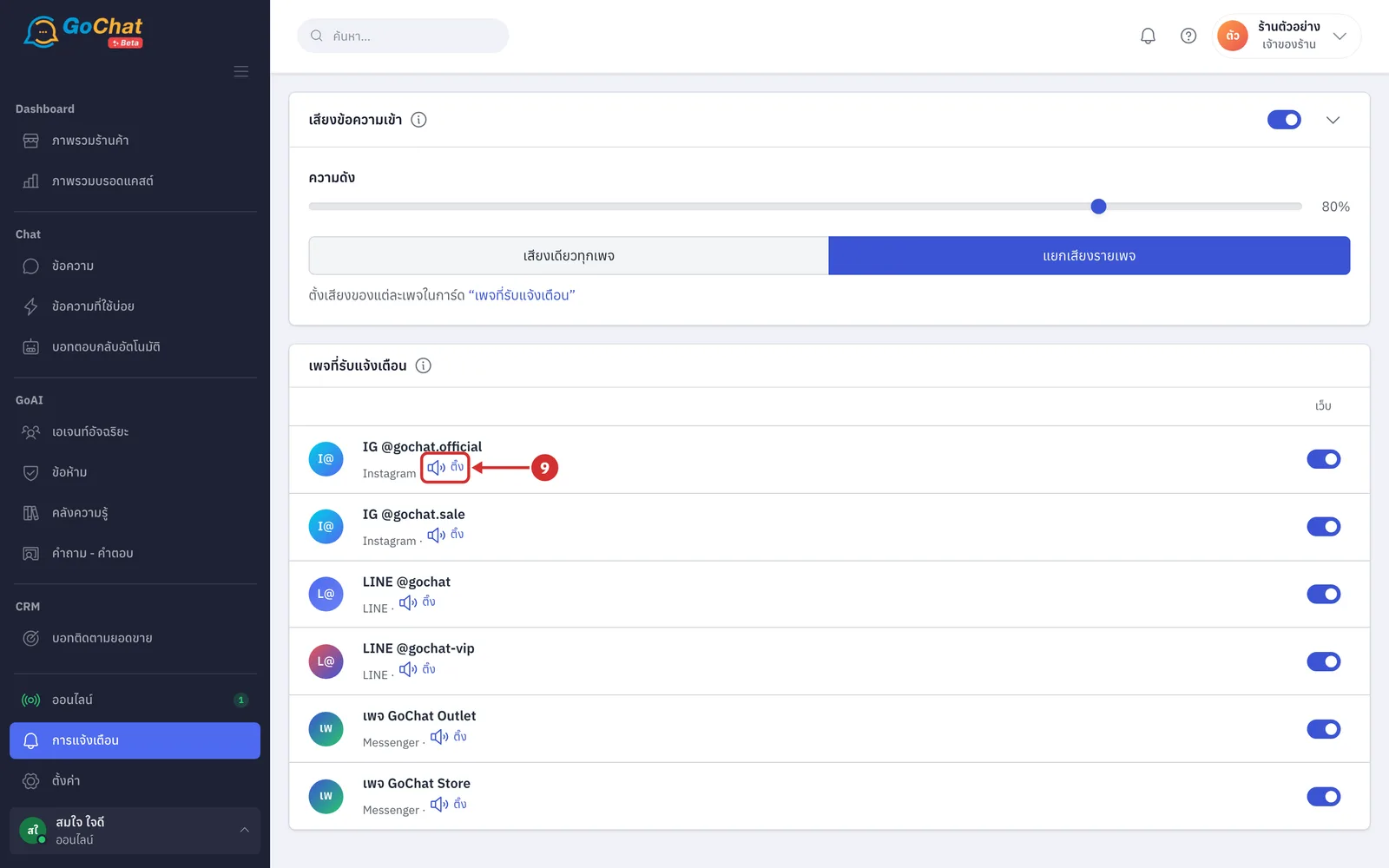
On the เสียงข้อความเข้า (New-message sound) card, click แยกเสียงรายเพจ (A sound per page) (the list of sounds on the card changes to ตั้งเสียงของแต่ละเพจในการ์ด “เพจที่รับแจ้งเตือน” (Set each page's sound on the “Pages that notify you” card); click that text to jump to the card)
On the เพจที่รับแจ้งเตือน (Pages that notify you) card, each page shows the name of its sound under the page name. Click the sound name of the page you want to change (pages with the เว็บ (Web) switch off show no sound name)
In the เสียงของ (Sound for) window followed by the page name, tap the sound you want. You hear it right away (the window stays open so you can try several sounds; when done, click × or click outside the window to close it)
Turning on notifications on this device
This part makes notifications pop up on your device when a customer messages the shop, even when no GoChat tab is open. It is set per device and per shop; if you look after several shops, turn it on in each shop.
On the เครื่องนี้ (This device) card, click เปิดแจ้งเตือนบนเครื่องนี้ (Turn on notifications on this device)
When the browser asks for permission to show notifications, allow it. The system shows เปิดแจ้งเตือนบนเครื่องนี้แล้ว (Notifications are on for this device) (if you blocked notifications before, the system shows เบราว์เซอร์บล็อกการแจ้งเตือนของเว็บนี้ไว้ — ต้องไปปลดในการตั้งค่าเบราว์เซอร์เอง (The browser is blocking notifications for this site — unblock it in your browser settings) · on iPhone the system shows เบราว์เซอร์นี้ไม่รองรับการแจ้งเตือน — บน iPhone ต้องเพิ่มเว็บลงหน้าจอโฮมก่อน (This browser does not support notifications — on iPhone, add the site to your Home Screen first))
On the ทดสอบ (Test) card, click ส่งแจ้งเตือนทดสอบ (Send a test notification) to check that notifications really pop up. The system sends a ทดสอบแจ้งเตือน (Test notification) to your own devices only and shows ส่งแล้ว (Sent) with the number of devices (if no device is turned on yet, it shows ยังไม่มีเครื่องไหนเปิดแจ้งเตือนไว้ (No device has notifications turned on yet) · if your devices have expired, it shows ส่งไม่ถึงเลย — เครื่องที่เปิดไว้หมดอายุแล้ว ต้องกดเปิดใหม่ (Nothing was delivered — the devices have expired, turn them on again))
On the เครื่องที่เปิดไว้ (Devices turned on) card, see the devices with notifications turned on for this shop. Your devices come first with the เครื่องนี้ (This device) label, and each row shows ส่งล่าสุด (Last sent) · เปิดเมื่อ … · ยังไม่เคยส่ง (Turned on … · never sent) or หมดอายุแล้ว — ต้องกดเปิดใหม่บนเครื่องนั้น (Expired — turn it on again on that device). To stop notifications on a device, click × on its row; the system shows ปิดแจ้งเตือนบนเครื่องนั้นแล้ว (Notifications turned off for that device) (you can only turn off your own devices)
Note: The new-message sound plays while the chat page is open; the chat you are looking at on screen makes no sound. Messages that arrive less than 5 seconds apart play one sound, and if they keep coming the sound repeats every 30 seconds; with several tabs open, only one tab plays it. Your chosen sounds and pages are your own settings and apply on every device you sign in to, while the sound switch and volume are set per device. If a change cannot be saved, it switches back and shows บันทึกไม่ได้ — เช็กอินเทอร์เน็ตแล้วลองใหม่ (Could not save — check your internet and try again).