

Using the chat control room
The ห้องควบคุมแชท (Chat control room) page lets you see chats nobody has taken yet and whether each admin is free or which chats they are handling, live, so you can hand out, move or return chats right away, either by dragging them or by selecting them and clicking มอบให้ (Assign). The numbers and lists update on their own; you do not need to refresh.
The menu appears after chat assignment is turned on (see การเปิดระบบจัดสรรแชท), and only เจ้าของร้าน (Shop owner), หัวหน้าร้าน (Shop lead) and หัวหน้าทีม (Team lead) see it. A team lead only sees chats from the team's pages and the admins in their own team.
Opening the control room
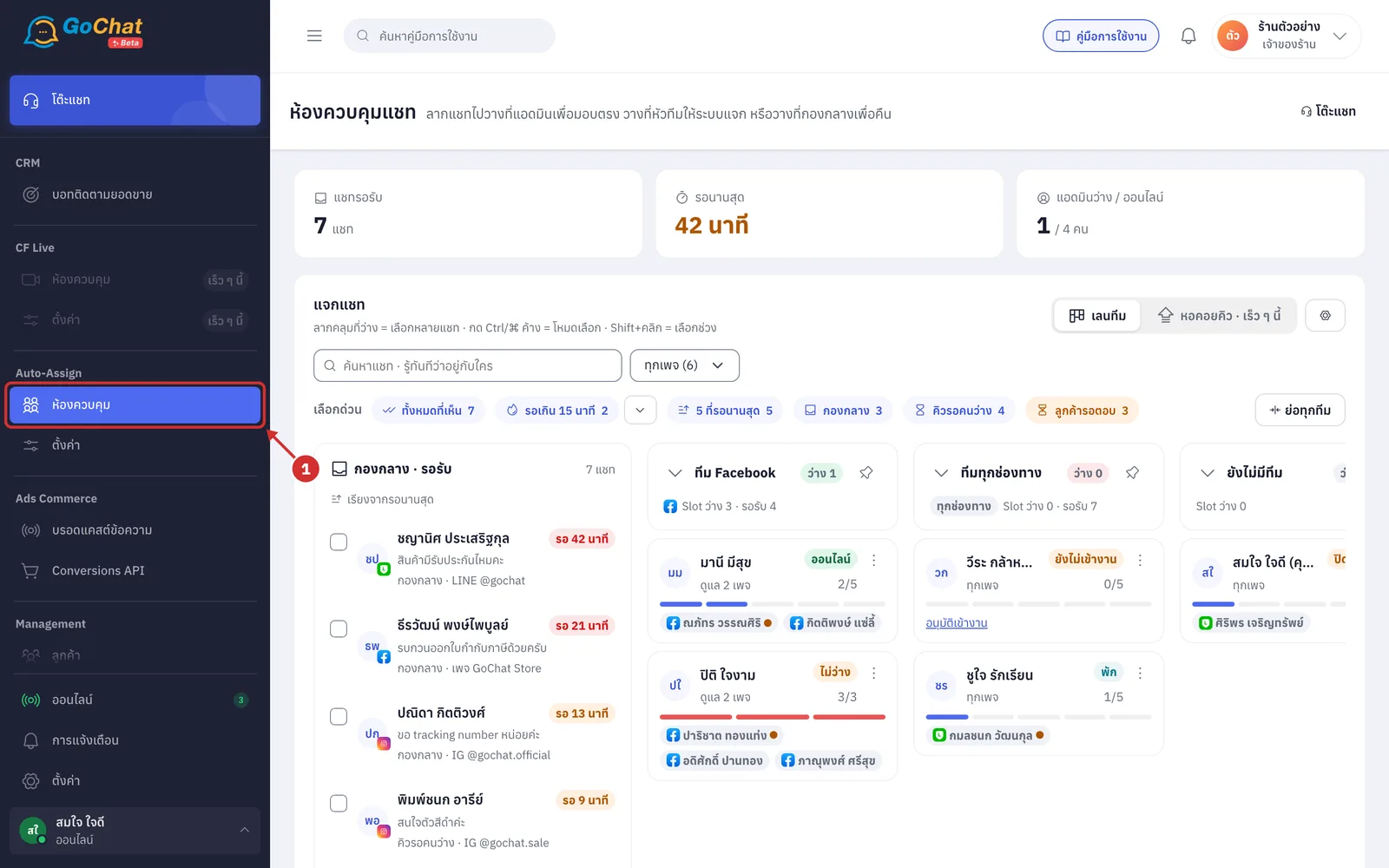
Under Auto-Assign, choose ห้องควบคุม (Control room) in the left menu bar
Reading the numbers at the top
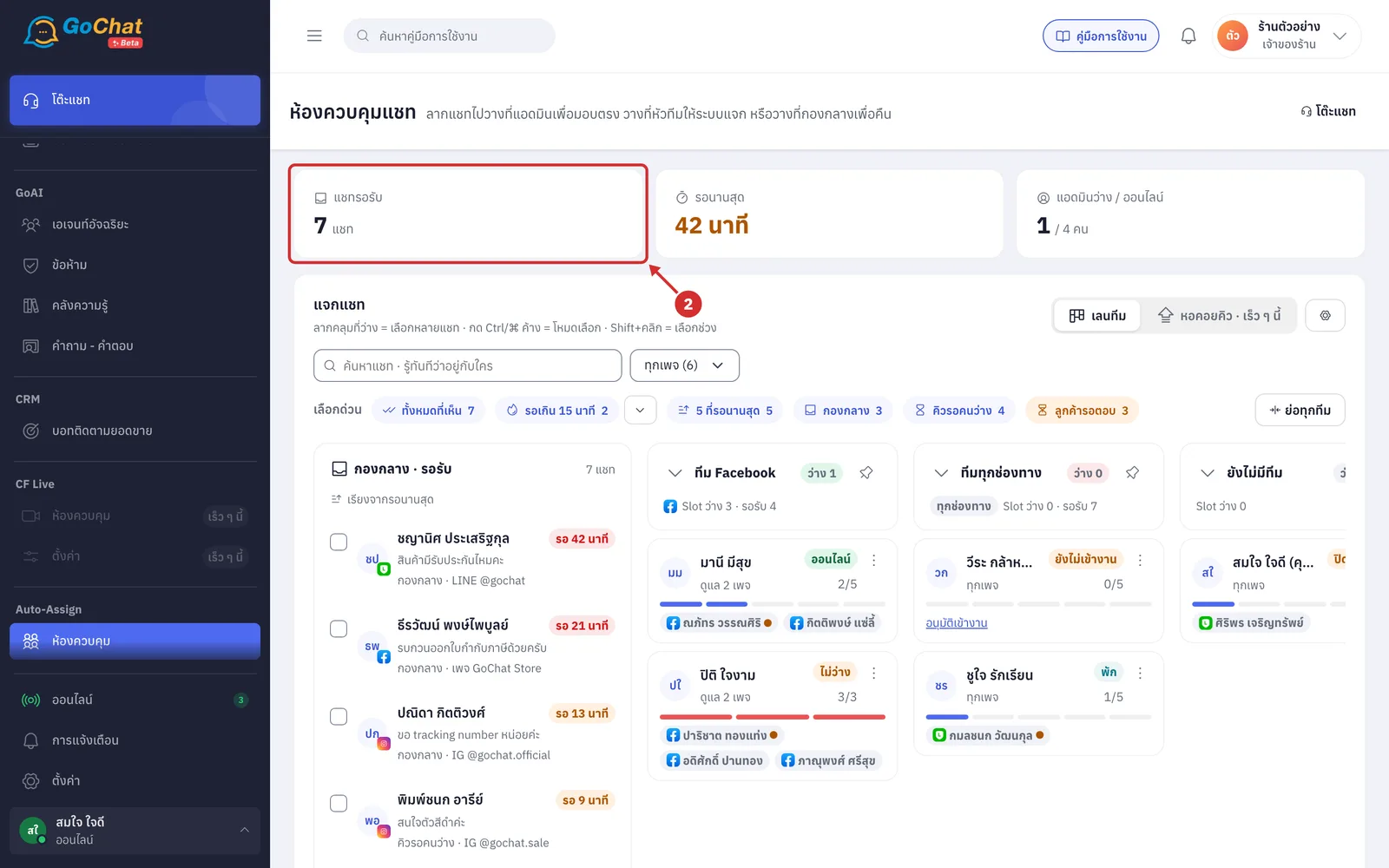
The แชทรอรับ (Waiting chats) tile shows how many chats no admin has taken yet (chats in both the กองกลาง (Shared pool) and the คิวรอคนว่าง (Queue for a free admin))
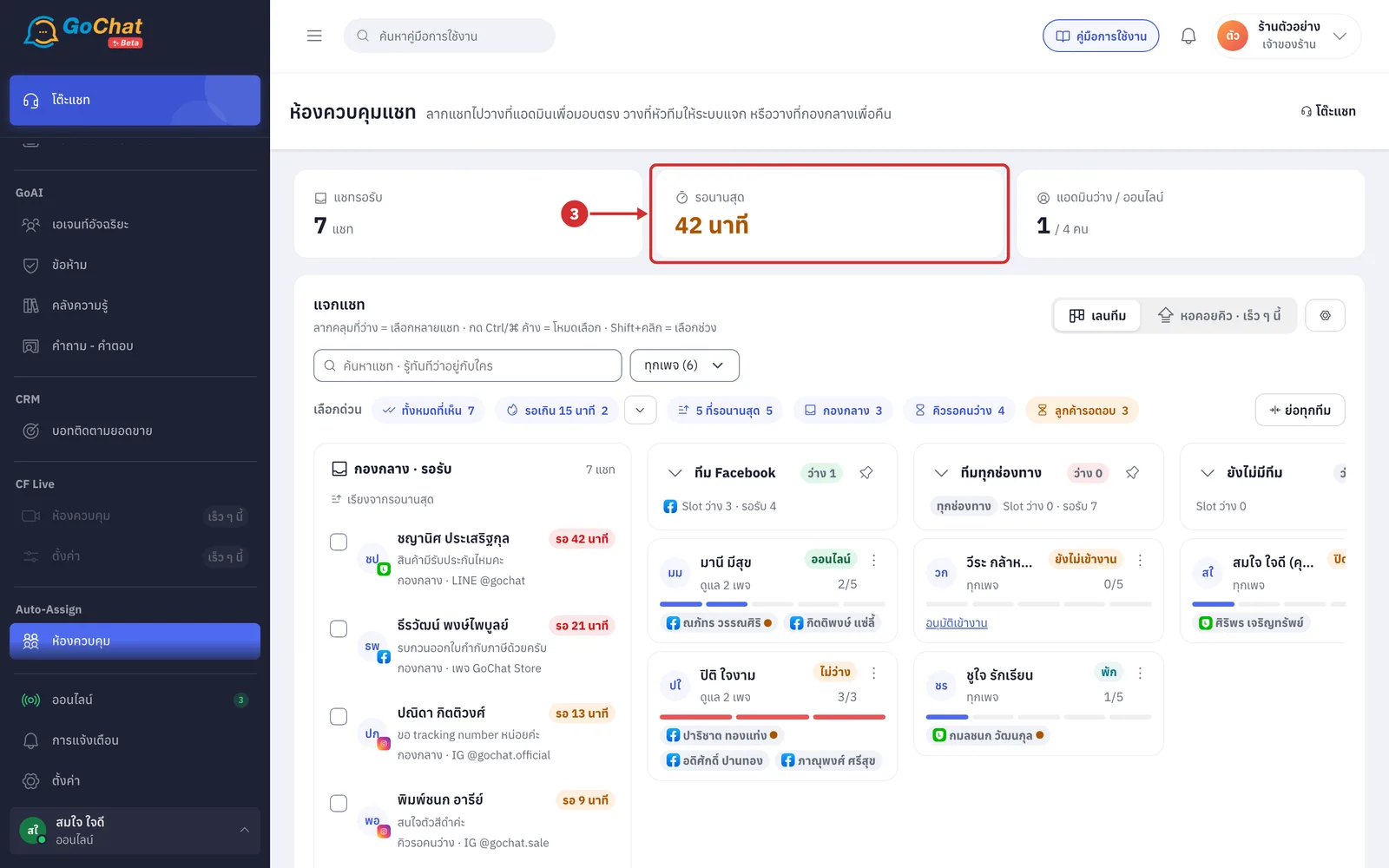
The รอนานสุด (Longest wait) tile shows how many minutes the longest-waiting chat has waited
The number turns orange when the wait is longer than the shop's reply-time target, which is 15 minutes by default
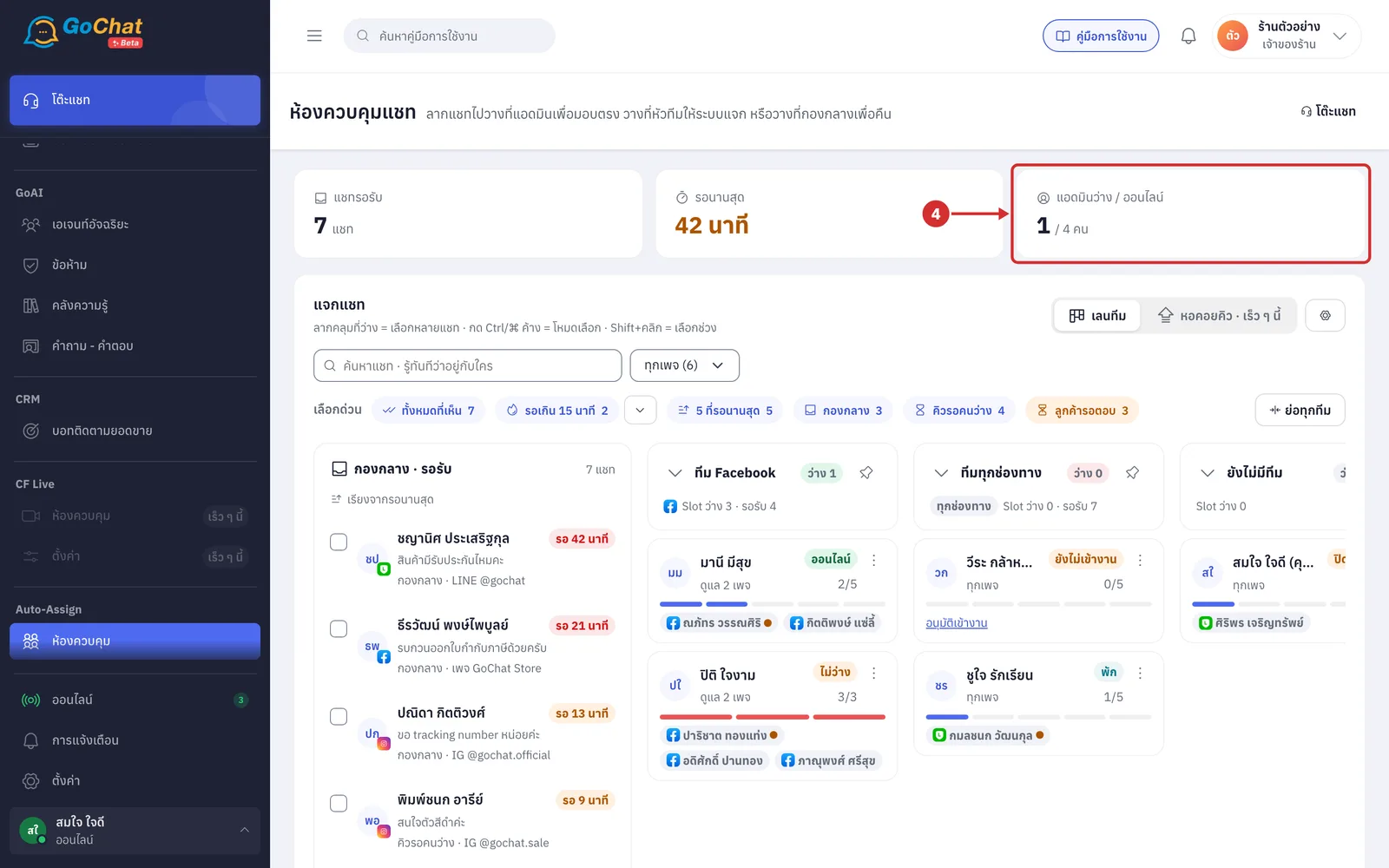
The แอดมินว่าง / ออนไลน์ (Free admins / online) tile shows how many admins can take a chat now, compared with how many are online
An admin who can take a chat is online, clocked in, accepting chats, and has Slot left
Slot is how many chats each admin can handle at the same time
Seeing how chats are handed out
Click the gear button (การแจกแชทตอนนี้ (Current hand-out)) at the right of the แจกแชท (Hand out chats) card
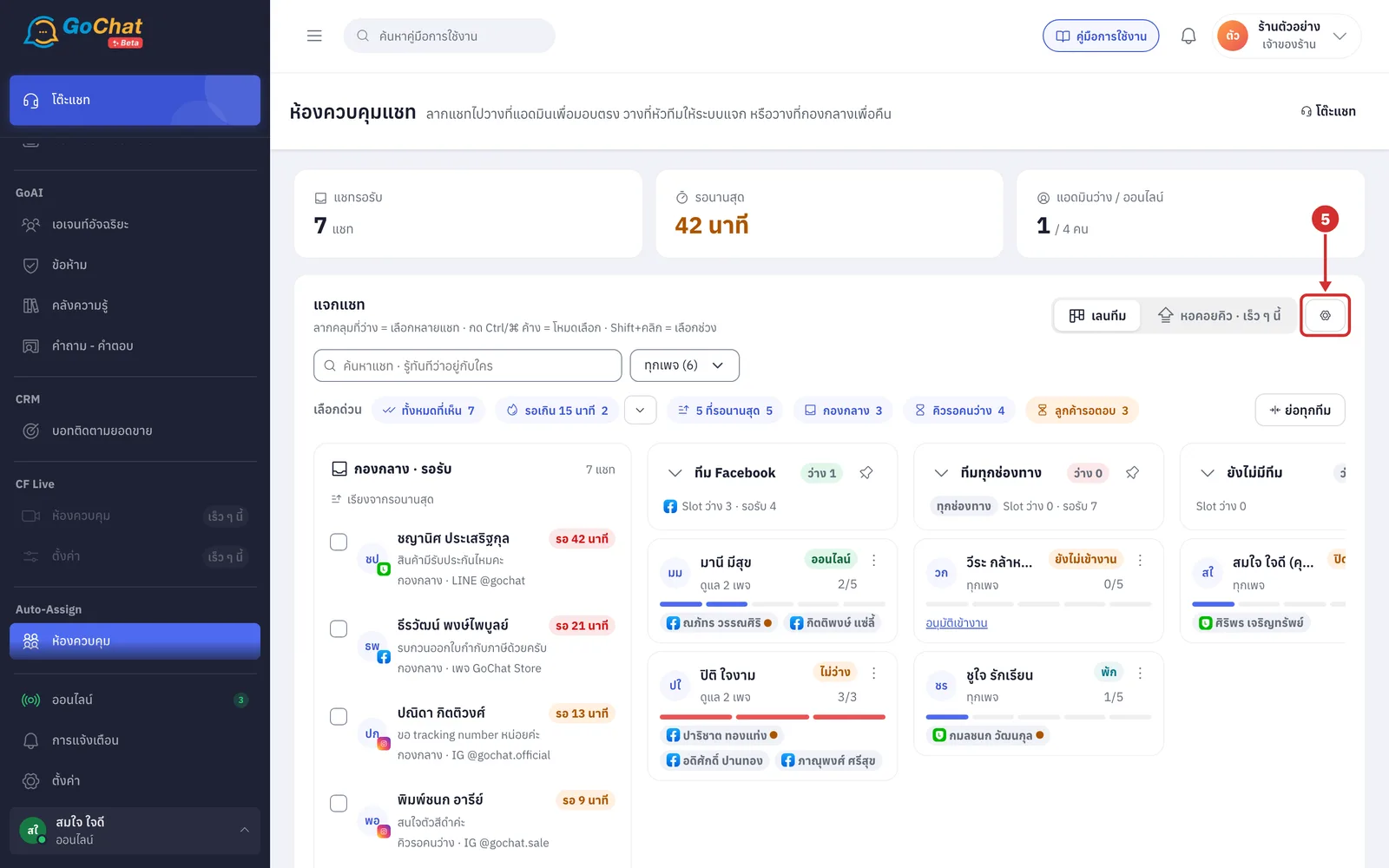
In the menu, see the shop type in use (such as เปิดอยู่ · ใช้งานเต็มรูปแบบ (On · Full)) and each hand-out rule, as follows
แชทใหม่ (New chats): who they go to
ใครรับได้ (Who can take them)
รับได้ต่อคน (Per person): how many chats
ไม่มีใครรับ (Nobody takes them): where chats go
ตอบแชทคนอื่น (Replying to others' chats)
ดูแชทคนอื่น (Seeing others' chats)
More details
To change the rules, click แก้การตั้งค่าการจ่ายแชท (Edit chat assignment settings) at the bottom of the menu
Team leads can see the rules but do not have this button
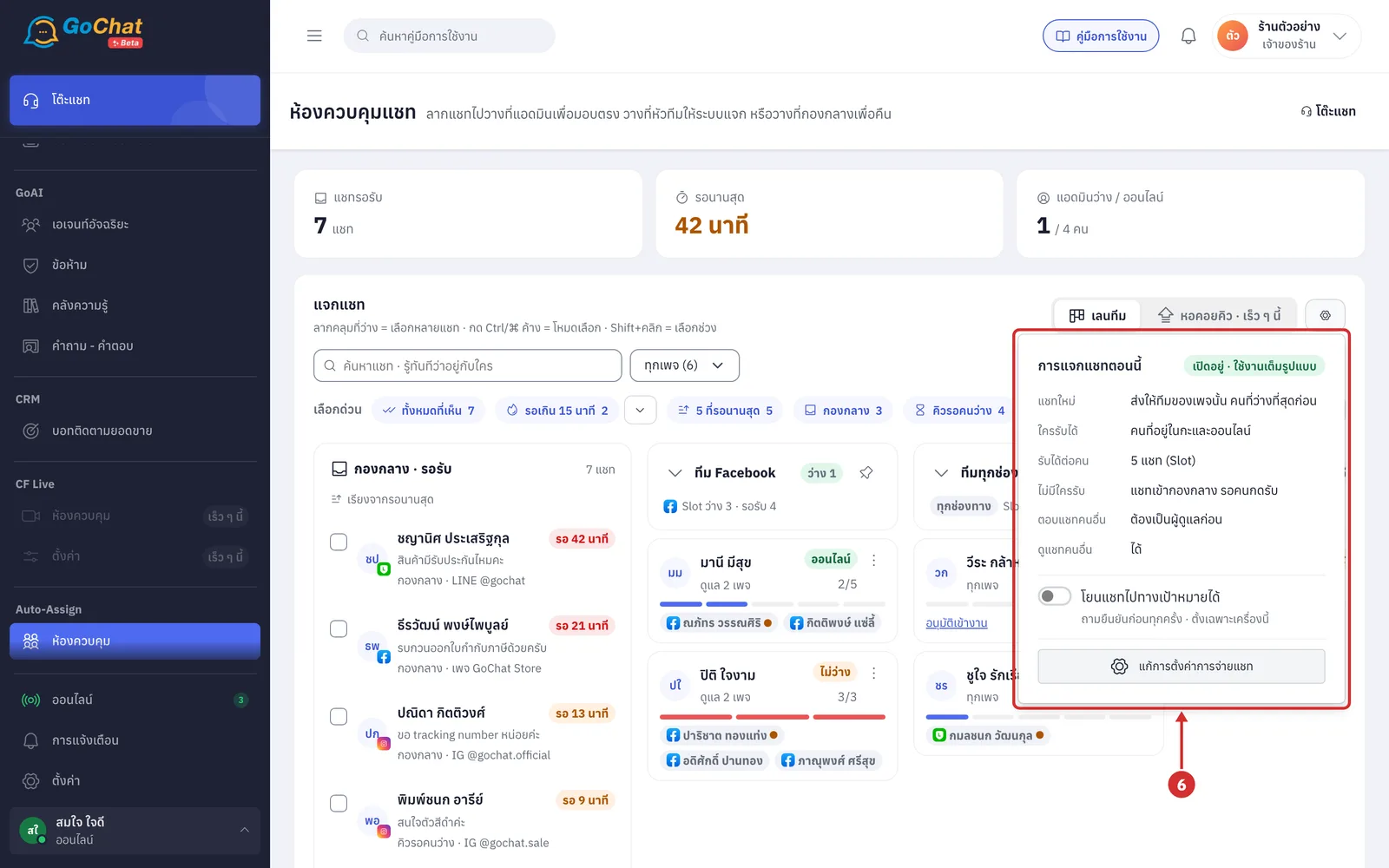
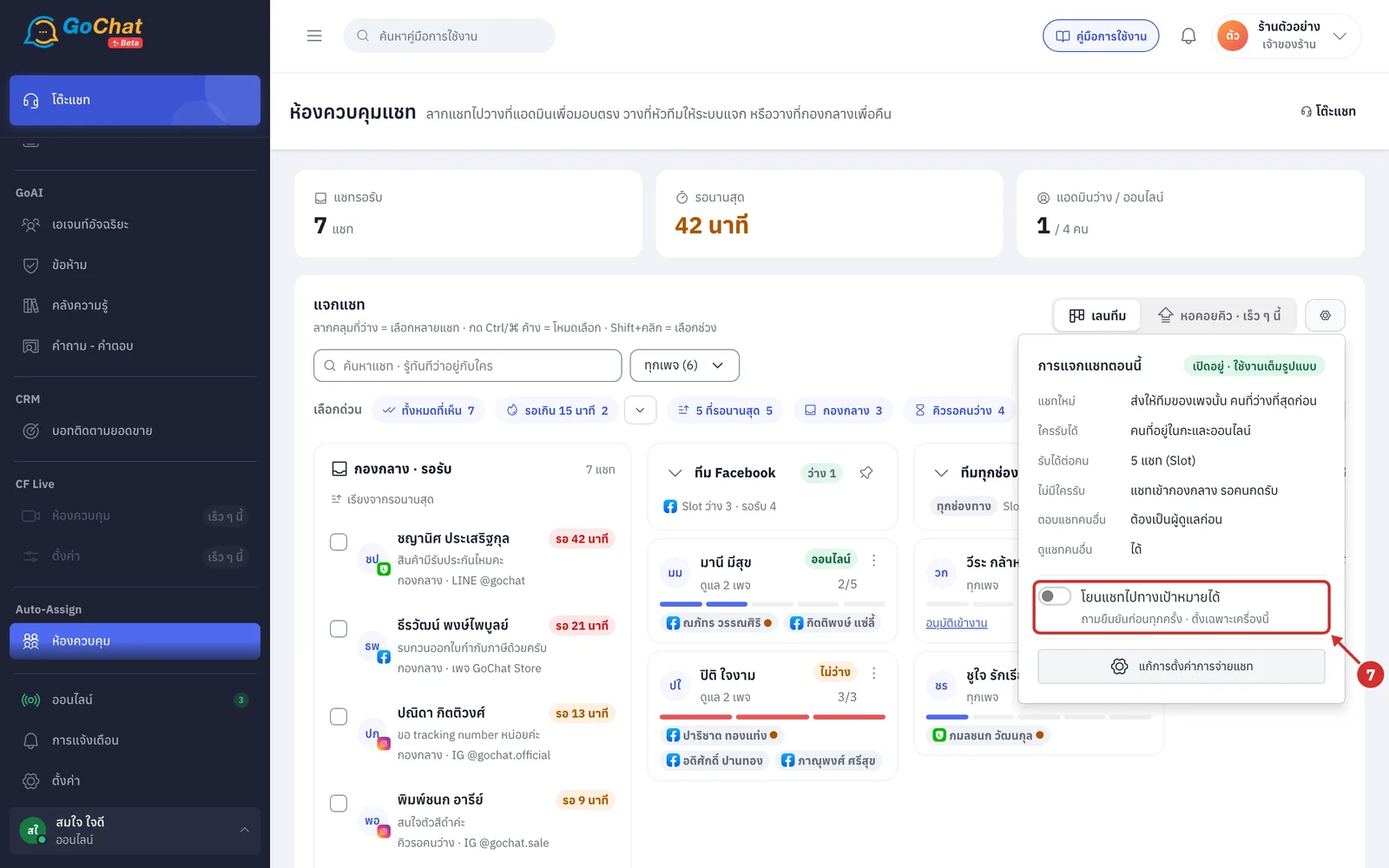
Turn on โยนแชทไปทางเป้าหมายได้ (Throw chats toward a target) if you want to drag a chat and flick it toward an admin card, a team header or the shared pool to send it without dragging all the way
The system always asks you to confirm first
This setting is for this device only
The switch is off by default
Searching for chats and filtering by page
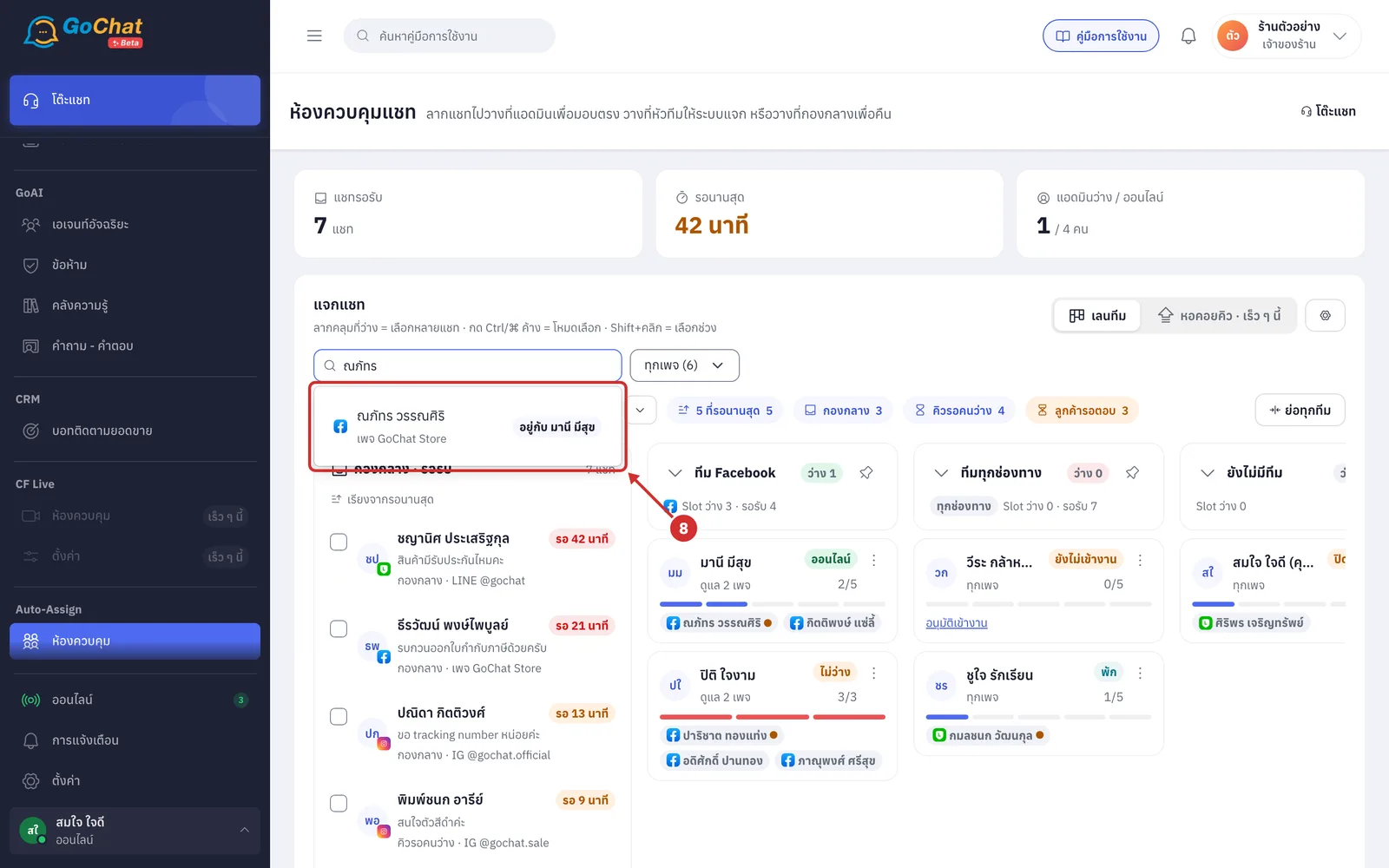
In ค้นหาแชท · รู้ทันทีว่าอยู่กับใคร (Search chats · see who has it), type a customer's name. The system shows up to 8 matching chats with a label telling you where each one is
อยู่กับ (With) followed by an admin's name: the chat is with that admin
กองกลาง (Shared pool): the chat is waiting for an admin to take it
คิวรอคนว่าง (Queue for a free admin): the system sends the chat as soon as someone is free
Click a chat to read its messages
Click ทุกเพจ (All pages) to see chats from some pages only (the number in brackets is how many pages the shop has)
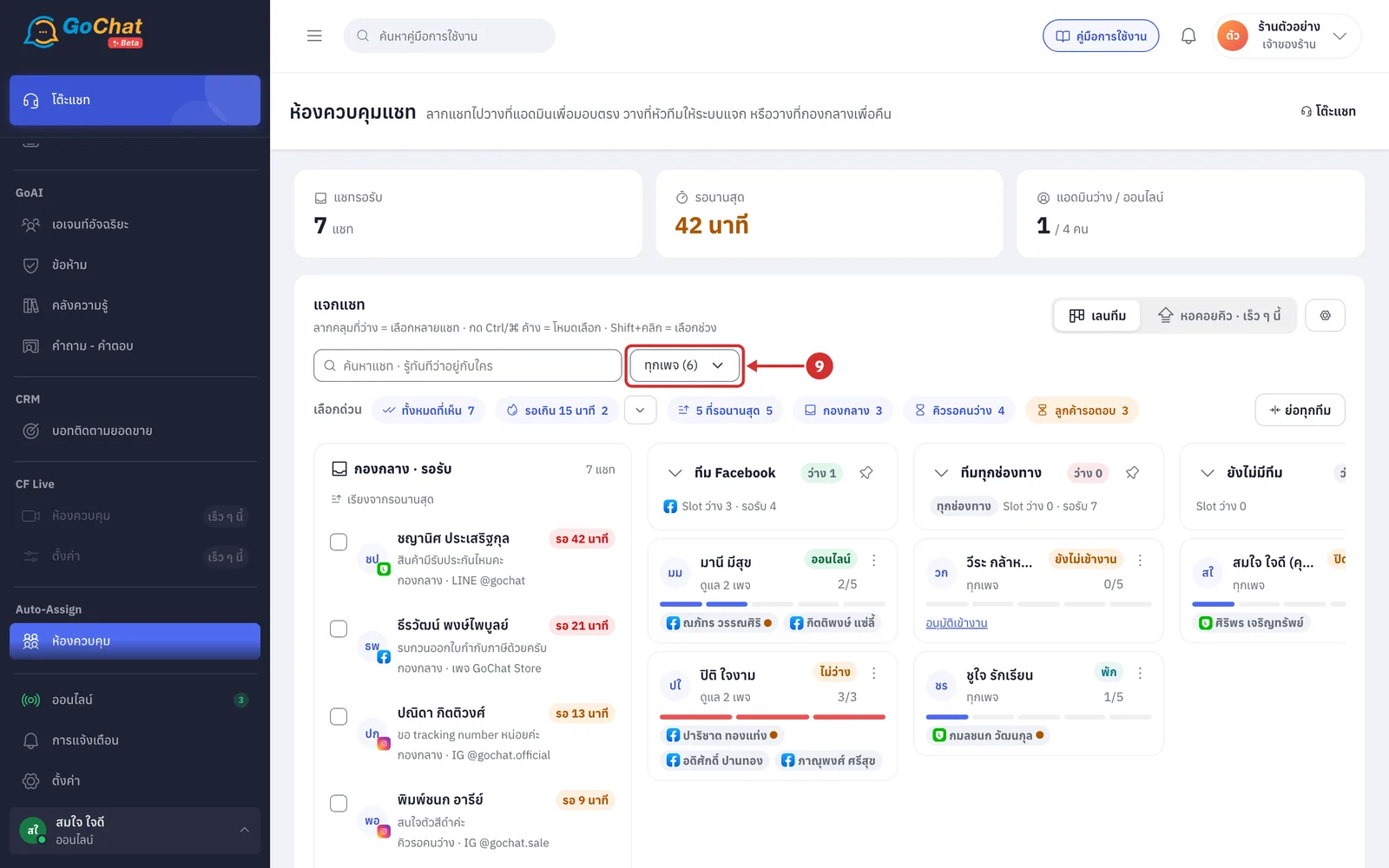
In the กรองตามเพจ (Filter by page) window, click the pages you want
The label after each page is how many chats are waiting on it
Click เลือกทั้งหมด (Select all) to choose a whole channel
Choosing no page means all pages
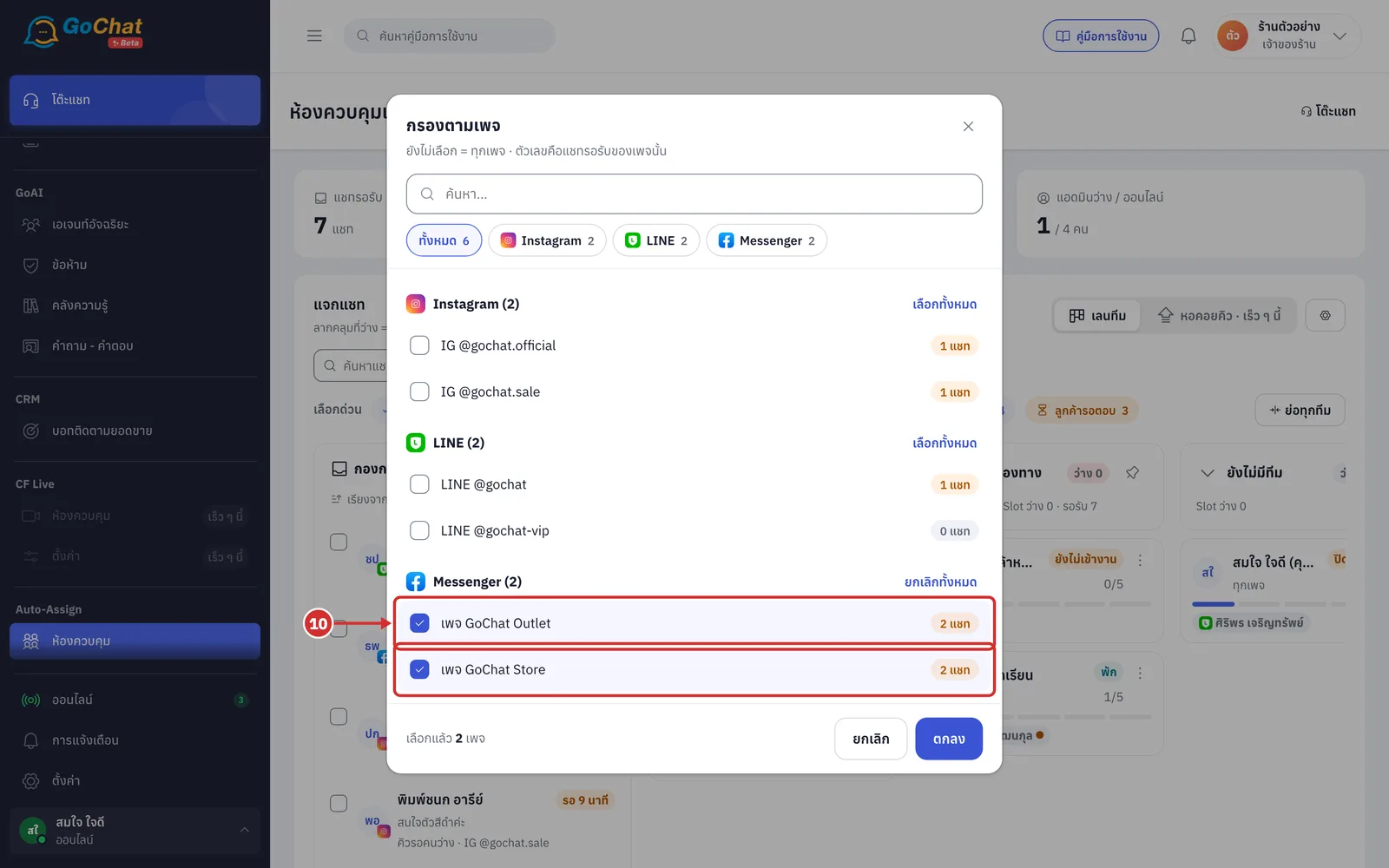
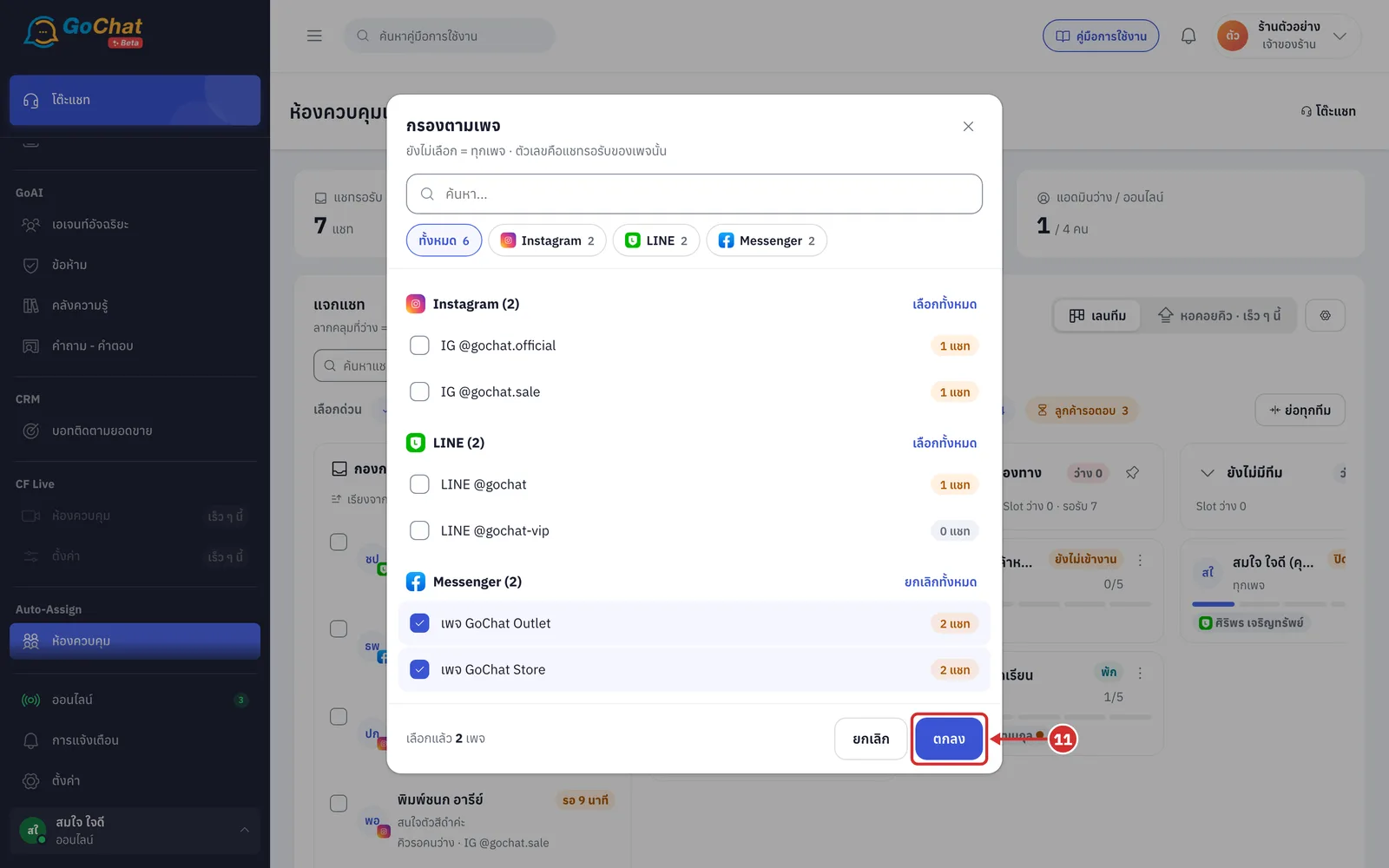
Click ตกลง (OK)
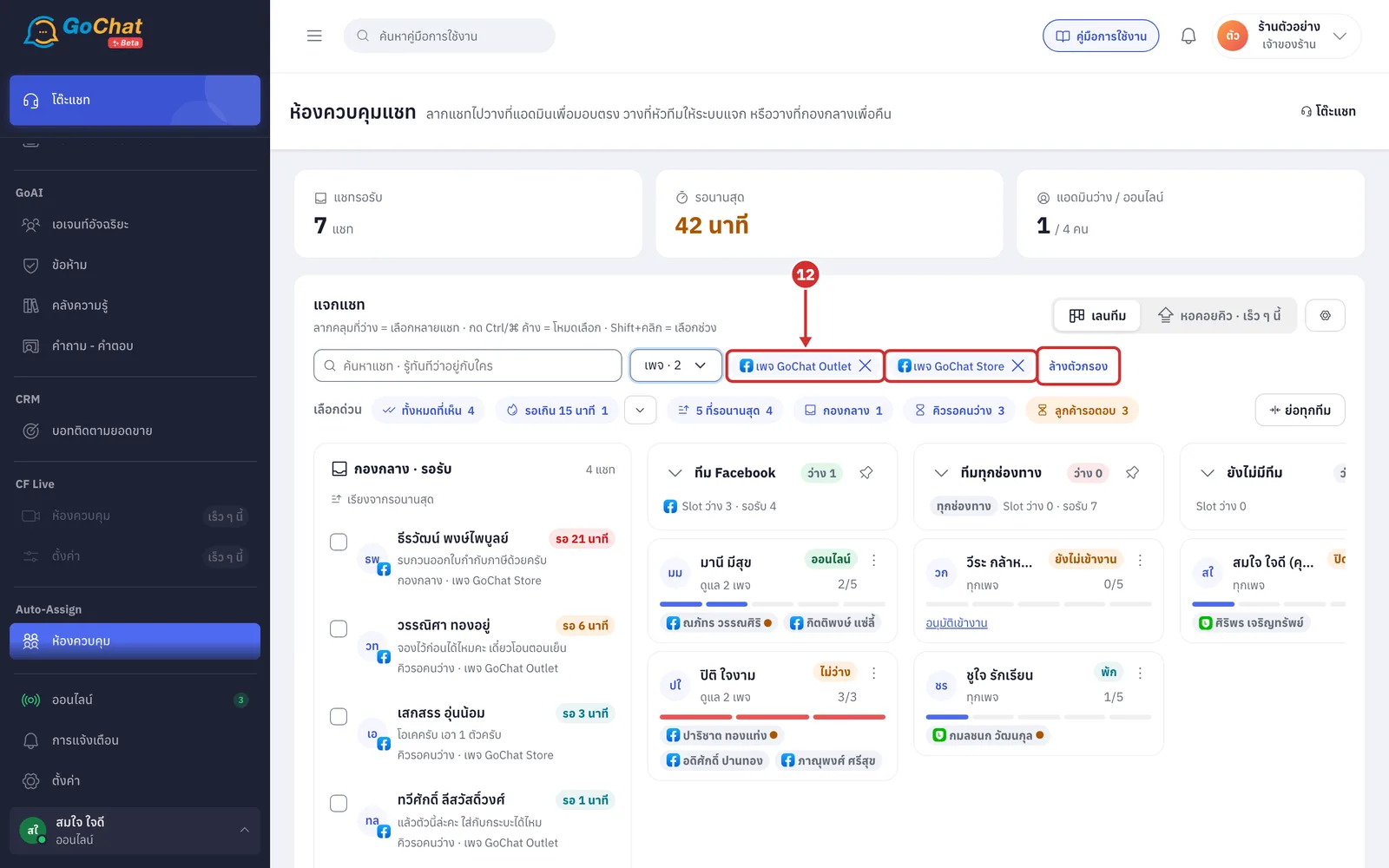
The pages you chose appear as labels next to the button (which changes to เพจ · N (Pages · N)), and the shared pool only shows chats from those pages
Click x on a label to remove that page
Click ล้างตัวกรอง (Clear filter) to see all pages again
Reading the shared pool
Under กองกลาง · รอรับ (Shared pool · waiting), see the chats nobody has taken yet, longest wait at the top. Each row shows the customer's name, how long they have waited, the latest message and the chat's state
Chat state
คิวรอคนว่าง (Queue for a free admin): no admin could take the chat when it came in, and the system sends it as soon as someone is free
กองกลาง (Shared pool): the chat is waiting for an admin to take it
Wait label colours
Blue: waiting under 5 minutes
Orange: waiting from 5 minutes up to, but not including, 15 minutes
Red: waiting 15 minutes or more
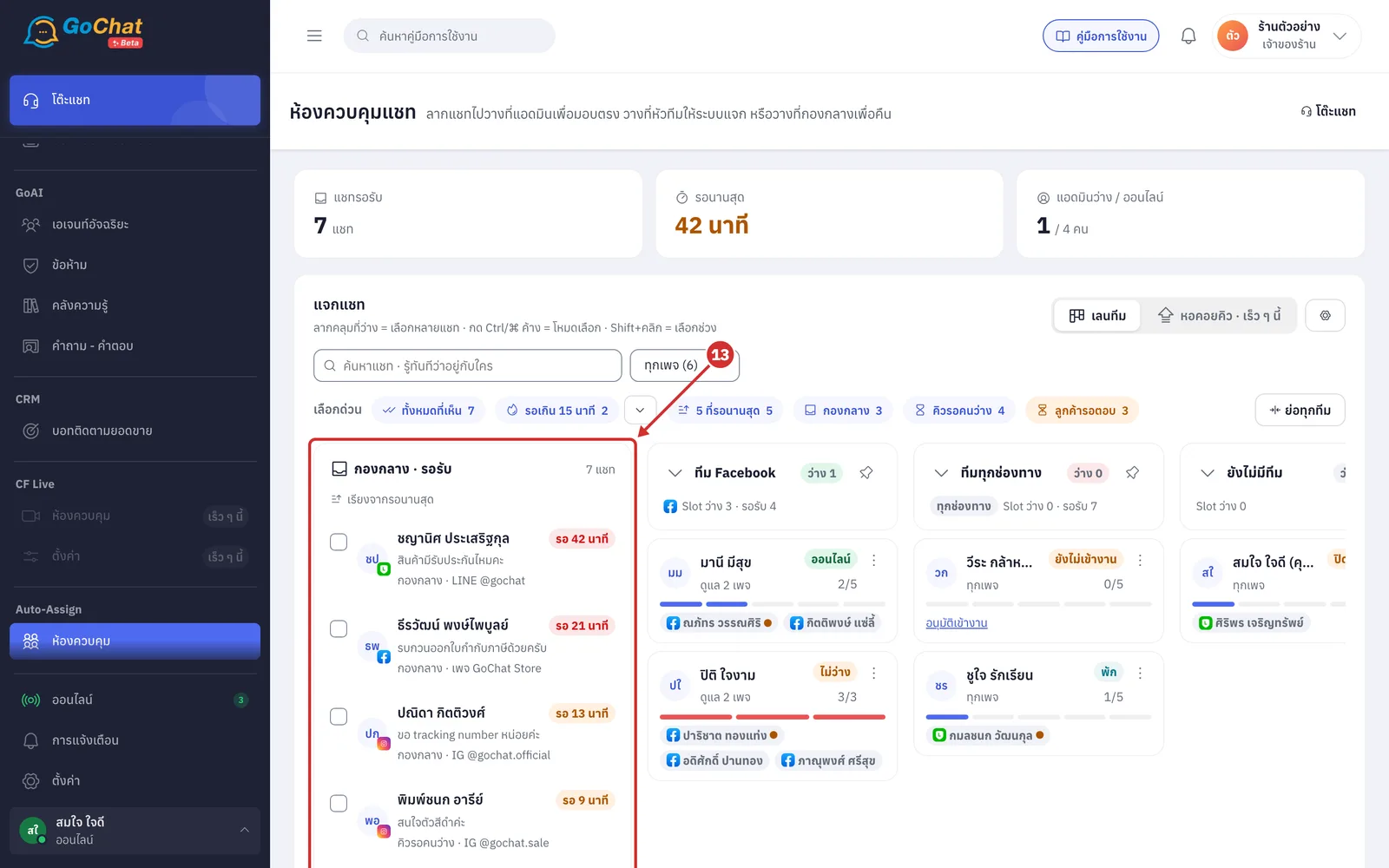
Click a chat row to read its latest 30 messages
The panel is read-only
Opening it does not mark the chat as read
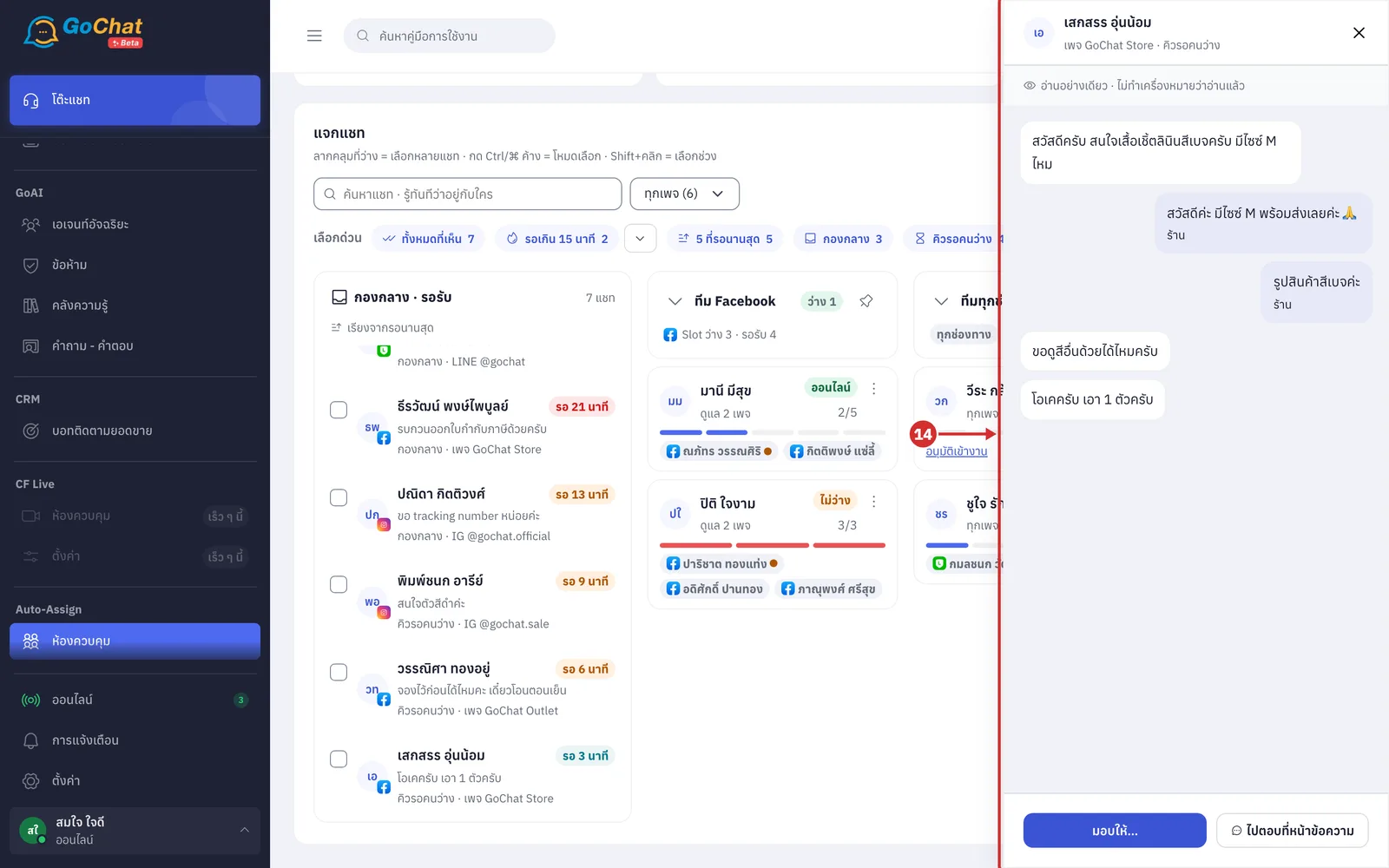
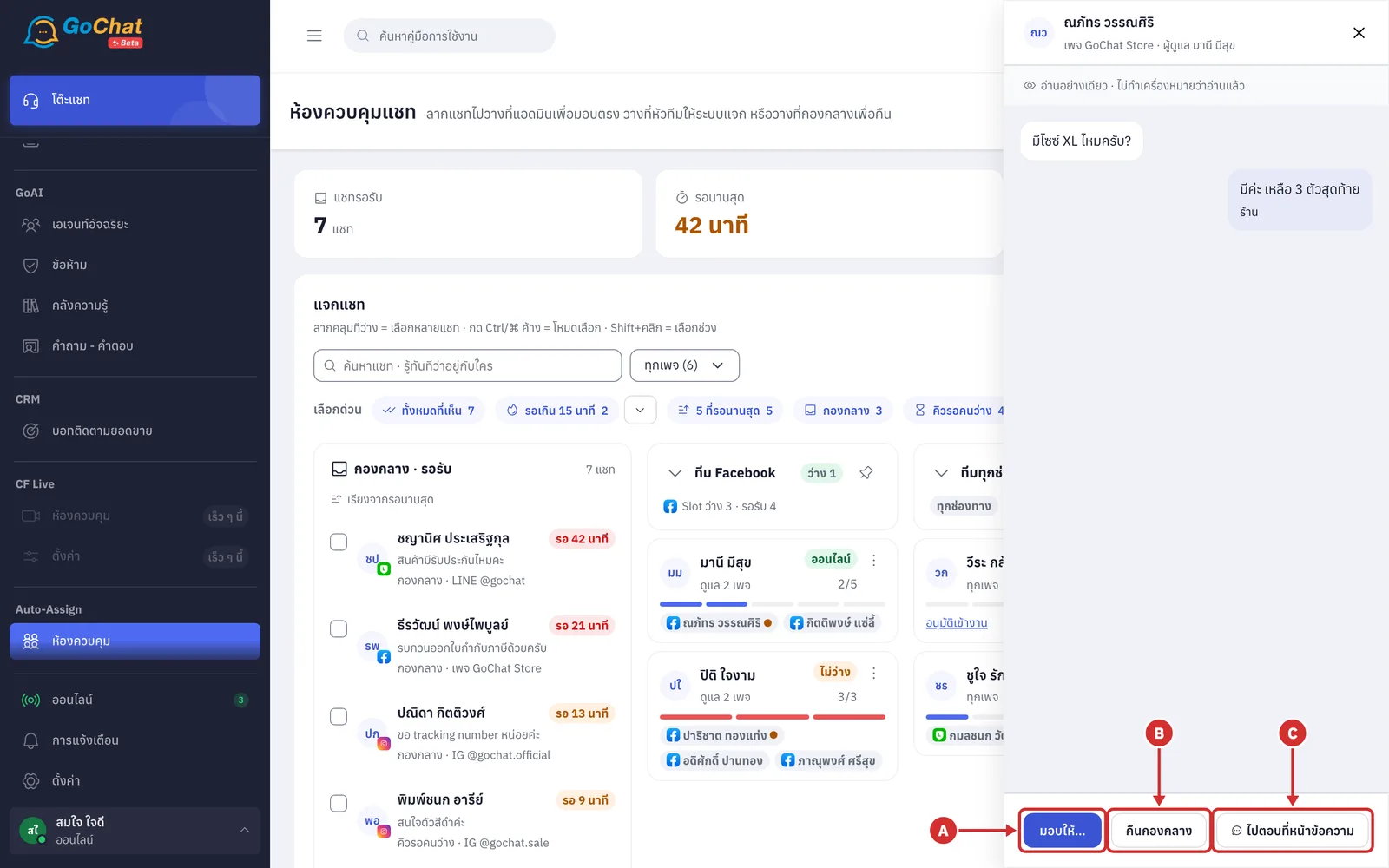
At the bottom of the chat panel, you can do one of 3 things
A มอบให้… (Assign…) to open the menu for giving this chat to an admin or team (see Handing out chats with the Assign button)
B คืนกองกลาง (Return to pool) to take the chat away from the admin handling it and put it back in the shared pool (this button only appears for chats someone is handling)
C ไปตอบที่หน้าข้อความ (Reply on the Messages page) to open this chat on the ข้อความ (Messages) page and reply yourself
Reading team lanes and admin cards
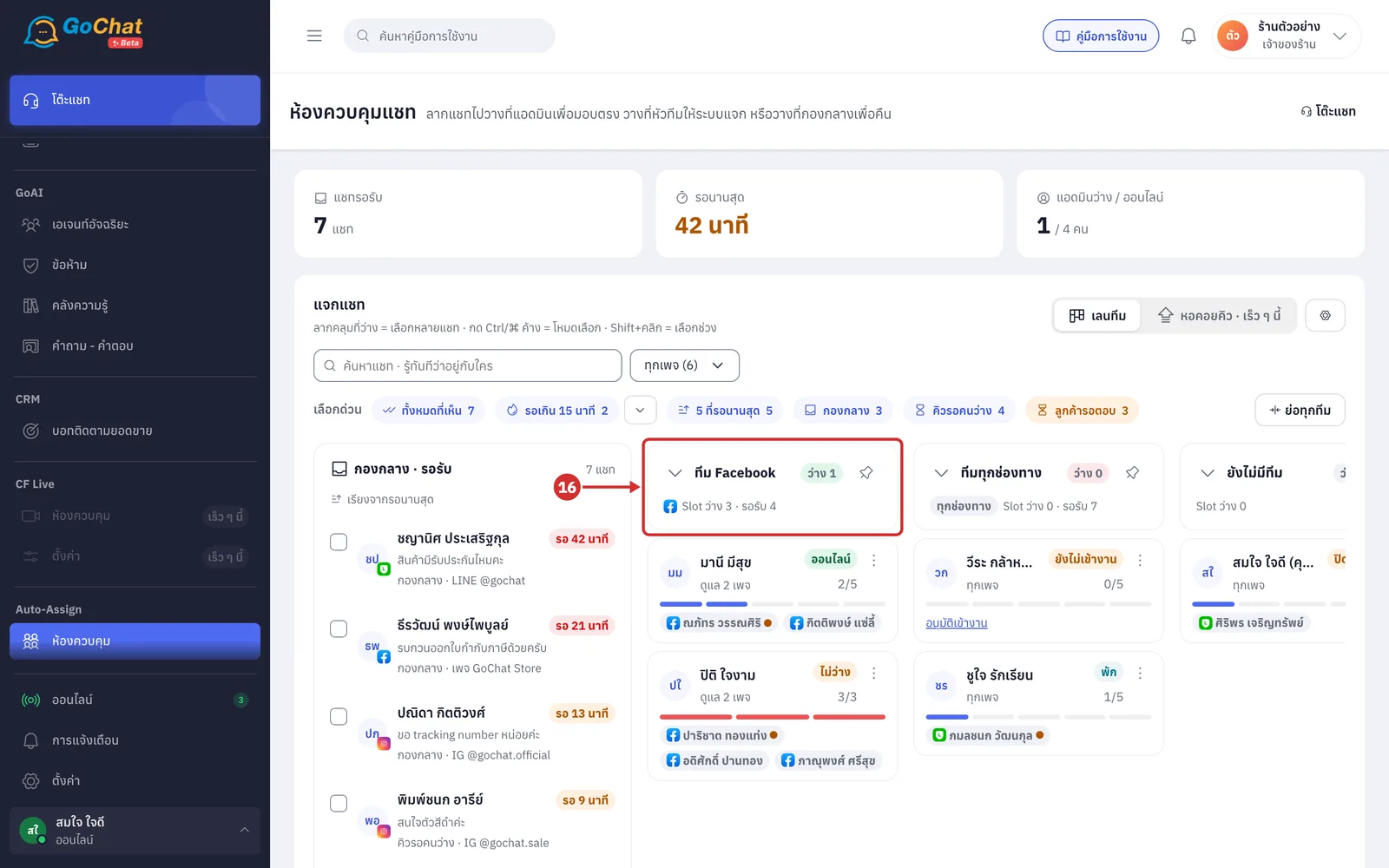
Next to the shared pool is a lane for each team, made up of the following
Top of the lane: the team's details
Admin cards: below the top of the lane, the admins in the team, with online admins first
Admins who are not in any team are in the ยังไม่มีทีม (No team yet) lane
At the top of a lane, see the team's details
The team name
ว่าง N (N free): people in the team who can take a chat; green when someone is free, red when nobody is free but chats are waiting
The channels the team looks after, shown as channel logos or ทุกช่องทาง (All channels)
Slot ว่าง N · รอรับ N (N free Slot · N waiting): the total Slot left among free people, and the chats waiting on the team's pages
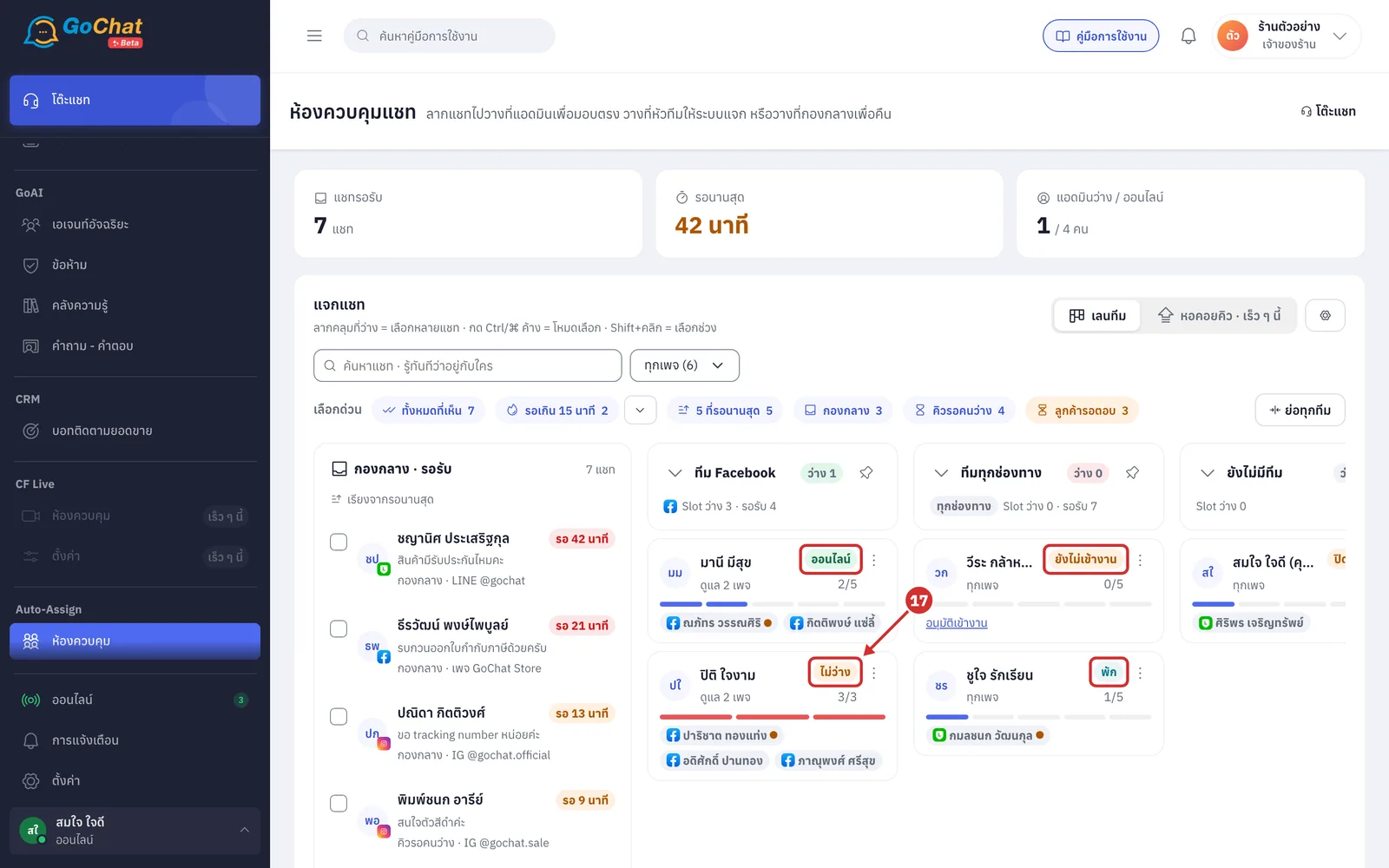
At the right of an admin card, see the status label: ออนไลน์ (Online), ไม่ว่าง (Busy) (Slot is full, or set to busy), พัก (On break) and ออฟไลน์ (Offline)
If the admin is online but cannot take chats, the label shows why instead, such as ยังไม่เข้างาน (Not clocked in) or ปิดรับแชท (Not accepting chats)
Under the name it says whether they look after ทุกเพจ (All pages) or ดูแล N เพจ (N pages), followed by กำลังพิมพ์… (Typing…) or เปิดแชทอยู่ (Has a chat open) while the admin is working in a chat
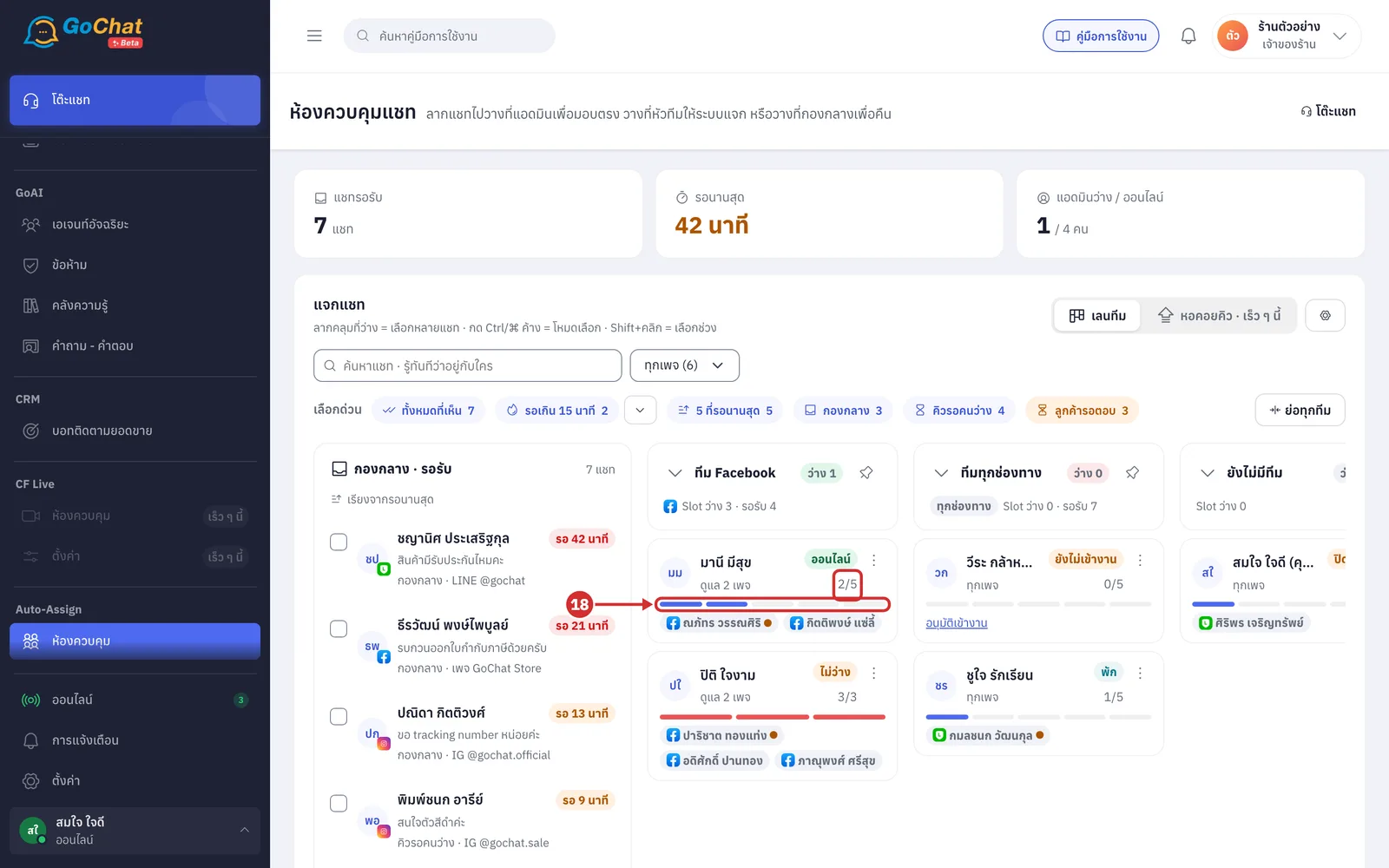
See the held/Slot number and the row of dots under the name
The held/Slot number: 2/5 means 2 chats held out of 5 Slot
The dots: one dot is one Slot and a coloured dot is a chat being held; when every dot is filled the row turns red
An offline admin holding no chats shows —
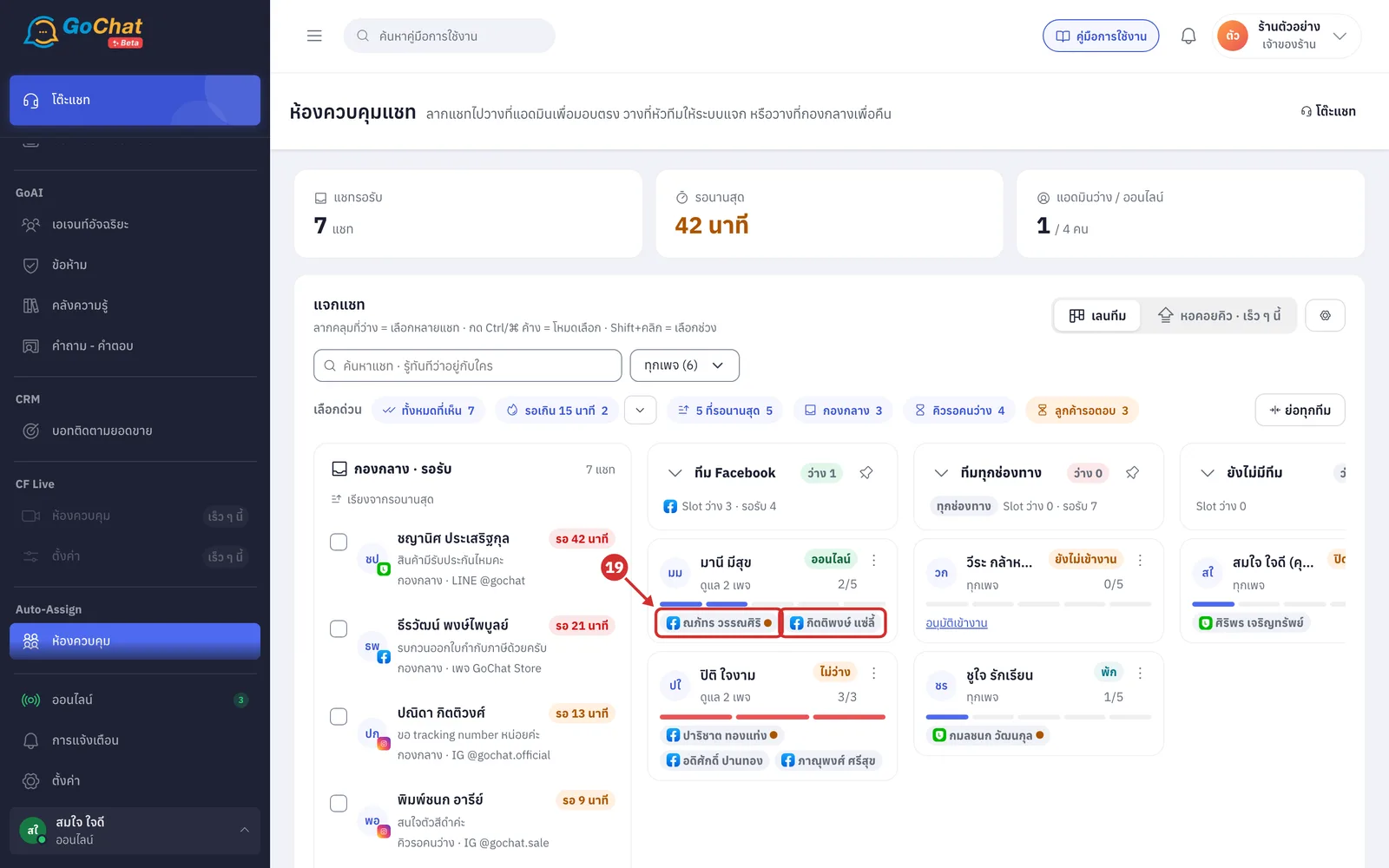
See the chips under the card for the chats the admin is holding, showing the first 3, and click a chip to read the messages
Orange dot after the name: the customer is waiting for a reply
+N: more chats; click it to see them all
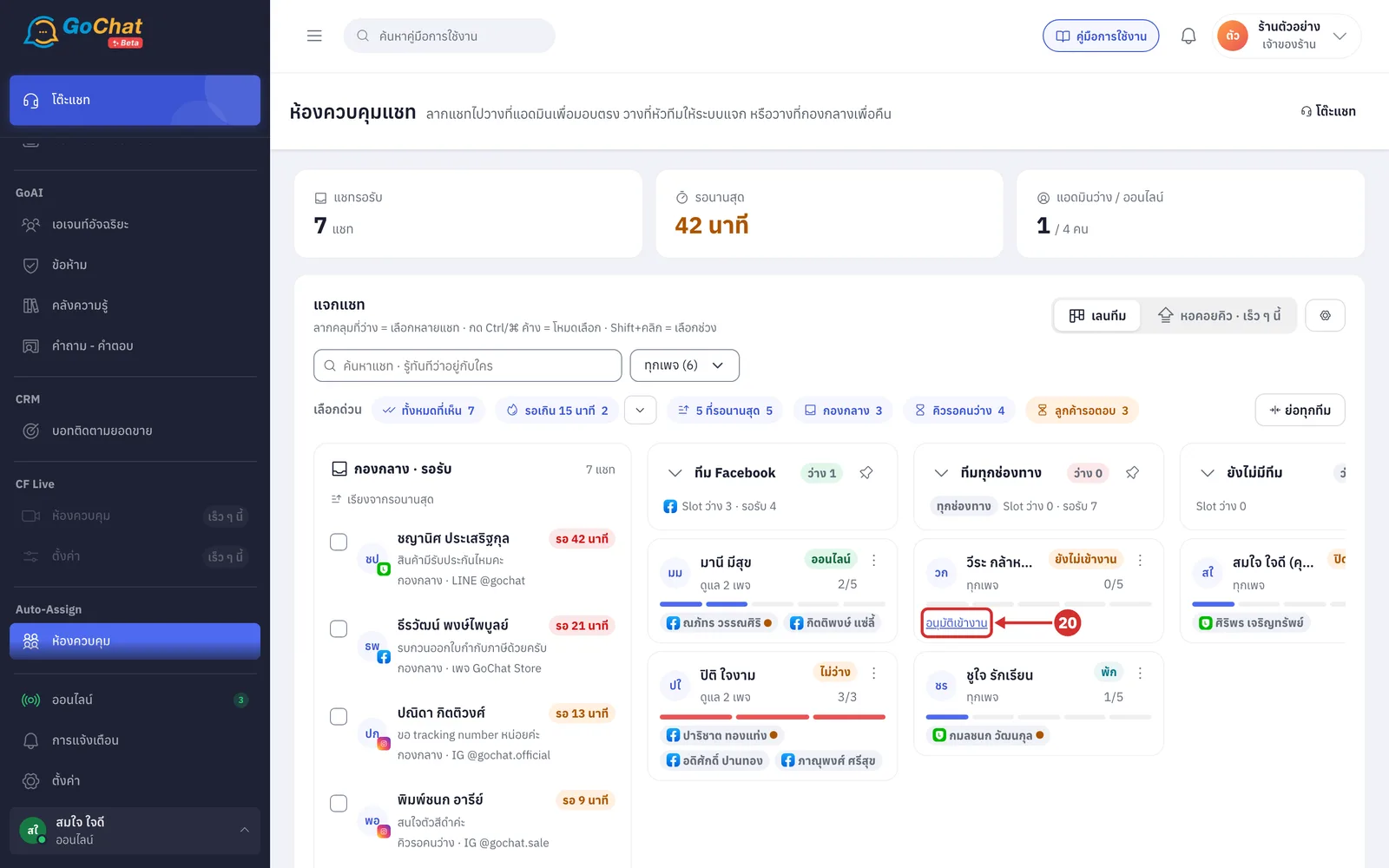
Click อนุมัติเข้างาน (Approve clock-in) under the card of an admin who clocked in outside their shift, so they can start taking chats
This button appears when the shop requires a lead to approve clocking in outside a shift
While waiting for approval, the status label shows ยังไม่เข้างาน (Not clocked in)
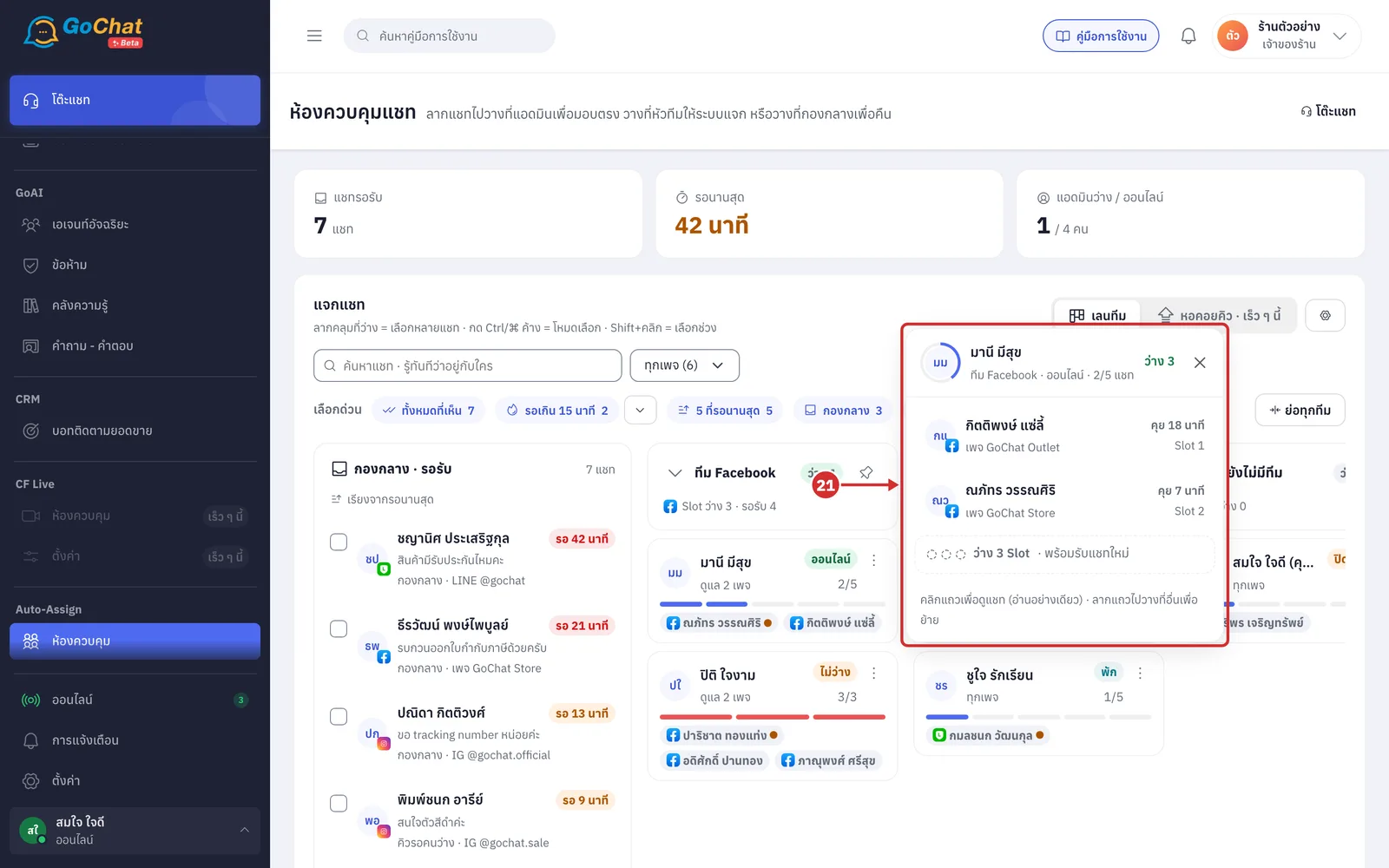
Click an admin card to open that person's งานในมือ (Chats in hand)
The top shows their team, status, how many chats they hold and ว่าง N (N free) or เต็ม (Full)
Below are all the chats they hold, with how long they have been talking, shown as คุย N นาที (Talking N minutes) or เพิ่งมอบ (Just assigned), and the Slot number
If the admin has a chat open or is typing in it, that row says กำลังเปิดหน้าจอแชทนี้ (Has this chat open) or กำลังพิมพ์ตอบแชทนี้… (Typing a reply…)
Click a row to read the messages, or drag a row somewhere else to move it
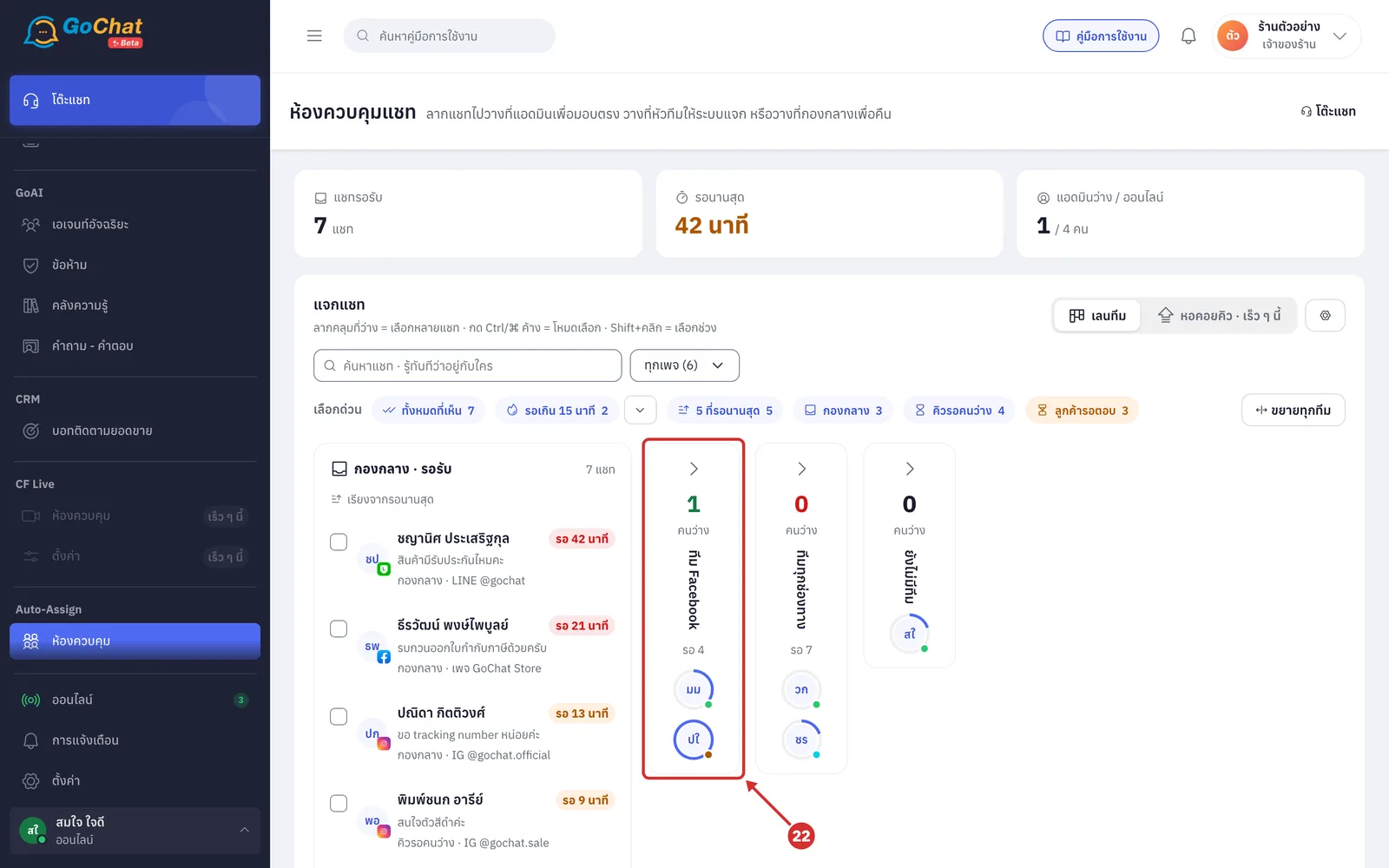
Click ย่อทุกทีม (Collapse all teams) to make the lanes narrow so every team fits on one screen
A collapsed lane shows how many people are free, the team name, how many chats are waiting and a picture of every admin
The ring around a picture shows how much of their Slot is used
The dot on the corner of a picture shows their status
Click ขยายทุกทีม (Expand all teams) to go back, or click the arrow at the top of a lane to collapse or expand one team
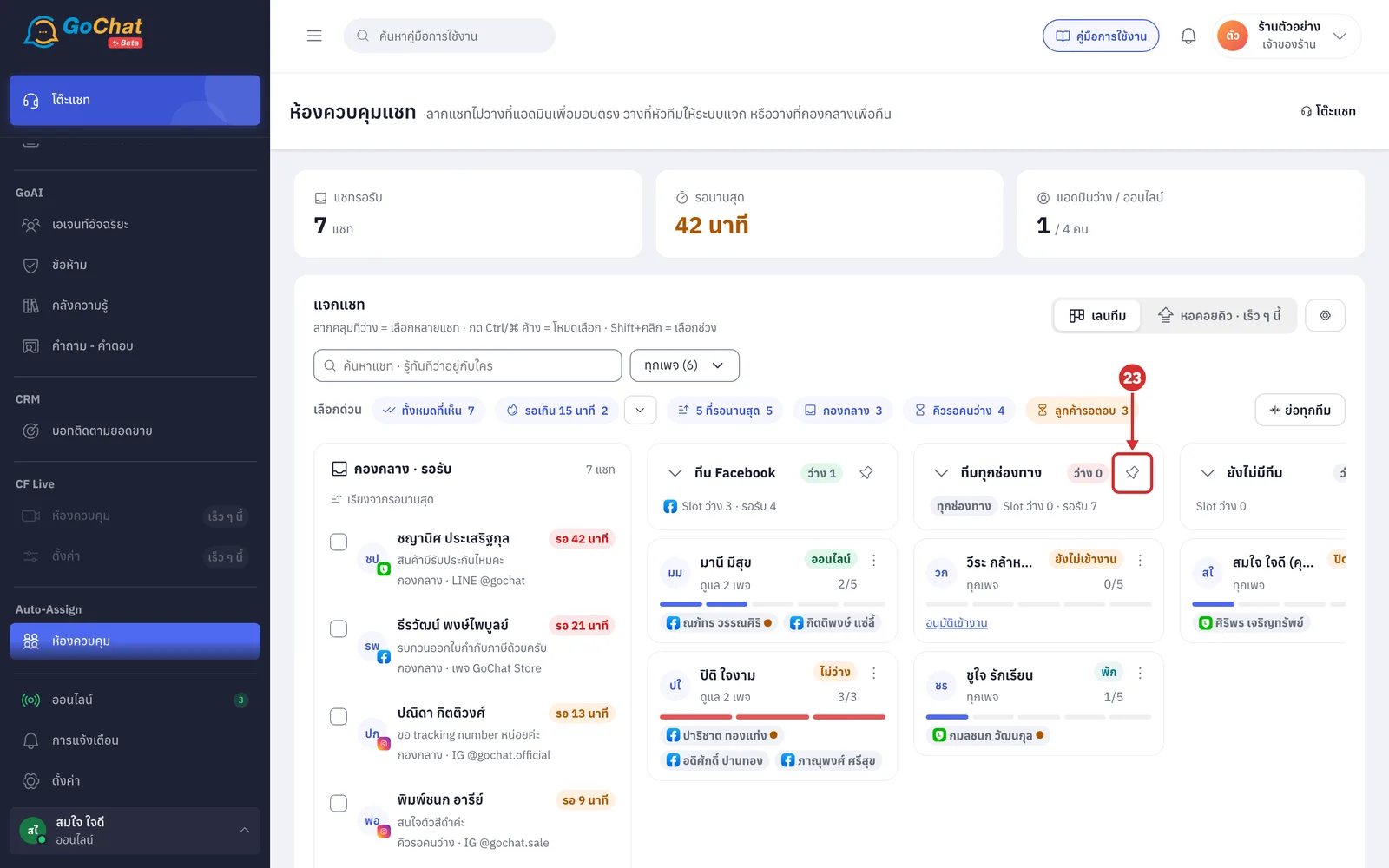
Click the pin at the top of a lane to keep that team as the first lane; click it again to unpin
How dragging works
You can drag rows in the shared pool, chat chips on admin cards and rows in the งานในมือ (Chats in hand) window with the mouse
While you drag, the screen darkens and the places you can drop light up
Cards you cannot drop on say why, such as Slot เต็ม (Slot full), ไม่ได้ดูแลเพจนี้ (Doesn't look after this page), พักอยู่ (On break) or ยังไม่เข้างาน (Not clocked in)
When you let go, the system shows the result with a เลิกทำ (Undo) button you can click within 6 seconds
Handing out chats by dragging
Drag a chat onto an admin card to give it straight to that person. The system shows มอบ N แชทให้ (Gave N chats to) and the admin's name แล้ว
If that person cannot take them all, the card shows รับได้ (Can take) and how many while you drag
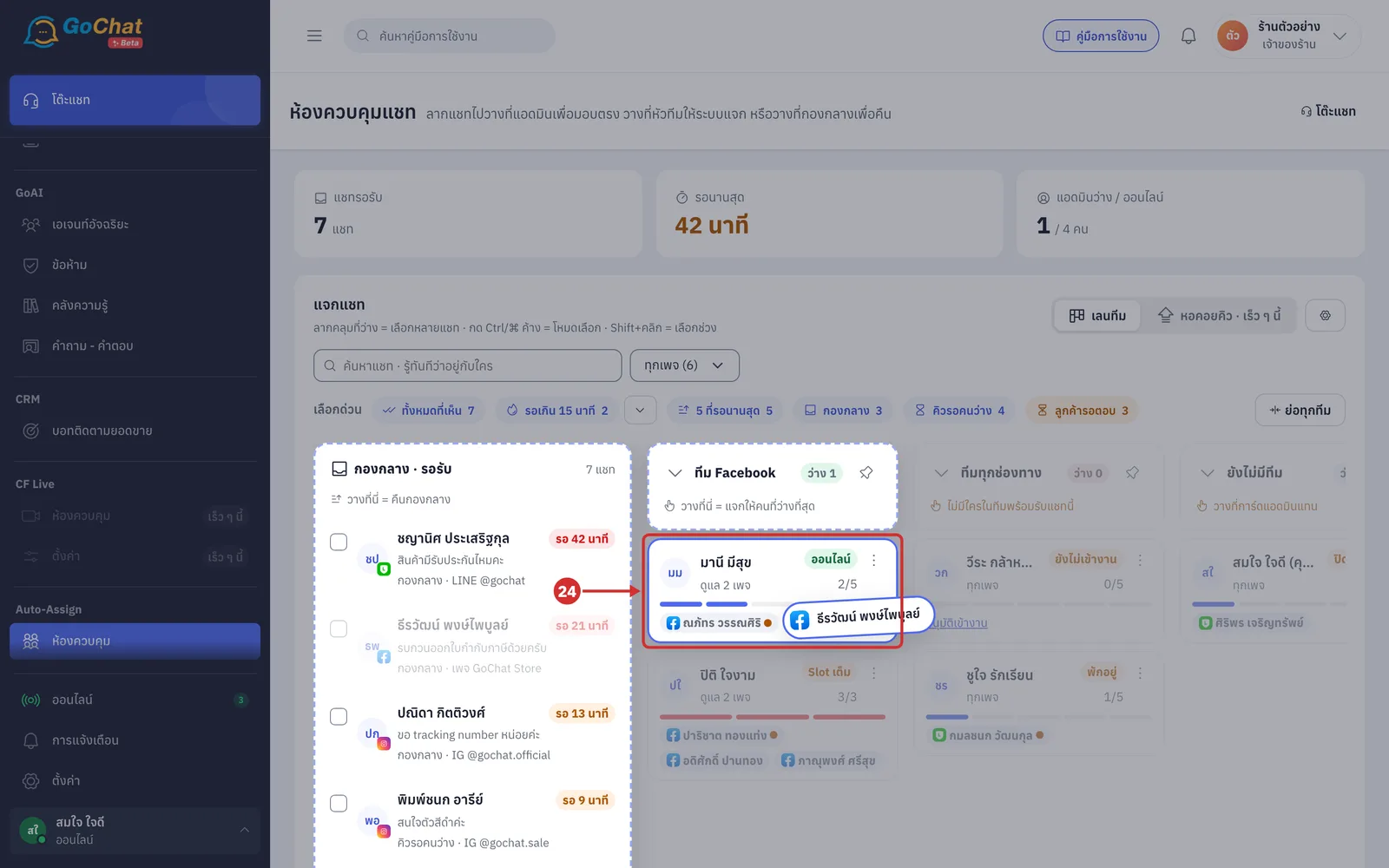
Drag a chat onto the top of a team lane to let the system give it to the least busy person in that team
The top of the lane says ปล่อยเพื่อให้ระบบแจกในทีม (Let go to hand out within the team)
If nobody in the team can take it, the top of the lane says ไม่มีใครในทีมพร้อมรับแชทนี้ (Nobody in the team can take this chat)
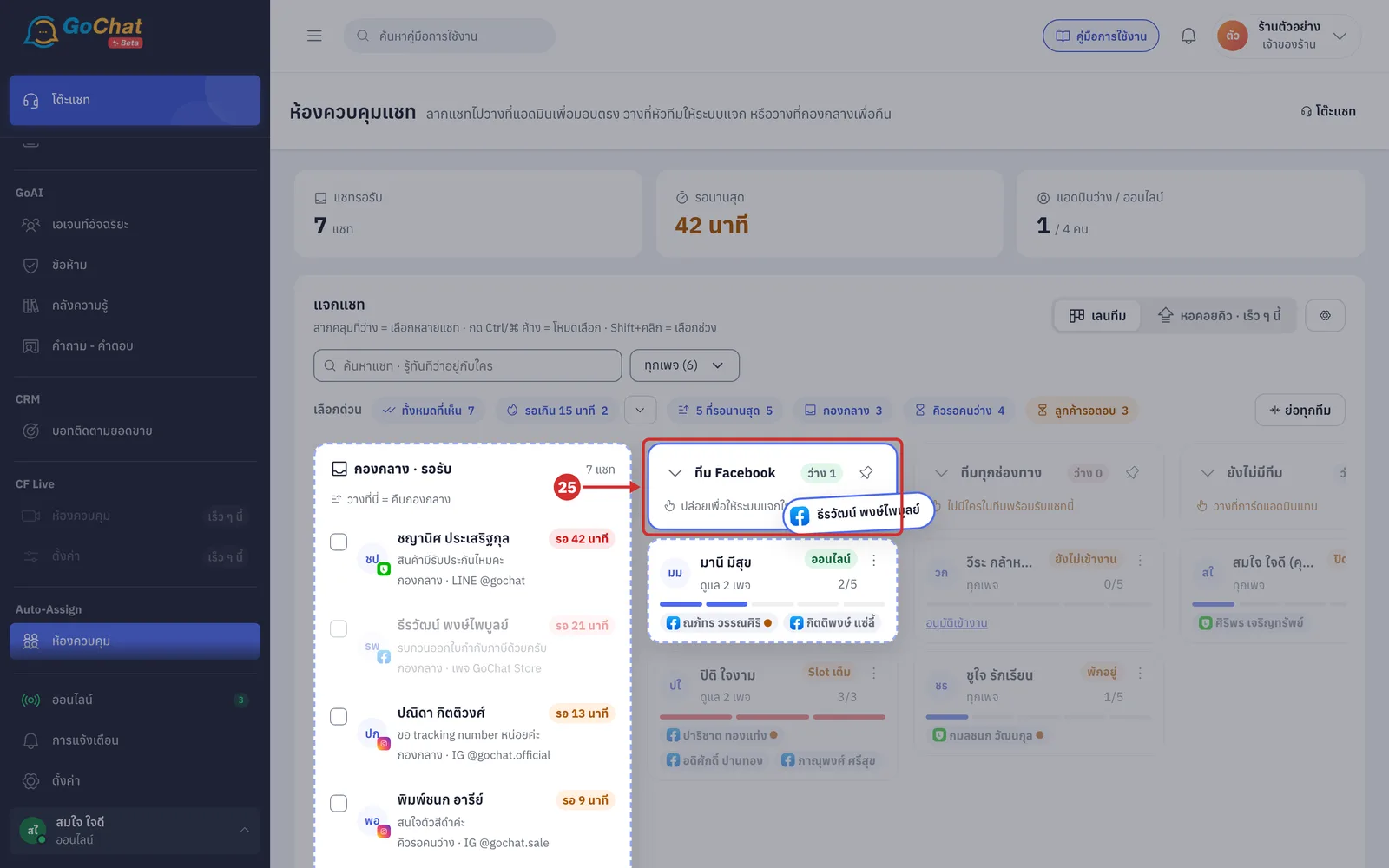
Drag a chat chip from an admin card onto กองกลาง (Shared pool) to return that chat to the pool. The system shows คืน N แชทเข้ากองกลางแล้ว (Returned N chats to the shared pool)
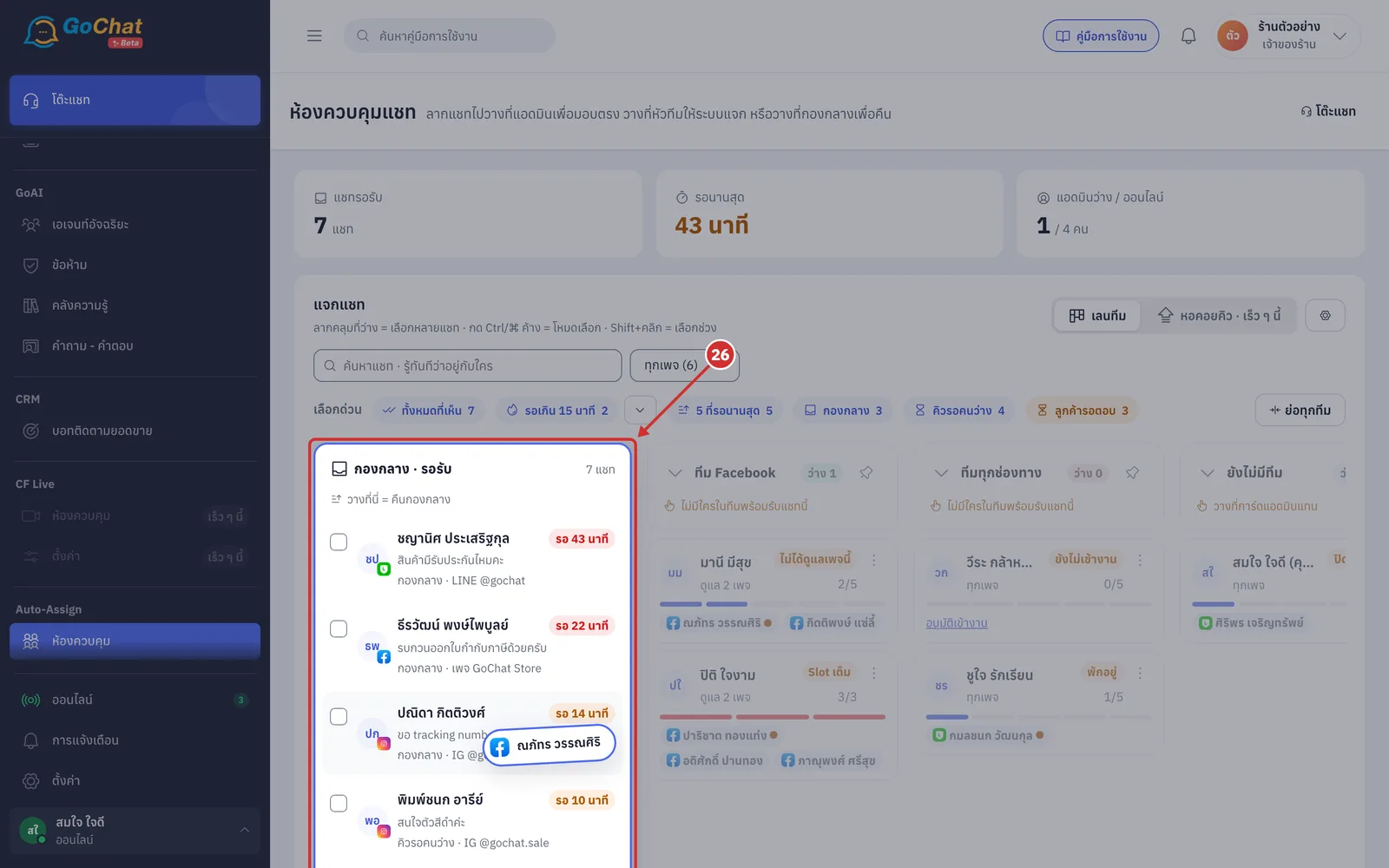
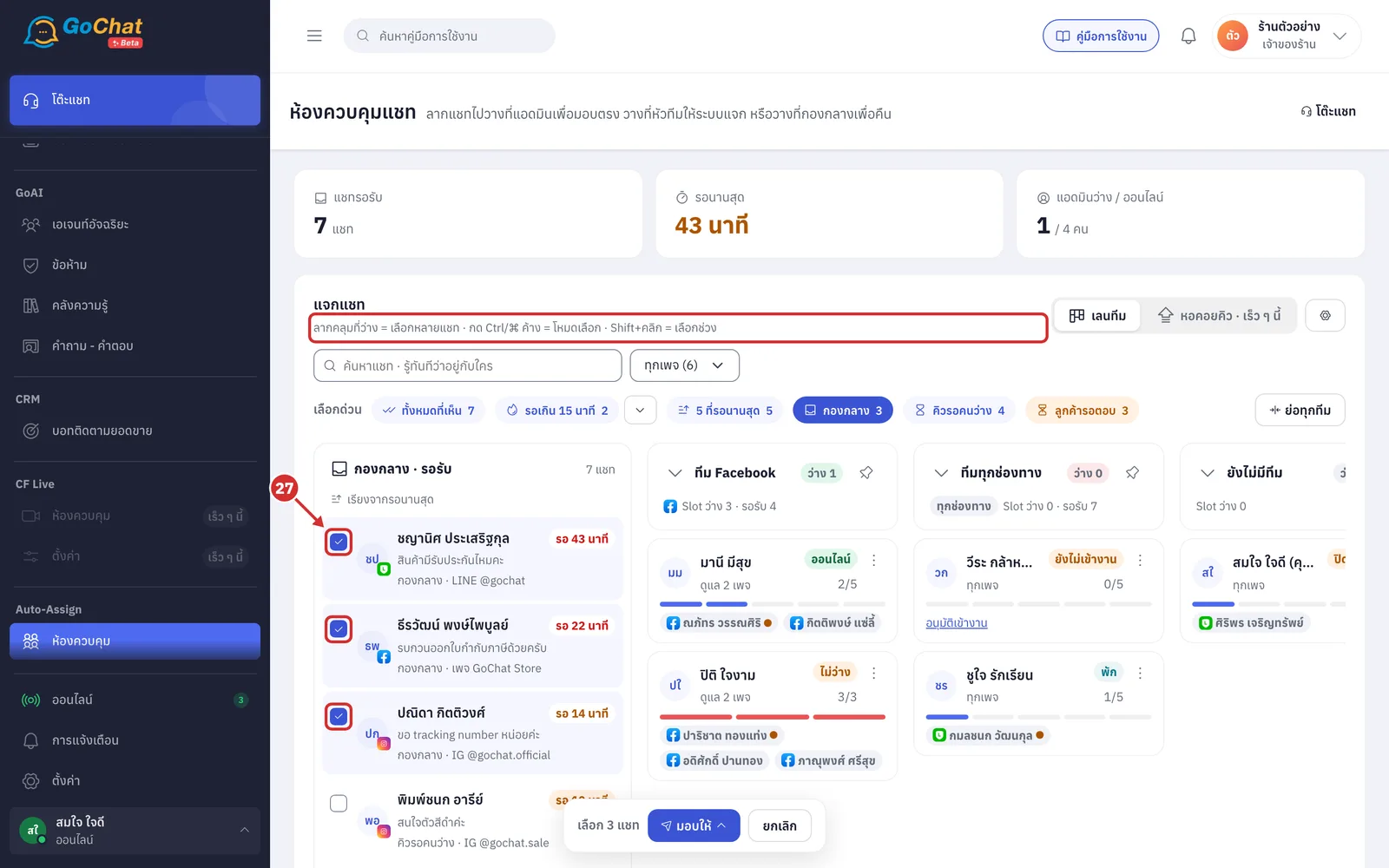
To move several chats at once, select them first, then drag the selected chats. There are 4 ways to select
Click the tick box at the start of a row
Drag a box over empty space in the shared pool
Hold Ctrl (⌘ on Mac) and click chats
Hold Shift and click to select a range
More details
The instructions are under the แจกแชท (Hand out chats) card title
Press Esc to clear the selection
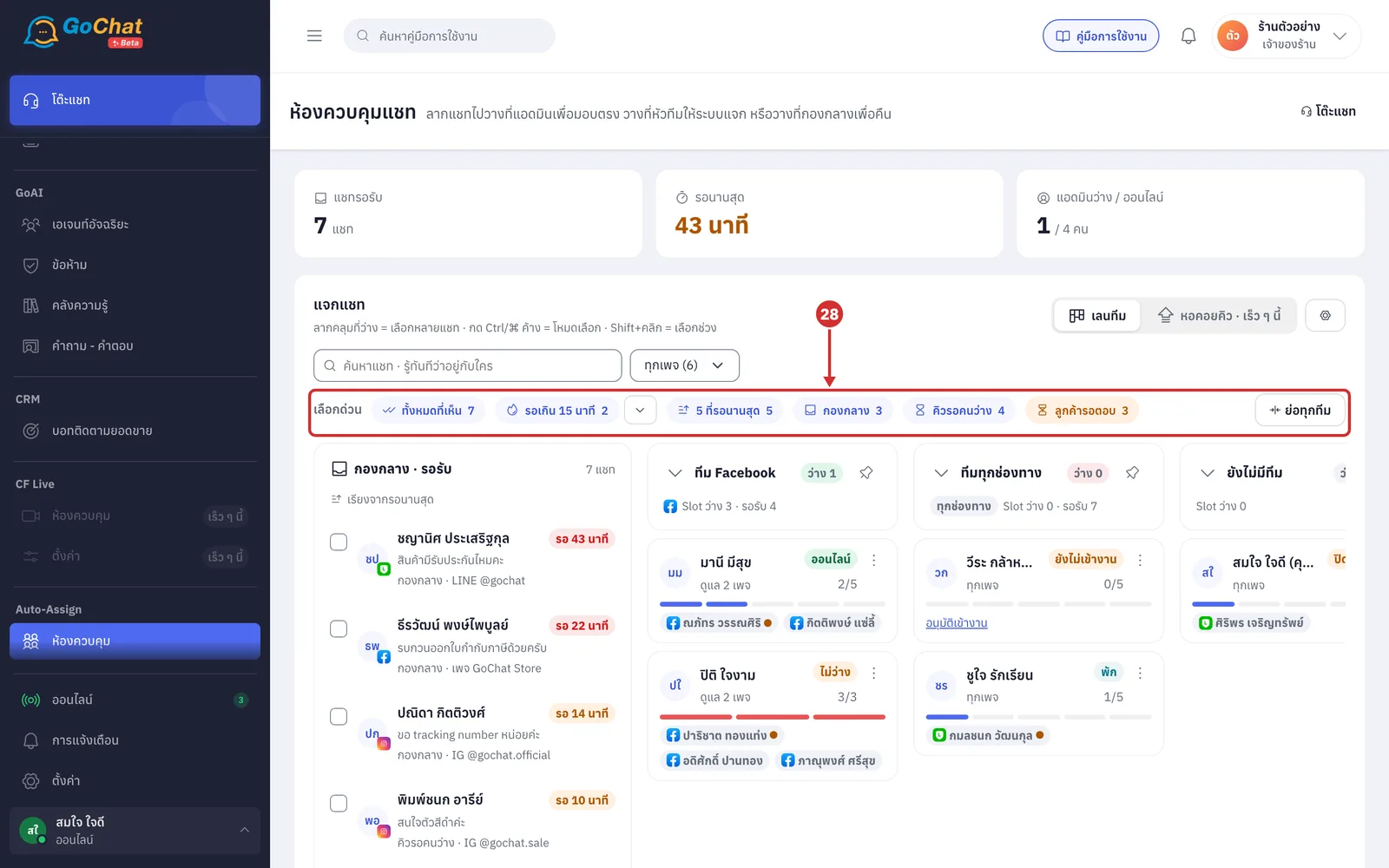
Handing out chats with the Assign button
Under เลือกด่วน (Quick select), click a button to select a whole group of chats at once
ทั้งหมดที่เห็น (All shown)
รอเกิน 15 นาที (Waiting over 15 minutes) — click the arrow next to it to change to 5, 10, 30 minutes or 1 hour
5 ที่รอนานสุด (5 longest waiting)
กองกลาง (Shared pool)
คิวรอคนว่าง (Queue for a free admin)
ลูกค้ารอตอบ (Customers waiting for a reply) — chats an admin is handling but the customer is still waiting for a reply
More details
The number on each button is how many chats it selects
Click a button again to cancel
Click the tick box on a row to select chats one by one
On the เลือก N แชท (N chats selected) bar at the bottom, click มอบให้ (Assign) (click ยกเลิก (Cancel) to clear the selection)
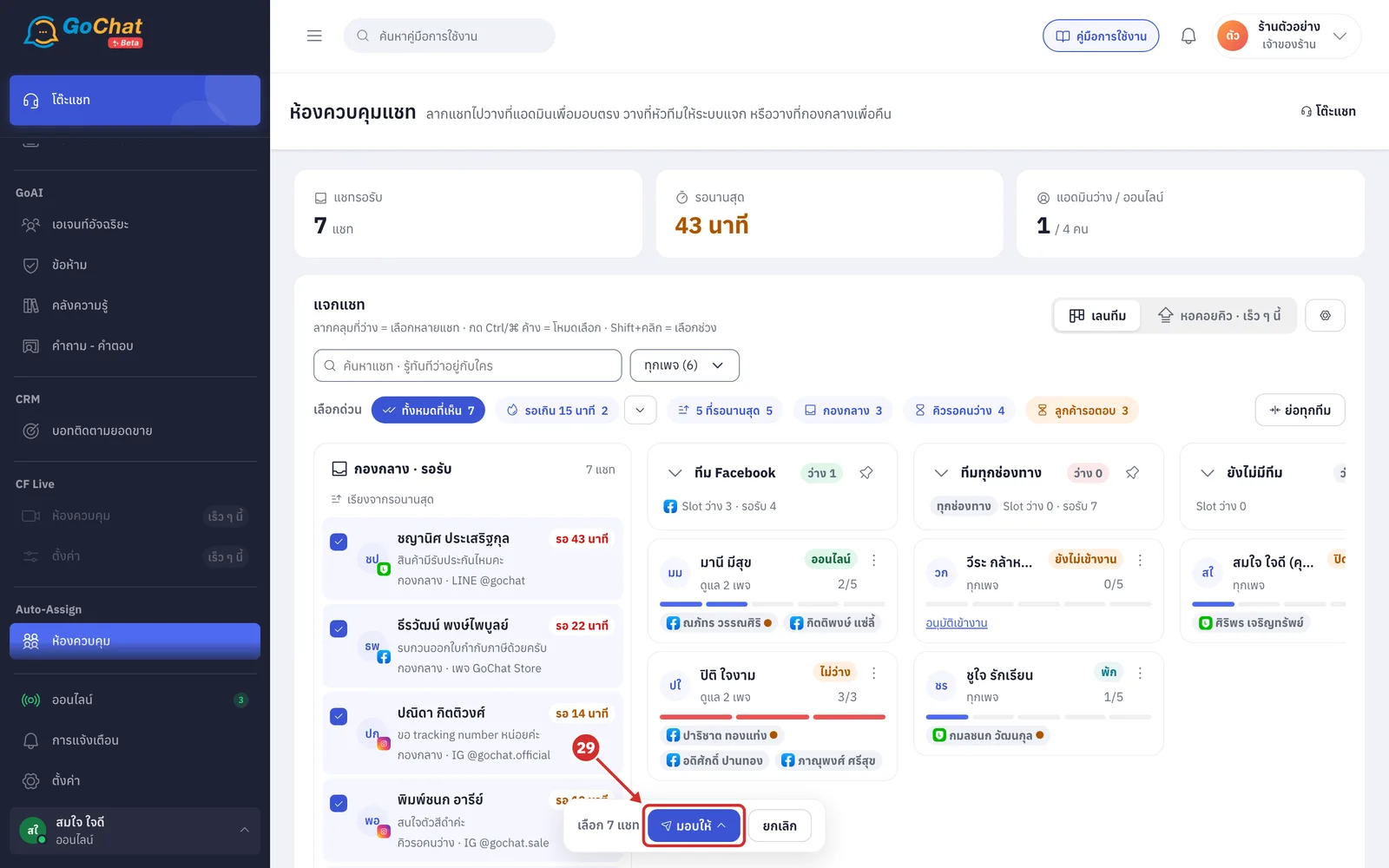
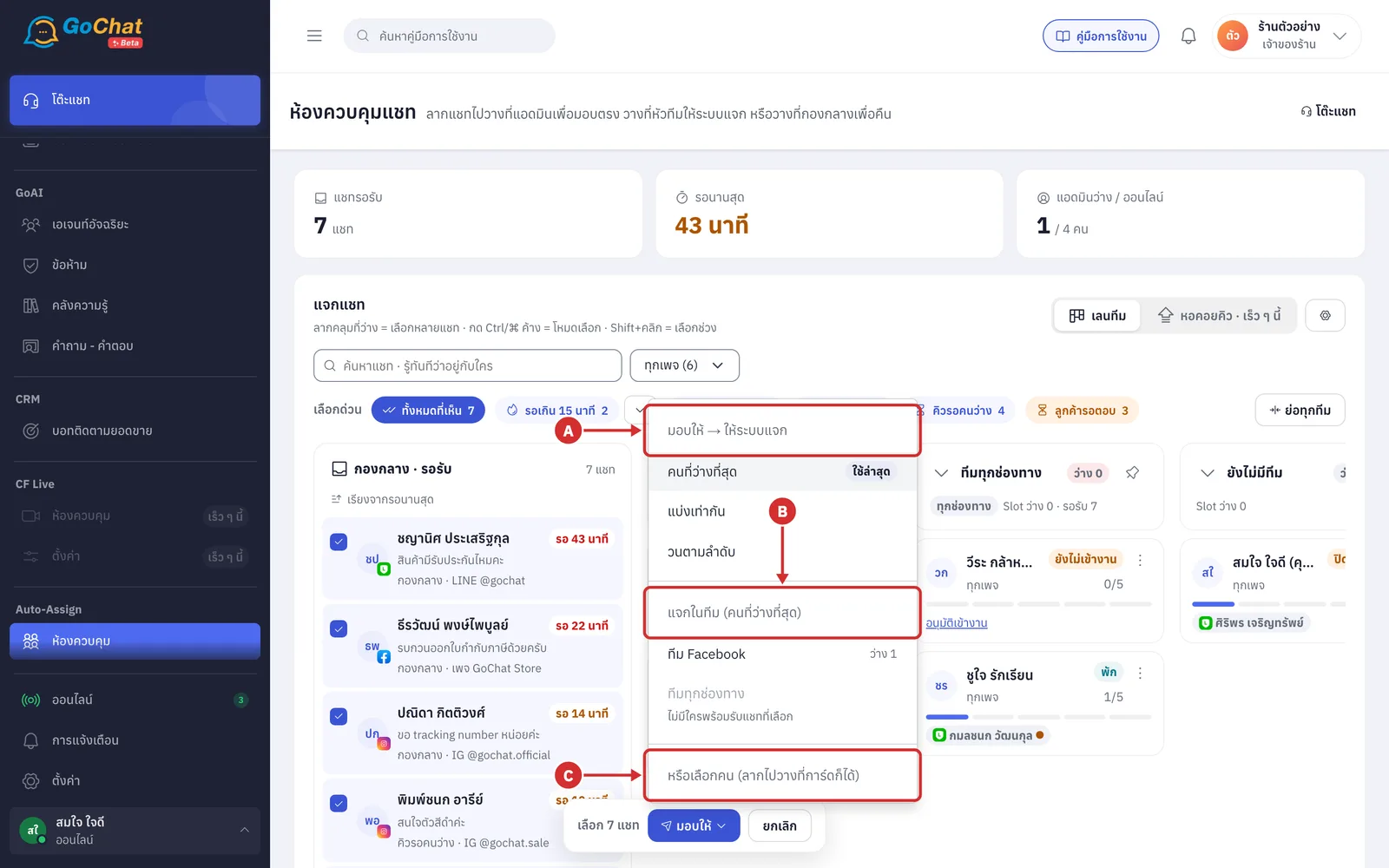
In the menu, there are 3 ways to assign
A มอบให้ → ให้ระบบแจก (Assign → let the system hand out): choose a method
คนที่ว่างที่สุด (Least busy): people holding the fewest chats first
แบ่งเท่ากัน (Split evenly): everyone gets about the same number
วนตามลำดับ (Round robin): one person at a time in turn
The ใช้ล่าสุด (Last used) label marks the method you used last time
B แจกในทีม (คนที่ว่างที่สุด) (Hand out within a team (least busy)): choose a team, and the system gives the chats to the least busy people in it
ว่าง N (N free) is how many people in the team can take the selected chats
A team where nobody can take them cannot be chosen
C หรือเลือกคน (Or choose a person): choose one admin to give the chats to directly. Each name shows held/Slot and, if they cannot be chosen, why, such as ไม่ได้ดูแลเพจของแชทที่เลือก (Doesn't look after the selected chats' pages)
Good to know: If the selected chats are being handled by someone, the menu also has คืนกองกลาง (Return to pool) at the bottom. Options B and C assign straight away without asking you to confirm.
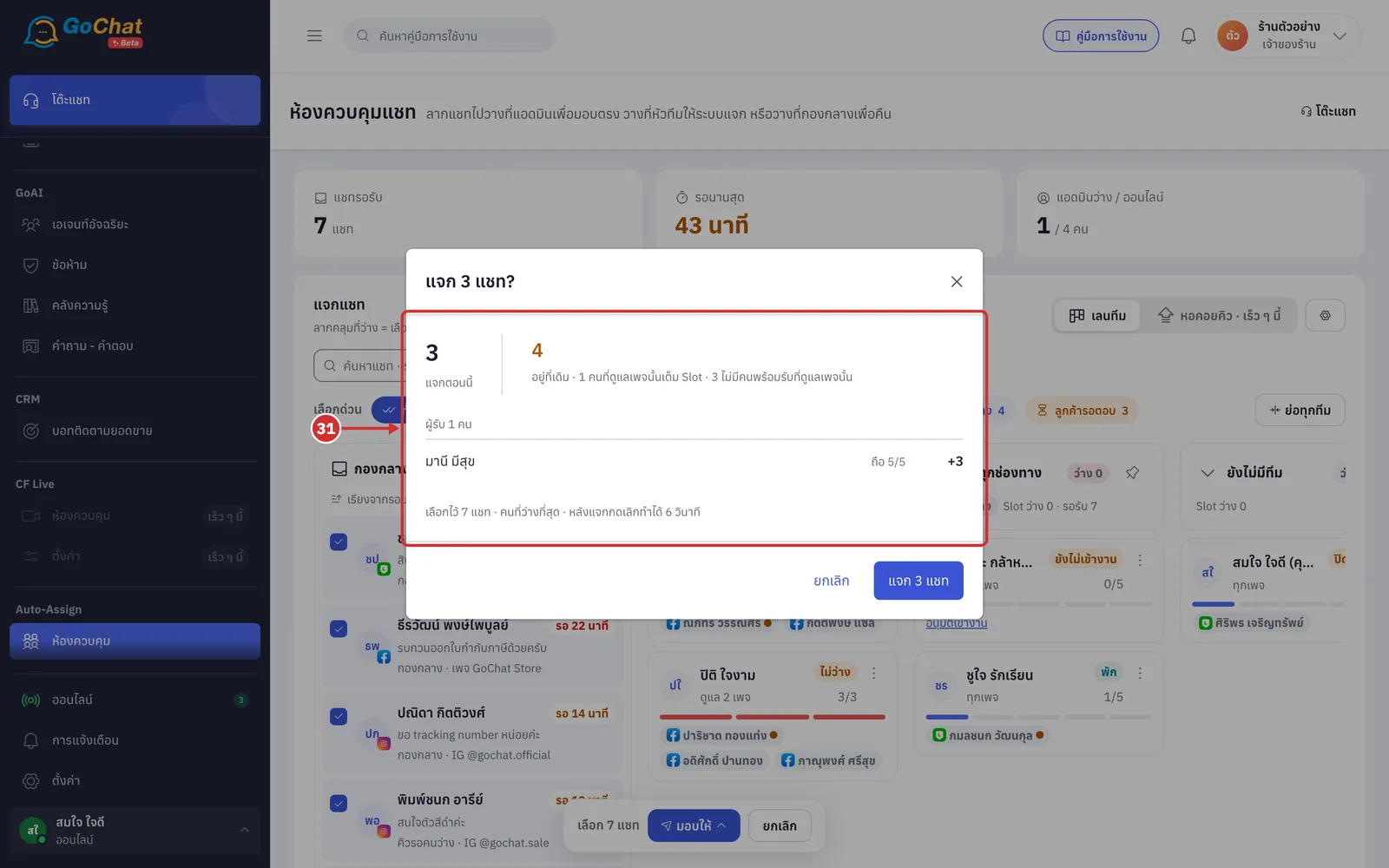
If you let the system hand out the chats, the แจก N แชท? (Hand out N chats?) window first sums up
How many chats can be handed out
How many will อยู่ที่เดิม (Stay where they are) and why, such as everyone who looks after that page has a full Slot, or nobody who looks after that page can take it
How many chats each ผู้รับ (Recipient) will hold afterwards
If the selected chats are being handled by someone, the system moves them as a lead and lets the previous admin know
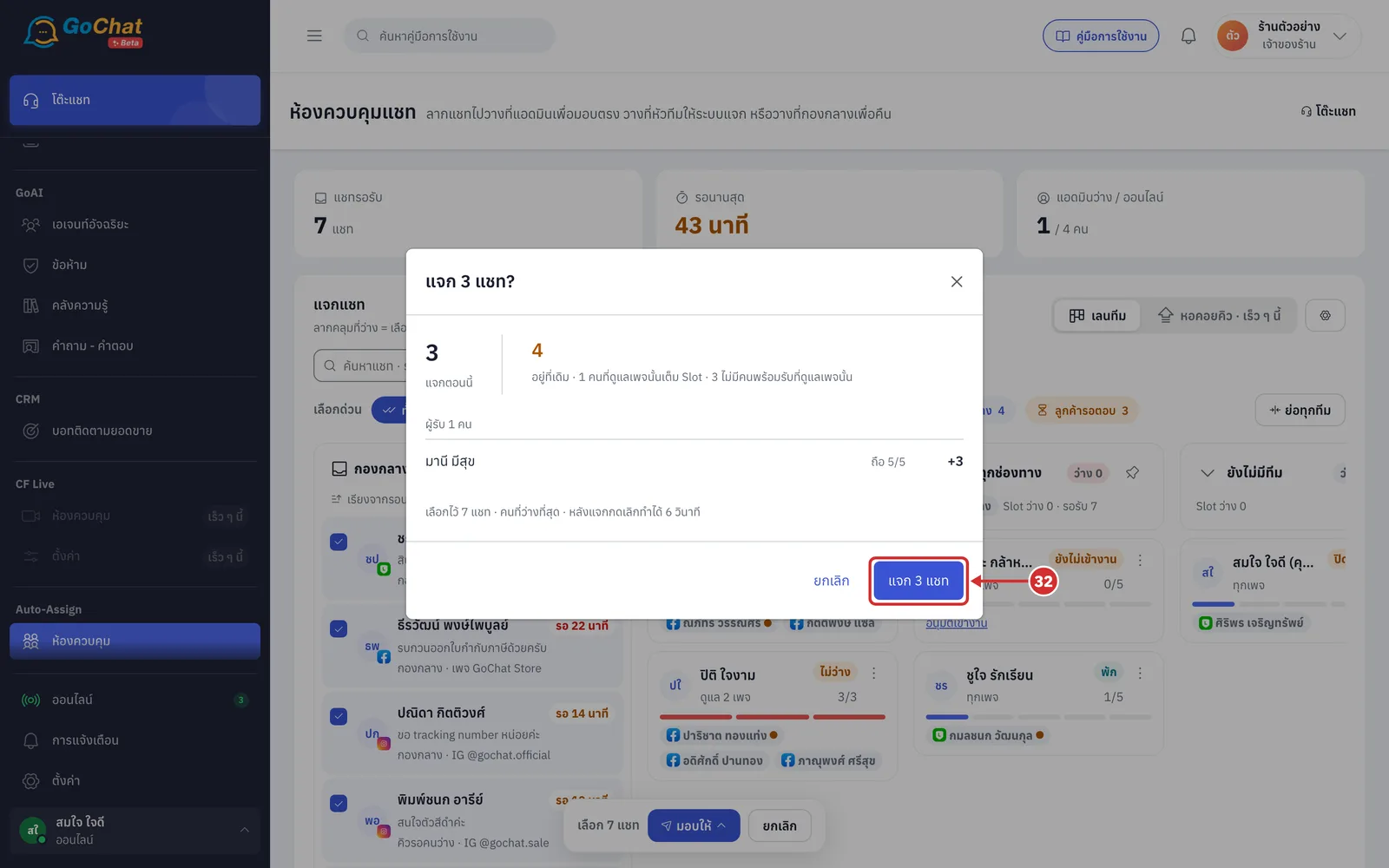
Click แจก N แชท (Hand out N chats) to confirm
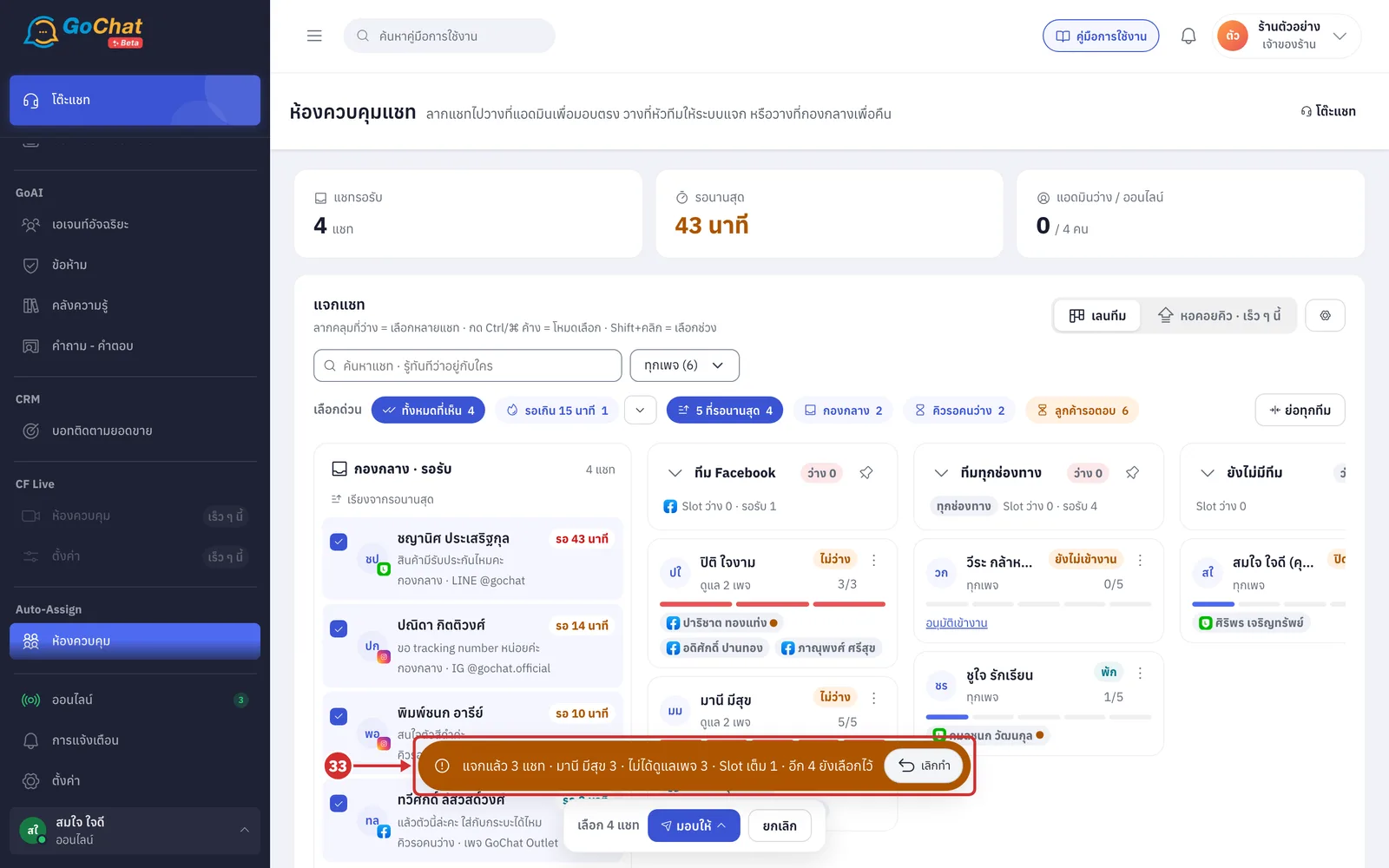
The system shows แจกแล้ว N แชท (Handed out N chats) with each recipient's name and how many they got
Chats that could not be handed out stay selected so you can assign them another way
If you made a mistake, click เลิกทำ (Undo) within 6 seconds
Undo only takes back chats nobody has replied to or moved since, and the system records the undo in the history
Changing an admin's status and moving their chats
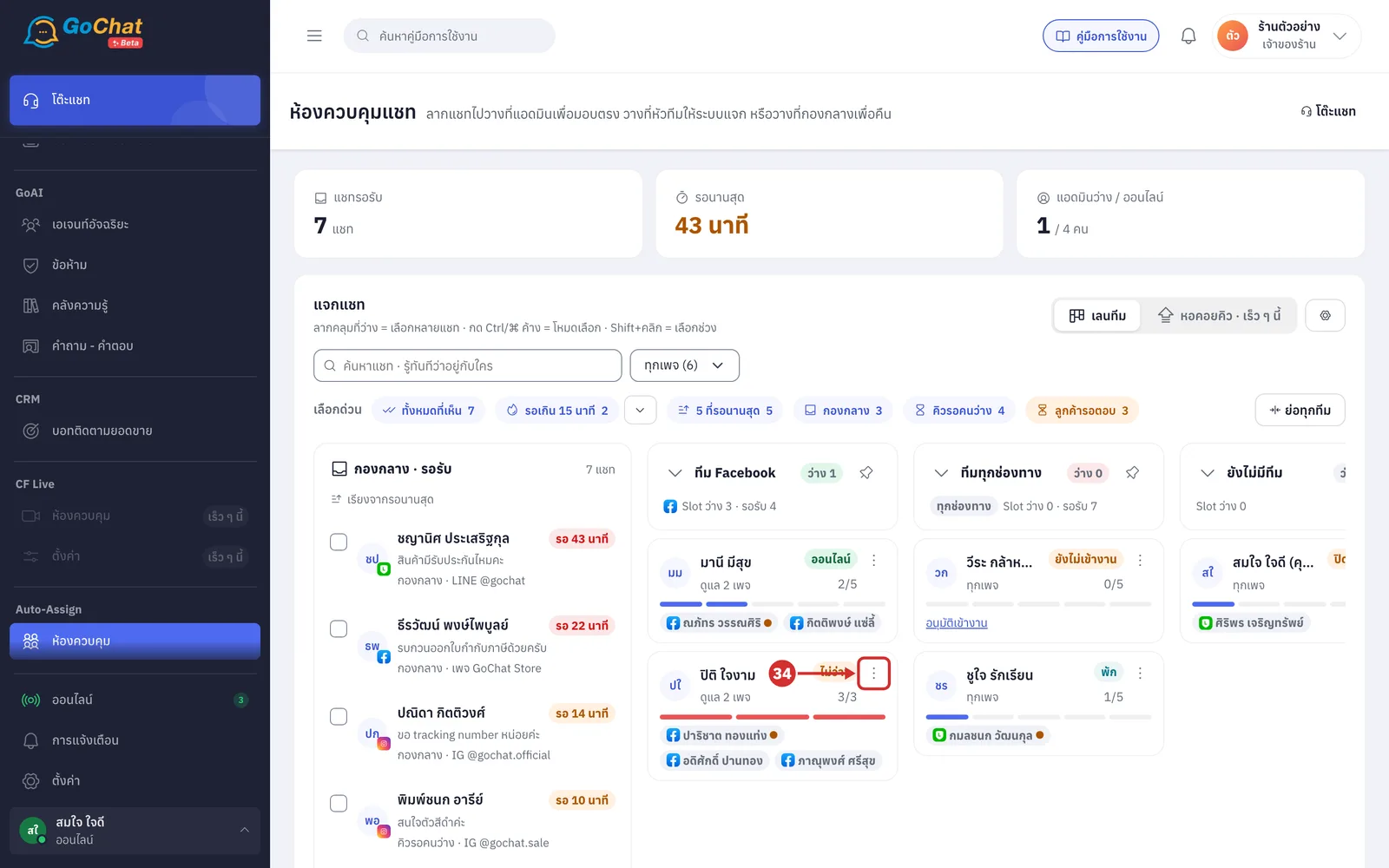
Click the ⋮ button on an admin card (or right-click the card)
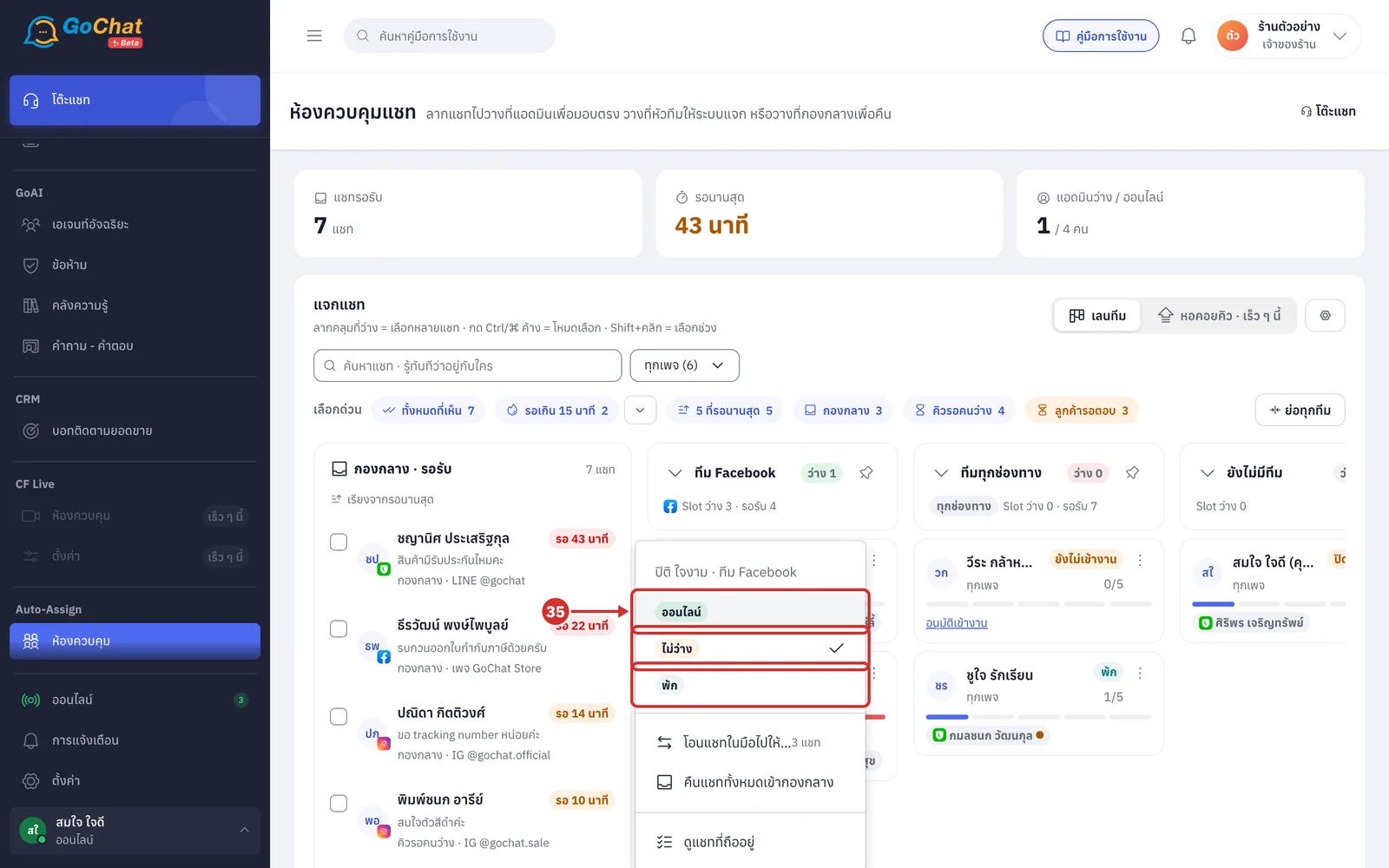
Choose ออนไลน์ (Online), ไม่ว่าง (Busy) or พัก (On break) for that admin. The system lets that admin know a lead changed their status
ไม่ว่าง (Busy) and พัก (On break) mean the admin gets no new chats, but chats they already hold stay with them
An admin who is offline cannot have their status changed until they are back online
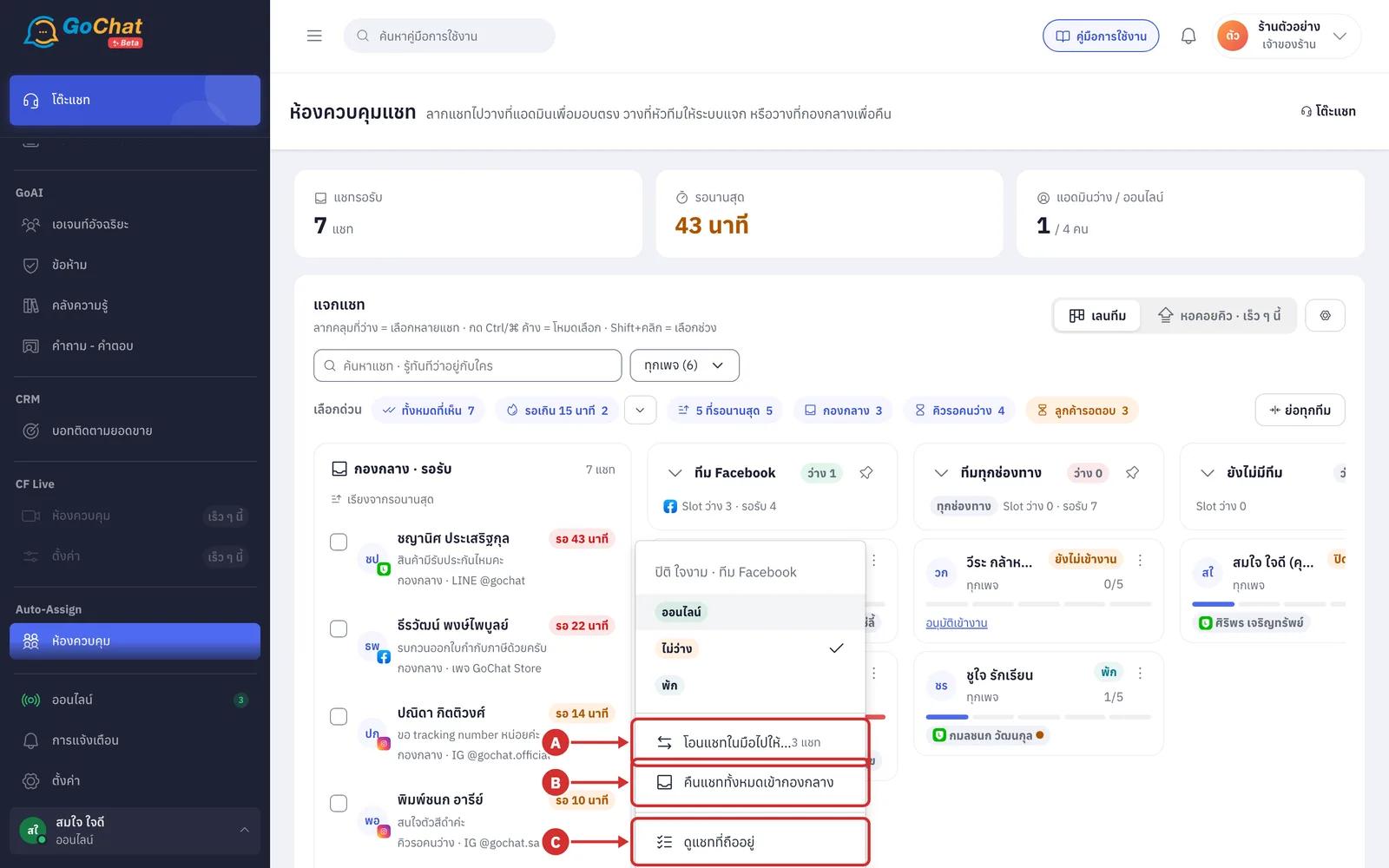
The same menu has 3 more ways to manage the chats that admin is holding
A โอนแชทในมือไปให้… (Transfer chats in hand to…) selects every chat that person holds and opens the มอบให้ (Assign) menu so you can choose who takes them over
B คืนแชททั้งหมดเข้ากองกลาง (Return all chats to the pool) puts all of that person's chats back in the shared pool
C ดูแชทที่ถืออยู่ (See chats in hand) opens that person's งานในมือ (Chats in hand) window
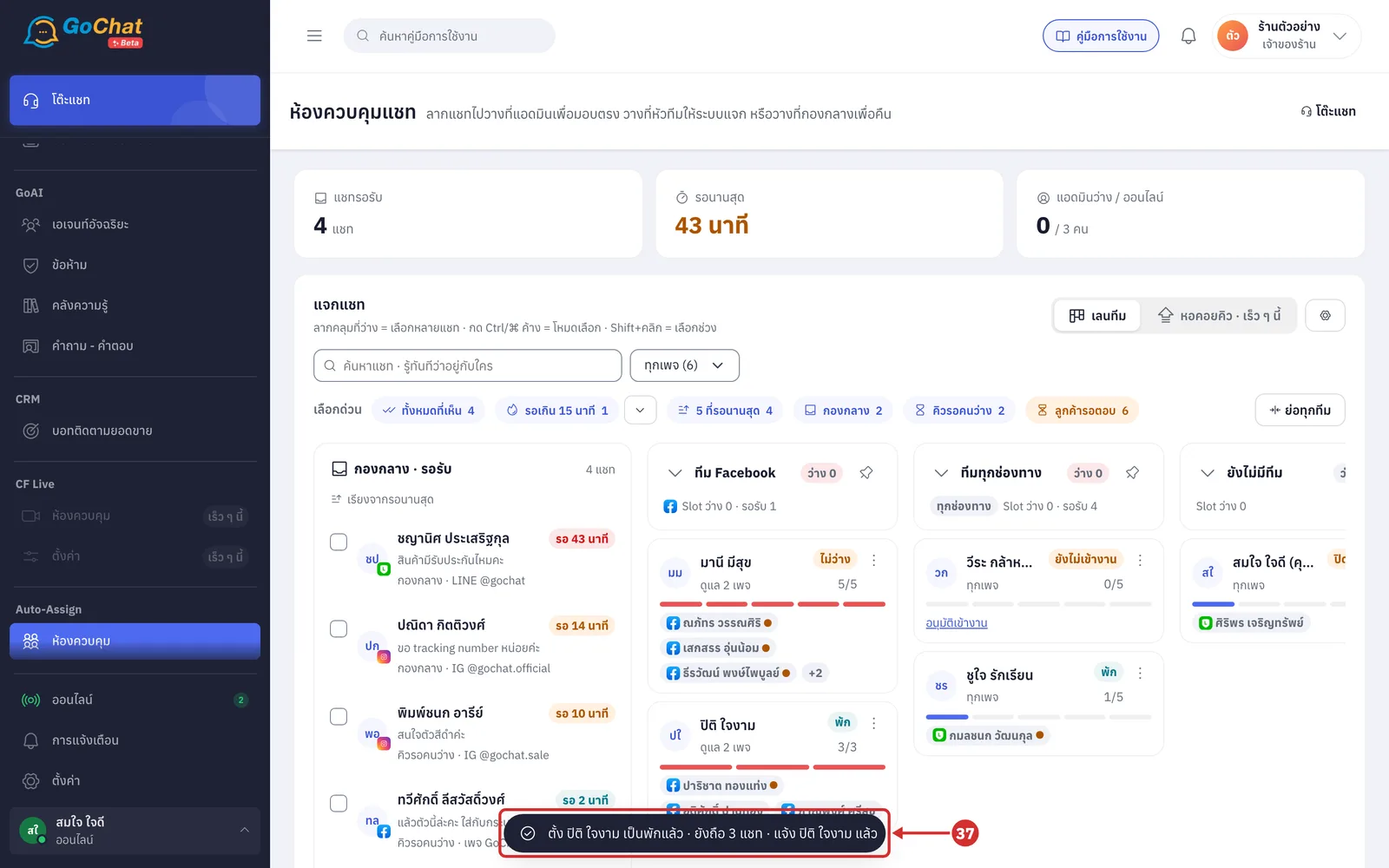
The system shows ตั้ง (Set) the admin's name เป็นพักแล้ว (to On break) (with the status you chose), how many chats that person still holds, and แจ้ง (Notified) the admin's name แล้ว
About using the control room
If the live connection drops, a ขาดการเชื่อมต่อสด — รายการอาจไม่เป็นปัจจุบัน (Live connection lost — the list may be out of date) bar appears; click โหลดหน้าใหม่ (Reload page)
If the shop has not turned on chat assignment, this page shows ร้านนี้ยังไม่ได้เปิดระบบจัดสรรแชท (This shop has not turned on chat assignment) with a ไปตั้งค่าการจ่ายแชท (Go to chat assignment settings) button
Users who are not the shop owner, a shop lead or a team lead see หน้านี้ดูได้เฉพาะหัวหน้าทีมและเจ้าของร้าน (Only team leads and the shop owner can see this page)