

Searching and filtering chats
The ข้อความ (Messages) page in GoChat lets you search, sort and filter chats so you can quickly find the conversations that need action, such as chats where a customer just wrote, unread chats, chats waiting for an admin and chats with open tasks.
Filter settings only affect each user's own screen and do not change your teammates' chat lists. Filters are remembered in the browser you use.
Choosing the Messages or Comments tab
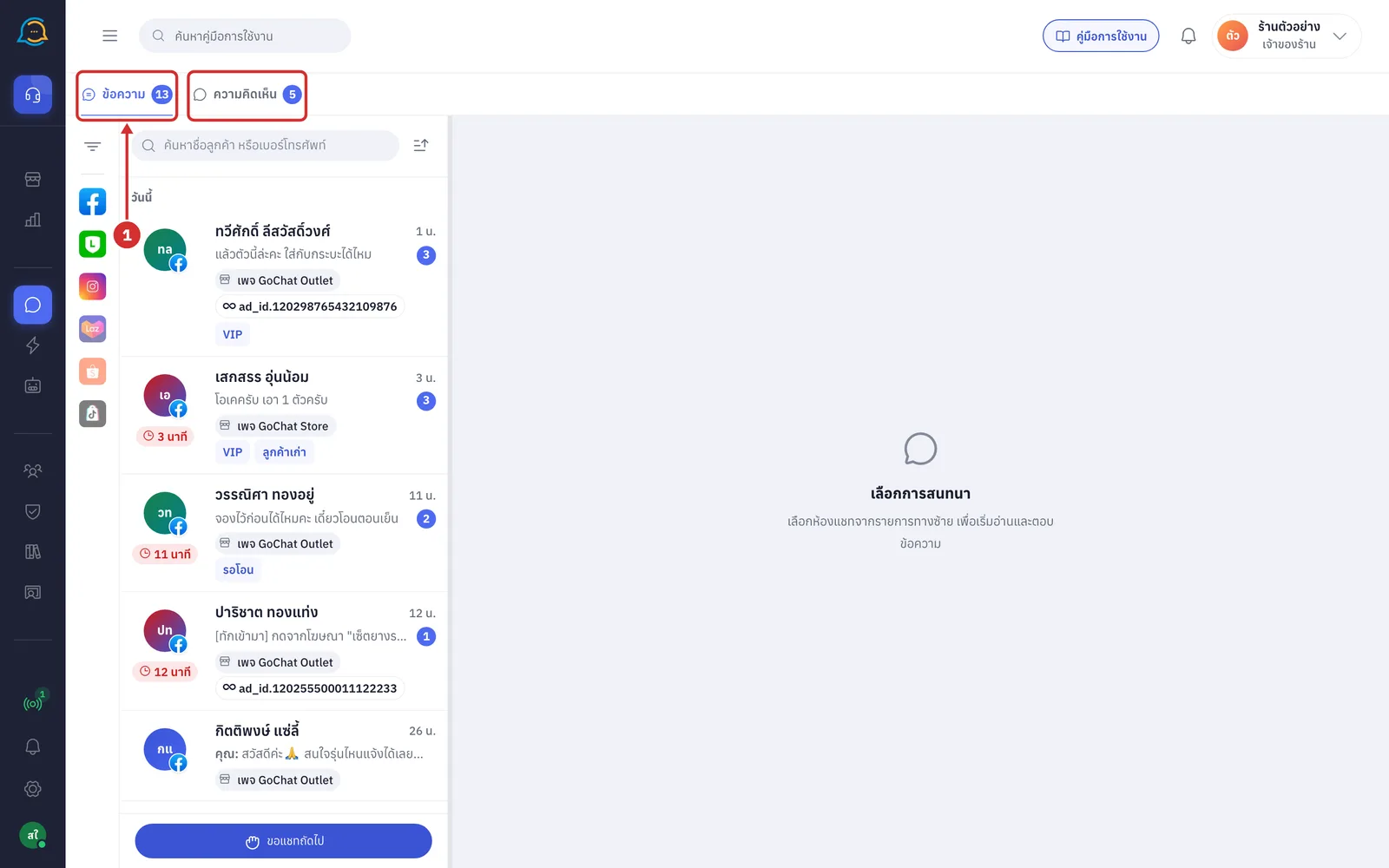
At the top of the chat list there are 2 tabs
ข้อความ (Messages): chats with customers from the channels your shop connected
ความคิดเห็น (Comments): comments under Facebook and Instagram posts
The number on each tab means something different
ข้อความ (Messages) tab: the number of unread messages
ความคิดเห็น (Comments) tab: the number of comments not yet answered
Above 99, it shows 99+
When teammates have the ข้อความ (Messages) page open, their pictures appear at the end of the tab row. Click them to see which chat each person has open.
Searching for a chat
Search takes you straight to the chat you want without scrolling through the whole list.
How to search
Click the ค้นหาชื่อลูกค้า หรือเบอร์โทรศัพท์ (Search customer name or phone number) box and type a customer name or phone number. The list filters itself; there is no need to press Enter
You can search by the customer name from the platform, the name your shop gave the customer, the chat name you set, LINE group names, LINE group member names, and phone numbers, which need at least 3 digits (only the digits are compared). Search terms can be up to 60 characters
Closed chats can be found too
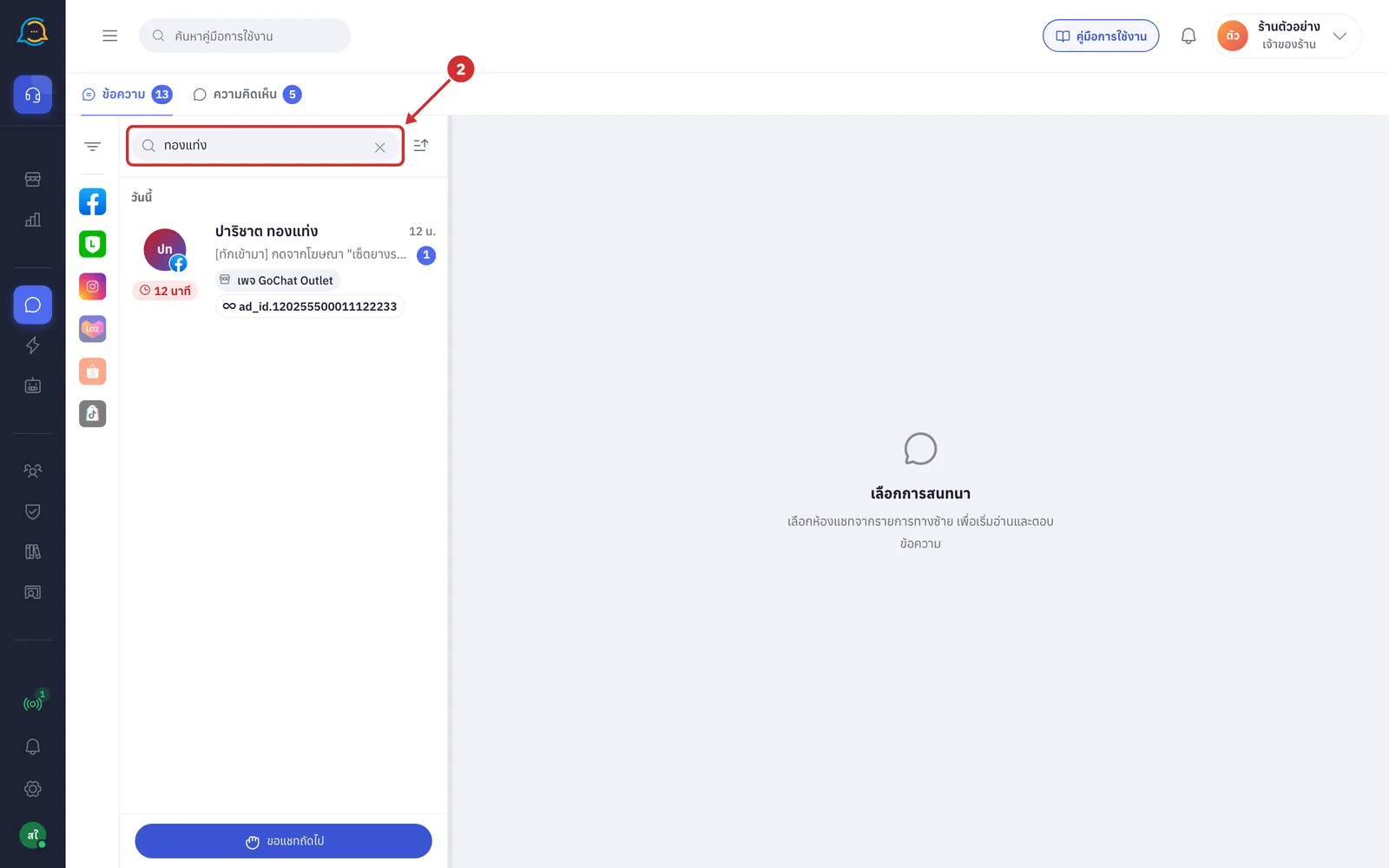
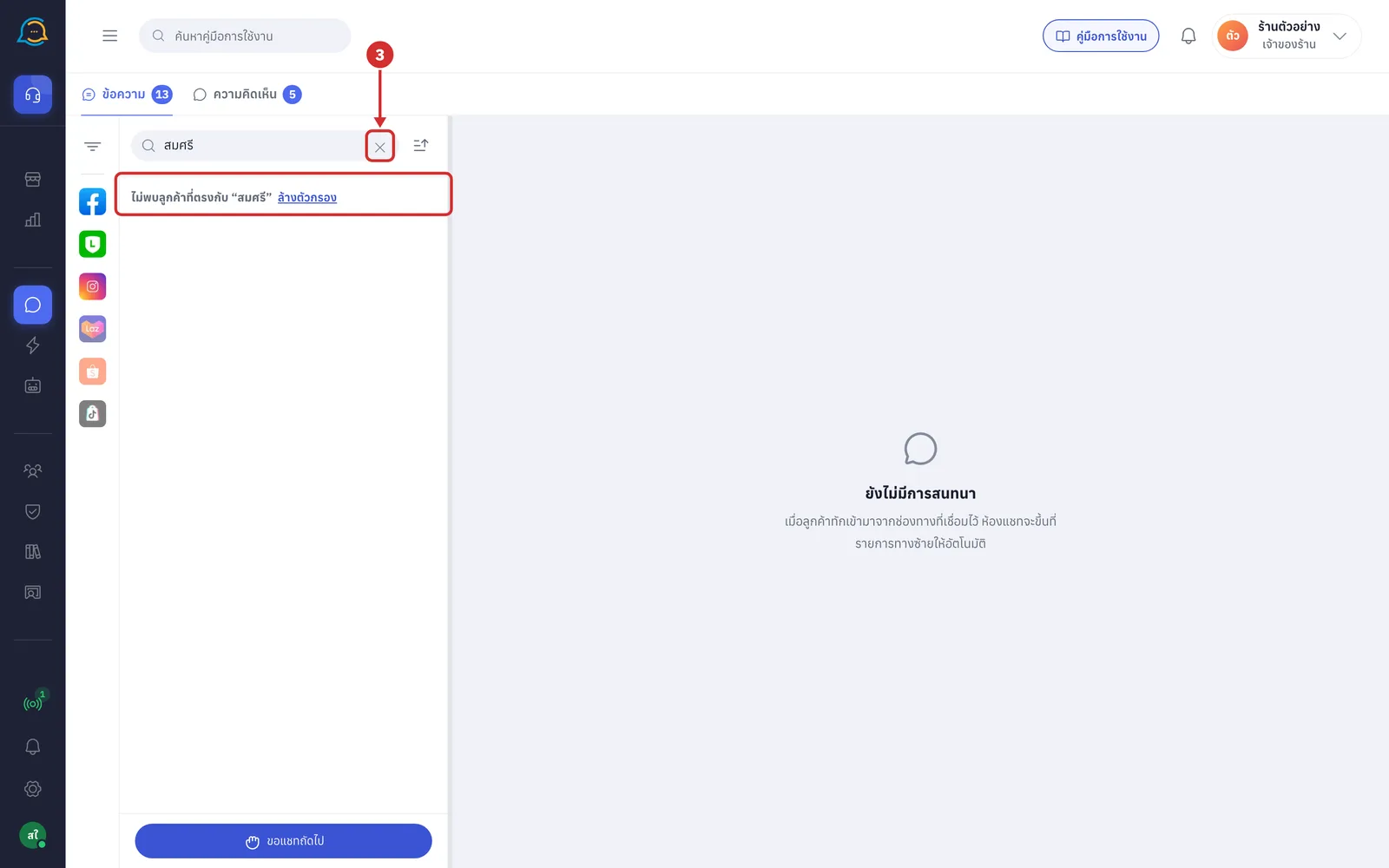
Click X in the search box to clear the search and show every chat again
If nothing matches, the list shows ไม่พบลูกค้าที่ตรงกับ “search” (No customer matches “search”) with a ล้างตัวกรอง (Clear filters) button
Note: The search box is only on the Messages tab.
Sorting the chat list
Sorting chats choose how the list is sorted by clicking the เรียงลำดับ (Sort) button next to the search box
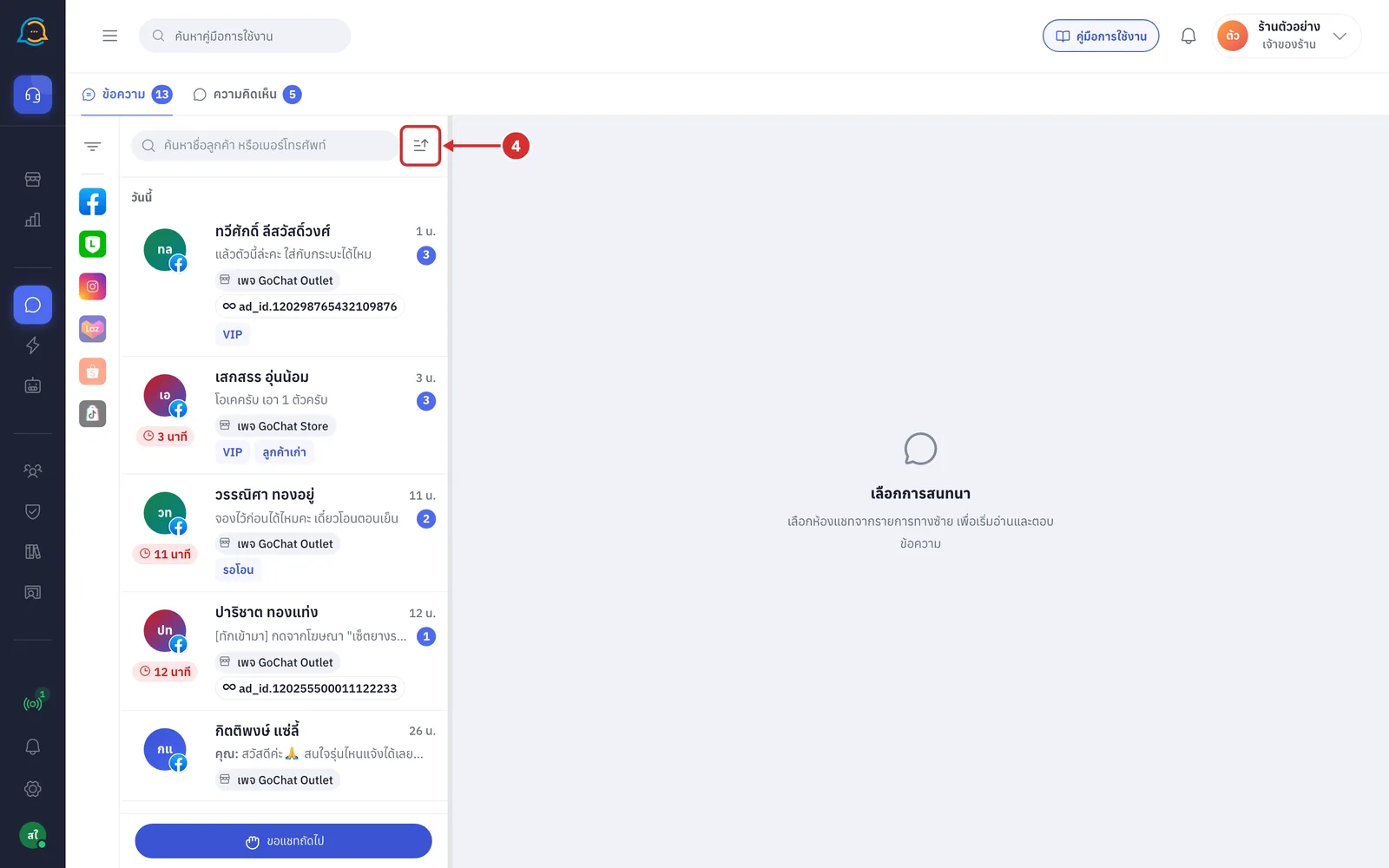
There are 2 ways to sort
A ข้อความล่าสุด (Latest message) is the default. Chats are sorted by the time of the latest message, whether the customer or the shop sent it, and grouped by day: today, yesterday, this week and earlier
B ลูกค้าพิมพ์ล่าสุด (Customer wrote last) sorts chats by when the customer last wrote, useful for following up customers who just messaged. The list is not grouped by day, and the sort button is shaded to show it is not the usual order
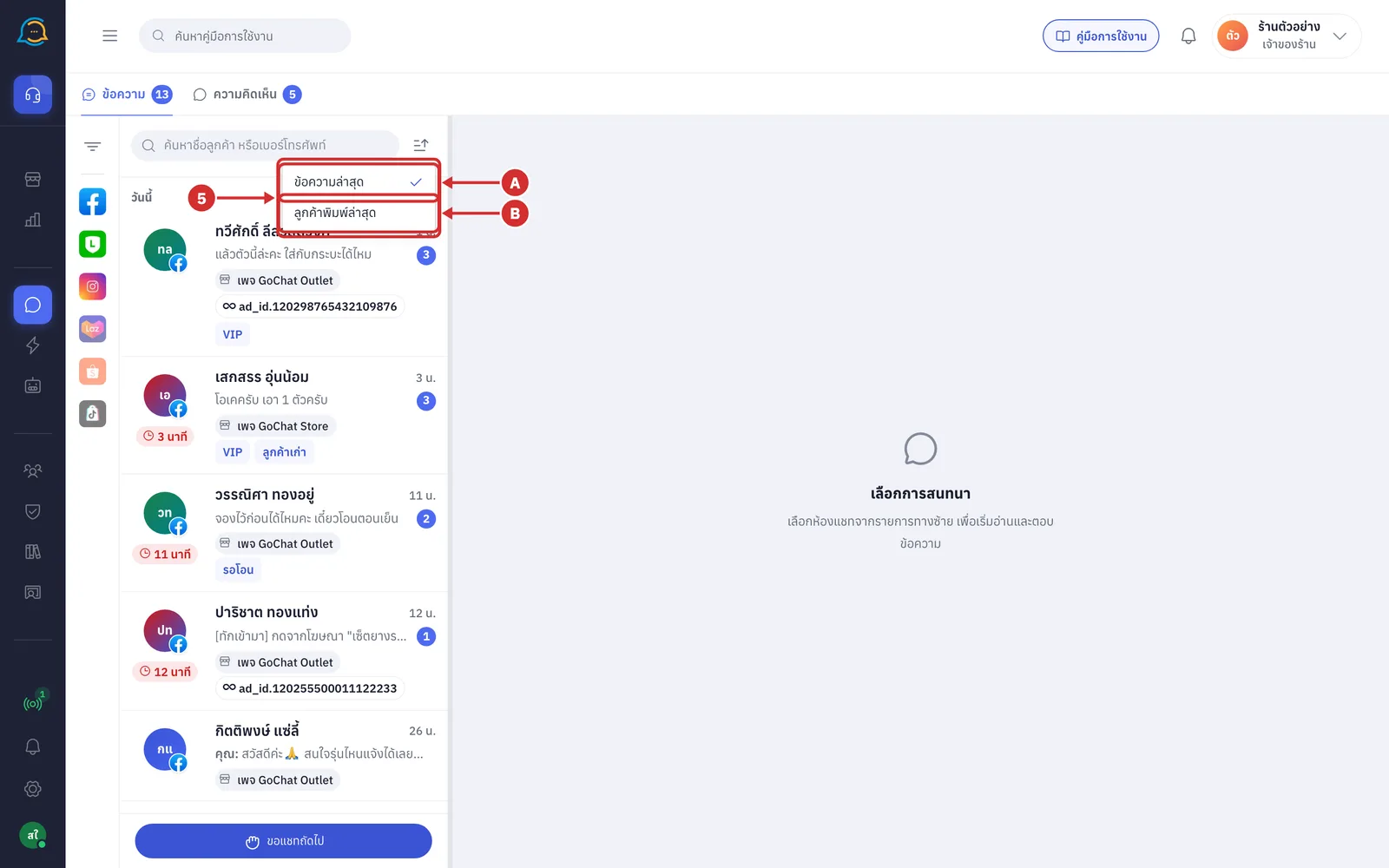
Good to know: Pinned chats always stay at the top, whichever sort you choose.
Opening the filter panel
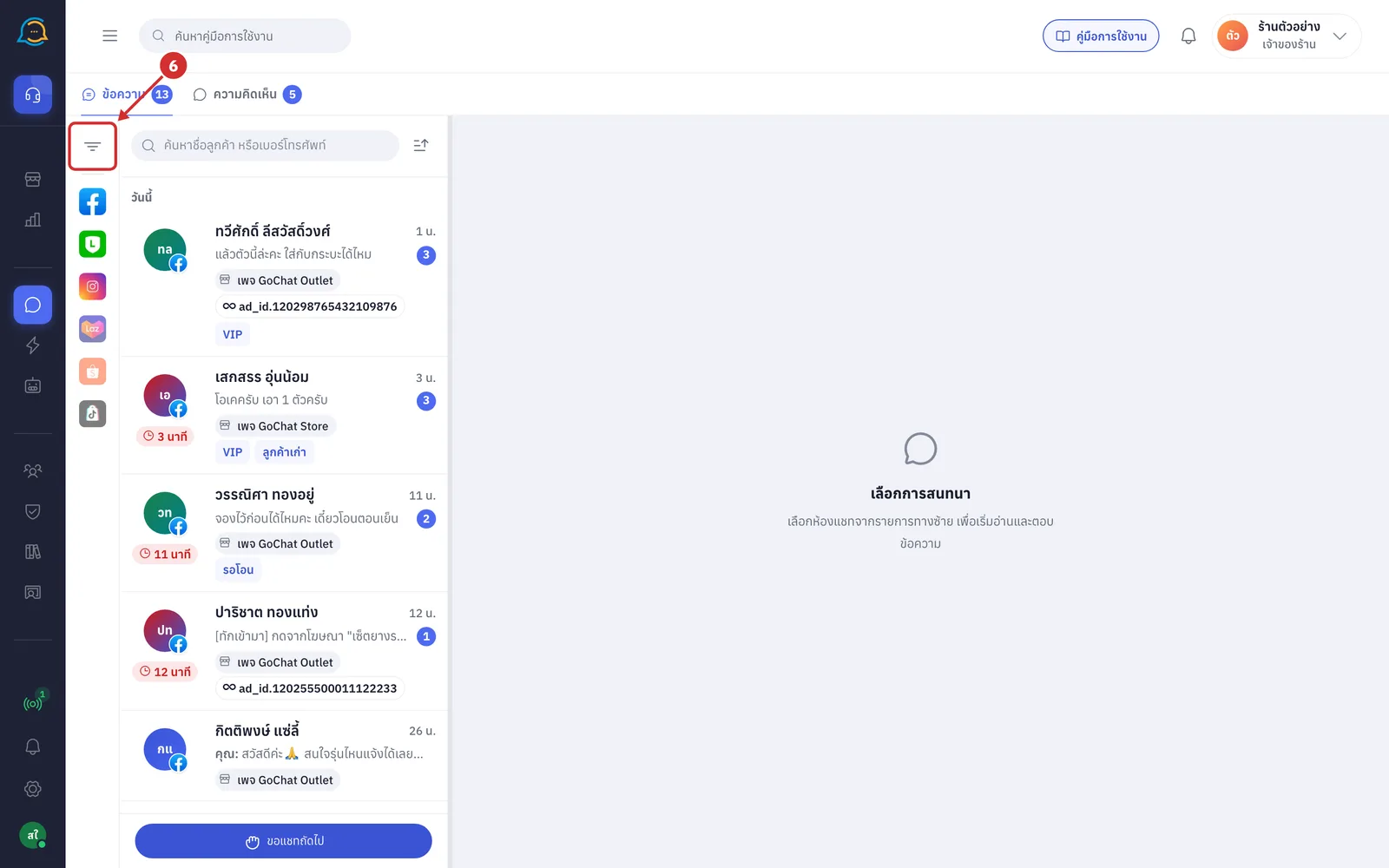
Click the ตัวกรอง (Filter) icon in the icon strip on the left of the chat list, or a channel logo below it
The filter panel opens. Choose the conditions you want; the list updates straight away with nothing to save
To fold the panel, click the two-way arrow button at the top of the panel
On very wide screens the panel may stay open by itself
How filters work
Several options in one section: shows chats that match any one of them
Options in several sections: shows only chats that match every section you chose
The number next to most options is how many chats match, counted together with the other filters you chose, except in the channel section
Click a section name to fold or expand it
Filter sections
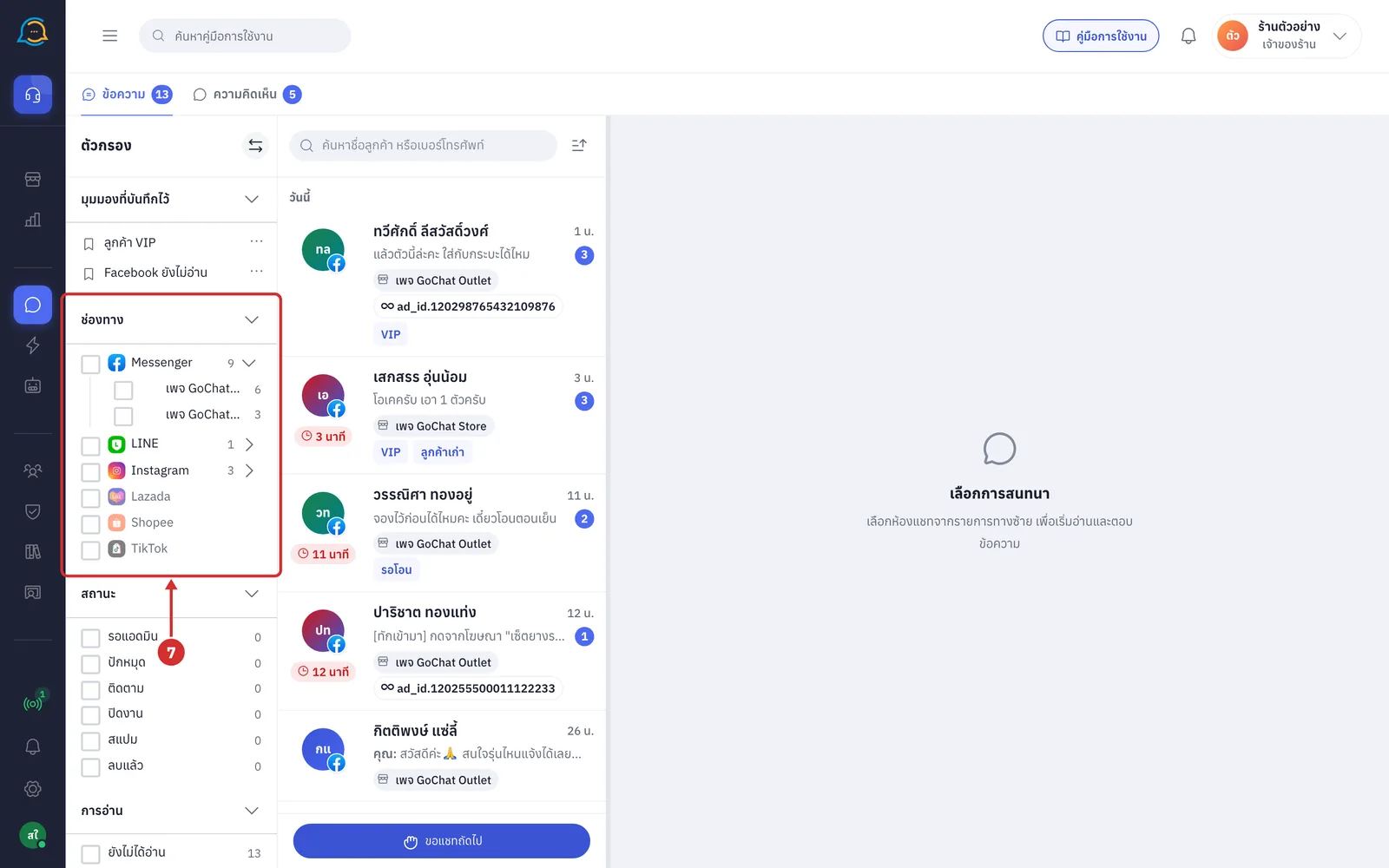
ช่องทาง (Channels) chooses chats by the channel the customer used
Choose the channels you want, such as Messenger, Instagram, LINE, Shopee or Lazada, depending on what your shop connected
To choose only some pages or accounts, click the arrow next to the channel name, then choose the pages or accounts
More details
Choosing a whole channel also includes pages or accounts you connect later
When only some pages are chosen, the channel's box shows a dash
The number next to a channel or page is its unread message count
Faded channel or page names have no chats yet
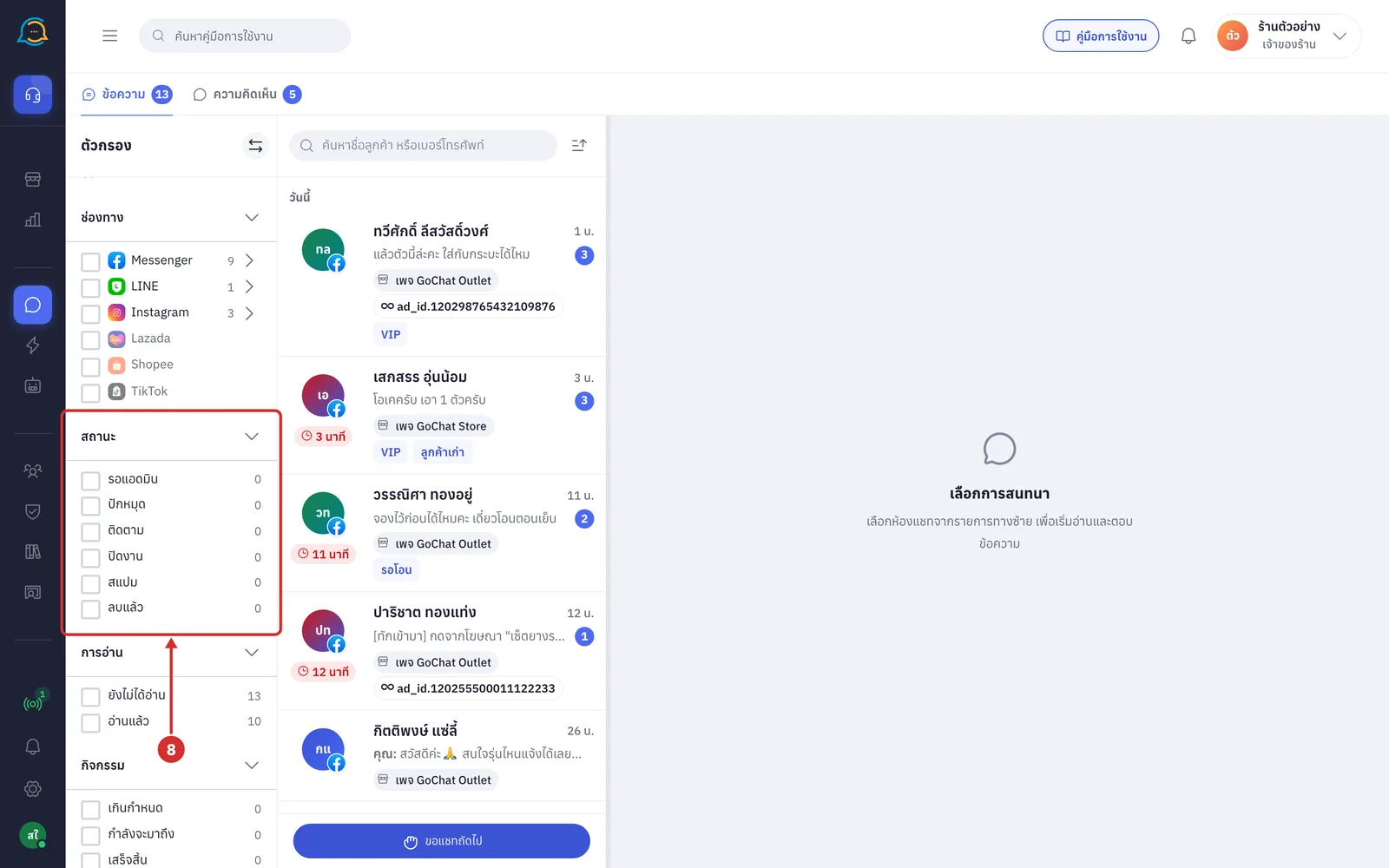
สถานะ (Status) filters chats by their work status
รอแอดมิน (Waiting for admin) — chats the AI handed to an admin because the customer wanted to talk to staff, with no admin reply yet
ปักหมุด (Pinned) — chats you pinned
ติดตาม (Following) — chats marked to follow
ปิดงาน (Closed) — closed chats. They normally stay out of the list until the customer writes again, but you can still search for them
สแปม (Spam) — chats marked as spam, normally not shown in the list
ลบแล้ว (Deleted) — deleted or hidden chats, normally not shown in the list; they may come back when the customer sends a new message
Shops connected to Shopee also have สอบถามสินค้า ยังไม่สั่ง (Asked about products, not ordered)
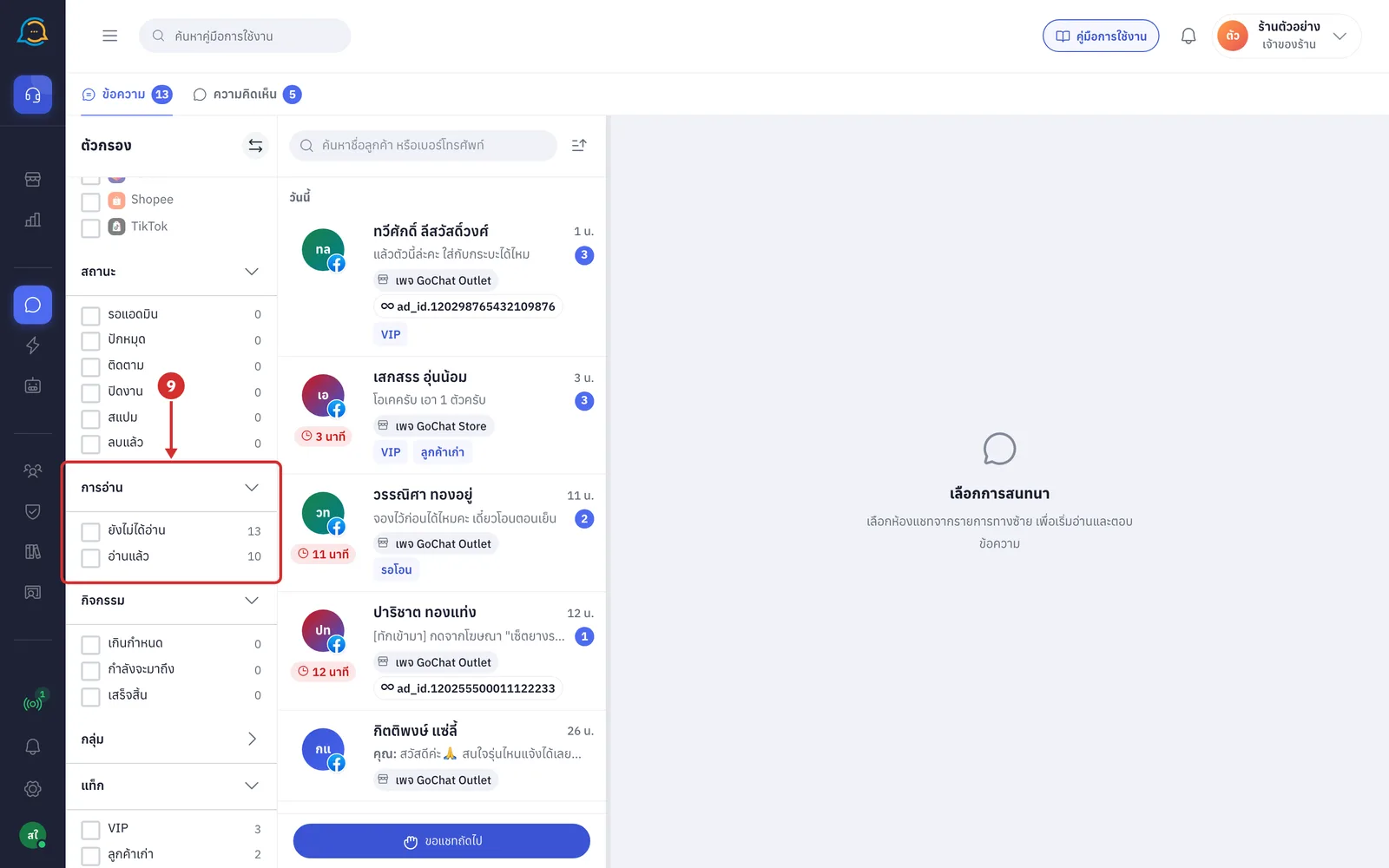
การอ่าน (Read state) filters chats by whether they have been read
ยังไม่ได้อ่าน (Unread): chats with customer messages nobody has opened yet
อ่านแล้ว (Read): chats that have been read. You can choose one read state at a time
When the system has handed you chats you have not opened yet, there is also ได้รับมาแต่ยังไม่เปิด (Received but not opened)
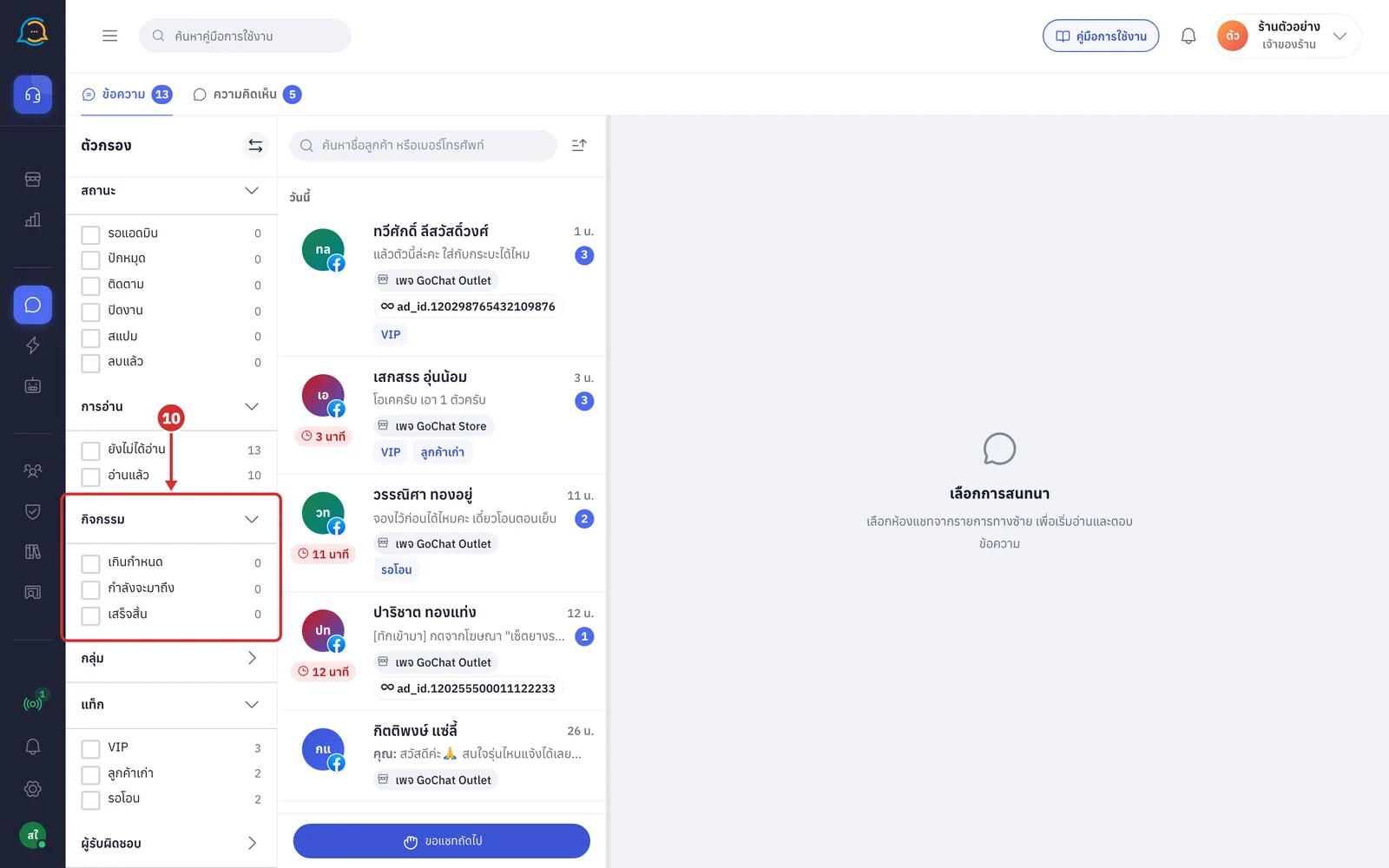
กิจกรรม (Activities) filters chats by the activities recorded in the customer panel
เกินกำหนด (Overdue): has an open activity past its due time
กำลังจะมาถึง (Upcoming): has an open activity not yet due
เสร็จสิ้น (Done): has activities and all are finished
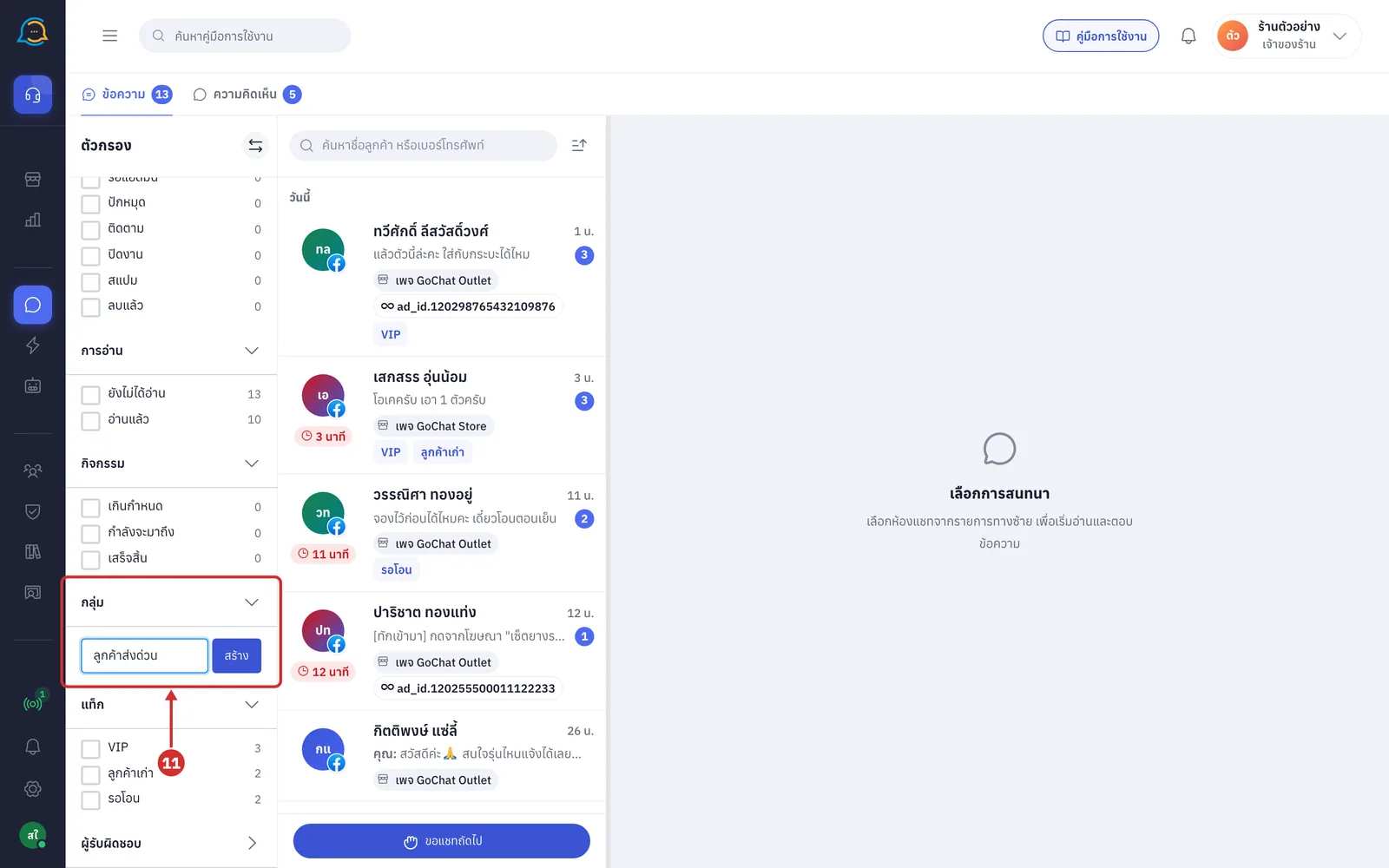
กลุ่ม (Groups) sorts chats into groups your shop created, such as customers to follow up urgently
To create a group, click สร้างกลุ่มใหม่ (Create a new group), enter a group name of up to 40 characters, then click สร้าง (Create)
Add chats to a group from the menu that opens when you right-click a chat row
To delete a group, click the trash icon next to its name. Deleting a group does not delete the chats; it only takes them out of the group
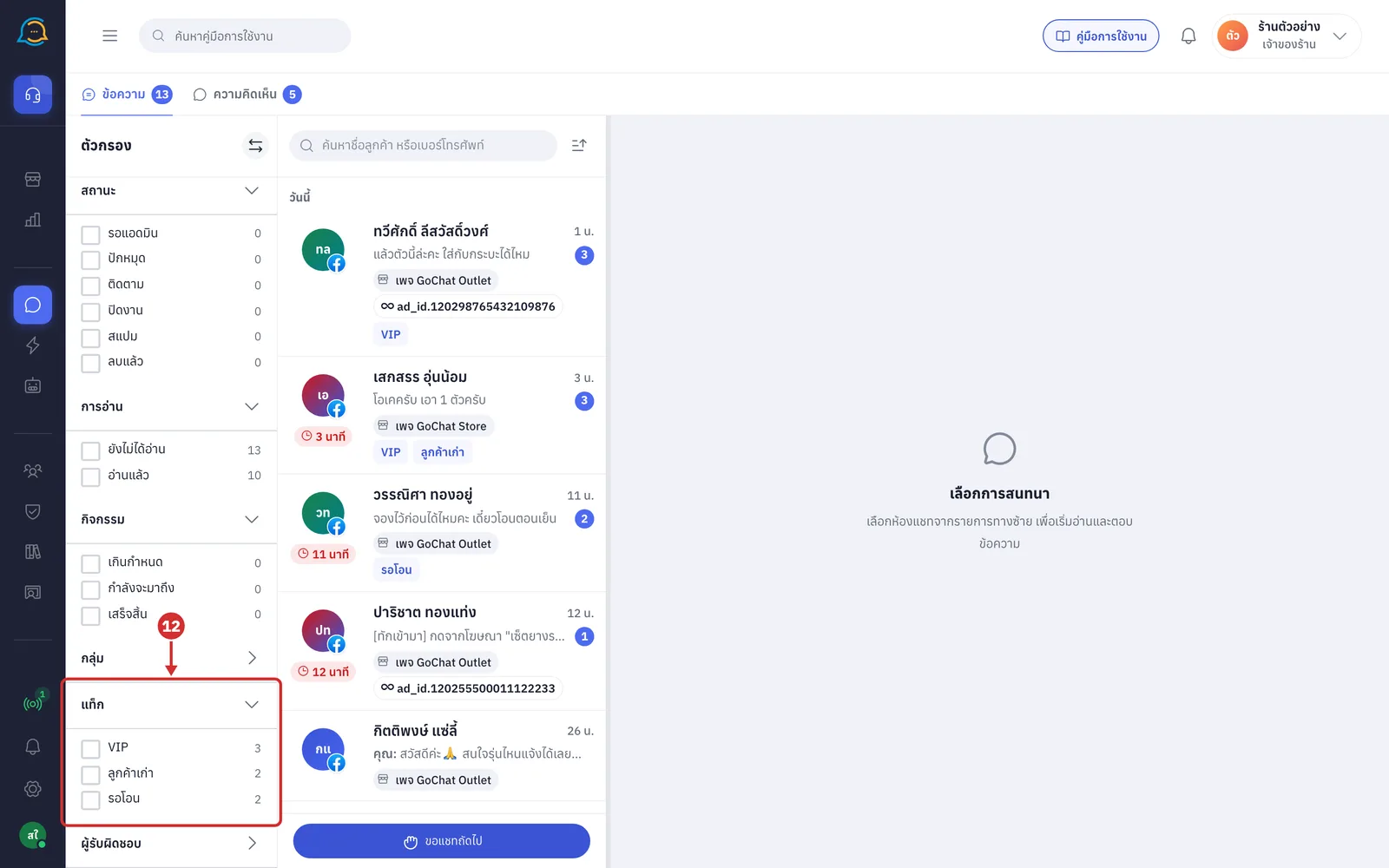
แท็ก (Tags) filters chats by tag, such as VIP or customers to follow up
The panel shows the tags you chose plus the tags with the most chats, up to 5 in total. If there are more, click ดูทั้งหมด (N) (See all (N)) to search for and choose more tags
If the shop has no tags yet, it shows ยังไม่มีแท็ก — สร้างได้ที่หน้าตั้งค่าแท็ก (No tags yet — create them on the tag settings page)
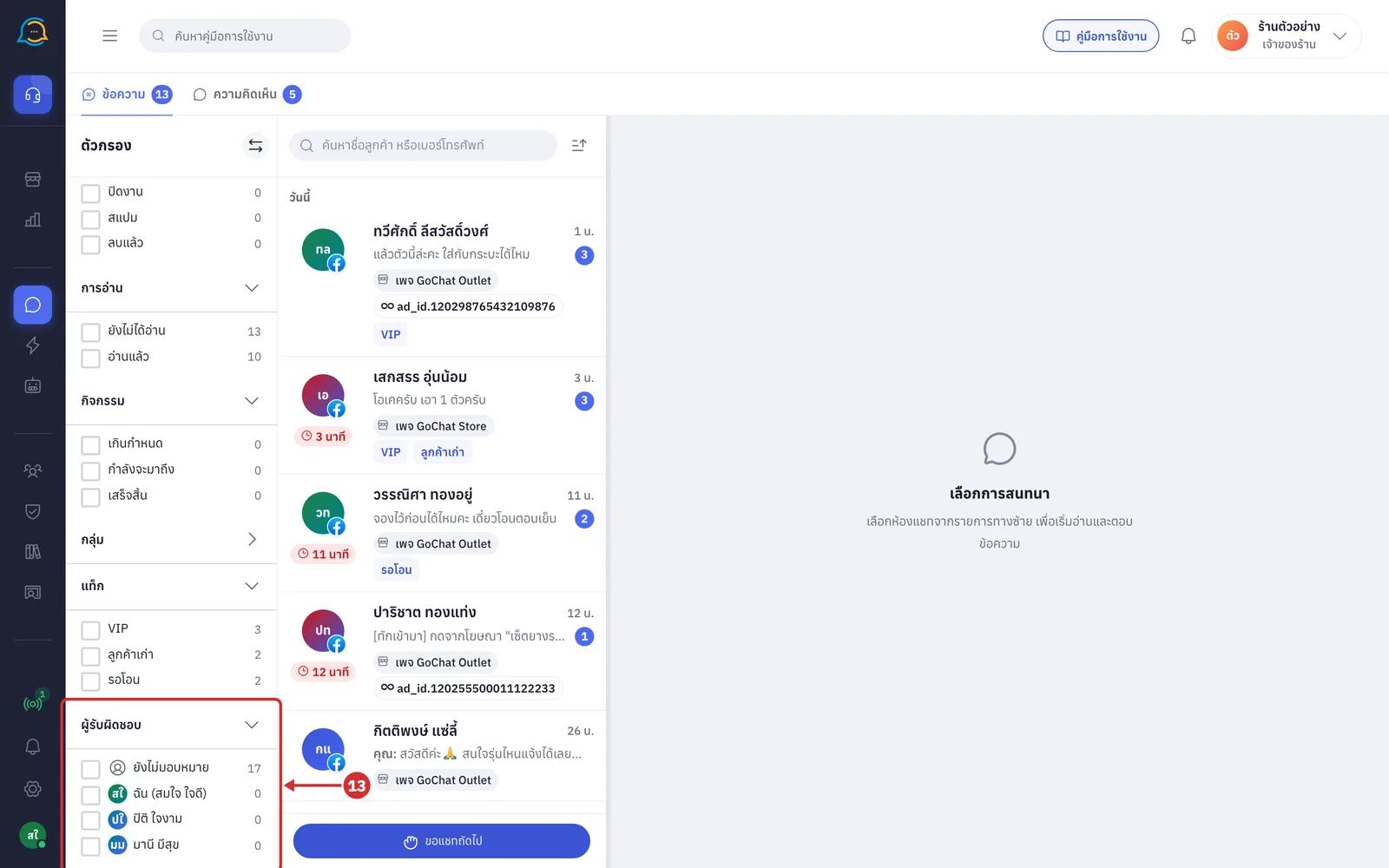
ผู้รับผิดชอบ (Owner) filters chats by who is responsible for them
ยังไม่มอบหมาย (Unassigned): chats with no owner
ฉัน (Me): chats you own
A teammate's name: chats that person owns
Checking and clearing filters
You can manage filters as follows
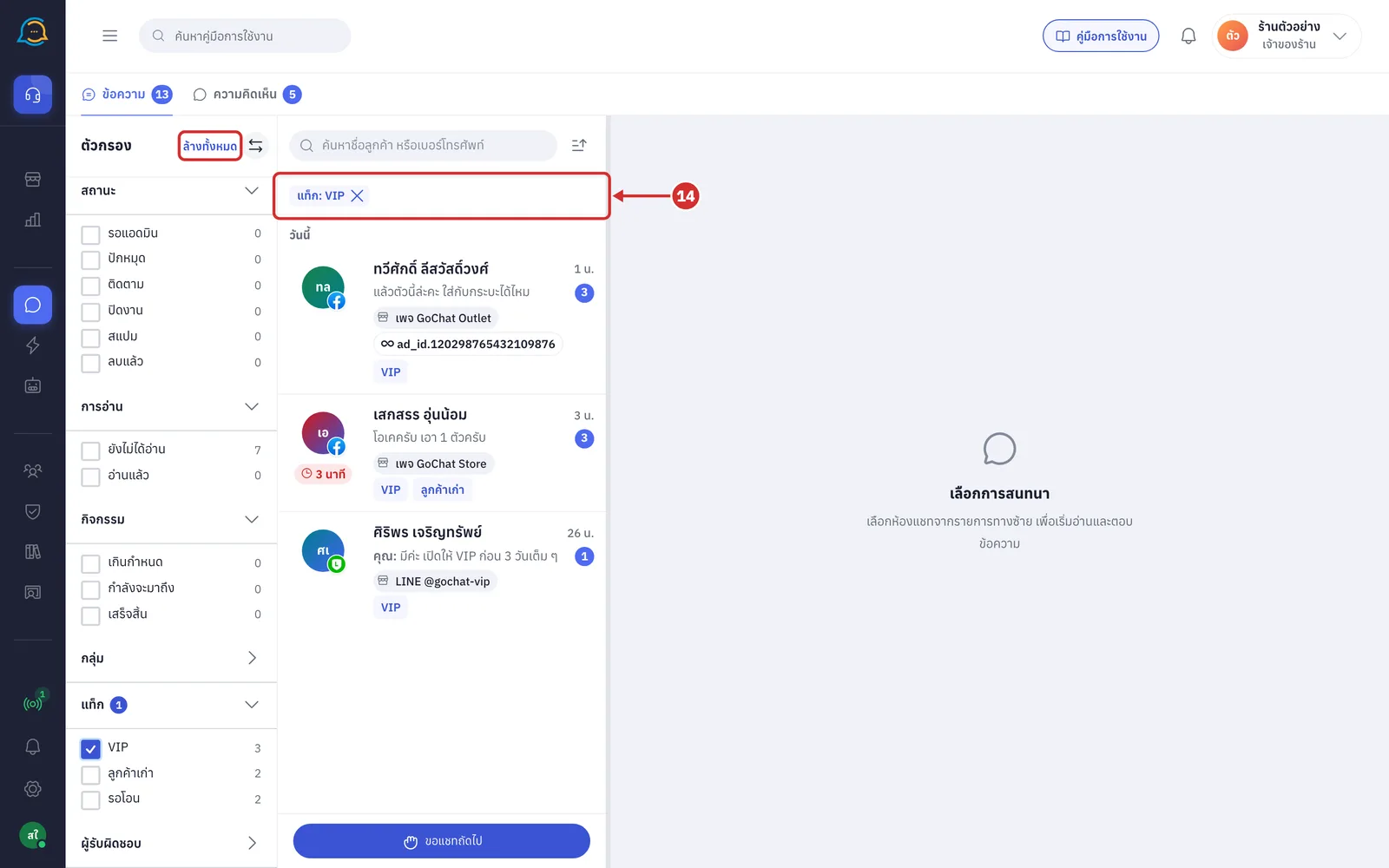
Click X on a filter label to remove just that condition
Click ล้างทั้งหมด (Clear all) at the top of the filter panel to clear every filter
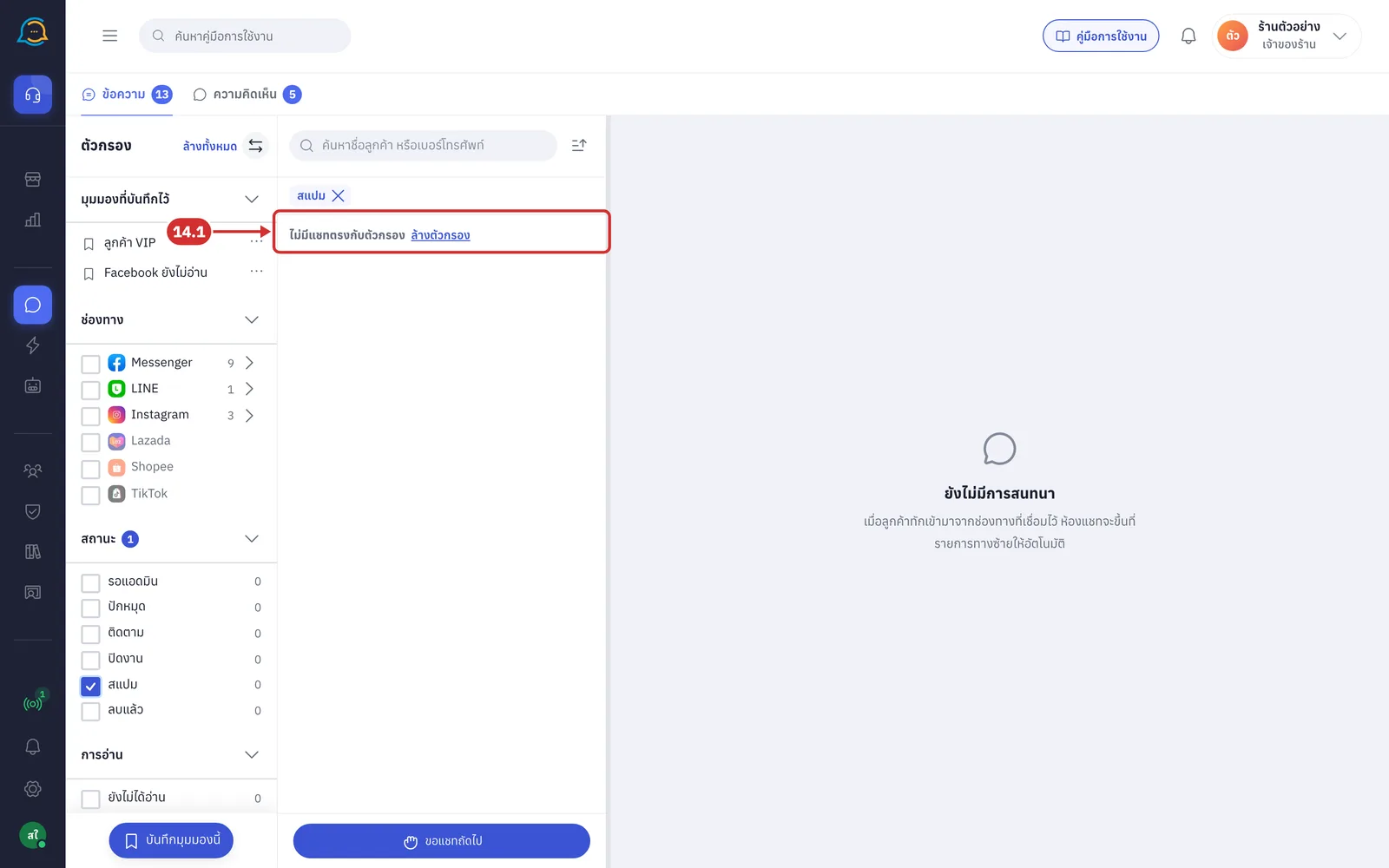
14.1 If no chat matches the conditions, the list shows ไม่มีแชทตรงกับตัวกรอง (No chats match the filters) with a ล้างตัวกรอง (Clear filters) button
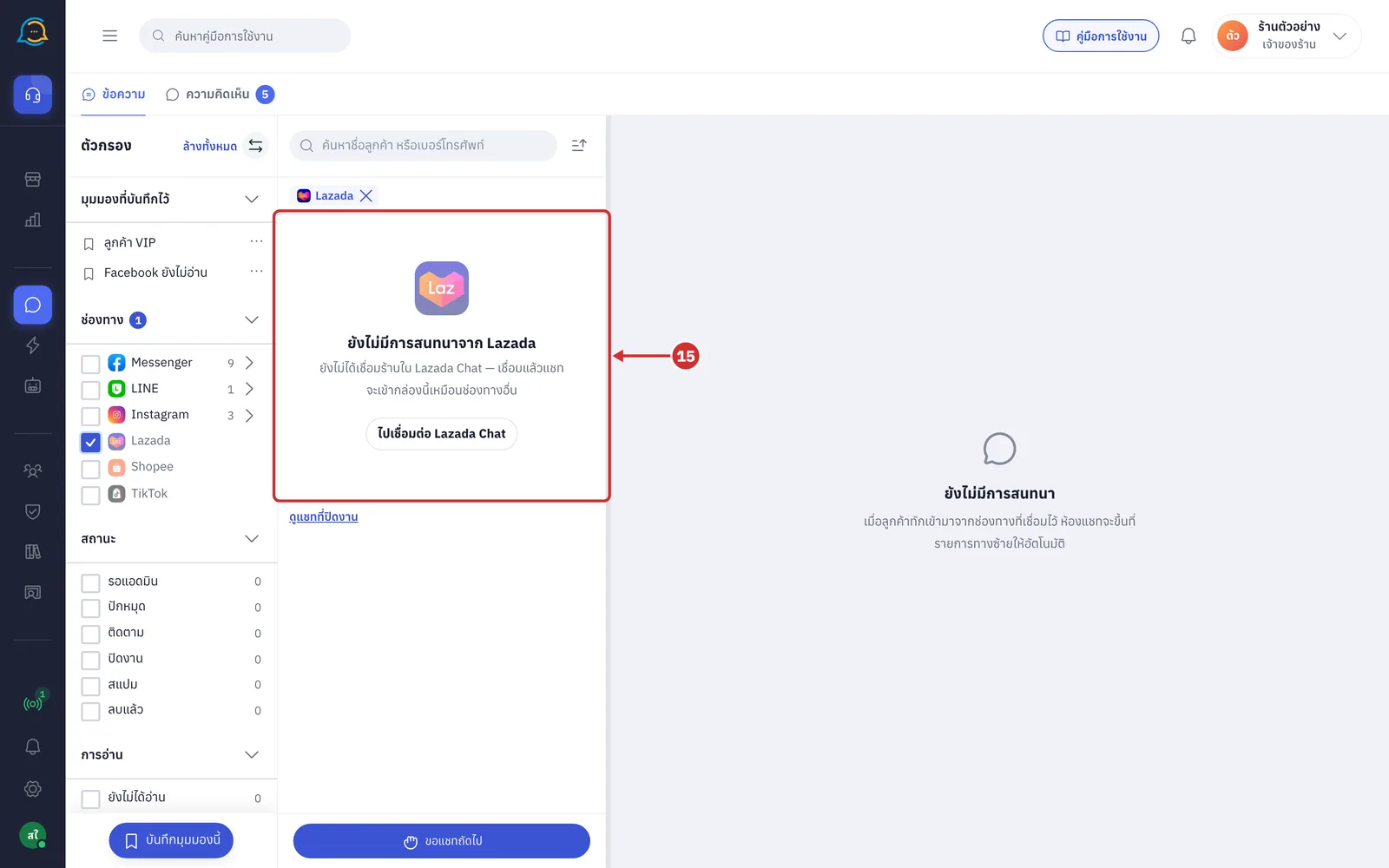
If you choose a channel that is not connected or a connected channel with no conversations yet, the list shows a status message for that case, with a button to the related page when needed
For a channel that is not connected, there may be a ไปเชื่อมต่อ … (Go connect …) button, or a warning with a ไปที่ช่องทาง (Go to channels) button, and to see closed chats you can click the ดูแชทที่ปิดงาน (See closed chats) link under the message when it is shown
Saving filter views
A filter view is a saved set of conditions you can reuse, making it easier to reach the chats you follow regularly. Views work on the ข้อความ (Messages) tab and are personal; teammates do not see the views you saved.
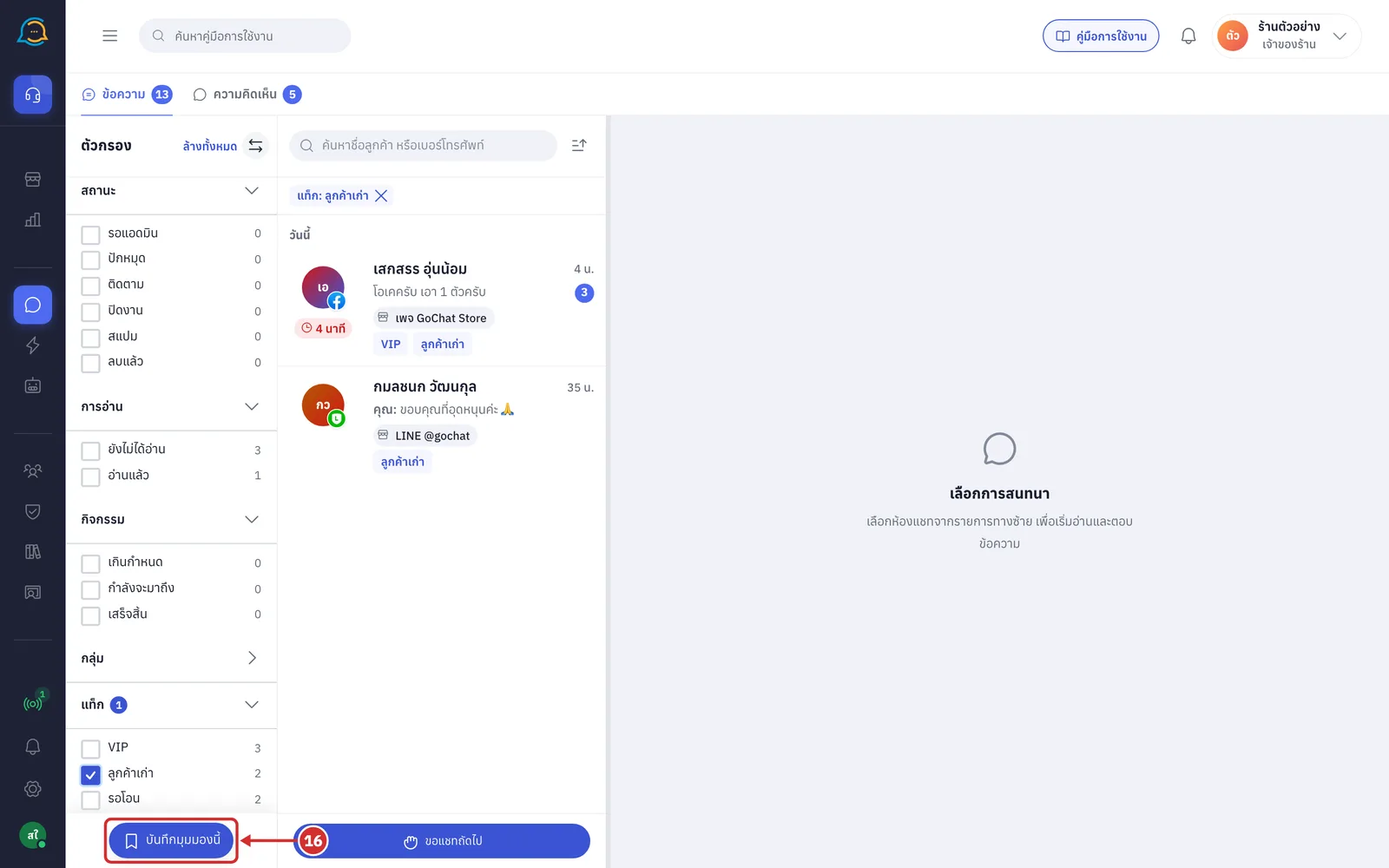
Creating a view: choose the filters you want, then click บันทึกมุมมองนี้ (Save this view) at the bottom of the filter panel. The button appears when the current conditions differ from your saved views
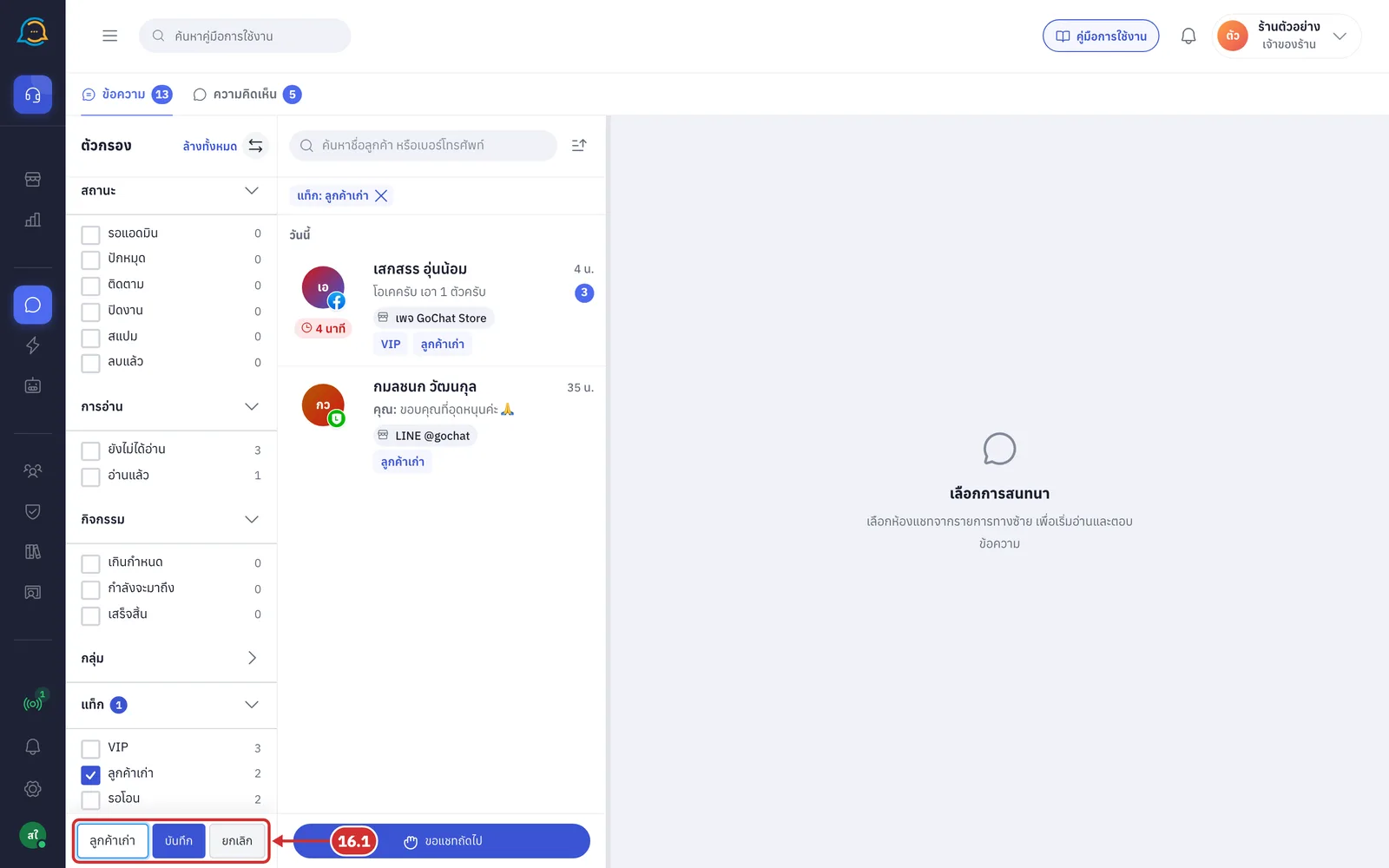
16.1 Enter a name in ตั้งชื่อมุมมอง (Name the view), up to 40 characters, then click บันทึก (Save) to confirm, or ยกเลิก (Cancel) if you do not want to save. Saved views appear under มุมมองที่บันทึกไว้ (Saved views) at the top of the filter panel
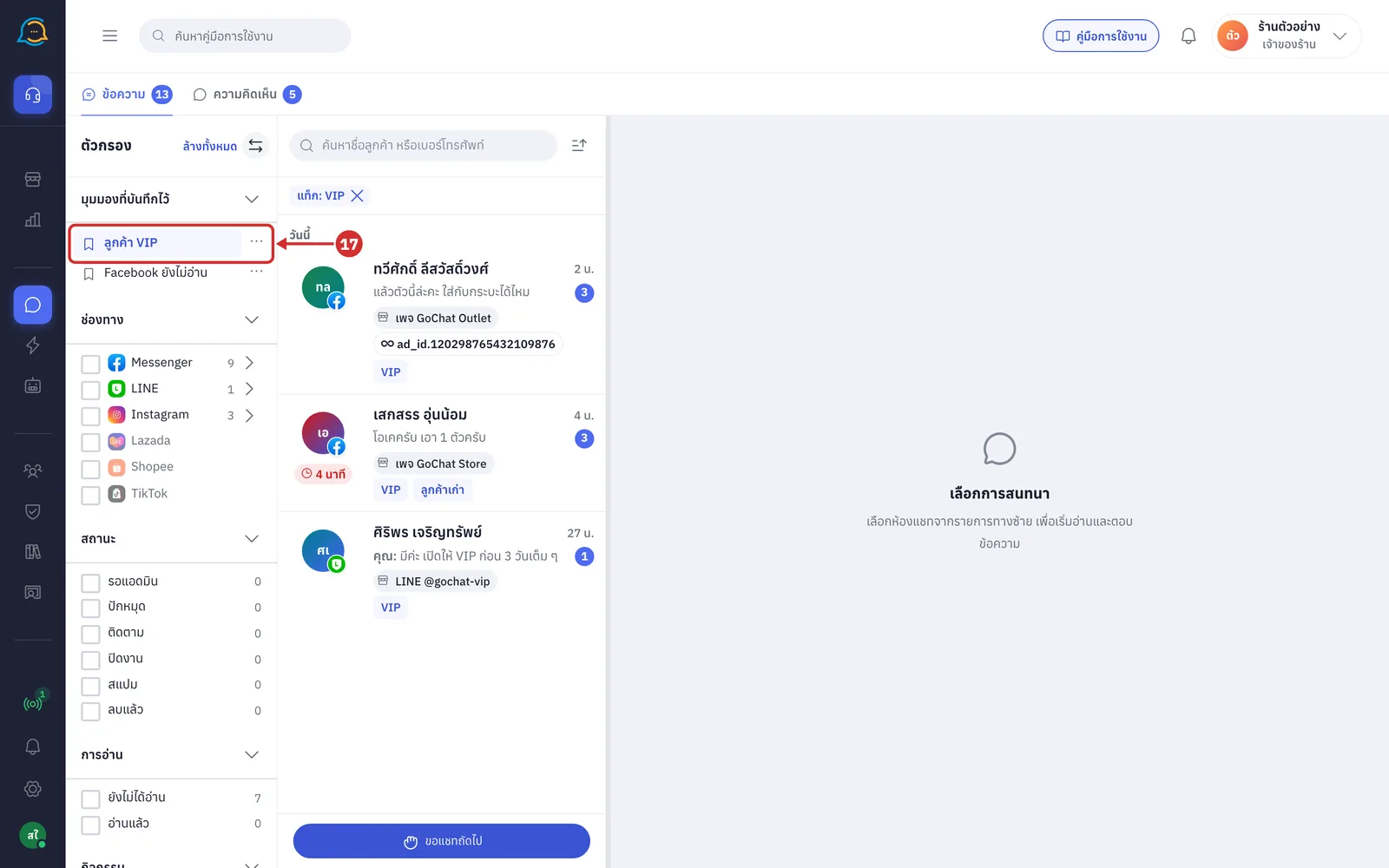
Using a view: click the name of the view you want to apply its saved filters. Clicking the same view again clears that view's filters
Setting a default view
Click the three-dot button next to the view name
Choose ตั้งเป็นค่าเริ่มต้น (Set as default)
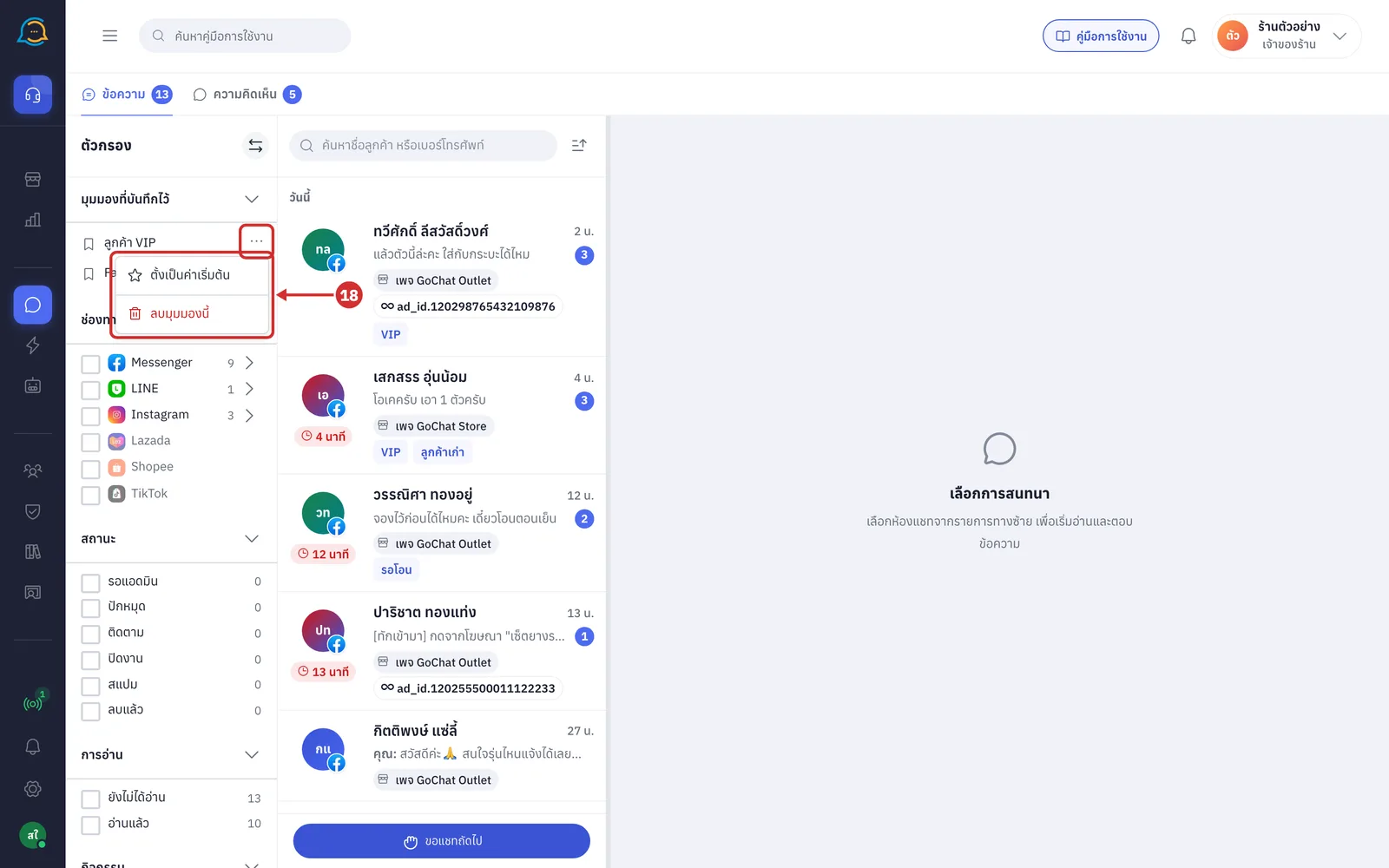
That view shows a star icon in front of its name and is applied whenever you open the ข้อความ (Messages) page fresh, such as after a refresh or in a new tab. Choose เลิกใช้เป็นค่าเริ่มต้น (Stop using as default) to undo, or ลบมุมมองนี้ (Delete this view) to delete the view; the system asks you to confirm before deleting.
Reading the chat list
The chat list is grouped by the time of the latest message, under these headings
ปักหมุด (Pinned): pinned chats, always at the top
วันนี้ (Today): chats whose latest message is from today
เมื่อวาน (Yesterday): chats whose latest message is from yesterday
สัปดาห์นี้ (This week): chats whose latest message is from Monday of the current week onwards
ก่อนหน้านี้ (Earlier): chats with older messages; more chats load when you scroll to the end of the list
If you sort by ลูกค้าพิมพ์ล่าสุด (Customer wrote last), the list is not grouped by day.
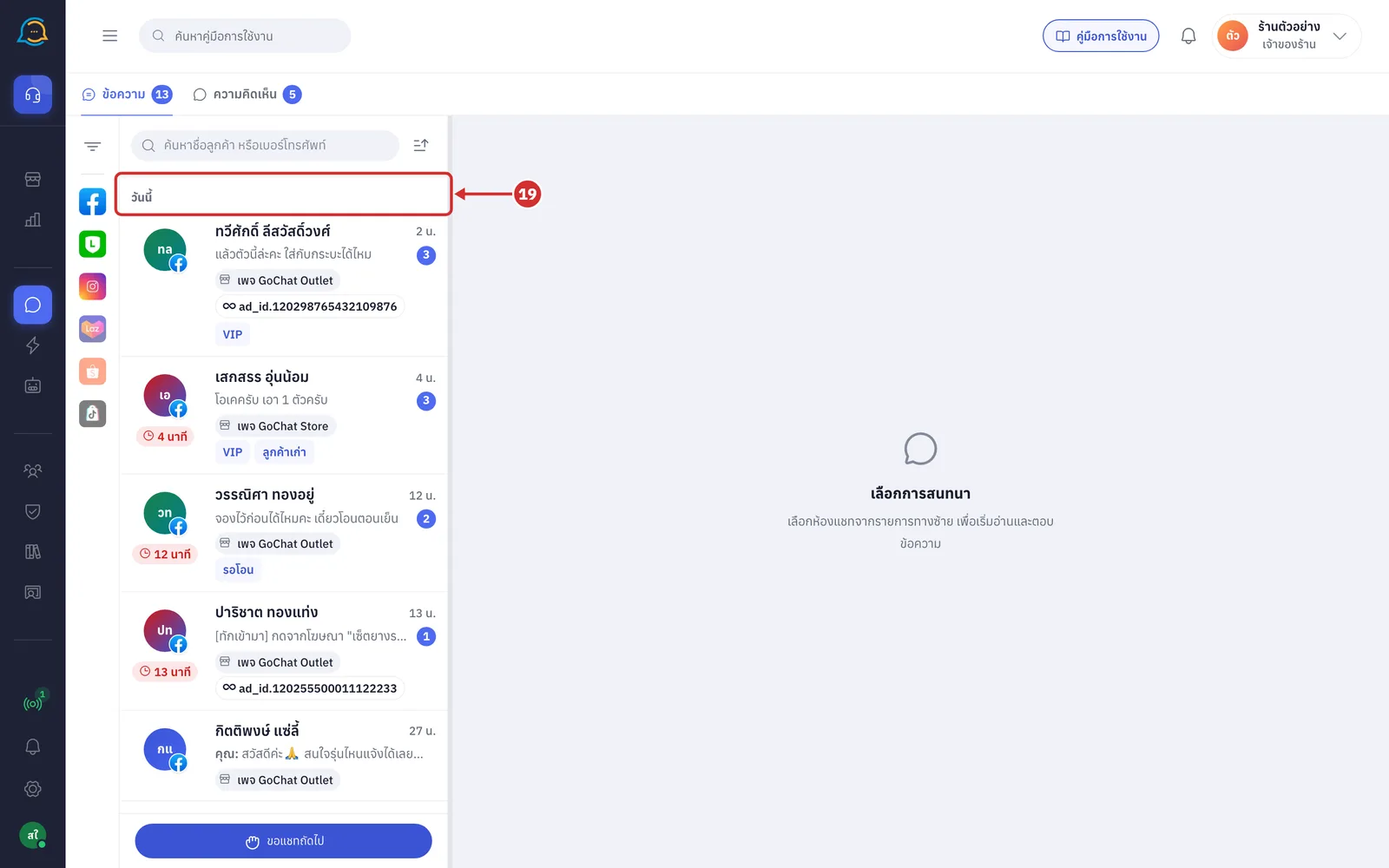
What each row shows
Customer picture at the far left of the row. The channel logo on its corner shows which channel the customer used, and a blue ring means the customer is already a customer of your shop
Customer name a blue name with an ID card icon means already a customer of your shop · a small picture before the name shows the chat owner · a pin icon means pinned · a green tick means closed · a prohibited icon means spam
Time since the latest message, such as เมื่อกี้ (just now) · 5 น. (5 min) · 3 ชม. (3 h) or 2 วัน (2 days); older than 7 days shows the date
Latest message คุณ: (You:) means the shop sent the latest message · ตอบอัตโนมัติ: (Auto reply:) means the bot sent it · name กำลังพิมพ์… (name is typing…) means a teammate is typing in that chat
Number in a blue circle the number of unread messages; above 99 shows 99+. Once anyone in the shop opens the chat, the number disappears for everyone
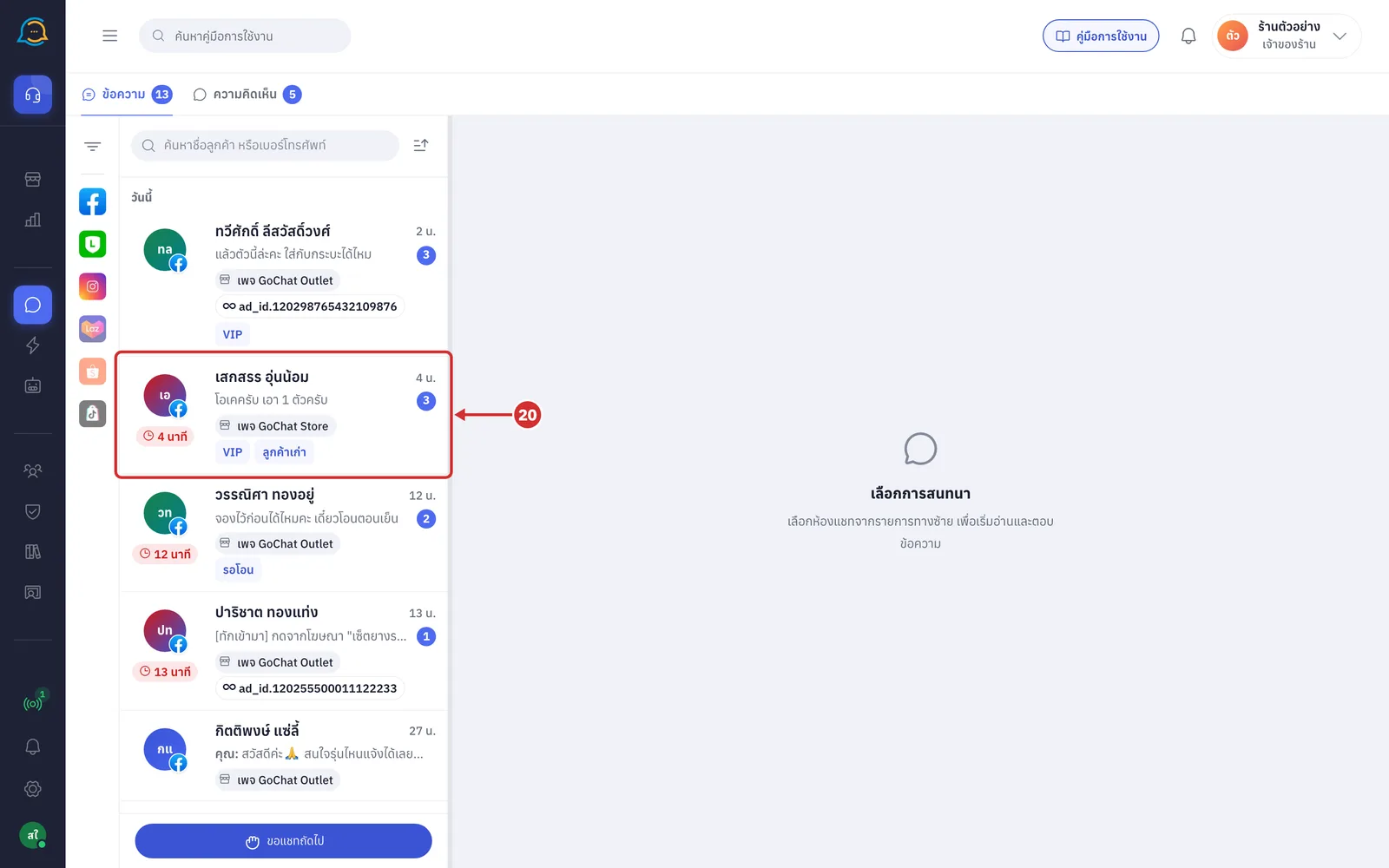
Customer waiting time a red clock label under the profile picture, such as 13 นาที (13 min), shows how long the customer has been waiting for a reply. It appears after 3 minutes, restarts when someone in the shop opens the chat and disappears when the shop replies. Point at the label to see who opened the chat last. LINE group chats do not have this label
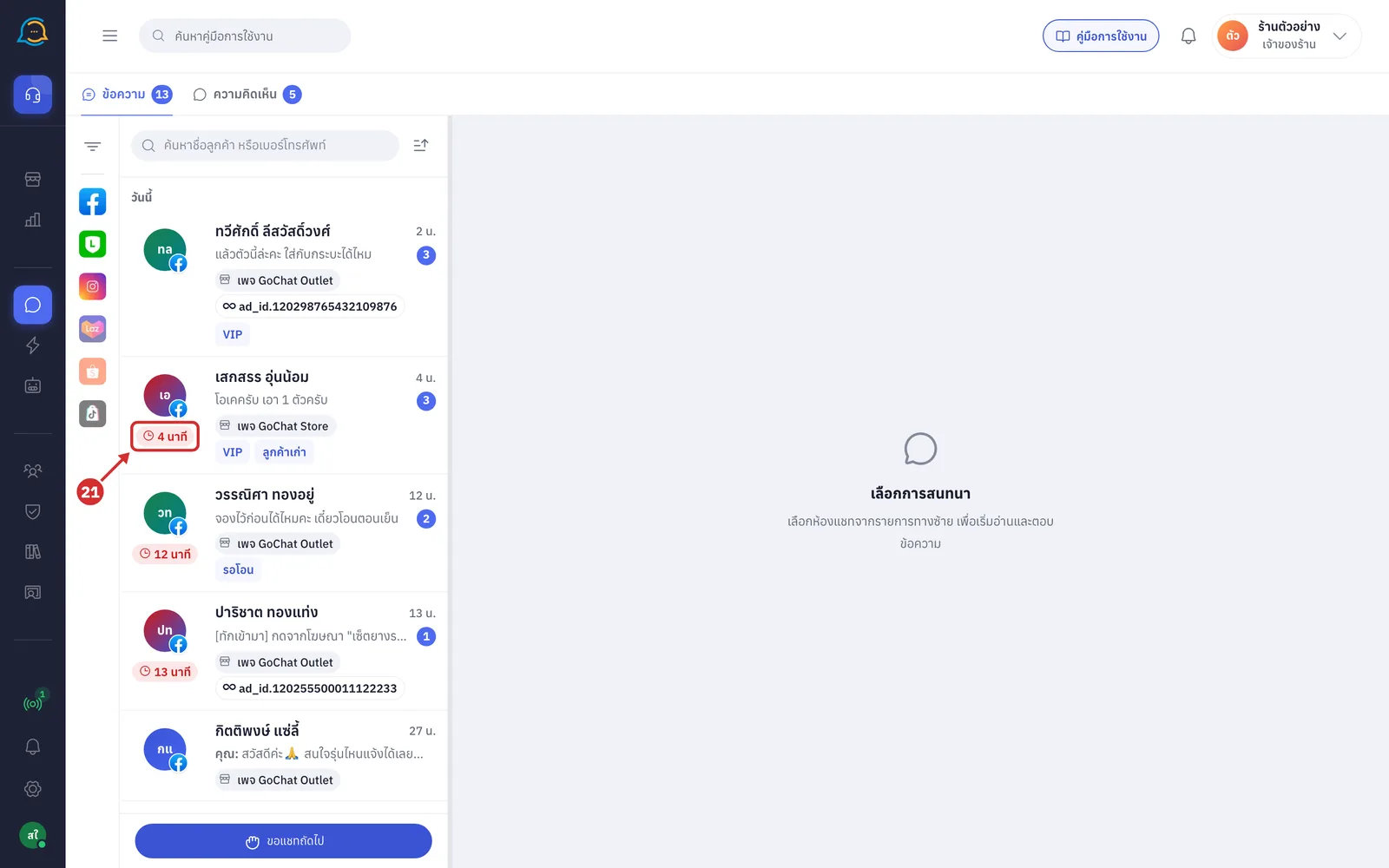
Page name, chat source and tags the bottom line of a row shows the page or account the customer messaged, with other details such as
Following label: a chat marked to follow
Waiting for admin label: a chat the AI handed to an admin
Red or orange strip: a task or ticket that is overdue or nearly due. Click a ticket strip to open its details
A Chat source chats from an ad show the ad name, or ad_id. followed by the ad ID; point at it to see the full ID, which you can search in Ads Manager. Chats from a comment show the related post text
B Chat tags as many tags as fit on one line; the rest are grouped as +N. See every tag in the customer panel
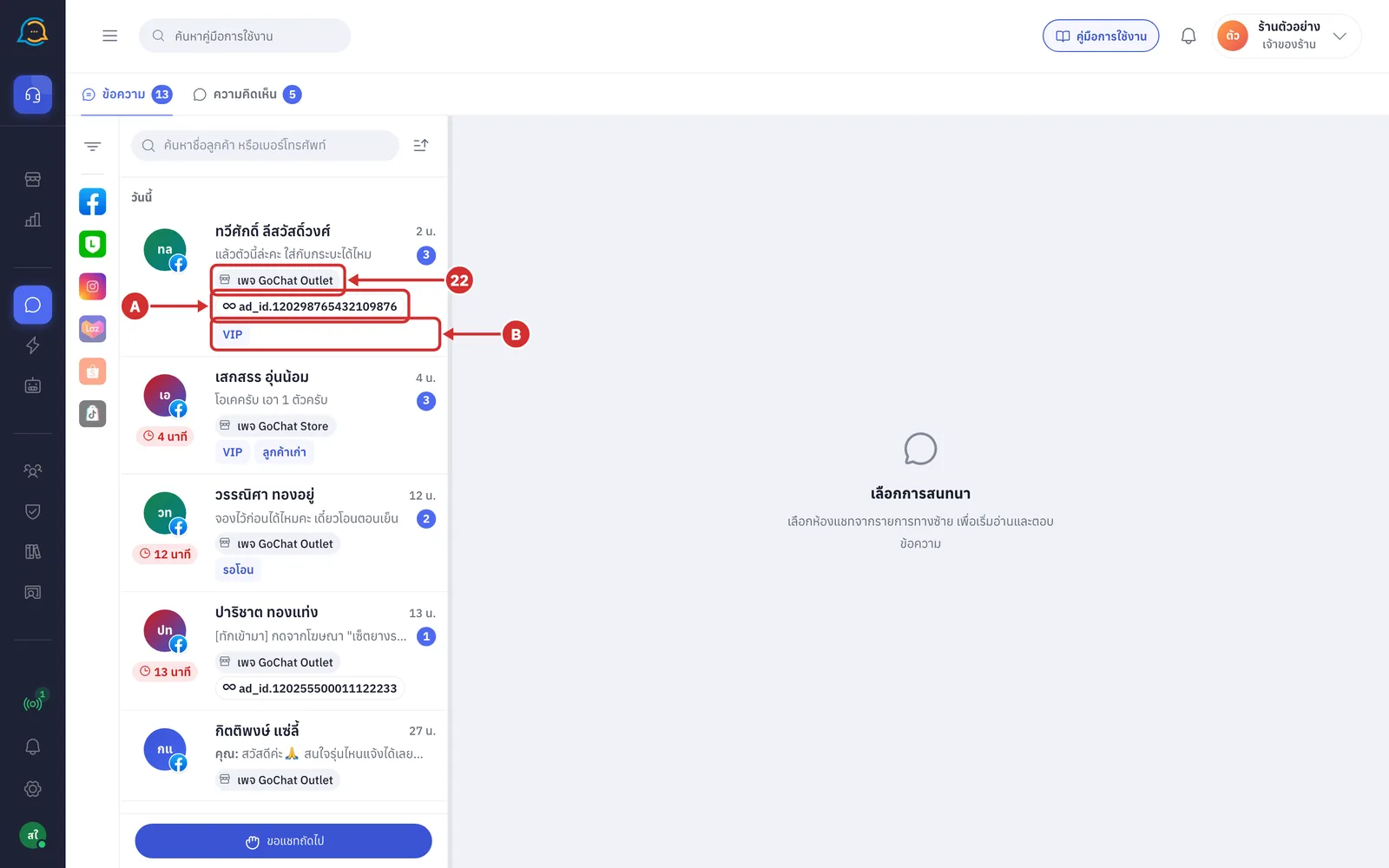
Filtering the Comments tab
The ความคิดเห็น (Comments) tab has its own 3 filter sections, and no search box or sort button
ช่องทาง / เพจ (Channels / Pages) — choose comments from Facebook or Instagram, by whole channel or by page
สถานะของความคิดเห็น (Comment status) — ยังไม่ตอบ (Not answered): comments the shop has not answered · หมดอายุ (เกิน 7 วัน) (Expired, over 7 days): comments older than 7 days
บอทจัดการ (Handled by bot) — filters comments by what the bot did: ส่งต่อแอดมิน (Forwarded to admin): comments the bot forwarded to an admin · ซ่อนอยู่ (Hidden): hidden comments · บอทตอบแล้ว (Bot replied): comments the bot replied to
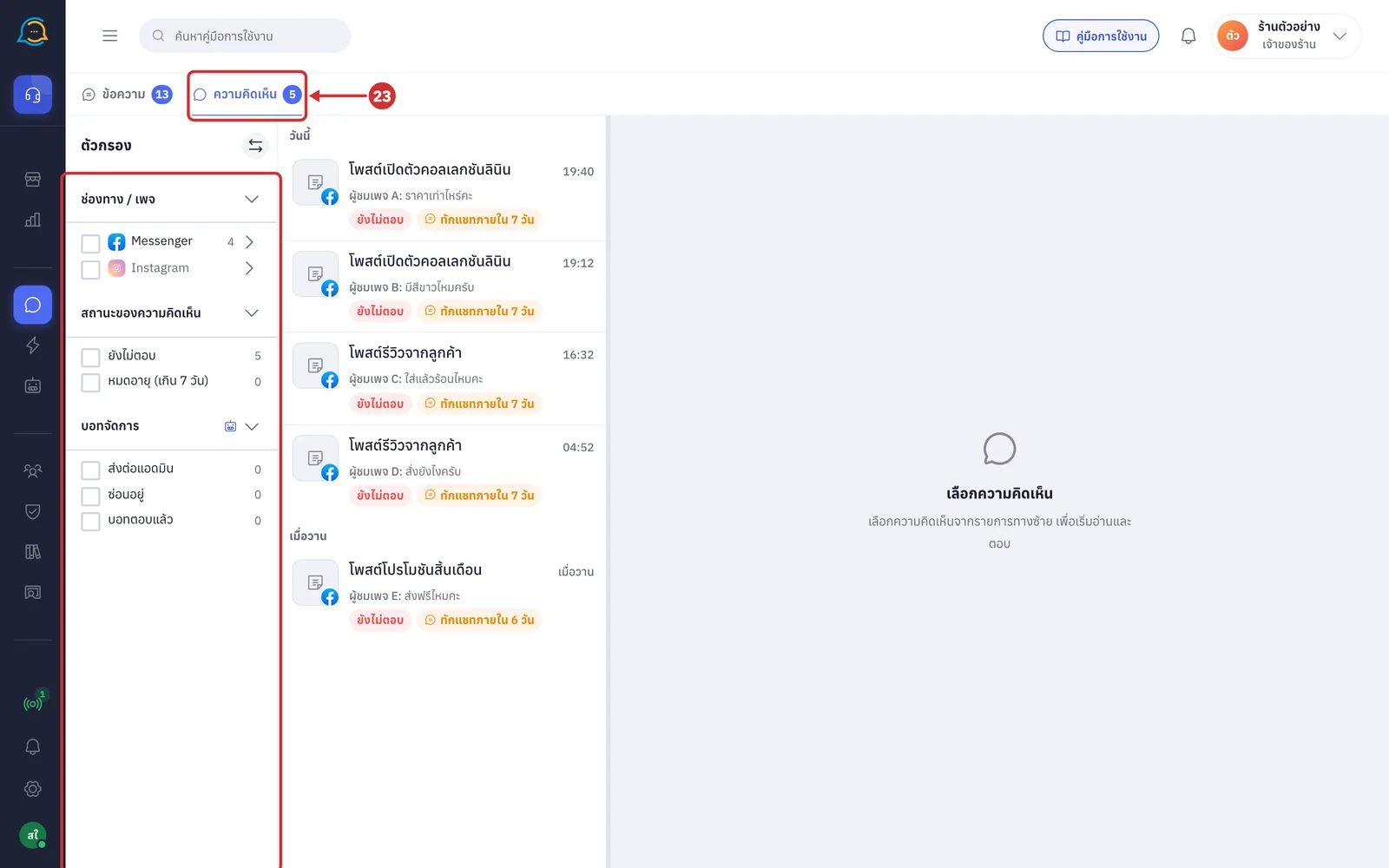
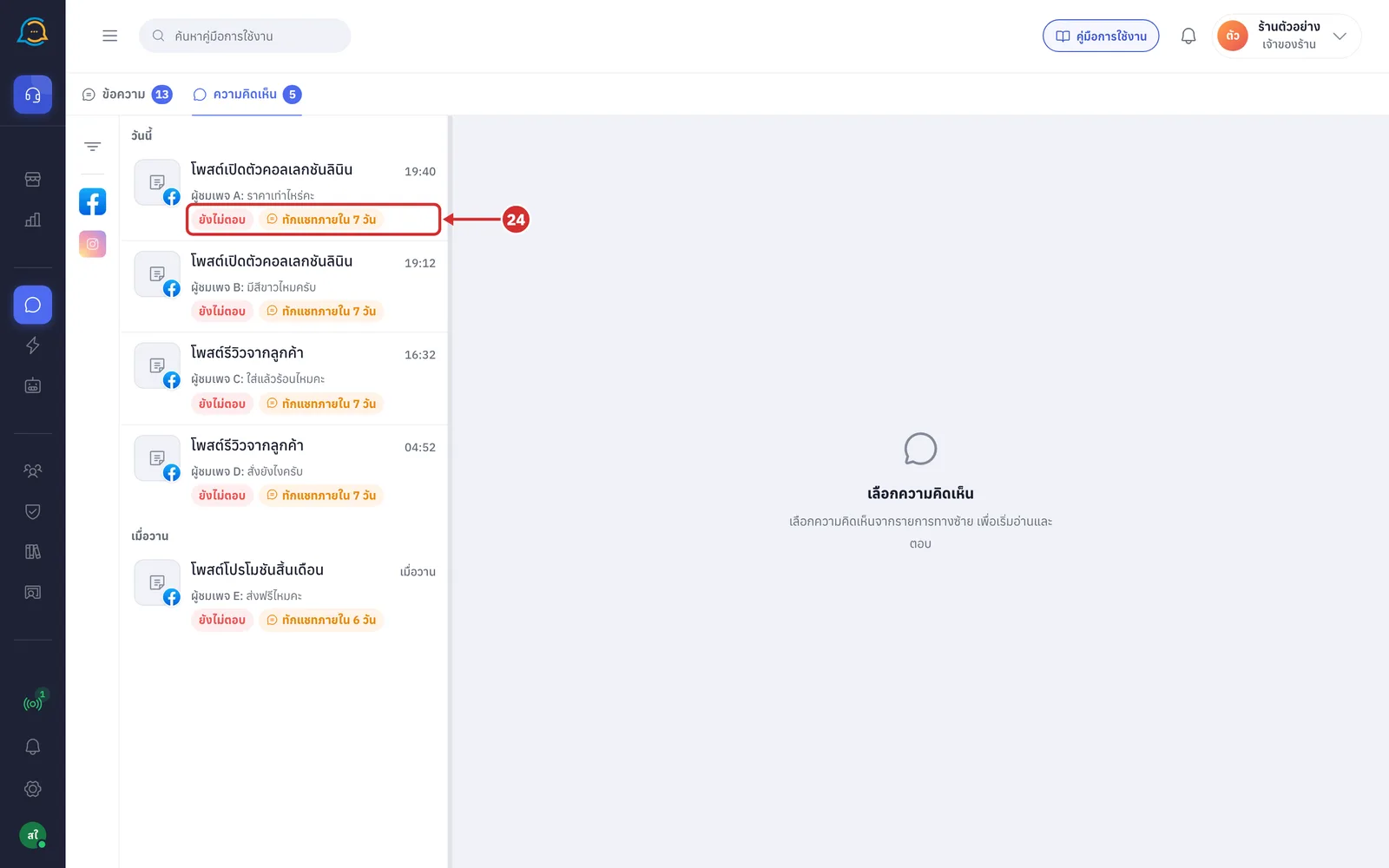
Reading a comment row each row shows the post, the commenter's name and the comment, with status labels such as
ยังไม่ตอบ (Not answered): the shop has not answered that comment
ทักแชทภายใน N วัน (Message within N days): how much time is left to send the commenter a private message, counted as 7 days from when they commented
ส่งต่อแอดมิน N (Forwarded to admin N): the number of comments the bot forwarded to an admin
ซ่อน N (Hidden N): the number of hidden comments
About remembering filters
Filters are remembered in the browser on the device you use
If you go to another menu and come back to ข้อความ (Messages), your filters are still there
When you refresh or open a new tab, the default view you set is applied; if you have not set one, all filters are cleared
Saved views are personal settings and do not affect your teammates' screens
If your shop has chats from ads, a โฆษณา (Ads) section appears at the end of the filter panel. With more than 5 items, click ดูทั้งหมด (N) (See all (N)) to see more