

Viewing auto-reply chat history
The ประวัติการตอบแชทอัตโนมัติ (Auto-reply chat history) page lets you look back at what the bot replied in chats, to whom, when, and why it did not reply. It covers every auto-reply topic, such as the welcome message, FAQ and outside business hours, plus the order notifications the system sends on its own. History is kept for 90 days. Users of every role can open it, and the page is view-only; there is nothing to edit.
Opening the auto-reply chat history
In the Logs group, select ประวัติตอบแชทอัตโนมัติ (Auto-reply chat history) in the left menu bar
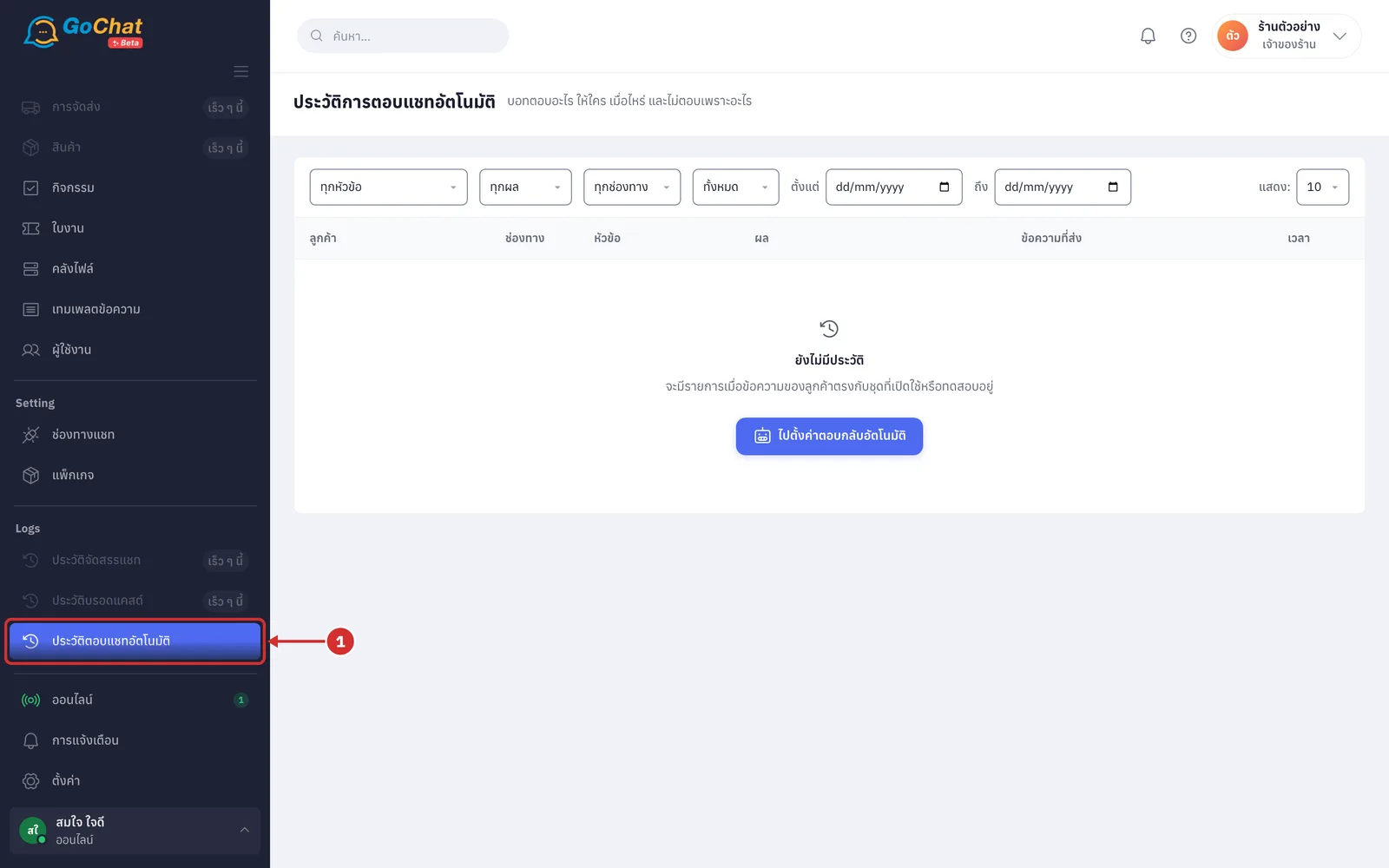
The system shows the ประวัติการตอบแชทอัตโนมัติ (Auto-reply chat history) page with the newest entries at the top
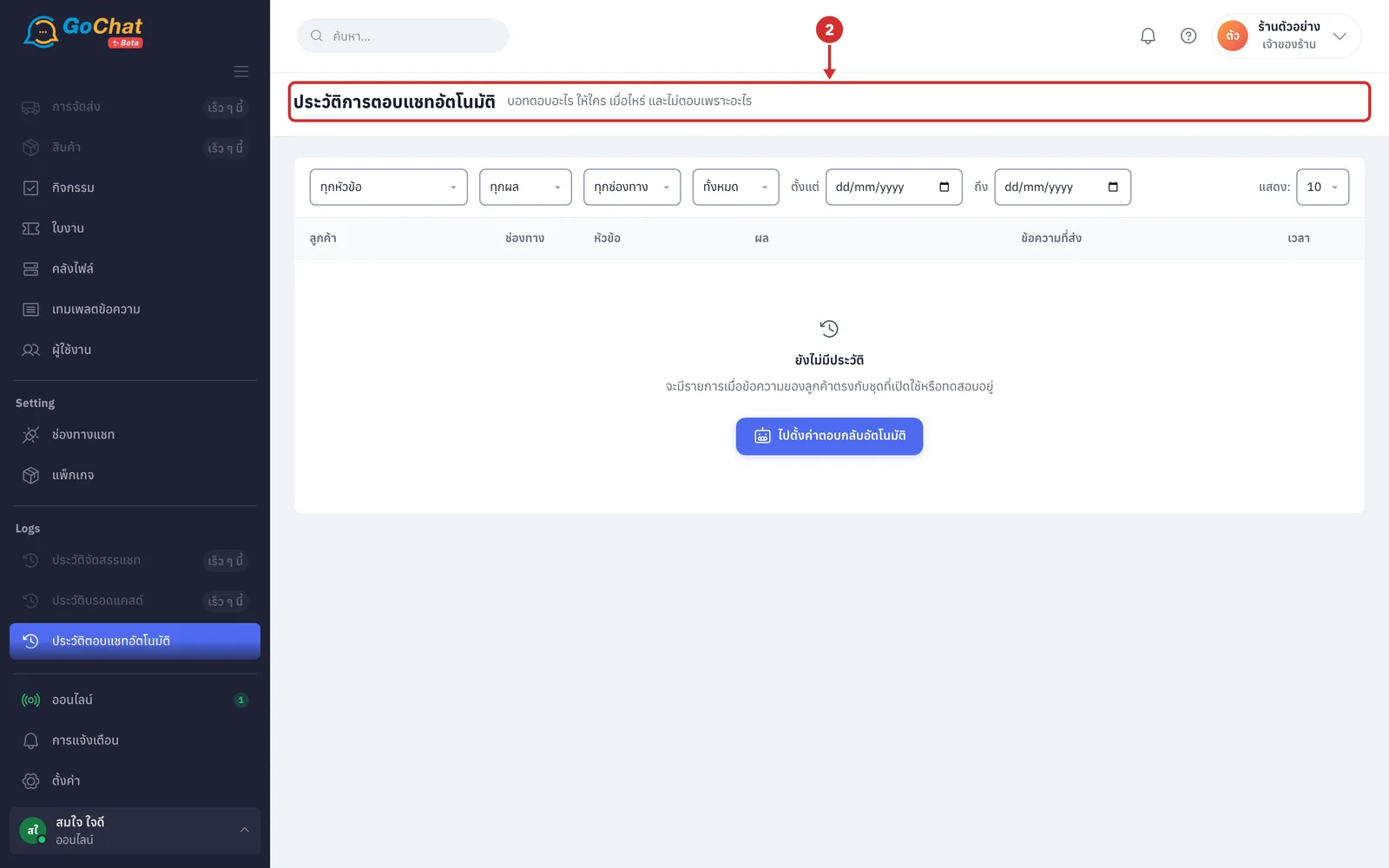
Filtering the history
Filters apply as soon as you choose them; there is no search button. You can combine several filters, and the system shows only the entries that match all of them.
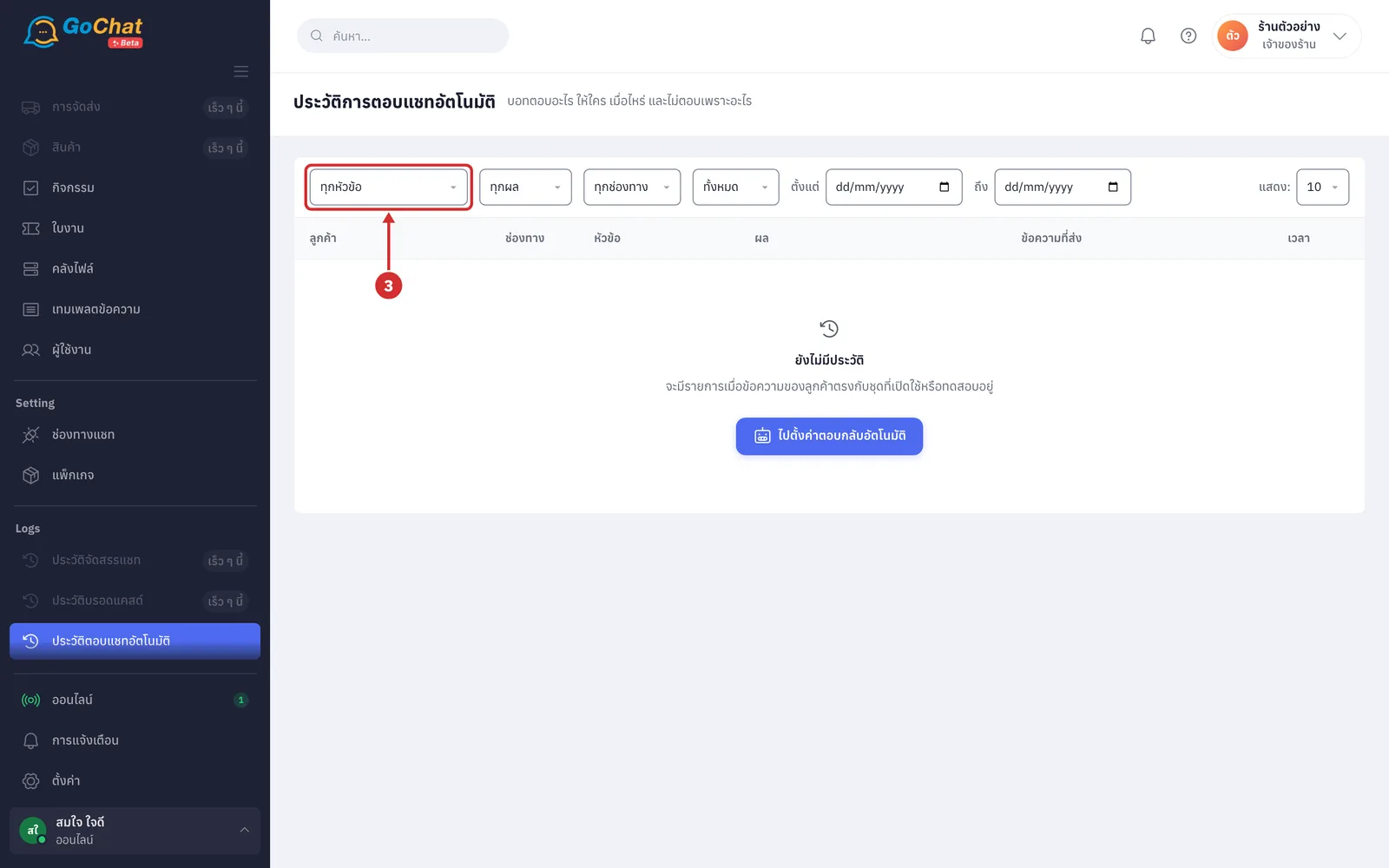
In the ทุกหัวข้อ (All topics) box, choose the topic to view: ข้อความต้อนรับ (Welcome message), คำถามที่พบบ่อย (FAQ), นอกเวลาทำการ (Outside business hours), ส่วนลด / โปรโมชั่น (Discounts / Promotions), สรุปคำสั่งซื้อ (Order summary), ตอบข้อความตามคีย์เวิร์ด (Keyword replies), ส่งต่อแอดมิน (Hand off to admin) and แจ้งลูกค้าเรื่องออเดอร์ (Order notifications) (สรุปคำสั่งซื้อ (Order summary) is the reply when a customer asks about an order, while แจ้งลูกค้าเรื่องออเดอร์ (Order notifications) is the order summary and shipping details the system sends on its own from an order notification set, see Order summary and tracking number settings; entries where the bot did not reply for a reason unrelated to any topic, such as an admin chatting or unable to send, are hidden when you choose a topic)
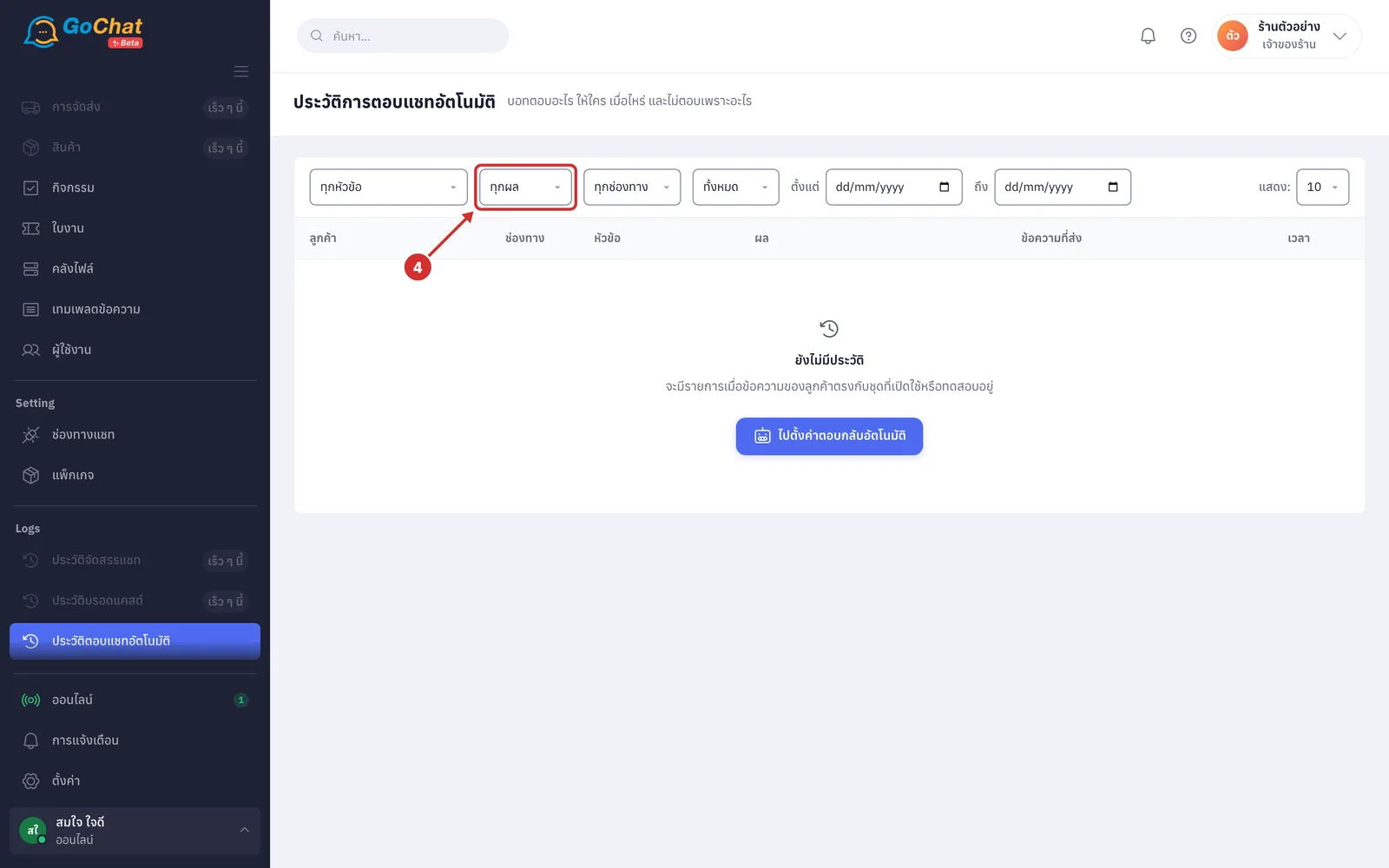
In the ทุกผล (All results) box, choose ตอบแล้ว (Replied), รอส่ง (Waiting to send), ไม่ตอบ (Not replied) or ส่งไม่สำเร็จ (Failed) to view only entries with that result (each result is explained in step 14)
In the ทุกช่องทาง (All channels) box, choose the channel to view (only the channels your shop has connected are listed, such as LINE, Messenger and Instagram)
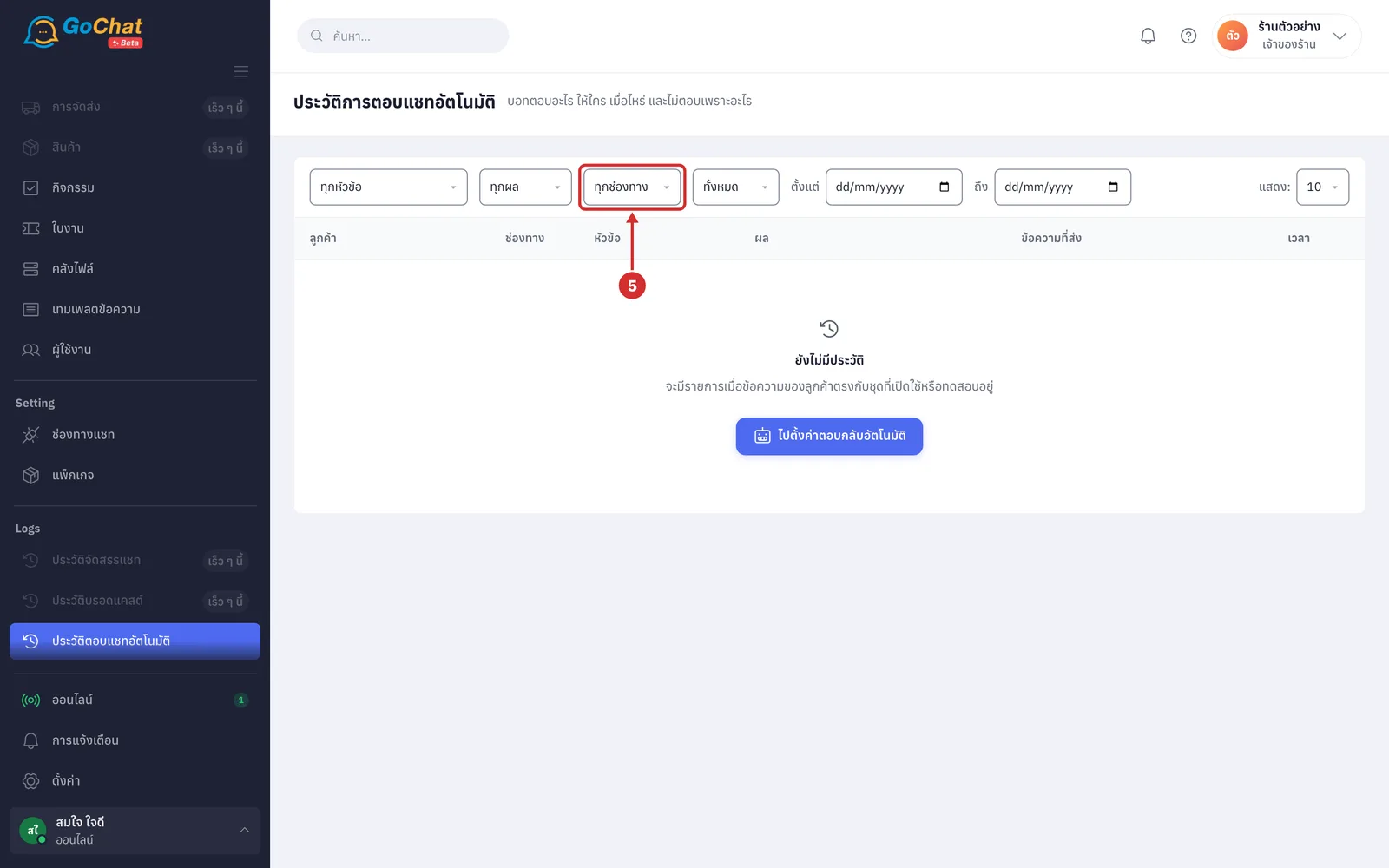
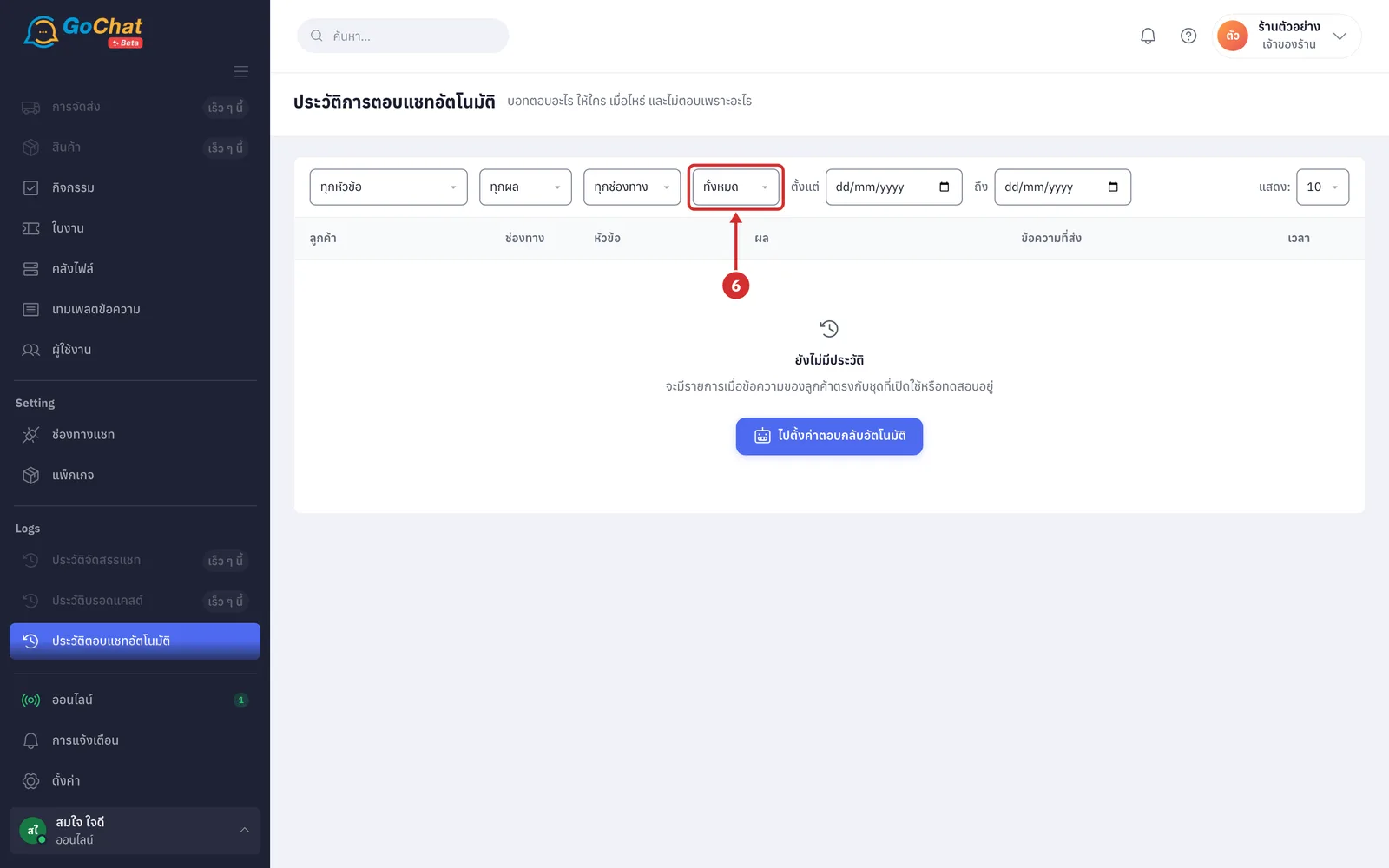
In the usage status box (the default is ทั้งหมด (All)), choose เปิดใช้งาน (On) to view only replies to real customers, or ปิดใช้งาน (Off) to view only replies in test mode (entries with the ทดสอบ (Test) label come from sets still in testing, which only reply in the chats chosen for testing; sets that are turned off do not reply, so they have no entries)
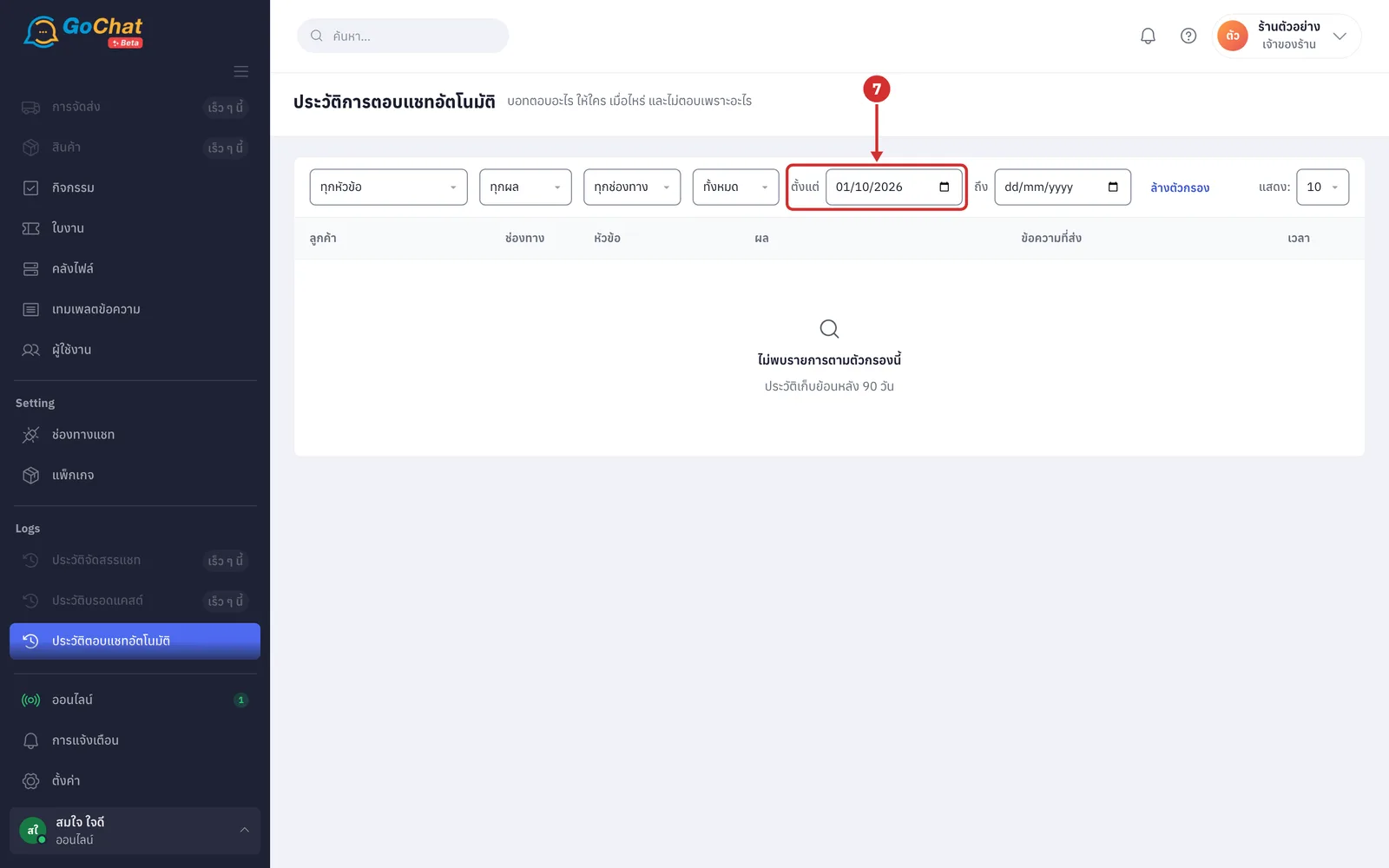
In the ตั้งแต่ (From) box, choose the first day of the range (you can leave it empty)
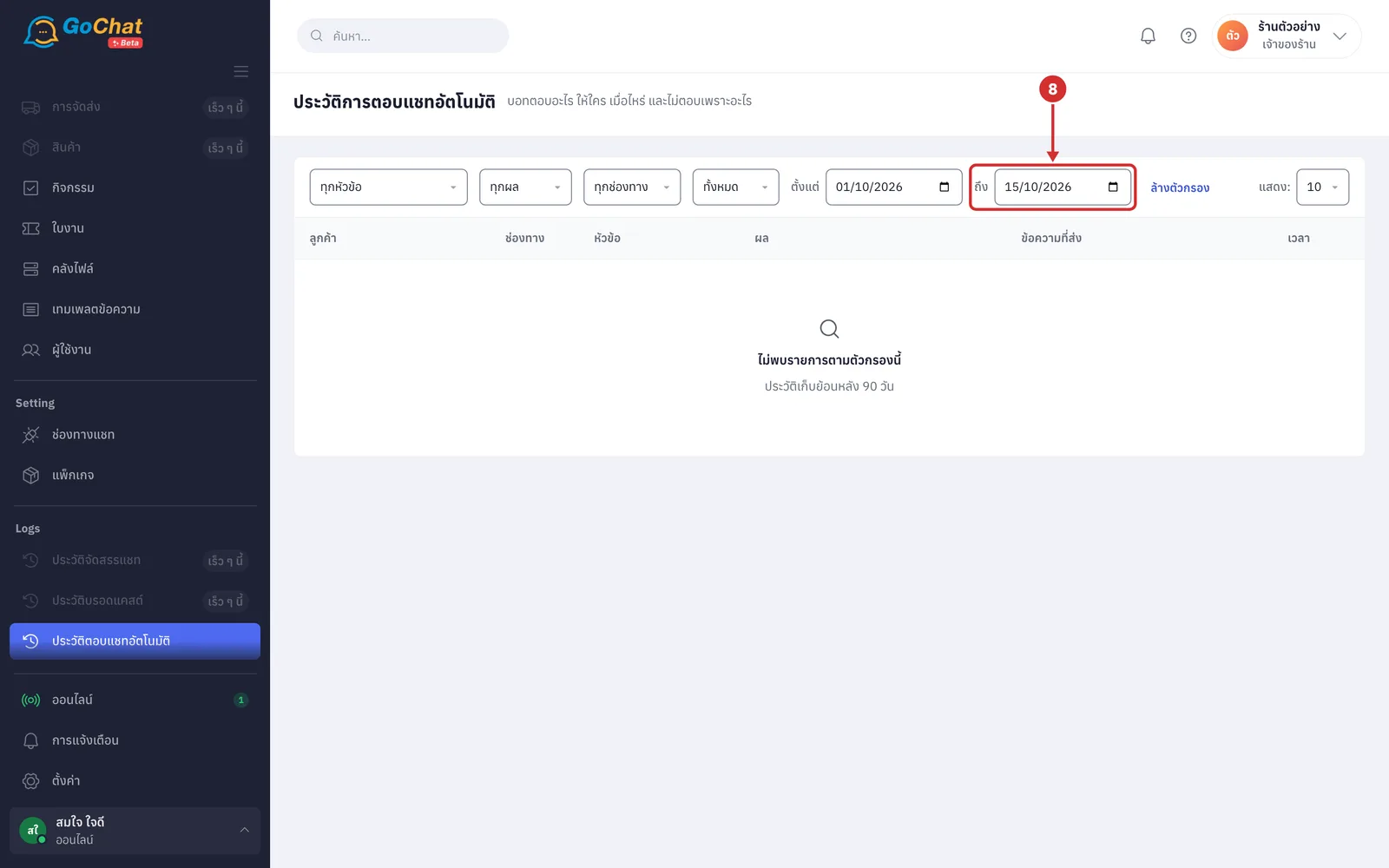
In the ถึง (To) box, choose the last day of the range (the whole of that day is included; you cannot choose a day before the ตั้งแต่ (From) date; you can leave it empty; days follow your shop's time zone)
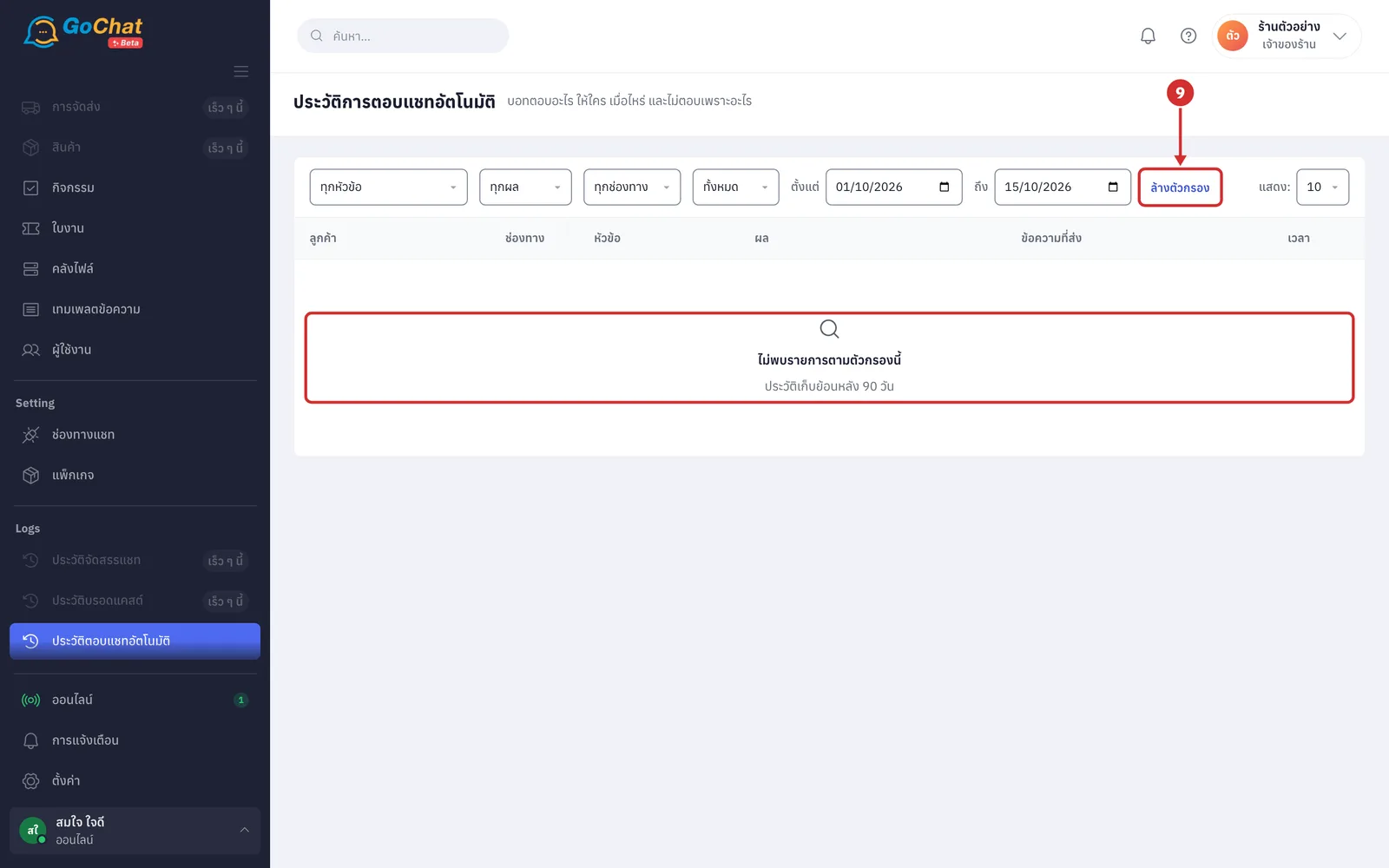
Click ล้างตัวกรอง (Clear filters) to clear every filter and see all entries again (this button appears once at least one filter is chosen; when nothing matches the filters, the table shows ไม่พบรายการตามตัวกรองนี้ (No entries match these filters) and ประวัติเก็บย้อนหลัง 90 วัน (History is kept for 90 days))
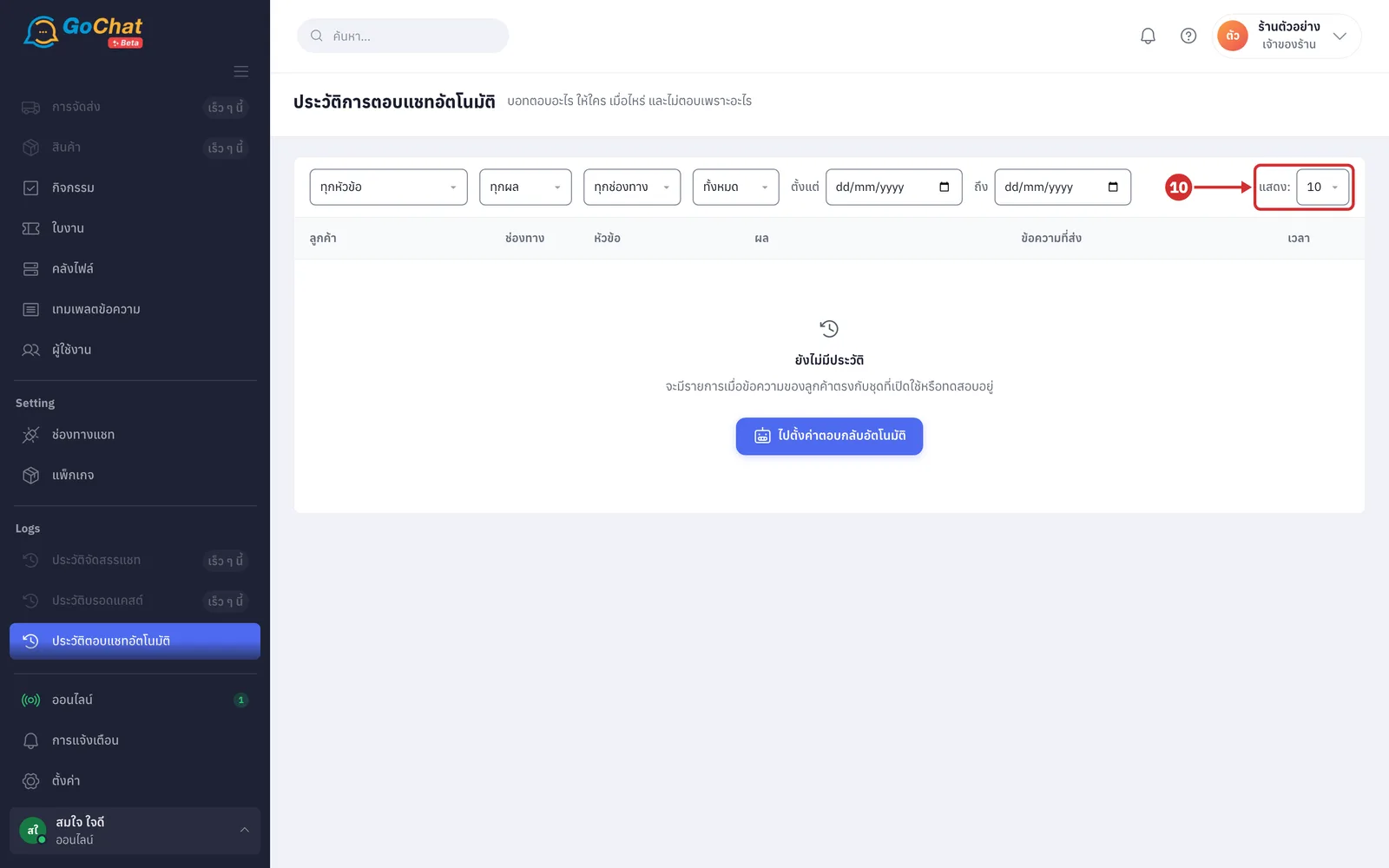
In the แสดง: (Show:) box, choose 10, 25 or 50 entries per page (the default is 10)
Reading the history table
Each row is one time the bot decided whether to reply to a customer's message (messages the customer types in quick succession count as one), or one time the system notified a customer about an order. The table has 6 columns:
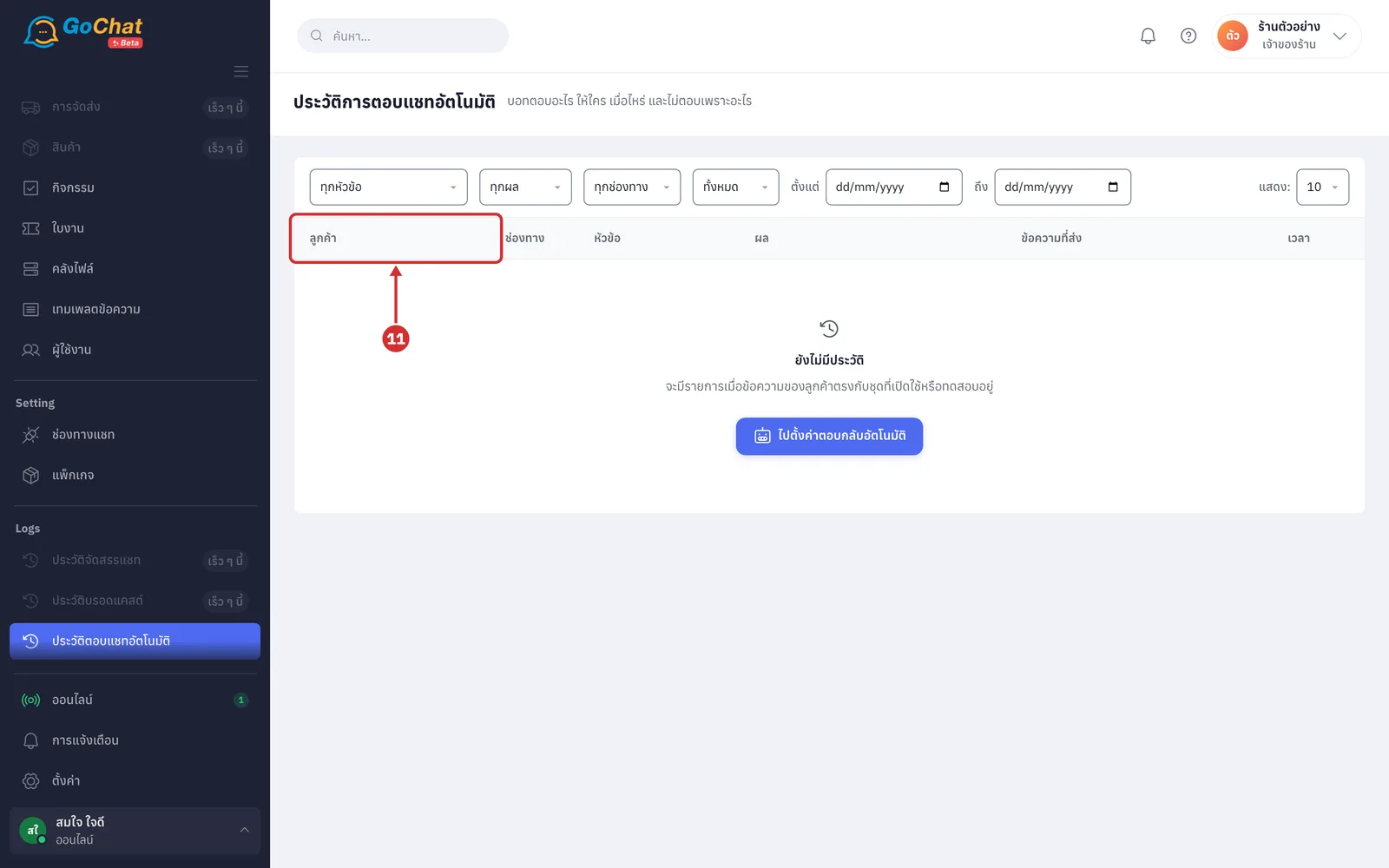
The ลูกค้า (Customer) column shows the customer's picture and name, with the page or account they messaged under the name. Click the customer's name to open that customer's chat (customers without a name show as ลูกค้าไม่ระบุชื่อ (Unnamed customer); without a picture, the initials of the name are shown)
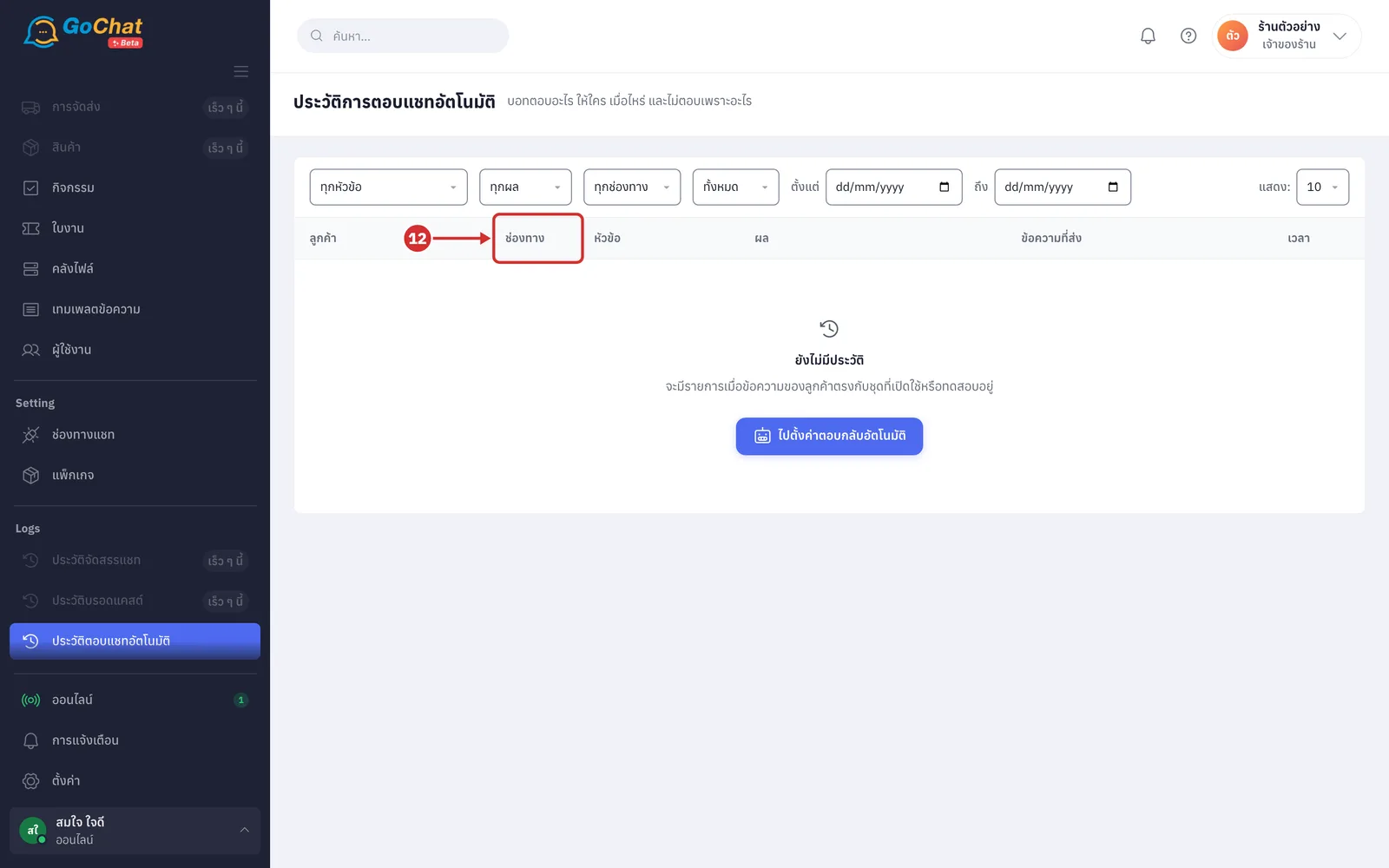
The ช่องทาง (Channel) column shows the logo of the channel the customer messaged on
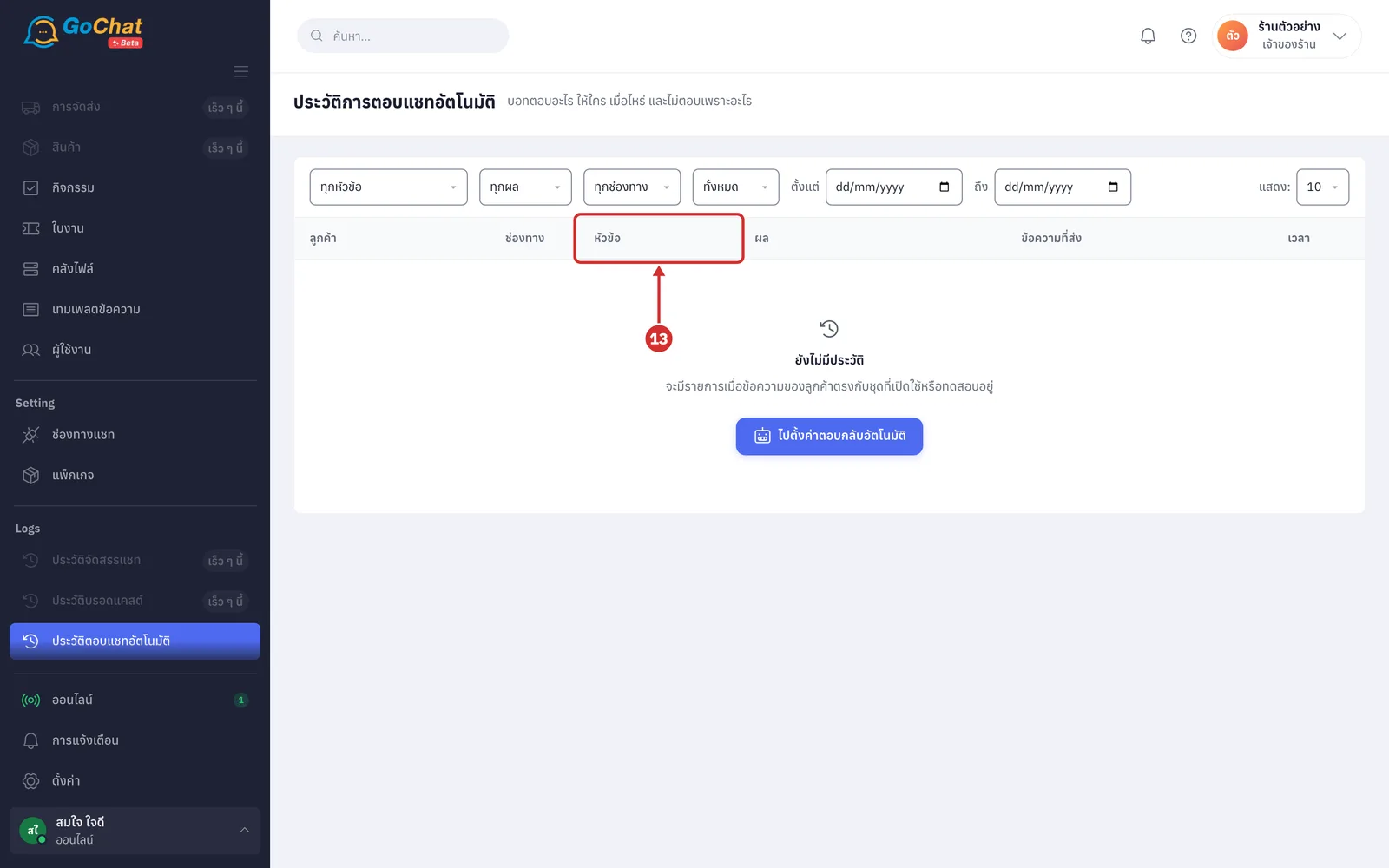
The หัวข้อ (Topic) column shows the topic of the reply and the name of the set used under it (the ส่งต่อแอดมิน (Hand off to admin) topic has no set name; entries from sets still in testing have the ทดสอบ (Test) label; entries unrelated to any topic show -)
The ผล (Result) column shows one of 4 result labels, with a reason line under the label
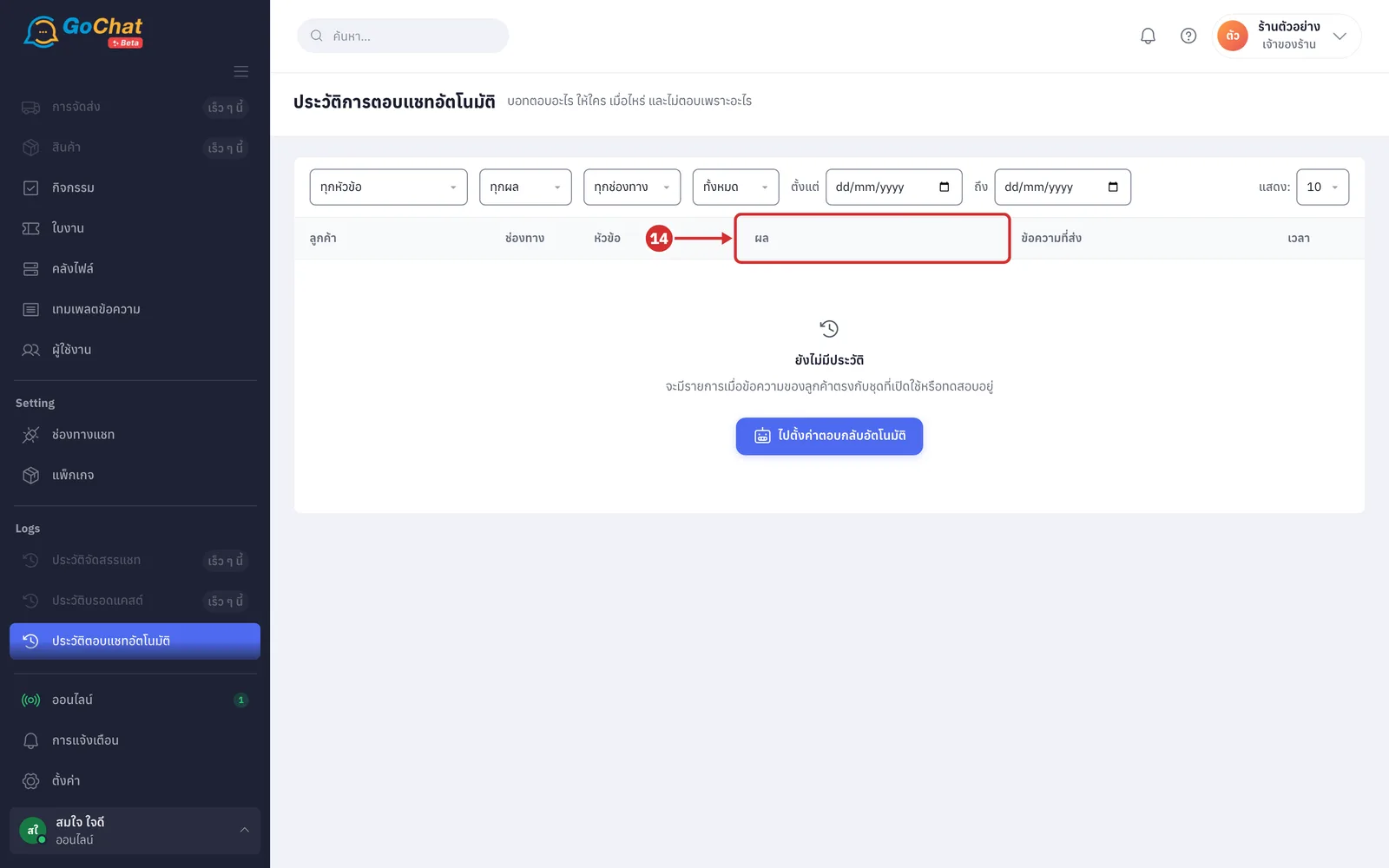
ตอบแล้ว (Replied): the bot has sent the message to the customer; the line underneath says why the bot replied, such as ลูกค้าทักเข้ามาครั้งแรก (Customer messaged for the first time), คำว่า "…" ตรงชุด "…" (The word "…" matched set "…"), ลูกค้าเลือกเมนู "…" (Customer chose menu "…") or ส่งเพราะแอดมินไม่ตอบใน N นาที (Sent because no admin replied within N minutes) (if only part reached the customer, such as the text but not the image, the line shows what failed instead, such as ส่งรูปไม่สำเร็จ: … (Image not sent: …) or ช่องทางนี้ยังส่งรูปไม่ได้ ส่งเฉพาะข้อความ (This channel cannot send images yet, text only))
รอส่ง (Waiting to send): the bot has decided to reply and is waiting for the send time, or is sending
ไม่ตอบ (Not replied): the bot did not send a message; the line underneath gives the reason (each reason is explained in step 17)
ส่งไม่สำเร็จ (Failed): the bot sent but the channel did not accept it; the line underneath gives the reason, such as ส่งข้อความไม่สำเร็จ: … (Message not sent: …) or ส่งแล้วแต่ไม่ทราบผล — ระบบหยุดทำงานกลางทาง (Sent but result unknown — the system stopped midway) (in the latter case the customer may already have the message, so the bot does not send it again)
Some rows end with a ไม่ได้ส่งด้วย: (Also not sent:) line, listing other topics that matched the same message but were not sent, with the reason in brackets, such as another topic coming first
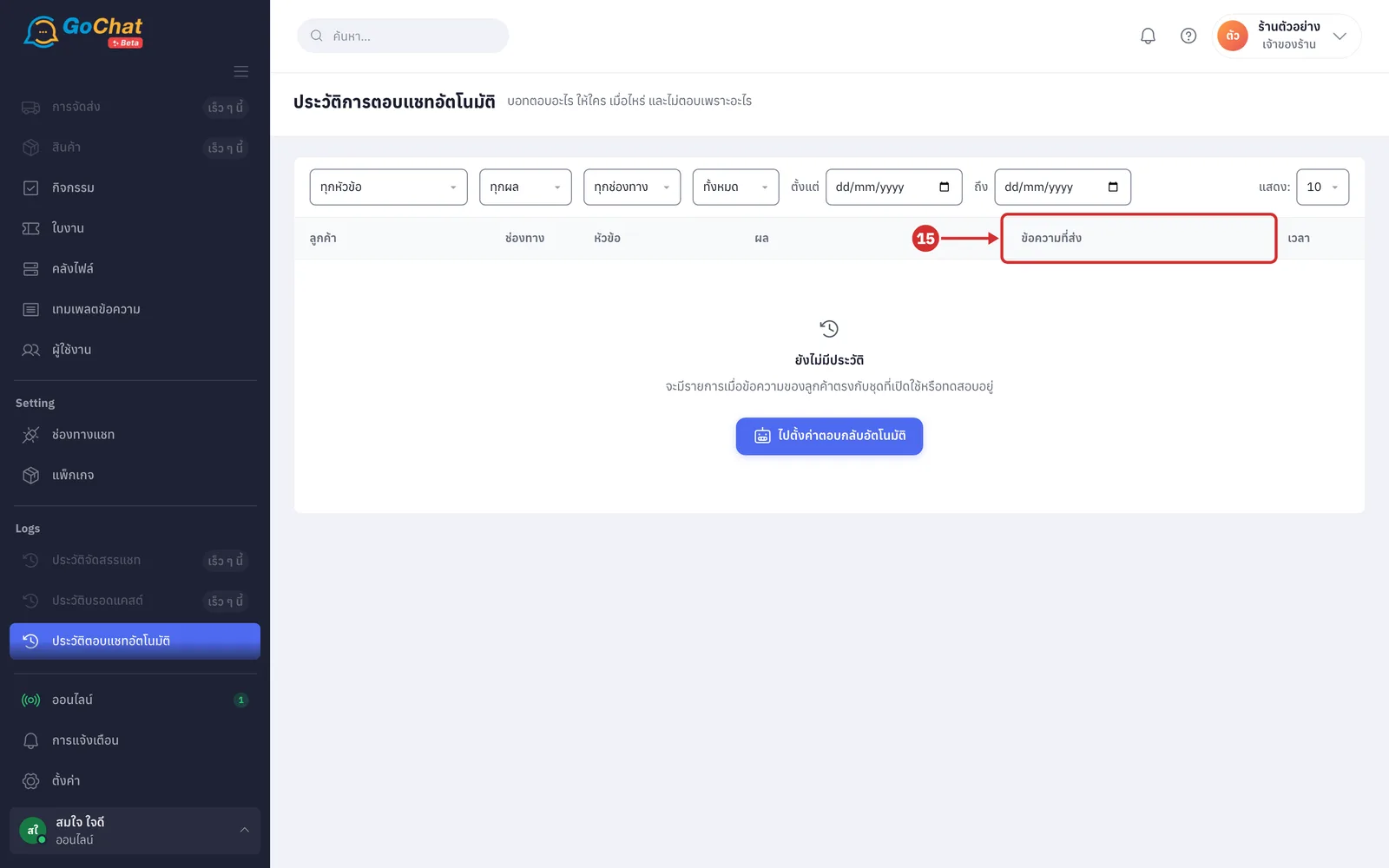
The ข้อความที่ส่ง (Message sent) column shows the first message the bot sent. Click the message to go to it in the chat, where the system highlights it (only messages that were actually sent can be clicked; the rest of the same set follows below it in the chat; when the bot sent several messages or a message longer than 120 characters, click ดูข้อความทั้งหมด (N ข้อความ) (See all messages (N messages)) to read them all; no message shows -)
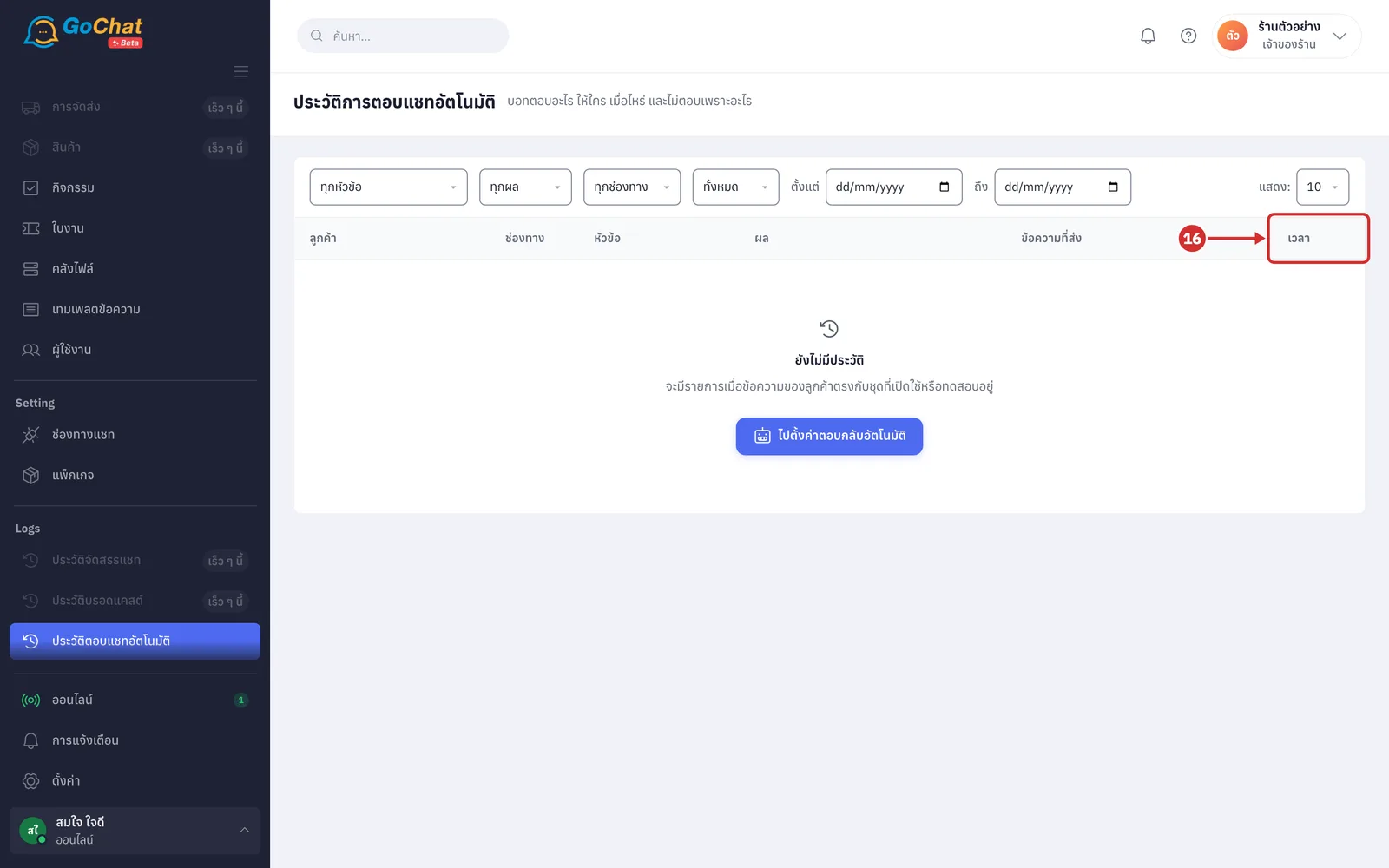
The เวลา (Time) column shows how long ago the entry happened, such as เมื่อกี้ (just now), 18 น. (18 min), 3 ชม. (3 hr) or 2 วัน (2 days); entries older than 7 days show the date. Point at the time to see the full date and time (in your shop's time zone)
Reading why the bot did not reply
Read the line under the ไม่ตอบ (Not replied) label; it starts with the reason name followed by details:
กันส่งซ้ำ (Duplicate prevented): the bot recently sent the same reply in this chat, such as ตอบคำถาม "…" ในห้องนี้ไปเมื่อไม่ถึง N นาทีก่อน (Answered "…" in this chat less than N minutes ago) (applies to FAQ, discounts / promotions, keyword replies and order summary)
แอดมินกำลังคุย (Admin is chatting): an admin or another app replied in this chat recently, so the bot does not cut in (แอดมินหรือแอปอื่นตอบในห้องนี้ภายใน N นาที บอทไม่ตอบแทรก (An admin or another app replied in this chat within N minutes, the bot does not cut in); the default is 30 minutes), or the customer asked to talk to an admin, so the bot waits for an admin to reply first (ลูกค้าขอคุยกับแอดมิน บอทรอแอดมินตอบก่อน (Customer asked for an admin, the bot waits for an admin to reply first); it waits up to 24 hours)
ส่งไม่ได้ (Cannot send): the channel or account could not send at that time: บัญชีนี้หลุดการเชื่อมต่อ (This account is disconnected), บัญชีนี้ยังไม่ได้เชื่อม (This account is not connected yet), ช่องทางนี้ยังส่งข้อความออกไม่ได้ (This channel cannot send messages yet), บัญชีนี้ยังไม่มีสิทธิ์ส่งข้อความ (This account has no permission to send yet), Meta ระงับการส่งข้อความของเพจนี้ (Meta has suspended messaging for this page), แอปอื่นถือสิทธิ์คุมห้องนี้อยู่ (Another app controls this chat) and แอปอื่นเป็นแอปหลักของการสนทนาบนเพจนี้ (Another app is the primary messaging app of this page) (in the last case, set GoChat as the primary app in the page settings on Meta first, then the bot can reply)
ข้อความเก่า (Old message): the customer's message was more than 10 minutes old when the bot read it, such as messages the system fetched from the past, so the bot did not reply
แอดมินหรือแอปอื่นตอบเองแล้ว (An admin or another app already replied): an admin replied while the bot was waiting for the send time, so the bot cancelled its reply
ถึงเวลาส่งเกิน 10 นาทีแล้ว ไม่ส่งข้อความที่ช้าเกินไป (More than 10 minutes past the send time, too late to send): the system could not send on time, and the bot chose not to send rather than reply late
เลยหน้าต่าง 24 ชม. แล้ว ข้อความอัตโนมัติส่งได้เฉพาะในหน้าต่างนี้ (Past the 24-hour window, automatic messages can only be sent within it): applies to Messenger and Instagram, where the bot can only send within 24 hours of the customer's last message
ชุดถูกปิดหรือถอดบัญชีนี้ออกระหว่างรอส่ง (The set was turned off or this account was removed while waiting to send) or บัญชีนี้หลุดการเชื่อมต่อระหว่างรอส่ง (This account disconnected while waiting to send): something changed while the bot was waiting for the send time
ชุด "…" ยังไม่ได้ตั้งข้อความที่จะส่ง (Set "…" has no message to send yet): the customer's message matched the set, but the set has no message yet
ลูกค้าคนนี้ได้สรุปคำสั่งซื้ออัตโนมัติครบ N ข้อความวันนี้แล้ว (ตั้งค่าการตอบทั้งร้าน) (This customer already got N automatic order summaries today (shop-wide reply settings)): order messages the system sends on its own reached the daily limit per customer (the default is 3 messages; counted separately from สรุปข้อมูลจัดส่ง (Shipping summary))
เทมเพลต “…” ไม่ได้เปิดให้บัญชีนี้ (Template "…" is not enabled for this account), ไม่ได้สรุปคำสั่งซื้อ: … (Order summary not sent: …) or ข้อความของชุดว่างหลังเติมค่า (The set's message is empty after filling in values): the order message could not be sent because the template or order data was not ready
ร้านหมดอายุการใช้งาน ส่งข้อความไม่ได้ — ติดต่อสั่งซื้อเพื่อใช้งานต่อ (Your shop has expired and cannot send messages — contact us to continue) or แพ็กเกจของร้านไม่มีตอบกลับอัตโนมัติ — อัปเกรดแพ็กเกจเพื่อใช้งาน (Your package does not include auto-reply — upgrade to use it): your shop's package did not allow the bot to send at that time
Changing pages
See the number of entries at the bottom of the table, such as แสดง 1–10 จาก 50+ รายการ · ย้อนหลัง 90 วัน (Showing 1–10 of 50+ entries · last 90 days) (the system loads 50 entries at a time; the + means there are older entries)
Click a page number or the left and right arrow buttons to change pages (when the page numbers end with …, click the right arrow on the last page to load older entries; if loading fails, the bottom of the table shows โหลดหน้าถัดไปไม่สำเร็จ — ลองใหม่อีกครั้ง (Could not load the next page — please try again) and you stay on the same page)
When there is no history or it fails to load
If there is no history yet, the table shows ยังไม่มีประวัติ (No history yet) and จะมีรายการเมื่อข้อความของลูกค้าตรงกับชุดที่เปิดใช้หรือทดสอบอยู่ (Entries appear when a customer's message matches a set that is on or in testing). Click ไปตั้งค่าตอบกลับอัตโนมัติ (Go to auto-reply settings) to set up reply sets
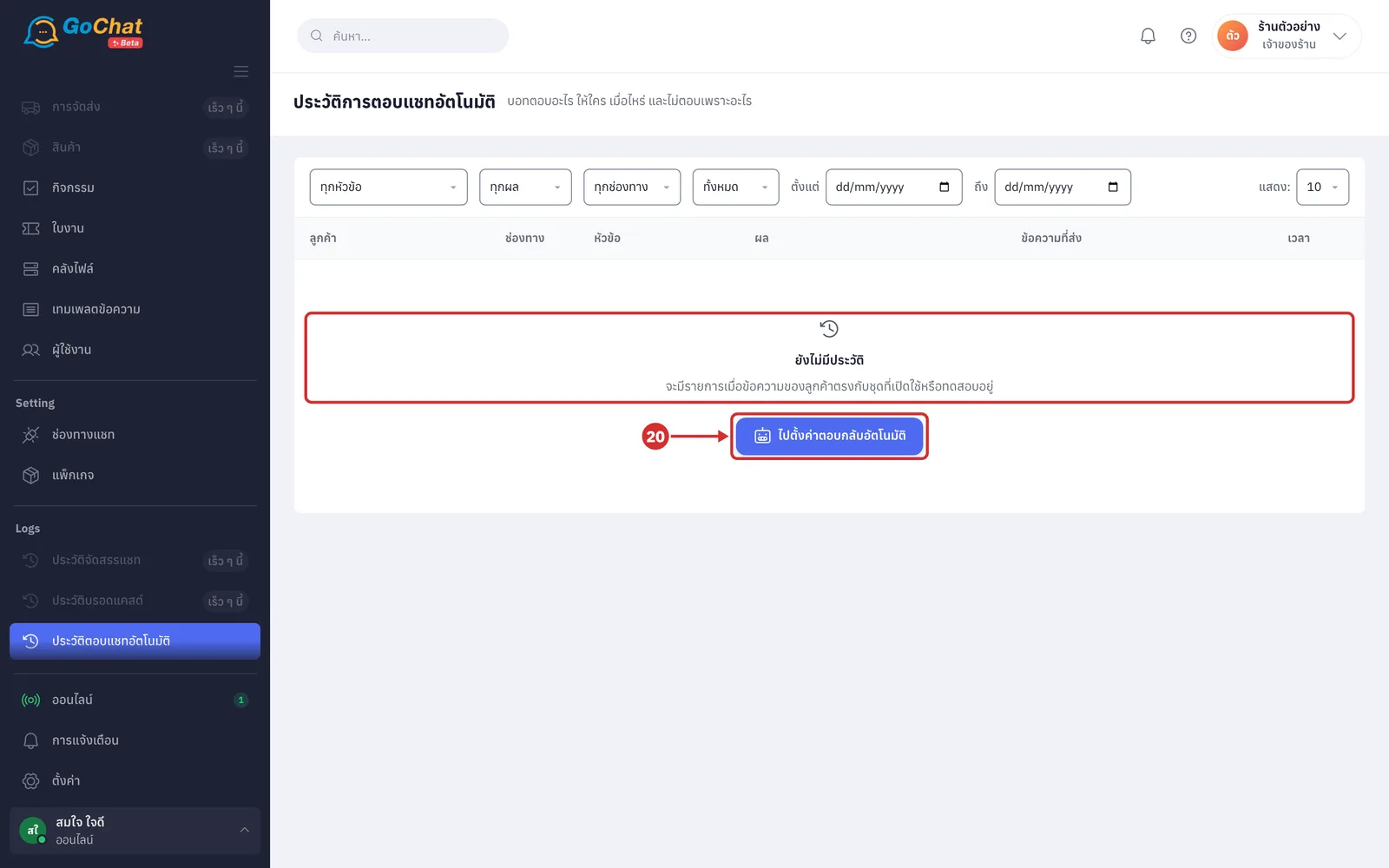
If the history fails to load, the table shows โหลดประวัติไม่สำเร็จ (Could not load history) and ตรวจการเชื่อมต่อแล้วลองใหม่อีกครั้ง (Check your connection and try again). Click ลองใหม่ (Try again) to load it again (while loading, it shows กำลังโหลดประวัติ… (Loading history…))
Note: This page does not show customer messages that match no set, because the bot has nothing to reply with. This includes when a customer chooses a menu item the shop has not finished setting up, such as the shop address item without an address, an item pointing to a deleted question, or a promotion outside its time range. If a customer messaged and you do not see an entry here, check whether the message matches a set that is turned on. History older than 90 days is deleted from the system, and comment reply history is in Viewing auto-reply comment history.