

Following up activities with customers
The กิจกรรม (Activities) page gathers the follow-up tasks your team needs to do with customers, such as calling about a quotation or meeting a customer to pick up goods, grouped by due date with overdue tasks always on the far left. It opens with your own tasks and you can switch to the whole shop's tasks. Everyone in your shop can close, snooze or reopen anyone's tasks. Customers do not see these tasks. (Tasks are created from the กิจกรรม (Activities) section of the customer panel in a chat, or the กิจกรรม (Activities) tab of a customer profile; this page has no create button · see Using the customer panel)
Opening the Activities page and choosing a view
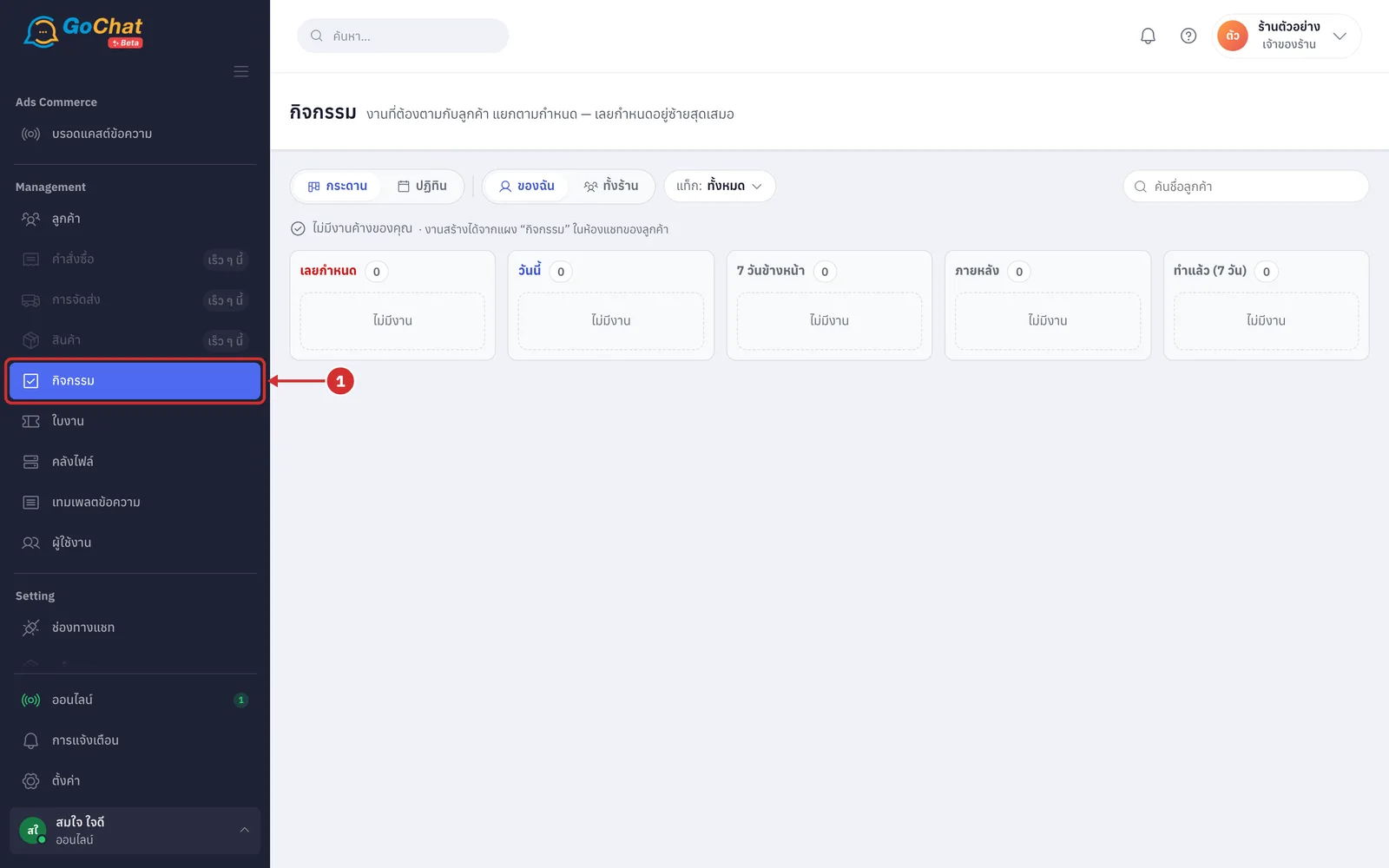
Under Management, choose กิจกรรม (Activities) in the left menu bar
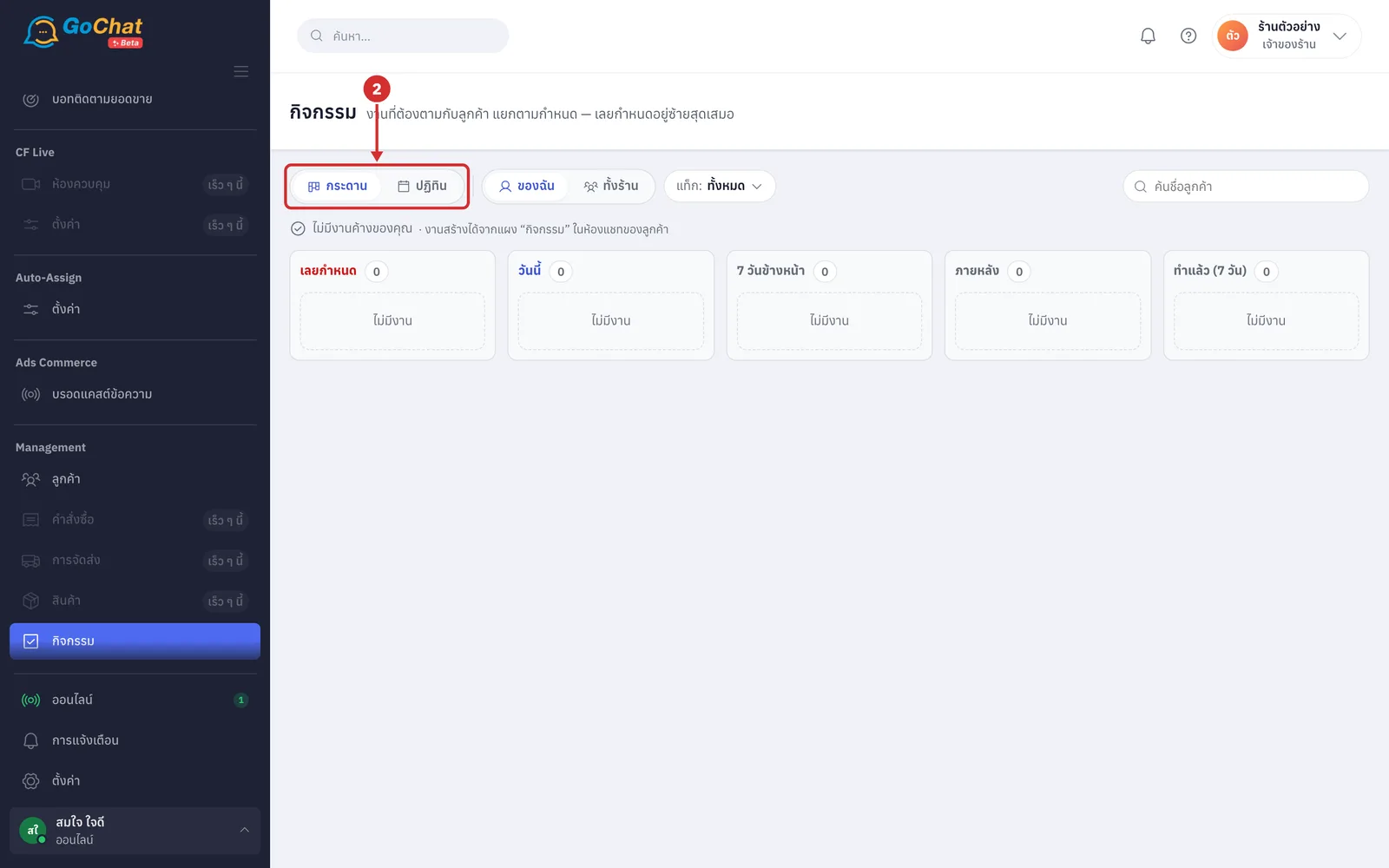
Choose กระดาน (Board) (the default · tasks in columns by due date) or ปฏิทิน (Calendar) (every task by day in the month, both done and upcoming)
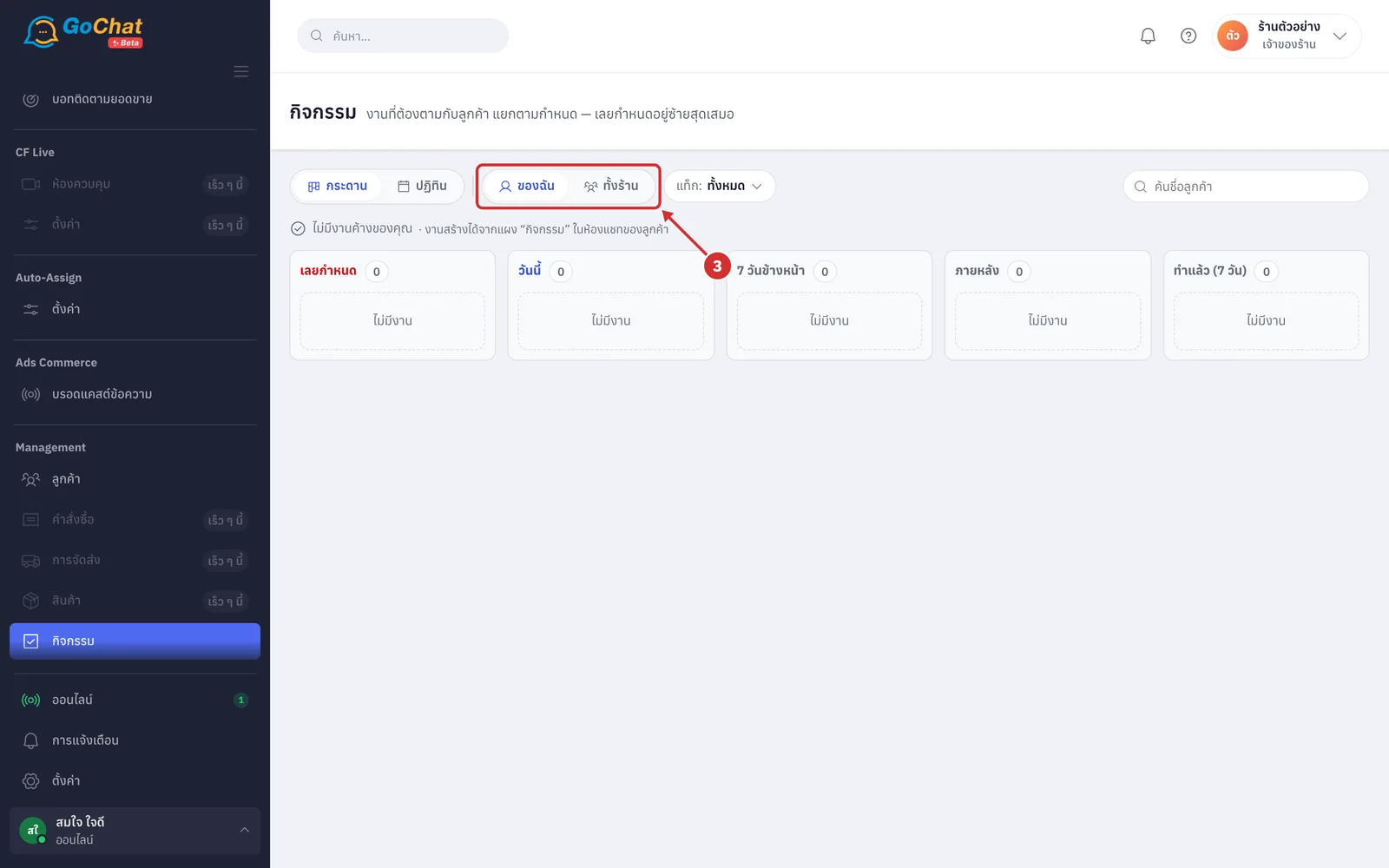
Choose ของฉัน (Mine) (the default · only tasks assigned to you) or ทั้งร้าน (Whole shop) (everyone's tasks)
Filtering tasks
Each filter shows its selected value on its chip and works on both the board and the calendar. The page link keeps your filters, so you can send it to someone on your team to open the same view.
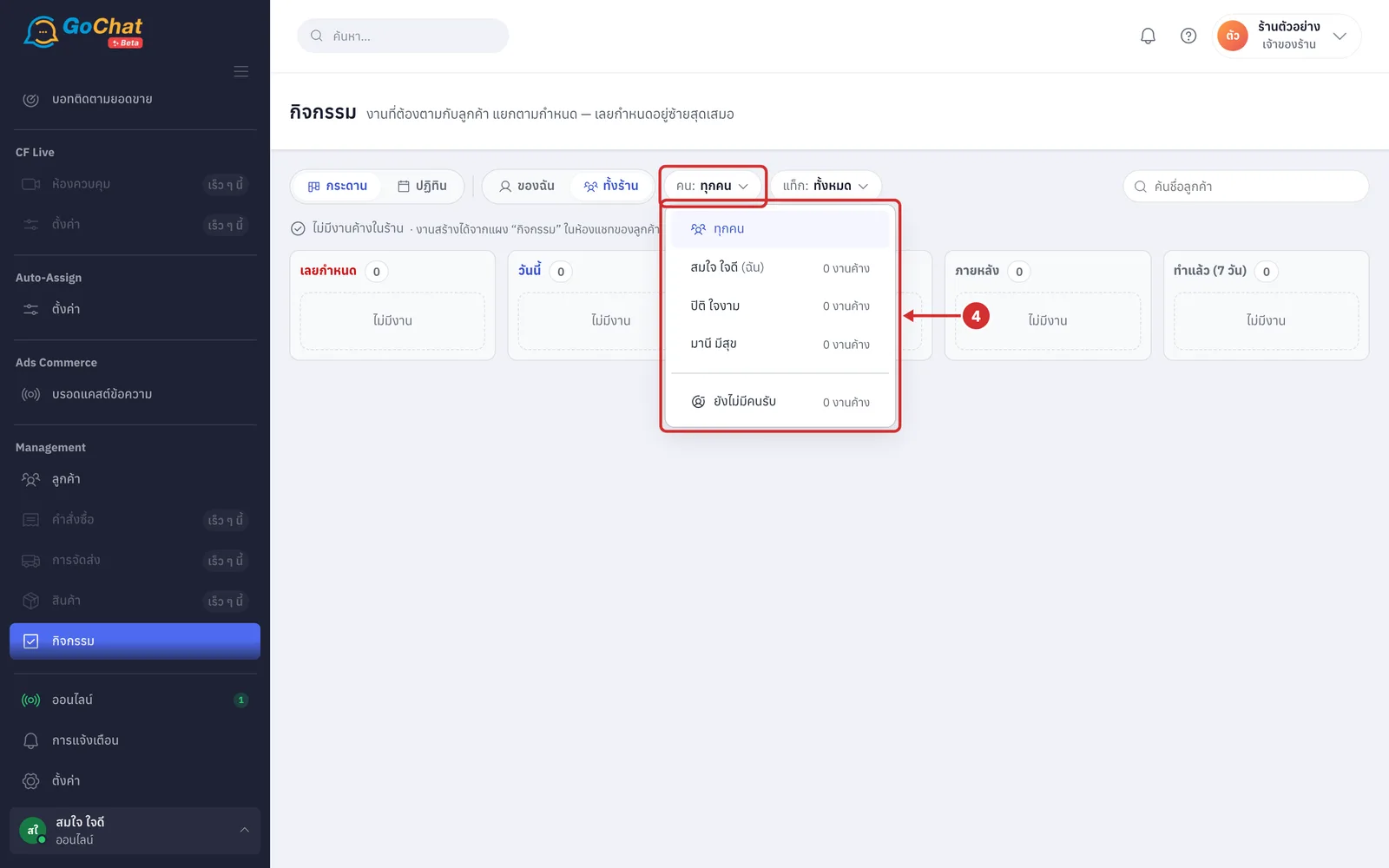
With ทั้งร้าน (Whole shop) selected, click the คน: (Person:) chip and choose whose tasks to see; each name shows how many งานค้าง (open tasks) they have (choose ทุกคน (Everyone) for everyone, or ยังไม่มีคนรับ (Unassigned) for tasks with no owner · shops with more than 6 team members get a ค้นชื่อทีม (Search team) box at the top of the list)
Click the แท็ก: (Tag:) chip and tick the tags you want (เลือกได้หลายแท็ก (You can pick several tags) · these are the tags on the customer's chat · the number next to each tag is how many open tasks it has · shops without tags do not have this chip)
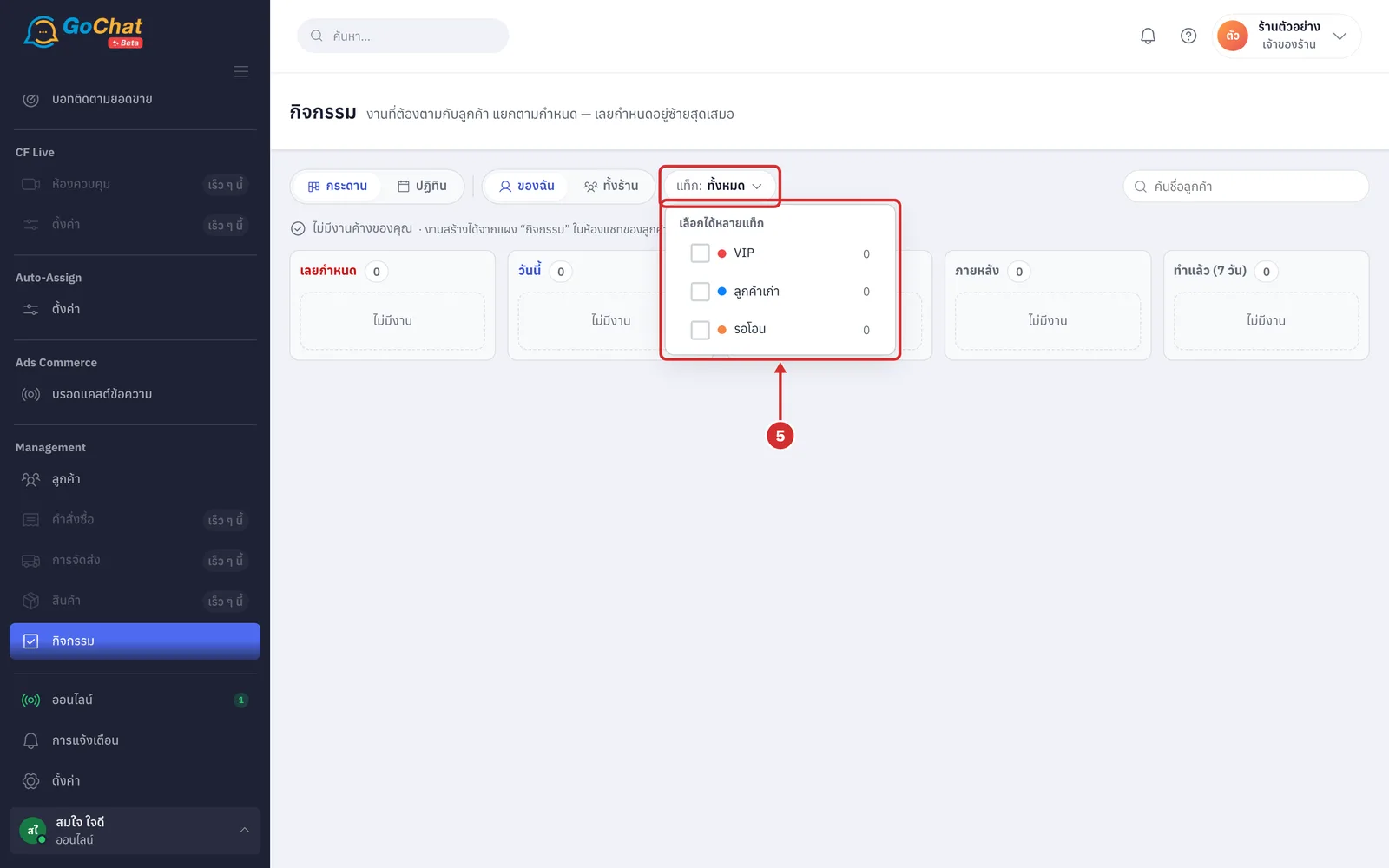
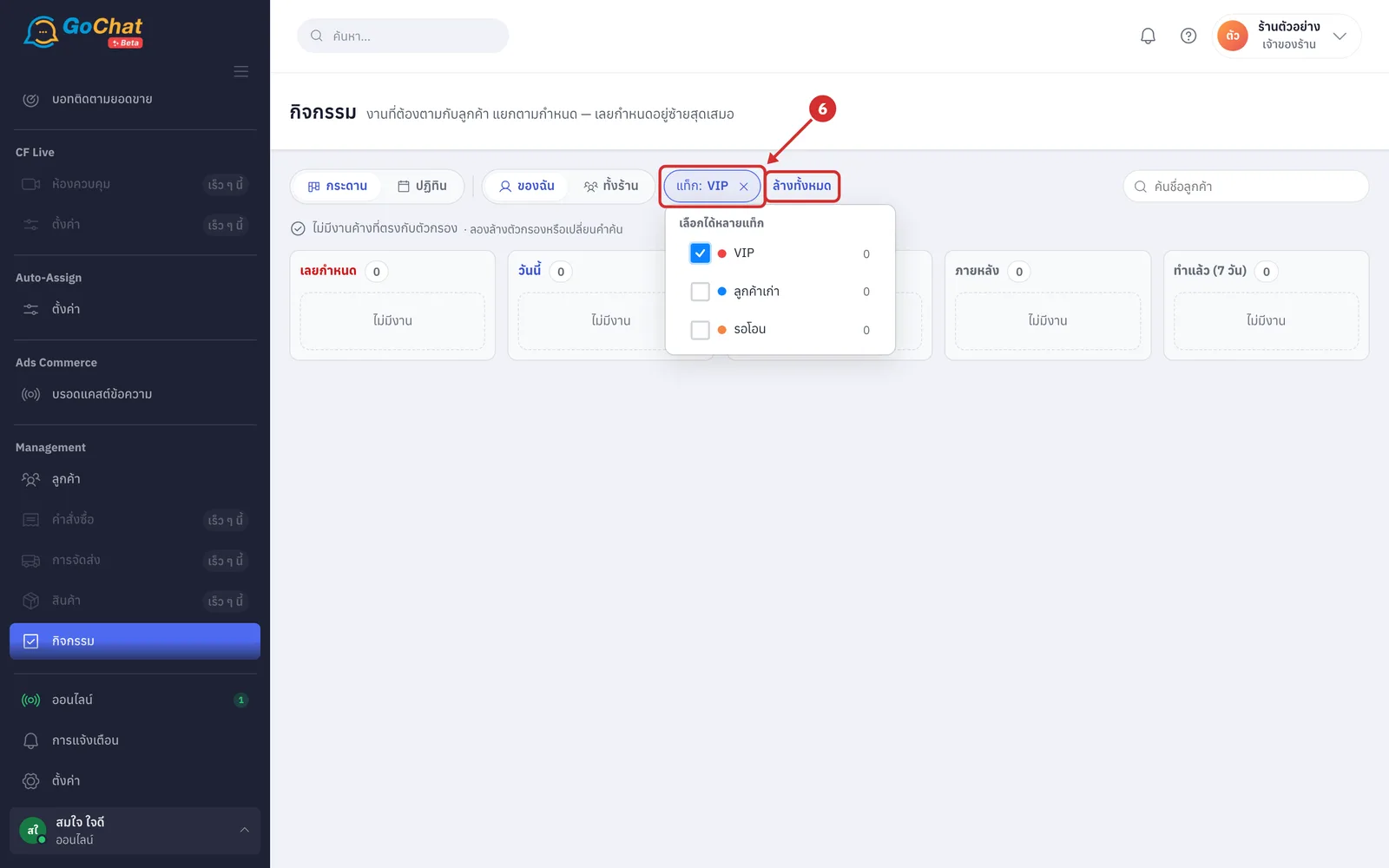
Once a filter is set, its chip turns blue with the selected value. Click × on a chip to clear that filter, or click ล้างทั้งหมด (Clear all) to clear every filter including the search
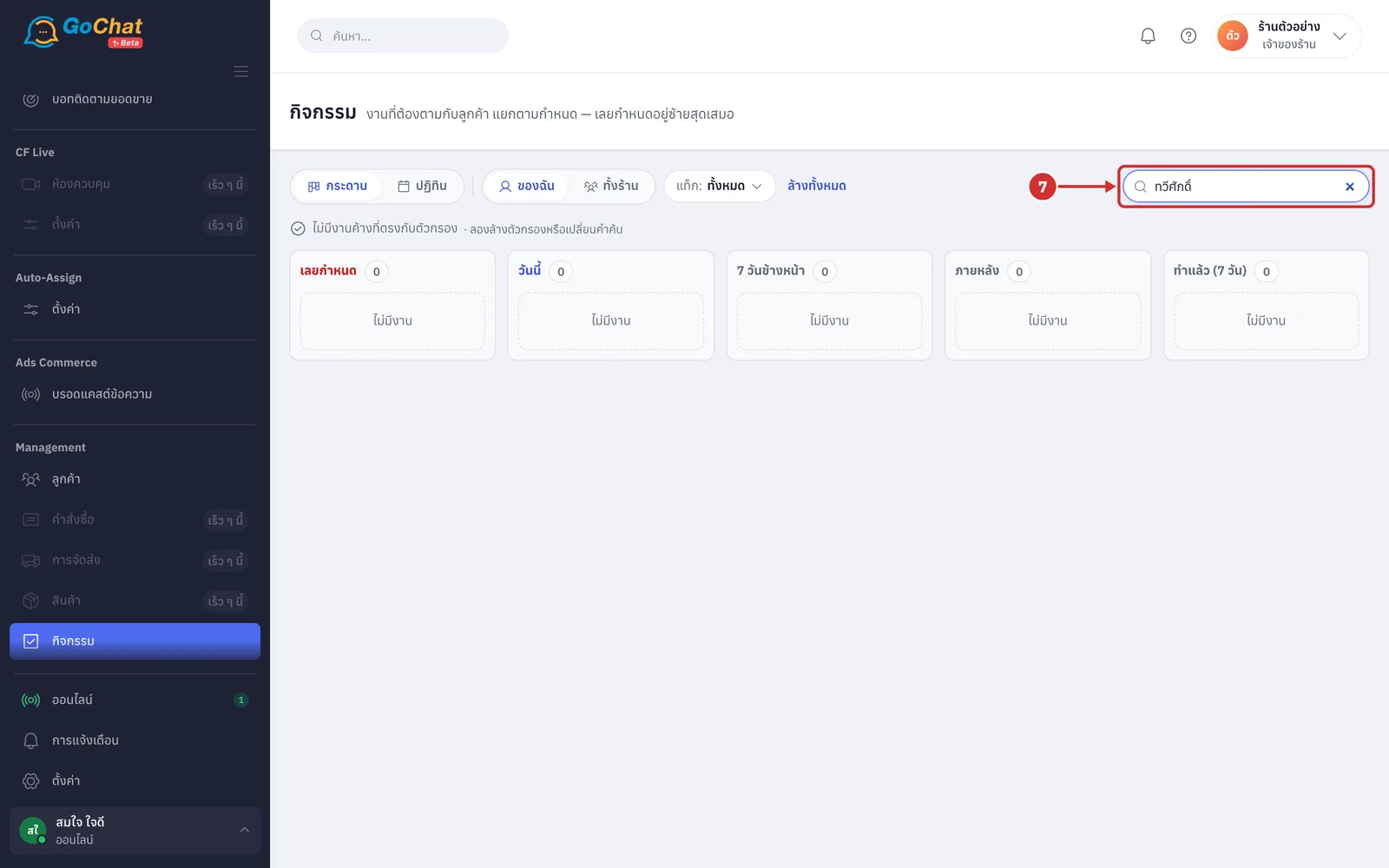
In ค้นชื่อลูกค้า (Search customer name), type a customer's name, up to 60 characters. The tasks are filtered when you stop typing (no match shows ไม่มีงานค้างที่ตรงกับตัวกรอง (No open tasks match the filters))
Reading the board
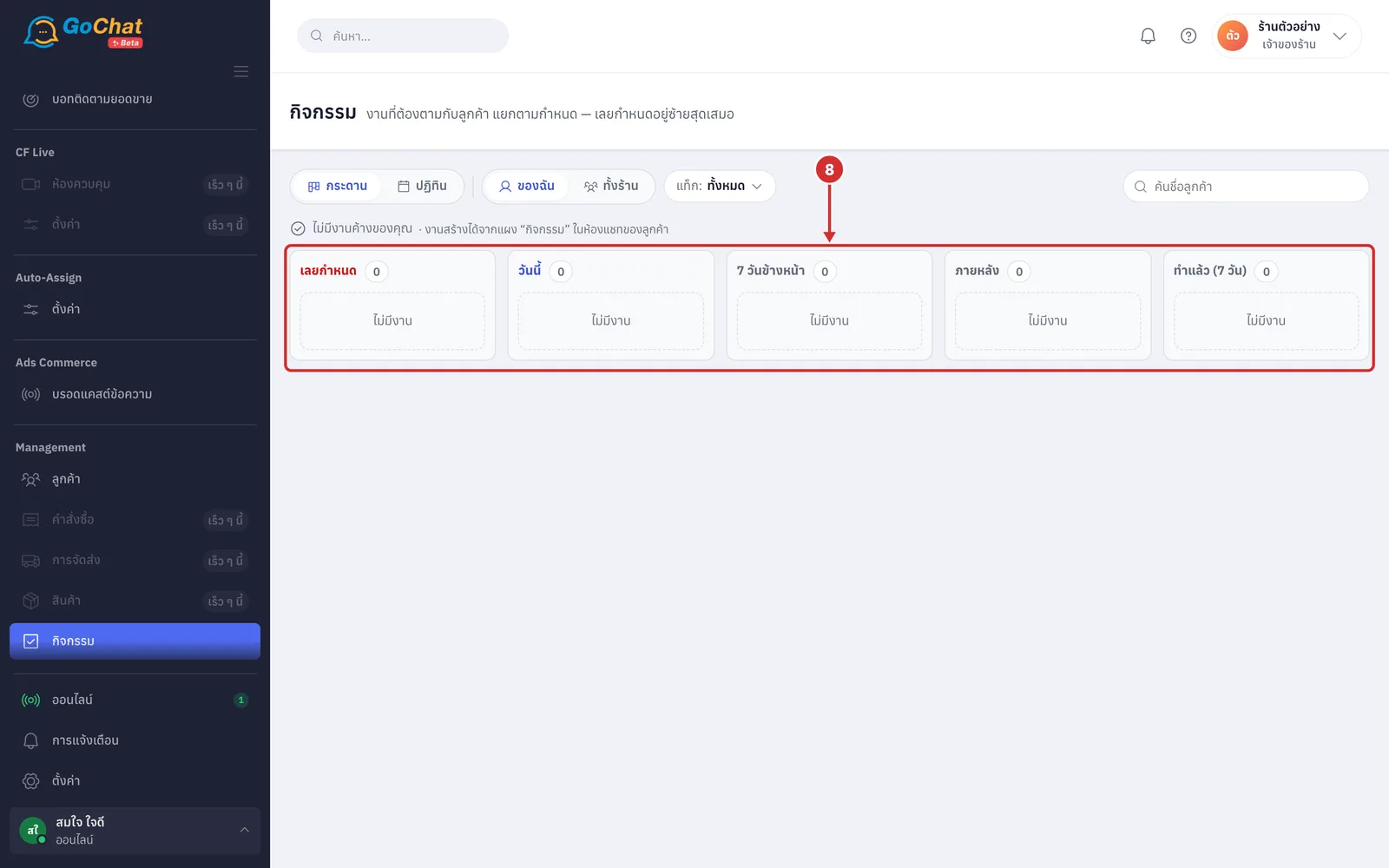
Look at the columns on the board; the number next to each heading is how many tasks it has (an empty column shows ไม่มีงาน (No tasks) · with no open tasks at all you see, for example, ไม่มีงานค้างของคุณ (You have no open tasks) or ไม่มีงานค้างในร้าน (No open tasks in the shop))
เลยกำหนด (Overdue) — tasks past their time (all-day tasks become overdue when the next day starts)
วันนี้ (Today) — tasks due today
7 วันข้างหน้า (Next 7 days) — tasks due within the 7 days after today
ภายหลัง (Later) — tasks due after that
ทำแล้ว (7 วัน) (Done (7 days)) — tasks closed in the past 7 days
Read a task card. Each one has
A date box, the task subject and when it is due, such as วันนี้ 14:00 (Today 14:00), พรุ่งนี้ (Tomorrow), อีก 3 วัน (In 3 days) or เลยกำหนด 2 วัน (2 days overdue) (red when overdue)
The kind of task — ตามเรื่อง (Follow up), นัดหมาย (Appointment) or อื่นๆ (Other) — and a เลื่อนมา N ครั้ง (Snoozed N times) label when it has been snoozed 2 or more times
The customer's name, which you click to open their chat (tasks not linked to a chat cannot be clicked) · in ทั้งร้าน (Whole shop) view, the owner's name too · the task's note (if any)
Click ทำแล้ว (Done) on a card when the task is finished. In ผลเป็นยังไง (How did it go), choose ติดต่อได้ · สนใจต่อ (Reached · still interested), ไม่รับสาย (No answer), ขอให้ติดต่อใหม่ (Asked to be contacted later) or ไม่สนใจแล้ว (No longer interested), or click ข้าม (Skip) to close the task without an outcome (click ยกเลิก (Cancel) to close the box). The task moves to ทำแล้ว (7 วัน) (Done (7 days)) with an outcome label
Click เลื่อน (Snooze) to move the due time. In เลื่อนงานนี้ไปเมื่อไหร่ (Snooze this task until when), click พรุ่งนี้ 09:00 (Tomorrow 09:00), อีก 3 วัน (In 3 days) or สัปดาห์หน้า (Next week), or pick your own date and time and click ใช้เวลานี้ (Use this time) (the box also says how many times the task has been snoozed · click ปิด (Close) to leave)
Click เปิดแชท (Open chat) to go to the customer's chat. Done tasks have a เปิดใหม่ (Reopen) button in case you marked the wrong one; the task goes back to the to-do tasks
Using the calendar
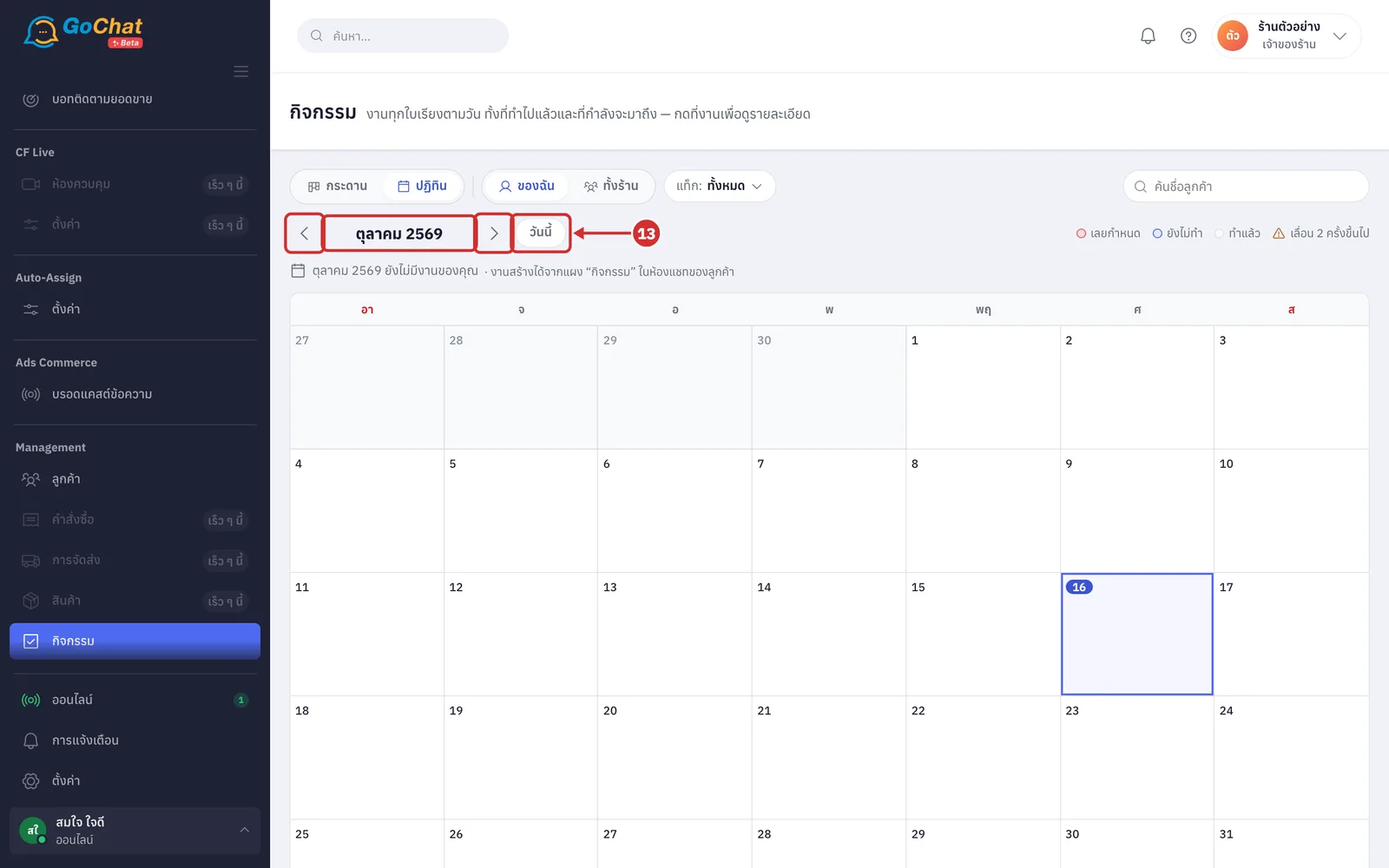
Click ปฏิทิน (Calendar), then click the left or right arrow next to the month name to see the previous or next month. Click วันนี้ (Today) to come back to the current month
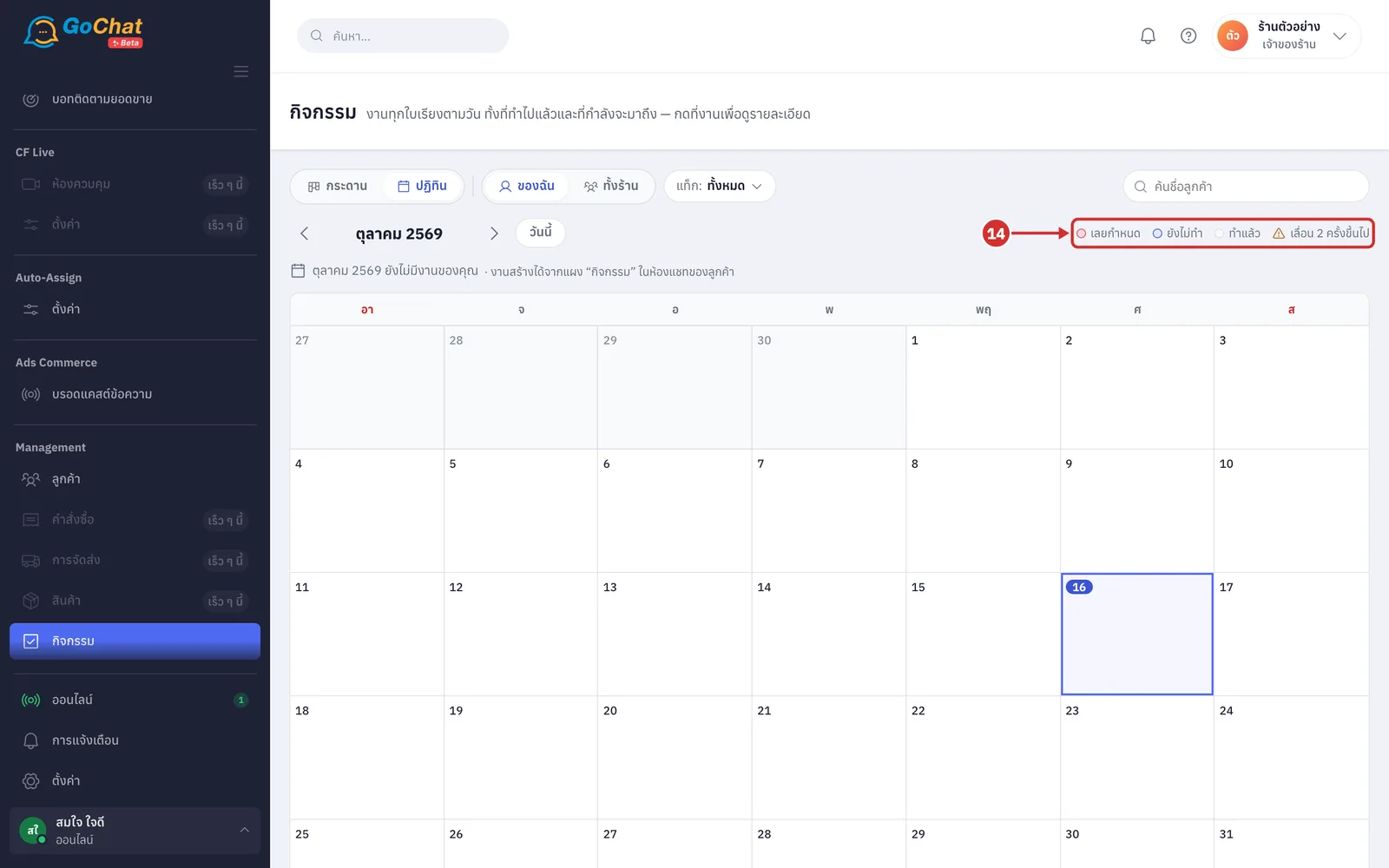
Look at the colour key on the right: a task's colour shows เลยกำหนด (Overdue), ยังไม่ทำ (Not done) or ทำแล้ว (Done), and the warning triangle icon means เลื่อน 2 ครั้งขึ้นไป (Snoozed 2 or more times)
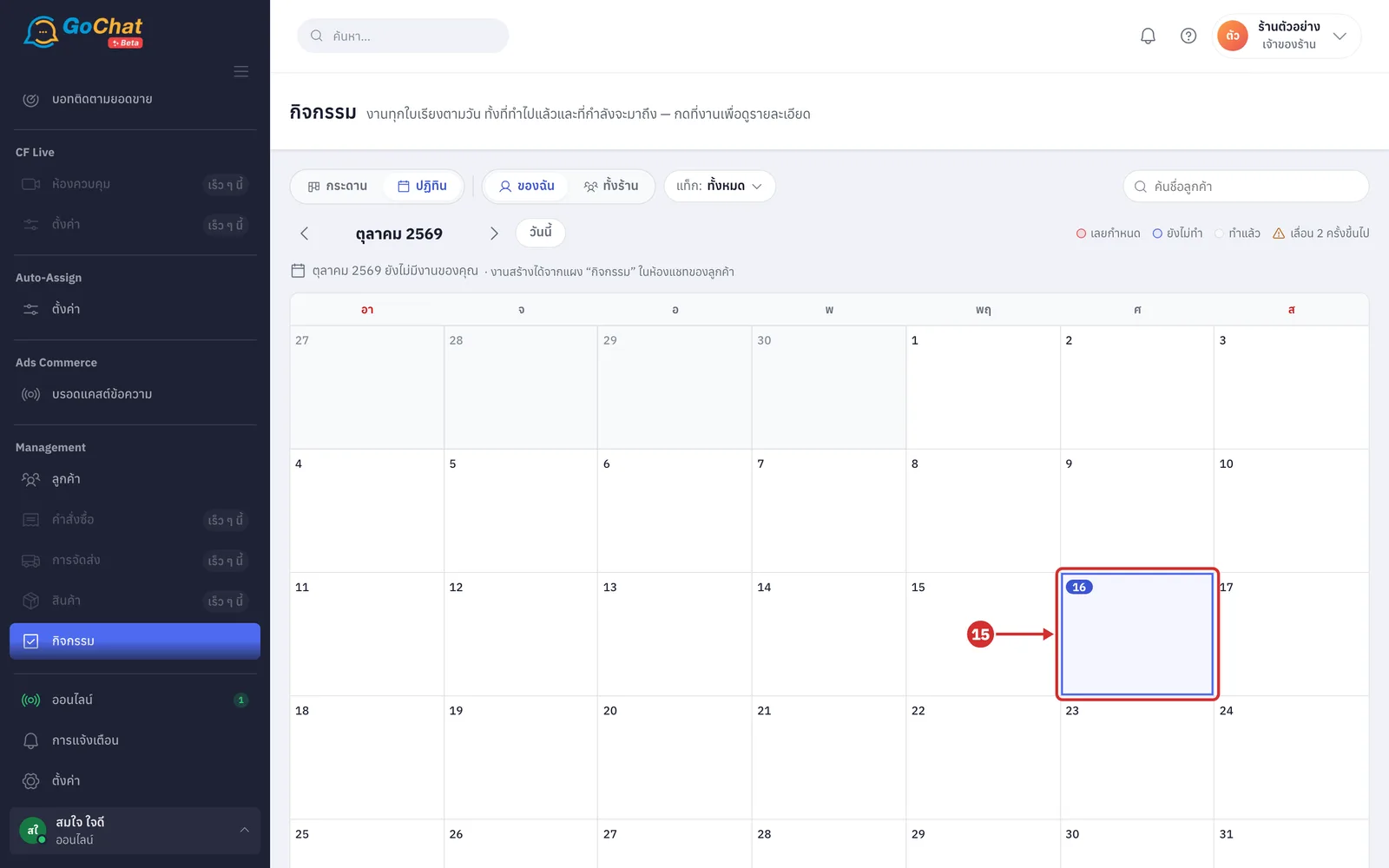
Look at the tasks in each day's box. Each task shows an icon for its kind (done tasks show an outcome icon), the time and the subject; in ทั้งร้าน (Whole shop) view, the owner's picture is at the end. On days with more than 3 tasks, click +N รายการ (+N more) to see all of that day's tasks (today's date has a blue badge · a month with no tasks says there are no tasks for you or for the shop yet)
Click a task on the calendar to open its details: the date and time (or ทั้งวัน (All day)), ผู้รับผิดชอบ (Owner) (or ยังไม่มีคนรับ (Unassigned)), who closed it, the customer's name (click to open their chat) and the note, with ทำแล้ว (Done) and เลื่อน (Snooze) buttons, or เปิดงานอีกครั้ง (Reopen task) for done tasks, and เปิดแชท (Open chat) (close it with × or press Esc)
Seeing my activities on the Messages page
On the ข้อความ (Messages) page, when you have tasks that are overdue or due today, a bell button appears at the bottom right; the number on it is how many tasks (red when some are overdue). Click it to open กิจกรรมของฉัน (My activities), which lists เลยกำหนด (Overdue) and วันนี้ (Today) tasks, up to 8 rows. Click a row to open the customer's chat, click ทำแล้ว (Done) to close the task at once without asking for an outcome, or click ดูทั้งหมด (N) → (See all (N) →) to come to this page (with no such tasks there is no button)
Note: The system does not send a notification when a task is due; check this page or the กิจกรรมของฉัน (My activities) button on the Messages page · the board shows up to the 200 open tasks closest to their due time, and the calendar up to 1,000 tasks per month; beyond that a yellow bar tells you to view one person at a time to see them all