

Connecting LINE OA
Connecting a LINE Official Account (LINE OA) brings the messages customers send to your shop's LINE OA into the GoChat inbox, and lets you reply from GoChat. You connect with GoChat's 3-step wizard alongside LINE Official Account Manager; it takes about 5 minutes. Anyone in the shop can connect, signing in to LINE with an account that can manage that LINE OA. Once connected it never expires and does not need renewing.
Connecting LINE OA
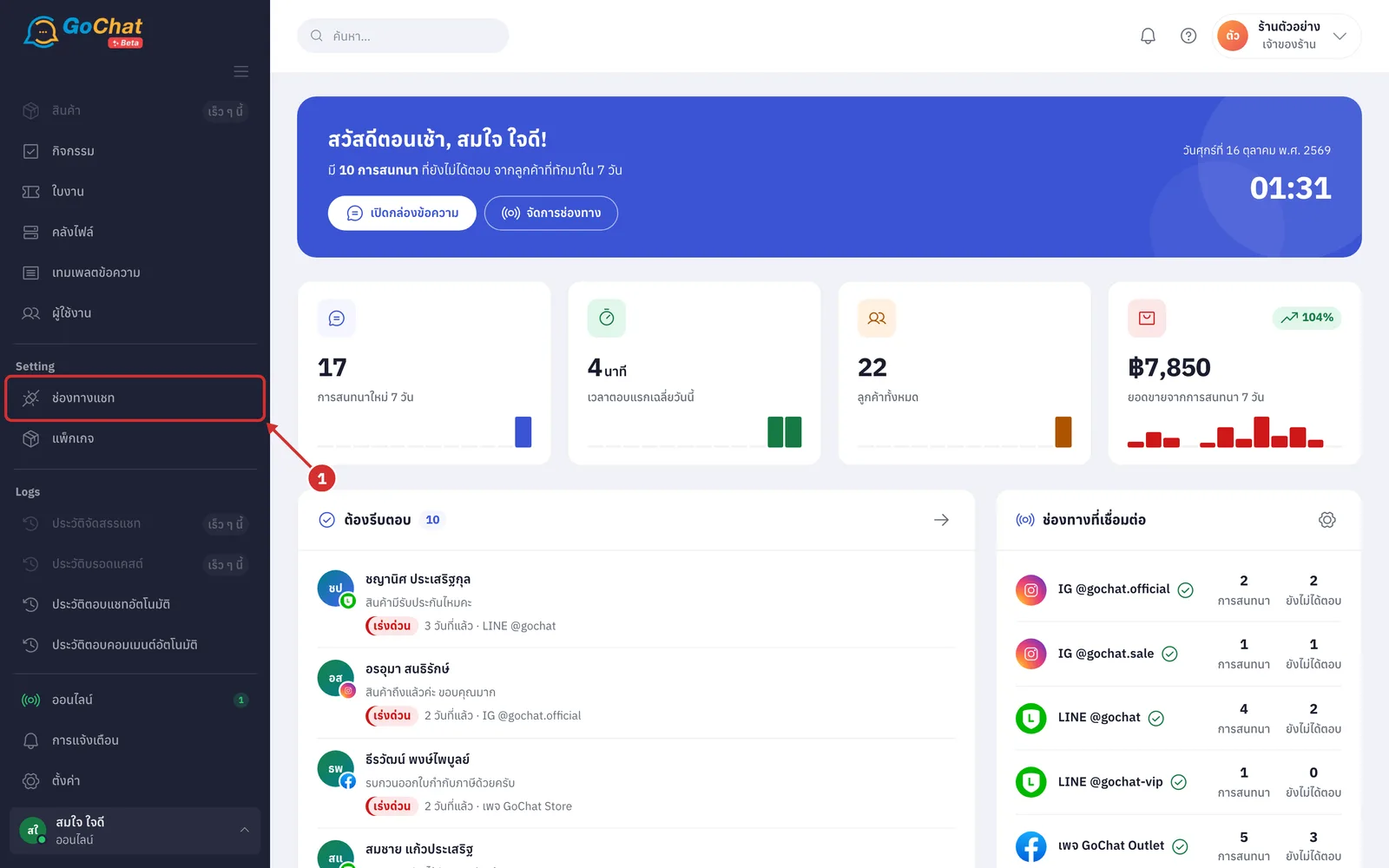
Go to the ช่องทางแชท (Chat channels) menu in the left menu bar
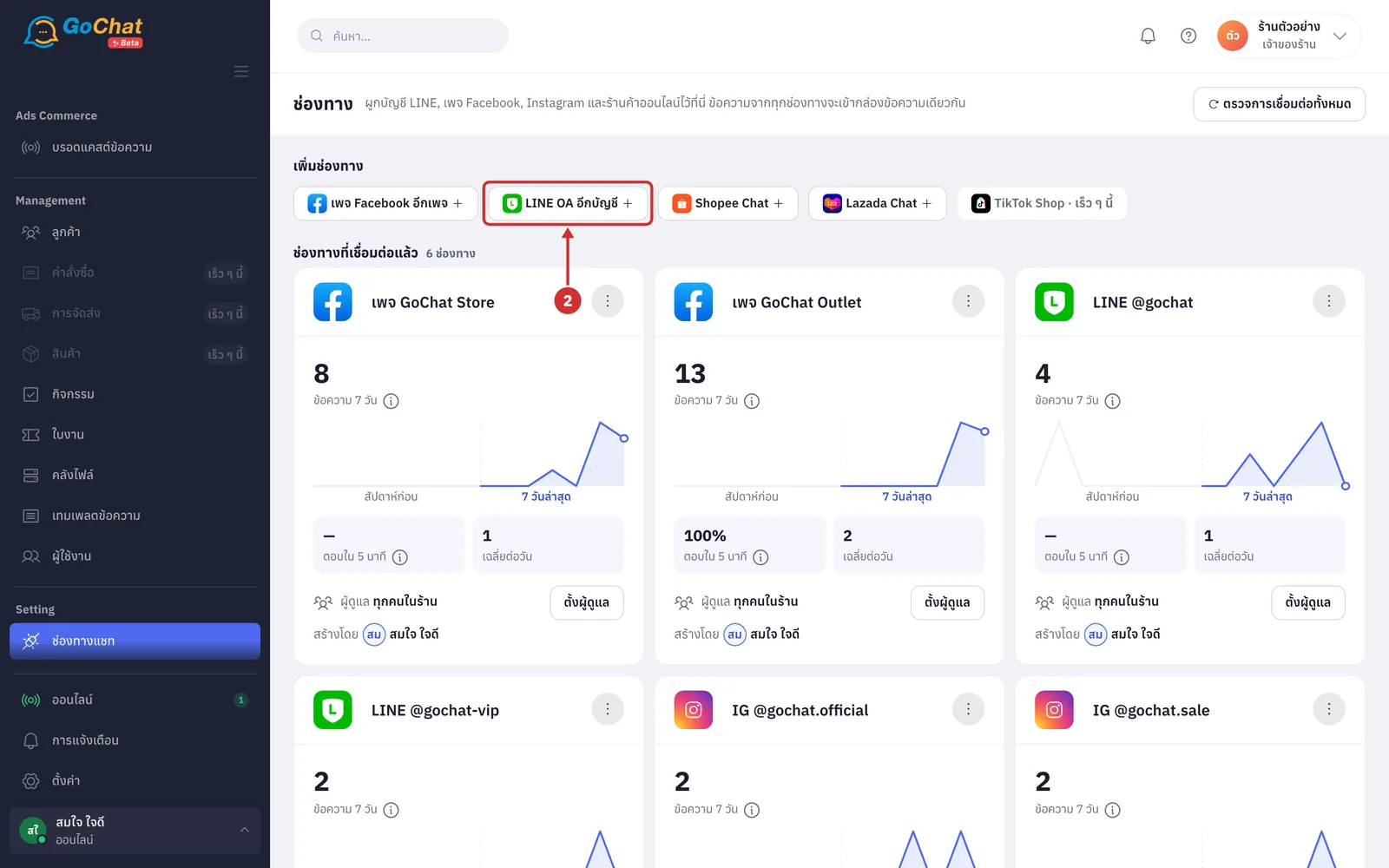
Under เพิ่มช่องทาง (Add a channel), click LINE Official Account (if your shop already has a LINE OA connected, the button is called LINE OA อีกบัญชี (Another LINE OA account); click it to add another account)
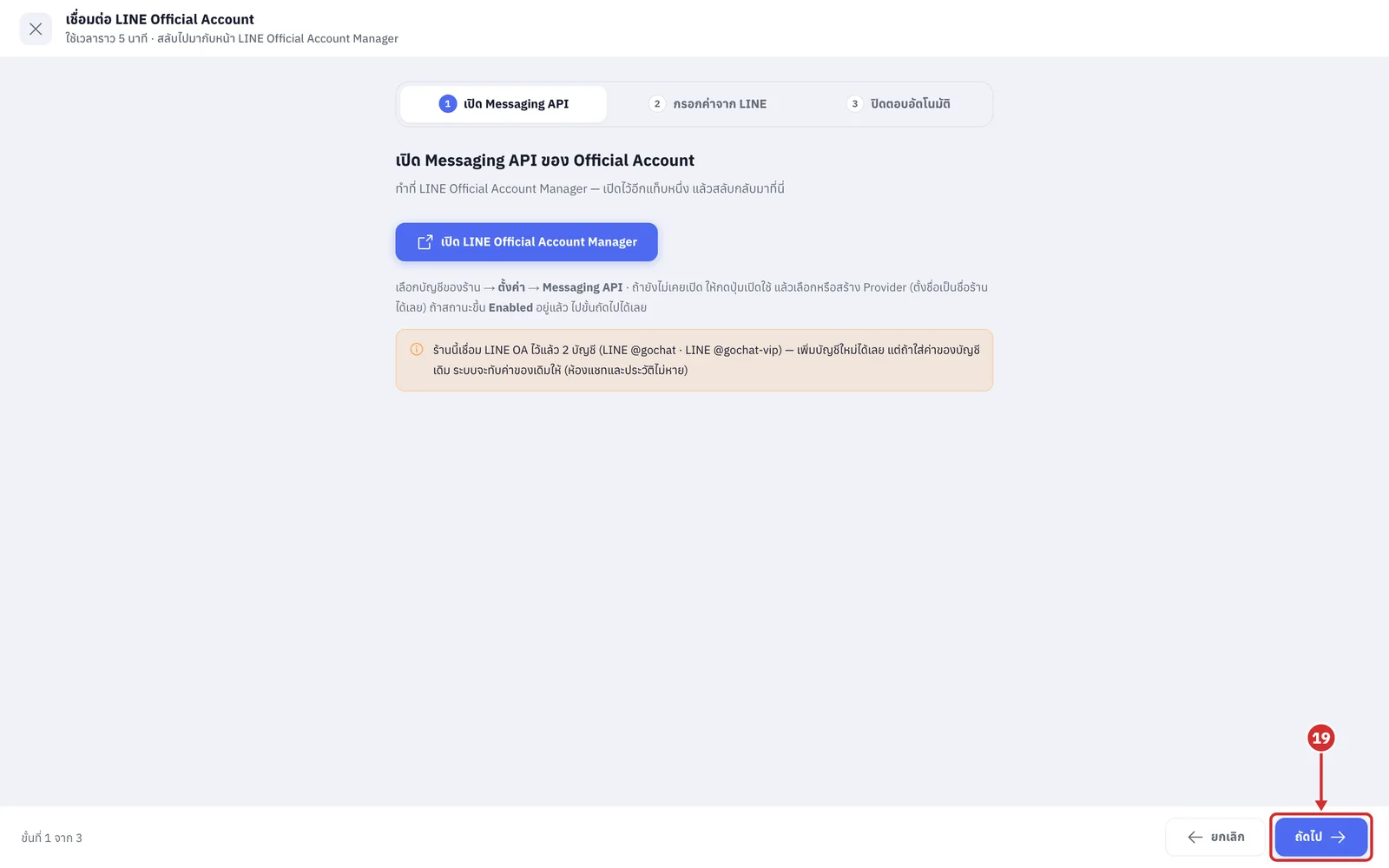
The เชื่อมต่อ LINE Official Account (Connect LINE Official Account) wizard opens at step 1 เปิด Messaging API (Turn on Messaging API). Click เปิด LINE Official Account Manager (Open LINE Official Account Manager) to sign in to LINE (it opens in a new tab; you can switch back to GoChat)
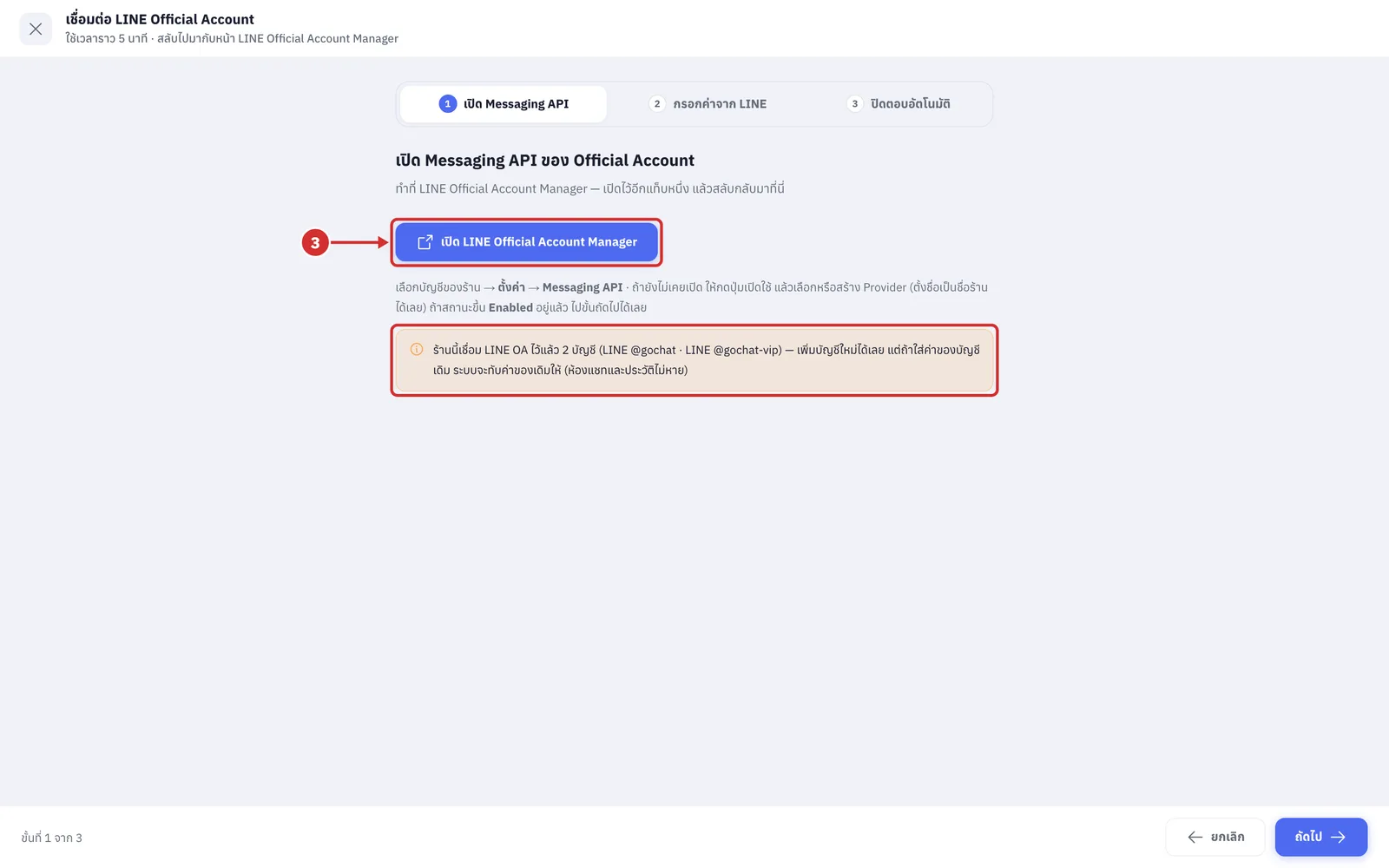
The bar at the top shows the 3 steps: เปิด Messaging API (Turn on Messaging API), กรอกค่าจาก LINE (Enter values from LINE) and ปิดตอบอัตโนมัติ (Turn off auto-reply). Click a step name to go back to it; the bottom left shows which step you are on
Below the button is the path in LINE: choose your shop's account → ตั้งค่า (Settings) → Messaging API (if the status already shows Enabled, go straight to the next step)
If your shop already has a LINE OA connected, an orange box shows how many and their names. You can add a new account; if you enter the values of an existing account, the system overwrites that account's values (chat rooms and history are kept)
Click ยกเลิก (Cancel) or X at the top left to close the wizard and go back to the Channels page
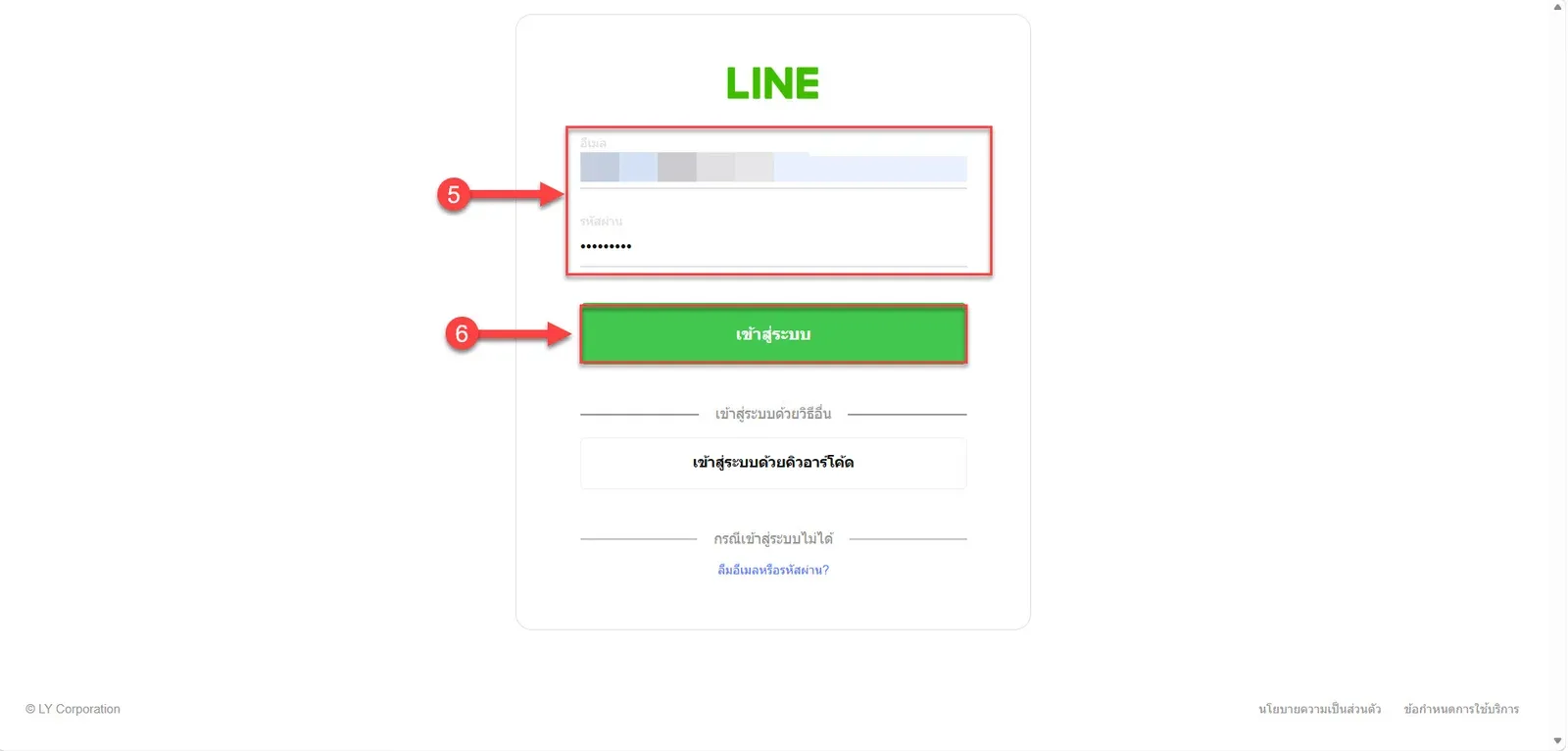
Choose to sign in with a บัญชี LINE (LINE account)
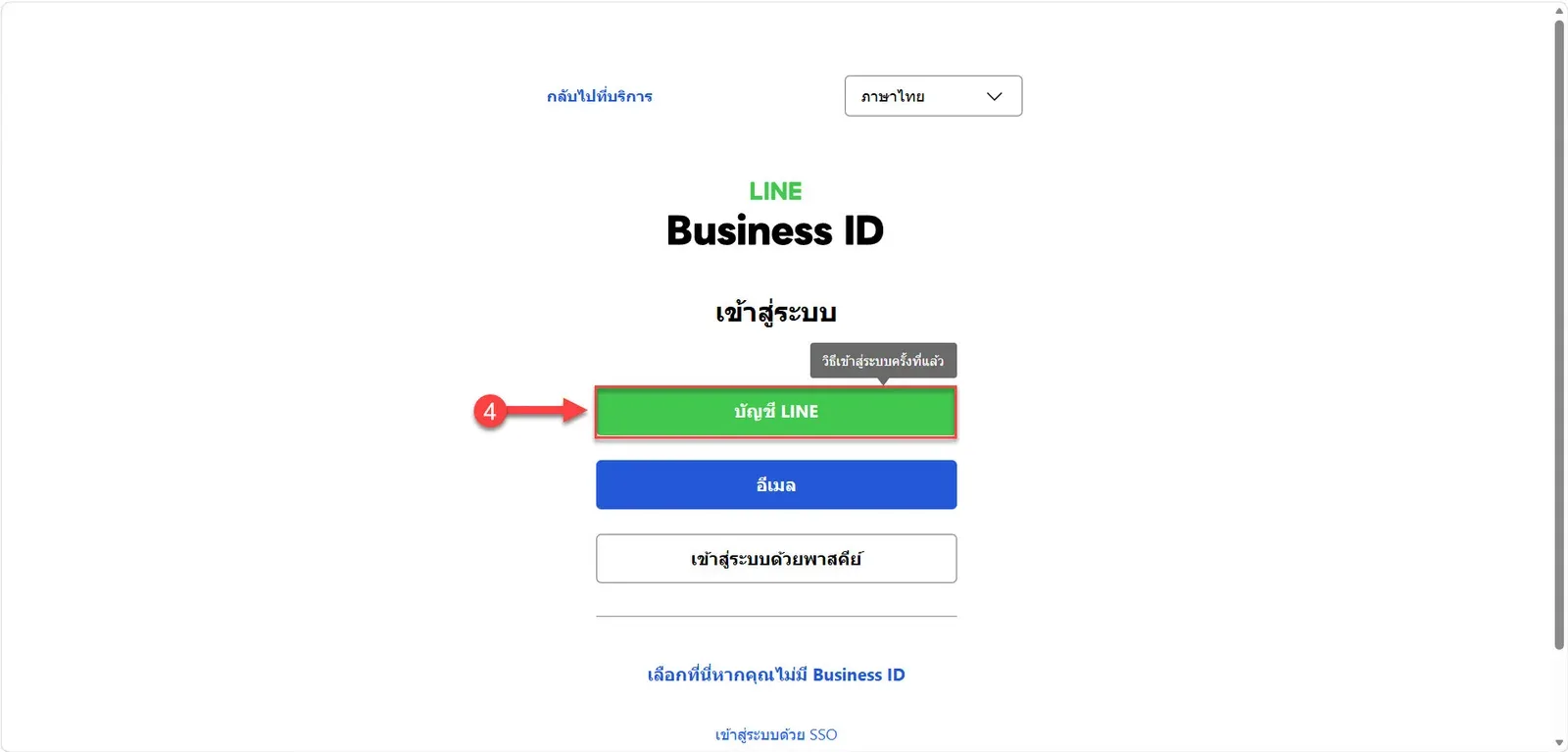
Enter the username and password of your LINE OA account
Click เข้าสู่ระบบ (Log in)
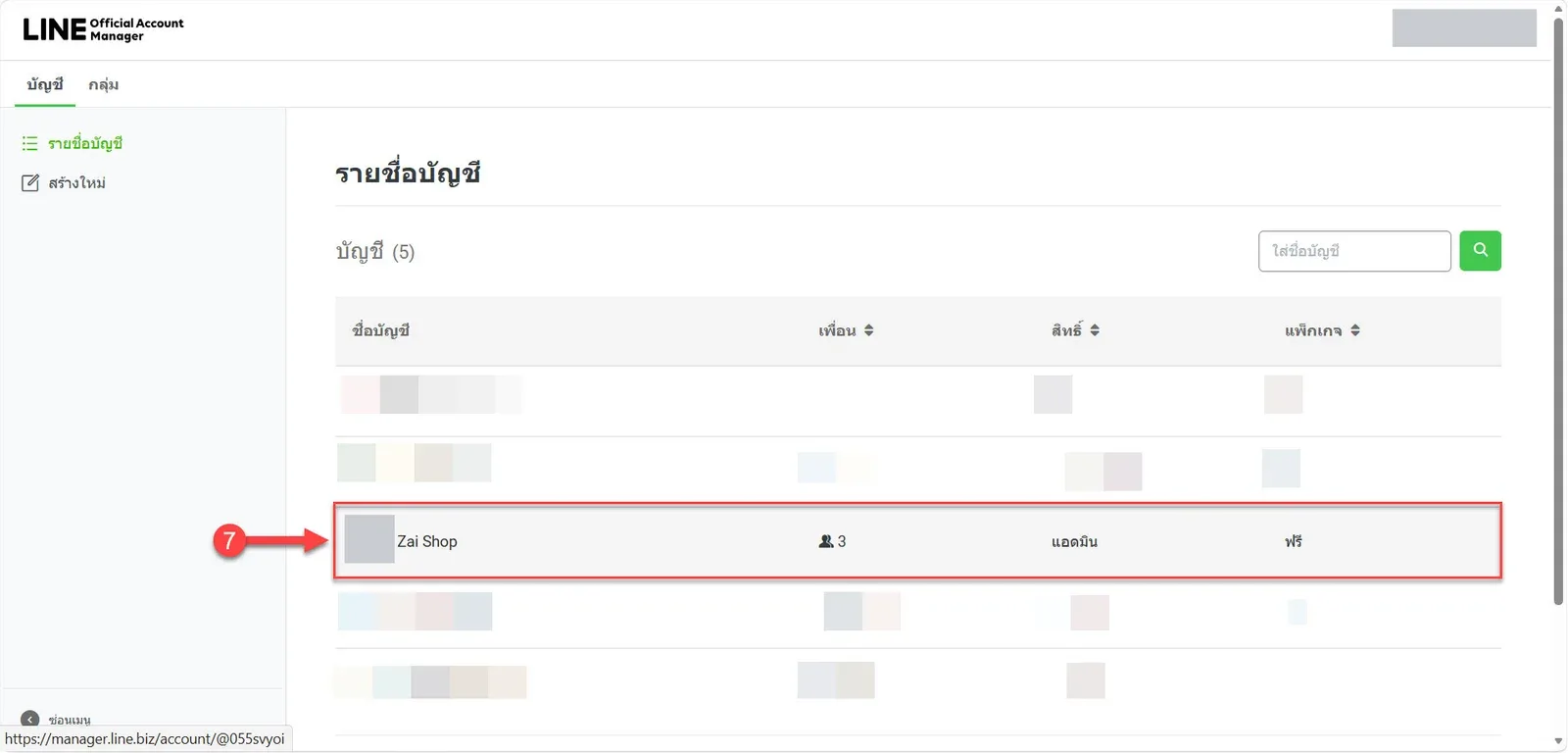
Choose the LINE OA account you want to connect to GoChat
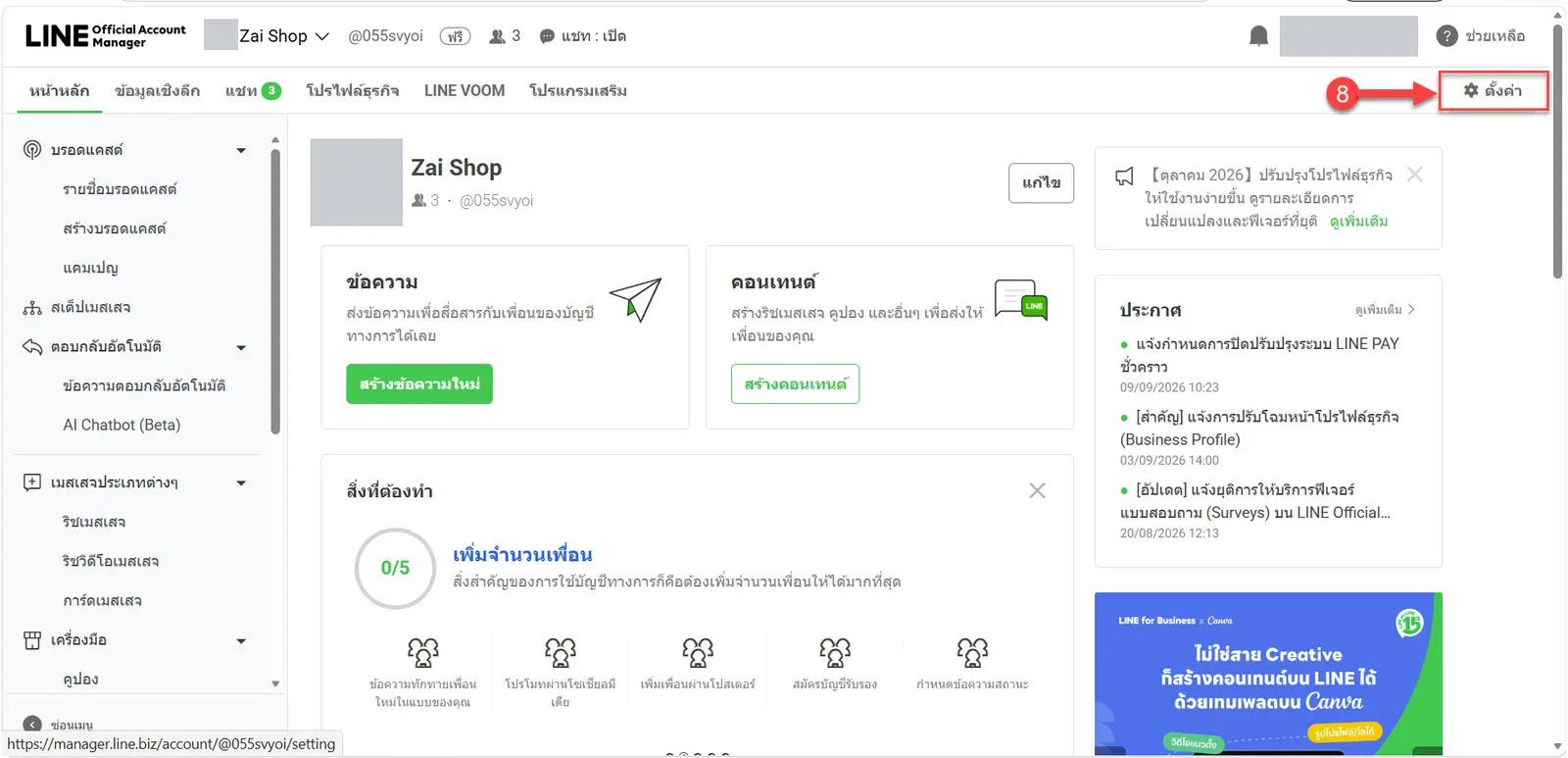
Go to การตั้งค่า (Settings)
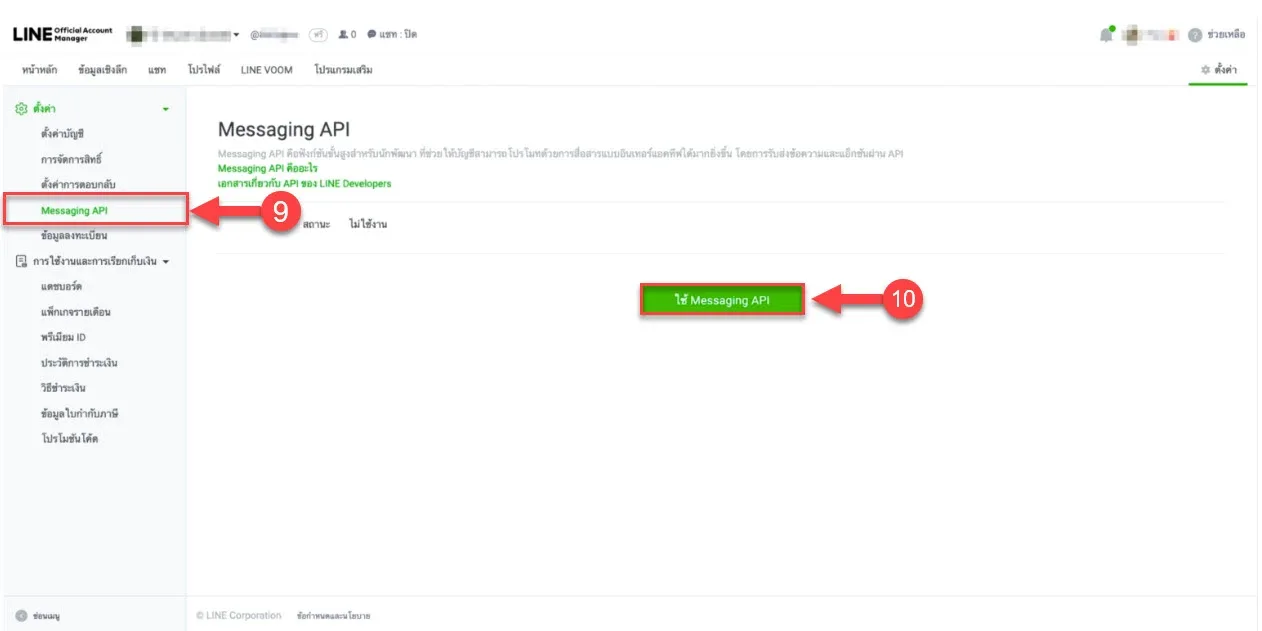
Turning on the Messaging API in LINE Official Account
If you have never turned on the Messaging API, follow steps 10–18. If your shop has already turned it on, skip to step 19.
Choose Messaging API
Click ใช้ Messaging API (Use Messaging API) to start
Enter the developer details: name and email
Click ยอมรับ (Agree)
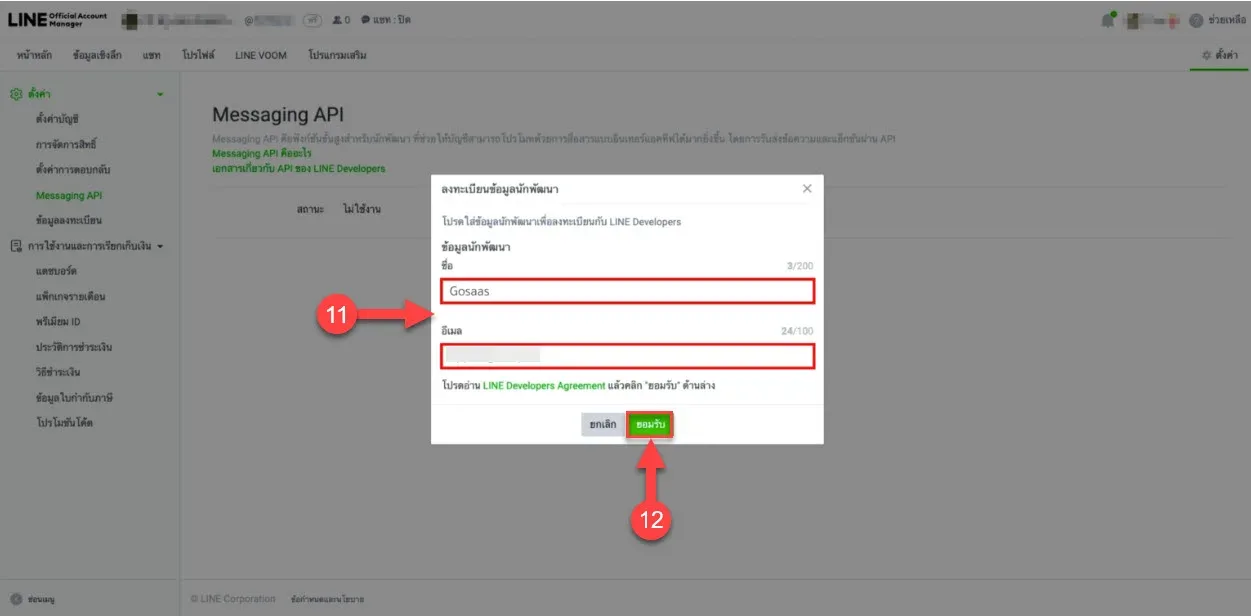
The system shows the developer registration details. Click ตกลง (OK)
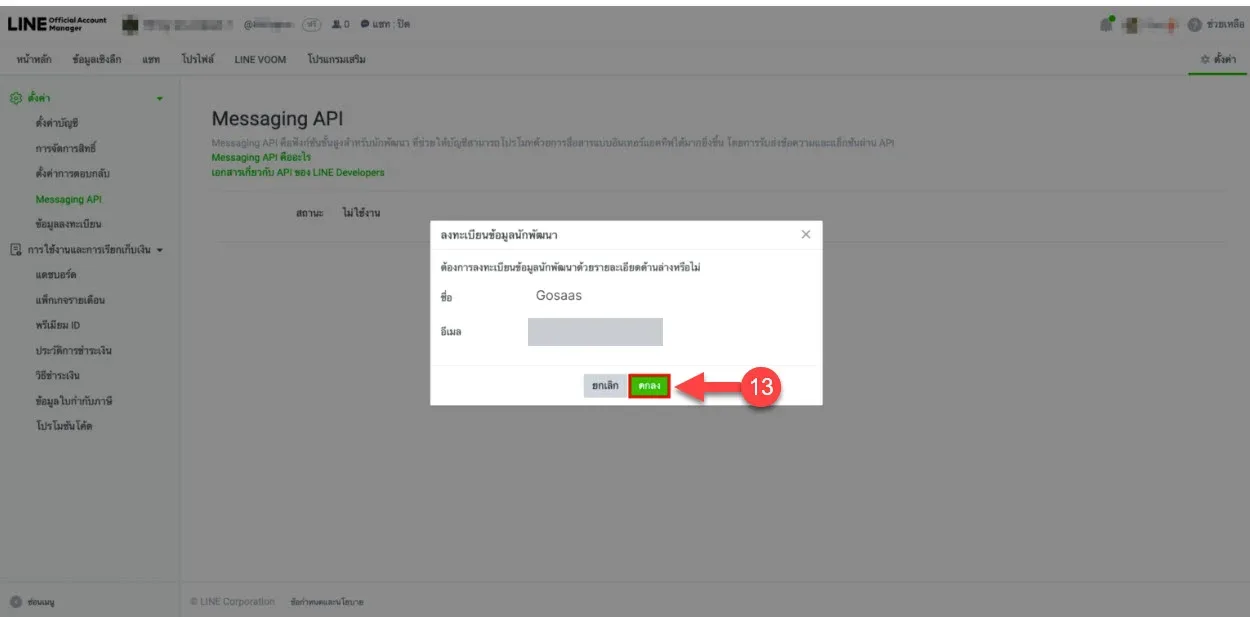
The system shows the privacy policy and terms of use. Nothing more is needed here; if nothing is required, click ตกลง (OK) to continue
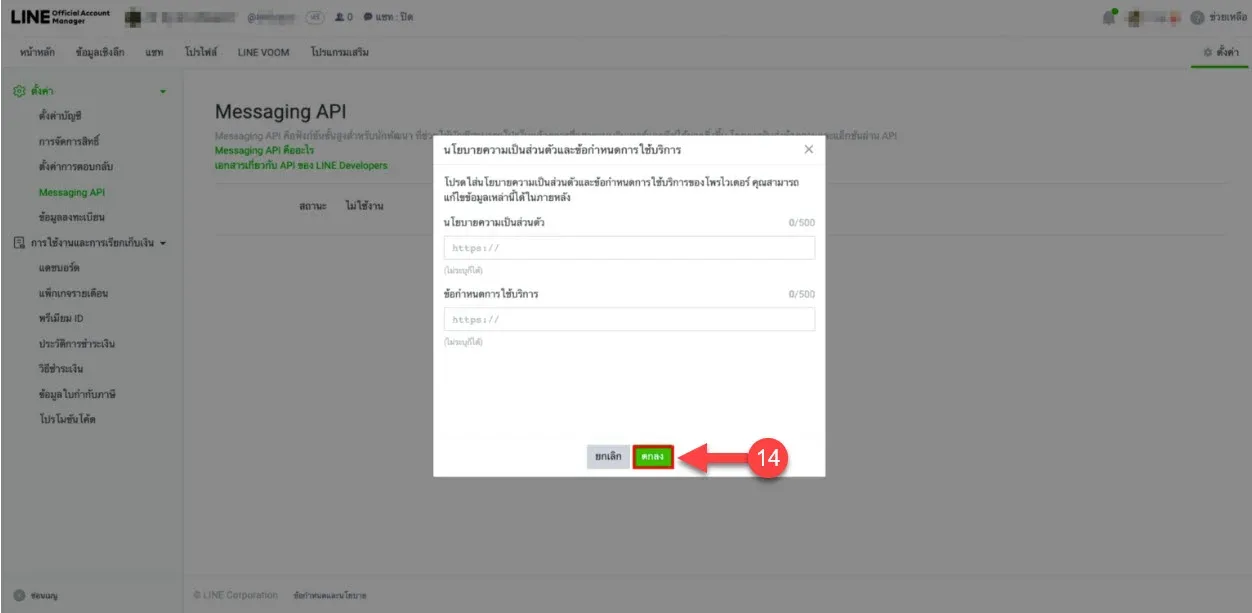
On the provider screen, enter a provider name (you can use your shop name)
Click ยอมรับ (Agree)
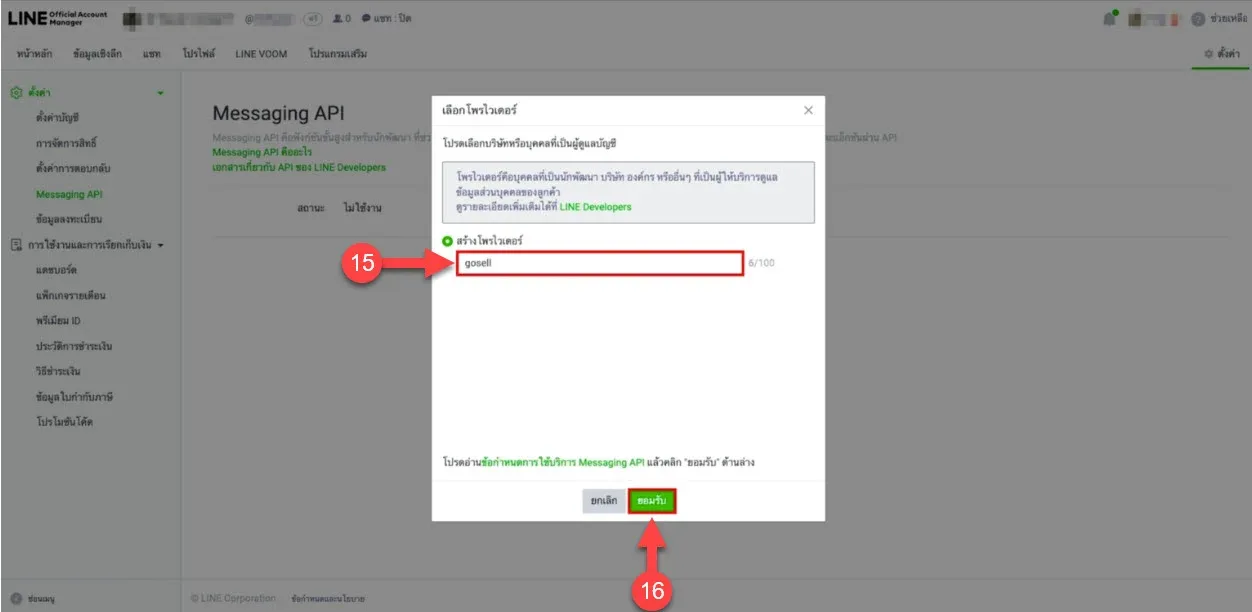
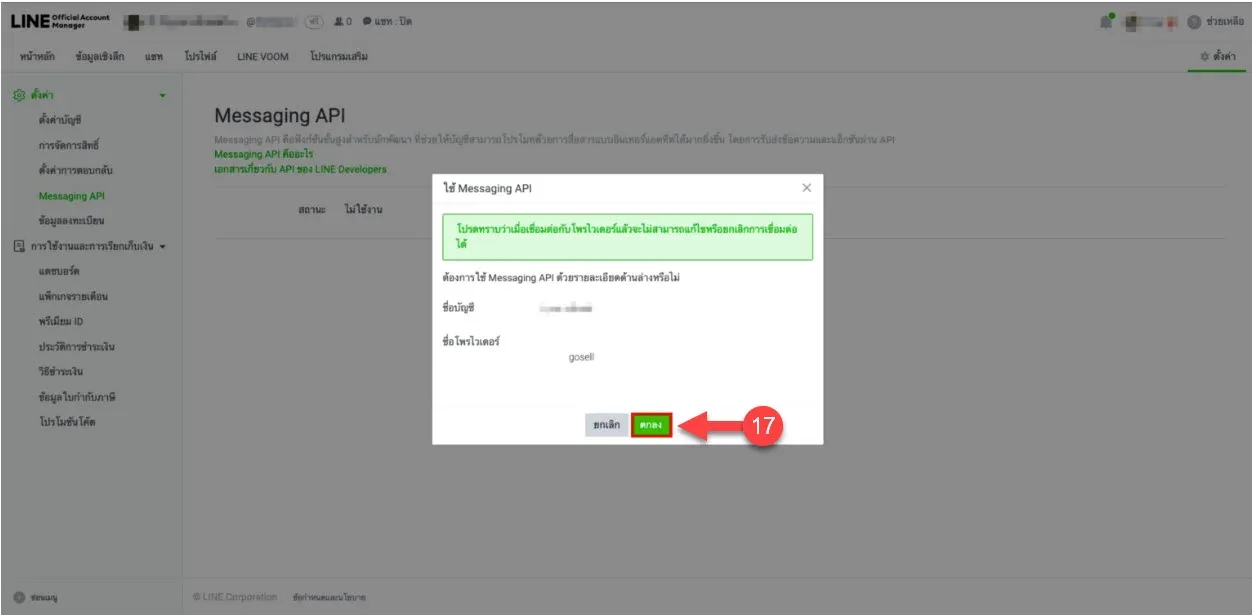
On the Use Messaging API screen, click ตกลง (OK) to confirm
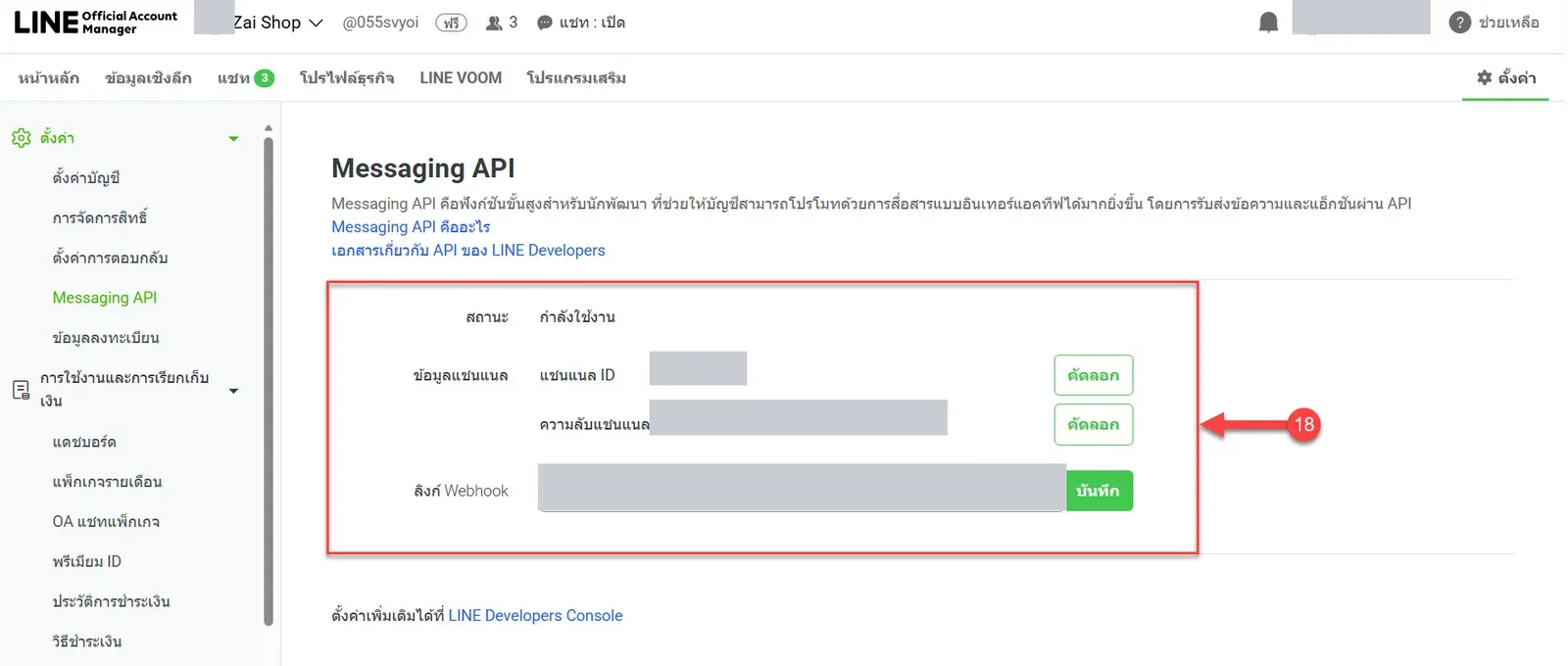
When it is on, the Messaging API page shows the Channel ID and Channel Secret
Entering the Messaging API details in GoChat
Once you have the Messaging API details, go back to the wizard in GoChat and click ถัดไป (Next) to go to step 2 กรอกค่าจาก LINE (Enter values from LINE)
Copy the Channel ID and Channel Secret from the Messaging API page into the Channel ID and Channel Secret fields in GoChat
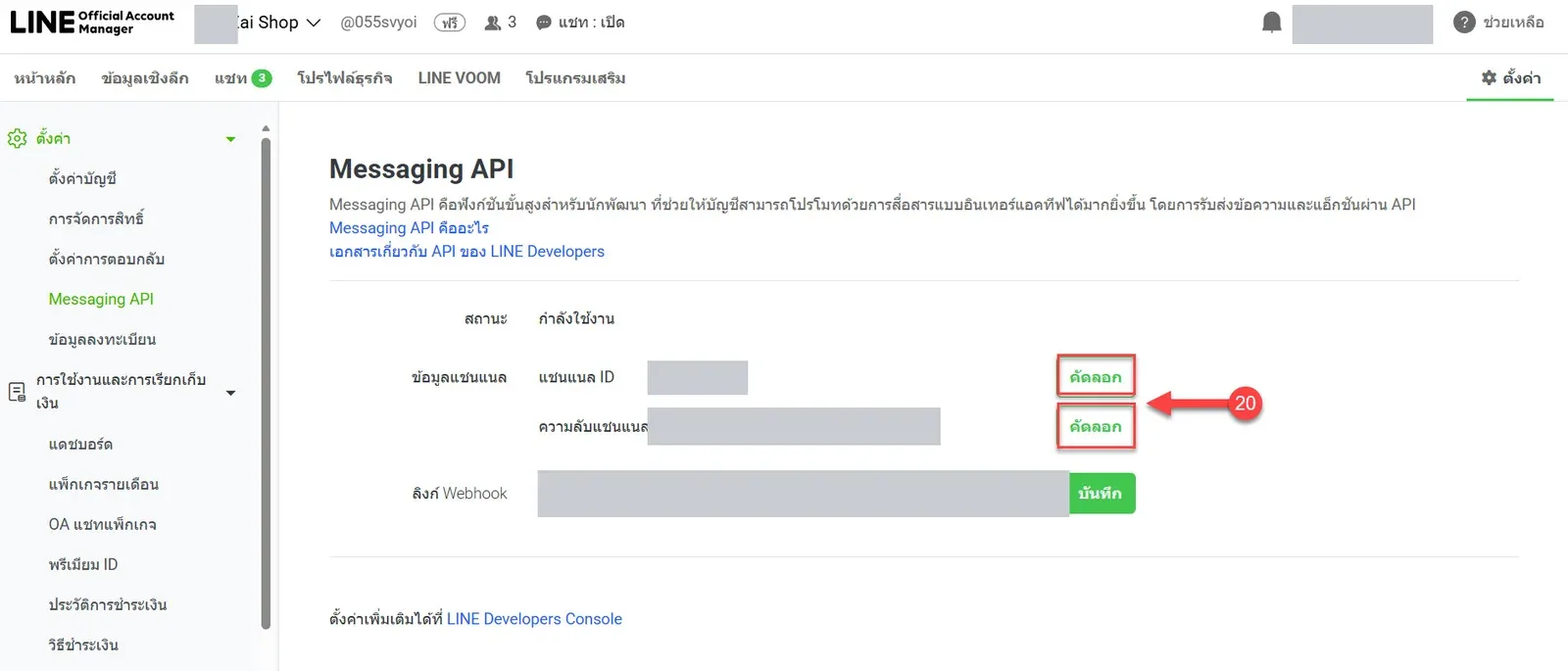
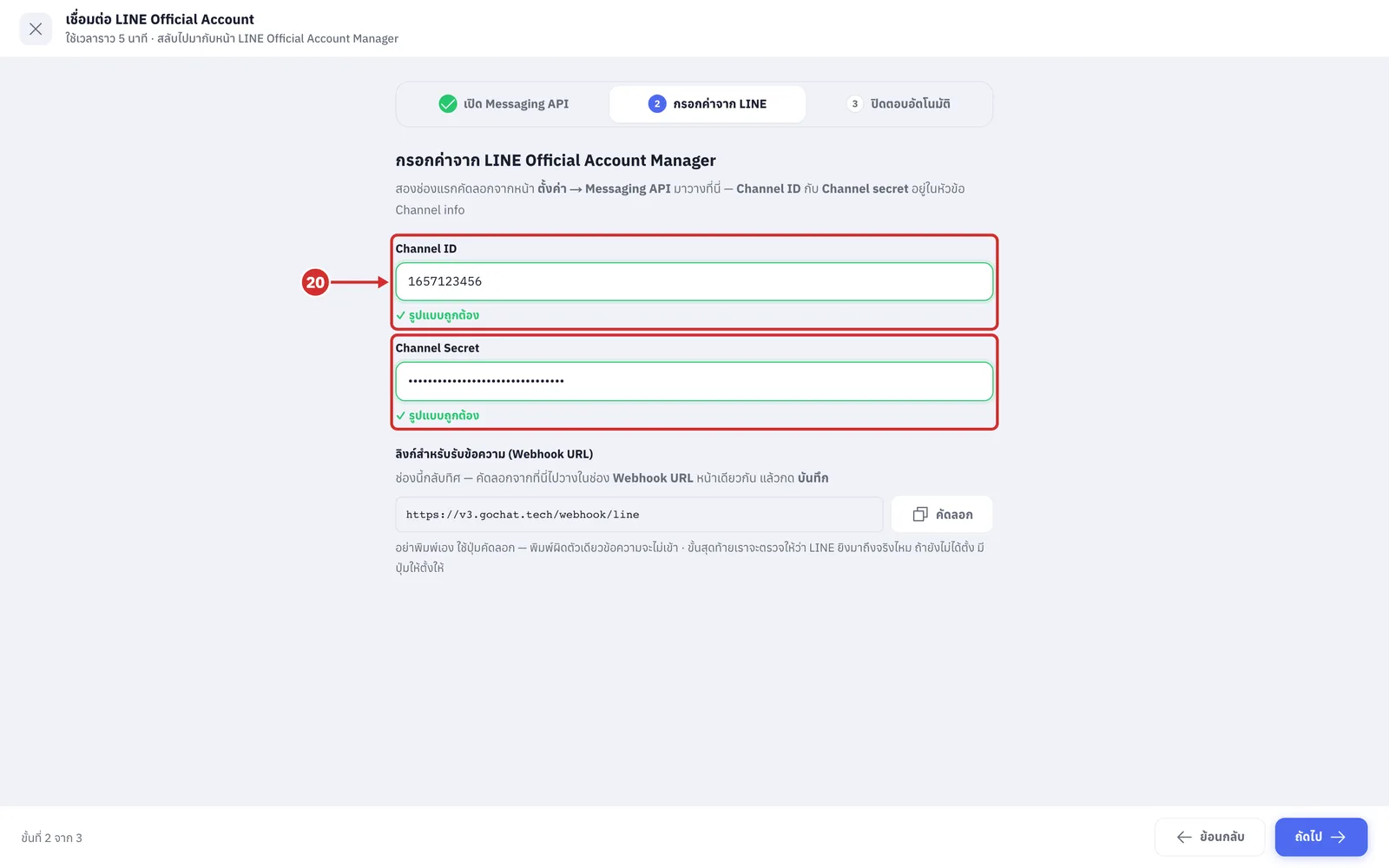
Channel ID is a 10-digit number
Channel Secret is 32 letters a-f and digits; it is used to check that incoming messages really come from LINE (the field shows dots so others cannot see it)
The system checks the format as soon as you paste. A correct value shows ✓ รูปแบบถูกต้อง (Format OK); a value that is too short shows ยังไม่ครบ — ได้มา N ตัว (Incomplete — got N characters) with the length needed; copy the whole value again
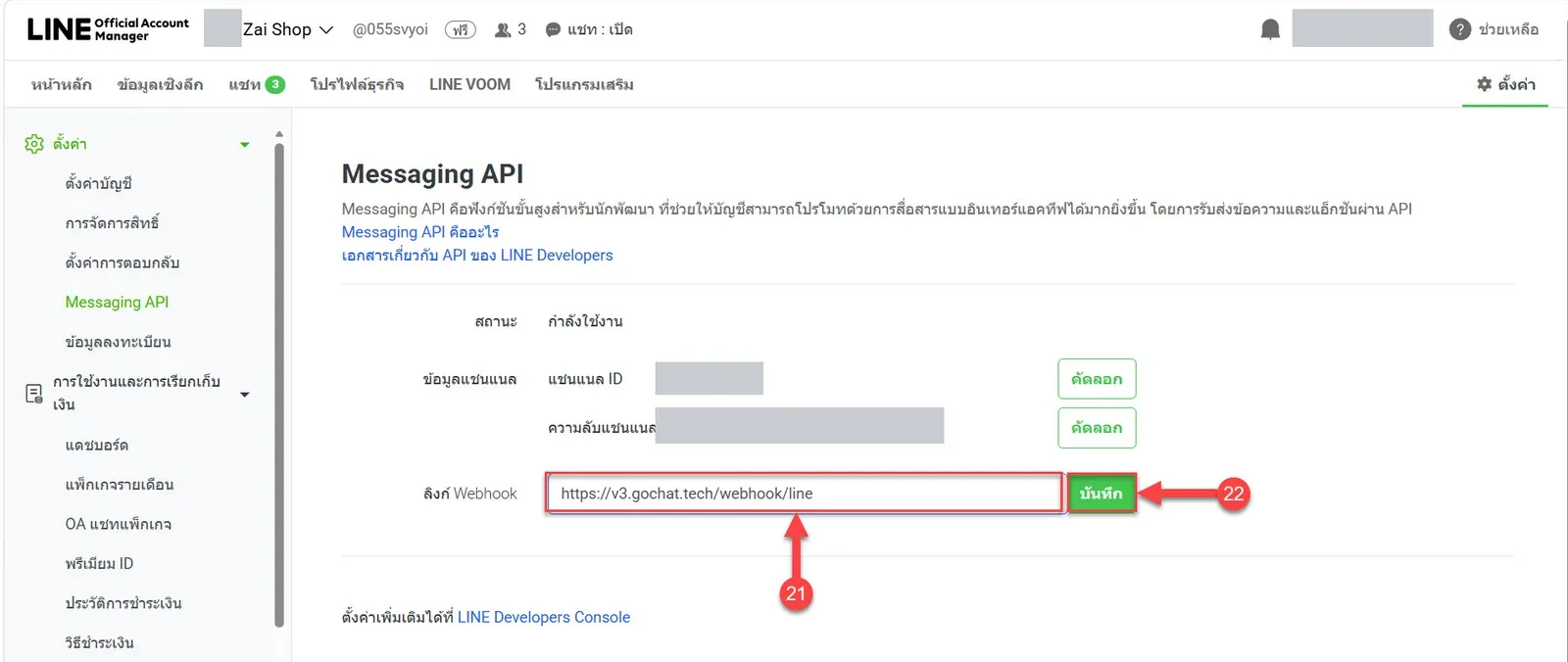
Under ลิงก์สำหรับรับข้อความ (Webhook URL) (Webhook URL) in GoChat, click คัดลอก (Copy) and paste the link into LINE OA under ลิงก์ Webhook (Webhook URL) (this one goes the other way from the first two fields: copy from GoChat into LINE. Do not type it yourself; one wrong character and messages will not arrive. After you click, the button shows คัดลอกแล้ว (Copied) for a moment)
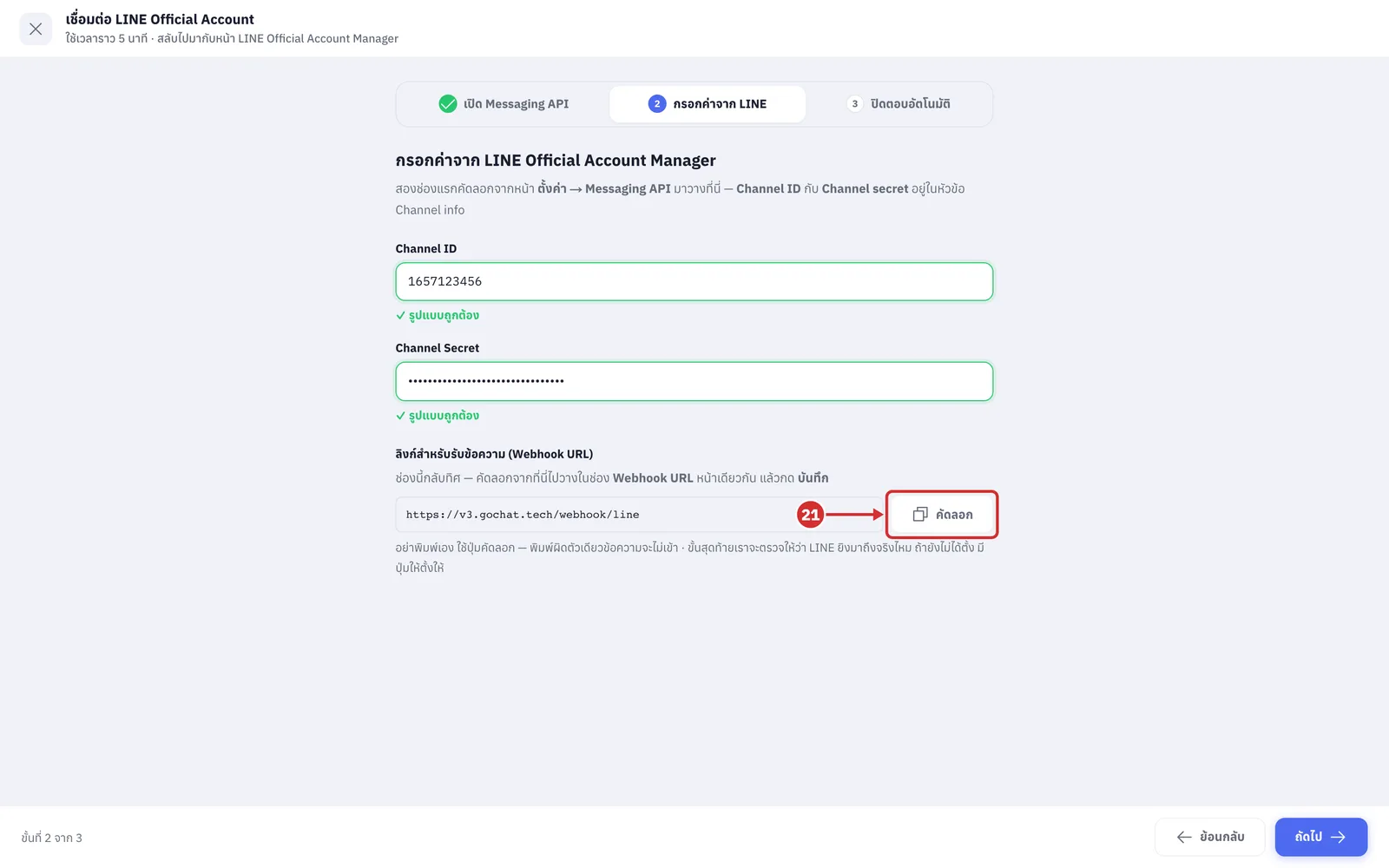
Check everything, then click บันทึก (Save)
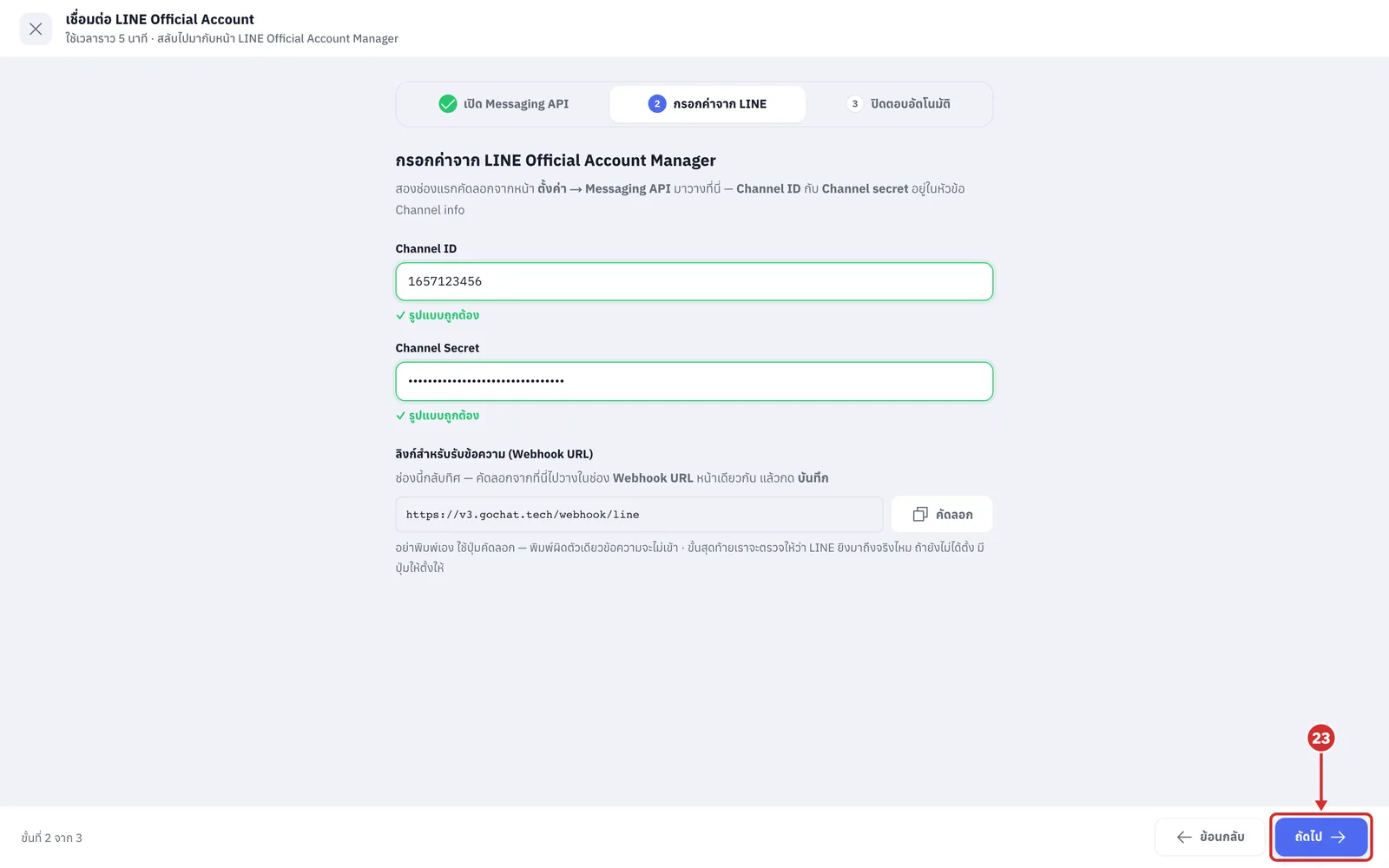
Go back to GoChat and click ถัดไป (Next) to go to step 3 ปิดตอบอัตโนมัติ (Turn off auto-reply) (click ย้อนกลับ (Back) to fix a value; what you entered is kept)
Turn off LINE Official Account's own automatic replies, Auto-reply messages (in LINE, under Response) and Greeting messages (the greeting when a customer adds you as a friend), then tick both items in the wizard
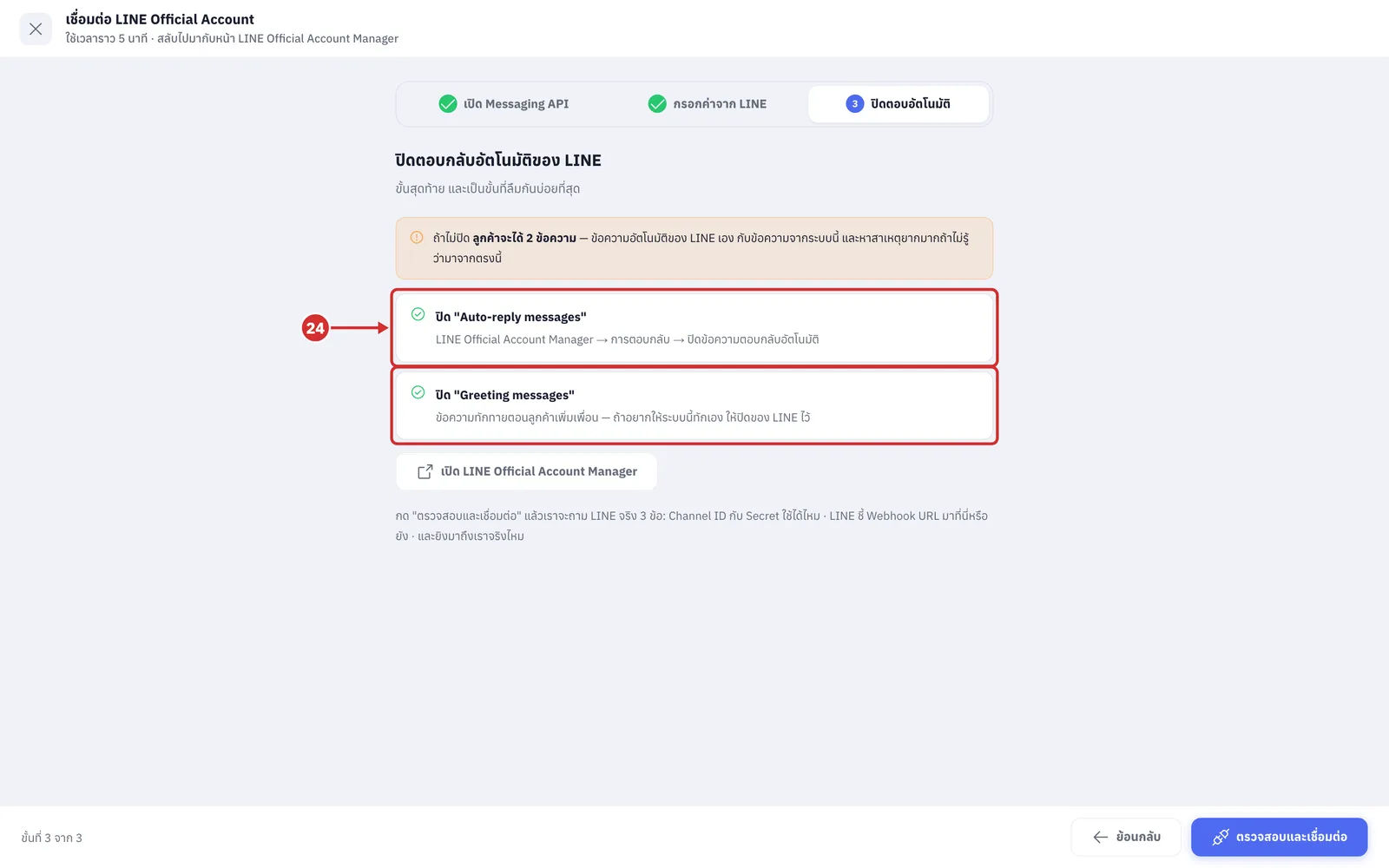
The orange box warns that if you do not turn them off, ลูกค้าจะได้ 2 ข้อความ (customers get 2 messages): LINE's own automatic message and the one from GoChat (GoChat already sends automatic replies and welcome messages)
Ticking confirms you have done it; GoChat cannot read these two settings from LINE, so you can continue without ticking. A เปิด LINE Official Account Manager (Open LINE Official Account Manager) button lets you go and turn them off from this step
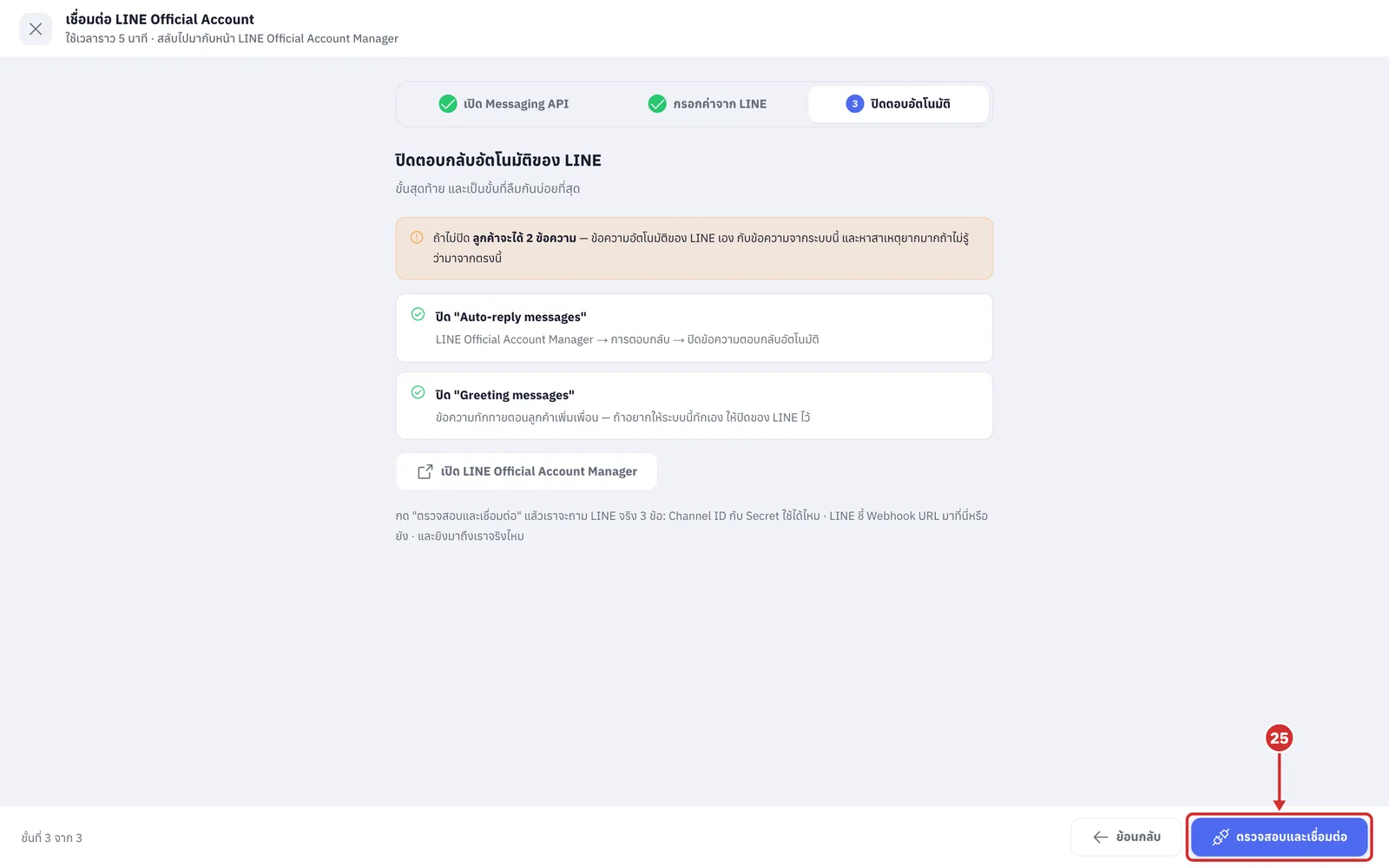
When everything is set, click ตรวจสอบและเชื่อมต่อ (Check and connect). The system asks LINE 3 things: do the Channel ID and Secret work, does LINE point its Webhook URL to GoChat, and does a test message from LINE actually arrive (while it checks, the button shows กำลังตรวจ… (Checking…))
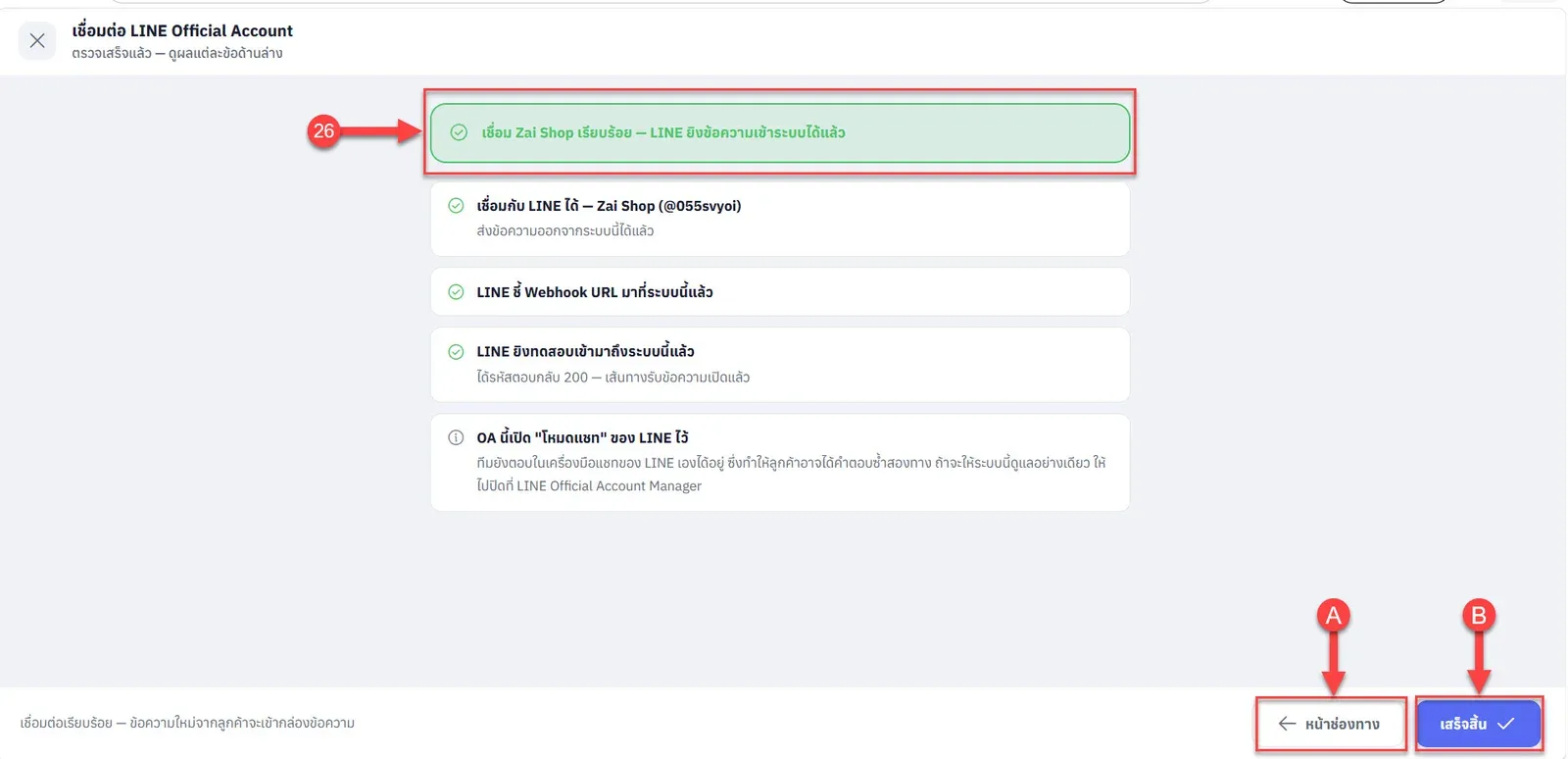
When the connection succeeds, the system shows เชื่อม (account name) เรียบร้อย — LINE ยิงข้อความเข้าระบบได้แล้ว (account connected — LINE can now send messages to the system) with a tick for each check, and the bottom says เชื่อมต่อเรียบร้อย — ข้อความใหม่จากลูกค้าจะเข้ากล่องข้อความ (Connected — new customer messages will arrive in the inbox). You can then choose:
A หน้าช่องทาง (Channels page) to go back to the Chat channels page
B เสร็จสิ้น (Done) to go back to the Chat channels page with a result bar and the new account's card highlighted (see step 27)
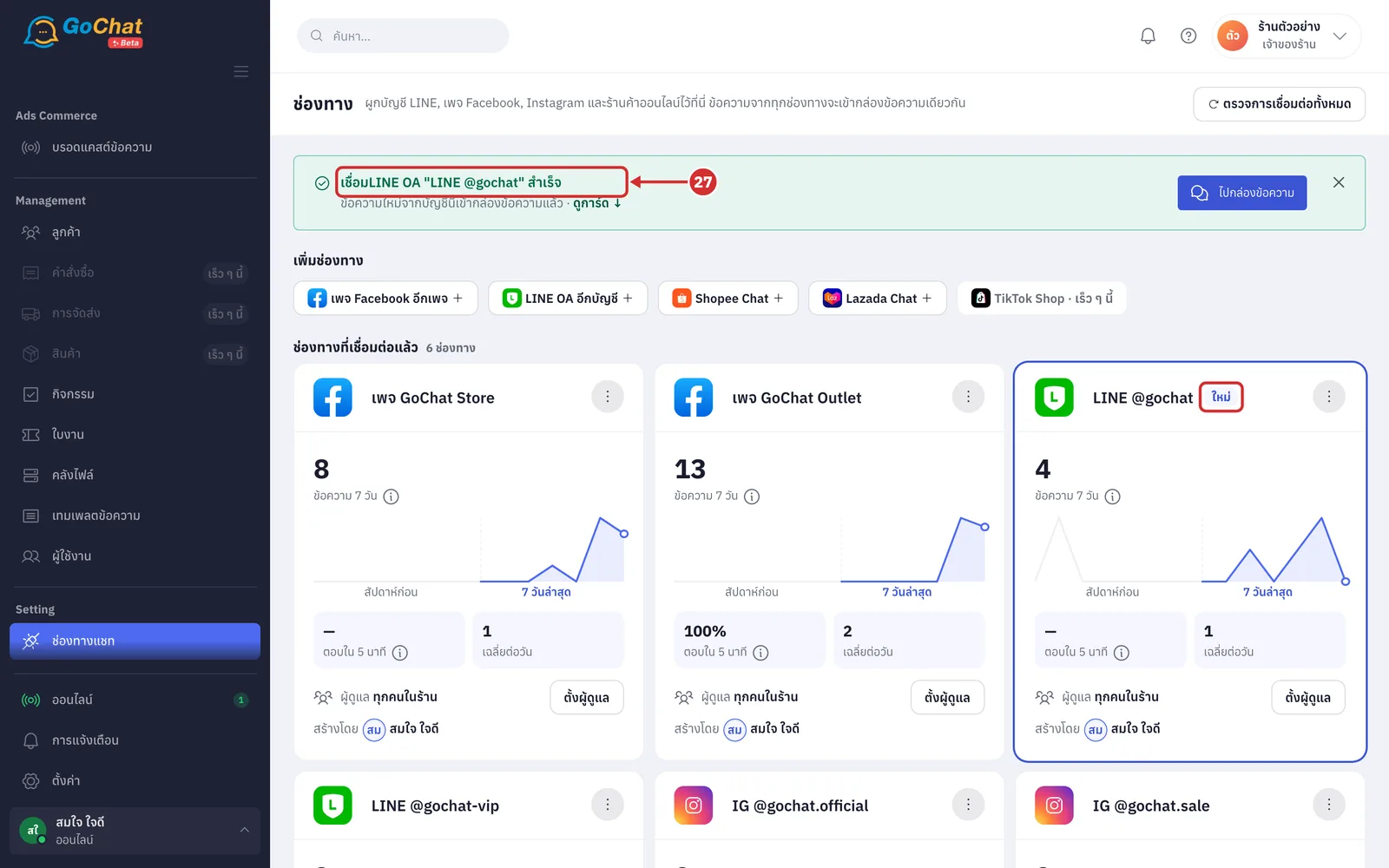
After you click เสร็จสิ้น (Done), the ช่องทาง (Channels) page shows เชื่อมLINE OA "account name" สำเร็จ (LINE OA connected), saying new messages from this account now arrive in the inbox, and the account's card has a ใหม่ (New) label. Click ไปกล่องข้อความ (Go to inbox) to start replying to customers
If some checks still need fixing
If the Channel ID and Channel Secret work but another check fails, the system keeps the account and shows เก็บ (account name) ไว้แล้ว แต่ยังมี N ข้อที่ต้องแก้ก่อนข้อความจะเข้า (account saved, but N items need fixing before messages arrive). Each failed check has a cross and its own fix. Meanwhile the account's card on the Channels page shows ต้องเชื่อมต่อใหม่ (Needs reconnecting).
Read the failed checks and fix each one
A Channel ID หรือ Channel Secret ใช้ไม่ได้ (Channel ID or Channel Secret does not work) usually means a value was copied only partly, or someone clicked Reissue on the Channel secret. Copy both values again from the Messaging API page (when this check fails, the account is not saved yet)
B ยังไม่ได้ตั้ง Webhook URL ที่ LINE (Webhook URL not set in LINE) or Webhook URL ที่ LINE ชี้ไปที่อื่น ไม่ใช่ระบบนี้ (LINE's Webhook URL points somewhere else) — redo steps 21–22, or click ตั้ง Webhook URL ให้อัตโนมัติ (Set the Webhook URL for me) on the result screen (if the LINE OA currently points to another system, setting it stops that system receiving messages immediately; if you are not sure what that system is, do not click)
C URL ถูกต้องแล้ว แต่สวิตช์ "Use webhook" ยังปิดอยู่ (URL is correct but the "Use webhook" switch is off) — turn on Webhook in LINE Official Account Manager → Settings → Response settings
D LINE ยิงทดสอบมาแล้วแต่ไม่ถึงระบบนี้ (LINE sent a test but it did not reach this system) — the response code is shown under it. Click ตรวจสอบและเชื่อมต่อ (Check and connect) again; if it still fails, contact the team with the text of that item
E OA นี้เปิด "โหมดแชท" ของ LINE ไว้ (This OA has LINE's chat mode on) is a warning and does not stop the connection. Your team can still reply in LINE's own chat tool, so customers may get answers twice; to let GoChat handle chats alone, turn it off in LINE Official Account Manager
Click กลับไปแก้ค่าที่กรอก (Go back and fix the values) to return to กรอกค่าจาก LINE (Enter values from LINE) with your values kept, then click ตรวจสอบและเชื่อมต่อ (Check and connect) again (or fix it in LINE, then click ⋮ → ตรวจการเชื่อมต่อ (Check connection) on the account's card on the Channels page without restarting the wizard; see Managing chat channels)
Note: Messages your shop sends from GoChat count toward the message quota of the LINE OA package your shop bought from LINE (packages with a quota show how much is used on the โควตา LINE (LINE quota) bar on the card on the Channels page). With LINE OA you can reply to customers at any time; there is no limit on how many hours after the customer's message you can reply.