

Logging in for the first time
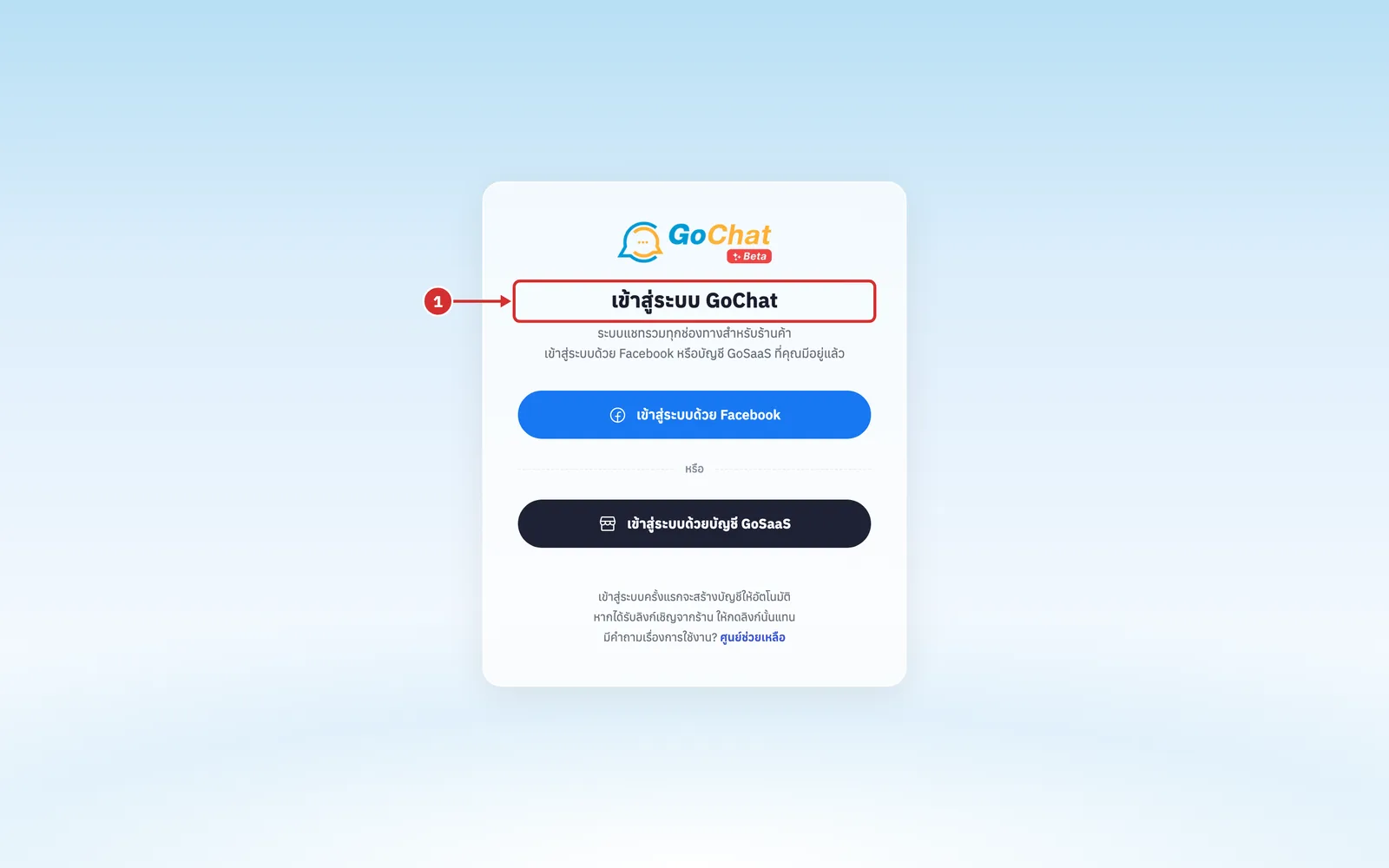
The เข้าสู่ระบบ GoChat (Log in to GoChat) page is how you sign in to your shop's all-channel chat. There are 2 ways in, and your account is created automatically the first time you log in.
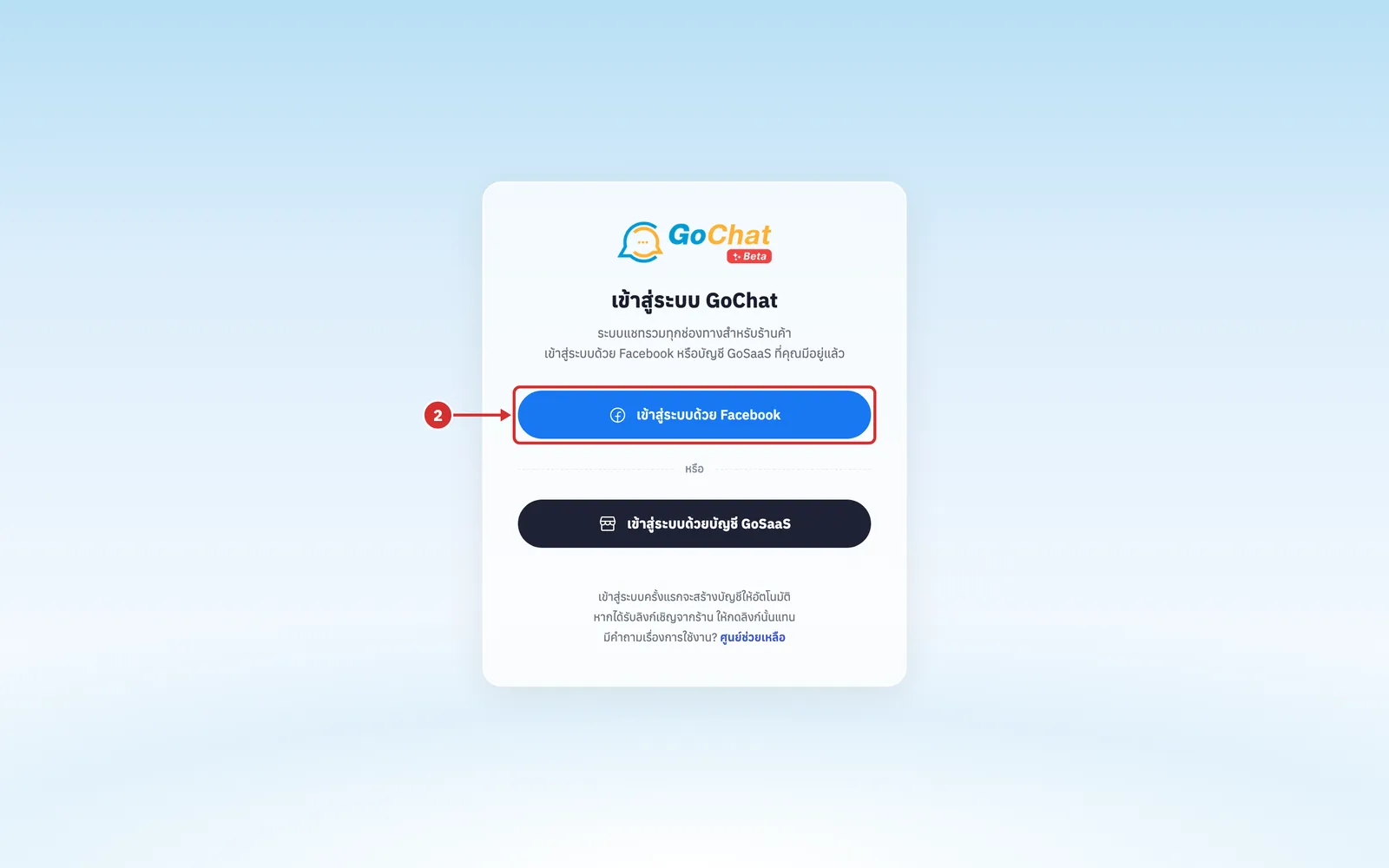
Way 1: เข้าสู่ระบบด้วย Facebook (Log in with Facebook) to open a new shop in GoChat yourself. The new shop starts a ทดลองใช้ (Trial) right away (see steps 2–6).
Way 2: เข้าสู่ระบบด้วยบัญชี GoSaaS (Log in with a GoSaaS account) for shops you already have in GoSaaS; you then choose which shops to connect to GoChat. People with the Owner role for the shop in GoSaaS become the เจ้าของร้าน (Shop owner) in GoChat; other roles become แอดมิน (Admin) (the shop owner can change roles later in the ผู้ใช้งาน (Users) menu) (see steps 7–14).
Open the GoChat website. The system shows the เข้าสู่ระบบ GoChat (Log in to GoChat) page with the เข้าสู่ระบบด้วย Facebook (Log in with Facebook) and เข้าสู่ระบบด้วยบัญชี GoSaaS (Log in with a GoSaaS account) buttons (the bottom of the page has a ศูนย์ช่วยเหลือ (Help center) link to the user guide)
Logging in with Facebook and opening a new shop
Click เข้าสู่ระบบด้วย Facebook (Log in with Facebook)
The system takes you to a Facebook page to log in with your Facebook account and allow GoChat to use your account details. After you confirm, the system brings you back to GoChat automatically (if this account already has a shop in GoChat, the system takes you into the shop and opens the ข้อความ (Messages) page right away)
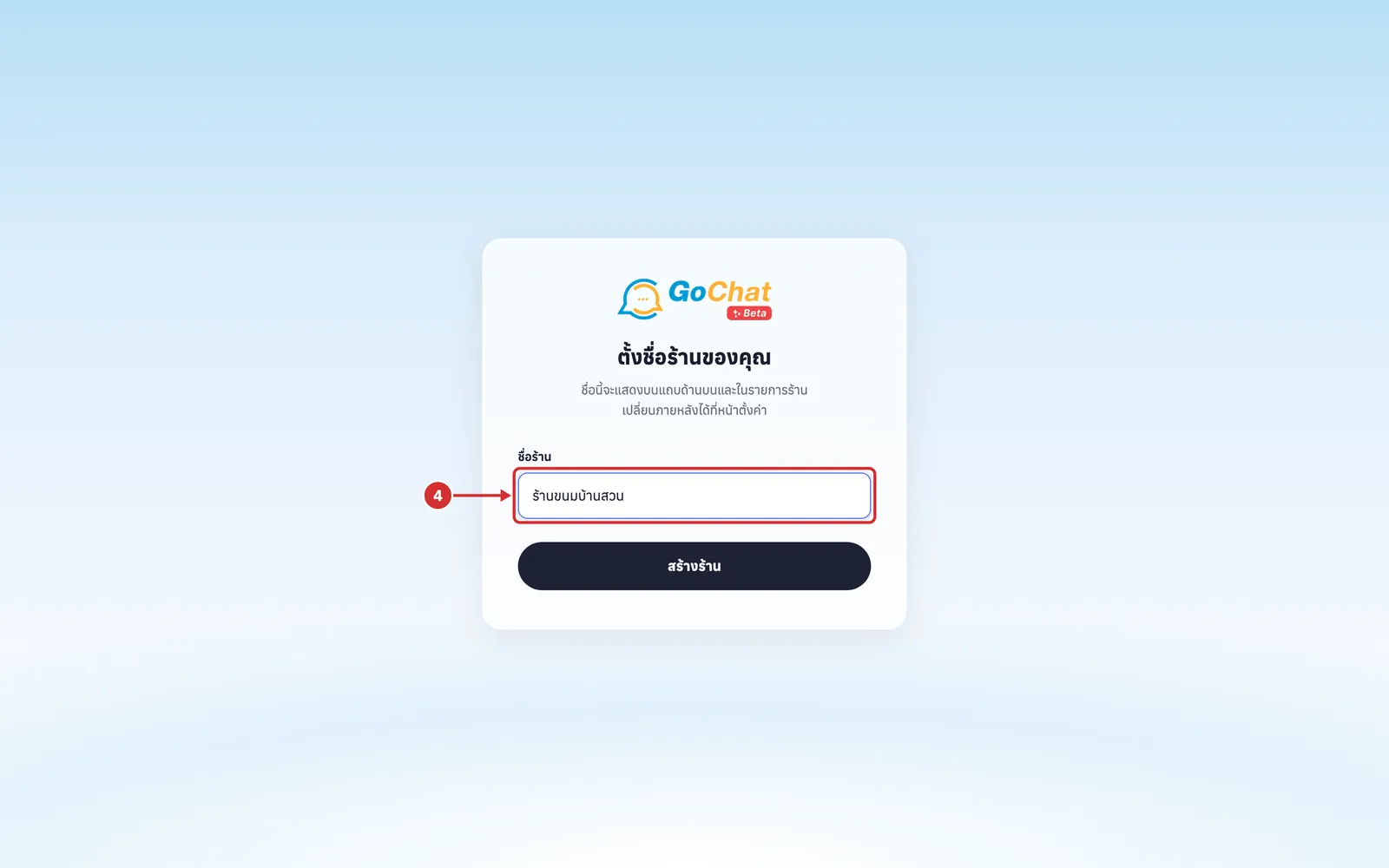
The first time you log in, the system shows the ตั้งชื่อร้านของคุณ (Name your shop) page. In ชื่อร้าน (Shop name), type your shop name, up to 60 characters (this name shows on the top bar and in the shop list; you can change it later in Settings)
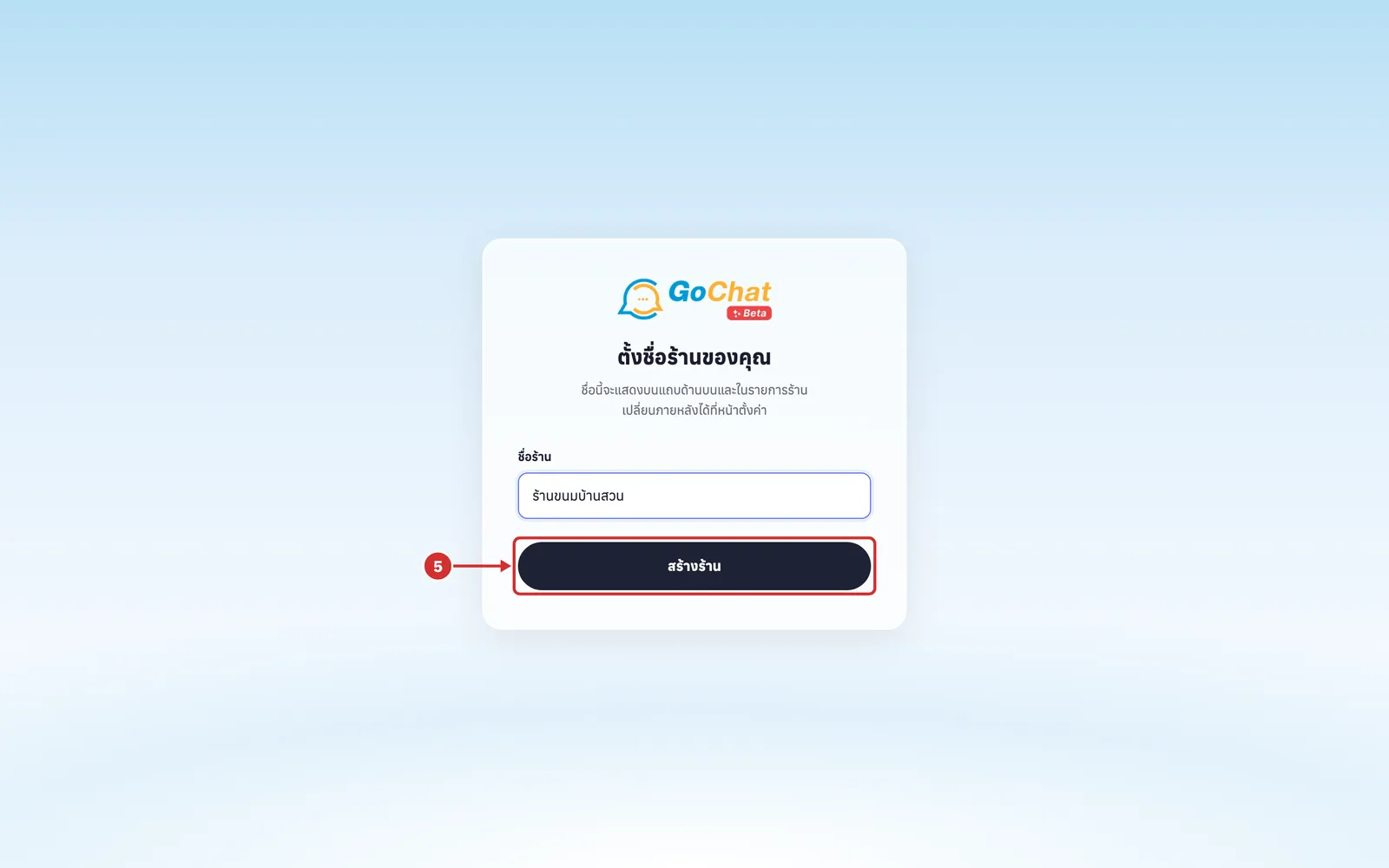
Click สร้างร้าน (Create shop) (while creating, the button shows กำลังสร้างร้าน… (Creating shop…); if it fails, the system shows the reason under the field, such as กรุณาตั้งชื่อร้าน ความยาวไม่เกิน 60 ตัวอักษร (Please name your shop, up to 60 characters))
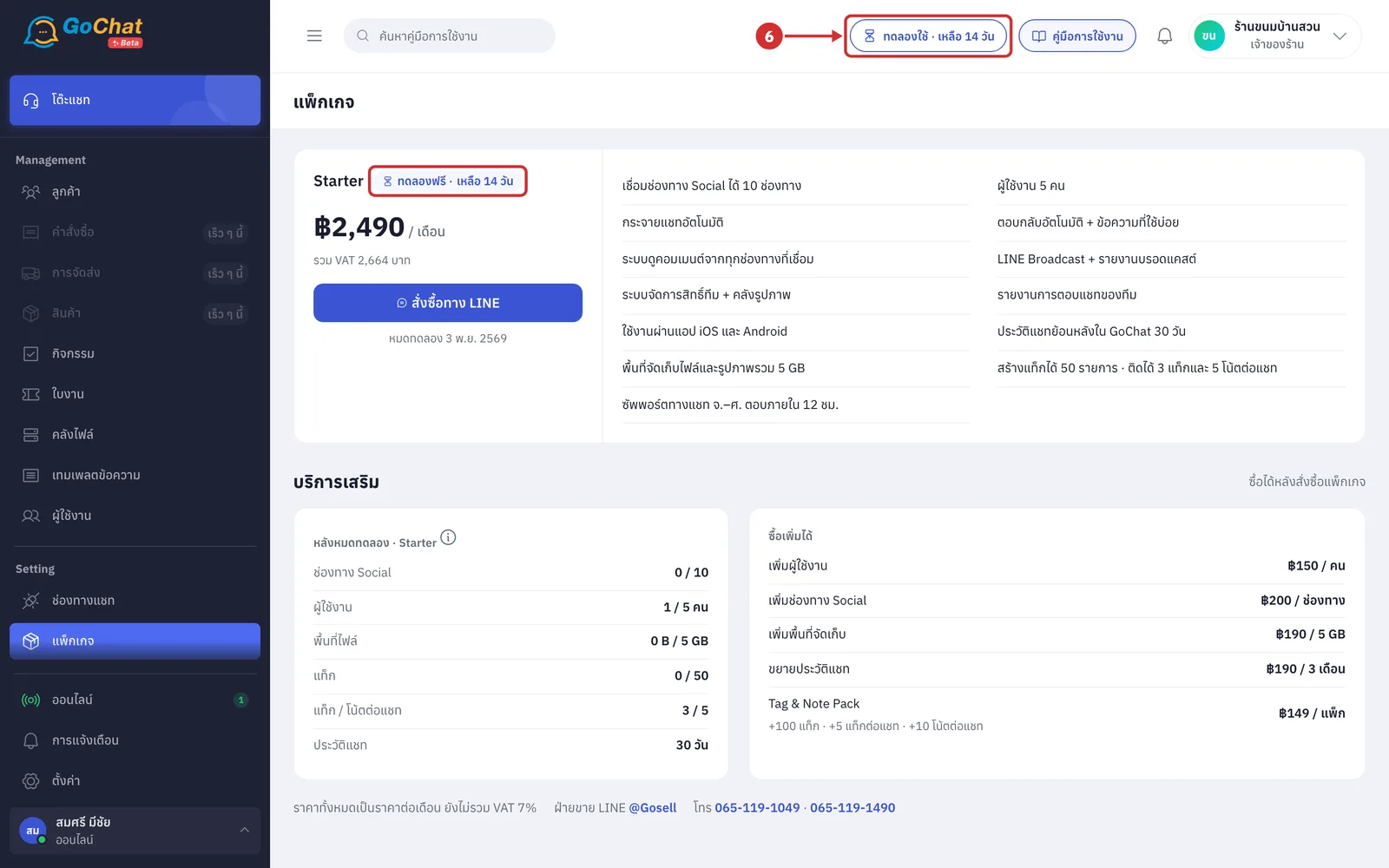
The new shop starts a ทดลองใช้ (Trial) right away and the system takes you to the แพ็กเกจ (Package) page. The Starter card shows a ทดลองฟรี · เหลือ … วัน (Free trial · N days left) label and the trial end date; when you are ready to buy, click สั่งซื้อทาง LINE (Order via LINE) to contact sales. The top bar shows the ทดลองใช้ · เหลือ … วัน (Trial · N days left) label; click it to come back to the Package page any time. Next, connect a channel to receive messages (see Managing chat channels)
Logging in with a GoSaaS account
Click เข้าสู่ระบบด้วยบัญชี GoSaaS (Log in with a GoSaaS account)
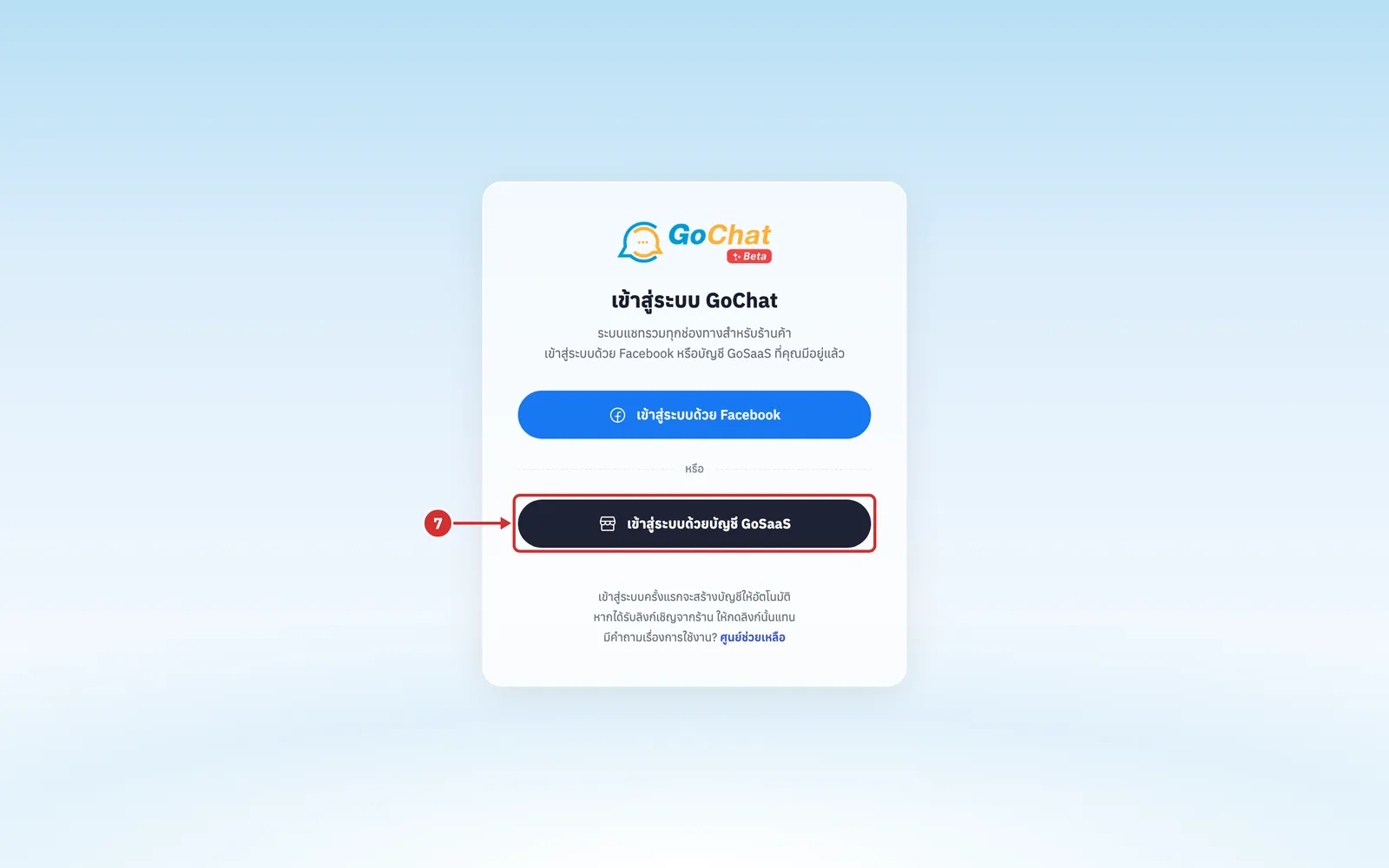
The system takes you to a GoSaaS page to log in with your GoSaaS account. After you log in, the system brings you back to GoChat automatically (if login fails, the system brings you back to the เข้าสู่ระบบ GoChat (Log in to GoChat) page with a message explaining why, such as ลิงก์เชื่อมต่อหมดอายุ กรุณากดเข้าสู่ระบบใหม่ (The connection link has expired, please log in again))
Choosing the shops to connect (GoSaaS account)
The first time you log in, the system shows the เลือกร้านที่ต้องการเชื่อมต่อ (Choose the shops to connect) page, with the name and email of the account you logged in with under the heading (if this account already has a shop in GoChat, or someone in your shop has already connected a shop you have access to in GoSaaS, the system takes you into the shop and opens the ข้อความ (Messages) page right away without asking you to choose · click กลับไปหน้าเข้าสู่ระบบ (Back to login) at the top to go back)
If you have more than 8 shops, type a shop name or shop code in ค้นหาชื่อร้านหรือรหัสร้าน (Search shop name or shop code) to find a shop (shops you ticked before searching stay selected)
Under ร้านของคุณ (Your shops), tick the shops you want to connect, up to 20 shops at a time (the list shows every shop this account can access in GoSaaS; each row shows the shop name, shop code and your role in GoSaaS, and the right side of the heading shows how many shops you have selected. When you reach 20 shops, the system shows เลือกได้ครั้งละไม่เกิน 20 ร้าน (Up to 20 shops at a time); connect this batch first and add the rest later)
Click เชื่อมต่อ … ร้าน (Connect N shops) (the button shows the number of shops selected; if no shop is selected it shows เลือกอย่างน้อยหนึ่งร้าน (Select at least one shop) and cannot be clicked; while connecting it shows กำลังเชื่อมต่อ… (Connecting…))
The system shows the เชื่อมต่อร้านเรียบร้อย (Shops connected) page with the message เชื่อมต่อสำเร็จ … ร้าน (Connected N shops) and the list of connected shops (if some shops cannot be connected, the system shows เชื่อมต่อไม่ได้ … ร้าน (Could not connect N shops) with the reason for each shop; the shops that connected work as usual)
A newly connected shop has no channel to receive messages yet, so the system shows the ยังไม่มีช่องทางที่รับข้อความ (No channel receiving messages yet) box. You can then choose:
A ไปเชื่อมช่องทางรับข้อความ (Connect a channel to receive messages) to connect a Facebook page, LINE or Instagram so customer messages reach your inbox (see Managing chat channels)
B ข้ามไปก่อน เข้าหน้าภาพรวมร้านค้า (Skip for now, go to Store overview)
Connecting more GoSaaS shops later
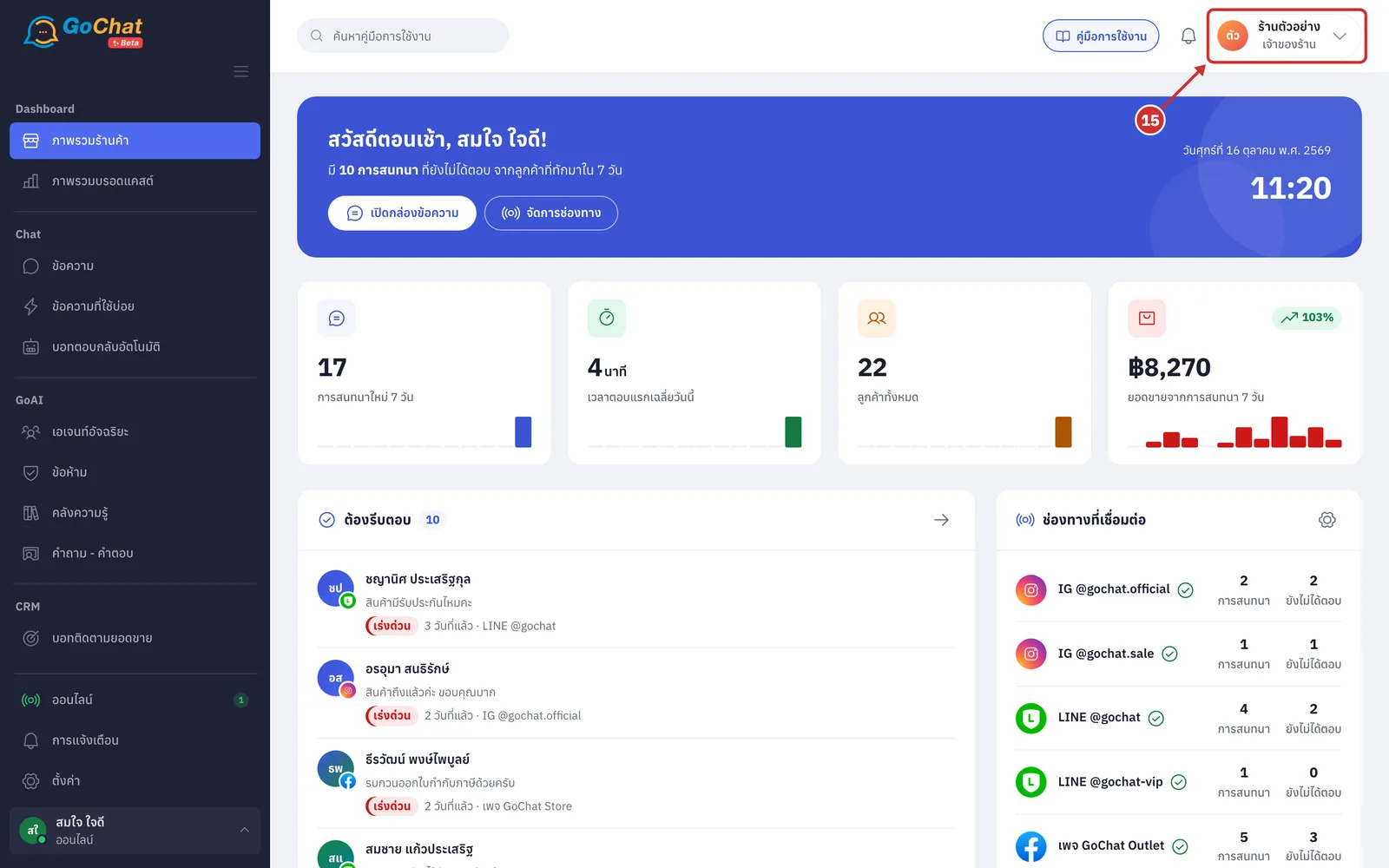
Once you are in, click the shop menu at the top right (it shows the shop name and your role in the shop that is open)
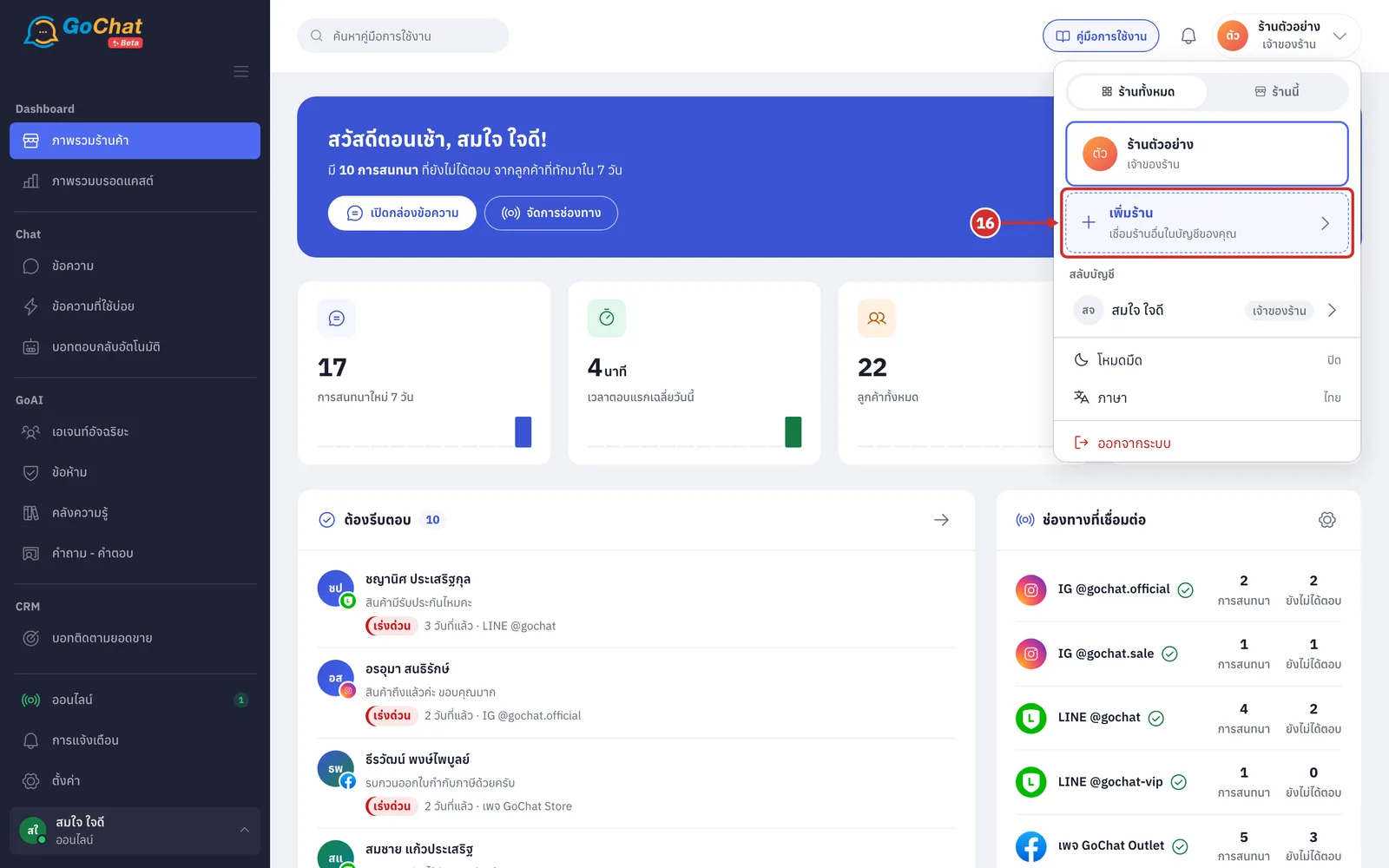
On the ร้านทั้งหมด (All shops) tab, choose เพิ่มร้าน (Add shop — connect another shop in your account). The system takes you to the เลือกร้านที่ต้องการเชื่อมต่อ (Choose the shops to connect) page; then continue with steps 10–13 (the system may first take you to confirm with GoSaaS again and then bring you back to the shop selection page · shops already connected show the เชื่อมแล้ว (Connected) label and cannot be selected again · when you have several shops connected, they appear under สลับร้าน (Switch shop) in this menu; click one to switch to it)
Note: If you received an invite link to join a shop, open that link first, then log in with Facebook; the system shows the name of the shop that invited you, then click ยืนยันเข้าร้าน (Join shop) (the Log in with a GoSaaS account button does not use invite links) · Shops opened with Facebook have a trial; shops connected from GoSaaS have no trial and use the shop's package in GoSaaS · If the shop list shows ไม่พบร้านที่คุณมีสิทธิ์เข้าใช้งาน (No shops you can access), ask the shop owner to invite you to the shop in GoSaaS first, then log in again. The shop selection page works for 30 minutes after you log in; after that the system shows การเชื่อมต่อหมดอายุแล้ว กรุณากดเข้าสู่ระบบด้วยบัญชี GoSaaS ใหม่อีกครั้ง (The connection has expired, please log in with your GoSaaS account again)