

Managing chat files and trash
The ไฟล์ในแชท (Chat files) tab on the ไดรฟ์ (Drive) page lets you find the images and videos customers sent you, or your shop sent out, across every chat in one place, without scrolling through each chat, such as a transfer slip a customer sent several weeks ago. You can also keep important images in the shop drive before they expire. The ถังขยะ (Trash) tab lets you restore files deleted by mistake, or delete files permanently to free up space.
Everyone in the shop can keep files in the drive, stop keeping them, restore and delete files permanently. The ไฟล์ในแชท (Chat files) tab only shows files from chats you are allowed to see. The number cards at the top of the page and managing files in the ไดรฟ์ของร้าน (Shop drive) tab are explained in Managing the shop file drive.
How chat files are kept
Images and videos sent in chats are kept for 90 days, whatever package your shop is on. After that the file is deleted and can no longer be opened
Chat files do not count toward your drive space
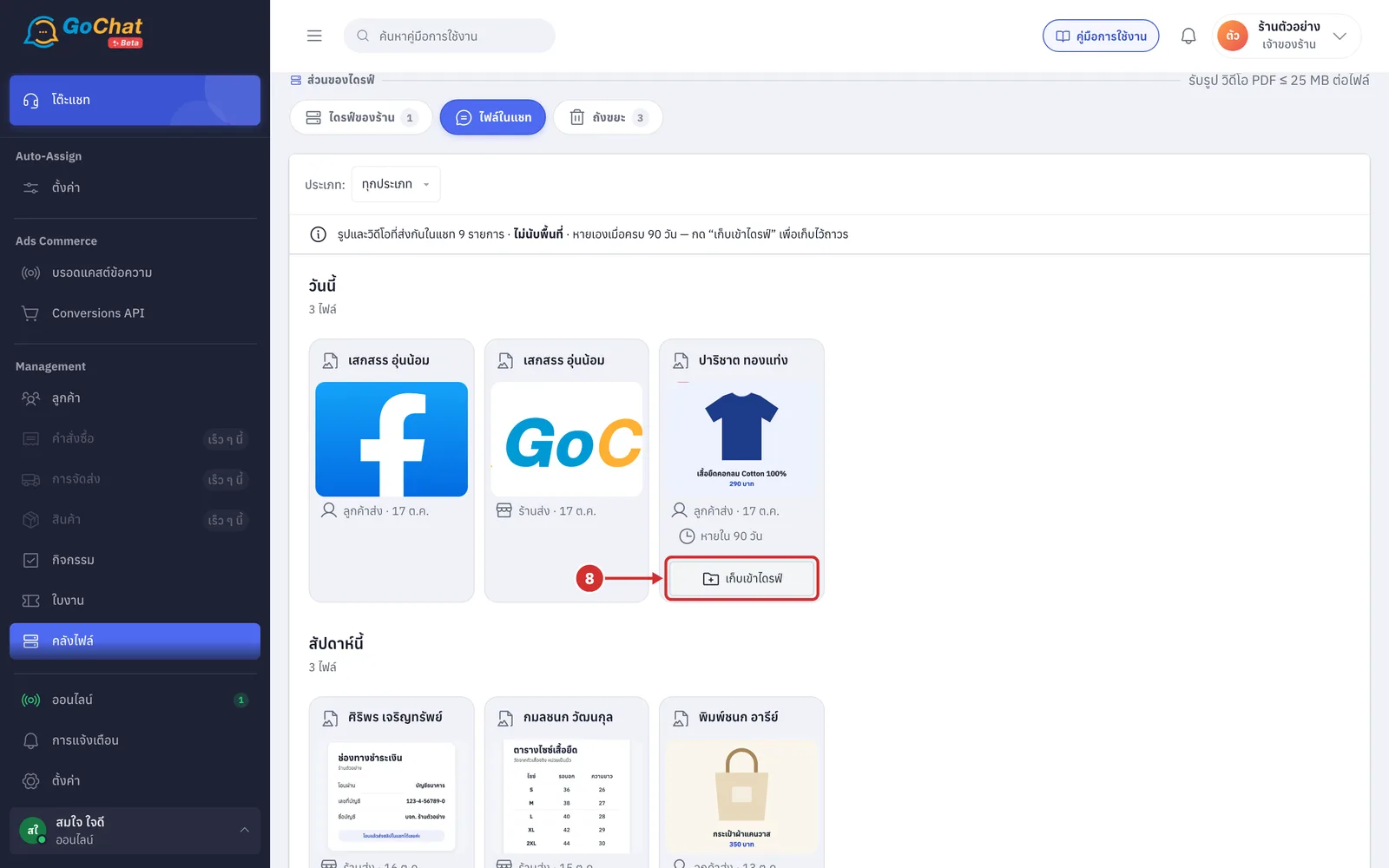
To keep an image permanently, click เก็บเข้าไดรฟ์ (Keep in drive). The image is copied into the ไดรฟ์ของร้าน (Shop drive) tab. It no longer expires, but it counts toward your drive space
Only images can be kept in the drive; videos cannot
Files deleted from the shop drive, including images you stop keeping, stay in the trash for 30 days before they are deleted permanently. Until then you can restore them, and they still count toward your drive space
Opening the Chat files tab
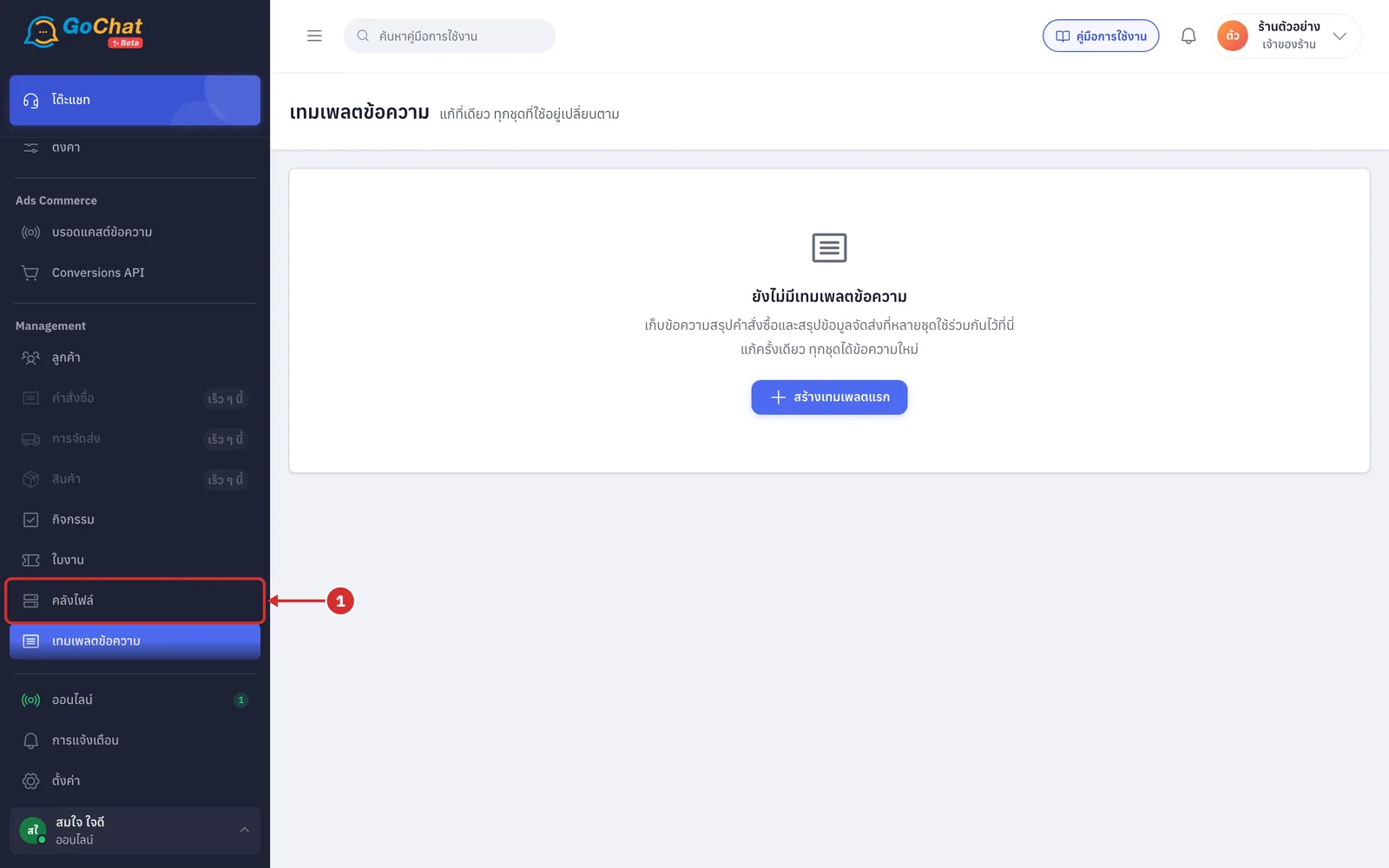
Go to the คลังไฟล์ (File library) menu under Management in the left menu bar. The ไดรฟ์ (Drive) page opens
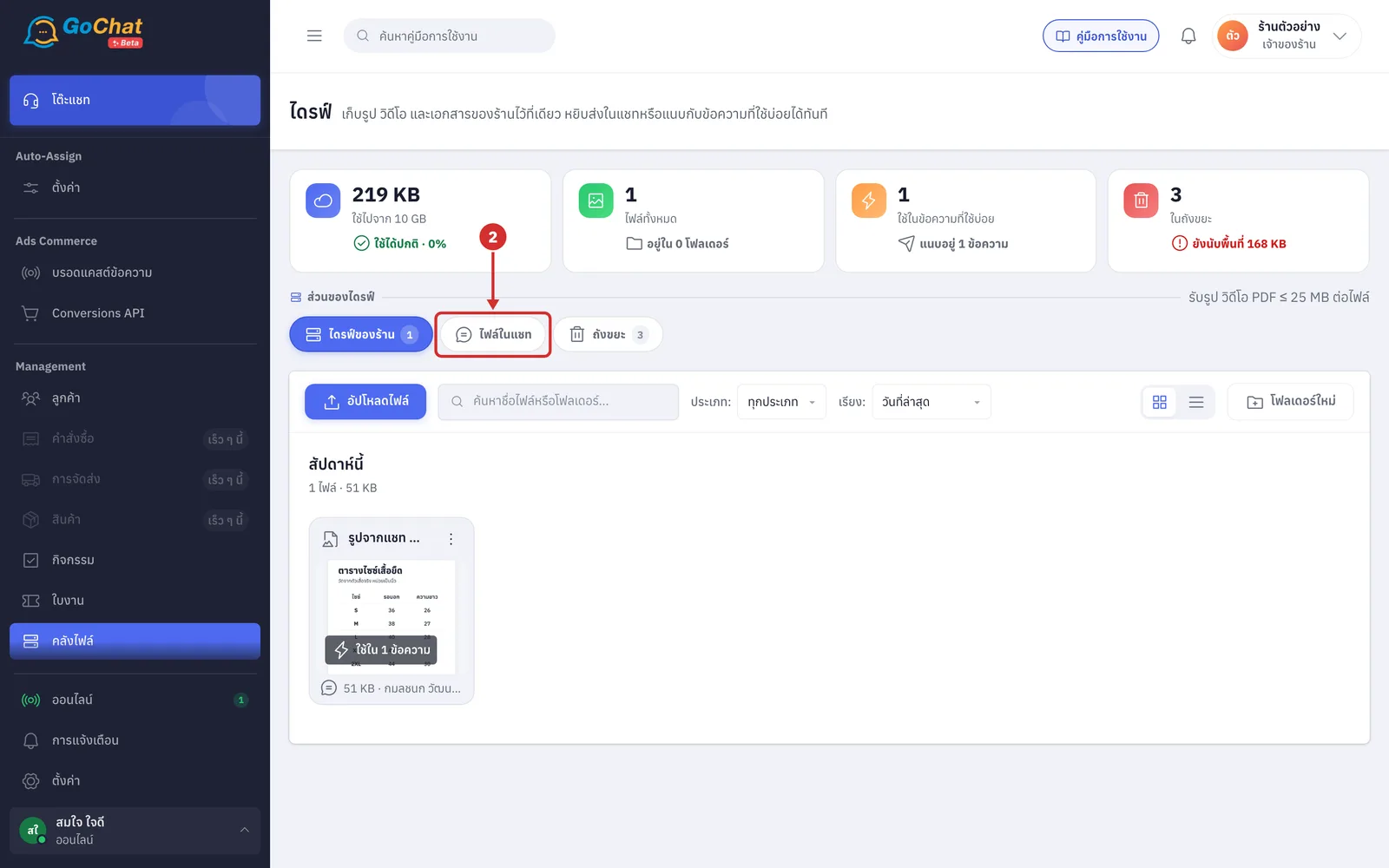
Click the ไฟล์ในแชท (Chat files) chip under ส่วนของไดรฟ์ (Drive sections)
Reading the Chat files tab
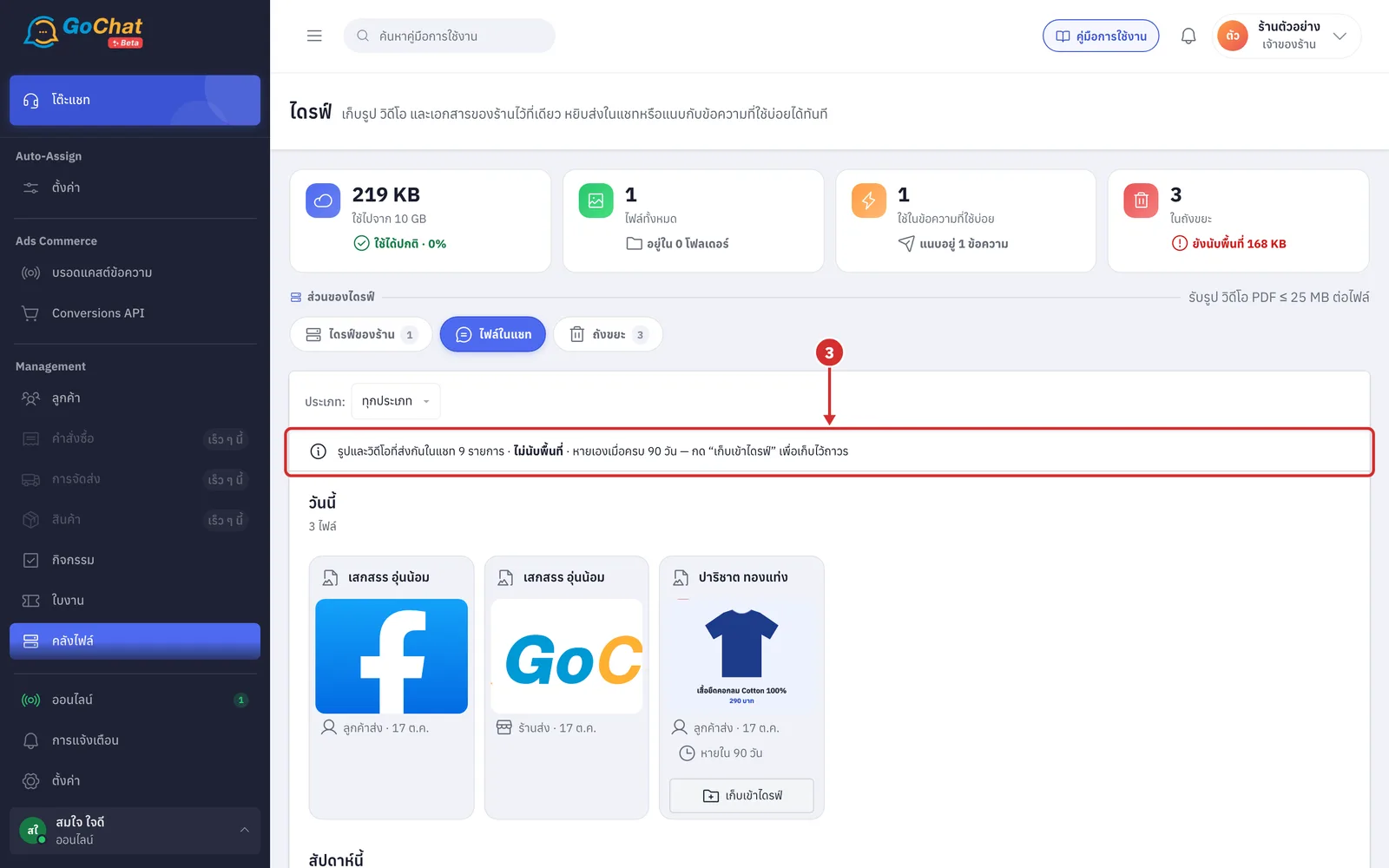
Read the bar at the top, which says รูปและวิดีโอที่ส่งกันในแชท … รายการ · ไม่นับพื้นที่ · หายเองเมื่อครบ 90 วัน — กด “เก็บเข้าไดรฟ์” เพื่อเก็บไว้ถาวร (… images and videos sent in chats · don't count toward space · disappear after 90 days — click “Keep in drive” to keep permanently). It means
… รายการ (… items): the number of images and videos in the chats you can see. This number does not change with ประเภท: (Type:)
ไม่นับพื้นที่ (Don't count toward space): chat files are not counted in your drive space
หายเองเมื่อครบ 90 วัน (Disappear after 90 days): files are deleted after 90 days. To keep one, click เก็บเข้าไดรฟ์ (Keep in drive) as in step 8
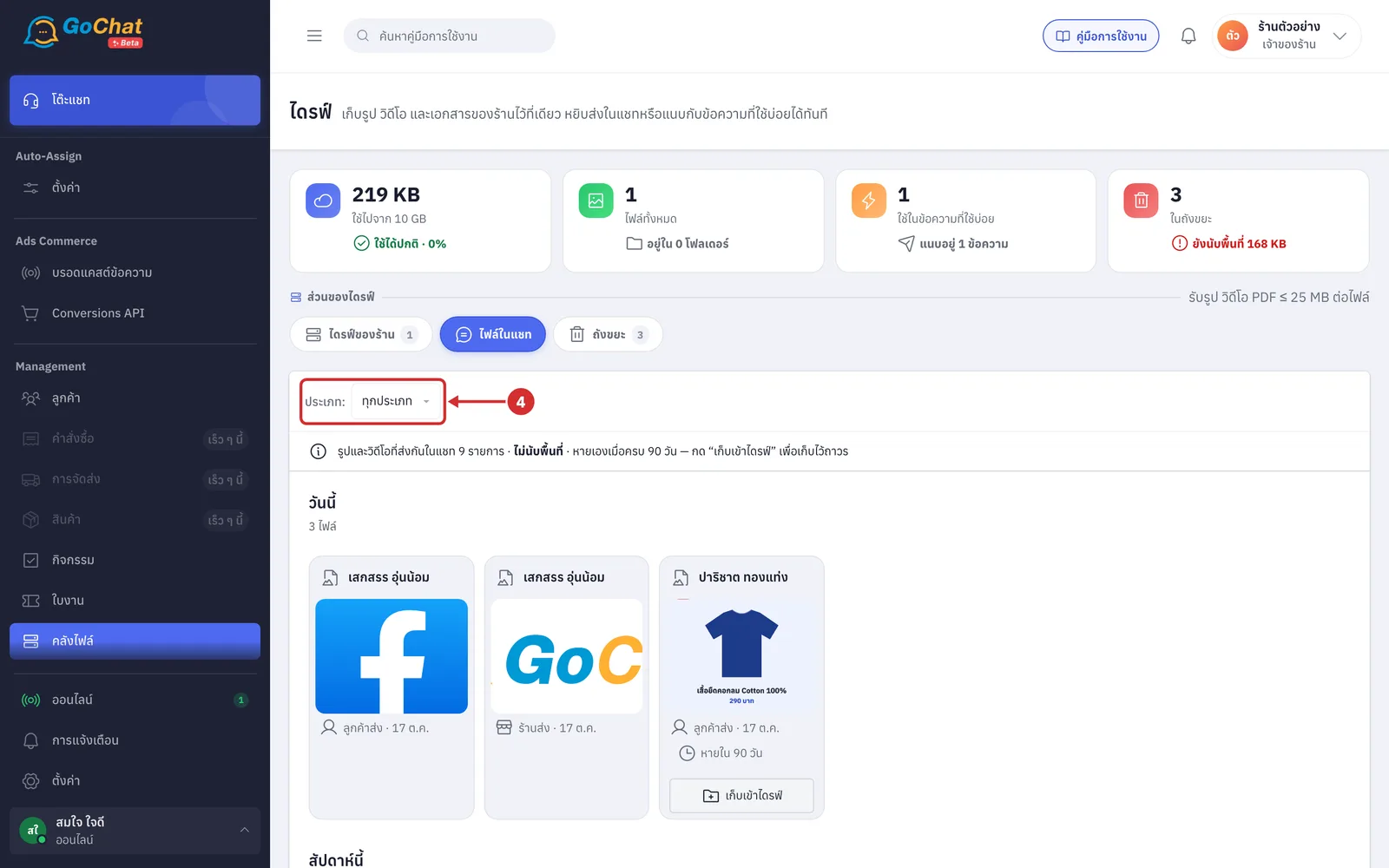
In ประเภท: (Type:), choose the kind of file to see. The list updates right away
ทุกประเภท (All types): images and videos (default)
รูปภาพ (Images): images only
วิดีโอ (Videos): videos only
This tab has no search box and no upload button, because chat files have no file names to search, and uploading is only done in the ไดรฟ์ของร้าน (Shop drive) tab
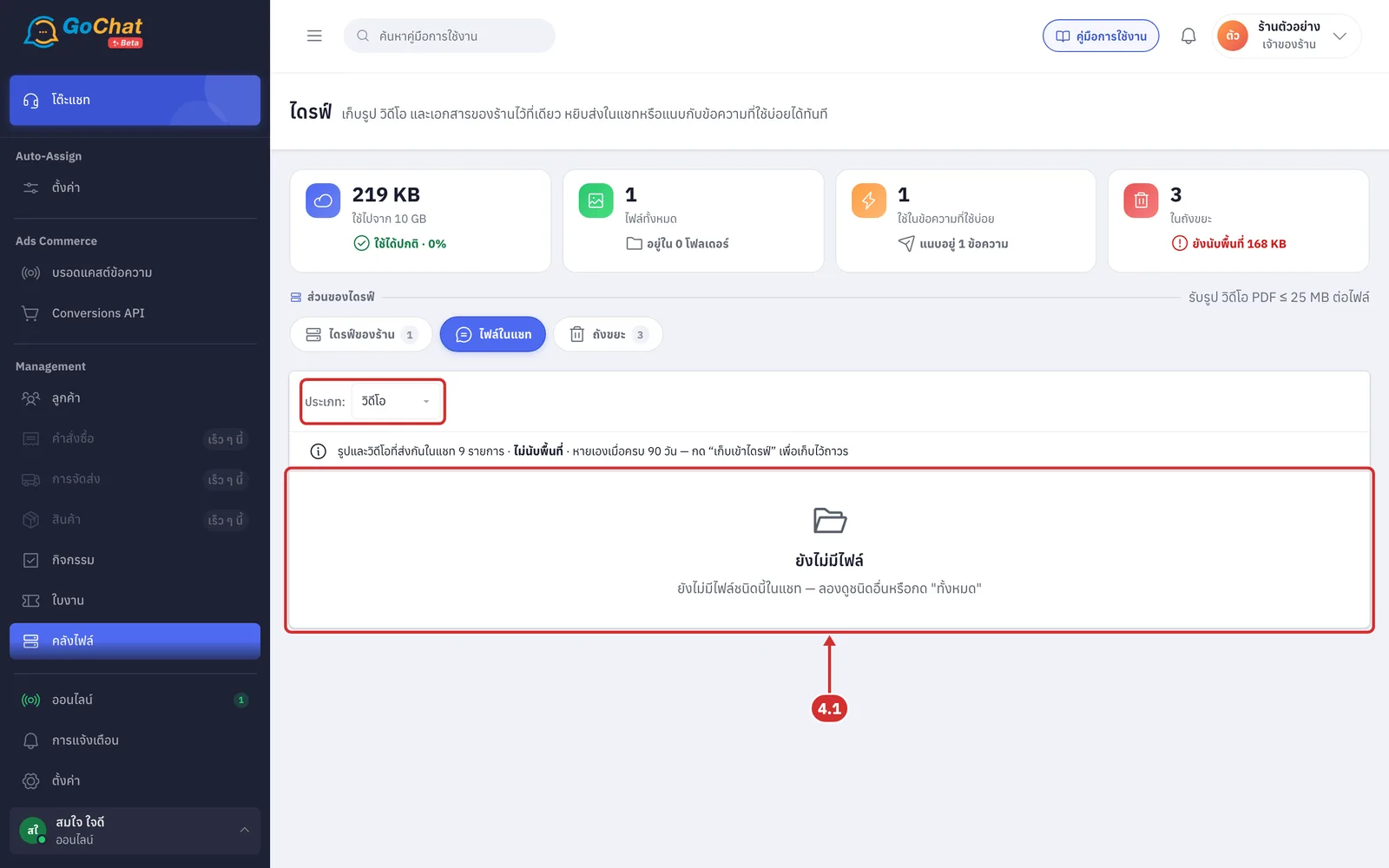
4.1 If you choose a type that has no files yet, the page shows ยังไม่มีไฟล์ (No files yet) and ยังไม่มีไฟล์ชนิดนี้ในแชท — ลองดูชนิดอื่นหรือกด "ทั้งหมด" (No files of this type in chats yet — try another type or click "All"). Choose ทุกประเภท (All types) in ประเภท: (Type:) to see every file again
Look at the file list, which runs from newest to oldest and is grouped by the date sent
Group headings are วันนี้ (Today) or สัปดาห์นี้ (This week, the 6 days before today) or a month and year such as ตุลาคม 2569 (October 2026), counted in your shop's time zone
Under each heading is the number of files in that group (… ไฟล์ (… files))
The page shows up to the latest 200 files. If there are more, the end of the list says แสดง 200 รายการล่าสุดจาก … รายการที่ตรงตัวกรอง — ไฟล์ที่เก่ากว่านี้ต้องเข้าไปหาในห้องแชท (Showing the latest 200 of … matching items — older files must be found in the chat)
If there are no chat files at all, the page shows ยังไม่มีไฟล์ (No files yet) and ไฟล์ที่ลูกค้าส่งมาหรือที่ร้านส่งออกไปจะมารวมอยู่ที่นี่ (Files customers send and files your shop sends will gather here)
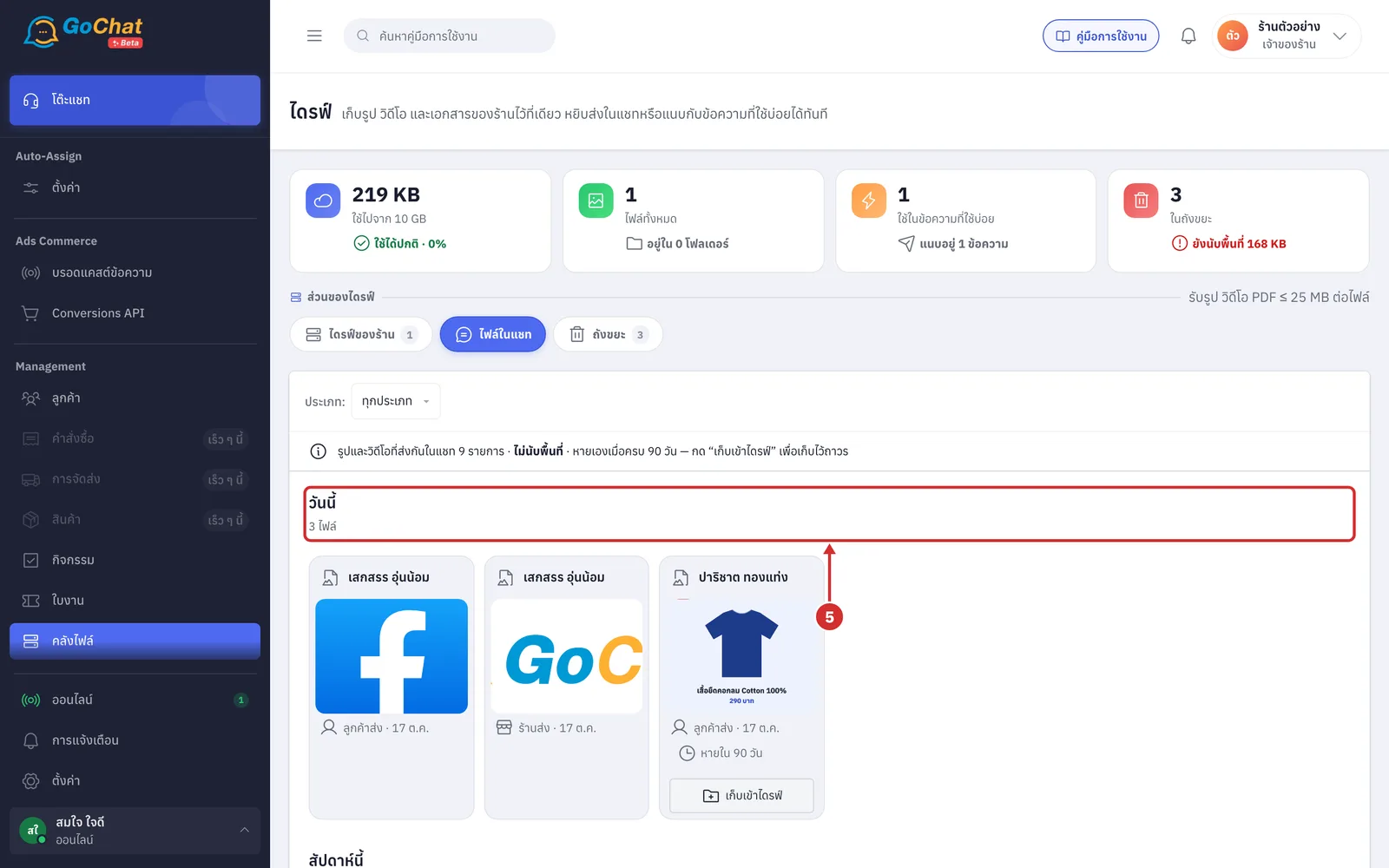
Look at the card of each file, which shows
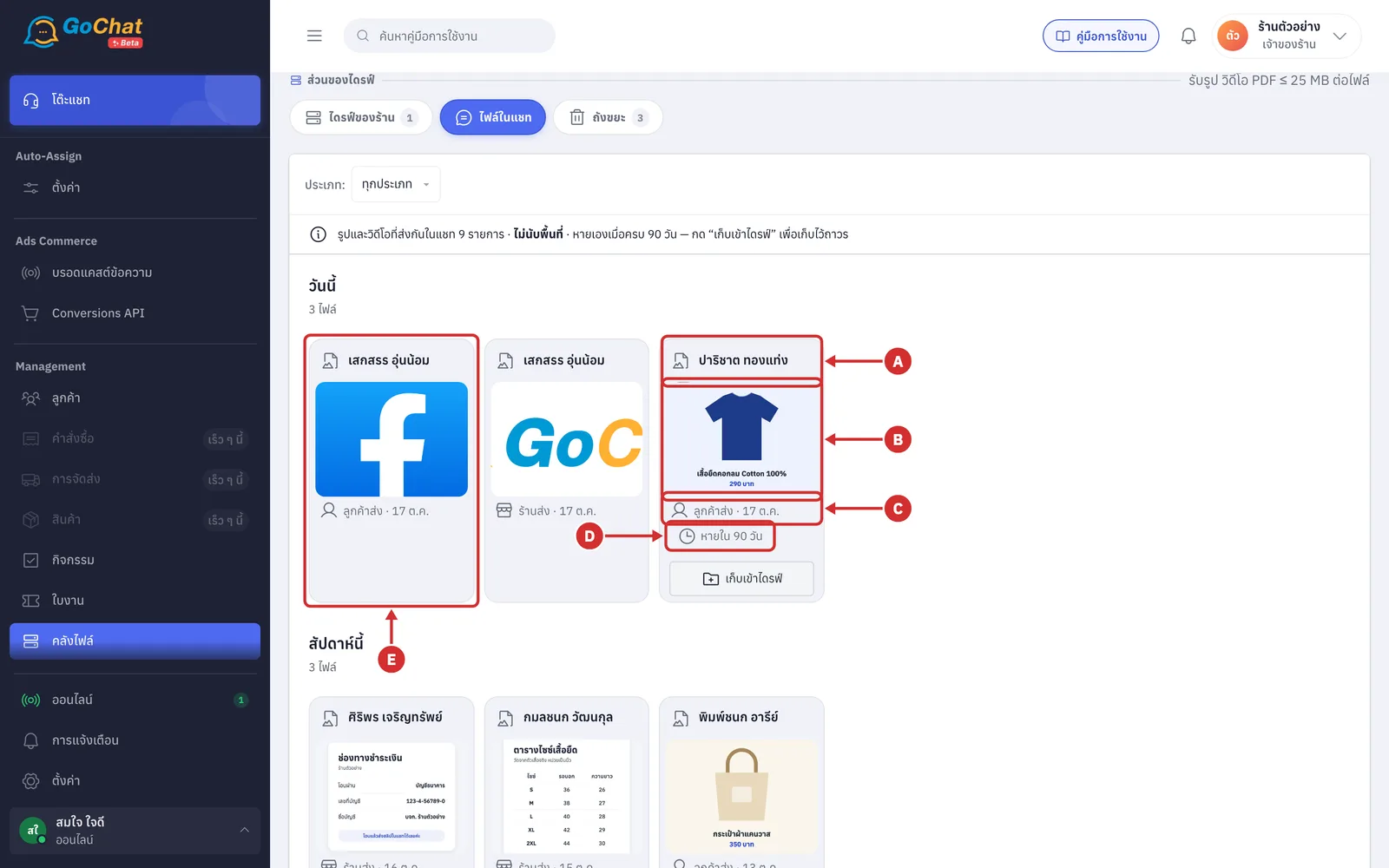
A Customer name of the chat the file is in. The icon before the name shows whether it is an image or a video. When the name is unknown it shows ไม่ทราบชื่อ (Unknown name)
B Thumbnail of the file
Video cards have a play icon in the middle and the video length in the bottom left corner
Files that can no longer be opened show a placeholder image
C Sender and date sent, shown as ลูกค้าส่ง (Sent by customer) or ร้านส่ง (Sent by shop) followed by the date
D File age label
หายใน … วัน (Gone in … days): the days left before the file is deleted, counted from the date the message was sent
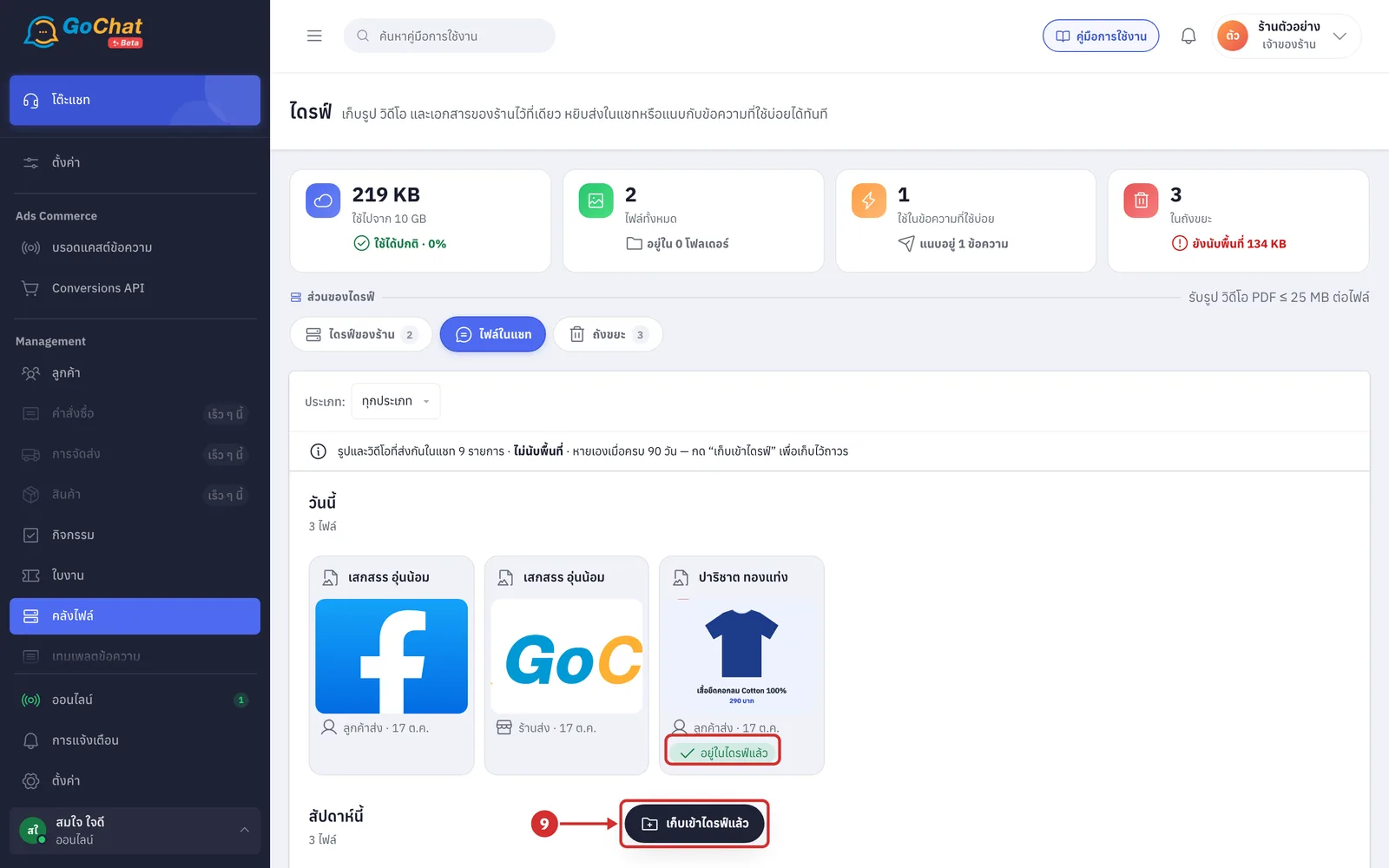
อยู่ในไดรฟ์แล้ว (In drive): an image already kept in the drive, which does not expire
E A card with no age label and no keep button is a file the system has no copy of, so it cannot be kept in the drive or downloaded
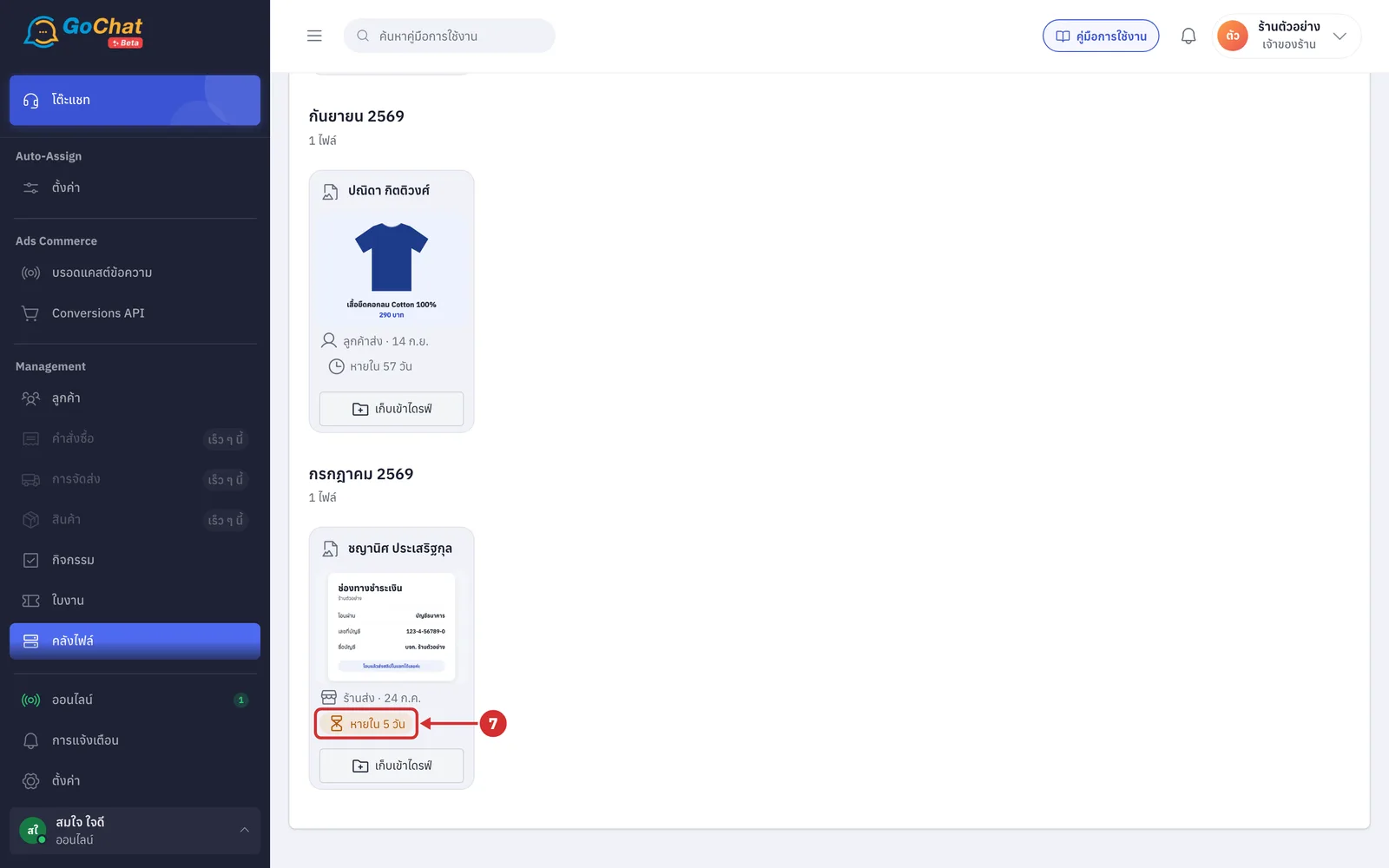
When a file has 7 days or fewer left, the หายใน … วัน (Gone in … days) label turns to a warning colour with an hourglass icon. If you still need that image, keep it in the drive before it expires
Keeping an image in the drive
Click เก็บเข้าไดรฟ์ (Keep in drive) under the image card you want to keep
Only image cards the system has a copy of have this button; video cards do not
While saving, the button shows กำลังเก็บ… (Keeping…)
When the drive is full, the button shows เก็บไม่ได้ — พื้นที่เต็ม (Cannot keep — space is full) and cannot be clicked
If the original file has already been deleted, you see ไฟล์ต้นฉบับไม่อยู่ในที่เก็บแล้ว — เก็บไม่ได้ (The original file is no longer in storage — cannot keep)
The system shows เก็บเข้าไดรฟ์แล้ว (Kept in drive) and the card label changes to อยู่ในไดรฟ์แล้ว (In drive)
The image is placed at the top level of the ไดรฟ์ของร้าน (Shop drive) tab, with a file name that starts with รูปจากแชท (Image from chat) followed by the customer name and the date and time it was kept
Kept images count toward your drive space
Viewing a file full screen
Point at a card's thumbnail to show 2 buttons. You can do one of 2 things
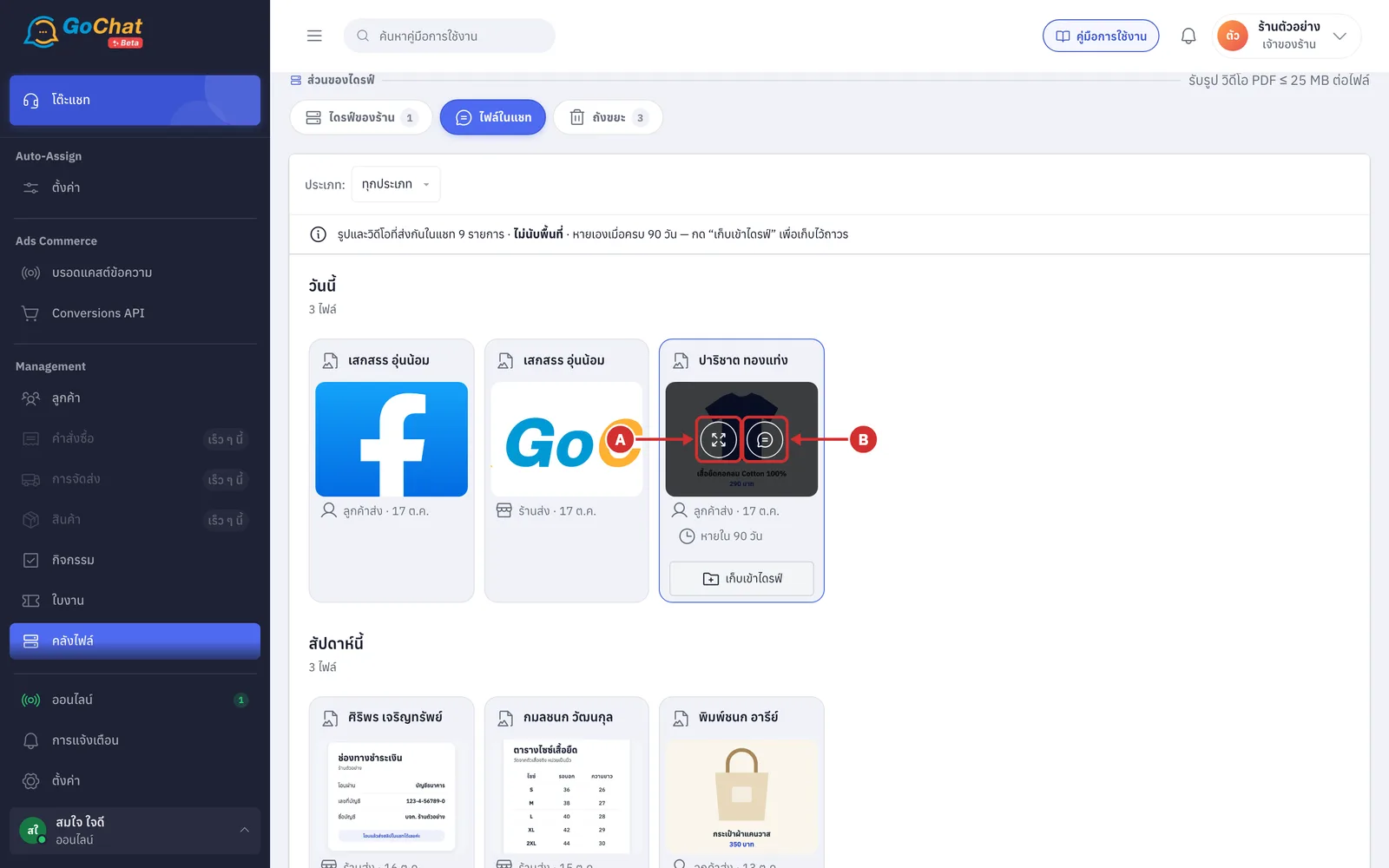
A Expand arrow icon to open the image full screen or play the video (files that can no longer be opened do not have this button)
B Chat icon to go to that message in the chat
Click the expand arrow icon. The file opens full screen with these parts
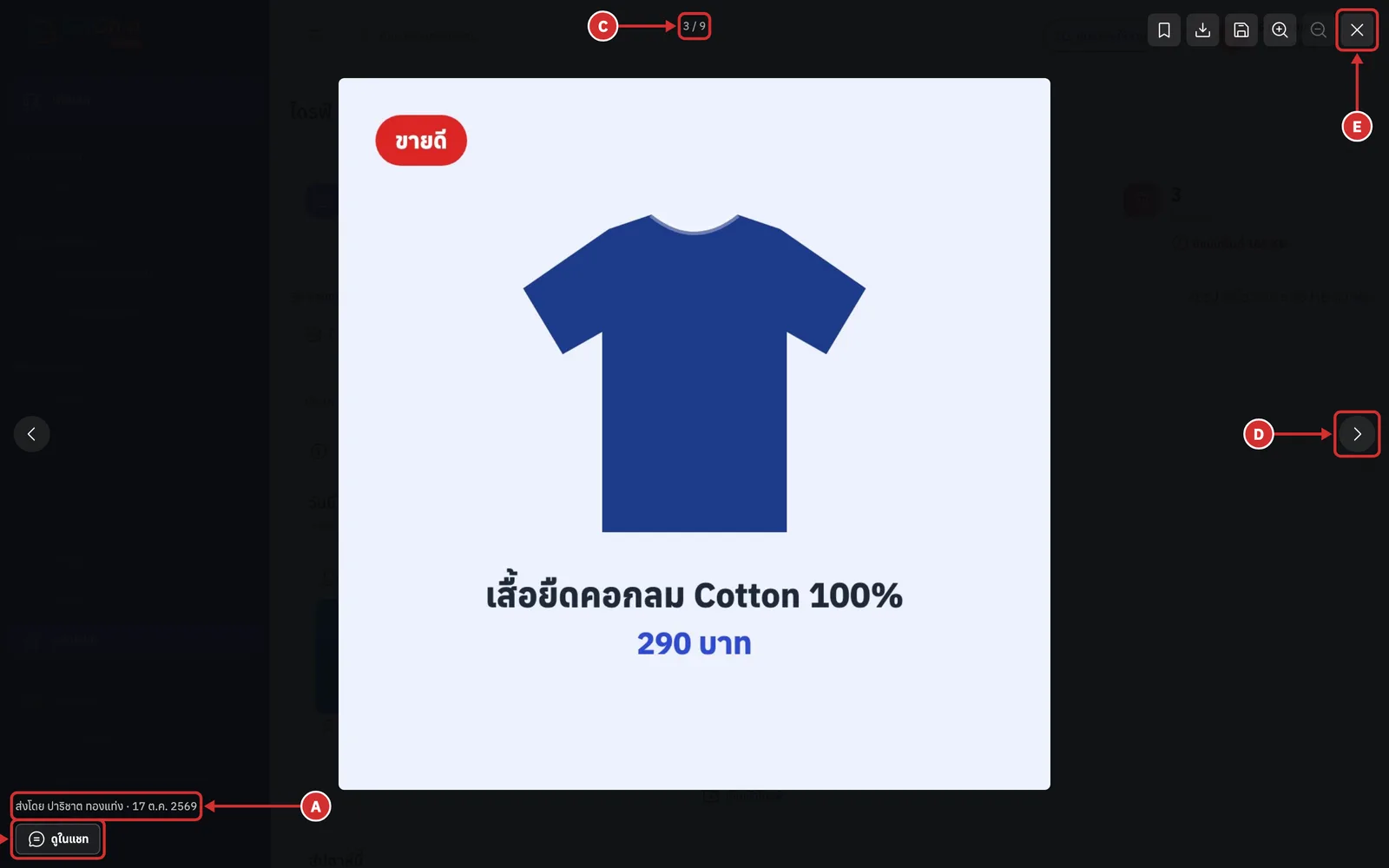
A Sender and date sent, shown as ส่งโดย ร้าน (Sent by shop) or ส่งโดย (Sent by) followed by the customer name, then the date
B ดูในแชท (View in chat) to go to that message in the chat
C Position of the open file among all files on the page
D Left and right arrows (รูปก่อนหน้า (Previous image) and รูปถัดไป (Next image)) to move to other files, or use the arrow keys on your keyboard
E X button to close the full-screen view, or press Esc, or click the dark area around the image
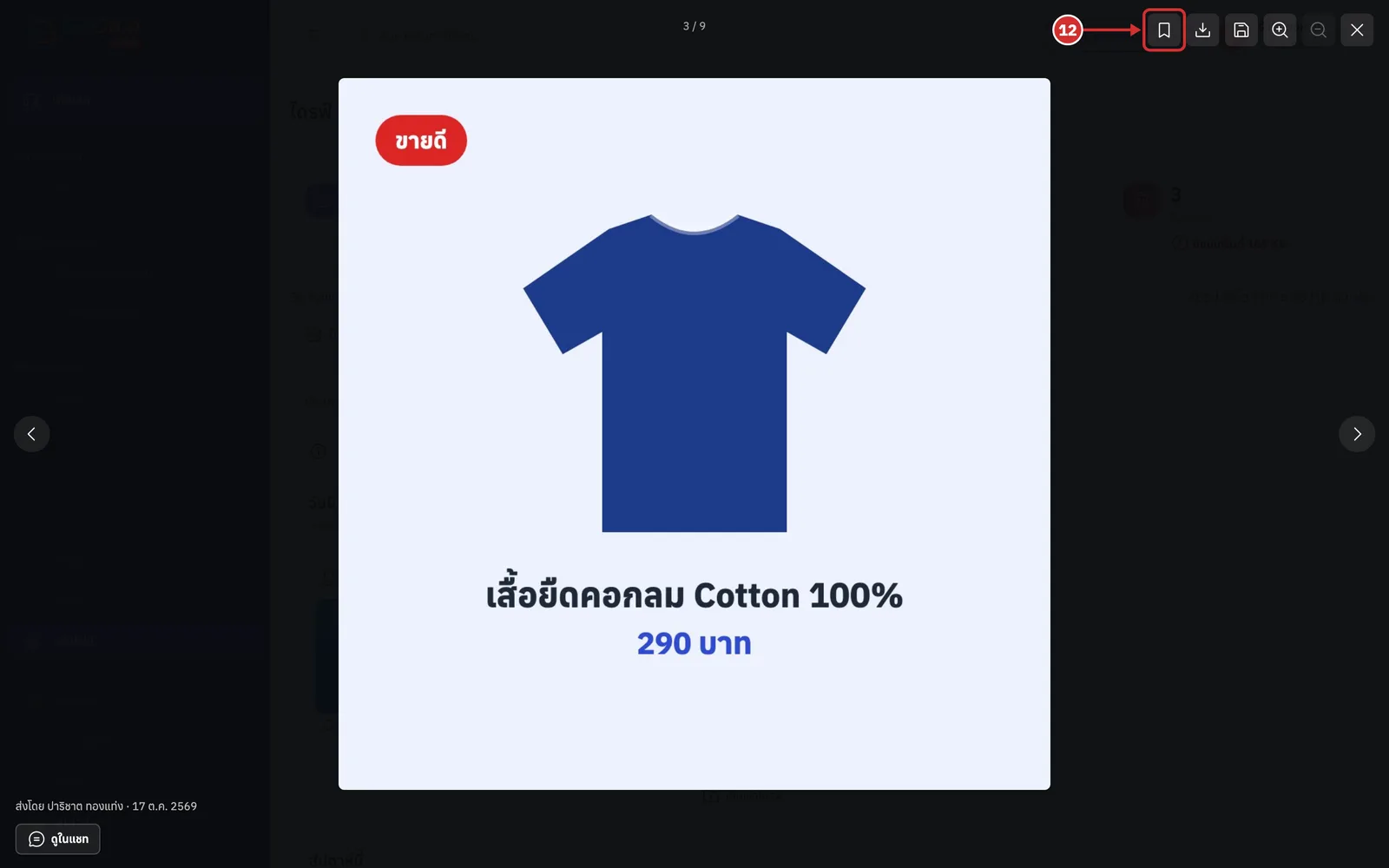
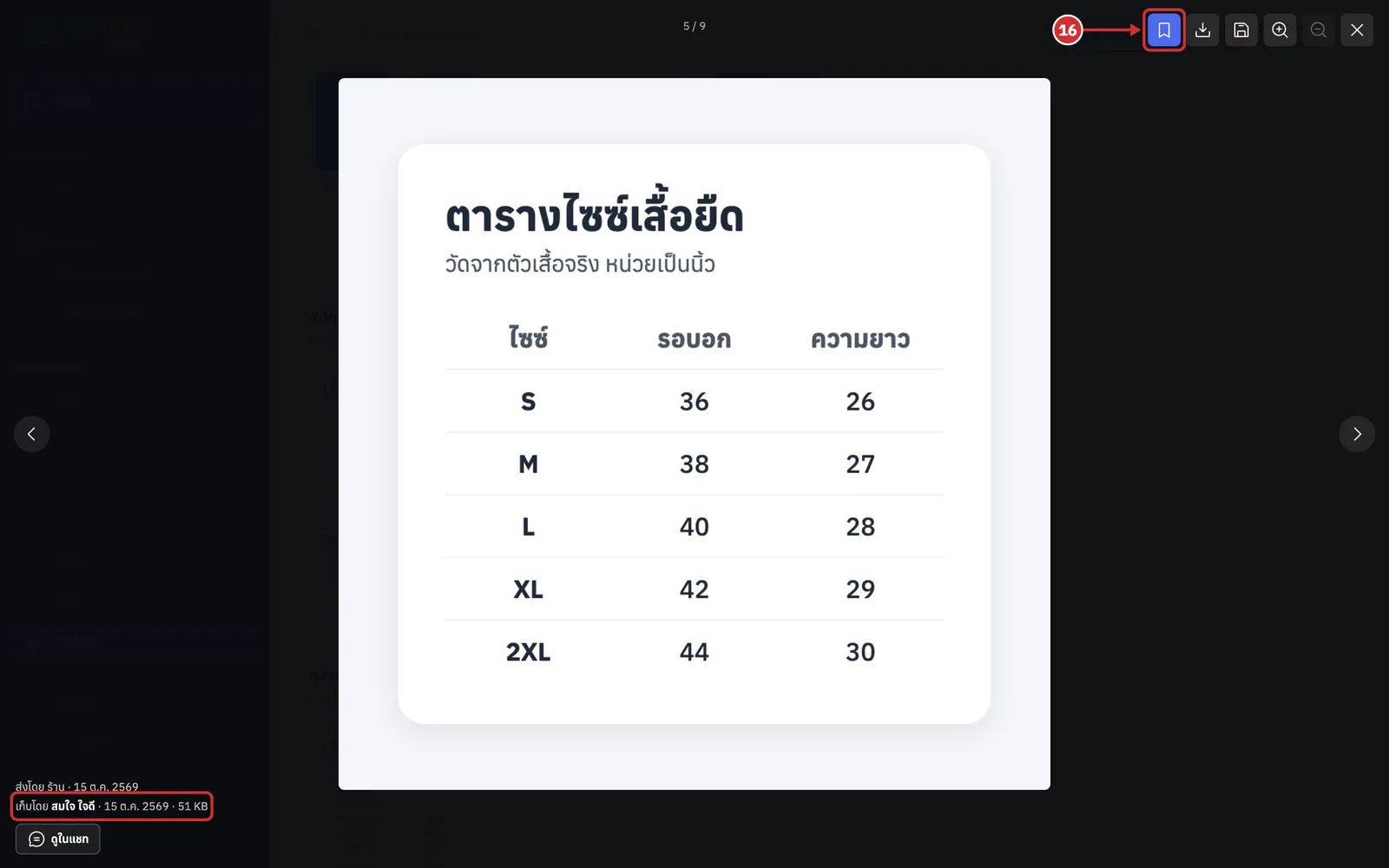
Click the bookmark icon (pointing at it shows เก็บรูปนี้ไว้ (Keep this image)) to keep the image in the drive from the full-screen view
It works the same as the เก็บเข้าไดรฟ์ (Keep in drive) button on the card, and the system shows เก็บไว้แล้ว (Kept)
Once kept, the button turns blue and the line under the image shows เก็บโดย (Kept by) followed by who kept it, the date and the file size
Only images the system has a copy of have this button
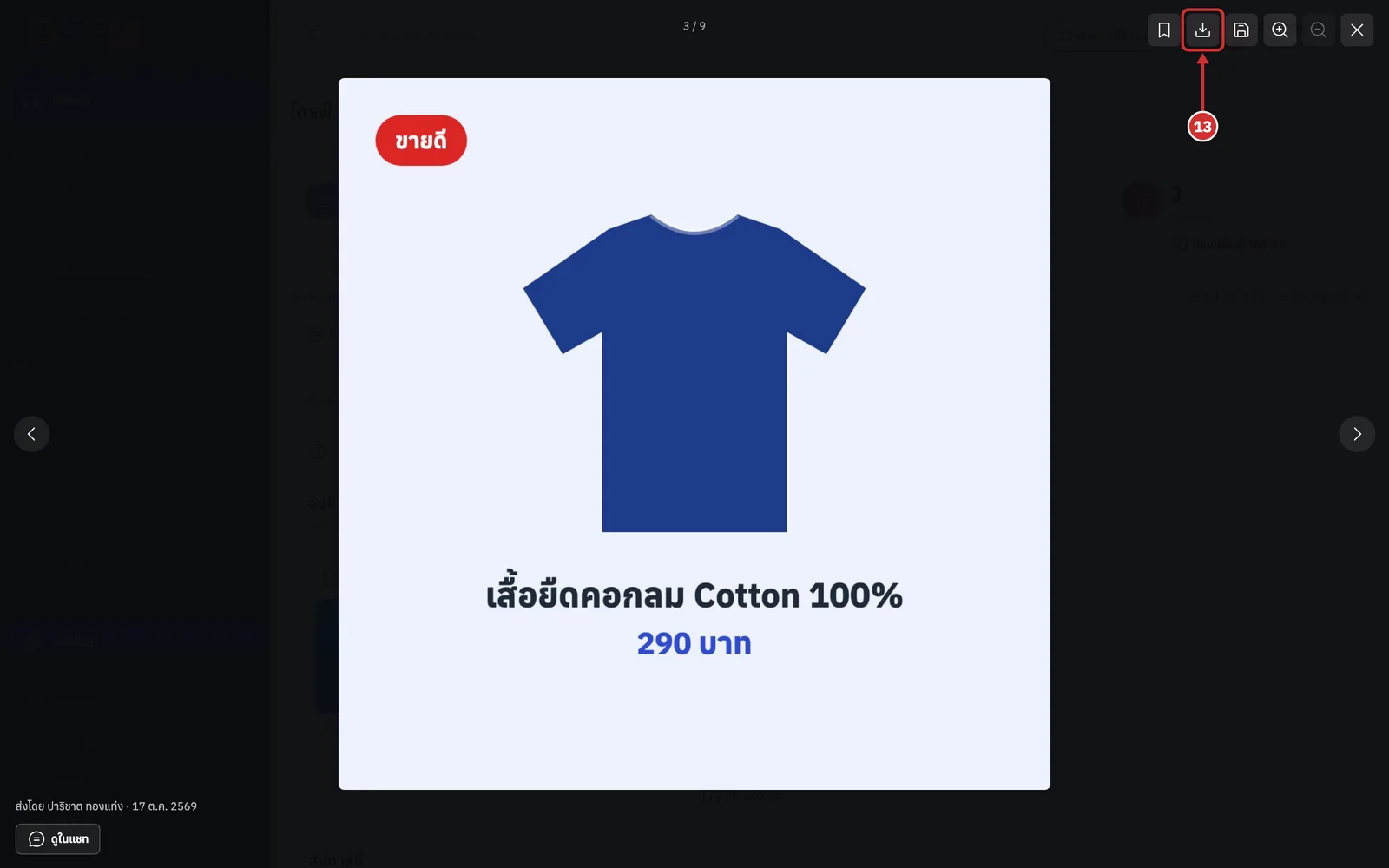
Click the download icon (pointing at it shows ดาวน์โหลด (Download)) to save the file to your computer
In Chrome and Edge on a computer there is also a บันทึกเป็น… (Save as…) icon next to it, to choose the file name and folder yourself (images only)
For files the system has no copy of, the download button is faded and cannot be clicked, with the message ไฟล์นี้ยังไม่มีสำเนาในถังของเรา — ดาวน์โหลดไม่ได้ และรูปอาจหายเมื่อลิงก์ต้นทางหมดอายุ (We have no copy of this file — it cannot be downloaded, and the image may disappear when the source link expires)
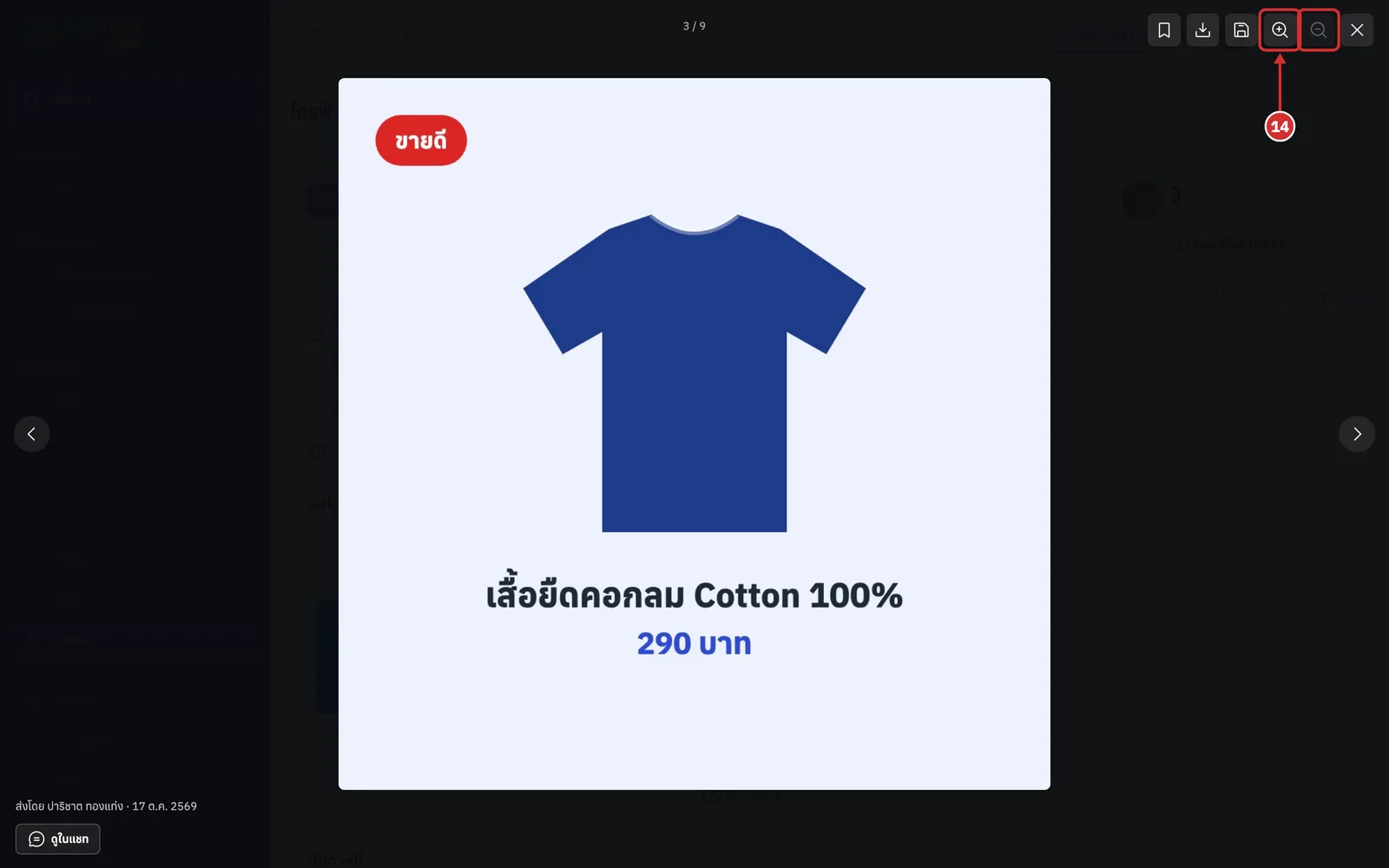
Click the magnifier icons ซูมเข้า (Zoom in) or ซูมออก (Zoom out) to enlarge or shrink the image
You can also scroll the mouse wheel over the image to zoom, up to 5 times
Once zoomed in, drag the image to see other parts
Videos cannot be zoomed; the zoom buttons are faded
Stopping keeping an image
You can stop keeping an image that is in the drive. When you do, its card in the ไดรฟ์ของร้าน (Shop drive) tab moves to the trash, and the chat image starts counting toward its expiry again as normal.
On a card labelled อยู่ในไดรฟ์แล้ว (In drive), point at the thumbnail and click the expand arrow icon to open the image full screen
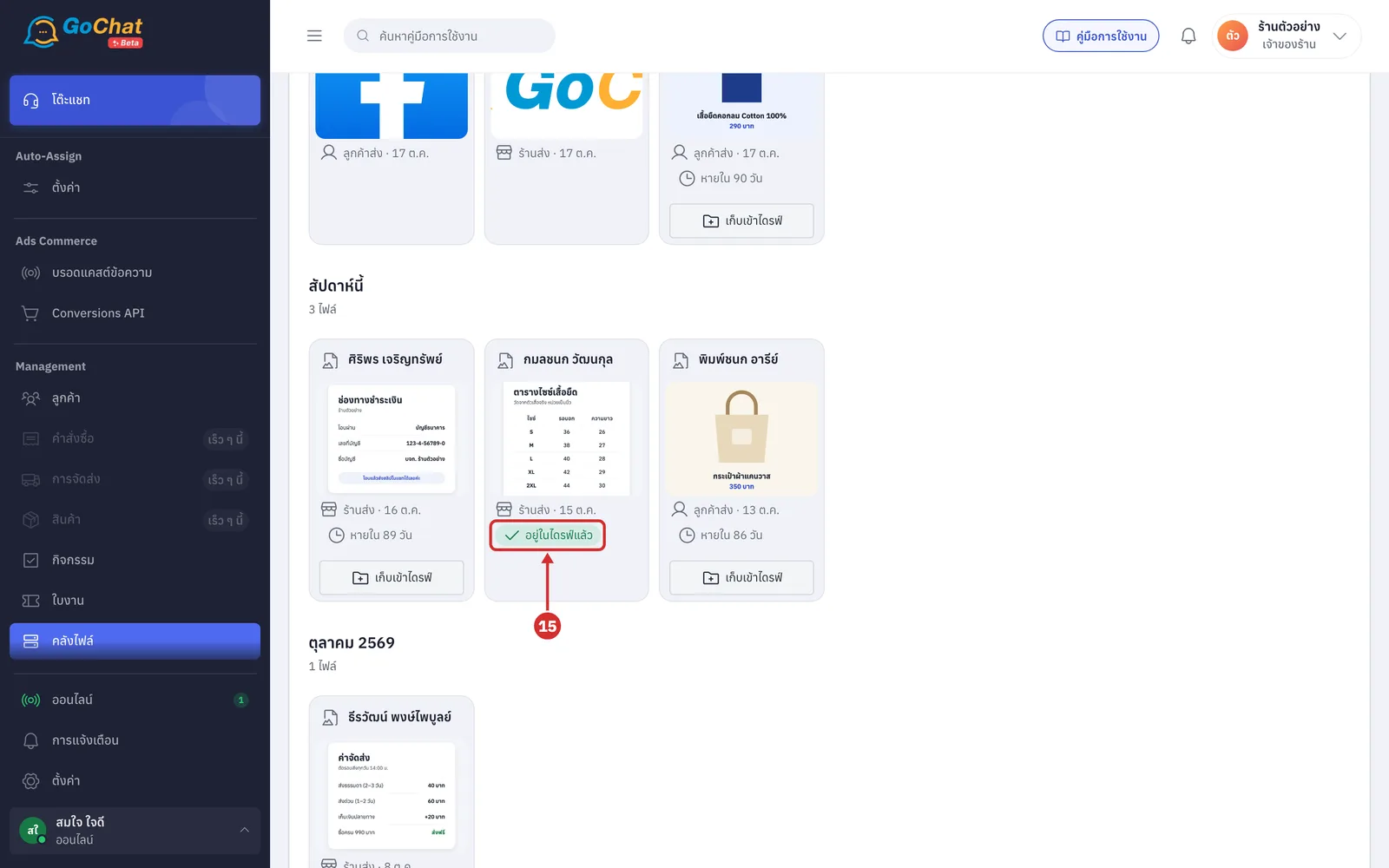
Click the blue bookmark icon (pointing at it shows เลิกเก็บรูปนี้ (Stop keeping this image))
The line under the image shows who kept it, such as เก็บโดย สมใจ ใจดี (Kept by สมใจ ใจดี), with the date and file size
If no quick reply uses this image, it stops being kept right away and the system shows เลิกเก็บแล้ว (No longer kept)
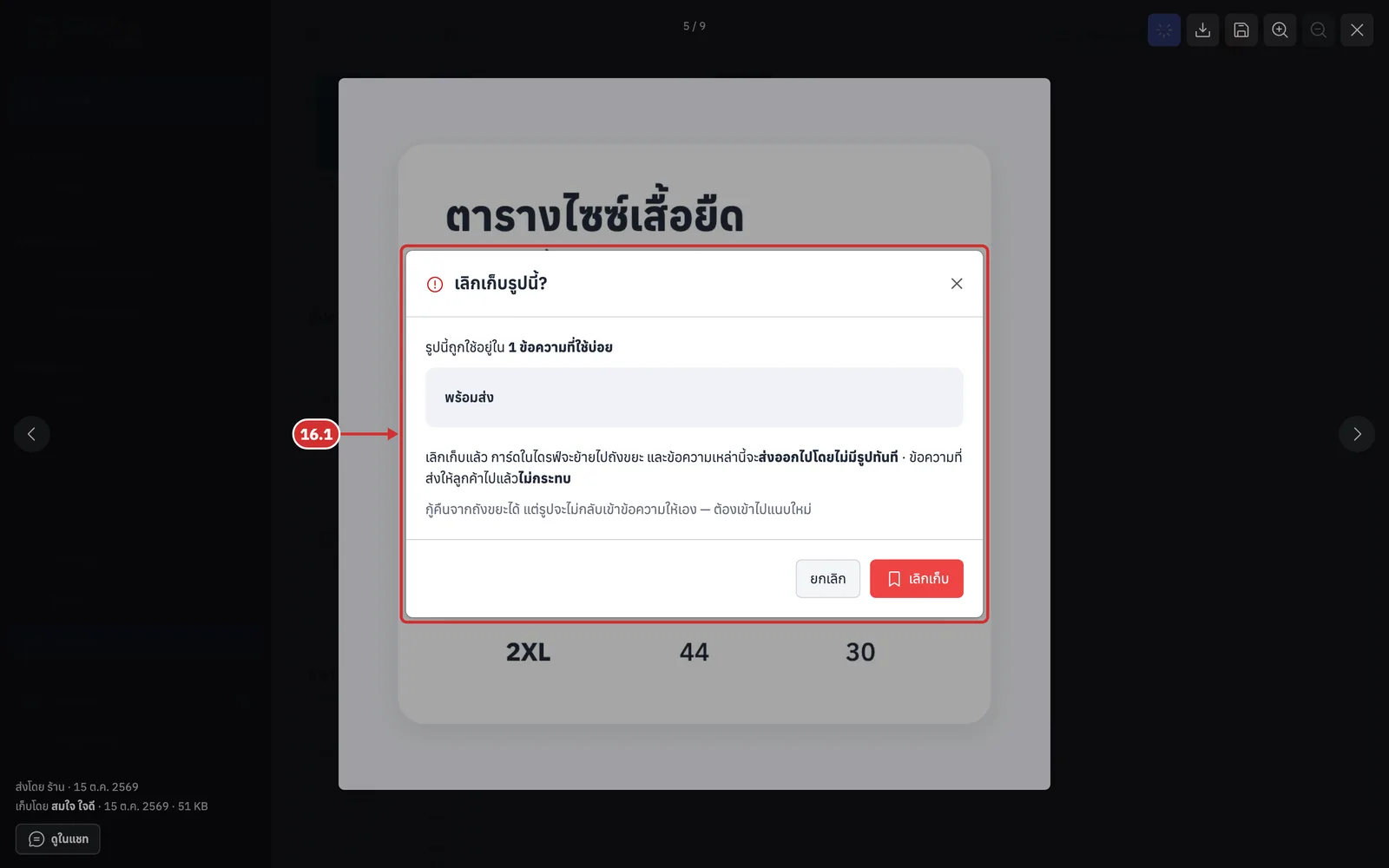
16.1 If quick replies use this image, the เลิกเก็บรูปนี้? (Stop keeping this image?) window asks you to confirm first. It shows how many quick replies use it, such as รูปนี้ถูกใช้อยู่ใน 1 ข้อความที่ใช้บ่อย (This image is used in 1 quick reply), and their names
Click เลิกเก็บ (Stop keeping) to confirm. The drive card moves to the trash and those quick replies are sent without the image from then on. Messages already sent to customers are not affected
You can restore the image from the trash, but it does not go back into the quick replies by itself; you have to attach it again
Click ยกเลิก (Cancel) to keep the image as it is
Reading the Trash tab
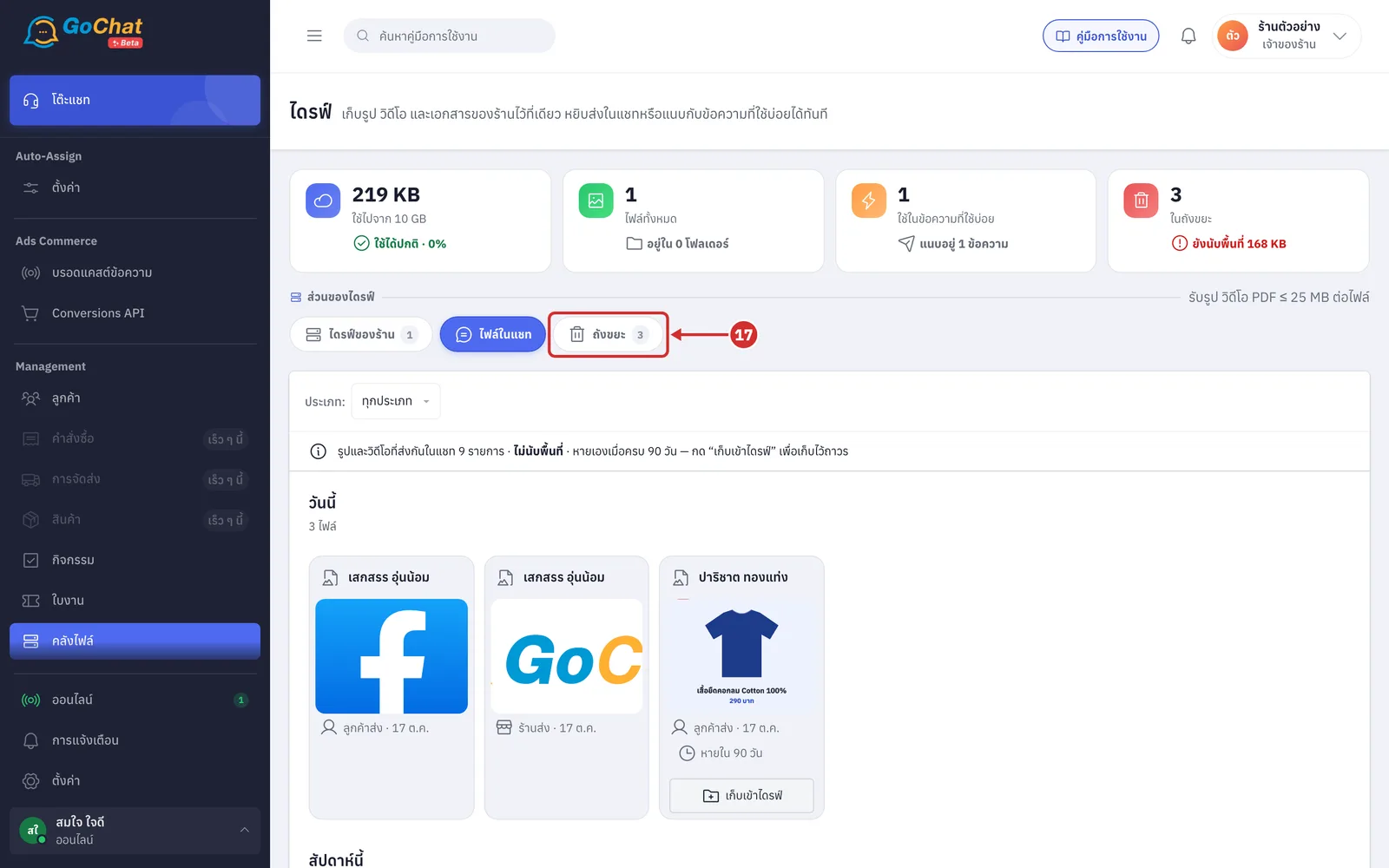
Click the ถังขยะ (Trash) chip under ส่วนของไดรฟ์ (Drive sections) (the number on the chip is how many items are in the trash)
Read the bar at the top, which says ลบถาวรเองเมื่อครบ 30 วัน · ยังนับพื้นที่ … · แตะรูปเพื่อเลือก (Deleted permanently after 30 days · still counts … · tap an image to select). It means
ลบถาวรเองเมื่อครบ 30 วัน (Deleted permanently after 30 days): items in the trash are deleted permanently 30 days after they were deleted
ยังนับพื้นที่ … (Still counts …): the drive space you get back when the items in the trash are deleted permanently
แตะรูปเพื่อเลือก (Tap an image to select): click a card to select items to restore or delete permanently
When the trash has no items, it shows ถังขยะว่าง (Trash is empty) and ไฟล์ที่ลบจะมาอยู่ที่นี่ 30 วันก่อนหายถาวร — กู้คืนได้ตลอดช่วงนั้น (Deleted files stay here for 30 days before they are gone for good — you can restore them any time until then)
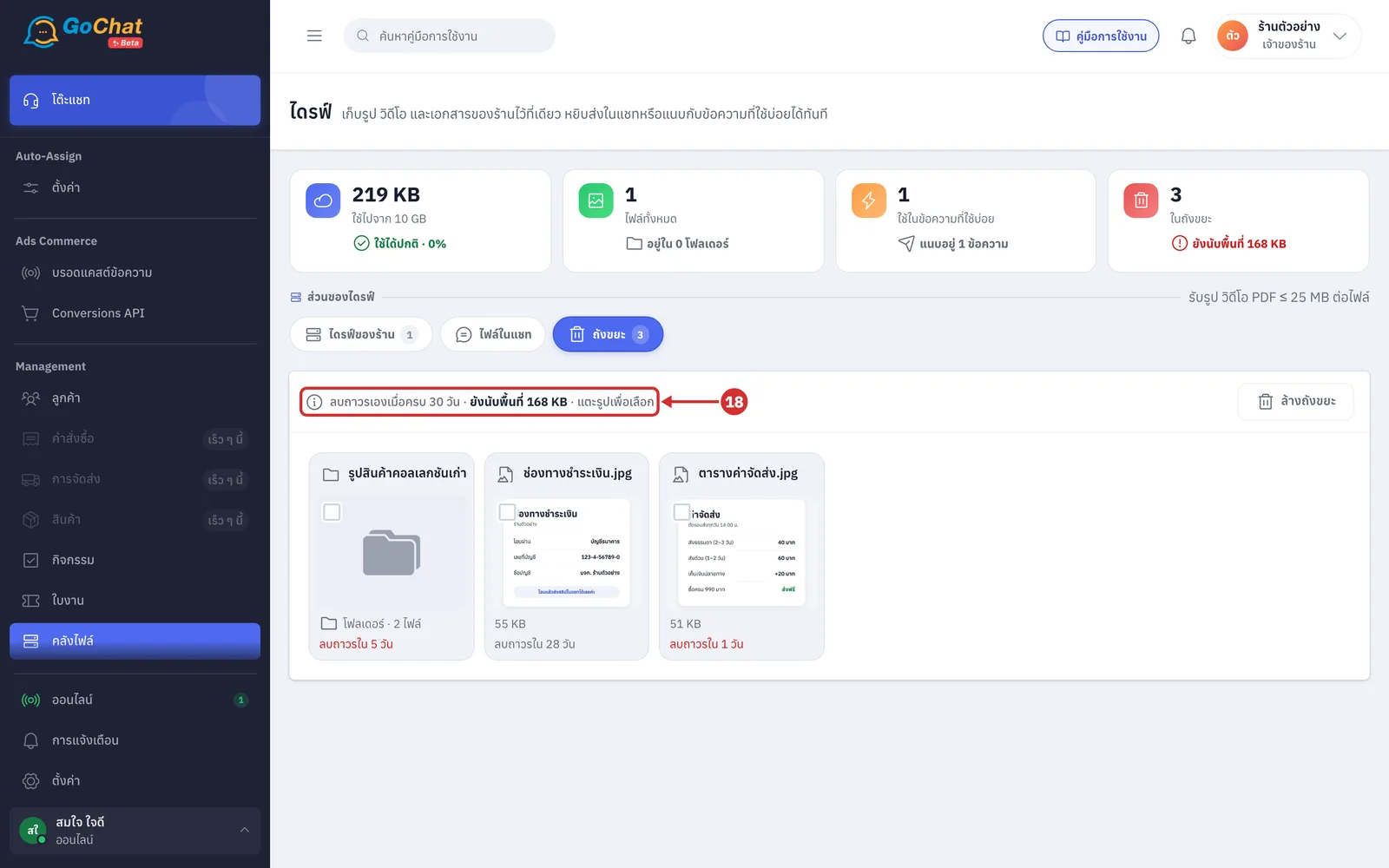
Look at the cards in the trash, which show
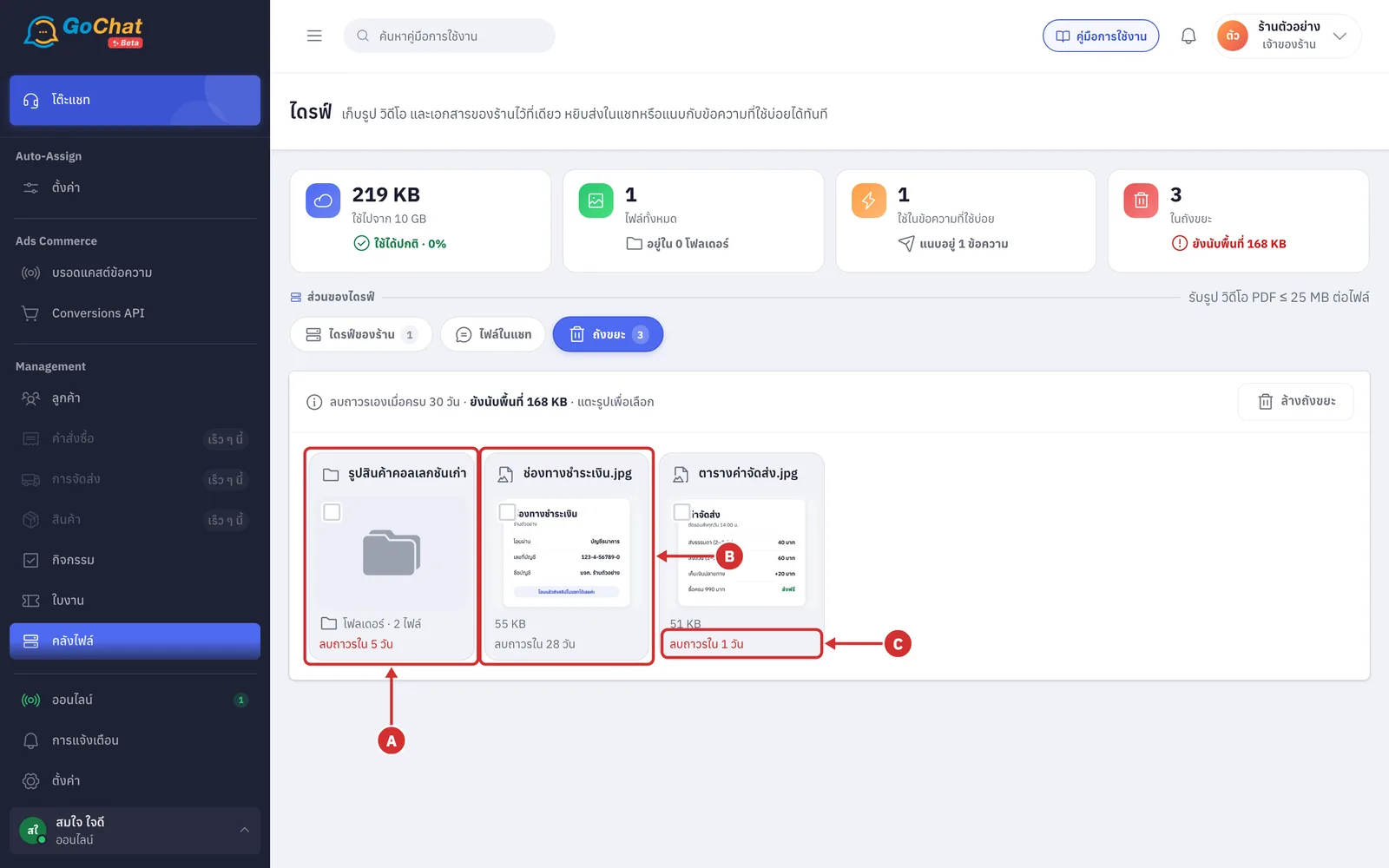
A Folder card showing โฟลเดอร์ · … ไฟล์ (Folder · … files), the number of files deleted together with the folder. Files inside do not get cards of their own
B File card showing a thumbnail and the file size
C Days before permanent deletion, shown as ลบถาวรใน … วัน (Deleted permanently in … days), red when 7 days or fewer are left. On the last day it shows ลบถาวรวันนี้ (Deleted permanently today)
The trash shows up to 500 files at a time. If there are more, it says แสดง … ไฟล์จาก … — “ล้างถังขยะ” ลบทั้งหมดรวมที่ไม่ได้แสดง (Showing … of … files — “Empty trash” deletes everything, including files not shown)
Restoring files from the trash
Click the name or image of a card you want to restore to select it
Selected cards get a blue frame and a ticked box. You can select several items, and click again to unselect
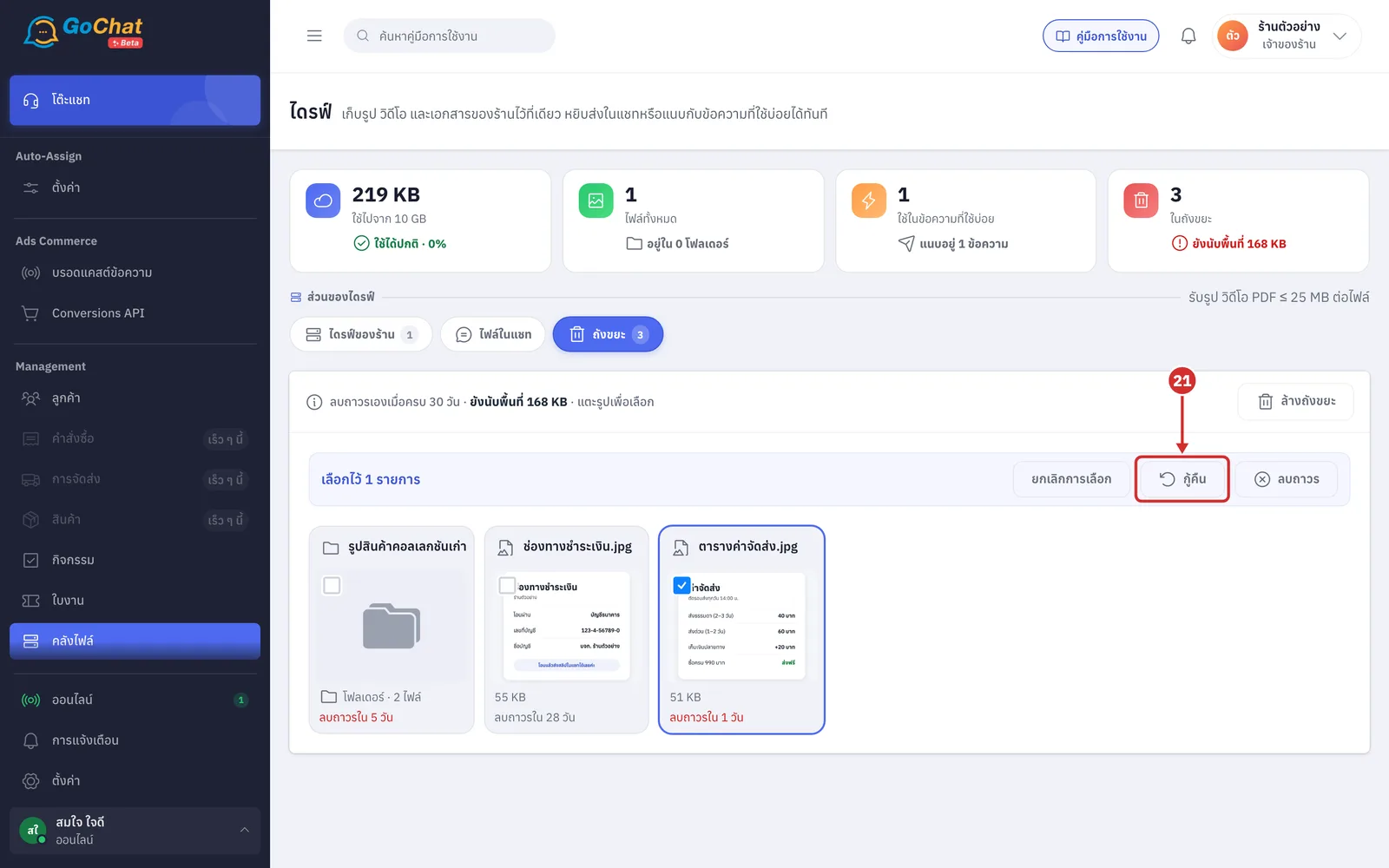
The system shows a เลือกไว้ … รายการ (… items selected) bar with ยกเลิกการเลือก (Clear selection), กู้คืน (Restore) and ลบถาวร (Delete permanently)
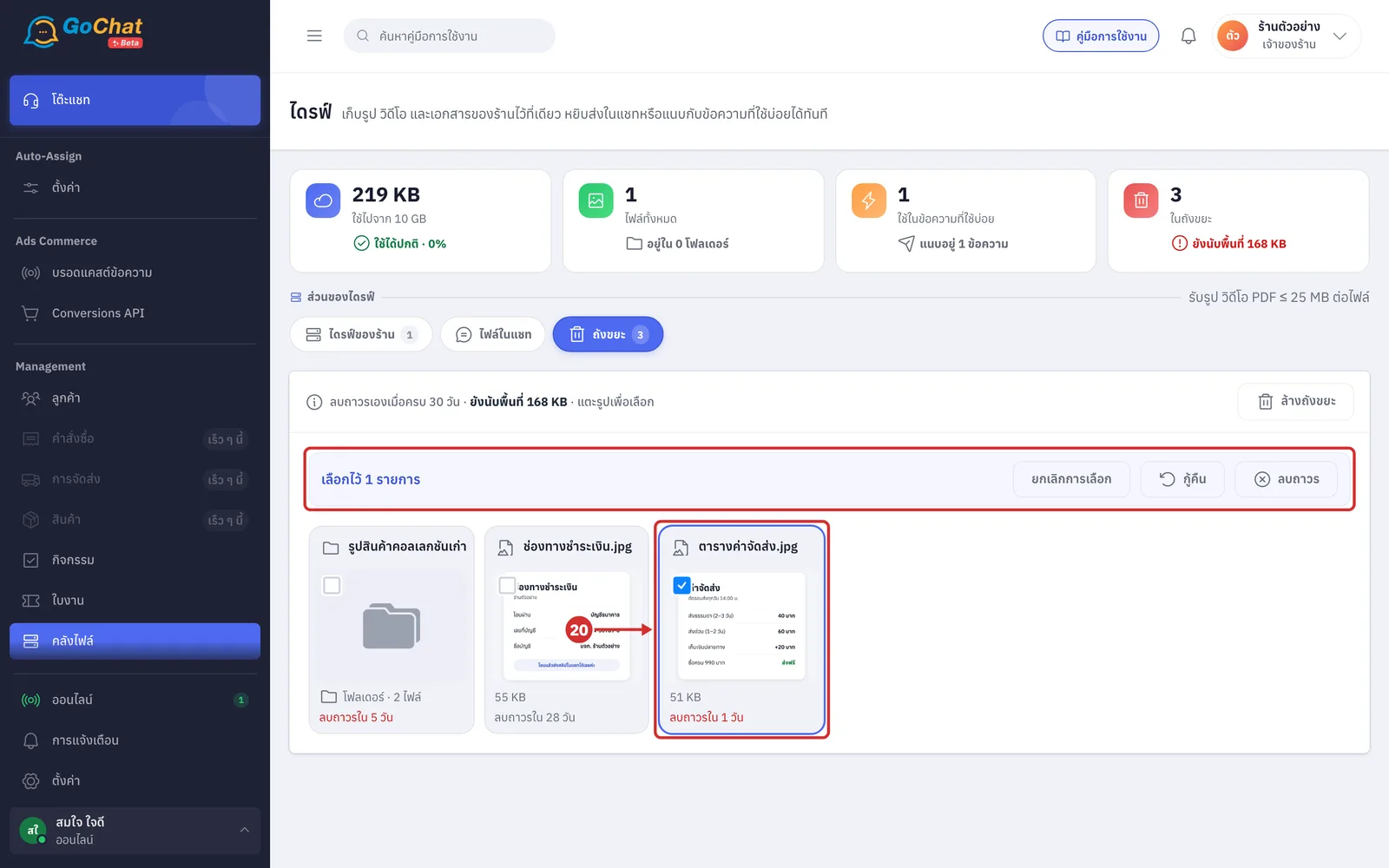
Click กู้คืน (Restore). Items are restored right away without asking, and the system shows กู้คืน “…” แล้ว (Restored “…”) or กู้คืน … รายการแล้ว (Restored … items) when several are selected
Items go back to where they were in the ไดรฟ์ของร้าน (Shop drive) tab
A folder comes back with the files and subfolders deleted together with it
If the original folder is still in the trash, restored items go to the top level of the shop drive
Restored chat images become kept again, and their cards in the ไฟล์ในแชท (Chat files) tab show อยู่ในไดรฟ์แล้ว (In drive) again
Images that were attached to quick replies do not go back into the messages by themselves; you have to attach them again
Deleting files permanently
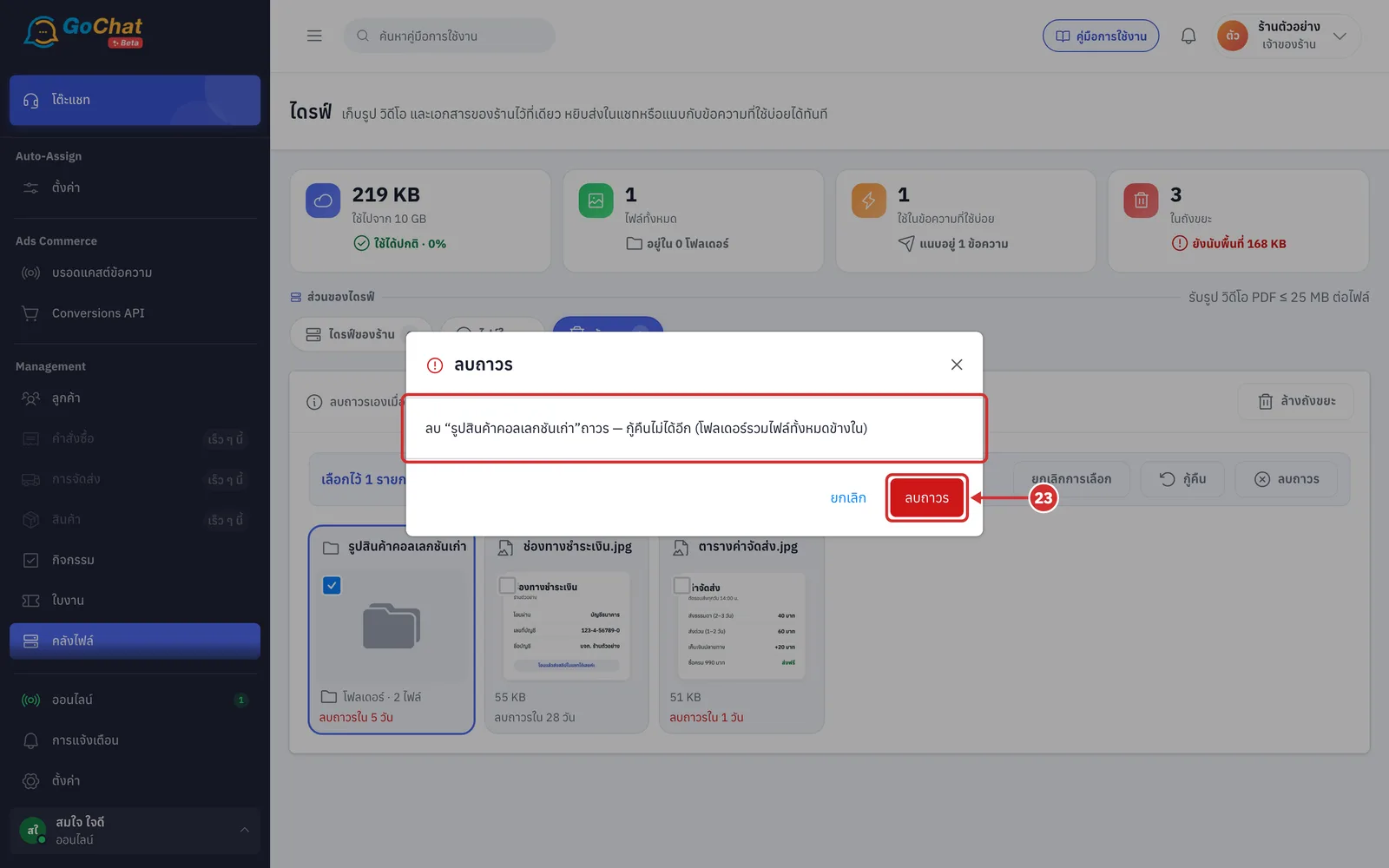
After selecting items as in step 20, click ลบถาวร (Delete permanently) in the เลือกไว้ … รายการ (… items selected) bar
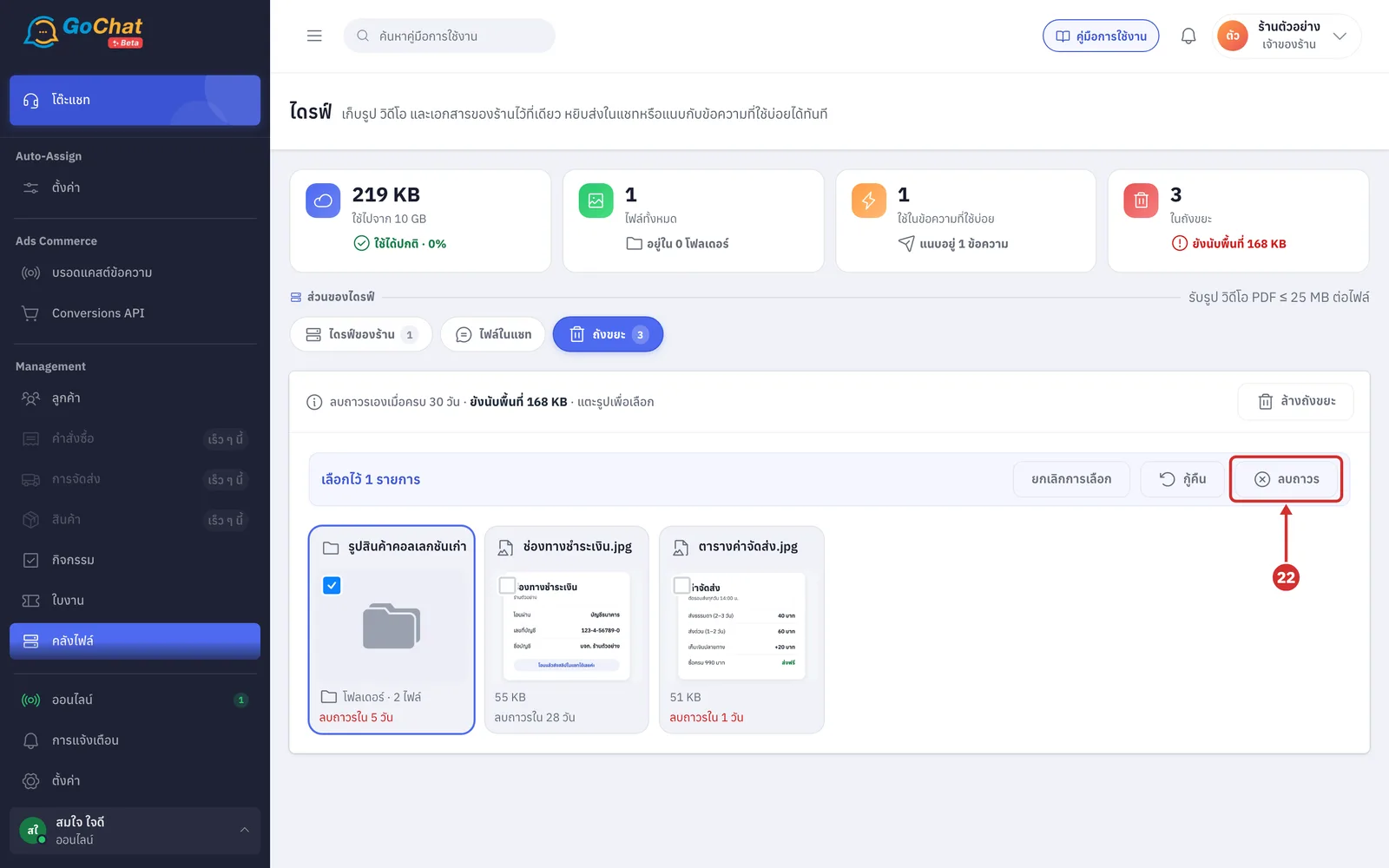
In the ลบถาวร (Delete permanently) window, check the message ลบ “…” ถาวร — กู้คืนไม่ได้อีก (Delete “…” permanently — this cannot be undone), then click ลบถาวร (Delete permanently) to confirm
If a folder is selected, the message ends with (โฟลเดอร์รวมไฟล์ทั้งหมดข้างใน) (the folder includes every file inside)
While deleting, the window shows กำลังลบ… อย่าปิดหน้านี้ (Deleting… don't close this page)
When done, the system shows ลบถาวรแล้ว (Deleted permanently). If some items fail, it says ลบไม่สำเร็จ … รายการ — ลองใหม่อีกครั้ง (… items could not be deleted — try again)
Click ยกเลิก (Cancel) to close the window without deleting
Emptying the trash
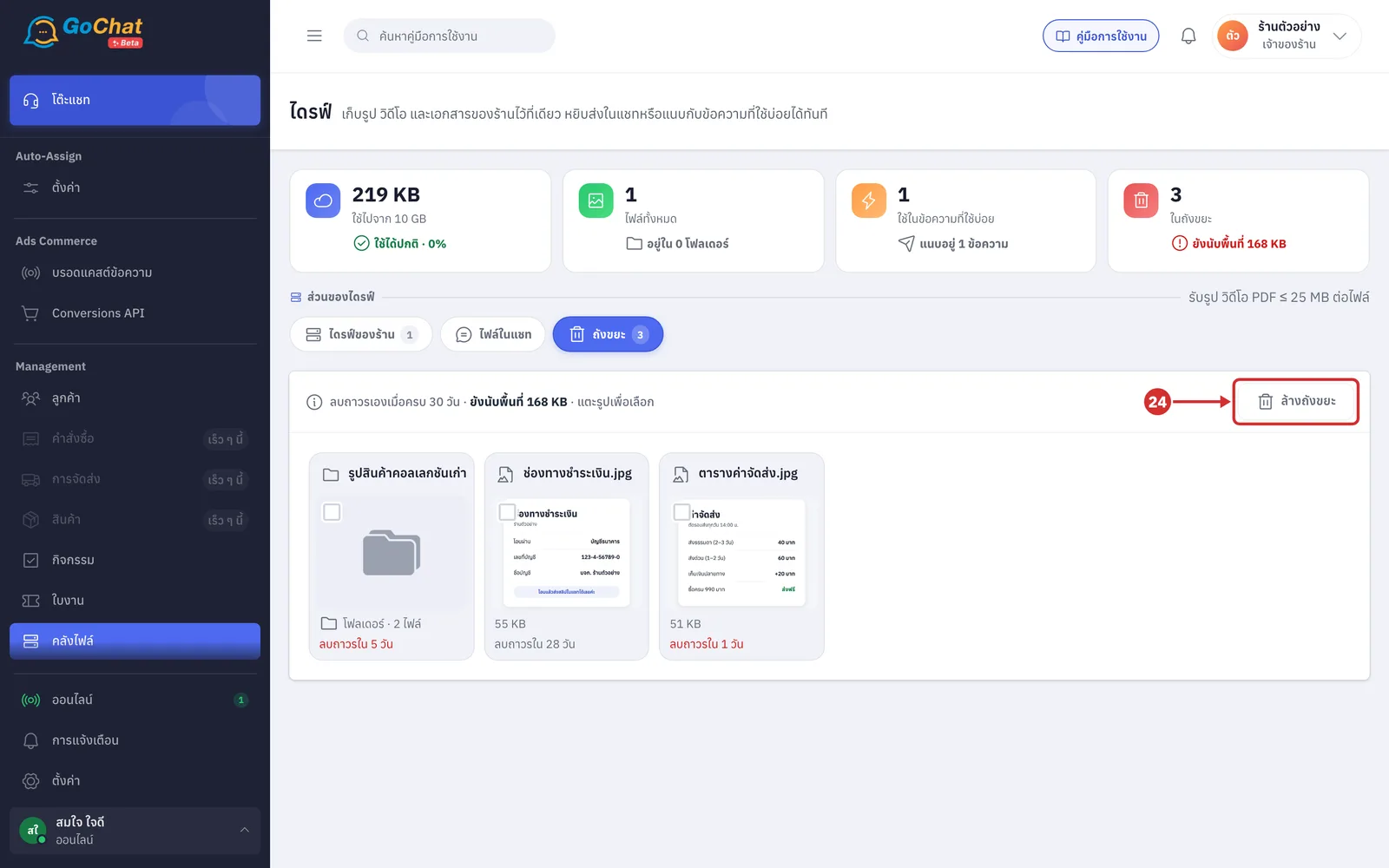
Click ล้างถังขยะ (Empty trash) in the bar at the top to delete every item in the trash at once, without selecting anything first
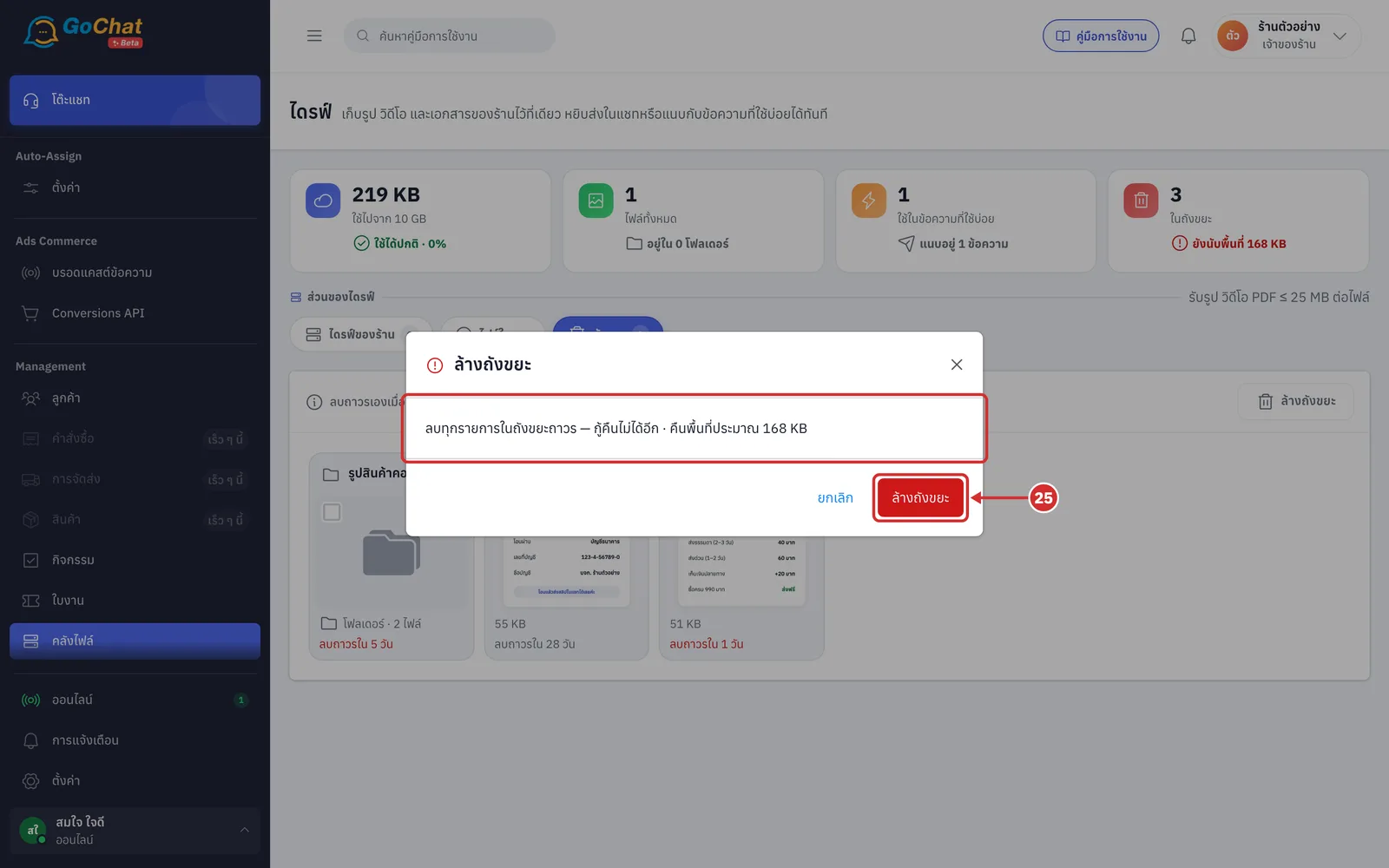
In the ล้างถังขยะ (Empty trash) window, check the message ลบทุกรายการในถังขยะถาวร — กู้คืนไม่ได้อีก · คืนพื้นที่ประมาณ … (Delete every item in the trash permanently — this cannot be undone · frees about …), then click ล้างถังขยะ (Empty trash) to confirm
Every item is deleted, including items not shown on the page
When done, the system shows ล้างถังขยะแล้ว (Trash emptied) and the page shows ถังขยะว่าง (Trash is empty)
If not everything was deleted, it says ล้างไม่ครบ — … (Not fully emptied — …). Click ล้างถังขยะ (Empty trash) again
About chat files
The number on the หายใน … วัน (Gone in … days) label is counted from the date the message was sent. If the same file is sent into a chat again, the system starts counting its age again, so the file may last longer than the label shows
This tab shows files only as far back as your package's chat history. Older files are hidden, not deleted, and appear again when you upgrade your package. Files are still deleted after 90 days as usual
On packages whose chat history goes back more than 90 days, cards of files that have already been deleted show a placeholder image and cannot be opened or kept in the drive
Images kept from a chat with the bookmark button next to the image are the same items as on this page, so they show อยู่ในไดรฟ์แล้ว (In drive) here too, and stopping keeping them in either place has the same effect
In shops that use chat assignment, if a chat is held by another admin you cannot keep or stop keeping its images. The system says แชทนี้อยู่กับ … — กดดึงแชทแล้วรอเขายอมรับก่อนจึงจะแก้ไขได้ (This chat is with … — request the chat and wait for them to accept before you can edit). The shop owner, shop supervisors, the team lead of whoever holds the chat, and shops that turn on พิมพ์ตอบแชทของคนอื่นได้ (Reply to other people's chats) are not blocked