

Setting up discounts and promotions
The ส่วนลด / โปรโมชั่น (Discounts / promotions) topic lets you have the bot tell customers about your shop's promotions when they type a word you set during the promotion's dates, for example a customer types “มีโปรไหมคะ” (Any promotions?) and the bot sends the image and message for a free-shipping promotion with its end date. After the end date, the bot stops sending it by itself.
The shop owner and every admin can set up promotions. One set is one promotion, and one account can be in many promotions. The ประกาศ (Announcement) type tells customers about a promotion through a message and does not affect prices. Customers can also ask for promotions from the welcome and after-hours menus. Parts every topic shares, such as status, testing and history, are explained in Using the auto-reply bot.
Creating a promotion
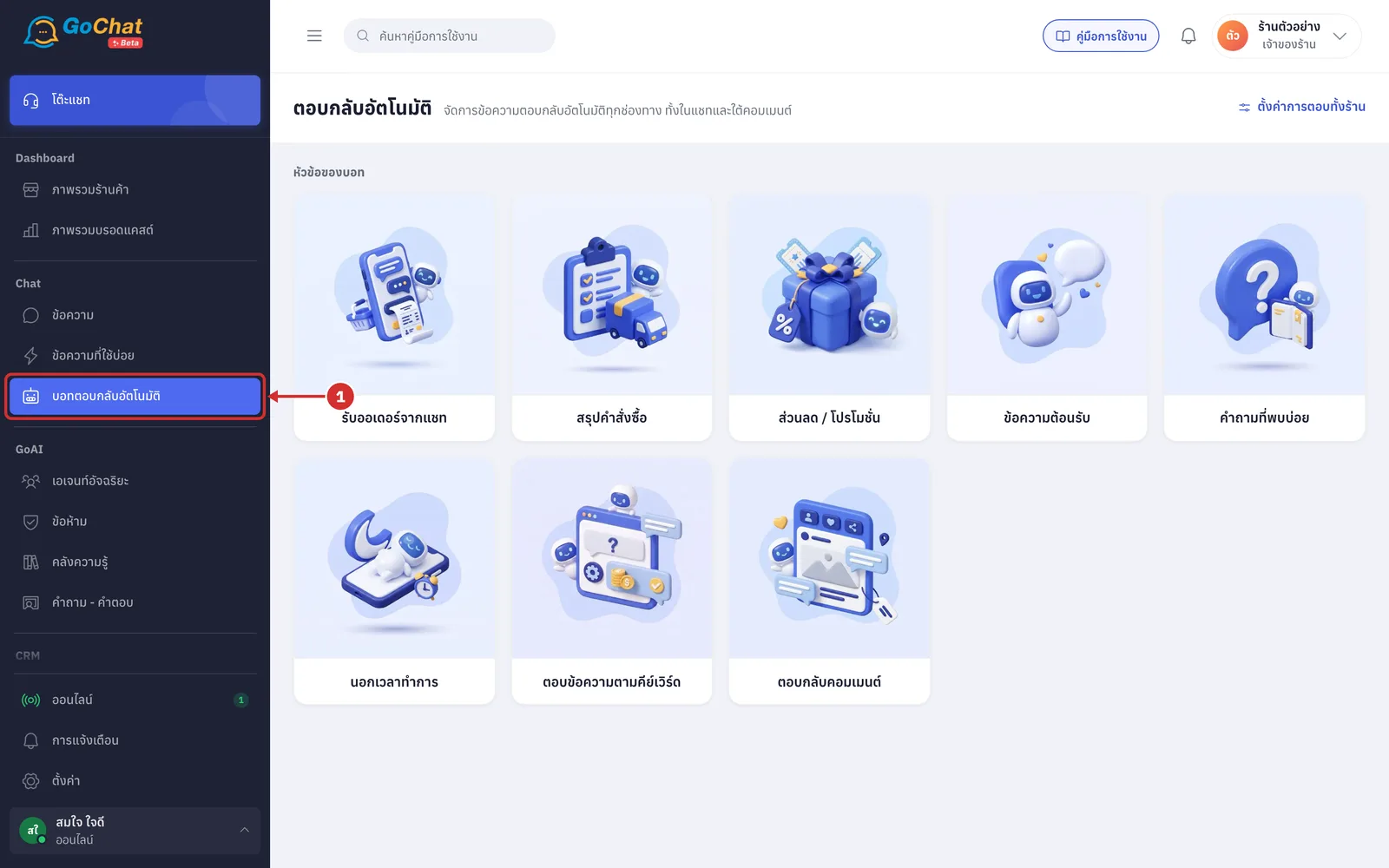
Go to the บอทตอบกลับอัตโนมัติ (Auto-reply bot) menu under Chat in the left menu bar
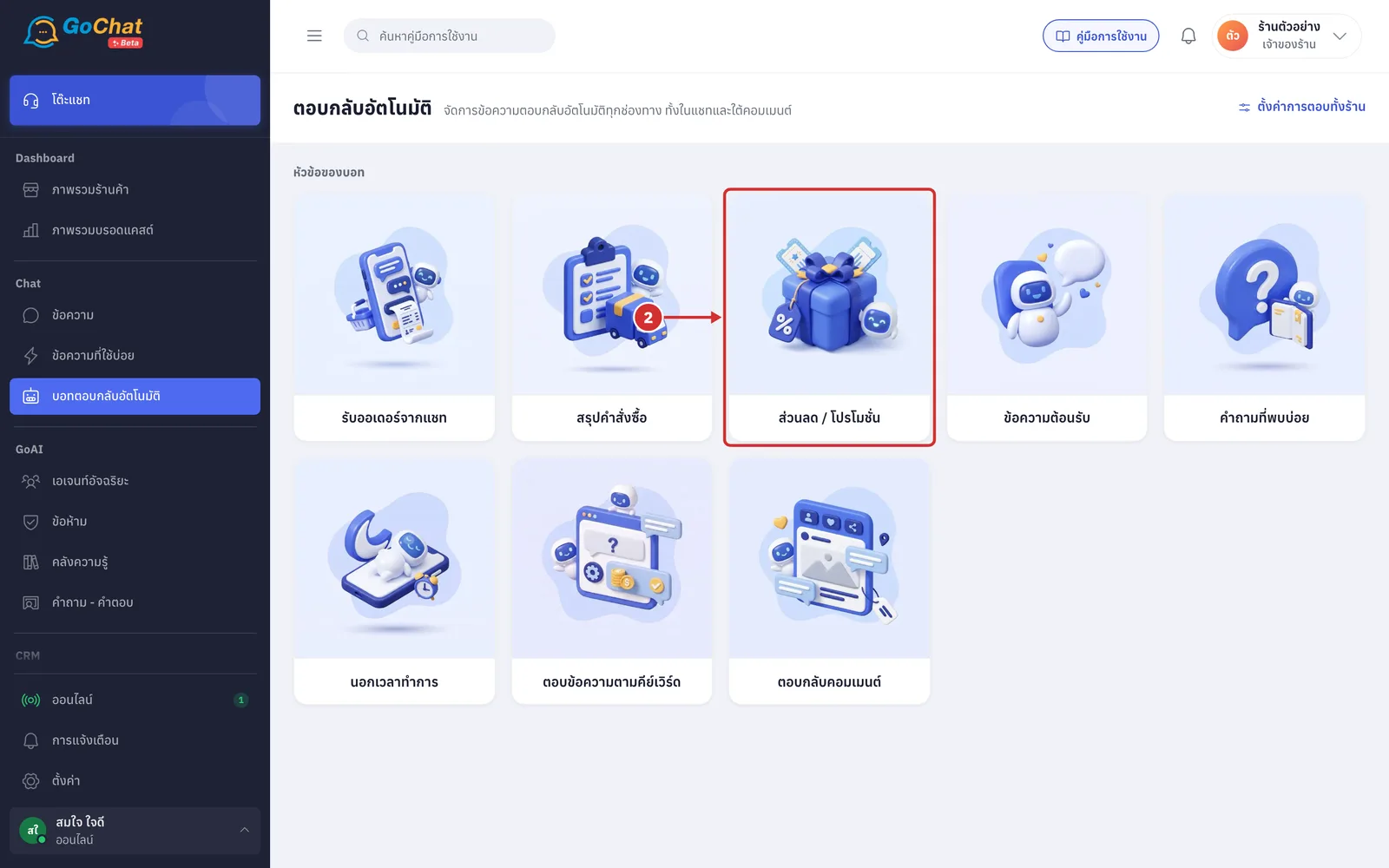
Click the ส่วนลด / โปรโมชั่น (Discounts / promotions) card
If your shop has no promotions yet, the app opens a new promotion straight away; skip to step 5
The list page for this topic shows these topic-specific details
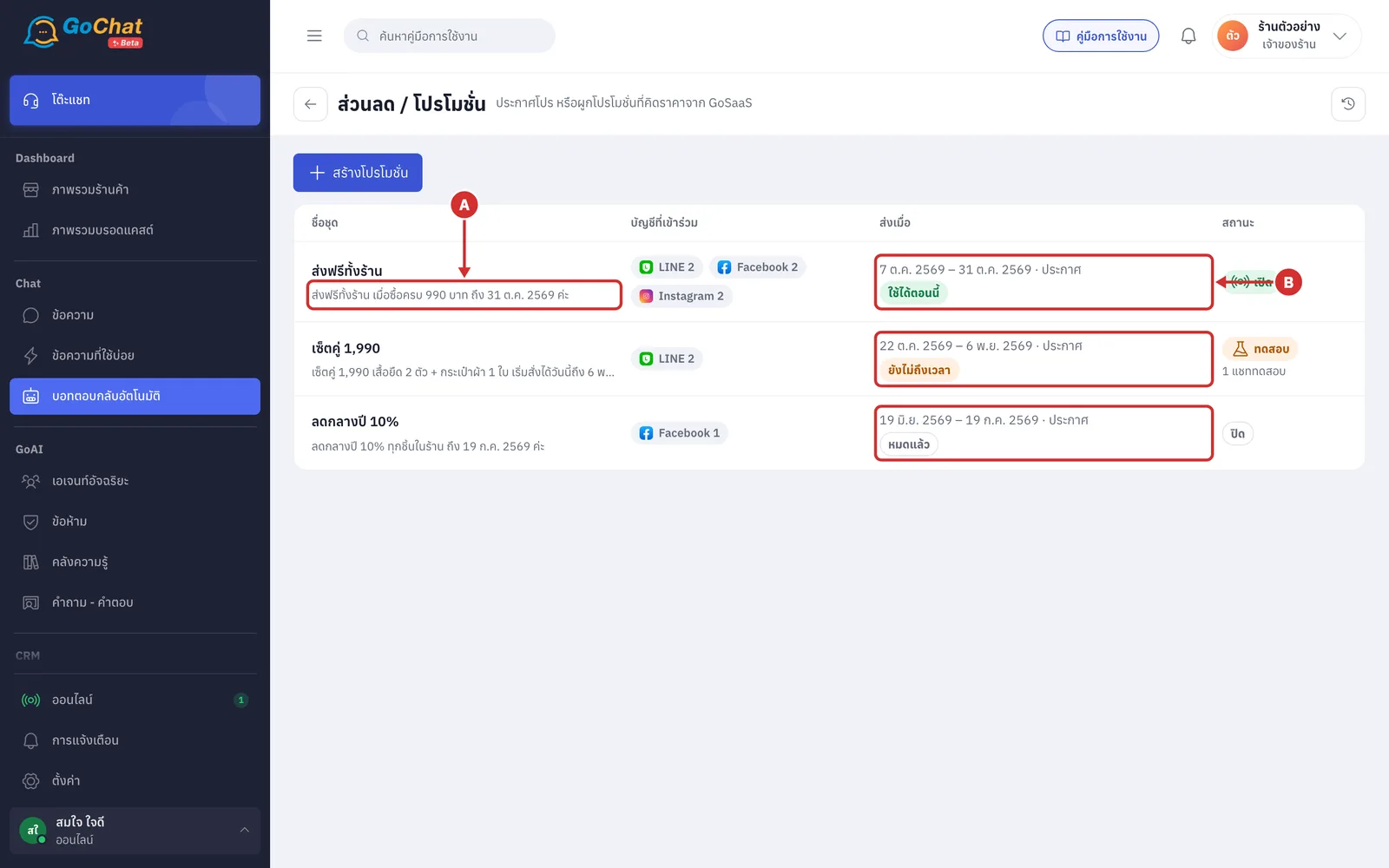
A Grey line under the set name — the first line of the promotion message, with the ชื่อโปร (Promotion name) variable replaced by the set name and วันหมดเขต (End date) by the promotion's end date
B ส่งเมื่อ (Sends when) — the promotion's date range, followed by the type ประกาศ (Announcement) and a badge for the promotion's period
ใช้ได้ตอนนี้ (Active now, green): today is within the promotion's dates
ยังไม่ถึงเวลา (Not started, yellow): the start date has not come yet
หมดแล้ว (Ended, grey): the end date has passed
Other parts of the list page, such as accounts and status, are explained in Using the auto-reply bot
Good to know: The period badge is not the set's status. A promotion that is ใช้ได้ตอนนี้ (Active now) but whose status is ปิด (Off) is not sent.
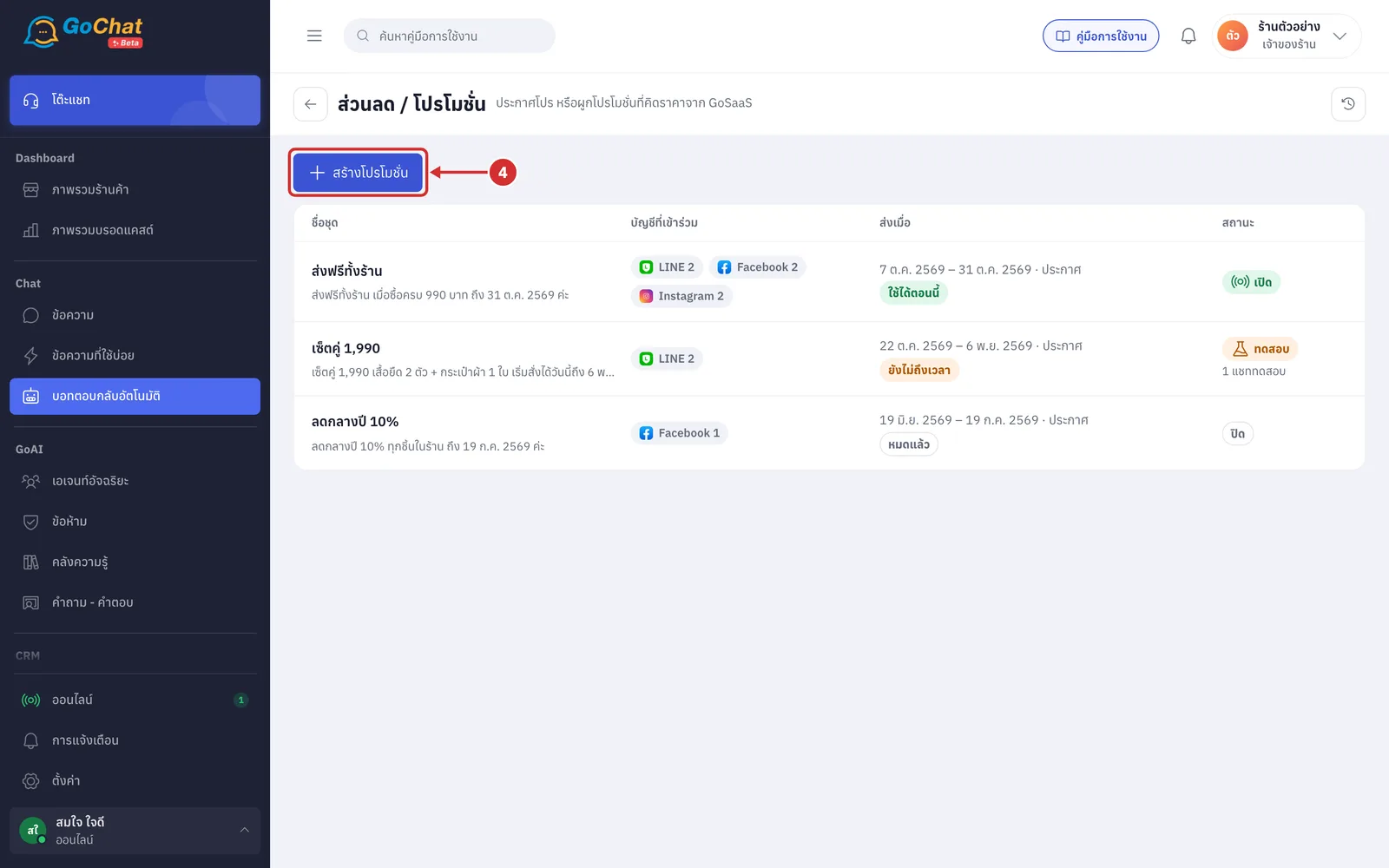
Click สร้างโปรโมชั่น (Create promotion) (to edit an existing promotion, click its name in the list instead)
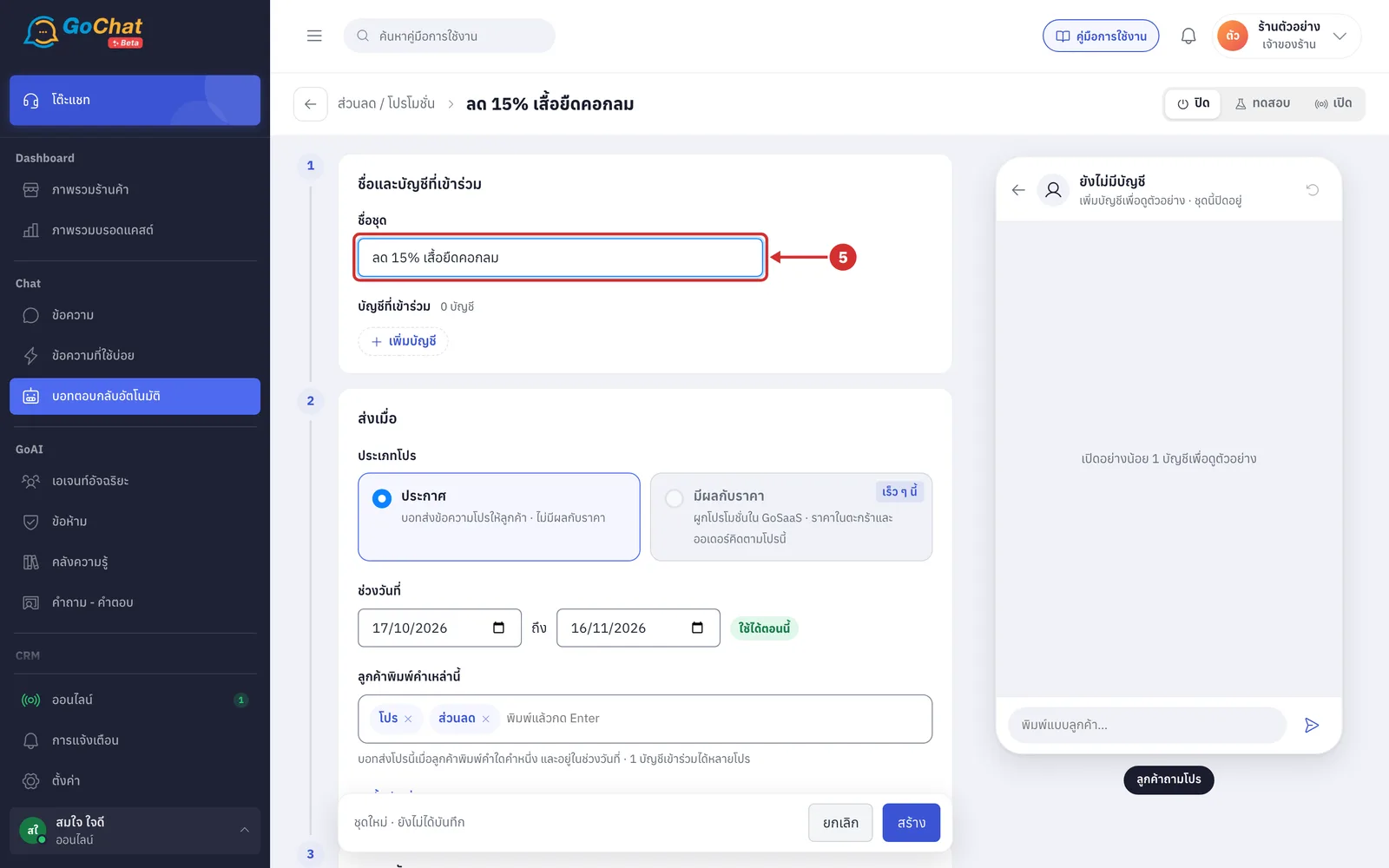
In ชื่อชุด (Set name), enter the promotion's name, such as ลด 15% เสื้อยืดคอกลม (15% off crew-neck T-shirts)
This field is required, up to 60 characters
Customers see this name, because the bot uses the set name for the ชื่อโปร (Promotion name) variable in the promotion message, so choose a name customers will understand
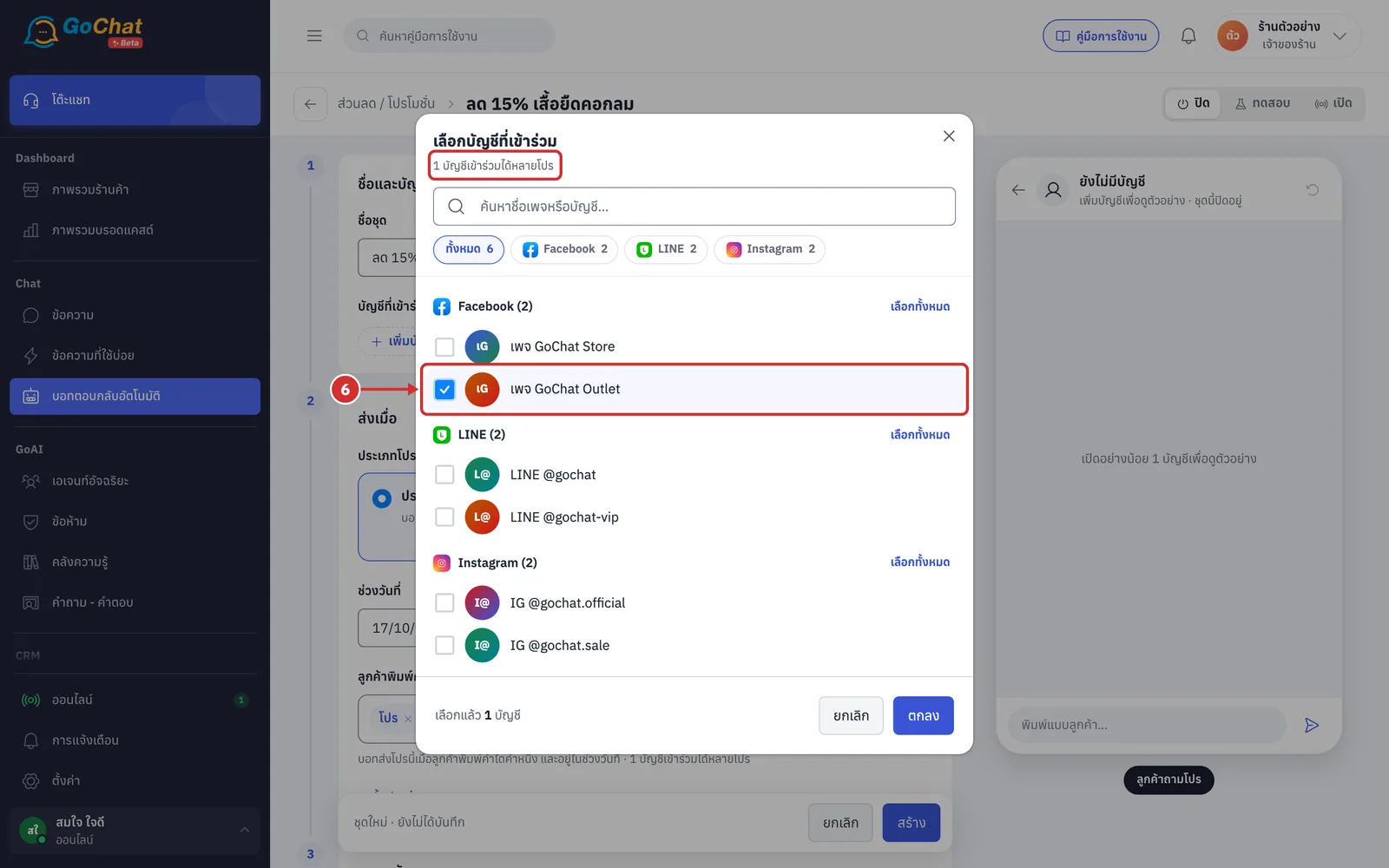
Click เพิ่มบัญชี (Add account) and tick the pages or accounts that will use this promotion
The window shows 1 บัญชีเข้าร่วมได้หลายโปร (One account can join many promotions), so accounts already in another promotion can still be chosen
Promotions work on every channel
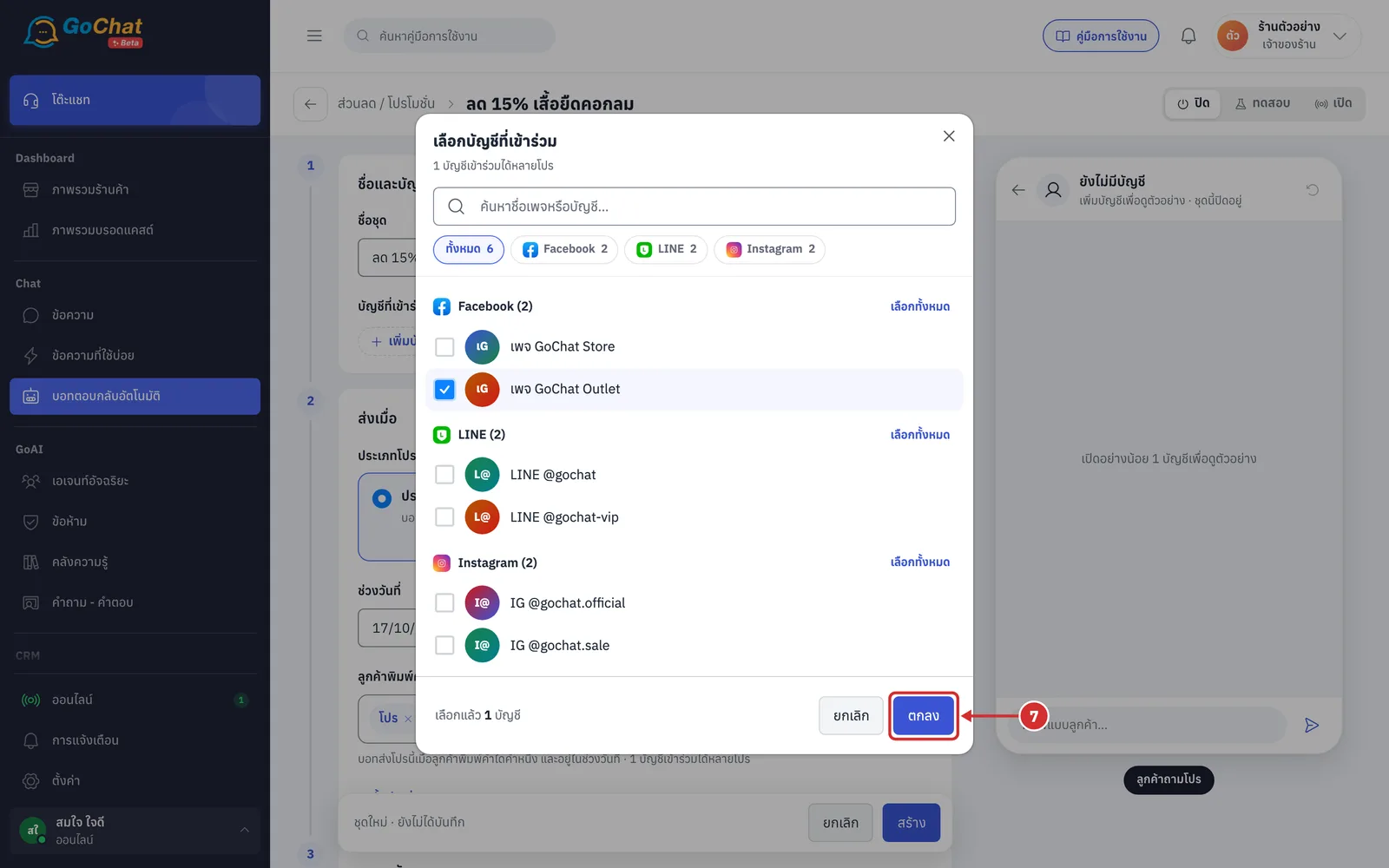
Click ตกลง (OK). The chosen accounts appear under บัญชีที่เข้าร่วม (Accounts)
Setting when it is sent
In the ส่งเมื่อ (Sends when) step, under ประเภทโปร (Promotion type), choose ประกาศ (Announcement)
The bot sends the promotion message to customers; prices are not affected
This article covers the ประกาศ (Announcement) type
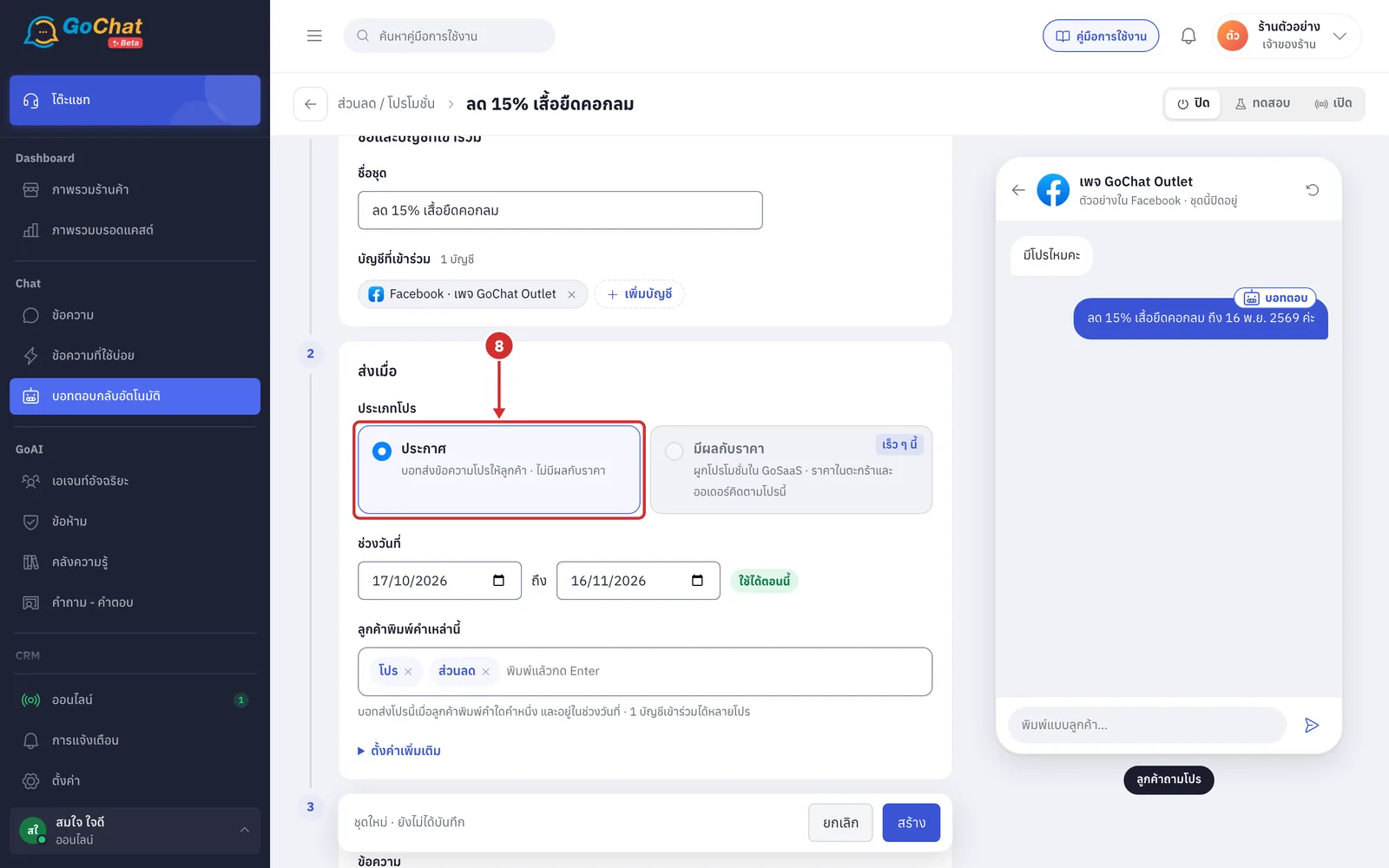
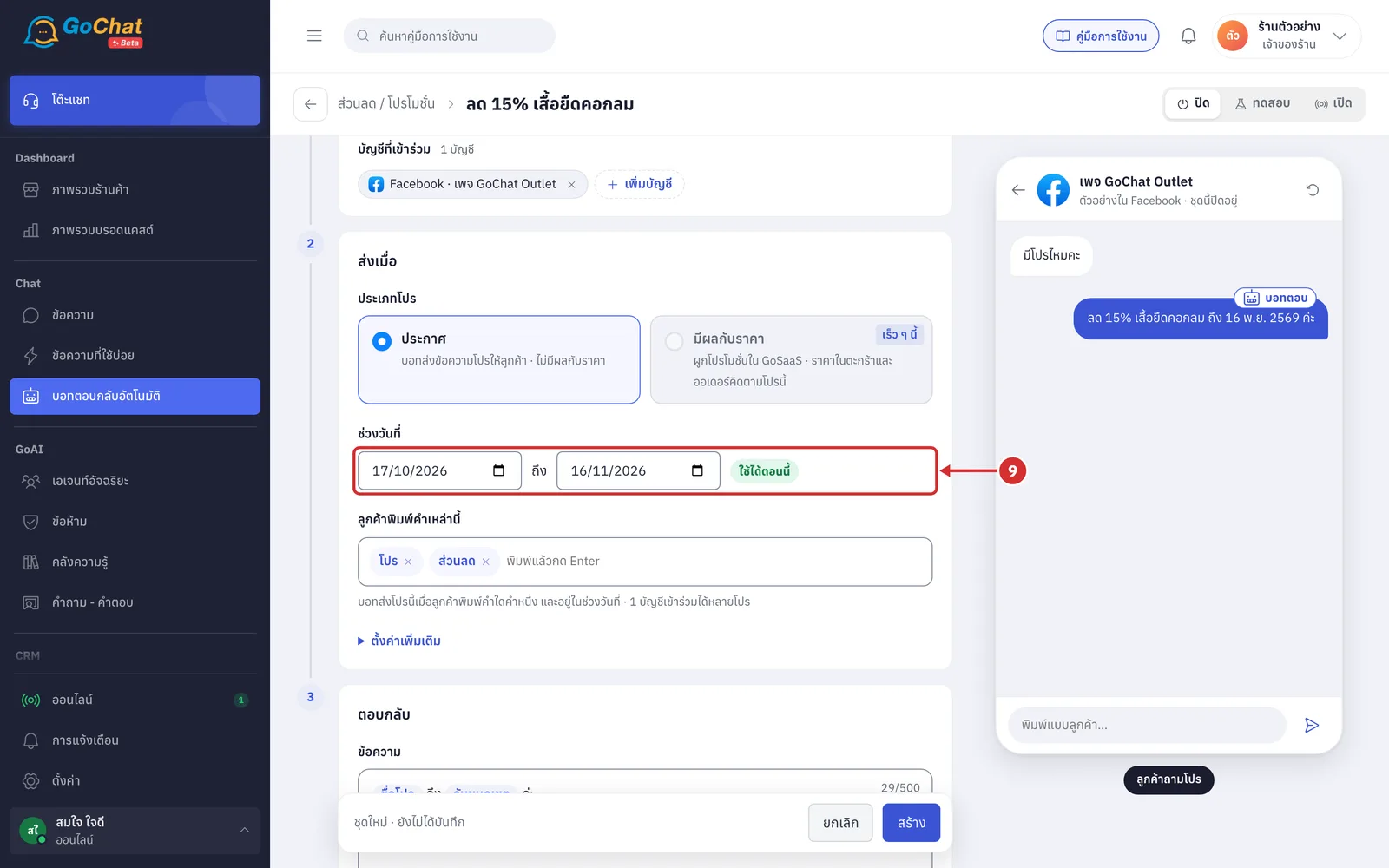
Under ช่วงวันที่ (Date range), choose the promotion's start and end dates
New promotions start as today to 30 days from today
Both the start and end dates count, using the date in your shop's time zone (set it in Shop settings)
The badge after the dates shows the promotion's period as soon as you choose, such as ใช้ได้ตอนนี้ (Active now) or หมดแล้ว (Ended). Until both dates are chosen it shows ยังไม่ตั้งวันที่ (No dates set)
If a date is missing, saving shows ตั้งวันเริ่มและวันสิ้นสุดของโปร (Set the promotion's start and end dates)
The end date cannot be before the start date; otherwise you see วันสิ้นสุดต้องไม่ก่อนวันเริ่ม (End date cannot be before start date)
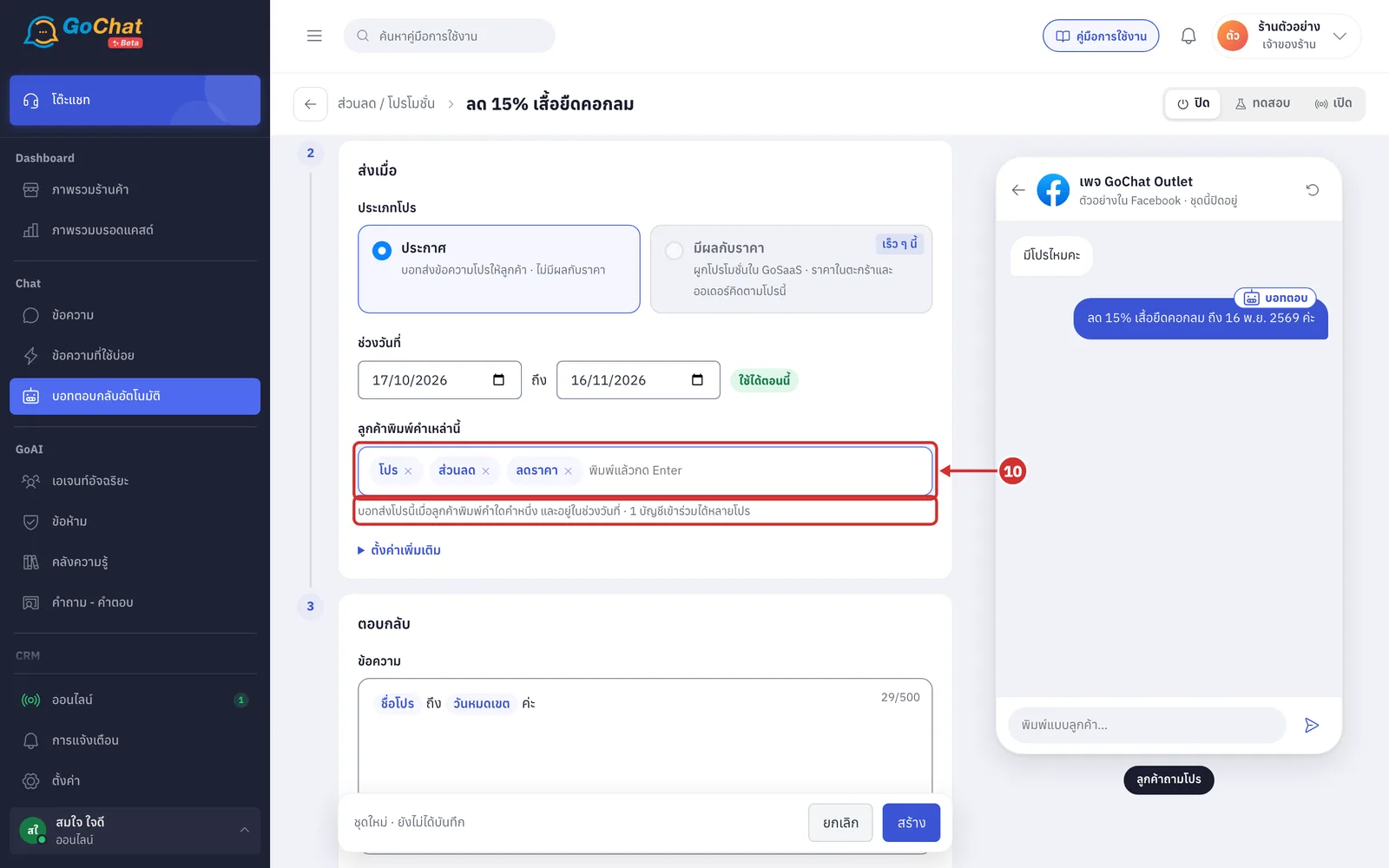
Type a word customers use to ask about promotions into ลูกค้าพิมพ์คำเหล่านี้ (Customer types these words), then press Enter to add it, one word at a time
New promotions come with the words โปร (promo) and ส่วนลด (discount)
Typing a comma (,) or clicking outside the box also adds the word. A word that is already in the list is not added again
Click × on a word to remove it
At least 1 word is required. Without one, you see ใส่คำที่ลูกค้าพิมพ์อย่างน้อย 1 คำ (Add at least 1 word customers type) when you save
The line under the box sums up the rule: บอทส่งโปรนี้เมื่อลูกค้าพิมพ์คำใดคำหนึ่ง และอยู่ในช่วงวันที่ · 1 บัญชีเข้าร่วมได้หลายโปร (The bot sends this promotion when the customer types one of the words within the date range · One account can join many promotions)
Good to know: A promotion word matches when it appears anywhere in the message, for example “มีโปรไหมคะ” (Any promotions?) matches the word โปร. This is different from Setting up keyword replies, where the whole message must match the word. See How promotions work for details.
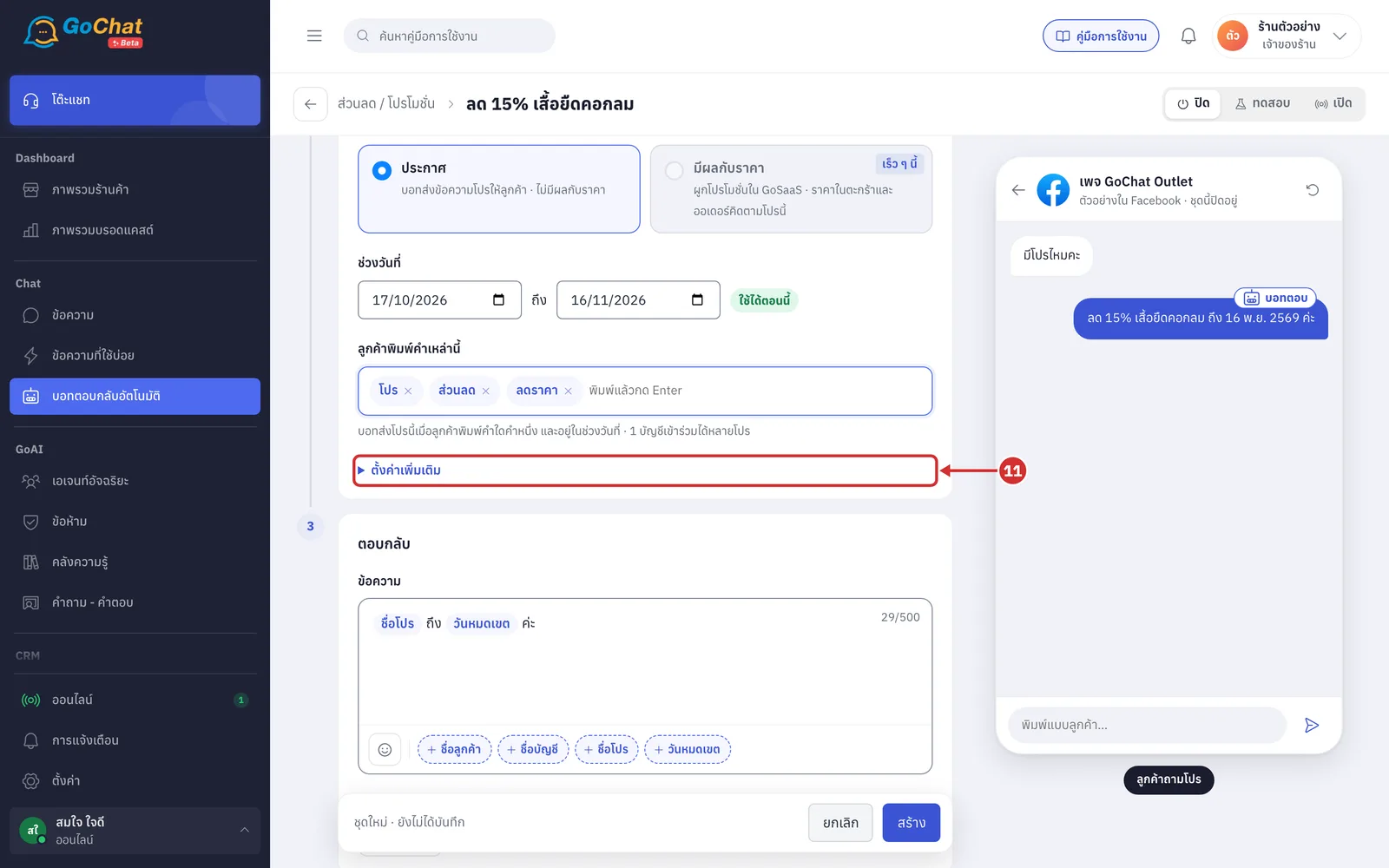
Click ตั้งค่าเพิ่มเติม (More settings) to open the rest of this step
Both fields start at the recommended value; a field at the recommended value shows an แนะนำ (Recommended) badge
If a value is out of range, saving shows ต้องอยู่ระหว่าง … (Must be between …) and opens this part for you
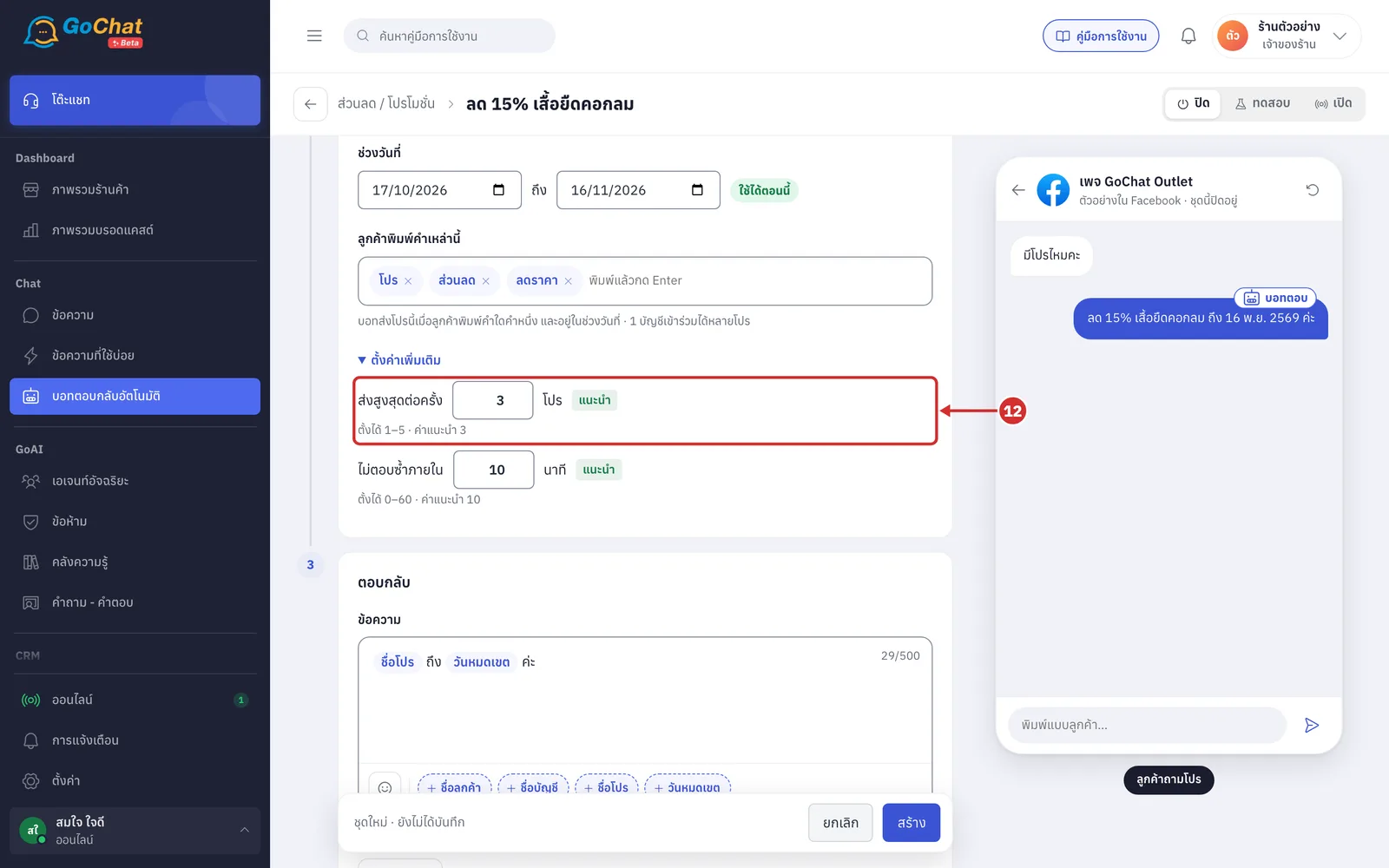
In ส่งสูงสุดต่อครั้ง (Max per reply), enter the number of promotions
When a customer's message matches several promotions at once, the bot sends no more than this number in one go, starting with the promotion that ends soonest
Set 1–5 promotions; the recommended value is 3
If the matching promotions have different values, the bot uses the smallest
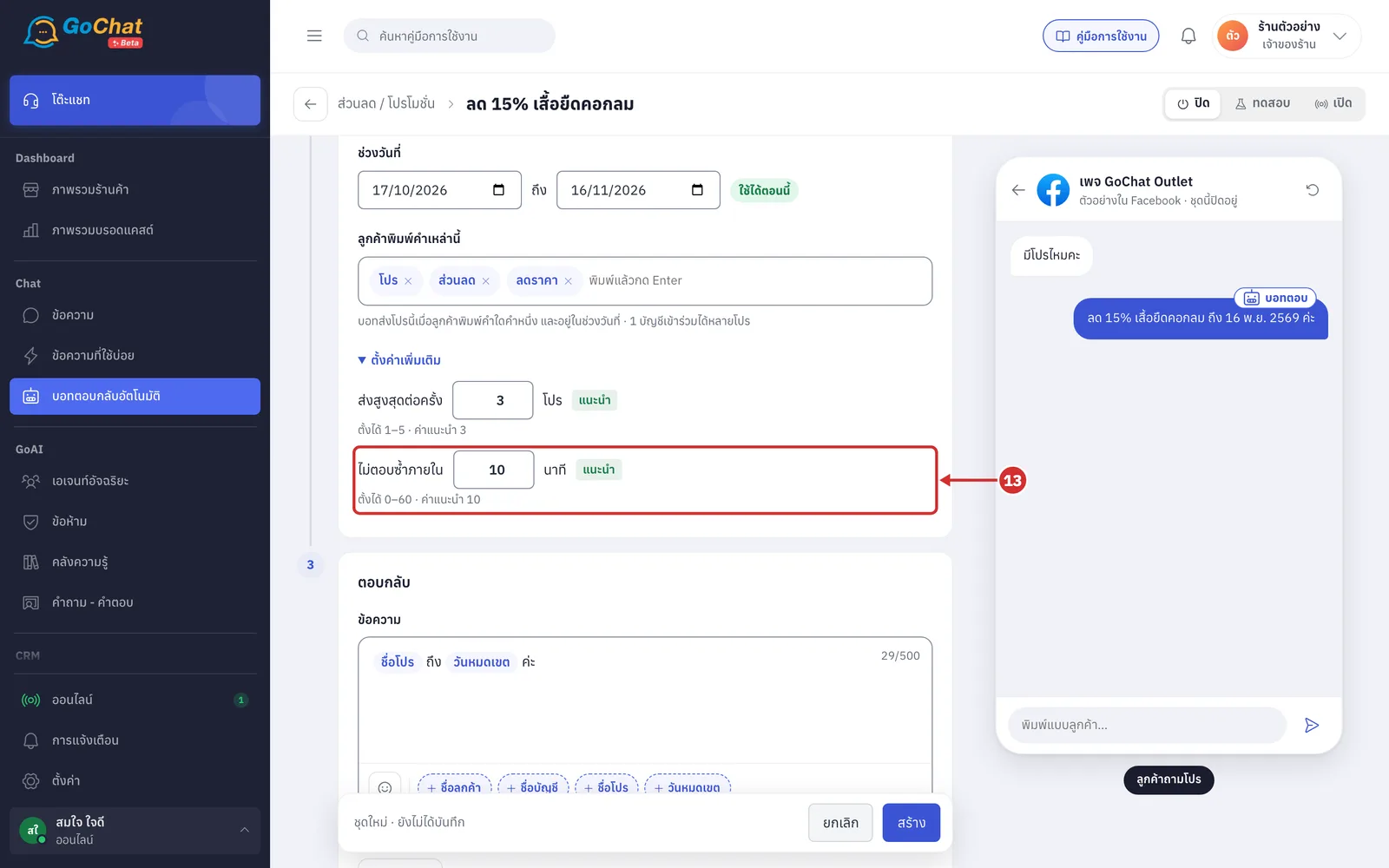
In ไม่ตอบซ้ำภายใน (Don't repeat within), enter the number of minutes
The bot does not send the same promotion to the same chat again within this time, even if the customer types a promotion word again
Set 0–60 minutes; the recommended value is 10. With 0, the bot sends every time
Promotions in test status use the test chats' ส่งซ้ำได้ทุก (Can resend every) gap instead
This time does not apply when a customer asks for promotions from a ส่งโปรโมชั่น (Send promotions) menu item
Setting the promotion message
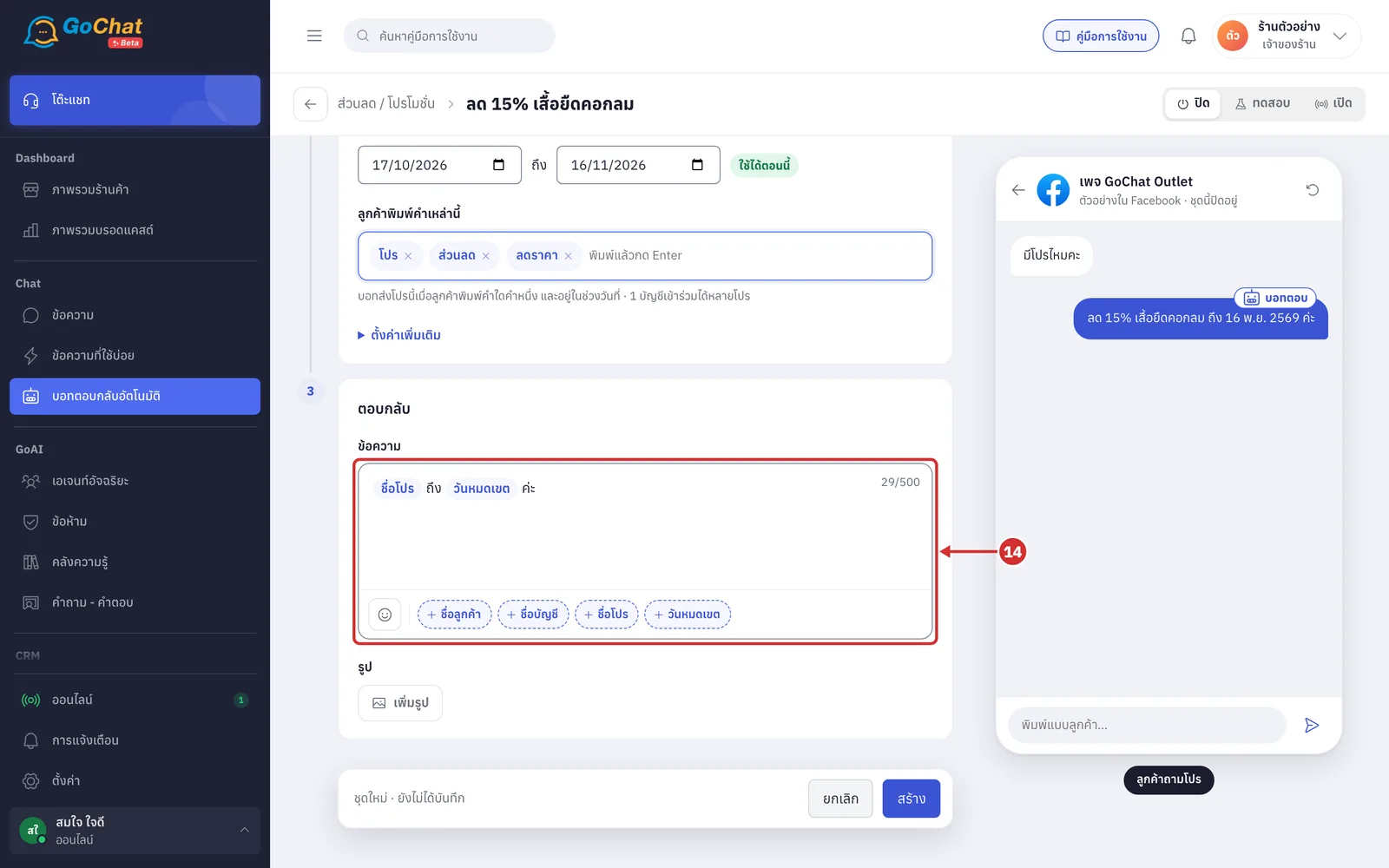
In the ตอบกลับ (Reply) step, edit the promotion message in ข้อความ (Message). You can use these variables
ชื่อลูกค้า (Customer name) — “คุณลูกค้า” (Dear customer) is used when there is no name
ชื่อบัญชี (Account name) — the page or LINE OA the customer messaged
ชื่อโปร (Promotion name) — this promotion's set name
วันหมดเขต (End date) — the promotion's end date with the year, such as 30 ก.ย. 2569 (30 Sep 2026)
More details
New promotions start with the message ชื่อโปร ถึง วันหมดเขต ค่ะ ({Promotion name} until {End date})
A message or an image is required
The message can be up to 500 characters
How to insert variables is explained in Using the auto-reply bot
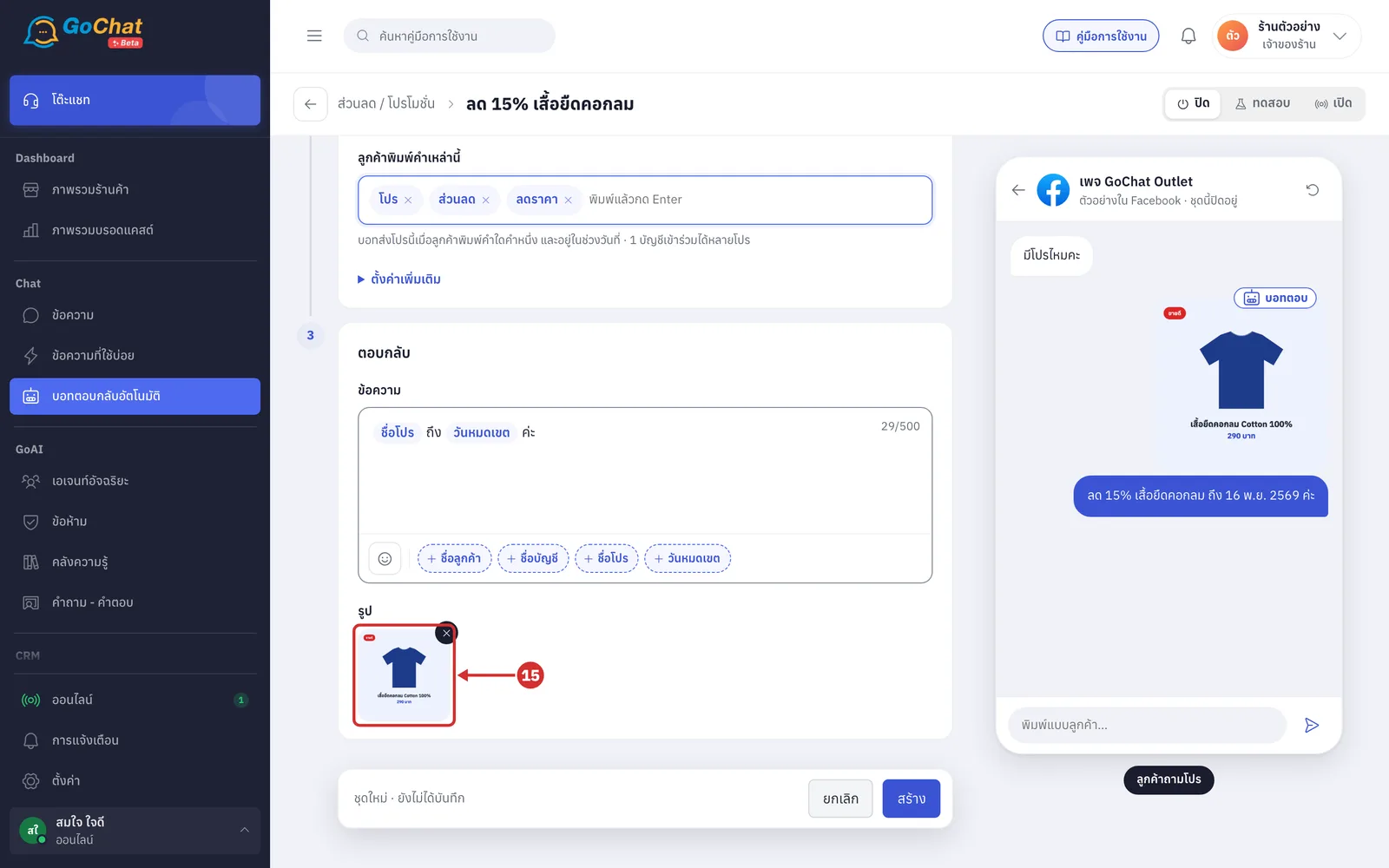
Under รูป (Image), click เพิ่มรูป (Add image) and choose 1 image from your computer
The bot sends the image before the text
The image goes into your shop's image library as soon as you choose it, but is linked to the set when you save
To remove the image, click × on it
Trying it in the chat preview
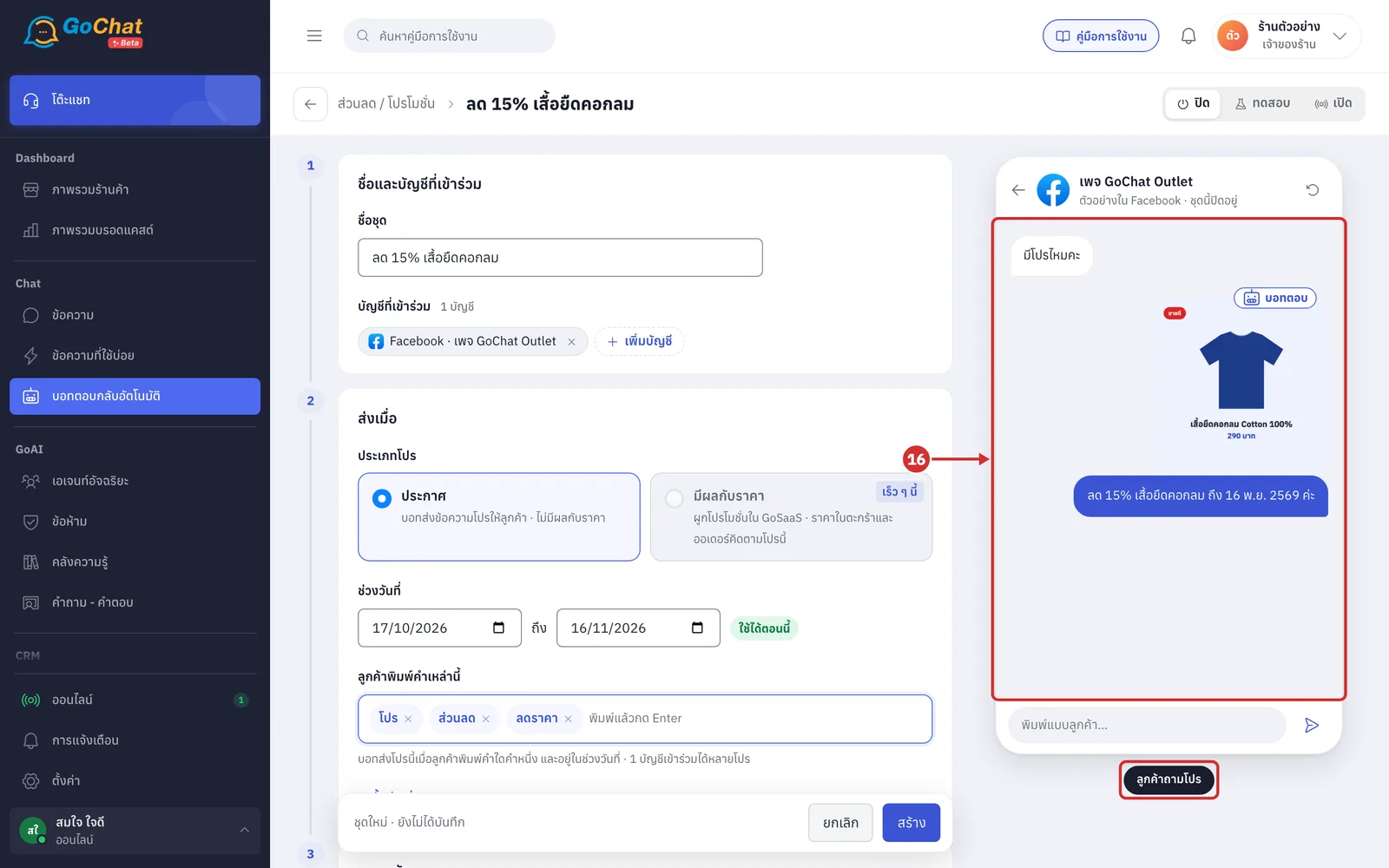
The chat preview on the right shows how the bot would send the promotion, using the form's values even before you save. This topic has one scenario, ลูกค้าถามโปร (Customer asks about promotions), where the sample customer asks using the promotion's first word straight away, such as มีโปรไหมคะ (Any promotions?).
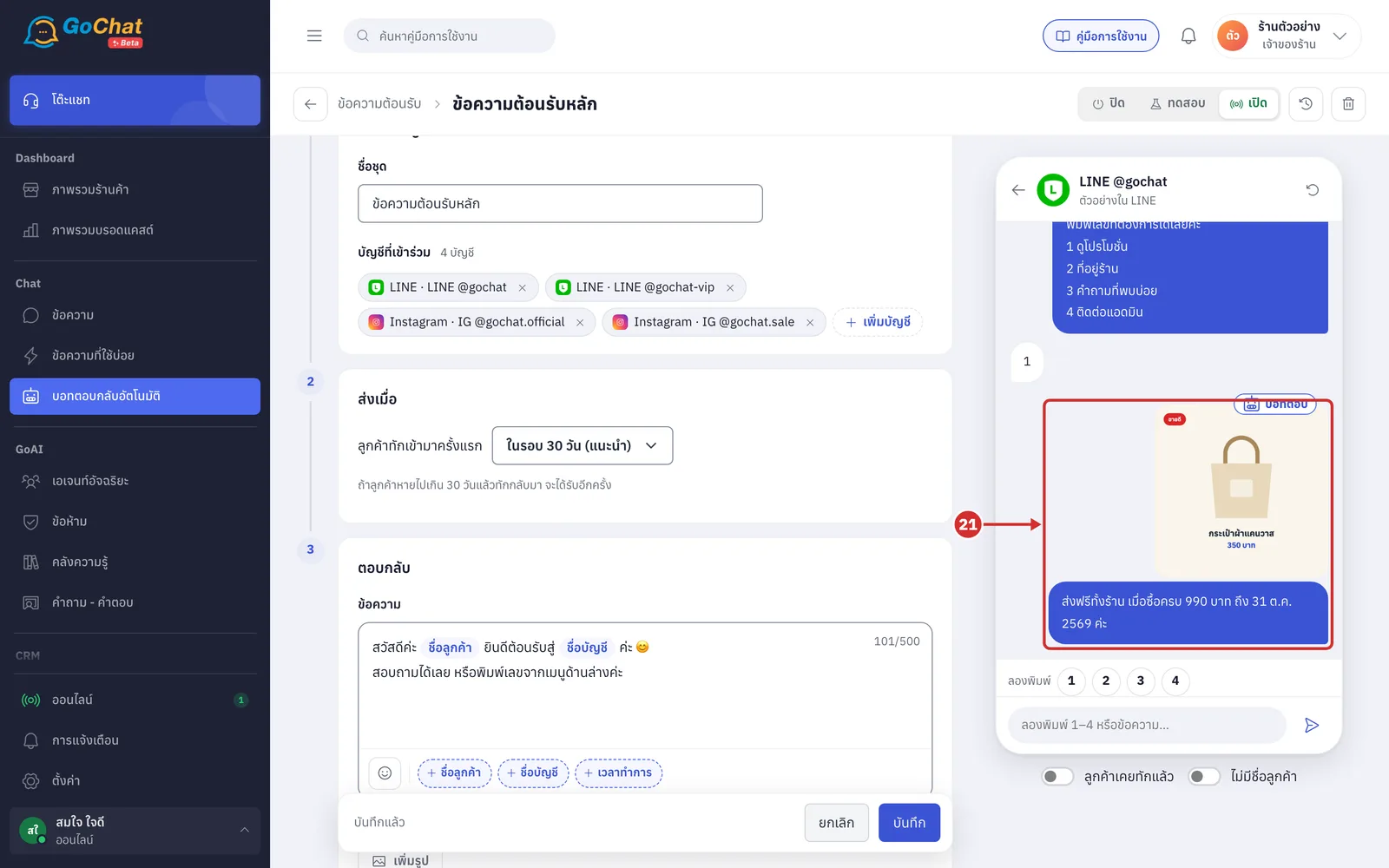
Check the bot's reply in the chat preview. The bot sends the promotion image, followed by the message with variables filled in
The preview on this page uses only the promotion you are editing, not other promotions or topics
If the set has no name yet, the ชื่อโปร (Promotion name) variable shows as โปรนี้ (this promotion)
If you have not added any words yet, the preview shows เพิ่มคำที่ลูกค้าพิมพ์เพื่อดูตัวอย่าง (Add words customers type to see a preview)
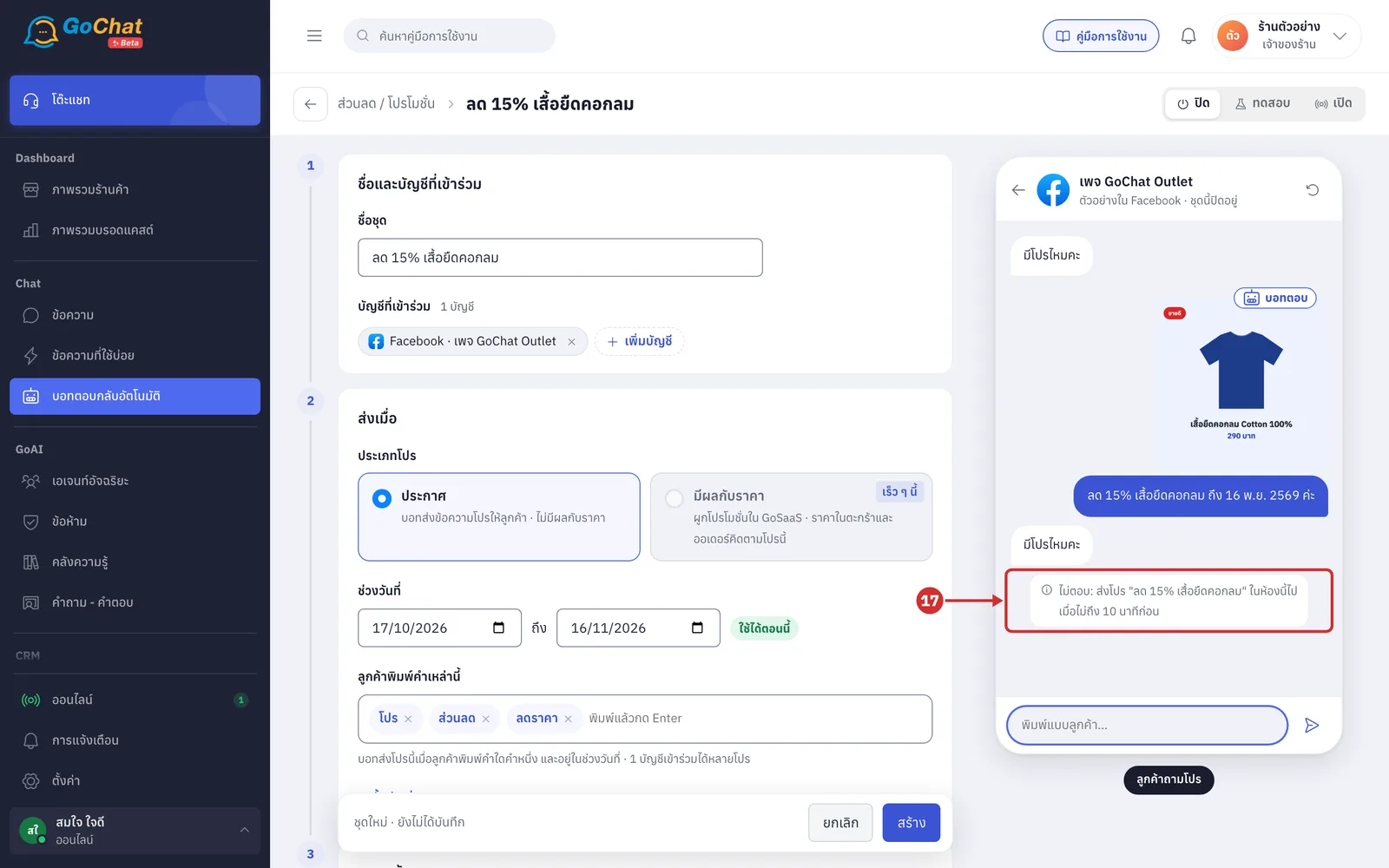
Type มีโปรไหมคะ (Any promotions?) again into พิมพ์แบบลูกค้า… (Type as a customer…) and press Enter. The preview shows ไม่ตอบ: ส่งโปร "ลด 15% เสื้อยืดคอกลม" ในห้องนี้ไปเมื่อไม่ถึง 10 นาทีก่อน (No reply: promotion "ลด 15% เสื้อยืดคอกลม" was sent in this chat less than 10 minutes ago) because of ไม่ตอบซ้ำภายใน (Don't repeat within)
Each message in the preview is 1 minute after the previous one
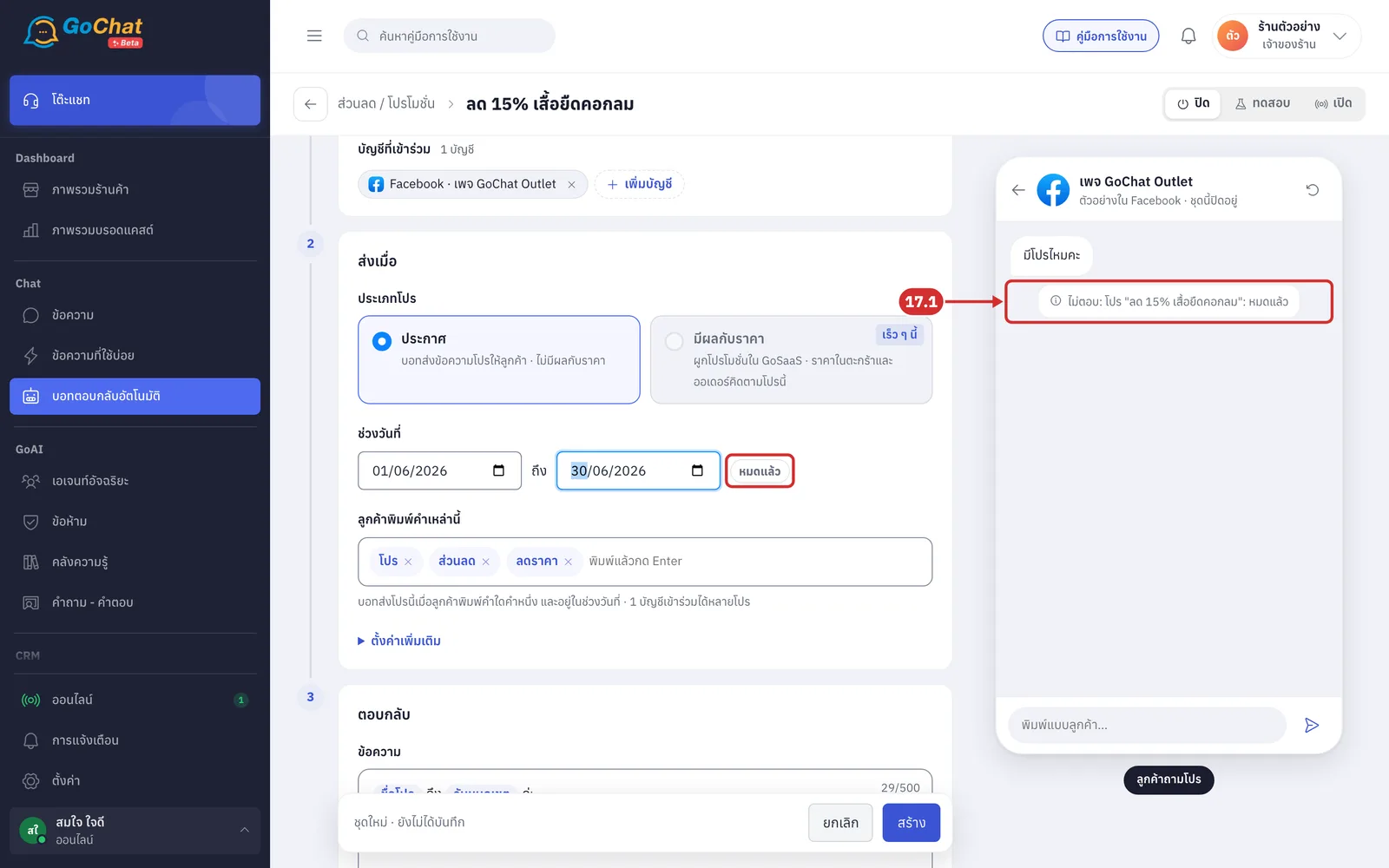
17.1 If today is outside the promotion's ช่วงวันที่ (Date range), the preview shows ไม่ตอบ: (No reply:) with the promotion's period, such as ไม่ตอบ: โปร "ลด 15% เสื้อยืดคอกลม": หมดแล้ว (No reply: promotion "ลด 15% เสื้อยืดคอกลม": Ended) or ยังไม่ถึงเวลา (Not started), and the badge after the dates changes to match
Saving
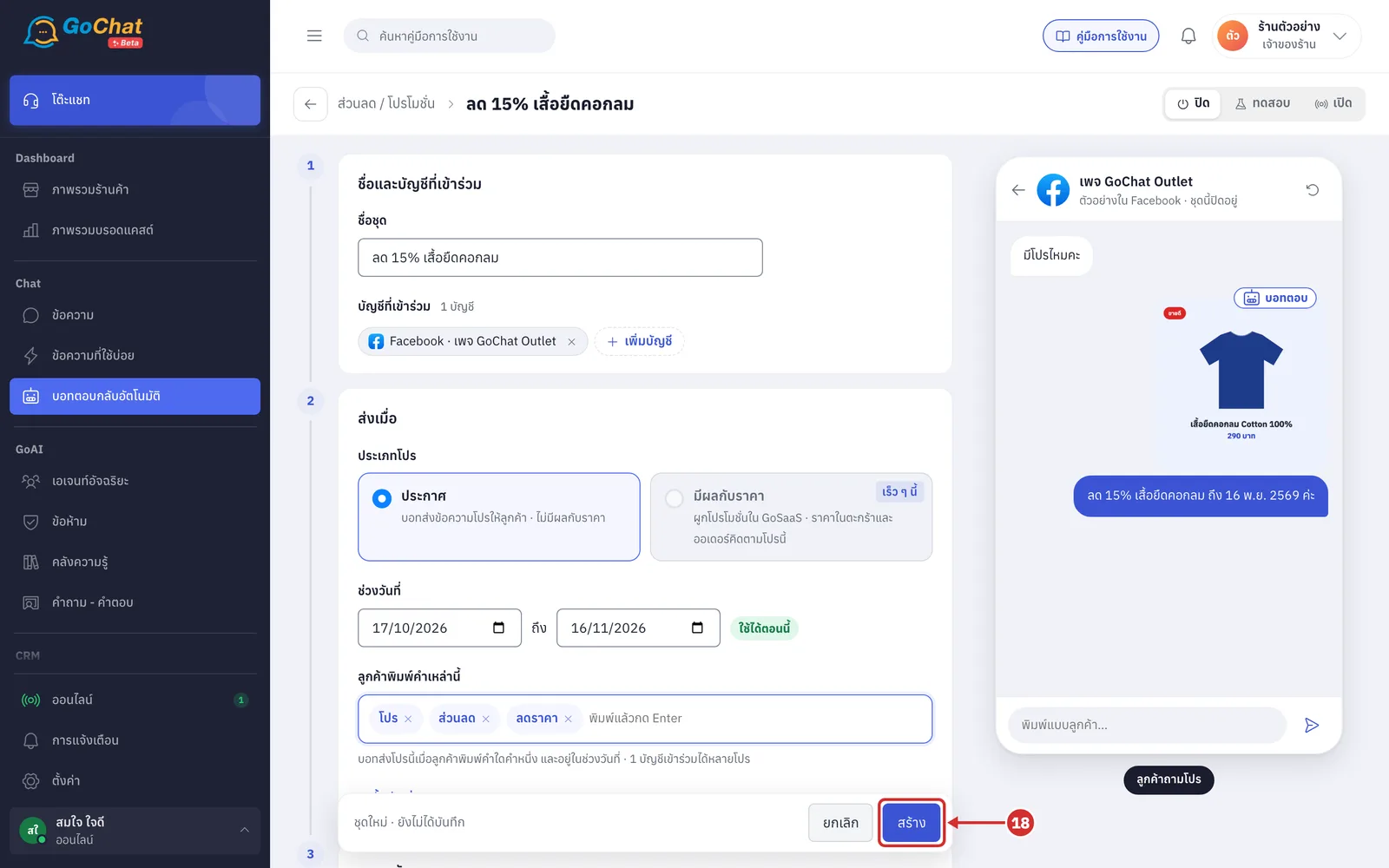
Choose a status at the top right, then click สร้าง (Create)
New promotions are ปิด (Off)
ทดสอบ (Test) — try it with your team's chats
เปิด (On) — go live
The statuses are explained in Using the auto-reply bot
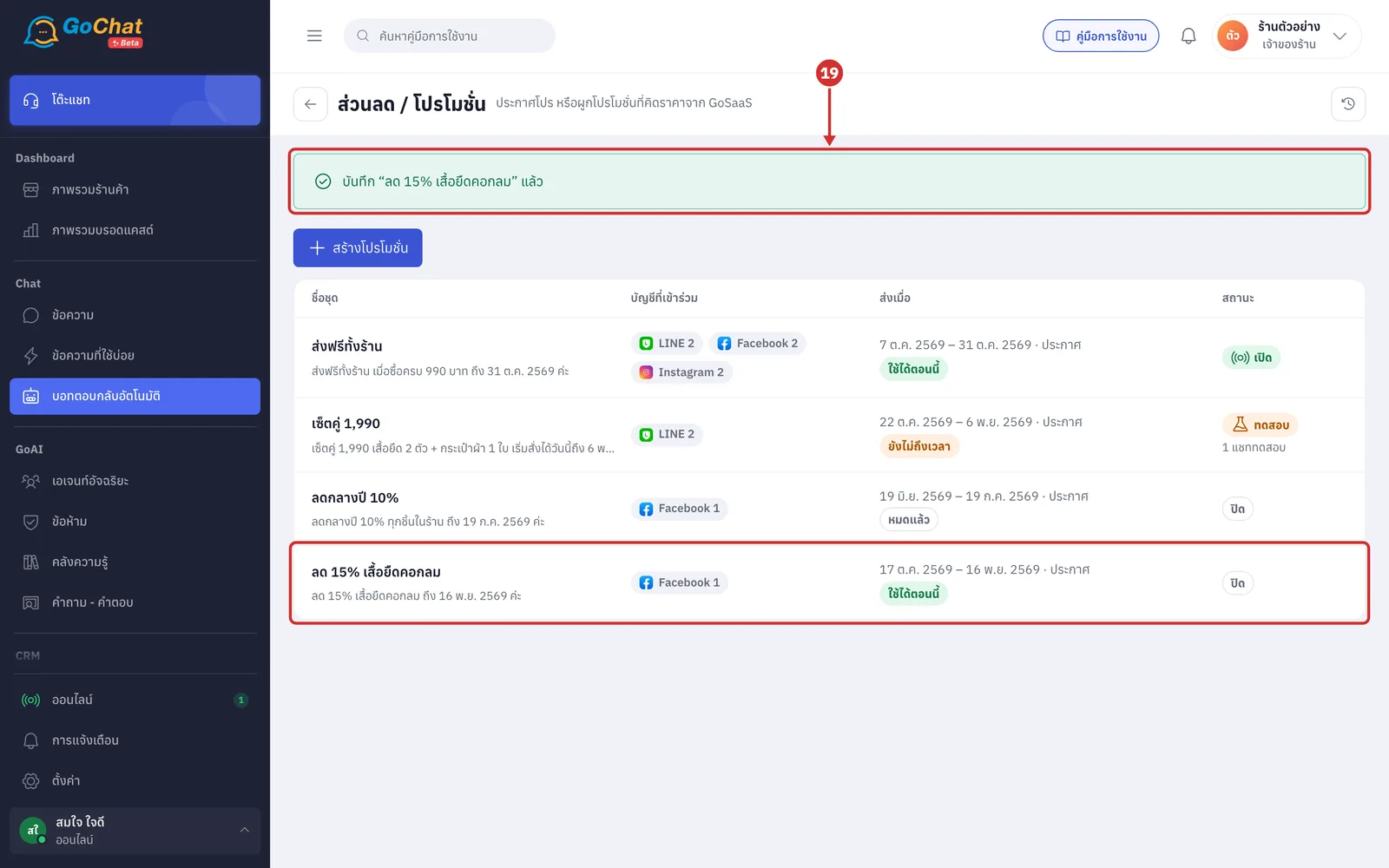
The app goes back to the list, shows บันทึก “ลด 15% เสื้อยืดคอกลม” แล้ว (Saved “ลด 15% เสื้อยืดคอกลม”) and the new promotion appears in the list
Sending promotions from a number menu
ข้อความต้อนรับ (Welcome message) and นอกเวลาทำการ (After hours) have a menu customers choose from by typing a number, and a menu item can send promotions. Customers can then see promotions without typing a promotion word.
In the set editor of ข้อความต้อนรับ (Welcome message) or นอกเวลาทำการ (After hours), under เมนูให้ลูกค้าพิมพ์เลือก (Menu customers choose by number), set a menu item's action to ส่งโปรโมชั่น (Send promotions) (setting up the menu is explained in Setting up welcome messages)
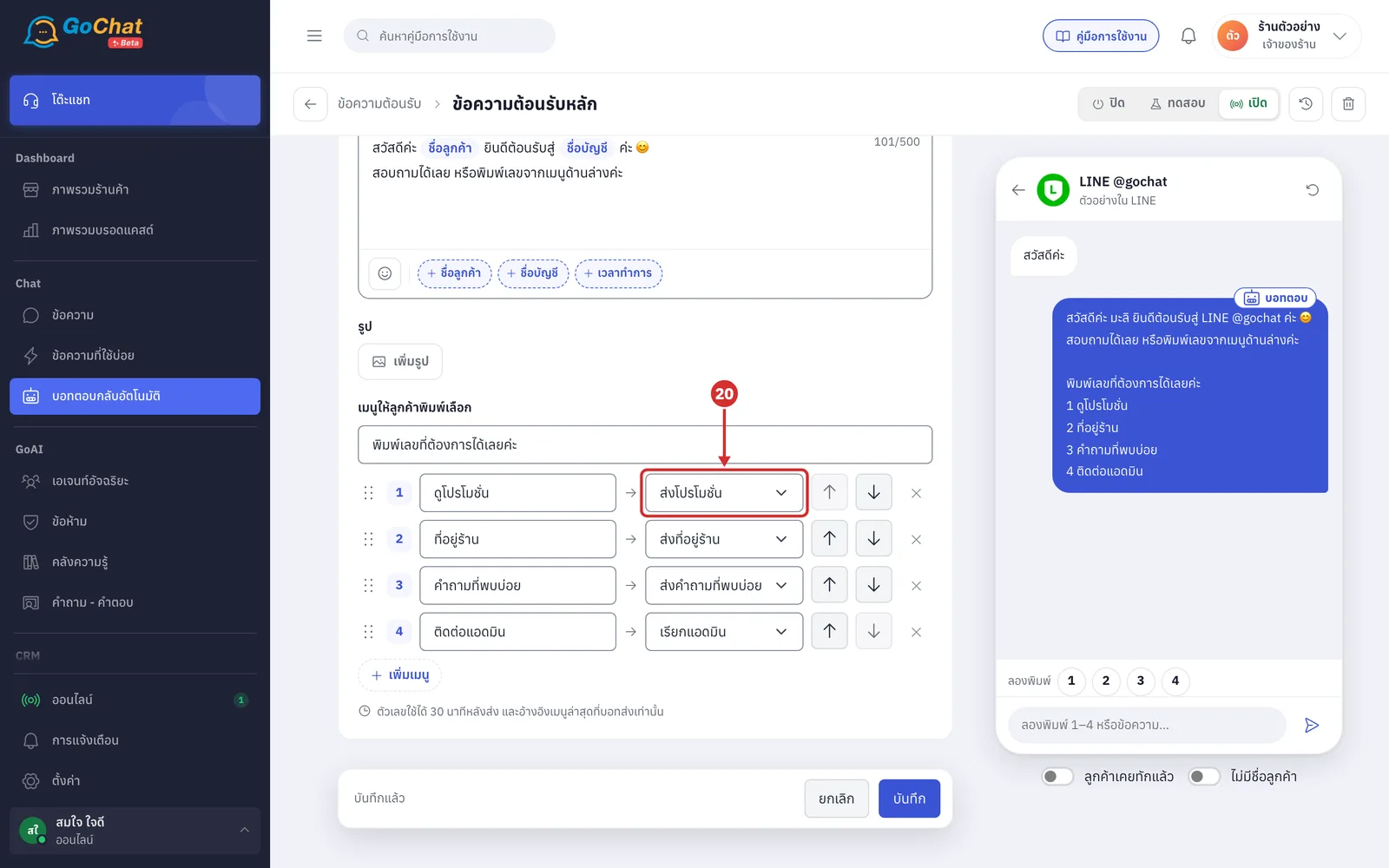
Click that item's number in the ลองพิมพ์ (Try typing) row of the chat preview to see the promotions the bot would send
The bot sends that account's promotions whose status is เปิด (On) and that are ใช้ได้ตอนนี้ (Active now), up to the smallest ส่งสูงสุดต่อครั้ง (Max per reply) among them
Asking through the menu is not limited by ไม่ตอบซ้ำภายใน (Don't repeat within), so customers can ask again
If the account has no active promotion, the bot replies ช่วงนี้ยังไม่มีโปรค่ะ (No promotions right now)
How promotions work
The bot sends a promotion when the customer's message contains one of its words and today is within its ช่วงวันที่ (Date range) in your shop's time zone
A Thai word matches anywhere in the message, ignoring spaces and repeated letters, for example “โปรรร” matches โปร. An English word must match as a whole word
A word inside another word also matches, for example โปร matches “ขอเปลี่ยนรูปโปรไฟล์” (I want to change my profile picture) too, so choose words that do not sit inside words customers often use
Each message gets an answer from one topic. Promotions come before คำถามที่พบบ่อย (FAQ) and ตอบข้อความตามคีย์เวิร์ด (Keyword replies), but after a request to talk to an admin, a menu number and สรุปคำสั่งซื้อ (Order summary)
If the message matches several promotions, the bot puts the one ending soonest first and sends no more than the smallest ส่งสูงสุดต่อครั้ง (Max per reply) among the matching promotions
Each promotion sends its image first, then the message
Customers messaging for the first time or after hours get the welcome or after-hours message before the promotion, if the account has a set for that topic that is on
While the shop is closed under an after-hours set, the bot sends promotions, including from a ส่งโปรโมชั่น (Send promotions) menu item, only if that account's after-hours set has ส่วนลด/โปรโมชั่น (Discounts/promotions) chosen under นอกเวลา บอทยังช่วยตอบ (After hours, the bot still answers). New after-hours sets do not have it chosen (set it in Setting up after-hours messages)
About promotions
You can create promotions in advance. A promotion whose status is เปิด (On) starts sending on its start date and stops after its end date, without you changing the status
One account can be in many promotions, so several promotions can be active on the same account at the same time
When you delete a promotion, the confirmation says … บัญชีในชุดนี้จะไม่ได้รับโปรนี้อีก (… accounts in this set will no longer get this promotion). Deleting is explained in Using the auto-reply bot
Promotions the bot has sent are shown in Viewing auto-reply chat history