

Orders in LINE groups and from the sales team
Besides admins in 1:1 chats, the sales team can order in two more ways: typing in the team's LINE group that your shop's LINE OA has joined, and messaging your page or LINE OA from their own app. Both create the order straight away once the details are complete and credit the seller linked to a GoSaaS user.
This is set up on the กลุ่มและทีมขาย (Groups and sales team) tab of รับออเดอร์จากแชท (Chat orders). The group or account must be chosen in a command first; see Setting up chat order commands
Setting up the sales team's LINE group
In the LINE app, invite your shop's LINE OA into the sales team's group and have the team type anything in the group once. The group appears in กลุ่ม LINE ที่บอทอยู่ (LINE groups the bot is in) on the กลุ่มและทีมขาย (Groups and sales team) tab
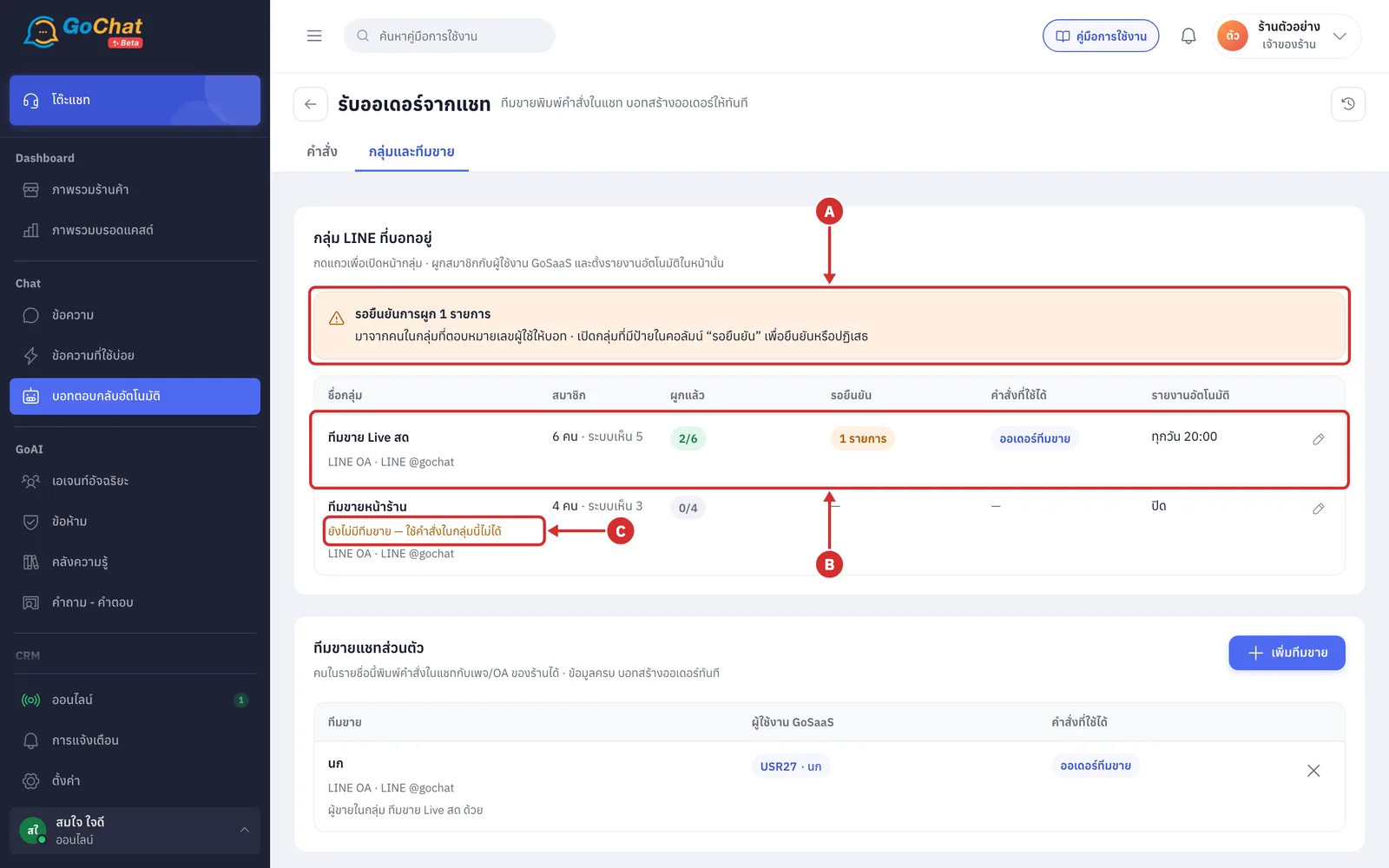
A รอยืนยันการผูก … รายการ (… links waiting for confirmation) people in a group answered the bot with their user number and are waiting for the owner or an admin to confirm (open the group with a label in the รอยืนยัน (Waiting) column)
B Group row shows each group's details
Group name and LINE OA
สมาชิก (Members): the member count from LINE, followed by ระบบเห็น … (… seen by the system) when not everyone is known
ผูกแล้ว (Linked): members linked to GoSaaS users
The รอยืนยัน (Waiting) and คำสั่งที่ใช้ได้ (Commands) columns
รายงานอัตโนมัติ (Auto report): such as ทุกวัน 20:00 (daily 20:00) or ปิด (off)
Click the row to open the group page
C ยังไม่มีทีมขาย — ใช้คำสั่งในกลุ่มนี้ไม่ได้ (No sellers yet — commands cannot be used in this group) nobody is a seller and the group is not open to everyone
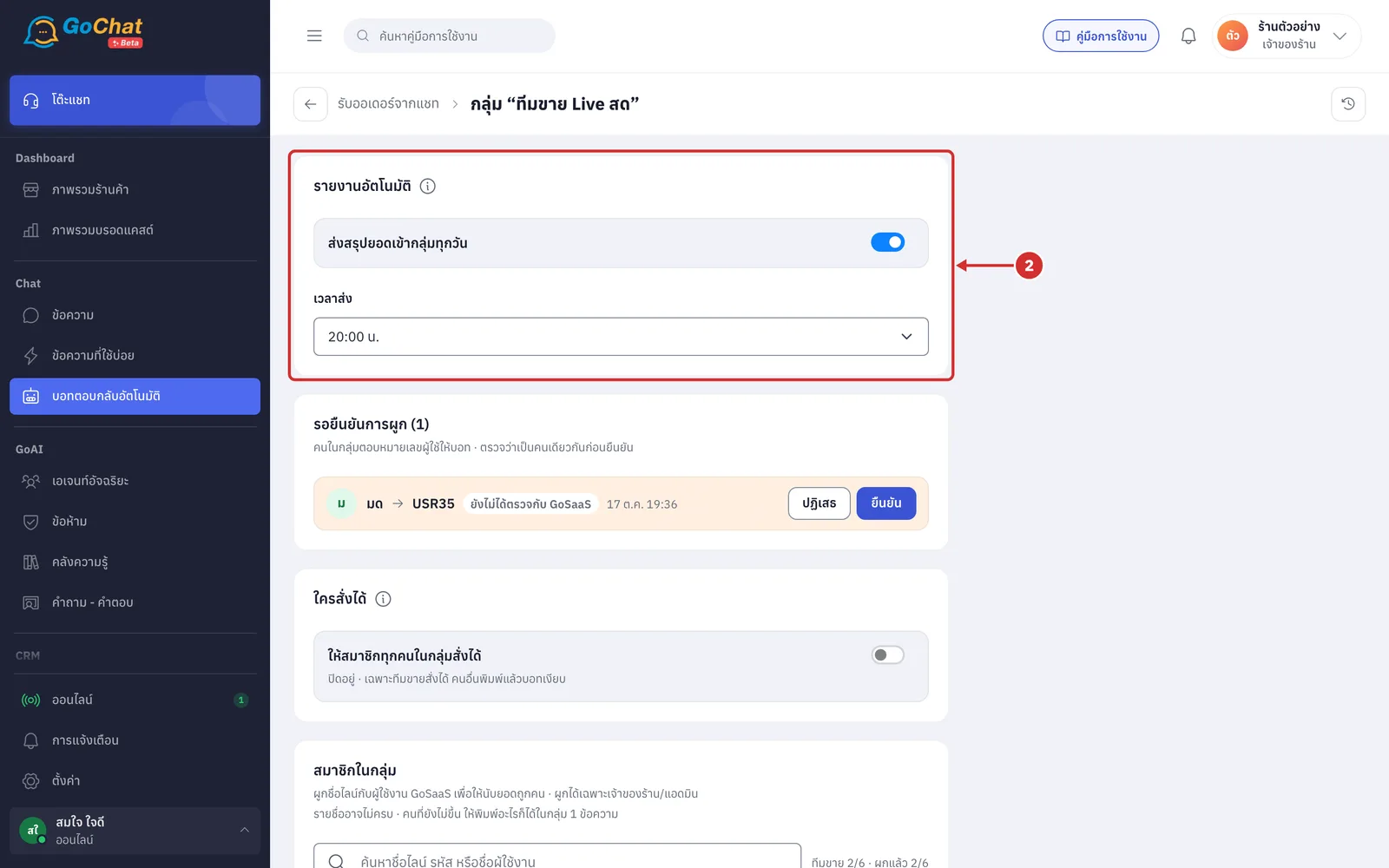
Click a group to open the กลุ่ม “…” (Group “…”) page. In รายงานอัตโนมัติ (Auto report), turn on ส่งสรุปยอดเข้ากลุ่มทุกวัน (Send a sales summary to the group daily) and choose เวลาส่ง (Send time)
The bot posts each seller's sales to the group every day, counting only orders from this group and leaving out cancelled ones
When off, the team can still type /report in the group to see it
This card saves as soon as you change it
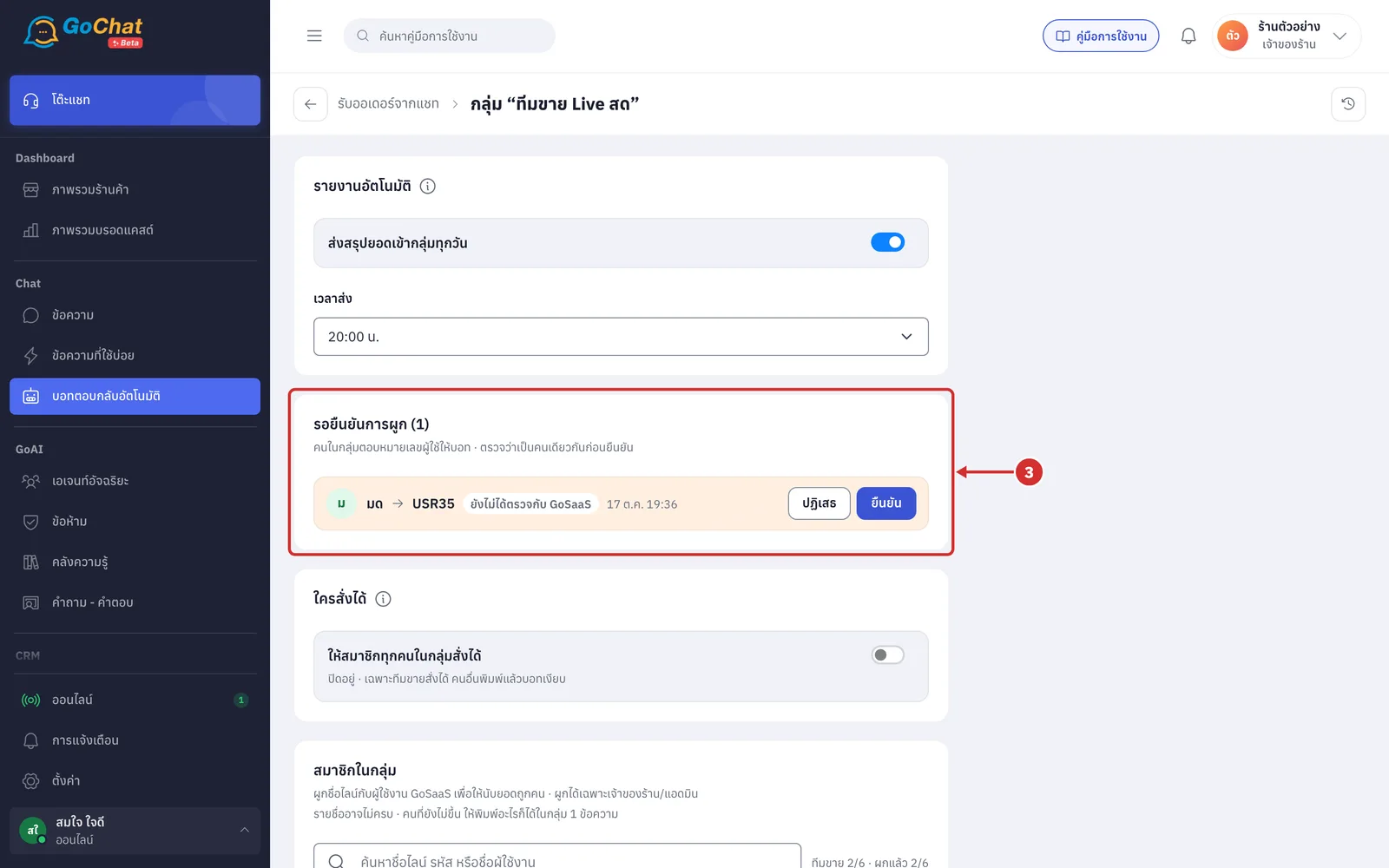
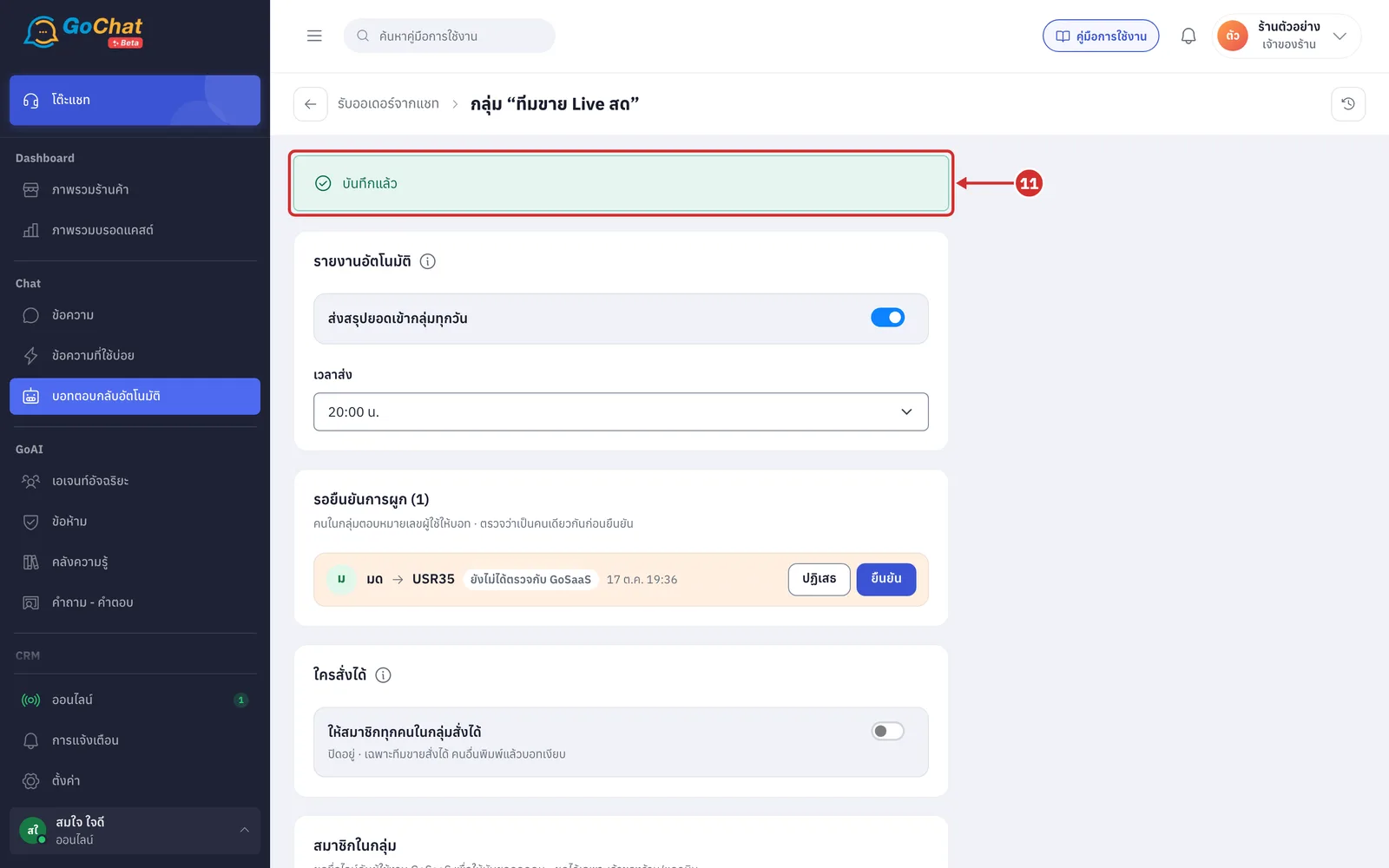
The รอยืนยันการผูก (Links waiting for confirmation) card lists group members who answered the bot with a user number, such as มด → USR35, with the time. Check it is really that person, then click ยืนยัน (Confirm) or ปฏิเสธ (Reject)
ยืนยัน (Confirm) links permanently, so the bot stops asking
ยังไม่ได้ตรวจกับ GoSaaS (Not checked with GoSaaS) means the system could not yet confirm the number exists in your shop
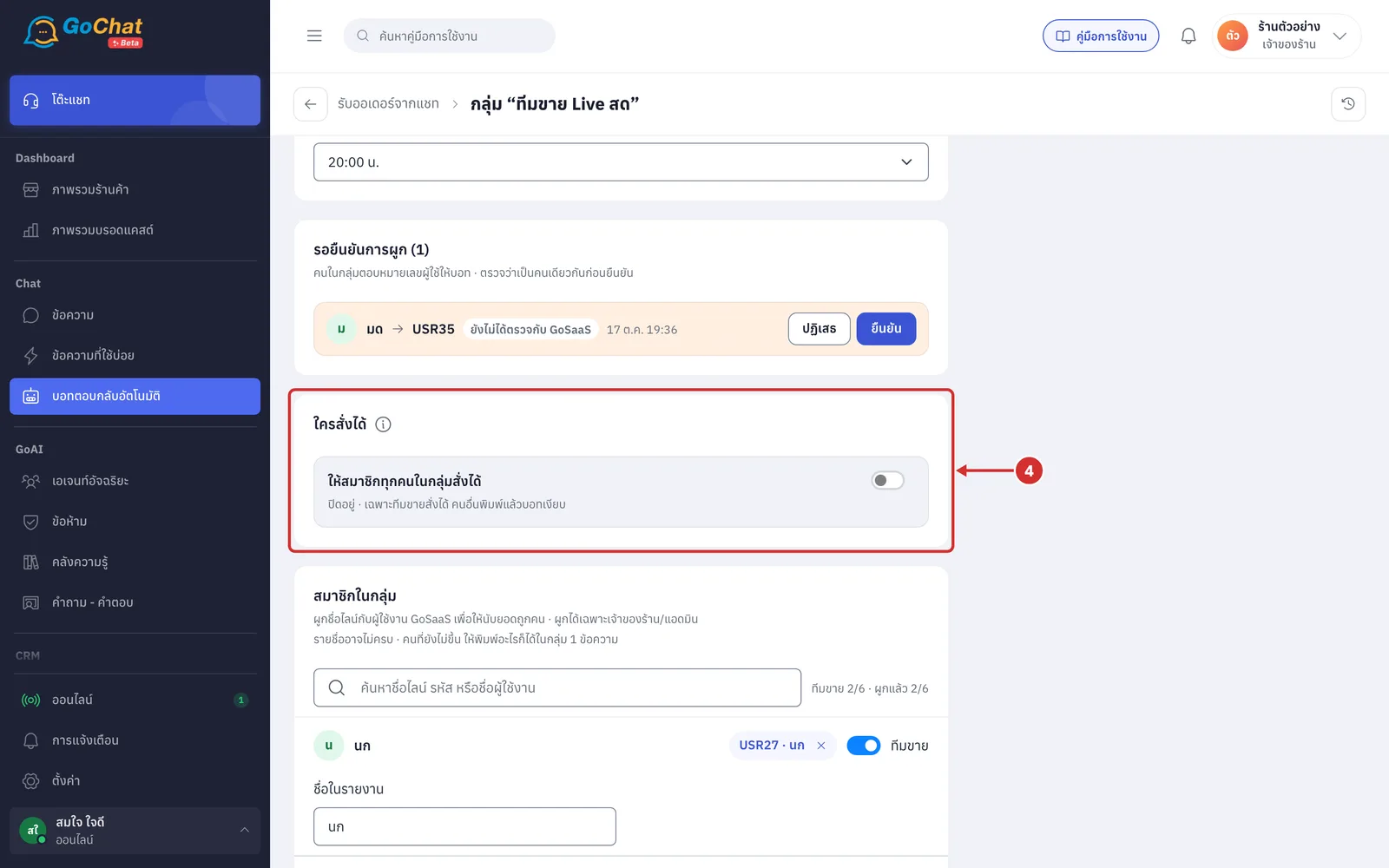
In ใครสั่งได้ (Who can order), use the switch ให้สมาชิกทุกคนในกลุ่มสั่งได้ (Let every group member order) to set who can order in the group (saves straight away)
On: anyone in the group can create orders, and people not linked to a GoSaaS user are asked whose order it is before the summary
Off: only sellers can order, and the bot ignores everyone else
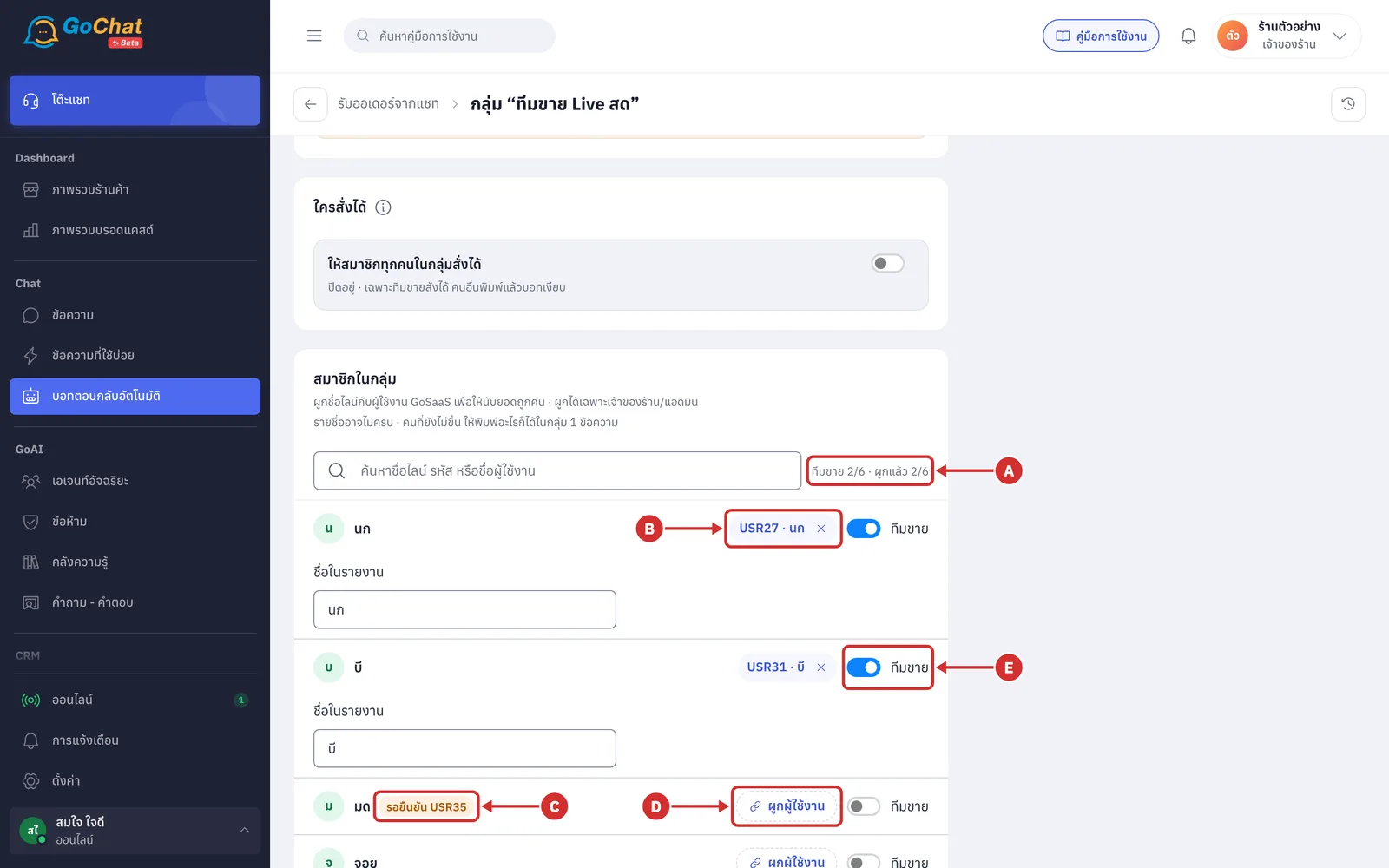
The สมาชิกในกลุ่ม (Group members) card lists the members the system knows; search by LINE name, code or user name (members who do not show up yet should type anything in the group once)
A Counter ทีมขาย …/… · ผูกแล้ว …/… (Sellers …/… · Linked …/…)
B User chip such as USR27 · นก = linked to a GoSaaS user (click × to unlink)
C รอยืนยัน USR… (Waiting USR…) this person answered the bot and is waiting for confirmation in the card above
D ผูกผู้ใช้งาน (Link user) link this person to a GoSaaS user yourself
E ทีมขาย (Seller) switch makes this person a seller in the group (can order and appears in the report)
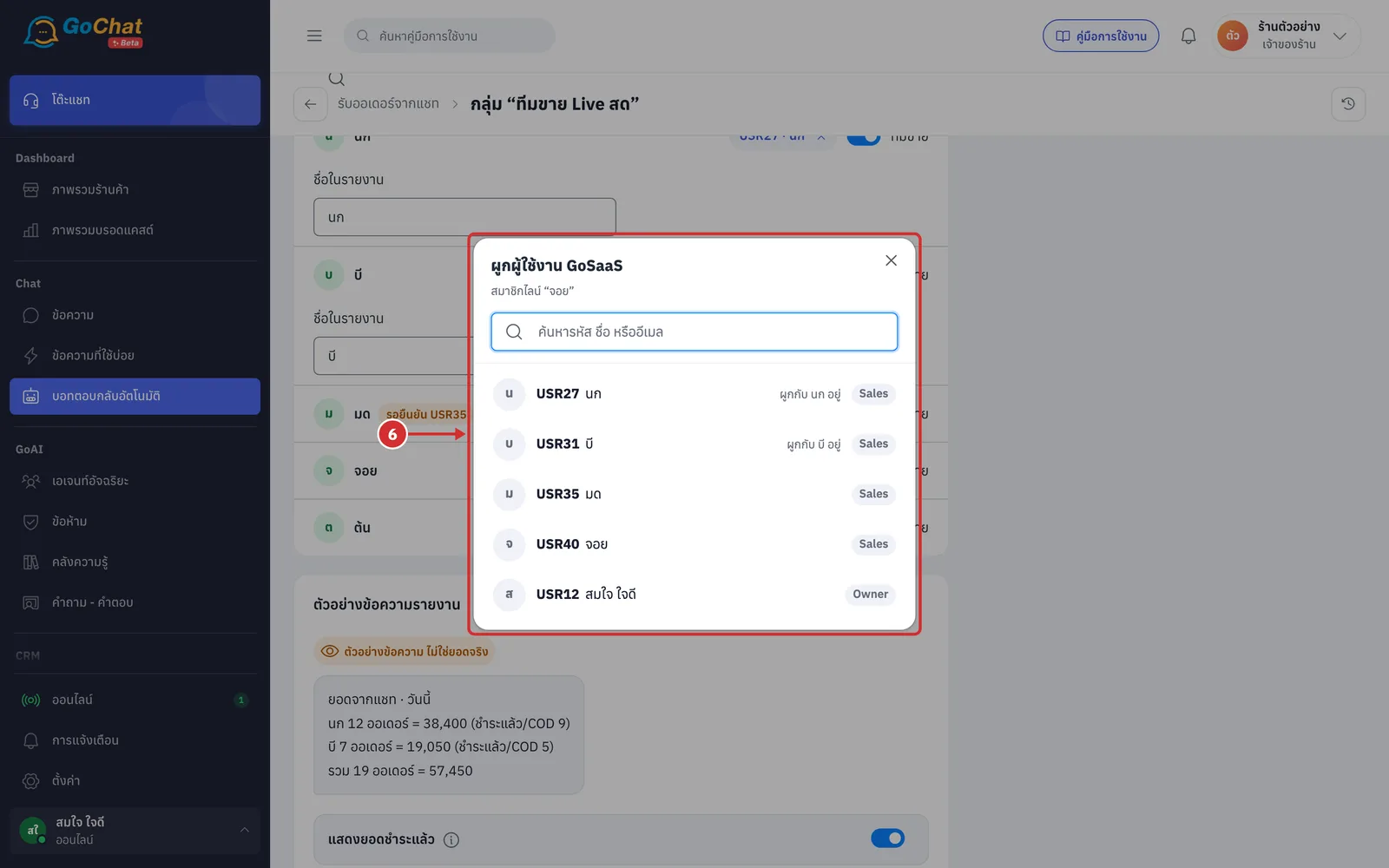
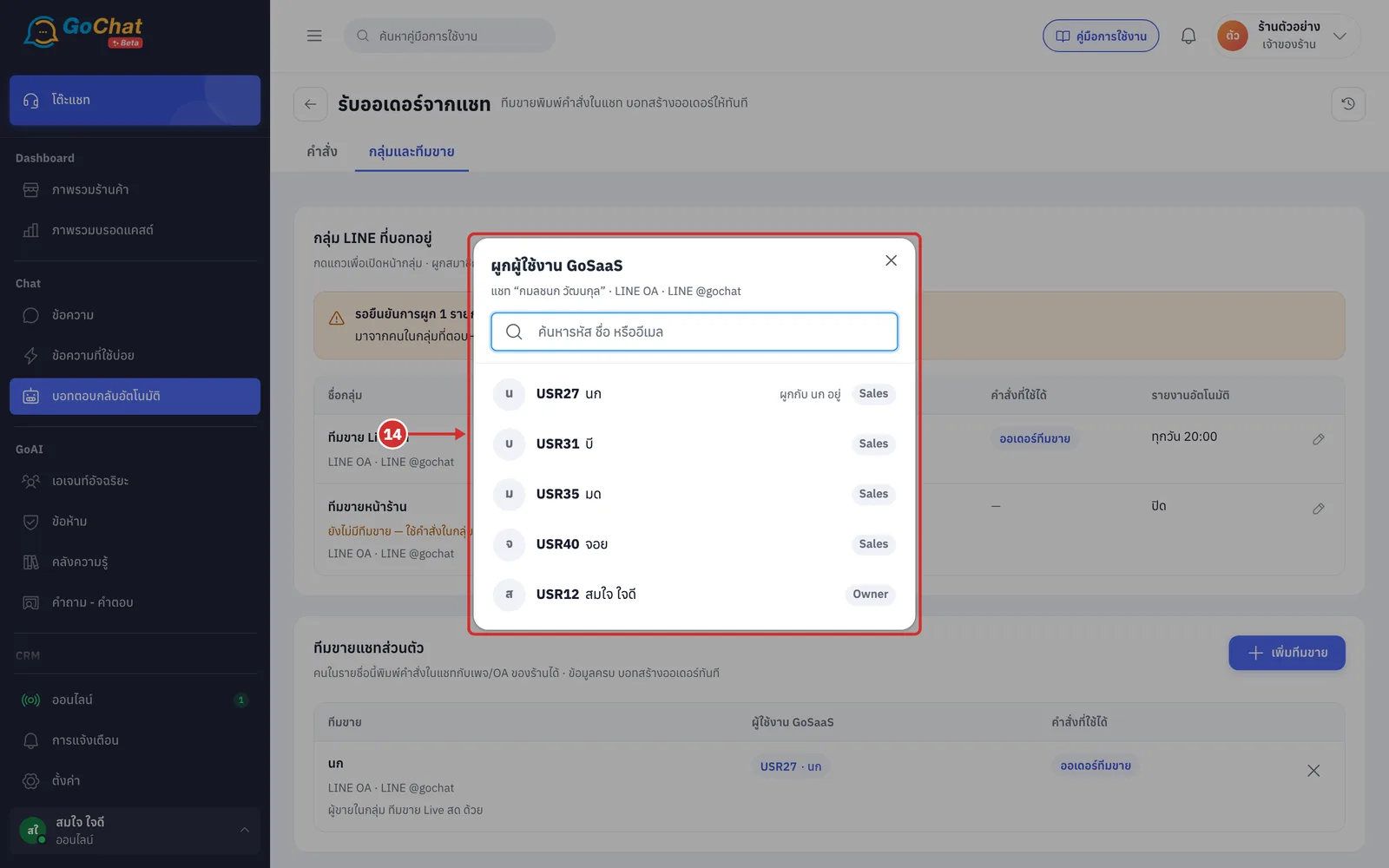
Click ผูกผู้ใช้งาน (Link user). The ผูกผู้ใช้งาน GoSaaS (Link GoSaaS user) window lists your shop's GoSaaS users with their number (USR…), name and role. Search by code, name or email and click the right person; it links straight away
Users already linked to someone else show ผูกกับ … อยู่ (Linked to …)
If the user list cannot be read from GoSaaS, a box lets you type the number such as USR27 instead
One link works in both groups and private chats
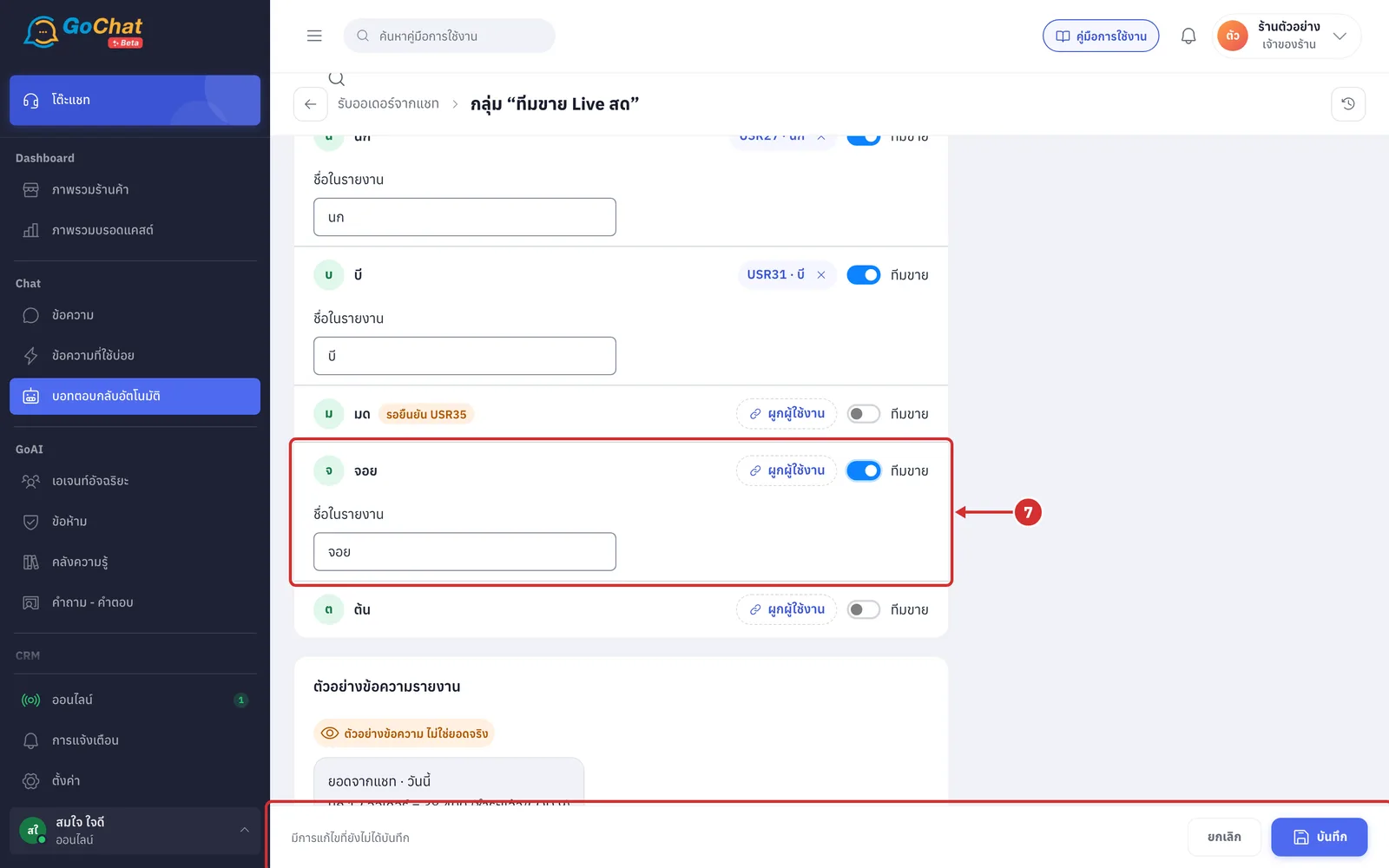
Turn on ทีมขาย (Seller) for the person you want. A ชื่อในรายงาน (Name in report) box appears for the name used in the sales report, and the bottom bar says มีการแก้ไขที่ยังไม่ได้บันทึก (Unsaved changes)
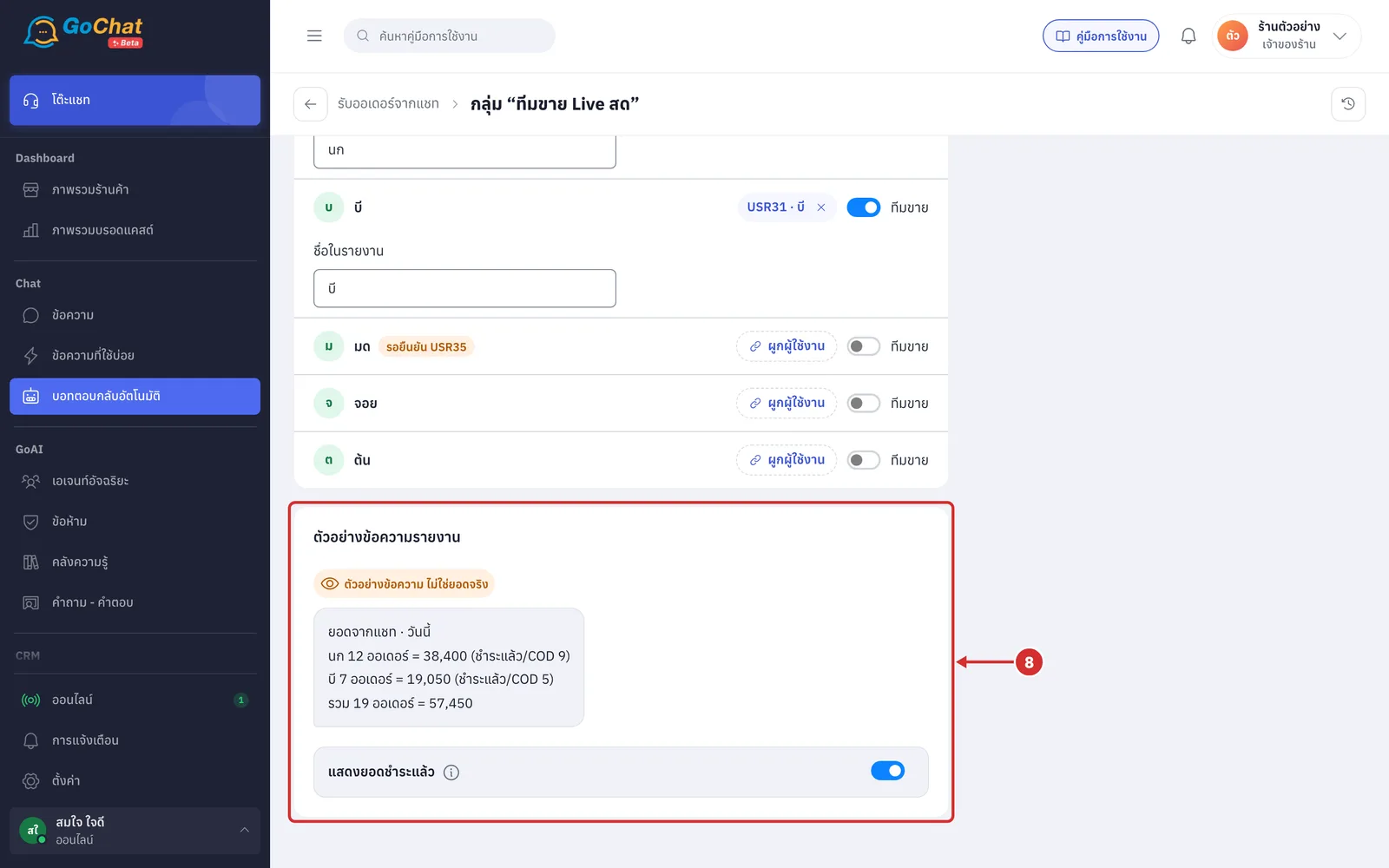
The ตัวอย่างข้อความรายงาน (Report preview) card shows what the bot posts in the group (sample numbers, not real sales)
The แสดงยอดชำระแล้ว (Show paid) switch adds how many of each seller's orders are paid or cash on delivery (COD)
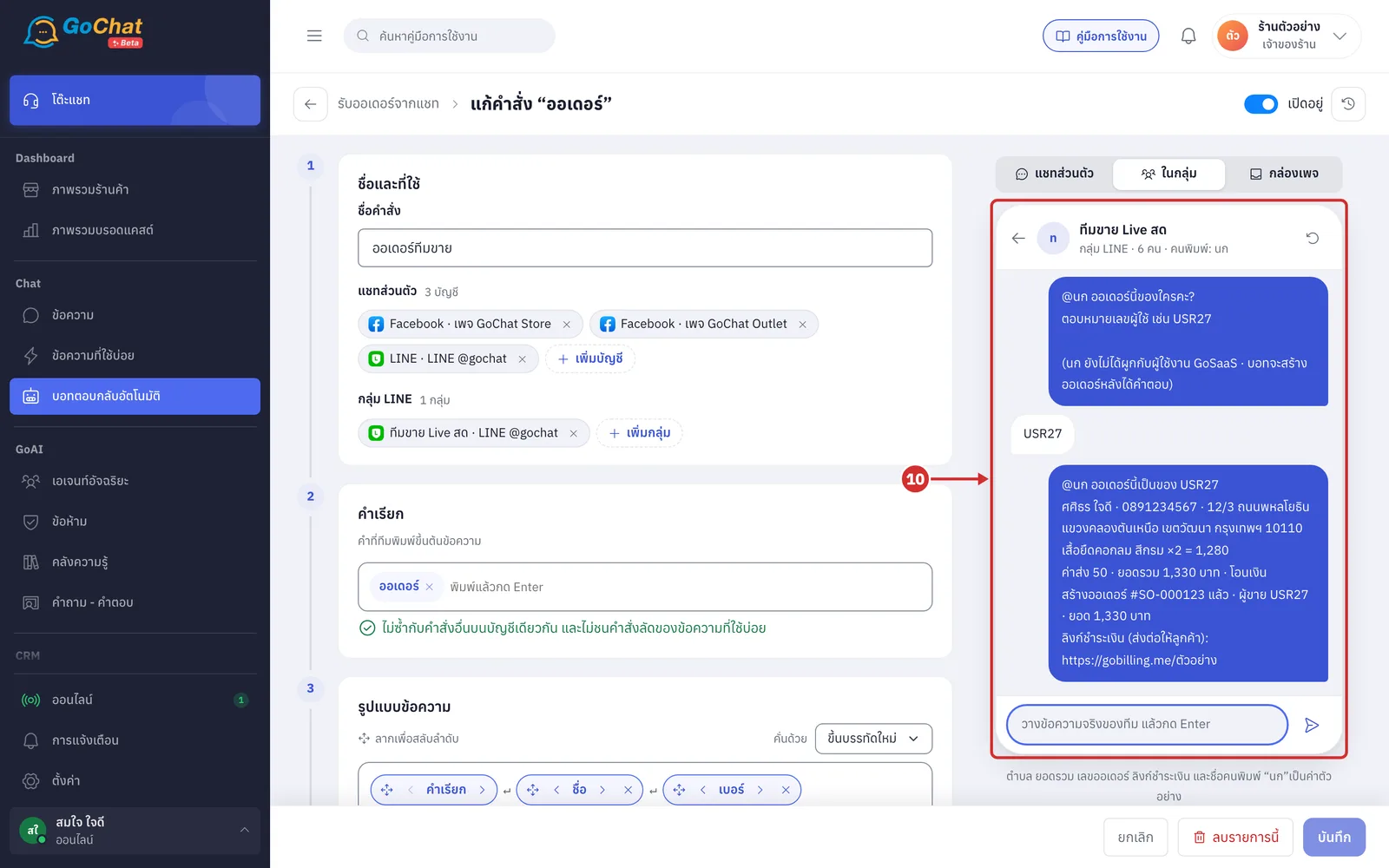
In the group, sellers type orders in the command format. Example from the try panel (ในกลุ่ม (In group) tab): if the format has the user number chip and the person is not linked yet, the bot tags them and asks @… ออเดอร์นี้ของใครคะ? ตอบหมายเลขผู้ใช้ เช่น USR27 (@… whose order is this? Answer with a user number such as USR27)
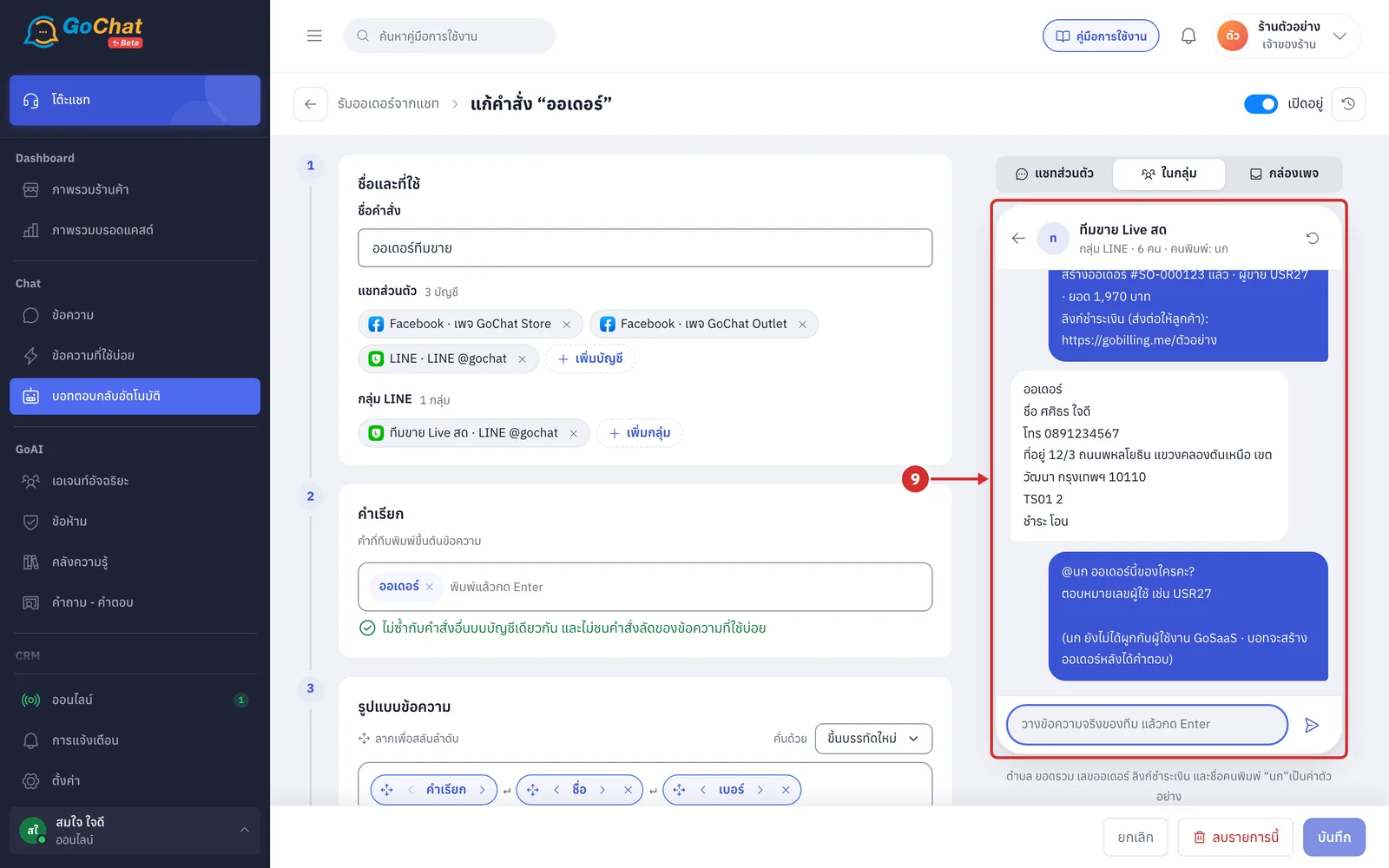
Once it has the number and the details are complete, the bot creates the order straight away and replies in the group @… สร้างออเดอร์ #… แล้ว · ผู้ขาย … · ยอด … บาท (@… order #… created · seller … · total … baht) with ลิงก์ชำระเงิน (ส่งต่อให้ลูกค้า) (payment link, forward to the customer)
Groups have no confirm step
Replies in groups are shorter than in 1:1 chats
If details are missing, the bot says what to add
Click บันทึก (Save) in the bottom bar. It shows บันทึกแล้ว (Saved) at the top of the page and the seller count goes up
The bar is only for sellers and report names; the report card, who can order and links save straight away
Click ยกเลิก (Cancel) to discard your changes
Adding sales staff who order through private chats
Sales staff who are not in a group can message your Facebook page, Instagram or LINE OA from their own app and type commands; the bot creates the order straight away once the details are complete (that account must be in a command)
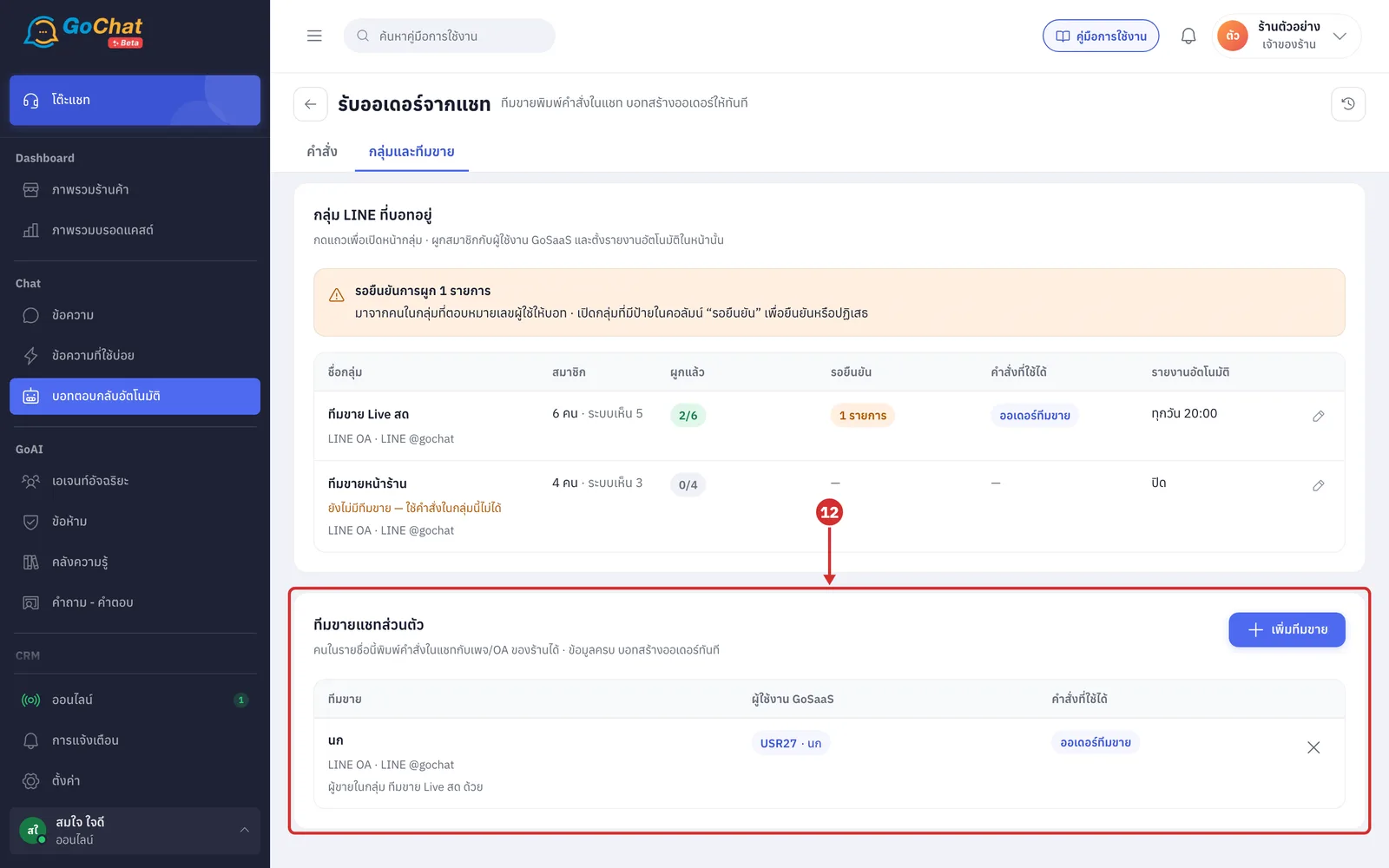
The ทีมขายแชทส่วนตัว (Private chat sellers) card on the กลุ่มและทีมขาย (Groups and sales team) tab lists the sellers with their linked ผู้ใช้งาน GoSaaS (GoSaaS user) and คำสั่งที่ใช้ได้ (Commands)
People who are also sellers in a group show ผู้ขายในกลุ่ม … ด้วย (also a seller in group …)
Click × to remove someone from the sellers, which also unlinks their GoSaaS user
Click + เพิ่มทีมขาย (+ Add seller). The เพิ่มทีมขาย (Add seller) window lists recent chats on pages or OAs that use a command, with the channel and last message time. Search by chat name and click the seller's chat
Not there yet? Have them message once first
Chats marked เป็นทีมขายแล้ว (Already a seller) are already linked
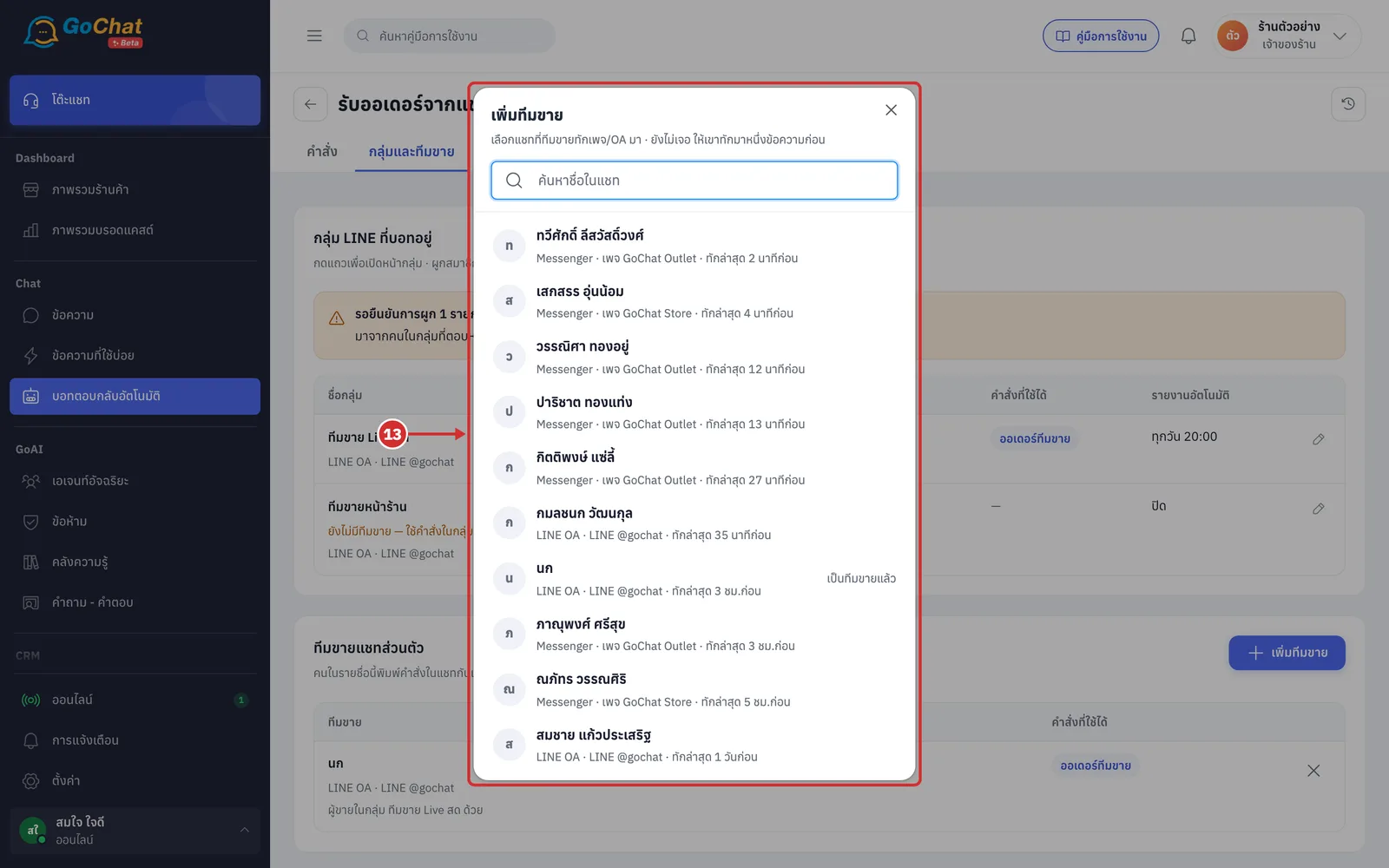
The window changes to ผูกผู้ใช้งาน GoSaaS (Link GoSaaS user) for that chat. Click the matching user; it links straight away and the person joins the seller list
Ordering from the page inbox
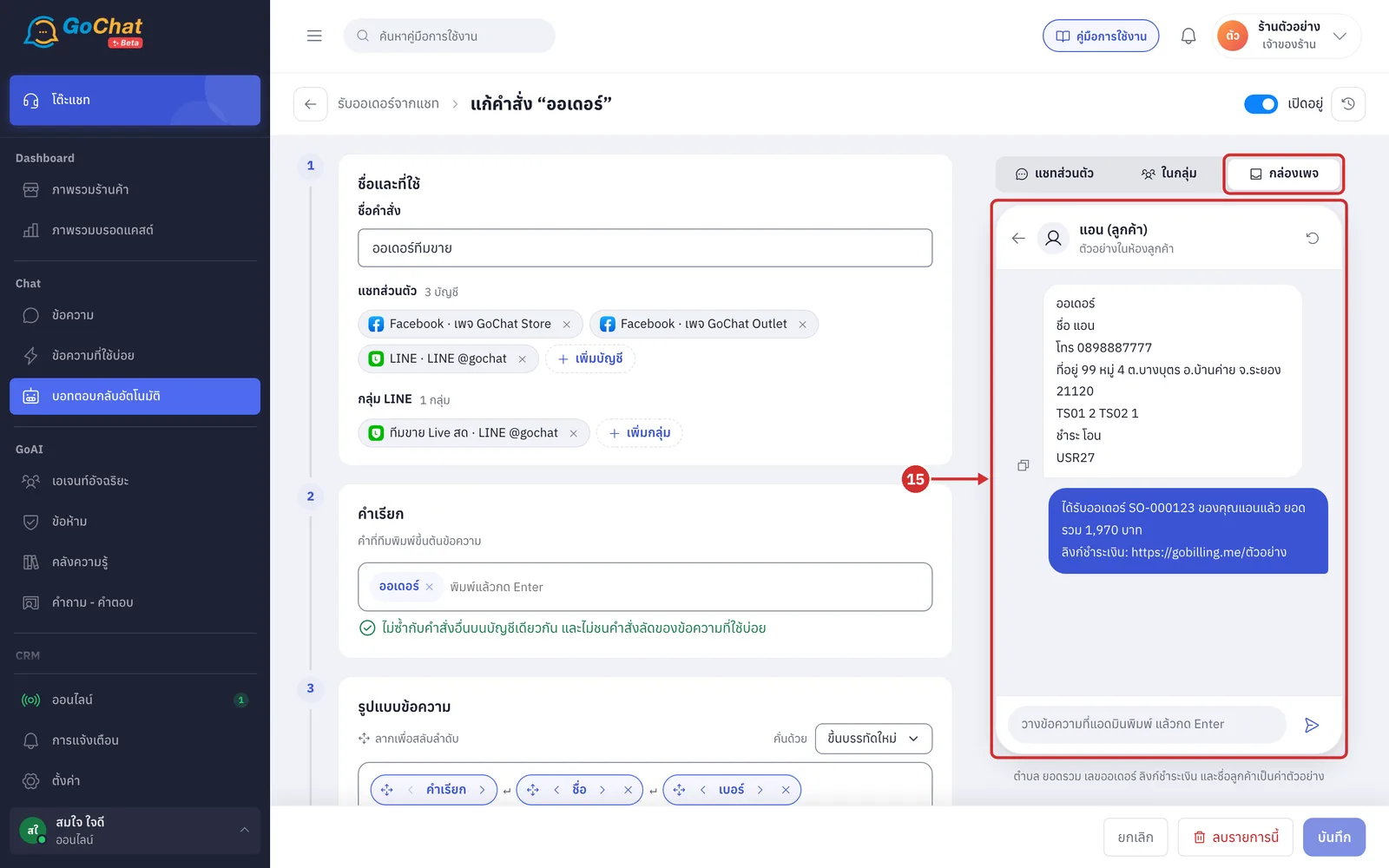
Admins who reply to customers directly in the page inbox (such as Meta Business Suite) can type a command in the customer's chat with a user number such as USR27 in the format
The bot creates the order straight away and replies to the customer with the confirmation and payment link
See the example on the กล่องเพจ (Page inbox) tab of the try panel
Formats without the user number chip only work in chats linked to a seller
Good to know: Every order from groups, private chat sellers and the page inbox can be reviewed in order command history with the conversation with the bot