

Connecting Shopee
Connecting a Shopee shop lets you manage the shop's Shopee chats in GoChat and link it to your existing shop in the order management system (GoSaaS), so chats and orders are in one place. Anyone in the shop can connect, signing in to Shopee with a shop account, not a buyer account. Only the เจ้าของร้าน (Shop owner) can link it to a shop in the order management system.
Connecting Shopee
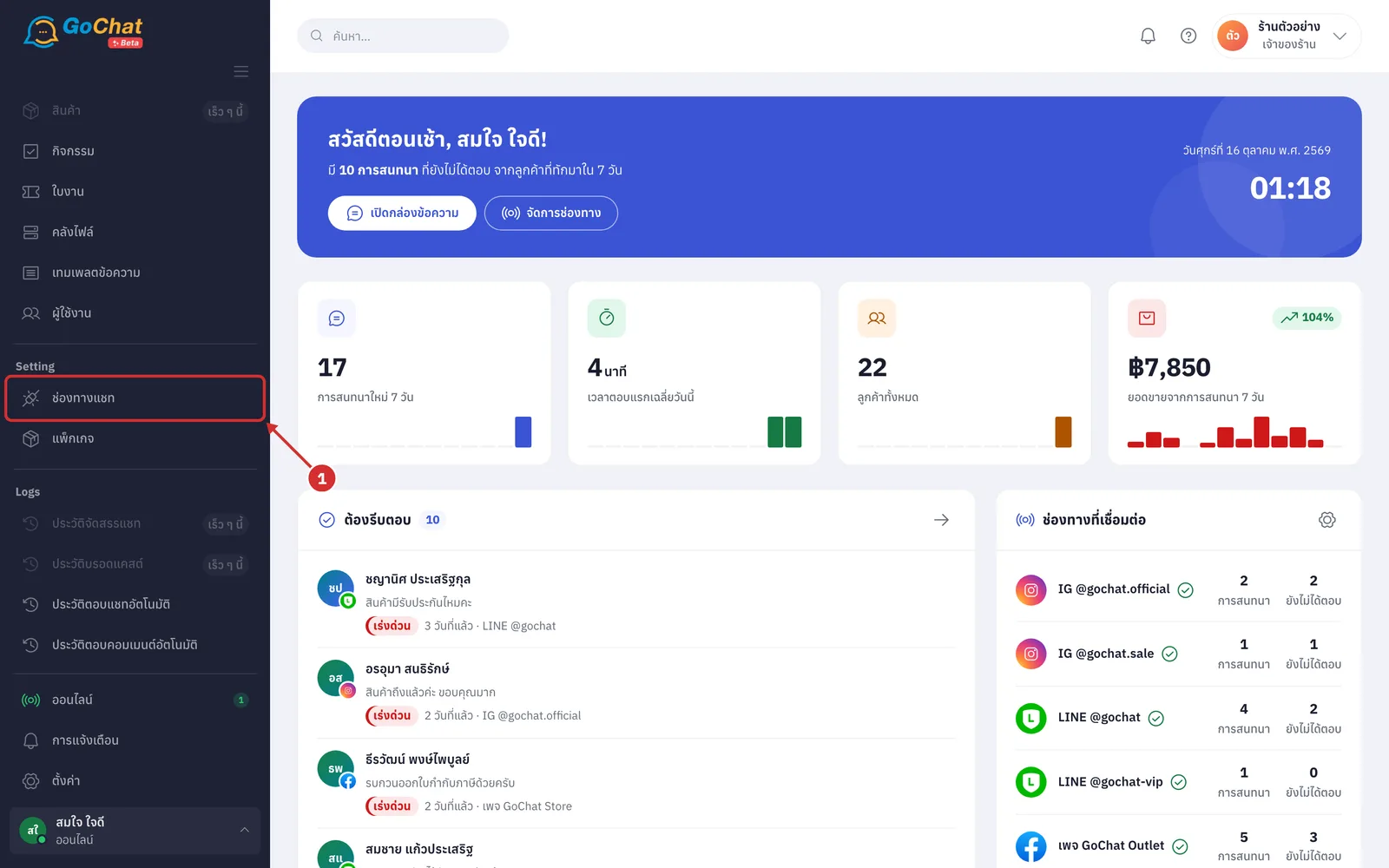
Go to the ช่องทางแชท (Chat channels) menu in the left menu bar
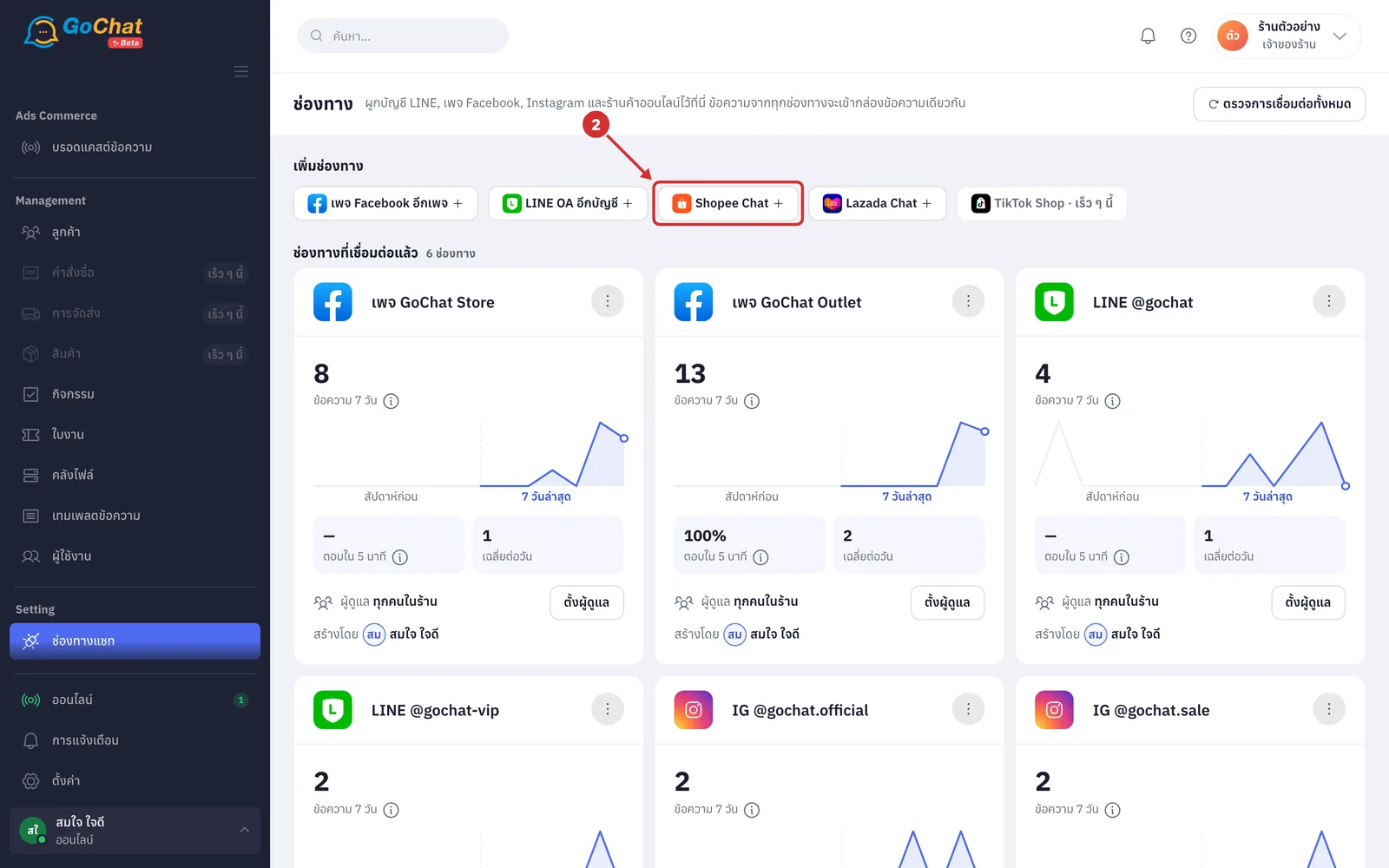
Under เพิ่มช่องทาง (Add a channel), click Shopee Chat (if your shop already has Shopee connected, the button is called Shopee อีกร้าน (Another Shopee shop); it takes you straight to Shopee's authorization page)
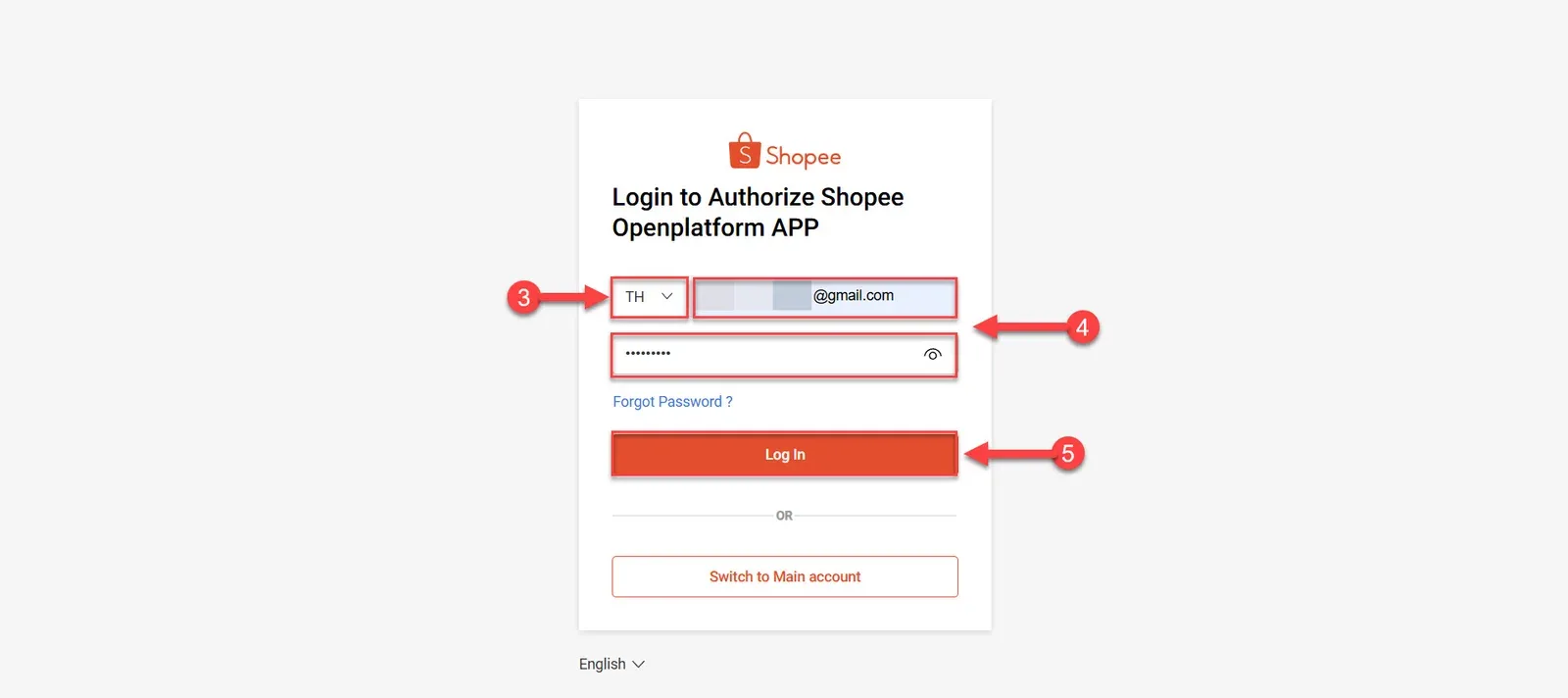
If you are not signed in to Shopee Seller Center, the system takes you to the Shopee seller sign-in page. Choose TH (Thailand) as the country
Enter the username and password of the Shopee seller account you want to connect
Click Log-In
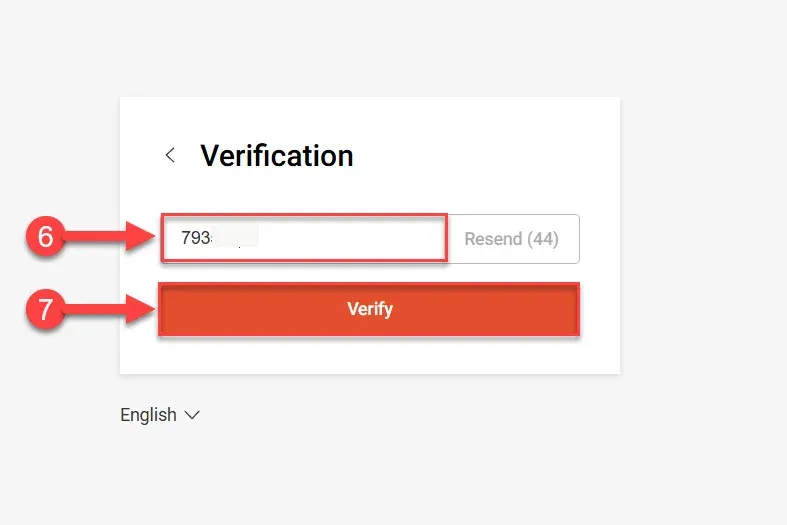
Shopee sends a 6-digit verification code to the email or phone number registered to the shop. Enter the code
Click Verify
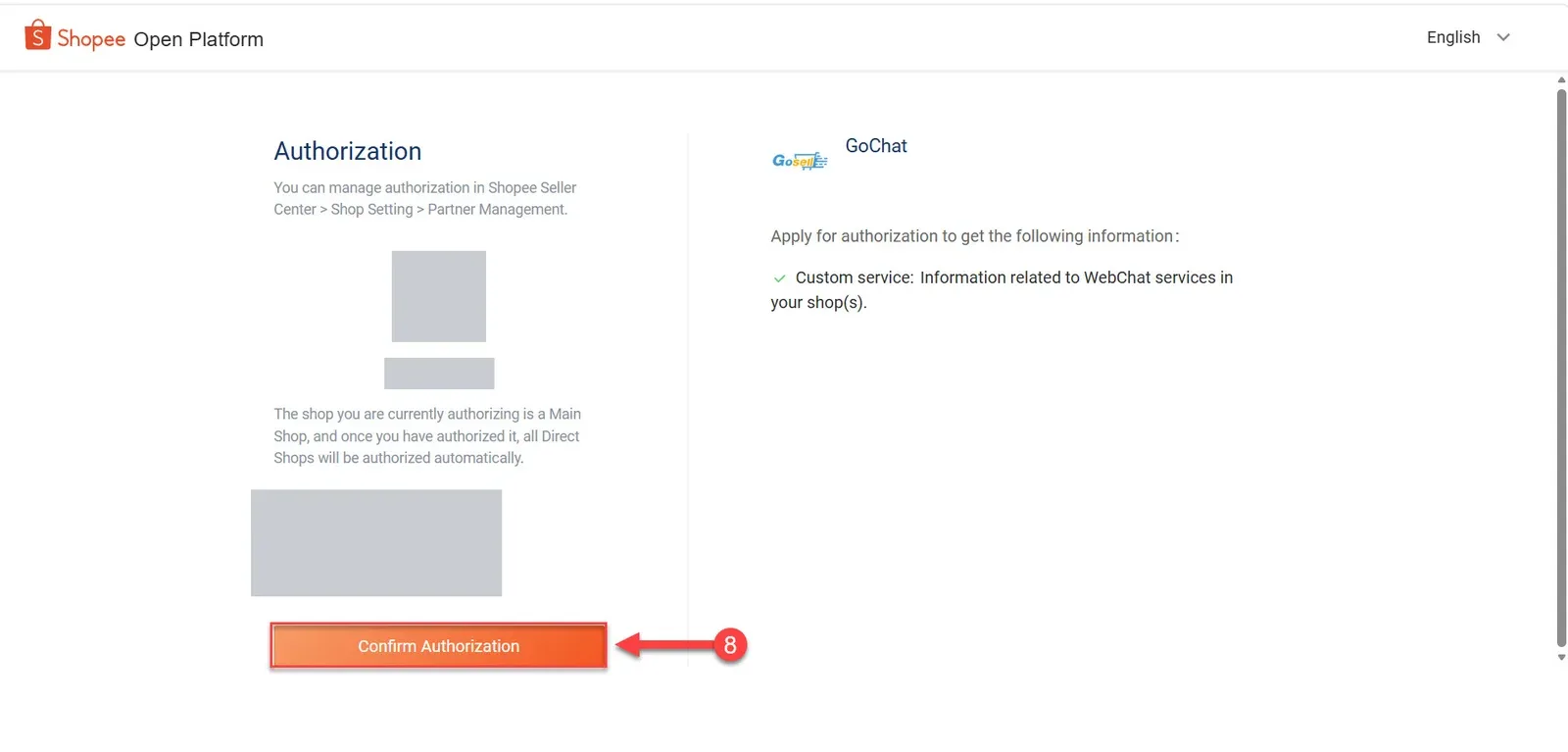
On the authorization screen, click Confirm Authorization
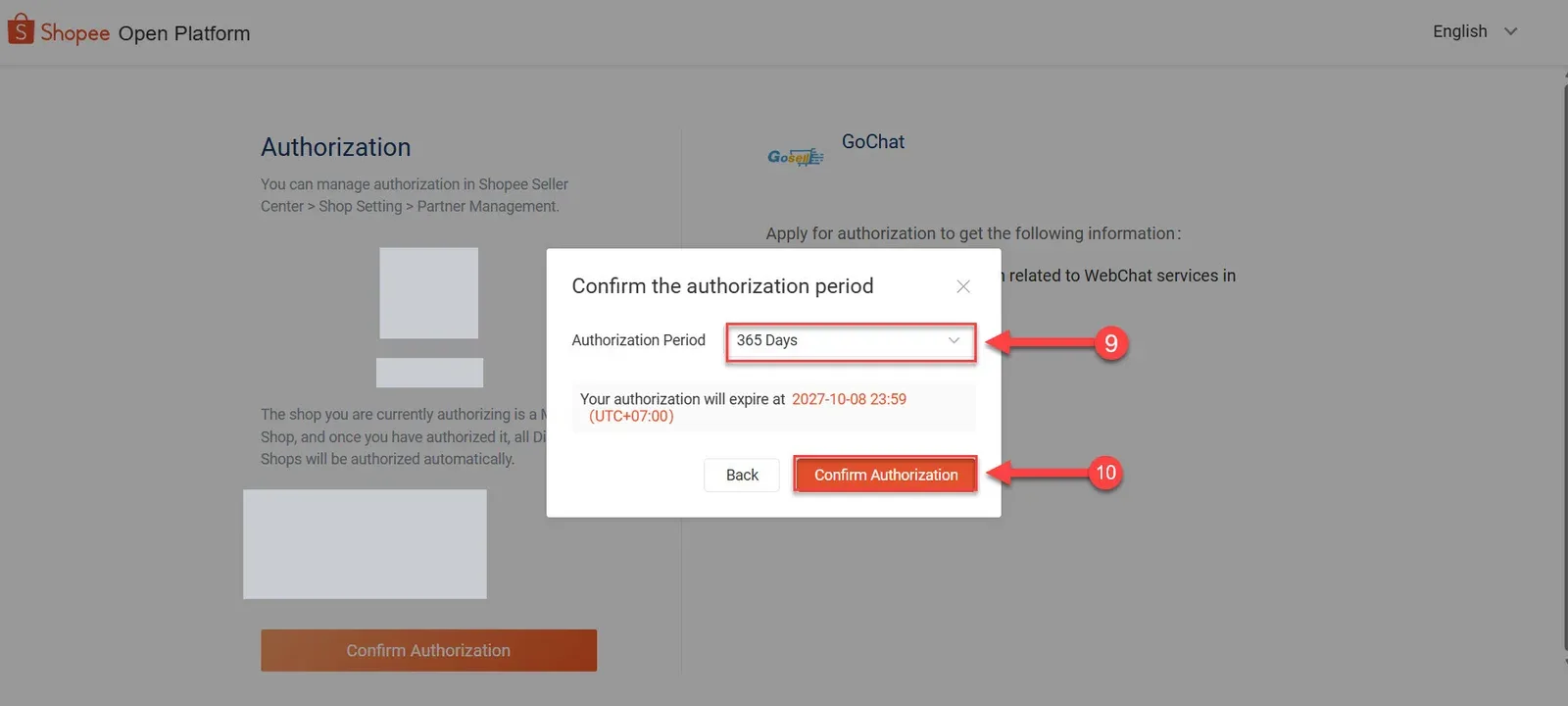
Choose how long to allow the connection: 7, 30, 90, 180 or 365 days, or Custom. We recommend 365 days so the connection keeps working (when the period ends you must authorize again; as it gets close, the shop's card on the Channels page shows ต้องต่ออายุใน N วัน (Renew within N days))
Click Confirm Authorization to confirm
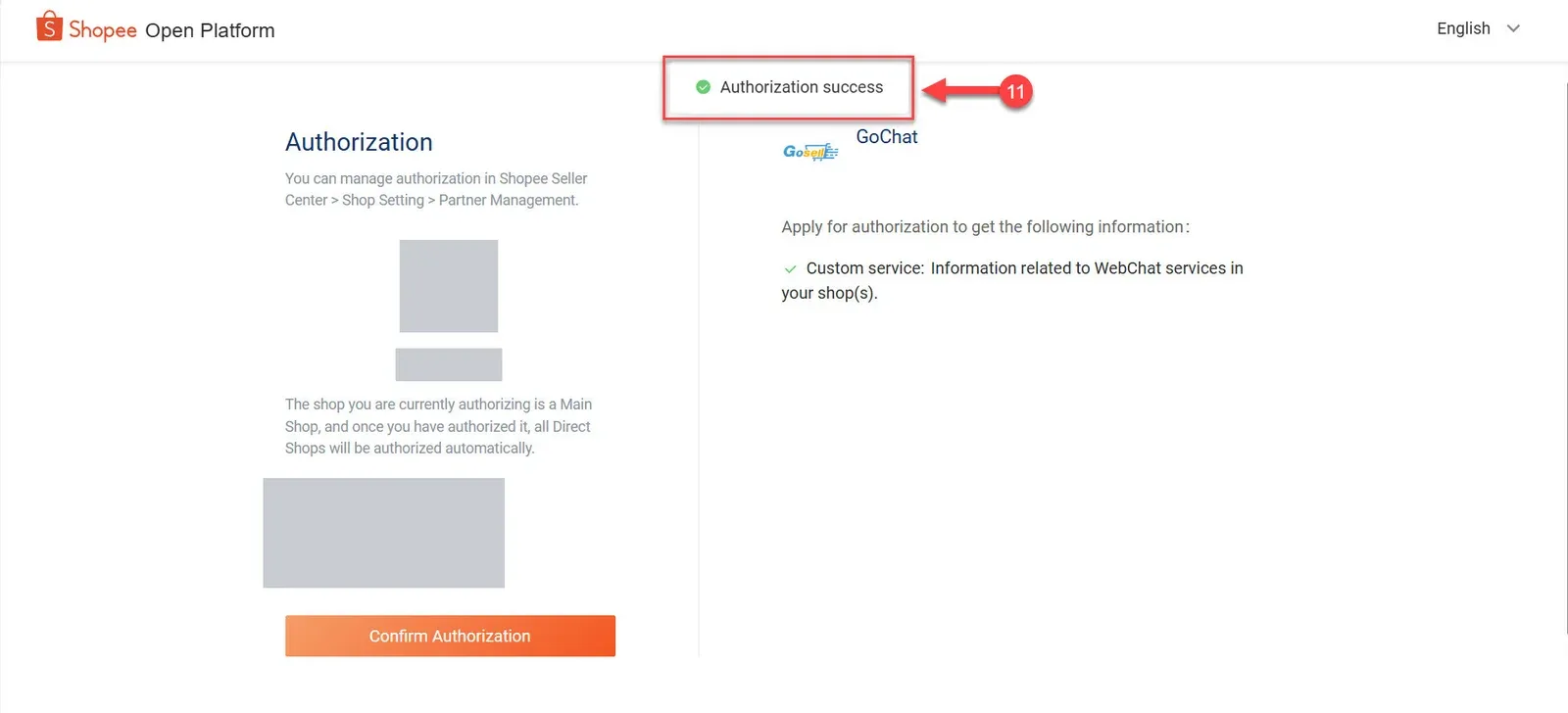
When it succeeds, Shopee shows Authorization Success, which means GoChat is now connected to your Shopee shop, and the system takes you back to GoChat
If you signed in with a main account that manages several shops, GoChat shows เลือกร้านที่จะเชื่อม (Choose shops to connect) with the number of shops this account manages. Tick the shops you want (each shows its shop ID and country; shops labelled เชื่อมอยู่ (Connected) are already connected; tick again to renew), then click เชื่อม N ร้าน (Connect N shops)
On that screen you must choose every shop you want in this round (ต้องเลือกให้ครบในรอบนี้), because this Shopee permission only works for the shops chosen together; shops you leave unticked need a whole new authorization (if it says การอนุญาตหมดอายุแล้ว (Authorization expired), connect again; shops connected earlier are not affected)
If the person connecting is the shop owner and the shop already exists in the order management system (GoSaaS), the system opens a window to choose the shop to link to this Shopee shop; the matching shop ID is already checked
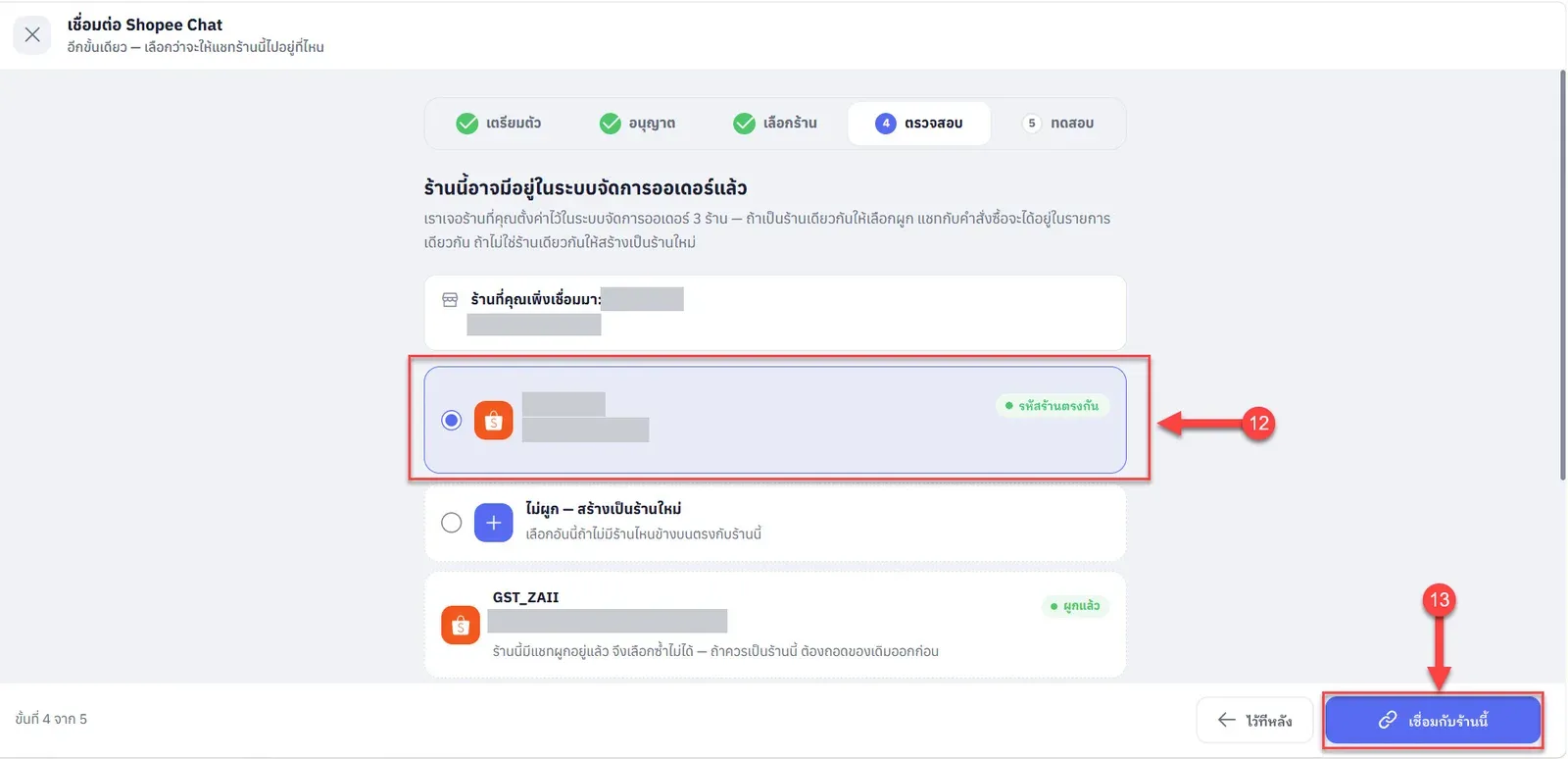
At the top, ร้านที่คุณเพิ่งเชื่อมมา (The shop you just connected) shows its shop ID for comparison
A shop labelled รหัสร้านตรงกัน (Shop ID matches) is the same shop in the order management system; choose it so chats and orders are in one place
Choose ไม่ผูก — สร้างเป็นร้านใหม่ (Do not link — create a new shop) if no shop in the list matches (one more shop is added, separate from your existing ones)
Shops labelled ผูกแล้ว (Linked) already have chats linked and cannot be chosen
Click เชื่อมกับร้านนี้ (Link to this shop) (if the system finds several shops, the button is called ผูกแชทกับ (Link chats to) followed by the chosen shop's name, or สร้างเป็นร้านใหม่ (Create a new shop). If you are not ready, click ไว้ทีหลัง (Later) to skip; you can link it later from the shop's card on the Channels page, and chat keeps working)
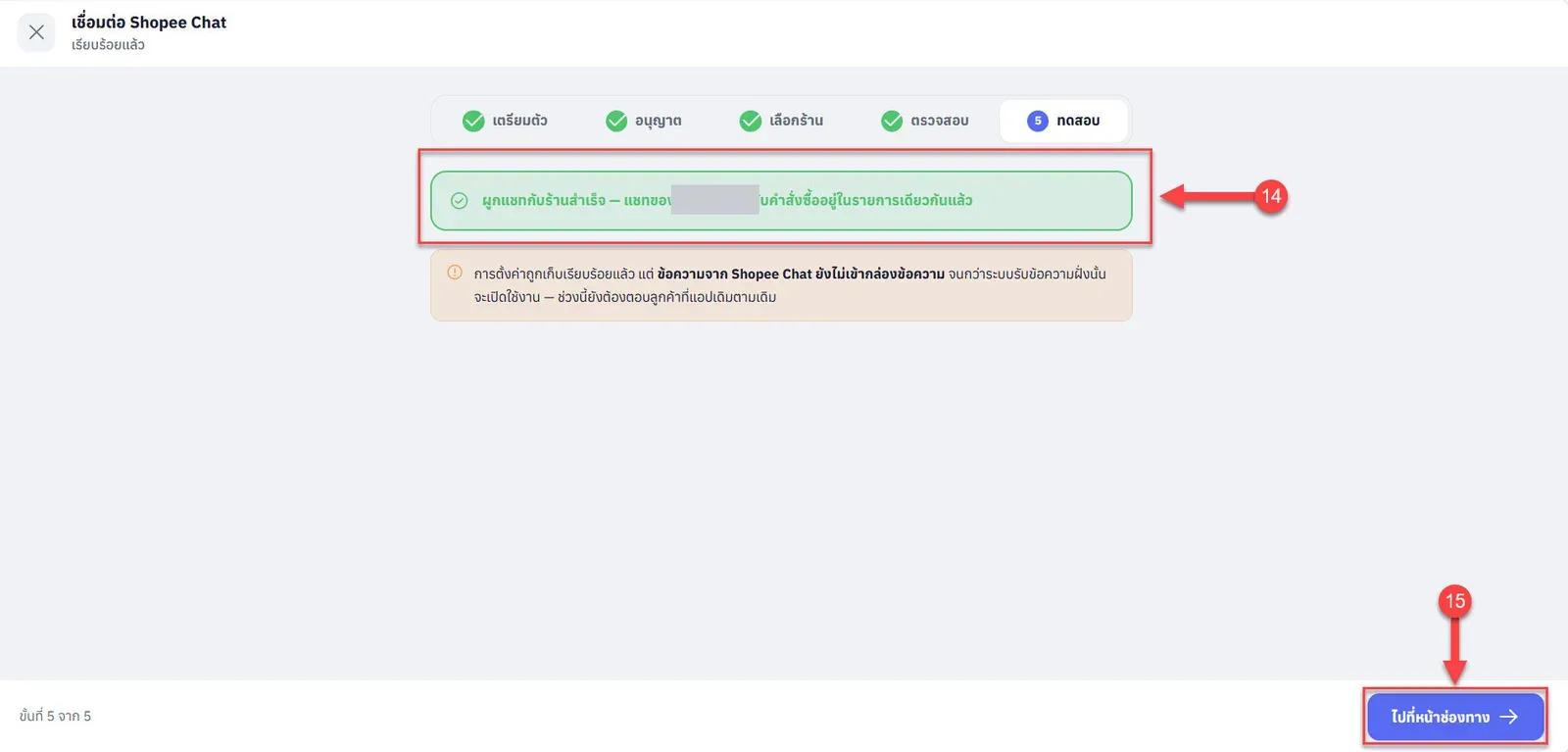
When it is done, the system shows ผูกแชทกับร้านสำเร็จ (Chat linked to the shop), meaning the shop's chats and orders are now linked together (if it fails, a ลองอีกครั้ง (Try again) button appears; the shop stays connected and you can link it later without reconnecting)
Click ไปที่หน้าช่องทาง (Go to Channels page) to return to the Channels page and check the shop's connection status
What you see on the Channels page
If you did not go through the link window, the system returns to the Channels page and shows เชื่อมร้าน Shopee "shop name" สำเร็จ (Shopee shop connected). The shop's card has a ใหม่ (New) label and sits under ร้านค้าออนไลน์ (Online shops)
The shop owner sees a ผูกกับร้านเดิม (Link to existing shop) button in the bar to link this shop to a shop in the order management system
If the order management system already has this shop but it is not linked yet, the card shows ยังไม่ผูกร้าน (Shop not linked); the shop owner clicks ผูกร้าน (Link shop) next to the label
If a yellow bar says อ่านชื่อร้านจาก Shopee ไม่ได้ จึงขึ้นเป็นเลขรหัสร้านไปก่อน (Could not read the shop name from Shopee, so the shop ID is shown for now), the channel still works normally
If the connection fails
If you come back to the Channels page and see a red bar, read its message, then click Shopee Chat (or Shopee อีกร้าน (Another Shopee shop)) to start again
A ยกเลิกการเชื่อมต่อที่หน้า Shopee (Cancelled on Shopee) someone clicked cancel on Shopee's authorization page
B Shopee ไม่ได้ส่งรหัสร้านกลับมา (Shopee did not return a shop ID) you signed in with a buyer account; sign in with a shop account
C แลกรหัสกับ Shopee ไม่สำเร็จ (Could not exchange the code with Shopee) the code Shopee gives can be used once and expires in 10 minutes; connect again
Note: See the shop's card, check the connection and set owners in Managing chat channels.