

Connecting Lazada
Connecting a Lazada shop lets you manage the shop's Lazada chats in GoChat and link it to your existing shop in the order management system (GoSaaS), so chats and orders are in one place. You first say which country the shop is in, then sign in to Lazada with the shop's seller account. A shop that sells in several countries connects one country at a time. Anyone in the shop can connect; only the เจ้าของร้าน (Shop owner) can link it to a shop in the order management system.
Connecting Lazada
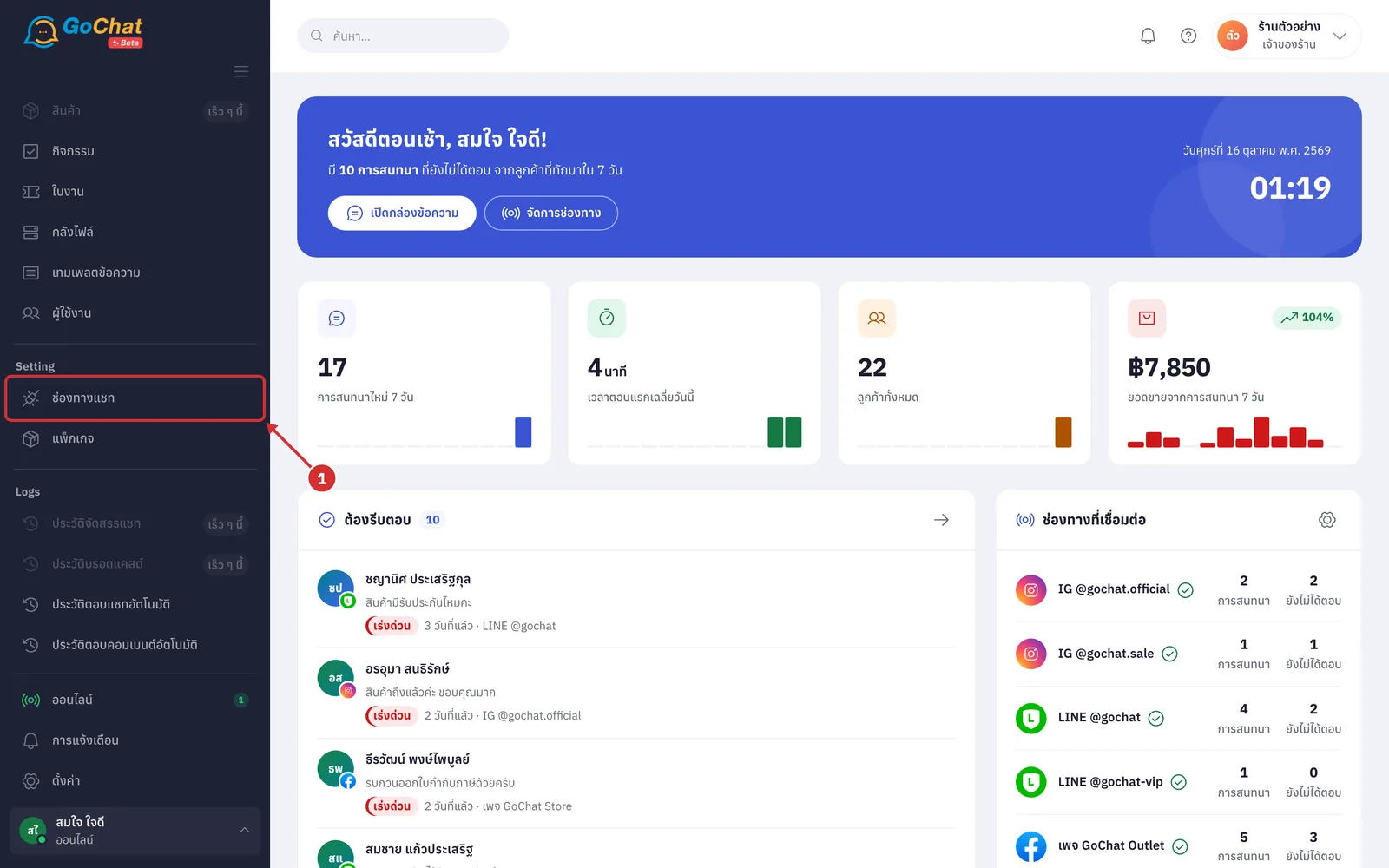
Go to the ช่องทางแชท (Chat channels) menu in the left menu bar
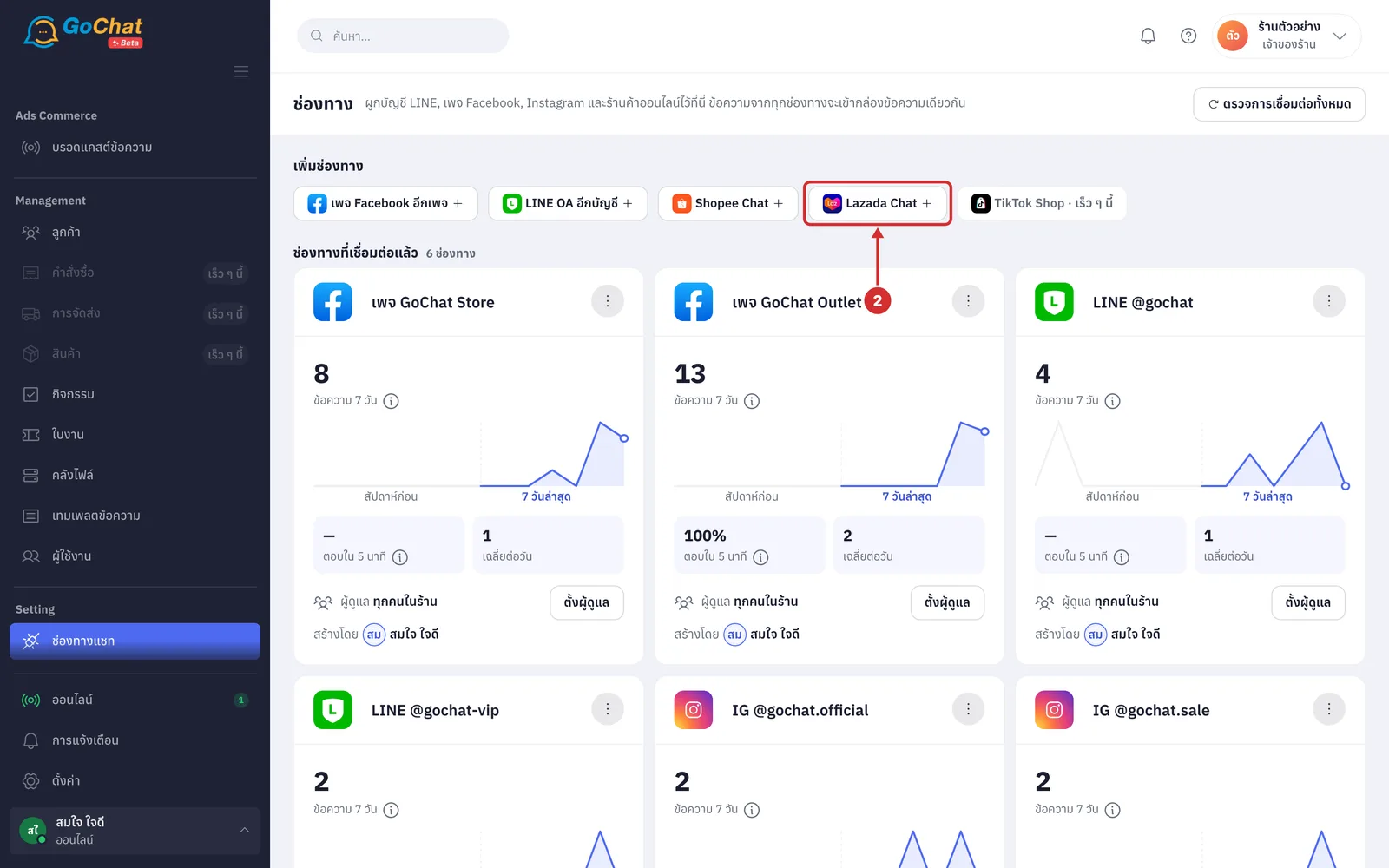
Under เพิ่มช่องทาง (Add a channel), click Lazada Chat (if your shop already has Lazada connected, the button is called Lazada อีกร้าน (Another Lazada shop); it opens GoChat's เชื่อมต่อ Lazada (Connect Lazada) screen to choose the country first)
Under ร้าน Lazada ของคุณอยู่ประเทศไหน (Which country is your Lazada shop in), choose the country of the Lazada shop you want to connect, for example ไทย (Thailand). If your shop sells in several countries, connect each country separately by repeating these steps
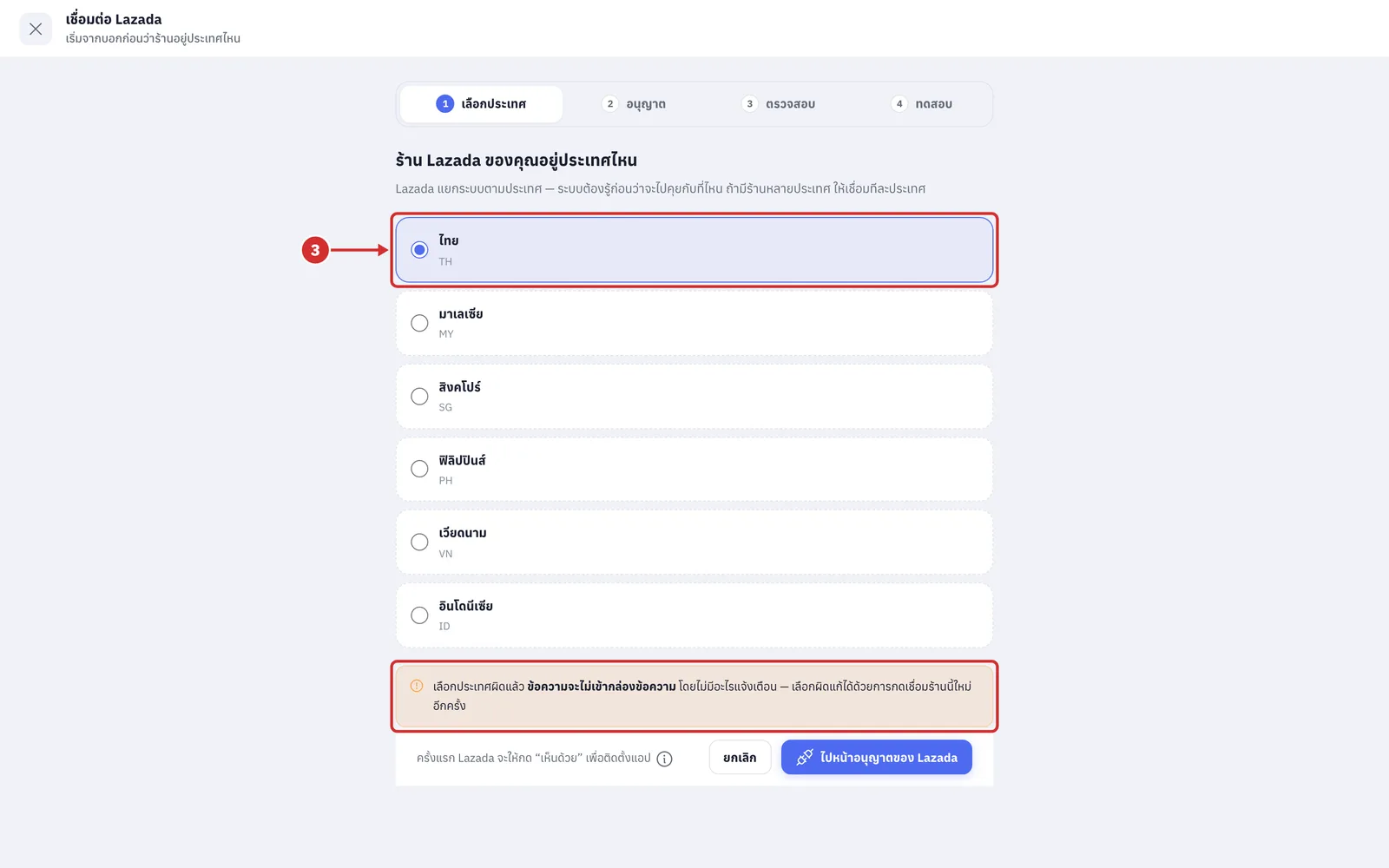
There are 6 countries: ไทย (Thailand, TH), มาเลเซีย (Malaysia, MY), สิงคโปร์ (Singapore, SG), ฟิลิปปินส์ (Philippines, PH), เวียดนาม (Vietnam, VN) and อินโดนีเซีย (Indonesia, ID). Nothing is selected for you; choose it yourself
The orange box warns that if you choose the wrong country, ข้อความจะไม่เข้ากล่องข้อความ (messages will not reach your inbox) and nothing warns you; fix it by connecting this shop again and choosing the right country
The bar at the top shows the 4 steps: เลือกประเทศ (Choose country), อนุญาต (Authorize), ตรวจสอบ (Check) and ทดสอบ (Test)
Click ไปหน้าอนุญาตของ Lazada (Go to Lazada authorization) (until you choose a country the button shows เลือกประเทศก่อน (Choose a country first) and cannot be clicked; click ยกเลิก (Cancel) to go back to the Channels page)
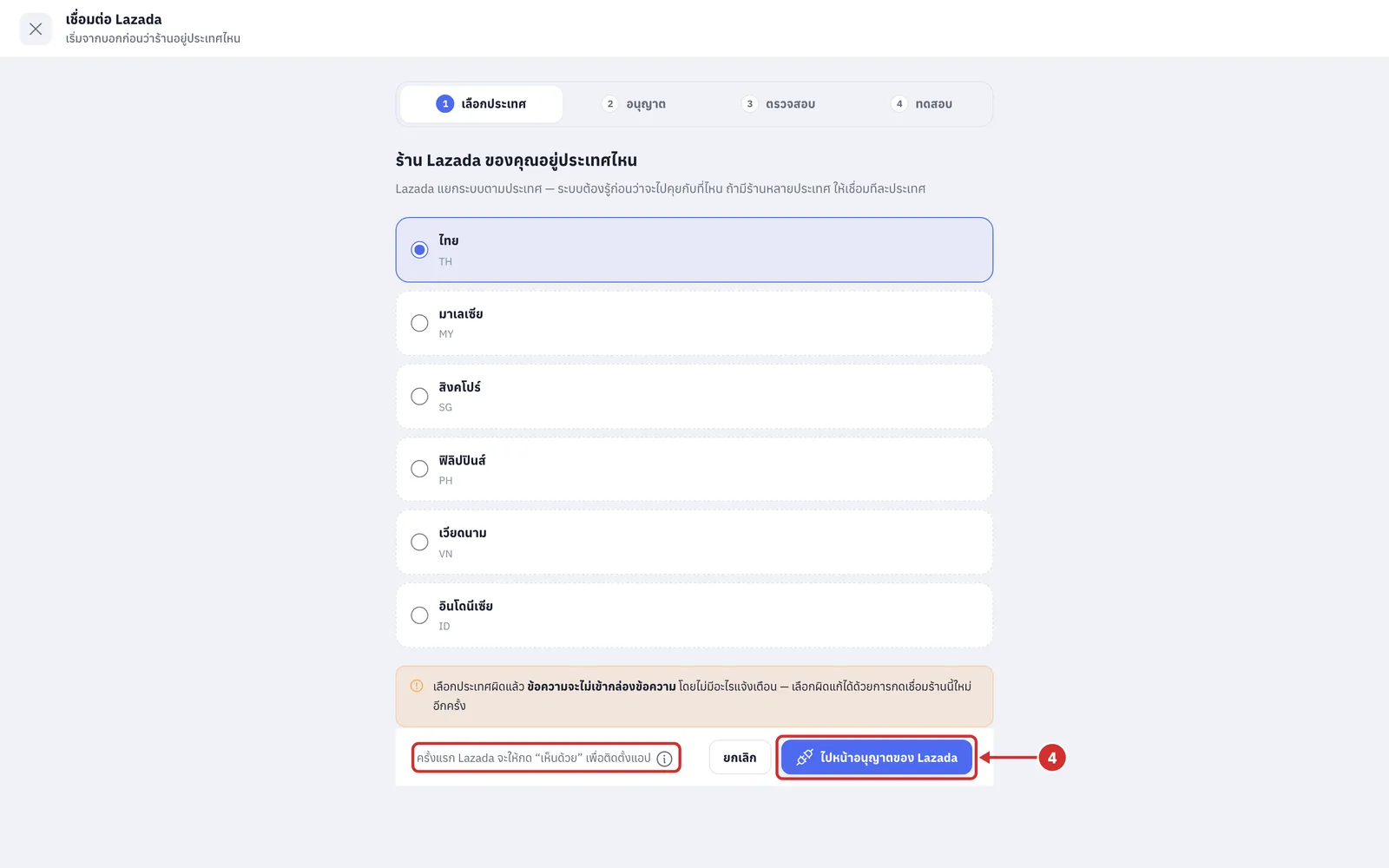
Next to the button it says ครั้งแรก Lazada จะให้กด “เห็นด้วย” เพื่อติดตั้งแอป (The first time, Lazada asks you to click “Agree” to install the app). Click the (i) button to read more (shops that have never installed the GoChat app are taken to Lazada Service Marketplace first, as described under Choosing a service on Lazada Service Marketplace below; click เห็นด้วย (Agree) and you come back to GoChat automatically)
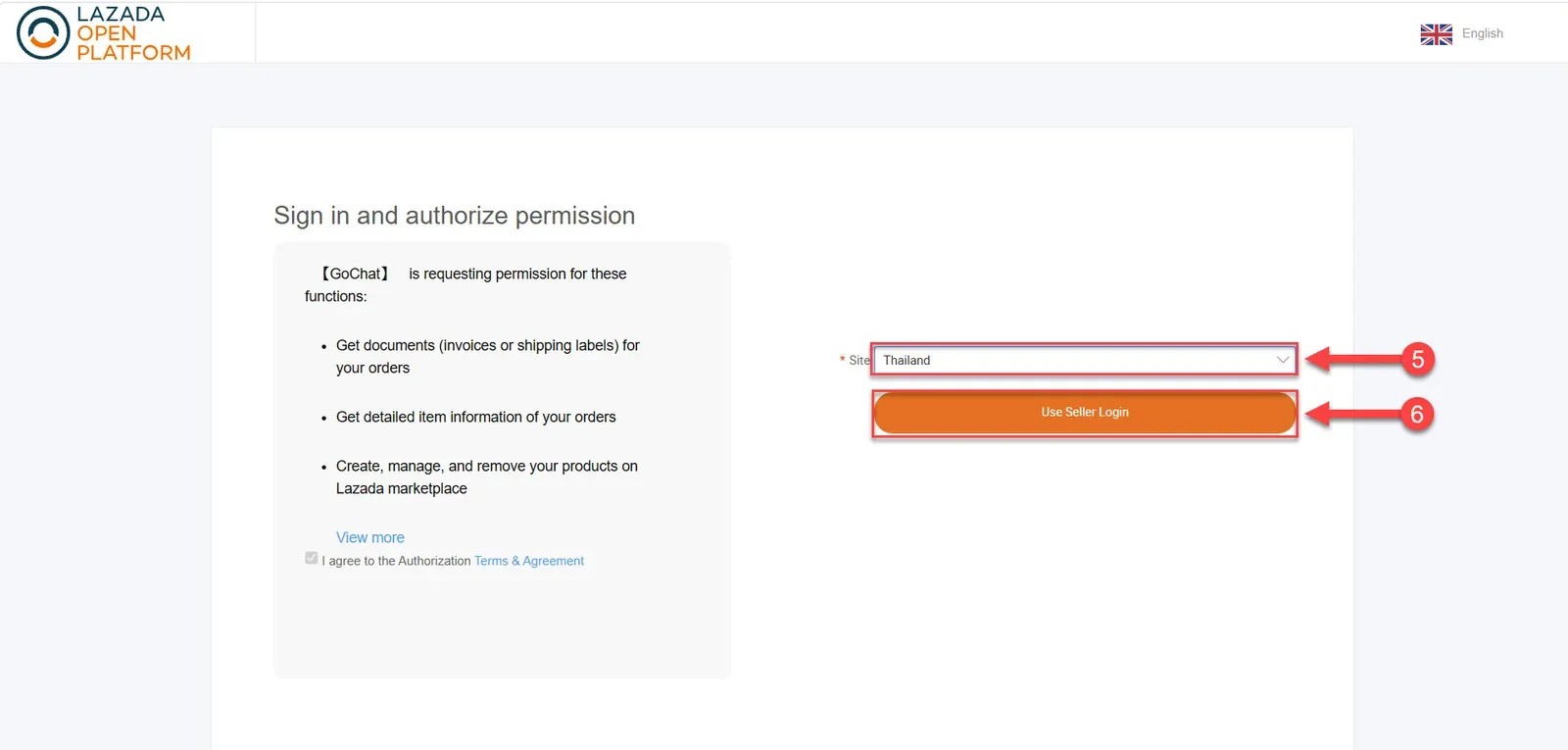
The system takes you to the Lazada sign-in page. Choose Thailand
Click Use Seller Login to sign in with your seller account
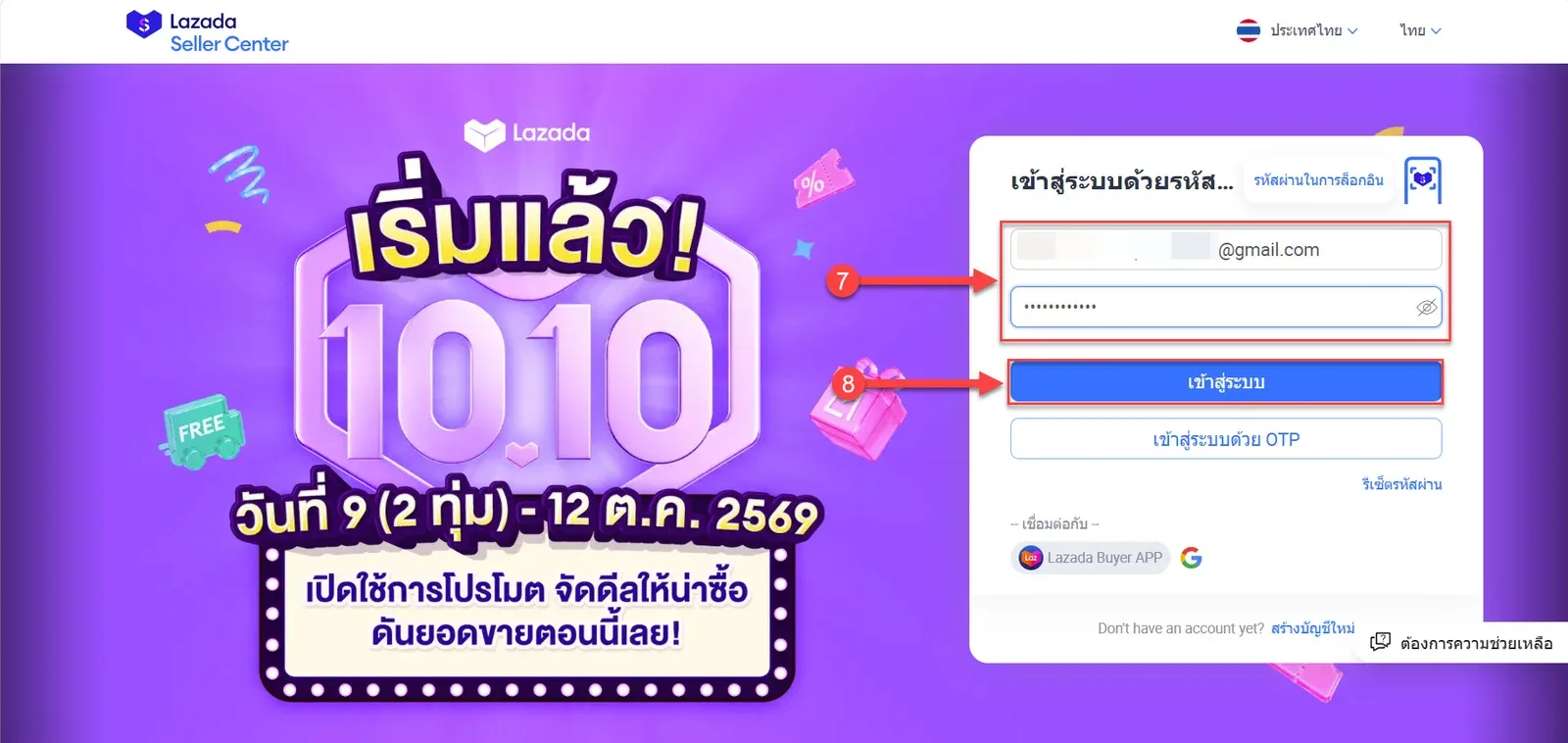
Enter the username and password of the Lazada seller account you want to connect
Check the details and click เข้าสู่ระบบ (Log in)
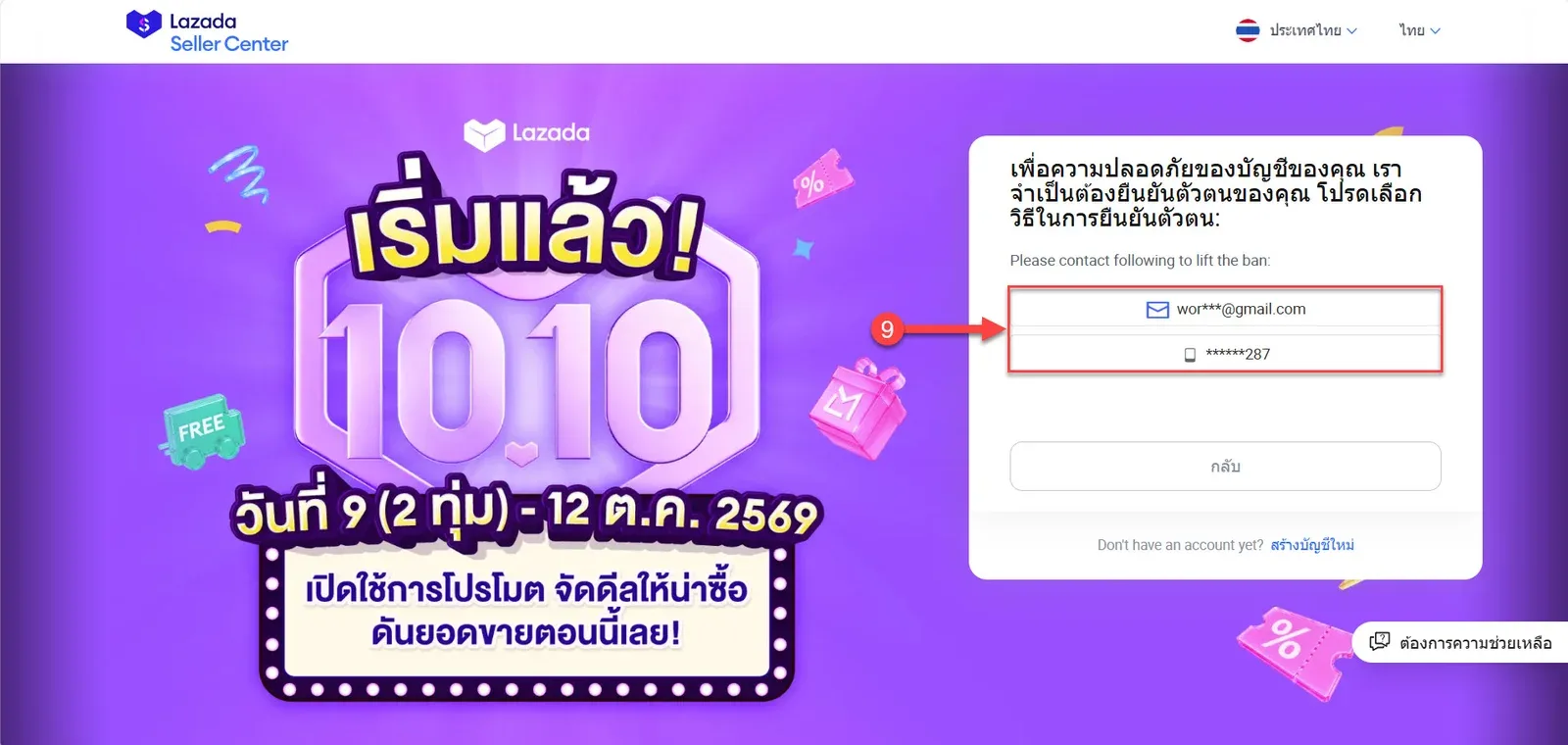
Lazada asks how to receive a 6-digit verification code, by the email or phone number registered to the shop. Choose one
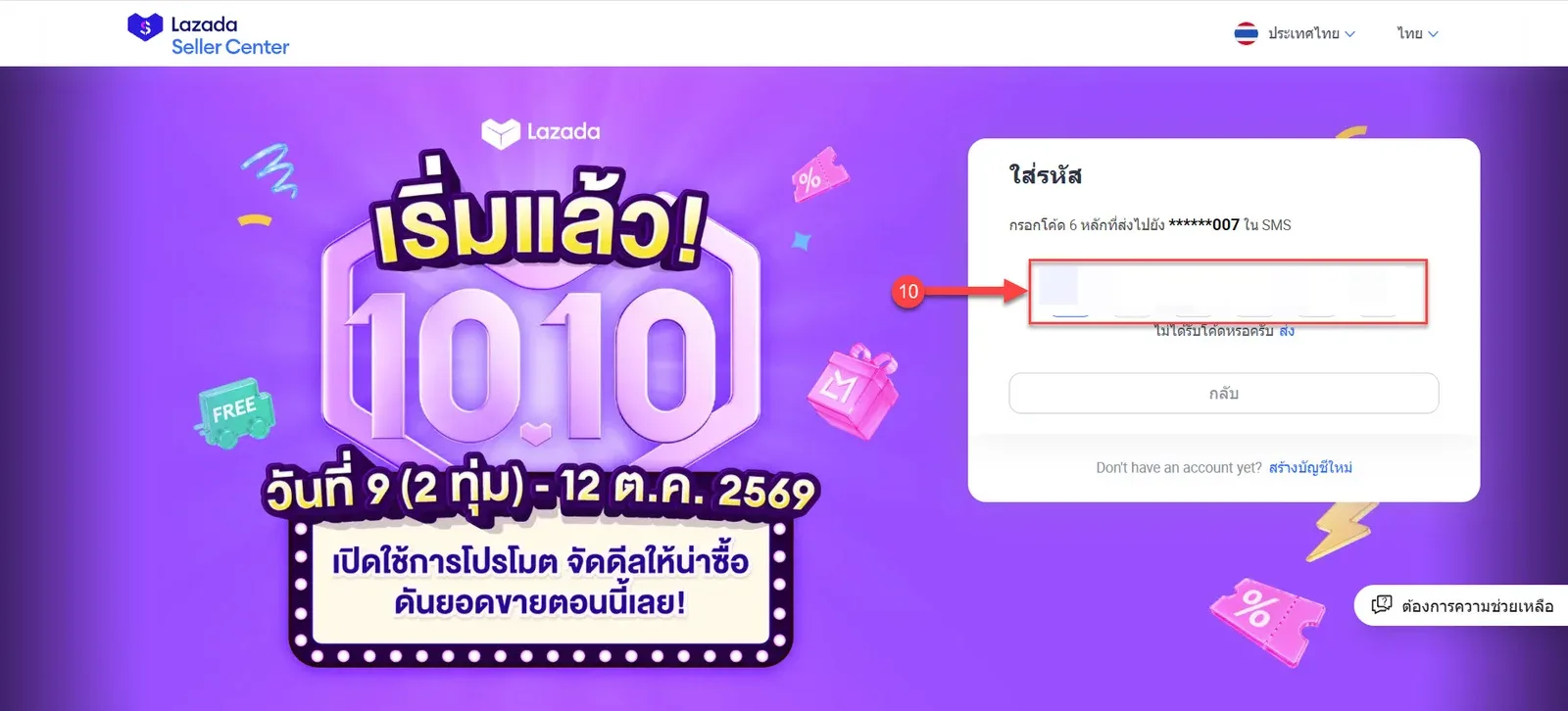
Enter the 6-digit code you received
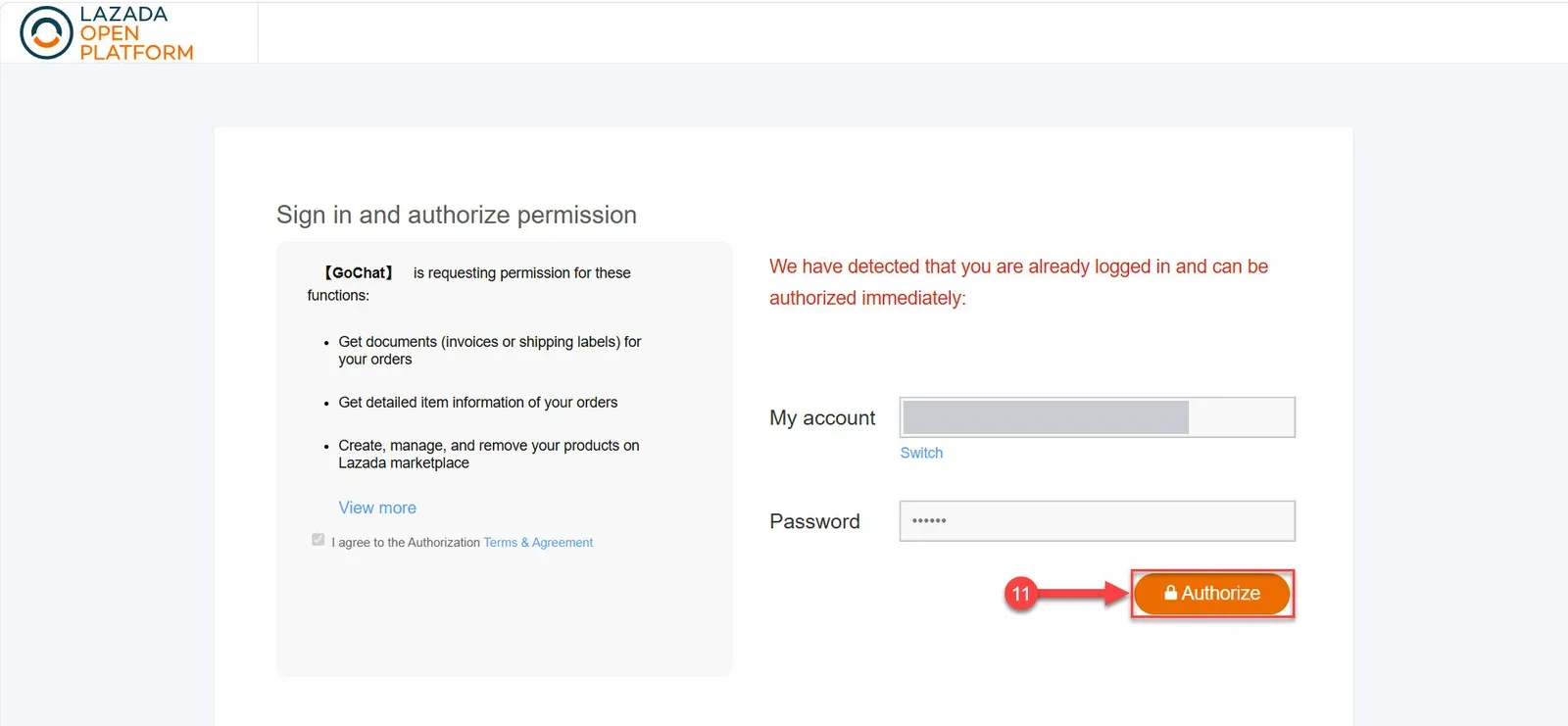
After verification, the authorization screen appears. Click Authorize
Choosing a service on Lazada Service Marketplace
Lazada Service Marketplace offers two options: การอนุญาตเท่านั้น (Authorization only) and ลองใช้งาน Gochat V.1.0 (Try Gochat V.1.0)
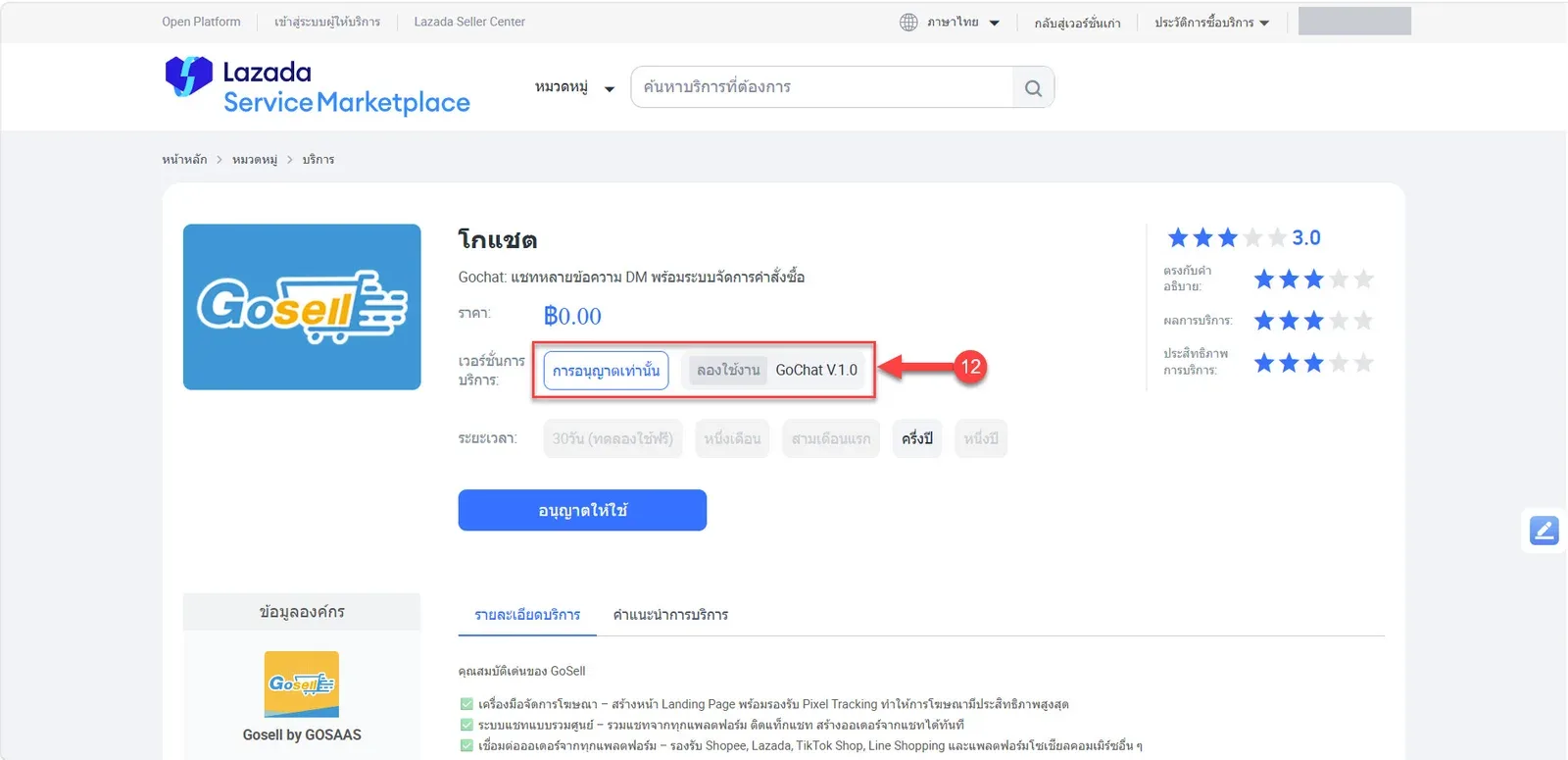
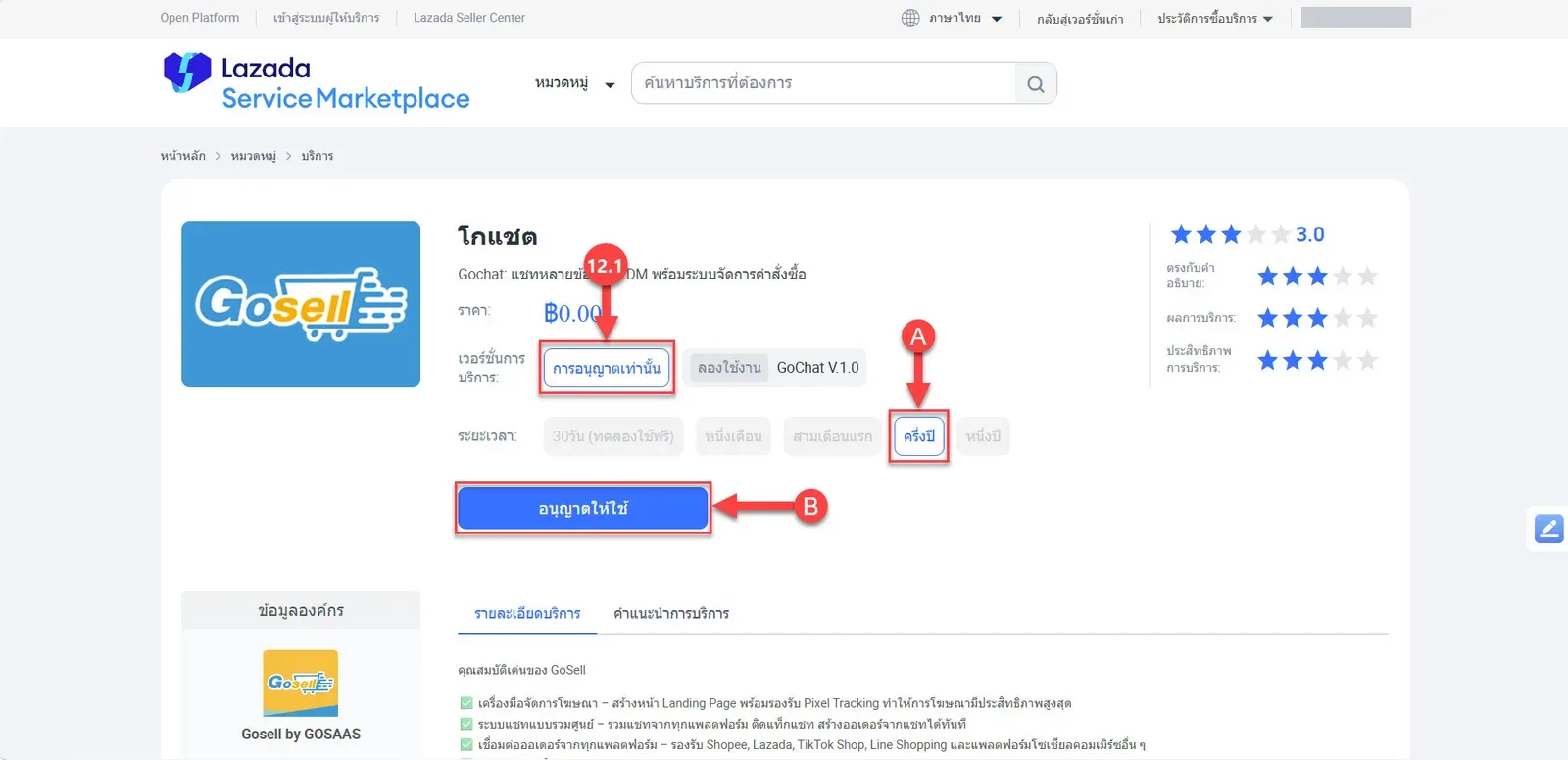
12.1 If you choose การอนุญาตเท่านั้น (Authorization only), for six months of use:
A Choose ครึ่งปี (Six months)
B Click อนุญาตให้ใช้ (Authorize)
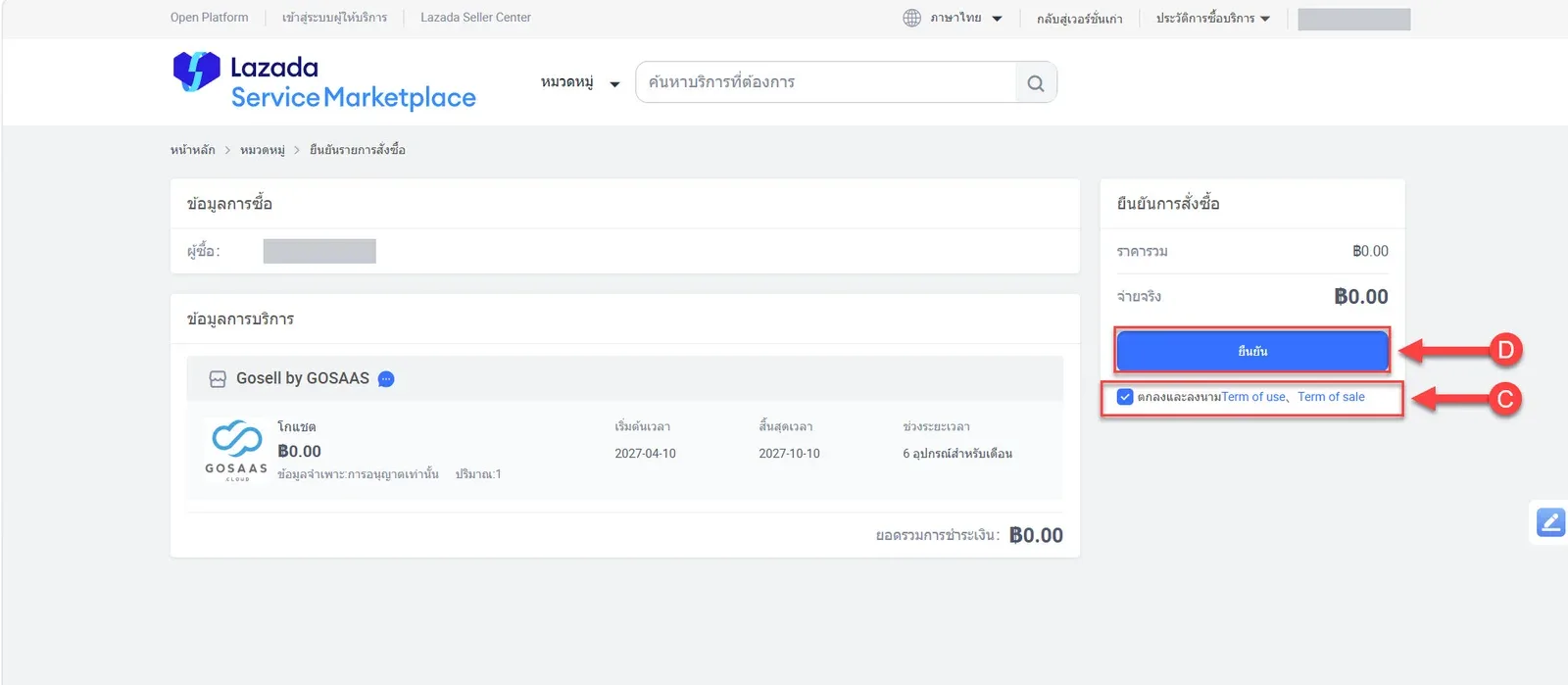
C On the order confirmation page, tick ตกลงและลงนาม Term of Use, Term of Sale (Agree to the Term of Use and Term of Sale)
D Click ยืนยัน (Confirm)
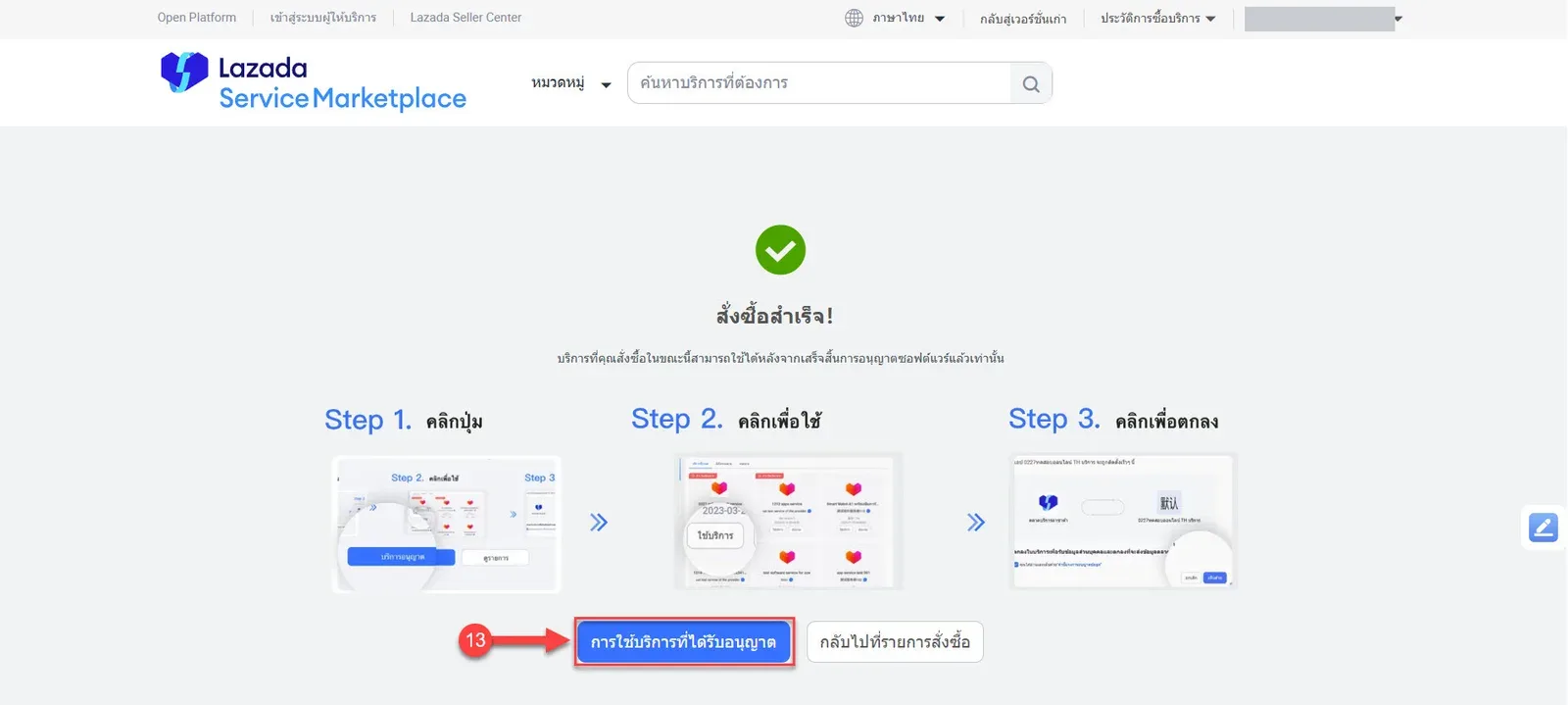
E On the order success page, click การใช้บริการที่ได้รับอนุญาต (Authorized services)
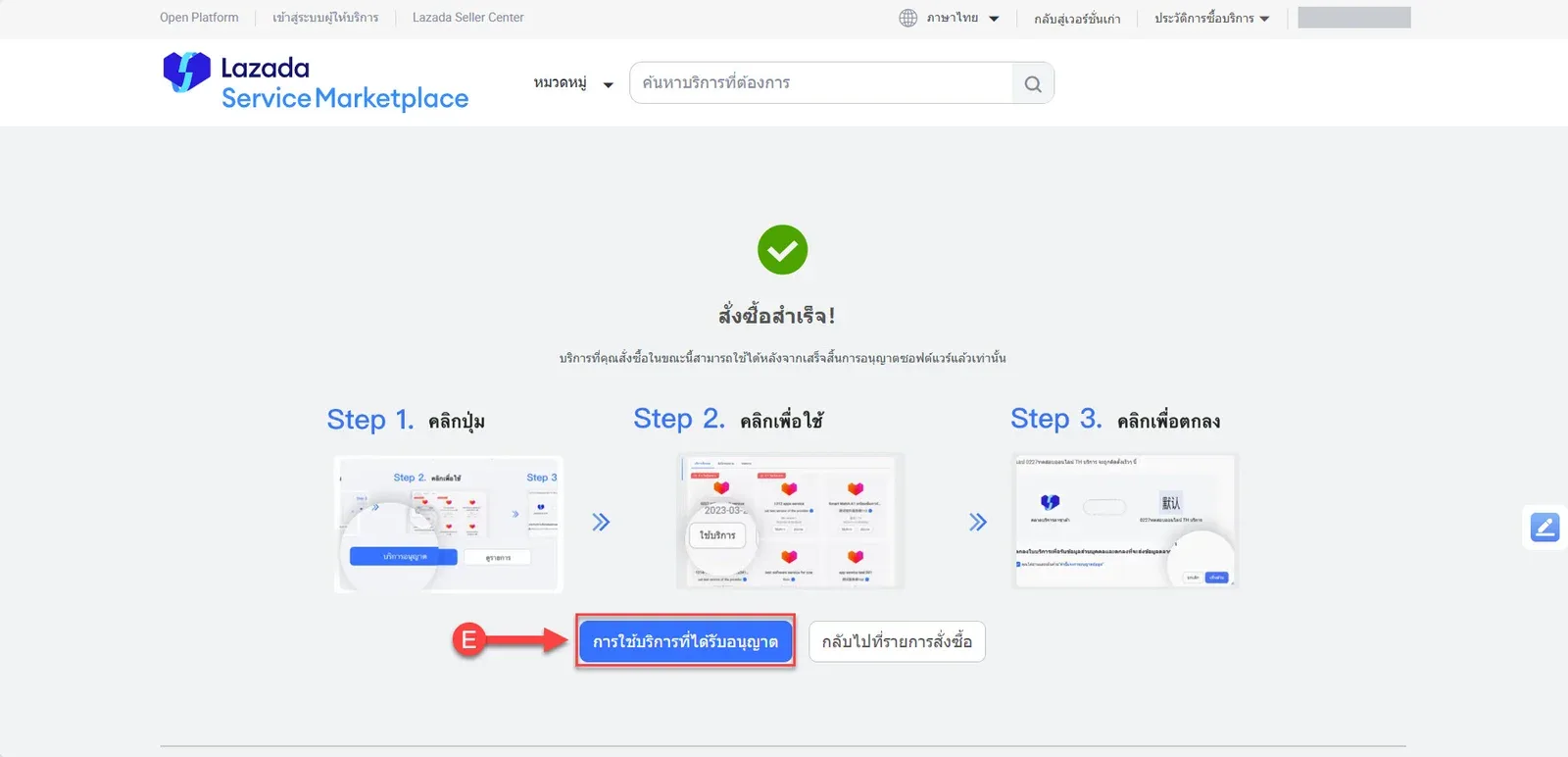
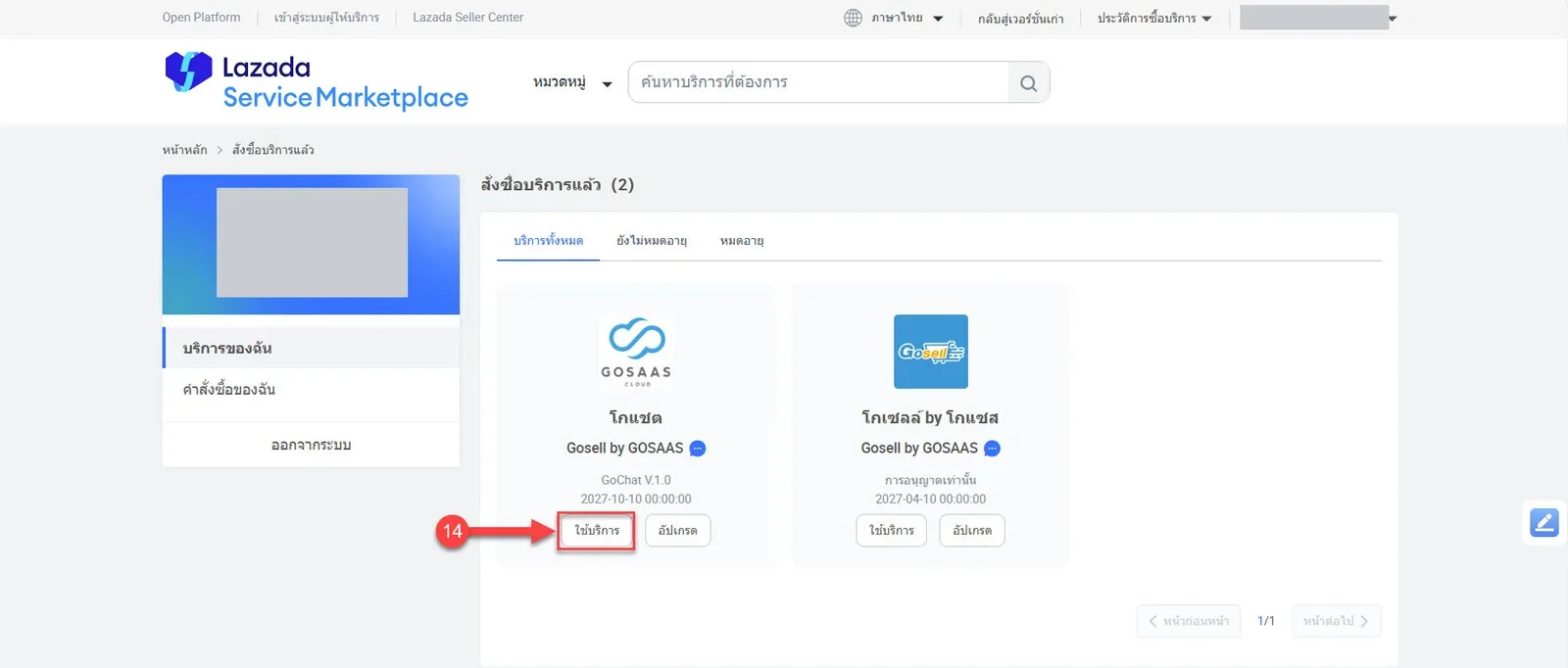
F In All services, click ใช้บริการ (Use service)
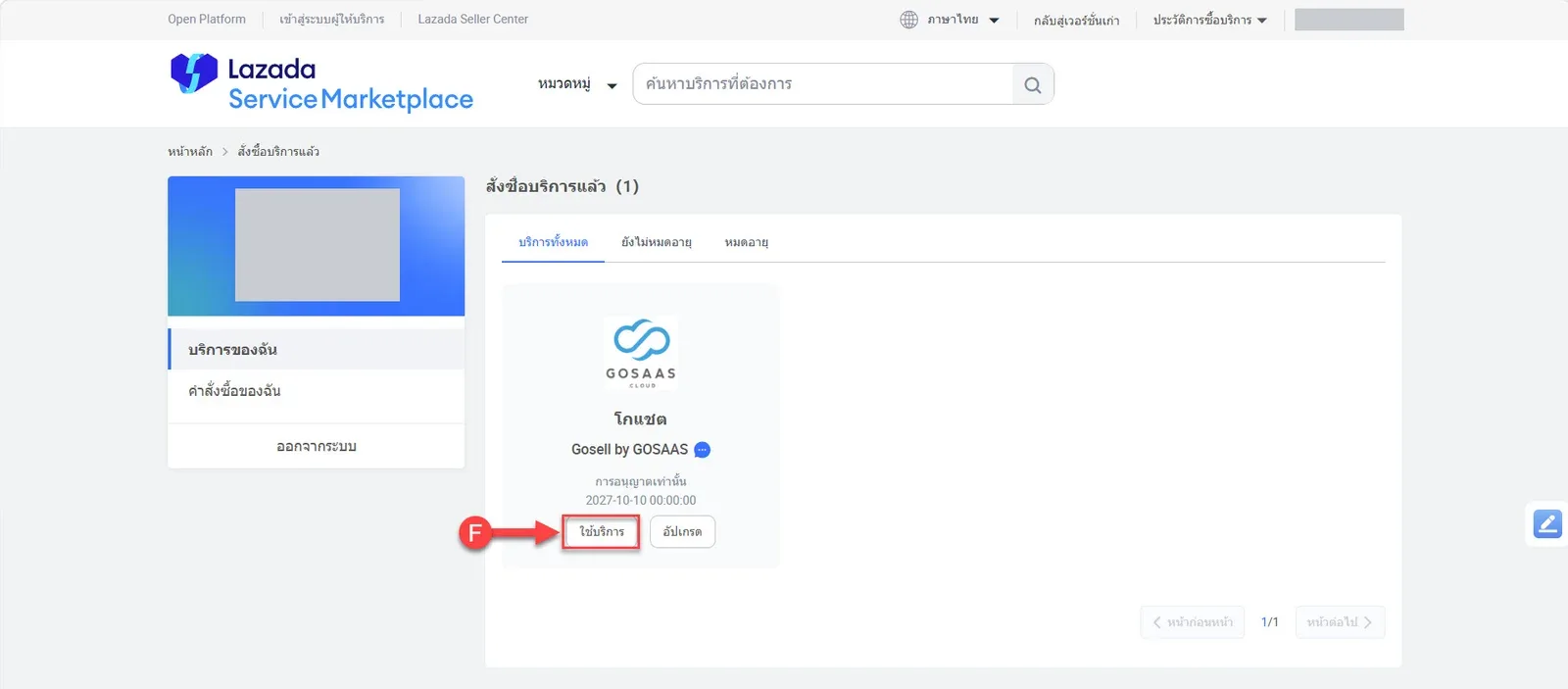
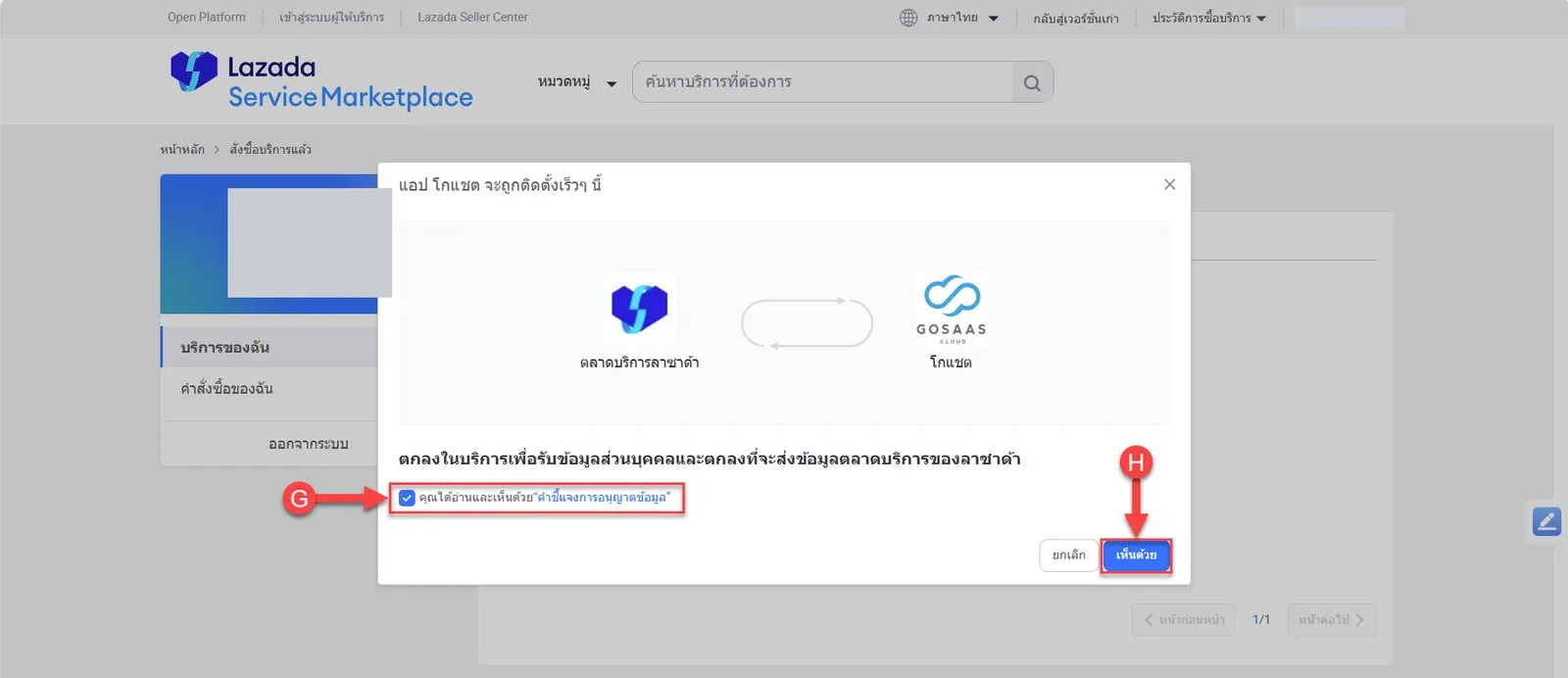
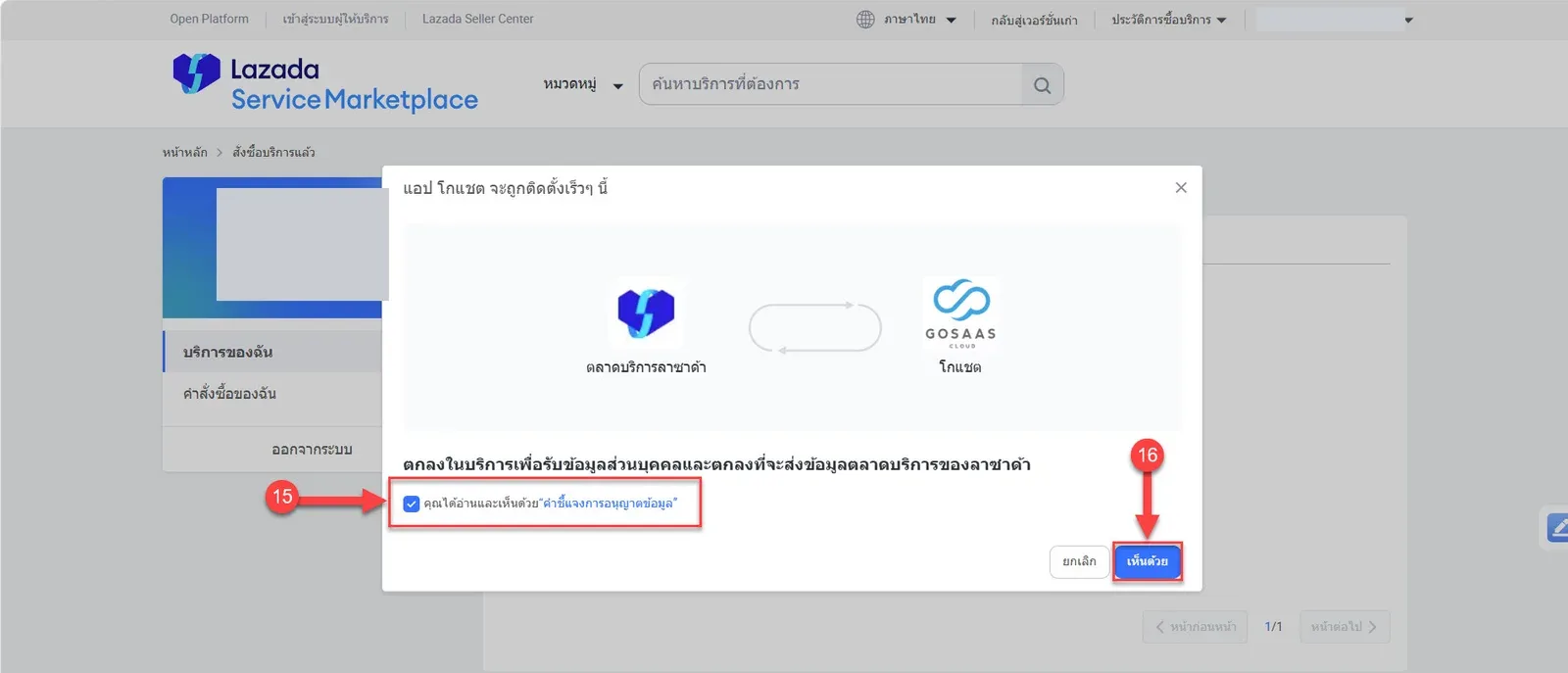
G Tick คุณได้อ่านและเห็นด้วย "คำชี้แจงการอนุญาตข้อมูล" (I have read and agree to the data authorization statement)
H Click เห็นด้วย (Agree)
I The system returns to the ช่องทางแชท (Chat channels) page in GoChat
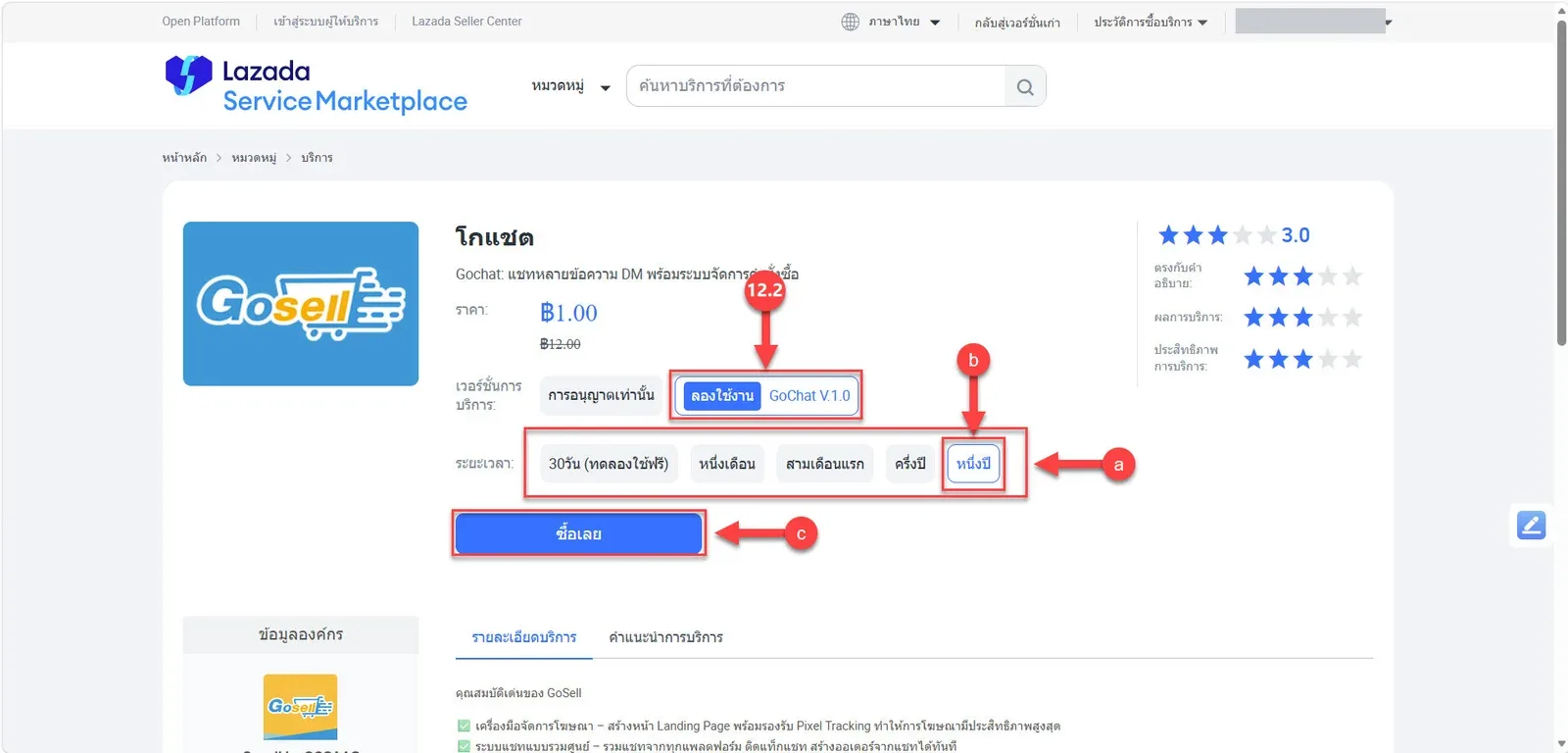
12.2 If you choose ลองใช้งาน Gochat V.1.0 (Try Gochat V.1.0), you choose the period from the options shown:
a Periods: 30 days (free trial), one month, first three months, six months or one year (for one year, choose หนึ่งปี (One year); always check the price, period and conditions on screen before confirming)
b Choose the period you want
c Click ซื้อเลย (Buy now)
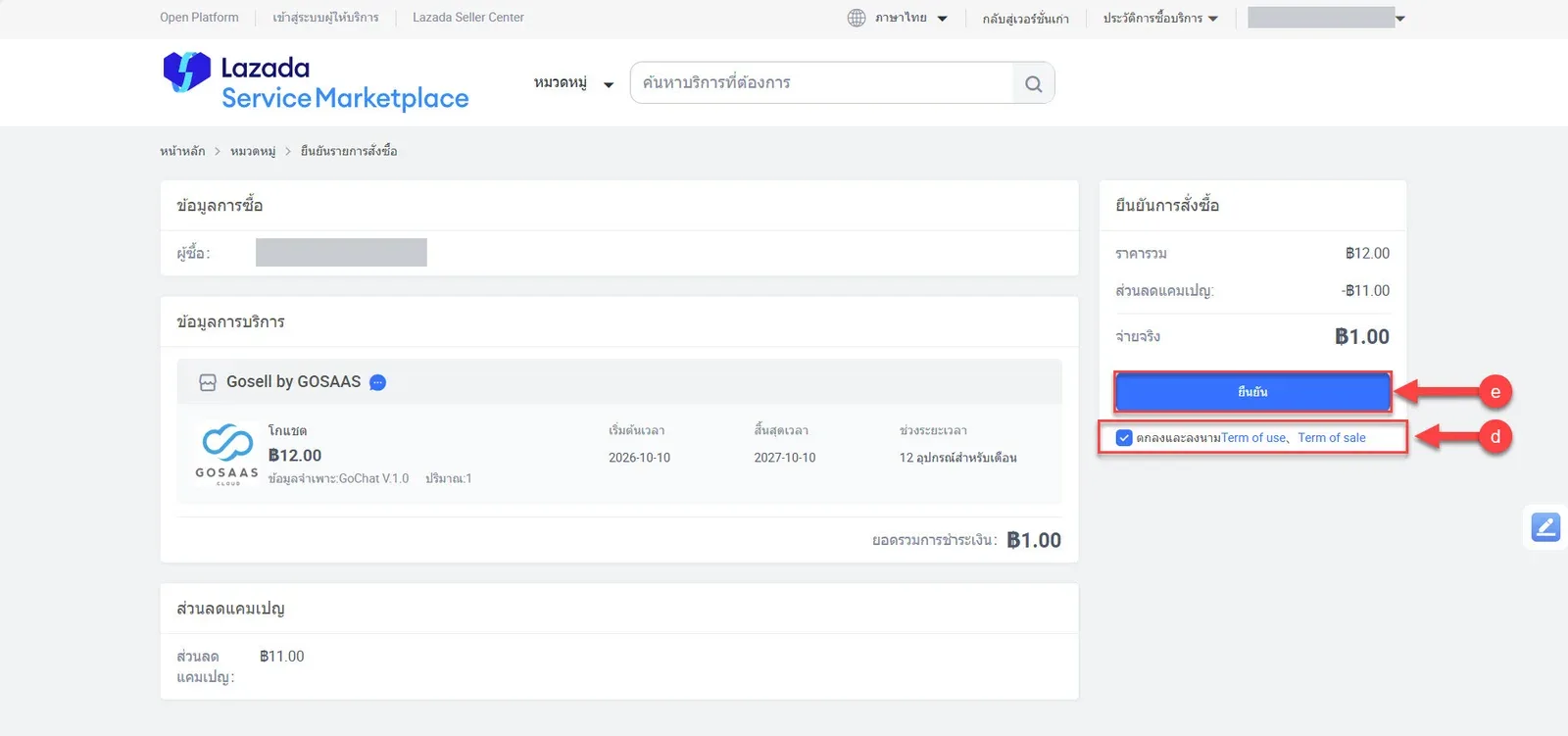
d On the order confirmation page, tick ตกลงและลงนาม Term of Use, Term of Sale
e Click ยืนยัน (Confirm)
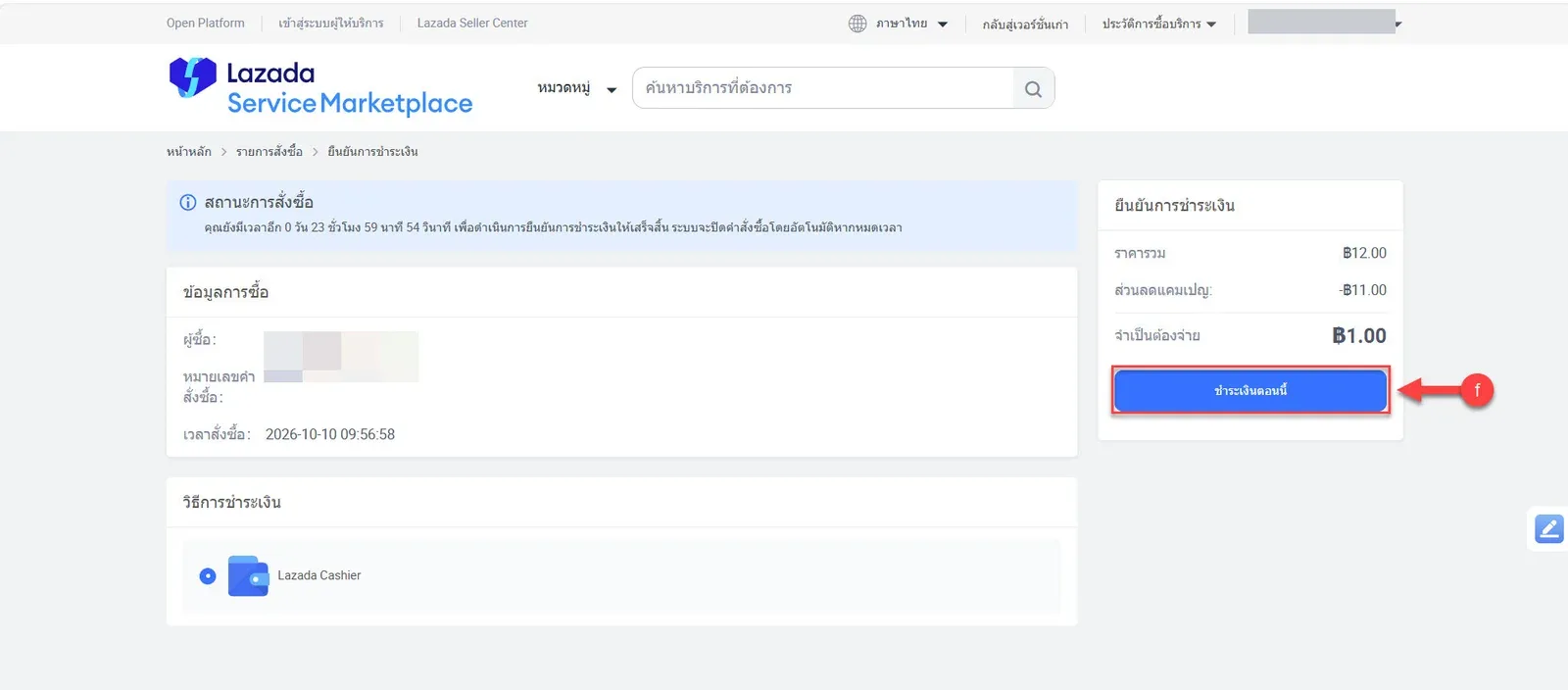
f On the payment confirmation page, click ชำระเงินตอนนี้ (Pay now)
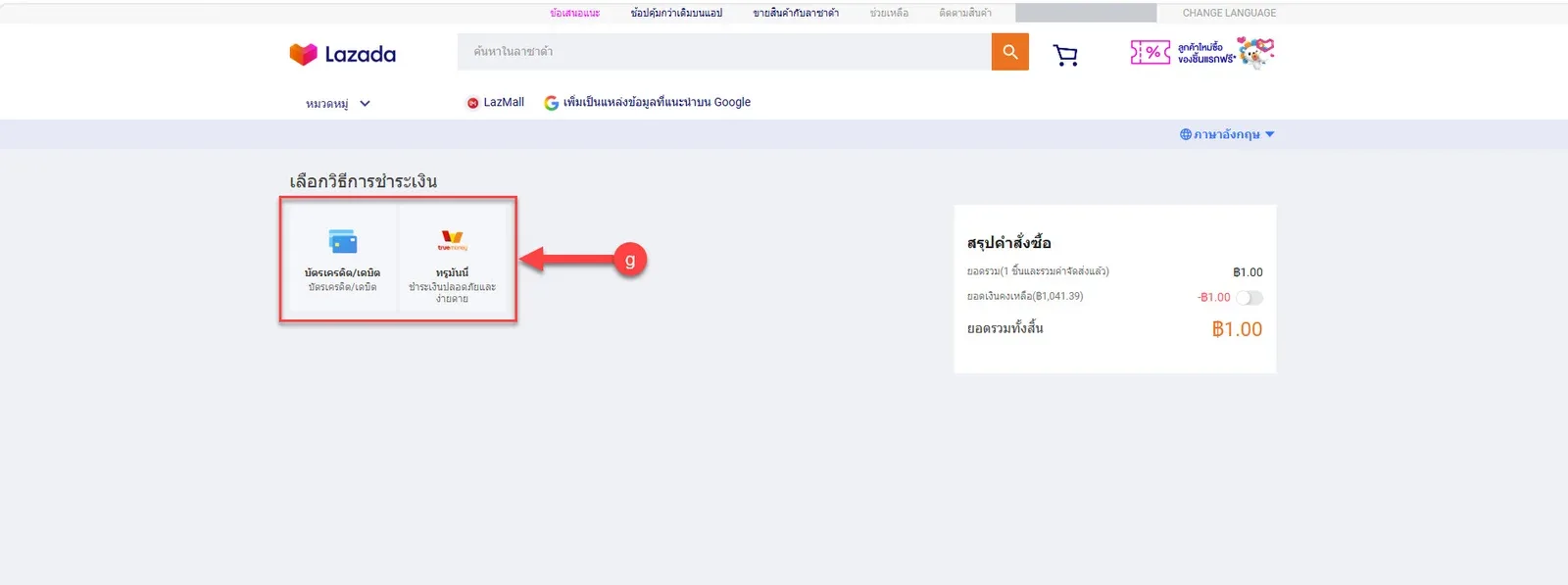
g Choose a payment method: บัตรเครดิต/เดบิต (Credit/debit card) or ทรูมันนี่ (TrueMoney)
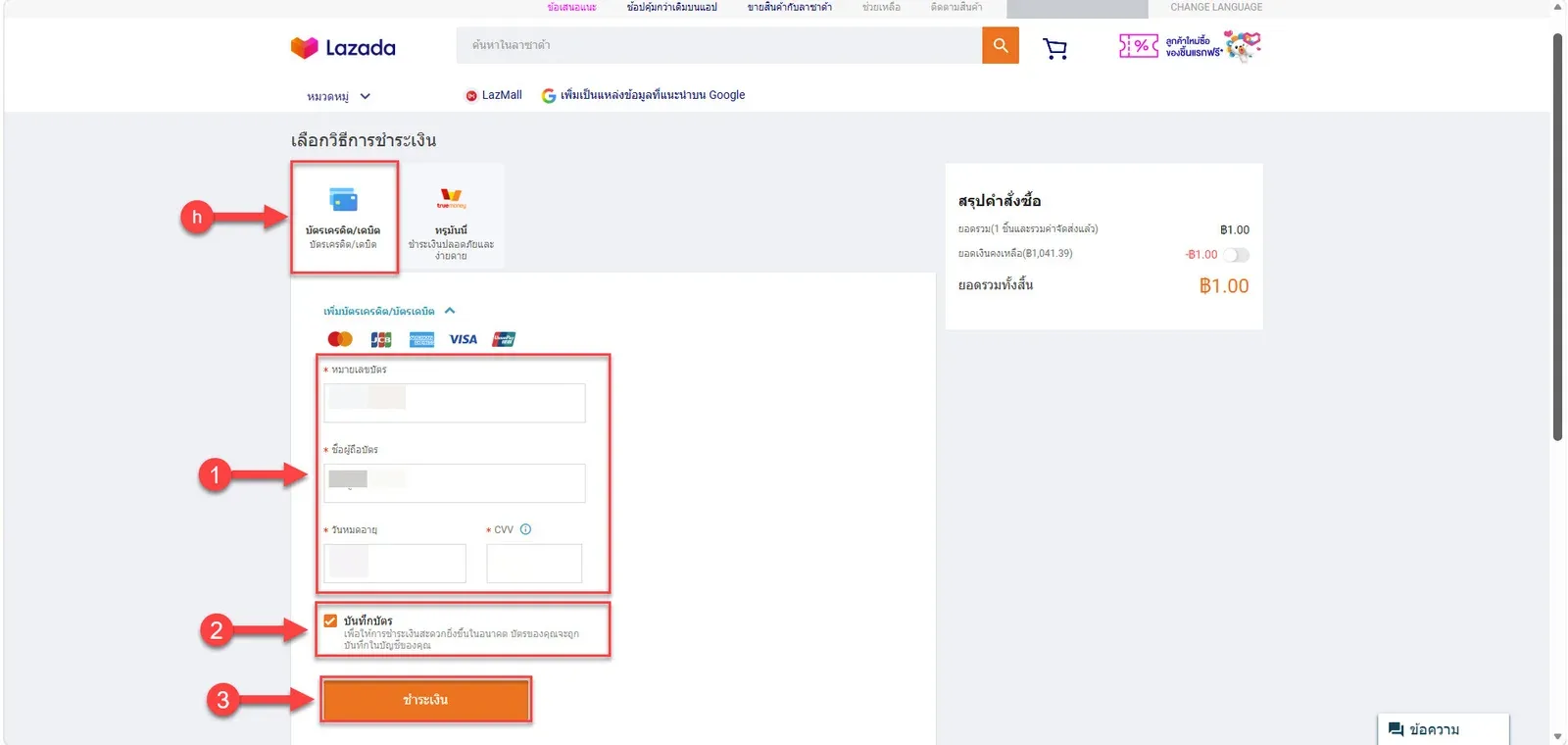
h Option 1, pay by credit/debit card
Fill in the card number, cardholder name, expiry date and CVV
Tick บันทึกบัตร (Save card)
Check the details and click ชำระเงิน (Pay)
i Option 2, pay with TrueMoney
The system shows how to link your TrueMoney account. Click ชำระเงิน (Pay)
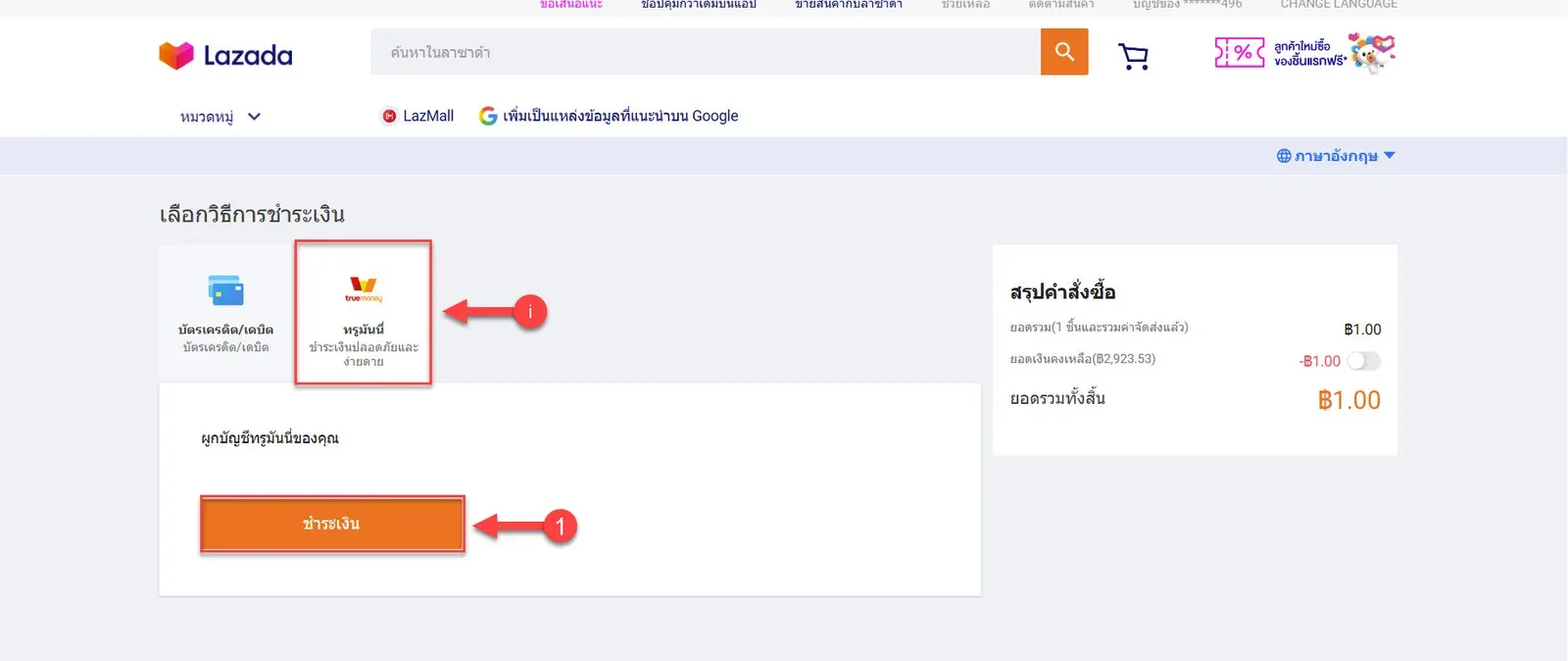
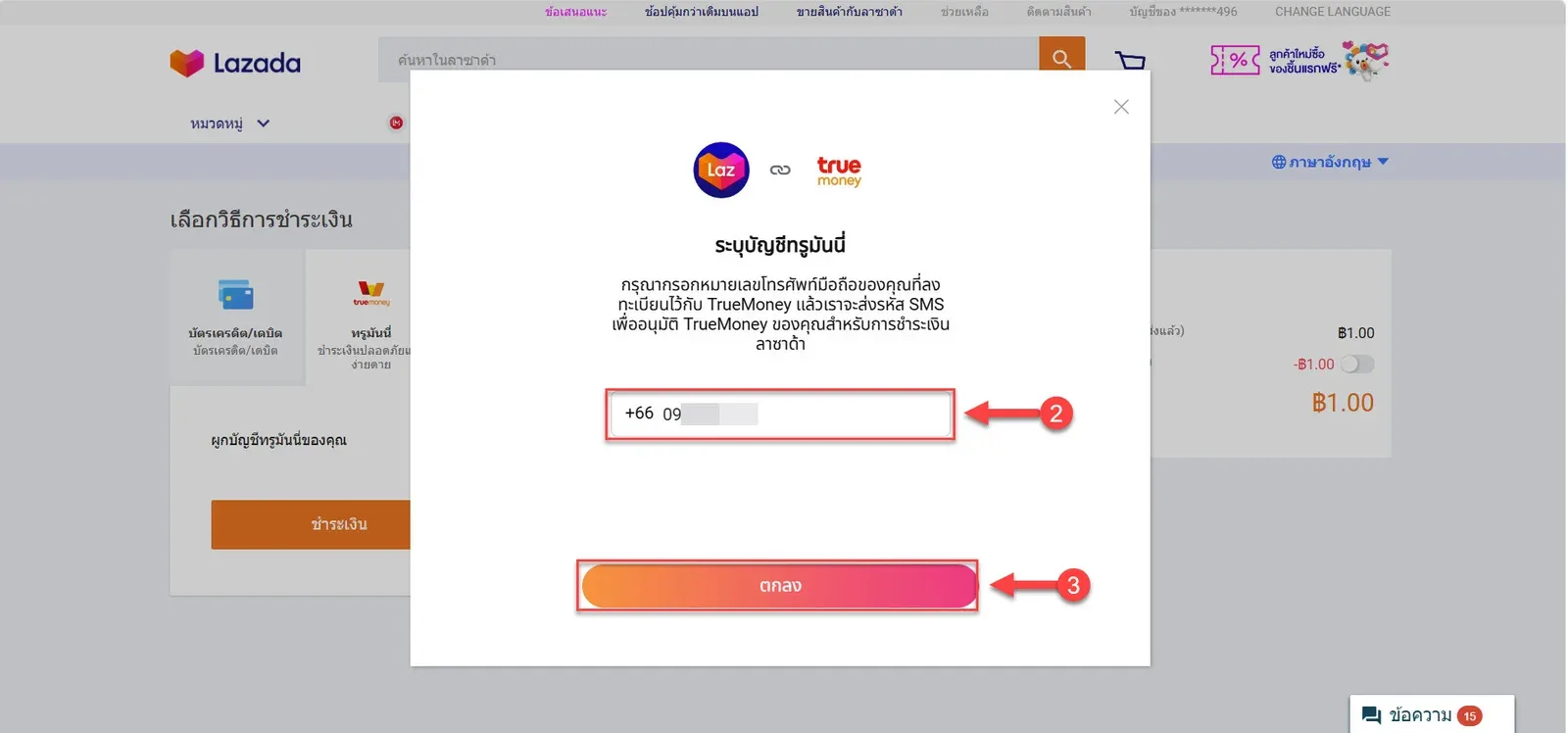
Enter your TrueMoney account
Click ตกลง (OK)
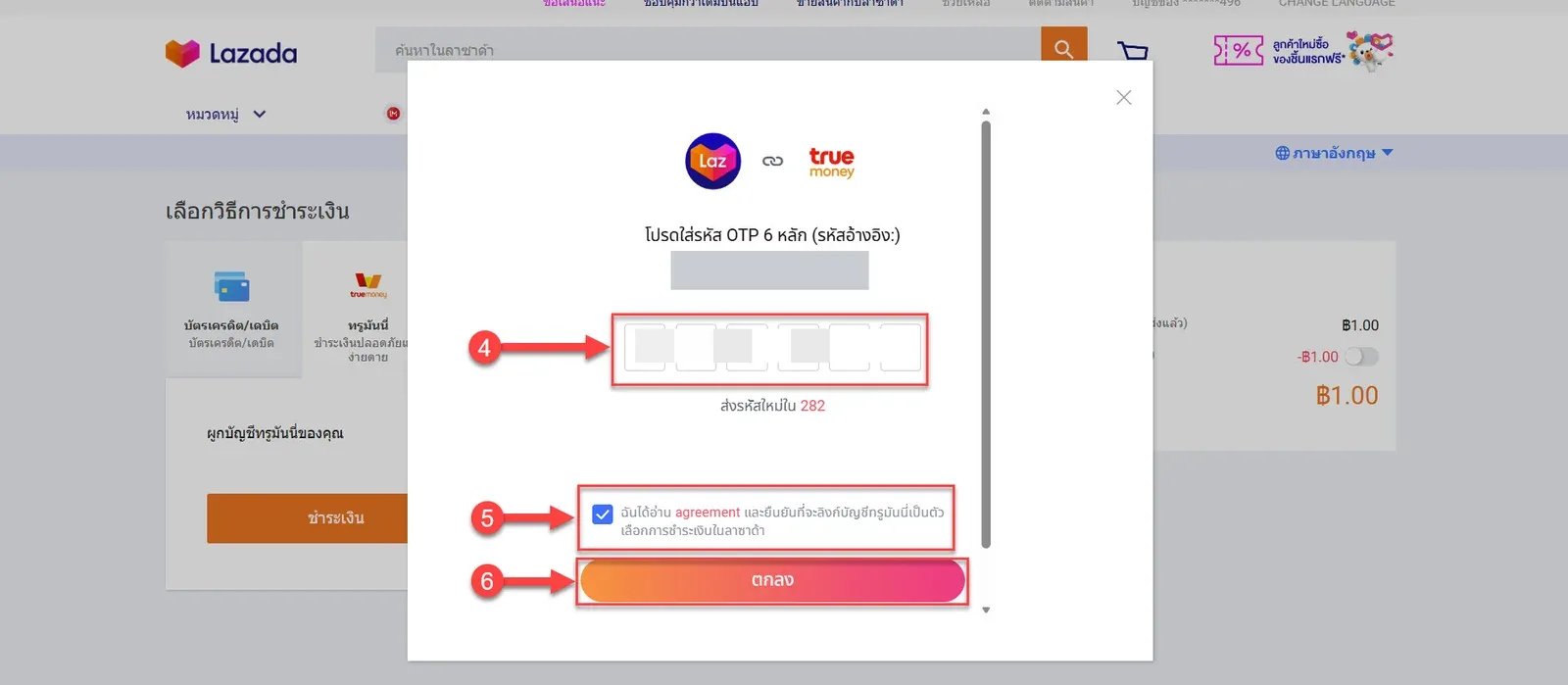
Enter the 6-digit OTP you received
Tick ฉันได้อ่าน agreement (I have read the agreement) to link TrueMoney as a Lazada payment method
Click ตกลง (OK)
Click ตกลง (OK)
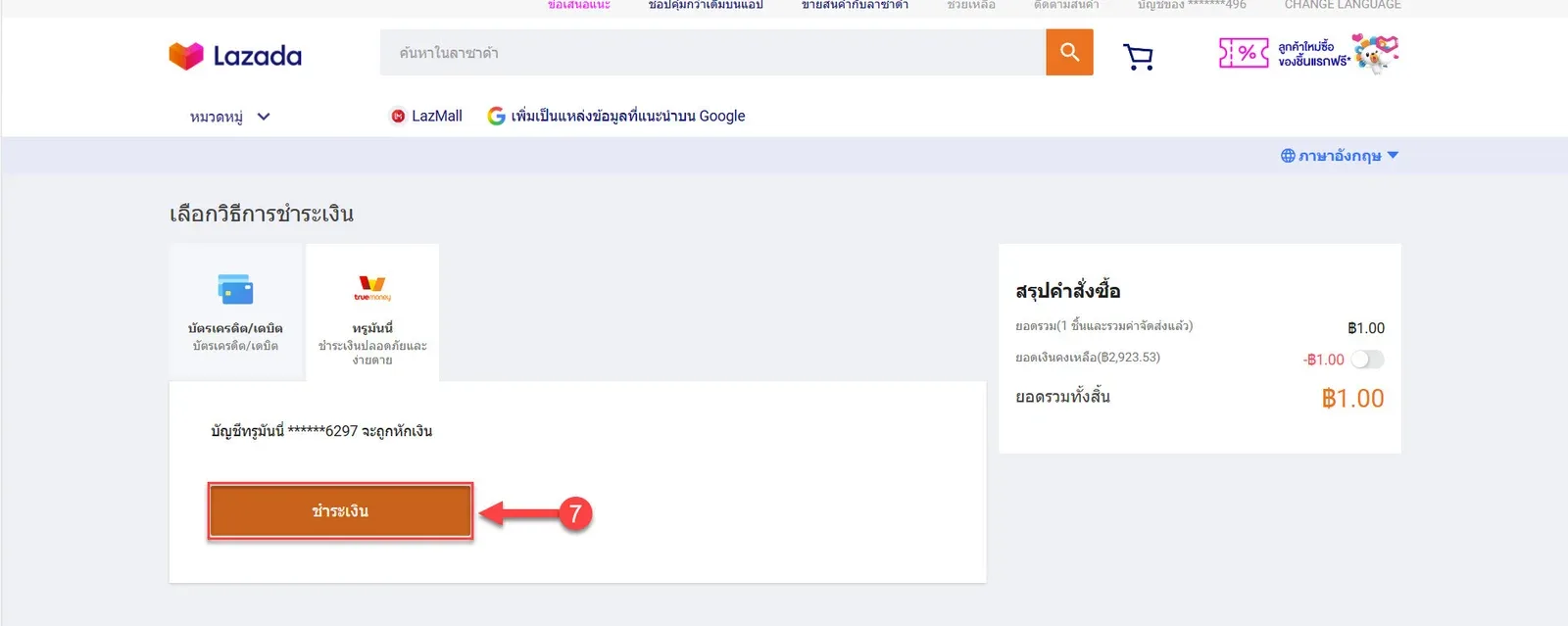
When payment is complete, continue authorizing the service. On the order success page, click การใช้บริการที่ได้รับอนุญาต (Authorized services)
In All services, click ใช้บริการ (Use service)
Tick คุณได้อ่านและเห็นด้วย "คำชี้แจงการอนุญาตข้อมูล" (I have read and agree to the data authorization statement)
Click เห็นด้วย (Agree)
Linking the Lazada shop to your shop in the order management system
After authorizing on Lazada, the system returns to the window for choosing the shop to link to this Lazada shop (only for the shop owner, and only when the order management system already has this shop). If the window says เข้าสู่ระบบใหม่อีกครั้ง แล้วผูกร้านต่อได้เลย (Sign in again, then continue linking), your permission for the order management system, which lasts 12 hours, has expired. Click เข้าสู่ระบบใหม่ (Sign in again); the system signs you out first and takes you to the sign-in page (the Lazada shop is already connected and chat works normally. If you are not ready, click ข้ามไปก่อน (Skip for now) or ไว้ทีหลัง (Later) to skip linking; you can link it later from the shop's card on the Channels page, with no time limit)
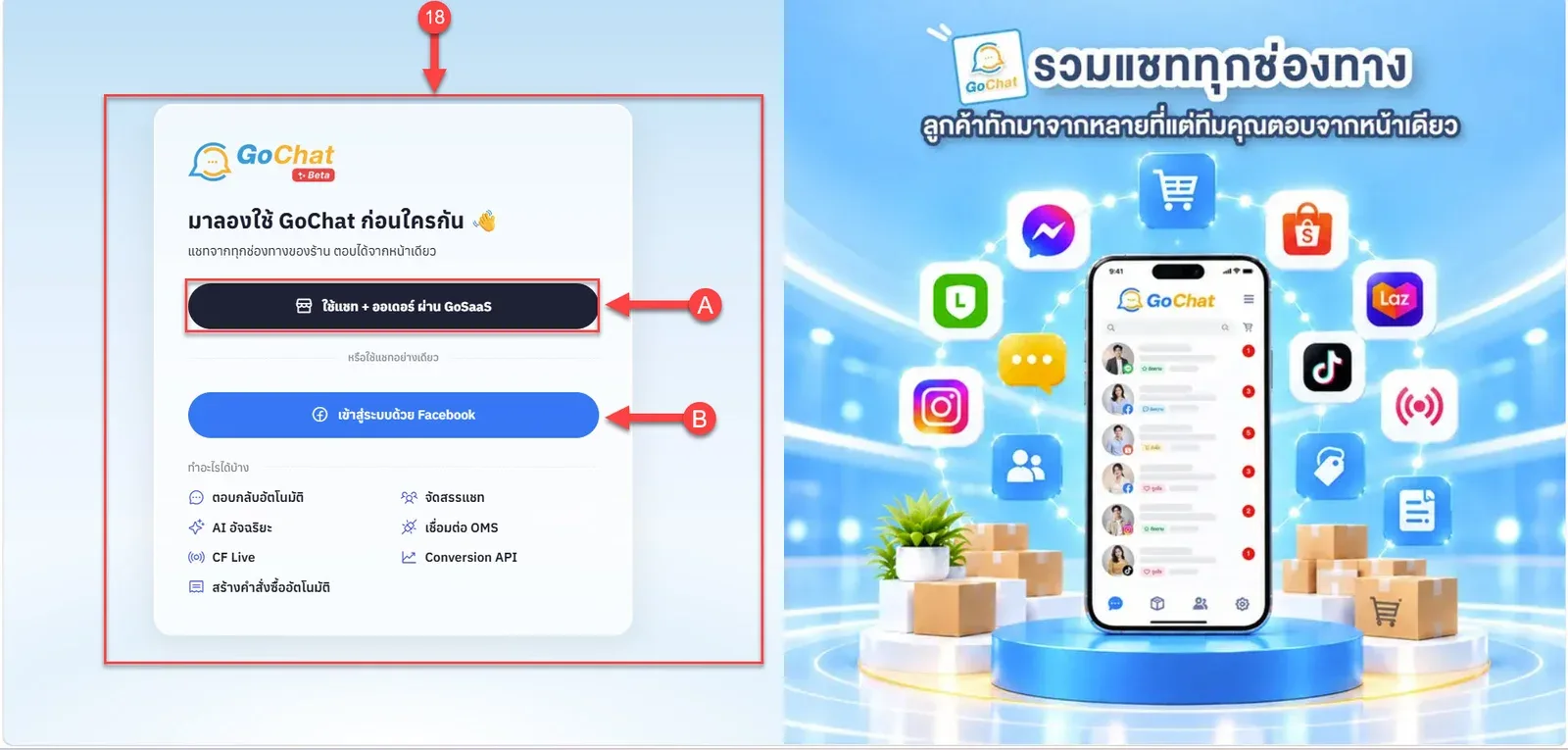
The system takes you to the sign-in page:
A If you already have a GoSaaS shop: choose ใช้แชท + ออเดอร์ ผ่าน GoSaaS (Use chat + orders through GoSaaS)
B If you do not have a GoSaaS shop yet: choose เข้าสู่ระบบด้วย Facebook (Sign in with Facebook)
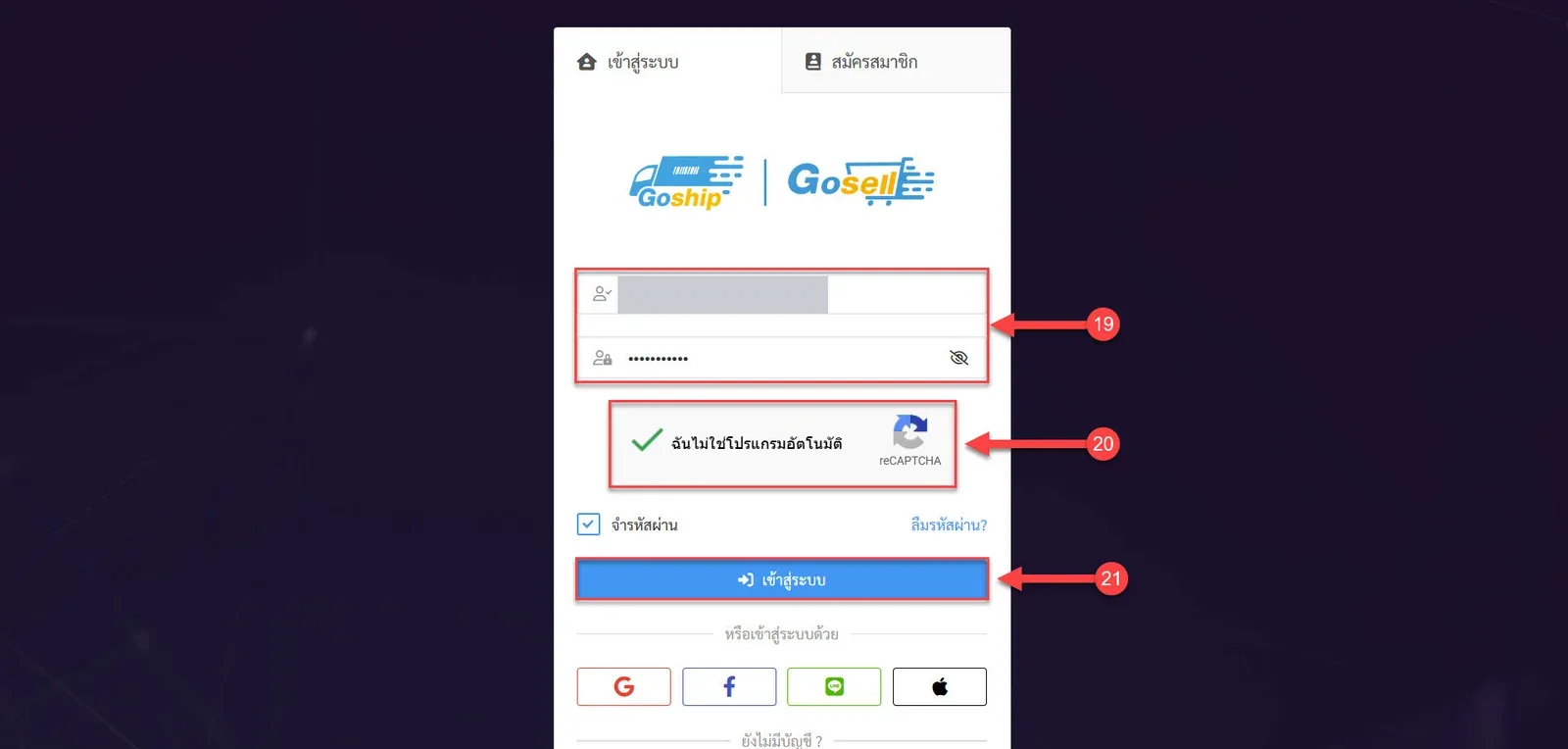
Enter the username and password of the GoSaaS shop you want to connect
Tick ฉันไม่ใช่โปรแกรมอัตโนมัติ (I'm not a robot)
Click เข้าสู่ระบบ (Log in)
When it is connected, the system returns to the ช่องทางแชท (Chat channels) page and shows เชื่อมร้าน Lazada "shop name" สำเร็จ (Lazada shop connected). The shop's card has a ใหม่ (New) label and sits under ร้านค้าออนไลน์ (Online shops)
If you signed in again in step 17, the shop owner clicks ผูกร้าน (Link shop) next to the ยังไม่ผูกร้าน (Shop not linked) label on the shop's card to choose the shop in the order management system to link
The shop owner sees a ผูกกับร้านเดิม (Link to existing shop) button in the bar to link this shop to a shop in the order management system
If a yellow bar says ประเทศของร้านใช้ค่าที่คุณเลือกไว้ เพราะ Lazada ไม่ได้ส่งมาด้วย (The shop's country uses the value you chose, because Lazada did not send one), check that you chose the right country; if not, click เลือกประเทศใหม่ (Choose country again) and connect this shop again
If the connection fails
If you come back to the Channels page and see a red bar, read its message, then click Lazada Chat (or Lazada อีกร้าน (Another Lazada shop)) to start again
A ยกเลิกการเชื่อมต่อที่หน้า Lazada (Cancelled on Lazada) someone clicked cancel on Lazada's authorization page
B ยืนยันตัวตนไม่สำเร็จ (Verification failed) this usually happens when you start from Lazada or Service Marketplace yourself; start from the button on GoChat's Channels page
C ยังไม่ได้เลือกประเทศของร้าน หรือเลือกไว้นานเกินไป (No country chosen, or chosen too long ago) the chosen country is kept for 30 minutes; connect again and choose the country
D แลกรหัสกับ Lazada ไม่สำเร็จ (Could not exchange the code with Lazada) connect again
Note: If you choose the wrong country in step 3, messages will not reach your inbox and nothing warns you. Fix it by connecting this shop again and choosing the right country. The ตรวจการเชื่อมต่อ (Check connection) button on the Channels page cannot check Lazada shops yet (they count as ยังตรวจไม่ได้ (Cannot check yet) and keep their status). See the shop's card and set owners in Managing chat channels.