

Turning on chat assignment
The จัดสรรแชท (Chat assignment) page decides which staff member gets each new chat, when, and what happens if nobody takes it. The first time, the system asks 3 questions to recommend a shop type and sets it up for you; you can adjust every part later. Only the เจ้าของร้าน (Shop owner) or a หัวหน้าทีม (Team lead) can change this page; other roles can view only.
Turning on chat assignment
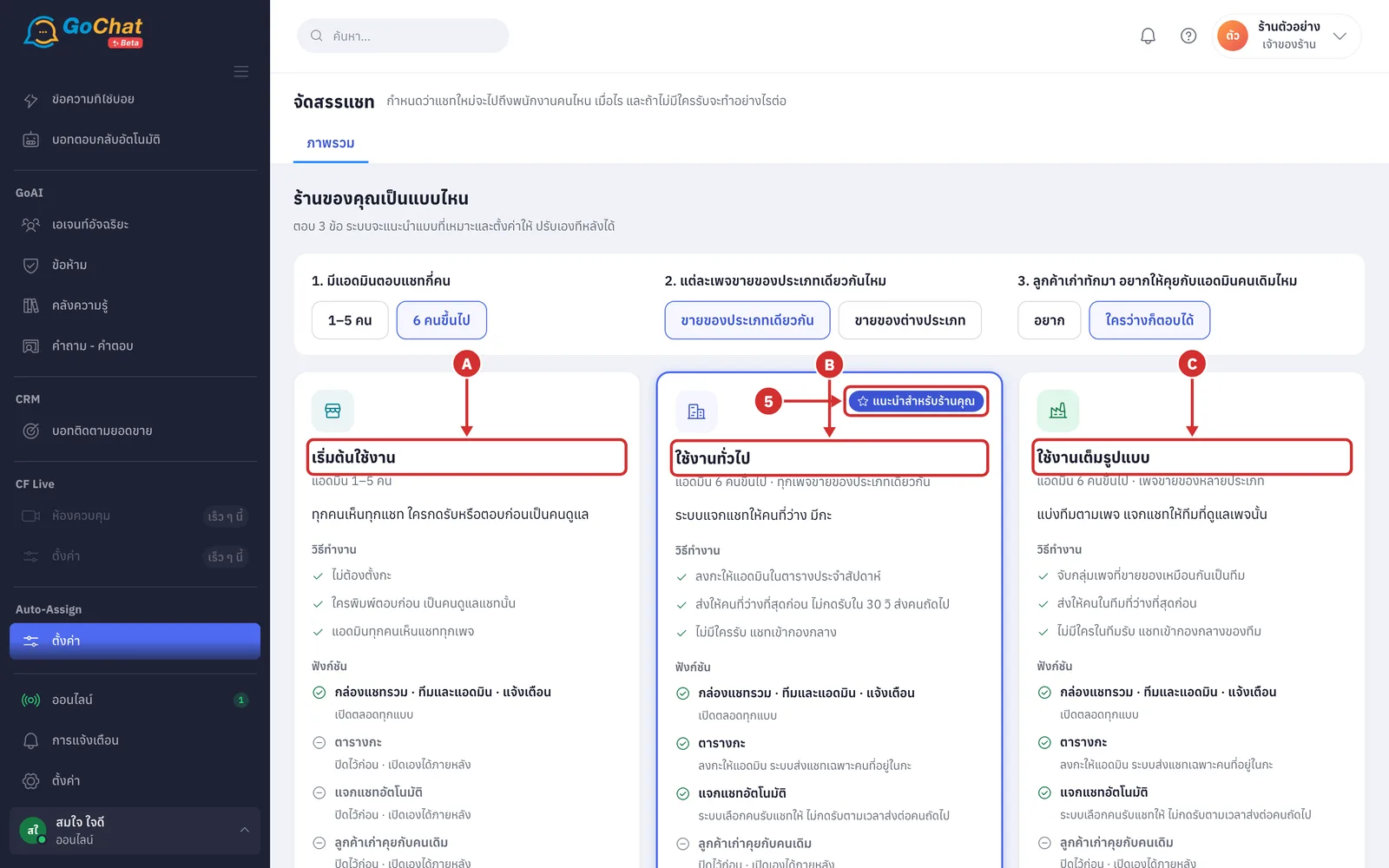
Under Auto-Assign, choose ตั้งค่า (Settings) in the left menu bar
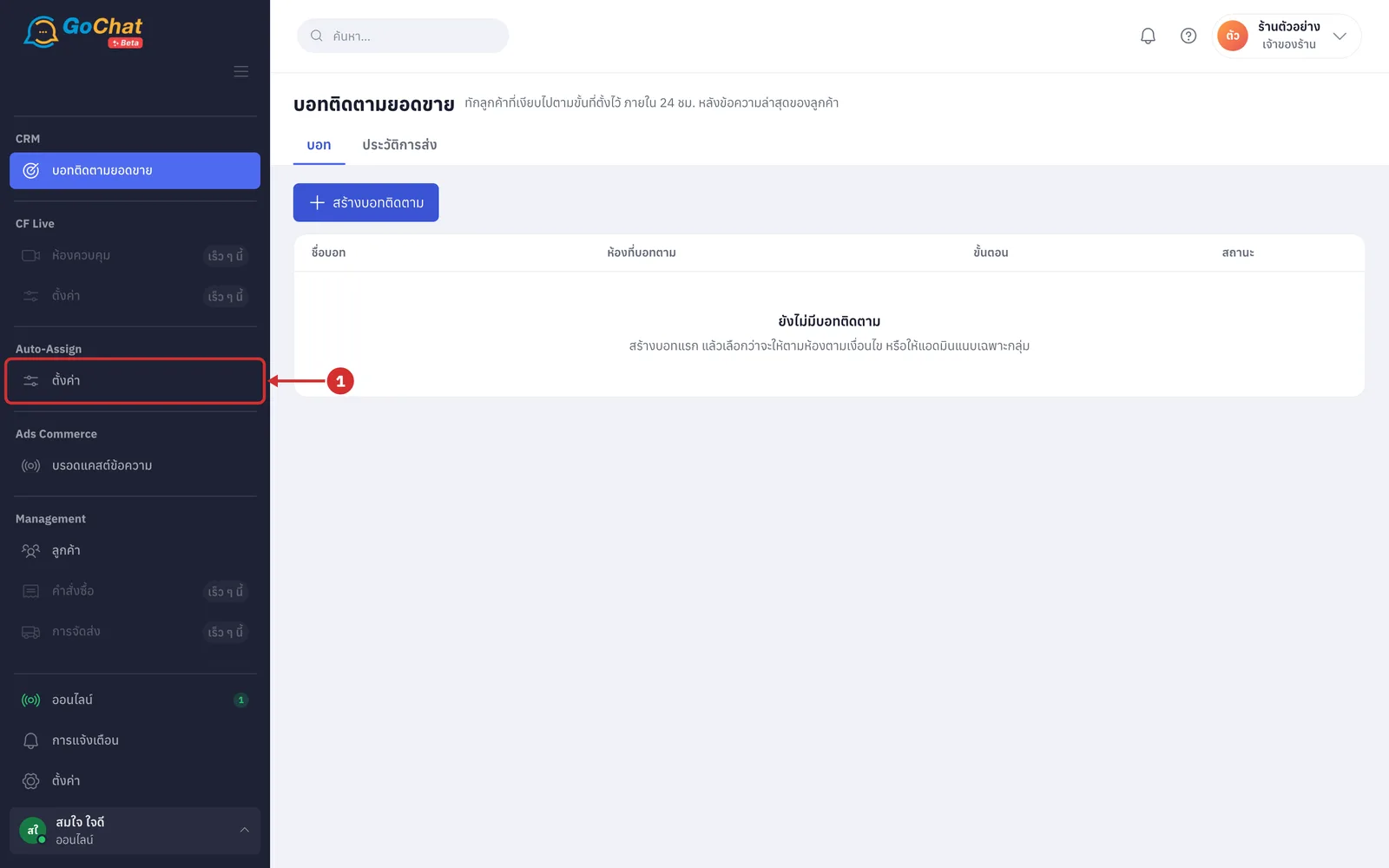
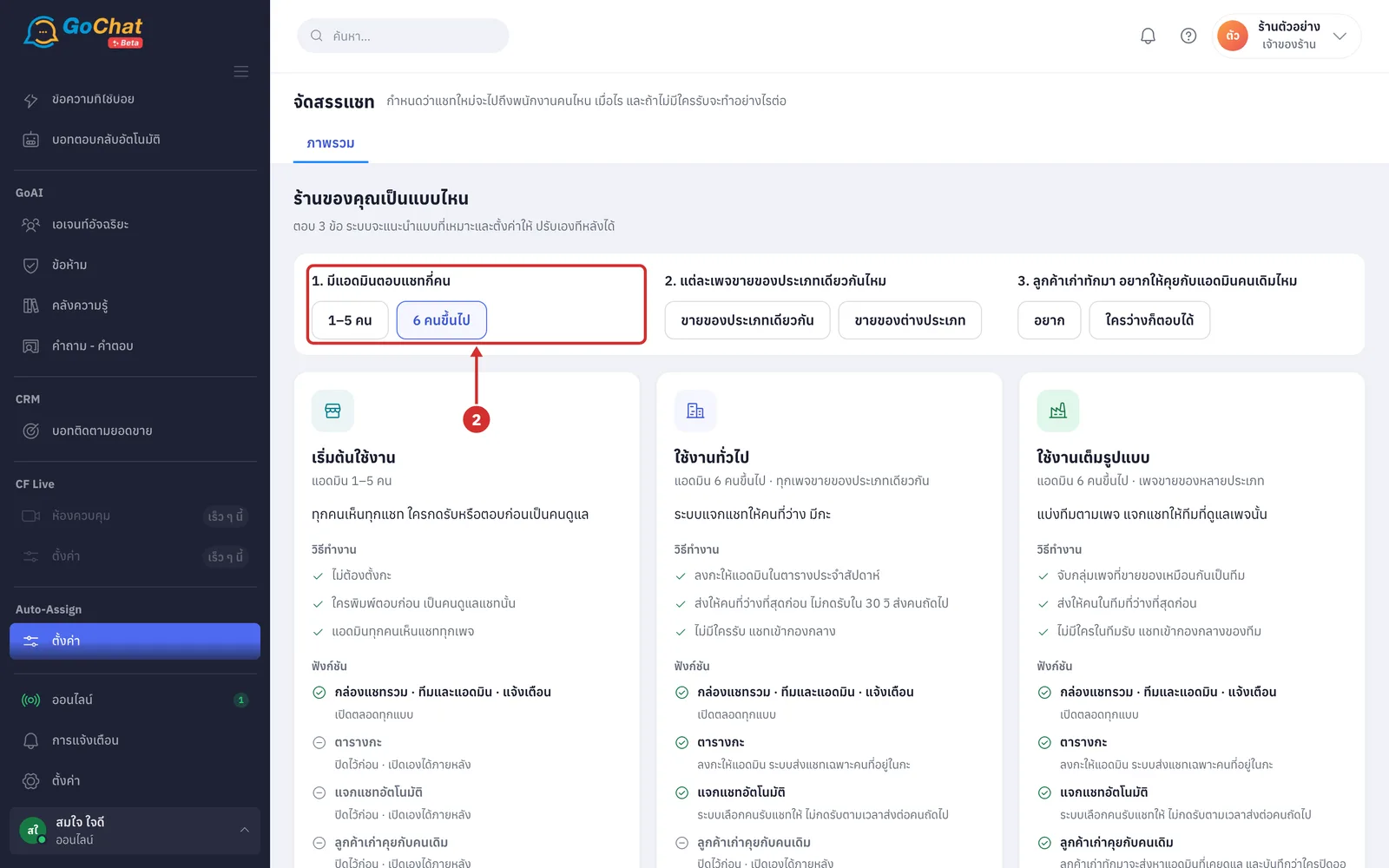
For 1. มีแอดมินตอบแชทกี่คน (How many admins answer chats), choose 1–5 คน (1–5 people) or 6 คนขึ้นไป (6 or more), based on how many people answer chats in your shop
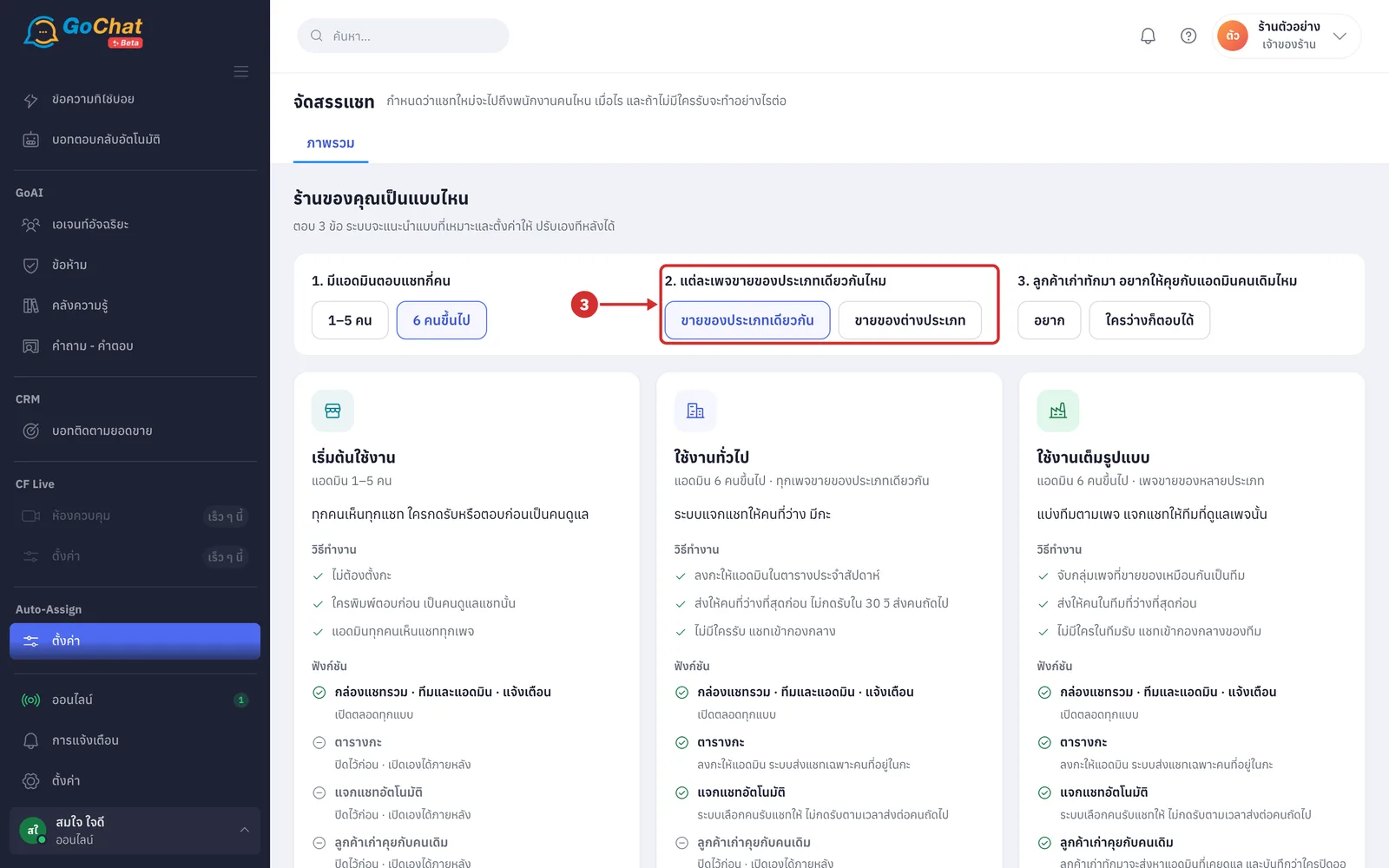
For 2. แต่ละเพจขายของประเภทเดียวกันไหม (Do your pages sell the same kind of products), choose ขายของประเภทเดียวกัน (Same kind) if every page sells the same kind of products, or ขายของต่างประเภท (Different kinds) if each page sells something different
For 3. ลูกค้าเก่าทักมา อยากให้คุยกับแอดมินคนเดิมไหม (Should returning customers talk to the same admin), choose อยาก (Yes) or ใครว่างก็ตอบได้ (Anyone free can answer) (choosing อยาก (Yes) also turns on ลูกค้าเก่าคุยกับคนเดิม (Returning customers keep their admin), except for เริ่มต้นใช้งาน (Getting started))
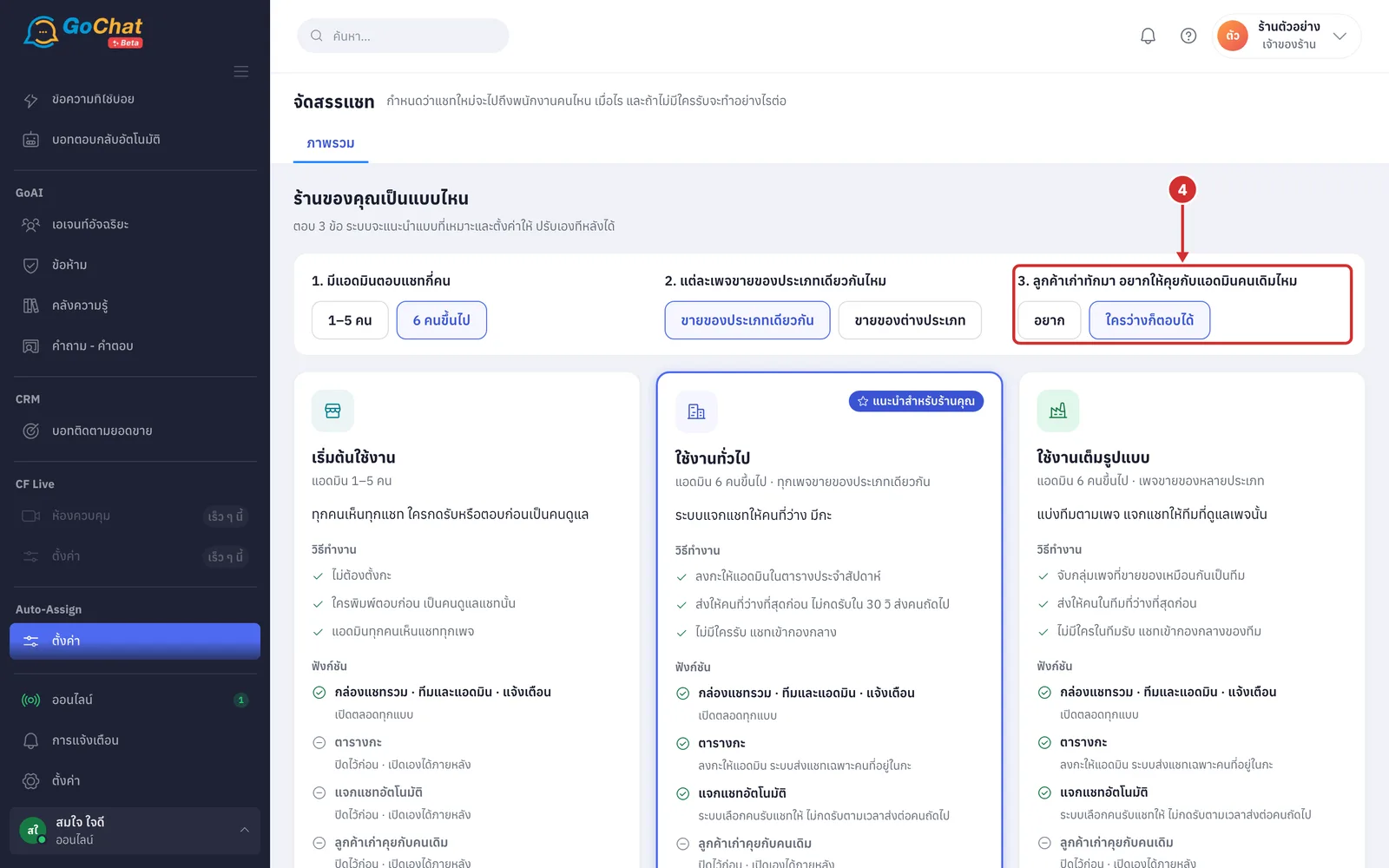
The system labels the shop type that fits your answers แนะนำสำหรับร้านคุณ (Recommended for your shop). There are 3 shop types:
A เริ่มต้นใช้งาน (Getting started) for 1–5 admins — no shifts; every admin sees chats from every page, and whoever replies first handles the chat
B ใช้งานทั่วไป (Standard) for 6 or more admins whose pages all sell the same kind of products — admins get shifts in a weekly schedule; the system hands each chat to the least busy person first, passes it on if nobody takes it within 30 seconds, and puts it in the shared pool if nobody takes it
C ใช้งานเต็มรูปแบบ (Full) for 6 or more admins whose pages sell different kinds of products — pages that sell the same products are grouped into teams; the system hands each chat to the least busy person in that team first, and puts it in the team's shared pool if nobody in the team takes it
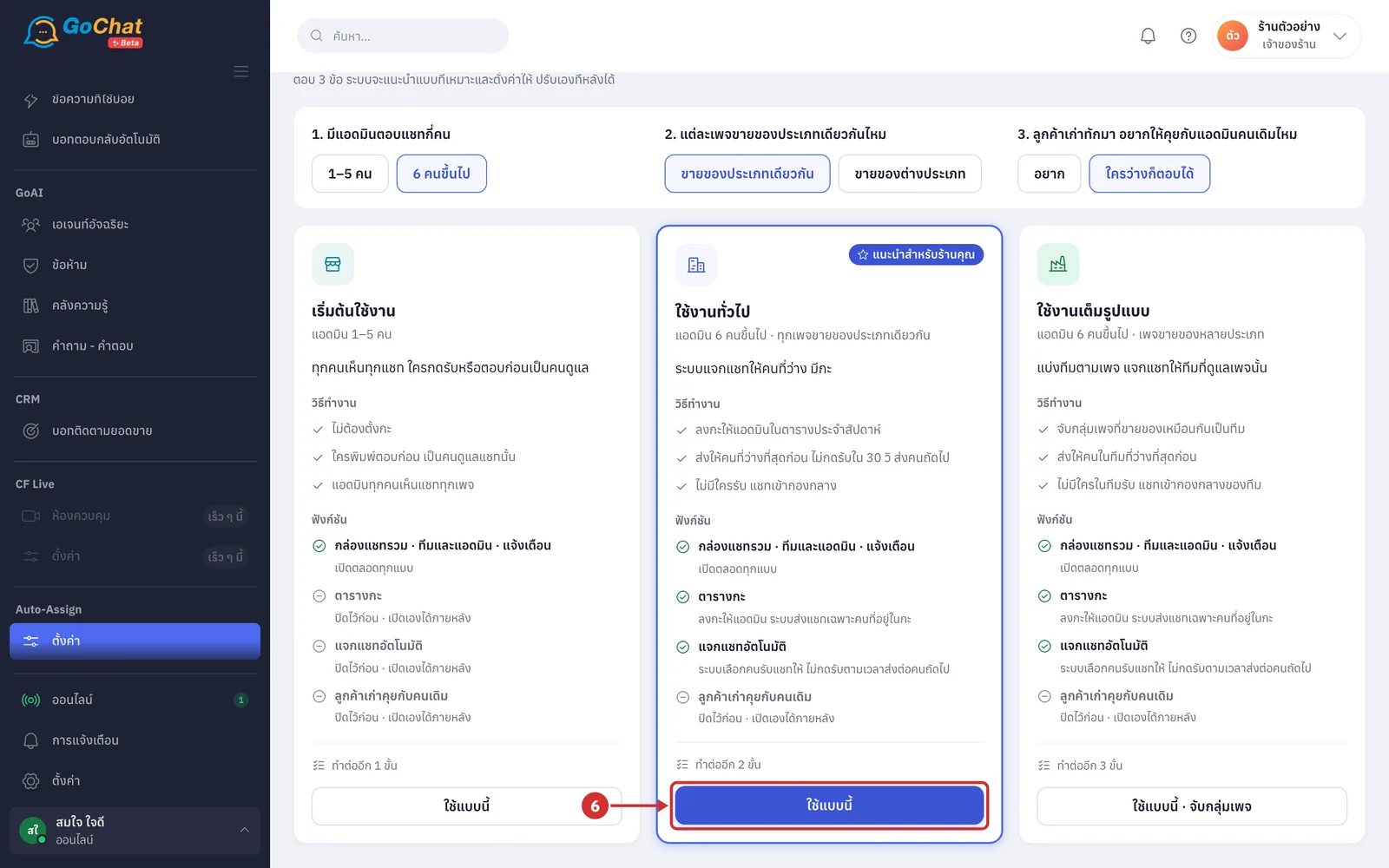
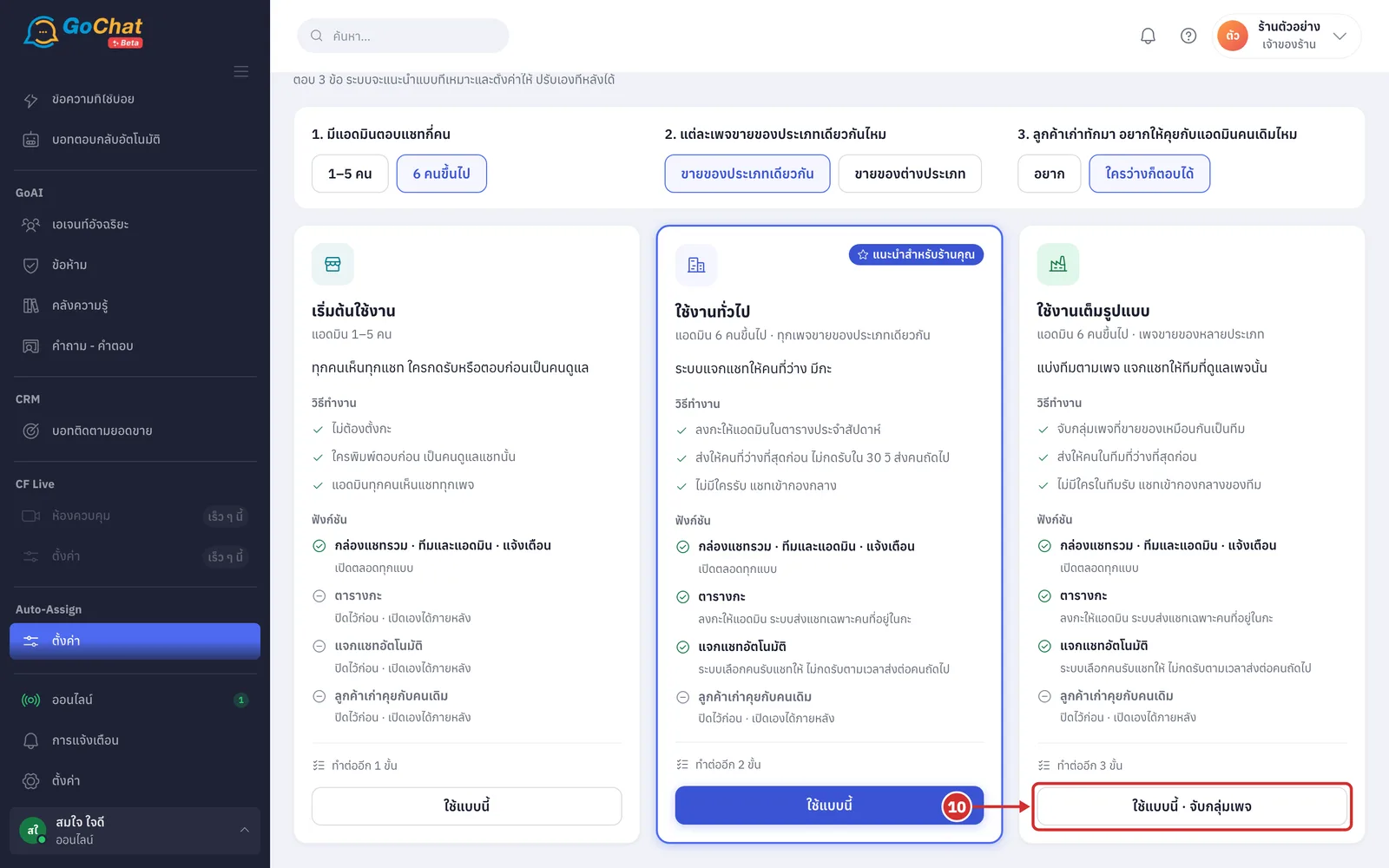
Click ใช้แบบนี้ (Use this) on the shop type you want (for ใช้งานเต็มรูปแบบ (Full), see Grouping pages into teams below)
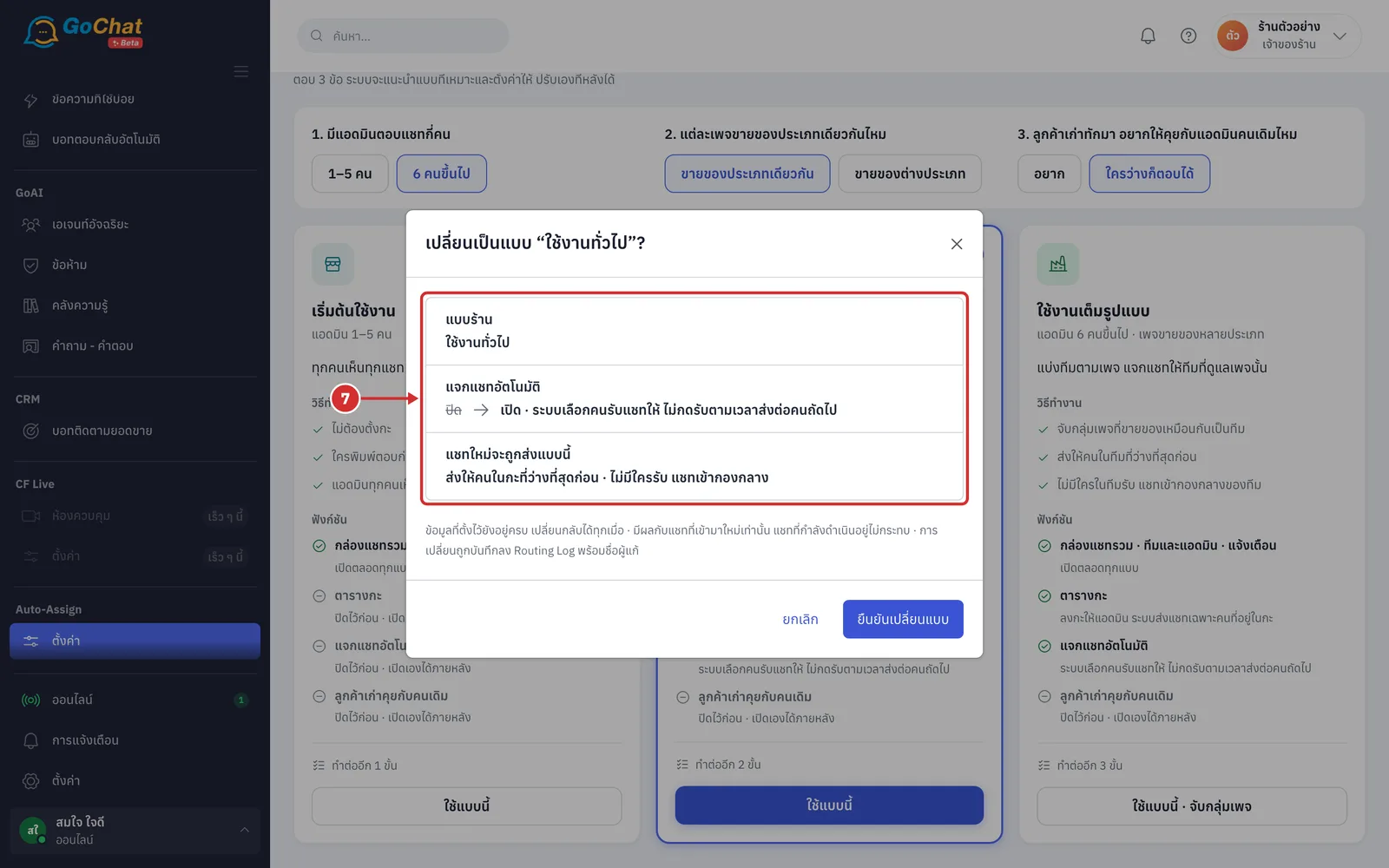
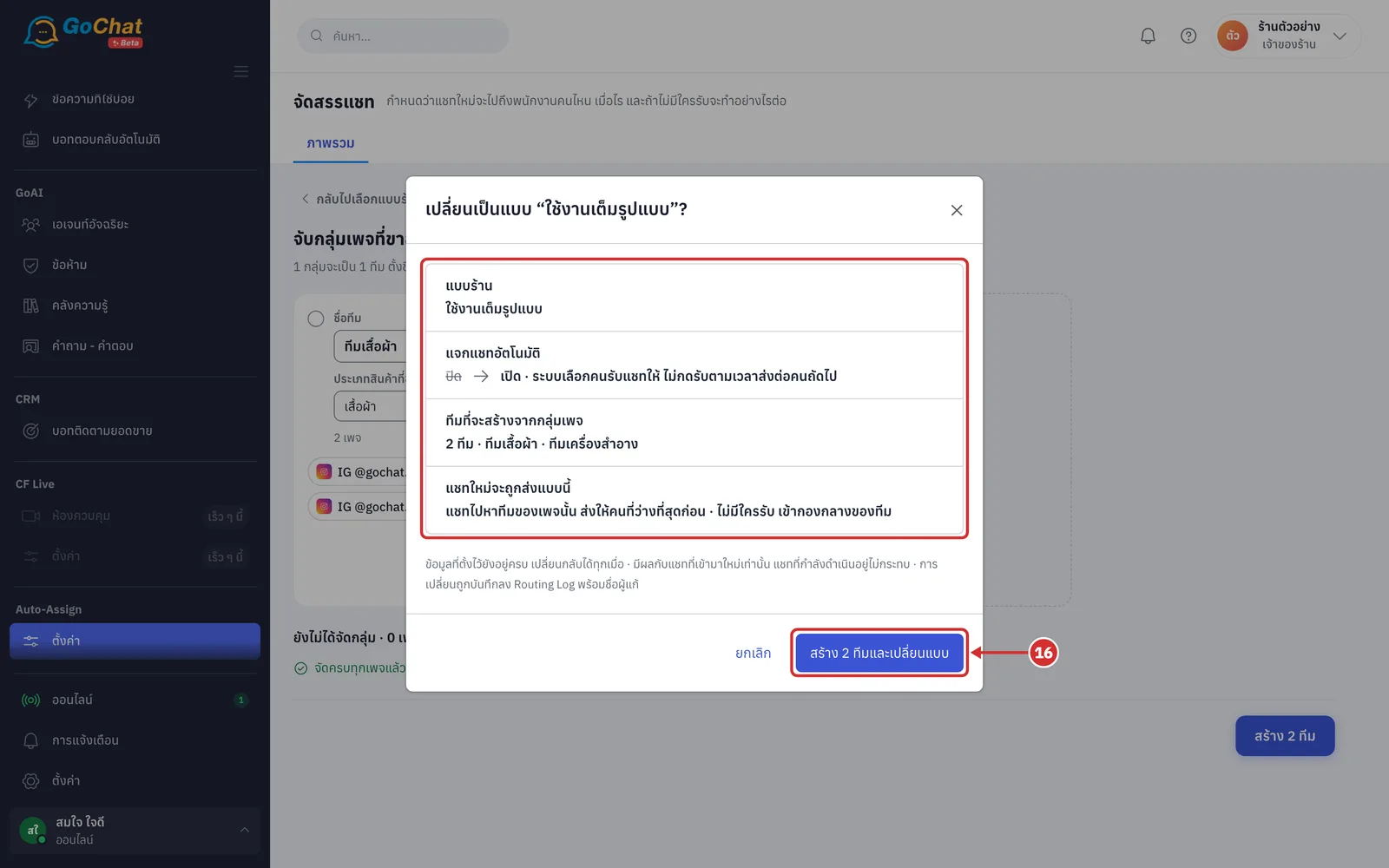
Check the list in the confirmation window: the แบบร้าน (Shop type) to use, the functions that will turn on or off, and แชทใหม่จะถูกส่งแบบนี้ (How new chats will be handed out)
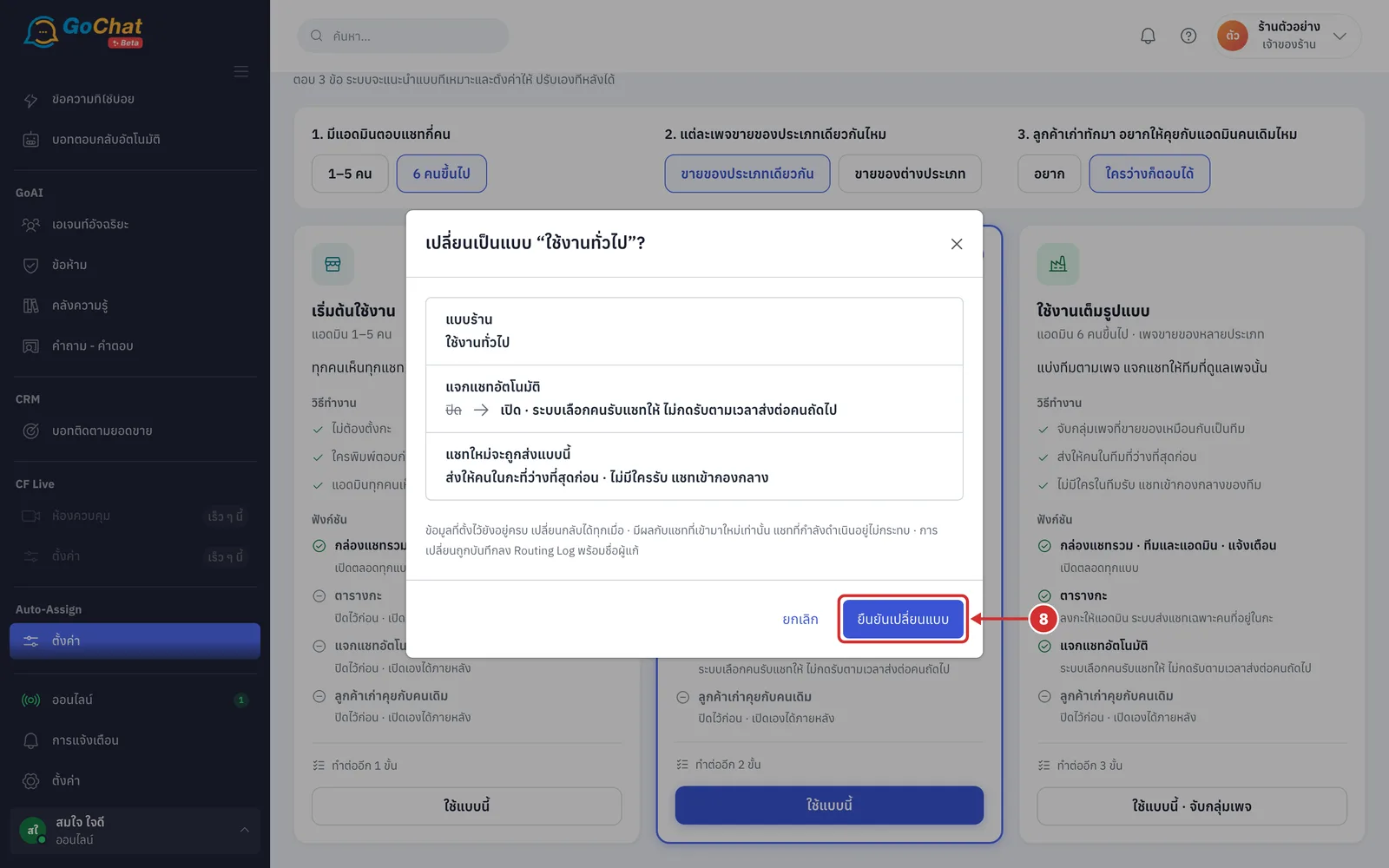
Click ยืนยันเปลี่ยนแบบ (Confirm) (it only affects new chats; chats in progress are not affected)
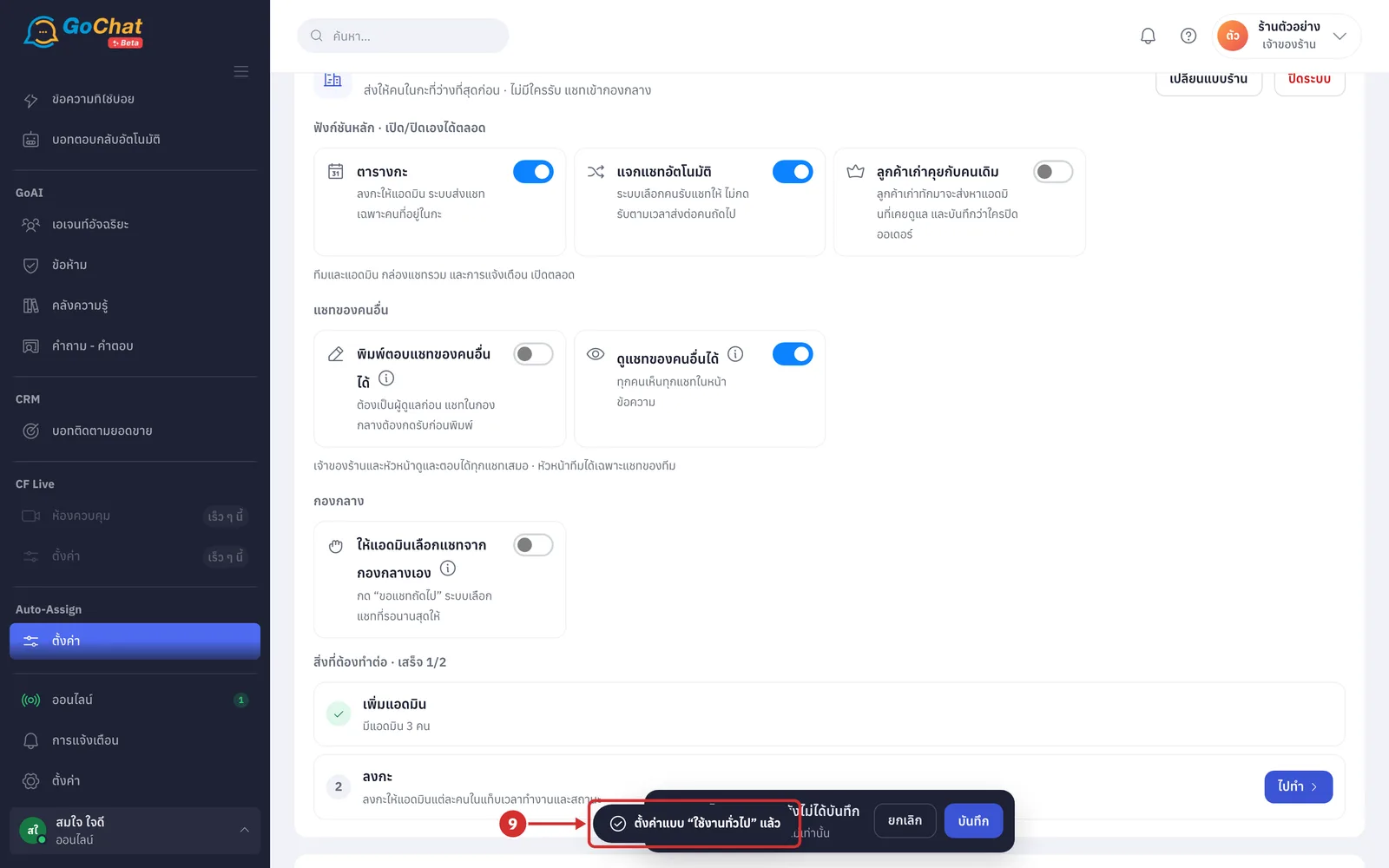
The system shows ตั้งค่าแบบ “ใช้งานทั่วไป” แล้ว (Set up as “Standard”) (with the name of the shop type you chose) and shows the ภาพรวม (Overview) tab with tabs for the functions that are on
Grouping pages into teams (Full)
On the ใช้งานเต็มรูปแบบ (Full) card, click ใช้แบบนี้ · จับกลุ่มเพจ (Use this · group pages)
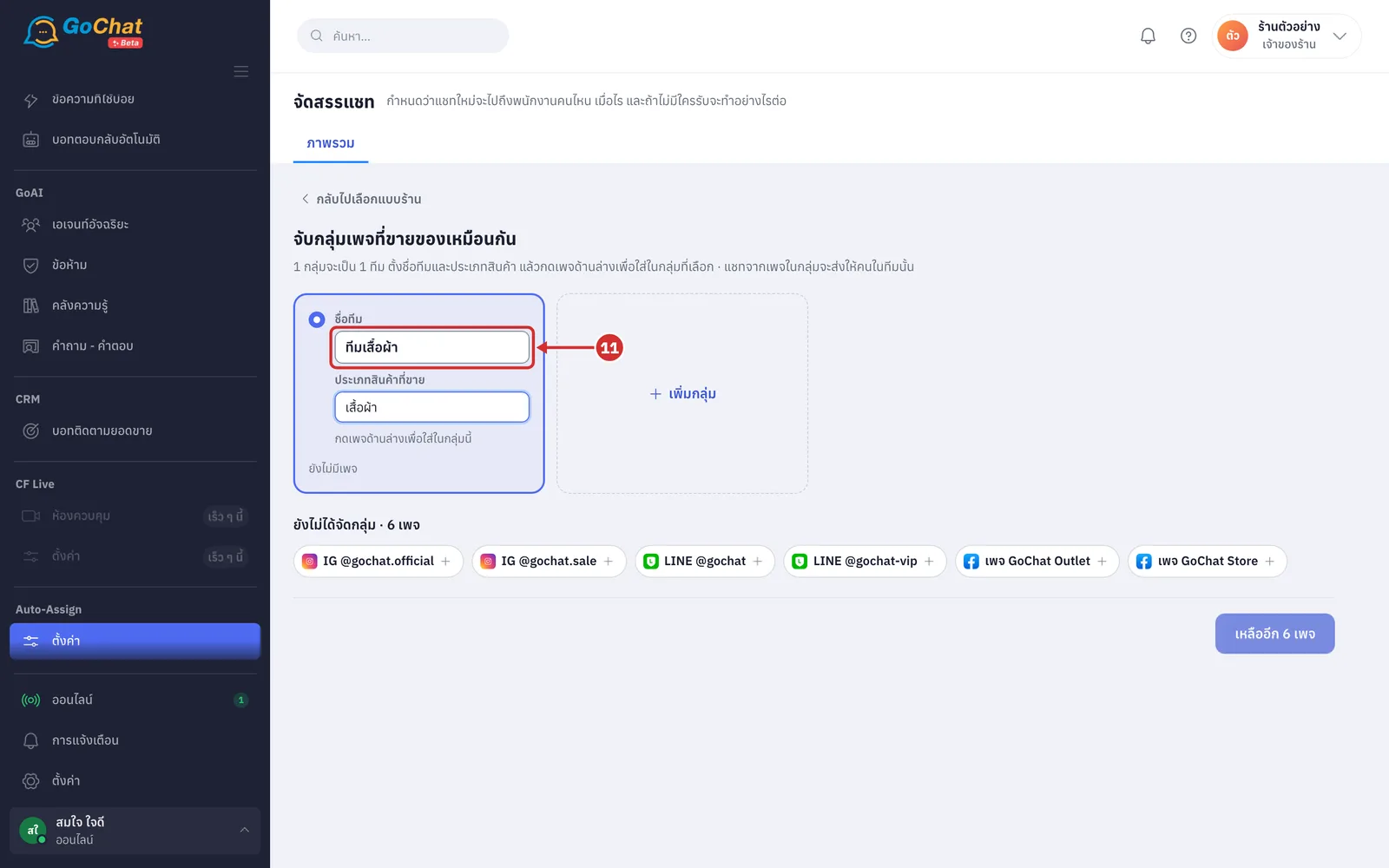
In ชื่อทีม (Team name), name the team, up to 60 characters (each group becomes one team, and chats from its pages go to people in that team)
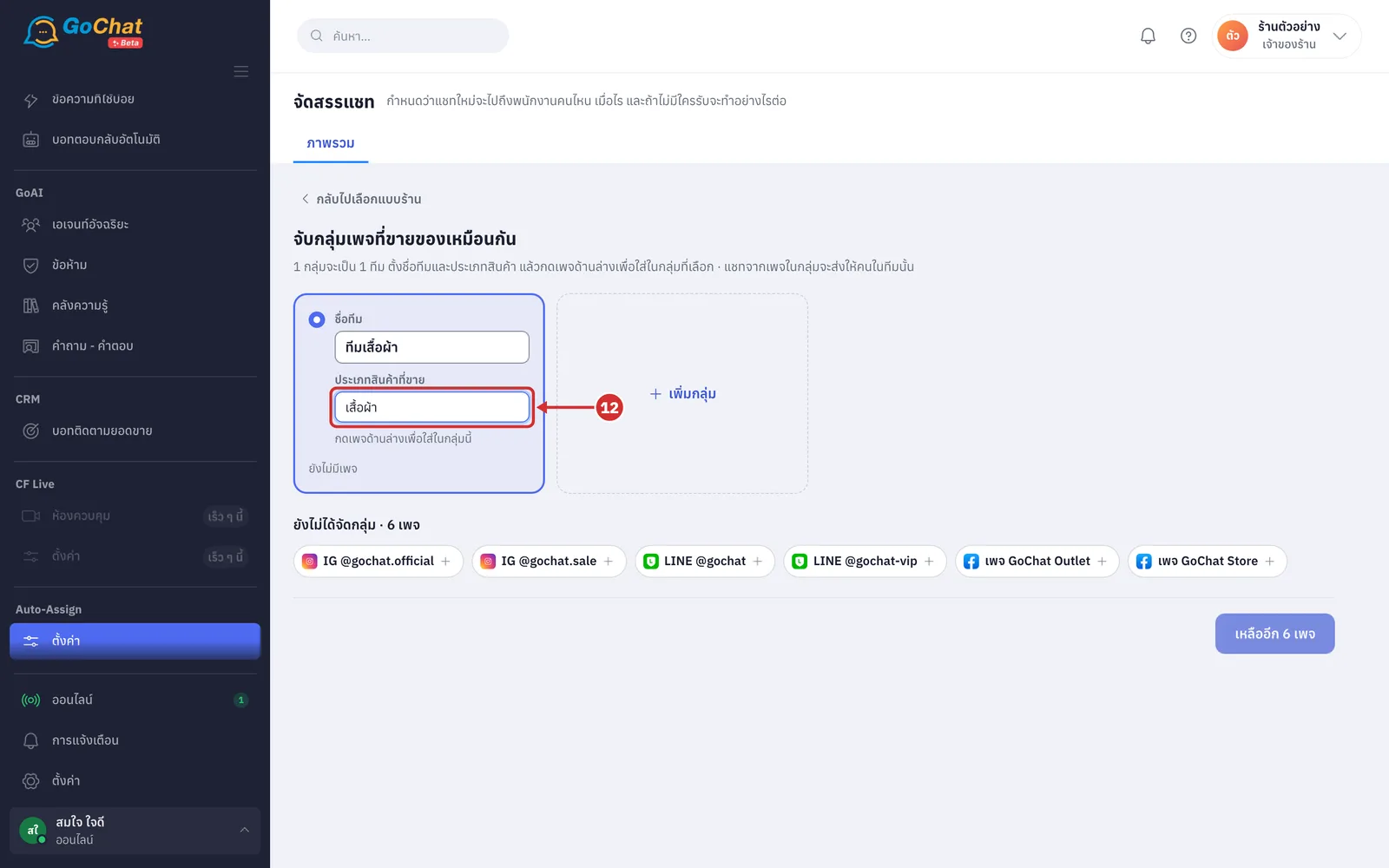
In ประเภทสินค้าที่ขาย (Products sold), enter what this group sells, up to 40 characters, such as clothes or cosmetics
Under ยังไม่ได้จัดกลุ่ม (Not grouped yet), click the pages that sell these products to put them in the selected group (click a page in the group again to take it out)
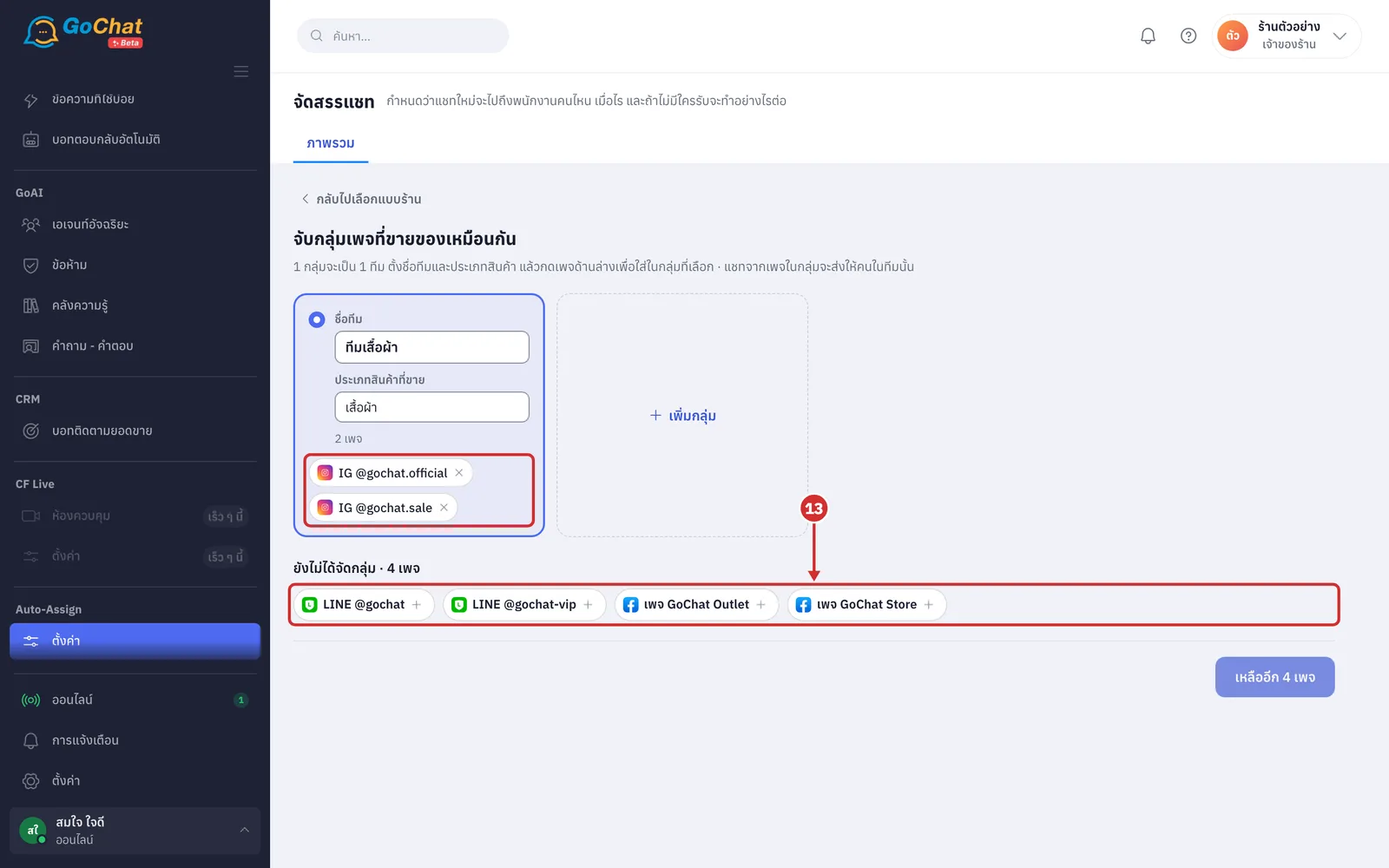
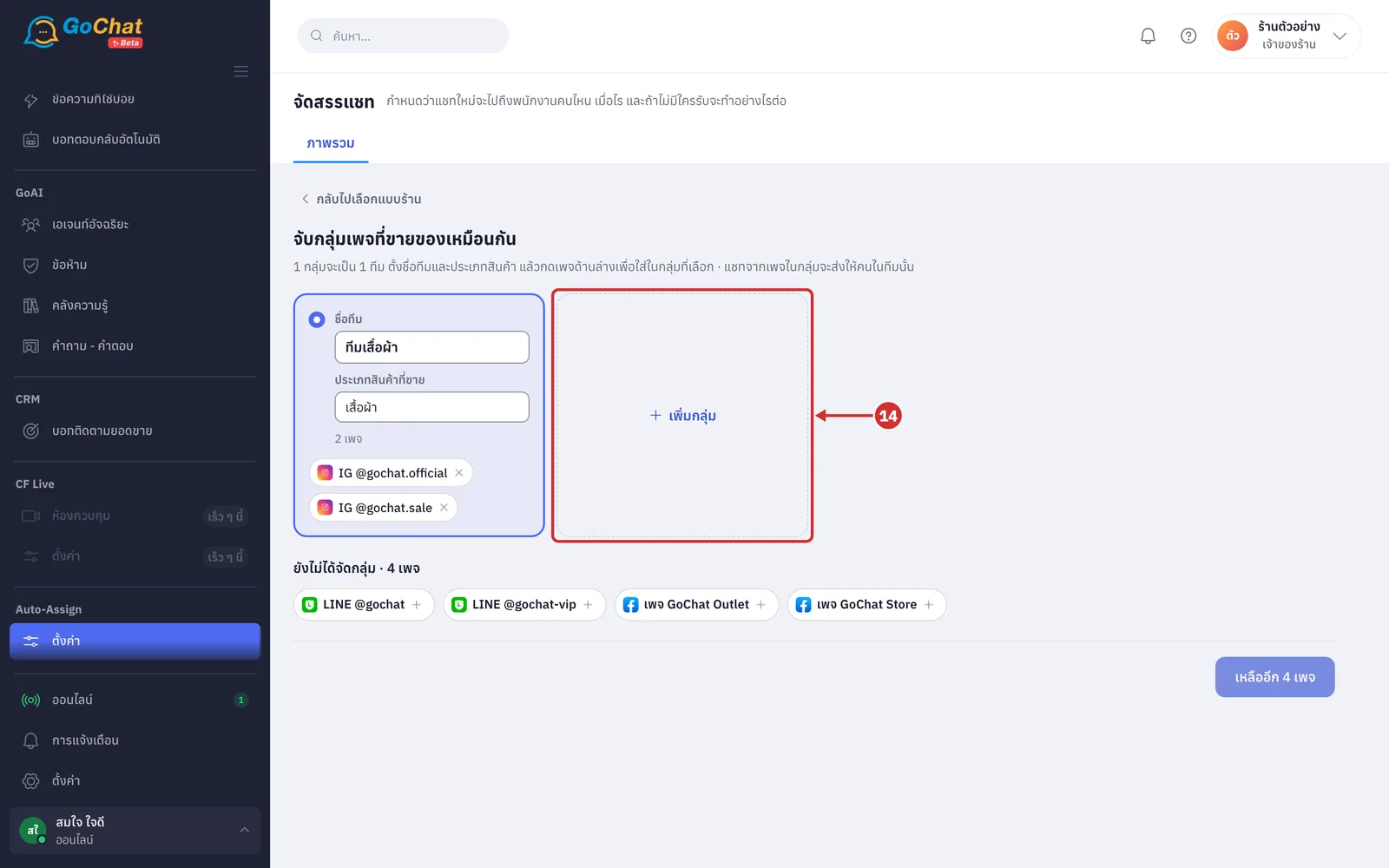
If some pages sell other products, click เพิ่มกลุ่ม (Add group), then set the team name and products and add pages to the new group the same way (click a group to choose which group pages go into)
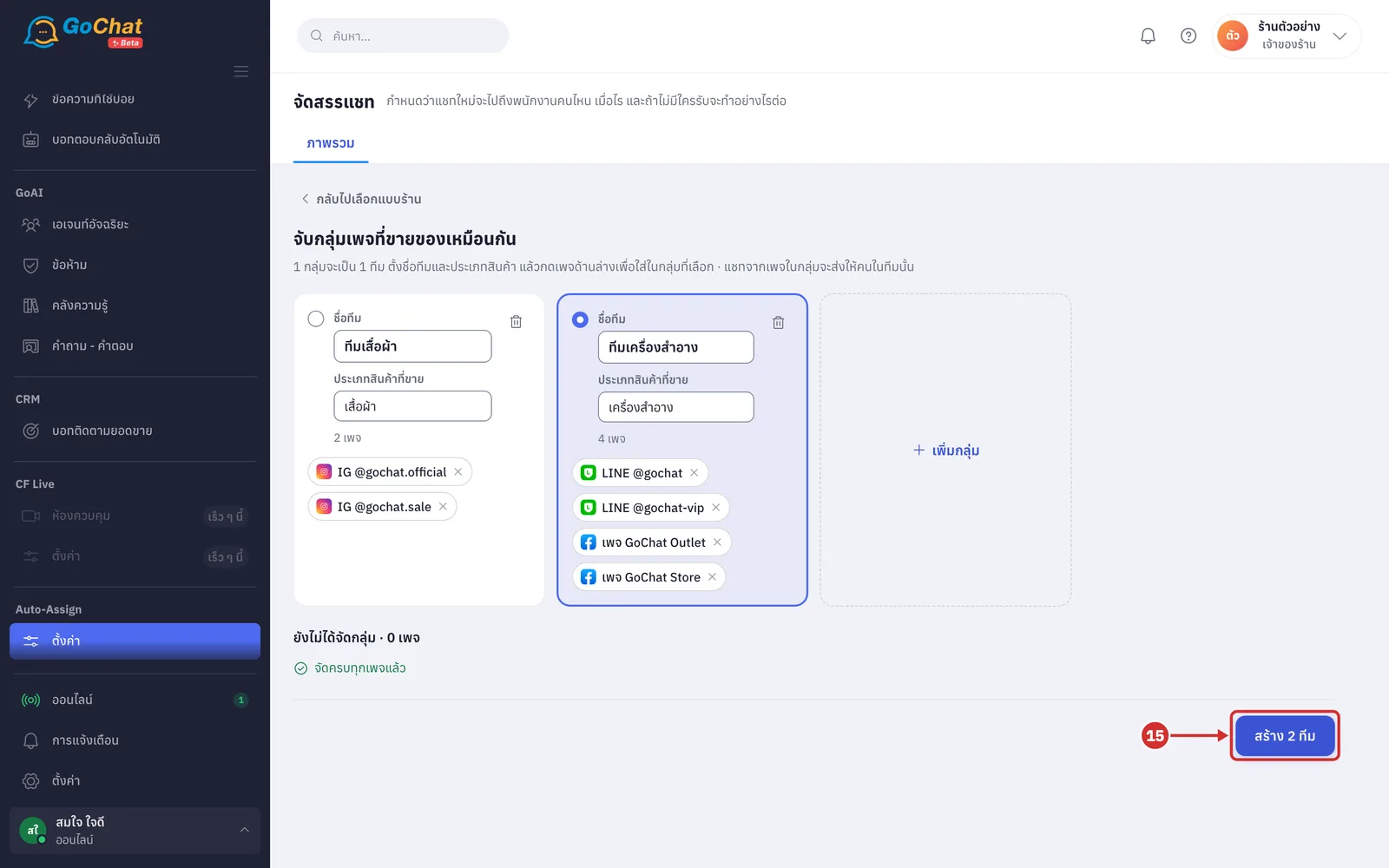
When every page is in a group, click สร้าง N ทีม (Create N teams) (N is the number of groups with pages; while pages are left, the button shows เหลืออีก N เพจ (N pages left) and cannot be clicked)
In the confirmation window, check ทีมที่จะสร้างจากกลุ่มเพจ (Teams to create from page groups), then click สร้าง N ทีมและเปลี่ยนแบบ (Create N teams and switch). The system creates the teams and shows ตั้งค่าแบบ “ใช้งานเต็มรูปแบบ” แล้ว (Set up as “Full”)
Finishing the remaining setup
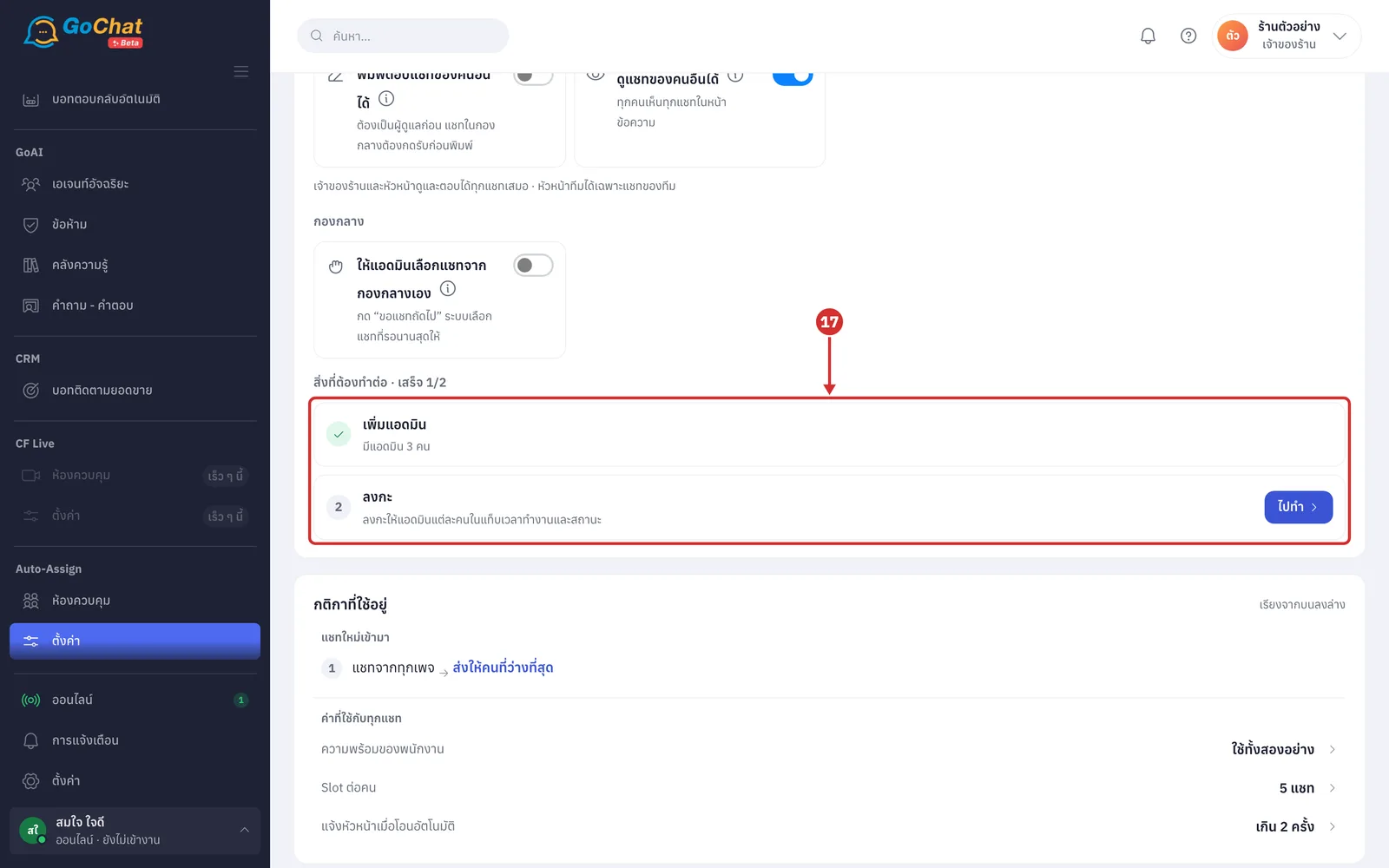
Under สิ่งที่ต้องทำต่อ (Still to do), see which steps are not done yet, and click ไปทำ (Do it) to go to the tab you need (เริ่มต้นใช้งาน (Getting started) needs admins added; ใช้งานทั่วไป (Standard) needs admins added and shifts; ใช้งานเต็มรูปแบบ (Full) needs pages grouped into teams, admins added to teams, and shifts; when everything is done it shows พร้อมรับแชทแล้ว (Ready for chats))
Turning main functions on or off
Switches save as soon as you click them. Turning a function on adds its tab at the top; turning it off keeps the settings you made. Teams and admins, the shared inbox and notifications are always on.
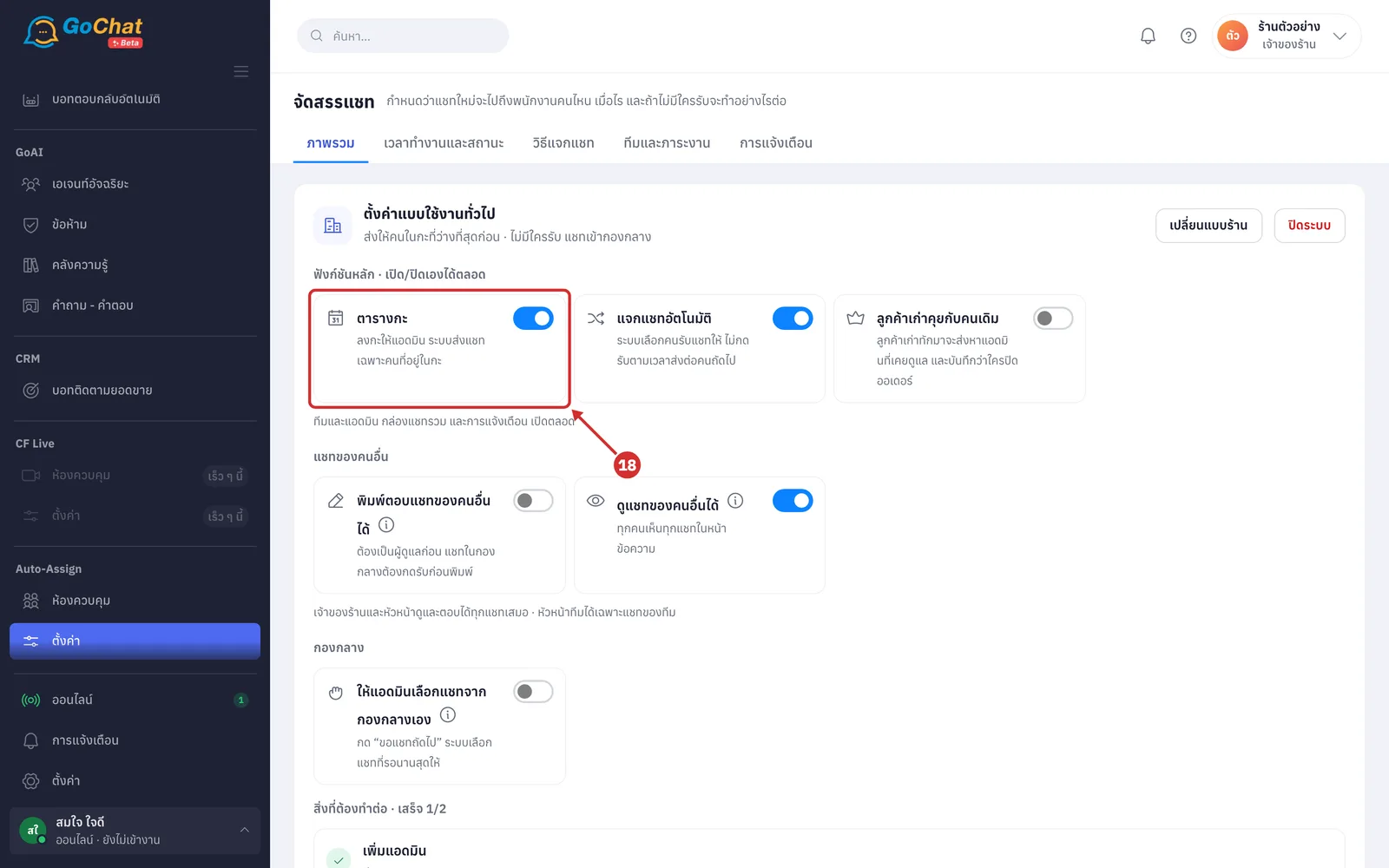
Turn on ตารางกะ (Shift schedule) to give admins shifts, so the system only sends chats to people on shift (when on, the เวลาทำงานและสถานะ (Working hours and status) tab is where you set shifts; when off, admins who are online can take chats)
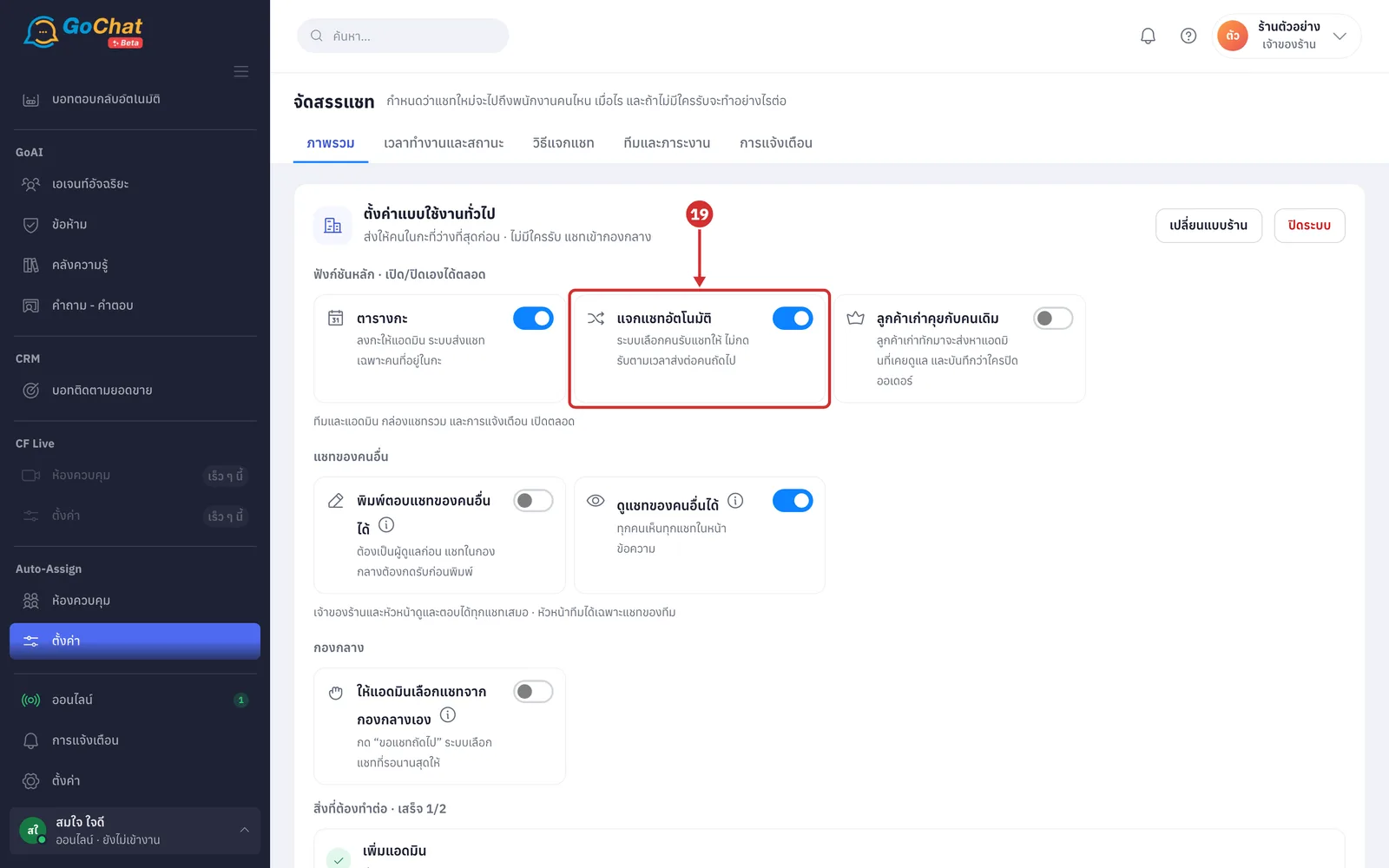
Turn on แจกแชทอัตโนมัติ (Auto hand-out) to let the system choose who gets each chat and pass it on if nobody takes it in time (when on, the วิธีแจกแชท (How chats are handed out) tab appears; when off, whoever replies first handles the chat)
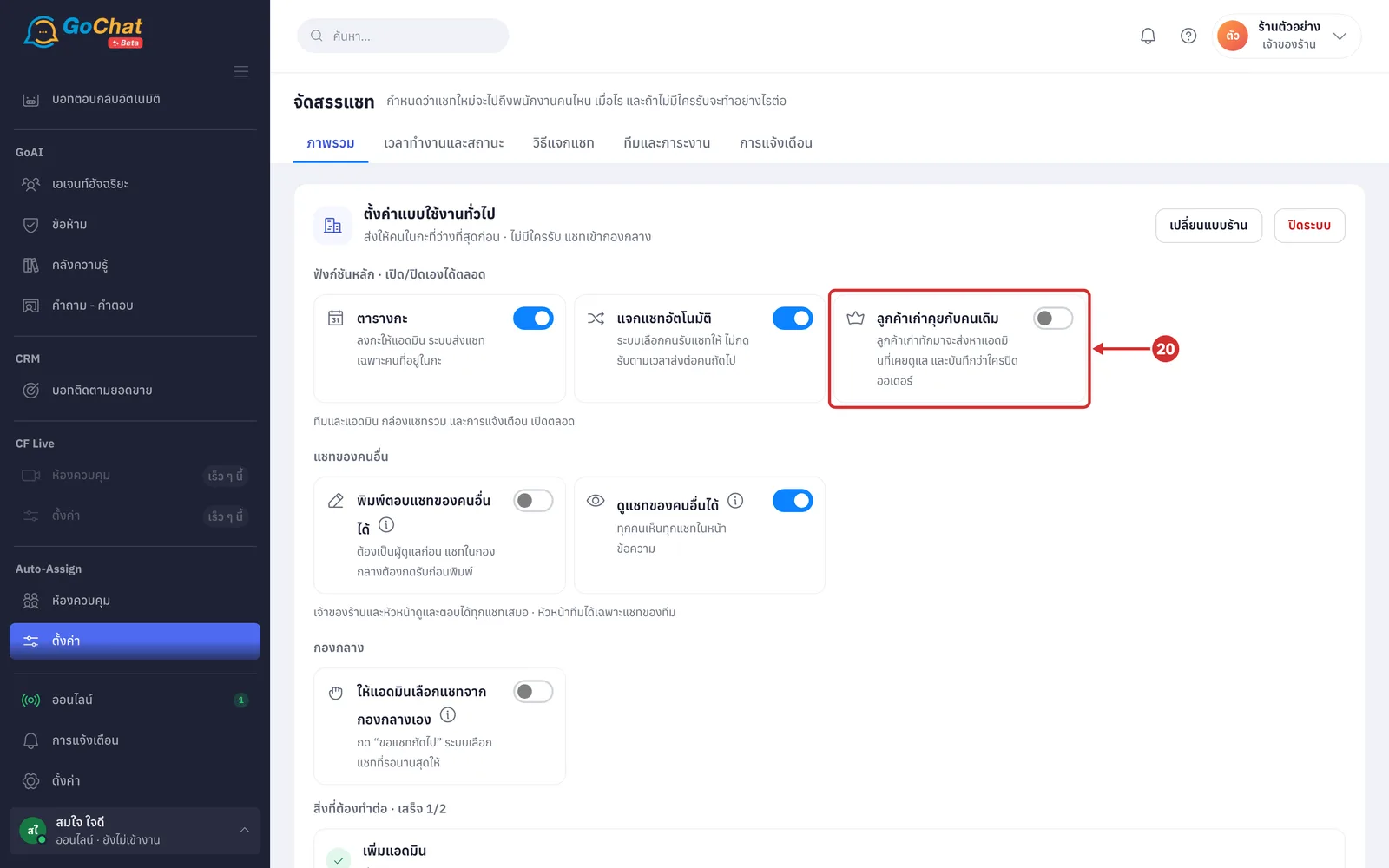
Turn on ลูกค้าเก่าคุยกับคนเดิม (Returning customers keep their admin) to send returning customers' chats to the admin who handled them before and record who closed the order (when on, the ยอดขายและเจ้าของลูกค้า (Sales and customer owners) tab appears)
Other people's chats and the shared pool
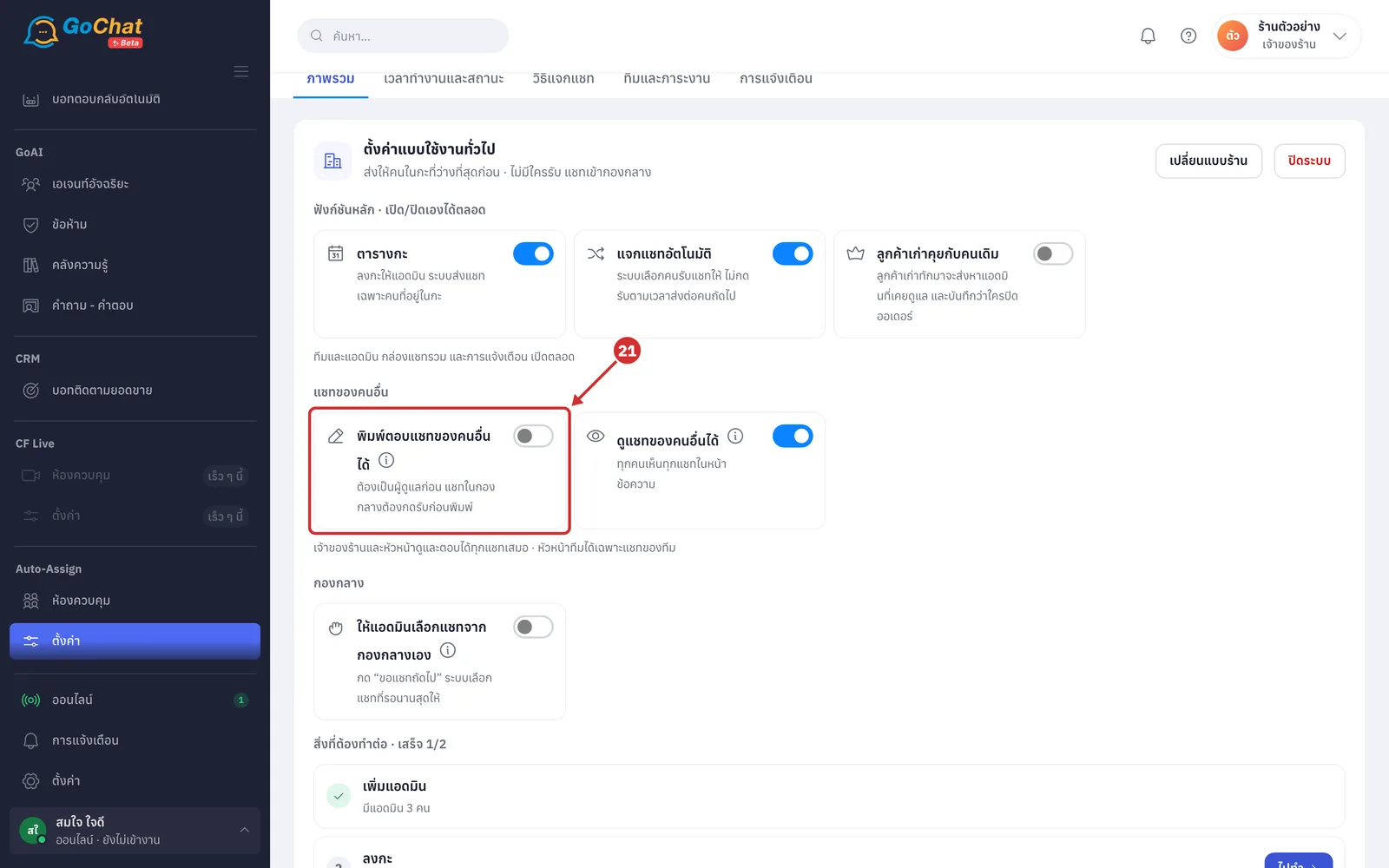
Turn on พิมพ์ตอบแชทของคนอื่นได้ (Can reply to others' chats) so everyone can reply to every chat they can see, while the handler stays the same (when off, you must be the handler to type; chats in the shared pool show a รับแชทนี้ (Take this chat) button instead of the message box, and chats handled by others are read-only until you take them over)
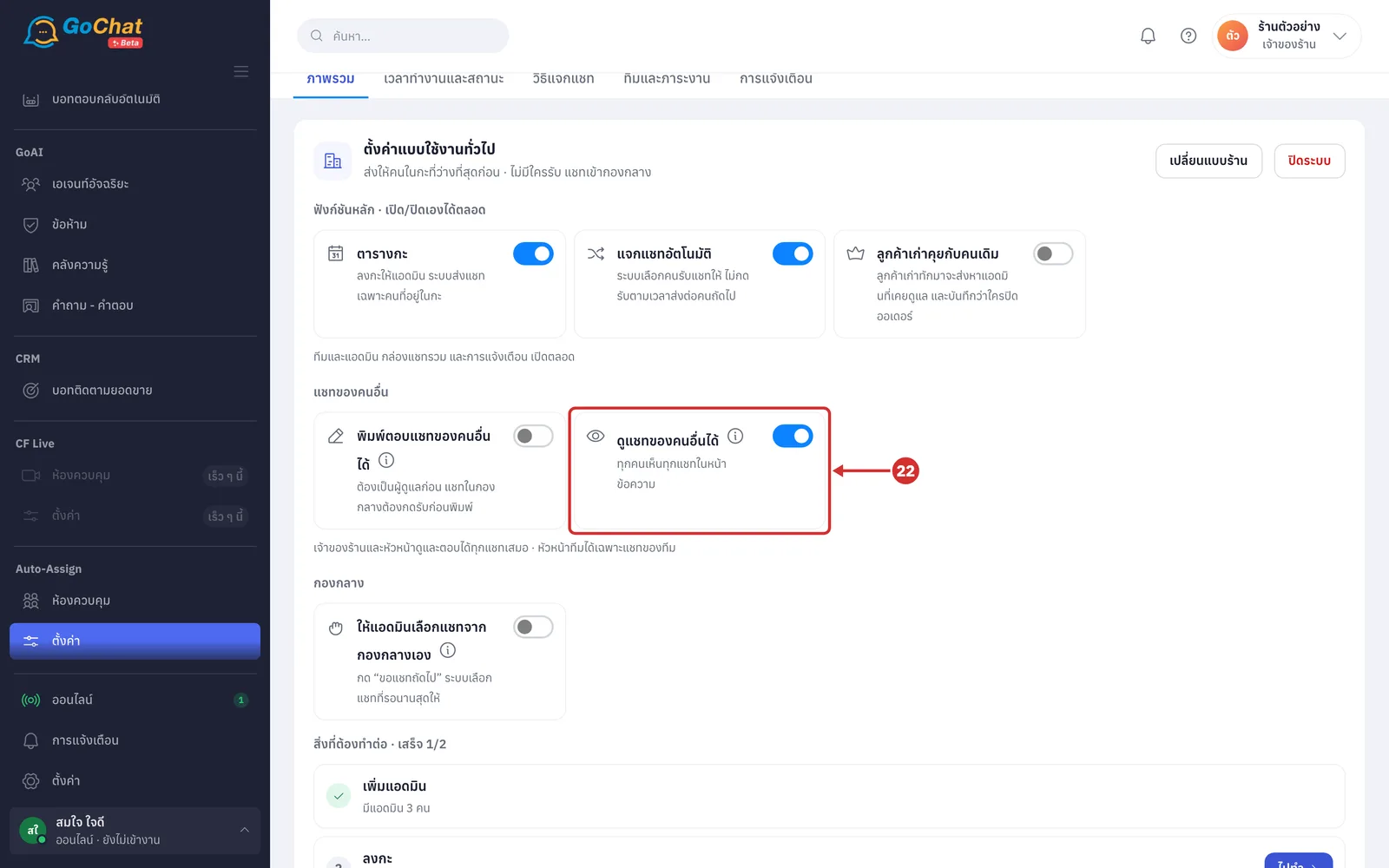
Turn on ดูแชทของคนอื่นได้ (Can see others' chats) so everyone sees every chat on the ข้อความ (Messages) page (when off, admins only see their own chats and the shared-pool chats of pages they look after; shop owners and leads can always see and reply to every chat, and team leads to their team's chats)
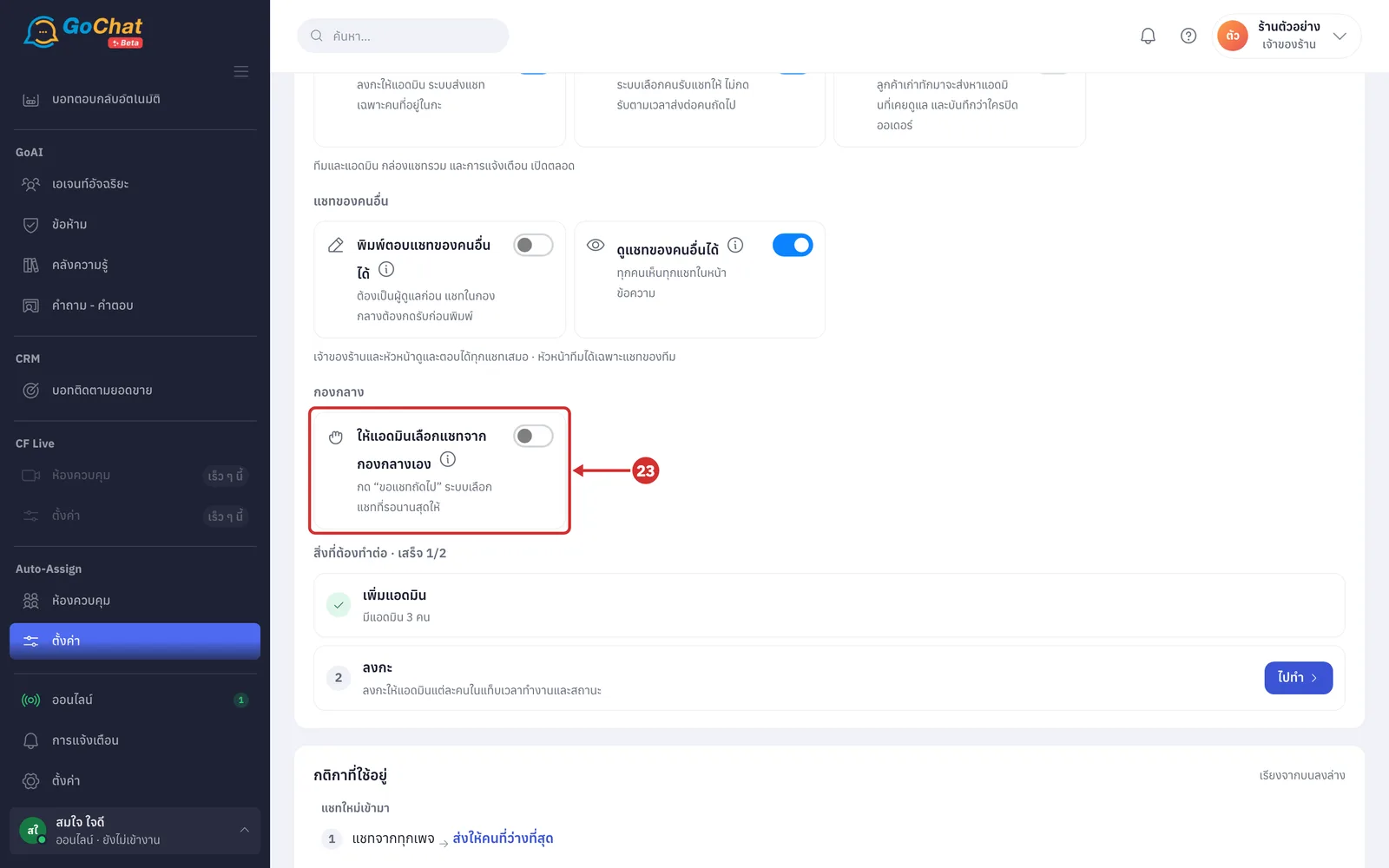
Turn on ให้แอดมินเลือกแชทจากกองกลางเอง (Let admins pick from the shared pool) to let admins choose chats themselves (the shared pool holds chats nobody has taken yet; when off, admins click ขอแชทถัดไป (Next chat) and the system gives them the chat that has waited longest; when on, a เลือกเอง (Pick) button lets them take several chats from their pages at once, up to their free Slot, which is how many chats each person can handle at the same time)
Reading the rules in use
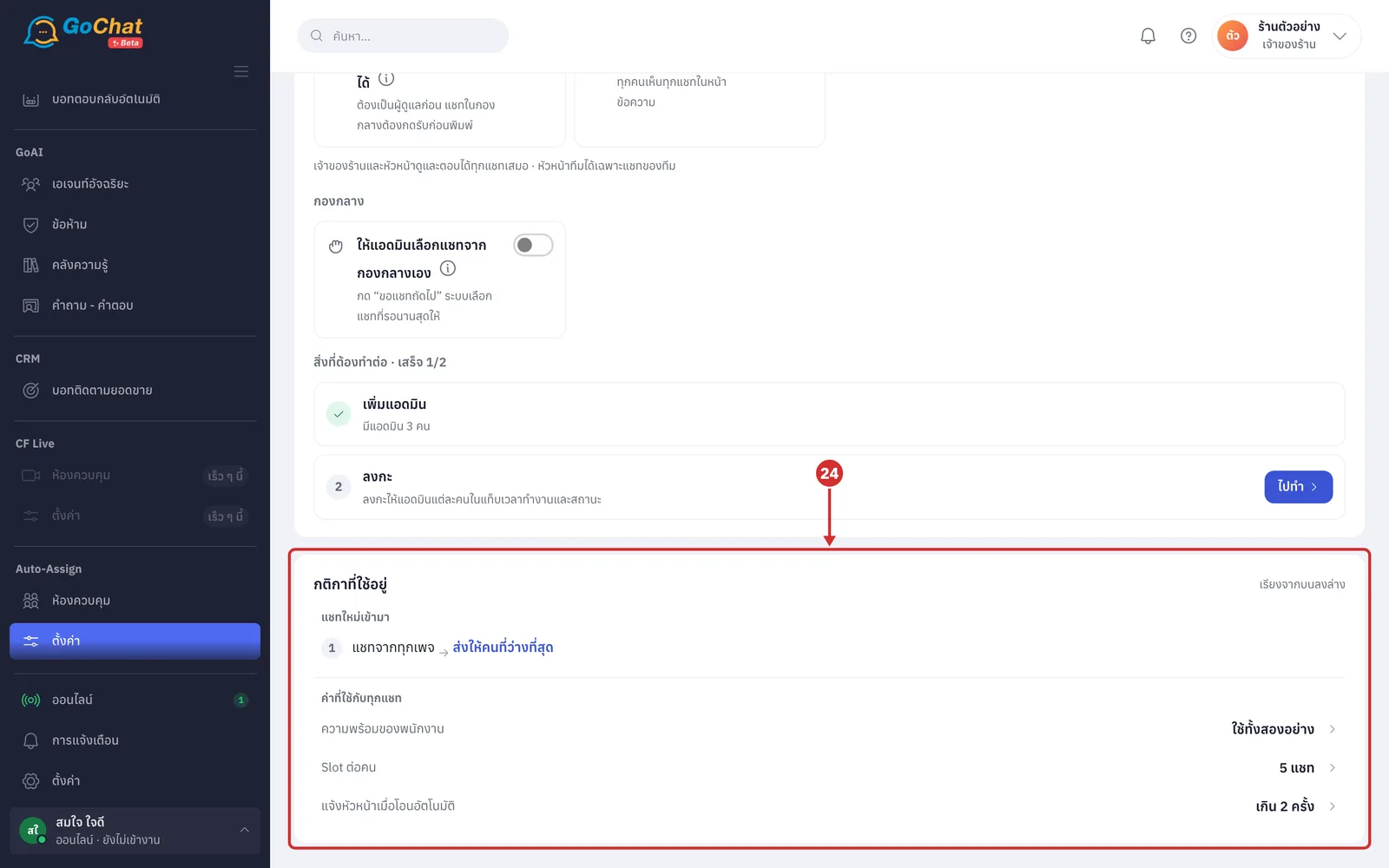
On the กติกาที่ใช้อยู่ (Rules in use) card, see where แชทใหม่เข้ามา (New chats) go, from top to bottom, and the ค่าที่ใช้กับทุกแชท (Settings for every chat) such as staff availability and Slot per person; click a row to edit it on its tab (if settings conflict, a พบการตั้งค่าที่ควรแก้ (Settings to fix) box appears with a ไปแก้ (Fix) button)
Changing the shop type or turning it off
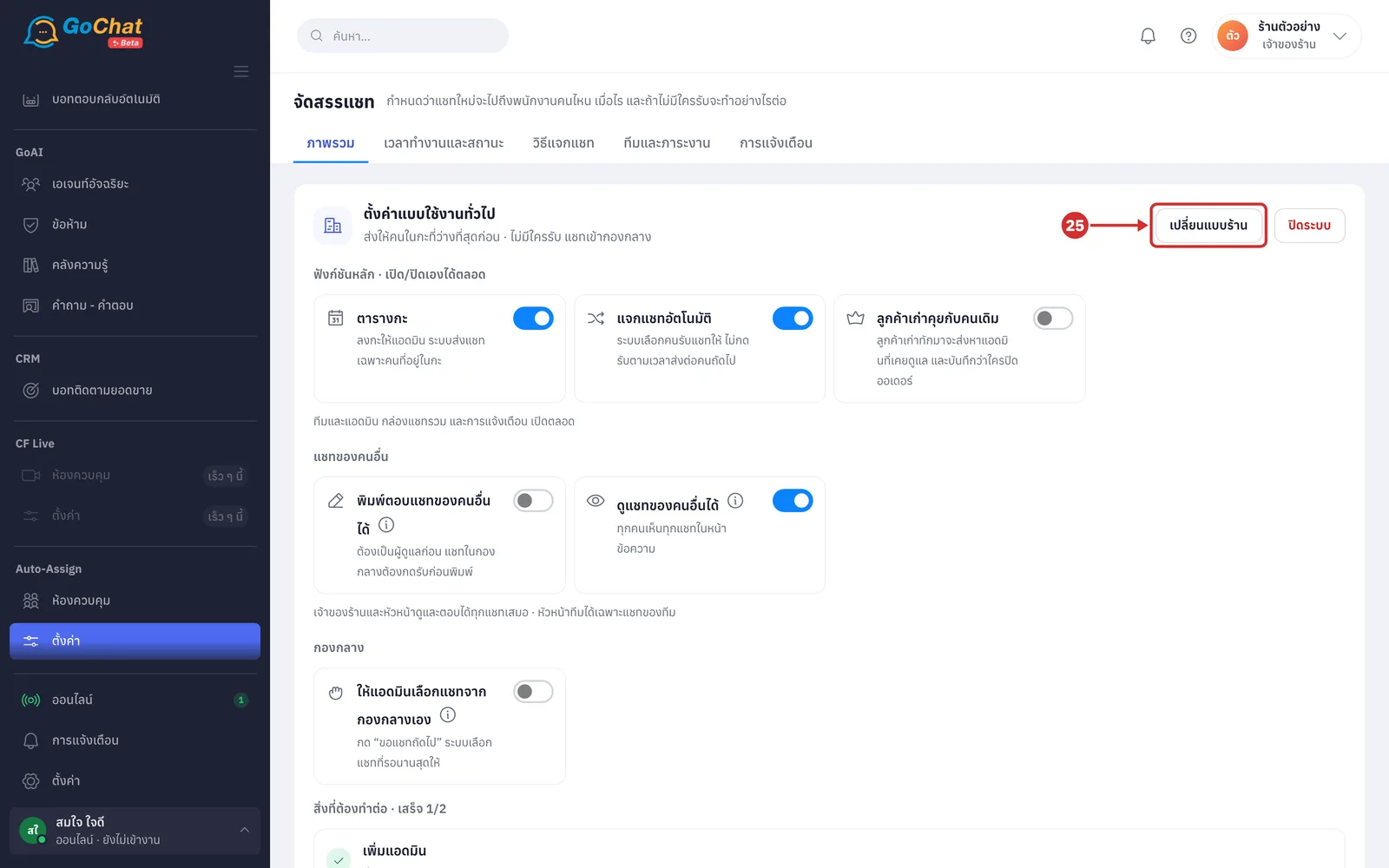
Click เปลี่ยนแบบร้าน (Change shop type) to choose a shop type again (your settings are kept and you can switch back at any time)
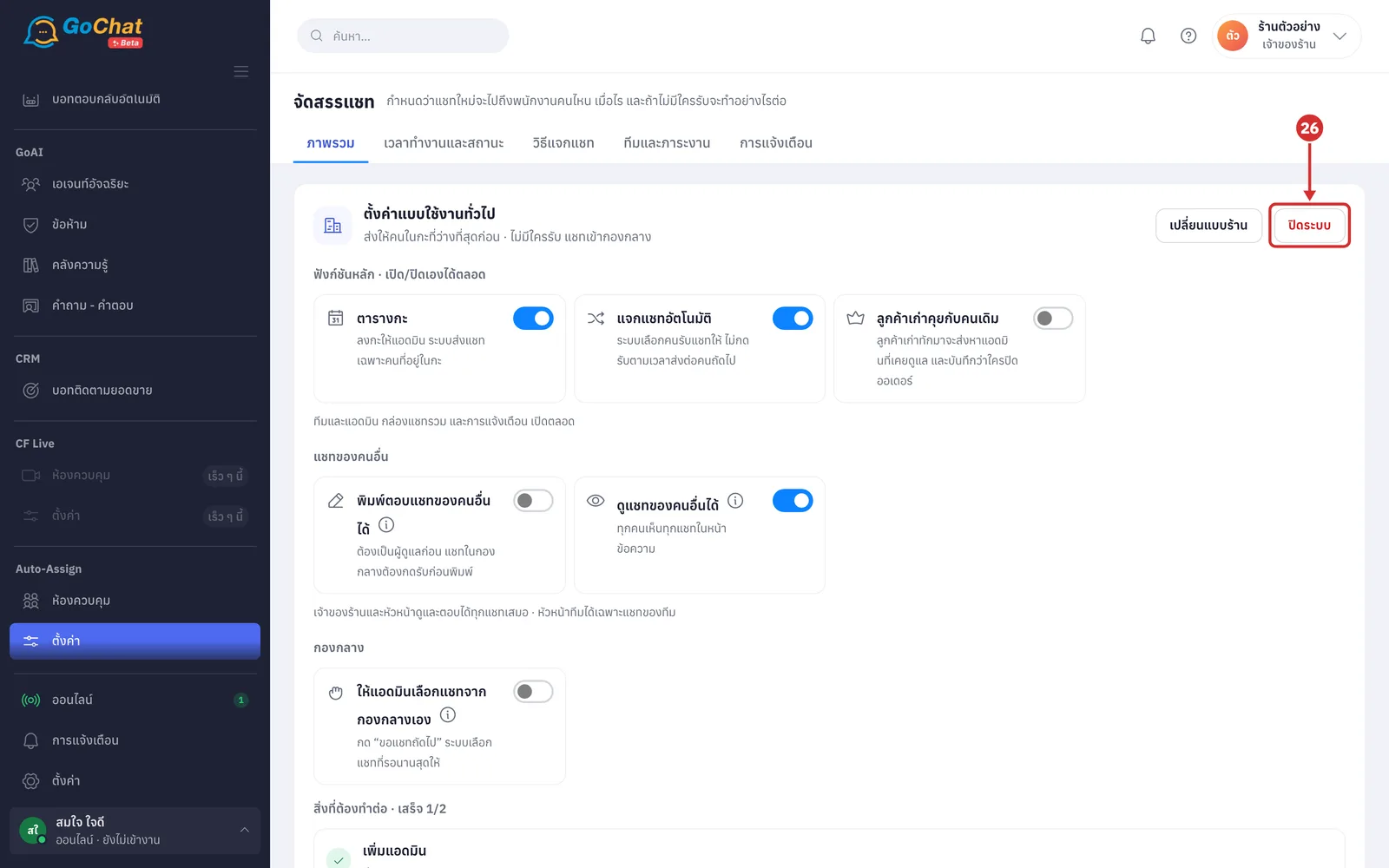
Click ปิดระบบ (Turn off) to stop using chat assignment
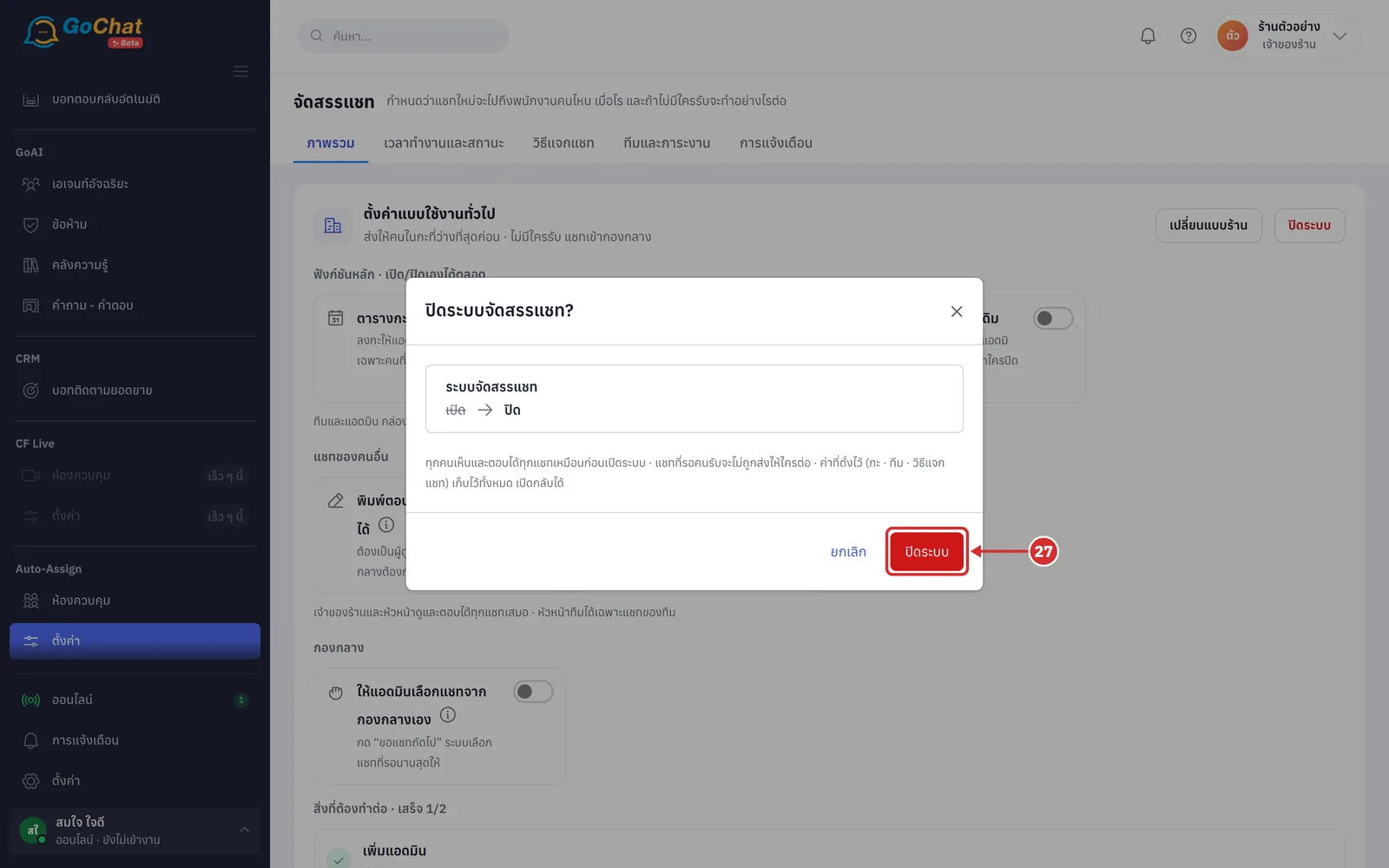
In the confirmation window, click ปิดระบบ (Turn off) (everyone sees and can reply to every chat like before; chats waiting to be taken are not sent to anyone; shifts, teams and hand-out settings are all kept and you can turn it back on)
The system shows ปิดระบบจัดสรรแชทแล้ว · ทุกคนตอบได้ทุกแชทแบบเดิม (Chat assignment turned off · everyone can reply to every chat as before)
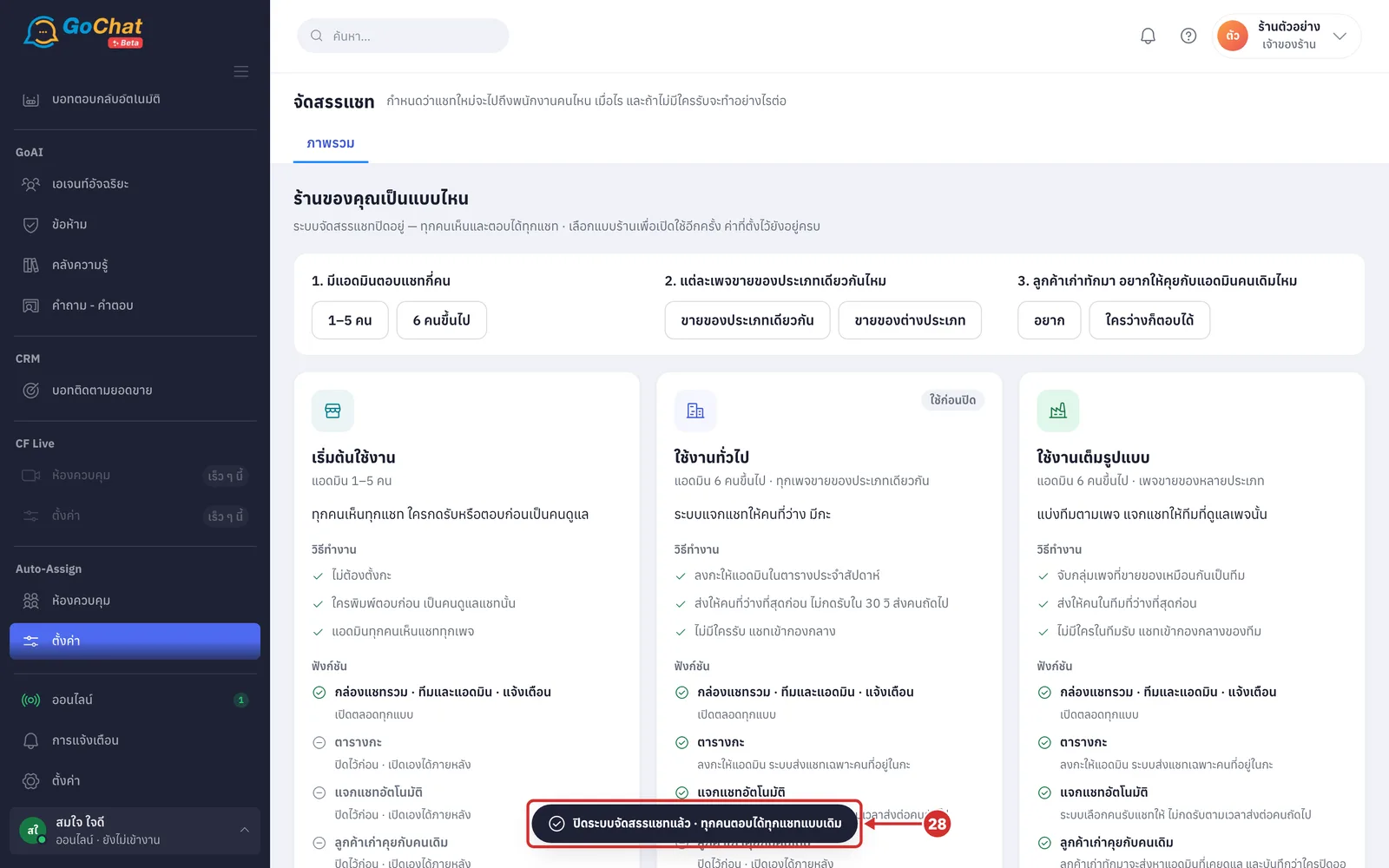
Note: After it is turned on, shop owners and leads see a ห้องควบคุม (Control room) menu under Auto-Assign for live views of chats waiting to be taken and the team's status. After turning it off, you can turn it back on from the same page by choosing a shop type again; your settings are kept.