

Managing message templates
The เทมเพลตข้อความ (Message templates) page keeps the order summary and shipping summary messages that many sets share in one place. Edit once and every set using a template gets the new message. Templates are chosen in the message fields of สรุปคำสั่งซื้อ และเลขพัสดุ (Order summary and tracking number, under Settings) and the สรุปคำสั่งซื้อ (Order summary) auto-reply. Everyone in the shop can create, edit, duplicate and delete templates, and every edit is recorded with who made it and when.
Opening the Message templates page
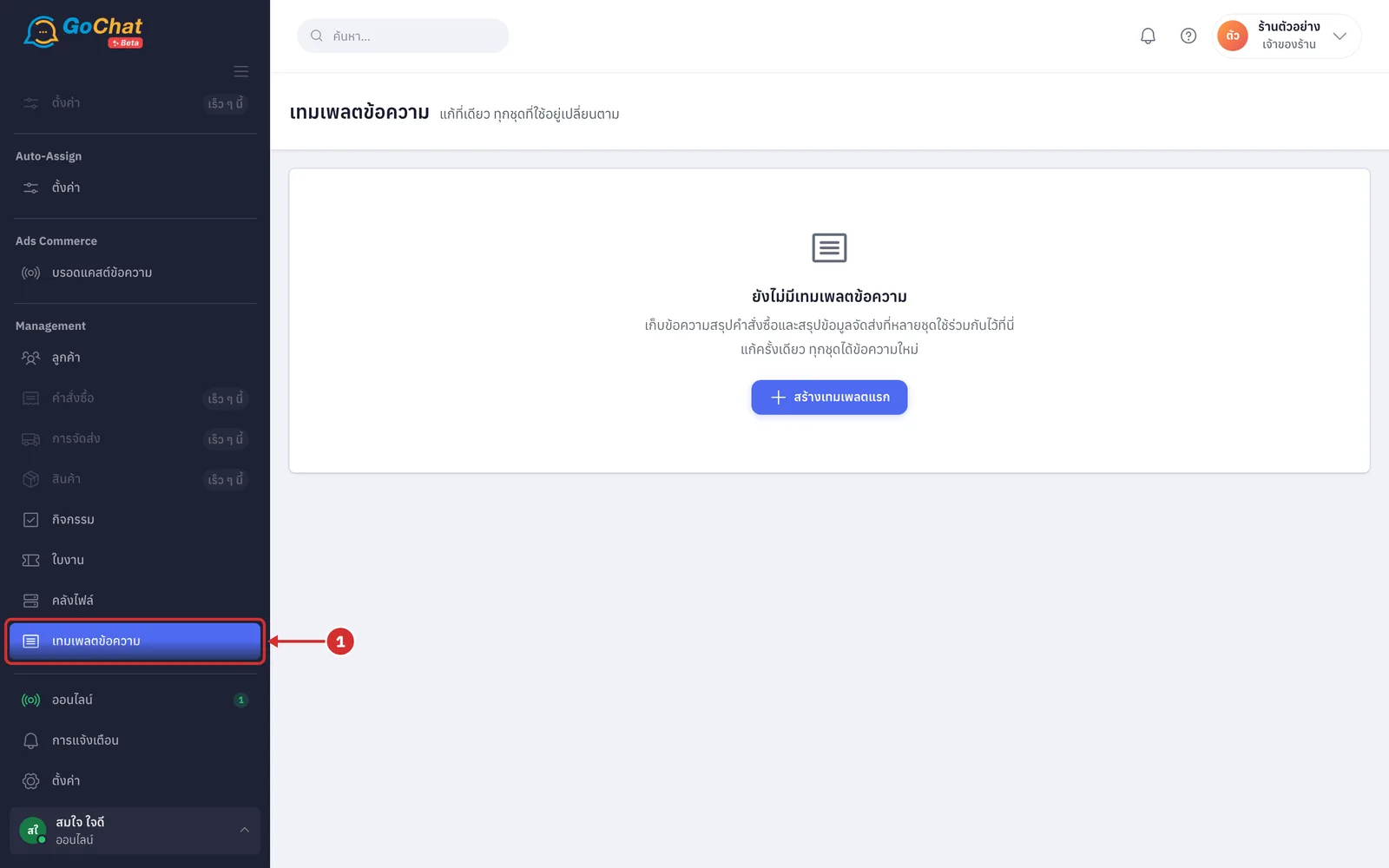
Go to the เทมเพลตข้อความ (Message templates) menu under Management in the left menu bar
Creating a template
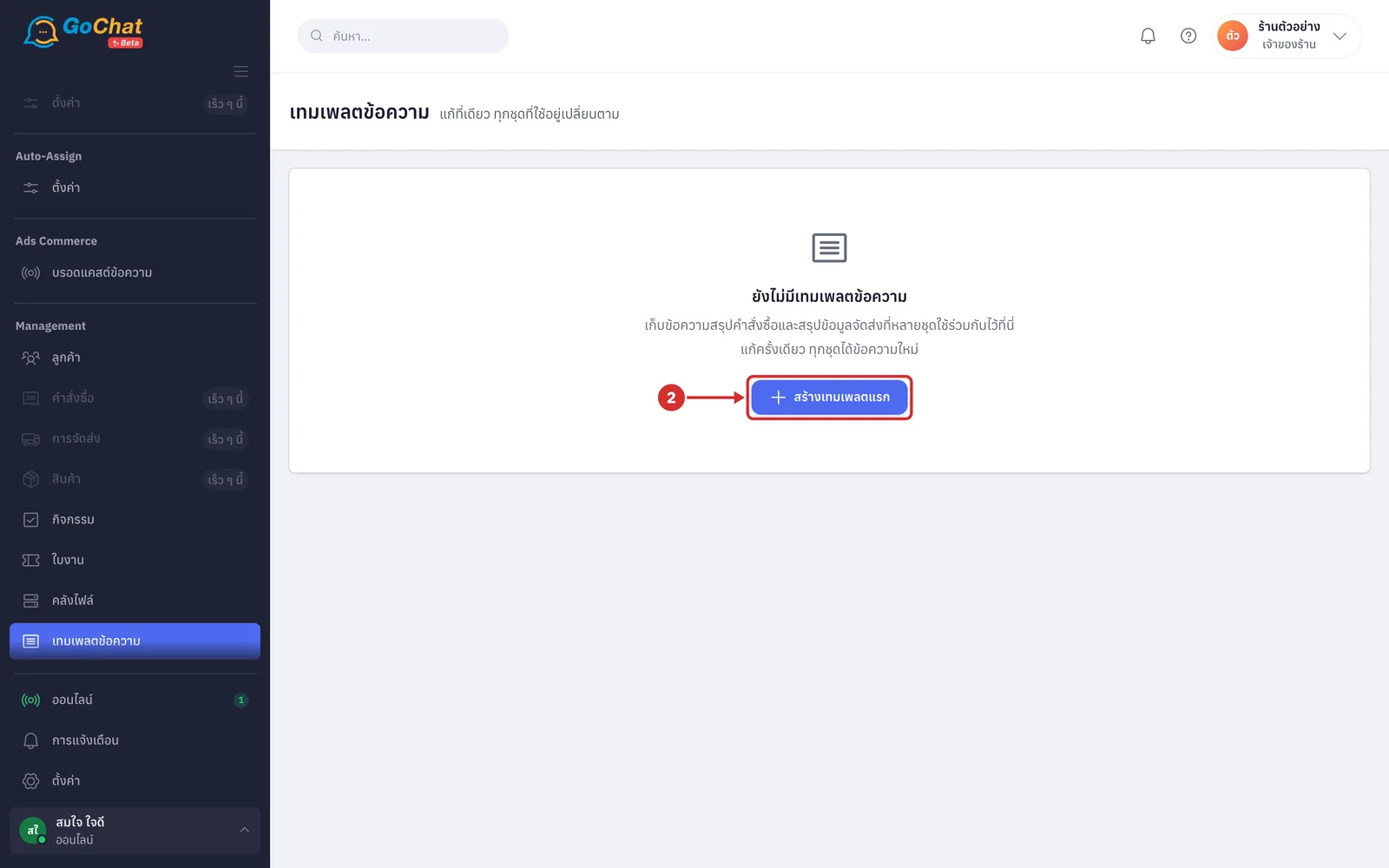
A shop with no templates shows ยังไม่มีเทมเพลตข้อความ (No message templates yet). Click สร้างเทมเพลตแรก (Create your first template) (once you have templates, click สร้างเทมเพลต (Create template) in the toolbar above the table)
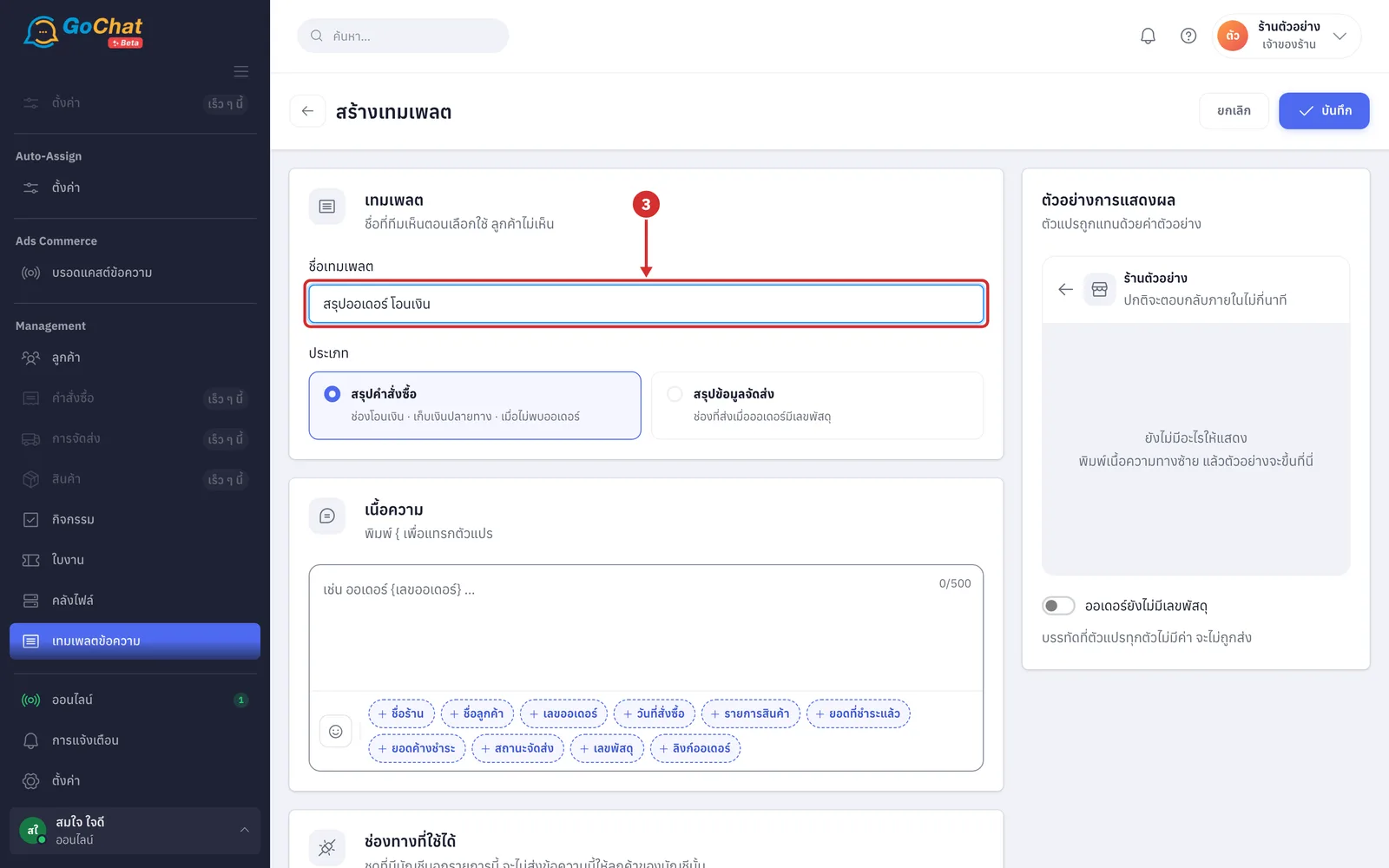
On the สร้างเทมเพลต (Create template) page, enter a name in ชื่อเทมเพลต (Template name), such as "สรุปออเดอร์ โอนเงิน". It is required, up to 80 characters, and must not repeat another template's name in your shop (only your team sees it when choosing; customers do not)
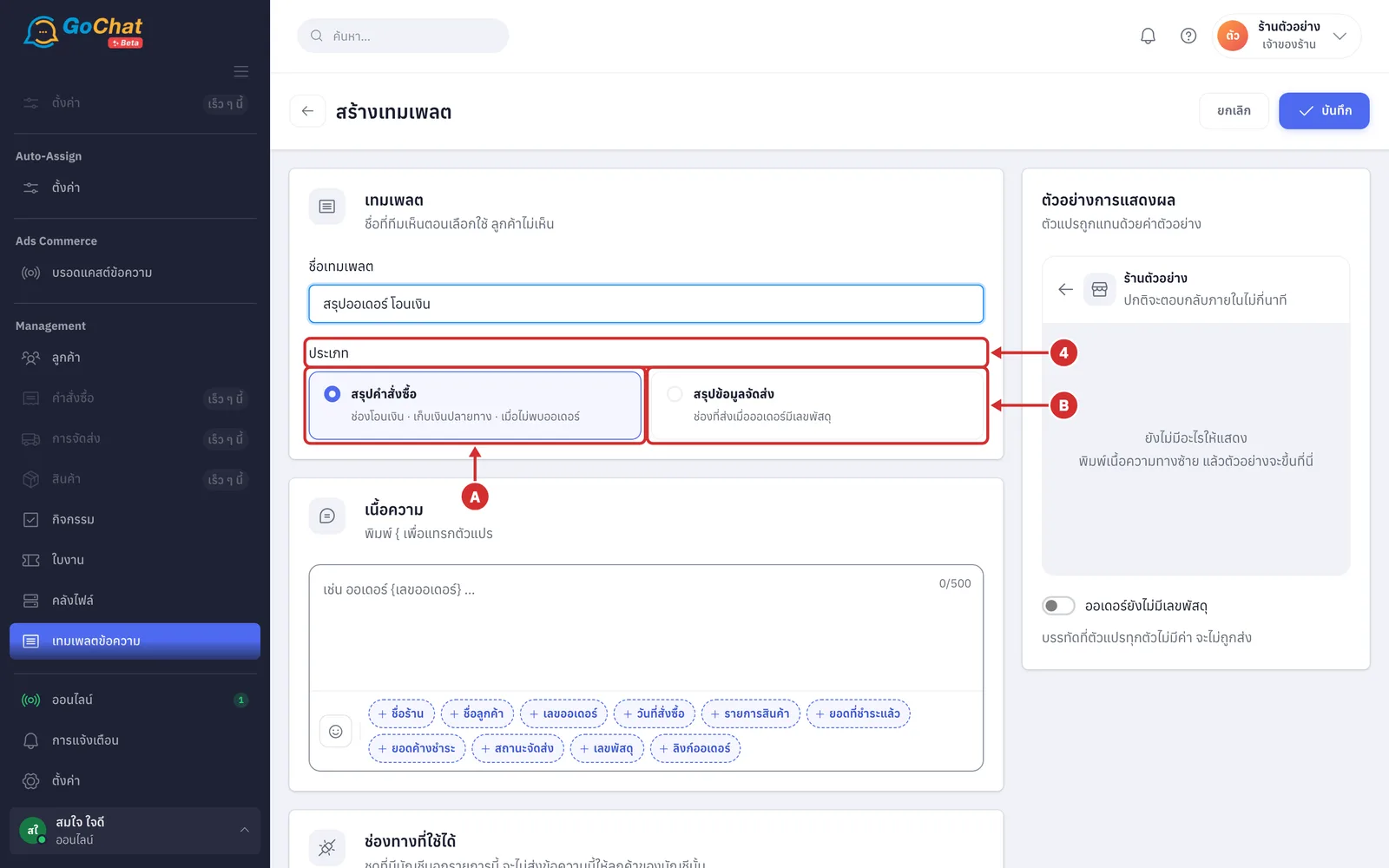
Under ประเภท (Type), choose which kind of message field the template is for. There are 2 options:
A สรุปคำสั่งซื้อ (Order summary) — for the bank transfer · cash on delivery · order not found fields (the default)
B สรุปข้อมูลจัดส่ง (Shipping summary) — for the field sent when an order has a tracking number
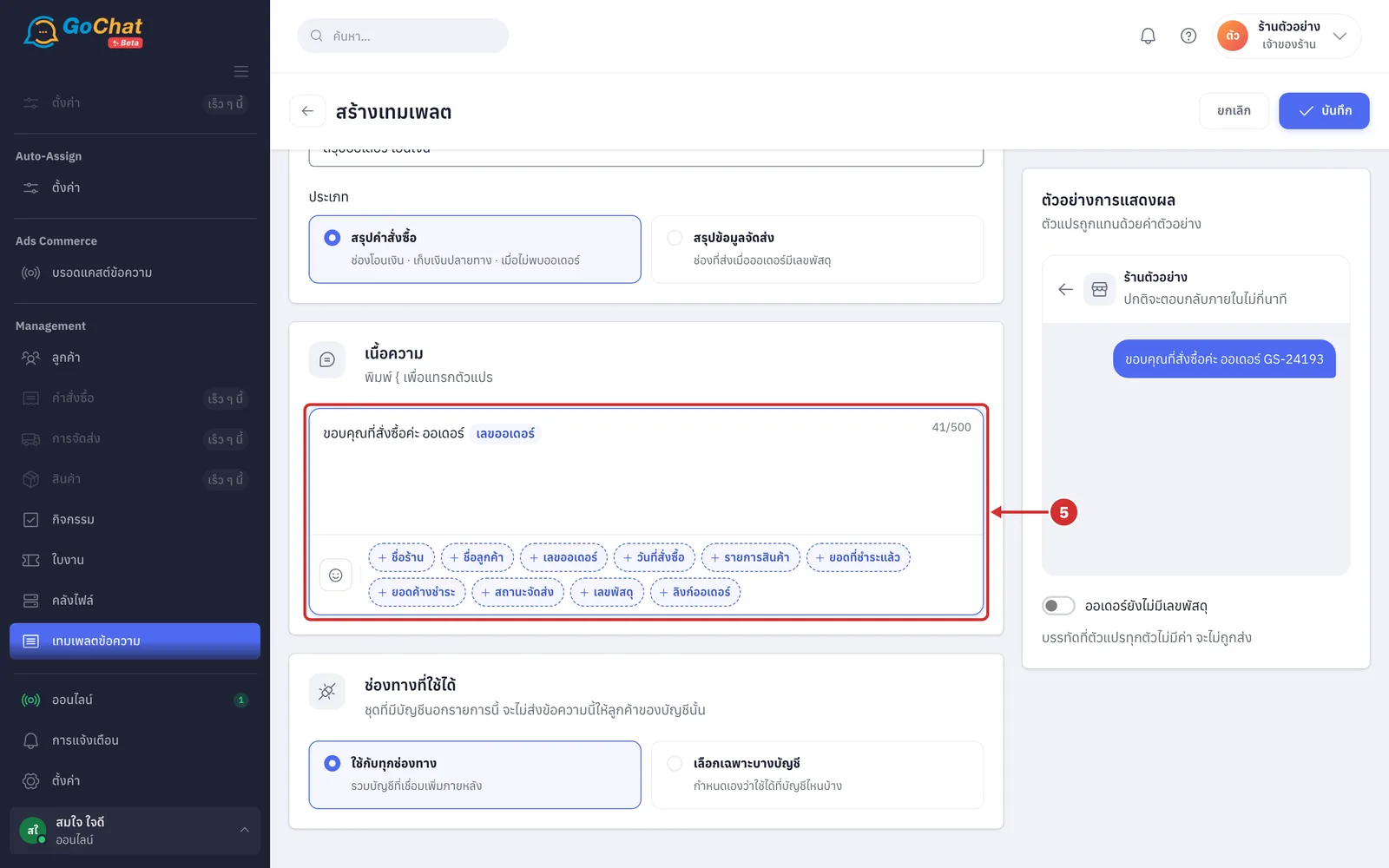
Under เนื้อความ (Message), type the message to send to customers, up to 500 characters (the character count is at the top right of the box · click a variable name below the box, or type {, to insert a variable: ชื่อร้าน (Shop name) · ชื่อลูกค้า (Customer name) · เลขออเดอร์ (Order number) · วันที่สั่งซื้อ (Order date) · รายการสินค้า (Items) · ยอดที่ชำระแล้ว (Amount paid) · ยอดค้างชำระ (Amount due) · สถานะจัดส่ง (Shipping status) · เลขพัสดุ (Tracking number) · ลิงก์ออเดอร์ (Order link); the system replaces them with the order's real data when sending · click the smiley icon to insert an emoji)
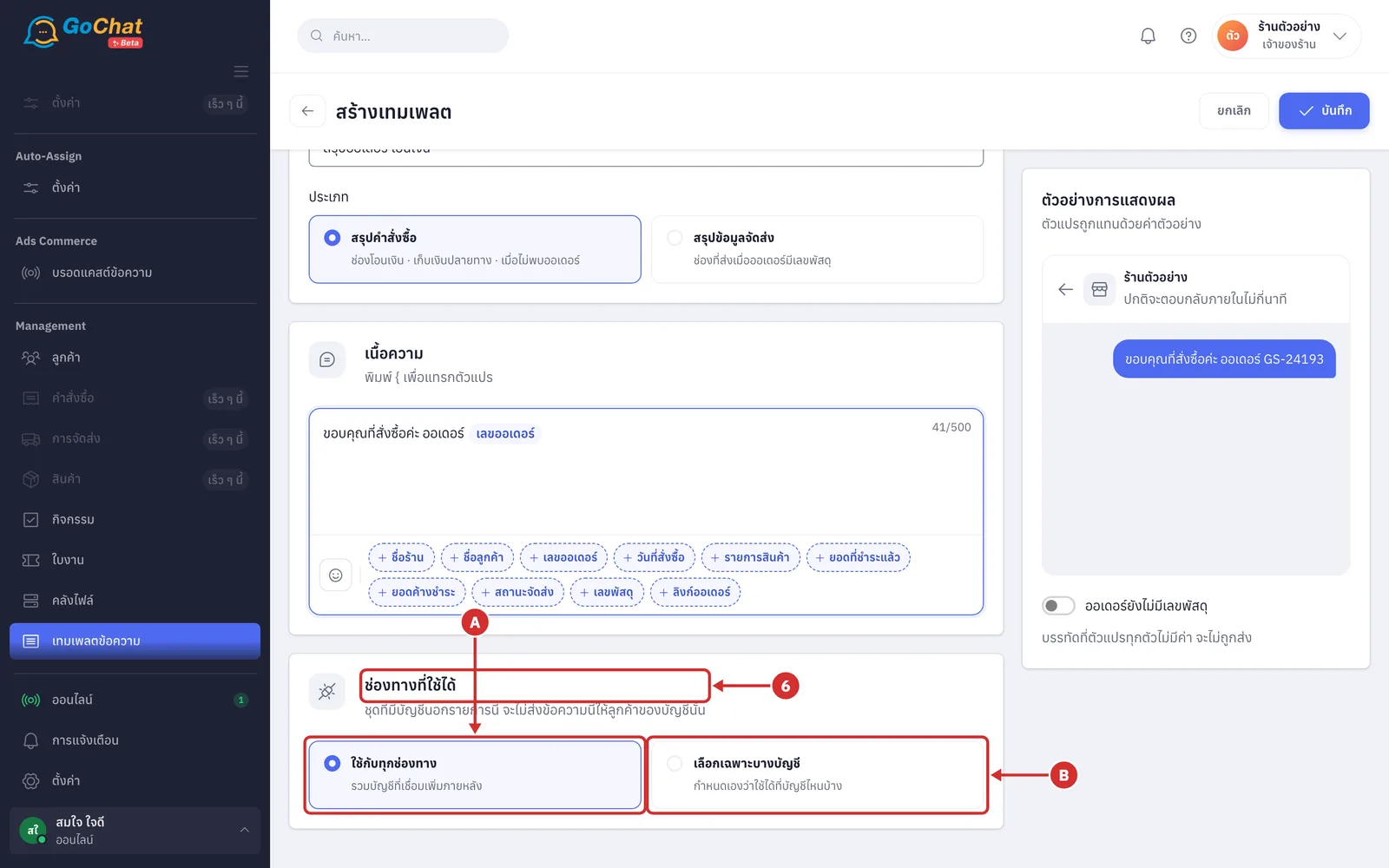
Under ช่องทางที่ใช้ได้ (Available channels), choose which accounts can use this template. There are 2 options (a set with accounts outside this list will not send this message to customers of those accounts):
A ใช้กับทุกช่องทาง (Use on all channels) — including accounts connected later (the default)
B เลือกเฉพาะบางบัญชี (Choose specific accounts) — decide which accounts can use it
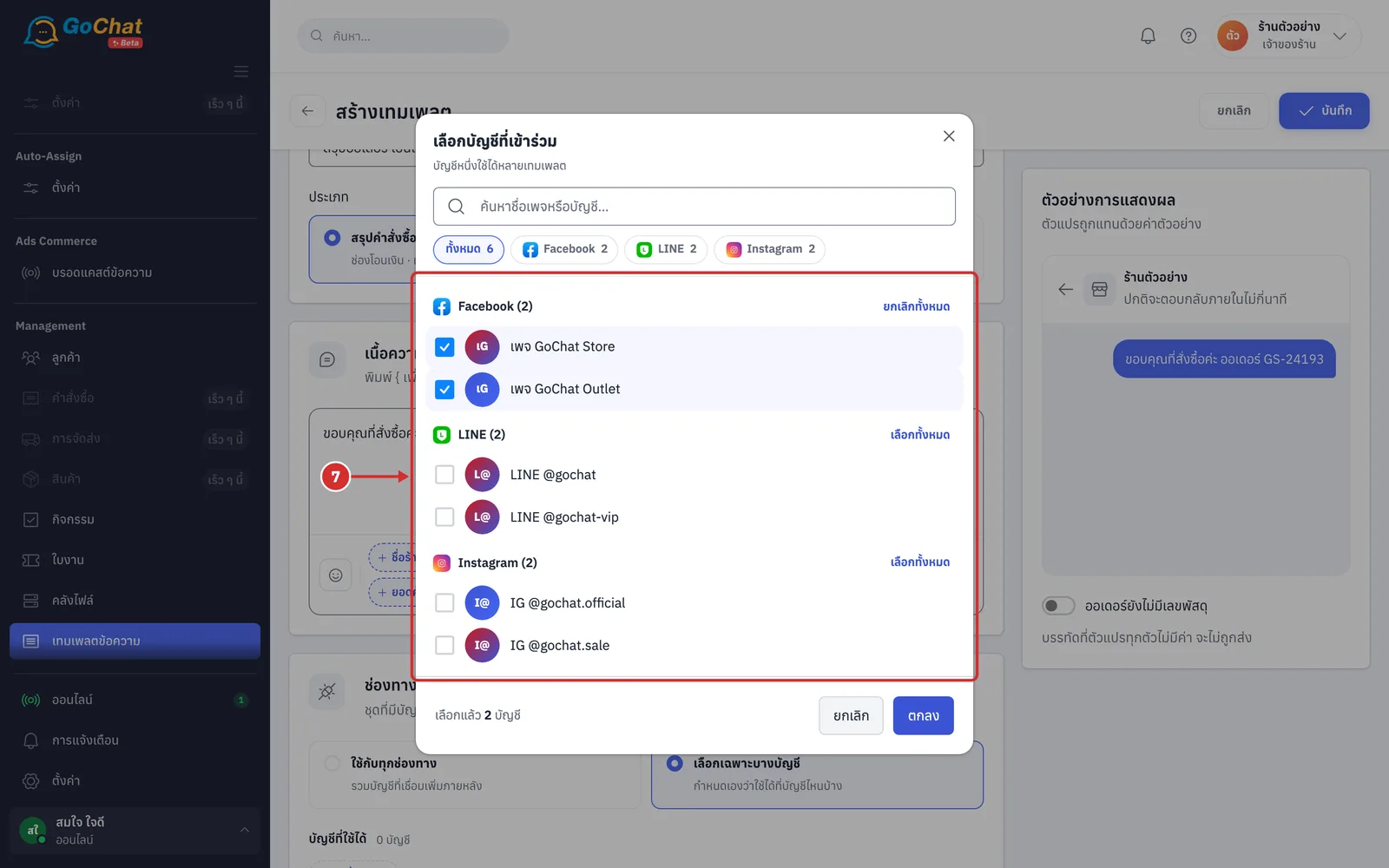
If you choose เลือกเฉพาะบางบัญชี (Choose specific accounts), the เลือกบัญชีที่เข้าร่วม (Choose participating accounts) window opens. Tick the accounts that can use the template, or click เลือกทั้งหมด (Select all) at the top of each channel, then click ตกลง (OK) (your shop's LINE · Facebook · Instagram accounts are listed; search by page or account name in the box at the top · one account can use several templates)
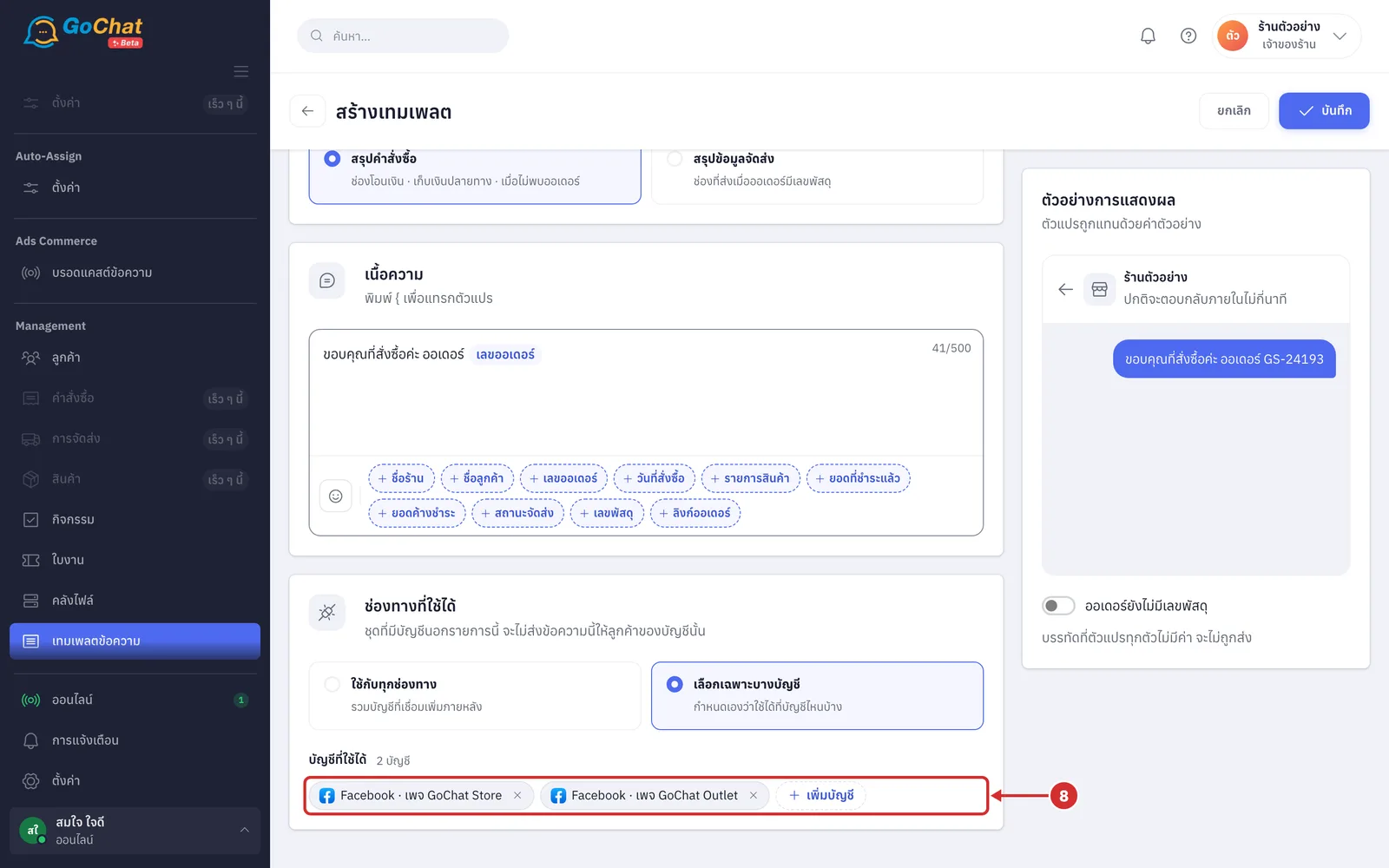
The chosen accounts appear under บัญชีที่ใช้ได้ (Available accounts) with the number of accounts (click × on an account to remove it · click เพิ่มบัญชี (Add account) to choose more)
Check what customers will see in the ตัวอย่างการแสดงผล (Preview) frame on the right (variables are replaced with sample values, and the shop name is your shop's name)
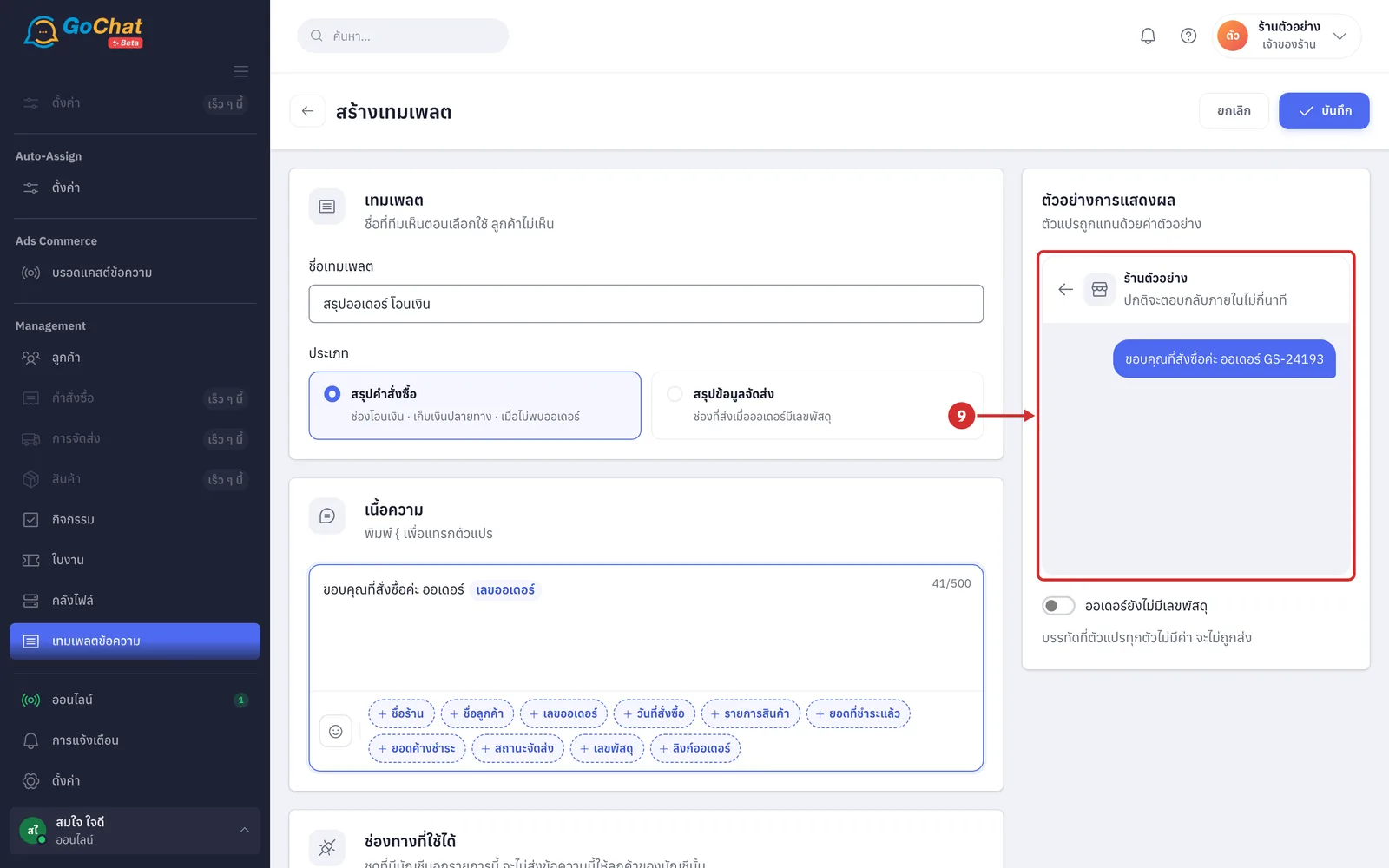
Turn on ออเดอร์ยังไม่มีเลขพัสดุ (Order has no tracking number yet) to see how the message looks when an order has no tracking number (on: the เลขพัสดุ (Tracking number) and สถานะจัดส่ง (Shipping status) variables are empty · off: the preview shows a sample tracking number · a line whose variables all have no value is not sent)
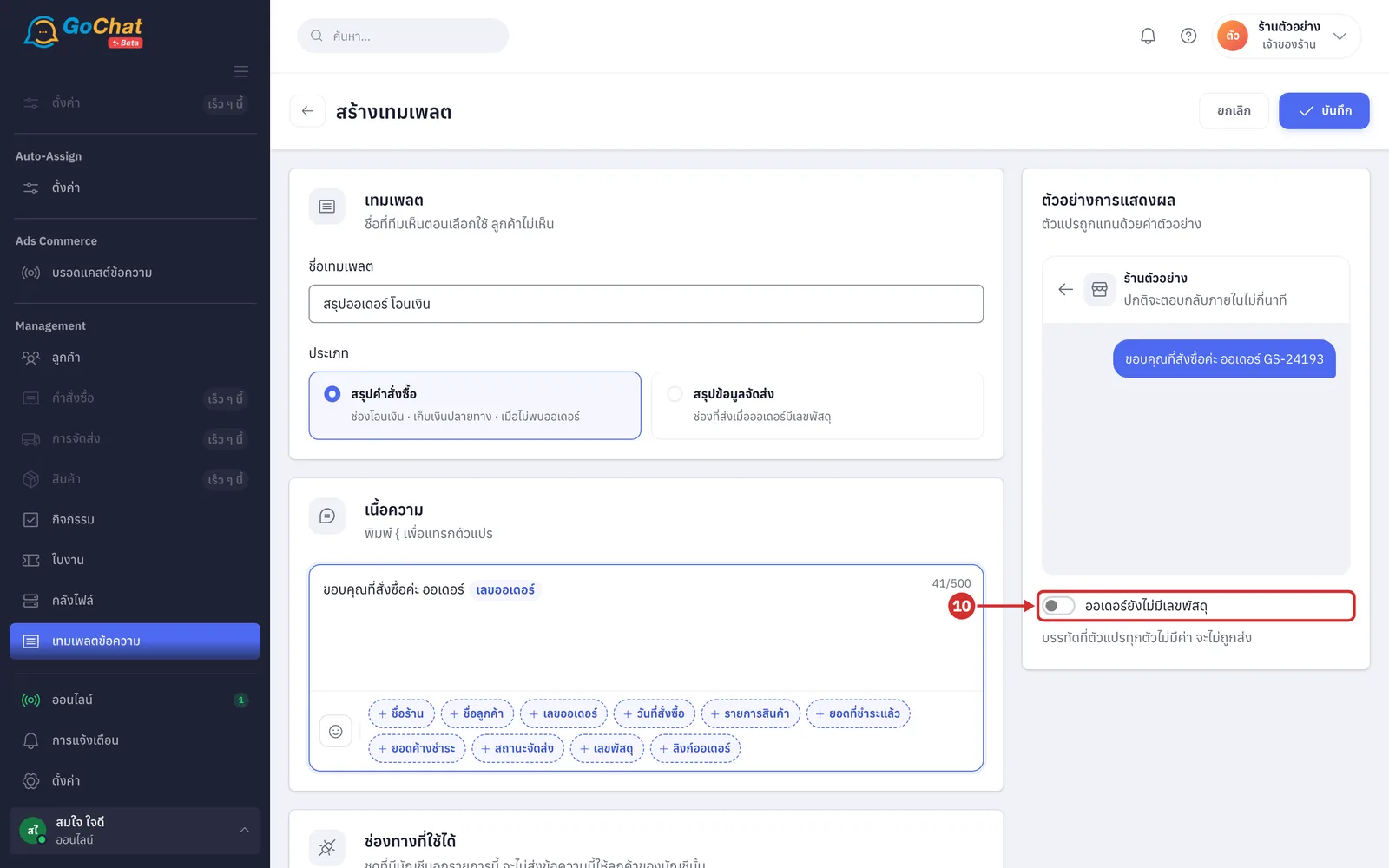
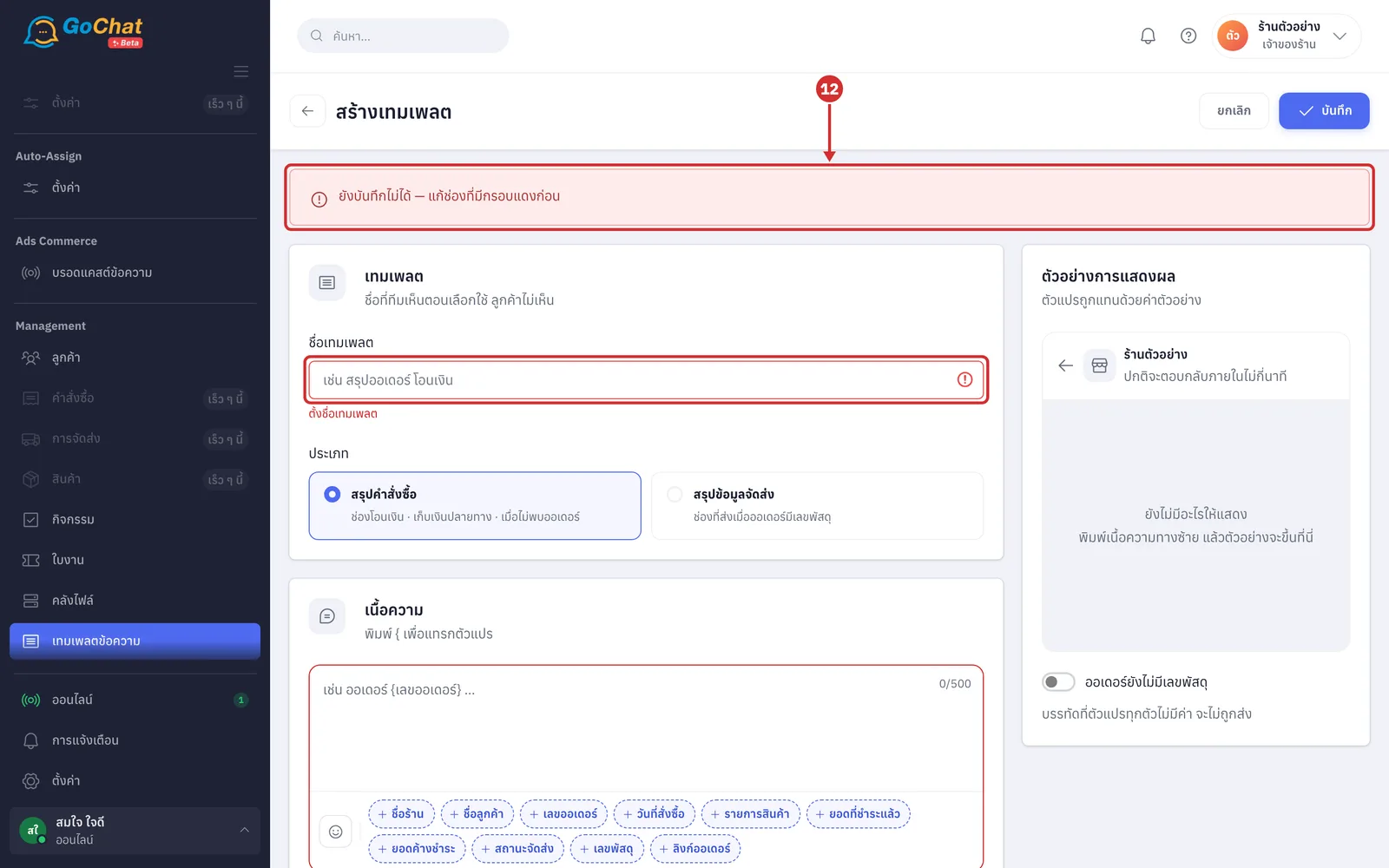
Click บันทึก (Save) at the top right. The system shows สร้าง “template name” แล้ว (“Template name” created) and the page becomes แก้ไขเทมเพลต (Edit template) so you can keep editing (click ยกเลิก (Cancel) or the back arrow at the top left to return to the template library without saving)
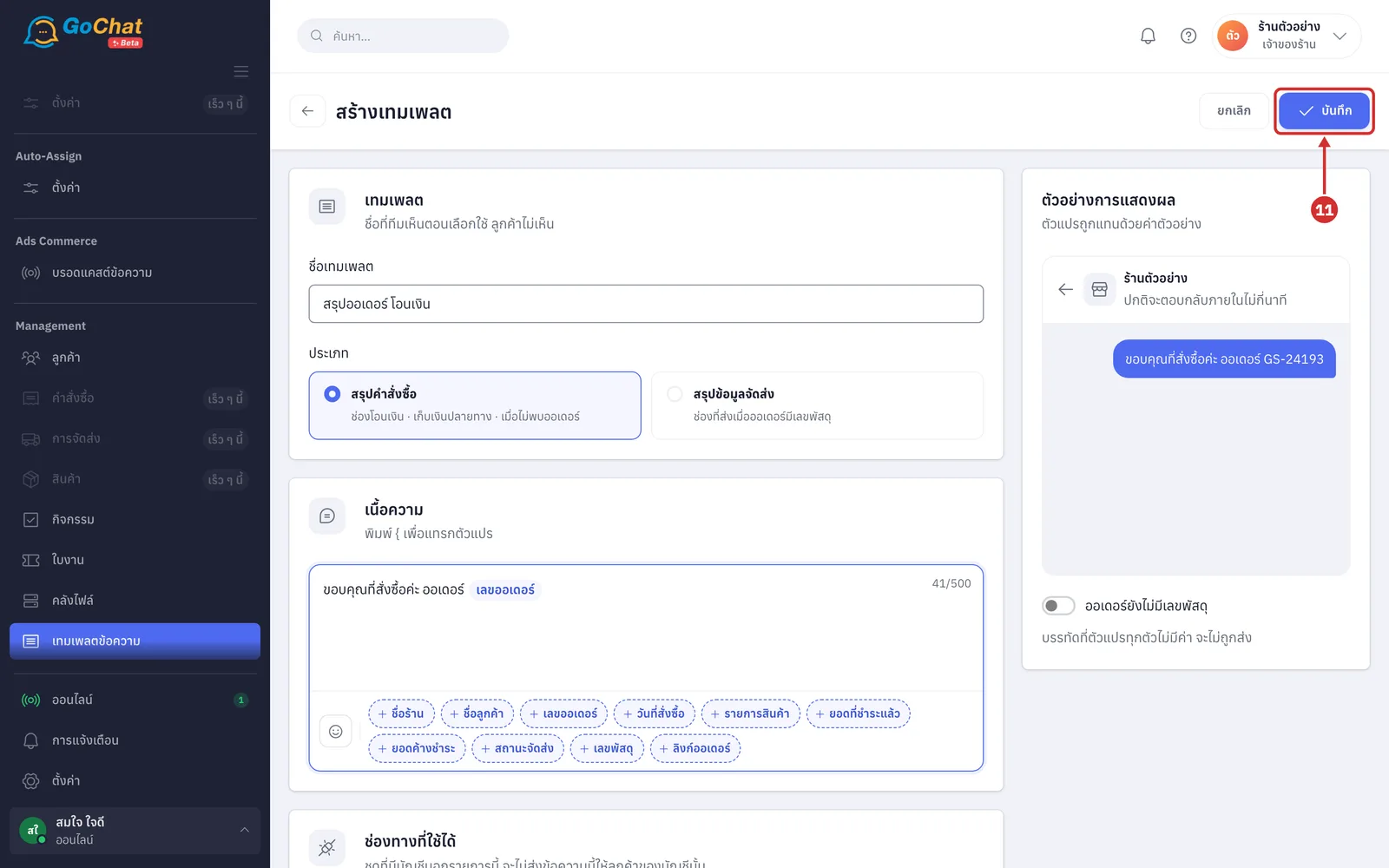
If something is missing, the system shows ยังบันทึกไม่ได้ — แก้ช่องที่มีกรอบแดงก่อน (Cannot save yet — fix the fields outlined in red first) and explains what to fix under each field, such as ตั้งชื่อเทมเพลต (Name the template) · พิมพ์เนื้อความ (Type the message) · เลือกอย่างน้อย 1 บัญชี (Choose at least 1 account) (if the message has a variable the system does not know, it says that variable ใช้ในเทมเพลตไม่ได้ — ลบออกก่อนบันทึก (cannot be used in a template — remove it before saving))
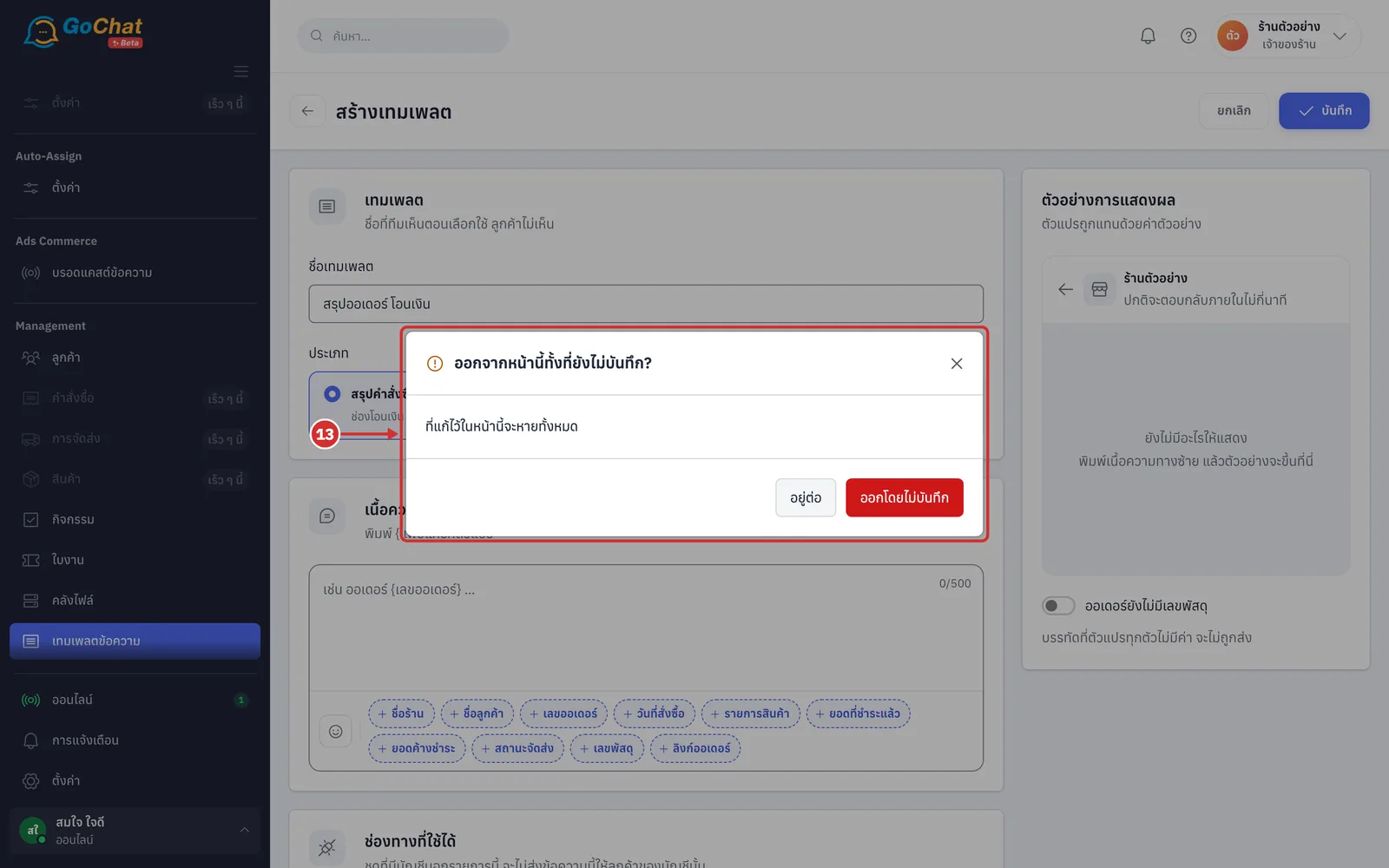
If you leave the page without saving, the system asks with the ออกจากหน้านี้ทั้งที่ยังไม่บันทึก? (Leave this page without saving?) window (your changes on this page will be lost). Click อยู่ต่อ (Stay) to keep editing, or ออกโดยไม่บันทึก (Leave without saving)
Reading the template library
Once your shop has templates, click the ทั้งหมด (All) · สรุปคำสั่งซื้อ (Order summary) · สรุปข้อมูลจัดส่ง (Shipping summary) chips at the top to filter by type (the number on each chip is how many templates of that type you have)
In ค้นหาชื่อหรือเนื้อความ... (Search name or message...), type words from a template's name or message (if nothing matches, it shows ไม่พบเทมเพลตที่ตรงกับ “…” (No template matches “…”); click ล้างตัวกรอง (Clear filters) to see all)
Read the template table: เทมเพลต (Template — name and type) · ช่องทางที่ใช้ได้ (Available channels — ทุกช่องทาง (All channels) or channel logos with the number of accounts; if all chosen accounts were removed it shows ไม่เหลือช่องทาง — ไม่ถูกส่งที่ไหนเลย (No channels left — not sent anywhere)) · เนื้อความ (Message — variables shown as tags) · ใช้อยู่ (In use — ใช้อยู่ … ที่ (Used in … places) with how many sets are เปิด (On) and ทดสอบ (Test); click it to see where, or ยังไม่ได้ใช้ (Not used yet))
Click the ⋯ button at the end of a row to choose แก้ไข (Edit) · ทำสำเนา (Duplicate) or ลบ (Delete) (a duplicate is a new template named “original name (สำเนา)” (copy) with the same message and channels, not used by any set yet; the system shows ทำสำเนาเป็น “…” แล้ว (Duplicated as “…”))
Editing a template
Click a template's name in the table (or แก้ไข (Edit) from the ⋯ button). The แก้ไขเทมเพลต (Edit template) page opens with the tabs เนื้อหา (Content) · ใช้อยู่ที่ (Used in) · ประวัติการแก้ (Edit history) (the numbers in brackets are how many places use it and how many edits there were)
Change what you need on the เนื้อหา (Content) tab and click บันทึก (Save). If the template is in use, the system asks with the บันทึกเทมเพลตที่ใช้อยู่? (Save a template in use?) window, which says ใช้อยู่ … ที่ (Used in … places — live … · test …) and that customers will see the new message right away, with the list of sets. Click บันทึก (Save) to confirm; the system shows บันทึกแล้ว · … ที่ใช้ข้อความใหม่แล้ว (Saved · … places now use the new message) (a template not in use saves right away · while in use, its type cannot be changed; unlink it everywhere first, or duplicate it and change the copy)
Click the ใช้อยู่ที่ (Used in) tab to see the message sets that use this template. Each row shows the set name (click to open the set), where it is used (ตั้งค่า → สรุปคำสั่งซื้อ และเลขพัสดุ (Settings → Order summary and tracking number) or ตอบกลับอัตโนมัติ → สรุปคำสั่งซื้อ (Auto-reply → Order summary)), the field, and the status เปิด (On) · ทดสอบ (Test) · ปิด (Off) (if no set uses it, it shows ยังไม่ได้ใช้ที่ไหน (Not used anywhere yet))
Click the ประวัติการแก้ (Edit history) tab to see who changed what and when. Each edit shows the parts changed (name · message · channels · type) with the ก่อน (Before) and หลัง (After) values (with no edits yet, it shows ยังไม่มีการแก้ไข (No edits yet) and who created it and when)
Using templates in message sets
Open a message set on the สรุปคำสั่งซื้อ และเลขพัสดุ (Order summary and tracking number) page and click ใช้เทมเพลต (Use template) in a message field to choose a template from the library, or click บันทึกเป็นเทมเพลต (Save as template) to keep the message you typed as a new template (see steps 11–13 of การตั้งค่าสรุปคำสั่งซื้อ และเลขพัสดุ · a field that uses a template cannot be edited in place; use แก้ที่เทมเพลต (Edit the template) or เลิกอ้างอิง แล้วแก้เอง (Unlink and edit yourself) instead)
Deleting a template
Click the ⋯ button at the end of a row and choose ลบ (Delete). If the template is not used anywhere, the ลบ “…”? (Delete “…”?) window says it cannot be restored. Click ลบเทมเพลต (Delete template); the system shows ลบเทมเพลตแล้ว (Template deleted)
If the template is in use, the window first shows the sets using it, then asks what should happen to the messages in those sets. There are 2 options; then click ต่อไป (Next):
A เก็บข้อความไว้ในชุดเป็นแบบพิมพ์เอง (Keep the message in the sets as typed text) — customers still get the same message, and each set can be edited separately (the default)
B ลบทั้งหมด (Delete everywhere) — the message fields that use this template become empty
Check the confirmation and click ลบเทมเพลต (Delete template) (if you chose ลบทั้งหมด (Delete everywhere) and sets that are on or in test would lose a required message, the system lists the sets that จะถูกปิดเอง (will be turned off) and the button becomes ลบ และปิด … ชุด (Delete and turn off … sets); customers get nothing from those sets until they are set up again · click ย้อนกลับ (Back) to choose again). The system shows ลบแล้ว · ปิด … ชุด (Deleted · … sets turned off) or ลบเทมเพลตแล้ว (Template deleted)
Using templates with customer notification messages
Templates can also be used as the message of ข้อความแจ้งเตือนลูกค้า (Utility) (Customer notification messages) (see การใช้ข้อความแจ้งเตือนลูกค้า). Customer notification messages need Meta's review every time their text changes, so they work differently from regular message sets:
On the ใช้อยู่ที่ (Used in) tab, customer notification messages linked to this template are listed first. Each row shows the message name (click to open it), ข้อความแจ้งเตือนลูกค้า (Utility) (Customer notification message) with the number of pages, and Meta's review status
The number on the ใช้อยู่ที่ (Used in) tab and in the template library includes customer notification messages
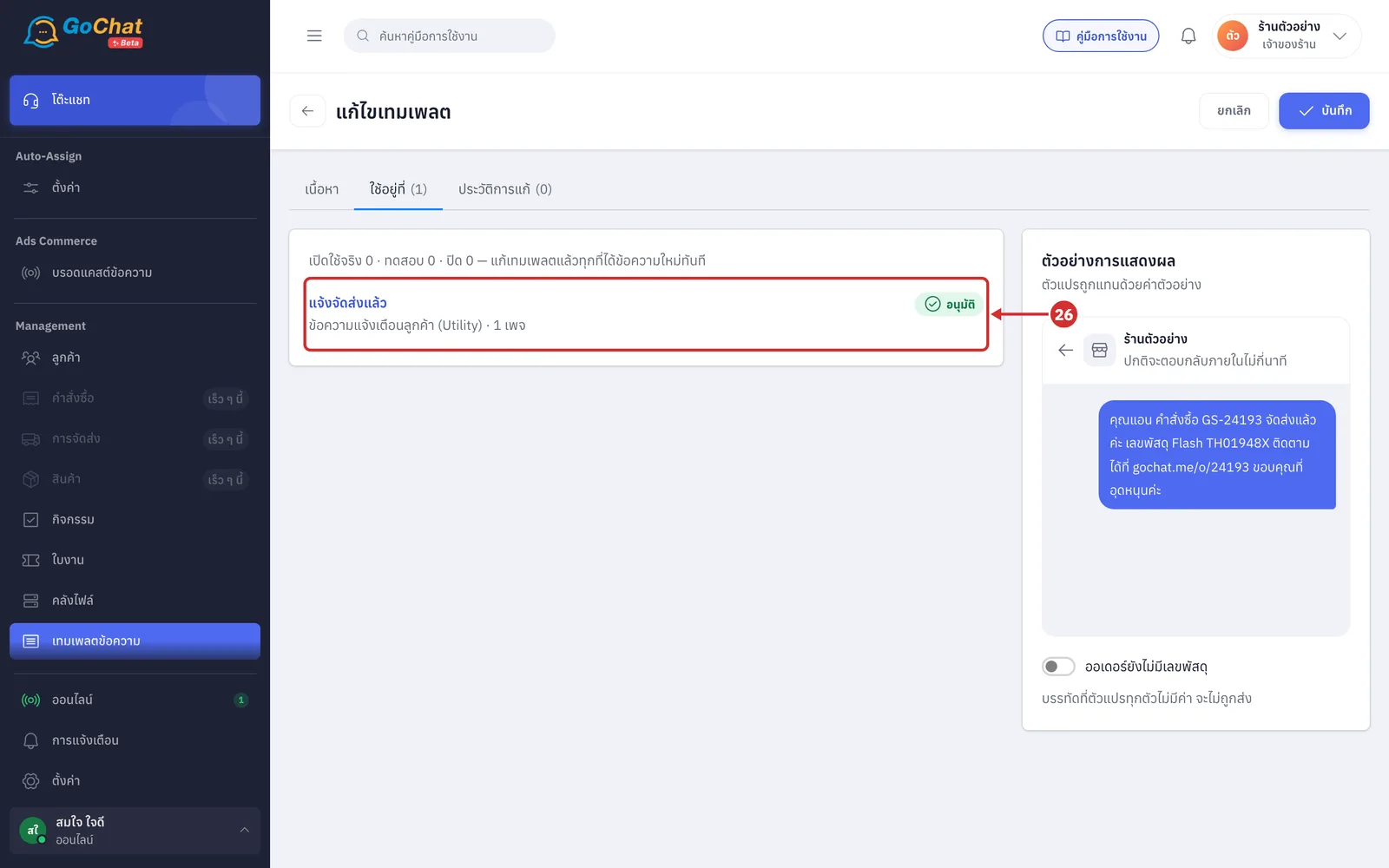
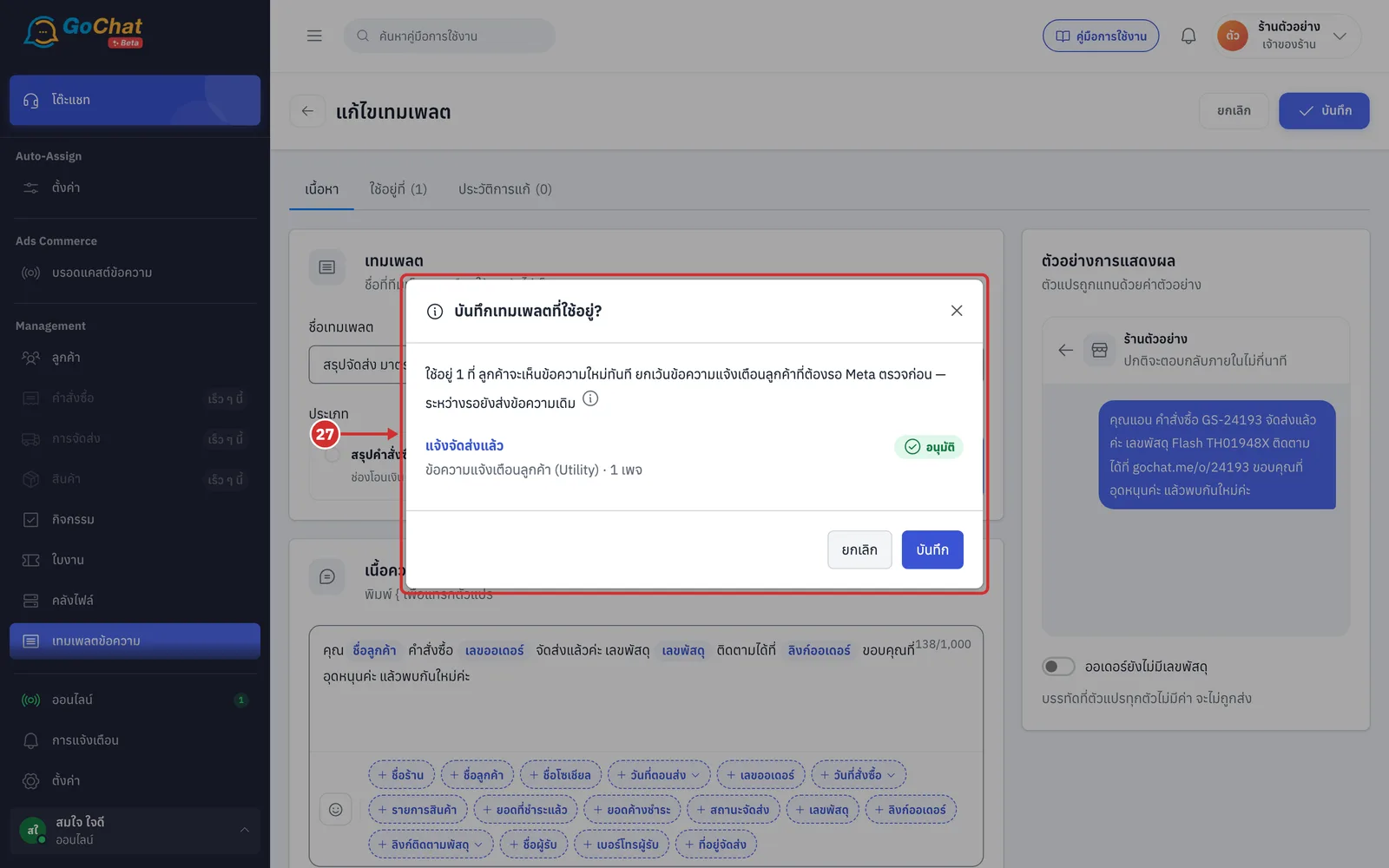
When you edit the message of a template used by customer notification messages and click บันทึก (Save), the บันทึกเทมเพลตที่ใช้อยู่? (Save a template in use?) window says ลูกค้าจะเห็นข้อความใหม่ทันที ยกเว้นข้อความแจ้งเตือนลูกค้าที่ต้องรอ Meta ตรวจก่อน — ระหว่างรอยังส่งข้อความเดิม (Customers see the new message right away, except customer notification messages, which must wait for Meta's review — the old message is sent meanwhile). Click บันทึก (Save) to confirm
The system submits the new version to Meta for you and shows บันทึกแล้ว · ยื่นข้อความแจ้งเตือนลูกค้าให้ Meta ตรวจแล้ว (Saved · customer notification messages submitted to Meta)
Customers keep getting the old message until the new version is approved on every page. If it is rejected, customers keep getting the old message and the customer notification messages page shows the reason
If the new message has variables that customer notification messages cannot use, the window says ตัวนี้ไม่ยื่น Meta ยังส่งข้อความเดิม (This one is not submitted; the old message is still sent). The template still saves as usual
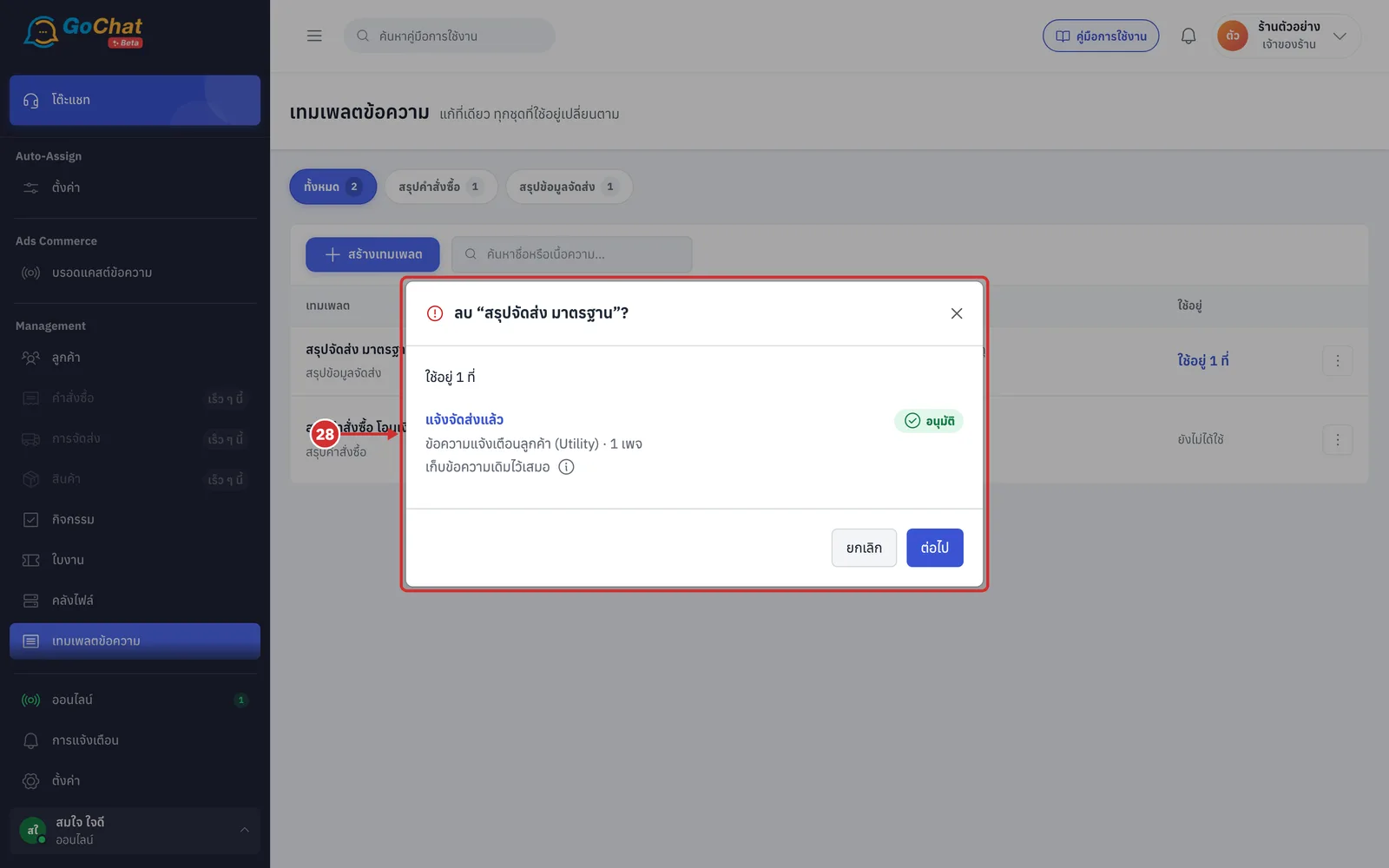
When you delete a template that customer notification messages are linked to, the delete window says customer notification messages เก็บข้อความเดิมไว้เสมอ (always keep their current message), whichever option you choose (Meta has already approved that message, so the system keeps it as typed text with no need to resubmit · a new version waiting for Meta's review is cancelled)
Note: Editing a template in use changes the message customers see right away in every set using it. If some sets need a different message, ทำสำเนา (Duplicate) it and edit the copy · deleted templates cannot be restored.