

Setting up comment replies
The ตอบกลับคอมเมนต์ (Comment replies) topic lets the bot answer customers who comment under your posts straight away. For example, when a customer comments “ไซซ์ L มีไหมคะ” (Do you have size L?), the bot replies under the comment that the details were sent by chat and messages the size chart to that customer. You can also have the bot answer every comment without setting words, and have your page like comments, hide spam comments and forward complaints to admins.
The shop owner and every admin can set up comment reply rules. They only work with Facebook pages and Instagram, and one account can be in many rules. The settings in the จัดการคอมเมนต์ (Manage comments) tab apply to every page in your shop. Parts every topic shares, such as status, edit history and deleting, are explained in Using the auto-reply bot.
Opening comment replies
Go to the บอทตอบกลับอัตโนมัติ (Auto-reply bot) menu under Chat in the left menu bar
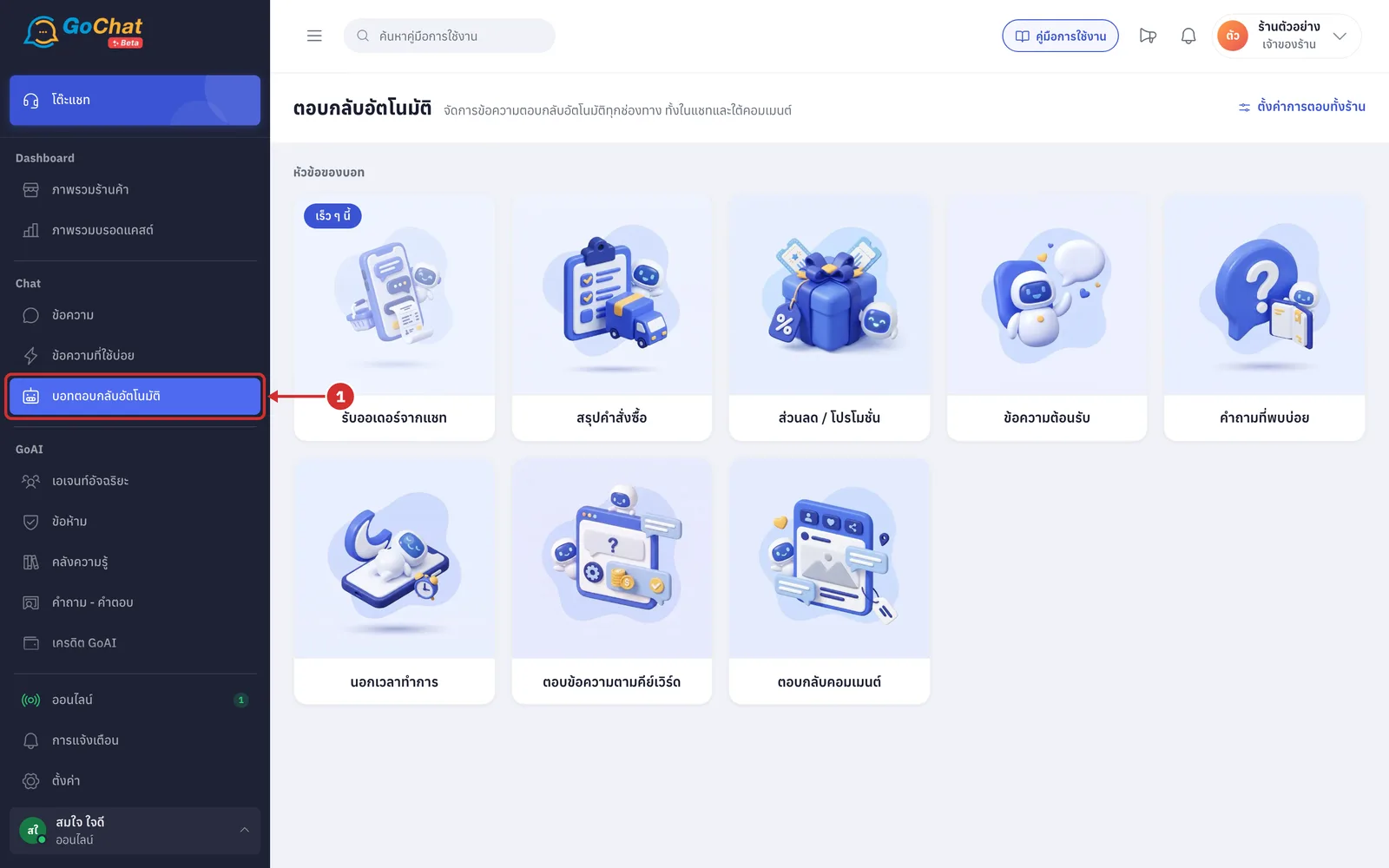
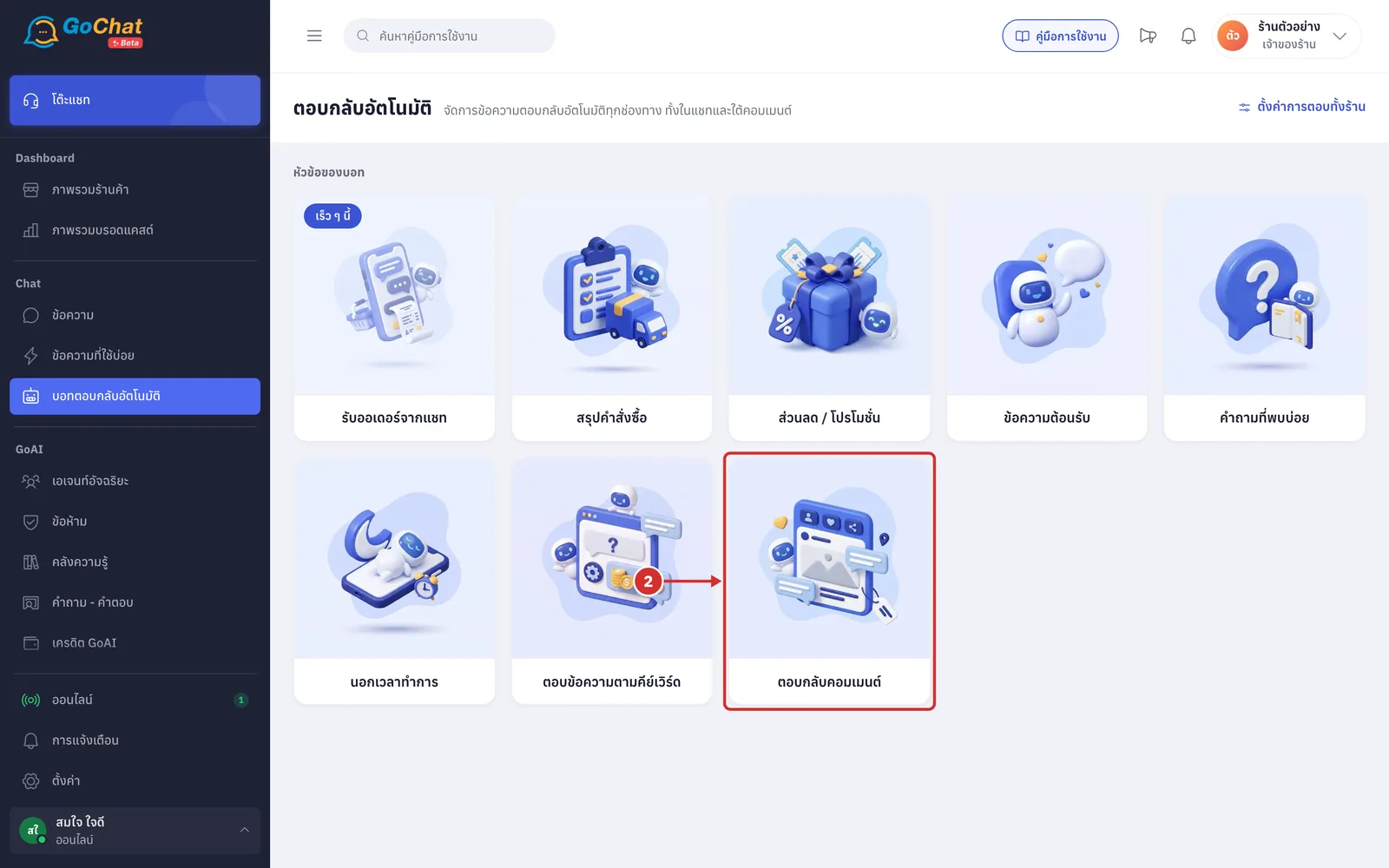
Click the ตอบกลับคอมเมนต์ (Comment replies) card
The ตอบกลับคอมเมนต์ (Comment replies) page has these parts
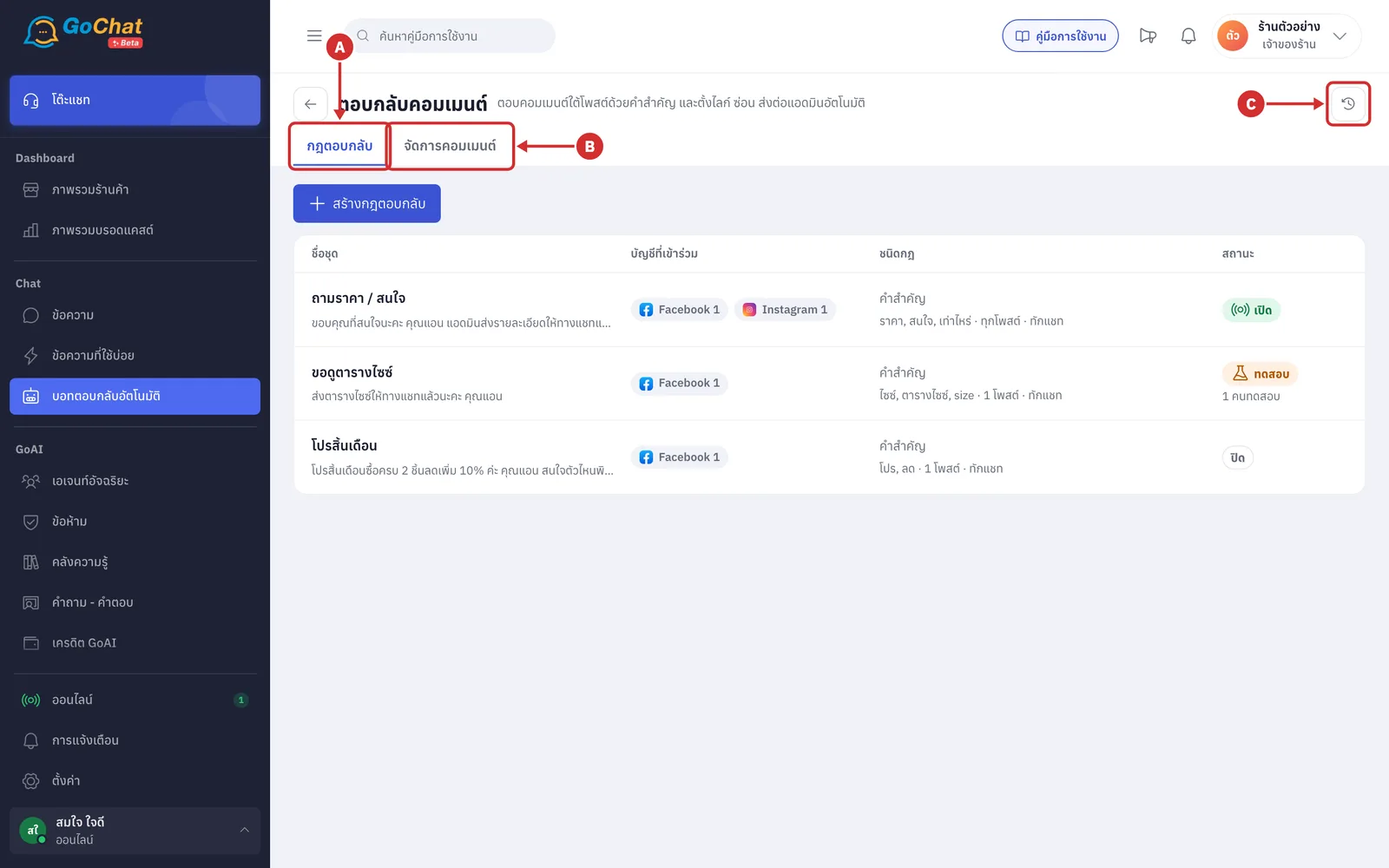
A กฎตอบกลับ (Reply rules) — the rules the bot uses to answer comments (see Reading the list of reply rules)
B จัดการคอมเมนต์ (Manage comments) — like, hide and forward-to-admin settings for every page (see Manage comments settings)
C ประวัติการแก้ไข (Edit history) — see who created, edited, turned on or off or deleted which rule, and who changed the manage comments settings
Reading the list of reply rules
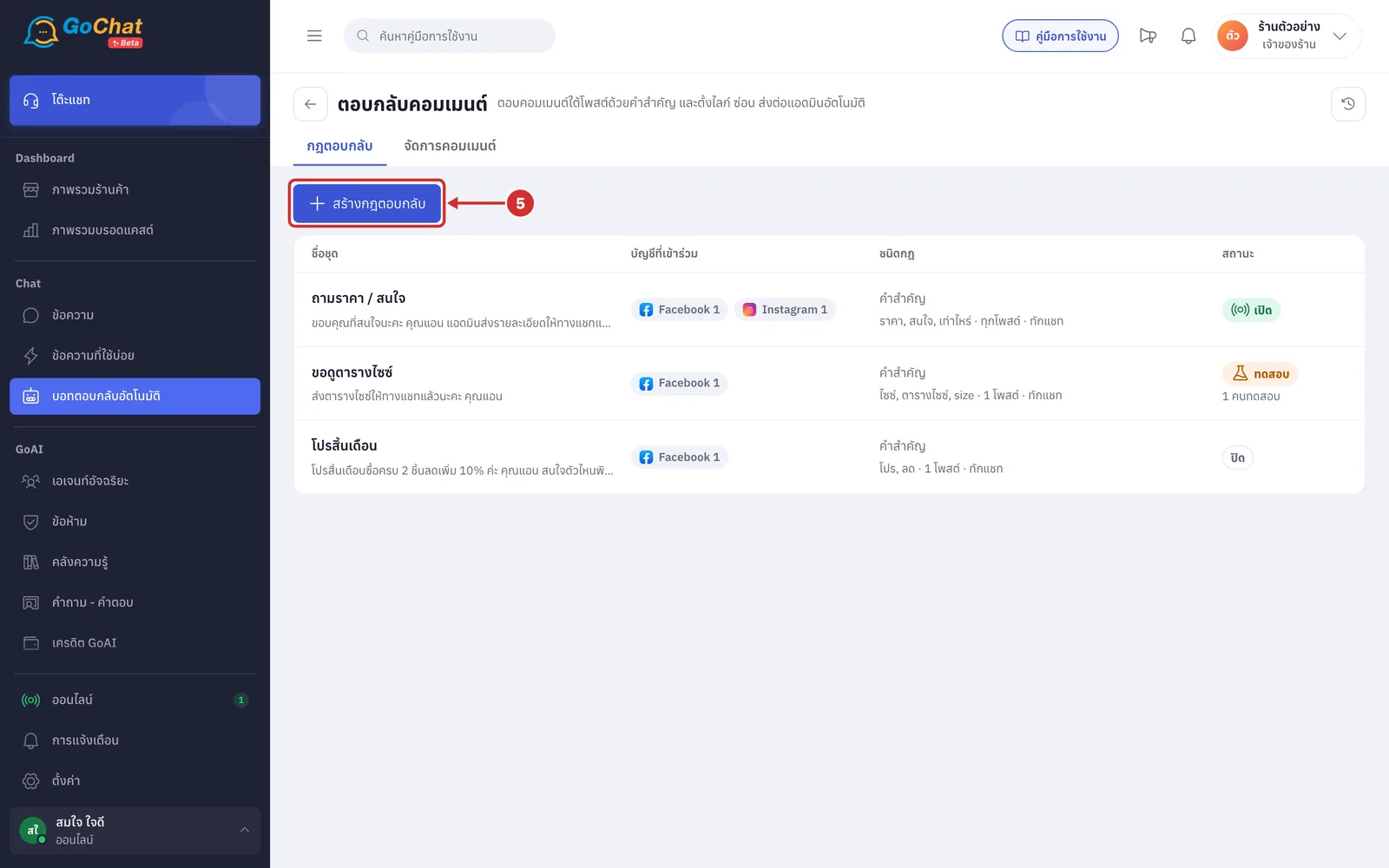
The กฎตอบกลับ (Reply rules) tab has these parts
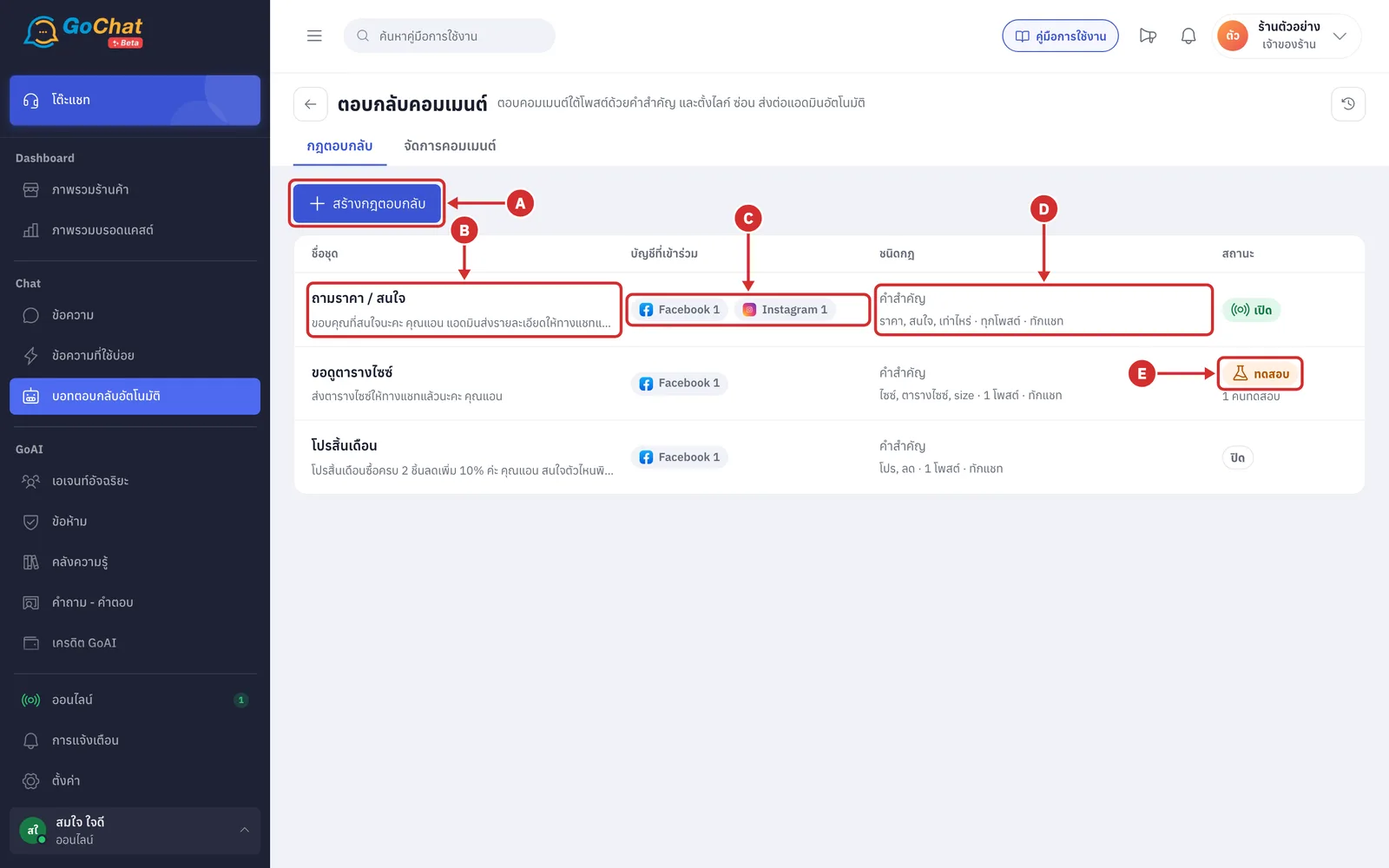
A สร้างกฎตอบกลับ (Create reply rule) — creates a new rule
B ชื่อชุด (Set name) — with a grey line under it, which is the first line of the reply under the comment (rules with the comment reply off show the chat message instead), with the customer's name shown as คุณแอน (Ann). Rules with no message yet show ยังไม่ได้ตั้งข้อความ (No message set yet)
C บัญชีที่เข้าร่วม (Accounts) — the number of pages and accounts per channel; point at or click it to see the names
D ชนิดกฎ (Rule type) — how the rule matches comments
Top line: คำสำคัญ (Keywords) or ทุกคอมเมนต์ (All comments), followed by + ภาพ (+ image) if the rule attaches an image
Bottom line: the first 3 keywords (keyword rules only), then ทุกโพสต์ (All posts) or the number of chosen posts, ทักแชท (Chat message) if the rule also messages the commenter, and ซ่อนคอมเมนต์ (Hide comments) if the rule hides comments
E สถานะ (Status) — เปิด (On), ทดสอบ (Test) or ปิด (Off); rules in test show the number of test people under the badge
Good to know: The list page is view-only; change a rule's status or delete it in the rule editor by clicking the rule's name.
Creating a reply rule
Changes in the rule editor only take effect when you click สร้าง (Create) or บันทึก (Save).
Click สร้างกฎตอบกลับ (Create reply rule) (to edit an existing rule, click its name in the list instead)
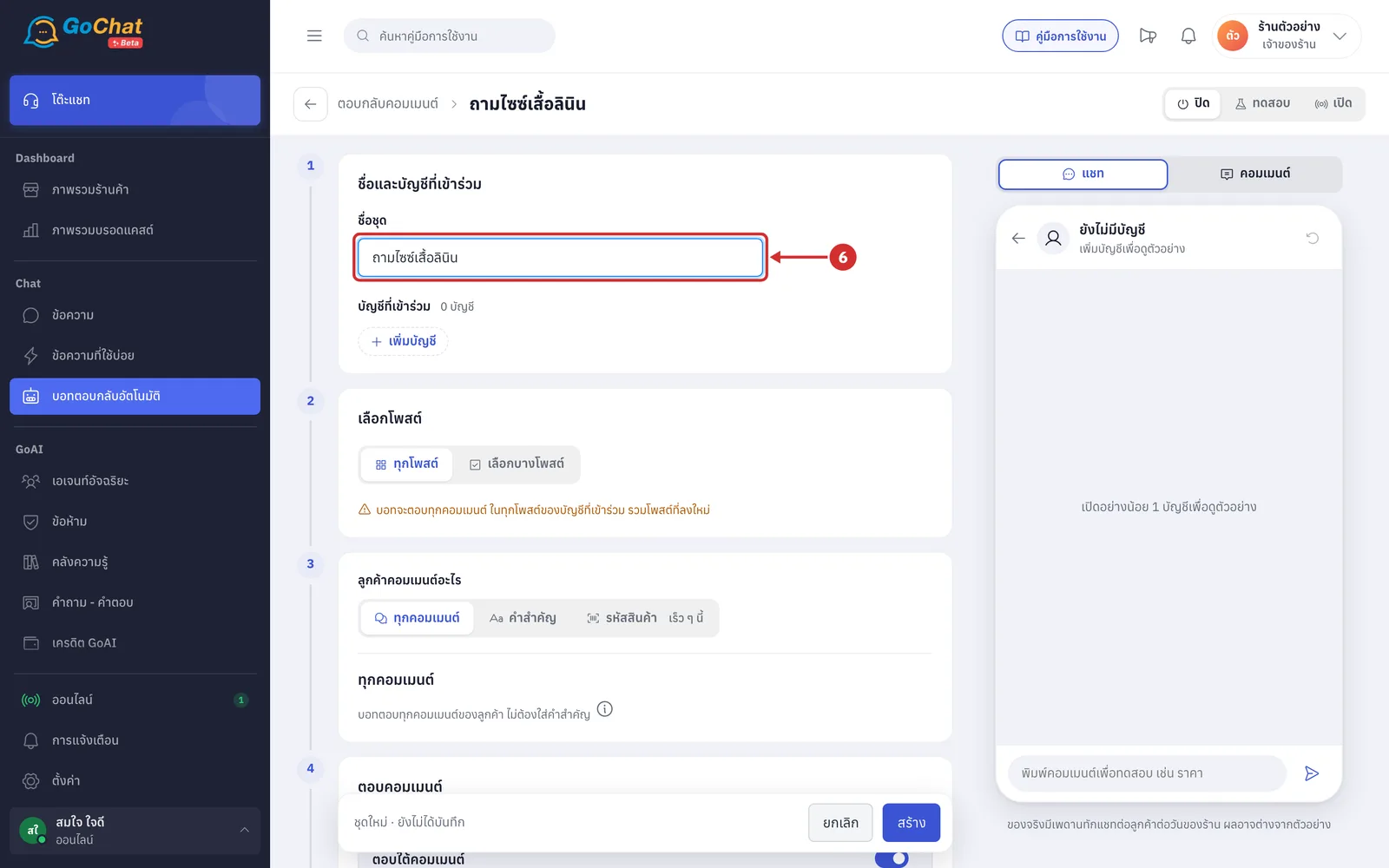
In the ชื่อและบัญชีที่เข้าร่วม (Name and accounts) step, enter a name in ชื่อชุด (Set name), such as ถามไซซ์เสื้อลินิน
This field is required, up to 60 characters. Left empty, it shows ตั้งชื่อชุดก่อน (Name the set first) when you save
Your team sees the name in the list and history; customers do not
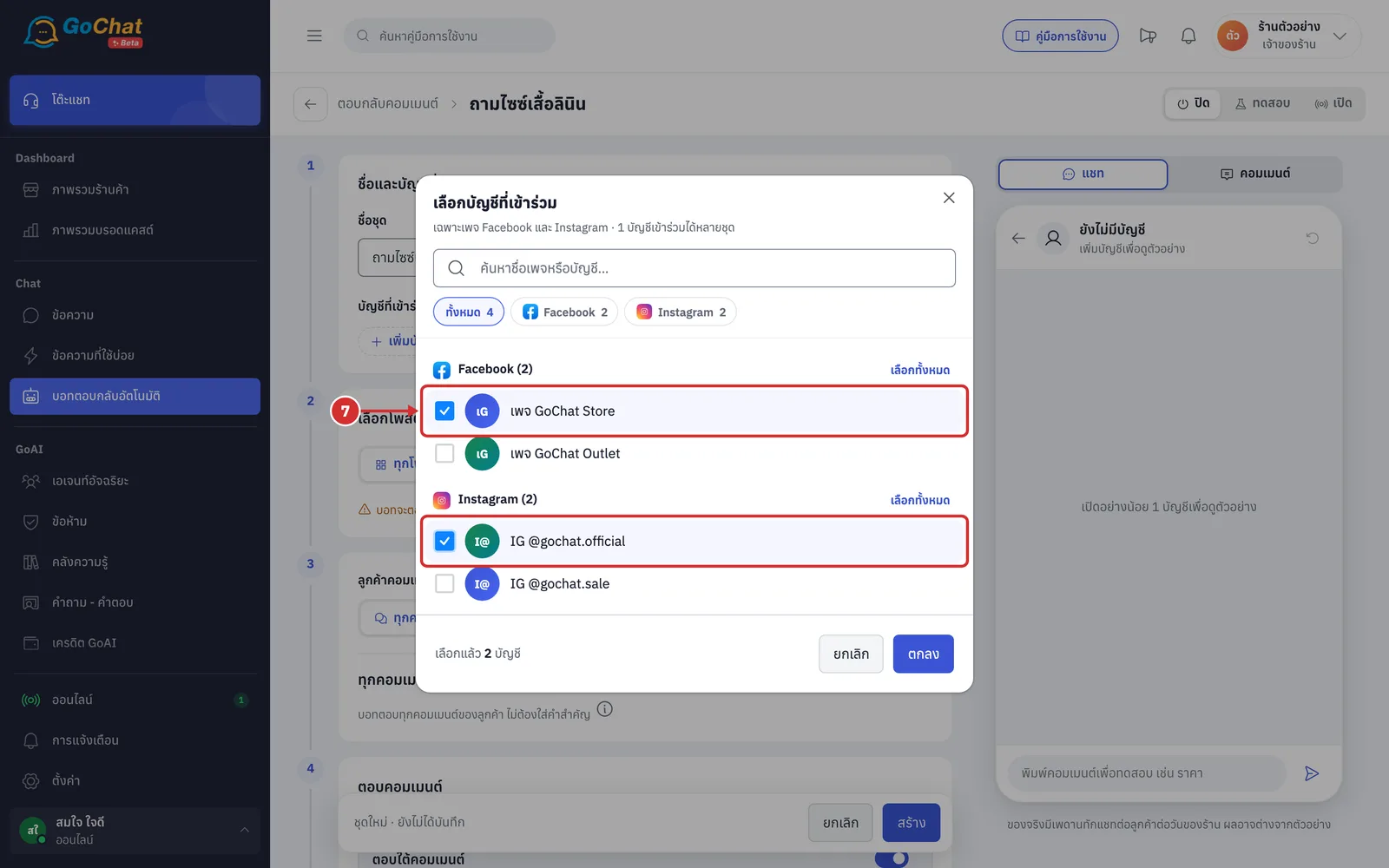
Click เพิ่มบัญชี (Add account) and tick the pages or Instagram accounts that will use this rule
The window only lists Facebook pages and Instagram accounts
One account can be in many rules, so no account is locked
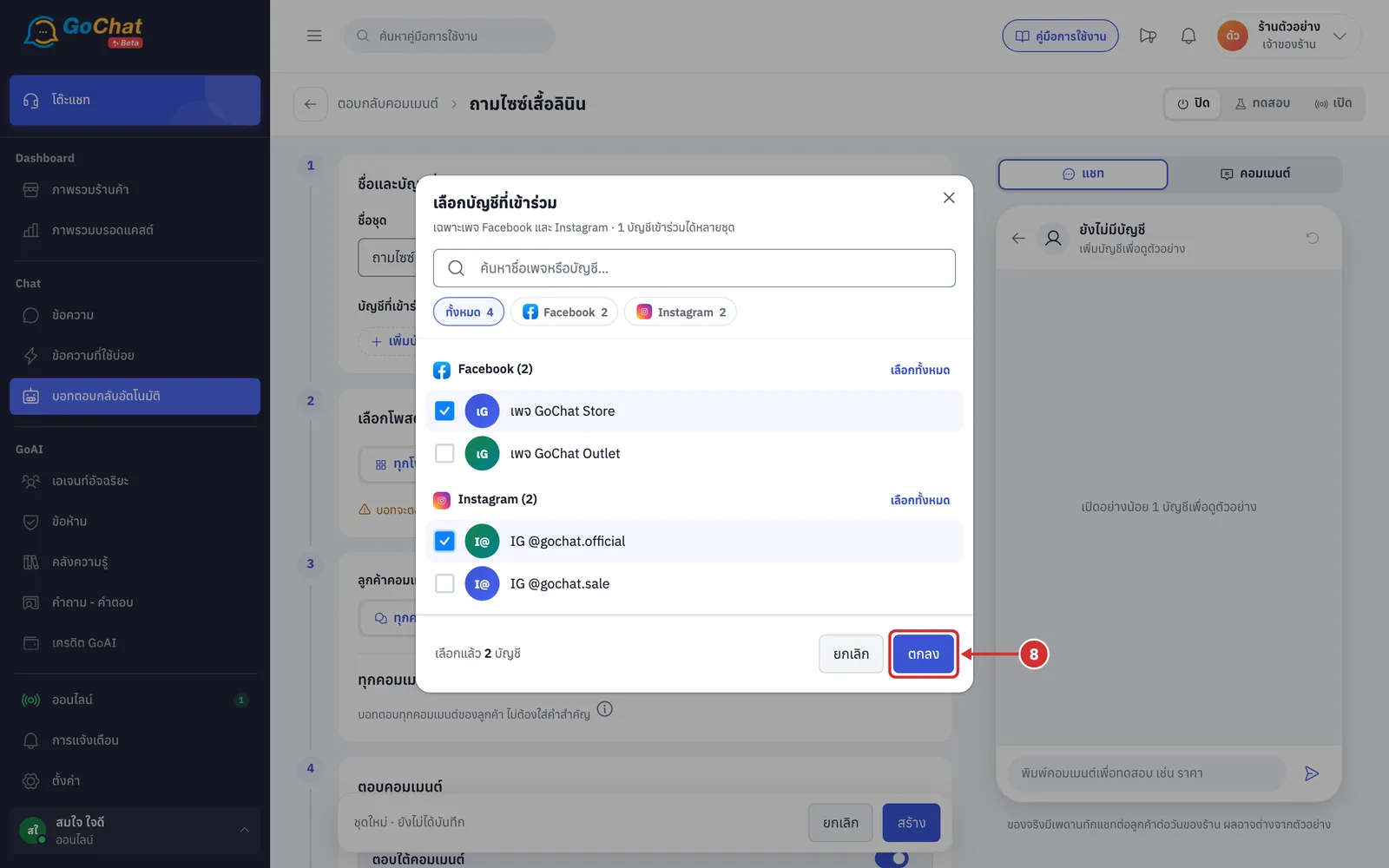
Click ตกลง (OK). The chosen accounts appear under บัญชีที่เข้าร่วม (Accounts)
Click × on an account to remove it
If you remove an account that has chosen posts, its posts are removed too and a message tells you how many posts were removed
Choosing posts
The เลือกโพสต์ (Choose posts) step sets which posts this rule answers comments under. There are 2 options.
In the เลือกโพสต์ (Choose posts) step, choose the rule's scope
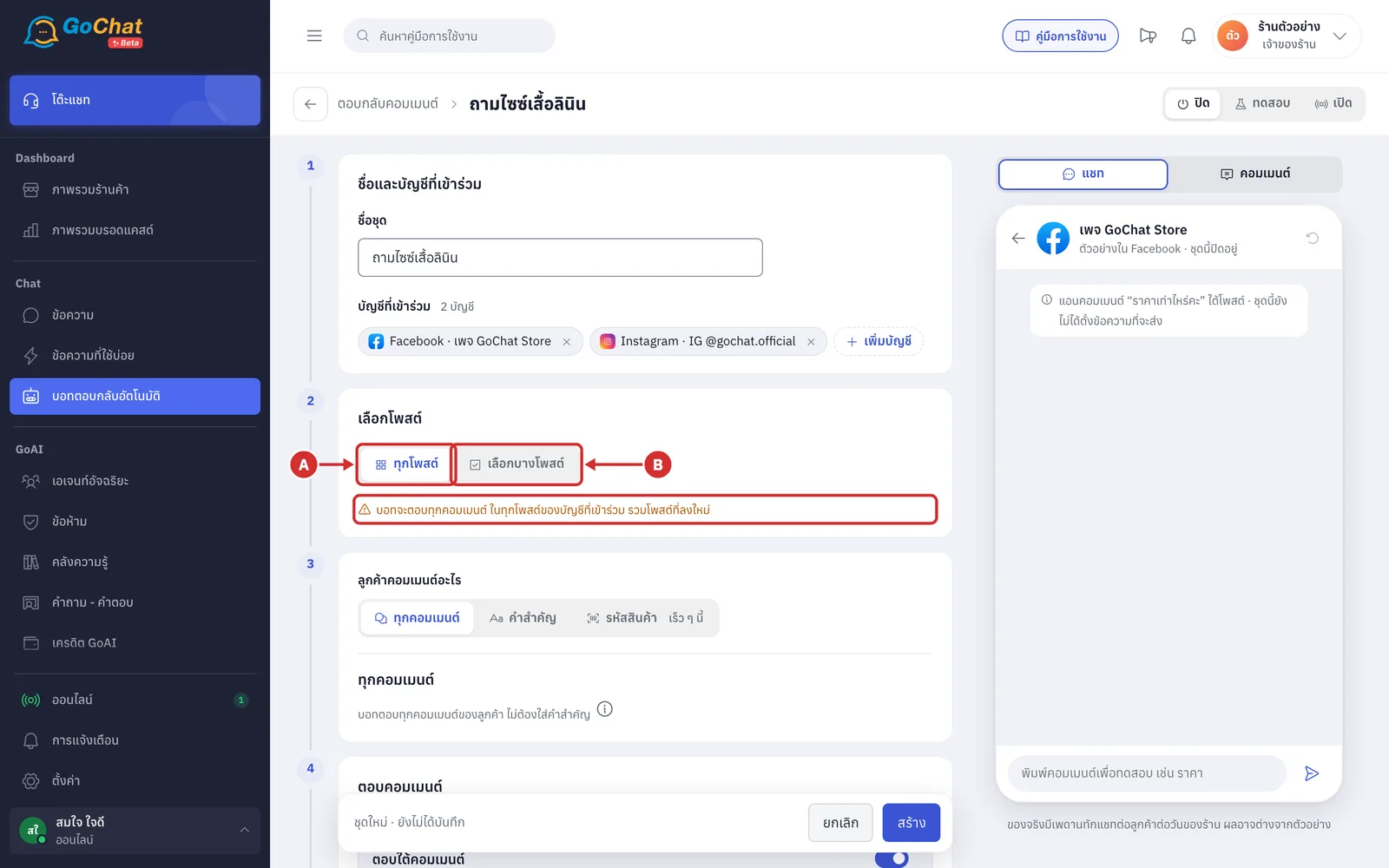
A ทุกโพสต์ (All posts) — the rule works on every post of its accounts, including posts published later. You do not pick posts one by one
Below the buttons you see ใช้กับทุกโพสต์ของบัญชีที่เข้าร่วม รวมโพสต์ที่ลงใหม่ (Works on every post of these accounts, including new posts)
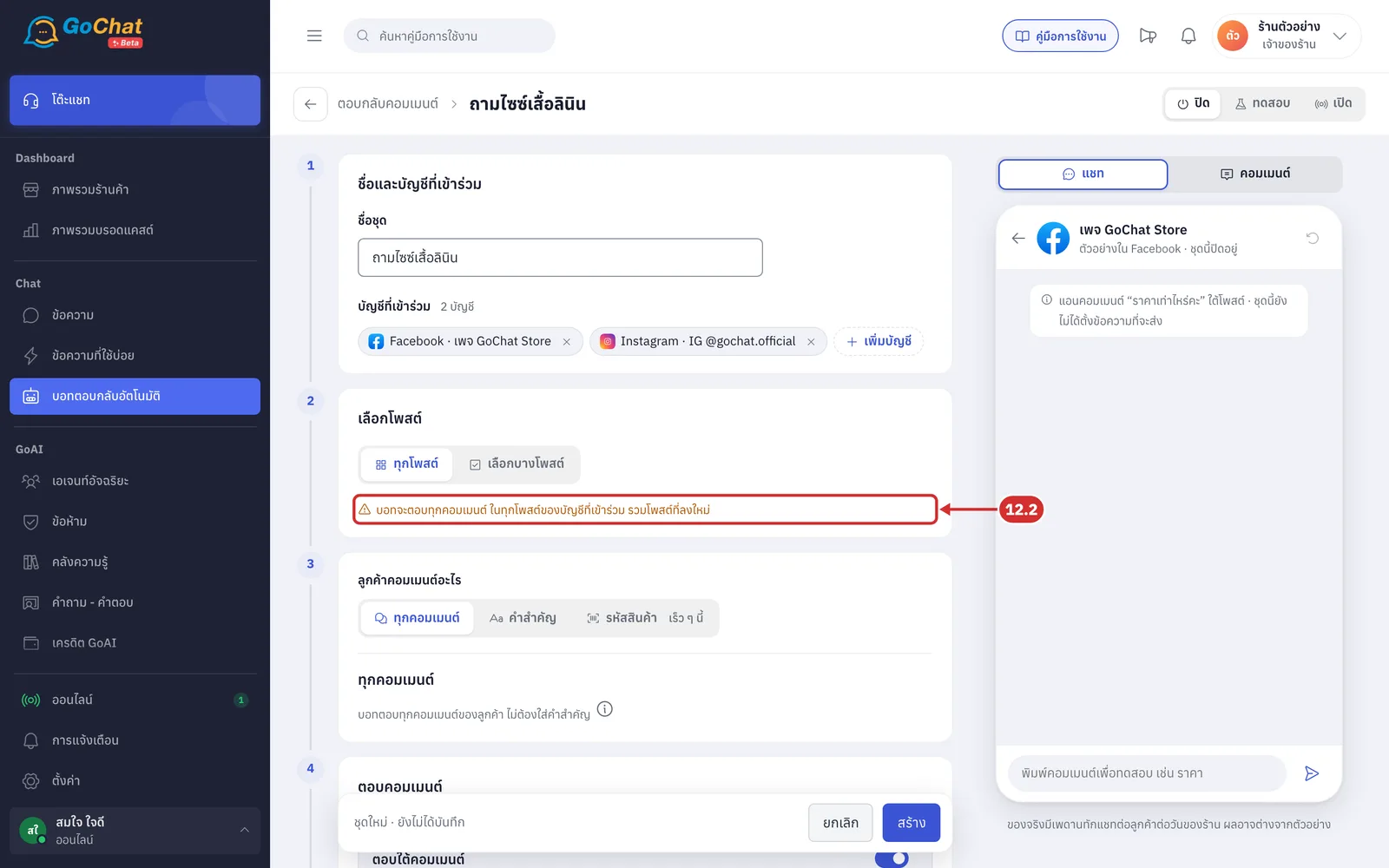
If the rule is the ทุกคอมเมนต์ (All comments) type, this line is orange (step 12.2)
B เลือกบางโพสต์ (Choose some posts) — the rule works only on the posts you tick (steps 9.1 to 11.1)
A new rule starts as ทุกโพสต์ (All posts). Rules created earlier show what was saved (a rule with no posts chosen shows ทุกโพสต์ (All posts))
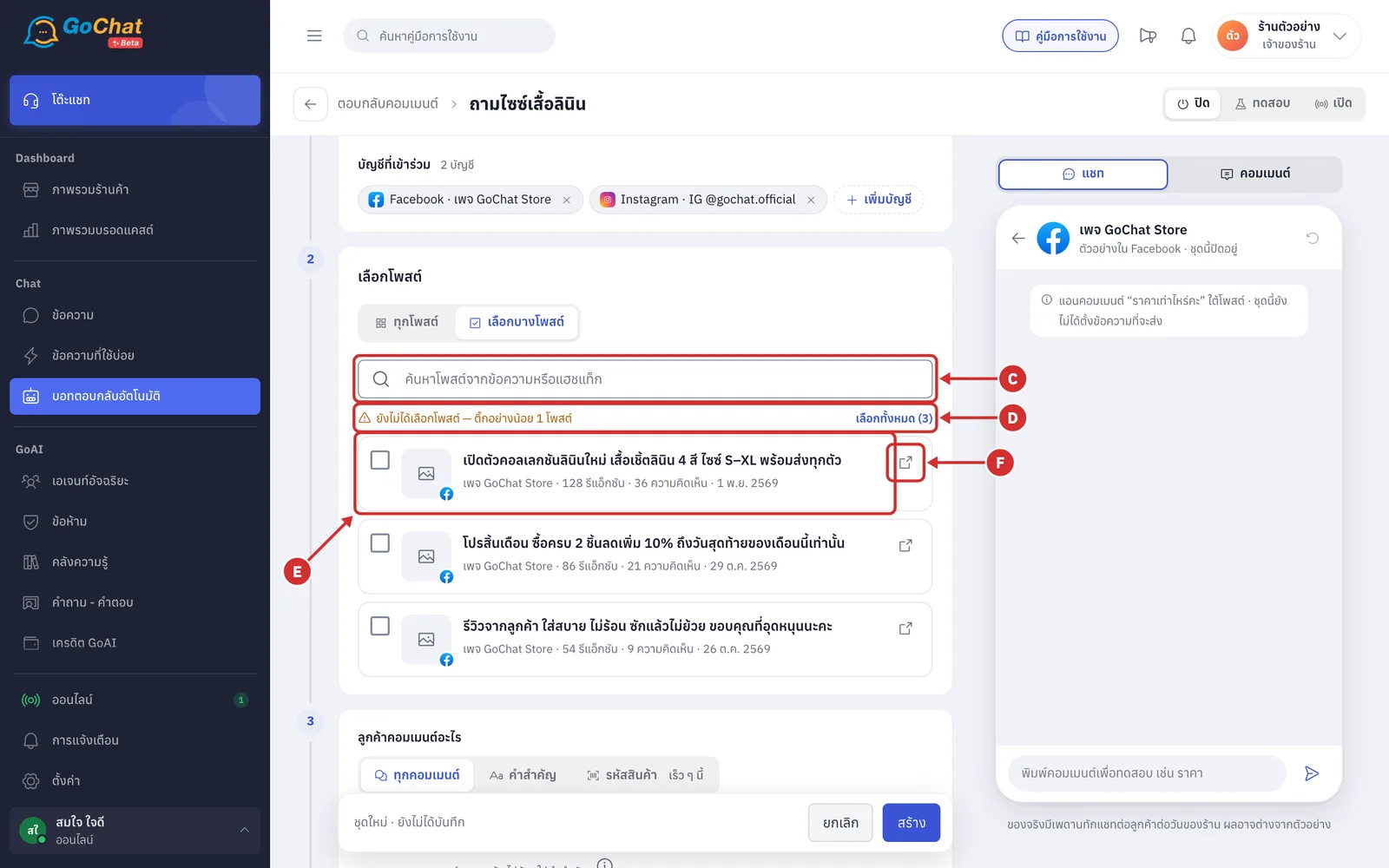
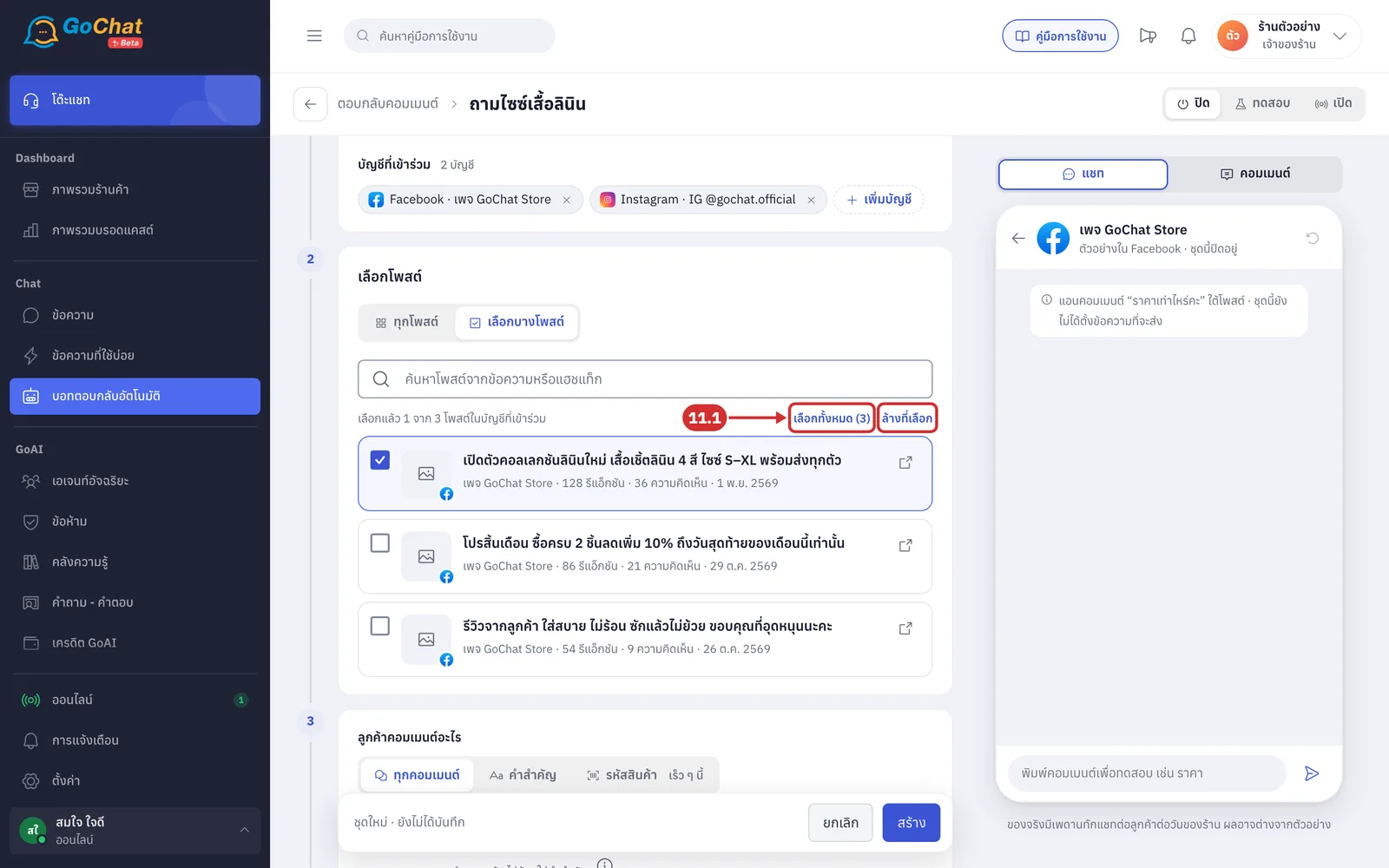
9.1 If you choose เลือกบางโพสต์ (Choose some posts), the list of posts of these accounts appears. It has these parts
C ค้นหาโพสต์จากข้อความหรือแฮชแท็ก (Search posts by text or hashtag) — the post search box (step 10)
D Count line — shows how many posts are chosen
ยังไม่ได้เลือกโพสต์ — ติ๊กอย่างน้อย 1 โพสต์ (No posts chosen — tick at least 1 post) in orange, while no post is ticked
เลือกแล้ว … จาก … โพสต์ในบัญชีที่เข้าร่วม (… of … posts chosen in these accounts) once you choose posts. A + after the number means there are more posts not loaded yet
E Post card — shows a tick box, the post image with the channel logo, the post text (posts without text show โพสต์ไม่มีข้อความ (Post has no text)), the page name, number of reactions, number of comments and the post date
F เปิดโพสต์ในแท็บใหม่ (Open post in a new tab) — opens that post on Facebook or Instagram
More details
The list shows the 3 latest posts you have not chosen; click ดูโพสต์เพิ่ม (See more posts) for the rest and ย่อรายการ (Collapse) to fold it back
The list includes posts that already have comments in the app, such as ad posts
If the app cannot fetch posts from Facebook or Instagram, it shows ดึงโพสต์ของ … ไม่ได้ (Could not fetch posts of …) with a ลองใหม่ (Try again) button. You can still choose posts that already have comments
If you choose เลือกบางโพสต์ (Choose some posts) but tick no post, the rule cannot be saved and the save bar shows เลือกอย่างน้อย 1 โพสต์ หรือเลือก “ทุกโพสต์” (Choose at least 1 post, or choose “All posts”)
If the posts chosen before are gone (for example, the account was removed from the shop), you see โพสต์ที่เคยเลือกไว้ไม่อยู่แล้ว ตอนนี้ชุดนี้ยังไม่ตอบโพสต์ไหน — เลือกโพสต์ใหม่ หรือเลือก “ทุกโพสต์” (The posts chosen before are gone, so this set answers no post now — choose new posts or choose “All posts”)
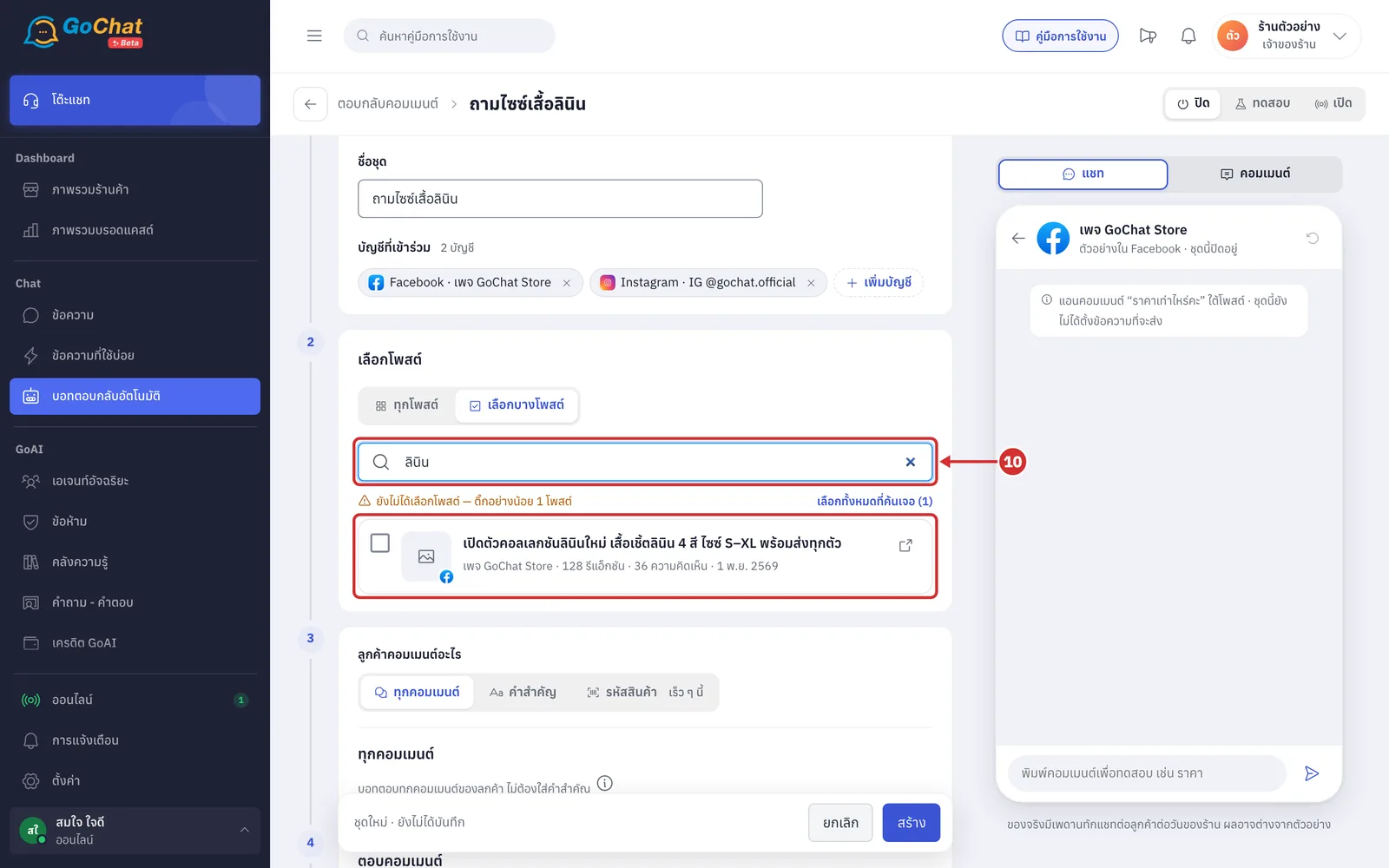
In ค้นหาโพสต์จากข้อความหรือแฮชแท็ก (Search posts by text or hashtag), type a word from the post you want, such as ลินิน (linen). The list only shows posts with that word
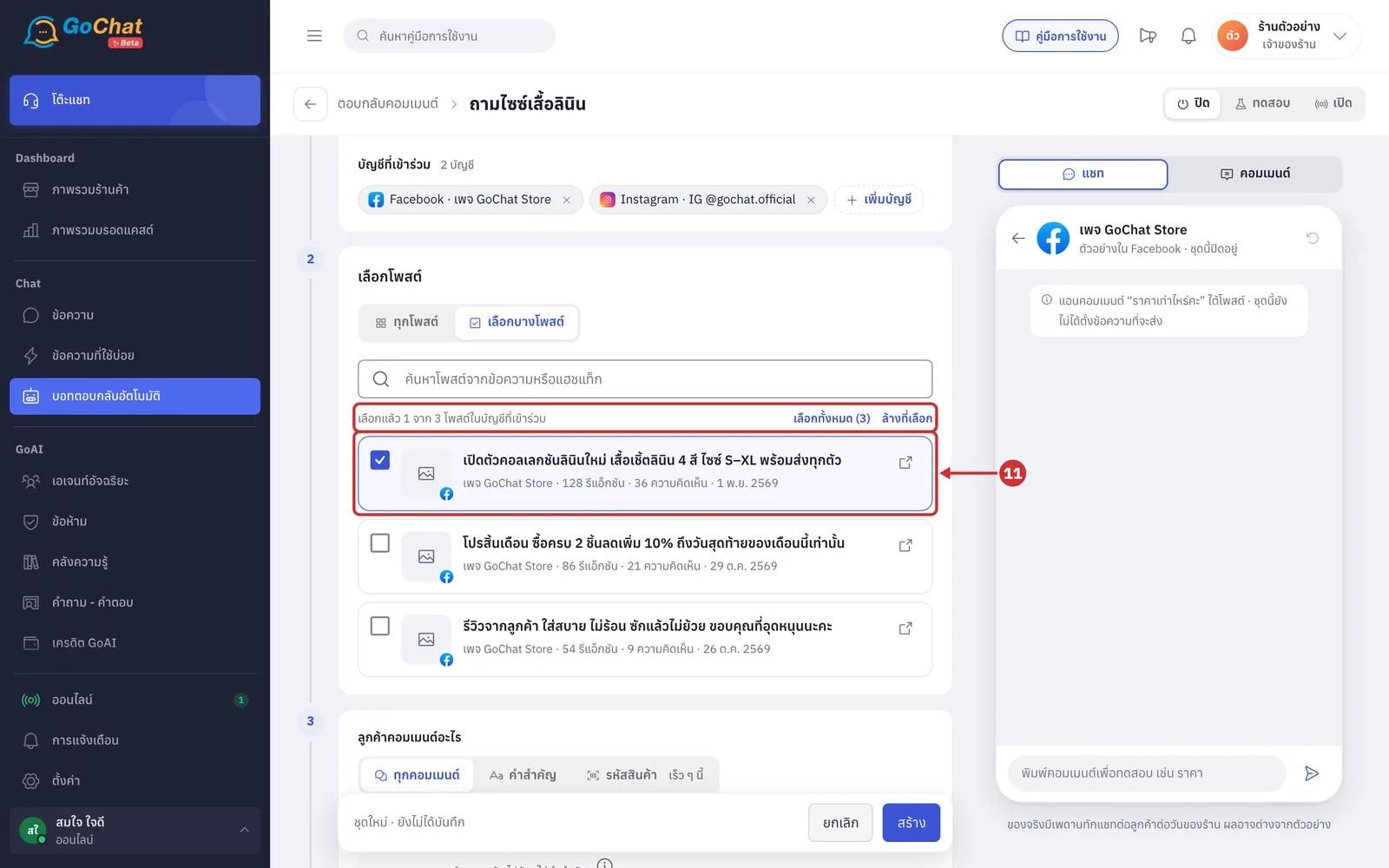
Tick the box in front of the posts you want this rule to answer
Chosen posts move to the top and stay visible even when you search for something else
Tick again to unchoose a post
You can choose up to 200 posts per rule
11.1 To choose every post shown, click เลือกทั้งหมด (…) (Select all) at the end of the count line. The number in brackets is how many posts will be chosen
Every post already loaded is chosen, including posts folded under ดูโพสต์เพิ่ม (See more posts)
Posts not loaded yet and posts published later are not chosen. If you want the rule to answer every post including new ones, choose ทุกโพสต์ (All posts) in step 9 instead
While you are searching, the button reads เลือกทั้งหมดที่ค้นเจอ (…) (Select all found) and only chooses the posts found
Click ล้างที่เลือก (Clear selection) to unchoose every chosen post (while searching, only the posts found)
If choosing all would go over 200 posts, the newest posts are chosen up to the limit and you see a warning
Choosing the rule type
The ลูกค้าคอมเมนต์อะไร (What customers comment) step sets which comments the bot answers. There are 2 types.
In ลูกค้าคอมเมนต์อะไร (What customers comment), choose the rule type
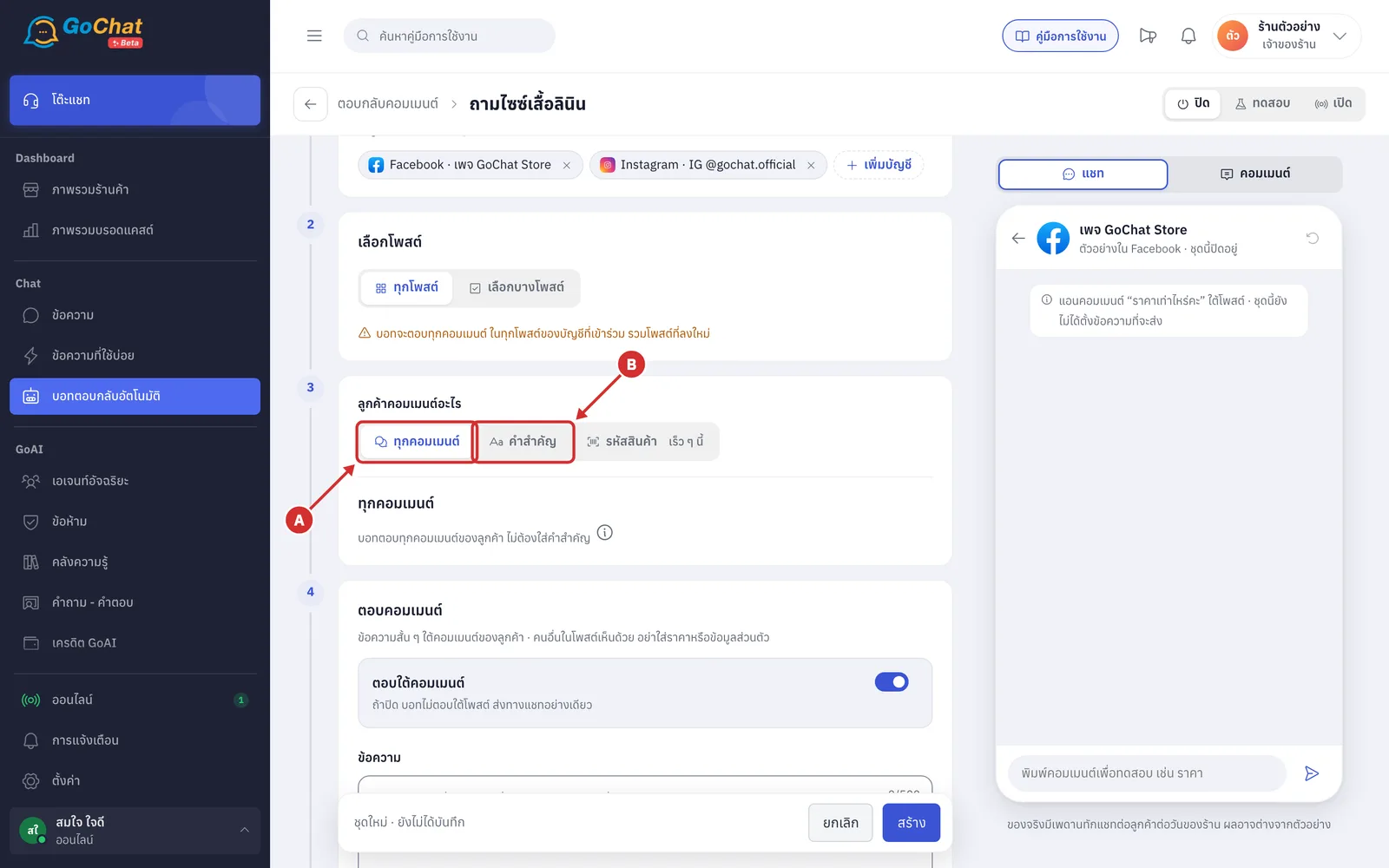
A ทุกคอมเมนต์ (All comments) — the bot answers every customer comment without any words (step 12.1)
B คำสำคัญ (Keywords) — the bot answers only comments that contain a word you set, such as ราคา (price), สนใจ (interested) or ไซซ์ (size) (step 12.3)
A new rule starts as ทุกคอมเมนต์ (All comments), and you can switch type until you save
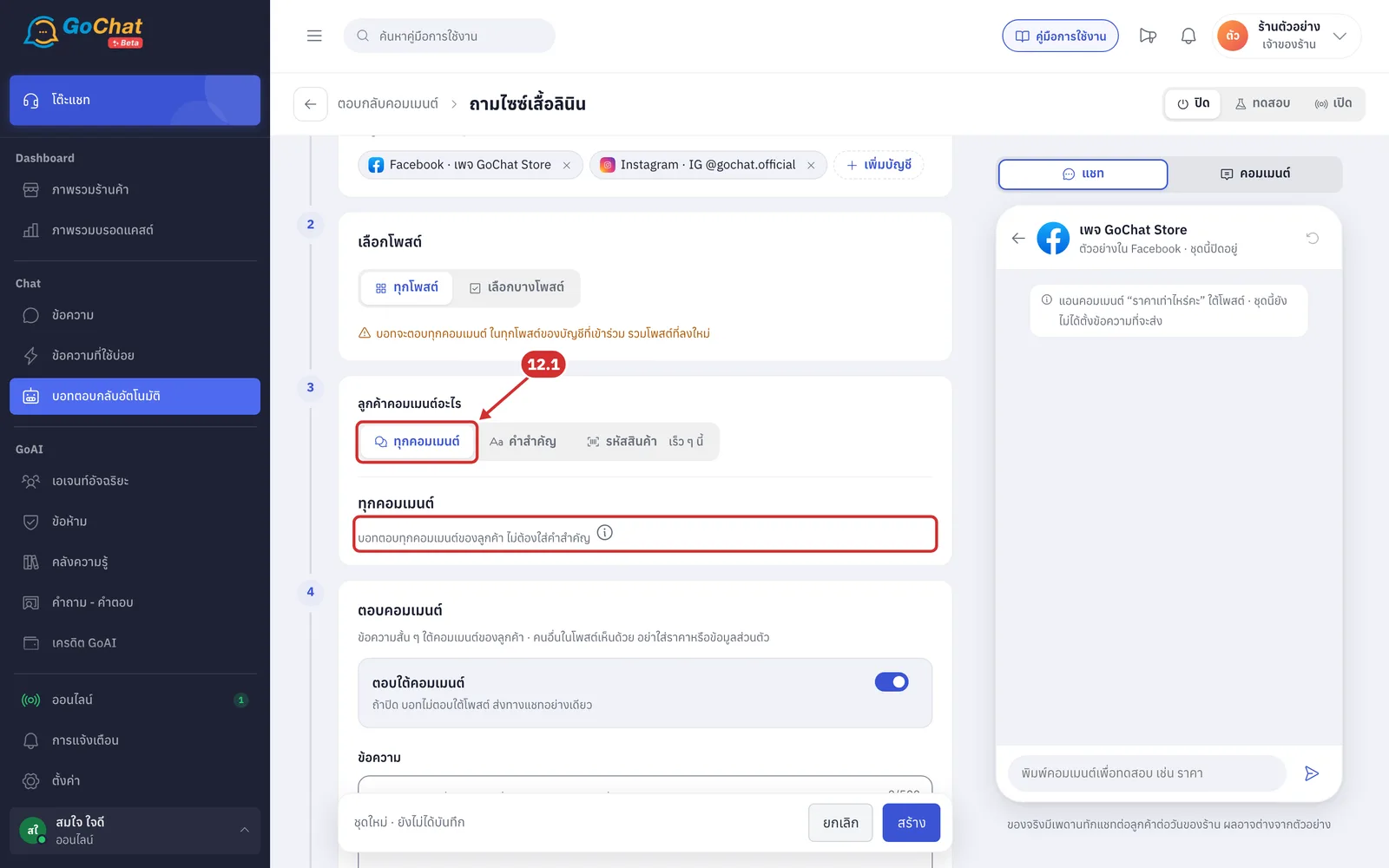
12.1 If you choose ทุกคอมเมนต์ (All comments), the keywords field is hidden and you see the ทุกคอมเมนต์ (All comments) heading with บอทตอบทุกคอมเมนต์ของลูกค้า ไม่ต้องใส่คำสำคัญ (The bot answers every customer comment, no keywords needed)
Click the (i) button after that line to see the comments the bot does not answer
Comments that tag a friend
Comments with only emoji or stickers
Replies under someone else's comment
Comments with words in the hide comments or forward to admin lists
If you typed keywords and then switched to ทุกคอมเมนต์ (All comments), those keywords are cleared when you save
On the list page, this rule shows ทุกคอมเมนต์ (All comments) as its rule type
12.2 If the rule is the ทุกคอมเมนต์ (All comments) type and the เลือกโพสต์ (Choose posts) step is ทุกโพสต์ (All posts), the line below the buttons in เลือกโพสต์ (Choose posts) turns orange and shows บอทจะตอบทุกคอมเมนต์ ในทุกโพสต์ของบัญชีที่เข้าร่วม รวมโพสต์ที่ลงใหม่ (The bot will answer every comment on every post of these accounts, including new posts). This means the bot answers comments under every post of those pages or accounts, including old posts and posts you add later. To answer only some posts, choose เลือกบางโพสต์ (Choose some posts) as in step 9
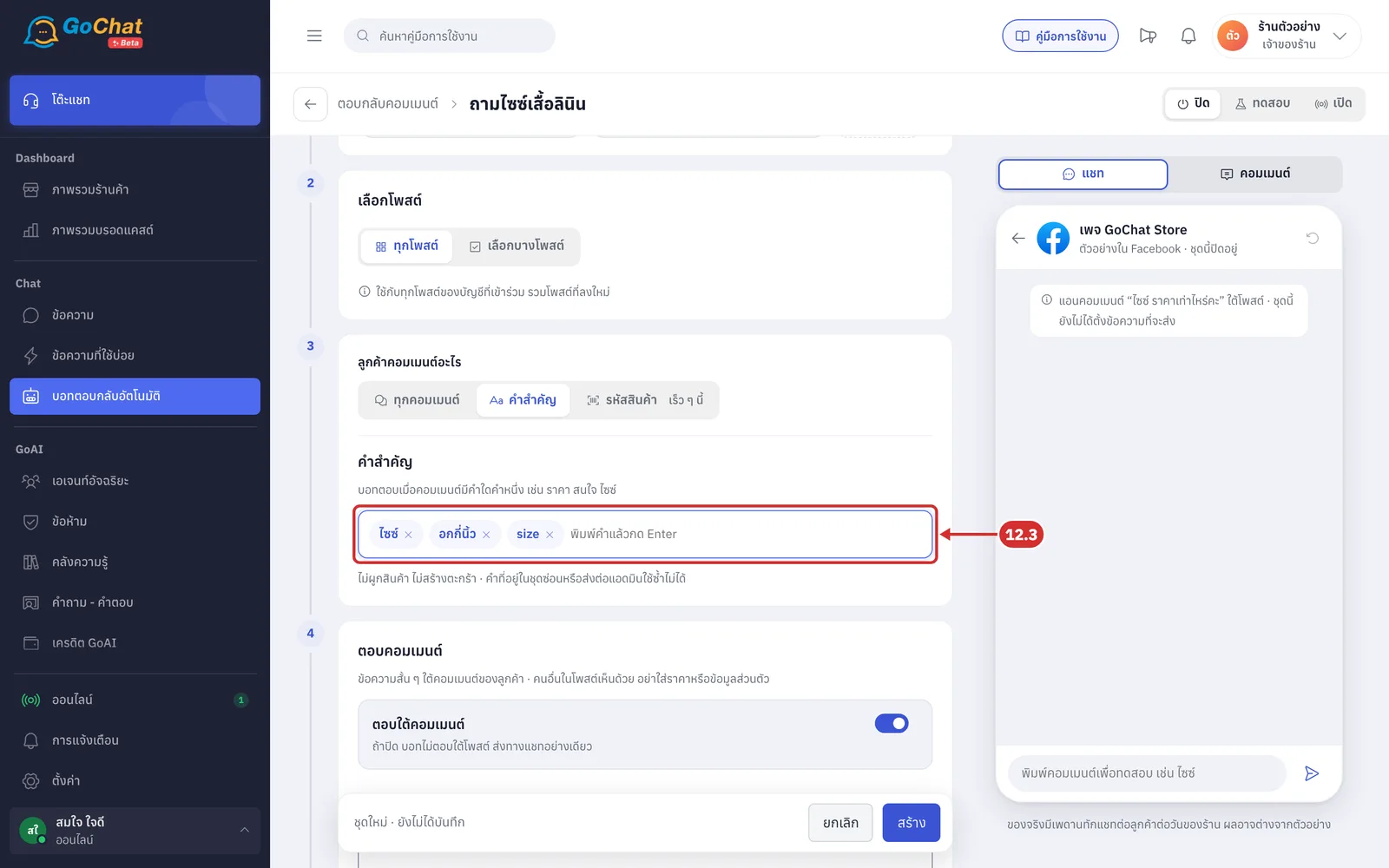
12.3 If you choose คำสำคัญ (Keywords), type a word in คำสำคัญ (Keywords) and press Enter to add it, one word at a time
The bot answers when the comment contains the word; it does not have to be the whole comment. For example, ไซซ์ matches the comment “ไซซ์ L มีไหมคะ” (Do you have size L?)
You can add up to 50 words, up to 40 characters each
Click × on a word to remove it
At least 1 word is required; with none, you see ใส่อย่างน้อย 1 คำ (Add at least 1 word)
This rule is not linked to products and does not create a cart
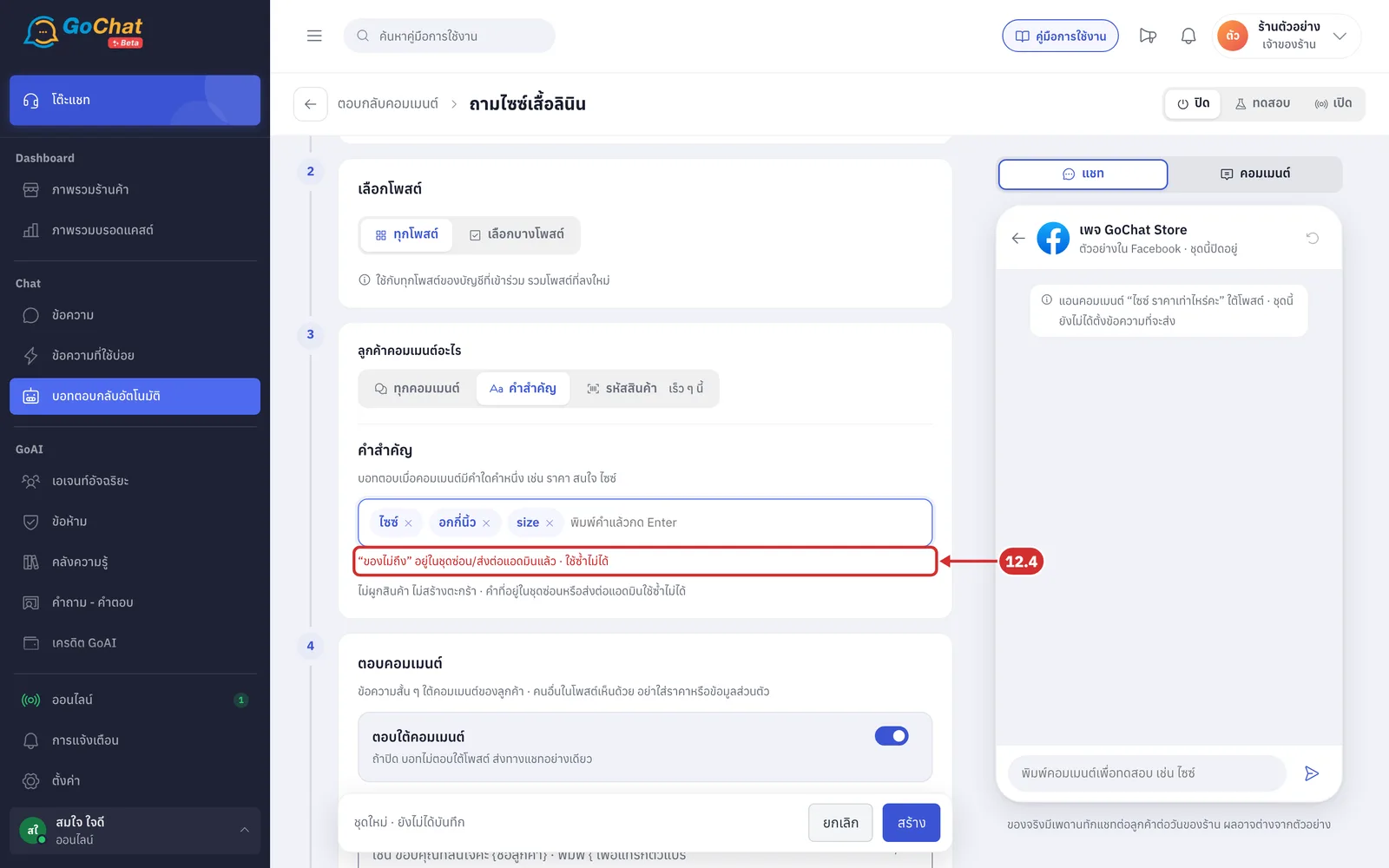
12.4 If you type a word that is in the ซ่อนคอมเมนต์ (Hide comments) or ส่งต่อแอดมิน (Forward to admin) words in the manage comments tab, the word is not added and you see a message such as “ของไม่ถึง” อยู่ในชุดซ่อน/ส่งต่อแอดมินแล้ว · ใช้ซ้ำไม่ได้ (“ของไม่ถึง” is already in the hide/forward words · can't be reused), because the bot never answers comments with those words
Setting the reply under the comment
The ตอบคอมเมนต์ (Reply to comment) step is a short message the bot posts under the customer's comment. Other people on the post see it too, so do not include prices or personal details.
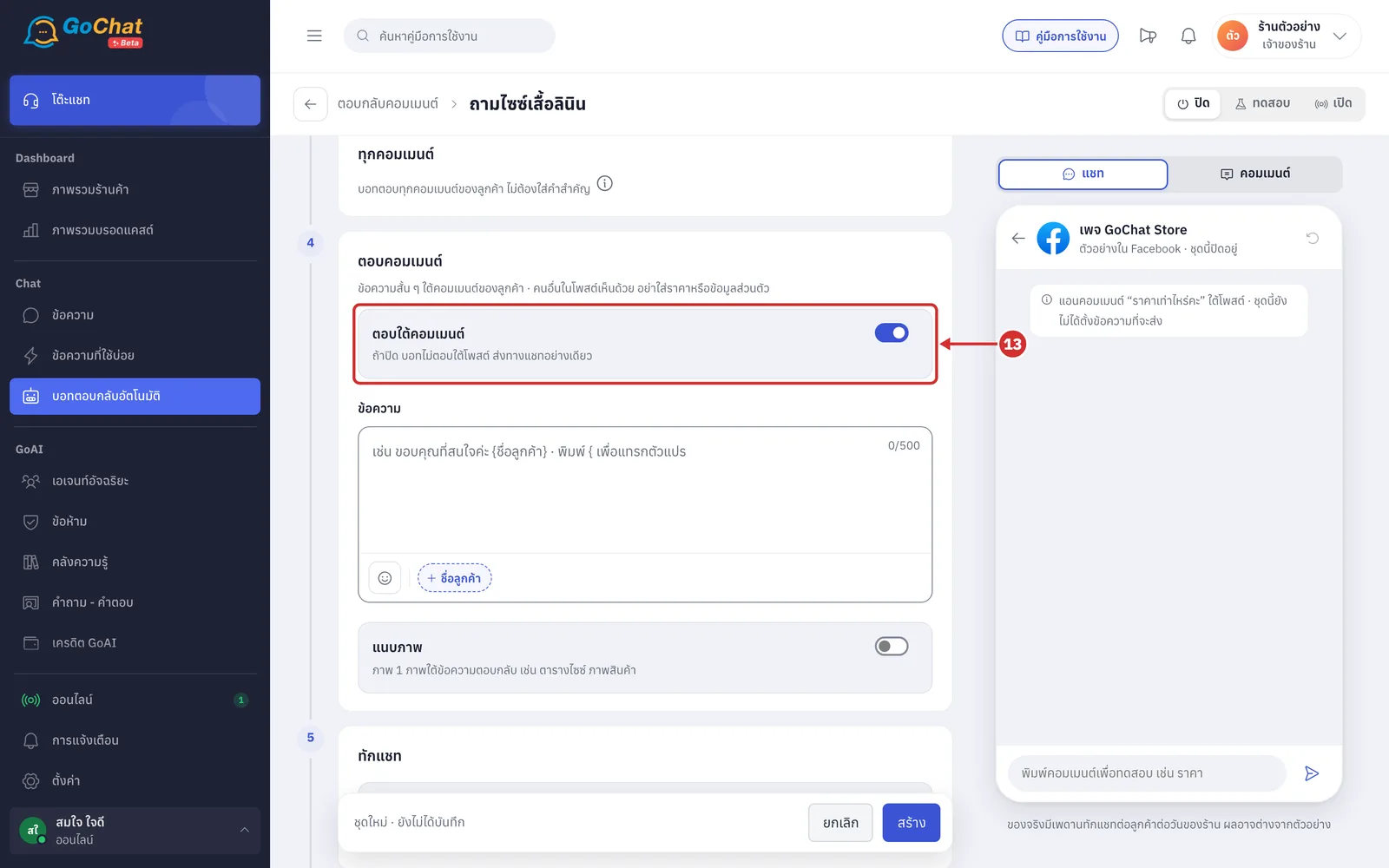
Turn on the ตอบใต้คอมเมนต์ (Reply under comment) switch so the bot replies under the customer's comment
New rules have this switch on
When off, the bot does not reply under the post and only sends a chat message
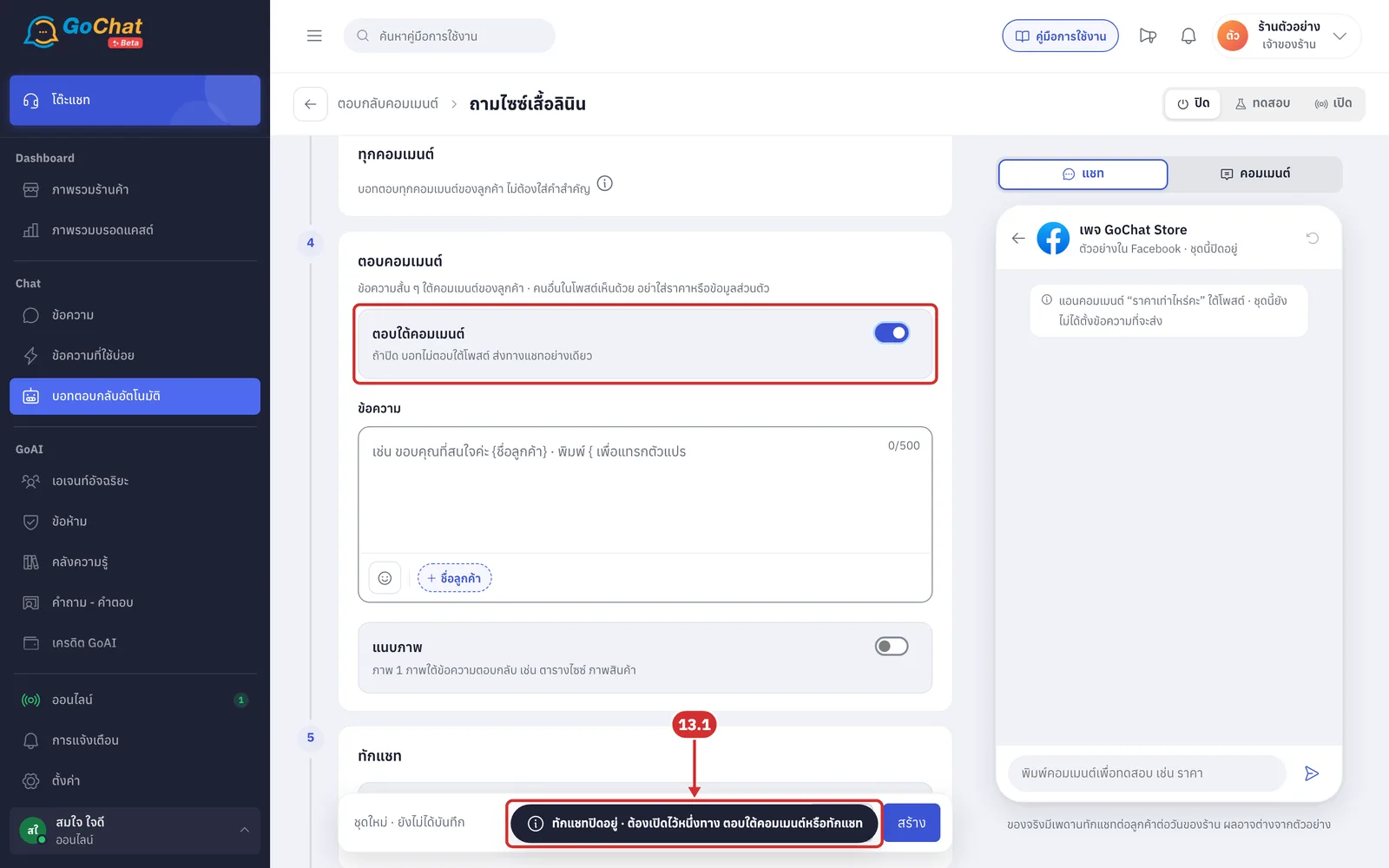
13.1 A rule must keep at least one way on. If ทักแชทหลังคอมเมนต์ (Message after comment) is off and you turn this switch off, it stays on and you see ทักแชทปิดอยู่ · ต้องเปิดไว้หนึ่งทาง ตอบใต้คอมเมนต์หรือทักแชท (Chat message is off · keep one way on: reply under the comment or message)
In ข้อความ (Message), type the reply to post under the comment, such as telling the customer the details were sent by chat
The message is required while the switch is on, up to 500 characters
You can use the ชื่อลูกค้า (Customer name) variable; with no name, “ลูกค้า” (customer) is used
How to insert variables is explained in Using the auto-reply bot
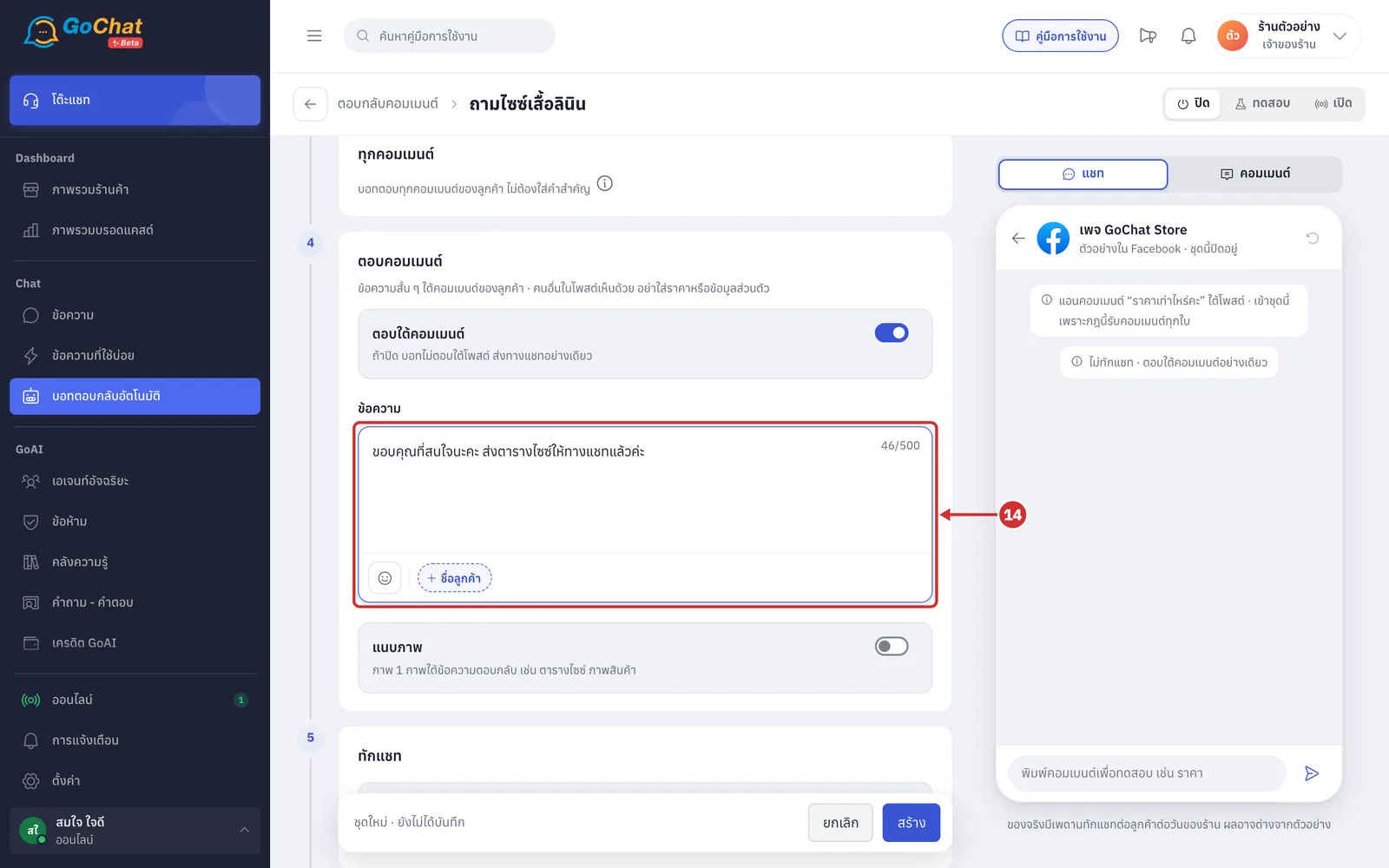
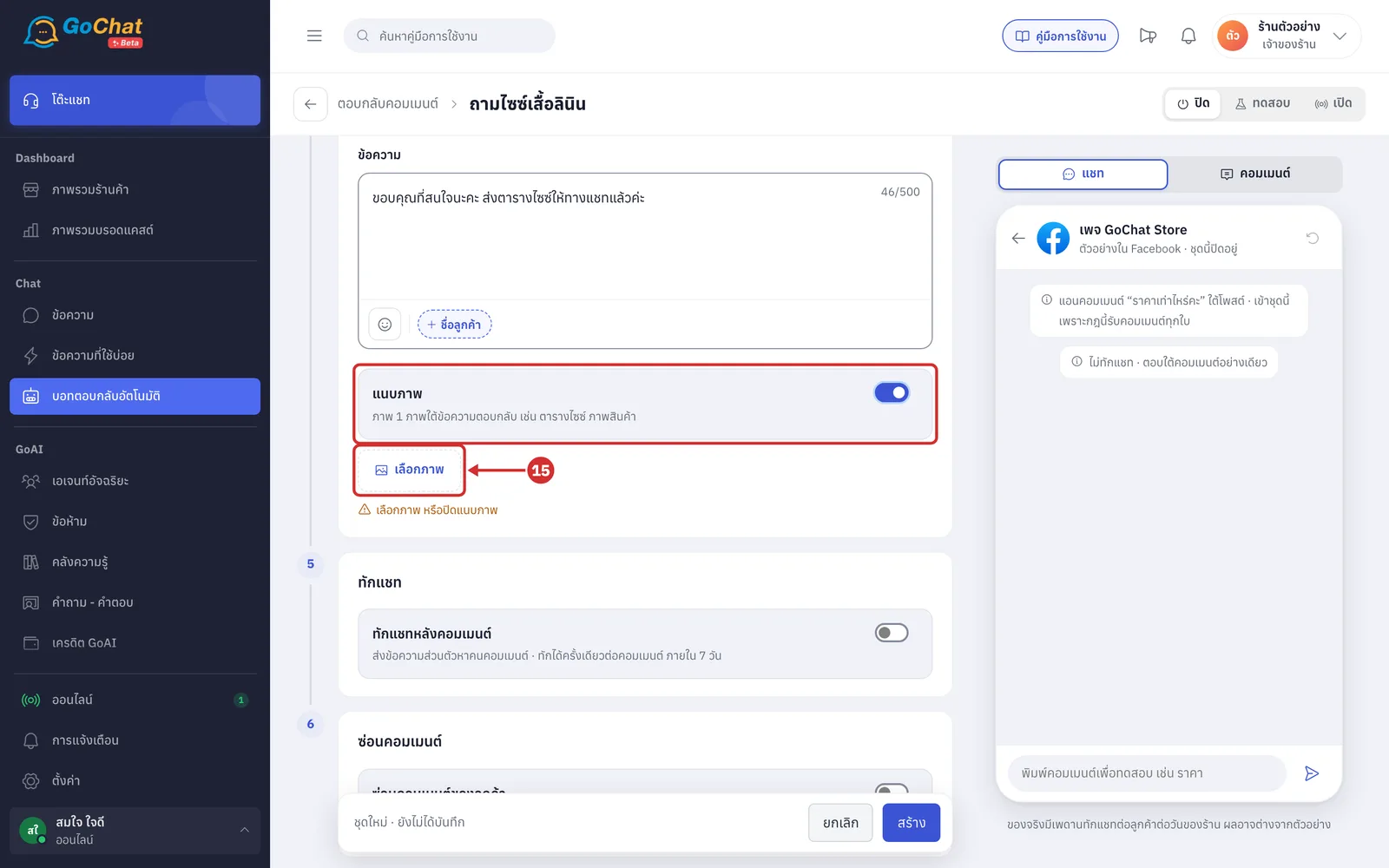
To attach an image, such as a size chart or product photo, turn on the แนบภาพ (Attach image) switch and click เลือกภาพ (Choose image)
You can attach 1 image under the reply
Only JPG, PNG, GIF or WEBP files up to 8 MB are accepted; large images are shrunk before uploading
Until you choose an image, you see เลือกภาพ หรือปิดแนบภาพ (Choose an image or turn off Attach image)
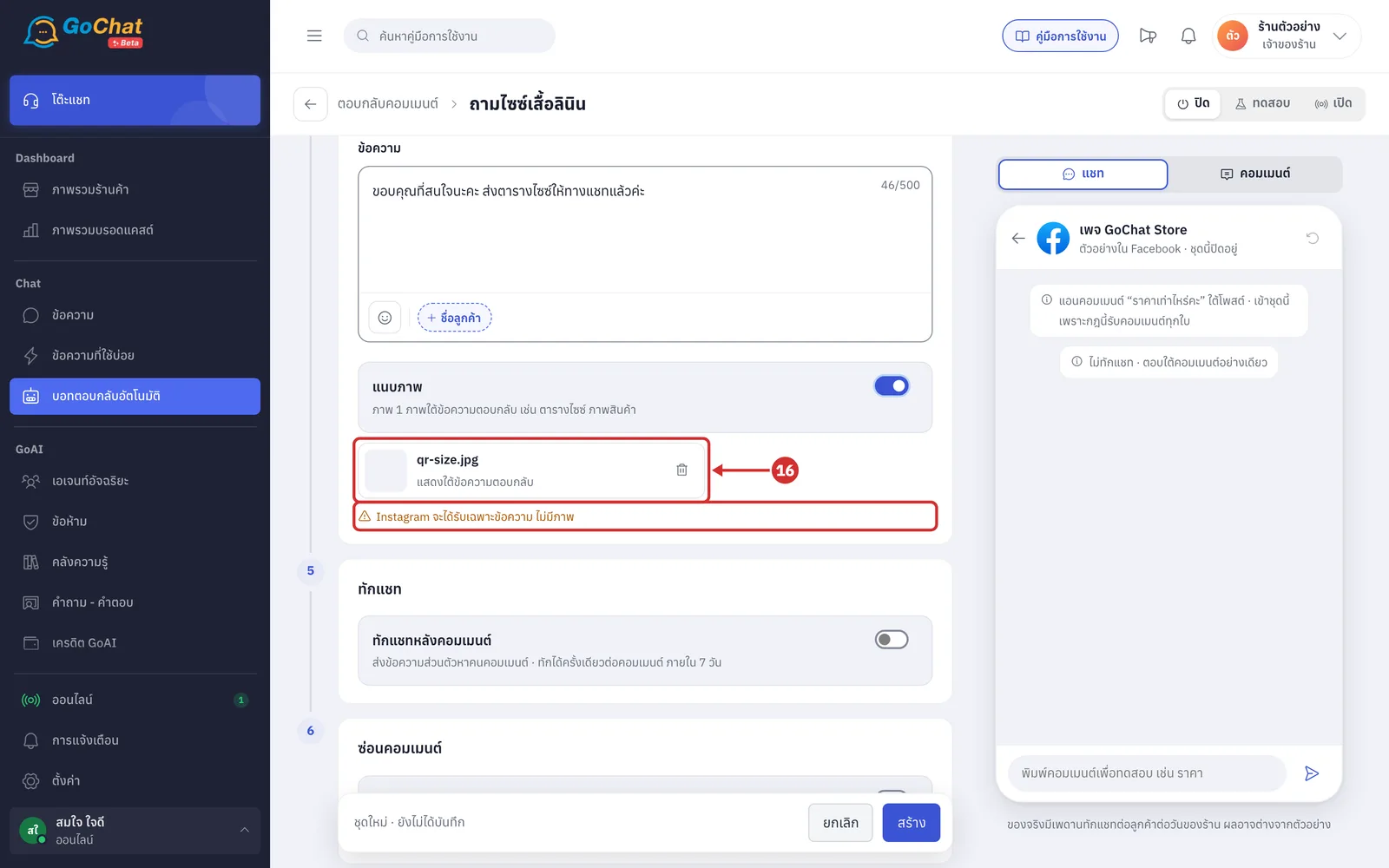
Once chosen, the image appears as a card with แสดงใต้ข้อความตอบกลับ (Shown under the reply)
Click the trash button to remove the image, or turn off แนบภาพ (Attach image)
If the rule has an Instagram account, you see Instagram จะได้รับเฉพาะข้อความ ไม่มีภาพ (Instagram gets text only, no image), because Instagram comment replies can only be text
Setting the chat message
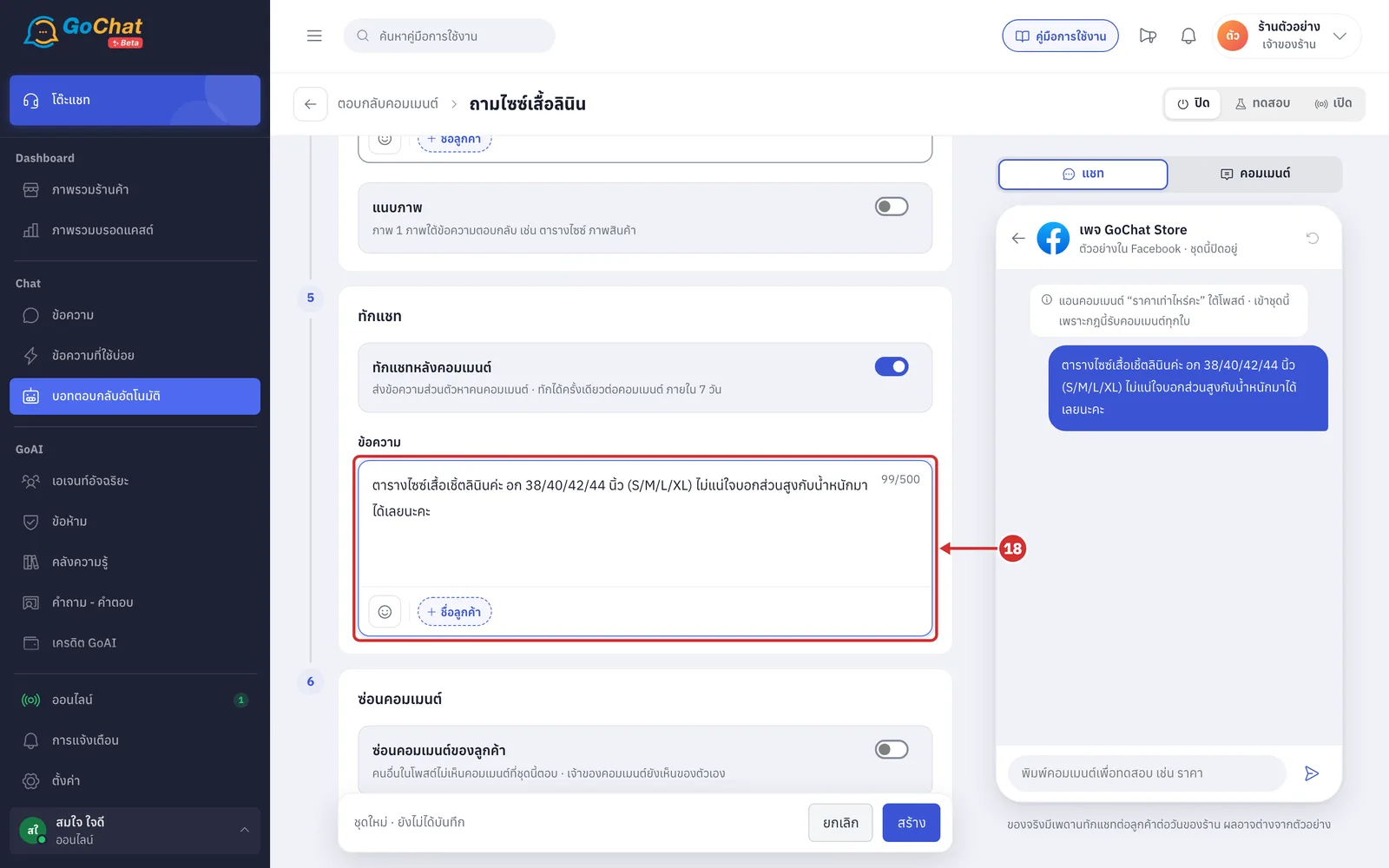
In the ทักแชท (Chat message) step, turn on the ทักแชทหลังคอมเมนต์ (Message after comment) switch so the bot sends a private message to the commenter
New rules have this switch off
The bot can message once per comment, within 7 days of the customer commenting
The message the bot sends also appears in that customer's chat
If you turn this switch off while ตอบใต้คอมเมนต์ (Reply under comment) is off, the app turns ตอบใต้คอมเมนต์ (Reply under comment) on for you and shows ปิดทักแชทแล้ว · เปิดตอบใต้คอมเมนต์ให้อัตโนมัติ (Chat message off · reply under comment turned on automatically)
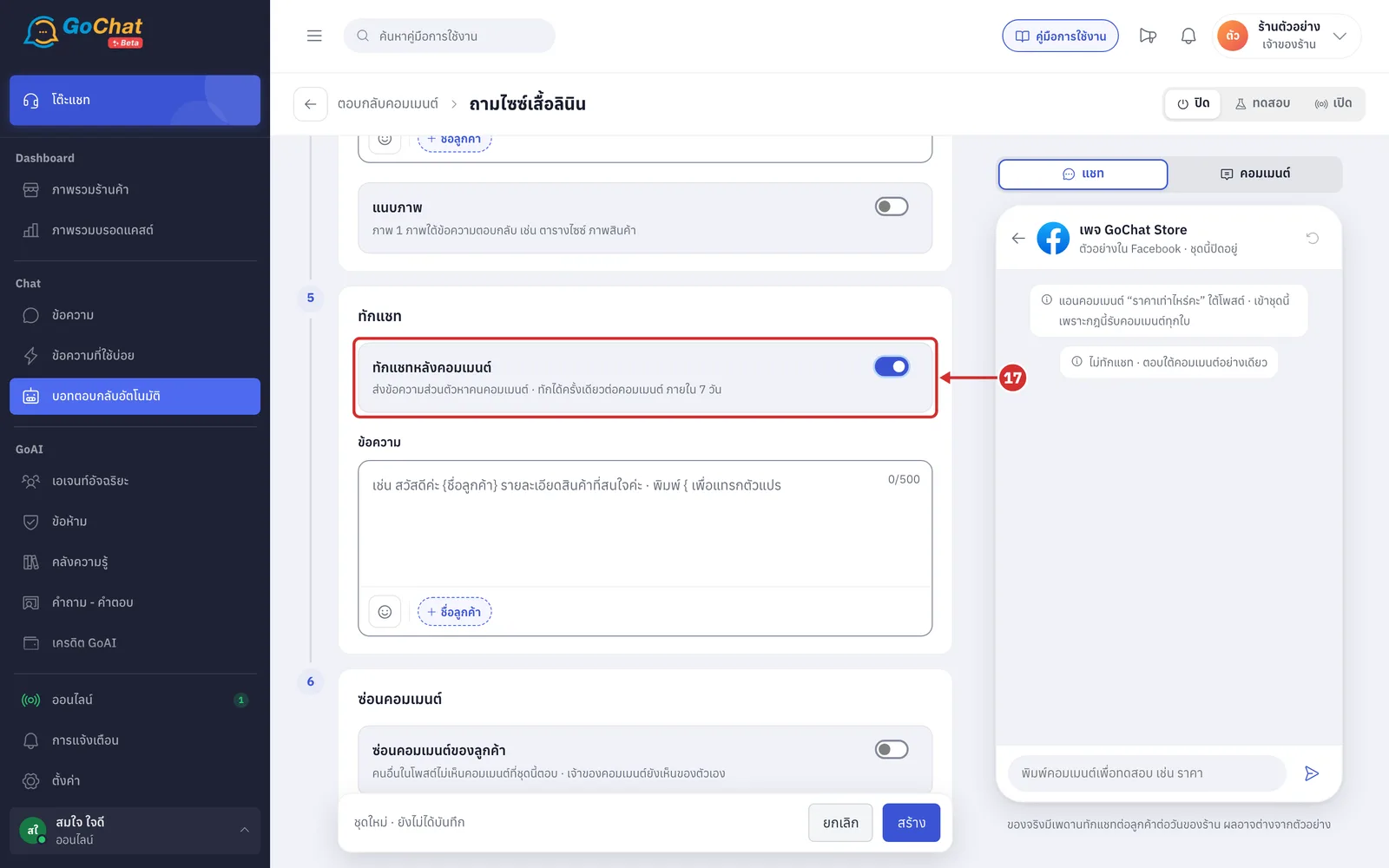
In the chat step's ข้อความ (Message), type the message to send by chat, such as product details or a size chart
The message is required while the switch is on, up to 500 characters
You can use the ชื่อลูกค้า (Customer name) variable, the same as in the reply under the comment
Hiding comments
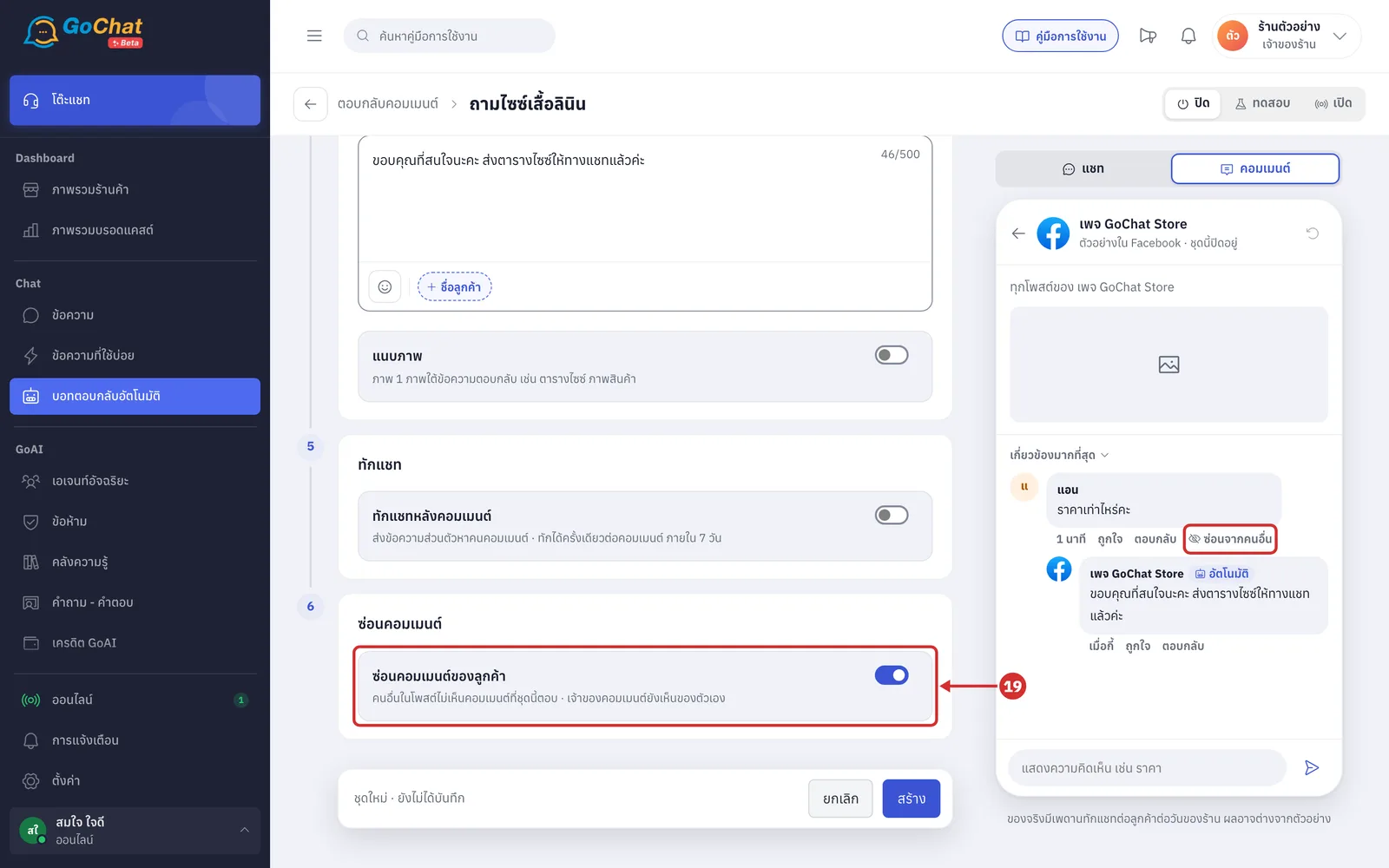
In the ซ่อนคอมเมนต์ (Hide comments) step, turn on ซ่อนคอมเมนต์ของลูกค้า (Hide the customer's comment) if you want other people on the post not to see the comments this rule answers, such as price questions
New rules and rules created earlier have this switch off
The comment is hidden after the bot finishes replying, and only when the bot replied successfully (under the comment or by chat, at least one way)
The person who wrote the comment can still see it
With the switch on, the คอมเมนต์ (Comment) tab of the preview shows a ซ่อนจากคนอื่น (Hidden from others) label under the comment the bot answered
In the ความคิดเห็น (Comments) tab of ข้อความ (Messages), a comment hidden this way shows ซ่อนอัตโนมัติเพราะตั้งซ่อนในชุดตอบกลับ (Hidden automatically because the reply set hides it) and still has the reply buttons, like comments hidden by ทุกคอมเมนต์ (All comments)
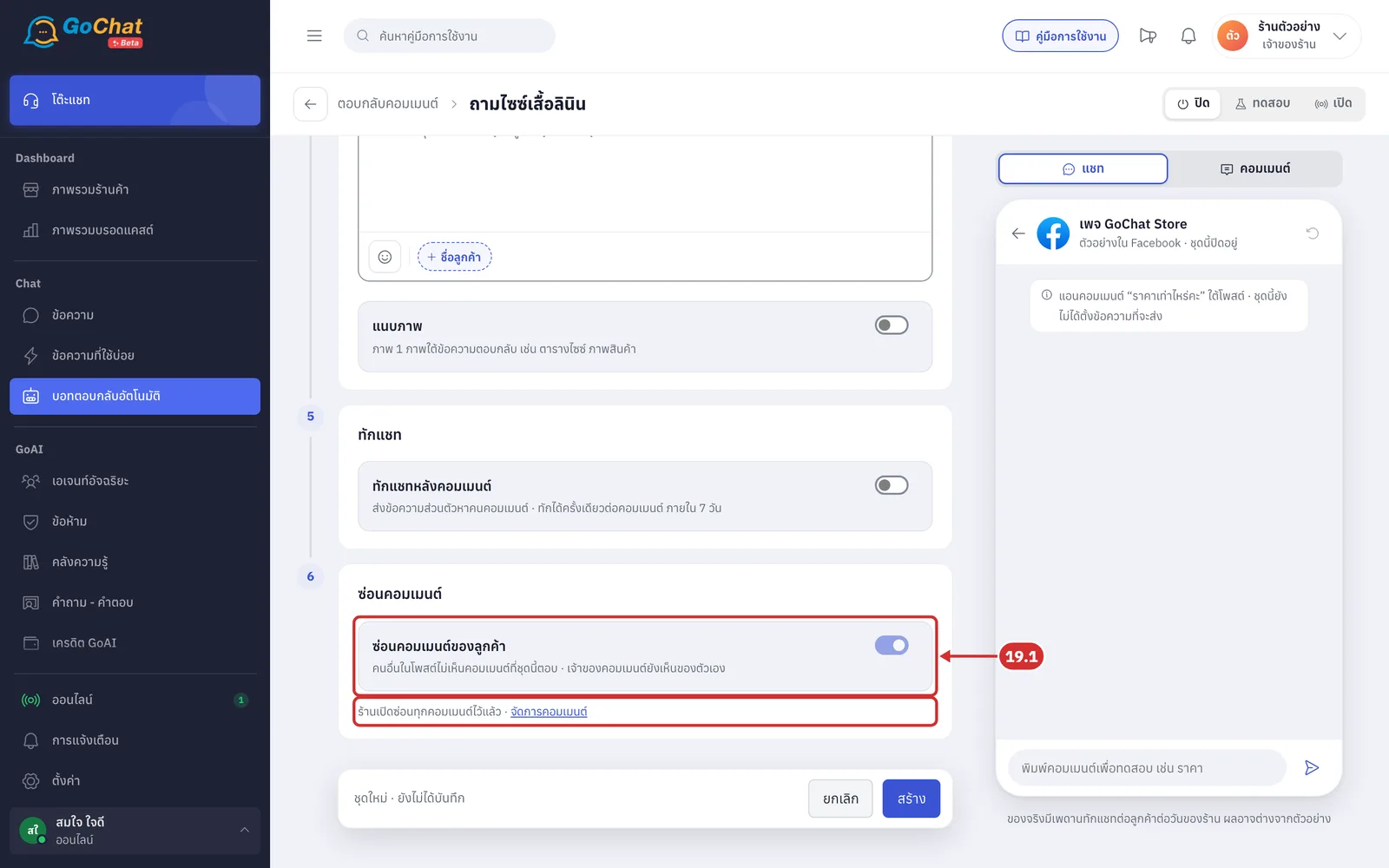
19.1 If the shop has chosen ซ่อน: ทุกคอมเมนต์ (Hide: All comments) in the จัดการคอมเมนต์ (Manage comments) tab (step 32.2), this switch stays on and cannot be changed, with the line ร้านเปิดซ่อนทุกคอมเมนต์ไว้แล้ว (The shop already hides every comment), because every comment is hidden anyway. Click จัดการคอมเมนต์ (Manage comments) to change it in that tab
Trying it in the preview
The preview on the right shows how the bot would answer, using the form's values even before you save, and sends nothing to real customers. It starts with a sample customer named แอน (Ann) commenting the first keyword followed by “ราคาเท่าไหร่คะ” (How much?) (all-comments rules start with “ราคาเท่าไหร่คะ”), using the first account and first chosen post (with no posts chosen, it shows ทุกโพสต์ของ … (All posts of …)).
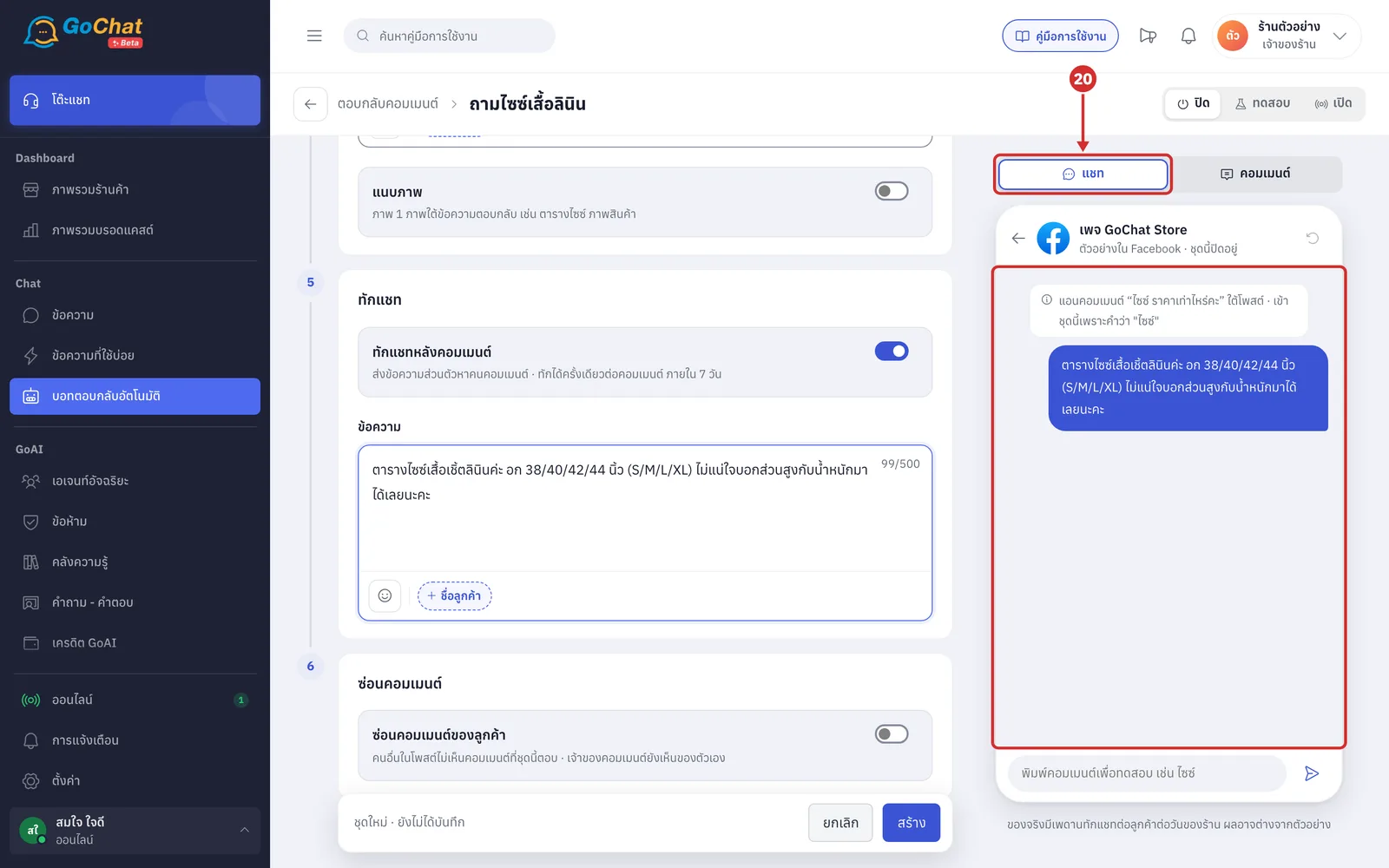
The แชท (Chat) tab shows the message the customer would get by chat
The line in the middle says what Ann commented and which word matched this rule (all-comments rules show กฎนี้รับคอมเมนต์ทุกใบ (This rule takes every comment))
The bubble is the chat message; if the rule does not send one, it shows ไม่ทักแชท · ตอบใต้คอมเมนต์อย่างเดียว (No chat message · reply under comment only)
Rules in test show a โหมดทดสอบ · ตอบเฉพาะ … คนในรายการ (Test mode · answers only … people in the list) bar
Click the คอมเมนต์ (Comments) tab to see how it looks under the post
The top shows the post text and the number of reactions and comments
The page's reply sits under the customer's comment with the อัตโนมัติ (Automatic) badge and the attached image
If the bot does not reply under the comment, the reason is shown instead, such as ไม่ตรงคำสำคัญของชุดนี้ · บอทไม่ตอบ (Doesn't match this set's keywords · bot doesn't reply) or เป็นการแท็กคนอื่น ไม่ใช่ลูกค้าถามเอง · บอทไม่ตอบ (Tags someone else, not a customer asking · bot doesn't reply)
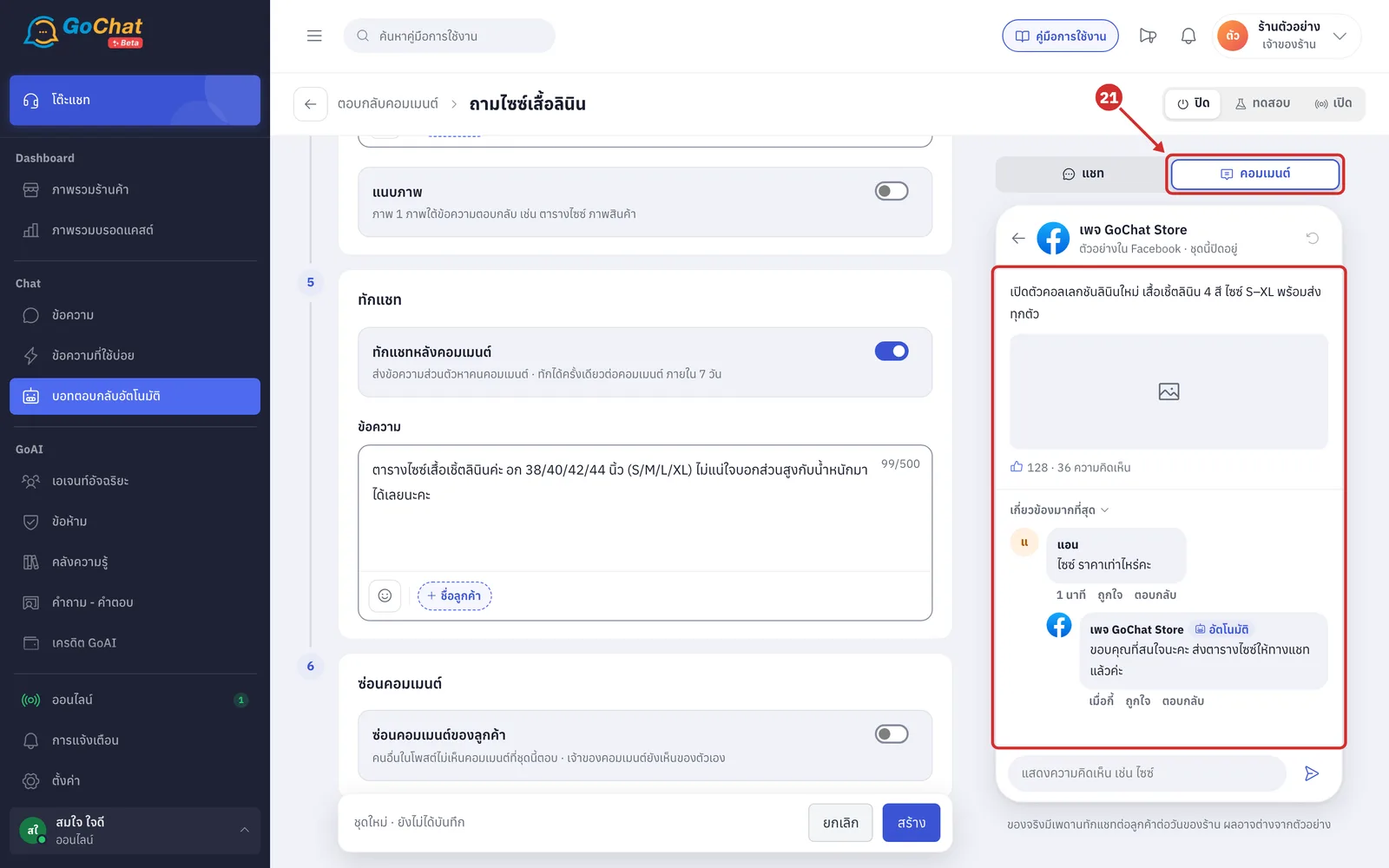
Type a comment you want to try in the box at the bottom of the preview and press Enter to see whether the bot answers
The preview also checks the manage comments settings. For example, a comment with สล็อต (slots) shows เข้าเกณฑ์ซ่อน (มีคำ “สล็อต”) — บอทไม่ตอบ (Matches hide rules (has “สล็อต”) — bot doesn't reply)
Click the restart button at the top of the preview to clear the comments you tried
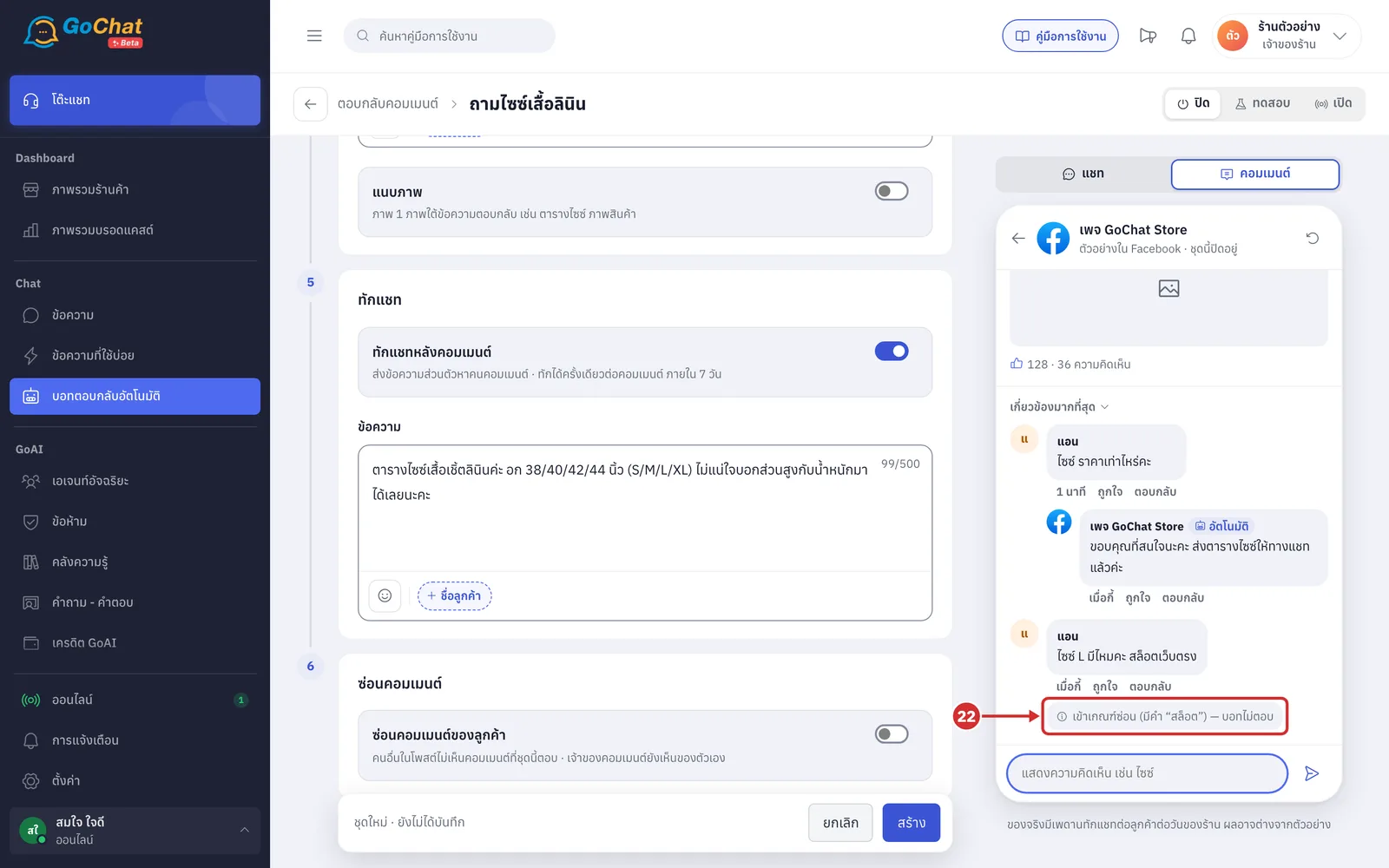
Good to know: Real replies are subject to the shop's daily chat message limit per customer, so results can differ from the preview (see How comment replies work).
Testing with your team
The ทดสอบ (Test) status makes the bot answer only the comments of people in the test list. Use it to try the rule with your team's accounts before going live.
At the top right, choose ทดสอบ (Test). A คนทดสอบ (Test people) card is added above step 1
The card shows the number and names of test people; click × on a name to remove it
The bot only answers comments from people in this list; other customers of the same accounts get no reply from this rule
With no test people, you see ยังไม่มีคนทดสอบ บอทจะไม่ตอบใครเลย (No test people yet, the bot won't answer anyone) and cannot save
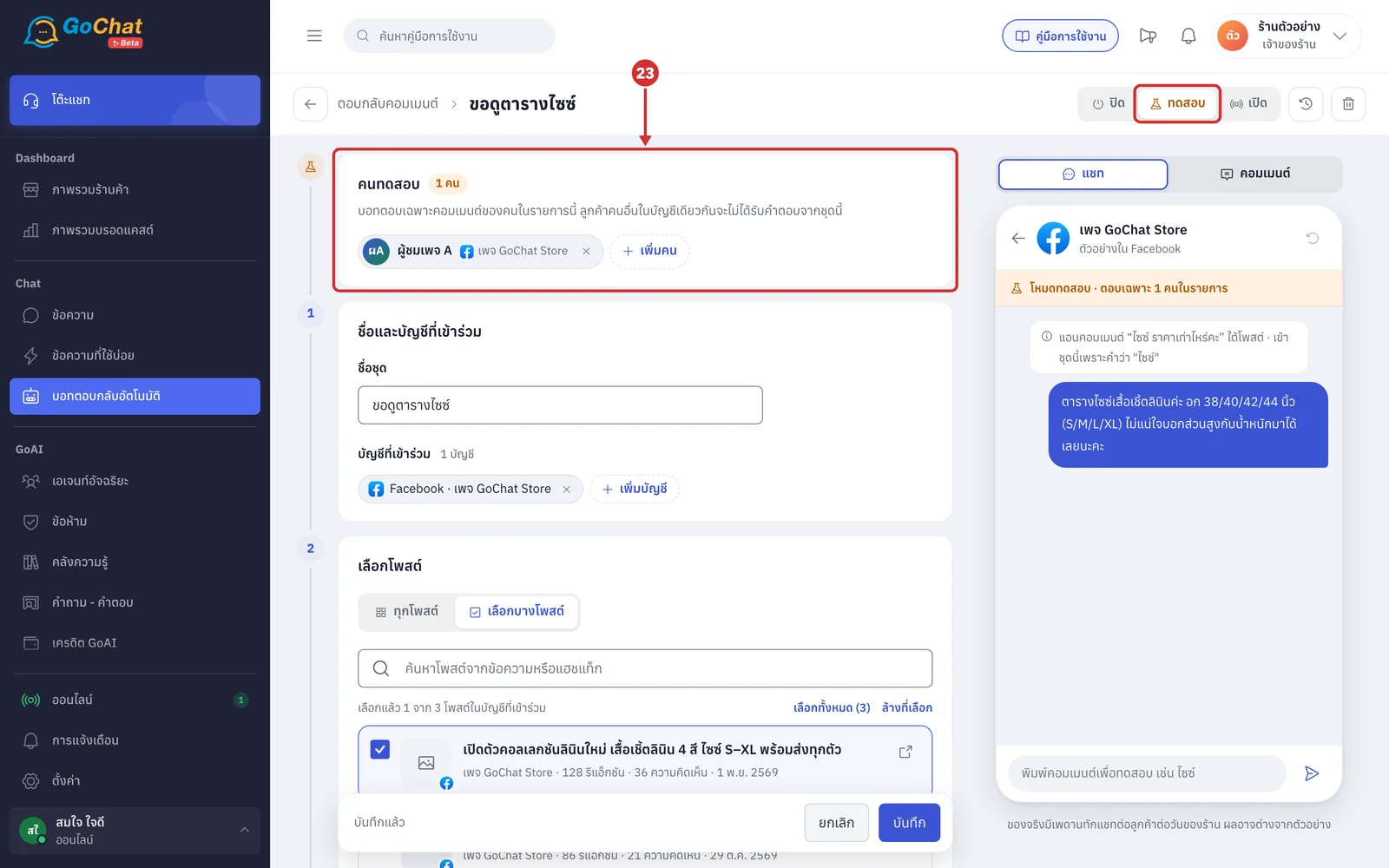
Click เพิ่มคน (Add person) (available once you choose accounts in step 1). The เลือกคนทดสอบ (Choose test people) window opens; tick the people you want
The window lists people who have commented on the chosen pages, with the post they commented on, and you can search by commenter name or post
The app knows people from their comments, not from chats. If you can't find someone, have them comment under one of the page's posts first, then open this window again
The bottom of the window shows เลือกไว้ … คน · ไม่เกิน 20 (… people chosen · up to 20)
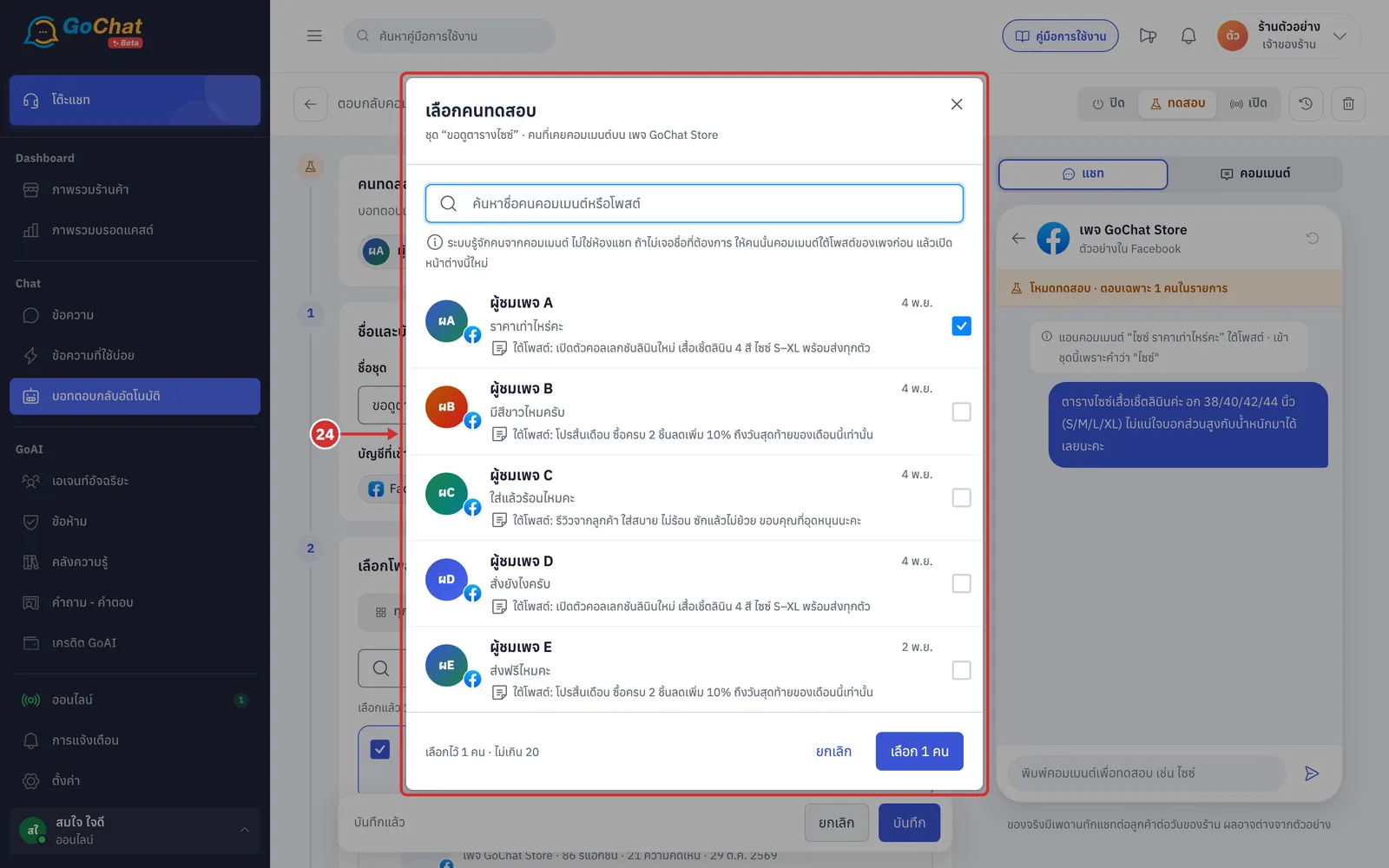
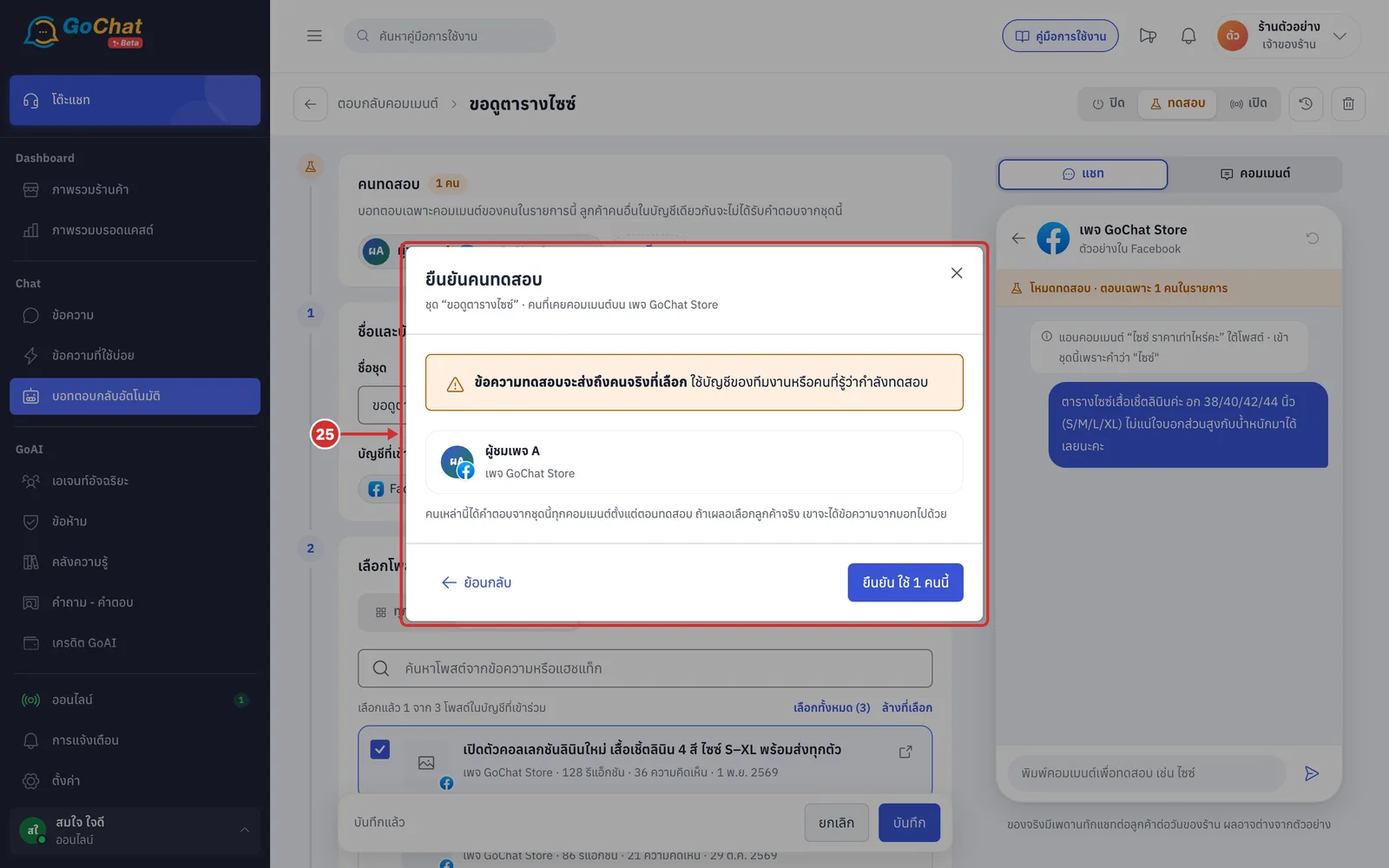
Click เลือก … คน (Choose … people). The window changes to ยืนยันคนทดสอบ (Confirm test people), warning that test messages reach the real people chosen. Then click ยืนยัน ใช้ … คนนี้ (Confirm, use these … people)
Test people get a reply from this rule to every comment while you test, so use your team's accounts or people who know you are testing
To choose again, click ย้อนกลับ (Back)
After confirming, you still need to click the rule's บันทึก (Save)
Turning on and saving
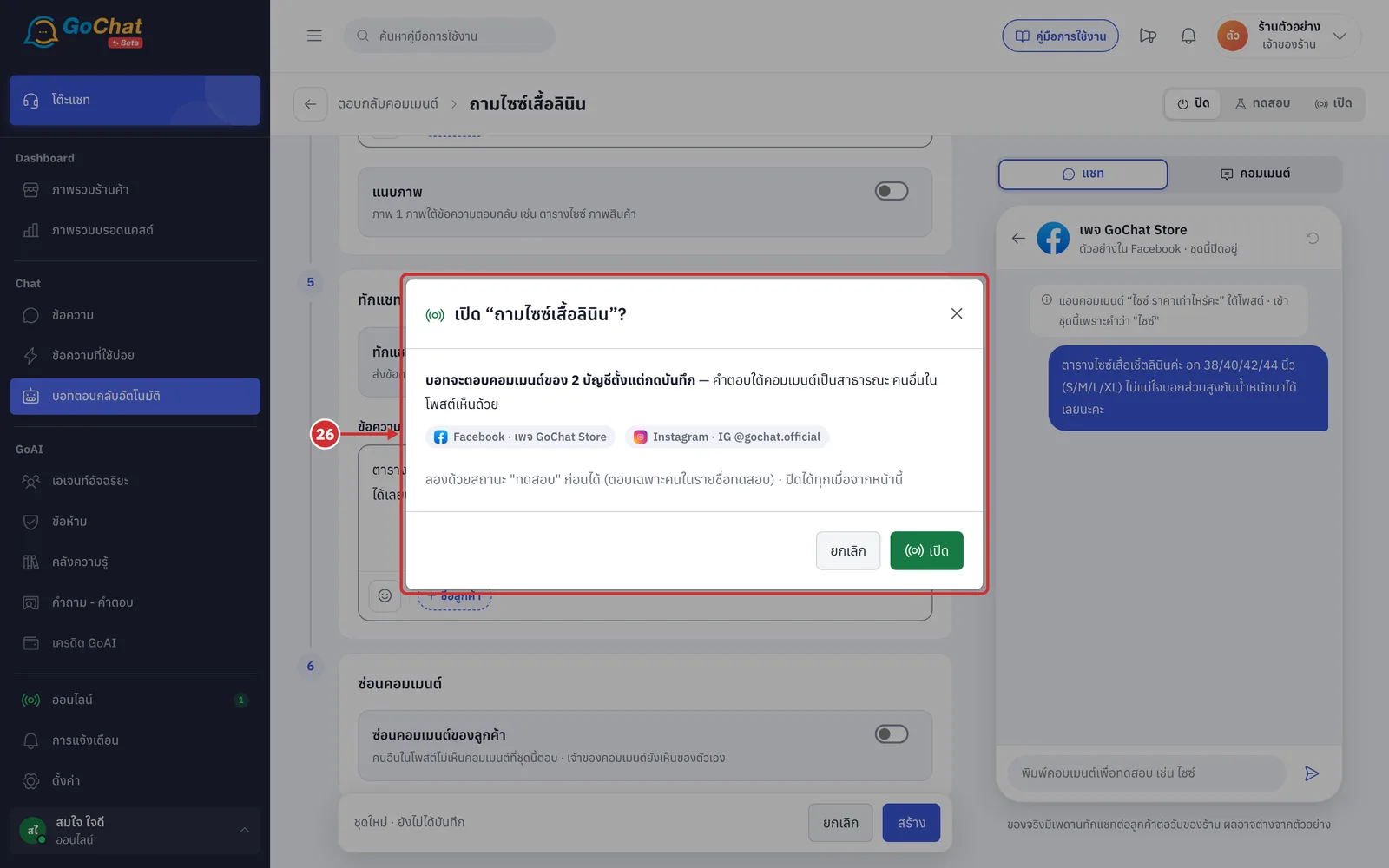
When you are ready to go live, click เปิด (On) at the top right. The เปิด “ชื่อชุด”? (Turn on “set name”?) window says which accounts the bot will answer comments for from the moment you save. Click เปิด (On) to confirm
The window warns that replies under comments are public and other people on the post see them
Click ยกเลิก (Cancel) to keep the previous status
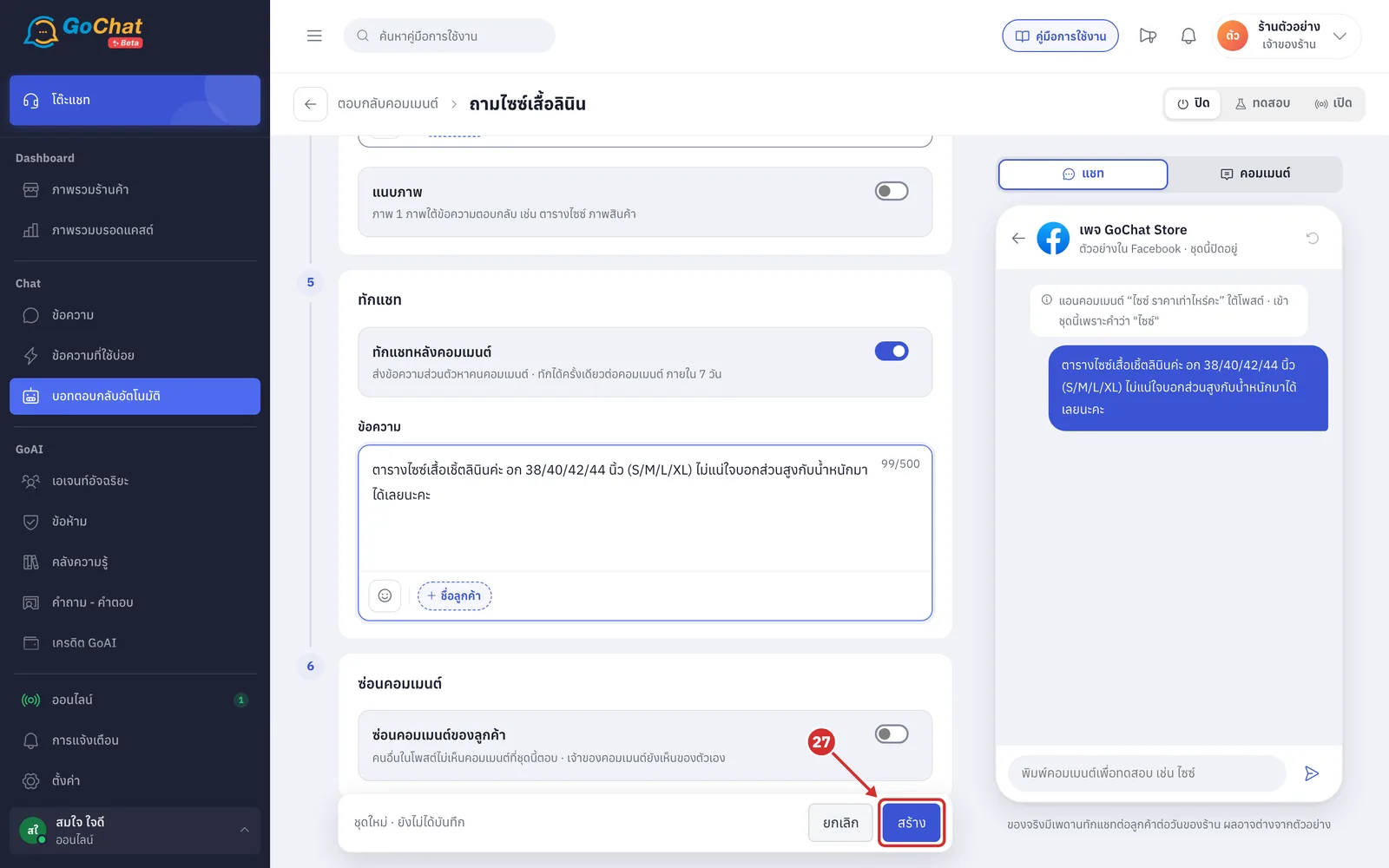
Click สร้าง (Create) for a new rule, or บันทึก (Save), to save the rule
A rule with status ปิด (Off) can be saved with just a name, to keep working on it later
A rule with status ทดสอบ (Test) or เปิด (On) must be complete before saving. If not, the bar at the bottom shows why
เพิ่มเพจ Facebook หรือ Instagram อย่างน้อย 1 บัญชี (Add at least 1 Facebook page or Instagram account)
ใส่คำสำคัญอย่างน้อย 1 คำ (Add at least 1 keyword) — keyword rules only
เปิดตอบใต้คอมเมนต์หรือทักแชทอย่างน้อยหนึ่งอย่าง (Turn on reply under comment or chat message)
ใส่ข้อความตอบใต้คอมเมนต์ (Enter the reply under the comment) or ใส่ข้อความทักแชท (Enter the chat message) for the ways that are on
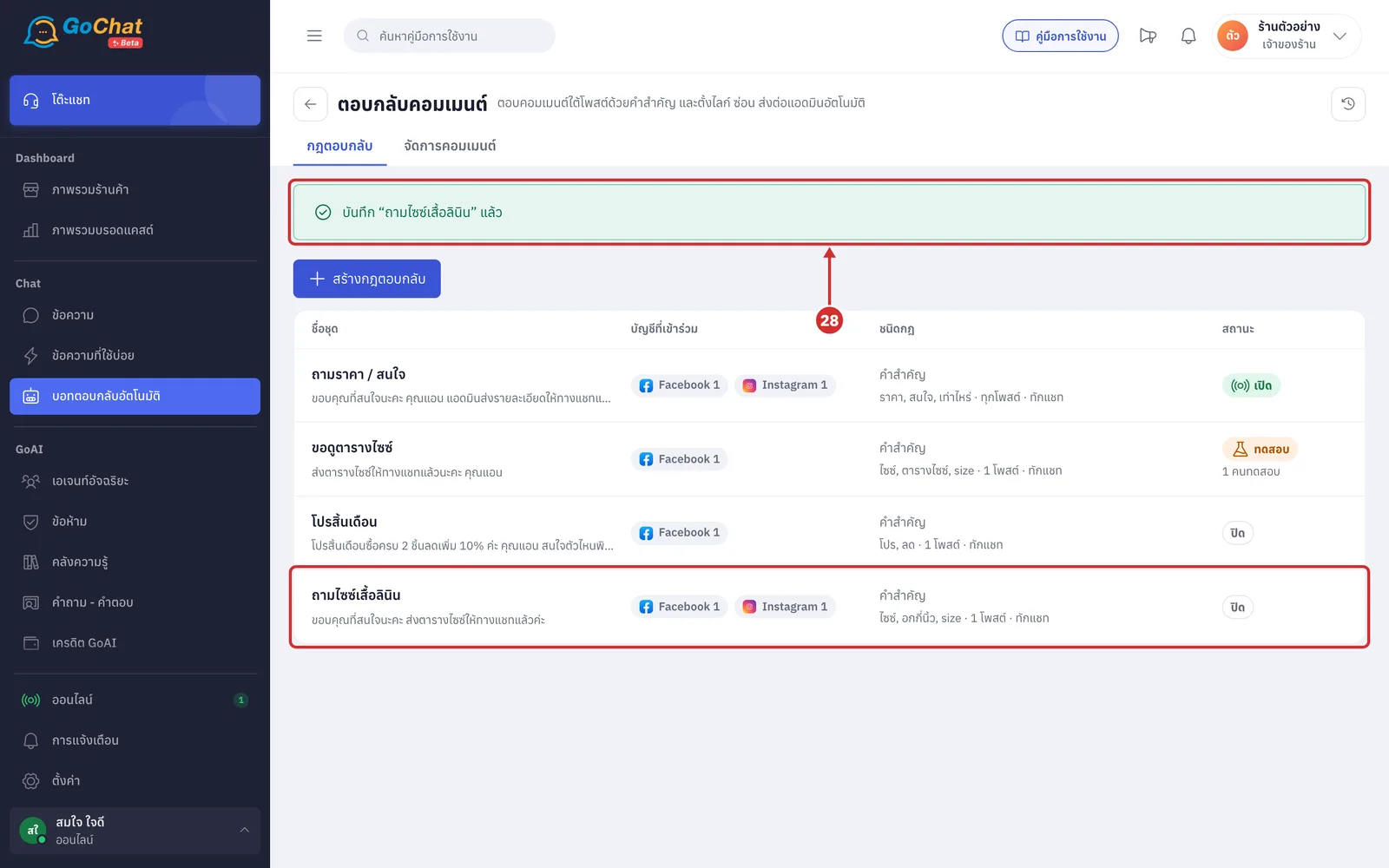
The app goes back to the list, shows บันทึก “ถามไซซ์เสื้อลินิน” แล้ว (Saved “ถามไซซ์เสื้อลินิน”) and the new rule appears in the list
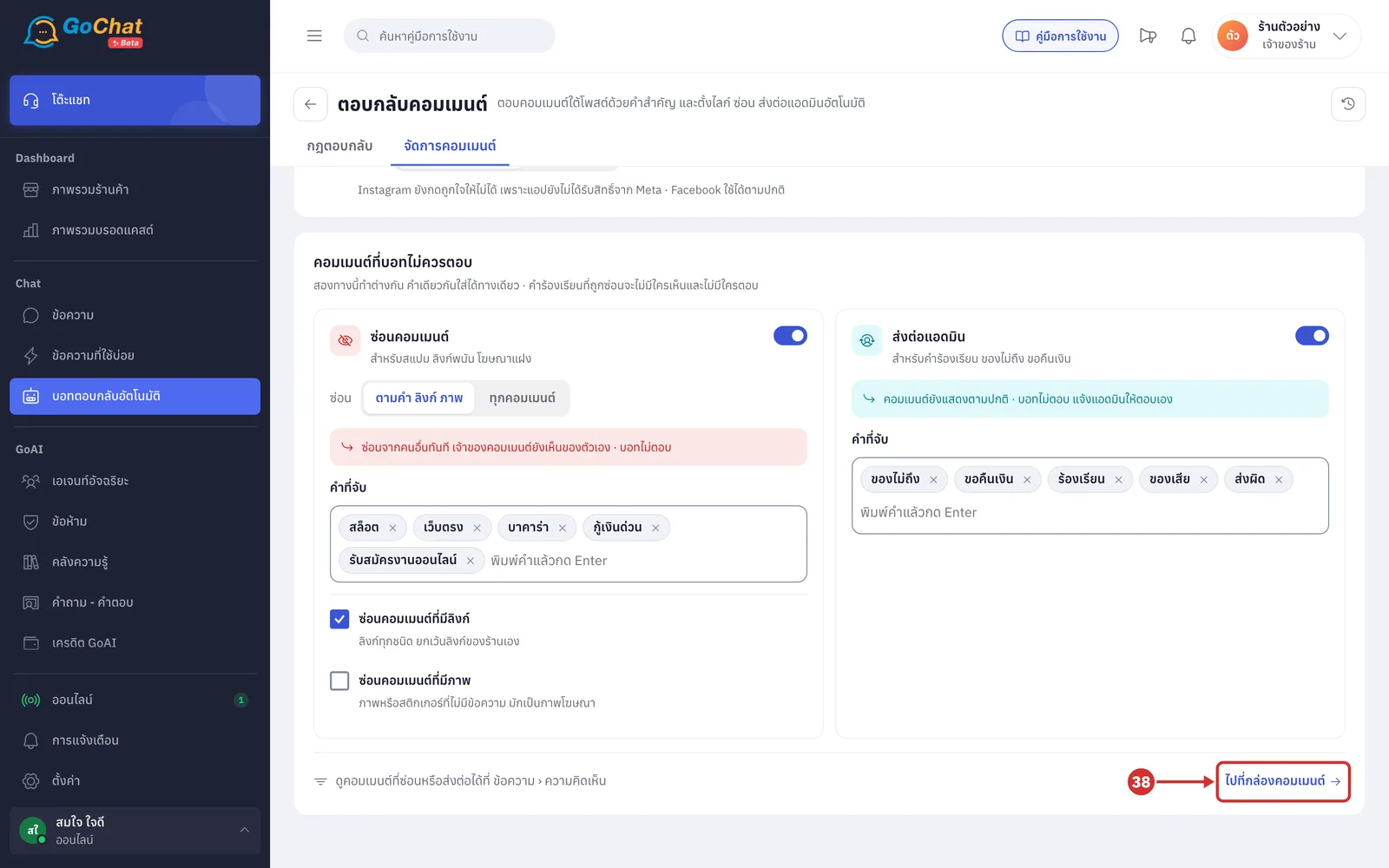
Manage comments settings
The จัดการคอมเมนต์ (Manage comments) tab is set once for every Facebook page and Instagram account in your shop, and it applies before the reply rules. Every click in this tab saves straight away, with no Save button. If saving fails, the value goes back to what it was and the reason is shown.
Click the จัดการคอมเมนต์ (Manage comments) tab
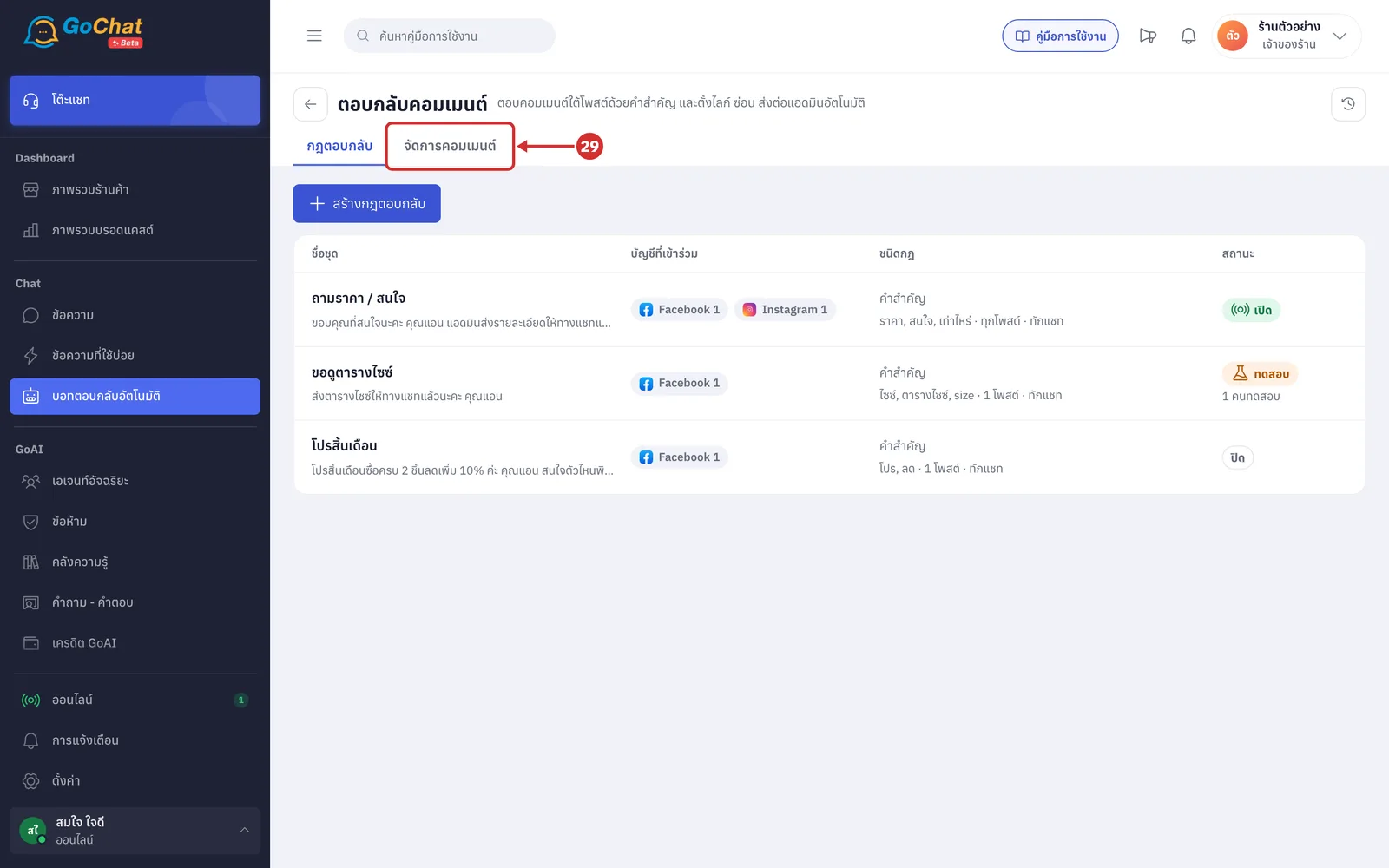
Turn on the ถูกใจคอมเมนต์อัตโนมัติ (Auto-like comments) switch so your page likes customers' comments for you
You see เปิดถูกใจอัตโนมัติแล้ว (Auto-like turned on) or ปิดถูกใจอัตโนมัติแล้ว (Auto-like turned off)
If your shop has an Instagram account and the app does not have Meta's permission to like yet, you see Instagram ยังกดถูกใจให้ไม่ได้ เพราะแอปยังไม่ได้รับสิทธิ์จาก Meta · Facebook ใช้ได้ตามปกติ (Instagram can't be liked yet because the app doesn't have Meta's permission · Facebook works as usual)
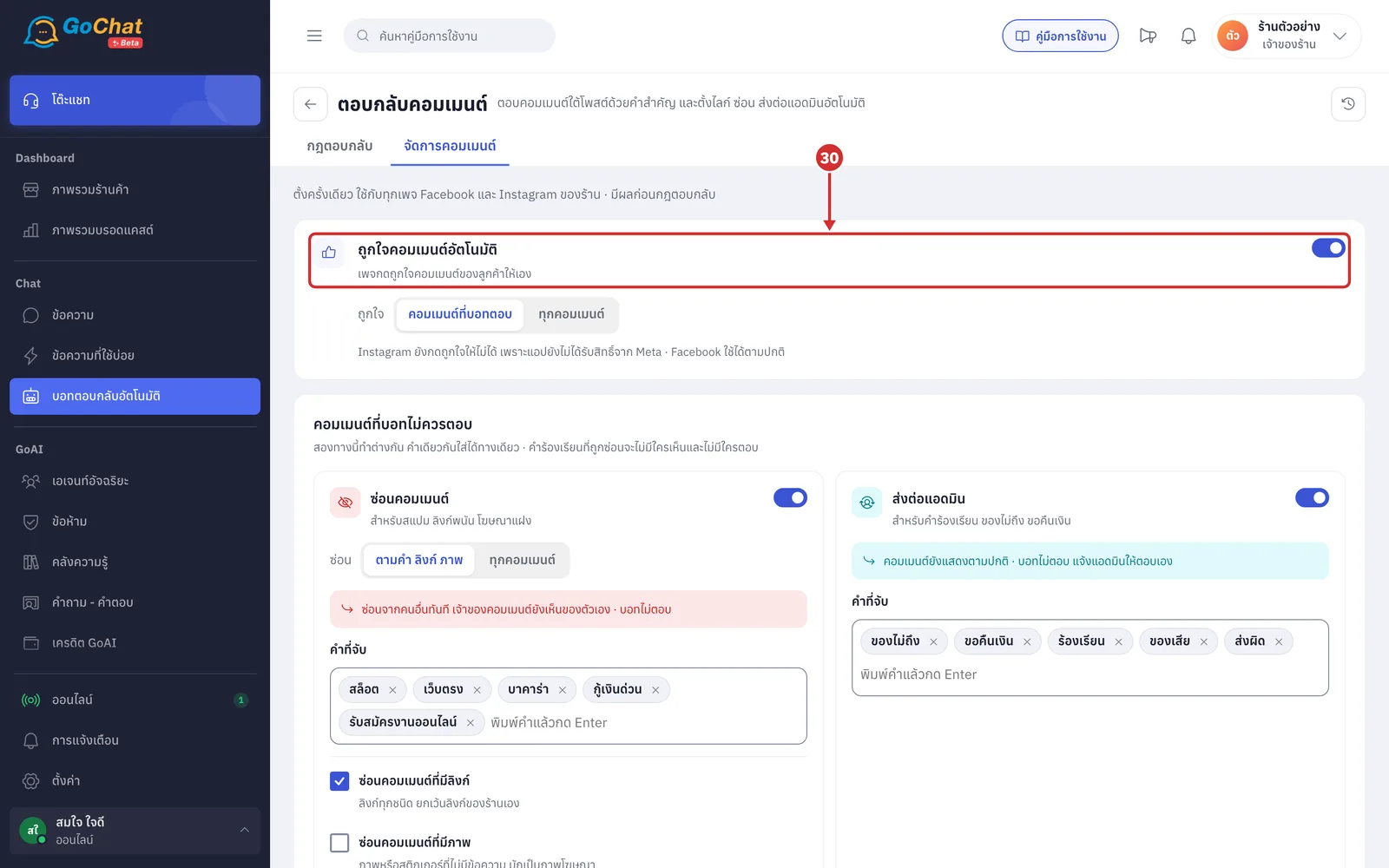
Under ถูกใจ (Like), choose which comments the page likes
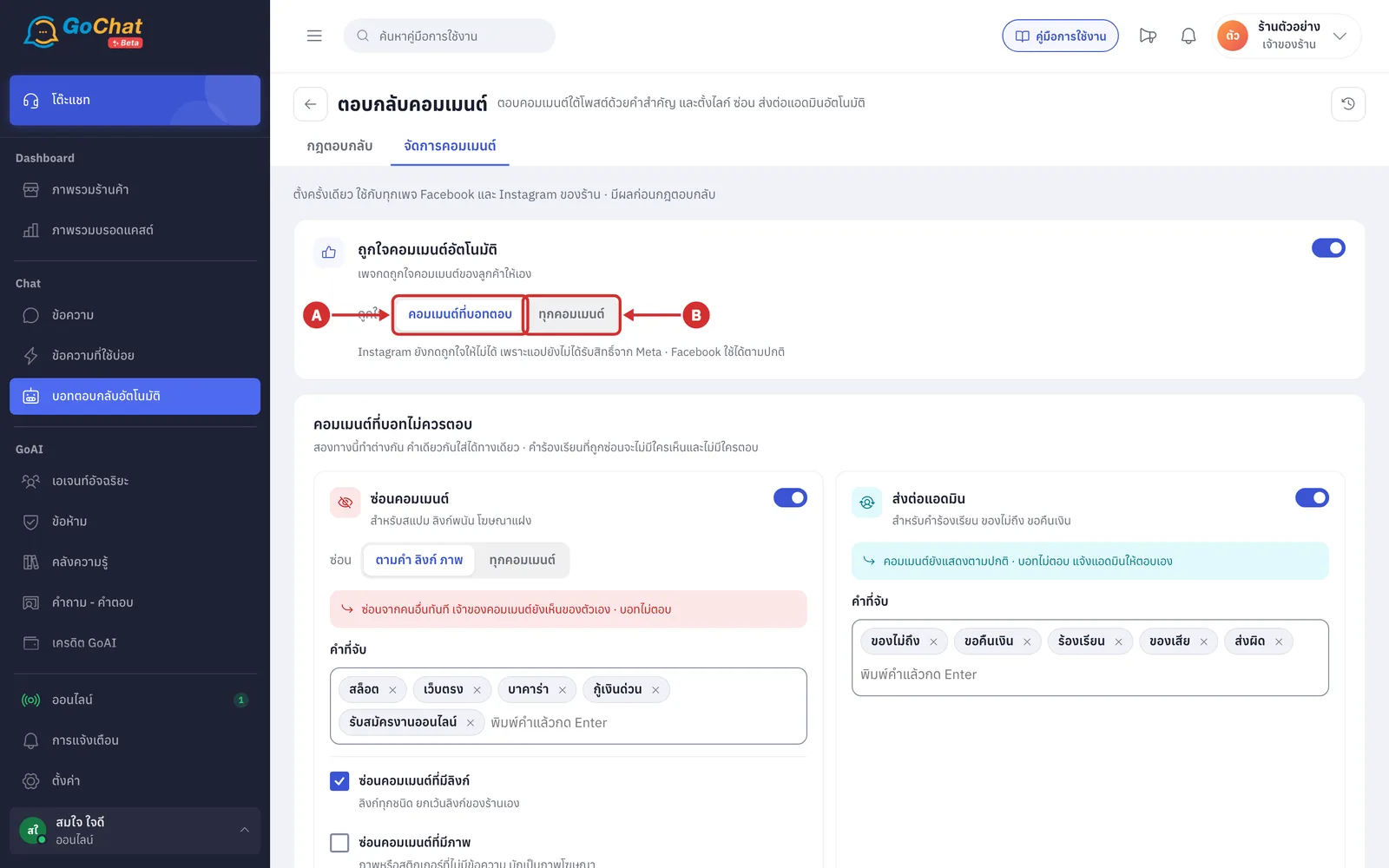
A คอมเมนต์ที่บอทตอบ (Comments the bot replied to) — likes a comment after the bot answers it successfully
B ทุกคอมเมนต์ (All comments) — likes every comment customers write, except comments hidden because of words, links or images, and comments forwarded to admins
คอมเมนต์ที่บอทไม่ควรตอบ (Comments the bot shouldn't answer) sets which comments the bot will not answer. It has 2 ways that work differently, and a word can only be in one of them. The screen warns that คำร้องเรียนที่ถูกซ่อนจะไม่มีใครเห็นและไม่มีใครตอบ (Hidden complaints are seen and answered by no one), so put complaint words under ส่งต่อแอดมิน (Forward to admin), not ซ่อนคอมเมนต์ (Hide comments).
Turn on the ซ่อนคอมเมนต์ (Hide comments) switch for spam, gambling links or hidden ads
Matching comments are hidden from others straight away; the commenter still sees their own comment
The bot does not answer comments hidden because of words, links or images
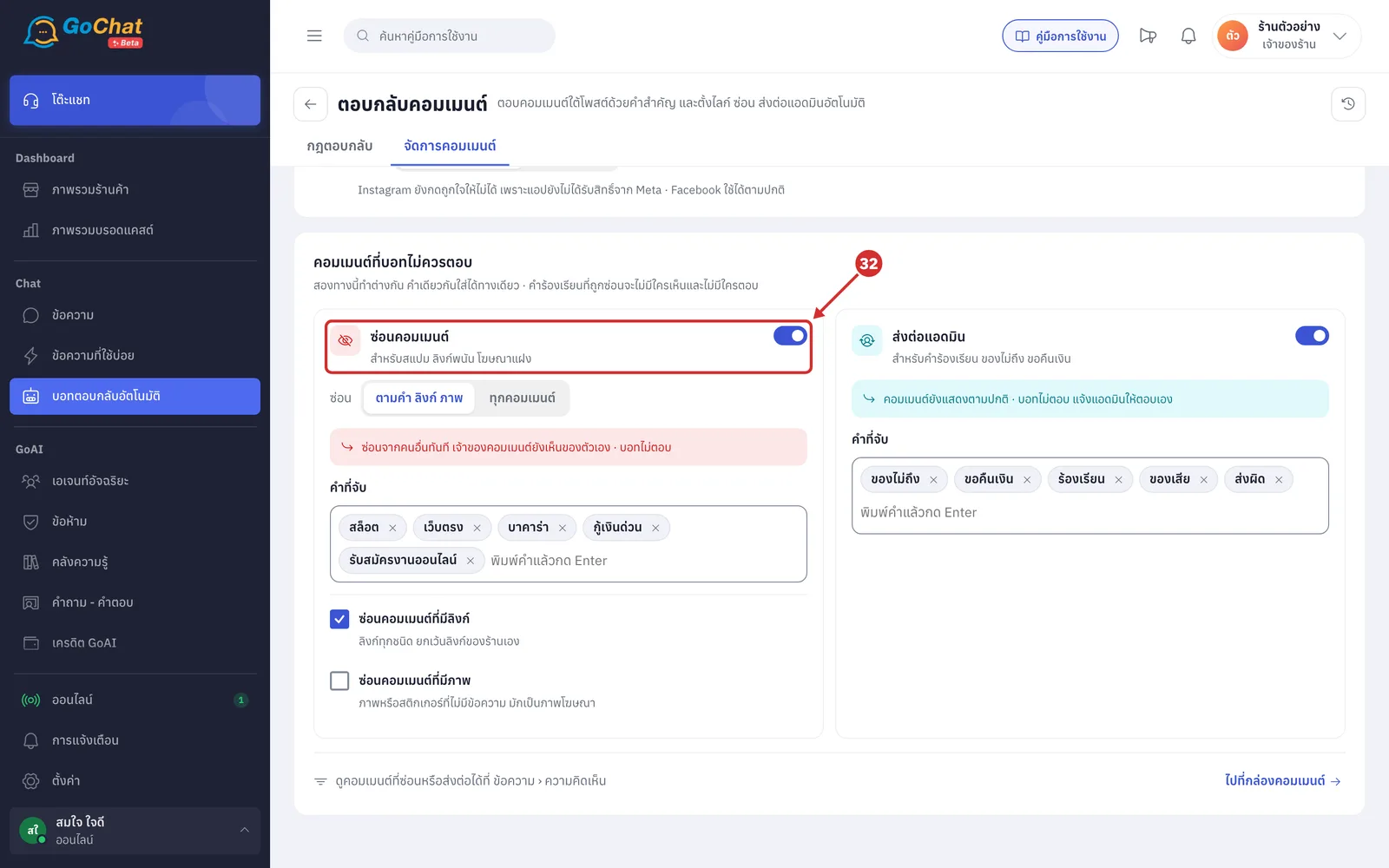
32.1 In ซ่อน (Hide), choose which comments to hide; it saves as soon as you click
A ตามคำ ลิงก์ ภาพ (By words, links, images) — hides only comments that match the words to catch, contain a link or are an image, as set in steps 33–35 (default)
B ทุกคอมเมนต์ (All comments) — hides every customer comment from others (step 32.2)
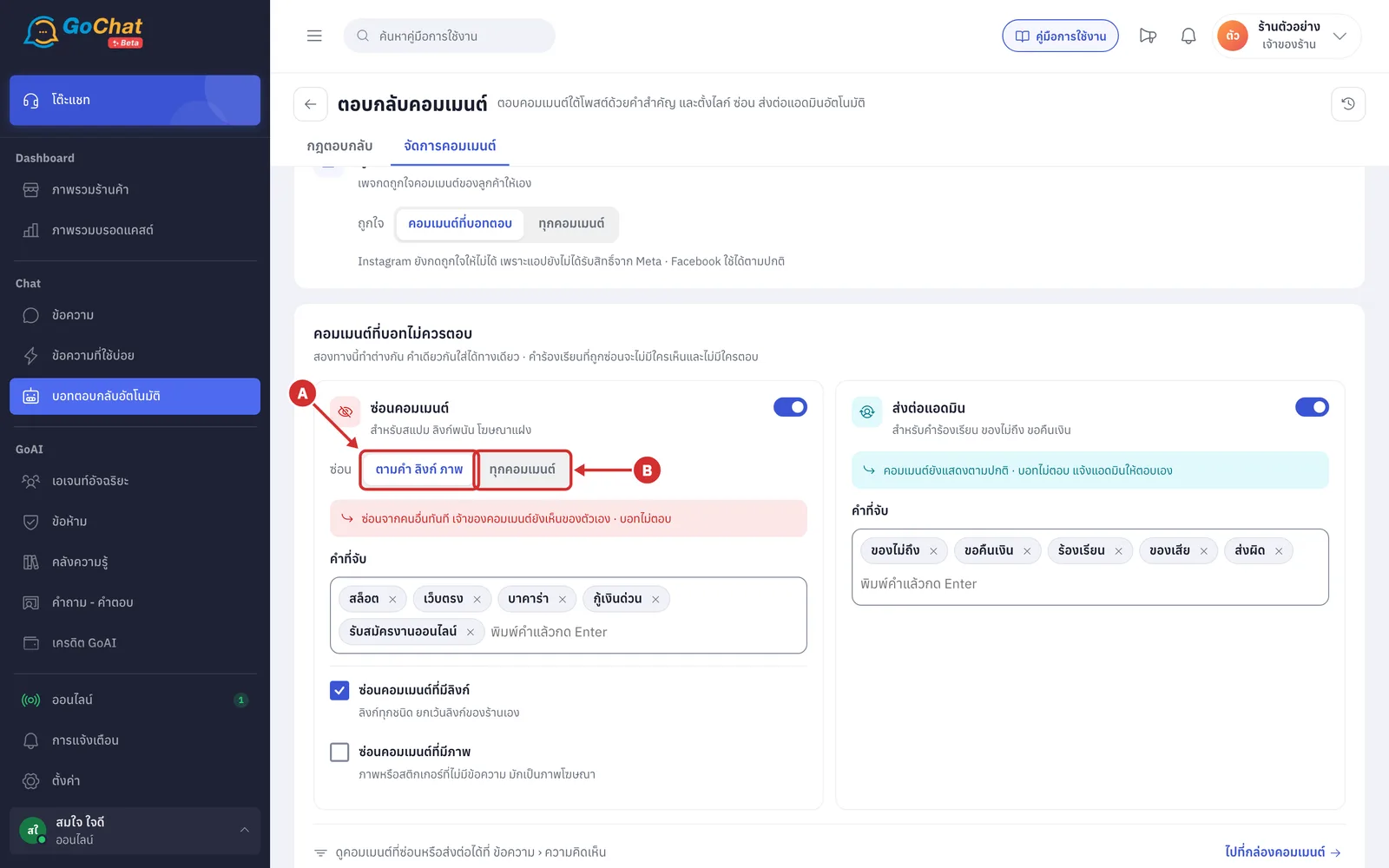
32.2 If you choose ทุกคอมเมนต์ (All comments), the words to catch and the link and image ticks are not shown, and you see ซ่อนทุกคอมเมนต์ของลูกค้าจากคนอื่น เจ้าของคอมเมนต์ยังเห็นของตัวเอง · บอทยังตอบและทักแชทตามกฎตอบกลับ (Every customer comment is hidden from others; commenters still see their own · the bot still replies and messages by the reply rules)
The bot still replies under the comment and sends chat messages by the reply rules, and the comment is hidden after the bot has sent them
Comments with words in the ส่งต่อแอดมิน (Forward to admin) list are hidden too, and admins still get a notification to answer them
If ถูกใจคอมเมนต์อัตโนมัติ (Auto-like comments) is on, the page still likes comments by the scope you set
The words, links and images you set before still stop the bot from answering spam, even though they are not shown. To edit them, switch back to ตามคำ ลิงก์ ภาพ (By words, links, images)
In the ความคิดเห็น (Comments) tab of the ข้อความ (Messages) page, these comments still look hidden, with the bar ซ่อนอัตโนมัติเพราะซ่อนทุกคอมเมนต์ (Hidden automatically because all comments are hidden), but they keep the ตอบ (Reply) and ทักแชท (Message) buttons and stay in the ยังไม่ตอบ (Not answered) filter until someone answers
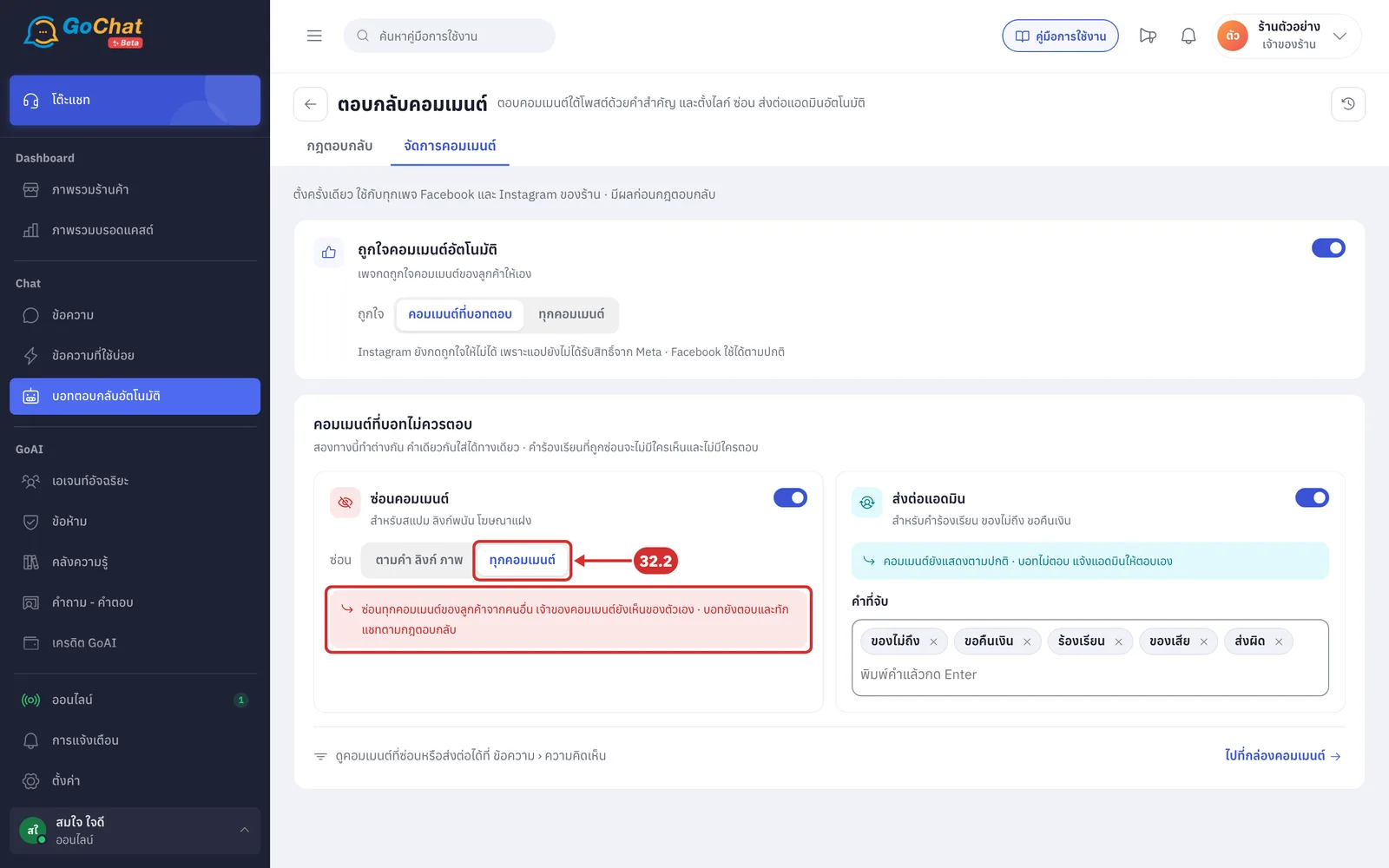
Under คำที่จับ (Words to catch) for hide comments, type a word and press Enter to add it (steps 33–35 show when ตามคำ ลิงก์ ภาพ (By words, links, images) is chosen)
Comments containing the word are hidden
Click × on a word to delete it
You can add up to 200 words, up to 40 characters each
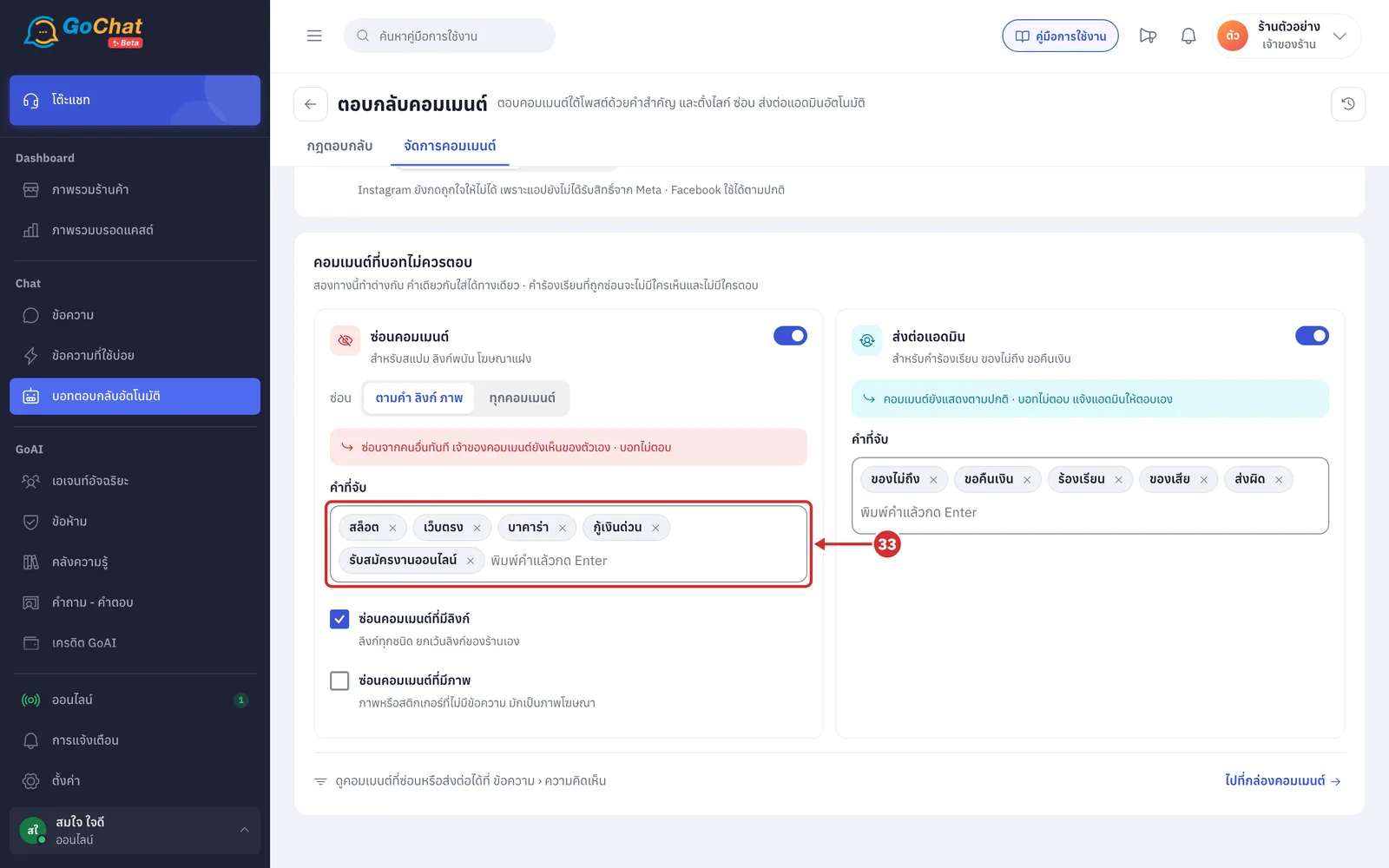
33.1 If you type a word that is already in the other way, or is a reply rule keyword, the word is not added and you see a message such as “ไซซ์” เป็นคำสำคัญในกฎตอบกลับอยู่แล้ว (“ไซซ์” is already a reply rule keyword) or “…” อยู่ในชุดส่งต่อแอดมินแล้ว · คำเดียวกันใช้ทั้งสองทางไม่ได้ (“…” is already in the forward-to-admin words · a word can't be used both ways)
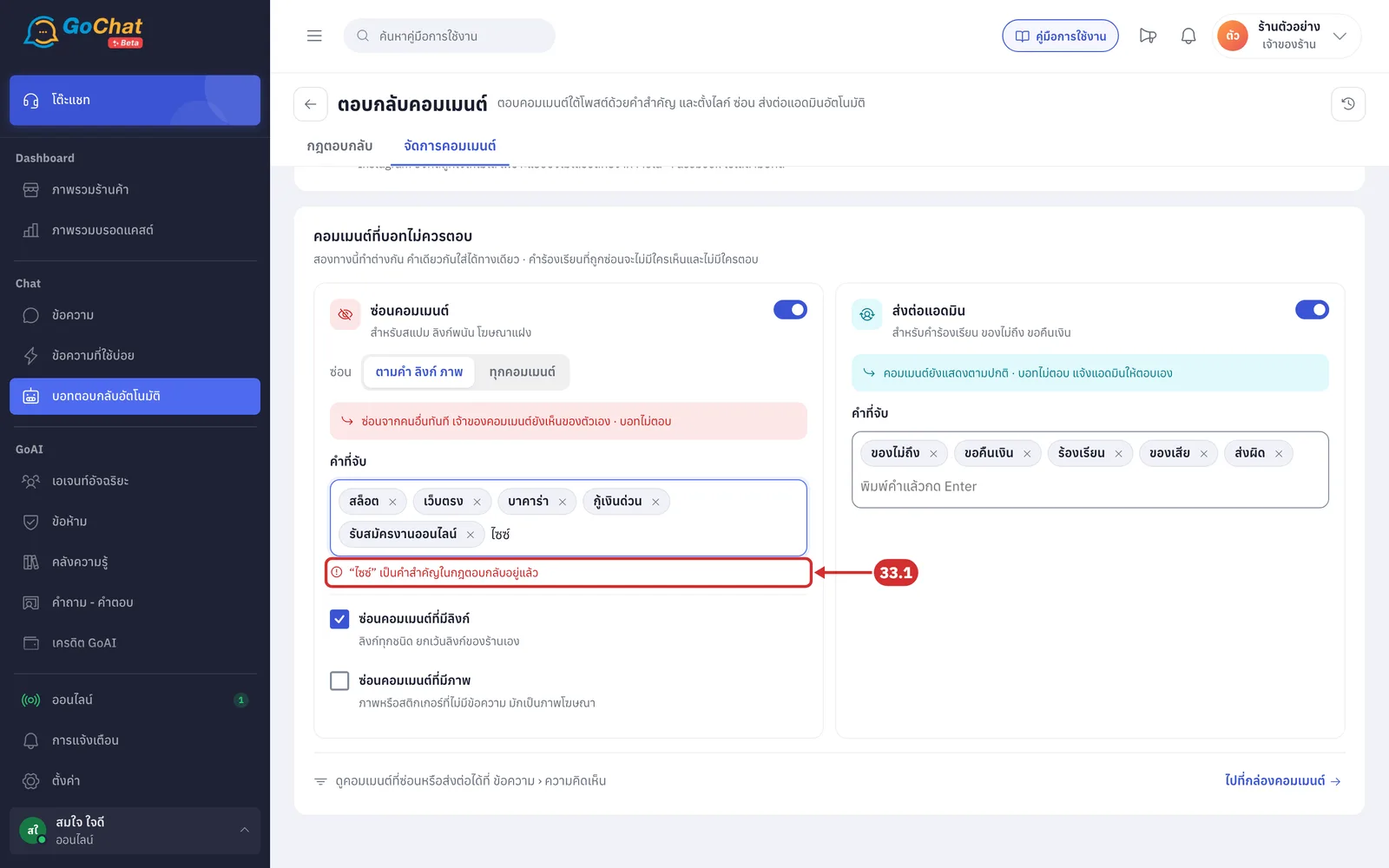
Tick ซ่อนคอมเมนต์ที่มีลิงก์ (Hide comments with links) to hide comments with any kind of link, except your shop's own links
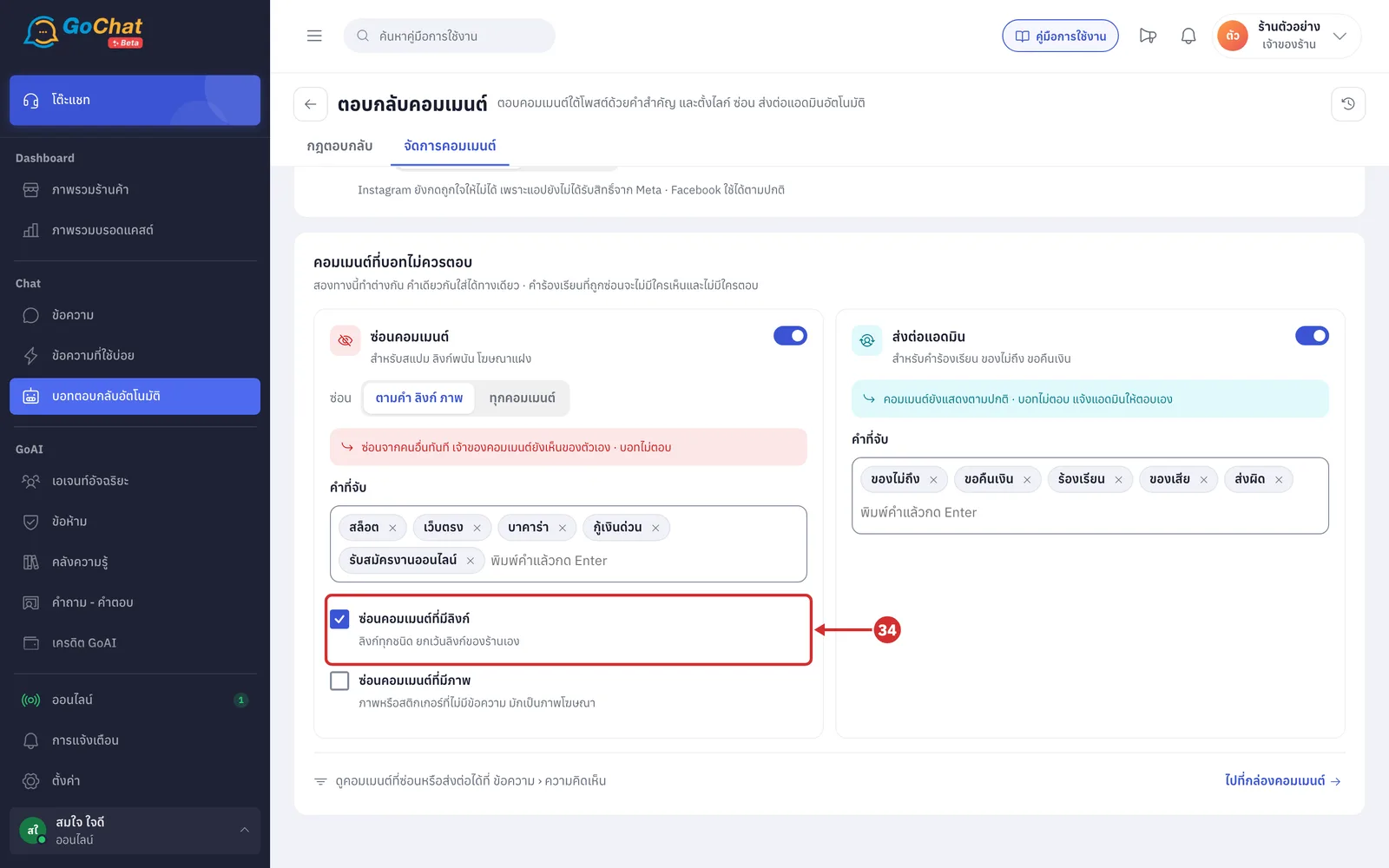
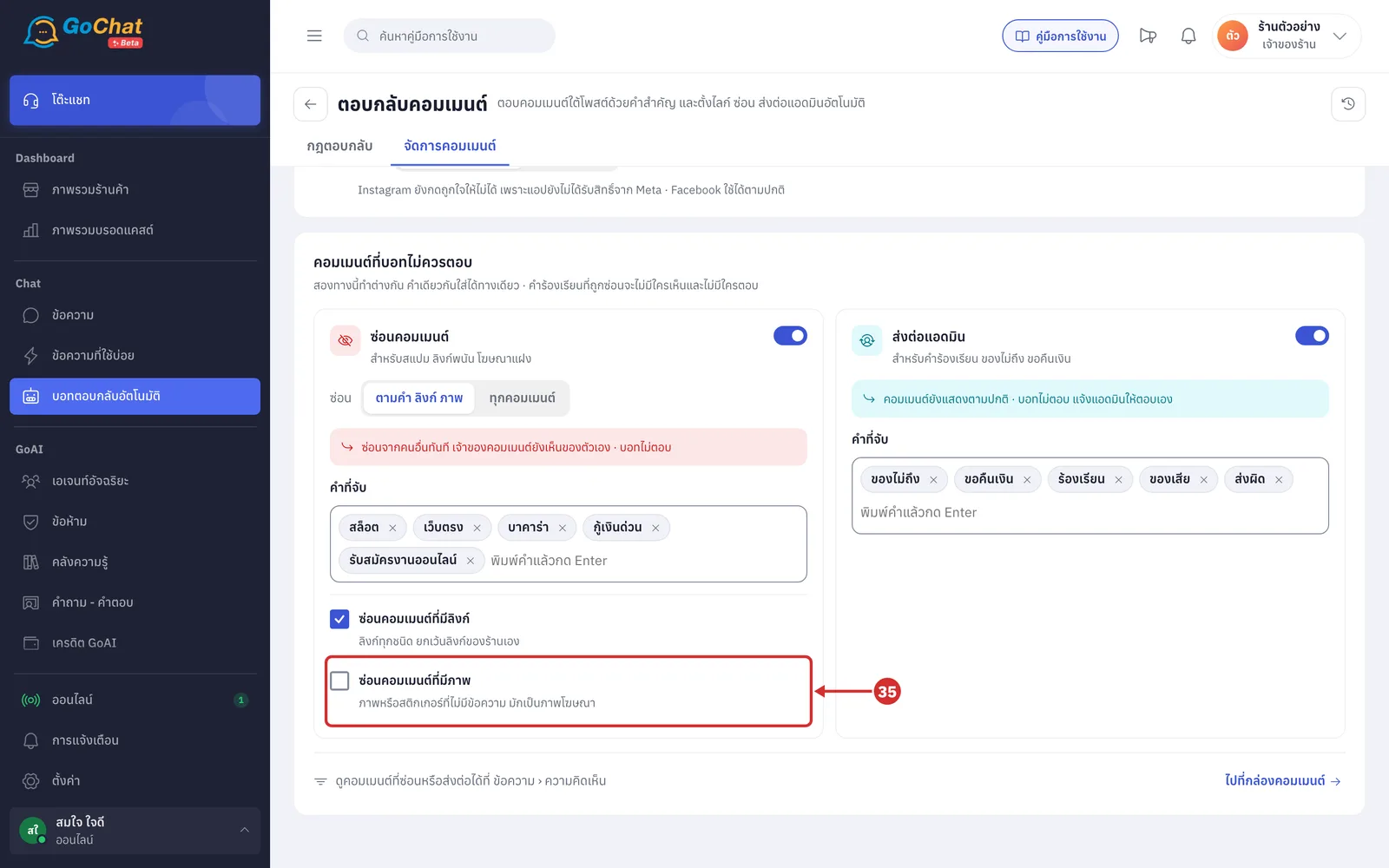
Tick ซ่อนคอมเมนต์ที่มีภาพ (Hide comments with images) to hide comments that are only an image or sticker with no text, which are often ads
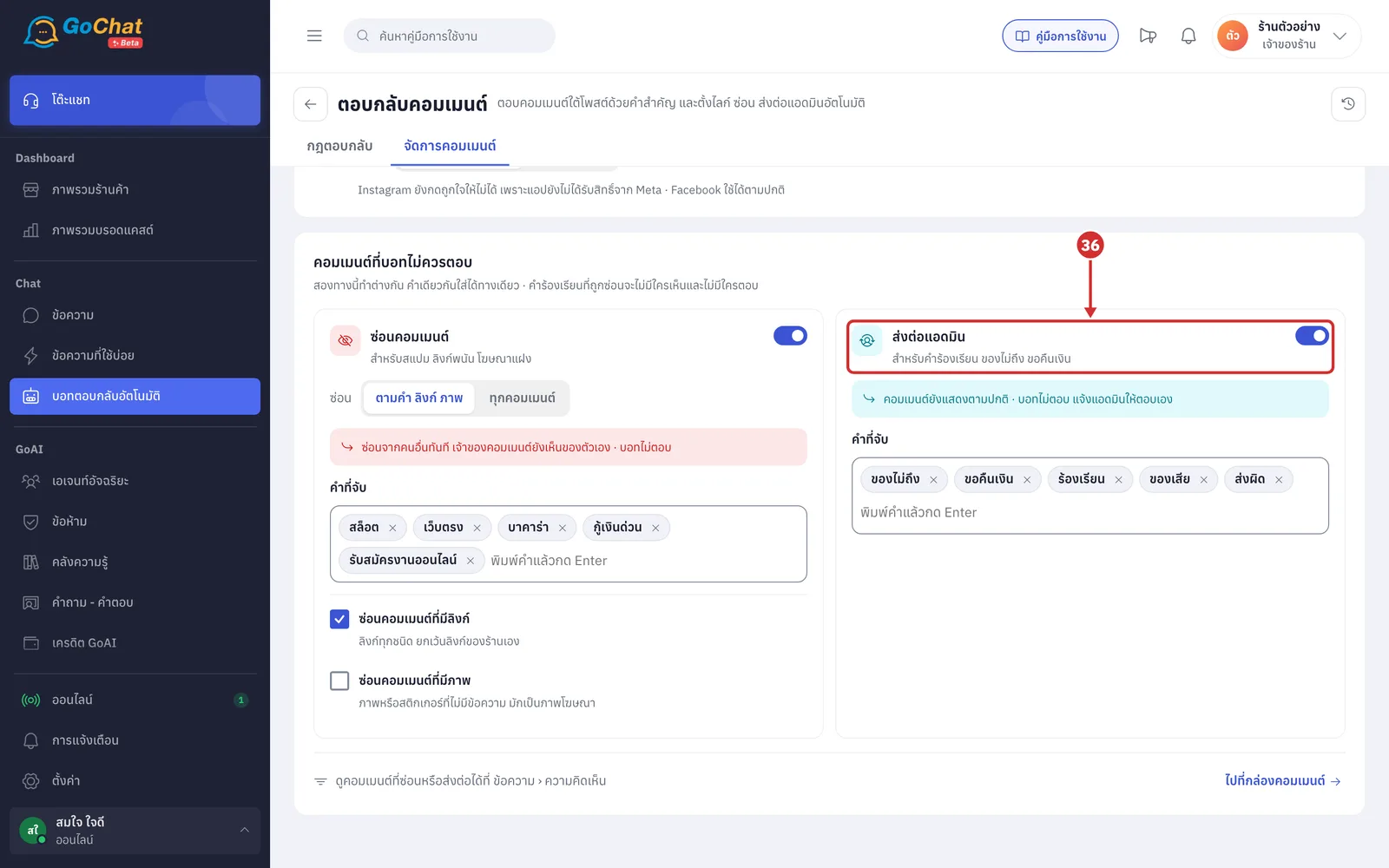
Turn on the ส่งต่อแอดมิน (Forward to admin) switch for complaints, such as items not arriving or refund requests
The comment still shows as normal
The bot does not answer, and the app notifies admins to answer it themselves
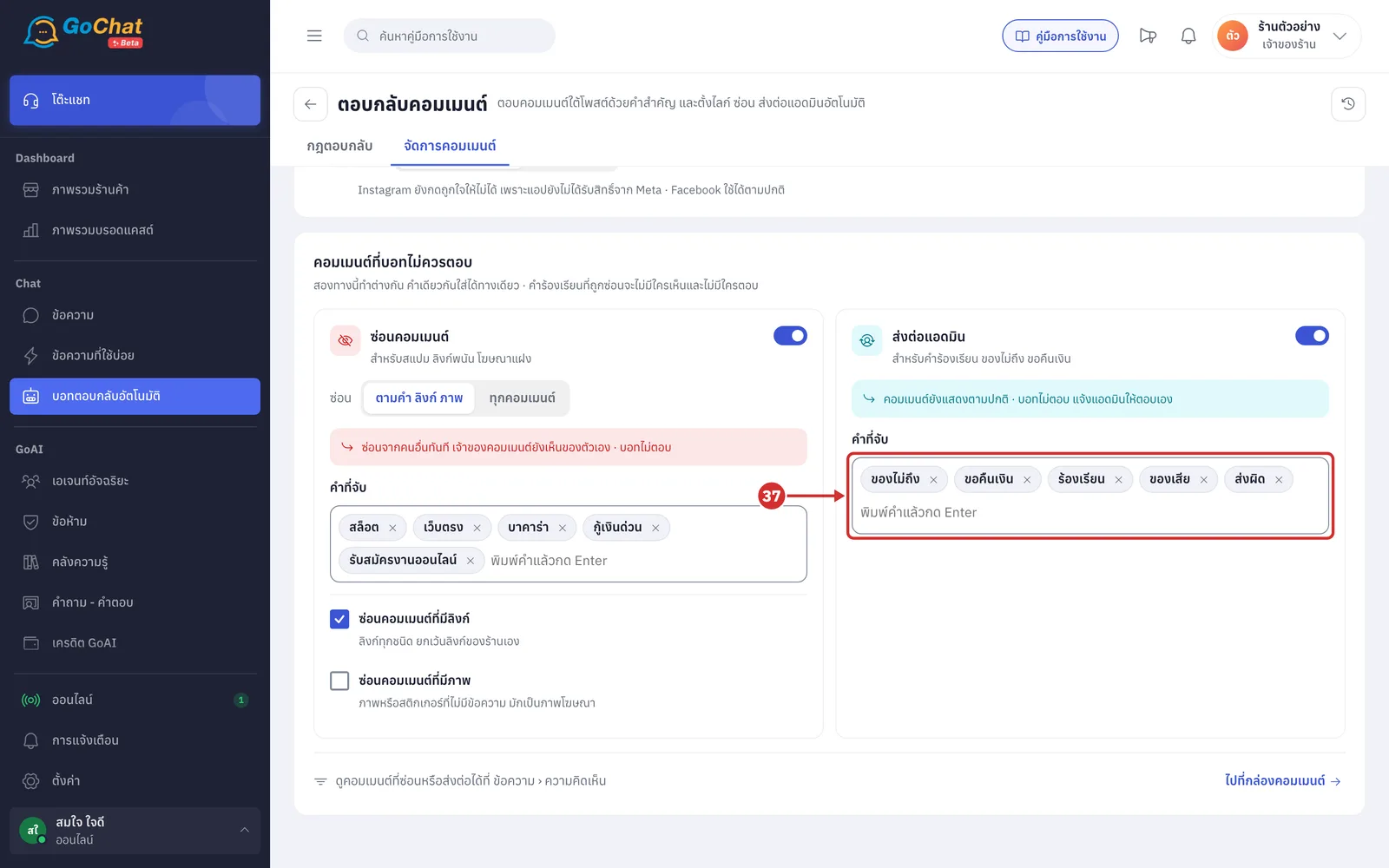
Under คำที่จับ (Words to catch) for forward to admin, type a word and press Enter to add it (the same rules as the hide comments words apply)
Click ไปที่กล่องคอมเมนต์ (Go to comments inbox) to see hidden and forwarded comments in the ความคิดเห็น (Comments) tab of the ข้อความ (Messages) page
How comment replies work
The manage comments settings are always checked before the reply rules. The bot does not answer comments hidden because of words, links or images, or comments that match forward-to-admin, even if they match a rule's keywords, including rules in test (comments hidden because ทุกคอมเมนต์ (All comments) is chosen are still answered)
The bot does not answer these comments
Replies under someone else's comment
Comments that start by tagging someone else
Comments with no letters, such as only a sticker or emoji
The bot matches keywords by contains
Thai words ignore spaces and repeated letters, so “สนนนใจ” matches สนใจ (interested)
English words must match the whole word, in any letter case
ทุกคอมเมนต์ (All comments) rules use no words; the bot answers every customer comment except those listed above
Each comment gets an answer from one rule; the first rule that matches answers. Rules are checked in this order
Rules in test before rules that are on
Keyword rules always before all-comments rules, so an all-comments rule only answers comments that match no keyword rule
Within the same type, in the order they were created (older rules first)
When the same customer comments on the same post several times, the bot answers every comment that matches, both under the comment and by chat (chat messages are still subject to the limit below)
The bot answers as soon as the comment comes in and checks again before sending. It does not answer if
An admin has already replied to the comment
The comment was hidden or deleted
When both ways are on, the bot sends the chat message first, then replies under the comment
Chat messages count towards เพดานข้อความที่บอทเริ่มเอง (Limit on messages the bot starts) in ตั้งค่าการตอบทั้งร้าน (Shop-wide reply settings). Once that customer reaches the day's limit, the bot does not send a chat message but still replies under the comment (test people are not limited)
Instagram only gets text replies under comments; attached images are only sent on Facebook
When the bot answers successfully and the like scope is คอมเมนต์ที่บอทตอบ (Comments the bot replied to), the page likes that comment
When the bot answers successfully and the rule has ซ่อนคอมเมนต์ของลูกค้า (Hide the customer's comment) on, the comment is hidden from others. If hiding fails because Facebook or Instagram is briefly busy, the app tries again by itself
About comment replies
When both reply under comment and chat message are on, if the chat message cannot be sent, the bot does not reply under the comment either. This happens when
The customer commented more than 7 days ago
That comment has already been messaged
The chat message fails, for example because sending is not allowed
Hide and forward-to-admin words match by contains. Very short words can also catch normal comments, and the bot will not answer those comments
Your shop's own links means GoChat links and links to your shop's page or Instagram account. Links to your shop's other websites, such as your Shopee store, count as links to hide
When you delete a rule, its accounts no longer get answers from that rule; other rules on the same accounts keep working
The bot's answers and the reasons it did not answer are shown in Viewing auto-reply comment history