

Managing chat channels
The ช่องทาง (Channels) page (the ช่องทางแชท (Chat channels) menu) connects Facebook pages, Instagram accounts, LINE OA accounts, and Shopee and Lazada online shops. Messages from every channel arrive in one inbox. The page also shows how many messages each channel has, which channels are disconnected, and who sees each channel's chats. Everyone in the shop can add channels and check connections; only the เจ้าของร้าน (Shop owner) can set channel owners.
Adding a channel
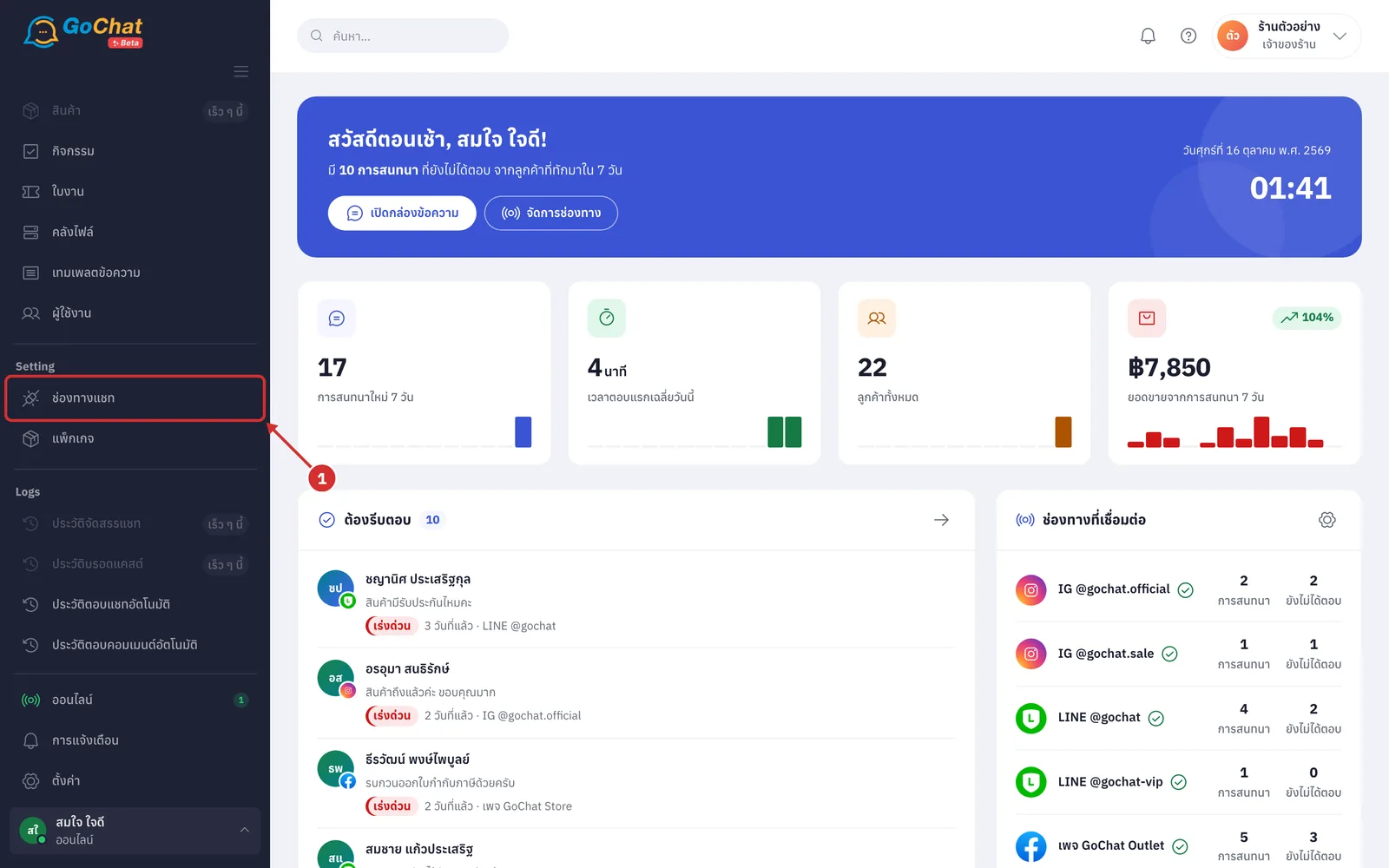
Go to the ช่องทางแชท (Chat channels) menu in the left menu bar
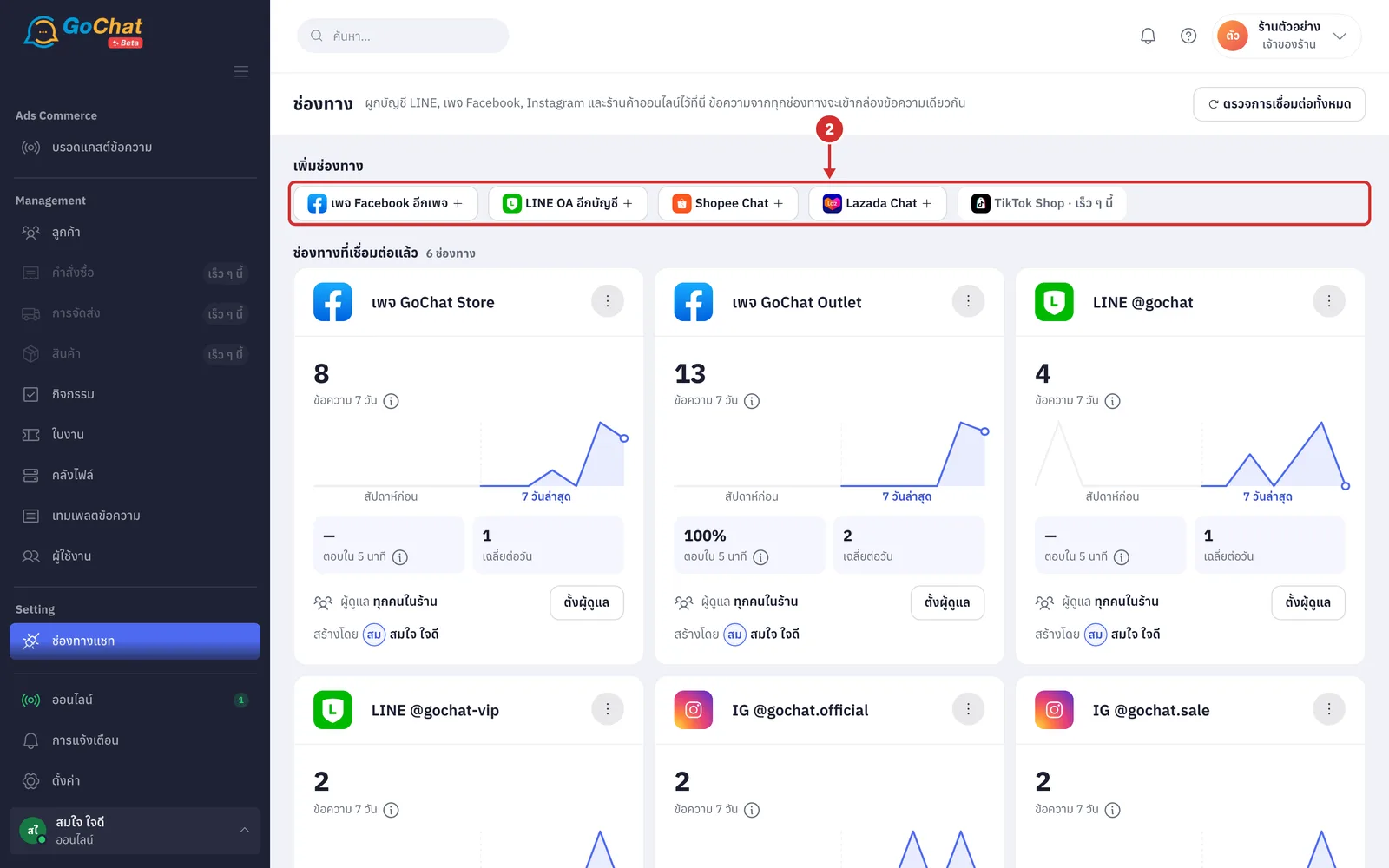
Under เพิ่มช่องทาง (Add a channel), click the button of the channel you want to connect: Facebook Messenger, LINE Official Account, Shopee Chat or Lazada Chat (if your shop already has that channel, the button is called เพจ Facebook อีกเพจ (Another Facebook page), LINE OA อีกบัญชี (Another LINE OA account), Shopee อีกร้าน (Another Shopee shop) or Lazada อีกร้าน (Another Lazada shop); click it to add another account, and messages go to the same inbox. Point at a button to read where it takes you. Instagram comes with the Facebook page it is linked to and does not need a separate connection)
Follow the guide for that channel to the end
When it succeeds, the system returns to this page and shows a green bar such as เชื่อมเพจ Facebook "page name" สำเร็จ (Facebook page connected), saying new messages now arrive in the inbox (if you connected several accounts at once and some failed, the bar is yellow and says how many succeeded out of the total; click ดูผลราย… (See results per account) for each account's reason. Click X at the right to close the bar; it only shows once and does not come back after a refresh)
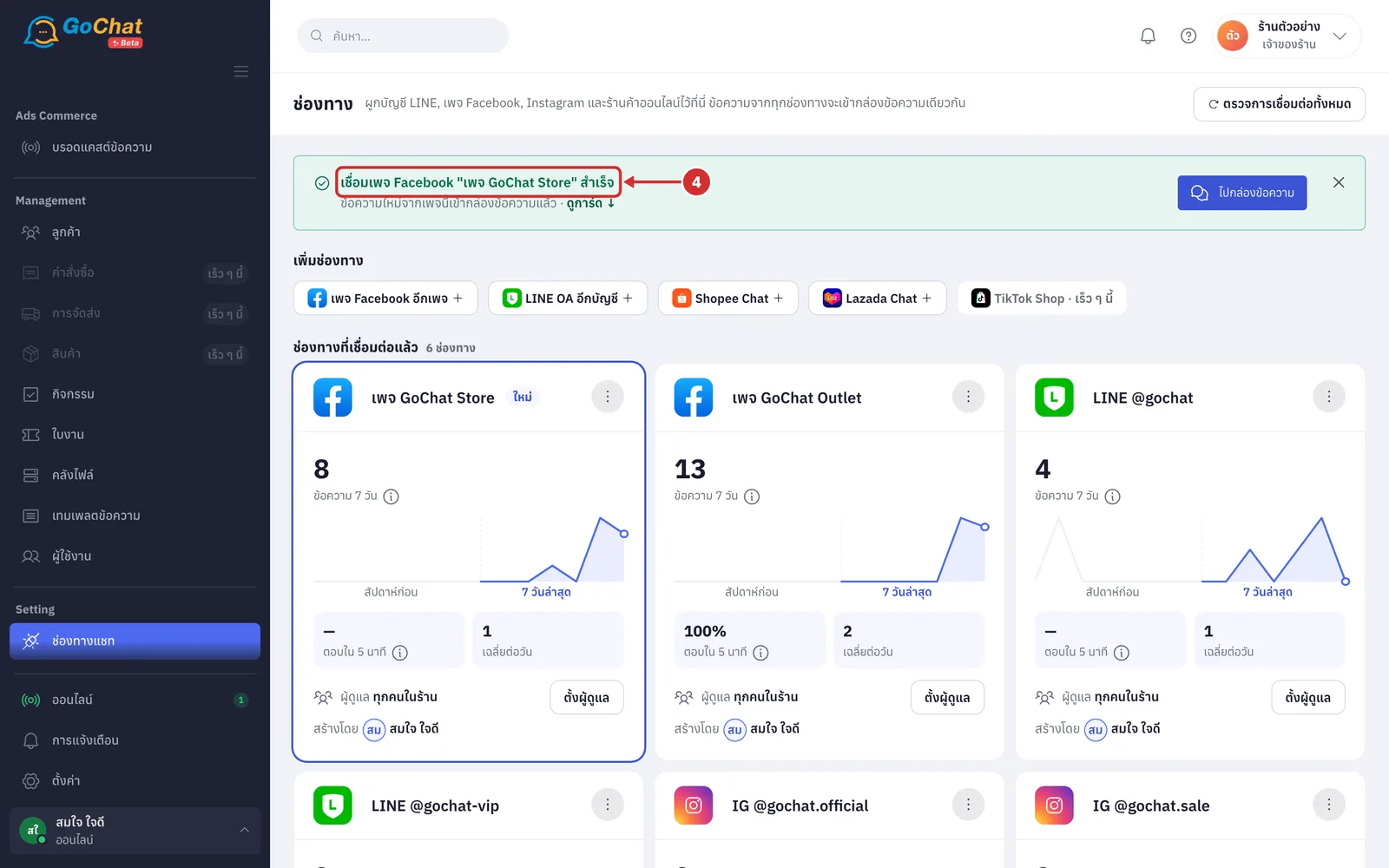
The card of the channel you just connected has a coloured frame and a ใหม่ (New) label. You can then choose:
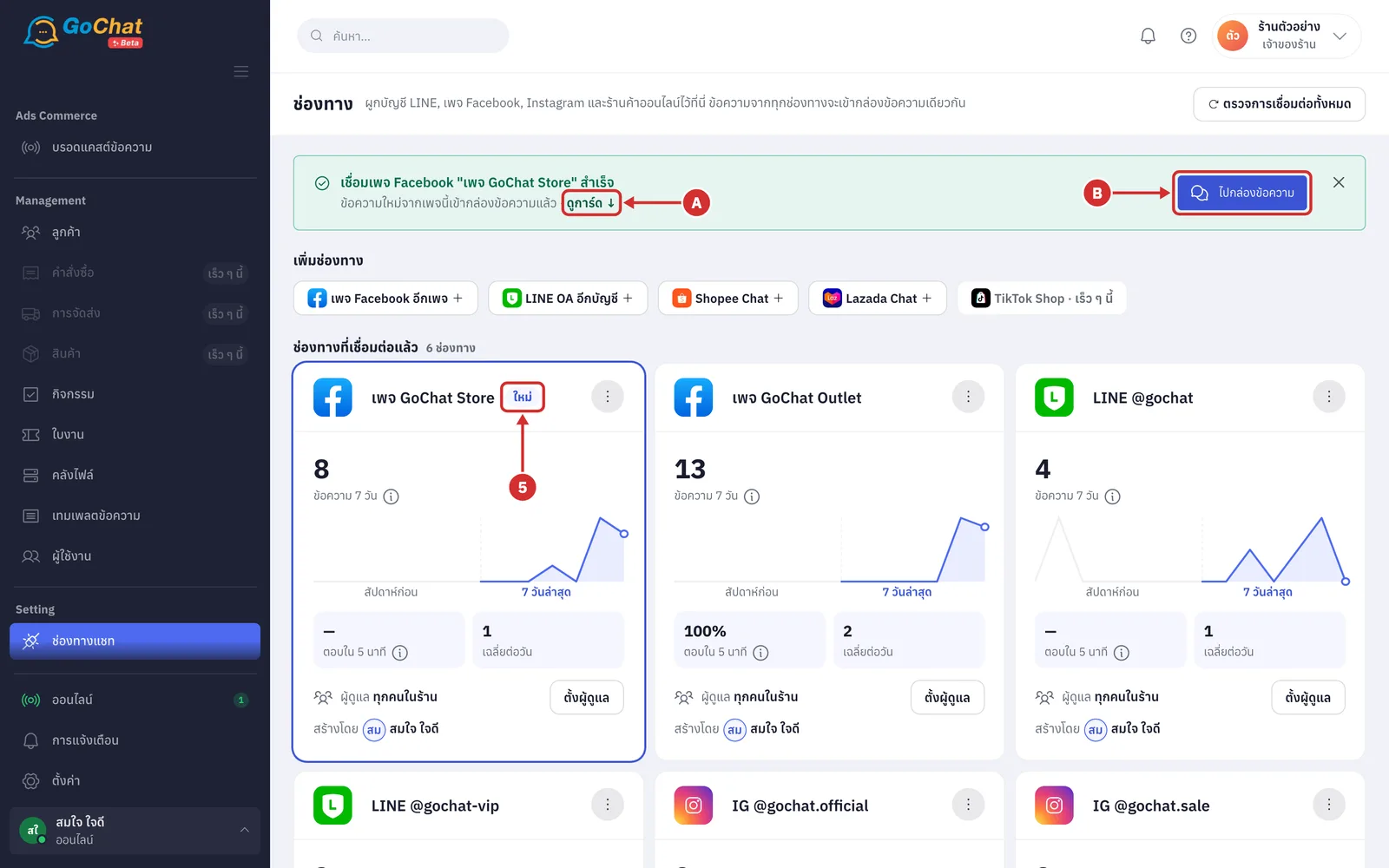
A ดูการ์ด ↓ (See card) to scroll to the card of the channel you just connected
B ไปกล่องข้อความ (Go to inbox) to start replying to customers
Reading a channel card
Each card is one page or one account. Cards are sorted by urgency: disconnected channels first, then channels about to expire, then channels working normally, then removed channels. A channel working normally has no status label. Every number counts chats in GoChat in your shop's time zone. Shopee and Lazada shops are listed separately under ร้านค้าออนไลน์ (Online shops), below ช่องทางที่เชื่อมต่อแล้ว (Connected channels).
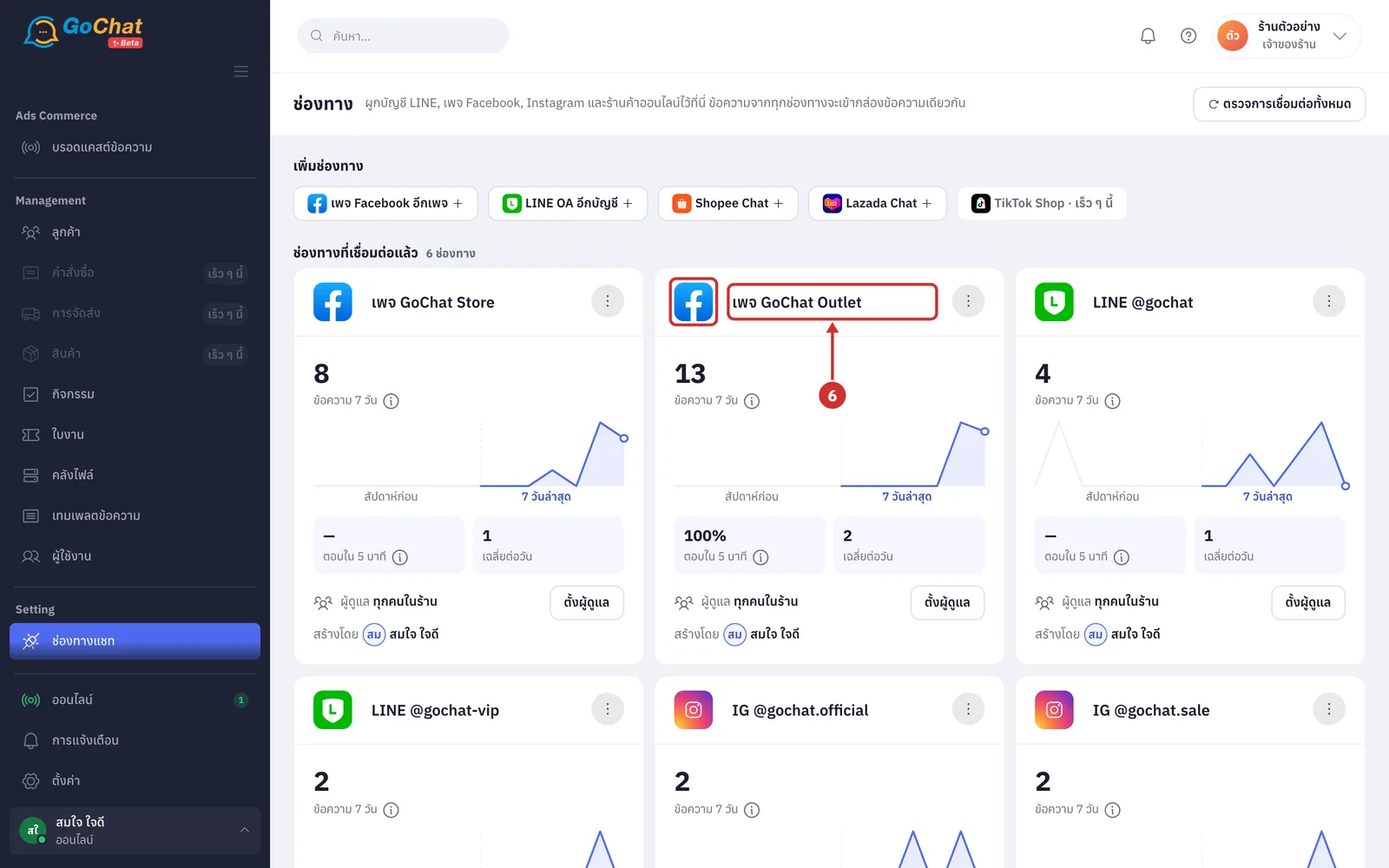
At the top of the card, see the picture and name of the page or account (the logo at the corner of the picture shows which channel it is; long names are cut off, point at the name to see it in full)
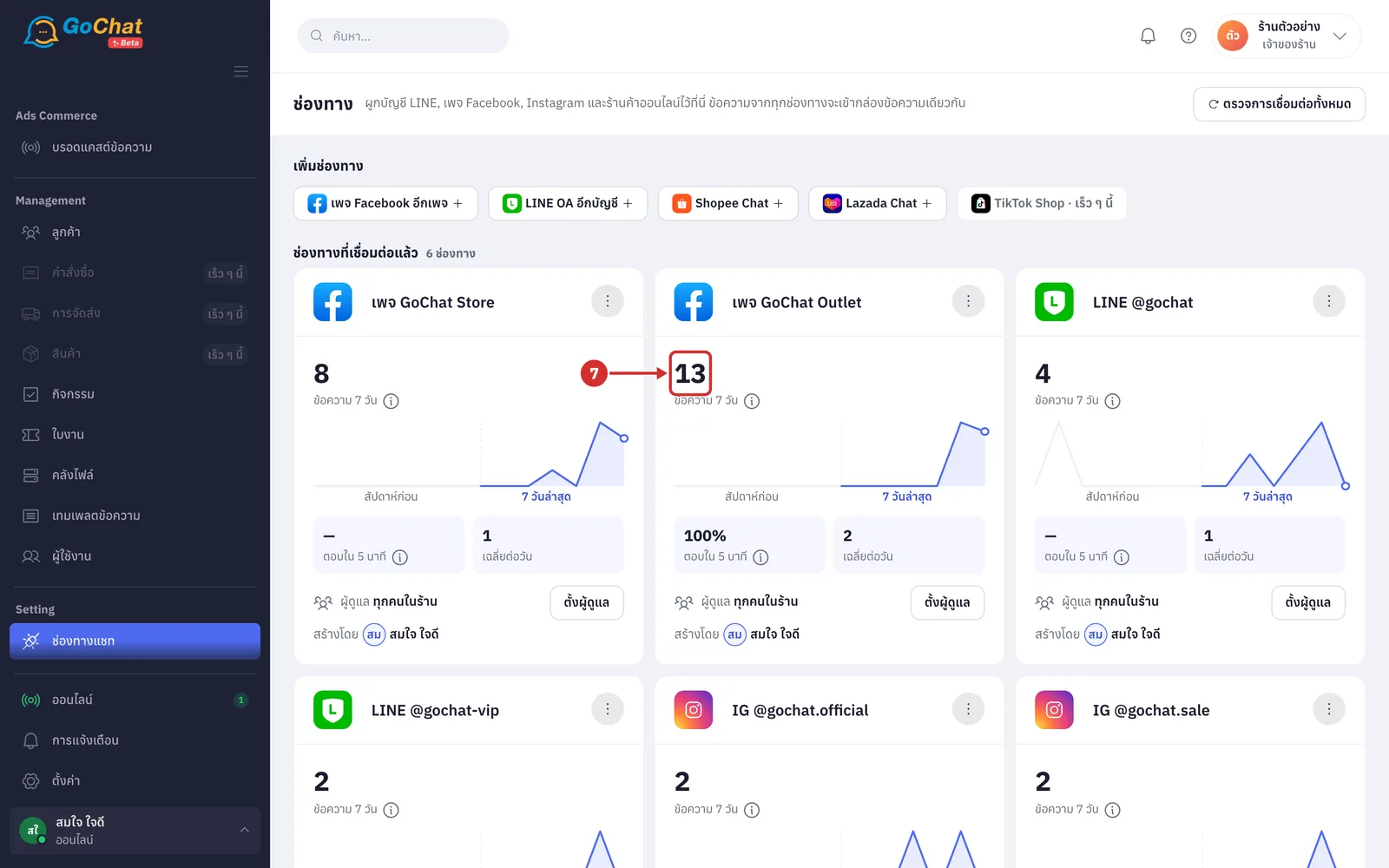
At ข้อความ 7 วัน (Messages, 7 days), see how many messages this channel had in the last 7 days (it counts both messages customers sent and replies from your shop, including today; if last week had 5 messages or more, a N% จากสัปดาห์ก่อน (N% from last week) label appears next to the number, with an up arrow for more than last week and a down arrow for fewer)
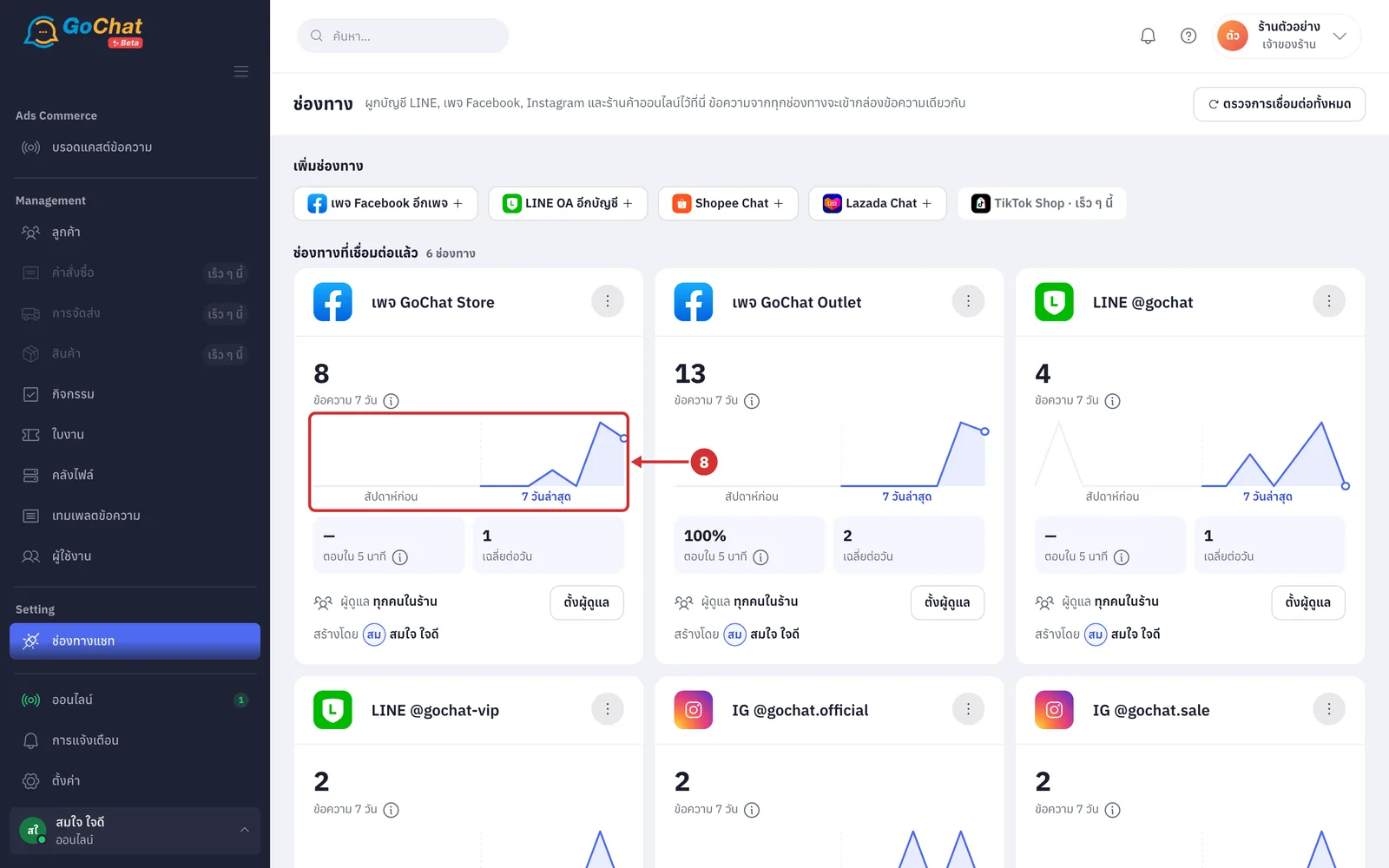
On the chart, see daily messages for 14 days. The right half, 7 วันล่าสุด (Last 7 days), is the same 7 days as the number above; the left half, สัปดาห์ก่อน (Last week), is a faint line for comparison (if there were no messages in 14 days, it shows ยังไม่มีข้อความใน 2 สัปดาห์ที่ผ่านมา (No messages in the past 2 weeks) instead of a chart)
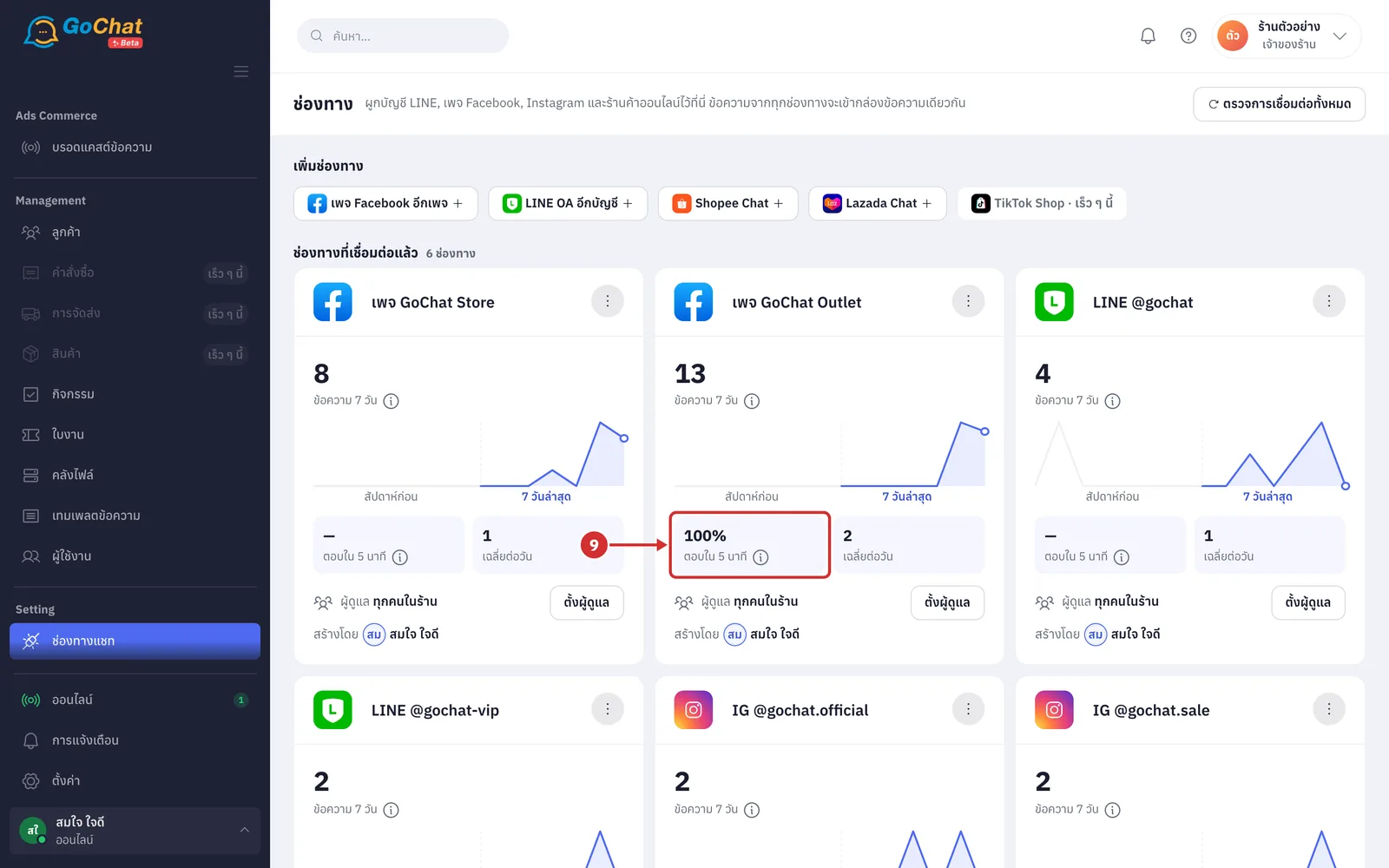
At ตอบใน 5 นาที (Replied within 5 minutes), see what percentage of answered customer messages in 7 days were answered within 5 minutes (it needs at least 5 answered messages; otherwise it shows —. Shopee and Lazada cards show อัตราการตอบแชท (Chat response rate) instead: answered customer messages compared with all customer messages in 7 days, counted from chats in GoChat, not the platform's own score. Below 80% it shows ต่ำกว่าเกณฑ์ 80% (Below the 80% target); reply to waiting messages soon, because marketplaces use the response rate in your shop score)
At เฉลี่ยต่อวัน (Average per day), see the average number of messages per day (messages in 7 days divided by 7)
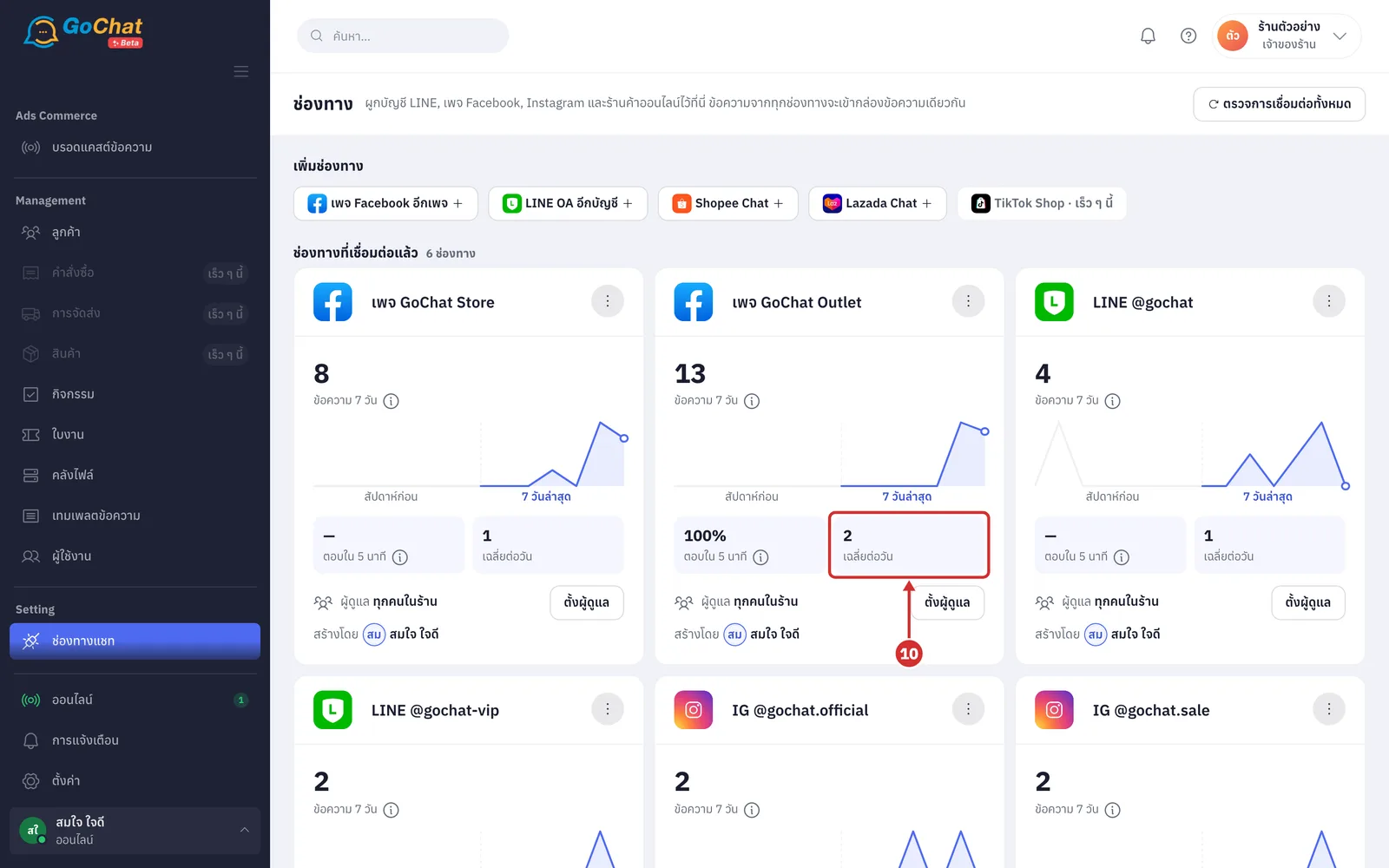
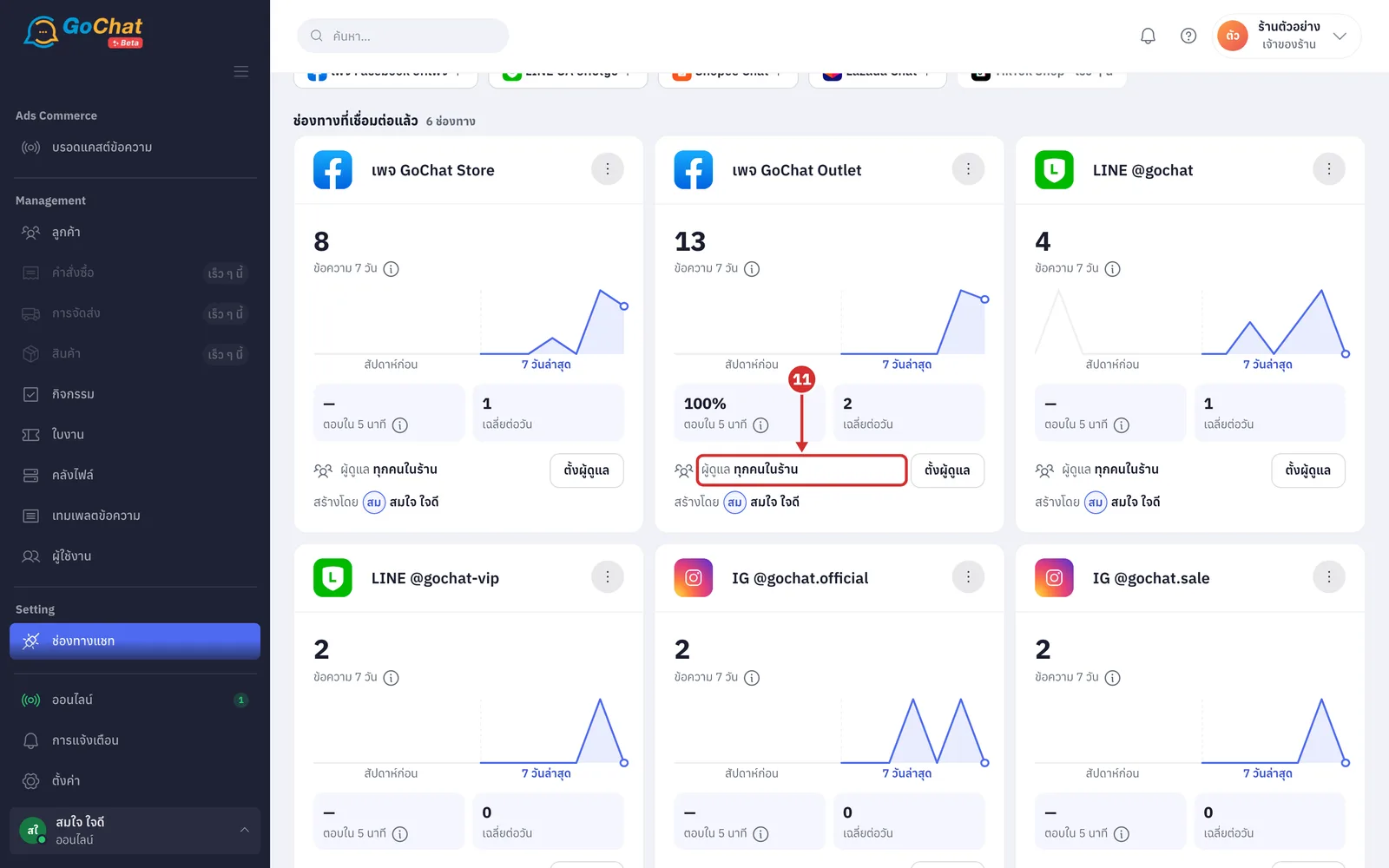
At ผู้ดูแล (Owners), see who sees this channel's chats in the inbox (ทุกคนในร้าน (Everyone in the shop), the number of people set, or เฉพาะเจ้าของร้าน (Shop owner only); set it under Setting channel owners below)
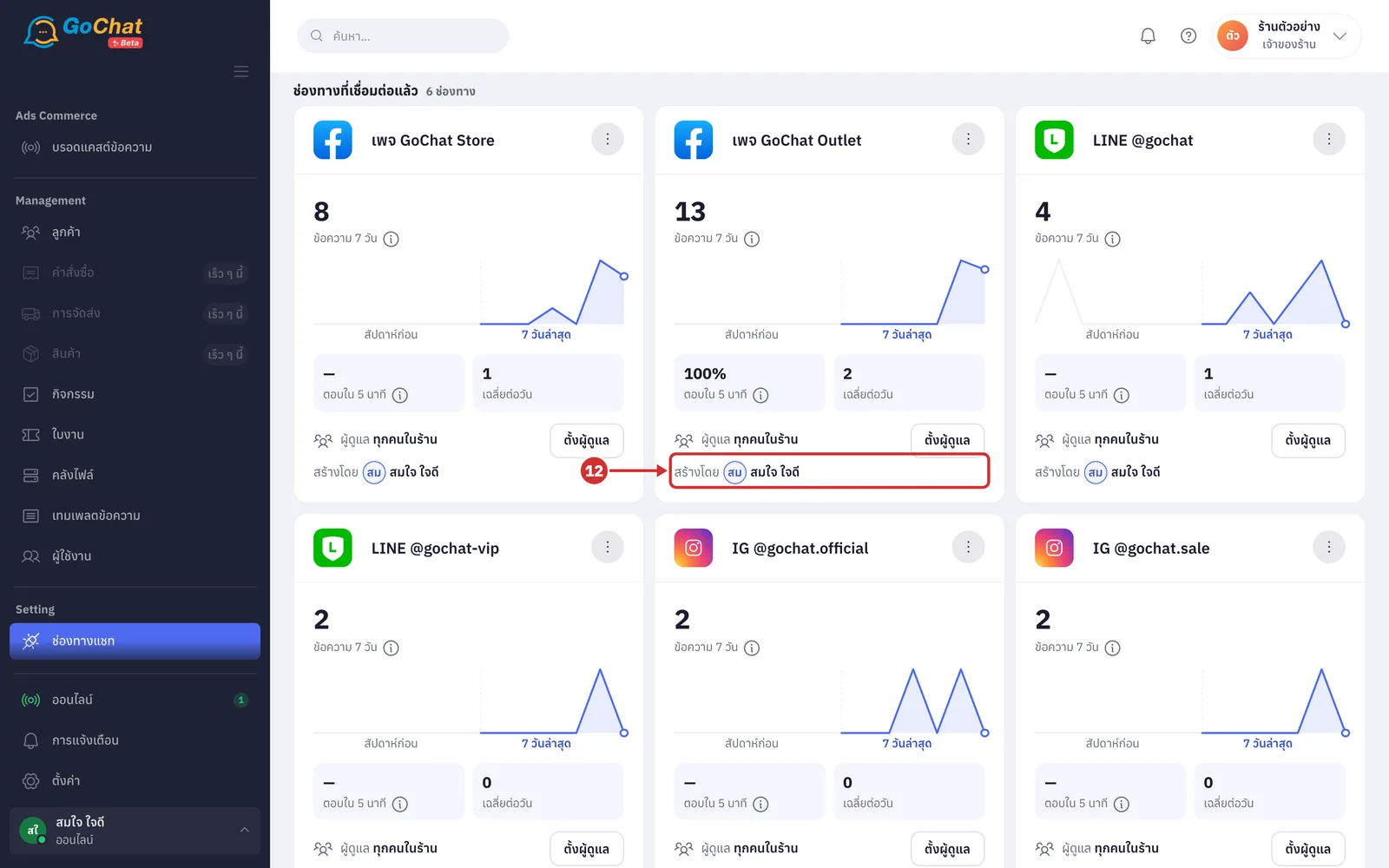
At สร้างโดย (Created by), see who connected this channel (admins can remove or renew only channels they connected themselves; see What admins can do on this page below)
Checking connections
A check asks the platform whether the channel still works and updates the status on the card. A channel that fails the check changes to ต้องเชื่อมต่อใหม่ (Needs reconnecting). Everyone in the shop can run a check.
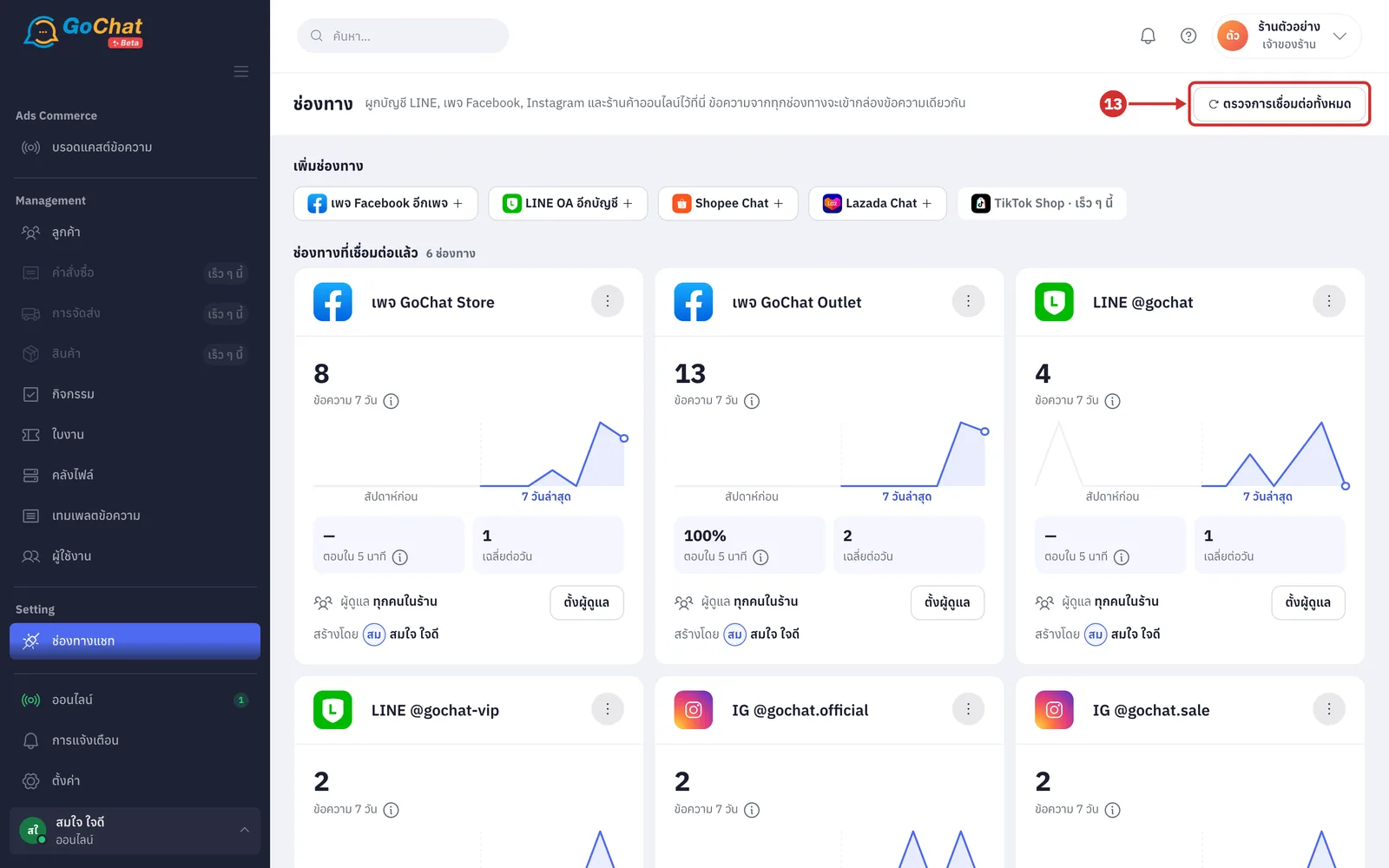
Click ตรวจการเชื่อมต่อทั้งหมด (Check all connections) at the top right. The system checks each channel in turn (while it runs, กำลังตรวจ N/M… (Checking N/M…) shows next to the button; when it finishes, the result shows below the header, such as ตรวจแล้ว 6 ช่องทาง — ปกติ 6 · มีปัญหา 0 (Checked 6 channels — 6 OK · 0 with problems). Removed channels are not checked. Channels the system cannot check yet, such as Lazada, count as ยังตรวจไม่ได้ (Cannot check yet) and keep their status)
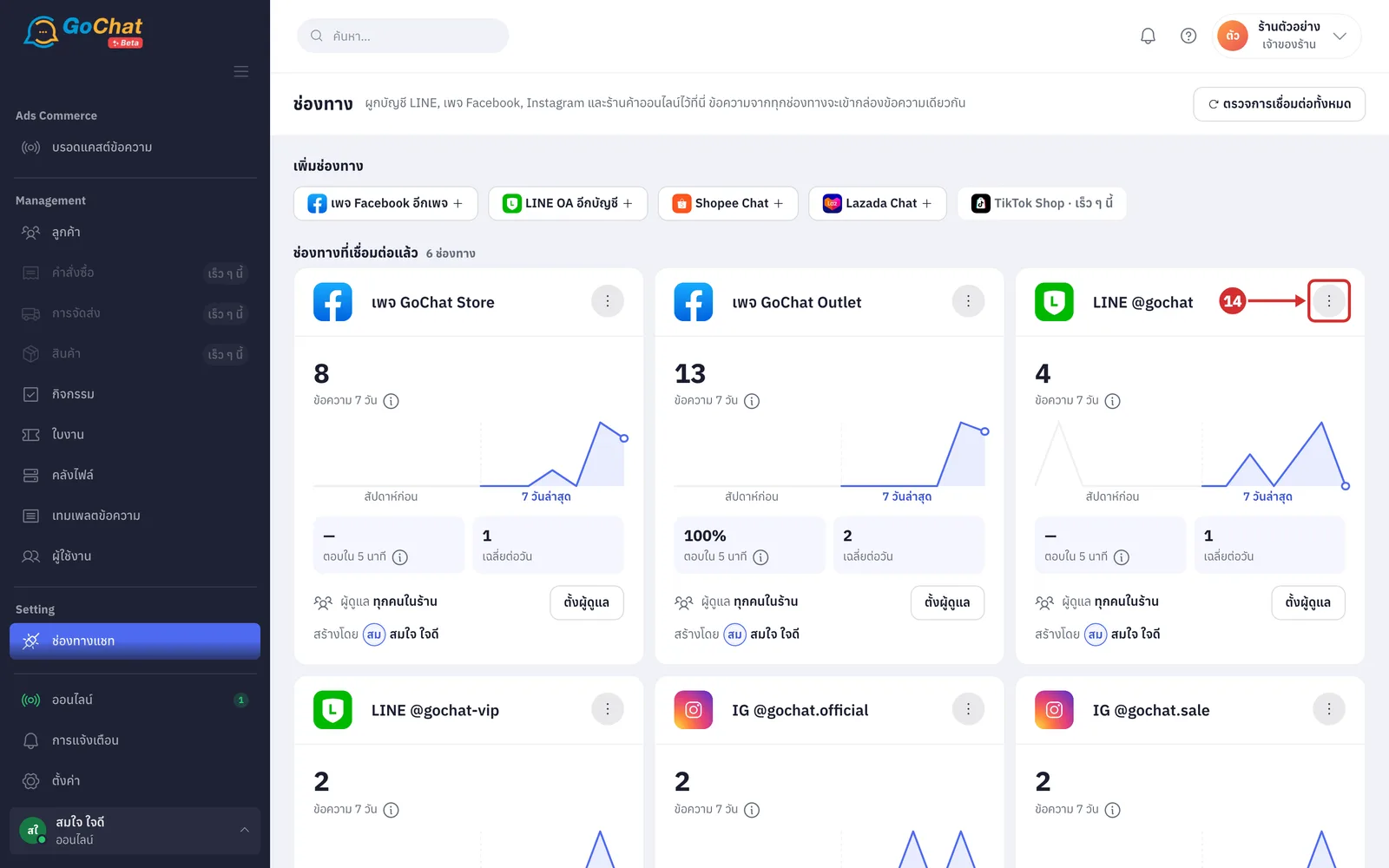
To check one channel, click ⋮ at the top right of its card
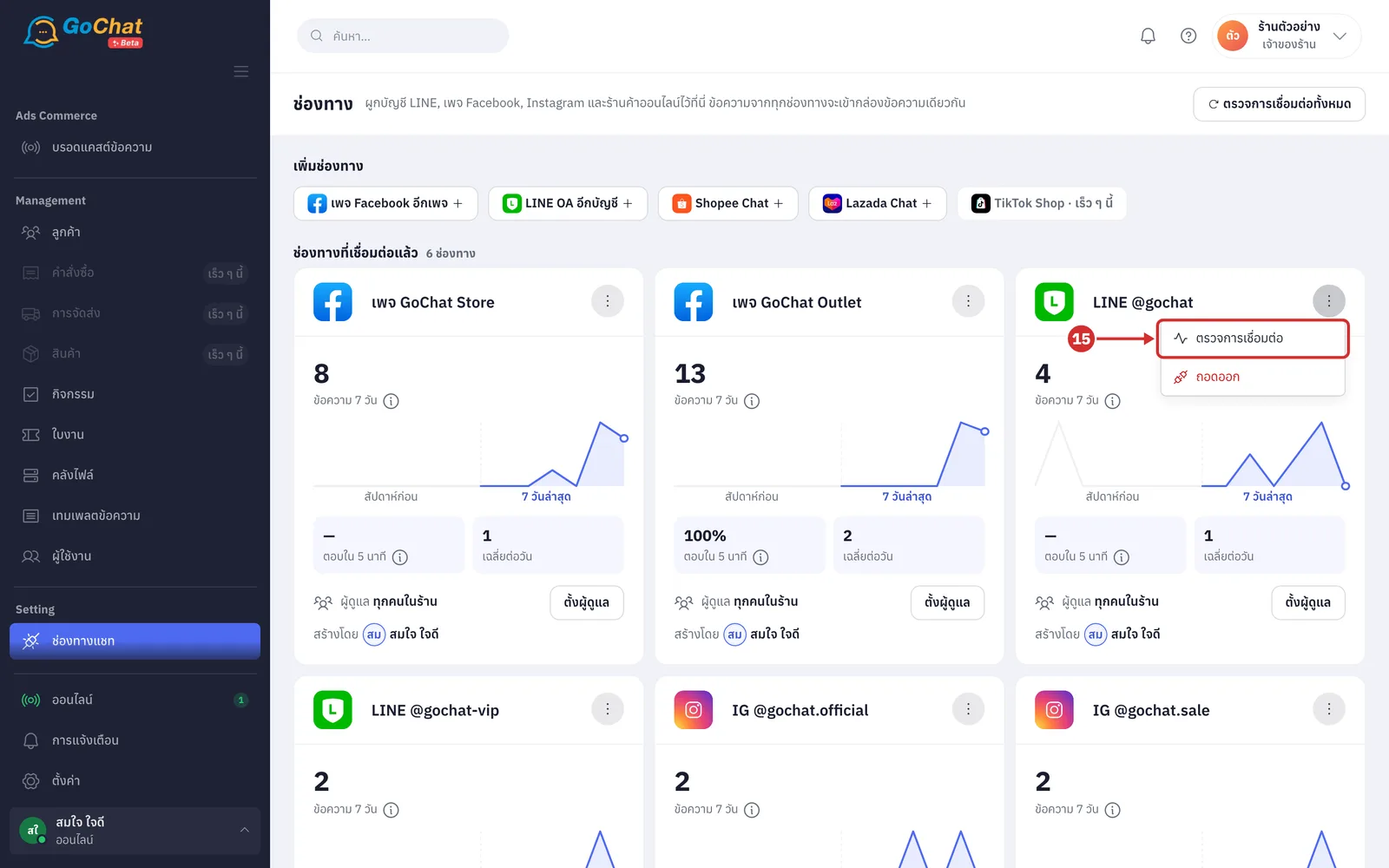
Choose ตรวจการเชื่อมต่อ (Check connection). The result shows at the bottom of the page (if it works: เชื่อมต่อปกติ — (Connected —) followed by the page or account name and the permission expiry date if known; if not: เชื่อมต่อไม่ได้: … — ต้องเชื่อมใหม่ (Cannot connect: … — reconnect needed) and the card changes to ต้องเชื่อมต่อใหม่ (Needs reconnecting))
Fixing a disconnected channel
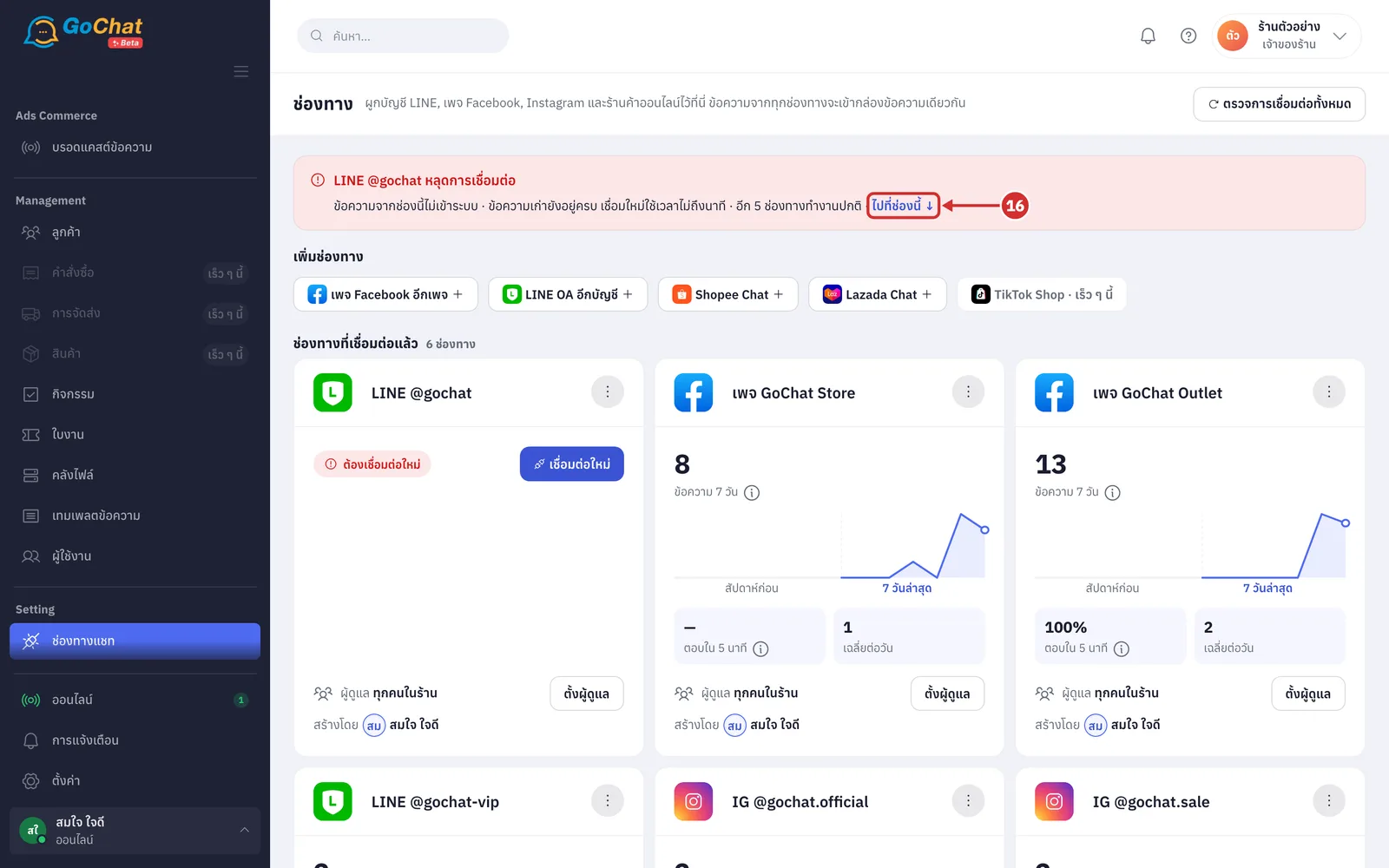
If a channel is disconnected, a red box channel name หลุดการเชื่อมต่อ (channel name disconnected) appears at the top of the page (while it is disconnected, new messages from that channel do not come in, but older messages are kept. If several are disconnected it shows N ช่องทางหลุดการเชื่อมต่อ (N channels disconnected) with their names. If only one is, click ไปที่ช่องนี้ ↓ (Go to this channel) to scroll to its card)
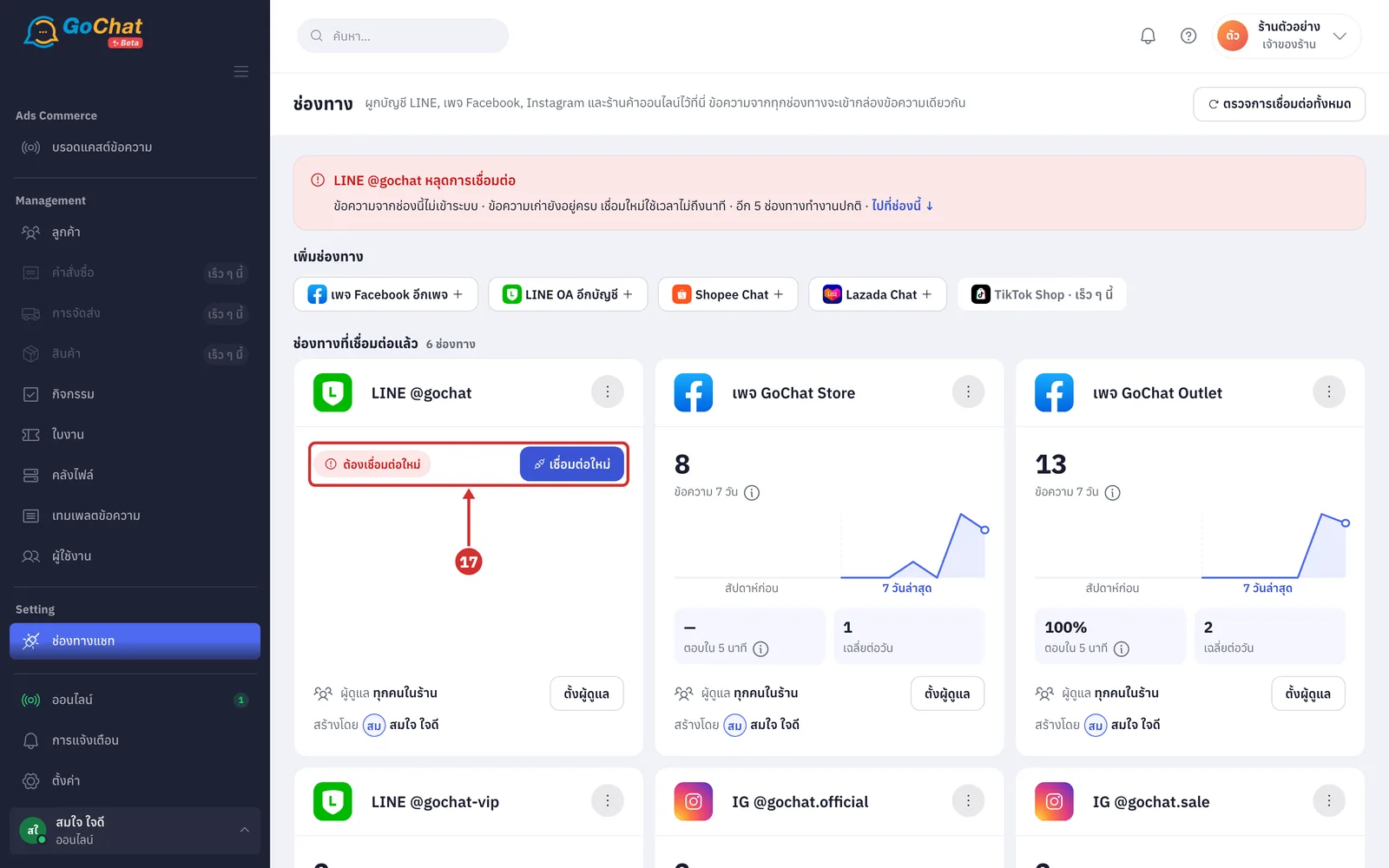
That channel's card shows ต้องเชื่อมต่อใหม่ (Needs reconnecting) and moves to the first position (below the label it says how long it has been disconnected and roughly how many messages have not come in, when the system has enough data; a disconnected card shows no numbers or chart)
To see why, click the card's ⋮ and choose ทำไมถึงหลุด (Why did it disconnect). The explanation appears on the card (permissions granted by a channel expire, and end immediately when the person who connected it changes their password, is removed as a page admin, or revokes access in the platform's settings. Choose ซ่อนว่าทำไมถึงหลุด (Hide why it disconnected) in the same menu to hide it)
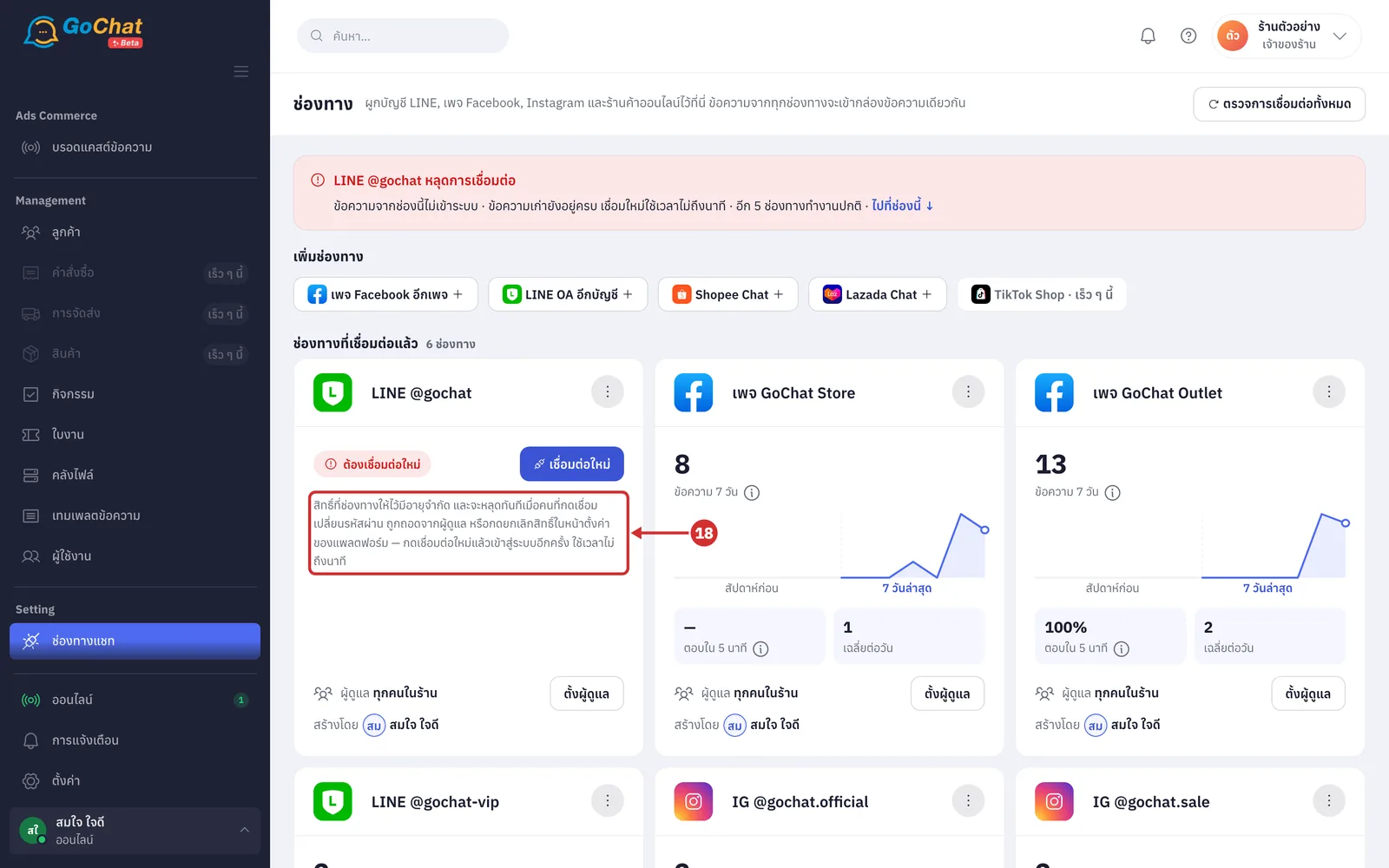
Click เชื่อมต่อใหม่ (Reconnect) on the card and follow that channel's guide again (LINE OA opens GoChat's connection wizard; Lazada opens the country picker first; Facebook and Shopee take you to the platform's authorization page. After reconnecting you get all the same chat rooms and history back)
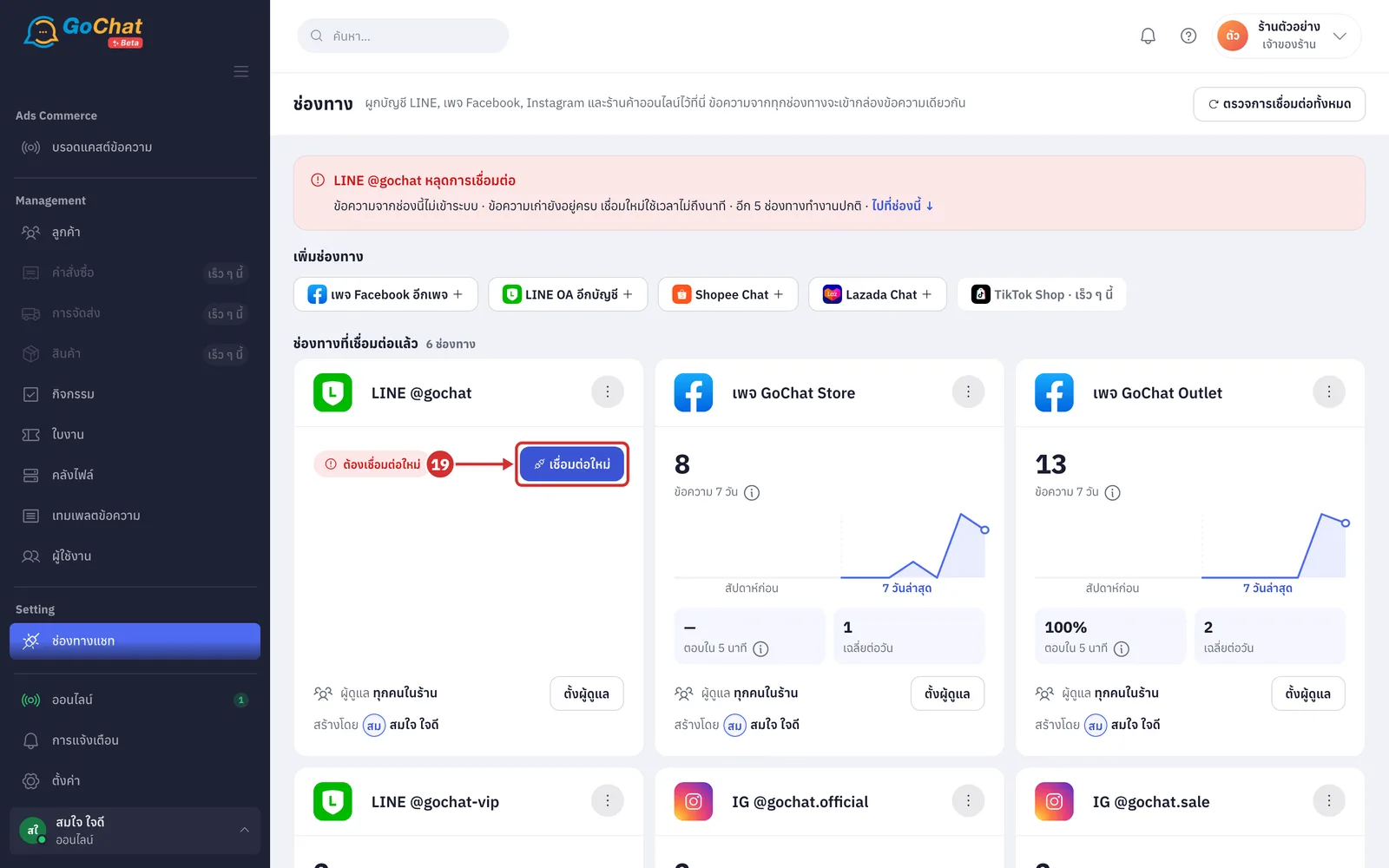
A card may show other labels that need action:
A ต้องต่ออายุใน N วัน (Renew within N days) (orange) the permission is about to expire but messages still come in; below the label is the expiry date. Click ต่ออายุตอนนี้ (Renew now) to authorize again before messages stop (once expired the label is หมดอายุแล้ว (Expired); when no channel is disconnected, an orange box at the top of the page lists every channel that needs renewing; LINE OA never expires)
B ถอดแล้ว (Removed) a channel that was removed; below the label it says ถอดมา … · ประวัติแชทยังอยู่ครบ (Removed … ago · chat history kept). Click เชื่อมกลับ (Reconnect) to connect it again
C Order management system (GoSaaS) labels: ยังไม่ผูกร้าน (Shop not linked), ยังไม่ผูกช่องทาง (Channel not linked), ระบบออเดอร์ไม่บันทึก (Not saved by the order system), ระบบออเดอร์บันทึกไม่ได้ (Order system could not save) and ช่องทางถูกปิด (Channel closed). Click the (i) button next to the label to read why, then click the button next to it (ผูกร้าน (Link shop), เลือกช่องทาง (Choose channel), ลองอีกครั้ง (Try again) or เปิดใช้อีกครั้ง (Turn on again); shop owner only). These labels are about orders; chat keeps working
Setting channel owners
Channel owners decide who sees this channel's chats in the inbox. Only the เจ้าของร้าน (Shop owner) can set them, and the shop owner always sees chats from every channel.
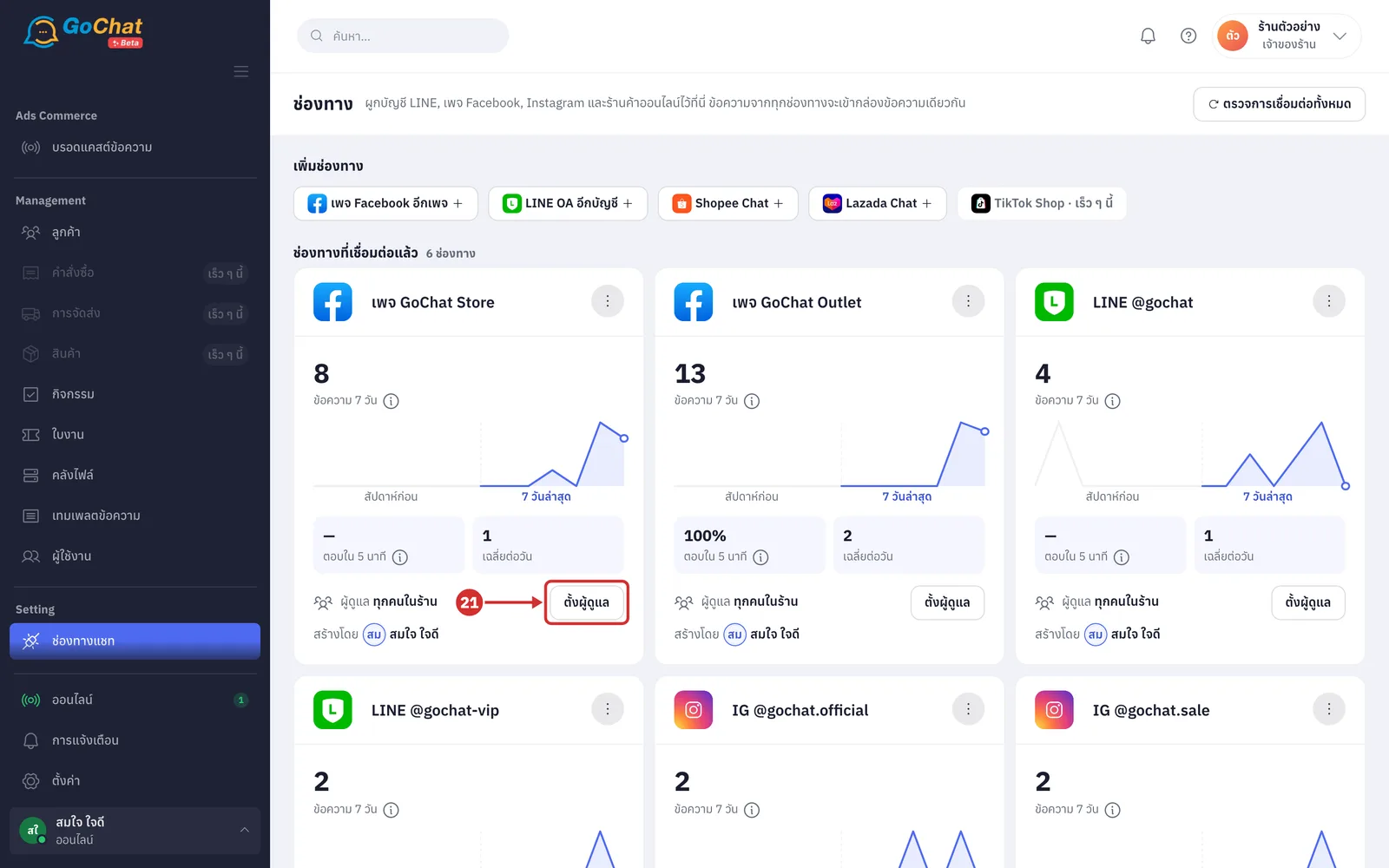
Click ตั้งผู้ดูแล (Set owners) on the card of the channel you want (if owners are already set, the button is called แก้ไข (Edit))
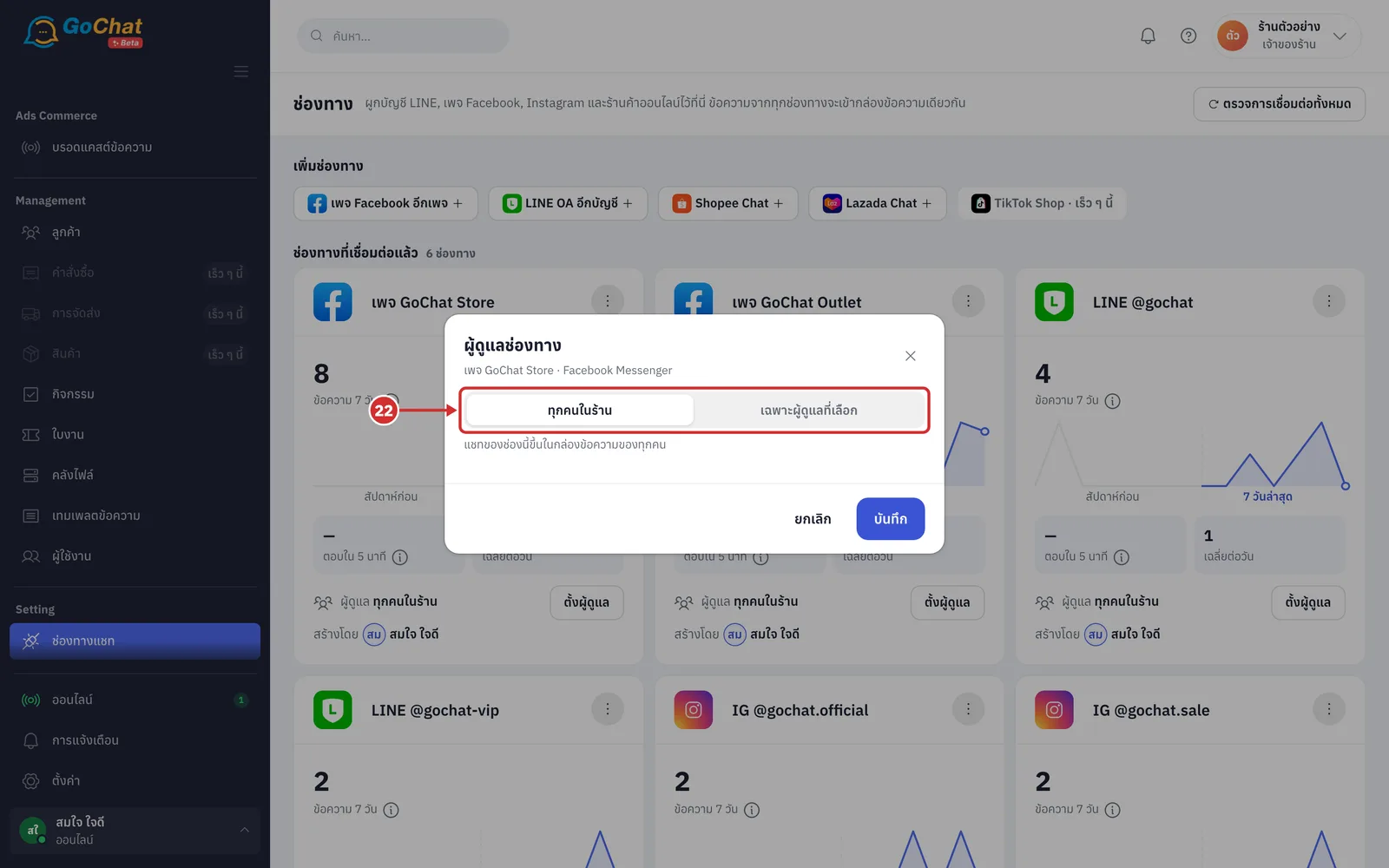
In the ผู้ดูแลช่องทาง (Channel owners) window, choose ทุกคนในร้าน (Everyone in the shop — this channel's chats appear in everyone's inbox) or เฉพาะผู้ดูแลที่เลือก (Selected owners only — others will not see this channel's chats in the inbox)
If you choose เฉพาะผู้ดูแลที่เลือก (Selected owners only), use the ค้นหาชื่อ หรือรหัส USR (Search name or USR code) box or the ทั้งหมด (All), เจ้าของร้าน (Shop owner) and แอดมิน (Admin) filters to find people (the number after each filter is how many people it has)
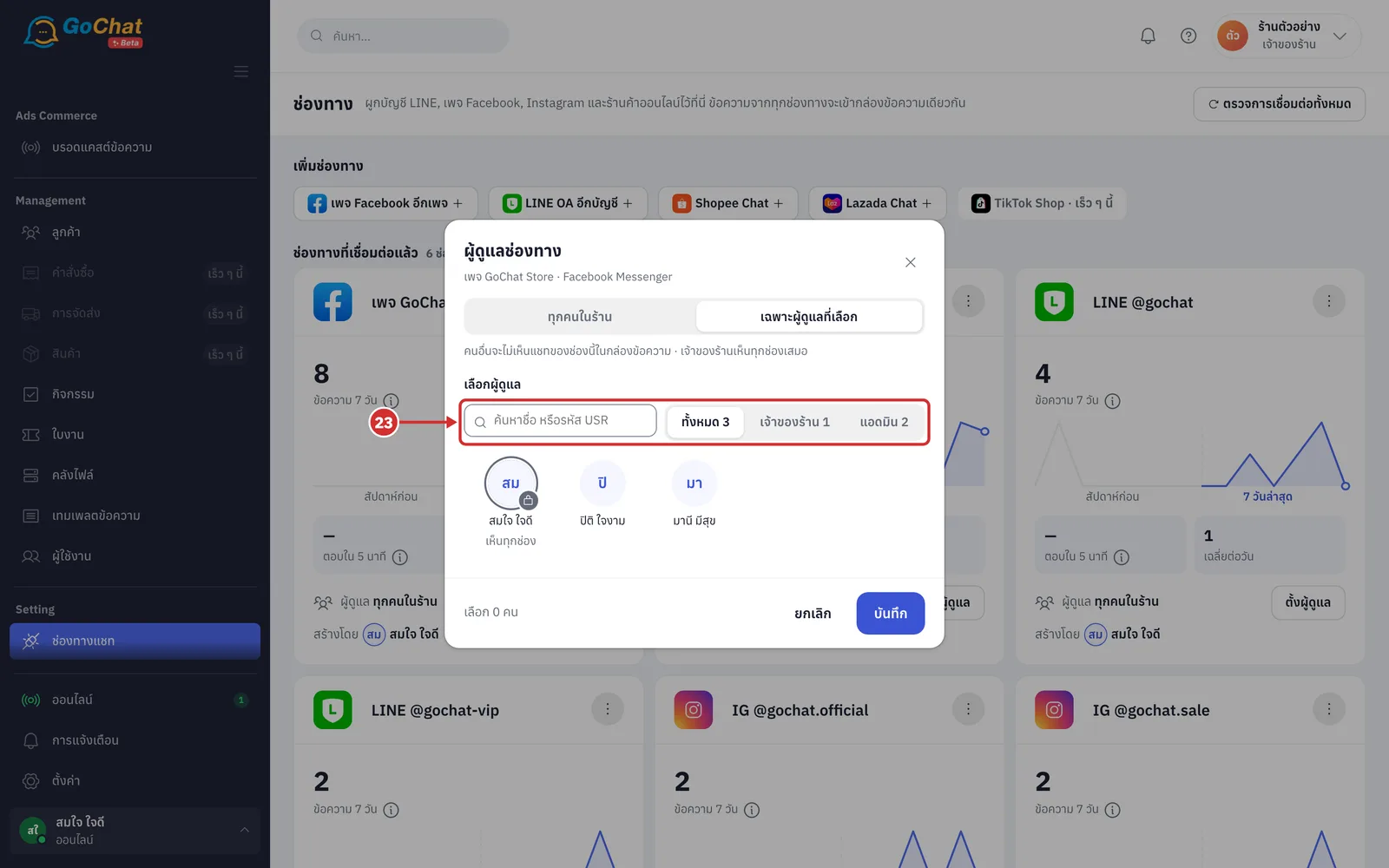
Click the picture of each person who will look after this channel. Selected pictures get a tick; click again to remove (the shop owner has a lock and เห็นทุกช่อง (Sees every channel) and cannot be selected or removed. Point at a picture to see the role and USR code. Shops using GoSaaS also see GoSaaS staff who have not used GoChat yet)
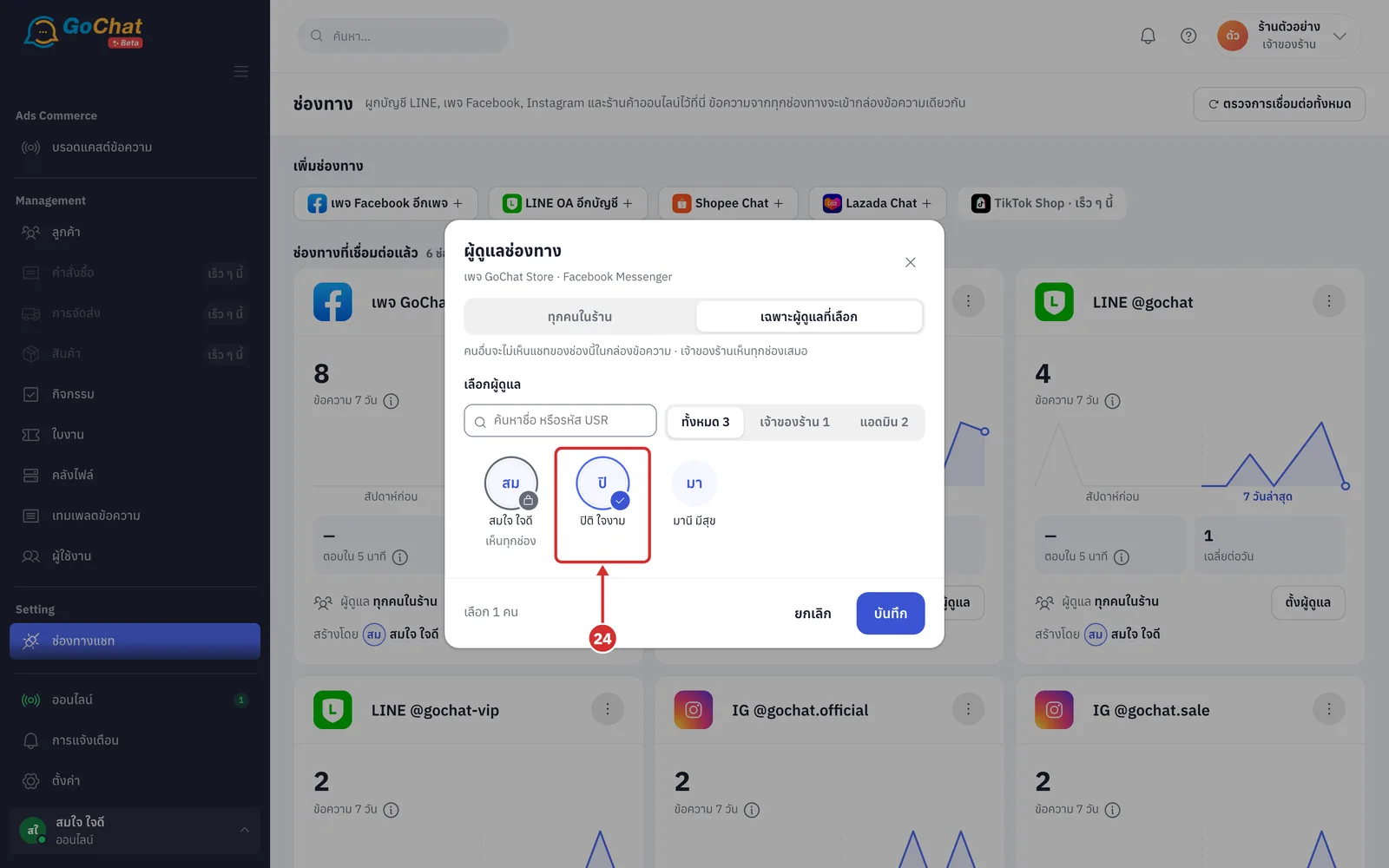
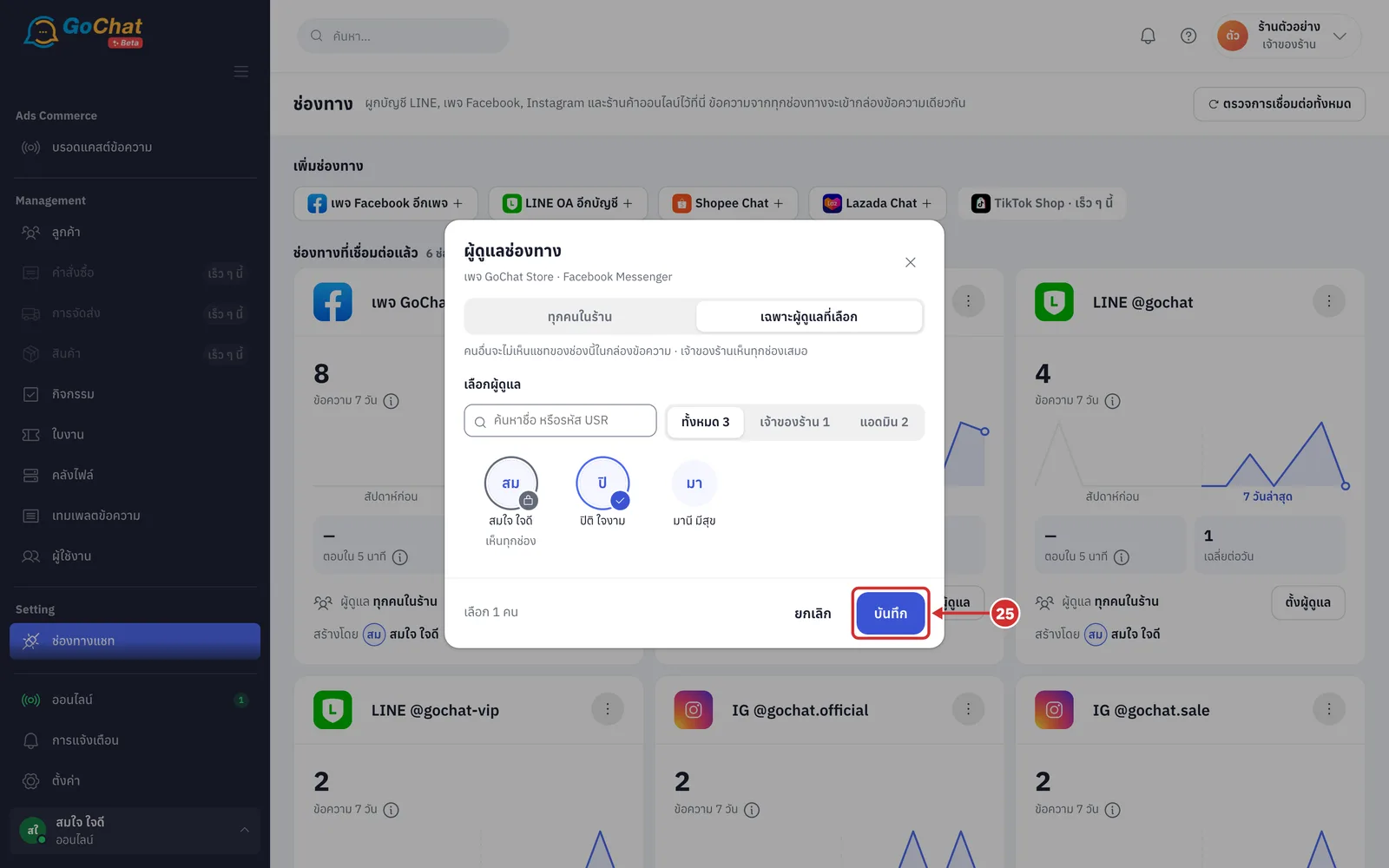
Click บันทึก (Save) (next to the button it says เลือก N คน (N selected); if nobody is selected, the system warns เลือกผู้ดูแลอย่างน้อย 1 คน หรือเปลี่ยนเป็น “ทุกคนในร้าน” (Choose at least 1 owner or switch to “Everyone in the shop”). Click ยกเลิก (Cancel) to close without saving)
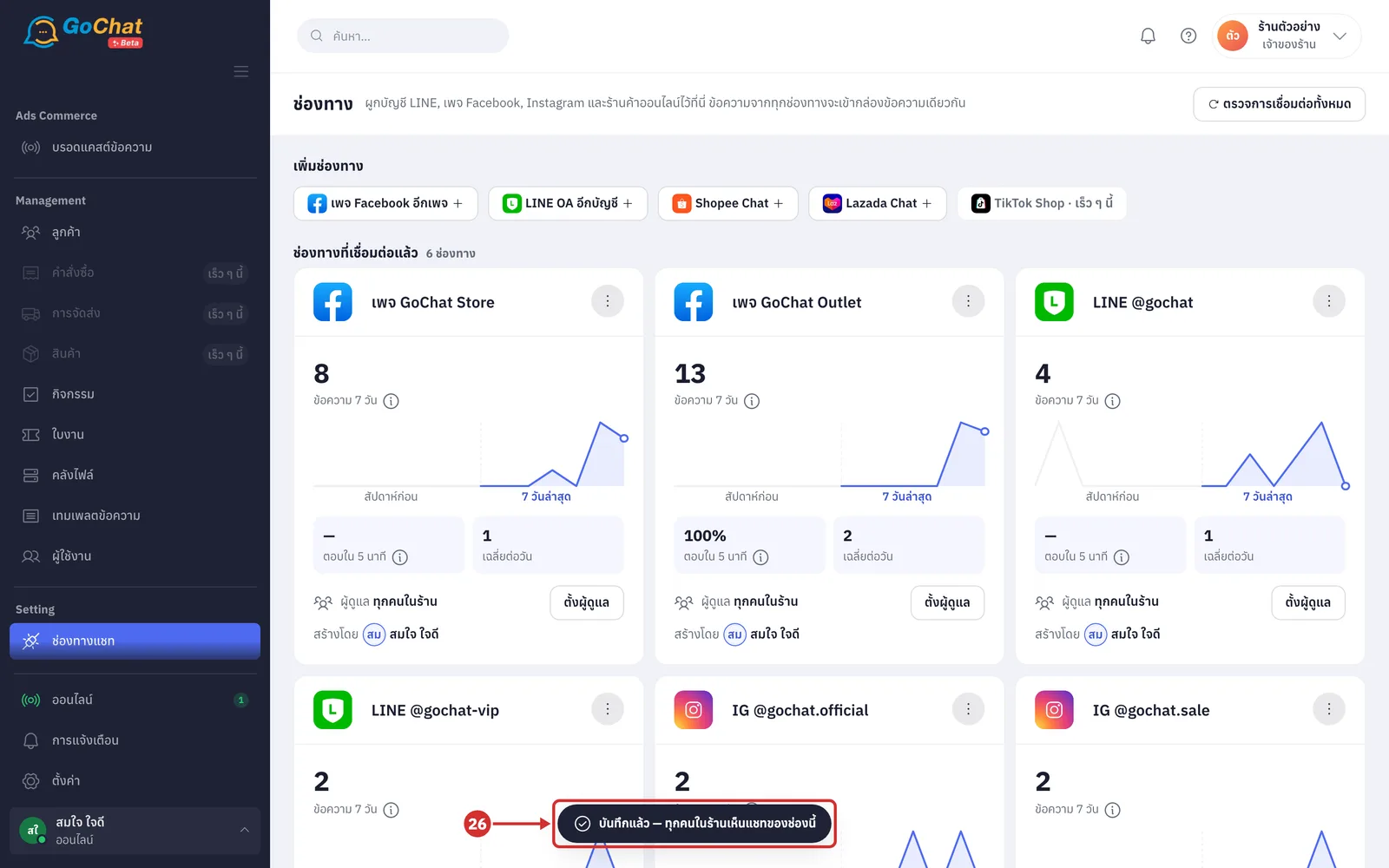
The system shows บันทึกแล้ว — ผู้ดูแล N คน (Saved — N owners) (or บันทึกแล้ว — ทุกคนในร้านเห็นแชทของช่องนี้ (Saved — everyone in the shop sees this channel's chats)), and the ผู้ดูแล (Owners) row on the card updates
Removing a channel
Click ⋮ on the card you want to remove and choose ถอดออก (Remove)
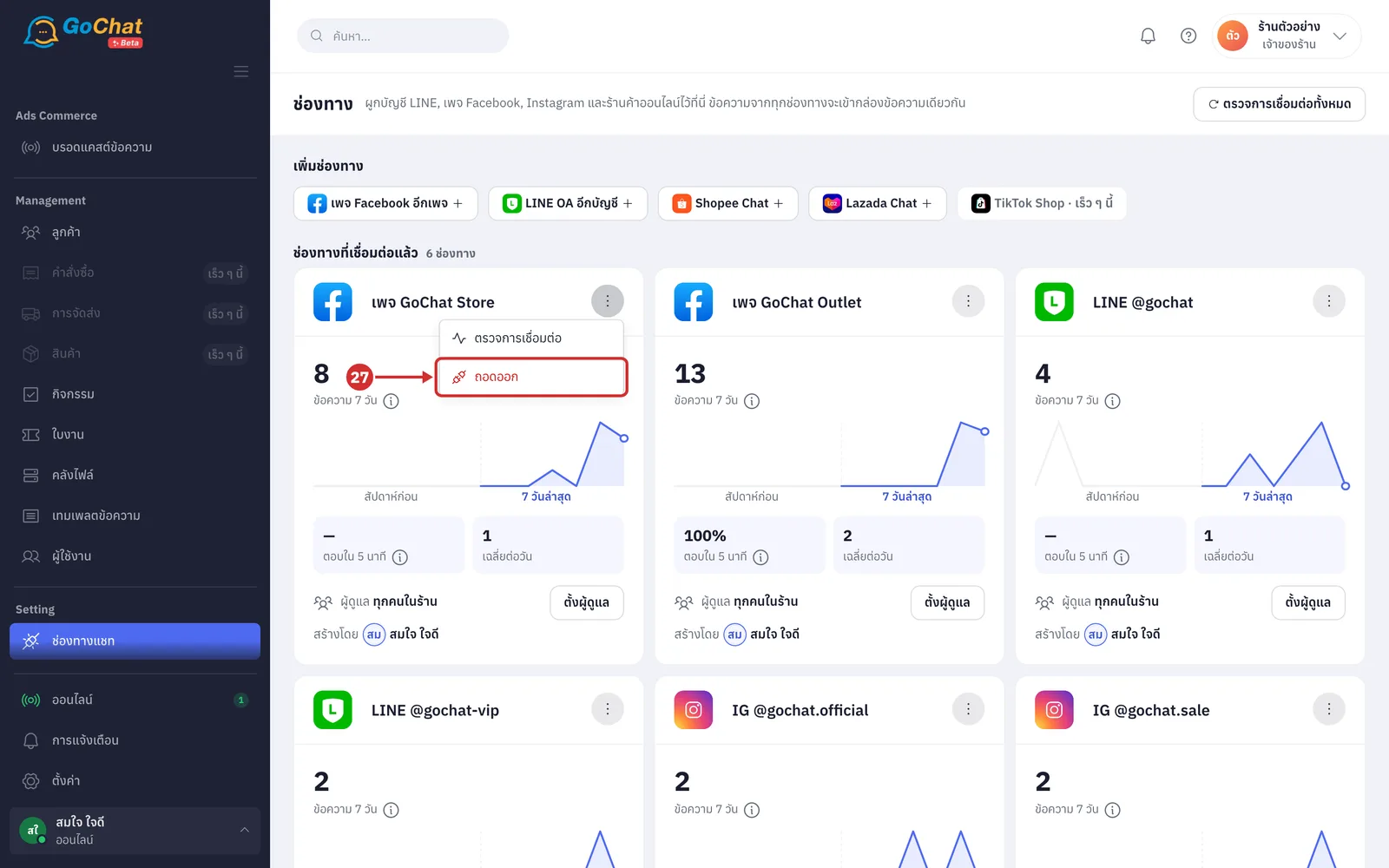
In the window asking ถอด … ออกจากร้าน? ประวัติแชทยังอยู่ครบ (Remove … from the shop? Chat history is kept), confirm. The system shows ถอดการเชื่อมต่อแล้ว — ประวัติแชทของเพจนี้ยังอยู่ครบ เชื่อมกลับเมื่อไหร่ก็ได้ (Disconnected — this page's chat history is kept; reconnect any time) and the card shows ถอดแล้ว (Removed) with a เชื่อมกลับ (Reconnect) button (after removing, new messages from this channel do not come in; existing chat rooms and history are kept)
What admins can do on this page
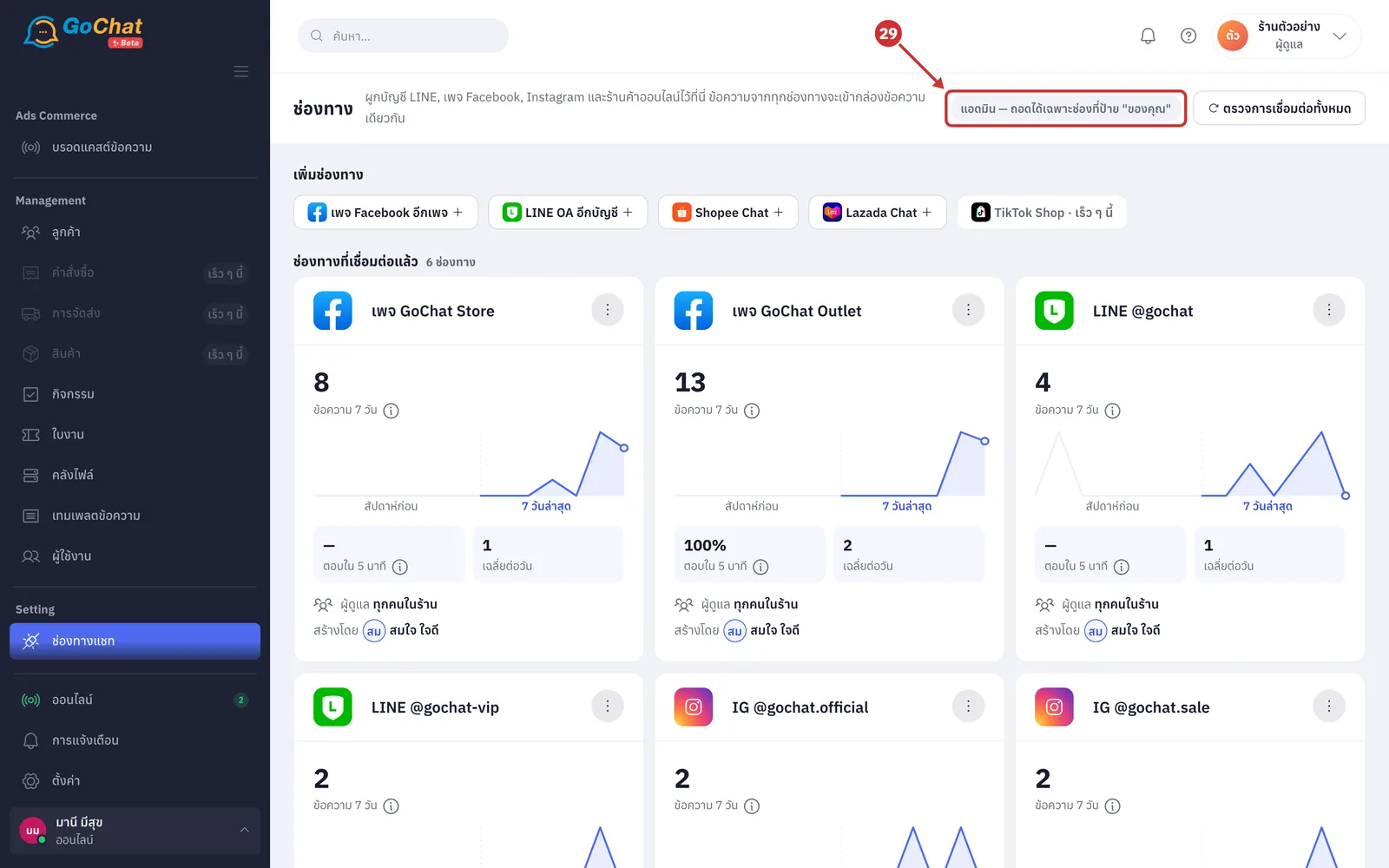
If you are signed in as an admin, you see แอดมิน — ถอดได้เฉพาะช่องที่ป้าย "ของคุณ" (Admin — can only remove channels labelled "Yours") in the header (admins can add channels and check connections; they can remove or renew only channels they connected themselves, which show a ของคุณ (Yours) label next to the name; anyone in the shop can reconnect a disconnected or removed channel; admins cannot set owners, and if they are not on a channel's owner list the card says คุณไม่ได้อยู่ในรายชื่อ (You are not on the list))
Other bars and boxes you may see
Besides everything above, this page may show the following, depending on your shop:
A โควตา LINE N% (LINE quota N%) a bar on LINE OA cards whose LINE package has a message quota, showing how much of this month is used (it is the quota of the LINE OA package your shop bought from LINE, not from GoChat; it counts every outgoing message including broadcasts; at 90% the bar turns red; when it runs out, messages cannot be sent until next month or until you upgrade the package at LINE)
B ตอบกลับอัตโนมัติ N (Auto-reply N) a bar on cards of channels with auto-reply sets turned on or in test mode (point at it to see the topic names; click it to go to the auto-reply settings)
C ค้นหาช่องทาง (Search channels) shops with more than 6 channels get a search box above the cards; type a page name, account name or channel name to filter
D N เพจมีแอปอื่นคุมแชทอยู่ (N pages have another app controlling chats) (yellow box) another app holds the right to reply in more than half of the page's chat rooms in the last 24 hours, so GoChat and its bots cannot reply there. Click วิธีแก้ (How to fix) to see the steps
E Meta จำกัดการส่งข้อความของ … (Meta limited messaging for …) (red box) Meta has penalised this page; reconnecting does not help. Fix how messages are sent and appeal to Meta yourself
F ใช้อยู่ N / M (Using N / M) (red bar) your shop has more channels than its package allows. Remove channels until you are within the limit, or click ซื้อช่องทางเพิ่ม (Buy more channels) (shop owner); messages keep coming in meanwhile
Note: Settings for each channel, such as auto-reply bots and sharing chats among admins, are in the menu of that feature, not on this page. If you remove a channel and reconnect it later, you get all the same chat rooms and history back.