

Choosing and buying a package
The แพ็กเกจ (Package) page shows the package your shop uses and when it expires, compares what each package includes, lets you contact our sales team to buy or change package, shows how much your shop uses against the package limits, and lets you request add-ons, such as more users when your team grows.
Every role can open this page, but only the เจ้าของร้าน (Shop owner) can order. All prices are per month and exclude 7% VAT. The page shows packages by shop type:
Shops with a GoSaaS account (order and stock system): see the Professional · Advance · VIP packages (see steps 1–13)
Shops opened in GoChat: see the Starter package (see Packages for shops opened in GoChat, steps 14–17)
Viewing your shop's package
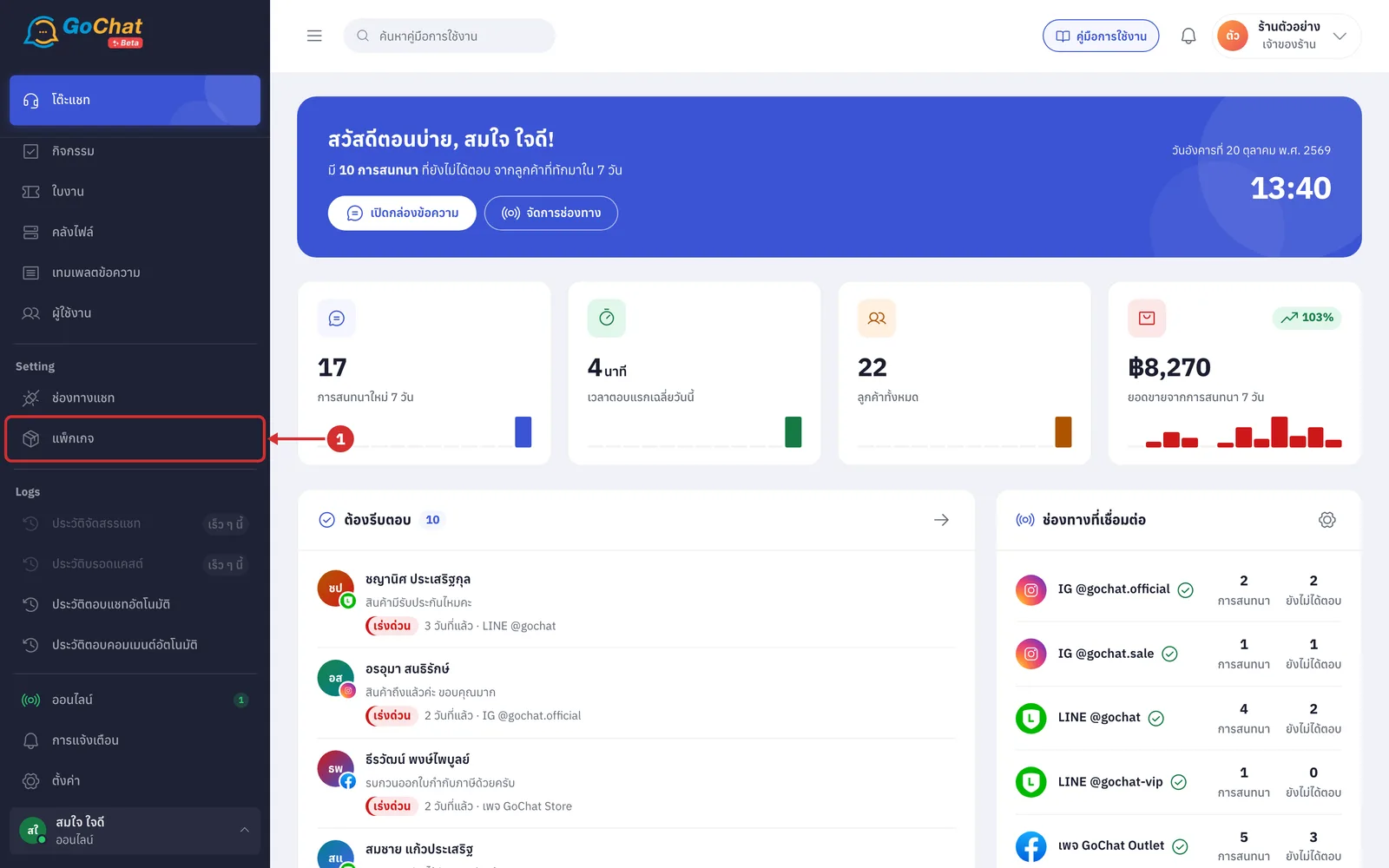
Under Setting, choose แพ็กเกจ (Package) in the left menu
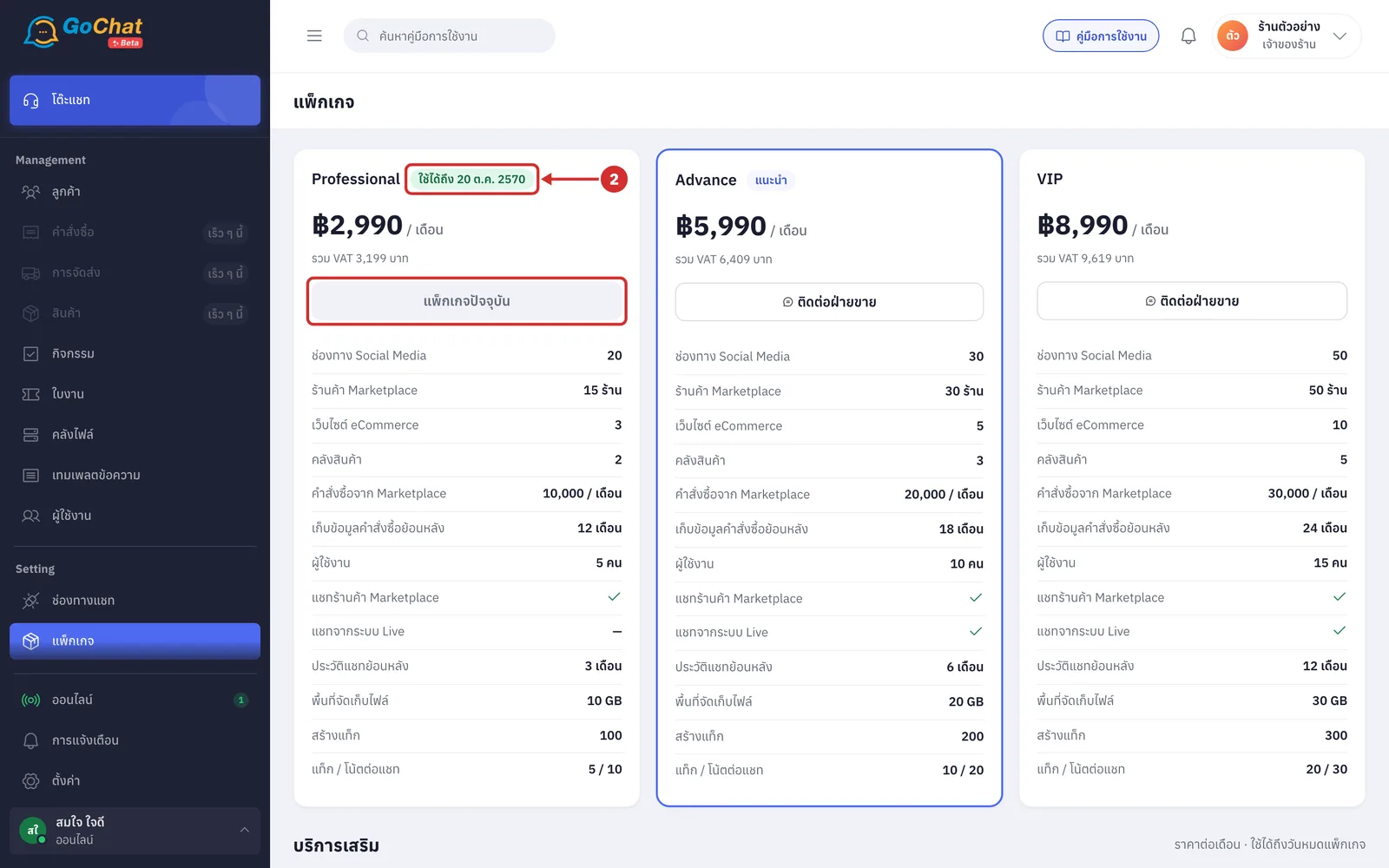
Find the package your shop uses: its card has a ใช้ได้ถึง … (Valid until …) label next to the package name. Your shop can be used until that date
The button on this card reads แพ็กเกจปัจจุบัน (Current package) and cannot be clicked
Shops with a GoSaaS account pay for and renew their package through GoSaaS
When 7 days or fewer are left, the top bar of every page shows a แพ็กเกจเหลือ N วัน (N days left on your package) label; click it to come to this page
When the package expires, the label turns red and reads หมดอายุ … (Expired …), and every page in the app shows an expiry notice; only the แพ็กเกจ (Package) page opens until you renew. Your shop's data is kept, and customer messages still arrive. If the grace period shown on the expiry notice passes, the system stops receiving customer messages
Comparing packages
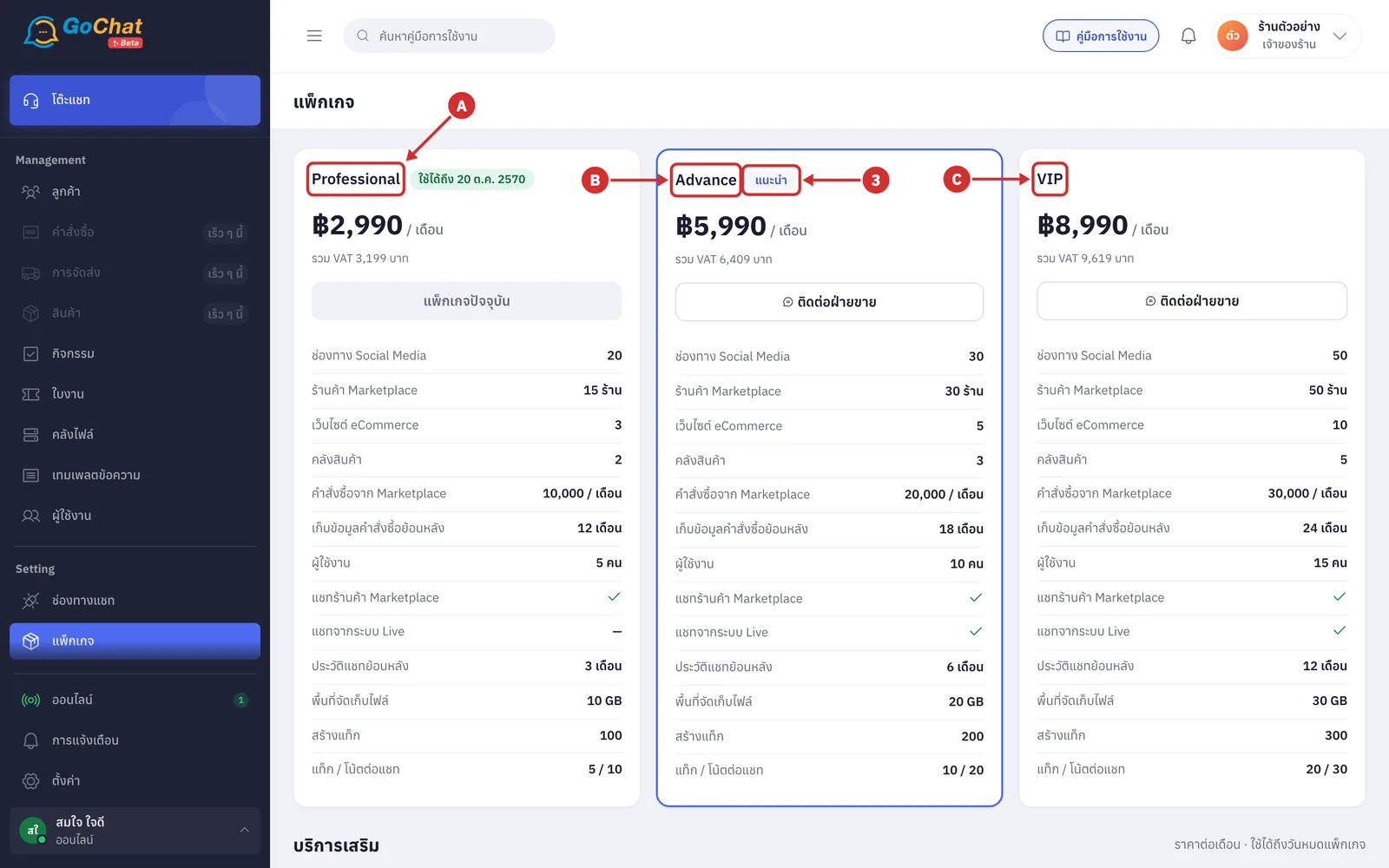
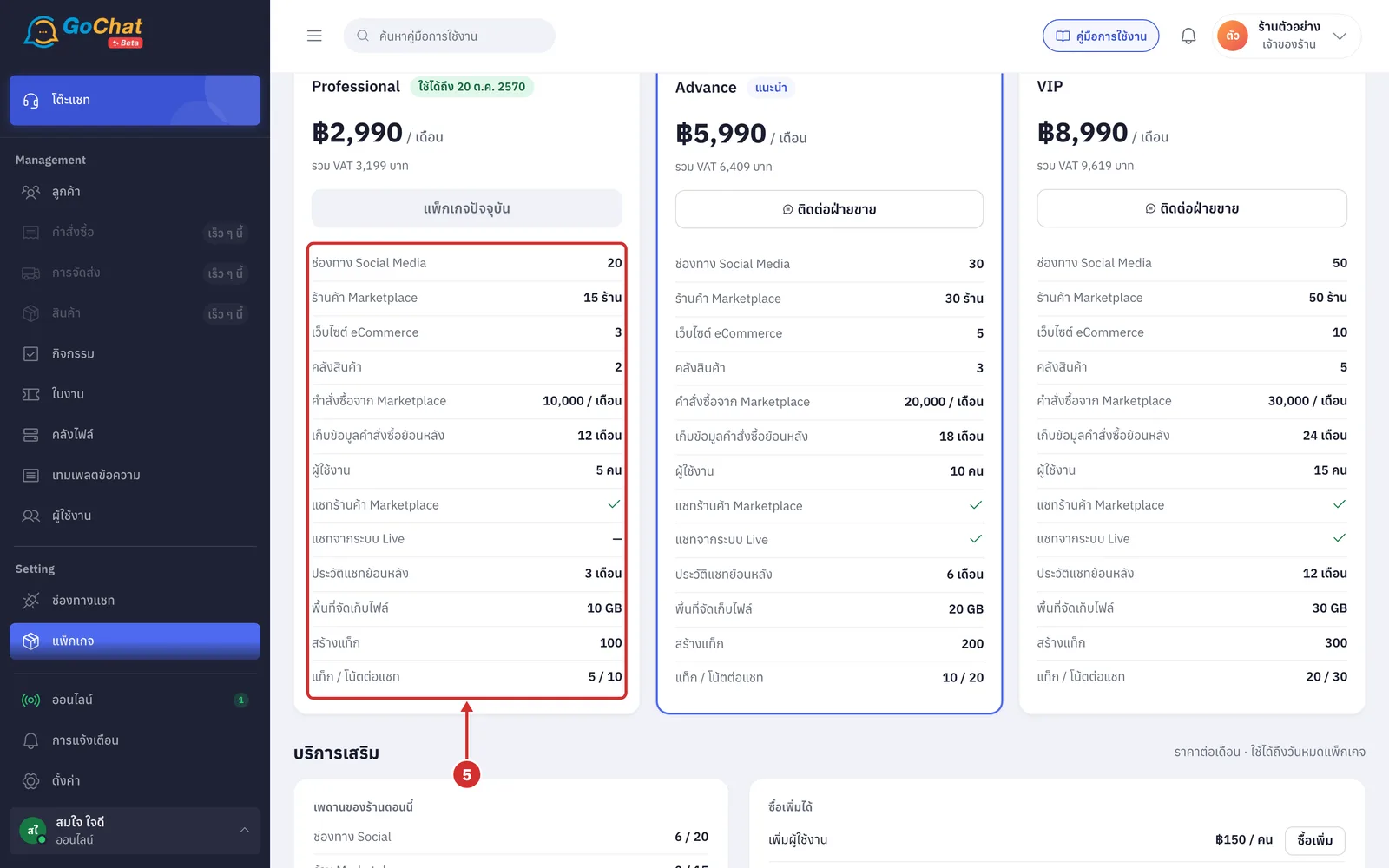
Look at the package cards. There are 3 packages
A Professional
B Advance — labelled แนะนำ (Recommended) with a highlighted border
C VIP
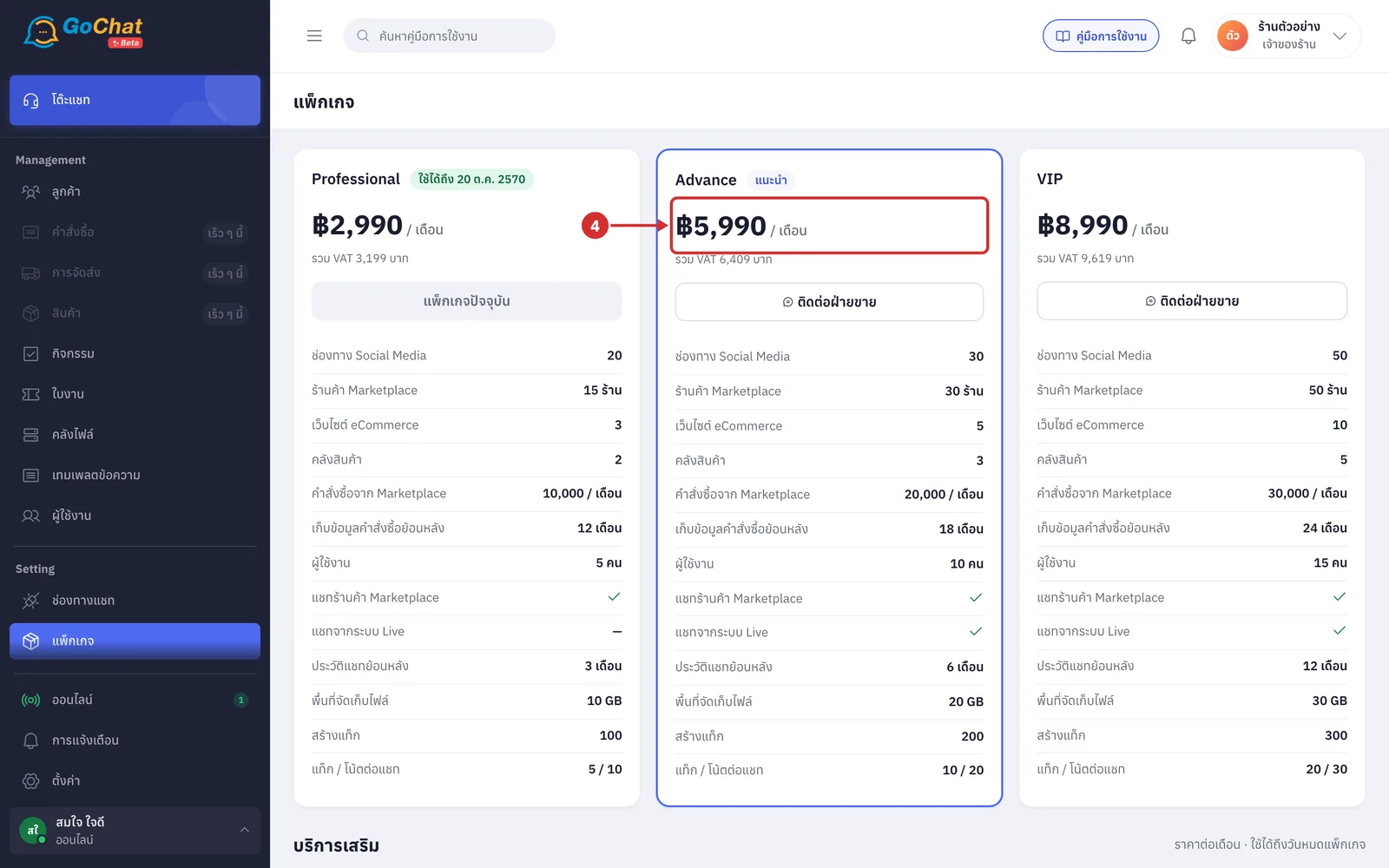
Look at the price under the package name
The large number: the monthly price before VAT
รวม VAT … บาท (… baht incl. VAT): the monthly price including 7% VAT
Look at the list under the price; each row shows what the package allows (a green tick = included · a dash = not included)
ช่องทาง Social Media (Social Media channels) — how many Social channels you can connect to GoChat, such as Facebook Pages, Instagram accounts and LINE OA
ร้านค้า Marketplace (Marketplace shops) — how many Shopee · Lazada · TikTok Shop shops you can connect
เว็บไซต์ eCommerce (eCommerce websites) and คลังสินค้า (Warehouses) — websites and warehouses used with the GoSaaS order and stock system
คำสั่งซื้อจาก Marketplace (Marketplace orders) — Marketplace orders per month
เก็บข้อมูลคำสั่งซื้อย้อนหลัง (Order history) — how long order data is kept for you to look back on
ผู้ใช้งาน (Users) — how many people in your shop can use GoChat, including the shop owner
แชทร้านค้า Marketplace (Marketplace shop chat) — reply to Shopee · Lazada · TikTok Shop customers in GoChat
แชทจากระบบ Live (Live chat) — receive chats from the Live system in GoChat
ประวัติแชทย้อนหลัง (Chat history) — older messages are hidden, not deleted; move to a package that keeps history longer and you see them again
พื้นที่จัดเก็บไฟล์ (File storage) — total storage for your shop's images and files
สร้างแท็ก (Tags) — how many tags you can create for the whole shop
แท็ก / โน้ตต่อแชท (Tags / notes per chat) — how many tags and notes one chat can have
Changing your package
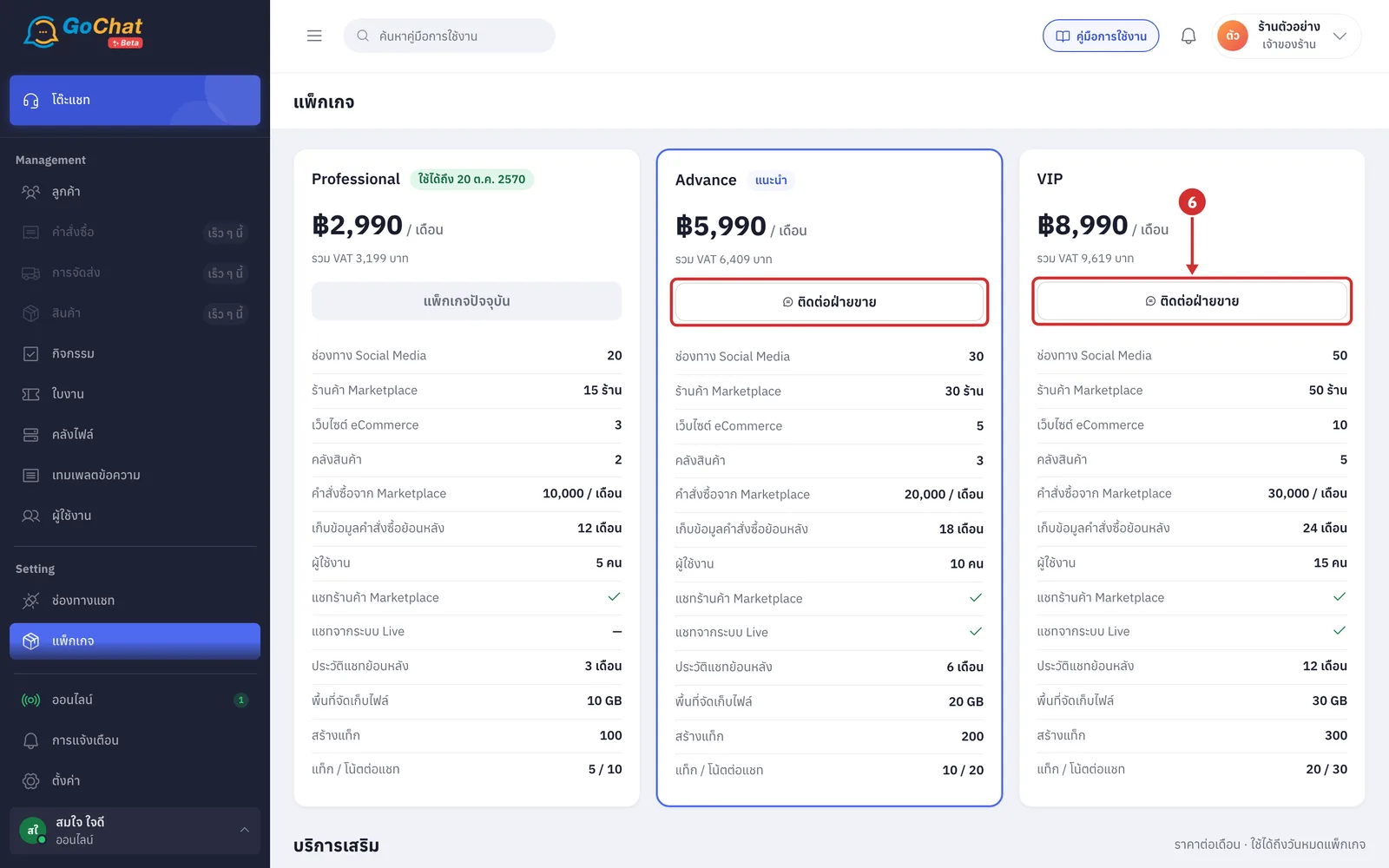
Click ติดต่อฝ่ายขาย (Contact sales) on the card of the package you want. LINE chat with our sales team opens in a new tab with the message สนใจแพ็กเกจ <package name> · ร้าน <shop name> (Interested in package … · shop …); send it and talk to sales about changing package
If paying through GoSaaS is switched on, the button reads อัปเกรดที่ GoSaaS (Upgrade at GoSaaS) for a higher-priced package or เปลี่ยนที่ GoSaaS (Change at GoSaaS), and takes you to pay at GoSaaS in a new tab instead
If paying through GoSaaS is switched on and the package has expired, the button on your current card reads ต่ออายุที่ GoSaaS (Renew at GoSaaS)
Checking your shop's usage
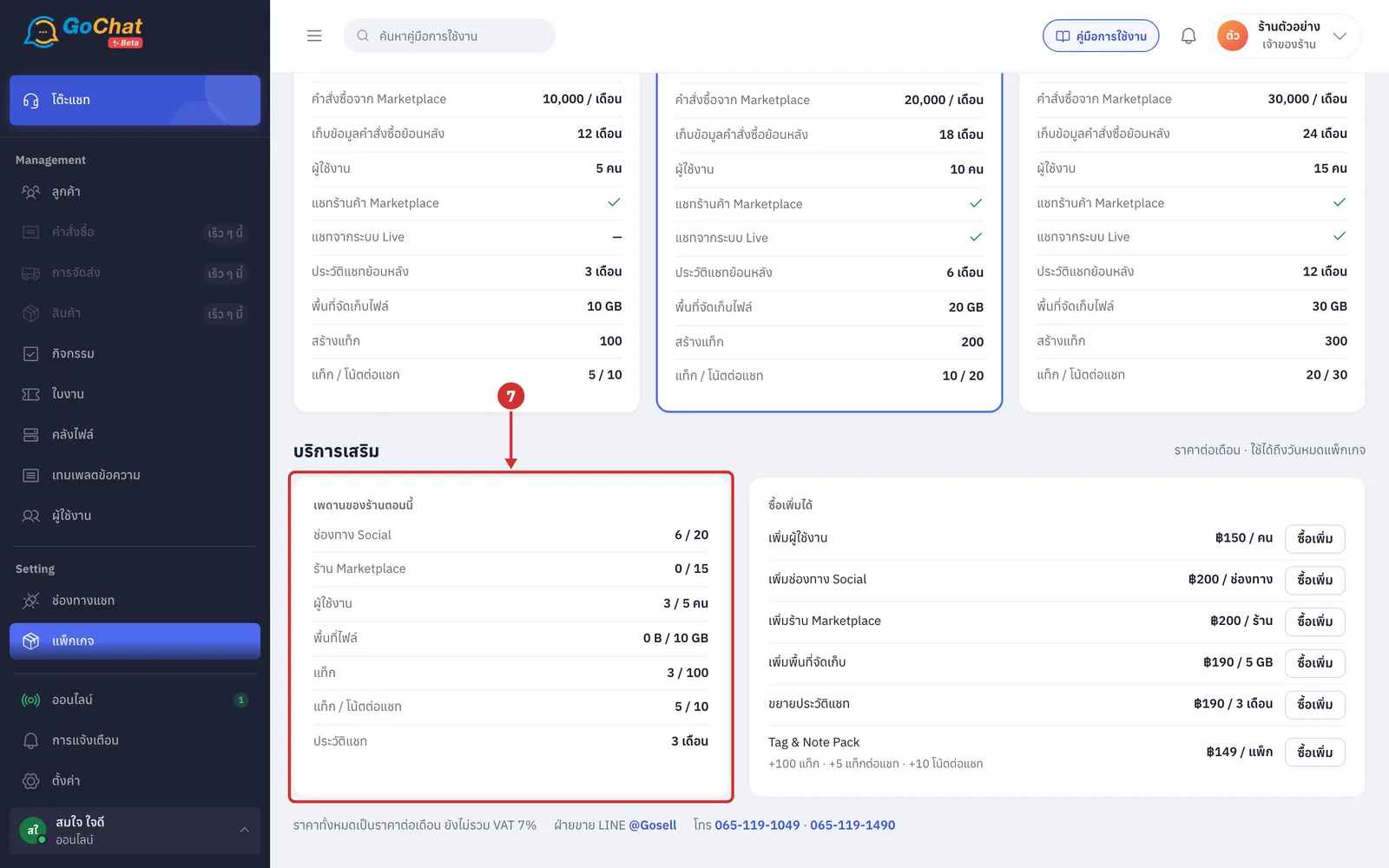
Scroll down to บริการเสริม (Add-ons). The เพดานของร้านตอนนี้ (Your shop's current limits) card shows what your shop uses against its limits, as in use / limit (limits include add-ons that are switched on)
ช่องทาง Social (Social channels) — Social channels connected now, not counting removed ones
ร้าน Marketplace (Marketplace shops) — Shopee · Lazada · TikTok Shop shops connected now
ผู้ใช้งาน (Users) — people who have joined the shop, not counting people added who have never logged in to this shop
พื้นที่ไฟล์ (File storage) — storage used by your shop's images and files
แท็ก (Tags) — tags your shop created, not counting status tags the system creates
แท็ก / โน้ตต่อแชท (Tags / notes per chat) and ประวัติแชท (Chat history) — your shop's limits (only the limit is shown, no usage number)
Good to know: A number over its limit (for example, after an add-on expires) turns red.
If ช่องทาง Social (Social channels) · ร้าน Marketplace (Marketplace shops) or ผู้ใช้งาน (Users) is over, the shop can only open ช่องทางแชท (Chat channels) · ผู้ใช้งาน (Users) and แพ็กเกจ (Package) until you remove the extra or buy more
If แท็ก (Tags) or พื้นที่ไฟล์ (File storage) is over, existing items keep working but you cannot add new ones until usage goes down
When usage is exactly at the limit, you cannot add another of that item
Buying add-ons
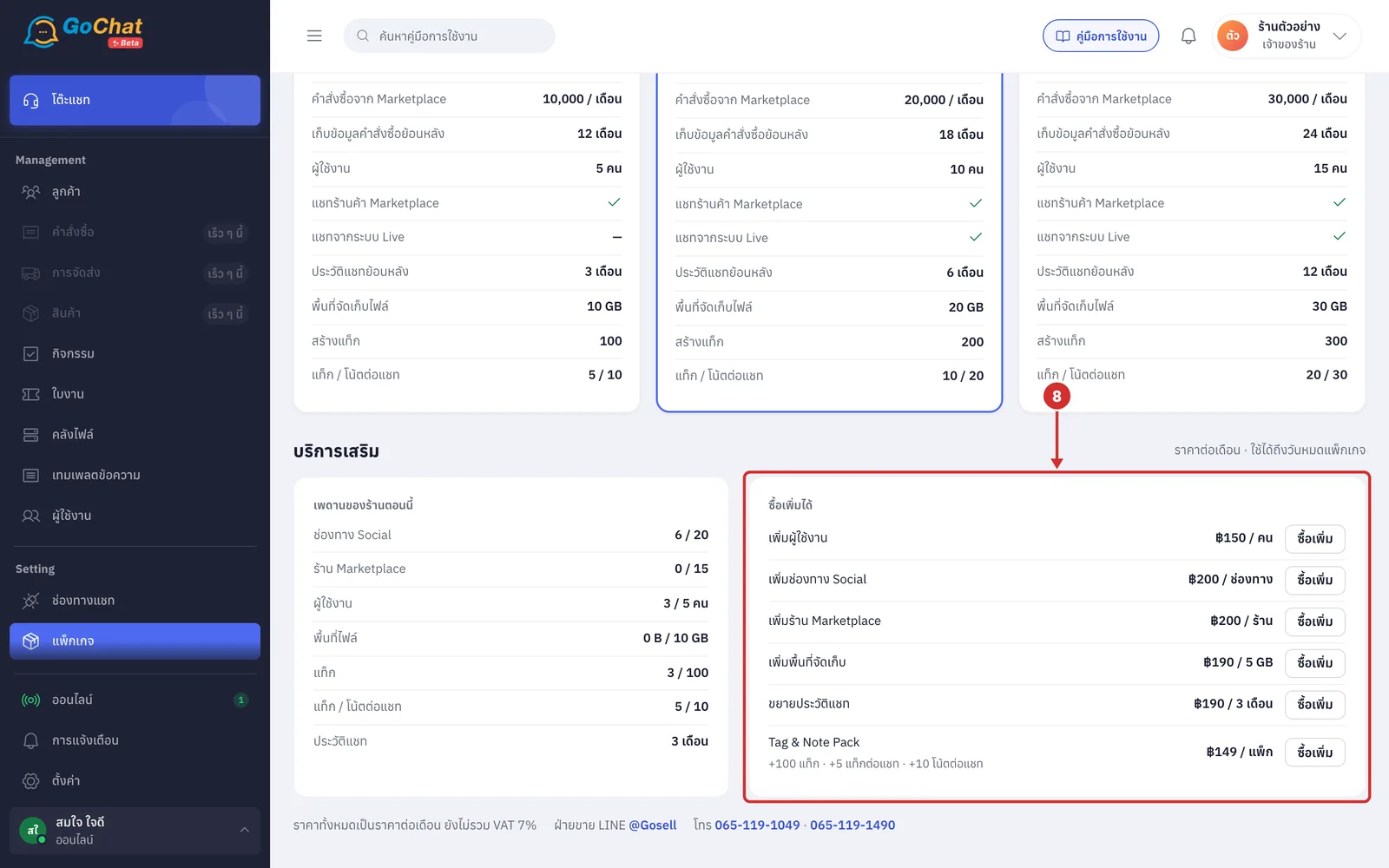
Add-ons raise the limits of your package. Prices are per month, exclude VAT, and last until your package expires. You order through our sales team: send a request from this page, and sales will contact you to confirm and take payment, then switch it on for you.
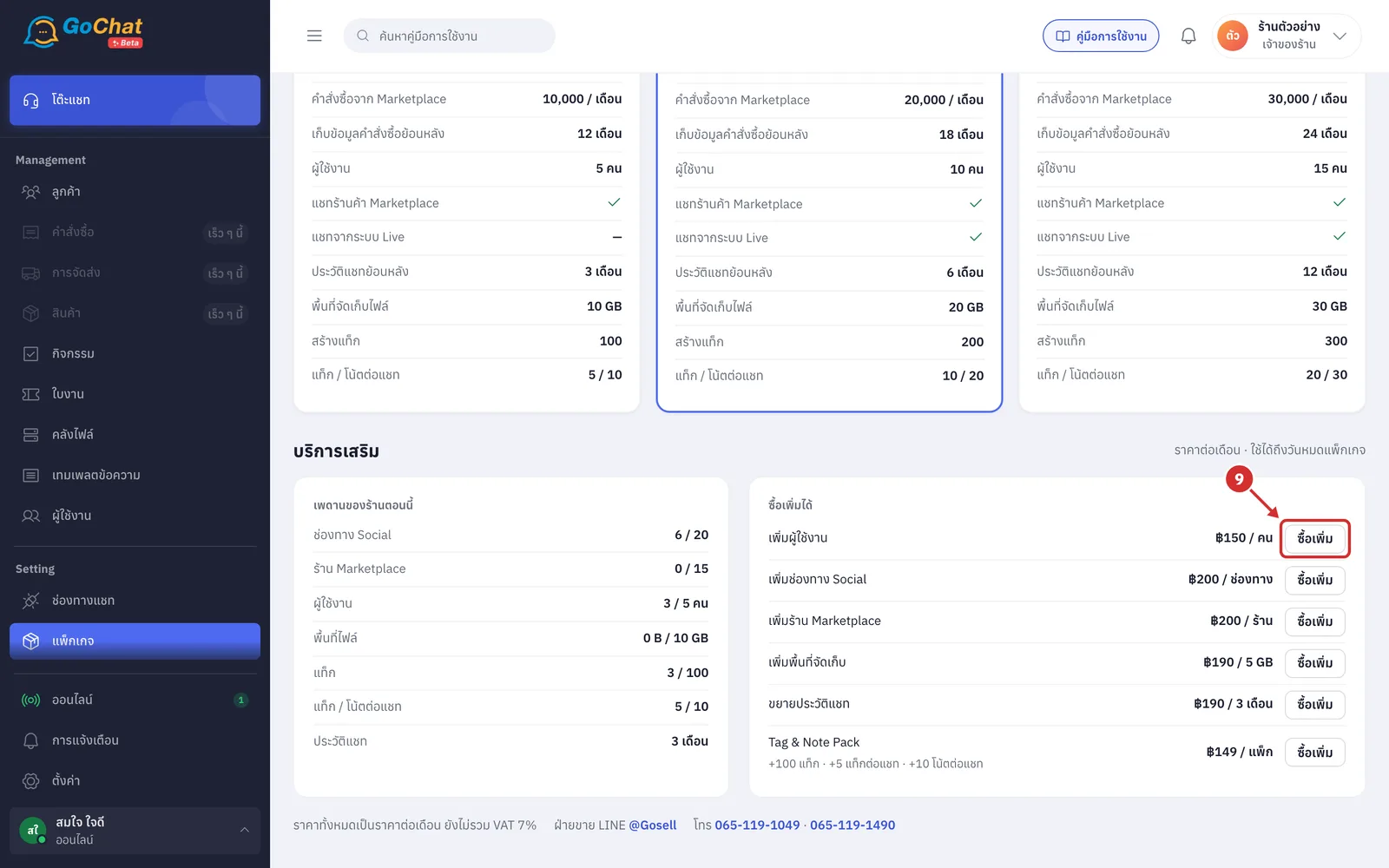
Look at the ซื้อเพิ่มได้ (Available add-ons) card; each row shows its price per unit per month
เพิ่มผู้ใช้งาน (Add users) — 1 more user per unit
เพิ่มช่องทาง Social (Add Social channels) — connect 1 more Social channel per unit
เพิ่มร้าน Marketplace (Add Marketplace shops) — connect 1 more Shopee · Lazada · TikTok Shop shop per unit
เพิ่มพื้นที่จัดเก็บ (Add storage) — 5 GB more file storage per unit
ขยายประวัติแชท (Extend chat history) — 3 more months of chat history per unit
Tag & Note Pack — +100 แท็ก · +5 แท็กต่อแชท · +10 โน้ตต่อแชท (+100 tags · +5 tags per chat · +10 notes per chat) per pack
Click ซื้อเพิ่ม (Buy more) on the add-on you want. The ซื้อเพิ่ม · <add-on name> (Buy more · …) window opens
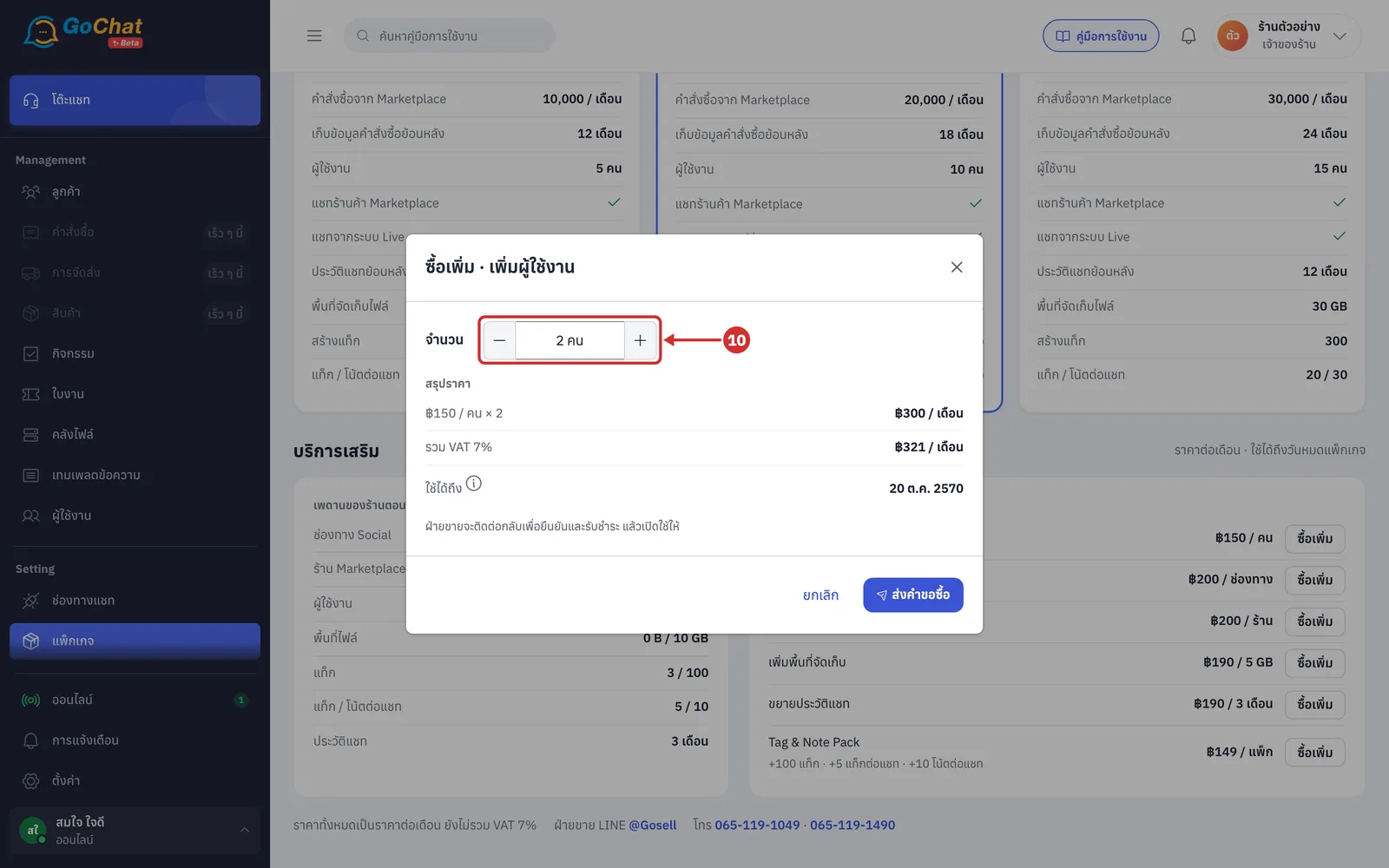
At จำนวน (Quantity), click + to add or − to remove (1–99 units; the box shows the total you get, such as 2 users · 10 GB · 6 months)
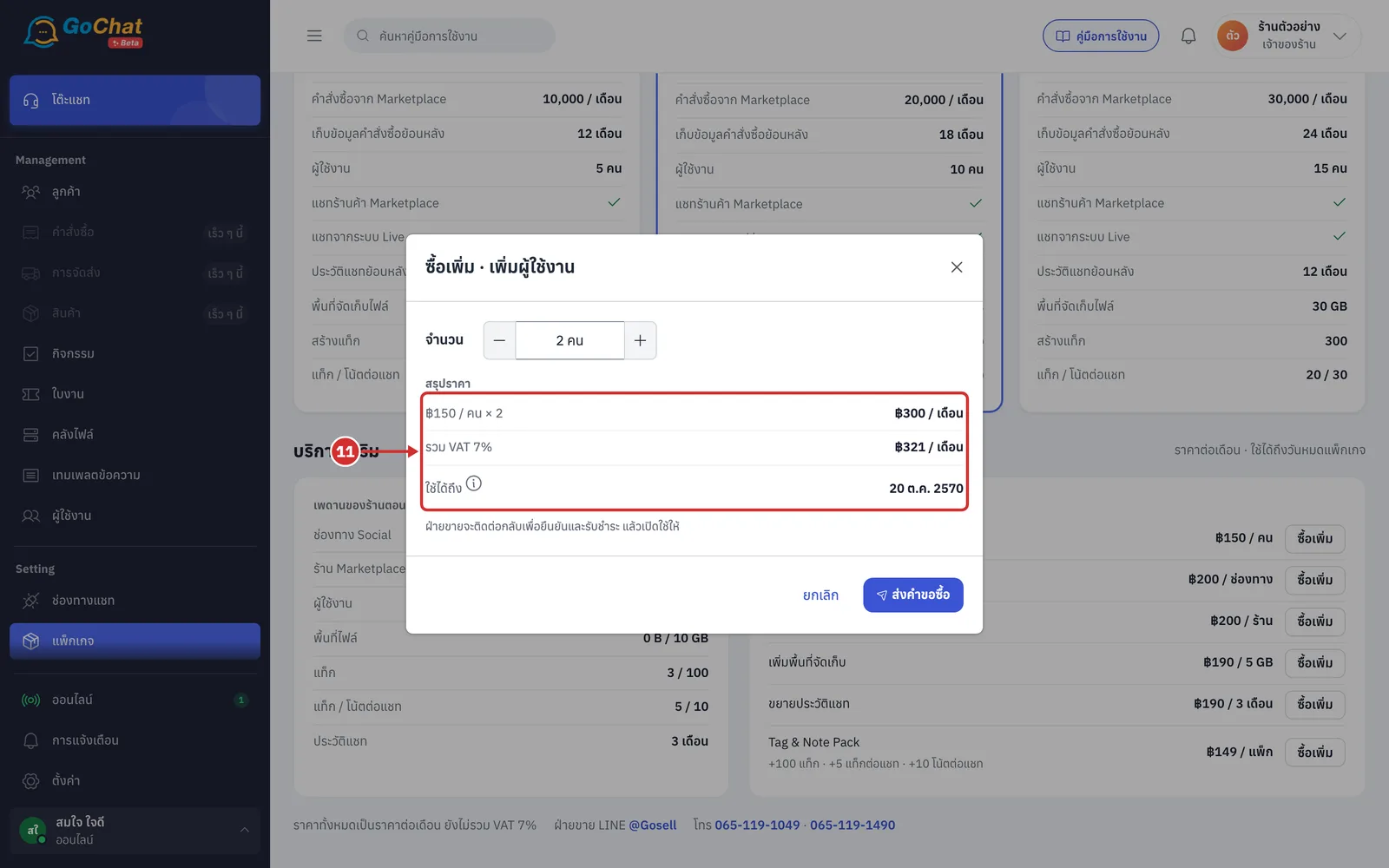
Check the สรุปราคา (Price summary)
Unit price times quantity: the monthly price
รวม VAT 7% (incl. 7% VAT): the monthly price including VAT
ใช้ได้ถึง (Valid until): the add-on ends with your package, and sales charges for the days left (the same text as the (i) button after ใช้ได้ถึง)
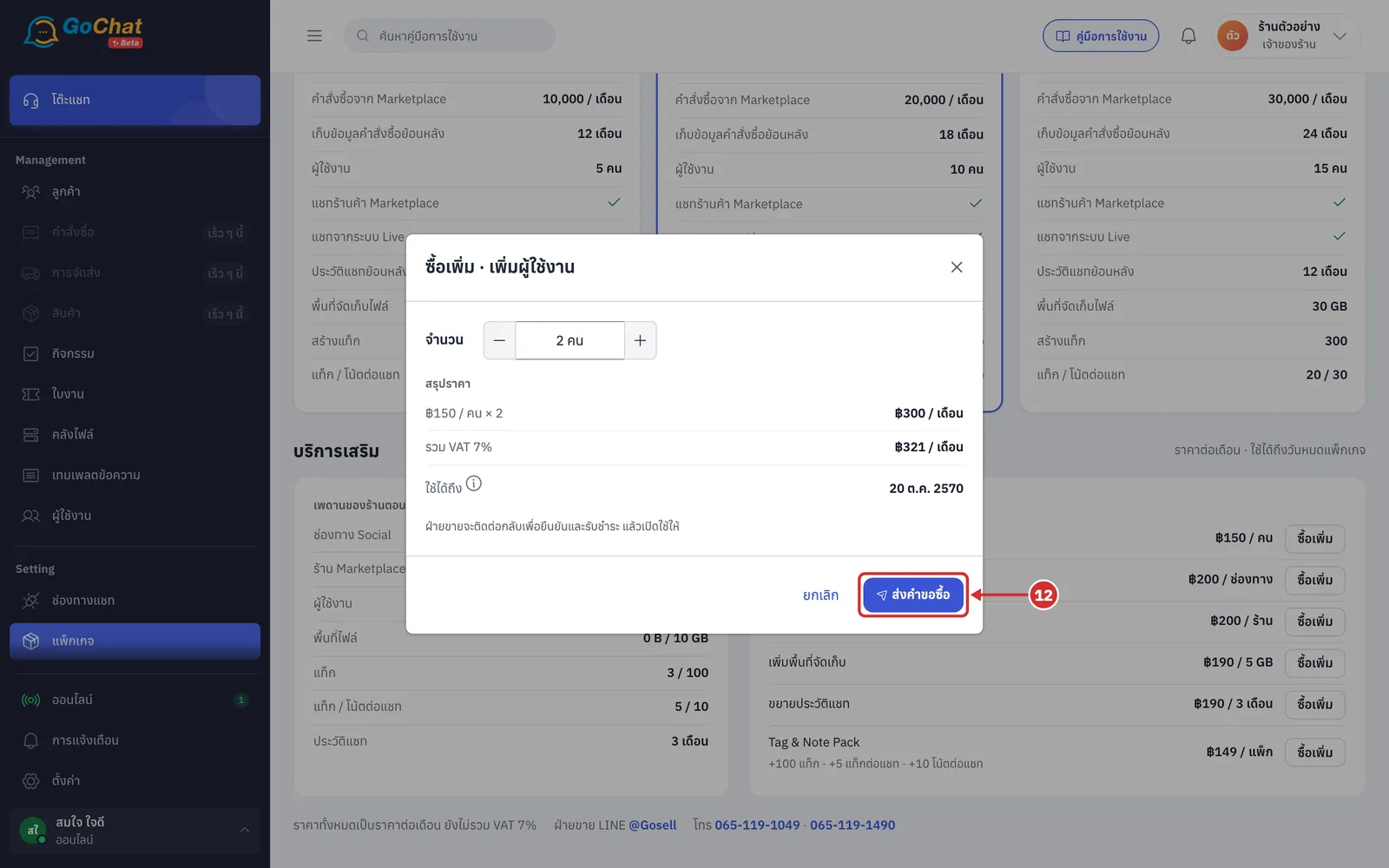
Click ส่งคำขอซื้อ (Send request), or ยกเลิก (Cancel) to close without sending. You see ส่งคำขอ R-… แล้ว ฝ่ายขายจะติดต่อกลับ (Request R-… sent, sales will contact you), and the ซื้อเพิ่ม (Buy more) button of that row becomes the label ส่งคำขอแล้ว · รอฝ่ายขายติดต่อกลับ (Request sent · waiting for sales)
While the request is pending, sending the same item again returns the same request, not a new one
Once sales switches it on, the row shows มีอยู่ … · ถึง … (You have … · until …) and the limit in เพดานของร้านตอนนี้ (Your shop's current limits) goes up straight away
If sending fails, the window shows a red message with the reason
Contacting our sales team
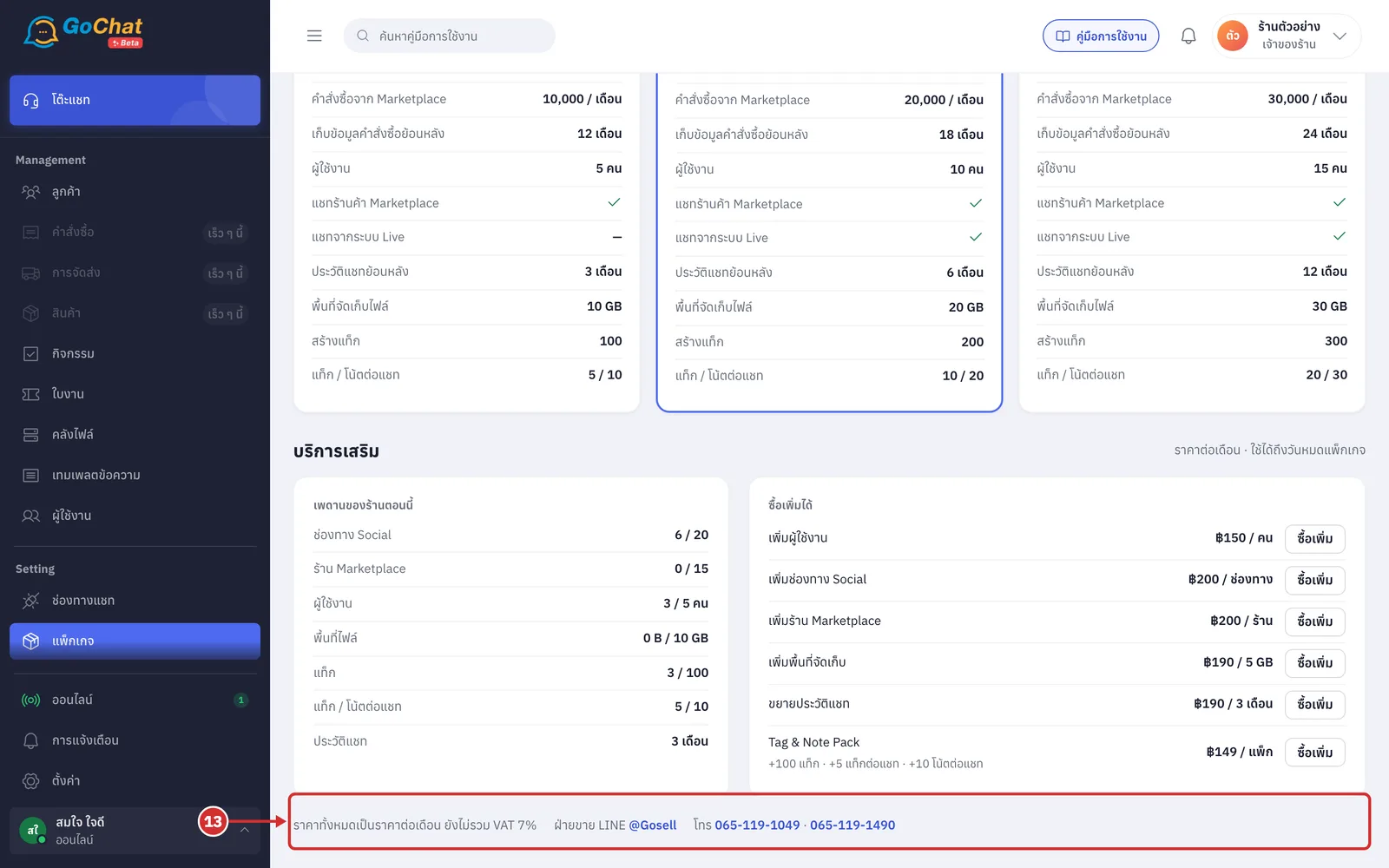
If you have questions about packages, use the contacts at the bottom of the page
Click the link after ฝ่ายขาย LINE (Sales LINE) to open LINE chat with sales with the message สนใจแพ็กเกจ ทั่วไป · ร้าน <shop name> (Interested in package General · shop …)
Click a number after โทร (Call) to phone sales (there is more than one number; any of them works)
Packages for shops opened in GoChat
Shops opened in GoChat itself (log in with Facebook, then create a shop) use the Starter package and start a ทดลองใช้ (Trial) as soon as the shop is created. During the trial there are no usage limits. The trial is once per account: if your account has already had a trial, the next shop you create does not get one.
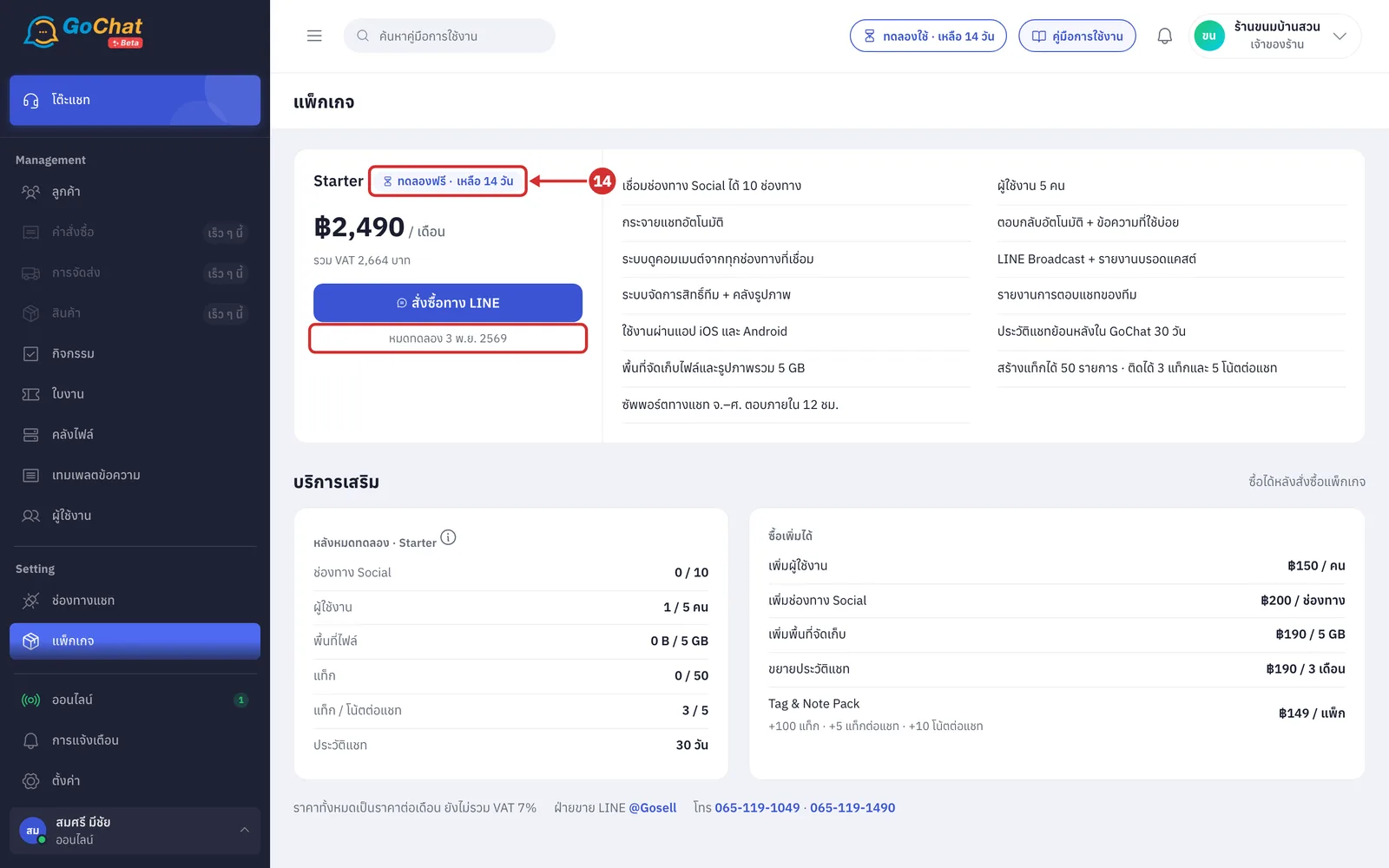
Look at the Starter card. The ทดลองฟรี · เหลือ N วัน (Free trial · N days left) label next to the package name shows the trial days left
On the last day the label counts hours and minutes, such as เหลือ 5 ชม. 42 นาที (5 h 42 min left)
The หมดทดลอง … (Trial ends …) line under the button is the last day of the trial
The top bar of every page also shows a ทดลองใช้ · เหลือ N วัน (Trial · N days left) label; click it to come to this page
When the trial ends, every page in the app shows an expiry notice and only the แพ็กเกจ (Package) page opens until you buy a package. Your shop's data is kept, and customer messages still arrive until the grace period passes
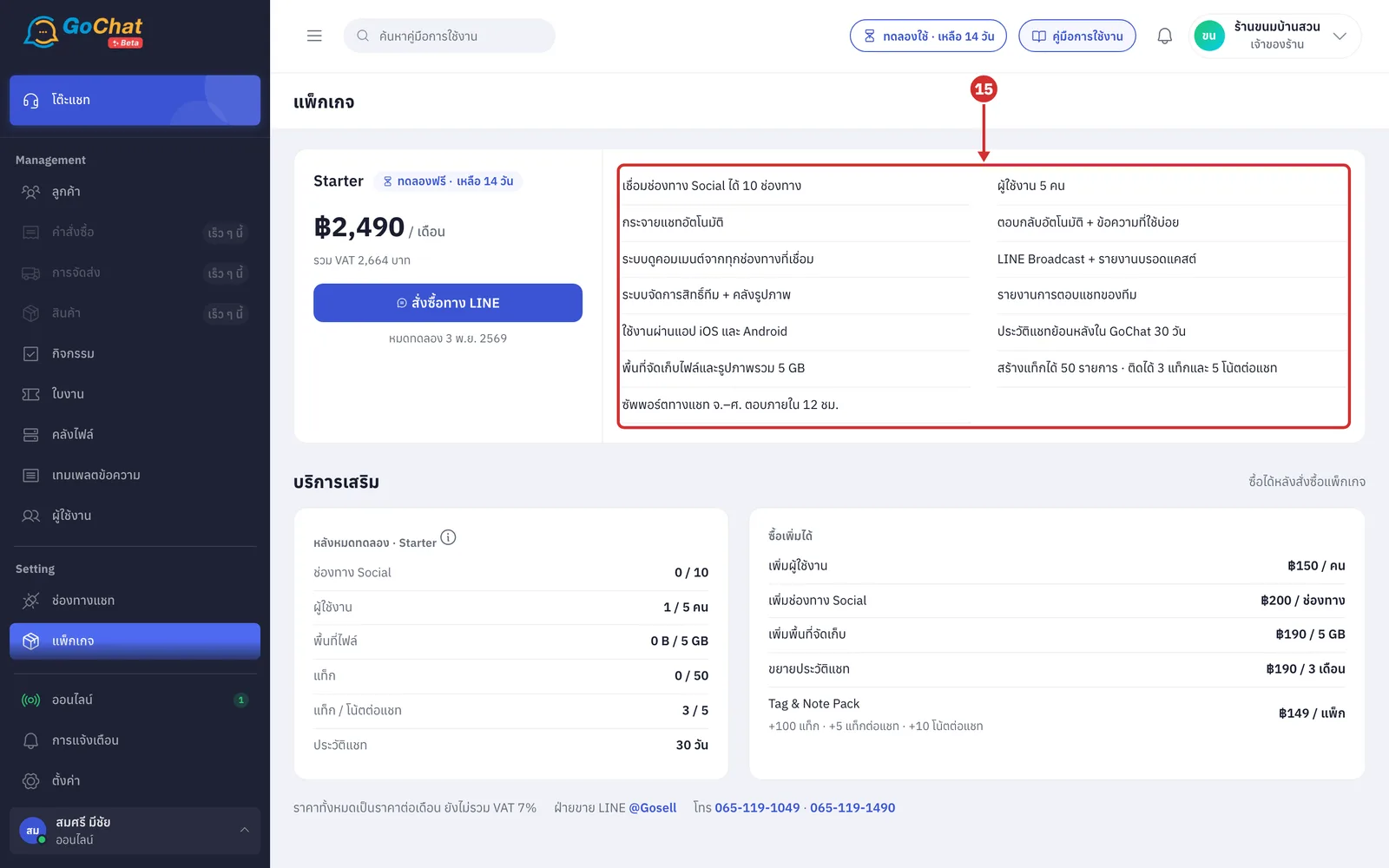
Look at the list on the right of the card: what the Starter package includes, such as the number of Social channels, users, file storage, chat history and support hours
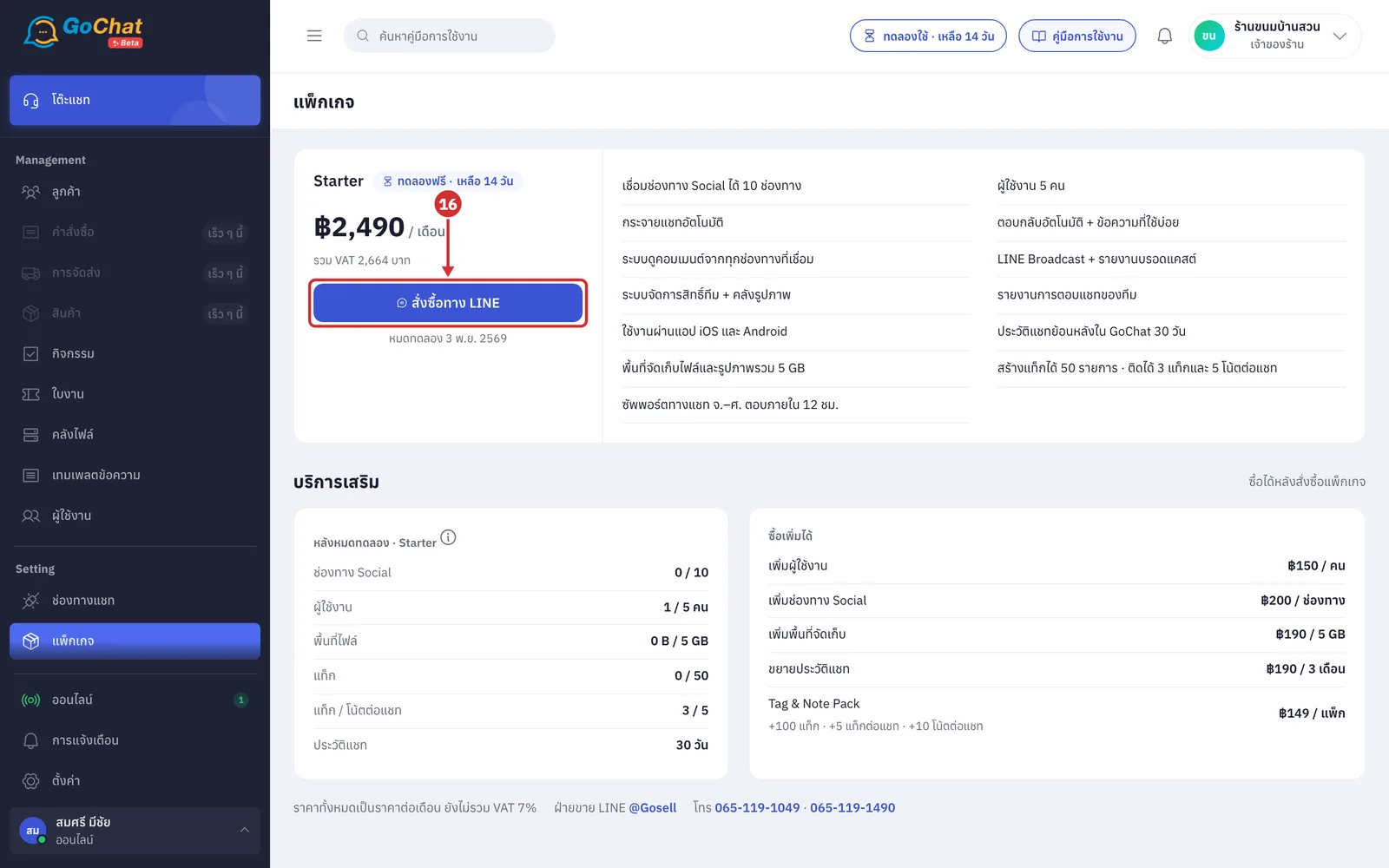
Click สั่งซื้อทาง LINE (Order via LINE). LINE chat with our sales team opens in a new tab with the message สนใจแพ็กเกจ Starter · ร้าน <shop name> (Interested in package Starter · shop …); send it and talk to sales about buying
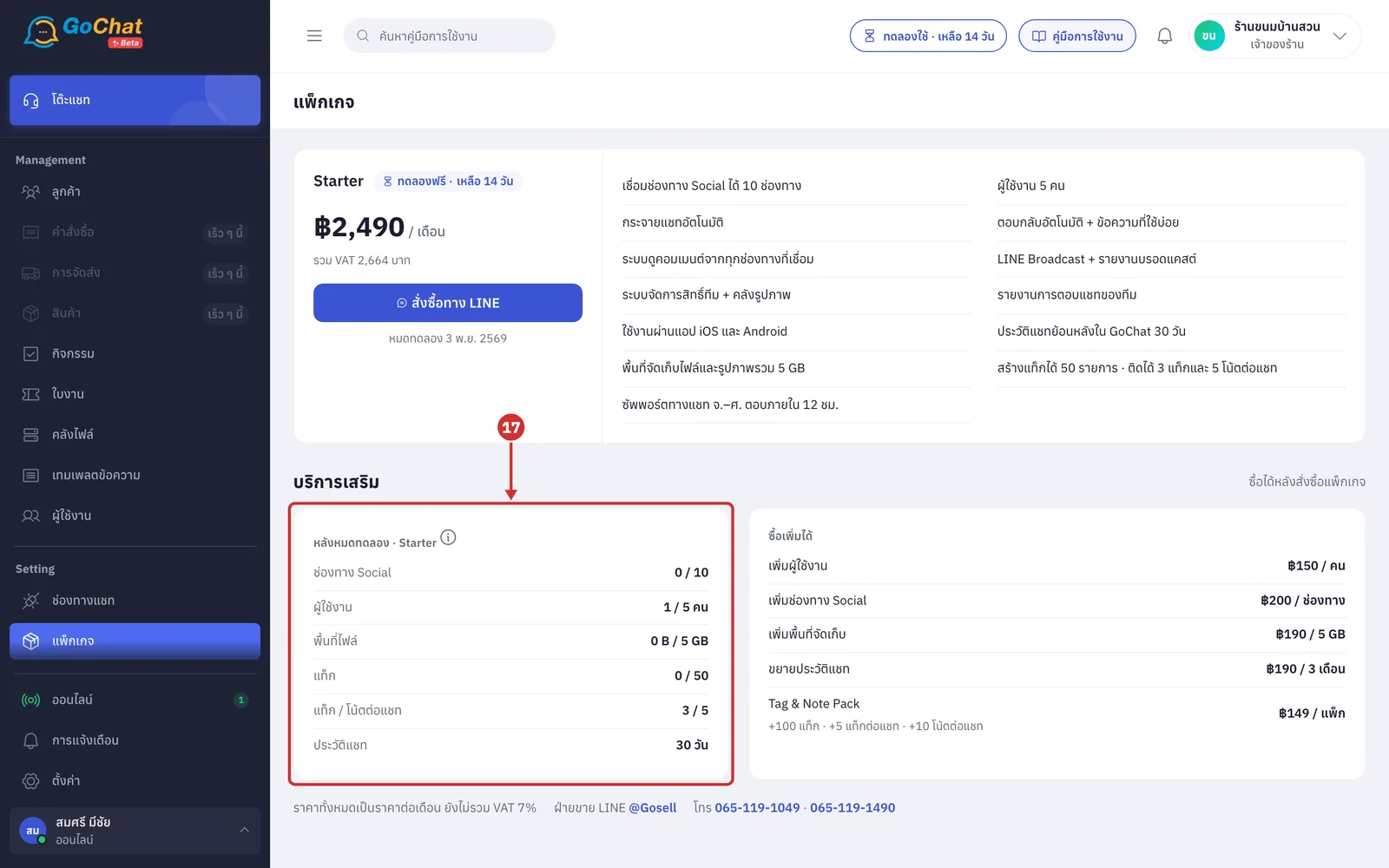
Scroll down to บริการเสริม (Add-ons). The หลังหมดทดลอง · Starter (After the trial · Starter) card compares what your shop uses with the Starter limits that apply after the trial. Items in red must be removed or bought before the trial ends (the same text as the (i) button on the card heading)
The ร้าน Marketplace (Marketplace shops) row only shows if your shop still has Shopee · Lazada · TikTok Shop shops connected. Starter does not support Marketplace shops, so remove them before the trial ends
Add-ons can be bought after you buy a package (the ซื้อได้หลังสั่งซื้อแพ็กเกจ (Available after you buy a package) text at บริการเสริม (Add-ons))
About the Package page
Users who are not the เจ้าของร้าน (Shop owner) see the label ดูอย่างเดียว — เจ้าของร้านเป็นผู้สั่งซื้อ (View only — the shop owner places orders) next to the แพ็กเกจ (Package) heading; the package cards have no buttons, and there are no ซื้อเพิ่ม (Buy more) buttons
Once a shop has bought Starter, its card shows a ใช้ได้ถึง … (Valid until …) label and the แพ็กเกจปัจจุบัน (Current package) button. To renew, contact sales at the bottom of the page
Shops opened in GoChat do not see the Professional · Advance · VIP packages, because those packages work with the GoSaaS order and stock system